This quick start guide provides, basic installation information, drawings, first time power-on instructions, and short descriptions of key terms and concepts for installing controllers. These instructions apply to the PXL-500, PXL-510 and Time and Attendance Terminals. For information regarding the use of the PXL-510 controller in connection with the NetworX1 NX-8E Alarm Panel, please refer to the NetworX NX-8E Alarm Panel Application Note (P/N 01919-001). For information regarding a Time and Attendance Terminal, please refer to the Time and Attendance Terminal Application Note (P/N 01943-001).
NOTE: It is the responsibility of the installation organization to have only technically qualified personnel performing the installation.
NOTE: All references to the PXL-500 may be applied to the Time and Attendance Terminal.
Page 2 of 24 P/N: 01918-001 Rev. B
1.0
Specifications
Unit Dimensions
• PXL-500/PXL-510 controller PCB
- 6.75 inches high by 6.00 inches wide by 1.75 inches deep, including wiring connectors - (17.15 cm by 15.25 cm by 4.45 cm)
• PXL-500/PXL-510 controller PCB with an LCD-1 Alpha/Numeric Display
- 7.70 inches high by 6.00 inches wide by 1.75 inches deep, including wiring connectors - (19.60 cm by 15.25 cm by 4.45 cm)
• PXL-500/PXL-510 controller PCB with an SB-593 Satellite Board (with or without an LCD-1 Alpha/Numeric Display)
- 7.25 inches high by 6.00 inches wide by 1.75 inches deep, including wiring connectors - (18.45 cm by 15.25 cm by 4.45 cm)
• Enclosure
- 13 inches high by 9 inches wide by 4 inches deep - (33.02 cm by 22.86 cm by 10.16 cm)
Operating Temperature/Humidity Range
• 0°F to 140°F (-18°C to 60°C)
• 0% to 90% Relative Humidity, non-condensing
Controller Power Requirements
• 12 VDC @ 1 A
Current Draw
• maximum current draw 270 mA for a controller plus reader current draw (refer to Table 1 for Reader current draw) • 120 mA max for a PXL-500/PXL-510 Controller
• 150 mA max for an SB-593 Satellite Board
NOTE: If an electronic locking device (such as a magnetic lock, a door strike, or similar device) is to be driven by the same power supply as the PXL-500/PXL-510 controller, please ensure the power supply provides enough current to drive every device connected to that supply plus an adequate safety margin. AC power is not recommended.
Controller Memory Retention
• 5 year lithium battery back up to support controller RAM and real-time clock
Output Relay Contact Rating
• 1 Amp @ 24 VDC
Input Device Configuration - 3 Inputs
• Door Sense normally closed • Request to Exit normally open • Global Unlock normally open,
or Auxiliary RTE A-Door normally open
Table 1: Reader Current Draw
Reader Type
MS-3000 MS-4000 MS-5000 MS-7000
2.0
Cable Requirements
RS-232 Serial Cable• four conductor, shielded, stranded, AWG 24 wire (Belden 9534 or a larger gauge)
• 50 feet maximum length (per RS-232 industry specification - greater lengths are not recommended)
RS-485 Network Cable
• two conductor, shielded, twisted pair, stranded, AWG 24 wire (Belden 9501 or a larger gauge) • 16,000 feet total network length
• refer to the Network Wiring Application Note (P/N 01824-002) for specific network wiring information
NOTE: When wiring the RS-485 terminal block connector, be sure to use the smallest connector provided. TB1 is smaller than the other terminal blocks and will only accept the smallest terminal block connector provided.
Input Power
• two conductor, stranded, AWG 18 wire (Belden 8461 or a larger gauge) • 200 foot maximum length for systems using an SB-293 with two readers
NOTE: On long power cable runs, the cable resistance causes a drop in voltage at the end of the cable run. Be sure your power supply does provide 12 VDC at the end of the cable run.
Earth Ground
• Single conductor, AWG 18 wire (or a larger gauge)1
Keri Systems Proximity Readers
• six conductor, shielded, stranded, AWG 24 wire (Belden 9536 or a larger gauge)
• four conductor, shielded, stranded, AWG 24 wire (Belden 9534 or a larger gauge) for the MS-4000 only (there is no beeper or LED in the MS-4000)
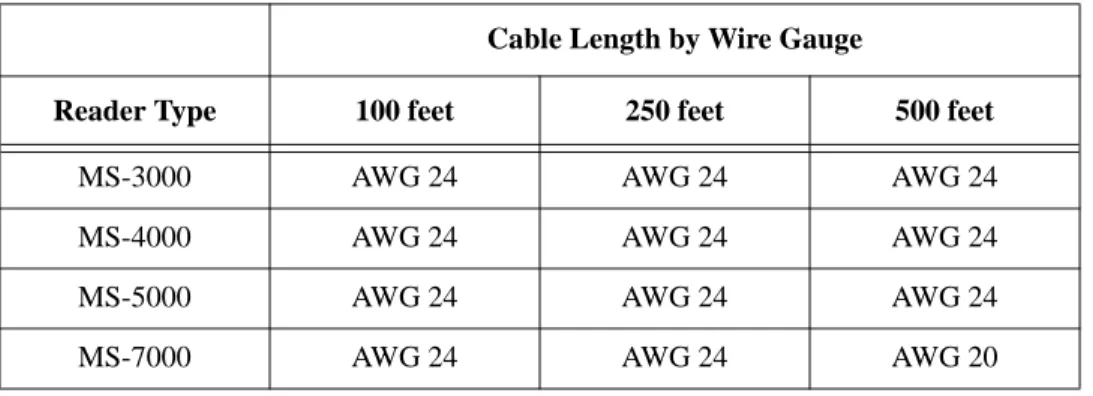
• see Table 2 for maximum cable lengths
Table 2: Maximum Cable Lengths by Wire Gauge for Proximity Readers Cable Length by Wire Gauge
Reader Type 100 feet 250 feet 500 feet
MS-3000 AWG 24 AWG 24 AWG 24
MS-4000 AWG 24 AWG 24 AWG 24
MS-5000 AWG 24 AWG 24 AWG 24
Page 4 of 24 P/N: 01918-001 Rev. B Wiegand Compatible Readers
• four to seven conductor, shielded, stranded, wire – depending upon the Wiegand reader’s requirements • a minimum gauge of AWG 24 is required for data transfer with a 500-foot maximum run length per Wiegand
specification1
Input and Output Connections
• two conductor, stranded, AWG 22 (or a larger gauge)
NOTE: The Lock Output relay may require a heavier gauge of wire depending upon the current demands of the lock and the length of the lock wiring run.
NOTE: If plenum cable is required, please reference the Belden plenum equivalent to the cables listed above.
3.0
When Installing Controllers
DO
• plan ahead to meet power and any telephone requirements2 for your system (1 phone line for the modem connected to the host computer and one for each master PXL-500/PXL-510 in each network)
• mount controllers in environmentally suitable areas - they require protection from weather and from temperature/ humidity extremes
• if not using a KPS power supply, mount the controller at least 3 feet away from the controller's power supply to prevent EMI radiated from the power supply from affecting the controller
• use the enclosure as a mounting template to mark drilling holes for permanent mounting • consider mounting requirements - central versus distributed
- central mounting places all controllers in one location, running lengths of cables out to each door to support readers, inputs and outputs
- distributed mounting places each controller near the door it supports running short lengths of cable out to each door, but running a long network communication cable
• note the locations of the knockouts in the enclosures and remove the appropriate knockout for the easiest cable routing into the controller
• route all controllers in a network in a single, continuous daisy-chain • route cables in accessible areas for ease of maintenance
• connect all controllers to a quality earth ground3
• add transient suppression across electric devices attached to a controller output
• use an isolation relay (P/N IRP-1, or equivalent) if attaching to an elevator, a parking gate, a turnstile, or any application using a large electric motor
• verify the controller's supply voltage is 12 VDC – long power line runs cause a drop in voltage at the end of the run • verify proper operation of the host computer's COM port
• for a single door application, install the reader to the TB-5, "A" reader connection
• attach the reader to be used for card enrollment to the master controller (this reader can be used for access control as well as enrollment, but during the enrollment process the door associated with the enrollment reader will not allow access until the enrollment process is complete)
1. The wire gauge to use should be determined by the current draw requirements of the Wiegand device and the actual length of the cable run. A +5 VDC and a +12 VDC Wiegand device must have a full +5 VDC or +12 VDC at the device (long cable runs have a voltage drop across the length of the run due to the resistance in the cable). To ensure proper voltage is available at the device a larger gauge of wire (having less resistance) or a power sup-ply at the Wiegand device may be required.
2. Phone lines are only needed for remote communication between host computer and network using a modem. 3. Ground wire is green with or without yellow tracer.
DO NOT
• make modem phone line connections through PBX telephone switching systems - most modems are not compatible with PBX systems leading to disconnection problems with the modem
• locate the PXL-500/PXL-510 controller near EMI sources - EMI sources can affect the performance of the controller • use switching power supplies - they are EMI sources
• route network and reader cables beside power cables - transients on the power cables may be picked-up by network and reader cables
• stretch or over-tension cables • route over sharp objects • let the wires get tangled
• mix PXL-500s/PXL-510s with PXL-100s in the same network
• use a PXL-250 as the master on a network with PXL-500s/PXL-510s. The PXL-500/PXL-510 should always be the master controller.
• route controllers in a network in a loop configuration
• connect earth ground1 to the network cable shield - the PXL-500/PXL-510 automatically connects earth ground to the shield at one point on the network to prevent ground loops
• use gender changer plugs when making RS-232 serial communication connections (unless you know it is a “straight-through” plug) - gender changers may have internal wiring changes that can disrupt communications
Page 6 of 24 P/N: 01918-001 Rev. B
4.0
Wiring Instructions
Refer to Figure 1 on page 1 for all wiring connections.
4.1
Terminal Blocks
Figure 2: Connecting Wires and Removing Terminal Blocks NOTE: Screws on terminal blocks must be tightened securely.
4.2
Connecting the Earth Ground and the 12 VDC Power
Figure 3: Earth Ground and 12 VDC Power Connections
4.3
Connecting a Keri Systems Proximity Reader to a PXL-500P/PXL-510P
NOTE: Time and Attendace Terminals ordered with a reader installed come pre-wired.• The "A" reader is wired to TB5. • The "B" reader is wired to TB6.
Figure 4: Proximity Reader Connections
4.4
Connecting a Wiegand Compatible Reader to a PXL-500W/PXL-510W
The PXL-500W/PXL-510W controller can be configured to accept input from single-line LED, dual-line LED, and Essex keypad Wiegand input devices (through the Doors™ software).
NOTE: The Wiegand Reader must transfer data according to the Security Industry Association's Wiegand Reader Interface Standard (document number AC-01D-96). Keri Systems, Inc. cannot guarantee the performance or reliability of Wiegand Readers that do not meet these data transfer guidelines.
NOTE: All Keri Systems proximity readers use 12 VDC power while some Wiegand compatible readers use 5 VDC power. Check your reader's power requirements and verify jumper JP5 is set correctly per the Verify the Wiegand Reader Supply Voltage section on page 19.
NOTE: The wire colors called out in Figures 5 and 6 are industry standard wire colors. However, some manufacturers may not follow these industry standard designations. Before installation, please refer to the Wiegand device’s manual to see if the device’s wire colors follow the industry standard. If not, then match the wire’s purpose to the call outs in Figures 5 and 6 before installation.
Page 8 of 24 P/N: 01918-001 Rev. B Make the following connections for a single-line LED or Essex Keypad Wiegand device.
• The "A" input device is wired to TB5. • The "B" input device is wired to TB6.
Figure 5: Single-Line LED and Essex Keypad Wiegand Reader Connections Make the following connections for a dual-line LED Wiegand device.
• The "A" input device is wired to TB5. • The "B" input device is wired to TB6.
4.5
Connecting a Door Status Input
Each PXL-500/PXL-510 is shipped with an installation kit including all necessary terminal blocks and transorbs. One of these terminal blocks has a jumper across pins 1 and 2. This terminal block is designated for use on TB-4. If a door switch is not used on the controller, this jumper prevents a continuous door open status alarm from being received by the controller. If a door switch is used, simply remove this jumper and install the door switch leads.
Figure 7: Door Status Input Connections
NOTE: A Door Switch must be installed on any door to which anti-passback is being applied for proper tracking of the anti-passback feature in the Doors program.
4.6
Connecting a Request to Exit (RTE) Input
Page 10 of 24 P/N: 01918-001 Rev. B
4.7
Connecting a General Purpose Input
The general-purpose input is used in conjunction with the programmable input/output feature of the Doors access control software. There are three possible uses for the general-purpose input.
• the master controller may be figured for either Global Unlock (see figure 9) or Auxiliary A-door RTE (see figure 10) • the slave unit may be figured for Auxiliary A-door RTE (see Figure 10)
Make the following connections for a Global Unlock input.
Figure 9: Global Unlock Input Connections
Make the following connections for an Auxiliary A-door RTE input.
4.8
Connecting an Alarm Output Relay
Figure 11: Alarm Output Relay Connections
4.9
Connecting a Fail-Safe Lock Output Relay
Figure 12: Fail-Safe Lock Output Relay Connections
4.10
Connecting a Fail-Secure Lock Output Relay
Page 12 of 24 P/N: 01918-001 Rev. B
4.11
RS-485 Access Control Network Connection
4.12
Communication Between the Access Control Network and Host Computer
Communication between the access control network and the host computer may be made via one of three ways.
• A direct connect cable between master controller and host computer via the RS-232 serial port (see Section 4.12.1). • Two modems making a remote connection between the master controller and host computer via the RS-232 serial
port (see Section 4.12.2 on page 15 and Section 4.12.3 on page 16).
• Use of a LAN-50 or LAN-500 Universal Device Server to provide LAN/WAN Ethernet connectivity between Doors
and one or more PXL networks. The LAN-50 makes use of the RS-232 serial port while the LAN-500 uses TB13 (see Figure 1 on page 1). For information on using a LAN-50 or LAN-500 Universal Device Server refer to the LAN-50/ LAN-500 Ethernet Communication Application Note (P/N 01881-003).
NOTE: When using a LAN-500 for ethernet communication, the jumpers across JP6 and JP7 must be removed for communication. For all other forms of communication, including use of a LAN-50, the jumpers must be placed across JP6 and JP7.
NOTE: Do not use male/female gender changer plugs or 25-pin to 9-pin adapters when making RS-232 serial port connections. These devices may have internal wiring changes that can disrupt communications when implemented in conjunction with the Keri Systems serial wiring instructions. If you must use a gender changer plug, ensure it is a “straight-through” plug.
NOTE: Keri Systems requires using modems from the same manufacturer at both the host computer and the access control network. This eliminates the possibility of incompatibilities between modems from two different manufacturers from affecting the communication between access control network and host computer. Keri Systems cannot be held responsible for problems caused by incompatibilities between modems from two different manufacturers.
NOTE: When using 56K modems to communicate with remote access control networks, all modems must use the same communication format - either X2 or Flex. Incompatibilities between the two formats make some modems of one format incapable of reliable communication with modems of the competing format. Modems using the V.90 specification are compatible regardless of whether they are from an X2 or Flex manufacturer.
Page 14 of 24 P/N: 01918-001 Rev. B
4.12.1
Direct Serial Connection – Controller to PC
• If the host computer has a male DB-9 connector on the serial port, you must use a Keri Systems KDP-552 cable or create a cable according to the drawing in Section 4.12.1.1 on page 14.
4.12.1.1 PC/DB-9F to PXL/TB-12 RS-232 Direct Serial Connection
The Keri Systems part number for this cable is KDP-252. To use the KDP-252, cut off one end of the cable and wire it to the TB-12 connector as shown in Figure 15.
4.12.2
Modem to Controller
To make the connection between access control network and host computer you will use two cables: one between the host computer and its modem (see Section 4.12.3 on page 16), and one between the master controller and its modem.
• If the modem has a female DB-25 connector, you must use a Keri Systems KDP-336 cable or create a cable according to the drawing in Section 4.12.2.1.
• If the modem has a female DB-9 connector, you must create a cable according to the drawing in Section 4.12.2.2 on page 15.
4.12.2.1 Modem/DB-25M to PXL/TB-12 Serial Port Connection
The Keri Systems part number for this cable is KDP-336. To use the KDP-336, cut off one end of the cable and wire it to the TB-12 connector as shown in Figure 16.
Figure 16: Modem/DB-25M to PXL/TB-12 Serial Port Connections 4.12.2.2 Modem/DB-9M to PXL/TB-12 Serial Port Connection
The Keri Systems part number for this cable is KDP-929M. To use the KDP-929M, cut off one end of the cable and wire it to the TB-12 connector as shown in Figure 17.
Page 16 of 24 P/N: 01918-001 Rev. B
4.12.3
Modem to PC Serial Connection
Keri Systems does not provide this cable. It is an off-the-shelf item from any computer supplier or electronics store, and its configuration is dependent upon the configuration of the serial port on the host computer. Based on the serial port, there are four possible cables.
• If the modem has a male DB-25 connector and the host computer’s serial port has a female DB-9 connector, purchase or create a cable according to the drawing in Section 4.12.3.1 on page 16.
• If the modem has a male DB-25 connector and the host computer’s serial port has a female DB-25 connector, purchase or create a cable according to the drawing in Section 4.12.3.2 on page 16.
• If the modem has a male DB-9 connector and the host computer’s serial port has a female DB-9 connector, purchase or create a cable according to the drawing in Section 4.12.3.3 on page 17.
• If the modem has a male DB-9 connector and the host computer’s serial port has a female DB-25 connector, purchase or create a cable according to the drawing in Section 4.12.3.4 on page 17.
4.12.3.1 Modem/DB-25M to PC/DB-9F PC Serial COM Port Connection
Figure 18: Modem/DB-25M to PC/DB-9F PC Serial COM Port Connection 4.12.3.2 Modem/DB-25M to PC/DB-25F PC Serial COM Port Connection
4.12.3.3 Modem/DB-9M to PC/DB-9F PC Serial COM Port Connection
Figure 20: Modem/DB-9M to PC/DB-9F PC Serial COM Port Connection
4.12.3.4 Modem/DB-9M to PC/DB-25F PC Serial COM Port Connection
Page 18 of 24 P/N: 01918-001 Rev. B
4.13
Alarm Control Panel to PXL-510 Connection
The PXL-510 controller’s TB-11 (see Figure 1 on page 1) provides a communication link between the NetworX NX-8E Alarm Control Panel and the PXL-510 master controller via the Serial Interface Cable (see Figure 22).
• Keri Systems provides a serial interface cable. However, if you need to make your own, see the drawing in Section 4.13.1 on page 18.
Figure 22: PXL-510 Controller to NetworX NX-8E Alarm Control Panel Via the Serial Interface Cable
4.13.1
Serial Interface Cable/DB-9F to PXL-510/TB-11 Connection
The Keri Systems part number for this cable is KDP-552.5.0
Powering The Controller for the First Time
NOTE: Verify the earth ground1 has been connected at pin 3 of TB-2 before turning the power on for the first time. NOTE: Do not connect the 12 VDC power supply’s terminal block output to the TB-2 connector on the PXL-500/PXL-510 controller until you have completed all the steps in section 5.1.
5.1
Verify the 12 VDC Supply Voltage
To verify the 12 VDC supply voltage:
1. Set the DVM to a DC volt scale capable of reading 12 VDC. 2. Turn the power supply ON.
3. Place the Red DVM lead on the power supply’s terminal block output - Pin 1. 4. Place the Black DVM lead on the power supply’s terminal block output - Pin 2. 5. Check the DVM reading. It should read between +12 VDC to +14 VDC.
6. If the DVM does not read between +12 VDC to +14 VDC, verify the power supply is of the correct voltage, verify the cable length does not exceed 200 feet, and verify the cable gauge is AWG 18. This problem must be corrected before power can be supplied to the controller.
7. Turn the power supply OFF.
8. Connect the power supply’s terminal block output to the TB-2 connector on the PXL-500/PXL-510 controller. 9. The controller is now ready to be powered ON.
NOTE: On long power cable runs, keep in mind the resistance in the cable itself causes a drop in voltage at the end of the run. The power supply must be able to account for this voltage drop.
5.2
Verify the Wiegand Reader Supply Voltage
All Keri Systems proximity readers can use from 5 to 12 VDC power while some Wiegand compatible readers use only 5 VDC. For Wiegand configured PXL-500/PXL-510 controllers, there is a warning LED on the mother board to indicate if the controller is applying 12 VDC to the Wiegand compatible reader. If your Wiegand compatible reader does operate on 5 VDC no changes need to be made; the default position for the jumper is set to 5 VDC power. If your Wiegand
compatible reader requires 12 VDC, turn the controller power off and move the jumper on JP5 (at the lower left-hand corner of the controller) from pins 2-3 to pins 1-2. When power is restored, the warning LED will turn on indicating 12 VDC is being supplied to the Wiegand compatible reader.
Page 20 of 24 P/N: 01918-001 Rev. B
5.3
RS-485 Wiring Test
The RS-485 wiring test is provided for field testing of the RS-485 connection. The RS-485 wiring test is done in two steps. The first step tests the negative side of the RS-485 (TB-1 pin 1 - see Figure 1 on page 1). The second step tests the positive side of the RS-485 (TB-1 pin 2).
Make sure the RS-485 cable drain wire is connected to pin 3 on TB-1 on each controller in the network.
NOTE: The RS-485 wiring test will show if there are any PXL-250s that still have the R45 resistor. This resistor must be removed for the RS-485 wiring test to work properly. For information on how to test a specific controller and remove the R45 (2.2K) resistor, refer to the R45 (2.2K) Resistor Removal Application Note (P/N 01736-001).
5.3.1
RS-485 Negative Test
1. Make sure all controllers are powered up.2. Install the jumper across pins 1-2 on JP9 on the master controller ONLY.
3. LED11 will illuminate RED continuously (it is ok for the green LED to be either off or flashing). 4. Check each slave unit on the system. The following guide will inform you of that controller’s status
• If LED11 is illuminated RED on every controller in the network, then the RS-485 negative wiring is ok. • If LED12 is illuminated Green, then the + and - lines are reversed somewhere in the RS-485 wiring or at the
controller.
• If no LED is illuminated, then there is an open wire somewhere in the RS-485 wiring, at the controller, or the drain wire.
• If both LEDs are illuminated on all controllers, then there is either a short in the wiring somewhere in the RS-485 wiring or at the controller, or there is one or more PXL-250s that still have the R45 resistor.
5.3.2
RS-485 Positive Test
1. Once all controllers on the network have been checked and are operating correctly, return to the master controller. 2. Switch the jumper on JP9 from pins 1-2 to 2-3 on the master controller ONLY.
3. LED12 will illuminate GREEN continuously (it is ok for the red LED to be either off or flashing). 4. Check each slave unit on the system. The following guide will inform you of that controller’s status
• If LED12 is illuminated GREEN on every controller in the network, then the RS-485 positive wiring is ok.
• If LED11 is illuminated RED, then the + and - lines are reversed somewhere in the RS-485 wiring or at the controller. • If no LED is illuminated, then there is an open wire somewhere in the RS-485 wiring, at the controller, or the drain
wire.
• If both LEDs are illuminated on all controllers, then there is either a short in the wiring somewhere in the RS-485 wiring or at the controller, or there is one or more PXL-250s that still have the R45 resistor.
Once all controllers on the network have been checked and are operating correctly, return to the master controller.
5. Remove the jumper from JP9 (be sure to keep the jumper in a place where it may be used in future tests). 6. Either perform a reset on the master controller, or perform an Autoconfig in Doors. The test is complete and the
system is in operating order.
5.4
Resetting the Controller's RAM
If you're turning system power on for the first time or have just changed the EPROM/PIC, the PXL-500/PXL-510 controller's RAM must be reset before performing any other action. This clears any spurious information that may be in the RAM in preparation for entering your access control information. Before applying power, insert a jumper across pins 1 and 2 of JP10 on the controller. Hold the S1 Options Button down and turn the controller's power on. The beeper for the reader attached to the controller will beep as power comes on followed by a beep-beep indicating the controller's firmware has reset the controller's RAM. Release S1. If the optional Alpha/Numeric Display has been installed, it will display a “SYSTEM RESET” message. Turn system power off and remove the jumper on JP10. The controller is now ready to be powered up and receive information from Doors.
NOTE: Resetting the system RAM completely erases all information within the PXL-500/PXL-510 controller. If there is any information in system RAM from an access control installation and the system RAM is reset, the information in the controller is lost and cannot be recovered.
5.5
Viewing the Controller's Address
To view the controller's address, click S1. The controller's address will appear on the address display for 2 to 3 seconds.
5.6
Setting the Controller's Address
To set the desired operating address for the controller, verify the jumper to JP10 is NOT installed (if the jumper on JP10 is installed, the controller RAM will be reset when the power is turned on). Hold the S1 Options Button down and turn the controller's power on. The beeper for the reader attached to the controller will beep as power comes on. Release S1. The address display LEDs then become active and the controller's address can be set. If an Alpha/Numeric Display is connected to the controller, “ADDRESS CHANGE” will appear on the display. The address range is from 1 to 128 (the Master Controller must be set to address 1).
Quickly double clicking S1 toggles between increasing and decreasing the controller address. The top LED character will display either a "+" or a "-" to show which direction is active. A single click of S1 changes the controller address by 1. If you're at address 128, a +1 click will roll the address over to 1; conversely, if you're at address 1 a -1 click will roll the address over to 128. Holding S1 down rapidly scrolls through the addresses.
After the new address has been set, you must wait approximately 30 seconds after releasing the S1 button. There is a timer in the controller's firmware that assumes that after 30 seconds of inactivity (no address clicks), the entered address is the desired address for that controller. When the 30-second timer expires, there will be a beep-beep-beep from the reader indicating the controller has recognized and accepted the new address and the address LEDs will turn off. If an Alpha/ Numeric Display is connected to the controller, “UNIT ##” will appear on the display (where ## is the controller's address). To ensure the address change will be recognized by Doors, power down the controller. Then, after verifying the JP10 jumper is NOT installed (installing the JP10 jumper will reset the controller RAM when powering up), apply power to the controller. The controller is now ready to be used under the new address.
NOTE: When the controller’s address is changed the RAM is automatically reset. A Total Update must be performed from Doors.
Page 22 of 24 P/N: 01918-001 Rev. B
5.7
The Master Controller
The Master Controller must be set to address 1 so that all slave controllers on the access control network can identify the master controller. For the Master Controller to correctly identify all slave controllers on the network, one of two things must be done.
1. The master controller must be the last unit on the network to be powered on. This ensures that when the Master Controller begins polling the network to see what slave units are connected for system configuration, all slave units are already communicating their unique addresses and their configuration information.
2. The Auto-Configuration routine within the Doors program must be run. This instructs the Master Controller to poll all controllers on the network for addresses and configuration information (the Auto-Configuration button is found under the Setup/System/Controllers tab).
5.8
Reader Responses to Access Control Events
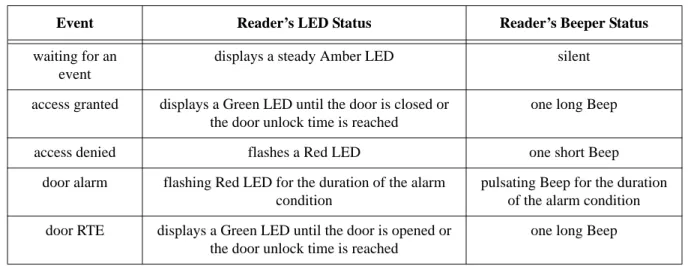
During day-to-day activity, the reader will respond to access control events in a specific manner. Table 3 provides a summary of the reader's LED and beeper actions during access control events. For information on reader responses to alarm controller access events, see the NetworX NX-8E Alarm Control Application Note (P/N 01919-001).
Table 3: Reader Responses to Access Control Events
Event Reader’s LED Status Reader’s Beeper Status
waiting for an event
displays a steady Amber LED silent
access granted displays a Green LED until the door is closed or the door unlock time is reached
one long Beep
access denied flashes a Red LED one short Beep
door alarm flashing Red LED for the duration of the alarm condition
pulsating Beep for the duration of the alarm condition
door RTE displays a Green LED until the door is opened or the door unlock time is reached
6.0
General Information on Inputs
A controller input detects a state change generated by a device outside the controller that may prompt a response from the controller. Input devices that generate a state change may be normally closed or normally open. This section provides a brief description of normally closed versus normally open inputs.
6.1
Normally-Closed
A normally closed input device continually keeps a circuit active or complete. A state change is generated when the normally closed input device is forced open, breaking the circuit. In an access control system, a door switch is a typical example of a normally closed device. While the door remains closed, the switch remains closed. When someone opens the door, the door switch is opened, breaking the circuit and generating a state change. The controller then responds to the state change and generates an output (such as sounding an alarm if the door is a secure door).
6.2
Normally-Open
A normally open input device continually leaves a circuit open, or incomplete. A state change is generated when the normally open input device is forced closed, completing the circuit. In an access control system, a request-to-exit (RTE) button is a typical example of a normally open device. In an access control installation, an RTE button is located on the secure side of a door. While there is no one there pressing the button, the switch remains open. When someone desires to exit through a secure door, they press the RTE button, closing the circuit and generating a state change. The controller then responds to this state change and generates an output (such as unlocking the door to allow egress).
7.0
General Information on Safety versus Security with Door Locks
When installing a door lock there are two things to consider: safety versus security, or should the door be "fail-safe" or "fail-secure."
7.1
Fail-Safe Door Lock
Fail-safe means that if the power should fail at a door (perhaps due to a power outage or equipment failure), the door will automatically unlock allowing entrance or egress. Power is required to keep the door locked. A fail-safe door ensures people will be able to enter and exit a secured area through that door in the case of an emergency. A typical fail-safe application may use a magnetic lock. In this application, the controller energizes the lock relay, causing the lock relay to change its state. In its new state the normally closed circuit is opened breaking the power to the magnetic lock and allowing the door to be opened.
7.2
Fail-Secure Door Lock
Fail-secure means that if the power should fail at a door (perhaps due to a power outage or equipment failure), the door will automatically lock and not allow entrance but will continue to allow egress. Power is required to unlock the door. A fail-secure door ensures a secured area remains secure regardless of the situation. A typical fail-secure application may use a door strike. In this application, the controller energizes the lock relay, causing the lock relay to change its state. In its new state the normally open circuit is closed activating the release mechanism for the door strike on the door to be opened.
Page 24 of 24 P/N: 01918-001 Rev. B