VOT 75168
IDENTIFICATION OF CHARACTERISTIC FEATURES
OF JAVA PROGRAMMING LANGUAGE FOR
APPLICATION TOOL ON A LOWER END MOBILE
PHONE
(MENGENALPASTI CIRI-CIRI KEMUDAHAN
BAHASA PENGATURCARAAN JAVA UNTUK
APLIKASI ATAS TELEFON BIMBIT TAHAP
RENDAH)
Faizul Azli b Abd Ridzab
Mohammad Ahmad b Drs Nasrul
RESEARCH VOTE NO:
75168
ABSTRACT
ABSTRAK
TABLE OF CONTENTS
CHAPTERS TITLE PAGES
ABSTRACT ii
ABSTRAK iii
TABLE OF CONTENTS iv
LIST OF FIGURES vi
CHAPTER 1 INTRODUCTION 1
1.1 Introduction 1
1.2 General Problem Statement 2
1.3 Objective And Scope Of Study 2
CHAPTER 2 LITERATURE REVIEW 3
2.1 Java Programming Language 3
2.2 Java 2 Micro Edition 3
2.3 J2ME Architecture 4
2.3.1 Java Virtual Machine 4
2.3.2 Configuration 4
2.3.3 Profile 5
2.4 MIDlet 6
2.4.1 Hardware and software requirements 6
2.4.2 Java Archive File (JAR) 7
2.4.3 Java Application Descriptor (JAD) 7
3.1.1 Analysis 8
3.1.2 Design 11
3.1.3 Implementation 12
3.1.4 Testing 13
3.1.5 Deployment 14
CHAPTER 4 DATA AND DISCUSSION 15
4.1 Output Analysis 15
4.1.1 Usage of lower end mobile phone as a tool for student 15 in managing their result.
4.1.2 Characteristics of Java Programming Language on 16 lower end mobile phone
4.2 Limitation Of The Study And Future Research 20
CHAPTER 5 CONCLUSION 21
5.1 Conclusion 21
REFERENCES 22
APPENDIX
Appendix A – mResult Requirement Analysis Document Appendix B – mResult Test Item Document
LIST OF FIGURES
Figure 1 J2ME Software Layer Stack. 4
Figure 2 Phases in waterfall model. 8
Figure 3 Use Case diagram for mResult 9
Figure 4 List of classes for mResult 11
Figure 5 Nokia 3310 14
Figure 6 Code segment to handle the calculation of cpa 16
Figure 7 Major MIDP User Interface Classes 17
Figure 8 FrmMainMenu in the mobile phone screen 18
Figure 9 Part of coding for FrmMainMenu.java 18
LIST OF TABLES
Table 1 Detail Requirement for Manage Subject and Result use case 10
Table 2 Core classes for mResult 12
Table 3 Example of test item for Manage Subject and Result use case 13
Table 4 Core classes for mResult 14
CHAPTER 1
INTRODUCTION
1.1 Introduction
With the emerging of a mobile phone, people have found is much easier to be in touch with others. Almost on any part of Malaysia for example, we will be able to be in touch with the rest of the community. As we have relied heavily on mobile phone, most of us will no longer be comfortable leaving home without one. The main use of mobile phone has always been making and receiving call although with the introduction of new services such as the Short Messaging System (SMS) and Multimedia Messaging Services (MMS), we started to expand the use of mobile phone. The same can be said for students in Institute of Higher Learning (IHL) where they use mobile phone mainly to get in touch with family and friends, by making call or sending a SMS or MMS. Mobile phone itself is a ‘computer’ in its own special form; it has the characteristic of one. Mobile phones have an input devices, output devices, and processor and are able to store persistent data.
Student main responsibility is to concentrate on their studies. For student with good results, they can always follow the plan laid by their faculty for them to complete their study. But for some students who have difficulties, they sometime need to make some adjustment in terms of what subjects to register. They need to be able to manage their study so that they will be able to get their degree or diploma like other student. In other words, the need to be able to analyze their current results, and make decision related to their study.
1.2 General Problem Statements
There are some common problems that student faced in keeping records and analyzing their exam results:
• Simulation of grade needed for particular subject to achieve certain CPA has to be made on paper.
• Lecturer will have to look at students examination result slips before they can suggest what subject should the student register or drop.
1.3 Objective And Scope Of Study
This research work intended to accomplish the following objectives:
• To study whether lower end mobile phone can be used as a tool for students in managing their results.
• To identify the characteristics of Java programming language on lower end mobile phone platform
• To study the hardware and software requirements involves in using a lower end mobile phone as a platform.
CHAPTER 2
LITERATURE REVIEW
2.1 Java Programming Language
Java programming language is one of the most talked about language in the past few years. “Write Once, Run Anywhere TM” (WORA) is the tagline which means that a program written in Java would run on any platform supporting Java Virtual Machine (JVM) [1]. From the first version of Java, Java 2 Standard Edition (J2SE), it has evolved to the latest edition, the Java 2 Micro Edition (J2ME) which is designed for devices with limited memory, display and processing power such as the mobile phone or pager.
2.2 Java 2 Micro Edition (J2ME)
J2ME is a smart-client platform developed by Java Community Process (JCP), which includes major wireless mobile phone vendors. The J2ME specification defines the programming language, the virtual machine and programming Application Programming Interface (API) [2]. Due to the fact that a mobile device often has limited resources, it is not realistic to have the entire J2SE Application Programming Interface (API) available on it [1]. Thus, the J2ME can be seen as a subset of J2SE, but added with its own API suitable for mobile devices. J2ME as a platform will not fit in all mobile devices as mobile devices itself may have a range of capability. Mobile devices range from a mobile phone, pager and Personal Digital Assistant (PDA) among others has a number of separate categories which reflected their resources. For mobile phone alone, we’ll be looking at plenty of models, each with its own features and resources.
2.3 J2ME Architecture
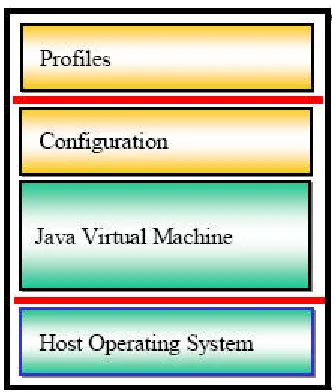
J2ME architecture is designed to support the flexibility and customizable deployment of product demanded by user [5]. Designed to be modular and scalable to fulfill that needs, it is define as three layers built on top of the operating system for mobile device. The architecture of J2ME is as depicted in the following figure:-
Figure 1: J2ME Software Layer Stack.
2.3.1 Java Virtual Machine (JVM)
This layer is an implementation of Java Virtual Machine that is customized for a particular device’s host operating system and support particular J2ME configuration. The K Virtual Machine (KVM), is a highly portable JVM designed for small memory, limited resource, network connected devices such as mobile phones, pagers and personal organizers among others.
2.3.2 Configuration
2.3.2.1 Connected Limited Device Configuration (CLDC)
Devices under this configuration should have the following characteristics:
• 128 kilobytes memory for running Java
• 32 kilobytes for runtime memory allocation
• Restricted user interface
• Low power, typically battery powered.
• Network connectivity, typically wireless, with low bandwidth and intermittent access.
2.3.2.2 Connected Device Configuration (CDC)
Devices under this configuration should have the following characteristics:
• 512 kilobytes (minimum) memory for running Java
• 256 kilobytes (minimum) for runtime memory allocation
• Network connectivity, possibly persistent and high bandwidth
There are two versions of CLDC which are the CLDC 1.0 and CLDC 1.1. Most of mobile phone produced today only supports the use of CLDC 1.0 even for the mobile phone with high specification. One of the difference between CLDC 1.0 and CLDC 1.1 is CLDC 1.0 does not support the use of floating point data type. The CLDC has limited math, string and I/O functionalities as compared to CDC which supports a fully feature Java 2VM and therefore can take advantage of most J2SE libraries [4].
2.3.3 Profile
timers, depending on the resources available for a particular device. MIDP does not define how application does actually get on the device, and end to end security model and system specific application needs. As of the time of writing, there are two profiles available, which are the Mobile Information Device Profile (MIDP) 1.0 and Mobile Information Device Profile (MIDP) 2.0.
2.4 MIDlet
A MIDlet (Mobile Information Device) application is a Java application designed to be run on mobile device [1].
2.4.1 Hardware and software requirements
Any Mobile Information Device targeted to support the running of a MIDlet should meet the minimum hardware and software requirements as listed below [1]:-
Hardware Requirements
• Screen must support at least 96 x 54 pixels.
• At least one type of user input: one handed keyboard(telephone keypad), two-handed keyboard(QWERTY keyboard) or touch screen.
• 128 kilobytes of non-volatile memory to run MID components.
• At least 8 kilobytes of non-volatile memory for applications to store persistent data.
• 32 kilobytes of volatile memory to run Java
• Wireless network connectivity.
Software Requirements
• Native operation system must provide minimal scheduling, exception handling and processing of interrupts. There must also be sufficient capabilities to run Java Virtual Machine(JVM).
• Able to use any of the three input types as listed in hardware requirements and pass it to the JVM.
• Support the writing and reading of persistent data to and from the non volatile memory.
2.4.2 Java Archive File (JAR)
The JAR file comprises of the Java classes, related file such images and other files. It acts like an executable file for a windows based application. The contents of JAR file for mResult are as follow:
Manifest-Version: 1.0
MicroEdition-Configuration : CLDC-1.0
MIDlet-Name: mResult_DDC
MIDlet-Vendor: PPD, UTM City Campus
MIDlet-1: mResult_DDC, /icon2.png, mresult.mResult_DDC
MIDlet-Version: 0.0.1
MicroEdition-Profile: MIDP-1.0
2.4.3 Java Application Descriptor(JAD) File
The JAD file is used to provide information to the application manager about the contents of a JAR. The Application will use the information to determine whether or not the MIDlet is suitable for running on the particular device.
The contents of JAD file for mResult are as follows:
MIDlet-Name: mResult_DDC
MIDlet-Version: 0.0.1
MIDlet-Vendor: PPD, UTM City Campus
MicroEdition-Profile: MIDP-1.0
CHAPTER 3
METHODOLOGY
3.1 Methodology
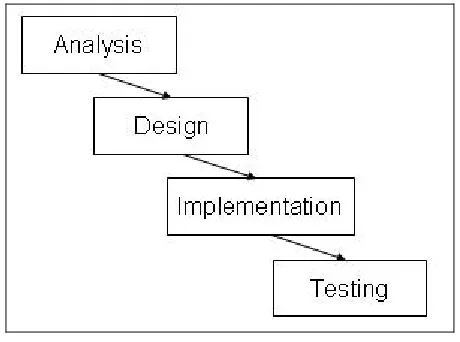
To study the characteristic of Java Programming Language on lower end mobile phone, an object oriented approach to the development of the application has been implemented. The application selected to be develop is a simple mobile application for student usage. It should be able to assist student in managing their examination results. As the requirement for the selected application to be developed is quite clear, the waterfall model has been chosen as the software process model. The waterfall model treat each phases in software development as separate and distinct phases. The model is as depicted in the following figure:-
Figure 2: Phases in waterfall model.
3.1.1 Analysis
and the application should be able to show what is the Cumulative Grade Point Average (CGPA) they will get if they manage to get the targeted grades.
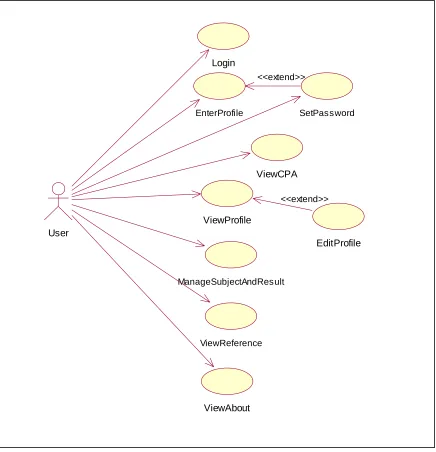
A Requirement Analysis (RA) document was produced during this phase. Its core element is the use case diagram for mResult as shown in the following figure:-
Figure 3: Use Case diagram for mResult.
EditProfile EnterProfile
ViewCPA
ViewProfile
<<extend>>
ViewReference
ViewAbout
ManageSubjectAndResult
SetPassword <<extend>>
User
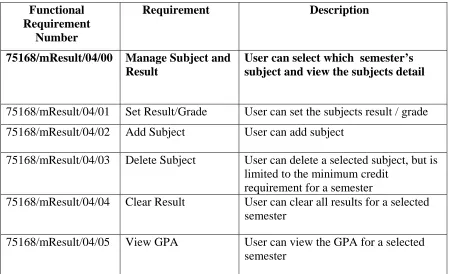
The most important use case for mResult is the Manage Subject and Result. The following table show detail requirement for that use case:-
Functional Requirement
Number
Requirement Description
75168/mResult/04/00 Manage Subject and Result
User can select which semester’s subject and view the subjects detail
75168/mResult/04/01 Set Result/Grade User can set the subjects result / grade 75168/mResult/04/02 Add Subject User can add subject
75168/mResult/04/03 Delete Subject User can delete a selected subject, but is limited to the minimum credit
requirement for a semester
75168/mResult/04/04 Clear Result User can clear all results for a selected semester
75168/mResult/04/05 View GPA User can view the GPA for a selected semester
3.1.2 Design
The RA for mResult serves as a base for the next phase in the development which is the design phase. In the design phase, classes needed for the implementation of
mResult were identified using the scenario based approach. Twenty six classes were identified based on the flow of events studied for the requirements. The following figure shows the list of classes in mResult.
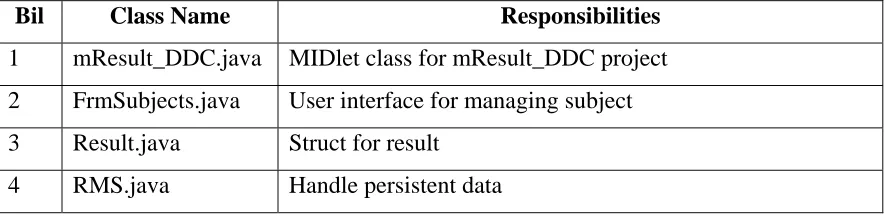
The following are core classes in mResult with description of its responsibilities.
Bil Class Name Responsibilities
1 mResult_DDC.java MIDlet class for mResult_DDC project 2 FrmSubjects.java User interface for managing subject 3 Result.java Struct for result
4 RMS.java Handle persistent data
Table 2: Core classes for mResult.
3.1.3 Implementation
Borland JBuilder X Edition was used to develop mResult. It provides the facilities to write Java codes, compile, debug and along with the Nokia Developer's Suite for Java(TM) 2, Micro Edition (NDS), enable the testing of mResult either through the device emulator or the actual device itself.
The implementation phase for mResult was started as soon as initial requirements were identified and the first version of RA document was produced. Key issues in implementing mResult are as follow:
• Limitation of CLDC 1.0 which does not allow the use of floating point data o This is one of the key problems in implementing the mResult as it
mean other way of storing and calculating student results need to be derived. The solution of this problem is will be discuss in the next chapter.
• The maximum size of 64kb for JAR file.
3.1.4 Testing
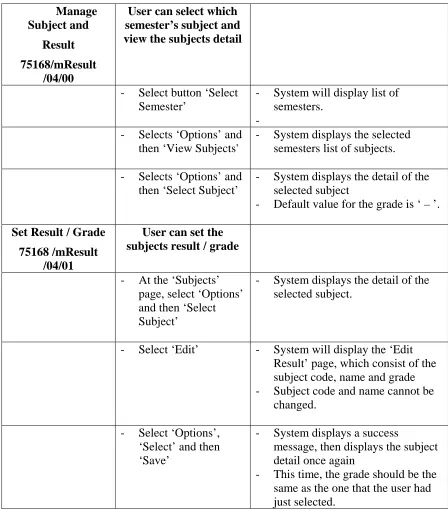
A test document for mResult was developed for the testing phase. The testing took place on the 13th of December 2005 at the development site. The test was based on the requirement from RA document. The following table show part of the test item for use case Manage Subject and Result:-
Manage Subject and
Result
75168/mResult /04/00
User can select which semester’s subject and view the subjects detail
- Select button ‘Select Semester’
- System will display list of semesters.
-- Selects ‘Options’ and
then ‘View Subjects'
- System displays the selected semesters list of subjects.
- Selects ‘Options’ and then ‘Select Subject’
- System displays the detail of the selected subject
- Default value for the grade is ‘ – ’.
Set Result / Grade
75168 /mResult /04/01
User can set the subjects result / grade
- At the ‘Subjects’ page, select ‘Options’ and then ‘Select Subject’
- System displays the detail of the selected subject.
- Select ‘Edit’ - System will display the ‘Edit Result’ page, which consist of the subject code, name and grade - Subject code and name cannot be
changed. - Select ‘Options’,
‘Select’ and then ‘Save’
- System displays a success
message, then displays the subject detail once again
3.1.5 Deployment
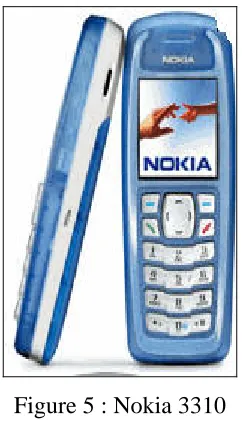
The Nokia 3310(Figure 6) has been selected as it represents one of the lower end mobile phone available in the market. The output of the development phase is the source code for mResult and the Java Archive File (JAR). To deploy the mResult JAR to the selected mobile phone, the Nokia Developer's Suite for Java(TM) 2, Micro Edition Version 2.2 for Windows (NDS) was used. The NDS is a set of tools that help create Java content for Nokia devices. With NDS developers can create, test and deploy Java software to Nokia devices.
Figure 5 : Nokia 3310
CHAPTER 4
DATA AND DISCUSSION
4.1 Output Analysis
We will discuss results for each hypotheses and research questions below:
4.1.1 Usage of lower end mobile phone as a tool for student in managing their
result.
Based on the success of developing mResult and deploying it into a Nokia 3310 device, the research suggest that a lower end mobile phone such as Nokia 3310 can assist student in managing their examination result. It offers the following benefits to students:-
• Student can have the mobility to view their results from anywhere and anytime, because the application is virtually in their hand.
• Student has an unlimited access to the information with no subsequence charges.
• Student can manage their result effectively because they are able to store the results, simulate grade and see the final result.
4.1.2 Characteristics of Java Programming Language on lower end mobile phone.
Lower end mobile phones like the Nokia 3310 support the use of MIDP 1.0 and CLDC 1.0.
4.1.2.1 CLDC 1.0 Characteristic
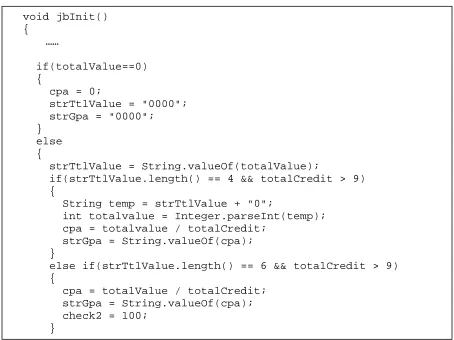
Among the problem in CLDC 1.0 is the inability to define a floating point data type. As the application develop is related to student’s CPA, the usage of floating point data is very important. Nevertheless, an algorithm to calculate CPA by using an integer data type has been implemented successfully in mResult. Even though the result will be shown to the user as if it is in the floating point format, it is actually stored and manipulated as string data. The following are part of the Java code that handles the issue:-
Figure 6 : Code segment to handle the calculation of cpa. void jbInit()
{ ……
if(totalValue==0) {
cpa = 0;
strTtlValue = "0000"; strGpa = "0000"; }
else {
strTtlValue = String.valueOf(totalValue);
if(strTtlValue.length() == 4 && totalCredit > 9) {
String temp = strTtlValue + "0";
int totalvalue = Integer.parseInt(temp); cpa = totalvalue / totalCredit;
strGpa = String.valueOf(cpa); }
else if(strTtlValue.length() == 6 && totalCredit > 9) {
cpa = totalValue / totalCredit; strGpa = String.valueOf(cpa); check2 = 100;
4.1.2.2 MIDP 1.0
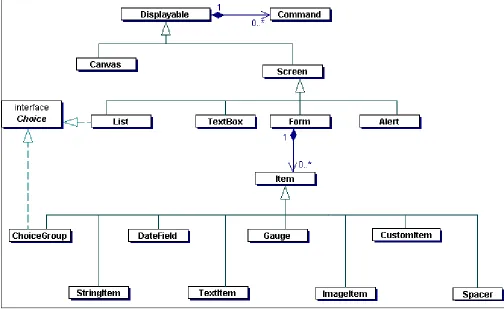
MIDP 1.0 offers two other important aspect and tools for application development on lower end mobile phone. It offer enough API’s for creating user interface in the mobile phone and also the Record Management System (RMS), API’s that support the reading, writing, sorting and searching a persistent data in mobile devices.
a. User Interface
API’s for user interface are available through putting in the import javax.microedition.lcdui.*;
in the class declaration.
The mResult use extensively classes available in the Displayable class and it’s sub classes. An example of the use of Canvas class is in the FrmMainMenu class. The following are how the screen will looks like in the mobile phone and part of the corresponding Java code for the class:-
Figure 8 : FrmMainMenu in the mobile phone screen
Figure 9 : Part of coding for FrmMainMenu.java package mresult;
import javax.microedition.lcdui.*;
class FrmMainMenu extends List implements CommandListener {
static FrmMainMenu instance; mResult_DDC midlet;
FrmSemester semester; RMS rms = new RMS();
Ticker ticker = new Ticker("Welcome to mResult v1.0"); FrmMainMenu(mResult_DDC midlet)
{
super(".: Main Menu", List.IMPLICIT); this.midlet = midlet;
setCommandListener(this); this.instance = this; jbInit();
}
private void jbInit()
{
//add list
append("Select Semester", null); append("View CPA", null);
append("Options", null); //add ticker
setTicker(ticker); //add Command
addCommand(new Command("Exit", Command.EXIT, 1)); }
b. Record Management System(RMS)
Another important aspect in the mResult is the ability to store persistent data. MIDP 1.0 allows the management of persistent data through the RMS API’s. RMS is a persisten storage environment within the MIDP. The record stored in the persistent data is very much dependant on the MIDlet that created it, if the MIDlet is removed from the mobile device, the record stores will also be deleted. As mResult need to store, read and edit a student results, the usage of suitable API’s for the operations is needed. The following table shows some of the important methods with the description of its usage:-
No Method’s Name Description
1 openRecordStore Create or open a record store 2 closeRecordStore Close a record store
3 addRecord Add a new record in the record store 4 setRecord Set or replace data in the record store 5 deleteRecord Delete a record from the record store
In mResult, the responsibility of handling persistent data is given to the RMS class. The following table segment show how Java handles the add, set and delete record in RMS:-
No Method’s Name Part of Java Code
1 addRecord //insert the semester's status rs.addRecord("0".getBytes(), 0,
"0".getBytes().length);
for (i = 0; i < arrCode.length; i++) {
//insert the code subject into the record store
rs.addRecord(arrCode[i].getBytes(), 0,
arrCode[i].getBytes().length);
…..
2 setRecord rs = RecordStore.openRecordStore(strDbName, true); rs.setRecord(intID+2,result.grade.getBytes(), 0,
result.grade.getBytes().length);
…..
3 deleteRecord rs = RecordStore.openRecordStore(strDbName, true); rs.setRecord(post, "0".getBytes(), 0,
"0".getBytes().length);
…..
Table 5: Example of RMS usage
4.2 Limitation Of The Study And Future Research
CHAPTER 5
CONCLUSION
5.1. Conclusion
This study reveals that Java programming language is suitable to develop an application for lower end mobile phone. Although the Application Programming Interface(API) needed was very much depends on the configuration and the profile of the particular device, generally it supported the basic need for an application.
Java is capable of providing the user interface, tools for managing persistent data either through the Record Management System (RMS) or file routines, and processing ability in term of its arithmetic and logic facilities. Selected device, the Nokia 3310 shows the capabilities in supporting the application developed.
REFERENCES
[1] Core J2ME Technology and MIDP, John W. Muchow, Sun Microsystem, 2002 [2] Developing Scalable Series 40 Application: A Guide for Java Developers, Michael
Juntao Yuan, Kevin Sharp, Nokia Corporation, 2005. [3] J2ME FAQ, http://java.sun.com/j2me/faq/html
[4] Enterprise J2ME : Developing Mobile Java Application, Michael Juntao Yuan. Prentice Hall PTR, 2004
UNIVERSITI TEKNOLOGI MALAYSIA
UTM/RMC/F/0024 (1998)
BORANG PENGESAHAN LAPORAN AKHIR PENYELIDIKAN
TAJUK PROJEK :
Saya _______________________________________________________________________ (HURUF BESAR)
Mengaku membenarkan Laporan Akhir Penyelidikan ini disimpan di Perpustakaan Universiti Teknologi Malaysia dengan syarat-syarat kegunaan seperti berikut :
1. Laporan Akhir Penyelidikan ini adalah hakmilik Universiti Teknologi Malaysia.
2. Perpustakaan Universiti Teknologi Malaysia dibenarkan membuat salinan untuk
tujuan rujukan sahaja.
3. Perpustakaan dibenarkan membuat penjualan salinan Laporan Akhir
Penyelidikan ini bagi kategori TIDAK TERHAD.
4. * Sila tandakan ( / )
SULIT (Mengandungi maklumat yang berdarjah keselamatan atau
Kepentingan Malaysia seperti yang termaktub di dalam
AKTA RAHSIA RASMI 1972).
TERHAD (Mengandungi maklumat TERHAD yang telah ditentukan oleh
Organisasi/badan di mana penyelidikan dijalankan).
TIDAK
TERHAD
TANDATANGAN KETUA PENYELIDIK
Lampiran 20
IDENTIFICATION OF CHARACTERISTIC FEATURES OF JAVA PROGRAMMING LANGUAGE FOR APPLICATION TOOL ON A LOWER END MOBILE PHONE.
RA Document for mResult
Program Pengajian Diploma(PPD),
UTM
City Campus
, KL
mResult
REQUIREMENTS ANALYSIS DOCUMENT
FOR
MRESULT
Version 1.0
Document Reference No: 75168/MRESULT/RA/1.0
RA Document for mResult
Revision History
Version Status Date Change Description Author
1.0 Draft 6 June 2005 Ahmad
RA Document for mResult
mResult Use Case:
1. Login
2. Enter Profile 3. Set Password
4. Manage Subject and Result 5. View CPA
6. View Profile 7. Edit Profile 8. View Reference 9. View About
EditProfile EnterProfile
ViewCPA
ViewProfile
<<extend>>
ViewReference
ViewAbout
ManageSubjectAndResult
SetPassword <<extend>>
Login
RA Document for mResult
FR No. Requirement Description Status
75168/mResult/01/00 Login User login into the application
75168/mResult/02/00 Enter Profile User can enter their profile
75168/mResult/03/00 Set Password User can set their password
75168/mResult/03/01 Edit Password User can change their password
75168/mResult/04/00 Manage Subject and Result
User can select which semester’s subject and view the subjects detail
75168/mResult/04/01 Set Result/Grade
User can set the subjects result / grade
75168/mResult/04/02 Add Subject User can add subject
75168/mResult/04/03 Delete Subject User can delete a selected subject, but is limited with the minimum credit requirement for a semester
75168/mResult/04/04 Clear Result User can clear all results for a selected semester 75168/mResult/04/05 View GPA User can view the GPA for a selected semester 75168/mResult/05/00 View CPA User can view the
current CPA for his result
75168/mResult/06/00 View Profile User can view their profile
75168/mResult/07/00 Edit Profile User can edit their profile
75168/mResult/08/00 View Reference
User can view
reference that shows the pointer for each grade
Test Document for mResult
Program Pengajian Diploma(PPD),
UTM
City Campus
, KL
mResult
TEST DOCUMENT
FOR
MRESULT FOR MOBILE
Version 1.0
Document Reference No: 75168/MRESULT/TD/1.0
Test Document for mResult
Revision History
Version Status Date Change Description Author
Test Document for mResult
Figure 1 : mResult Use Case Diagram
EditProfile
EnterProfile
ViewCPA
Vie Profilew
<<extend>>
View eferenceR
ViewAbout
ManageSubjectAndResult
SetPassword <<extend>>
Login
Test Document for mResult
mResult Test Item
Requirement / FR No. Requirement Expected Result Test Result
Enter Profile
75168/mResult/02/00 User enters their profile
- Select mResult icon from
application folder - System displays splash screen for 3 seconds, followed by a form for user to enter their profile ( if first time )
- System prompts user to enter these information :- • Name
• Matric Number
• Password enable / disabled
- Select ‘next’ - If user didn’t fill in all fields, an error message will
apear
- If password is enabled, system will display the
password form
- If password is disabled, system will display the
intake form. After clicking the next button again, system will display a confirmation form consists of ‘yes’ and ‘back’.
Test Document for mResult
Login
75168/mResult/01/00 User login into the system
- Select mResult icon from
application folder -
System displays splash screen for 3 seconds, followed by Login form ( if first time )
- System prompt user to enter password if password
is enabled, or enter login button if password is disabled
- Enter password / login
button - If password is incorrect, system will display an error message.
- If password is correct, system will display success
message, followed by the main menu
- If there is no password, once user enters the login
button, system will display welcome message and then displays the main menu
Set Password
75168/mResult/03/00 User can set their password
- Starts when user select
‘Next’ from ‘Enter Profile’ page and password is enabled
- System displays the password form
- System prompt user to enter their password and
then re-enter that password.
Test Document for mResult
- Select ‘Next’ - If any text field is empty, system displays error
message
- If password entered is less than 6 characters,
system displays error message
- If the re-entered password doesn’t match the
password, system displays error message
- If both password match, system displays ‘Intake’
form.
Edit Password 75168/mResult/03/01
User can change their password
- Select ‘Change Password’
from ‘Options’ page - If password is disabled, system displays text saying password is disabled
- If password is enabled, system displays ‘change
password’ form.
- Select ‘Options’ and then
‘Save’ - If any text field is empty, system displays error message
- If old password doesn’t match the current
password, system displays error message
- If new password entered is less than 6 characters,
system displays error message
- If everything’s ok, system will save the new
Test Document for mResult
Manage Subject and Result
75168/mResult/04/00
User can select which semester’s subject and view the subjects detail
- Select button ‘Select
Semester’ - System will display list of semesters.
- Selects ‘Options’ and then
‘View Subjects' - System displays the selected semesters list of subjects.
- Selects ‘Options’ and then
‘Select Subject’ - - System displays the detail of the selected subject Default value for the grade is ‘ – ’.
Set Result / Grade 75168/mResult/04/01
User can set the subjects result / grade
- At the ‘Subjects’ page, select
‘Options’ and then ‘Select Subject’
- System displays the detail of the selected subject.
- Select ‘Edit’ - System will display the ‘Edit Result’ page, which
consist of the subject code, name and grade
- Subject code and name cannot be changed.
Test Document for mResult
then ‘Save’ the subject detail once again
- This time, the grade should be the same as the
one that the user had just selected.
Add Subject
75168/mResult/04/02 User can add subject
- At the ‘Semester’ page,
select ‘Options’ and then ‘Add Subject’
- If selected semesters total credit is equal or more
than 19, system displays info message, followed by the ‘Add subject’ page
- System prompt user to enter these information :- • Subject Code
• Subject Name
- Select ‘Options’ and then
‘Save’ - If any field is empty, system displays error message
- If the subject code entered is less than 7
characters or if the 7th character of the code is not
numerical, system displays error message
- If after adding the new subject, total credit of that
semester is more than 19, system displays info message, then goes back to ‘Semester’ page
- If total credit is below than 19, system displays
Test Document for mResult
- At the ‘Subject’ page, select
‘Options’ and then ‘Delete Subject’
- System will display a confirmation page which
shows the code and name of the subjects that’s going to be deleted.
- Select ‘Yes’ - If after the operation, the total credit for the
selected semester is lower than 12, system will display error message.
- If not, system will display a success message, and
then displays the list of subject back. This time, the subject that has been deleted should not show up in the list.
Clear Result
75168/mResult/04/04 User can clear all results for a selected semester
- At the ‘Semester’ page,
select ‘Options’ and ‘Clear Result’
- System will display a confirmation page, whether
yes or back.
- Select ‘Yes’ - System will reset all results for the selected
semester to the default value
- System displays a success message, followed by
the ‘Semester’ page back again.
- At the ‘Semester’ page,
select ‘Options’ and ‘View GPA’
- System should display an error message saying
Test Document for mResult
View GPA
75168/mResult/04/05 User can view the GPA for a selected semester
- At the ‘Semester’ page,
select ‘Options’ and ‘View GPA’
- If there is no result yet, system will display an
error message
- If there is a result, system displays a page that
contains these information :-
• Which semesters GPA
• GPA
• Total Value Point
• Total Credit
View CPA
75168/mResult/05/00 User can view the current CPA for his result
- At the main menu, select
‘View CPA’ - If there is no result yet, system will display an error message
- If there is a result, system displays a page that
contains these information :-
• CPA
• Total Value Point
Test Document for mResult
- At the main menu, select
‘Options’ - System will display ‘Options’ page.
- Select ‘View User Profile’ - System will display the user profile, which contain
these attribute :-
• Name
• Matric No
• Course
• Year Intake
• Password Enable (true / false )
Edit Profile
75168/mResult/07/00 User can edit their profile
- At the ‘Options’ page, select
‘View User Profile’ - System will display the user profile, which contain these attribute :-
• Name
• Matric No
• Course
• Year Intake
• Password Enable (true / false )
- Select ‘Edit’ - System displays ‘Edit Profile’ page
- User can only edit their name, matric number and
whether password is enabled or not.
- Select ‘Options’ and ‘Next’ - If password is marked enable, system displays
Test Document for mResult
- If password is not marked enable, system displays
a confirmation page.
View Reference
75168/mResult/08/00 User can view reference that shows the pointer for each grade
- At the ‘Options’ page, select
‘Reference’ -
System will display a reference table showing the value point for each grade that’s been used by the system.
View About
75168/mResult/09/00 User can view the About form, which shows the backbone behind the implementation of this application
- At the ‘Options’ page, select
User Manual for mResult
mResult
Application
Version 1.0 for mobile platform.
User Manual
June 15, 2005
VOT:
75168
PPD, UTM
City Campus
Researcher:
Faizul Azli b. Abd Ridzab Mohammad Ahmad b. Drs Nasrul
Research Assistant / Programmer:
User Manual for mResult
1. Introduction
MResult v1.0 for mobile provides an easy to use UTM result management system, which can be accessed from anywhere via the mobile phone. It provides user with the power to manage their subjects and results , with an additional features like password for login and much more.
List Of Semesters
Displays lists of semesters.
Subject Detail
Displays subject’s code, name and grade. Semester’s GPA View a selected semester’s Main Menu Displays options such as View Profile, Change Password and Options Menu View all ’s result, CPsemesterA
User Manual for mResult
2. Enter Profile
This event happens only once when user first time login into the system.
1. Select mResult icon from application folder. System displays splash screen for 3 seconds, followed by a form for user to enter their profile.
2. Select Options and Edit to enter name and matric number.
3. To enable password, set the highlight to the Enable Password check box, select Options and Mark.
4. The check box is now marked. Select Options and Next to continue.
5. System displays ‘intake form’ ( If password is enabled, system will display ‘enter password form’. Please refer to ).
6. To change intake session, set the highlight to other intake session, select Options and
Select.
7. The focus is now owned by the newly selected intake session.
User Manual for mResult
3. Login
If password is enabled
1. Select mResult icon from application folder. System displays splash screen for 3 seconds, followed by a ‘Login’ form.
2. To enter password, Select Options and Edit.
3. Select Options and Login to enter the system.
If password is disabled
1. Select mResult icon from application folder. System displays splash screen for 3 seconds, followed by a ‘Login’ form.
User Manual for mResult
4. Manage Password
4.1 Set Password
This event continues from the ‘Enter Profile’ event, when password is enabled
1. Select Options and Next.
2. System displays Password form. To enter password, select Options and Edit. 3. Select Options and Next.
4.2 Edit Password
Edit password ( password enabled ).
1. At the main menu, select Options.
2. System displays ‘Options’ menu. Select Change Password.
3. Select Options and Edit to enter old password and new password.
4. Select Options and Save.
Edit password ( password disabled )
User Manual for mResult
5. Manage Subject and Result
5.1 View Subject Information
User can select which semester’s subject and view the subjects detail
1. At the main menu, select Select Semester. 2. System displays list of semesters.
3. Select Options and View Subjects.
4. System displays list of subjects for that semester.
5. Select Select Subject.
6. System displays subject’s information.
5.2 Set Result / Grade
User can set the subjects result / grade
User Manual for mResult
5.
5. Select Options and Select. 6. Focus is now at the new grade. 7. Select Options and Save.
8. Subject’s grade has been set to the new grade.
5.3 Add Subject
User can add subject
1. At the ‘Semester’ form, highlight any semester.
2. Select Options and Add Subject.
3. System displays ‘Add Subject’ form. Select Options and Edit to enter the new subject’s information.
User Manual for mResult
5.4 Delete Subject
User can delete a selected subject
1. At the ‘Subjects’ form, highlight any subject. 2. Select Options and Delete Subject.
3. System will display a confirmation page. 4. Select Yes. Subject successfully deleted.
5.5 Clear Result
User can clear all results for a selected semester
1. At the ‘Semester’ form, highlight any semester. 2. Select Options and Clear Result.
User Manual for mResult
5.6 View GPA
User can view the GPA for a selected semester
1. At the ‘Semester’ form, highlight any semester.
2. Select Options and View GPA.
3. If there is no result yet, an error message will appear. 4. If there is a result, system displays the GPA.
6. View CPA
User can view the current CPA for his result
1. At the main menu, select View CPA.
User Manual for mResult
7. View Profile
User can view their profile
1. At the main menu, select Options 2. Select View User Profile.
3. User profile is displayed.
8. Edit Profile
User can edit their profile
1. At the ‘User Profile’ form, select Edit. 2. Select Options and Edit to edit user profile.
3. Select Options and Next.
User Manual for mResult
9. View Reference
User can view reference that shows the pointer for each grade
1. At the main menu,select Options. 2. Select Reference.
3. A reference table will be displayed. Select down / up to scroll the table.
10. View Reference
User can view the About form, which shows the backbone behind the implementation of this application
1. At the main menu, select Options. 2. Select About.
Introduction
MResult v1.0 for mobile provides an easy to use UTM result management system, which can be accessed from anywhere via the mobile phone. It provides user with the power to manage the subjects and results by their self.
mResult v1.0 for mobile
Benefits & Special Features
Offers a number of benefits such as:-
• User can have the mobility to
view their results from anywhere and anytime, because the application is virtually in their hand.
• Unlimited access to the
information with no subsequence charges.
• Security and integrity of the
information inside the application is guaranteed with the option to activate password.
• User can manage their result
effectively, with an option to select their intake session.
• User friendly interface from
the mobile application point of view.
Potential Users
• UTM students
Development Team:-
• Faizul Azli b. Abd Ridzab
• M. Ahmad b. Drs Nasrul
• A. Aizuddin b. Bahaman
Course’s Available
• All course’s from DDA to
GUIDELINES FOR CREATING A J2ME APPLICATION
1. Install Jbuilder.
2. Install Nokia Developer’s Suite. Integrate with JBuilder.
3. Install the SDK.
4. Install Nokia PC Suite.
5. In JBuilder, Create ‘New Project’
i. Enter project name <next>
ii. Change the JDK field to J2ME Wireless Toolkit <next>
iii. Press finish.
6. Create New Class.
i. Enter class name
ii. Press ‘Ok’ button
7. Write code.
8. To compile project
i. Go to Project > Make Project ‘.jpx’
9. Run project
i. Run > New > Change type to MIDlet
ii. Select main class
iii. Press Ok
10. Click Run project as a Default emulator
11. Create Application Package
i. Press ‘Generate’.
12. Test Emulator
i. Choose application file
ii. Choose emulator
iii. Press ‘Emulate’ button
13. Open the file folder where the application installer is located
i. Double click the installer
ii. Activate the HP’s connection medium and install it on the HP