T
U
T
O
R
I
A
L
587
simplyjava1_AccessDatabaseInstructions.fm September 9, 2003 3:42 pm © 2003 by Deitel & Associates, Inc. All Rights Reserved.17
Accessing Microsoft
Access Database
Running the applications with Microsoft
Access Database
O b j e c t i v e s
In this tutorial, you will learn to: ■ Running the ATM application
with Access Database. ■ Running the Bookstore
Web-based application with Access Database. William Shakesp eare
O u t l i n e
17.1 Configuring the Data Source for the ATM application
17.2 Configuring the Data Source for Exercises in Tutorial 26
17.3 Running the Bookstore Web-based application
17.4 Configuring the Data Source for Exercises in Tutorial 31
n this tutorial, you will learn how to run the ATM application and the Book-store Web-based application with Microsoft Access database.
17.1 Configuring the Data Source for the ATM application
To run the ATM application with Microsoft Access database, you need first spec-ify the data source using the ODBC administrative tool, which is available on all Windows platforms.
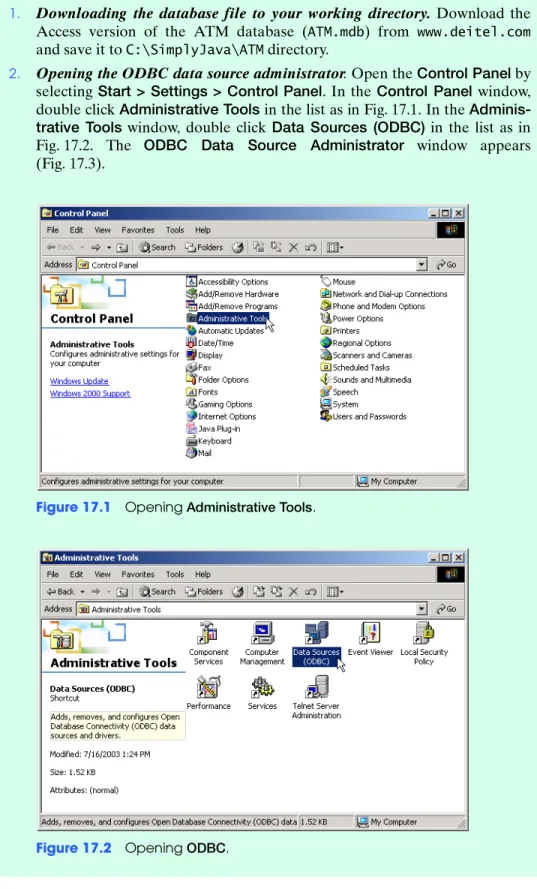
Figure 17.1 Opening Administrative Tools.
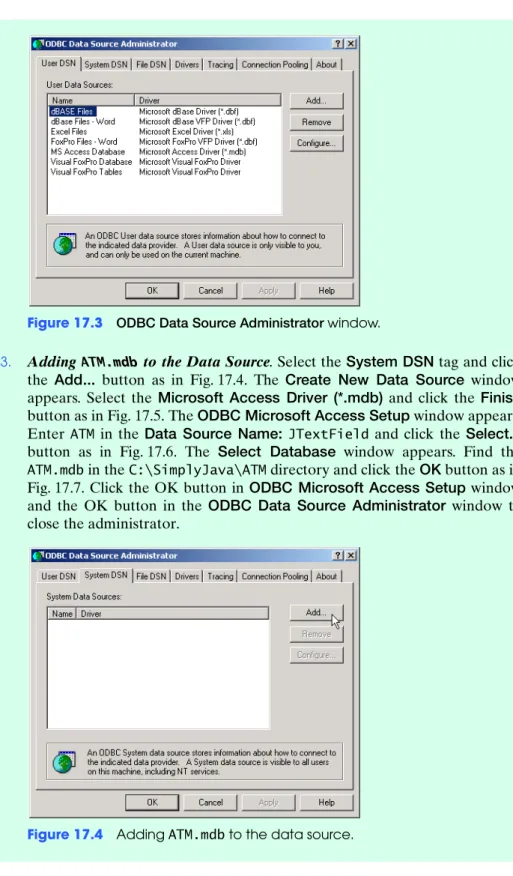
Figure 17.3 ODBC Data Source Administrator window.
3. Adding ATM.mdb to the Data Source. Select the System DSN tag and click
the Add... button as in Fig. 17.4. The Create New Data Source window
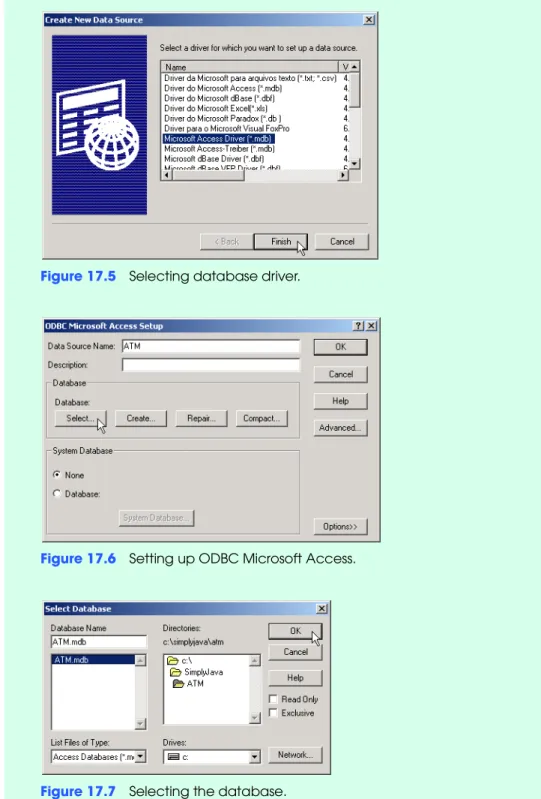
appears. Select the Microsoft Access Driver (*.mdb) and click the Finish
button as in Fig. 17.5. The ODBC Microsoft Access Setup window appears. Enter ATM in the Data Source Name: JTextField and click the Select...
button as in Fig. 17.6. The Select Database window appears. Find the ATM.mdb in the C:\SimplyJava\ATM directory and click the OK button as in Fig. 17.7. Click the OK button in ODBC Microsoft Access Setup window and the OK button in the ODBC Data Source Administrator window to close the administrator.
Figure 17.4 Adding ATM.mdb to the data source.
Figure 17.5 Selecting database driver.
Figure 17.6 Setting up ODBC Microsoft Access.
17.2 Configuring the Data Source for Exercises in Tutorial 26
To work on the exercises using the Access databases, you need to configure the data source for the exercises databases. Figure 17.9 lists the database names for each exercise in Tutorial 26. All these Access databases are available at www.dei-tel.com. After downloading these databases, add them to the ODBC data source as you did in the previous box.
4. Opening the Command Prompt window and changing directories. Open
the CommandPrompt window by selecting Start>Programs>
Accesso-ries>CommandPrompt. Change to your working directory by typing cd
C:\Examples\Tutorial26\CompletedApplication\ATM.
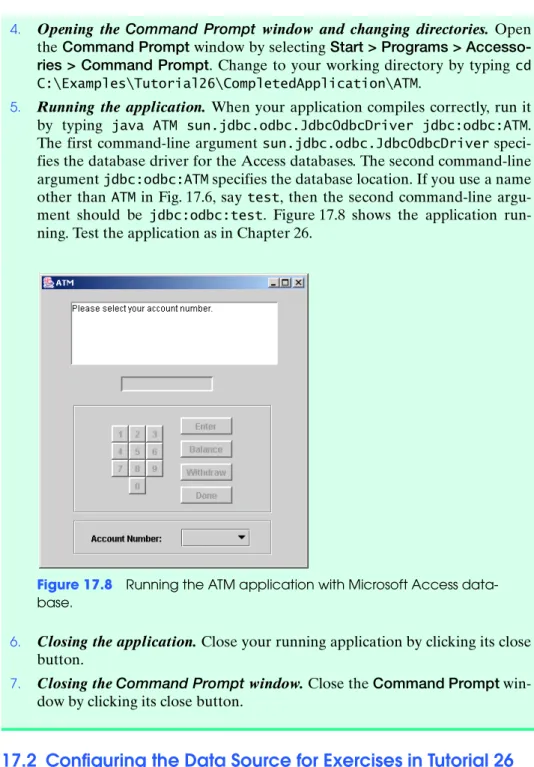
5. Running the application. When your application compiles correctly, run it by typing java ATM sun.jdbc.odbc.JdbcOdbcDriver jdbc:odbc:ATM. The first command-line argument sun.jdbc.odbc.JdbcOdbcDriver speci-fies the database driver for the Access databases. The second command-line argument jdbc:odbc:ATM specifies the database location. If you use a name other than ATM in Fig. 17.6, say test, then the second command-line argu-ment should be jdbc:odbc:test. Figure 17.8 shows the application run-ning. Test the application as in Chapter 26.
Figure 17.8 Running the ATM application with Microsoft Access data-base.
6. Closing the application. Close your running application by clicking its close button.
7. Closing the Command Prompt window. Close the CommandPrompt win-dow by clicking its close button.
17.3 Running the Bookstore Web-based application
You can also run the Bookstore Web-based application with Access database.
Configuring the data
source
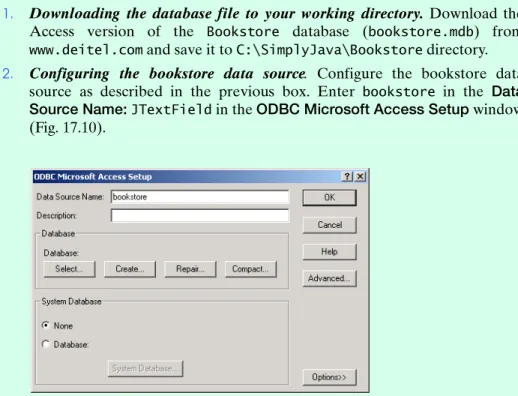
1. Downloading the database file to your working directory. Download the Access version of the Bookstore database (bookstore.mdb) from www.deitel.com and save it to C:\SimplyJava\Bookstore directory.
2. Configuring the bookstore data source. Configure the bookstore data source as described in the previous box. Enter bookstore in the Data
Source Name:JTextField in the ODBC Microsoft Access Setup window
(Fig. 17.10).
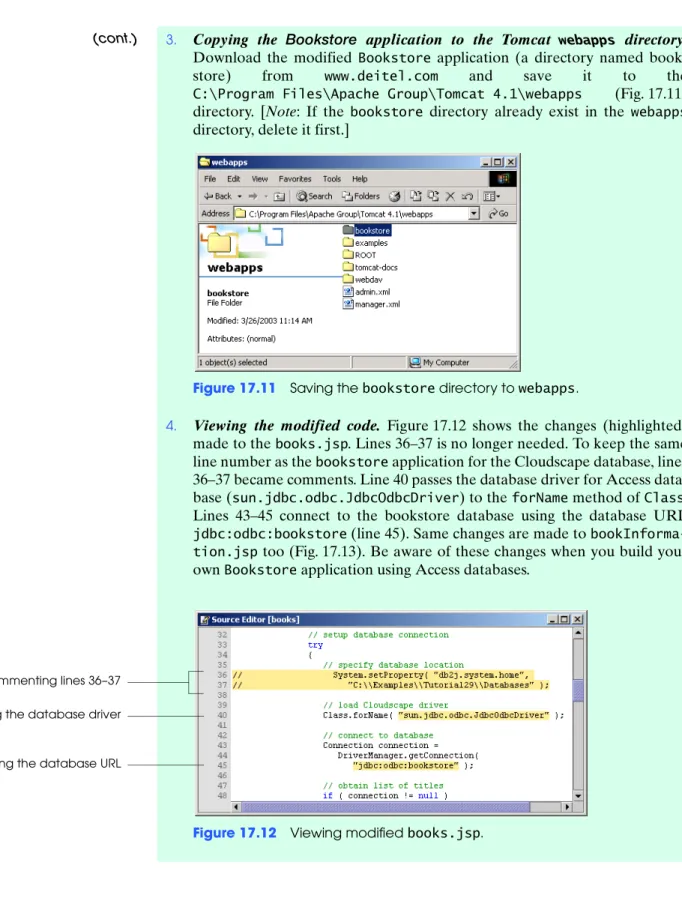
3. Copying the Bookstore application to the Tomcat webapps directory. Download the modified Bookstore application (a directory named book-store) from www.deitel.com and save it to the C:\Program Files\Apache Group\Tomcat 4.1\webapps (Fig. 17.11) directory. [Note: If the bookstore directory already exist in the webapps directory, delete it first.]
Figure 17.11 Saving the bookstore directory to webapps.
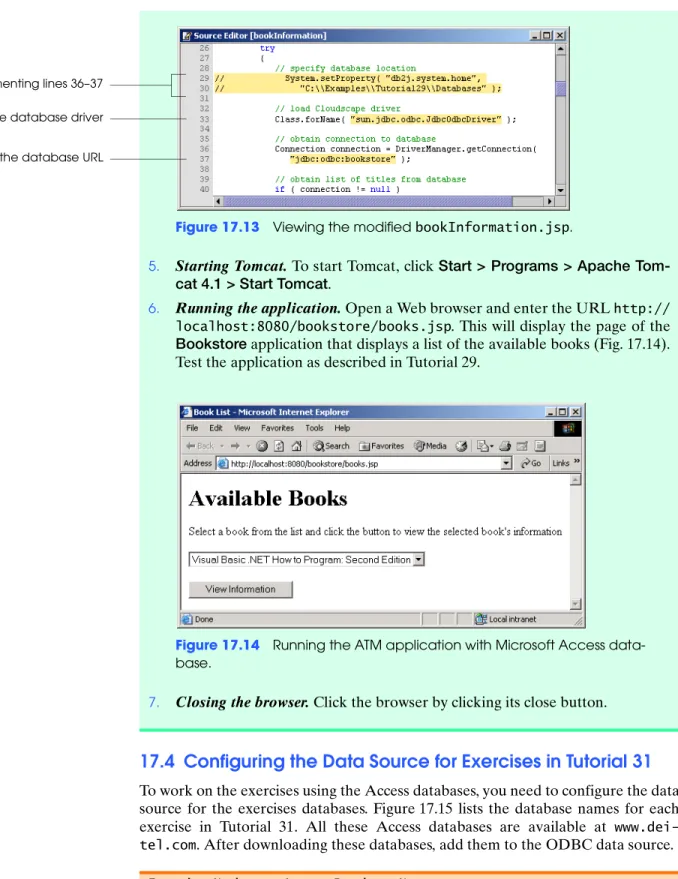
4. Viewing the modified code. Figure 17.12 shows the changes (highlighted) made to the books.jsp. Lines 36–37 is no longer needed. To keep the same line number as the bookstore application for the Cloudscape database, lines 36–37 became comments. Line 40 passes the database driver for Access data-base (sun.jdbc.odbc.JdbcOdbcDriver) to the forName method of Class. Lines 43–45 connect to the bookstore database using the database URL jdbc:odbc:bookstore (line 45). Same changes are made to bookInforma-tion.jsp too (Fig. 17.13). Be aware of these changes when you build your own Bookstore application using Access databases.
Figure 17.12 Viewing modified books.jsp.
(cont.)
Commenting lines 36–37 Changing the database driver Changing the database URL
17.4 Configuring the Data Source for Exercises in Tutorial 31
To work on the exercises using the Access databases, you need to configure the data source for the exercises databases. Figure 17.15 lists the database names for each exercise in Tutorial 31. All these Access databases are available at www.dei-tel.com. After downloading these databases, add them to the ODBC data source.
Figure 17.15 Databases for the exercises in Tutorials 29-32. Figure 17.13 Viewing the modified bookInformation.jsp.
5. Starting Tomcat. To start Tomcat, click Start > Programs > Apache
Tom-cat 4.1 > Start TomTom-cat.
6. Running the application. Open a Web browser and enter the URL http:// localhost:8080/bookstore/books.jsp. This will display the page of the
Bookstore application that displays a list of the available books (Fig. 17.14).
Test the application as described in Tutorial 29.
Figure 17.14 Running the ATM application with Microsoft Access data-base.
7. Closing the browser. Click the browser by clicking its close button.
Exercise Number Access Database Name
31.11 phonebook.mdb 31.12 statefacts.mdb 31.13 roadsigns.mdb