Product Overview
1
Getting Started
2
Installing the S7-200
3
PLC Concepts
4
Programming Concepts,
Conventions and Features
5
S7-200 Instruction Set
6
Communicating over a Network
7
Hardware Troubleshooting Guide
and Software Debugging Tools
8
Creating a Program for the
Position Module
9
Creating a Program for the
Modem Module
10
Using the USS Protocol Library to
Control a MicroMaster Drive
11
Using the Modbus Protocol
Library
12
Technical Specifications
A
Calculating a Power Budget
B
Error Codes
C
Special Memory (SM) Bits
D
S7-200 Order Numbers
E
Execution Times for STL
Instructions
F
S7-200 Quick Reference
Information
G
Index
S7-200 Programmable Controller
System Manual
SIMATIC
This manual has the order number:
6ES7298-8FA23-8BH0
Safety Guidelines
This manual contains notices which you should observe to ensure your own personal safety, as well as to protect the product and connected equipment. These notices are highlighted in the manual by a warning triangle and are marked as follows according to the level of danger:
Danger
Danger indicates an imminently hazardous situation which, if not avoided, will result in death or serious injury.
Warning
Warning indicates a potentially hazardous situation which, if not avoided, could result in death or serious injury.
Caution
Caution used with the safety alert symbol indicates a potentially hazardous situation which, if not avoided, may result in minor or moderate injury.
Caution
Caution used without the safety alert symbol indicates a potentially hazardous situation which, if not avoided, may result in property damage.
Notice
Notice indicates a potential situation which, if not avoided, may result in an undesirable result or state.
Qualified Personnel
Onlyqualified personnelshould be allowed to install and work on this equipment. Qualified persons are defined as persons who are authorized to commission, to ground, and to tag circuits, equipment, and sys-tems in accordance with established safety practices and standards.
Correct Usage
Note the following: Warning
This device and its components may only be used for the applications described in the catalog or the technical descriptions, and only in connection with devices or components from other manufacturers which have been approved or recommended by Siemens.
This product can only function correctly and safely if it is transported, stored, set up, and installed correctly, and operated and maintained as recommended.
Trademarks
SIMATICR, SIMATIC HMIRand SIMATIC NETRare registered trademarks of SIEMENS AG.
Some of other designations used in these documents are also registered trademarks; the owner’s rights may be violated if they are used by third parties for their own purposes.
We have checked the contents of this manual for agreement with the hardware and
Disclaimer of Liability Copyright Siemens AG 2003 All rights reserved
Preface
The S7-200 series is a line of micro-programmable logic controllers (Micro PLCs) that can control a variety of automation applications. Compact design, low cost, and a powerful instruction set make the S7-200 a perfect solution for controlling small applications. The wide variety of S7-200 models and the Windows-based programming tool give you the flexibility you need to solve your automation problems.
Audience
This manual provides information about installing and programming the S7-200 Micro PLCs and is designed for engineers, programmers, installers, and electricians who have a general knowledge of programmable logic controllers.
Scope of the Manual
The information contained in this manual pertains in particular to the following products:
- S7-200 CPU models: CPU 221, CPU 222, CPU 224, CPU 226, and CPU 226XM - S7-200 EM 22x expansion modules
- STEP 7--Micro/WIN, version 3.2, a 32-bit programming software package for the S7-200 - STEP 7--Micro/WIN Instruction Libraries and TP-Designer for TP070, Version 1.0, a set of
software tools for customers who use an S7-200 with other components, such as the TP070 Touch Panel, Modbus, or a MicroMaster drive
Standards Compliance
The SIMATIC S7-200 series meets the following standards:
- European Community (CE) Low Voltage Directive 73/23/EEC
EN 61131--2: Programmable Controllers -- Equipment requirements
- European Community (CE) EMC Directive 89/336/EEC
Electromagnetic emissions standard
EN 61000--6--3: residential, commercial, and light industry EN 61000--6--4: industrial environment
Electromagnetic immunity standards EN 61000--6--2: industrial environment
- Underwriters Laboratories, Inc.
UL 508 Listed (Industrial Control Equipment) Registration number E75310
- Canadian Standards Association: CSA C22.2 Number 142 (Process Control Equipment)
- Factory Mutual Research: FM Class I, Division 2, Groups A, B, C, & D Hazardous Locations, T4A
and Class I, Zone 2, IIC, T4
Refer to Appendix A for compliance information.
Tip
The SIMATIC S7-200 series meets the CSA standard.
The cULus logo indicates that the S7-200 has been examined and certified by Underwriters Laboratories (UL) to standards UL 508 and CSA 22.2 No. 142.
Maritime Approvals
The S7-200 products are periodically submitted for special agency approvals related to specific markets and applications. This table identifies the agency and certificate number that the S7-200 products have been approved for. Not all S7-200 products in this manual have been approved for these special agency approvals. Consult your local Siemens representative if you need additional information related to the latest listing of exact approvals by part number.
Agency Certificate Number
Lloyds Register of Shipping (LRS) 99 / 20018(E1)
American Bureau of Shipping (ABS) 01--HG20020--PDA
Germanischer Lloyd (GL) 12 045 -- 98 HH
Det Norske Veritas (DNV) A--8071
Bureau Veritas (BV) 09051 / A2 BV
Nippon Kaiji Kyokai (NK) A--534
How to Use This Manual
If you are a first-time (novice) user of S7-200 Micro PLCs, you should read the entireS7-200
Programmable Controller System Manual. If you are an experienced user, refer to the table of contents or index to find specific information.
TheS7-200 Programmable Controller System Manualis organized according to the following topics:
- Chapter 1 (Product Overview) provides an overview of some of the features of the S7-200 family
of Micro PLC products.
- Chapter 2 (Getting Started) provides a tutorial for creating and downloading a sample control
program to an S7-200.
- Chapter 3 (Installing the S7-200) provides the dimensions and basic guidelines for installing the
S7-200 CPU modules and expansion I/O modules.
- Chapter 4 (PLC Concepts) provides information about the operation of the S7-200.
- Chapter 5 (Programming Concepts, Conventions, and Features) provides information about the
features of STEP 7--Micro/WIN, the program editors and types of instructions (IEC 1131-3 or SIMATIC), S7-200 data types, and guidelines for creating programs.
- Chapter 6 (S7-200 Instruction Set) provides descriptions and examples of programming
instructions supported by the S7-200.
- Chapter 7 (Communicating over a Network) provides information for setting up the different
network configurations supported by the S7-200.
- Chapter 8 (Hardware Troubleshooting Guide and Software Debugging Tools) provides information
for troubleshooting problems with the S7-200 hardware and about the STEP 7--Micro/WIN features that help you debug your program.
- Chapter 9 (Creating a Program for the Position Module) provides information about the
instructions and wizard used to create a program for the EM 253 Position module.
- Chapter 10 (Creating a Program for the Modem Module) provides information about the
instructions and wizard used to create a program for the EM 241 Modem module.
- Chapter 11 (Using the USS Protocol Library to Control a MicroMaster Drive) provides information
about the instructions used to create a control program for a MicroMaster drive. It also provides information about how to configure the MicroMaster 3 and MicroMaster 4 drives.
- Chapter 12 (Using the Modbus Protocol Library) provides information about the instructions used
Additional Information and Assistance
Information about the S7-200 and STEP 7--Micro/WIN
In addition to this manual, STEP 7--Micro/WIN provides extensive online help for getting started with programming the S7-200. Included with the purchase of the STEP 7--Micro/WIN software is a free documentation CD. On this CD you can find application tips, an electronic version of this manual and other information.
Online Help
Help is only a keystroke away! Pressing F1 accesses the extensive online help for STEP 7--Micro/WIN. The online help includes useful information about getting started with programming the S7-200, as well as many other topics.
Electronic Manual
An electronic version of this S7-200 System Manual is available on the documentation CD. You can install the electronic manual onto your computer so that you can easily access the information in the manual while you are working with the STEP 7--Micro/WIN software.
Programming Tips
The documentation CD includes Programming Tips, a set of application examples with sample
programs. Reviewing or modifying these examples can help you find efficient or innovative solutions for your own application. You can also find the most current version of Programming Tips on the S7-200 Internet site.
Internet: www.siemens.com/S7--200
For additional information about Siemens products and services, technical support, frequently asked questions (FAQs), product updates, or application tips, refer to the following Internet addresses:
- www.ad.siemens.de for general Siemens information
This Siemens Automation & Drives Internet site includes information about the SIMATIC product line and other products available from Siemens.
- www.siemens.com/S7--200 for S7-200 product information
The S7-200 Internet site includes frequently asked questions (FAQs), Programming Tips (application examples and sample programs), information about newly released products, and product updates or downloads.
Technical Assistance and Purchasing S7-200 Products
Local Siemens Sales Office or Distributor
For assistance in answering any technical questions, for training on the S7-200 products, or for ordering S7-200 products, contact your Siemens distributor or sales office. Because your sales representatives are technically trained and have the most specific knowledge about your operations, process and industry, as well as about the individual Siemens products that you are using, they can provide the fastest and most efficient answers to any problems that you might encounter.
Technical Services
The highly trained staff of the S7-200 Technical Services center is also available to help you solve any problems that you might encounter. You can call on them 24 hours a day, 7 days a week:
- For calls originating from within the United States of America
Local time: Monday to Friday 0800 to 1900 Eastern time Telephone: +1 800 241--4453
Fax: +1 (0) 770 740--3699
E-Mail: [email protected]
- For calls originating from the Americas outside of the USA
Local time: Monday to Friday 0800 to 1900 Eastern time Telephone: +1 (0) 770 740--3505
Fax: +1 (0) 770 740--3699
E-Mail: [email protected]
- For calls originating from Europe and Africa
Local time (Nuremberg): Monday to Friday 0700 to 1700 Telephone: +49 (0) 180 5050--222
Fax: +49 (0) 180 5050--223 E-Mail: [email protected]
- For calls originating from Asia and Australia
Local time (Singapore): Monday to Friday 0830 to 1730 Telephone: +65 (0) 740--7000
Fax: +65 (0) 740--7001
Contents
1
Product Overview
. . . .
1
S7-200 CPU . . . 2
S7-200 Expansion Modules . . . 3
STEP 7--Micro/WIN Programming Package. . . 3
Communications Options . . . 4
Display Panels . . . 4
2
Getting Started
. . . .
5
Connecting the S7-200 CPU . . . 6
Creating a Sample Program . . . 9
Downloading the Sample Program . . . 12
Placing the S7-200 in RUN Mode . . . 12
3
Installing the S7-200
. . . .
13
Guidelines for Installing S7-200 Devices . . . 14
Installing and Removing the S7-200 Modules . . . 15
Guidelines for Grounding and Wiring . . . 18
4
PLC Concepts
. . . .
21
Understanding How the S7-200 Executes Your Control Logic . . . 22
Accessing the Data of the S7-200 . . . 24
Understanding How the S7-200 Saves and Restores Data. . . 34
Storing Your Program on a Memory Cartridge . . . 36
Selecting the Operating Mode for the S7-200 CPU. . . 37
Using Your Program to Save V Memory to the EEPROM . . . 38
Features of the S7-200 . . . 39
5
Programming Concepts, Conventions, and Features
. . . .
47
Guidelines for Designing a Micro PLC System . . . 48
Basic Elements of a Program. . . 49
Using STEP 7--Micro/WIN to Create Your Programs . . . 51
Choosing Between the SIMATIC and IEC 1131--3 Instruction Sets . . . 53
Understanding the Conventions Used by the Program Editors. . . 54
Using Wizards To Help You Create Your Control Program. . . 56
Handling Errors in the S7-200 . . . 56
Assigning Addresses and Initial Values in the Data Block Editor . . . 58
Using the Symbol Table for Symbolic Addressing of Variables . . . 58
Using Local Variables . . . 59
Using the Status Chart to Monitor Your Program. . . 59
Creating an Instruction Library . . . 60
6
S7-200 Instruction Set
. . . .
61
Conventions Used to Describe the Instructions. . . 63
S7-200 Memory Ranges and Features. . . 64
Bit Logic Instructions . . . 66
Contacts . . . 66
Coils. . . 69
Logic Stack Instructions . . . 71
Set and Reset Dominant Bistable Instructions. . . 73
Clock Instructions. . . 74
Communications Instructions . . . 75
Network Read and Network Write Instructions. . . 75
Transmit and Receive Instructions (Freeport) . . . 80
Get Port Address and Set Port Address Instructions . . . 89
Compare Instructions . . . 90
Comparing Numerical Values. . . 90
Compare String . . . 92
Conversion Instructions. . . 93
Standard Conversion Instructions . . . 93
ASCII Conversion Instructions . . . 97
String Conversion Instructions . . . 101
Encode and Decode Instructions. . . 106
Counter Instructions. . . 107
SIMATIC Counter Instructions . . . 107
IEC Counter Instructions . . . 110
High-Speed Counter Instructions. . . 112
Pulse Output Instruction . . . 126
Math Instructions . . . 141
Add, Subtract, Multiply, and Divide Instructions . . . 141
Multiply Integer to Double Integer and Divide Integer with Remainder. . . 143
Numeric Functions Instructions . . . 144
Increment and Decrement Instructions . . . 145
Proportional/Integral/Derivative (PID) Loop Instruction. . . 146
Interrupt Instructions . . . 156
Logical Operations Instructions . . . 163
Invert Instructions. . . 163
AND, OR, and Exclusive OR Instructions. . . 164
Move Instructions. . . 166
Move Byte, Word, Double Word, or Real . . . 166
Move Byte Immediate (Read and Write) . . . 167
Block Move Instructions . . . 168
Program Control Instructions . . . 169
Conditional End . . . 169
Stop . . . 169
Shift and Rotate Instructions. . . 180
Shift Right and Shift Left Instructions. . . 180
Rotate Right and Rotate Left Instructions . . . 180
Shift Register Bit Instruction . . . 182
Swap Bytes Instruction . . . 184
String Instructions . . . 185
Table Instructions. . . 190
Add To Table. . . 190
First-In-First-Out and Last-In-First-Out . . . 191
Memory Fill . . . 193
Table Find . . . 194
Timer Instructions. . . 197
SIMATIC Timer Instructions . . . 197
IEC Timer Instructions . . . 202
Subroutine Instructions . . . 204
7
Communicating over a Network
. . . .
209
Understanding the Basics of S7-200 Network Communications. . . 210
Selecting the Communications Protocol for Your Network . . . 214
Installing and Removing Communications Interfaces . . . 220
Building Your Network . . . 222
Creating User-Defined Protocols with Freeport Mode . . . 227
Using Modems and STEP 7--Micro/WIN with Your Network . . . 229
Advanced Topics . . . 235
Configuring the RS-232/PPI Multi-Master Cable for Remote Operation. . . 241
8
Hardware Troubleshooting Guide and Software Debugging Tools
. . . .
245
Features for Debugging Your Program . . . 246
Displaying the Program Status. . . 248
Using a Status Chart to Monitor and Modify the Data in the S7-200. . . 249
Forcing Specific Values . . . 250
Running Your Program for a Specified Number of Scans . . . 250
Hardware Troubleshooting Guide . . . 251
9
Creating a Program for the Position Module
. . . .
253
Features of the Position Module . . . 254
Configuring the Position Module . . . 256
Position Instructions Created by the Position Control Wizard . . . 267
Sample Programs for the Position Module . . . 279
Monitoring the Position Module with the EM 253 Control Panel . . . 284
Error Codes for the Position Module and the Position Instructions . . . 286
Advanced Topics . . . 288
10
Creating a Program for the Modem Module
. . . .
297
Features of the Modem Module . . . 298
Using the Modem Expansion Wizard to Configure the Modem Module. . . 304
Sample Program for the Modem Module . . . 313
S7-200 CPUs that Support Intelligent Modules . . . 313
Special Memory Location for the Modem Module . . . 314
Advanced Topics . . . 316
Messaging Telephone Number Format. . . 318
Text Message Format . . . 318
CPU Data Transfer Message Format . . . 320
11
Using the USS Protocol Library to Control a MicroMaster Drive
. . . .
321
Requirements for Using the USS Protocol . . . 322
Calculating the Time Required for Communicating with the Drive . . . 323
Using the USS Instructions. . . 324
Instructions for the USS Protocol. . . 325
Sample Programs for the USS Protocol . . . 332
USS Execution Error Codes . . . 333
Connecting and Setting Up the MicroMaster Series 3 Drive . . . 334
Connecting and Setting Up the MicroMaster Series 4 Drive . . . 337
12
Using the Modbus Protocol Library
. . . .
339
Requirements for Using the Modbus Protocol . . . 340
Initialization and Execution Time for the Modbus Protocol. . . 340
Modbus Addressing. . . 341
Using the Modbus Slave Protocol Instructions . . . 342
Instructions for the Modbus Slave Protocol . . . 343
A
Technical Specifications
. . . .
347
General Technical Specifications. . . 348
CPU Specifications . . . 351
Digital Expansion Modules Specifications . . . 357
Analog Expansion Modules Specifications. . . 363
Thermocouple and RTD Expansion Modules Specifications. . . 373
EM 277 PROFIBUS--DP Module Specifications . . . 385
EM 241 Modem Module Specifications. . . 397
EM 253 Position Module Specifications . . . 399
(CP 243--1) Ethernet Module Specifications . . . 405
(CP 243--1 IT) Internet Module Specifications . . . 407
(CP 243--2) AS--Interface Module Specifications. . . 410
Optional Cartridges . . . 412
I/O Expansion Cable . . . 412
RS-232/PPI Multi-Master Cable and USB/PPI Multi-Master Cable . . . 413
Input Simulators . . . 417
B
Calculating a Power Budget
. . . .
419
D
Special Memory (SM) Bits
. . . .
427
SMB0: Status Bits . . . 428
SMB1: Status Bits . . . 428
SMB2: Freeport Receive Character . . . 429
SMB3: Freeport Parity Error . . . 429
SMB4: Queue Overflow. . . 429
SMB5: I/O Status . . . 430
SMB6: CPU ID Register . . . 430
SMB7: Reserved . . . 430
SMB8 to SMB21: I/O Module ID and Error Registers . . . 431
SMW22 to SMW26: Scan Times . . . 432
SMB28 and SMB29: Analog Adjustment . . . 432
SMB30 and SMB130: Freeport Control Registers. . . 432
SMB31 and SMW32: Permanent Memory (EEPROM) Write Control . . . 433
SMB34 and SMB35: Time Interval Registers for Timed Interrupts . . . 433
SMB36 to SMB65: HSC0, HSC1, and HSC2 Register . . . 433
SMB66 to SMB85: PTO/PWM Registers . . . 435
SMB86 to SMB94, and SMB186 to SMB194: Receive Message Control . . . 436
SMW98: Errors on the Expansion I/O Bus . . . 437
SMB130: Freeport Control Register (see SMB30) . . . 437
SMB131 to SMB165: HSC3, HSC4, and HSC5 Register. . . 437
SMB166 to SMB185: PTO0, PTO1 Profile Definition Table . . . 438
SMB186 to SMB194: Receive Message Control (see SMB86 to SMB94). . . 438
SMB200 to SMB549: Intelligent Module Status . . . 439
E
S7-200 Order Numbers
. . . .
441
F
Execution Times for STL Instructions
. . . .
445
G
S7-200 Quick Reference Information
. . . .
451
Product Overview
The S7-200 series of micro-programmable logic controllers (Micro PLCs) can control a wide variety of devices to support your automation needs.
The S7-200 monitors inputs and changes outputs as controlled by the user program, which can include Boolean logic, counting, timing, complex math operations, and communications with other intelligent devices. The compact design, flexible configuration, and powerful instruction set combine to make the S7-200 a perfect solution for controlling a wide variety of applications.
In This Chapter
S7-200 CPU . . . 2
S7-200 Expansion Modules . . . 3
STEP 7--Micro/WIN Programming Package. . . 3
Communications Options . . . 4
1
S7-200 CPU
The S7-200 CPU combines a microprocessor, an integrated power supply, input circuits, and outputcircuits in a compact housing to create a powerful Micro PLC. See Figure 1-1. After you have
downloaded your program, the S7-200 contains the logic required to monitor and control the input and output devices in your application.
I/O LEDs Status LEDs: System Fault RUN STOP Optional cartridge: EEPROM Real-time Clock Battery Communications port Terminal connector
(removable on CPU 224, CPU 226 and CPU 226XM)
Clip for installation on a standard (DIN) rail Access door:
Mode selector switch (RUN/STOP) Analog adjustment potentiometer(s) Expansion port (for most CPUs)
Figure 1-1 S7-200 Micro PLC
Siemens provides different S7-200 CPU models with a diversity of features and capabilities that help you create effective solutions for your varied applications. Table 1-1 briefly compares some of the features of the CPU. For detailed information about a specific CPU, see Appendix A.
Table 1-1 Comparison of the S7-200 CPU Models
Feature CPU 221 CPU 222 CPU 224 CPU 226 CPU 226XM
Physical size (mm) 90 x 80 x 62 90 x 80 x 62 120.5 x 80 x 62 190 x 80 x 62 190 x 80 x 62
Program memory 4096 bytes 4096 bytes 8192 bytes 8192 bytes 16384 bytes
Data memory 2048 bytes 2048 bytes 5120 bytes 5120 bytes 10240 bytes
Memory backup 50 hours typical 50 hours typical 190 hours typical 190 hours typical 190 hours typical
Local on-board I/O 6 In/4 Out 8 In/6 Out 14 In/10 Out 24 In/16 Out 24 In/16 Out
Expansion modules 0 modules1 2 modules1 7 modules1 7 modules1 7 modules1
High-speed counters Single phase Two phase 4 at 30 kHz 2 at 20 kHz 4 at 30 kHz 2 at 20 kHz 6 at 30 kHz 4 at 20 kHz 6 at 30 kHz 4 at 20 kHz 6 at 30 kHz 4 at 20 kHz Pulse outputs (DC) 2 at 20 kHz 2 at 20 kHz 2 at 20 kHz 2 at 20 kHz 2 at 20 kHz Analog adjustments 1 1 2 2 2
Real-time clock Cartridge Cartridge Built-in Built-in Built-in
Communications ports
1 RS--485 1 RS--485 1 RS--485 2 RS--485 2 RS--485
Floating-point math Yes
Digital I/O image size 256 (128 in, 128 out) Boolean execution
speed 0.37 microseconds/instruction
1 You must calculate your power budget to determine how much power (or current) the S7-200 CPU can provide for your configuration. If the CPU power
budget is exceeded, you may not be able to connect the maximum number of modules. See Appendix A for CPU and expansion module power requirements, and Appendix B to calculate your power budget.
1
S7-200 Expansion Modules
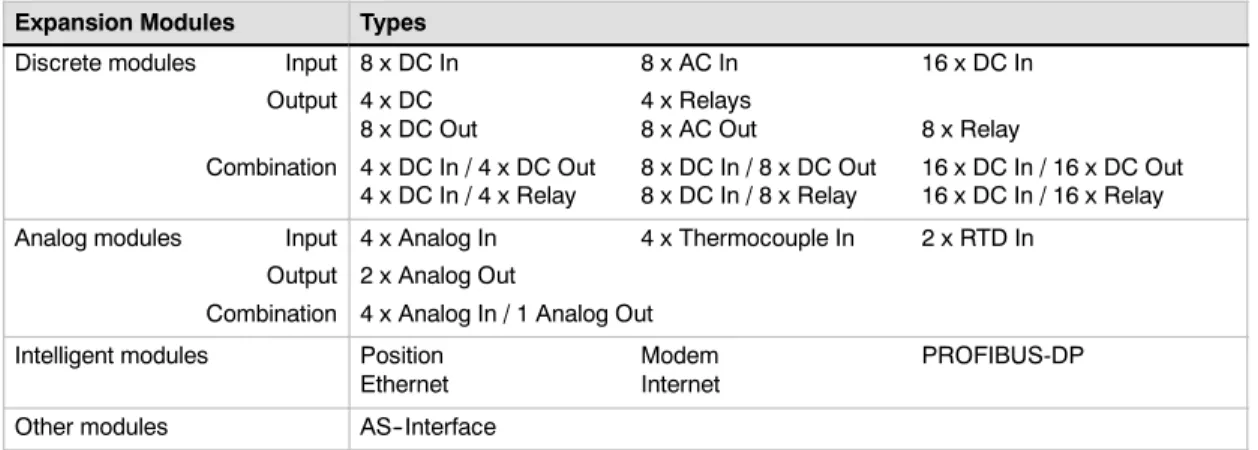
To better solve your application requirements, the S7-200 family includes a wide variety of expansion modules. You can use these expansion modules to add additional functionality to the S7-200 CPU. Table 1-2 provides a list of the expansion modules that are currently available. For detailed information about a specific module, see Appendix A.
Table 1-2 S7-200 Expansion Modules
Expansion Modules Types
Discrete modules Input
Output
Combination
8 x DC In 8 x AC In 16 x DC In
4 x DC 4 x Relays
8 x DC Out 8 x AC Out 8 x Relay
4 x DC In / 4 x DC Out 8 x DC In / 8 x DC Out 16 x DC In / 16 x DC Out 4 x DC In / 4 x Relay 8 x DC In / 8 x Relay 16 x DC In / 16 x Relay
Analog modules Input
Output Combination
4 x Analog In 4 x Thermocouple In 2 x RTD In
2 x Analog Out
4 x Analog In / 1 Analog Out
Intelligent modules Position Modem PROFIBUS-DP
Ethernet Internet
Other modules AS--Interface
STEP 7--Micro/WIN Programming Package
The STEP 7--Micro/WIN programming package provides a user-friendly environment to develop, edit, and monitor the logic needed to control your application. STEP 7--Micro/WIN provides three program editors for convenience and efficiency in developing the control program for your application. To help you find the information you need, STEP 7--Micro/WIN provides an extensive online help system and a documentation CD that contains an electronic version of this manual, application tips, and other useful information.
Computer Requirements
STEP 7--Micro/WIN runs on either a personal computer or a Siemens programming device, such as a PG 760. Your computer or programming device should meet the following minimum requirements:
- Operating system:
Windows 95, Windows 98,
Windows 2000, Windows Me (Millennium Edition), Windows NT 4.0 (or later version),
Windows XP Professional
- At least 100M bytes of free hard disk
space
- Mouse (recommended)
1
Installing STEP 7--Micro/WIN
Insert the STEP 7--Micro/WIN CD into the CD-ROM drive of your computer. The installation wizard starts automatically and prompts you through the installation process. Refer to the Readme file for more information about installing STEP 7--Micro/WIN.Tip
To install STEP 7--Micro/WIN on a Windows NT, Windows 2000, or Windows XP Professional operating system, you must log in with Administrator privileges.
Communications Options
Siemens provides two programming options for connecting your computer to your S7-200: a direct connection with a PPI Multi-Master cable, or a Communications Processor (CP) card with an MPI cable. The PPI Multi-Master programming cable is the most common and economical method of connecting your computer to the S7-200. This cable connects the communications port of the S7-200 to the serial communications of your computer. The PPI Multi-Master programming cable can also be used to connect other communications devices to the S7-200.
Display Panels
TD 200 Text Display Unit
The TD 200 is a 2-line, 20-character, text display device that can be connected to the S7-200. Using the TD 200 wizard, you can easily program your S7-200 to display text messages and other data pertaining to your application.
The TD 200 provides a low cost interface to your application by allowing you to view, monitor, and change the process variables pertaining to your application.
A separate manual describes the detailed functionality and specifications of the TD 200. The TD 200 Configuration Wizard in
STEP 7--MicroWIN helps you configure TD 200 messages quickly and easily. To start the TD
Wig dq l y h T ly TD Wi d
200 Wizard, select theTools > TD 200 Wizard
menu command. Figure 1-3 TD 200 Text Display Unit
TP070 Touch Panel Display
The TP070 is a touch panel display device that can be connected to the S7-200. This touch panel provides you with a means to customize your operator interface.
The TP070 can display custom graphics, slider bars, application variables, custom user buttons, and so forth, by means of a user-friendly touch panel.
The optional TP--Designer for TP070, Version TD 200
Getting Started
STEP 7--Micro/WIN makes it easy for you to program your S7-200. In just a few short steps using a simple example, you can learn how to connect, program, and run your S7-200.
All you need for this example is a PPI Multi-Master cable, an S7-200 CPU, and a programming device running the STEP 7--Micro/WIN programming software.
In This Chapter
Connecting the S7-200 CPU . . . 6
Creating a Sample Program . . . 9
Downloading the Sample Program . . . 12
2
Connecting the S7-200 CPU
Connecting your S7-200 is easy. For this example, you only need to connect power to your S7-200 CPU and then connect the communications cable between your programming device and the S7-200 CPU.
Connecting Power to the S7-200 CPU
The first step is to connect the S7-200 to a power source. Figure 2-1 shows the wiring connections for either a DC or an AC model of the S7-200 CPU.
Before you install or remove any electrical device, ensure that the power to that equipment has been turned off. Always follow appropriate safety precautions and ensure that power to the S7-200 is disabled before attempting to install or remove the S7-200.
Warning
Attempts to install or wire the S7-200 or related equipment with power applied could cause electric shock or faulty operation of equipment. Failure to disable all power to the S7-200 and related equipment during installation or removal procedures could result in death or serious injury to personnel, and/or damage to equipment.
Always follow appropriate safety precautions and ensure that power to the S7-200 is disabled before attempting to install or remove the S7-200 or related equipment.
DC Installation AC Installation
24 VDC 85 to 265 VAC
Figure 2-1 Connecting Power to the S7-200 CPU
Tip
Examples in this manual use the RS-232/PPI Multi-Master cable. The RS-232/PPI Multi-Master cable replaces the previous PC/PPI cable. A USB/PPI Multi-Master cable is also available. Refer to Appendix E for order numbers.
2
Connecting the RS-232/PPI Multi-Master Cable
Figure 2-2 shows an RS-232/PPI Multi-Master cable connecting the S7-200 to the
programming device. To connect the cable: 1. Connect the RS-232 connector (marked
“PC”) of the RS-232/PPI Multi-Master cable to the communications port of the programming device. (For this example, connect to COM 1.)
2. Connect the RS-485 connector (marked “PPI”) of the RS-232/PPI Multi-Master cable to Port 0 or Port 1 of the S7-200. 3. Ensure that the DIP switches of the
RS-232/PPI Multi-Master cable are set as shown in Figure 2-2. 1 2 3 4 5 6 7 8 RS-232/PPI Multi-Master Cable S7-200 Programming Device ↑1 -- On ↓0 -- Off
Figure 2-2 Connecting the RS-232/PPI Multi-Master Cable
Starting STEP 7--Micro/WIN
Click on the STEP 7--Micro/WIN icon to open a new project. Figure 2-3 shows a new project. Notice the navigation bar. You can use the icons on the navigation bar to open elements of the STEP 7--Micro/WIN project.
Click on the Communications icon in the navigation bar to display the Communications dialog box. You use this dialog box to set up the communications for STEP 7--Micro/WIN.
Navigation bar
Communications icon
2
Verifying the Communications Parameters for STEP 7--Micro/WIN
The example project uses the default settings for STEP 7--Micro/WIN and the RS-232/PPI Multi-Master cable. To verify these settings: 1. Verify that the address of the PC/PPI
cable in the Communications dialog box is set to 0.
2. Verify that the interface for the network parameter is set for PC/PPI
cable(COM1).
3. Verify that the transmission rate is set to 9.6 kbps.
If d t h i ti
1.
3. 2.
If you need to change your communications
parameter settings, see Chapter 7. Figure 2-4 Verifying the Communications Parameters
Establishing Communications with the S7-200
Use the Communications dialog box to connect with your S7-200 CPU: 1. Double-click the refresh icon in the
Communications dialog box. STEP 7--Micro/WIN searches for the S7-200 station and displays a CPU icon for the connected S7-200 station. 2. Select the S7-200 and click OK. If STEP 7--Micro/WIN does not find your S7-200 CPU, check the settings for the communications parameters and repeat these steps.
After you have established communications with the S7 200 you are ready to create and
1.
with the S7-200, you are ready to create and
2
Creating a Sample Program
Entering this example of a control program will help you understand how easy it is to use STEP 7--Micro/WIN. This program uses six instructions in three networks to create a very simple, self-starting timer that resets itself.
For this example, you use the Ladder (LAD) editor to enter the instructions for the program. The following example shows the complete program in both LAD and Statement List (STL). The network comments in the STL program explain the logic for each network. The timing diagram shows the operation of the program.
Example: Sample Program for getting started with STEP 7--Micro/WIN
Network 1 //10 ms timer T33 times out after (100 x 10 ms = 1 s) //M0.0 pulse is too fast to monitor with Status view.
LDN M0.0
TON T33, +100
Network 2 //Comparison becomes true at a rate that is visible with //Status view. Turn on Q0.0 after (40 x 10 ms = 0.4 s), //for a 40% OFF/60% ON waveform.
LDW>= T33, +40
= Q0.0
Network 3 //T33 (bit) pulse too fast to monitor with Status view. //Reset the timer through M0.0 after the
//(100 x 10 ms = 1 s) period. LD T33 = M0.0 Timing Diagram Q0.0 T33 (bit) M0.0 T33 (current) current = 40 current = 100 0.4s 0.6s
Opening the Program Editor
Click on the Program Block icon to open the program editor. See Figure 2-6.
Notice the instruction tree and the program editor. You use the instruction tree to insert the LAD instructions into the networks of the program editor by dragging and dropping the instructions from the instruction tree to the networks.
The toolbar icons provide shortcuts to the menu commands.
After you enter and save the program, you can
download the program to the S7-200. Instruction tree Program editor
2
Entering Network 1: Starting the Timer
When M0.0 is off (0), this contact turns on and provides power flow to start the timer. To enter the contact for M0.0:
1. Either double-click the Bit Logic icon or click on the plus sign (+) to display the bit logic instructions.
2. Select the Normally Closed contact. 3. Hold down the left mouse button and
drag the contact onto the first network. 4. Click on the “???” above the contact and
enter the following address: M0.0 5. Press the Return key to enter the
address for the contact. To enter the timer instruction for T33:
To enter the timer instruction for T33: Figure 2-7 Network 1 1. Double-click the Timers icon to display the timer instructions. 2. Select the TON (On-Delay Timer).
3. Hold down the left mouse button and drag the timer onto the first network. 4. Click on the “???” above the timer box and enter the following timer number: T33
5. Press the Return key to enter the timer number and to move the focus to the preset time (PT) parameter.
6. Enter the following value for the preset time: 100 7. Press the Return key to enter the value.
Entering Network 2: Turning the Output On
When the timer value for T33 is greater than or equal to 40 (40 times 10 milliseconds, or 0.4 seconds), the contact provides power flow to turn on output Q0.0 of the S7-200. To enter the Compare instruction:
1. Double-click the Compare icon to display the compare instructions. Select the >=I instruction (Greater-Than-Or-Equal-To-Integer ).
2. Hold down the left mouse button and drag the compare instruction onto the second network.
3. Click on the “???” above the contact and enter the address for the timer value: T33 4. Press the Return key to enter the timer
number and to move the focus to the other value to be compared with the timer value.
5. Enter the following value to be compared with the timer value: 40
6 P th R t k t t th l
6. Press the Return key to enter the value. Figure 2-8 Network 2 To enter the instruction for turning on output Q0.0:
2
Entering Network 3: Resetting the Timer
When the timer reaches the preset value (100) and turns the timer bit on, the contact for T33 turns on. Power flow from this contact turns on the M0.0 memory location. Because the timer is enabled by a Normally Closed contact for M0.0, changing the state of M0.0 from off (0) to on (1) resets the timer. To enter the contact for the timer bit of T33:
1. Select the Normally Open contact from the bit logic instructions.
2. Hold down the left mouse button and drag the contact onto the third network. 3. Click on the “???” above the contact and
enter the address of the timer bit: T33 4. Press the Return key to enter the
address for the contact. To enter the coil for turning on M0.0:
1. Select the output coil from the bit logic 1. Select the output coil from the bit logic
instructions. Figure 2-9 Network 3
2. Hold down the left mouse button and drag the output coil onto the third network. 3. Double-click the “???” above the coil and enter the following address: M0.0 4. Press the Return key to enter the address for the coil.
Saving the Sample Project
After entering the three networks of instructions, you have finished entering the program. When you save the program, you create a project that includes the S7-200 CPU type and other parameters. To save the project:
1. Select theFile > Save Asmenu command from the menu bar.
2. Enter a name for the project in the Save As dialog box.
3. Click OK to save the project.
After saving the project, you can download the program to the S7-200.
2
Downloading the Sample Program
TipEach STEP 7--Micro/WIN project is associated with a CPU type (CPU 221, CPU 222, CPU 224, CPU 226, or CPU 226XM). If the project type does not match the CPU to which you are connected, STEP 7--Micro/WIN indicates a mismatch and prompts you to take an action. If this occurs, choose “Continue Download” for this example.
1. Click the Download icon on the toolbar or select theFile > Downloadmenu command to download the program. See Figure 2-11.
2. Click OK to download the elements of the program to the S7-200.
If your S7-200 is in RUN mode, a dialog box prompts you to place the S7-200 in STOP mode. Click Yes to place the S7-200 into STOP mode. Click Yes to place the S7-200 into STOP
mode. Figure 2-11 Downloading the Program
Placing the S7-200 in RUN Mode
For STEP 7--Micro/WIN to place the S7-200 CPU in RUN mode, the mode switch of the S7-200 must be set to TERM or RUN. When you place the S7-200 in RUN mode, the S7-200 executes the program:
1. Click the RUN icon on the toolbar or select thePLC > RUNmenu command. 2. Click OK to change the operating mode
of the S7-200.
When the S7-200 goes to RUN mode, the output LED for Q0.0 turns on and off as the output LED for Q0.0 turns on and off as the
S7-200 executes the program. Figure 2-12 Placing the S7-200 in RUN Mode
Congratulations! You have just completed your first S7-200 program.
You can monitor the program by selecting theDebug > Program Statusmenu command.
STEP 7--Micro/WIN displays the values for the instructions. To stop the program, place the S7-200 in STOP mode by clicking the STOP icon or by selecting thePLC > STOPmenu command.
Installing the S7-200
The S7-200 equipment is designed to be easy to install. You can use the mounting holes to attach the modules to a panel, or you can use the built-in clips to mount the modules onto a standard (DIN) rail. The small size of the S7-200 allows you to make efficient use of space.
This chapter provides guidelines for installing and wiring your S7-200 system.
In This Chapter
Guidelines for Installing S7-200 Devices . . . 14 Installing and Removing the S7-200 Modules . . . 15 Guidelines for Grounding and Wiring . . . 18
3
Guidelines for Installing S7-200 Devices
You can install an S7-200 either on a panel or on a standard rail, and you can orient the S7-200 either horizontally or vertically.
Separate the S7-200 Devices from Heat, High Voltage, and Electrical Noise
As a general rule for laying out the devices of your system, always separate the devices that generate high voltage and high electrical noise from the low-voltage, logic-type devices such as the S7-200. When configuring the layout of the S7-200 inside your panel, consider the heat-generating devices and locate the electronic-type devices in the cooler areas of your cabinet. Operating any electronic device in a high-temperature environment will reduce the time to failure.
Consider also the routing of the wiring for the devices in the panel. Avoid placing low voltage signal wires and communications cables in the same tray with AC power wiring and high-energy, rapidly-switched DC wiring.
Provide Adequate Clearance for Cooling and Wiring
S7-200 devices are designed for natural convection cooling. For proper cooling, you must provide a clearance of at least 25 mm above and below the devices. Also, allow at least 75 mm of depth.
Tip
For vertical mounting, the maximum allowable ambient temperature is reduced by 10°C. Mount the S7-200 CPU below any expansion modules.
When planning your layout for the S7-200 system, allow enough clearance for the wiring and communications cable connections. For additional flexibility in configuring the layout of the S7-200 system, use the I/O expansion cable.
75 mm Front of the enclosure Side View Mounting surface 35 mm 7.5 mm 1 mm DIN Rail 25 mm Clearance
Horizontal DIN Rail Mounting with Optional Expansion Cable (limit one per system)
Vertical Panel Mounting
3
Power Budget
All S7-200 CPUs have an internal power supply that provides power for the CPU, the expansion modules, and other 24 VDC user power requirements.
The S7-200 CPU provides the 5 VDC logic power needed for any expansion in your system. Pay careful attention to your system configuration to ensure that your CPU can supply the 5V power required by your selected expansion modules. If your configuration requires more power than the CPU can supply, you must remove a module or select a CPU with more power capability. Refer to Appendix A for information about the 5 VDC logic budget supplied by your S7-200 CPU and the 5 VDC power requirements of the expansion modules. Use Appendix B as a guide for determining how much power (or current) the CPU can provide for your configuration.
All S7-200 CPUs also provide a 24 VDC sensor supply that can supply 24 VDC for input points, for relay coil power on the expansion modules, or for other requirements. If your power requirements exceed the budget of the sensor supply, then you must add an external 24 VDC power supply to your system. Refer to Appendix A for the 24 VDC sensor supply power budget for your particular S7-200 CPU.
If you require an external 24 VDC power supply, ensure that the power supply is not connected in parallel with the sensor supply of the S7-200 CPU. For improved electrical noise protection, it is recommended that the commons (M) of the different power supplies be connected.
Warning
Connecting an external 24 VDC power supply in parallel with the S7-200 24 VDC sensor supply can result in a conflict between the two supplies as each seeks to establish its own preferred output voltage level.
The result of this conflict can be shortened lifetime or immediate failure of one or both power supplies, with consequent unpredictable operation of the PLC system. Unpredictable operation could result in death or serious injury to personnel, and/or damage to equipment.
The S7-200 DC sensor supply and any external power supply should provide power to different points.
Installing and Removing the S7-200 Modules
The S7-200 can be easily installed on a standard DIN rail or on a panel.
Prerequisites
Before you install or remove any electrical device, ensure that the power to that equipment has been turned off. Also, ensure that the power to any related equipment has been turned off.
Warning
Attempts to install or remove S7-200 or related equipment with the power applied could cause electric shock or faulty operation of equipment.
Failure to disable all power to the S7-200 and related equipment during installation or removal procedures could result in death or serious injury to personnel, and/or damage to equipment. Always follow appropriate safety precautions and ensure that power to the S7-200 is disabled before attempting to install or remove S7-200 CPUs or related equipment.
Always ensure that whenever you replace or install an S7-200 device you use the correct module or equivalent device.
Warning
If you install an incorrect module, the program in the S7-200 could function unpredictably.
Failure to replace an S7-200 device with the same model, orientation, or order could result in death or serious injury to personnel, and/or damage to equipment.
3
Mounting Dimensions
The S7-200 CPUs and expansion modules include mounting holes to facilitate installation on panels. Refer to Table 3-1 for the mounting dimensions.
Table 3-1 Mounting Dimensions
96 mm Mounting holes (M4 or No. 8) A B 4 mm 88 mm 80 mm 9.5 mm* 4 mm 4 mm * Minimum spacing between modules when hard-mounted
B A
S7-200 Module Width A Width B
CPU 221 and CPU 222 90 mm 82 mm
CPU 224 120.5 mm 112.5 mm
CPU 226 and CPU 226XM 196 mm 188 mm
Expansion modules: 4- and 8-point DC and Relay I/O (8I, 4Q, 8Q, 4I/4Q)
and Analog Out (2 AQ) 46 mm 38 mm
Expansion modules: 16-point digital I/O (16I, 8I/8Q), Analog I/O (4AI, 4AI/1AQ), RTD, Thermocouple, PROFIBUS, Ethernet, Internet, AS-Interface,
8-point AC (8I and 8Q), Position, and Modem
71.2 mm 63.2 mm
Expansion modules: 32-point digital I/O (16I/16Q) 137.3 mm 129.3 mm
Installing a CPU or Expansion Module
Installing the S7-200 is easy! Just follow these steps.
Panel Mounting
1. Locate, drill, and tap the mounting holes (M4 or American Standard number 8), using the dimensions in Table 3-1.
2. Secure the module(s) to the panel, using the appropriate screws.
3. If you are using an expansion module, connect the expansion module ribbon cable into the expansion port connector under the access door.
DIN Rail Mounting
1. Secure the rail to the mounting panel every 75 mm.
2. Snap open the DIN clip (located on the bottom of the module) and hook the back of the module onto the DIN rail.
3
TipUsing DIN rail stops could be helpful if your S7-200 is in an environment with high vibration potential or if the S7-200 has been installed vertically.
If your system is in a high-vibration environment, then panel-mounting the S7-200 will provide a greater level of vibration protection.
Removing a CPU or Expansion Module
To remove an S7-200 CPU or expansion module, follow these steps: 1. Remove power from the S7-200.
2. Disconnect all the wiring and cabling that is attached to the module. Most S7-200 CPU and expansion modules have removable connectors to make this job easier.
3. If you have expansion modules connected to the unit that you are removing, open the access cover door and disconnect the expansion module ribbon cable from the adjacent modules. 4. Unscrew the mounting screws or snap open the DIN clip.
5. Remove the module.
Removing and Reinstalling the Terminal Block Connector
Most S7-200 modules have removable connectors to make installing and replacing the module easy. Refer to Appendix A to determine whether your S7-200 module has removable connectors. You can order an optional fan-out connector for modules that do not have removable connectors. See Appendix E for order numbers.
To Remove the Connector
1. Open the connector door to gain access to the connector.
2. Insert a small screwdriver in the notch in the middle of the connector.
3. Remove the terminal connector by prying the screwdriver away from the S7-200 housing. See Figure 3-2.
Figure 3-2 Removing the Connector
To Reinstall the Connector
1. Open the connector door.
2. Align the connector with the pins on the unit and align the wiring edge of the connector inside the rim of the connector base.
3. Press down firmly to rotate the connector until it snaps into place. Check carefully to ensure that the connector is properly aligned and fully engaged.
3
Guidelines for Grounding and Wiring
Proper grounding and wiring of all electrical equipment is important to help ensure the optimum
operation of your system and to provide additional electrical noise protection for your application and the S7-200.
Prerequisites
Before you ground or install wiring to any electrical device, ensure that the power to that equipment has been turned off. Also, ensure that the power to any related equipment has been turned off.
Ensure that you follow all applicable electrical codes when wiring the S7-200 and related equipment. Install and operate all equipment according to all applicable national and local standards. Contact your local authorities to determine which codes and standards apply to your specific case.
Warning
Attempts to install or wire the S7-200 or related equipment with power applied could cause electric shock or faulty operation of equipment. Failure to disable all power to the S7-200 and related equipment during installation or removal procedures could result in death or serious injury to personnel, and/or damage to equipment.
Always follow appropriate safety precautions and ensure that power to the S7-200 is disabled before attempting to install or remove the S7-200 or related equipment.
Always take safety into consideration as you design the grounding and wiring of your S7-200 system. Electronic control devices, such as the S7-200, can fail and can cause unexpected operation of the equipment that is being controlled or monitored. For this reason, you should implement safeguards that are independent of the S7-200 to protect against possible personal injury or equipment damage.
Warning
Control devices can fail in an unsafe condition, resulting in unexpected operation of controlled equipment. Such unexpected operations could result in death or serious injury to personnel, and/or damage to equipment.
Use an emergency stop function, electromechanical overrides, or other redundant safeguards that are independent of the S7-200.
Guidelines for Isolation
S7-200 AC power supply boundaries and I/O boundaries to AC circuits are rated 1500 VAC. These isolation boundaries have been examined and approved as providing safe separation between AC line and low voltage circuits.
All low voltage circuits connected to an S7-200, such as 24V power, must be supplied from an approved source that provides safe isolation from AC line and other high voltages. Such sources include double insulation as defined in international electrical safety standards and have outputs that are rated as SELV, PELV, Class 2, or Limited Voltage according to various standards.
Warning
Use of non-isolated or single insulation supplies to supply low voltage circuits from an AC line can result in hazardous voltages appearing on circuits that are expected to be touch safe, such as communications circuits and low voltage sensor wiring.
Such unexpected high voltages could result in death or serious injury to personnel, and/or damage to equipment.
Only use high voltage to low voltage power converters that are approved as sources of touch safe, limited voltage circuits.
3
Guidelines for Grounding the S7-200
The best way to ground your application is to ensure that all the common and ground connections of your S7-200 and related equipment are grounded to a single point. This single point should be connected directly to the earth ground for your system.
For improved electrical noise protection, it is recommended that all DC common returns be connected to the same single-point earth ground. Connect the 24 VDC sensor supply common (M) to earth ground. All ground wires should be as short as possible and should use a large wire size, such as 2 mm2 (14 AWG).
When locating grounds, remember to consider safety grounding requirements and the proper operation of protective interrupting devices.
Guidelines for Wiring the S7-200
When designing the wiring for your S7-200, provide a single disconnect switch that simultaneously removes power from the S7-200 CPU power supply, from all input circuits, and from all output circuits. Provide overcurrent protection, such as a fuse or circuit breaker, to limit fault currents on supply wiring. You might want to provide additional protection by placing a fuse or other current limit in each output circuit.
Install appropriate surge suppression devices for any wiring that could be subject to lightning surges. Avoid placing low-voltage signal wires and communications cables in the same wire tray with AC wires and high-energy, rapidly switched DC wires. Always route wires in pairs, with the neutral or common wire paired with the hot or signal-carrying wire.
Use the shortest wire possible and ensure that the wire is sized properly to carry the required current. The connector accepts wire sizes from 2 mm2to 0.3 mm2(14 AWG to 22 AWG). Use shielded wires for optimum protection against electrical noise. Typically, grounding the shield at the S7-200 gives the best results.
When wiring input circuits that are powered by an external power supply, include an overcurrent protection device in that circuit. External protection is not necessary for circuits that are powered by the 24 VDC sensor supply from the S7-200 because the sensor supply is already current-limited.
Most S7-200 modules have removable connectors for user wiring. (Refer to Appendix A to determine if your module has removable connectors.) To prevent loose connections, ensure that the connector is seated securely and that the wire is installed securely into the connector. To avoid damaging the connector, be careful that you do not over-tighten the screws. The maximum torque for the connector screw is 0.56 N-m (5 inch-pounds).
To help prevent unwanted current flows in your installation, the S7-200 provides isolation boundaries at certain points. When you plan the wiring for your system, you should consider these isolation
boundaries. Refer to Appendix A for the amount of isolation provided and the location of the isolation boundaries. Isolation boundaries rated less than 1500 VAC must not be depended on as safety boundaries.
Tip
For a communications network, the maximum length of the communications cable is 50 m without using a repeater. The communications port on the S7-200 is non-isolated. Refer to Chapter 7 for more information.
3
Guidelines for Suppression Circuits
You should equip inductive loads with suppression circuits to limit voltage rise when the control output turns off. Suppression circuits protect your outputs from premature failure due to high inductive switching currents. In addition, suppression circuits limit the electrical noise generated when switching inductive loads.
Tip
The effectiveness of a given suppression circuit depends on the application, and you must verify it for your particular use. Always ensure that all components used in your suppression circuit are rated for use in the application.
DC Outputs and Relays That Control DC Loads
The DC outputs have internal protection that is adequate for most applications. Since the relays can be used for either a DC or an AC load, internal protection is not provided.
Figure 3-3 shows a sample suppression circuit for a DC load. In most applications, the addition of a diode (A) across the inductive load is suitable, but if your application requires faster turn-off times, then the addition of a Zener diode (B) is recommended. Be sure to size your Zener diode properly for the amount of current
A -- I1N4001 diode or equivalent B -- 8.2 V Zener for DC Outputs
36 V Zener for Relay Outputs
A DC Inductive Load B (optional) Output Point e e d ode p ope y o t e a ou t o cu e t
in your output circuit. Figure 3-3 Suppression Circuit for a DC Load
AC Outputs and Relays That Control AC Loads
The AC outputs have internal protection that is adequate for most applications. Since the relays can be used for either a DC or an AC load, internal protection is not provided.
Figure 3-4 shows a sample suppression circuit for an AC load. When you use a relay or AC output to switch 115 V/230 VAC loads, place resistor/capacitor networks across the AC load as shown in this figure. You can also use a metal oxide varistor (MOV) to limit peak voltage. Ensure that the working voltage of the MOV is at least 20% greater than the nominal line voltage. MOV AC Inductive Load Output Point .1µF 100 to 120Ω line voltage.
Figure 3-4 Suppression Circuit for an AC Load Notice
When relay expansion modules are used to switch 230 VAC inductive loads, the external
PLC Concepts
The basic function of the S7-200 is to monitor field inputs and, based on your control logic, turn on or off field output devices. This chapter explains the concepts used to execute your program, the various types of memory used, and how that memory is retained.
In This Chapter
Understanding How the S7-200 Executes Your Control Logic . . . 22 Accessing the Data of the S7-200 . . . 24 Understanding How the S7-200 Saves and Restores Data. . . 34 Storing Your Program on a Memory Cartridge . . . 36 Selecting the Operating Mode for the S7-200 CPU. . . 37 Using Your Program to Save V Memory to the EEPROM . . . 38 Features of the S7-200 . . . 39
4
Understanding How the S7-200 Executes Your Control Logic
The S7-200 continuously cycles through the control logic in your program, reading and writing data.
The S7-200 Relates Your Program to the Physical Inputs and Outputs
The basic operation of the S7-200 is very simple:
- The S7-200 reads the status of the inputs.
- The program that is stored in the S7-200 uses these
inputs to evaluate the control logic. As the program runs, the S7-200 updates the data.
- The S7-200 writes the data to the outputs.
Figure 4-1 shows a simple diagram of how an electrical relay diagram relates to the S7-200. In this example, the state of the switch for starting the motor is combined with the states of other inputs. The calculations of these states then determine the state for the output that goes to the
Start_PB M_Starter M_Starter E_Stop Output Motor
Start / Stop Switch Input
Motor Starter
then determine the state for the output that goes to the
actuator which starts the motor. Figure 4-1 Controlling Inputs and Outputs
The S7-200 Executes Its Tasks in a Scan Cycle
The S7-200 executes a series of tasks repetitively. This cyclical execution of tasks is called the scan cycle. As shown in Figure 4-2, the S7-200 performs most or all of the following tasks during a scan cycle:
- Reading the inputs: The S7-200 copies the state of
the physical inputs to the process-image input register.
- Executing the control logic in the program: The
S7-200 executes the instructions of the program and stores the values in the various memory areas.
- Processing any communications requests: The
S7-200 performs any tasks required for communications.
- Executing the CPU self-test diagnostics: The S7-200
ensures that the firmware, the program memory, and any expansion modules are working properly.
- Writing to the outputs: The values stored in the
process image output register are written to the
Process any
Communications Requests Perform the CPU Diagnostics
Scan Cycle
Writes to the outputs
Reads the inputs Execute the Program
process-image output register are written to the
physical outputs. Figure 4-2 S7-200 Scan Cycle
The execution of the scan cycle is dependent upon whether the S7-200 is in STOP mode or in RUN mode. In RUN mode, your program is executed; in STOP mode, your program is not executed.
4
Reading the Inputs
Digital inputs:Each scan cycle begins by reading the current value of the digital inputs and then writing these values to the process-image input register.
Analog inputs:The S7-200 does not update analog inputs as part of the normal scan cycle unless filtering of analog inputs is enabled. An analog filter is provided to allow you to have a more stable signal. You can enable the analog filter for each analog input point.
When analog input filtering is enabled for an analog input, the S7-200 updates that analog input once per scan cycle, performs the filtering function, and stores the filtered value internally. The filtered value is then supplied each time your program accesses the analog input.
When analog filtering is not enabled, the S7-200 reads the value of the analog input from the physical module each time your program accesses the analog input.
Tip
Analog input filtering is provided to allow you to have a more stable analog value. Use the analog input filter for applications where the input signal varies slowly with time. If the signal is a high-speed signal, then you should not enable the analog filter.
Do not use the analog filter with modules that pass digital information or alarm indications in the analog words. Always disable analog filtering for RTD, Thermocouple, and AS-Interface Master modules.
Executing the Program
During the execution phase of the scan cycle, the S7-200 executes your program, starting with the first instruction and proceeding to the end instruction. The immediate I/O instructions give you immediate access to inputs and outputs during the execution of either the program or an interrupt routine. If you use interrupts in your program, the interrupt routines that are associated with the interrupt events are stored as part of the program. The interrupt routines are not executed as part of the normal scan cycle, but are executed when the interrupt event occurs (which could be at any point in the scan cycle).
Processing Any Communications Requests
During the message-processing phase of the scan cycle, the S7-200 processes any messages that were received from the communications port or intelligent I/O modules.
Executing the CPU Self-test Diagnostics
During this phase of the scan cycle, the S7-200 checks for proper operation of the CPU, for memory areas, and for the status of any expansion modules.
Writing to the Digital Outputs
At the end of every scan cycle, the S7-200 writes the values stored in the process-image output register to the digital outputs. (Analog outputs are updated immediately, independently from the scan cycle.)
4
Accessing the Data of the S7-200
The S7-200 stores information in different memory locations that have unique addresses. You can explicitly identify the memory address that you want to access. This allows your program to have direct access to the information. Table 4-1 shows the range of integer values that can be represented by the different sizes of data.
Table 4-1 Decimal and Hexadecimal Ranges for the Different Sizes of Data
Representation Byte (B) Word (W) Double Word (D)
Unsigned Integer 0 to 255 0 to FF 0 to 65,535 0 to FFFF 0 to 4,294,967,295 0 to FFFF FFFF Signed Integer --128 to +127 80 to 7F --32,768 to +32,767 8000 to 7FFF --2,147,483,648 to +2,147,483,647 8000 0000 to 7FFF FFFF Real
IEEE 32-bit Floating Point
Not applicable Not applicable +1.175495E--38 to +3.402823E+38 (positive) --1.175495E--38 to --3.402823E+38 (negative)
To access a bit in a memory area, you specify the address, which includes the memory area identifier, the byte address, and the bit number. Figure 4-3 shows an example of accessing a bit (which is also called “byte.bit” addressing). In this example, the memory area and byte address (I = input, and 3 = byte 3) are followed by a period (“.”) to separate the bit address (bit 4).
I 3 4 7 6 5 4 3 2 1 0 Byte 0 Byte 1 Byte 2 Byte 3 Byte 4 Byte 5 .
Memory area identifier Byte address: byte 3 (the fourth byte)
Period separates the byte address from the bit number
Bit of byte, or bit number: bit 4 of 8 (0 to 7)
Process-image Input (I) Memory Area
Figure 4-3 Byte.Bit Addressing
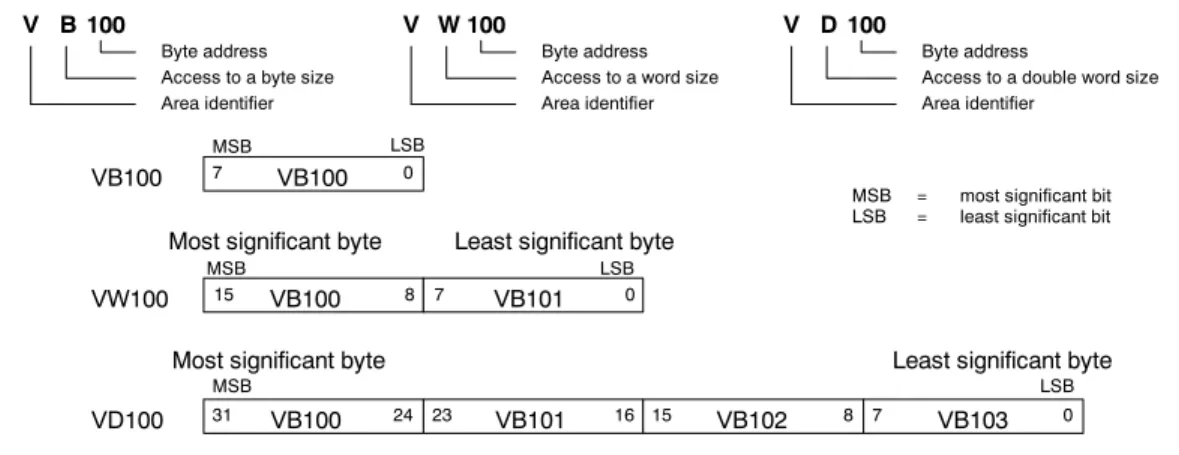
You can access data in most memory areas (V, I, Q, M, S, L, and SM) as bytes, words, or double words by using the byte-address format. To access a byte, word, or double word of data in the memory, you must specify the address in a way similar to specifying the address for a bit. This includes an area identifier, data size designation, and the starting byte address of the byte, word, or double-word value, as shown in Figure 4-4.
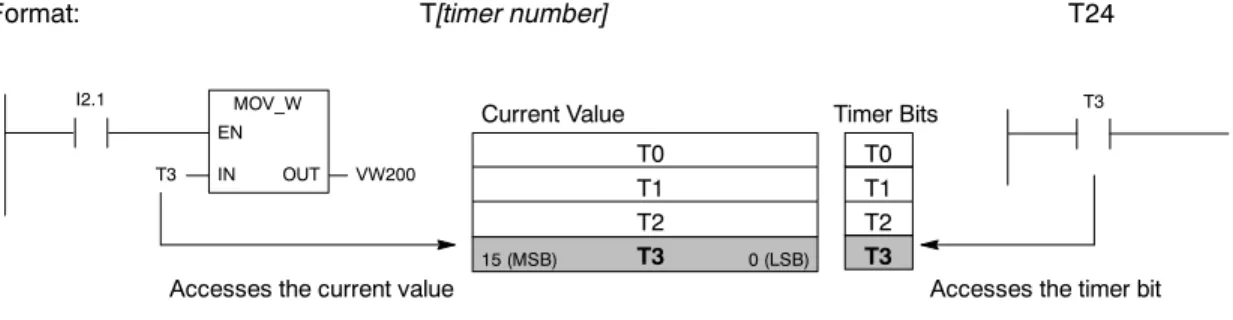
Data in other memory areas (such as T, C, HC, and the accumulators) are accessed by using an address format that includes an area identifier and a device number.
4
V B 100 VB100 MSB LSB VW100 15 8 MSB 7 0 LSB VD100Most significant byte Least significant byte
31 24 23 16 15 8 7 0
Most significant byte Least significant byte
MSB = most significant bit LSB = least significant bit
VB100 VB100 VB101 VB100 VB101 VB102 VB103 MSB LSB 7 0 Byte address Access to a byte size Area identifier
V W 100
Byte address Access to a word size Area identifier
V D 100
Byte address
Access to a double word size Area identifier
Figure 4-4 Comparing Byte, Word, and Double-Word Access to the Same Address
Accessing Data in the Memory Areas
Process-Image Input Register: I
The S7-200 samples the physical input points at the beginning of each scan cycle and writes these values to the process-image input register. You can access the process-image input register in bits, bytes, words, or double words:
Bit: I[byte address].[bit address] I0.1
Byte, Word, or Double Word: I[size][starting byte address] IB4
Process-Image Output Register: Q
At the end of the scan cycle, the S7-200 copies the values stored in the process-image output register to the physical output points. You can access the process-image output register in bits, bytes, words, or double words:
Bit: Q[byte address].[bit address] Q1.1
Byte, Word, or Double Word: Q[size][starting byte address] QB5
Variable Memory Area: V
You can use V memory to store intermediate results of operations being performed by the control logic in your program. You can also use V memory to store other data pertaining to your process or task. You can access the V memory area in bits, bytes, words, or double words:
Bit: V[byte address].[bit address] V10.2
Byte, Word, or Double Word: V[size][starting byte address] VW100
Bit Memory Area: M
You can use the bit memory area (M memory) as control relays to store the intermediate status of an operation or other control information. You can access the bit memory area in bits, bytes, words, or double words:
Bit: M[byte address].[bit address] M26.7