Installation and Licensing Documentation
Copyright and Trademark Information
© 2009 SAS IP, Inc. All rights reserved. Unauthorized use, distribution or duplication is prohibited.
ANSYS, ANSYS Workbench, Ansoft, AUTODYN, EKM, Engineering Knowledge Manager, CFX, FLUENT, HFSS and any and all ANSYS, Inc. brand, product, service and feature names, logos and slogans are registered trademarks or trademarks of ANSYS, Inc. or its subsidiaries in the United States or other countries. ICEM CFD is a trademark used by ANSYS, Inc. under license. CFX is a trademark of Sony Corporation in Japan. All other brand, product, service and feature names or trademarks are the property of their respective owners.
THIS ANSYS SOFTWARE PRODUCT AND PROGRAM DOCUMENTATION INCLUDE TRADE SECRETS AND ARE CONFIDENTIAL AND PROPRIETARY PRODUCTS OF ANSYS, INC., ITS SUBSIDIARIES, OR LICENSORS. The software products and document-ation are furnished by ANSYS, Inc., its subsidiaries, or affiliates under a software license agreement that contains pro-visions concerning non-disclosure, copying, length and nature of use, compliance with exporting laws, warranties, disclaimers, limitations of liability, and remedies, and other provisions. The software products and documentation may be used, disclosed, transferred, or copied only in accordance with the terms and conditions of that software license agreement.
ANSYS, Inc. is certified to ISO 9001:2008.
U.S. Government Rights
For U.S. Government users, except as specifically granted by the ANSYS, Inc. software license agreement, the use, du-plication, or disclosure by the United States Government is subject to restrictions stated in the ANSYS, Inc. software license agreement and FAR 12.212 (for non-DOD licenses).
Third-Party Software
See the legal information in the product help files for the complete Legal Notice for ANSYS proprietary software and third-party software. If you are unable to access the Legal Notice, please contact ANSYS, Inc.
ANSYS, Inc. Licensing Guide
Release 12.1 ANSYS, Inc.
November 2009 Southpointe
275 Technology Drive ANSYS, Inc. is
certified to ISO 9001:2008. Canonsburg, PA 15317 [email protected] http://www.ansys.com (T) 724-746-3304 (F) 724-514-9494
The information in this guide applies to all ANSYS, Inc. products released on or after this date, until superceded by a newer version of this guide.
Copyright and Trademark Information
© 2009 SAS IP, Inc. All rights reserved. Unauthorized use, distribution or duplication is prohibited.
ANSYS, ANSYS Workbench, Ansoft, AUTODYN, EKM, Engineering Knowledge Manager, CFX, FLUENT, HFSS and any and all ANSYS, Inc. brand, product, service and feature names, logos and slogans are registered trademarks or trademarks of ANSYS, Inc. or its subsidiaries in the United States or other countries. ICEM CFD is a trademark used by ANSYS, Inc. under license. CFX is a trademark of Sony Corporation in Japan. All other brand, product, service and feature names or trademarks are the property of their respective owners.
Disclaimer Notice
THIS ANSYS SOFTWARE PRODUCT AND PROGRAM DOCUMENTATION INCLUDE TRADE SECRETS AND ARE CONFIDENTIAL AND PROPRIETARY PRODUCTS OF ANSYS, INC., ITS SUBSIDIARIES, OR LICENSORS. The software products and document-ation are furnished by ANSYS, Inc., its subsidiaries, or affiliates under a software license agreement that contains pro-visions concerning non-disclosure, copying, length and nature of use, compliance with exporting laws, warranties, disclaimers, limitations of liability, and remedies, and other provisions. The software products and documentation may be used, disclosed, transferred, or copied only in accordance with the terms and conditions of that software license agreement.
ANSYS, Inc. is certified to ISO 9001:2008.
U.S. Government Rights
For U.S. Government users, except as specifically granted by the ANSYS, Inc. software license agreement, the use, du-plication, or disclosure by the United States Government is subject to restrictions stated in the ANSYS, Inc. software license agreement and FAR 12.212 (for non-DOD licenses).
Third-Party Software
See the legal information in the product help files for the complete Legal Notice for ANSYS proprietary software and third-party software. If you are unable to access the Legal Notice, please contact ANSYS, Inc.
Table of Contents
Preface ... vii
1. Introduction... 1
1.1. Explanation of Licensing Terms ... 2
1.1.1. The FLEXlm License Server Manager (lmgrd) ... 2
1.1.2. The Vendor Daemon (ansyslmd) ... 2
1.1.3. ANSYS Licensing Interconnect (ansysli) ... 3
1.1.4. The License File ... 3
1.1.4.1. License Files Format ... 3
1.1.4.1.1. SERVER Lines ... 4
1.1.4.1.2. VENDOR Lines ... 4
1.1.4.1.3. INCREMENT Lines ... 5
1.1.4.1.4. Sample License Files ... 5
1.1.4.1.5. Recognizing an ANSYS, Inc. License File ... 6
1.1.5. The Application Programs ... 7
1.1.6. The License Server Machines ... 7
1.1.6.1. Selecting License Server Machines ... 7
1.1.6.2. Redundant Server Options ... 8
2. Installing the ANSYS License Manager... 9
2.1. Communications Requirements ... 10
2.1.1. Configuring TCP/IP ... 10
2.1.1.1. Determining Whether TCP/IP Is Installed on a Microsoft Windows System ... 10
2.1.2. Changing the Default ANSYS Licensing Interconnect and FLEXlm Port Numbers ... 11
2.2. Installing the License Manager ... 11
2.2.1. License Manager Installation Instructions - Windows ... 12
2.2.2. License Manager Installation Instructions - UNIX/Linux ... 13
2.2.3. Advanced Licensing Configuration Options ... 14
2.3. Post-Installation Instructions ... 17
2.3.1. Start the ANSYS License Manager at System Boot Time ... 18
2.3.2. Configuring the License Server Machine(s) ... 20
2.3.3. Modify License Manager Startup Options ... 20
2.3.4. Create a Group ... 21
2.3.4.1. Defining Group Restrictions for the Licensing Interconnect ... 21
2.3.5. Specify User Privileges ... 22
2.3.6. Specifying the License Server and License Files ... 22
2.3.7. Specifying Firewall Settings ... 23
2.3.8. Setting Up Redundant (Triad) Servers ... 23
3. License Administration Using ANSLIC_ADMIN... 25
3.1. Using the ANSLIC_ADMIN Utility ... 25
3.1.1. Register License Server Information ... 27
3.1.2. Display the License Server Hostid ... 27
3.1.3. Run the License Wizard ... 27
3.1.4. Install the License File ... 28
3.1.5. Start the ANSYS, Inc. License Manager ... 28
3.1.6. Stop the ANSYS, Inc. License Manager ... 29
3.1.7. Reread the License Manager Settings ... 30
3.1.8. Specify the License Server Machine ... 30
3.1.8.1. Sample Scenario ... 32
3.1.9. Remove a Client License ... 33
3.1.10. Set License Preferences for User... 34
3.1.11.1. Setting up License Borrowing ... 35
3.1.11.2. Running the Borrowing Utility ... 35
3.1.12. Set Site Preferences ... 36
3.1.12.1. Edit the FLEXlm Options File ... 37
3.1.12.1.1. The Options File Format ... 37
3.1.12.1.2. Sample Options File ... 40
3.1.12.2. Specify Product Order ... 40
3.1.12.3. Modify Startup Options ... 41
3.1.12.4. Specify License Servers to Cache ... 42
3.1.13. View Status/Diagnostic Options ... 42
3.1.13.1. Display the License Status ... 43
3.1.13.2. Display the Customer Number ... 43
3.1.13.3. View the ANSYS Licensing Interconnect Debug Log File ... 43
3.1.13.4. View the FLEXlm License File ... 43
3.1.13.5. View the FLEXlm Debug Log File ... 43
3.1.13.6. Gather Diagnostic Information ... 43
3.1.14. Uninstall the License Manager ... 43
4. End-User Settings... 45
4.1. Client Environment Variable Settings ... 45
4.1.1. License Files Settings Precedence ... 45
4.2. Establishing User Licensing Preferences ... 46
4.2.1. ANSYS Workbench Licensing Methods ... 46
4.2.2. HPC Licensing ... 49
4.2.2.1. Specifying HPC License Order ... 50
4.3. Setting Up License Queuing ... 50
4.4. Using License Borrowing ... 51
5. Troubleshooting... 53
5.1. Getting Additional License Debug Information ... 53
5.2. Gathering Diagnostic Information ... 54
5.3. Problem Situations ... 54
5.3.1. License Manager Will Not Start ... 54
5.3.2. License Manager Will Not Stop ... 55
5.3.3. License Manager Will Not Stop in a Three-Server Environment ... 55
5.3.4. The Application Does Not Show the Correct License(s) ... 55
5.3.5. The Application Does Not Recognize my Academic Licenses ... 56
5.3.6. I Do Not See an HPC Product Category in the Specify Product Order Dialog ... 56
5.3.7. Entries in the FLEXlm Options File Are Ignored ... 56
5.3.8. FLEXlm Log File Shows Unexpected Messages When the License Manager Is Stopped ... 56
5.3.9. Unable to Check Out Licenses ... 57
5.3.10. Jobs Abort When License Manager Goes Down in Three-Server Environment ... 57
5.3.11. Licensing Log File Not Created ... 58
5.3.12. Queuing Does Not Work ... 58
5.3.13. The FLEXlm Utility lmcksum May Give Misleading Information ... 59
5.3.14. The Mechanical APDL Launcher is Excessively Slow to Start ... 59
5.3.15. Mechanical APDL Launcher is Not Using ANSYS121_PRODUCT Environment Variable Cor-rectly ... 59
5.3.16. Cannot Run a Product Listed in the Mechanical APDL Product Launcher ... 59
5.3.17. Remove a Client Option Does Not Work ... 59
5.3.18. No Licensing Interconnect or FLEXlm Path Available from Display the License Status Op-tion ... 59
5.3.19. Cannot Enter Data in Text Fields ... 60
5.5. Licensing-Related Mechanical APDL Launcher Error Messages ... 60
5.6. Licensing Error Messages ... 62
5.7. ANSYS License Borrowing Errors ... 67
5.8. FLEXlm License Log File Errors ... 67
6. Product Variable Table... 71
Glossary ... 79
Index ... 85
List of Tables
1.1. Identifying License Files ... 62.1. Configuring TCP/IP ... 10
2.2. License Manager Automatic Startup Instructions ... 18
2.3. Removing License Manager Automatic Startup Instructions ... 19
6.1. Product/Feature Names for Licensed Products ... 71 ANSYS, Inc. Licensing Guide
Preface
This document contains information for running the ANSYS, Inc. License Manager with all ANSYS, Inc. products. However, some information may pertain only to specific products/licensing levels, such as Mechanical APDL (ANSYS) or ANSYS FLUENT.
Important Notice
If you wish to run multiple releases of ANSYS, Inc. software, you MUST install them chronologically (i.e., Release 12.0 followed by Release 12.1). If you install an earlier release after installing Release 12.1, you will encounter licensing issues that may prevent you from running any products/releases. If you need to install an earlier release after you have already installed Release 12.1, you MUST uninstall Release 12.1, then re-install the releases in order.
Supported Hardware Platforms
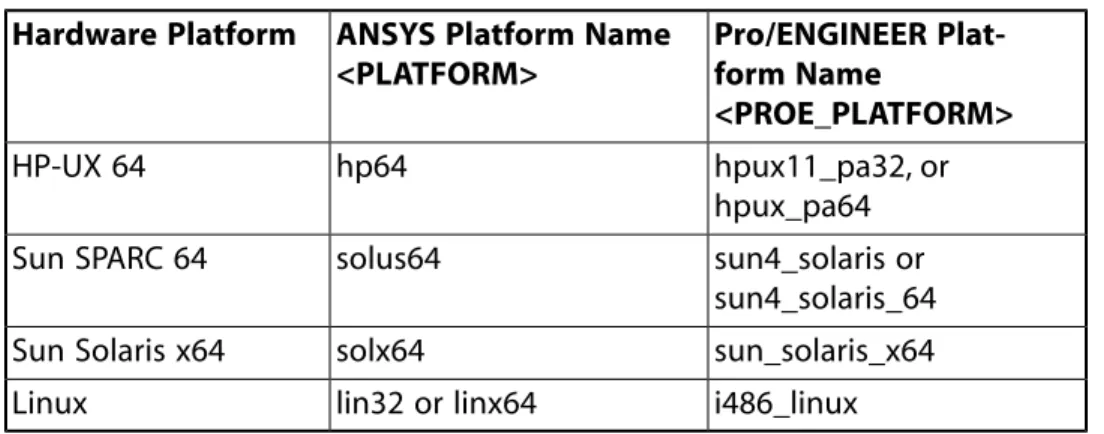
This document details information about licensing ANSYS, Inc. products on the hardware platforms listed below. Not all products support all platforms listed below. Please refer to the installation documentation for platform specifics, including the platforms on which your specific product runs. The name in parentheses indicates the directory name for each platform (referred to as <platform> throughout this document).
• HP-UX 64 (hp64)
• HP-UX Itanium 64(hpia64) • IBM AIX 64 (aix64)
• Sun SPARC 64 (solus64) • Sun Solaris x64 (solx64) • Linux 32 (lin32)
• Linux Itanium 64 (linia64) • Linux x64 (linx64)
• Windows x64 (winx64) • Windows 32 (win32)
For specific operating system requirements, refer to the installation guide for the product and platform you are running.
Intended Audience
The ANSYS Licensing Guide is intended for the person responsible for licensing administration of all ANSYS, Inc. products at a site. This person is typically the system administrator. End users of the product may also find this information useful, especially client options.
Applicability
This guide applies to all licensed ANSYS, Inc. applications, including:
• Mechanical APDL (ANSYS) • ANSYS Workbench products
• ANSYS CFX products • ANSYS FLUENT • ANSYS POLYFLOW • ANSYS AQWA • ANSYS ASAS
• ANSYS ICEM CFD products • ANSYS AUTODYN
• ANSYS Icepak
Summary of New and Changed Features
Listed below is a summary of those licensing items that are either new or have been changed since the last release. For a list of all major new and changed features of any product, see the Release Notes document for that product.
• At ANSYS Release 12.1, the license manager daemons (lmgrd and ansyslmd) have been upgraded to FLEXlm 10.8.8 (FLEXnet 10.8.8). You must use this version of the license manager with ANSYS 12.1.
• ANSYS, Inc. now offers physics-neutral HPC licenses that can be used across most ANSYS, Inc. applications. Please see HPC Licensing in the ANSYS, Inc. Licensing Guide for detailed information on using the new ANSYS HPC and ANSYS HPC Pack licenses.
• ANSYS FLUENT, ANSYS POLYFLOW, and ANSYS Icepak work with the ANSYS, Inc. License Manager at Release 12.1. You should be able to continue using your legacy licensing for these products, but we recommend upgrading to the ANSYS, Inc. License Manager.
Conventions Used in This Document
Computer prompts and responses and user input are printed using this font:
/ansys_inc/shared_files/licensing/lic_admin/anslic_admin
Lengthy user input lines that exceed the width of the page are listed in multiple lines, with the second and subsequent lines indented:
exec_path <drive>:\Program Files\Ansys Inc\ansys121\ac4 \bin\pro\<platform>\ac4pro121.exe
Wild card arguments and variables are italicized.
Commands appear in bold face.
Note
Note paragraphs are introduced by the text Note. A note contains information that supplements the main topic being discussed.
Caution
Paragraphs that begin with the word “Caution” in bold, with the rest of the text in normal type, warn you about actions or situations that potentially may cause problems or unexpected behavior or results in ANSYS, Inc. products.
Warning
Paragraphs that begin with the word “Warning” in bold warn you about actions or situations that can shut down ANSYS, Inc. products, damage files, etc.
Chapter 1: Introduction
ANSYS, Inc. uses the FLEXlm license manager (also called the FLEXnet License Manager) for all of its licensed products. FLEXlm is best known for its ability to allow software licenses to be available (or float) anywhere on a network. Floating licensing benefits both users and license administrators. Users can make more efficient use of fewer licenses by sharing them on the network. License administrators can control who uses the licensed application and the machine(s) where the licenses will be available. The format of the traffic between the ANSYS product(s) and the license manager is machine independent, allowing for heterogeneous networks. The license server machine and the computer running an application can be different hardware platforms or even different operating systems (Windows and UNIX/Linux, for example).
The actual communication between the ANSYS applications and lmgrd occurs through an intermediary process call the ANSYS Licensing Interconnect. The Licensing Interconnect is nearly transparent; you should not see any noticeable difference in your day-to-day operation of ANSYS products.
To get the full set of files necessary to run as a server, you will need to run the license server installation. The general licensing process is explained here; for detailed installation instructions, see Chapter 2, Installing the ANSYS License Manager (p. 9). All files necessary to run as a client are automatically installed during the product installation.
The Licensing Process
The licensing process for ANSYS, Inc. products is as follows:
1. Select the license server machine(s). See Selecting License Server Machines (p. 7) for guidelines. 2. Install and configure TCP/IP. See Communications Requirements (p. 10) for information on configuring
TCP/IP.
3. Install the software. See Chapter 2, Installing the ANSYS License Manager (p. 9), or see the appropriate installation manual for your product and platforms for detailed installation instructions.
4. Register the license server machine(s). See Step 1 (p. 20).
5. After you receive your license file, run the License Wizard. See Run the License Wizard (p. 27) for inform-ation on installing your license file.
6. Set up the licensing environment. See Post-Installation Instructions (p. 17).
Compatibility with Other FLEXlm-Licensed Software
Because of FLEXlm's popularity, you may have FLEXlm licenses from more than one vendor.
The ANSYS License Manager uses FLEXlm 10.8.8. If you do have other FLEXlm-licensed products running FLEXlm 10.8.8 or higher, you can run them in conjunction with ANSYS products with no intervention or special configuration requirements. However, we do not support combining ANSYS, Inc. license files with other license files using one lmgrd license manager.
Links to FLEXlm
For more information on using FLEXlm, please visit the FLEXlm web site at http://www.acresso.com/. You can refer to the FLEXnet Licensing End User Guide for more detailed information on all FLEXlm features. You can access this document from the ANSLIC_ADMIN Help menu option View the FLEXnet Licensing End User Guide.
1.1. Explanation of Licensing Terms
The main components of our licensing are:
• The ANSYS, Inc. license manager, including:
– Licensing Interconnect (ansysli) -- Also includes ansysli_monitor, which ensures that the license server is functioning correctly and attempts to correct the situation if the license server is not running or is unresponsive.
– FLEXlm license server manager (lmgrd) – Vendor daemon (ansyslmd)
• License files
• Application program (e.g., Mechanical APDL (ANSYS) or ANSYS FLUENT) • License server machines
These components are explained in more detail in the following sections.
The ANSYS, Inc. License Manager monitors what products are being run, who is running them, and from what computer system. It grants or denies permission to run products. When an ANSYS product begins, it requests permission to execute from a server. The server checks the pool of available license tasks and grants the request only if the required tasks are available. For each request that is granted, the required license tasks are removed from the pool. As each ANSYS product execution ends, these license tasks are returned to the pool of available tasks.
1.1.1. The FLEXlm License Server Manager (lmgrd)
lmgrd is one of the FLEXlm components of the ANSYS, Inc. License Manager. Its primary purpose is to start and maintain the vendor daemon (ansyslmd). It also refers application checkout requests to the vendor daemon (ansyslmd).
lmgrd must be running on the license server machine to run ANSYS, Inc. products.
1.1.2. The Vendor Daemon (ansyslmd)
Licenses are granted by running processes. Each vendor who has a FLEXlm-licensed product on the network has one process, called the vendor daemon. The vendor daemon keeps track of how many licenses are checked out, and who has them. If the vendor daemon terminates for any reason, all users for that product lose their licenses. The ANSYS vendor daemon is ansyslmd.
Client programs, including ansysli, communicate with ansyslmd, usually through TCP/IP network com-munications. The vendor daemon (ansyslmd) is started by lmgrd. The vendor daemon ansyslmd must be running on the license server machine to run ANSYS, Inc. products.
1.1.3. ANSYS Licensing Interconnect (ansysli)
The ANSYS Licensing Interconnect (ansysli) is an intermediary process that communicates with the FLEXlm component of the license manager to authenticate and process all license requests. In a typical configuration, the ANSYS Licensing Interconnect starts the FLEXlm component lmgrd, which then starts ansyslmd. We do offer advanced licensing configuration options for sites with well-established procedures; please see
Advanced Licensing Configuration Options (p. 14) for more details.
With the Licensing Interconnect, your license file and license options file are still applicable and in effect. Using an intermediary process allows us to seamlessly integrate our full range of product offerings to con-tinually offer you access to the latest products with minimal disruption to your licensing environment. It also allows us a platform on which to enhance important licensing features.
The Licensing Interconnect must be running on the license server machine to run ANSYS, Inc. products.
1.1.4. The License File
Licensing data is stored in a text file called the license file. The license file is created by ANSYS, Inc. and is installed by the license administrator. It contains information about the server machines and vendor daemon, and at least one line of data (called INCREMENT lines) for each licensed product. Each INCREMENT line contains a license key based on the data in that line, the hostids specified in the SERVER line(s), and other vendor-specific data.
The default and recommended location for the ANSYS license file (license.dat) is in the licensing directory. End users can override this location by setting the environment variable ANSYSLMD_LICENSE_FILE to point elsewhere. License files need to reside only on license server machines.
1.1.4.1. License Files Format
License files usually begin with a SERVER line (or three SERVER lines for redundant triad servers) followed by a VENDOR line, followed by one or more INCREMENT lines.
You can modify only these data items in the license file:
• System host names on the SERVER line(s) • Port numbers on the SERVER line(s)
• Vendor daemon file paths on the VENDOR line(s) • Options file paths on the VENDOR line(s)
• Optional port numbers on the VENDOR line(s) (for firewall support only)
Long lines normally use the "\" line-continuation character to break up long lines. A space character must precede the line-continuation character.
Note
Everything else is used to compute the license key and should be entered exactly as supplied. All data in the license file is case sensitive, unless otherwise indicated.
1.1.4.1.1. SERVER Lines
The SERVER line specifies the hostname and hostid of the license server machine and the lmgrd port number. Normally a license file has one SERVER line. Three SERVER lines mean that you are using redundant servers. License administrators do not have the option of deleting SERVER lines from a license file because the hostids from all of the SERVER lines are computed into the license keys on every INCREMENT line.
The format of the SERVER line is:
SERVER host hostid 1055
where:
host is the license server machine host name or IP address; a string returned by the UNIX/Linux hostname
or uname -n command. On Windows systems,ipconfig /all returns the host name. This can also be
an IP address (nnn.nnn.nnn.nnn format).
hostid is usually the string returned by the Display the License Server Hostid option of the ANSLIC_ADMIN
utility.
1055 is the FLEXlm TCP port number to use. ANSYS' default FLEXlm port number is 1055. This can be changed if port 1055 is already in use on your system.
Example:
SERVER enterprise 0122345 1055
Note
If you change the FLEXlm port number, then you must also change the FLEXlm port number that is specified in the ansyslmd.ini file (see Specify the License Server Machine (p. 30)) or in the
ANSYSLMD_LICENSE_FILE environment variable on all client machines to match the port number specified in the SERVER line.
1.1.4.1.2. VENDOR Lines
The VENDOR line specifies the vendor daemon's name and path.lmgrd uses this line to start the vendor daemon, and the vendor daemon reads it to find its options file. The format of the VENDOR line is shown below.
VENDOR ansyslmd [vendor_daemon_path]
[[options=]options_file_path] [[port=]port]
where:
ansyslmd is the name of the ANSYS vendor daemon.
vendor_daemon_path is the path to the executable for this daemon. This path is optional. ANSYS, Inc. does not supply this field because lmgrd will look for the vendor daemon ansyslmd executable in the directory where lmgrd is located and all ANSYS products install both of these daemons into the same dir-ectory.
Note
If you do supply this path and the path includes spaces, enclose the entire directory path in double quotes, as in the following example:
VENDOR ansyslmd "C:\Program Files\Ansys Inc\Shared Files\Licensing \win32"
options_file_ path is the full path to the end-user options file for this daemon. FLEXlm does not require an options file. The options file need not be specified on this line. As long as the options file ansyslmd.opt is located in the same directory as the license file (the licensing directory), the vendor daemon will automat-ically find and use it. The Edit the FLEXlm Options File option of the ANSLIC_ADMIN utility will put the options file in the correct directory location.
If the directory path includes spaces, enclose the entire directory path in double quotes, as in the following example:
VENDOR ansyslmd options="C:\Program Files\Ansys Inc\Shared Files\ Licensing\ansyslmd.opt"
port is the vendor daemon port number. Note: This is for firewall support only and is otherwise not recom-mended. In the following example,#### would be replaced with the port number you choose:
VENDOR ansyslmd options=/ansys_inc/shared_files/licensing /ansyslmd.opt port=####
1.1.4.1.3. INCREMENT Lines
An INCREMENT line describes the license to use a product. The syntax of the INCREMENT line is:
INCREMENT feature ansyslmd feat_version exp_date #lic key [VENDOR_STRING="vendor_str"] [ISSUED="..."] [START="..."]
where:
feature is the name representing the product/capability being licensed.
ansyslmd is the name of the ANSYS vendor daemon; also found in the VENDOR line. The specified daemon serves this feature.
feat_version is the latest build date of this feature that is supported by this license. For paid-up customers, this is usually set to the expiration date of the maintenance agreement. The value of 9999.9999 is used when this field is not applicable.
exp_date is the expiration date of license, e.g., 7-may-2010.
#lic is the number of concurrent licenses for this feature.
key is the encryption key for this INCREMENT line.
Many optional fields may follow. See the FLEXnet Licensing End User Guide (accessible from the ANSLIC_ADMIN
utility) for more information. Note that ANSYS, Inc. may not support all options described in the FLEXnet Li-censing End User Guide.
1.1.4.1.4. Sample License Files
A sample license file is shown here. This file is for 15 ANSYS Mechanical tasks and 12 ANSYS CFD tasks. 1.1.4. The License File
SERVER gagh 690daec6 1055 VENDOR ansyslmd
INCREMENT ansys ansyslmd 9999.9999 30-sep-2010 15 8C59A481BA50 \ VENDOR_STRING=customer:00012345 ISSUED=10-sep-2010 \
START=10-sep-2009
INCREMENT acfd ansyslmd 9999.9999 30-sep-2009 12 47A354CA1291 \ VENDOR_STRING=customer:00012345 ISSUED=10-sep-2010 \ START=10-sep-2009
where:
• gagh is the hostname of the license server • 690daec6 is the hostid
• 1055 is the FLEXlm port number • ansyslmd is the vendor daemon
• ansys is the feature representing ANSYS Mechanical and acfd is the feature representing ANSYS CFD. • 9999.9999 indicates that the maintenance agreement is not applicable. Otherwise, this the highest
supported build date for the product. For Mechanical APDL (ANSYS) only, you can view the build date by running Mechanical APDL (ANSYS) with the -v command option.
• 30-sep-2010 is the expiration date
• 15 and 12 are the number of tasks for ANSYS Mechanical and ANSYS CFD, respectively
• 8C59A481BA50 and 47A354CA1291 are encryption keys for ANSYS Mechanical and ANSYS CFD, respectively • customer:00012345 is the customer number
• ISSUED=10-sep-2009 is the date the license was created • START=10-sep-2009 is the start date
1.1.4.1.5. Recognizing an ANSYS, Inc. License File
If you receive a license file and are not sure if it is an ANSYS, Inc. license file, you can determine if it is by looking at the contents of the license file. If it is an ANSYS, Inc. license file, then:
• In the line beginning with the word VENDOR, the next field/item is ansyslmd. • In the line(s) beginning with the word INCREMENT, the third field/item is ansyslmd.
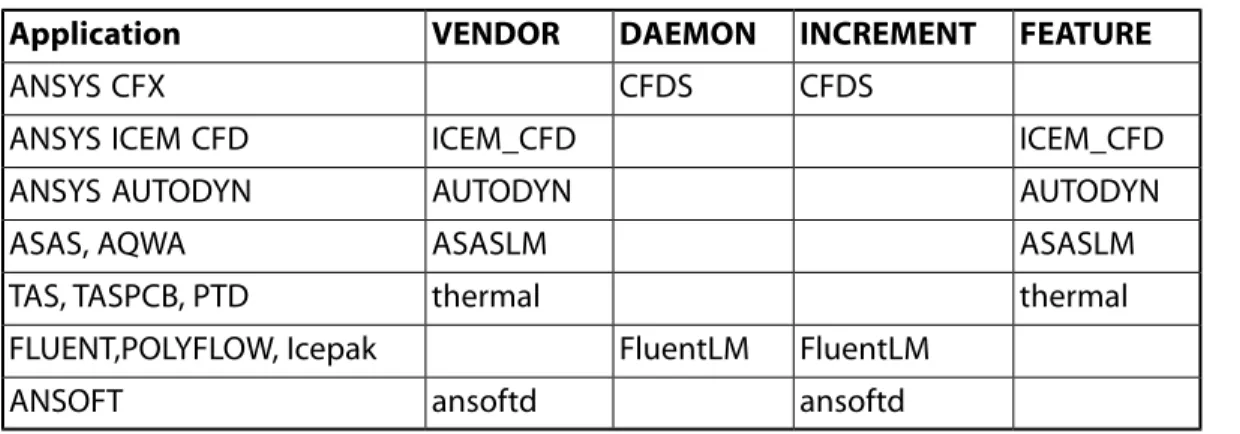
ANSYS, Inc. supplies some licenses for other applications that use different license managers. These license files are not compatible with the ANSYS License Manager. The applications and how to recognize their license files are explained below. Look for the words shown in the VENDOR, DAEMON, INCREMENT, and FEATURE lines for each application. For these license files, you must use their respective license manager tools.
Table 1.1 Identifying License Files
FEATURE INCREMENT DAEMON VENDOR Application CFDS CFDS ANSYS CFX ICEM_CFD ICEM_CFD ANSYS ICEM CFD AUTODYN AUTODYN ANSYS AUTODYN ASASLM ASASLM ASAS, AQWA thermal thermal TAS, TASPCB, PTD FluentLM FluentLM FLUENT,POLYFLOW, Icepak ansoftd ansoftd ANSOFT
1.1.5. The Application Programs
Application programs are software programs such as Mechanical APDL (ANSYS), CFX, FLUENT, etc. ANSYS application programs need to be able to communicate with the ANSYS License Manager.
1.1.6. The License Server Machines
License administration is controlled from specific computers on the network called license server machines. License server machines run the license manager, which controls access to all licenses.
The server machine or machines are designated by you--the end user. You have the option of designating one server or three servers. In a one-server network, if the server machine goes down, the licenses are no longer available for use until the server machine is back in service. In a three-server (redundant triad) network, as long as two of the three machines are still running, the licenses are still available for use.
The master server actually controls the license administration. If a network has only one server machine, then that server machine is automatically the master server. In a three server environment, the order of the SERVER lines in the license file determines which server is the master.The order of the servers must match on all machines in a three server environment.The first is the master, the second is the first backup, etc. If the order of the SERVER lines does not match on the three servers, then the servers will attempt to determine the master server; however, this attempt may not be successful. In a three-server network, if the master server is unavailable, then the first backup acts as the master.
You must make sure the order of the SERVER lines is consistent between redundant servers; otherwise, re-connections may fail.
1.1.6.1. Selecting License Server Machines
Before running any ANSYS, Inc. software, you must select which machine(s) will be license servers, and provide the hostid and hostname of those machines to ANSYS, Inc. Use the Register License Server Inform-ation option of the ANSLIC_ADMIN utility to capture the necessary system information and create the licserver.info file, which then needs to be forwarded to your ANSYS sales representative. If the ANSYS license manager software is not available for installation on a license server machine, you can download a utility to capture license server machine information from http://www.ansys.com/services/license_hostid.
You need to select the computer systems that will act as server machines before we can supply you with the licenses that are required to activate your licensed product(s). Information about the server machines is used to generate the necessary license key(s).
Consider the following points when deciding which computer(s) will be used as server(s):
• All files used in conjunction with the license manager software must be located on a disk that is phys-ically local to the server computer(s).
• Computers must have a high-speed, reliable Ethernet connection.
• Computers that experience extremely high levels of network traffic or processing lags due to high CPU and/or I/O usage are poor candidates for servers.
• Do not use computers that are frequently rebooted as servers. • The license server machine must have a static IP address.
• We do not allow the use of wide area networks (WANs) for license servers (with the standard ANSYS contract).
• You cannot use DHCP for license server machines.
• If using a three-server network, we recommend that you choose three machines that are of the same platform type (that is, three HPs, three Windows machines, etc.).
• If using a three-server network, we highly recommend that all three server machines be on the same subnet in the same physical location.
If these guidelines are not followed, the ability of the ANSYS License Manager to perform consistently will be compromised.
Caution
Do not change the date on the license server machine. Doing so will prohibit the ANSYS product from running. Restoring the system to its original state prior to the date change may require significant effort.
1.1.6.2. Redundant Server Options
Throughout this document, we use the term “three-server network” when referring to redundant triad
servers. Redundant server setup is a network configuration where multiple machines are designated as license servers. Redundancy can be achieved in two ways:
• Any number of license server machines can be running independently. The total number of licenses is split between each license server. For example, if you are licensed for 20 tasks of a certain product, and you have two license server machines, each license server machine will serve ten licenses. In this example, if one of these machines fails, only ten licenses will be available.
• Three different machines can be selected to work together in tandem, where two of the three must be running at all times. These three license server machines work from a single set of licenses. This option is not recommended.
We recommend the first option if your site requires redundancy. Be sure to review Selecting License Server Machines (p. 7) for guidelines and special considerations when choosing license servers. Single license server networks are usually sufficient for most sites.
Note
If you are running redundant servers, you should have the license file (as well as the entire licensing directory) installed locally on each license server. If you do not, you lose all the advantages of having redundant servers, since the file server holding these files becomes a single point of failure.
Chapter 2: Installing the ANSYS License Manager
The ANSYS, Inc. License Manager installation includes both a server and a client component. You must install the license manager software on your server machine(s) at this release in order to be able to run ANSYS, Inc. products. The updates at this release include the new ANSYS Licensing Interconnect, the latest
dae-mons/services, and the latest ANSLIC_ADMIN updates. If you do not install the license manager at this release, your ANSYS, Inc. products will not run. You will find detailed instructions for installing the license manager on your server machines later in this chapter. References in this chapter to licensing installation refer to in-stalling all necessary licensing components on a machine designated as a license server machine.
Once the updated License Manager is installed on your server machine(s) and you have installed the product(s), the client component will run successfully. The client component is installed automatically during a product installation; users running as a client will not need to perform any additional installation steps to successfully run the product(s).
UNIX/Linux Server Installation Notes: If you are installing the License Manager on the same machine where the product will be run, use the same top level directory path for both the product installation and the License Manager installation. We strongly recommend that you install the licensing files relative to the product installation directory to avoid manually editing the product run scripts.
A typical product installation on a UNIX/Linux machine allows you to install the product anywhere on the system and then creates a symbolic link from the installation directory to /ansys_inc. If you did not set the symbolic link during the product installation, or if you installed the licensing files somewhere other than relative to the installation directory, replace all references to /ansys_inc in this guide with the name of the installation directory you used. Any reference throughout this manual to the licensing directory on UNIX/Linux platforms means /ansys_inc/shared_files/licensing.
Windows License Server Installation Notes: The licensing installation on a Windows machine installs all necessary licensing files into the \Program Files\ANSYS Inc\Shared Files directory, located on the same drive as the operating system, regardless of where your product installation resides. You cannot change this location. You must have administrative privileges on your machine to install the licensing files. The license manager components are shared across all ANSYS, Inc. products and need to reside in a fixed location.
Any reference throughout this manual to the licensing directory on Windows platforms means \Program Files\Ansys Inc\Shared Files\Licensing, located on the same drive as the operating system.
Windows/UNIX/Linux License Client Installation Notes: The license client files are automatically installed into the \Shared Files\Licensing (Windows) or the /shared_files/licensing (UNIX/Linux) subdirectory of the product installation at the end of the product installation.
2.1. Communications Requirements
2.1.1. Configuring TCP/IP
TCP/IP needs to be configured and started for any ANSYS, Inc. product and the license manager to be able to run. You should consult your network administrator for assistance with this configuration. The TCP/IP protocol must be installed on any machine on which you want to run an ANSYS product.
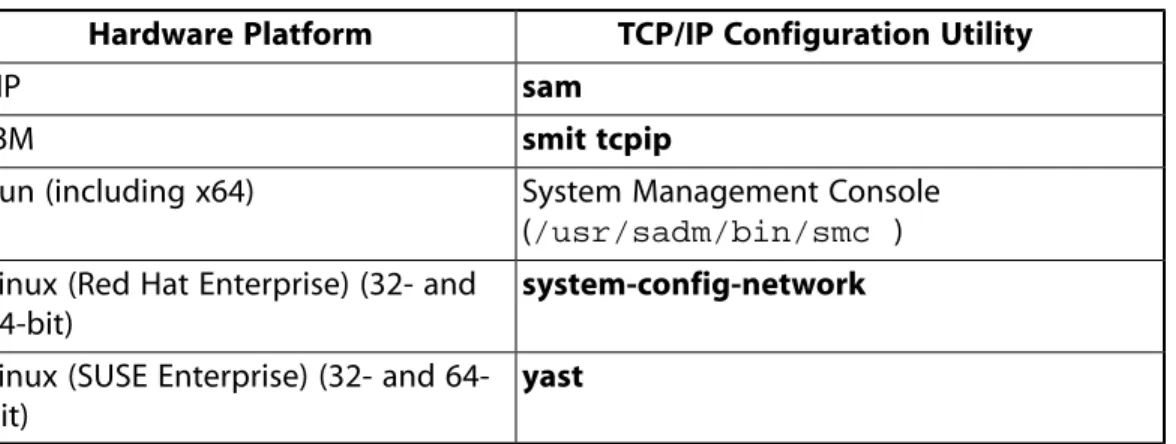
TCP/IP is supplied as part of the UNIX/Linux operating system.Table 2.1: Configuring TCP/IP (p. 10) specifies the system utility used to configure TCP/IP on the various hardware platforms. You should consult your network administrator for assistance with this configuration.
Note
Linux systems require an Ethernet card.
Table 2.1 Configuring TCP/IP
TCP/IP Configuration Utility Hardware Platform
sam
HP
smit tcpip
IBM
System Management Console (/usr/sadm/bin/smc ) Sun (including x64)
system-config-network
Linux (Red Hat Enterprise) (32- and 64-bit)
yast
Linux (SUSE Enterprise) (32- and 64-bit)
For Windows systems, the TCP/IP protocol is included as part of the operating system and is typically installed by default. If you do need to install TCP/IP, remember that it must be bound to a network adapter.
On machines that are connected to an internal network, TCP/IP must be bound to a network card such as an Ethernet adapter. The vast majority of systems using TCP/IP will fall into this category.
On machines that connect to the Internet or corporate intranet through a modem, TCP/IP can be bound to a dial-up connection.
2.1.1.1. Determining Whether TCP/IP Is Installed on a Microsoft Windows System
To determine if TCP/IP is installed on your system, open the Control Panel. Continue as follows based upon the machine's operating system:
• Windows XP -- Open Network Connections, highlight Local Area Connection and right-mouse click. Select Properties. Internet Protocol (TCP/IP) should be listed.
• Windows Vista -- Select Control Panel> Network and Sharing Center. For Local Area Connection, click
View Status. Click Properties. Internet Protocol (TCP/IP) should be listed.
If TCP/IP is installed, you must determine whether it is bound to a network adapter card or a dial-up connec-tion. A network card or a Dial-Up Adapter will be shown under Connect Using:.
Caution
If your computer is connected to a network, it is highly recommended that you contact your In-formation Technology Department before installing or modifying TCP/IP on your machine.
2.1.2. Changing the Default ANSYS Licensing Interconnect and FLEXlm Port
Numbers
A port number specifies the communications channel by which two or more processes can communicate. ANSYS uses 2325 as the default port number for the ANSYS Licensing Interconnect and 1055 as the default port number for the FLEXlm component of the license manager.ansyslmd also uses a port designated by the operating system, unless one is manually specified in the license file on the VENDOR line. If you encounter a conflict in port numbers, you can change the default by modifying all of the following files:
ANSYS Licensing Interconnect Port Number The ANSYS Licensing Interconnect port number is defined in the ansyslmd.ini file. You can change this file by selecting Specify the License Server on the AN-SLIC_ADMIN utility. Enter the new port number in the ANSYS Licensing Interconnect Port Number field. The Licensing Interconnect port number may also be specified via theANSYSLI_SERVERS environment variable, if set.
FLEXlm Port Number To change the default FLEXlm port number, you need to change the following files: • On the license server machine(s): the port number listed on the SERVER line in the license file (
li-cense.dat).
• On the client machine(s): the port number listed in the ansyslmd.ini file. Use the Specify the License Server option of the ANSLIC_ADMIN utility to change the ansyslmd.ini file. The FLEXlm port
number may also be specified via the ANSYSLMD_LICENSE_FILE environment variable, if set.
ansyslmd Port Number The ansyslmd daemon uses a port designated by the operating system, unless one is manually specified in the license file on the VENDOR line. See VENDOR Lines (p. 4) for information on specifying this port number on the VENDOR line. You should need to specify this port number manually only if using a firewall.
For information on firewall settings, see Specifying Firewall Settings (p. 23).
2.2. Installing the License Manager
You must have administrator privileges to install the ANSYS, Inc. License Manager on Windows systems. On UNIX/Linux systems, you can install using the -noroot option, but you may encounter permission problems during the installation. To proceed with the installation, the current license manager must be shut down if it's running. The installation process will shut down the license manager; however, you should verify that no users will be affected while you run the installation.
The licensing installation process will install all necessary files, including the newest ANSLIC_ADMIN files, as well as set the ANSYSLIC_DIR environment variable in the product run scripts.
You cannot perform a platform license server installation (i.e., installing files for a different machine type than you're running on) on Windows systems.
New licenses for existing customers may not be supplied with the ANSYS Release 12.1 package. They will be supplied when the current licenses expire or when TECS expires.
Run the license manager installation on all machines that will act as license servers.
If you encounter a problem during the licensing installation process that results in a failure or abort, or if you are concerned that the licensing installation did not complete correctly, try running the Complete Un-finished Licensing Installation Configuration option from the ANSLIC_ADMIN utility's Tools menu.
2.2.1. License Manager Installation Instructions - Windows
Follow the instructions below to install the ANSYS License Manager on Windows systems that will act as license servers. Client licensing is installed automatically when the product is installed; you do not have to take any further steps to run as a client if you have installed a product.
1. Run setup.exe. Select Install ANSYS, Inc. License Manager.
If you downloaded only the license manager installation, run setupLM.exe.
2. You will be notified that the license manager, if running, will be shut down. Click OK.
3. The License Agreement screen appears. Read the license agreement, and if you agree, click I Agree
to accept the terms and click Next. You must select I Agree to continue with the installation.
4. Next, confirm the platform on which you want to install the ANSYS License Manager. The platform on which you launched the installation will be selected by default. Click Next to continue.
5. The mount directory (location where the installation is located) is specified. You should accept the default. The installation directory is set to <OS_Drive>\Program Files\ANSYS Inc\Shared Files. You cannot change this directory. Click Next to continue.
6. Select the component you want to install. The amount of disk space required and the disk space available appear at the bottom of the window. If the disk space required exceeds the disk space
available, be sure that you have sufficient space before continuing. The disk space required as calculated by the installation program may be greater than the actual amount needed. However, if you choose to continue the installation, you should carefully review any log and error files at the end of the install-ation to ensure that the installinstall-ation completed successfully.
Click Next to continue.
7. A license manager date verification summary appears. If no conflicts are found between the installation files and the files already on your machine from a previous installation, the message Date verification complete appears. If the date verification finds a conflict, a message box appears with details of the conflict and steps for resolution. If no conflicts are found, click Next.
8. A summary of the selected installation data appears. Information shown includes platform, installation directory, and product. Review the information carefully, and if correct, click Next to continue the in-stallation.
The ANSYS License Manager is now being installed and configured on your system. The installation window displays the individual actions as they occur. When the installation is complete, the window displays any installation errors or warnings. Review this information carefully. Click Next to continue the installation.
9. The Licensing Server Installation Configuration box appears. As the license manager is configured, progress messages appear in the box.
10. The License Wizard will be launched. This wizard walks you through the process of installing or updating a license file, specifying the license server(s) (which updates the ansyslmd.ini file), and starting the license manager. The wizard will prompt you for the necessary information at each step. During this process, the license manager will be shut down if it is running. Be aware that this can impact any users currently running using the license manager.
Click Continue on the License Wizard to begin, and follow the instructions on the screen.
If you are not performing a default License Server installation or require more information on Types of License Servers, please refer to Advanced Licensing Configuration Options (p. 14).
11. When the License Wizard is complete, click Finish on the wizard screen and then click Finish again on the Licensing Installation Configuration Log screen.
12. When the license manager installation is complete, click Finish. A new Start Menu item named ANSYS, Inc. License Manager will be created automatically. It will include selections for the ANSLIC_ADMIN
server utility, the ANSYS, Inc. Licensing Guide, and the FLEXnet Licensing End User Guide.
Note
Client machines will also include an ANSLIC_ADMIN-Client option under the ANSYS Release 12.1 Start Menu item. The client-only version of ANSLIC_ADMIN offers access to a limited number of ANSLIC_ADMIN features, such as user configuration and status/reporting options.
2.2.2. License Manager Installation Instructions - UNIX/Linux
Follow the instructions below to install the ANSYS License Manager on UNIX/Linux systems that will act as license servers. Client licensing is installed automatically when the product is installed; you do not have to take any further steps to run as a client if you have installed a product.
1. Type INSTALL.LM to launch the license manager installation. If you downloaded the license manager installation package, this file will reside in the directory where you untarred the files. If you are running from a DVD, this file will reside in the top level of the DVD.
2. You will be notified that the license manager, if running, will be shut down. Click OK.
3. The License Agreement screen appears. Read the license agreement, and if you agree, click I Agree
to accept the terms and click Next. You must select I Agree to continue with the installation.
4. Next, choose the platform(s) on which you want to install the ANSYS License Manager. You can choose as many platforms as you wish. The platform on which you launched the installation will be selected by default and is shown at the bottom of the window.
Click Next to continue.
5. The mount directory (location where the installation is located) is specified. You should accept the default. You can also accept the default installation directory or specify an alternate path and directory name where the products are to be installed.
We recommend that you also set the symbolic link /ansys_inc to the directory where the ANSYS, Inc. product is installed. The /ansys_inc symbolic link is set by default. The symbolic link option is available only if you are installing as root. If you chose to set the symbolic link during the product in-stallation, you should set it here as well.
Click Next to continue.
6. Select the component you want to install. The amount of disk space required and the disk space available appear at the bottom of the window. If the disk space required exceeds the disk space
available, be sure that you have sufficient space before continuing. The disk space required as calculated by the installation program may be greater than the actual amount needed. However, if you choose to continue the installation, you should carefully review any log and error files at the end of the install-ation to ensure that the installinstall-ation completed successfully.
Click Next to continue.
7. A license manager date verification summary appears. If no conflicts are found between the installation files and the files already on your machine from a previous installation, the message No conflicts found appears. If the date verification finds a conflict, a message box appears with details of the conflict and steps for resolution. If no conflicts are found, click Next.
8. A summary of the selected installation data appears. Information shown includes platform, installation directory, and product. Review the information carefully, and if correct, click Next to continue the in-stallation.
The ANSYS License Manager is now being installed and configured on your system. The installation window displays the individual actions as they occur. When the installation is complete, the window displays any installation errors or warnings. Review this information carefully. Click Next to continue the installation and install the license manager.
9. The Licensing Server Installation Configuration box appears. As the license manager is installed, progress messages appear in the box.
10. The License Wizard will be launched. This wizard walks you through the process of installing or updating a license file, specifying the license server(s) (which updates the ansyslmd.ini file), and starting the license manager. The wizard will prompt you for the necessary information at each step. During this process, the license manager will be shut down if it is running. Be aware that this can impact any users currently running using the license manager.
Click Continue on the License Wizard to begin, and follow the instructions on the screen.
If you are not performing a default License Server installation or require more information on Types of License Servers, please refer to Advanced Licensing Configuration Options (p. 14).
11. When the License Wizard is complete, click Finish on the wizard screen and then click Finish again on the Licensing Installation Configuration Log screen.
12. When the license manager installation is complete, click Finish.
2.2.3. Advanced Licensing Configuration Options
In addition to the default configuration, ANSYS, Inc. offers two advanced licensing configuration options when you run the License Wizard:
• Run the ANSYS Licensing Interconnect without FLEXlm -- Use this option if you want to run a local copy of the ANSYS Licensing Interconnect for better performance, such as if your server machine is in a remote location, or to manage the server load better if your license server machine serves many users. You can also use this option if you need to use IP addresses in the FLEXlm options file for those settings that allow their use, such as EXCLUDE and INCLUDE. With this option, FLEXlm licenses will be taken from another server machine.
• Run the ANSYS Licensing Interconnect and FLEXlm independently -- Use this option if you want to manage your FLEXlm licenses independently of the ANSYS, Inc. tools (for example, using Acresso's FLEXnet Manager to manage multiple companies' product licenses). This option should be used only by experienced users with well-established licensing procedures.
These options are available only for license server machines and are available only with a license manager installation or via the server ANSLIC_ADMIN option Run the License Wizard after a license manager install-ation has been run on this machine.
You can select either of these options by clicking the appropriate button in the Type of License Server
field in the License Wizard. You can also set up these types of license servers manually. Instructions for both using the wizard and configuring manually are provided in the following sections.
If you have already configured your licensing and are changing to a different configuration option, you must stop and restart the ANSYS, Inc. License Manager for these changes to take effect. Rereading the license manager settings will not be sufficient.
Run the ANSYS Licensing Interconnect without FLEXlm
To use the License Wizard to set up a license server that will run the Licensing Interconnect without FLEXlm, follow the steps below.
Important
When using this advanced option, the license server holding the FLEXlm licenses must also have the Licensing Interconnect installed and running.
1. Select Run the License Wizard from the ANSLIC_ADMIN utility.
2. In the Type of License Server field, select Run the ANSYS Licensing Interconnect without FLEXlm. Click Continue on the message box.
3. Click Continue to begin the configuration process.
4. Click Continue to specify the local machine as the primary Licensing Interconnect.
5. If you have not yet specified license server machines, you will need to specify the server from which you will check out ANSYS, Inc. FLEXlm licenses. If you have already specified license server machines, that specification will be used. If you need to change the server specification, use the Specify the Li-cense Server Machine option of ANSLIC_ADMIN after you have completed the wizard.
Click Continue.
6. You will now be asked to start or restart the license manager. Click Continue. 7. Click Exit.
You can also configure a machine manually to run the Licensing Interconnect without FLEXlm:
1. Choose Modify Startup Options from the ANSLIC_ADMIN utility.
2. Under FLEXlm Options, select Start ANSYS Licensing Interconnect without FLEXlm and click OK. 3. Choose Specify the License Server Machine from the ANSLIC_ADMIN utility. If you see a message,
click OK on the message box.
4. In the Specify the License Server Machine dialog box, add this machine to be the primary Licensing Interconnect and specify the Licensing Interconnect port number but not the FLEXlm port number. If necessary, use the Move up button to move this machine to the beginning of the list of servers. 5. Verify that you also have a machine specified from which you will use FLEXlm licenses. This machine
must appear below the primary Licensing Interconnect in the list of servers. If you do not have a machine specified, add it.
Note
For the machine holding the FLEXlm licenses, you must specify both the FLEXlm and the Licensing Interconnect port numbers, even though the Licensing Interconnect running on that machine will only be used as a backup.
6. Start or restart the license manager using the Start the ANSYS, Inc. License Manager option of the
ANSLIC_ADMIN utility.
The above procedures configure your local machine to be the primary Licensing Interconnect. If you do not want your machine to be the primary Licensing Interconnect, but you do want to connect to another machine that is a Licensing Interconnect machine not running FLEXlm, follow the steps below:
1. Choose Specify the License Server Machine from the ANSLIC_ADMIN utility. Click OK on the message box.
2. Add or select the machine that is to be the primary Licensing Interconnect, and use the Move up
button to move that machine to the beginning of the list of servers. If you are adding the machine, specify only the Licensing Interconnect port number. If the machine is already listed and includes a FLEXlm port number, you will need to select Edit Selected Server Machine to remove the FLEXlm port number.
3. Add or verify the machine from which you will use FLEXlm licenses. This machine must appear below the primary Licensing Interconnect in the list of servers.
Note
For the machine holding the FLEXlm licenses, you must specify both the FLEXlm and the Licensing Interconnect port numbers, even though the Licensing Interconnect running on that machine will only be used as a backup.
Run the ANSYS Licensing Interconnect and FLEXlm independently
Use this option if you want to manage your FLEXlm licenses on a server machine independently of the ANSYS, Inc. tools (for example, using Acresso's FLEXnet Manager to manage multiple companies' product licenses). This option should be used only by experienced users with well-established licensing procedures. To use the License Wizard to set up a license server that will run the Licensing Interconnect independently of FLEXlm, follow the steps below. Running these processes separately requires caching the license file, meaning that you specify the location of an existing license file that contains FLEXlm licenses for ANSYS, Inc. products. Because the ANSLIC_ADMIN will no longer be managing FLEXlm, you will need to use your license management tools (such as FLEXNet Manager) to start/restart FLEXlm or to reread the license file if you make changes to the license file.
Important
If you make changes to the license file, in addition to rereading the license file in FLEXlm (using your license management tools), you must also recache the license file in the Licensing Intercon-nect by restarting the Licensing InterconIntercon-nect or by using the Reread the License Manager Settings option of ANSLIC_ADMIN.
To use the License Wizard to set up a license server that will run the Licensing Interconnect and FLEXlm in-dependently, follow the steps below:
1. Select Run the License Wizard from the ANSLIC_ADMIN utility.
2. In the Type of License Server field, select Run the ANSYS Licensing Interconnect and FLEXlm inde-pendently. Click Continue on the message box.
3. Click Continue to begin the configuration process.
4. Specify the location of an existing license file that contains FLEXlm licenses for ANSYS, Inc. products. Note that the license file will not be installed, (i.e., moved into the default ANSYS license file location). Click Continue.
5. Specify your local machine as the license server machine.
Click Continue.
6. You will now be asked to start or restart the license manager. Click Continue. 7. Click Exit.
Note
Starting or restarting the license manager using this procedure will start ONLY the Licensing In-terconnect. You must start or restart FLEXlm using whatever license management tool(s) you will be using to manage FLEXlm (such as FLEXNet Manager or LMTOOLS).
You can also configure your licensing manually to run the Licensing Interconnect independently of FLEXlm:
1. Choose Modify Startup Options from the ANSLIC_ADMIN utility.
2. Under FLEXlm Options, select Start ANSYS Licensing Interconnect without FLEXlm. 3. Select Cache FLEXlm Licenses.
4. Verify the license path shown in the License File Path field and correct it if necessary. Click OK. 5. If you wish to use ANSYS licenses from this machine when running ANSYS products on it, choose
Specify the License Server Machine from the ANSLIC_ADMIN utility. If this machine is not in the list of servers, add it. Specify both the Licensing Interconnect and FLEXlm port numbers.
6. Start or restart the license manager using the Start the ANSYS, Inc. License Manager option of the
ANSLIC_ADMIN utility. This step will start (or restart) only the Licensing Interconnect component of the license manager.
7. Use your license management tools (such as FLEXNet Manager) to start FLEXlm if it is not already started.
2.3. Post-Installation Instructions
After you have installed the ANSYS, Inc. License Manager, you may want to complete some post-installation steps in order to optimize the performance of the ANSYS, Inc. License Manager at your site.
We recommend that you set your license manager to boot at system startup. Other optional post-installation tasks are included here. You will only need to configure your license server machine and configure your client machines if those steps were not completed during the product or license server installation processes.
2.3.1. Start the ANSYS License Manager at System Boot Time
You can set the license manager to start automatically at system boot time. This task is optional but is re-commended and should be done regardless of which type of license server configuration you use.
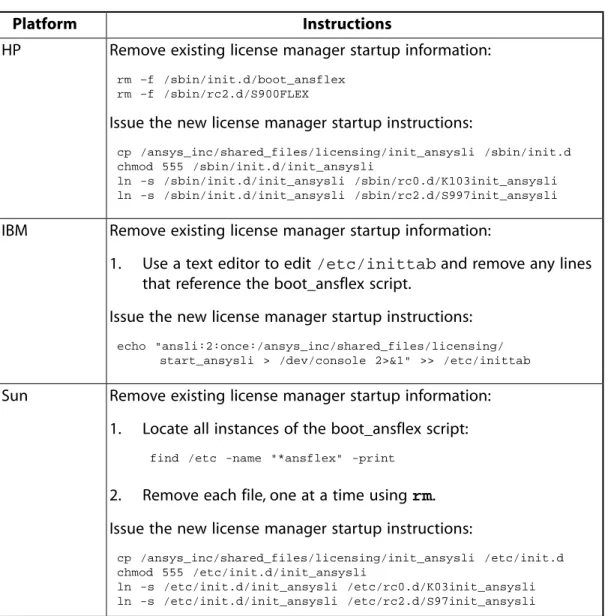
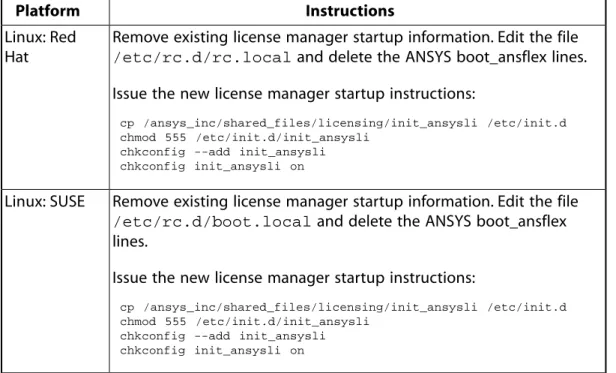
Table 2.2: License Manager Automatic Startup Instructions (p. 18) details the steps for each UNIX/Linux hardware platform that must be performed on each license server to start the license manager automatically when the system is rebooted. You should substitute your platform name (see Supported Hardware Platforms (p. vii)) wherever you see <platform>. The instructions below include steps to remove any existing boot_ansflex; if you have already removed the boot_ansflex, you can safely skip that step. On Windows systems, the license manager is set to start up automatically at system reboot.
Note
The procedure described in this section starts the license manager at boot time as root. It is not essential that the license manager be started by the root user; it may be run by a non-privileged user, depending on your preference. If you do not want the license manager to be started by root, see the FLEXnet Licensing End User Guide for an example of starting the license manager as a non-root user at boot time.
Table 2.2 License Manager Automatic Startup Instructions
Instructions Platform
Remove existing license manager startup information:
rm –f /sbin/init.d/boot_ansflex rm –f /sbin/rc2.d/S900FLEX
HP
Issue the new license manager startup instructions:
cp /ansys_inc/shared_files/licensing/init_ansysli /sbin/init.d chmod 555 /sbin/init.d/init_ansysli
ln -s /sbin/init.d/init_ansysli /sbin/rc0.d/K103init_ansysli ln -s /sbin/init.d/init_ansysli /sbin/rc2.d/S997init_ansysli
Remove existing license manager startup information: IBM
1. Use a text editor to edit /etc/inittab and remove any lines that reference the boot_ansflex script.
Issue the new license manager startup instructions:
echo "ansli:2:once:/ansys_inc/shared_files/licensing/ start_ansysli > /dev/console 2>&1" >> /etc/inittab
Remove existing license manager startup information: Sun
1. Locate all instances of the boot_ansflex script:
find /etc -name "*ansflex" -print
2. Remove each file, one at a time using rm.
Issue the new license manager startup instructions:
cp /ansys_inc/shared_files/licensing/init_ansysli /etc/init.d chmod 555 /etc/init.d/init_ansysli
ln -s /etc/init.d/init_ansysli /etc/rc0.d/K03init_ansysli ln -s /etc/init.d/init_ansysli /etc/rc2.d/S97init_ansysli
Instructions Platform
Remove existing license manager startup information. Edit the file /etc/rc.d/rc.local and delete the ANSYS boot_ansflex lines.
Issue the new license manager startup instructions: Linux: Red
Hat
cp /ansys_inc/shared_files/licensing/init_ansysli /etc/init.d chmod 555 /etc/init.d/init_ansysli
chkconfig --add init_ansysli chkconfig init_ansysli on
Remove existing license manager startup information. Edit the file /etc/rc.d/boot.local and delete the ANSYS boot_ansflex lines.
Issue the new license manager startup instructions: Linux: SUSE
cp /ansys_inc/shared_files/licensing/init_ansysli /etc/init.d chmod 555 /etc/init.d/init_ansysli
chkconfig --add init_ansysli chkconfig init_ansysli on
Once the procedure is in place for starting the license manager automatically at boot time, reboot the system to verify that the automatic boot procedure is working correctly.
When the system comes back up, check to see that the license manager is running by typing the appropriate
ps command and looking for ansyslmd and ansysli_server in the resulting display under the column labeled COMMAND.
For SYS V UNIX systems:
ps -ef
Next, check the license.log and the ansysli_server.log files in the licensing directory for error messages. This file contains a history of ANSYS product activity across the network when this computer is chosen as the master license server by the licensing software. It will also contain start-up messages and possibly error messages.
Removing the Automatic Startup Information
If you remove the license manager server installation from a machine and need to remove this capability, follow the instructions below.
Table 2.3 Removing License Manager Automatic Startup Instructions
Instructions Platform
Issue the following commands:
/sbin/init.d/init_ansysli stop rm /sbin/init.d/init_ansysli
HP
rm /sbin/rc0.d/K103init_ansysli rm /sbin/rc2.d/S997init_ansysli
Issue the following commands:
vi /etc/inittab (delete the line that begins with "ansli") kill -1 1
/ansys_inc/shared_files/licensing/stop_ansysli
IBM
Instructions Platform
Issue the following commands:
/etc/init.d/init_ansysli stop rm /etc/init.d/init_ansysli
Sun
rm /etc/rc0.d/K03init_ansysli rm /etc/rc2.d/S97init_ansysli
Issue the following commands:
/etc/init.d/init_ansysli stop chkconfig --del init_ansysli rm /etc/init.d/init_ansysli
Linux
2.3.2. Configuring the License Server Machine(s)
If you did not complete the configuration tasks when you installed the license manager on your license server machines, you should complete the steps below to register your license server information and then run the license wizard to complete the configuration.
1. Register your license server information.
Run the Register License Server Information option of the ANSLIC_ADMIN utility if you do not have a license file. This option creates a file named licserver.info in the home and licensing directory. The content of this file is generated by prompting you for information about your company and you (the person running the utility). This is important so that we know to which of our customers this in-formation belongs and to whom we may speak if we have questions about the data. The option also pulls necessary information from your license server (such as computer type, operating system level, and hostid) and places it in the file. Create this file on each system that will be a license server. Return the licserver.info file(s) to your ANSYS sales representative so that licenses can be supplied to you.
2. Run the license wizard.
This wizard walks you through the process of installing or updating a license file, specifying the license server(s) (which updates the ansyslmd.ini file), and starting the license manager or rereading the license file. The wizard will prompt you for the necessary information at each step. The license file will be named license.dat and will be created in the licensing directory. You should use this option when you receive a new license file as it will walk you through the necessary steps to activate the new license.
If you are running in a three-server environment, the license file must reside on all three servers and must match on all three servers. Therefore, run the license wizard on all three servers.
2.3.3. Modify License Manager Startup Options
This ANSLIC_ADMIN utility option writes an ansyslmd.ini file in the licensing directory. This file contains any changes to the default values as well as your license server specifications and other settings (such as log file locations). Use this ANSLIC_ADMIN utility option to change the default values.
For a detailed description of the settings that you can change with this option, see Modify Startup Op-tions (p. 41).