January 2016
Important Instructions
GaBi ts
Software & Database
Upgrade Guide
1
Contents
1. Introduction and overview ...2
2. Update your GaBi Software ...3
3. Upgrade your database to Databases '16 ...5
2 thinkstep is excited to deliver, as part of your annual GaBi maintenance package, updated software and fully upgraded database content! This guide will take you step by step through the upgrade procedure. Learn more about the upgrades on our website, and look forward to new software features coming this spring.
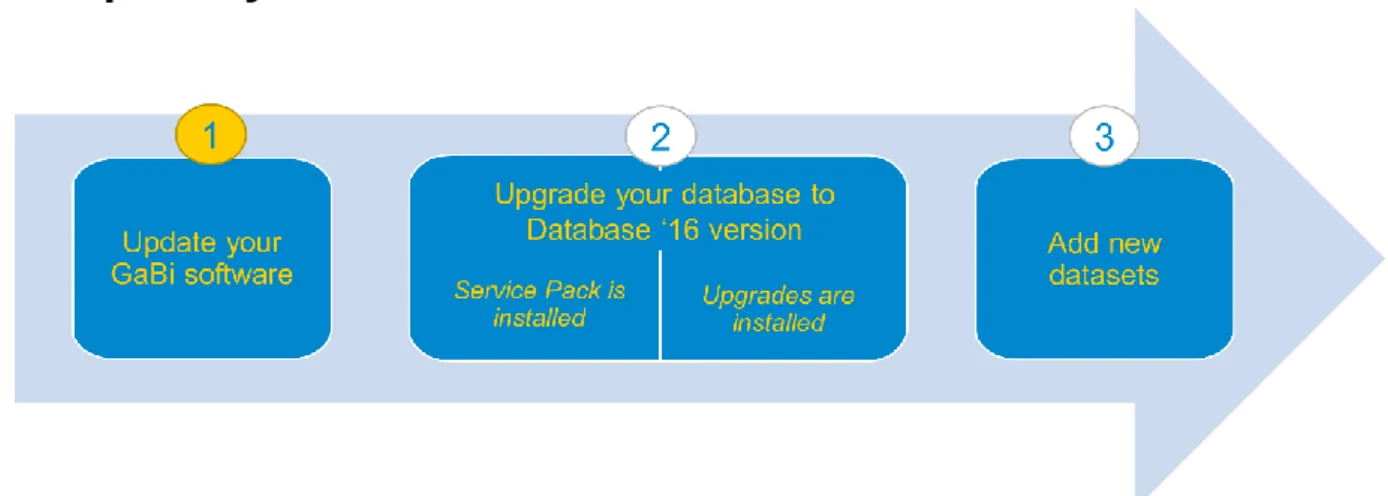
The first step is to update your GaBi software to the latest version. After this, each time you activate one of your databases for the first time, you'll be asked if you want to upgrade it. Choosing ‘Yes’ will start the upgrade process. This is done in three steps:
1. Flows and quantities are updated via a Service Pack installation.
2. Plans and processes are exchanged with their upgraded equivalent (this step can take several hours depending on the size of your databases so consider running it overnight or in your lunch-break).
3. Create new databases containing all of the new content in GaBi Databases '16 for the databases you've purchased. You can add the new objects to your existing databases, or start fresh with the new database for new LCA projects.
3
2. Update your GaBi Software
GaBi ts version 7.2.1 will be available to you via the automatic update functionality in the GaBi software. No new installation procedure will be necessary.
On January 27th 2016, the new software version will be available on the GaBi update server -
the software will prompt you to download the updated version.
If you do not have a valid maintenance contract, you will not have access to this upgrade. Please contact your local GaBi sales representative for a quote.
Figure 1: GaBi Update notification
To download and install the new version you need administrative user rights. (Restart GaBi by right-clicking your mouse and choosing ‘Run as Administrator’.) If you do not have the necessary user rights, please contact your IT support.
After the update, databases that were previously connected are no longer visible. Simply restart GaBi to see them again.
If the connection to the update server cannot be established for some reason, an error message with the cause of the problem will appear (“Host http://service.pe-international.com unreachable” or “Could not find file on developer side”). In this case, please send an e-mail to [email protected] and we will provide you with an alternative solution to update your GaBi software. Now that your GaBi software is up-to-date, you can either upgrade your databases to the Databases 2016 version or you can keep your database content at the Databases ‘14 level.
4
More than 1,600 new LCI datasets have been added to the scope of all GaBi databases. To access the new data, please read the last section of this document “Accessing new datasets”.
Automatic database backups are created before a GaBi database is modified. The location of the database backup is displayed once the backup has been created.
If you encounter any difficulties in the installation/database update processes, please send an e-mail to [email protected].
5
3. Upgrade your database to Databases '16
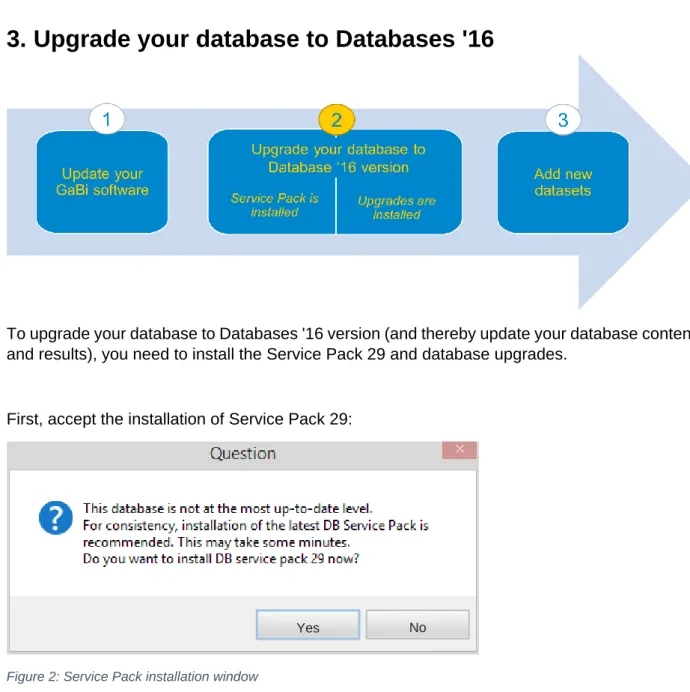
To upgrade your database to Databases '16 version (and thereby update your database content and results), you need to install the Service Pack 29 and database upgrades.
First, accept the installation of Service Pack 29:
Figure 2: Service Pack installation window
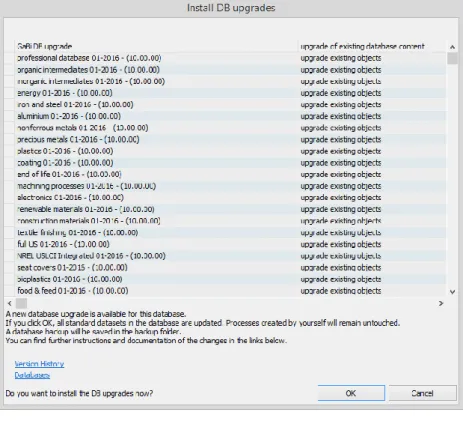
Next, the Database Upgrade installation window will appear.
Important Note: The upgrade process can take several hours depending on the size of the database and the performance of your computer. This process should not under any circumstances be interrupted (even if GaBi appears to be ‘Not Responding’).
Click “Yes” to start the installation of the database upgrades
6
Figure 3: Database upgrade window
What happens during the migration?
All thinkstep standard GaBi database content, including those you’ve used in your models, will be automatically exchanged during the migration, i.e. the version 2014 process will be replaced with its version 2016 equivalent.
Processes you have created will not be touched.
If your plan contains only processes you have created, these will not be touched. If your plan contains thinkstep standard database content, these processes will be exchanged.
None of the datasets that are new in Databases ‘16 will be added to your migrated database. (Please see last section of this document if you would like to include these).
A detailed overview of the changes and improvements applied with the database upgrade is available online: Database Upgrade 2016 Document- Updates and improvements. This document explains all relevant changes to the upgraded LCI datasets in the GaBi Databases. The document addresses both methodological changes and changes in technology.
The upgrade is complete when you see the Log file window. Please save this protocol.
Congratulations! Your database has now been upgraded to the GaBi Database version ‘16! See the following section (4) to learn how to access the new database content.
7
4. Accessing new datasets
How do I get the new datasets that were added with Databases ‘16 into my migrated
database?
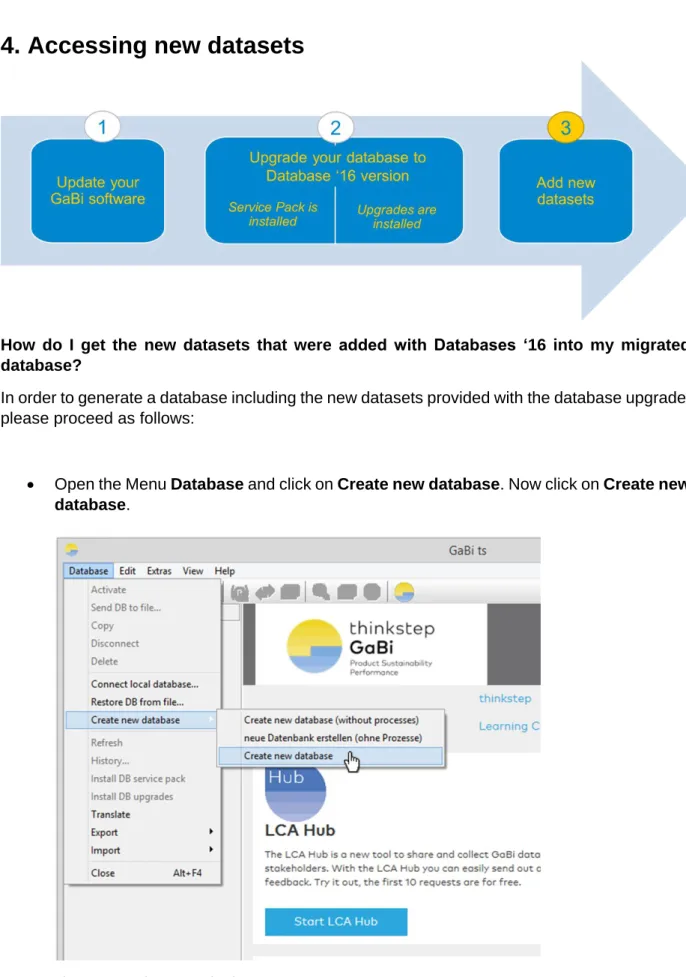
In order to generate a database including the new datasets provided with the database upgrade, please proceed as follows:
Open the Menu Database and click on Create new database. Now click on Create new database.
8
Creating this database may take some time as all available database upgrades are installed to this new database. Please do not interrupt this operation!
The new database contains all datasets that are included in the GaBi Databases ‘16 (updated Database 2014 content and new content included in Databases ‘16).
An overview of the GaBi Databases ‘16 content, with new content highlighted, is available online: List with all database content
To refresh your existing databases with the new content you can use the drag and drop functionality to transfer content into your existing databases (for example, by dragging and dropping Projects). Alternatively, you can transfer the content of your own databases into the newly created database using the drag and drop functionality.
If you encounter any difficulties with the transfer of data or have any further questions, please send an e-mail to [email protected].