Wireless Access Point Router
with 4-Port Switch
Use this guide to install:
BEFW11S4
Reserved. Instant Wireless, Linksys, and the Linksys logo are registered trademarks of Linksys Group, Inc. Microsoft, Windows, and the Windows logo are registered trade-marks of Microsoft Corporation. All other tradetrade-marks and brand names are the proper-ty of their respective proprietors.
LIMITED WARRANTY
Linksys guarantees that every Instant Wireless®Wireless Access Point Router with 4-Port Switch is free from physical defects in material and workmanship for one year from the date of purchase, when used within the limits set forth in the Specifications chapter of this User Guide.
T
Thhiiss WWaarrrraannttyy iiss vvaalliidd aanndd mmaayy bbee pprroocceesssseedd oonnllyy iinn tthhee ccoouunnttrryy ooff ppuurrcchhaassee..
If the product proves defective during this warranty period, go to the Linksys website at www.linksys.com for complete RMA (Return Merchandise Authorization) assistance. You can also call Linksys Technical Support in order to obtain a RMA Number. BE SURE TO HAVE YOUR PROOF OF PURCHASE AND A BARCODE FROM THE PRODUCT’S PACK-AGING ON HAND WHEN CALLING. RETURN REQUESTS CANNOT BE PROCESSED WITHOUT PROOF OF PURCHASE. When returning a product, mark the RMA Number clearly on the outside of the package and include a copy of your original proof of pur-chase. All customers located outside of the United States of America and Canada shall be held responsible for shipping and handling charges.
IN NO EVENT SHALL LINKSYS’ LIABILITY EXCEED THE PRICE PAID FOR THE PROD-UCT FROM DIRECT, INDIRECT, SPECIAL, INCIDENTAL, OR CONSEQUENTIAL DAM-AGES RESULTING FROM THE USE OF THE PRODUCT, ITS ACCOMPANYING SOFT-WARE, OR ITS DOCUMENTATION. LINKSYS OFFERS NO REFUNDS FOR ITS PROD-UCTS. Linksys makes no warranty or representation, expressed, implied, or statutory, with respect to its products or the contents or use of this documentation and all accom-panying software, and specifically disclaims its quality, performance, merchantability, or fitness for any particular purpose. Linksys reserves the right to revise or update its prod-ucts, software, or documentation without obligation to notify any individual or entity. Please direct all inquiries to:
Linksys P.O. Box 18558, Irvine, CA 92623. FCC STATEMENT
The Instant Wireless Wireless Access Point Router with 4-Port Switch has been tested and complies with the limits for a Class B digital device, pursuant to Part 15 of the FCC Rules. These limits are designed to provide reasonable protection against harmful inter-ference in a residential installation. This equipment generates, uses, and can radiate radio frequency energy and, if not installed and used according to the instructions, may cause harmful interference to radio communications. However, there is no guarantee that interference will not occur in a particular installation. If this equipment does cause harm-ful interference to radio or television reception, which is found by turning the equipment off and on, the user is encouraged to try to correct the interference by one or more of the following measures:
• Connect the equipment to an outlet other than the receiver’s
• Consult a dealer or an experienced radio/TV technician for assistance
FCC Caution: Any changes or modifications nor expressly approved by the party respon-sible for compliance could void the user's authority to operate this equipment.
This device complies with Part 15 of the FCC Rules. Operation is subject to the following two conditions: (1) This device may not cause harmful interference, and (2) This device must accept any interference received, including interference that may cause undesired operation.
FCC RF Radiation Exposure Statement
This device and its antenna(s) must operate with a separation distance of at least 20 cm from all persons and must not be co-located or operating in conjunction with any other antenna or transmitter. End-users must be provided with specific operations for satisfy-ing RF exposure compliance.
INDUSTRY CANADA (CANADA)
This Class B digital apparatus complies with Canadian IC-03.
Cet appareil numérique de la classe B est conforme à la norme NMB-003 du Canada. The use of this device in a system operating either partially or completely outdoors may require the user to obtain a license for the system according to the Canadian regulations. EC DECLARATION OF CONFORMITY (EUROPE)
Linksys Group declares that the Instant Wireless Series products included in the Instant Wireless Series conform to the specifications listed below, following the provisions of the EMC Directive 89/336/EEC and Low Voltage Directive 73/23/EEC:
ETS 301489-17, 301 489-1 General EMC requirements for Radio equipment. EN 609 50 Safety
ETS 300-328-2 Technical requirements for Radio equipment.
Note: This equipment is intended to be used in all EU and EFTA countries. Outdoor use may be restricted to certain frequencies and/or may require a license for operation. For more details, contact Linksys Corporate Compliance.
Note: Combinations of power levels and antennas resulting in a radiated power level of above 100 mW are considered as not compliant with the above mentioned directive and are not allowed for use within the European community and countries that have adopted the European R&TTE directive 1999/5/EC and/or the CEPT recommendation Rec 70.03. For more details on legal combinations of power levels and antennas, contact Linksys Corporate Compliance.
• Linksys Group vakuuttaa täten että Instant Wireless Wireless Access Point Router with 4-Port Switch tyyppinen laite on direktiivin 1999/5/EY, direktiivin 89/336/EEC ja direktiivin 73/23/EEC oleellisten vaatimusten ja sitä koskevien näiden direktiivien muiden ehtojen mukainen.
• Linksys Group déclare que le routeur de point d’accès sans fil avec commutateur 4 ports est conforme aux conditions essentielles et aux dispositions relatives à la directive 1999/5/EC, la directive 89/336/EEC, et à la directive 73/23/EEC.
ment, au-dessus d’un espace public, aucun enregistrement n’est nécessaire pour une distance de moins de 300m. Pour une distance supérieure à 300m un enreg-istrement auprès de l’IBPT est requise. Pour une utilisation publique à l’extérieur de bâtiments, une licence de l’IBPT est requise. Pour les enregistrements et licences, veuillez contacter l’IBPT.
• France F: Bande de fréquence restreinte: seuls les canaux 10, 11, 12, 13 (2457, 2462, 2467, et 2472 MHz respectivement) doivent être utilisés en France. Toute util-isation, qu'elle soit intérieure ou extérieure, est soumise à autorisation. Vous pouvez contacter l'Autorité de Régulation des Télécommuniations (http://www.art-telecom.fr) pour la procédure à suivre.
• France F: Restricted frequency band: only channels 10, 11, 12, 13 (2457, 2462, 2467, and 2472 MHz respectively) may be used in France. License required for every indoor and outdoor installations. Please contact ART for procedure to follow. • Deutschland D: Anmeldung im Outdoor-Bereich notwending, aber nicht
genehmi-gungspflichtig. Bitte mit Händler die Vorgehensweise abstimmen.
• Germany D: License required for outdoor installations. Check with reseller for proce-dure to follow.
• Italia I: E' necessaria la concessione ministeriale anche per l'uso interno. Verificare con i rivenditori la procedura da seguire. L'uso per installazione in esterni non e' per-messa.
• Italy I: License required for indoor use. Use with outdoor installations not allowed. • the Netherlands NL License required for outdoor installations. Check with reseller for
procedure to follow.
• Nederlands NL Licentie verplicht voor gebruik met buitenantennes. Neem contact op met verkoper voor juiste procedure.
Table of Contents
Chapter 1: Introduction 1
The Linksys Wireless Access Point Router with 4-Port Switch 1
Features 1
Minimum Requirements 2
An Introduction to LANs and WANs 2
IP Addresses 3
The Wireless Access Point Router’s Ports 5
The Wireless Access Point Router’s LEDs 6
Chapter 2: Connecting the Router 8
Before You Start 8
Connecting Your Hardware Together & Booting Up 8
Chapter 3: Configuring the PCs 11
Overview 11
Configuring Windows 95, 98, and Millennium PCs 11
Configuring Windows 2000 PCs 13
Configuring Windows XP PCs 15
Chapter 4: Configuring the Router 17
Chapter 5: Using the Router’s Web-Based Utility 22
Setup 23 Password 27 Status 28 DHCP 30 Log 31 Security 33 Help 35
Advanced Tab: Filters 37
Advanced Tab: Port Range Forwarding 41
Advanced Tab: Dynamic Routing 46
Advanced Tab: Static Routing 47
Advanced Tab: DMZ Host 49
Advanced Tab: MAC Address Cloning 50
Advanced Tab: Wireless 51
Appendix A: Troubleshooting 54
Common Problems and Solutions 54
Frequently Asked Questions 67
Appendix B: How to Ping Your
ISP’s E-mail and Web Addresses 73
Appendix C: Configuring Wireless Security 76
Configuring Wireless Security in Windows XP 79
Appendix D: Finding the MAC Address
and IP Address for Your Ethernet Adapter 84 Appendix E: Setting Up AOL®
Broadband Cable & DSL 88
AOL Broadband via Cable 88
AOL Broadband via DSL 90
Appendix F: Glossary 91
Appendix G: Specifications 105
Environmental 106
Appendix H: Warranty Information 107
Chapter 1: Introduction
Congratulations on your purchase of a Wireless Access Point Router with 4-Port Switch. The Wireless Access Point Router with 4-4-Port Switch provides the ideal solution for connecting your wireless network to a high-speed broadband Internet connection and a 10/100 Fast Ethernet backbone. Configurable as a DHCP server for your existing network, the Wireless Access Point Router with 4-Port Switch acts as the only externally recognized Internet gateway on your local area network (LAN) and serves as an Internet NAT firewall against unwanted outside intruders. The Wireless Access Point Router with 4-Port Switch can also be configured to filter internal users’ access to the Internet. A typical router relies on a hub or a switch to share its Internet connection, but the Linksys Wireless Access Point Router with 4-Port Switch channels this connection through the blazing, full duplex speed of its built-in EtherFast®
10/100 4-Port Switch. This cutting-edge combination of wireless router and switch technology eliminates the need to buy an additional hub or switch and extends the range of your wireless network. Now your entire wireless network can enjoy blazing broadband Internet connections supported by its robust switched backbone. With the dual-function speed and power of the Wireless Access Point Router with 4-Port Switch, your network will take off at speeds faster than you ever imagined possible.
• Supports Universal Plug-and-Play for easy configuration • Capable of up to 128-bit WEP Encryption
• Supports enhanced security using NAT firewall
• Access your network remotely over the Internet through Virtual Private Networking (VPN)
• Supports IPSec and PPTP Pass-Through
• Administer and upgrade the Router remotely over the Internet • Configurable as a DHCP Server on your network
• Advanced security management functions for Port Filtering, MAC Address Filtering, and DMZ Hosting
• Includes one Ethernet Cable to Connect to a Cable or DSL modem
Features
The Linksys Wireless Access Point Router with 4-Port Switch • One Windows 98 SE, Millennium, 2000, or XP PC equipped with:
• TCP/IP Protocol,
• Internet Explorer 4.0 or Netscape Navigator 4.7 for web-based configuration,
• a CD-ROM Drive, and
• an Ethernet Adapter with a UTP CAT 5 Network Cable • Cable or DSL Modem with Ethernet Connection and Internet Access
Simply put, a router is a network device that connects two networks together. In this instance, the Router connects your Local Area Network (LAN), or the group of PCs in your home or office, to the Wide Area Network (WAN) that is the Internet. The Router processes and regulates the data that travels between these two networks.
Think of the Router as a network device with two sides. The first side is made up of your private Local Area Network (LAN) of PCs. The other, public side is the Internet, or the Wide Area Network (WAN), outside of your home or office.
The Router’s firewall (NAT) protects your network of PCs so users on the pub-lic, Internet side cannot “see” your PCs. This is how your LAN, or network, remains private. The Router protects your network by inspecting the first pack-et coming in from the WAN port before delivery to the final destination on the LAN port. The Router inspects Internet port services like the web server, ftp server, or other Internet applications, and, if allowed, it will forward the packet to the appropriate PC on the LAN side.
Minimum Requirements
What’s an IP Address?
IP stands for Internet Protocol. Every device on an IP-based network, includ-ing PCs, print servers, and routers, requires an IP address to identify its “loca-tion,” or address, on the network. This applies to both the WAN and LAN con-nections.
There are two ways of assigning an IP address to your network devices.
Static IP Addresses
A static IP address is a fixed IP address that you assign manually to a PC or other device on the network. Since a static IP address remains valid until you disable it, static IP addressing insures that the device assigned it will have that same IP address until you change it. Static IP addresses are commonly used with network devices such as server PCs or print servers.
If you use the Router to share your cable or DSL Internet connection, contact your ISP to find out if they have assigned a static IP address to your account. If so, you will need that static IP address when configuring the Router. You can get the information from your ISP.
Dynamic IP Addresses
A dynamic IP address is automatically assigned to a device on the network, such as PCs and print servers. These IP addresses are called “dynamic” because they are only temporarilyassigned to the PC or device. After a certain time period, they expire and may change. If a PC logs on to the network (or the Internet) and its dynamic IP address has expired, the DHCP server will assign it a new dynamic IP address.
For DSL users, many ISPs may require you to log on with a user name and password to gain access to the Internet. This is called “Point to Point Protocol over Ethernet” or PPPoE. PPPoE is similar to a dial-up connection but does not have a phone number to dial into, and PPPoE is a dedicated high-speed con-nection. PPPoE also will provide the Router with a dynamic IP address to establish a connection to the Internet.
DHCP (Dynamic Host Configuration Protocol) Servers
DHCP frees you from having to assign IP addresses manually every time a new user is added to your network. PCs and other network devices using dynamic IP addressing are assigned a new IP address by a DHCP server. The PC or net-work device obtaining an IP address is called the DHCP client. The Router’s WAN port is, by default, set as a DHCP client.
DHCP servers can either be a designated PC on the network or another network device, such as the Router. By default, a DHCP server is enabled on your Router’s LAN ports. If you already have a DHCP server running on your net-work, you mustdisable one of the two DHCP servers. If you run more than one DHCP server on your network, you will experience network errors, such as conflicting IP addresses. To disable the Router’s DHCP function, see the DHCP section in Chapter 3: Configuring the Router.
IP Addresses
N
Noottee:: Since the Router is a device that connects two networks, it needs two IP addresses—one for the LAN side, and one for the WAN side. In this User Guide, you’ll see references to the “WAN IP address” and the “LAN IP address.”
Since the Router has firewall security (NAT), only the Router’s WAN IP address can be seen from the Internet.
However, even the WAN IP address can be blocked, so that the Router and network seem invisible to the Internet—This is shown in the Filters section in “Chapter 5: Using the Routers Web-Based Utility”.
N
Noottee:: Even if you assign a static IP address to a PC, other PCs can still use DHCP’s dynamic IP addressing, as long as the static IP is not within the DHCP range of the LAN IP Address.
If the Router’s DHCP function fails to provide a dynamic IP address for any reason, please refer to Appendix A: Troubleshooting.
The LAN Indicators
WLAN Act Green. This LED indicates wireless activity.
WLAN Link Green. This LED indicates that the Router’s wireless func-tions have been enabled through the Web-based utility.
Power Green. This LED indicates that the Router’s power is on.
Link/Act Green. This LED serves two purposes. When this LED is lit continuously, this indicates that the Router is connected to a device through the corresponding port (1, 2, 3, or 4). A blink-ing LED indicates that the Router is actively sendblink-ing or receiving data over that port. When the Uplink Port is in use, the LED for Port 4 will be lit continuously.
The Wireless Access Point Router’s LEDs
T
Thhee RReesseett BBuuttttoonn
Pressing the Reset Button and holding it in for a few seconds will clear all of the Router’s data and restore the factory defaults. This should be done only if you are experiencing heavy routing problems, and only after you have exhausted all of the other troubleshooting options. By resetting the Router, you run the risk of creating conflicts between your PCs’ actual IP Addresses and what the Router thinks their IP Addresses should be. You may be forced to reboot each network PC.
If the Router locks up, simply press the reset button or power it down for three to five seconds by removing the power cable from the Router’s Power Port. Leaving the power off for too long could result in the loss of network connections.
Figure 1-2
The Router’s rear panel (as shown in Figure 1-1) is where all of its connections are made.
WAN The WAN (Wide Area Network) Port is where you will con-nect your cable or DSL modem with an Ethernet cable. Your modem connection will not work from any other port.
Ports 1-4 These four LAN (Local Area Network) ports are where you will connect networked devices, such as PCs, print servers, and any other Ethernet devices you want to put on your net-work. If Port 4 is being used, the Uplink Port will not net-work.
Uplink The Uplink Port is where you can expand your network by connecting to another switch or hub. Uplinking to another switch or a hub is done by simply running a cable from the Uplink Port to the other device. The Uplink Port is shared with Port 4. If the Uplink port is being used, Port 4 will not work.
Power The Power Port is where you will connect the included AC Power adapter.
Antenna Jacks The Antenna Jacks are where the included antennas are con-nected.
Figure 1-1
Chapter 2: Connecting the Router
Before plugging everything together, it’s always a good idea to have everything you’ll need to get the Router up and running. Depending upon how you config-ure the Router in Chapter 4: Configuring the Router, you may need some of the following values from your ISP:
When connecting through a Static IP connection, be sure to have 1) Your configured PC’s fixed Internet IP Address, 2) Your broadband-configured PC’s Computer Name and Workgroup Name, 3) Your Subnet Mask, 4) Your Default Gateway, and 5) Your Primary DNS IP address. When connecting through a PPPoE connection, be sure to have 1) Your PPPoE User Name and 2) Your PPPoE Password.
The installation technician from your ISP should have left this information with you after installing your broadband connection. If not, you can call your ISP to request the data.
Once you have the above values, you can begin the Router’s installation and setup.
Once you are sure that you have the above values on hand, you can begin the Installation and Setup of the Router.
1. Power everything down, including your PCs, your cable or DSL modem and the Router.
2. Connect an Ethernet cable from one of your PC’s Ethernet ports to one of the Router’s LAN ports (as shown in Figure 2-1). Do the same with all the PCs you wish to connect to the Router. (LAN Port 4 will become inactive if you use the Uplink port.)
Before You Start
Full/Col Green. This LED also serves two purposes. When this LED is lit continuously, the connection made through the corre-sponding port is running in Full Duplex mode. A blinking LED indicates that the connection is experiencing collisions. Infrequent collisions are normal. If this LED blinks too often, there may be a problem with your connection. Refer to the Troubleshooting Appendix if you think there is a prob-lem.
100 Orange. This LED indicates when a successful 100Mbps connection is made through the corresponding port.
The WAN Indicators
Link Green. This LED indicates a connection between the Router and your broadband device or network.
Act Green. This LED blinks when the Router is sending or receiving data over the broadband (WAN) port.
Diag Red. This LED indicates the Router’s self-diagnosis mode during boot-up and restart. It will turn off upon completing the diagnosis. If this LED stays on for an abnormally long period of time, refer to the Troubleshooting Appendix.
Connecting Your Hardware Together and Booting Up
For Wireless Connections: In addition to accessing the Router through an Ethernet connection, a wireless connection can be used to access the Router. After powering on the Router and connecting it to your modem, enter the Router’s IP Address in the Address field of your wireless PC’s web-browser as follows: http://192.168.1.1and press Enter.
IImmppoorrttaanntt:: The Wireless Access Point Router with 4-Port Switch is configured by default to work out of the box with all Linksys Wireless Adapters. If you have changed the defaults on your Linksys Wireless Adapters, or are using other wireless adapters, you must temporar-ily change your wireless adapter settings to: (SSID = linksys) in order to initially access the Router wirelessly. After you have accessed the Router with the default settings, you can change the router settings to coincide with your Network settings and reset your adapters.
IImmppoorrttaanntt:: Some ISPs—most notably some cable providers—config-ure their networks so that you do not have to enter a full Internet address into your web browser or e-mail application to reach your home page or receive your e-mail. If your Internet home page address is something very simple, such as “www”, rather than “www.linksys.com”, or your e-mail server’s address is something sim-ilar to “e-mail” or “pop3”, rather than “pop.mail.linksys.com”, you won’t be able to properly configure the Router until you determine the actual Internet addresses of your Web and e-mail connections. You mmuusstt obtain this information prior to connecting the Router to your network. You can obtain this information by contacting your ISP.
In addition to accessing the Router through an Ethernet connection, a wire-less connection can be used to access the Router. See the “For Wirewire-less Connections” section that follows these connection instructions.
3. Connect another Ethernet cable from your cable or DSL modem to the Router’s WAN
port (as shown in Figure 2-2).
4. Connect the Power Adapter (included) to the Router’s Power port (as shown in Figure 2-3) and plug the other end into a power outlet.
• The Power LED will illuminate green as soon as the power adapter is con-nected.
• The Diag LED will illuminate red for a few seconds while the Router goes through its internal diagnostic test. The LED will turn off when the self-test is complete.
5. Power on the cable or DSL modem. Verify that the power is on by checking the LinkLED in the WAN column on the front of the Router. The Link LED will be illuminated if the power is on and the modem is ready.
6. Press the Reset button on the back of the Router. Hold the button in for three seconds, or until the Diag LED illuminates red. This restores the Router’s default settings.
7. Power on your PC.
The Router is now connected. Continue to the next chapter to configure your PCs.
Figure 2-2
2. Select the Configuration tab and highlight the TCP/IP line for the applicable Ethernet adapter (as shown in Figure 3-1). If the word
TCP/IP appears by itself, select that line. (Note: If there is no TCP/IP line list-ed, refer to your Ethernet adapter’s documentation to install TCP/IP now.) Then, click the Propertiesbutton.
3. Click the IP Address tab and select Obtain an IP address automatically (as shown in figure 3-2).
4. Click the Gatewaytab and verify that the Installed Gateway field is blank. Click the OKbutton.
Chapter 3: Configuring the PCs
These instructions will help you configure each of your computers to commu-nicate with the Router.
To do this, you will need to configure your PC’s network settings to obtain an IP (or TCP/IP) address automatically. Computers use IP addresses to commu-nicate with each other across a network or the Internet.
You will need to know which operating system your computer is running, such as Windows 95, 98, Millennium, 2000, or XP. You can find out by clicking the
Startbutton and then selecting the Settingsoption. (If your Start menu does-n’t have a Settings option, you’re running Windows XP. You can select the Control Panel directly from the Start Menu.) Then, click Control Panel and double-click the Systemicon. Click the Cancel button when done.
Once you know which Windows operating system you are running, follow the directions in this step for your computer’s operating system. If you PC is not configured with the TCP/IP protocol, you will need to do this for each com-puter you are connecting to the Router.
The next few pages tell you, step by step, how to configure your TCP/IP set-tings based on the type of Windows operating system you are using. Once you've configured your computers, continue to Chapter 4: Configuring the Router.
1. Click the Startbutton, click Settingsand open the Control Panel. From there, double-click the Networkicon to open the Network screen.
Overview
Configuring Windows 95, 98, and Millennium PCs
Figure 3-1
5. Click the OK button again. Windows may ask you for the original Windows installation disk or additional files. Supply them by pointing to the correct file location, e.g., D:\win98, D:\win9x, c:\windows\options\cabs, etc. (This assumes that “D” is the letter of your CD-ROM drive).
6. If Windows asks you to restart your PC, click the Yesbutton. If Windows does not ask you to restart, restart your computer anyway.
Repeat steps 1-6 for each PC on your network. When all of your PCs are configured, proceed to Chapter 4: Configuring the Router.
1. Click the Startbutton, click Settingsand open the Control Panel. From there, double-click the Network and Dial-up Connectionsicon. This will display the Network screen.
2. Select the Local Area Connectionicon for the applicable Ethernet adapter (usually it is the first Local Area Connection listed).
3. When the Local Area Connection Status screen appears, click the
Propertiesbutton. (See Figure 3-3.)
4. Select Internet Protocol (TCP/IP) (as shown in Figure 3-4) and click the
Propertiesbutton.
5. Select Obtain an IP address automatically
and verify that Obtain DNS server address automatically is select-ed (as shown in Figure 3-5). Then, click the OK
button and click the OK
button on the subse-quent screens to com-plete the PC’s configura-tion.
Repeat steps 1-5 for each PC on your network. When all of your PCs are configured, proceed to Chapter 4: Configuring the Router.
Configuring Windows 2000 PCs
Figure 3-3
Figure 3-4
The following instructions assume you are running Windows XP’s default interface. If you are using the Classic interface (where the icons and menus look like previous Windows versions), please follow the instructions for Windows 2000.
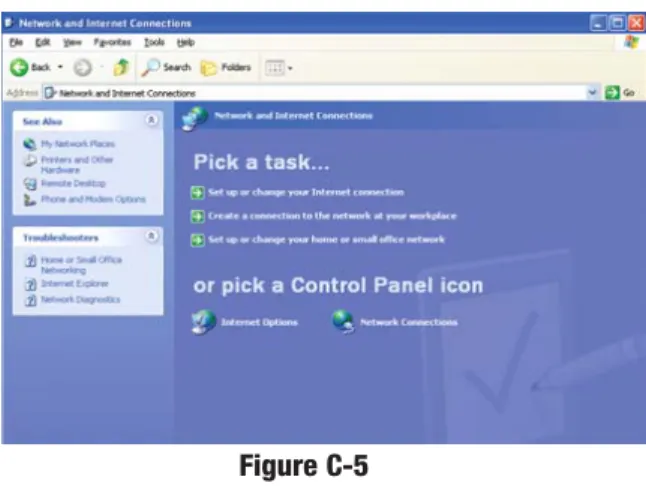
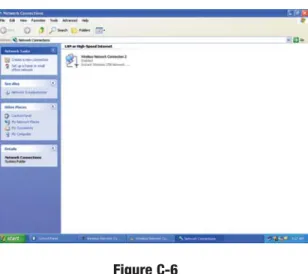
1. Click the Startbutton, open the Control Panel. and click the Network and Internet Connectionsicon. Then, click the Network Connections icon to display the Network screen.
2. Select the Local Area Connection icon for the applicable Ethernet adapter (usually it is the first Local Area Connection listed).
3. When the Local Area Connection Status screen appears, click the
Propertiesbutton. (See Figure 3-6.)
4. Select Internet Protocol (TCP/IP) (as shown in Figure 3-7) and click the
Propertiesbutton.
5. Select Obtain an IP address automatically
and verify that Obtain DNS server address auto-matically is selected (as shown in Figure 3-8). Then, click the OKbutton and click the OKbutton on the subsequent screens to complete the PC’s configu-ration.
Repeat steps 1-5 for each PC on your network. When all of your PCs are configured, proceed to Chapter 4: Configuring the Router.
Configuring Windows XP PCs
Figure 3-6
Figure 3-7
3. If required by your ISP, enter the Router’s Host Nameand Domain Name
in the appropriate fields on the Setup tab. (This is usually required by cable ISPs.)
4. To configure the Router for your wire-less network, verify that the Setup tab’s Wireless fields (shown in Figure 4-3) are completed as follows:
E n a b l e / D i s a b l e: Selecting the Enable
radio button will enable the Router’s wireless feature. Wireless functions will not be available unless enabled.
SSID: The SSID is a unique name for your wireless network. It is case sen-sitive and must not exceed 32 characters. The default SSID is "linksys " but you should change this to a personal wireless network name. All wireless points in your network must use the same SSID.
SSID Broadcast- Allows the SSID to be broadcast on your network. You may want to enable this function while configuring the Router, but make sure that you disable it when you are finished. With this enabled, someone could easily obtain the SSID information with site survey software and gain unauthorized access to your network. Click Enable to broadcast. Click
Disable to increase network security and prevent the SSID from being seen on networked PCs.
Channel: Select the appropriate channel for your network from the list pro-vided. All wireless points in your network must use the same channel in order to function properly.
Do not change the WEP setting from the default, “Disabled”, without first referring to the Wireless Security sections of the User Guide or Setup Wizard CD-ROM for advanced features and settings.
Chapter 4: Configuring the Router
This chapter will show you how to configure the Router to function in your net-work and gain access to the Internet through your Internet Service Provider (ISP). Detailed description of the Router’s Web-based Utility can be found in the Chapter 5: Using the Router’s Web-Based Utility. Your ISP may require the use of a Host Name and Domain Name. Further, you will set the WAN Configuration Type on the Router’s Setup tab from the information given by your ISP. You will need this setup information from your ISP.If you do not have this information, please contact your ISP before proceeding.
The instructions from your ISP tell you how to set up your PC for Internet access. Since you are now using the Router to share Internet access among sev-eral computers, you will use this setup information for Router configuration. 1. Open your web browser, and enter
192.168.1.1 into the web browser’s Address field, as shown in Figure 4-1. Then, press the Enterkey.
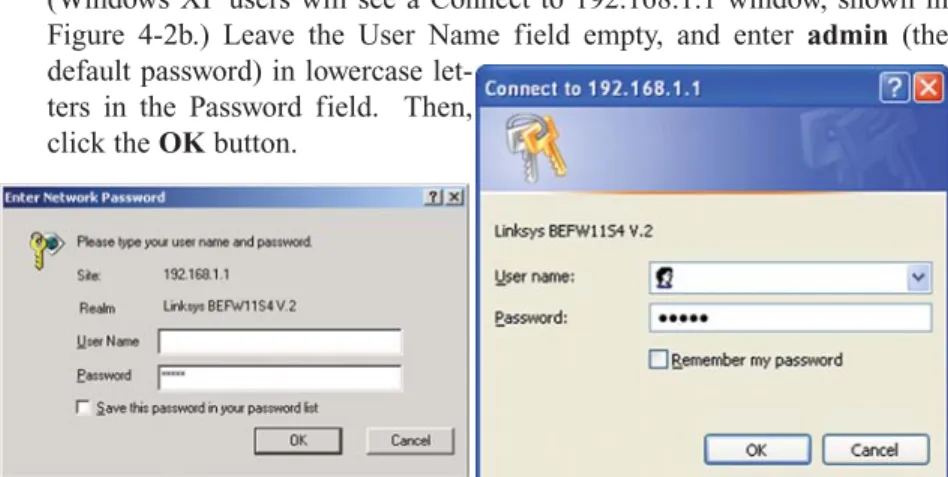
2. An Enter Network Password window, shown in Figure 4-2a, will appear. (Windows XP users will see a Connect to 192.168.1.1 window, shown in Figure 4-2b.) Leave the User Name field empty, and enter admin (the default password) in lowercase
let-ters in the Password field. Then, click the OKbutton.
Figure 4-1
Figure 4-2a Figure 4-2b
Figure 4-3
Note:Linksys recommends using the Setup Wizard CD for first time installation of the Router and for setting up additional computers. For additional assistance, follow the steps in this chapter.
PPPoE
If your DSL provider says that you are con-necting through PPPoE or if you normally enter a user name and pass-word to access the Internet, perform these steps (shown in Figure 4-5):
a. Select PPPoEas the WA N C o n n e c t i o n Type.
b. Enter the User Name.
c. Enter the Password.
d. Click the Applybutton to save the settings.
RAS (for SingTel Users)
RAS is a service used in Singapore only. If you are using a RAS connection (as shown in Figure 4-6), check with your ISP for the necessary setup infor-mation.
5. The Router supports five connection types: DHCP (obtain an IP automati-cally), PPPoE, Static IP Address, RAS, and PPTP. These types are selected from the drop-down menu beside WAN Connection Type. The Setup tab and available features will differ depending on what kind of connection type you select, the instructions for which are included here:
Obtain an IP Automatically
If your ISP says that you are connecting through a dynamic IP address (or DHCP), perform these steps:
a. SelectObtain an IP automatically as the WAN Connection Type (as previously shown in Figure 4-3).
b. Click the Applybutton to save the settings.
Static IP
If your ISP says that you are connecting through a static (or fixed) IP address, perform these steps (as shown in Figure 4-4):
a. Select Static IPas the WAN Connection Type. b. In the fields beside
“Specify WAN IP Address”, enter the IP Address.
c. Enter the Subnet Mask. d. Enter the Default
Gateway Address. e. Enter the DNSin the 1,
2, and/or 3 fields. You must enter at least one DNS address.
f. Click the Applybutton to save the settings.
Figure 4-4
Figure 4-5
Chapter 5: Using the Router’s
Web-Based Utility
For your convenience, an administrative utility has been programmed into the Router. This chapter will explain all of the functions in this utility. All router-based administrative tasks are performed through this web utility. The web util-ity can be accessed by any PC on the network by typing “http://192.168.1.1” in the PC’s web browser address window, as shown in Figure 5-1.
Upon entering the address into the web browser, a password request page will pop up, as shown in Figure 5-2a. (Windows XP users will see a “Connect to 192.168.1.1” window, shown in Figure 5-2b.)
Leave the User Name field empty, and enter admin(the default password) in lowercase letters in the Password field. Then, click the OKbutton.
In this chapter, you will find brief descriptions of each of the utility’s tabs and its more important functions. More detailed explanations and instructions can be found by clicking each page’s Help button or on Linksys’s website at
www.linksys.com. To clear any values you’ve entered on any page, click the
Cancel button. To apply any settings you’ve altered on any page, click the
Applybutton.
PPTP
PPTP is a service used in Europe only. If you are using a PPTP connection (as shown in Figure 4-7), check with your ISP for the necessary setup infor-mation.
6. If you haven’t already done so, click the Applybutton to save the settings. 7. Reset the power on your cable or DSL modem and restart your computers.
They will now obtain the Router's new settings.
Note: You only need to configure the Router from one computer. If you need advanced setting information, please refer to the Linksys support web-site at support.linksys.com or the User Guide on the Setup Wizard CD-ROM.
Congratulations! You’ve successfully configured the Router. You can test the setup by opening your web browser from any computer and entering
www.linksys.com/registration(as shown in Figure 4-8).
If you are unable to reach our website, you may want to review what you did in this section or refer to the Troubleshooting Appendix.
Figure 4-7
Figure 4-8
Figure 5-1
Figure 5-2a
• SSID: The SSID is a unique name for your wireless network. It is case sensi-tive and must not exceed 32 characters. The default SSID is "linksys " but you should change this to a personal wireless network name. All wireless points in your network must use the same SSID. Verify that you are using the correct SSID and click the Applybutton to set it.
• SSID Broadcast- Allows the SSID to be broadcast on your network. You may want to enable this function while configuring the Router, but make sure that you disable it when you are finished. With this enabled, someone could easily obtain the SSID information with site survey software and gain unauthorized access to your network. Click Enableto broadcast. Click Disable to increase network security and prevent the SSID from being seen on networked PCs.
• Channel Select the appropriate channel from the list provided to correspond with your network settings, between 1 and 11. (Higher channels can only be used outside of the United States and Canada.) All points in your wireless net-work must use the same channel in order to function correctly. Verify that the correct channel is selected and click the Applybutton to set it.
• WEP (Mandatory/Disable). In order to utilize WEP encryption, select
Enable. If you do not wish to utilize WEP encryption, make sure Disableis selected.
• WEP Key Setting When WEP Encryption is Enabled, press this button to modify the WEP Key Settings.
For further details on configuring Wireless Security, using WEP, refer to Appendix C: Configuring Wireless Security.
• WAN Connection Type The Router supports five connection types: DHCP (obtain an IP automatically), PPPoE, Static IP Address, RAS, and PPTP. These types are selected from the drop-down menu beside WAN Connection Type. The Setup tab and available features will differ depending on what kind of connection type you select. Each option is described on the following pages.
Obtain an IP Automatically
If your ISP says that you are connecting through a dynamic IP address (or DHCP), select this option from the drop-down menu (as shown in Figure 5-3). Now, the Router will accept the dynamic IP addresses assigned by your ISP when connecting to the Internet.
The utility’s tabs: Setup, Password, Status, DHCP, Log, Security and Help are used for Basic Setup of the Router. When the Advanced Tab is clicked, further options will be displayed for Filters, Forwarding, Dynamic Routing, Static Routing DMZ Host, MAC Address Cloning, and Wireless configuration.
The Setup tab is the first tab you will see when you access the Utility. If you have already installed and set up the Router, you have already seen this tab and have already properly configured all of the values.
• Host Name This entry is necessary for some ISPs and can be provided by them.
• Domain Name
This entry is neces-sary for some ISPs and can be provided by them.
• Firmware Version
This displays the firmware version the Router is cur-rently using. As future ver-sions of the Router’s firmware become available,
they can be downloaded from the Linksys website at www.linksys.com. • LAN IP Address and Subnet Mask This is the Router’s IP Address and
Subnet Mask as seen on the internal LAN. The default value is 192.168.1.1 for IP Address and 255.255.255.0 for Subnet Mask.
• Wireless (Enable/Disable).In order to utilize the Router’s wireless func-tions, select Enable. If you do not wish to utilize any wireless functions, make sure Disableis selected. (Note: No other wireless functions will be available unless you enable this setting.)
Setup
Figure 5-3
N
Noottee:: Due to differences in web browsers, some screen shots may differ.
PPPoE
Some DSL-based ISPs use PPPoE ( P o i n t - t o - P o i n t Protocol over Ethernet) to estab-lish communica-tions with an end-user. If you are using a DSL line, check with your ISP to see if they use PPPoE. If they do use PPPoE, select this from the drop-down menu (as shown in Figure 5-5).
If you do enable PPPoE, remember to remove any existing PPPoE applica-tions already on any of your PCs.
• User Name and Password Enter the User Name and Password you use when logging onto your ISP connection.
• Connect on Demand and Max Idle Time You can configure the Router to disconnect your ISP connection after a specified period of time (Max Idle Time). If you have been disconnected due to inactivity, Connect on Demand enables the Router to automatically re-establish your connection as soon as you attempt to access the Internet again. If you wish to activate Connect on Demand, click the radio button. If you want your Internet con-nection to remain on at all times, enter 0 in the Max Idle Time field. Otherwise, enter the number of minutes you want to have elapsed before your Internet access disconnects.
• Keep Alive Option and Redial PeriodThis option keeps you connected to your ISP indefinitely, even when your connection sits idle. To use this option, click the radio button next to Keep Alive. The default Redial Period is 30 seconds.
Static IP
If your ISP says that you are connecting through a static (or fixed) IP address, select this option from the drop-down menu (as shown in Figure 5-4). The Router will utilize that static IP Address when the following infor-mation is entered into the appropriate field:
• WAN IP Address and Subnet Mask This is the Router’s IP Address and Subnet Mask as seen by external users on the Internet (including your ISP).
• Default Gateway AddressYour ISP will provide you with the Gateway IP Address.
• DNS (Domain Name Server) IP Address Your ISP will provide you with at least one DNS IP Address.
Figure 5-4
• Router Password For greater security, you should set a password for the Router. If you don’t set the password, all users on your network will be able to access the Router using the default password admin. We recommend that you change your password often.
• UPnP Services Universal Plug and Play (UPnP) allows systems, such as Windows XP PCs to automatically configure the Router for various Internet applications, such as gaming and videoconferencing. Click the radio button next to Enable to enable UPnP Services, or Disable to disable UPnP Services.
• Restore Factory Defaults If you select the Restore Factory Default option and click the Applybutton, you will clear all of the Router’s settings and restore the default settings.
Do not restore the factory defaults unless you are having difficulties with the Router and have exhausted all other troubleshooting measures. Once the Router is reset, you will have to re-enter all of your configuration data.
To clear any values you’ve entered on any page, click the Cancel button. To apply any settings you’ve altered on any page, click the Applybutton.
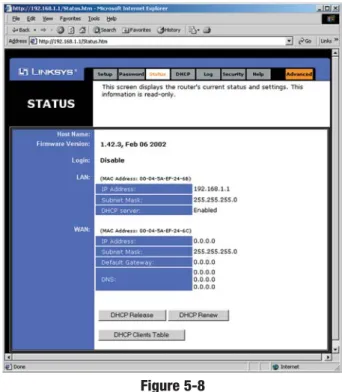
The Status tab, shown in Figure 5-8, displays the Router’s current status; it reflects the data and selections you’ve entered using the Setup tab and provides options for DHCP users.
All of the information provided on the Status tab is read-only and can be changed using the Setup tab.
• Host Name This field shows the name of the Router. This entry is neces-sary for some ISPs.
• Firmware Version This field shows the installed version and date of the firmware. Version dates are slightly more accurate than version numbers.
• Login This indicates if you are using a dial-up style connection like PPPoE, RAS, or PPTP. For PPPoE, RAS, or PPTP only, there is a Connect
button to click if you are disconnected and want to re-establish a connec-tion.
RAS (for SingTel Users)
RAS is a service used in Singapore only. If you are using a RAS connection (as shown in Figure 4-6), check with your ISP for the necessary setup infor-mation.
PPTP
PPTP is a service used in Europe only. If you are using a PPTP connection (as shown in Figure 4-7), check with your ISP for the necessary setup infor-mation.
You can confirm that the above settings are correct by successfully connecting to the Internet.
To clear any values you’ve entered on any page, click the Cancel button. To apply any settings you’ve altered on any page, click the Applybutton.
From the Password tab, shown in Figure 5-7, you can change the Router’s Password, enable Universal Plug and Play (UPnP) Services for systems such as Windows XP PCs, and restore the Router’s factory default settings.
Password
Figure 5-7
Status
Note: The information provided on the Status tab may vary depending on the Router’s settings.
A DHCP (Dynamic Host Configuration Protocol) Server a u t o m a t i c a l l y assigns IP addresses to each computer on its network. Unless you already have one, you should set the Router up as a DHCP server. This is done on the DHCP tab, shown in Figure 5-9.
• DHCP Server Click the Enableoption to enable the Router’s DHCP serv-er function If you already have a DHCP sserv-ervserv-er on your network, set the Router’s DHCP option to Disable.
• Starting IP Address Enter a numerical value for the DHCP server to start with when issuing IP addresses.
• Number of DHCP users Enter the maximum number of PCs that will require IP addresses assigned by the Router. No more than 253 computers can be used. In order to determine the DHCP IP Address range, add the starting IP address (e.g., 100) to the number of DHCP users. By default, as shown in Figure 5-9, if you add 50 users, the range or IP Addresses will be 192.168.1.100 to 192.168.1.149.
• Client Lease Time The Client Lease Time is the amount of time a network user will be allowed connection to the Router with their current dynamic IP address. Enter the amount of time, in minutes, that the user will be “leased” this dynamic IP address.
DHCP
• LAN These fields display the current IP Address and Subnet Mask of the Router, as seen by users on your local area network. The DHCP Server field shows the status of the Router’s DHCP server function, which is either enabled or disabled.
• WAN These fields display the WAN IP Address, WAN Subnet Mask, and WAN Default Gateway IP Address of the Router, as seen by external users on the Internet. The DNS (Domain Name System) IP Address fields show the IP address(es) of the DNS currently used by the Router. Multiple DNS IP set-tings are common. In most cases, the first available DNS entry is used.
• DHCP Release Click the DHCP Releasebutton to delete the current IP address of the device connected to the Router’s WAN port.
• DHCP Renew Click the DHCP Renew button to replace the current IP address—of the device connected to the Router’s WAN port—with a new IP address.
• DHCP Clients Table This table lists the PCs that were given IP addresses by the Router.
Figure 5-9 Figure 5-8
For a permanent record of these logs, Logviewer software must be used. This software is downloadable from the Linksys website at www.linksys.com. The Logviewer saves all incoming and outgoing activity as a permanent file on your PC’s hard drive. Next to “Send Log to”, enter the fixed IP address of the PC running the Logviewer software. The Router will now send updated logs to that PC.
To clear any values you’ve entered on any page, click the Cancel button. To apply any settings you’ve altered on any page, click the Applybutton.
• DNS The Domain Name System (DNS) is how the Internet translates domain or website names into Internet addresses or URLs. Your ISP will provide you with at least one DNS Server IP Address. If you wish to use another, type that IP Address in one of these fields. You can type up to three DNS Server IP Addresses here. The Router will use these for quicker access to functioning DNS servers.
• WINS The Windows Internet Naming Service (WINS) manages each PC’s interaction with the Internet. If you use a WINS server, enter that server’s IP Addresshere. Otherwise, left this blank.
• DHCP Clients Table When this button is clicked, a table similar to that shown in Figure 5-10 appears, displaying a list of PCs assigned IP address-es by the Router. Click the Refresh button to display the most current information. If you
wish to delete a client’s IP address, select that client by clicking the box to the right and click the Deletebutton.
To clear any values you’ve entered on any page, click the Cancel button. To apply any settings you’ve altered on any page, click the Applybutton.
The Log tab, shown in Figure 5-11, provides you with a log of all incoming and outgoing URLs or IP addresses for your Internet connection.
To access activity logs, select the Enableoption next to “Access Log”. This function can be disabled by clicking the Disableradio button.
With logging Enabled, you can choose to view temporary logs or have a per-manent record, using the Logviewer software. Temporary logs can be accessed from the Log tab by clicking either the Incoming Access Log or Outgoing Access Log buttons. The Incoming Access Log gives you a log of all the incoming Internet traffic while the Outgoing Access Log lists all the URLs and IP addresses of Internet sites that users on your network have accessed.
Figure 5-10
Log
The Security tab, as shown in Figure 5-12, enables configuration of the Router to provide parental controls.
AOL Parental Controls
Click on the radio button next to Enableto use AOL’s “Parental Controls” feature. Enabling this will disable all options under the Advanced tab except MAC Address cloning, and will disable all Internet access, except when using AOL client software. Click the radio button next to Disableif you don’t want to use this feature.
Security
Figure 5-12
Note: AOL Parental Controls are available to AOL customers in the United States only.
If at any time you enable the AOL Parental Controls feature in the Router, you must run the Setup Wizard CD and select Setup Additional Computer(s) to install the AOL 7.0 software on your computers.
To apply the settings that you change on a page, click the Applybutton. To can-cel any values you’ve entered on a page, click the Cancelbutton.
2. Click the Browsebutton and find the firmware upgrade file that you downloaded from the Linksys website. Double-click theupgrade file. This will place the file into the “File Path:” field.
3. When the correct file is in the “File Path:” field, click the Upgrade but-ton and follow the instructions there. This will complete your firmware upgrade.
Filters
Important:Do not interrupt the firmware upgrade process in any way or power down the Router while the upgrade is in progress as this could damage the Router.
The Help tab, as shown in Figure 5-13, contains links to all of the Utility’s inter-nal support documentation, a link to Linksys’s website, and the application that upgrades the Router’s firmware. To utility these links, you must have an active Internet connection.
Click the Linksys Website link to connect to the Linksys homepage for Knowledgebase help files and information about other Linksys products.
For an Online Manual in PDF format, click that text link. The manual will appear in Adobe PDF format. If you do not have the Adobe PDF Reader installed on your computer, click the Adobe Websitelink to download this software.
Firmware can be upgraded by clicking the Upgrade Firmwarelink. Do not upgrade your firmware unless you are experiencing problems with the Access Point. To upgrade the Router’s firmware:
1. Access the Helptab and click Upgrade Firmware. A new page, shown in Figure 5-14, will appear.
Important: In order to upgrade the Router’s firmware, you
must use Internet Explorer 5.0 or higher, or Netscape Navigator 4.7 or higher. Upgrading the firmware may cause the Router to be reset to the factory defaults. Make a record of all settings before attempting the upgrade.
Help
Figure 5-13
To filter users by network port number, enter a network port number or a range of network ports. Enter the port numbers you want to filter in the port numbers fields. Users connected to the Router will no longer be able to access any port number listed there.
• Editing MAC Filter Setting
This feature filters the Ethernet adapter’s specific MAC address from going out to the Internet.
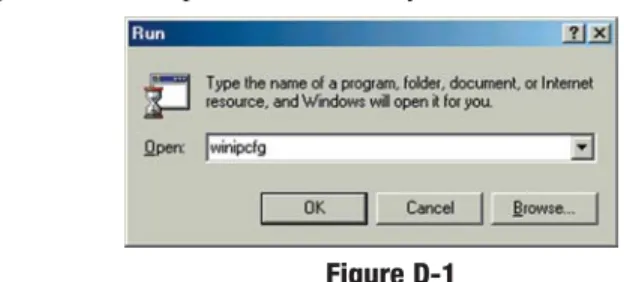
To check your Ethernet adapter’s MAC address, run winipcfgor ipconfig
in the command prompt, depending on which Windows operating system you are using. To set the MAC filter, click the Edit MAC Filter Setting
button. When a second window appears, select the range in the drop-down menu, and in a MAC number field, enter the 12-digit MAC address you want to filter. Click the Applybutton before closing the window. For infor-mation on obtaining a MAC address, go to Appendix D: Finding the MAC Address and IP Address for Your Ethernet Adapter.
• Blocking WAN Requests
By enabling the Block WAN Request feature, you can prevent your network from being “pinged,” or detected, by other Internet users. The Block WAN Request feature also reinforces your network security by hiding your net-work ports. Both functions of the Block WAN Request feature make it more difficult for outside users to work their way into your network.
Click the Applybutton to save your changes.
• Using Multicast Pass Through
This feature allows for multiple transmissions to specific recipients at the same time. Select Enableto support the feature, or Disable to keep the Router from multicasting.
Filters block specific internal users from accessing the Internet. From the Filters tab, as shown in Figure 5-15, you can set up a filter through an IP address or a network port number.
• Setting Up Filters
To set up a filter using IP addresses, enter the range of IP addresses you wish to filter in the IP address fields. Users who have filtered IP addresses will not be able to access the Internet at all. If you only want to filter one IP address instead of a range of IP addresses, enter the same value into both fields. For instance, if you wish to filter the PC with the IP address of 192.168.1.5, enter 5into both fields on one line: 192.168.1.5 ~ 192.168.1.5. Click the Applybutton when you’re done.
Advanced Tab: Filters
Important:Filtering is an Advanced Function. No changes should be made to this tab without a thorough understanding of networking concepts.
• Using Multicast Pass Through
This feature allows for multiple transmissions to specific recipients at the same time. Select Enableto support the feature, or Disable to keep the Router from multicasting.
• Using IPSec Pass Through
This feature lets you use IPSec Pass Through. To use this feature, click the
Enablebutton next to IPSec Pass Through, and then the Applybutton. IPSec Pass Through is enabled by default. To disable IPSec Pass Through, click on Disableand then the Applybutton.
• Using PPTP Pass Through
Point-to-Point Tunneling Protocol is the method used to enable VPN sessions. To enable this feature, click the Enablebutton next to PPTP Pass Through, and click the Applybutton.
PPTP Pass Through is enabled by default. To disable this feature, click on
Disablenext to PPTP Pass Through, and then the Applybutton.
• Using Remote Management
This feature allows you to manage the Router from a remote location, via the Internet. To enable this feature, click on Enable,and enter the port number you want to use when accessing the Router remotely. Click the
Applybutton. Remote Management must be activated before you can man-age the Router from a remote location.
To disable Remote Management, click on Disable, and click the Apply but-ton. If you wish to use this feature on the browser, enter http:\\<WAN IP Address>: port.(Enter your specific WAN IP Address in place of <WAN IP Address>, and enter the port number in place of the word port.)
• Using Remote Upgrade
This feature allows you to upgrade the Router’s firmware from a remote location. To enable Remote Upgrade, click on Enable, and then click the
Applybutton. Remote Management must be activated before you can man-age the Router from a remote location.
• Using MTU (Maximum Transmission Unit)
This feature specifies the largest packet size permitted for network trans-mission. Select Enableand enter the value desired. It is recommended that you leave this value in the 1200 to 1500 range. For most DSL users, it is recommended to use the value 1492. By default, MTU is set at 1500when disabled.
IImmppoorrttaanntt:: Upgrading may cause the Router to be reset to the factory defaults. Make a record of all set-tings before attempting the upgrade.
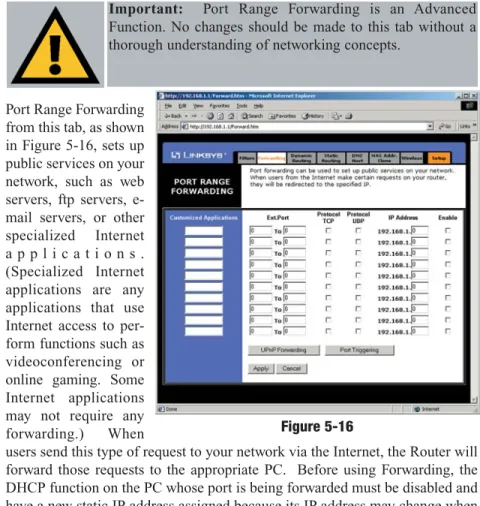
3. On the same line, select the protocol TCPor UDP, or select both protocols. 4. Enter the IP addressof the server that you want the Internet users to be
able to access. To find the IP address, go to Appendix D: Finding the MAC Address and IP Address for Your Ethernet Adapter.
5. Check the Enablebox to enable the services you have defined. Port Range Forwarding will not function if the Enablebutton is left unchecked. This is disabled (unchecked) by default.
6. Configure as many entries as needed—the Router supports up to 10 ranges of ports. Click the Applybutton when you are done.
UPnP Forwarding
Clicking the UPnP Forwarding button on the Port Range Forwarding tab will display the UPnP Forwarding tab. The UPnP Forwarding tab, shown in Figure 5-17, displays preset application settings as well as options for customization of port services for other applications.
This table is similar to the Port Forwarding table, but the items on this table will automat-ically synchronize with other UPnP devices and operating systems, such as Windows XP.
Figure 5-17
Port Range Forwarding from this tab, as shown in Figure 5-16, sets up public services on your network, such as web servers, ftp servers, e-mail servers, or other specialized Internet a p p l i c a t i o n s . (Specialized Internet applications are any applications that use Internet access to per-form functions such as videoconferencing or online gaming. Some Internet applications may not require any forwarding.) When
users send this type of request to your network via the Internet, the Router will forward those requests to the appropriate PC. Before using Forwarding, the DHCP function on the PC whose port is being forwarded must be disabled and have a new static IP address assigned because its IP address may change when using the DHCP function.
If you need to forward all ports to one PC, see the “DMZ” section. To add a server using Port Range Forwarding:
1. Enter the name of the application in the appropriate Customized Applications field.
2. Next to the name of the application, enter the numberor range of the external port(s) used by the server or Internet application in the Ext. Port column. Check with the Internet application software documentation for more information.
Advanced Tab: Port Range Forwarding
Important: Port Range Forwarding is an Advanced Function. No changes should be made to this tab without a thorough understanding of networking concepts.
• POP3(Post Office Protocol 3) A standard mail server commonly used on the Internet. It provides a message store that holds incoming e-mail until users log on and download it. POP3 is a simple system with little selectivity. All pending messages and attachments are downloaded at the same time. POP3 uses the SMTP messaging protocol.
• NNTP(Network News Transfer Protocol) The protocol used to connect to Usenet groups on the Internet. Usenet newsreaders support the NNTP pro-tocol.
• SNMP (Simple Network Management Protocol) A widely used network monitoring and control protocol. Data is passed from SNMP agents, which are hardware and/or software processes reporting activity in each network device (hub, router, etc.) to the workstation console used to oversee the net-work. The agents return information contained in a MIB (Management Information Base), which is a data structure that defines what is obtainable from the device and what can be controlled (turned off, on, etc.).
You must check the Enablebox to enable the applications you have defined. To add a server using UPnP Forwarding:
1. Enter the name of the application in the appropriate Application Name field.
2. Next to the name of the application, enter the numberof the external port used by the server in the Ext. Port column. Check with the Internet appli-cation software documentation for more information.
3. On the same line, select the protocol UDPor TCP.
4. Enter thenumberof the internal port used by the server in the Int. Port col-umn. Check with the Internet application software documentation for more information.
5. Enter the IP address of the server that you want the Internet users to be able to access. To find the IP address, go to Appendix D: Finding the MAC Address and IP Address for Your Ethernet Adapter.
6. Check the Enable box to enable the services you have defined. UPnP Forwarding will not function if the Enablebutton is left unchecked. This is disabled (unchecked) by default.
The Preset Applications are among the most widely used Internet applications that may require forwarding. They include the following:
• FTP (File Transfer Protocol) A protocol used to transfer files over a TCP/IP network (Internet, UNIX, etc.). For example, after developing the HTML pages for a website on a local machine, they are typically uploaded to the web server using FTP. FTP includes functions to log onto the network, list directories, and copy files. It can also convert between the ASCII and EBCDIC character codes. FTP operations can be performed by typing com-mands at a command prompt or via an FTP utility running under a graphical interface such as Windows. FTP transfers can also be initiated from within a web browser by entering the URL preceded by ftp://.
• Telnet A terminal emulation protocol commonly used on Internet and TCP/IP-based networks. It allows a user at a terminal or computer to log onto a remote device and run a program.
• SMTP(Simple Mail Transfer Protocol) The standard e-mail protocol on the Internet. It is a TCP/IP protocol that defines the message format and the message transfer agent (MTA), which stores and forwards the mail. • DNS(Domain Name System) The way that Internet domain names are
located and translated into IP addresses. A domain name is a meaningful and easy-to-remember “handle” for an Internet address.
• TFTP(Trivial File Transfer Protocol) A version of the TCP/IP FTP proto-col that has no directory or password capability.
• Finger A UNIX command widely used on the Internet to find out informa-tion about a particular user, such as a telephone number, whether the user is currently logged on, and the last time the user was logged on. The person being “fingered” must have placed his or her profile on the system in order for the information to be available. Fingering requires entering the full user@domain address.
• HTTP(HyperText Transport Protocol) The communications protocol used to connect to servers on the World Wide Web. Its primary function is to establish a connection with a web server and transmit HTML pages to the client web browser.
From the Dynamic Routing tab, shown in Figure 5-19, you can automatically adjust to physical changes in the net-work’s layout. The Router, using the R I P p r o t o c o l , determines the net-work packets’ route based on the fewest number of hops between the source and the des-tination. The RIP
protocol regularly broadcasts routing information to other routers on the net-work. To set up Dynamic Routing:
1. Choose the correct Working Mode. Gateway Modeshould be used if the Router is hosting your network’s connection to the Internet. Router Mode
should be selected if the Router exists on a network with other routers. 2. In the TX field, choose the protocolby which you transmit data on the
net-work.
3. In the RXfield, choose the protocol by which the Router receives network data.
4. Click the Applybutton to save your changes.
To view the Routing Table, which shows the network layout, click the Show Routing Table button.
To clear any values you’ve entered on any page, click the Cancel button. To apply any settings you’ve altered on any page, click the Applybutton.
Advanced Tab: Dynamic Routing
Important: Dynamic Routing is an Advanced Function. No changes should be made to this tab without a thorough under-standing of networking concepts.
Figure 5-19
Port Triggering
From the Port Range Forwarding tab, shown in Figure 5-18, click the Port Triggeringbutton to allow the Router to watch out-going data for specific port numbers. The IP address of the comput-er that sends the matching data is remembered by the Router, so that when the requested data
returns through the Router, the data is pulled back to the proper computer by way of IP address and port mapping rules.
1. Enter the Application Nameof the trigger.
2. Enter the Trigger Port Range used by the application. Check with the Internet application for the port number needed.
3. Enter the Incoming Port Rangeused by the application. Check with the Internet application for the port number needed.
4. Click the Applybutton.
2. Enter the following data to create a new static route:
Destination LAN IP. The Destination LAN IP is the address of the remote network or host to which you want to assign a static route. Enter the IP address of the host for which you wish to create a static route here. If you are building a route to an entire network, be sure that the host portion of the IP address is set to zero. For example, the Router’s standard IP address is 192.168.1.1. Based on this address, the address of the network to which the Router is connected is 192.168.1. You would enter the IP address 192.168.1.0 if you wanted to route to the entire network, rather than just to the Router.
Subnet Mask. The Subnet Mask indicates which portion of an IP address is the network portion and which portion is the host portion. If, for instance, you use a Subnet Mask of 255.255.255.0 with the example shown above for Destination LAN IP, then this would indicate that the first three numbers of an network IP address identifies this particular network, while the last number in the network address (from 1 to 254) would identify the specific host.
Gateway IP. This IP address should be the IP address of the gateway device that allows for contact between the Router and the remote network or host.
Hop Count. This value gives the number of nodesthat a data packet pass-es through before reaching its dpass-estination. A node is any device
on the network, such as switches, PCs, etc.
Interface. This interface tells you whether your network is on the internal LAN or the WAN, or the external Internet. If you’re connecting to a sub-network, select LAN. If you’re connecting to another network through the Internet, select WAN.
To delete a Static Routing entry, select an entry, and click the Delete this entry
button.
To clear any values you’ve entered on any page, click the Cancel button. To apply any settings you’ve altered on any page, click the Applybutton. If the Router is connected to more than one network, it may be necessary to set
up a static route between them. This is set on the Static Routing tab, as shown in Figure 5-20. A static route is a pre-determined pathway that network infor-mation must travel to reach a specific host or network. Click the Show Routing Tablebutton to view the current static routing configuration. To create a static route entry:
1. Select Static Route Entryfrom the drop-down list. The Router supports up to 20 static route entries.
Advanced Tab: Static Routing
Important: Static Routing is an Advanced Function. No changes should be made to this tab without a thorough under-standing of networking concepts.