1
PUBLISHED BY Microsoft Press
A Division of Microsoft Corporation One Microsoft Way
Redmond, Washington 98052-6399
Copyright © 2014 Microsoft Corporation
All rights reserved. No part of the contents of this book may be reproduced or transmitted in any form or by any means without the written permission of the publisher.
Microsoft Press books are available through booksellers and distributors worldwide. If you need support related to this book, email Microsoft Press Book Support at [email protected]. Please tell us what you think of this book at http://aka.ms/tellpress.
Unless otherwise noted, the companies, organizations, products, domain names, e-mail addresses, logos, people, places, and events depicted in examples herein are fictitious. No association with any real company, organization, product, domain name, e-mail address, logo, person, place, or event is intended or should be inferred.
Complying with all applicable copyright laws is the responsibility of the user. Without limiting the rights under copyright, no part of this document may be reproduced, stored in or introduced into a retrieval system, or transmitted in any form or by any means (electronic, mechanical, photocopying, recording, or otherwise), or for any purpose, without the express written permission of Microsoft Corporation.
Microsoft and the trademarks listed at http://www.microsoft.com/about/legal/en/us/IntellectualProperty/
Trademarks/EN-US.aspx are trademarks of the Microsoft group of companies. All other marks are property of their respective owners.
This book expresses the author’s views and opinions. The information contained in this book is provided without any express, statutory, or implied warranties. Neither the authors, Microsoft Corporation, nor its resellers, or distributors will be held liable for any damages caused or alleged to be caused either directly or indirectly by this book.
Acquisitions, Developmental, and Project Editor: Devon Musgrave
2
Table of Contents
Introduction ... 21
Who This Book Is For ... 23
What You'll Need (Can You Say “Samples”?) ... 24
A Formatting Note... 25
Acknowledgements ... 26
Free Ebooks from Microsoft Press ... 28
The “Microsoft Press Guided Tours” App ... 28
Errata & Book Support ... 28
We Want to Hear from You... 29
Stay in Touch ... 29
Chapter 1 The Life Story of a Windows Store App: Characteristics of the
Windows Platform ... 30
Leaving Home: Onboarding to the Windows Store ... 32
Discovery, Acquisition, and Installation... 35
Playing in Your Own Room: The App Container ... 39
Different Views of Life: Views and Resolution Scaling ... 42
Those Capabilities Again: Getting to Data and Devices ... 46
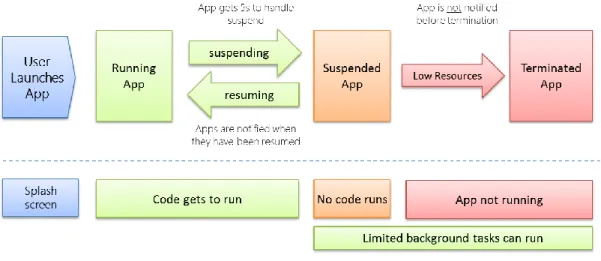
Taking a Break, Getting Some Rest: Process Lifecycle Management ... 49
Remembering Yourself: App State and Roaming... 51
Coming Back Home: Updates and New Opportunities ... 56
And, Oh Yes, Then There’s Design ... 58
Feature Roadmap and Cross-Reference ... 59
Chapter 2 Quickstart ... 65
A Really Quick Quickstart: The Blank App Template ... 65
3
QuickStart #1: Here My Am! and an Introduction to Blend for Visual Studio ... 72
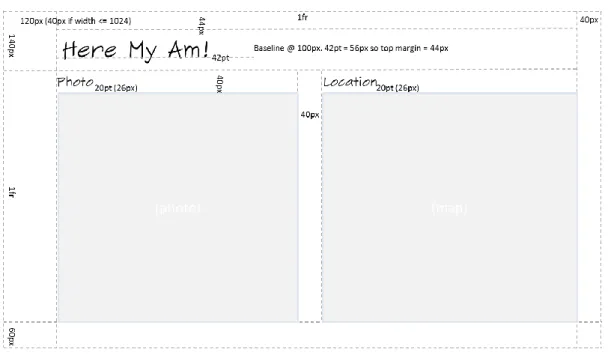
Design Wireframes ... 73
Create the Markup ... 76
Styling in Blend... 78
Adding the Code... 83
Extra Credit: Improving the App ... 97
Receiving Messages from the iframe ... 98
Improving the Placeholder Image with a Canvas Element ... 99
Handling Variable Image Sizes ... 100
Moving the Captured Image to AppData (or the Pictures Library) ... 103
Using a Thumbnail Instead of the Full Image ... 105
The Other Templates: Projects and Items ... 107
Navigation App Template... 107
Grid App Template ... 107
Hub App Template... 108
Split Template ... 108
Item Templates ... 108
What We’ve Just Learned ... 109
Chapter 3 App Anatomy and Performance Fundamentals ... 111
App Activation ... 112
Branding Your App 101: The Splash Screen and Other Visuals ... 113
Activation Event Sequence ... 117
Activation Code Paths ... 119
WinJS.Application Events ... 121
Optimizing Startup Time ... 124
WinRT Events and removeEventListener... 126
App Lifecycle Transition Events and Session State ... 128
4
Basic Session State in Here My Am! ... 133
Page Controls and Navigation ... 136
WinJS Tools for Pages and Page Navigation ... 136
The Navigation App Template, PageControl Structure, and PageControlNavigator ... 139
The Navigation Process and Navigation Styles ... 146
Optimizing Page Switching: Show-and-Hide ... 148
Page-Specific Styling ... 149
Async Operations: Be True to Your Promises ... 151
Using Promises ... 151
Joining Parallel Promises ... 153
Sequential Promises: Nesting and Chaining ... 153
Managing the UI Thread with the WinJS Scheduler... 156
Scheduler Priorities ... 157
Scheduling and Managing Tasks ... 158
Setting Priority in Promise Chains ... 160
Long-Running Tasks ... 162
Debugging and Profiling... 165
Debug Output and Logging... 165
Error Reports and the Event Viewer... 166
Async Debugging ... 169
Performance and Memory Analysis ... 170
The Windows App Certification Toolkit ... 175
What We’ve Just Learned ... 176
Chapter 4 Web Content and Services ... 177
Network Information and Connectivity ... 179
Network Types in the Manifest... 180
Network Information (the Network Object Roster) ... 181
5
Connectivity Events ... 184
Cost Awareness ... 185
Running Offline ... 189
Hosting Content: the WebView and iframe Elements ... 191
Local and Web Contexts (and iframe Elements) ... 192
Dynamic Content... 195
App Content URIs ... 197
The <x-ms-webview> Element... 198
HTTP Requests ... 209
Using WinJS.xhr... 210
Using Windows.Web.Http.HttpClient... 211
Suspend and Resume with Online Content... 216
Prefetching Content ... 218
Background Transfer ... 219
Basic Downloads ... 221
Basic Uploads ... 225
Completion and Error Notifications ... 226
Providing Headers and Credentials ... 227
Setting Cost Policy ... 227
Grouping Transfers ... 228
Suspend, Resume, and Restart with Background Transfers ... 228
Authentication, the Microsoft Account, and the User Profile ... 230
The Credential Locker ... 231
The Web Authentication Broker ... 233
Single Sign-On ... 237
Using the Microsoft Account ... 238
The User Profile (and the Lock Screen Image) ... 244
6
Chapter 5 Controls and Control Styling ... 248
The Control Model for HTML, CSS, and JavaScript ... 249
HTML Controls ... 251
Extensions to HTML Elements ... 254
WinJS Controls ... 255
Syntax for data-win-options ... 259
WinJS Control Instantiation ... 261
Strict Processing and processAll Functions ... 262
Example: WinJS.UI.HtmlControl... 263
Example: WinJS.UI.Rating (and Other Simple Controls) ... 264
Example: WinJS.UI.Tooltip ... 265
Example: WinJS.UI.ItemContainer ... 266
Working with Controls in Blend ... 269
Control Styling ... 272
Styling Gallery: HTML Controls ... 274
Styling Gallery: WinJS Controls ... 276
Some Tips and Tricks ... 284
Custom Controls ... 285
Implementing the Dispose Pattern ... 288
Custom Control Examples ... 289
Custom Controls in Blend ... 293
What We’ve Just Learned ... 297
Chapter 6 Data Binding, Templates, and Collections ... 298
Data Binding ... 299
Data Binding Basics... 299
Data Binding in WinJS ... 301
Under the Covers: Binding mixins ... 311
7
Binding Initializers ... 315
Binding Templates... 319
Template Options, Properties, and Compilation ... 322
Collection Data Types ... 324
Windows.Foundation.Collection Types ... 325
WinJS Binding Lists ... 331
What We’ve Just Learned ... 342
Chapter 7 Collection Controls ... 344
Collection Control Basics... 345
Quickstart #1: The WinJS Repeater Control with HTML controls ... 345
Quickstart #2: The FlipView Control Sample ... 349
Quickstart #3: The ListView Essentials Sample ... 351
Quickstart #4: The ListView Grouping Sample ... 353
ListView in the Grid App Project Template ... 357
The Semantic Zoom Control ... 361
How Templates Work with Collection Controls... 364
Referring to Templates ... 364
Template Functions (Part 1): The Basics ... 365
Creating Templates from Data Sources in Blend ... 368
Repeater Features and Styling... 372
FlipView Features and Styling... 377
Collection Control Data Sources ... 380
The Structure of Data Sources (Interfaces Aplenty!)... 381
A FlipView Using the Pictures Library ... 384
Custom Data Sources and WinJS.UI.VirtualizedDataSource ... 386
ListView Features and Styling ... 393
When Is ListView the Right Choice? ... 393
8
Styling ... 399
Loading State Transitions ... 401
Drag and Drop ... 402
Layouts ... 405
Template Functions (Part 2): Optimizing Item Rendering ... 414
What We’ve Just Learned ... 419
Chapter 8 Layout and Views ... 421
Principles of Page Layout ... 423
Sizing, Scaling, and Views: The Many Faces of Your App... 426
Variable View Sizing and Orientations ... 426
Screen Resolution, Pixel Density, and Scaling ... 437
Multiple Views ... 442
Pannable Sections and Styles ... 446
Laying Out the Hub ... 447
Laying Out the Sections ... 448
Panning Styles and Railing ... 449
Panning Snap Points and Limits ... 451
Zooming Snap Points and Limits ... 452
The Hub Control and Hub App Template... 453
Hub Control Styling... 460
Using the CSS Grid ... 461
Overflowing a Grid Cell ... 463
Centering Content Vertically ... 463
Scaling Font Size ... 464
Item Layout ... 465
CSS 2D and 3D Transforms ... 466
Flexbox ... 466
9
Fonts and Text Overflow ... 468
Multicolumn Elements and Regions ... 470
What We’ve Just Learned ... 472
Chapter 9 Commanding UI ... 474
Where to Place Commands ... 475
The App Bar and Nav Bar ... 480
App Bar Basics and Standard Commands ... 481
App Bar Styling ... 490
Command Menus ... 494
Custom App Bars ... 495
Nav Bar Features ... 497
Nav Bar Styling ... 505
Flyouts and Menus ... 507
WinJS.UI.Flyout Properties, Methods, and Events... 509
Flyout Examples ... 510
Menus and Menu Commands ... 513
Message Dialogs ... 518
Improving Error Handling in Here My Am! ... 519
What We’ve Just Learned ... 525
Chapter 10 The Story of State, Part 1: App Data and Settings ... 527
The Story of State... 529
App Data Locations... 532
App Data APIs (WinRT and WinJS) ... 533
Settings Containers... 534
State Versioning ... 536
Folders, Files, and Streams... 537
FileIO, PathIO, and WinJS Helpers (plus FileReader) ... 543
10
Q&A on Files, Streams, Buffers, and Blobs... 544
Using App Data APIs for State Management... 552
Transient Session State ... 552
Local and Temporary State... 553
IndexedDB, SQLite, and Other Database Options ... 555
Roaming State ... 556
Settings Pane and UI... 559
Design Guidelines for Settings ... 561
Populating Commands ... 563
Implementing Commands: Links and Settings Flyouts ... 566
Programmatically Invoking Settings Flyouts... 568
Here My Am! Update ... 570
What We’ve Just Learned ... 571
Chapter 11 The Story of State, Part 2: User Data, Files, and OneDrive ... 573
The Big Picture of User Data ... 574
Using the File Picker and Access Cache ... 579
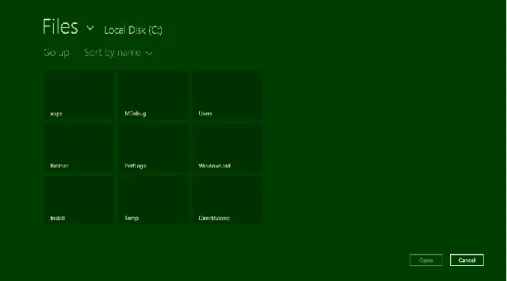
The File Picker UI ... 580
The File Picker API ... 585
Access Cache... 589
StorageFile Properties and Metadata ... 592
Availability ... 593
Thumbnails ... 594
File Properties ... 598
Media-Specific Properties ... 601
Folders and Folder Queries ... 607
KnownFolders and the StorageLibrary Object ... 609
Removable Storage ... 612
11
Custom Queries... 618
Metadata Prefetching with Queries ... 623
Creating Gallery Experiences... 625
File Activation and Association ... 627
What We’ve Just Learned ... 632
Chapter 12 Input and Sensors ... 634
Touch, Mouse, and Stylus Input ... 635
The Touch Language and Mouse/Keyboard Equivalents ... 636
What Input Capabilities Are Present? ... 643
Unified Pointer Events ... 645
Gesture Events ... 649
The Gesture Recognizer ... 658
Keyboard Input and the Soft Keyboard ... 659
Soft Keyboard Appearance and Configuration ... 660
Adjusting Layout for the Soft Keyboard ... 663
Standard Keystrokes ... 666
Inking ... 667
Geolocation ... 669
Geofencing ... 673
Sensors... 676
What We’ve Just Learned ... 680
Chapter 13 Media... 681
Creating Media Elements ... 682
Graphics Elements: Img, Svg, and Canvas (and a Little CSS) ... 684
Additional Characteristics of Graphics Elements ... 688
Some Tips and Tricks ... 689
Rendering PDFs ... 694
12
Disabling Screen Savers and the Lock Screen During Playback ... 703
Video Element Extension APIs ... 703
Applying a Video Effect ... 705
Browsing Media Servers... 706
Audio Playback and Mixing ... 706
Audio Element Extension APIs ... 708
Playback Manager and Background Audio ... 708
The Media Transport Control UI ... 714
Playing Sequential Audio ... 717
Playlists ... 719
Text to Speech ... 723
Loading and Manipulating Media ... 725
Image Manipulation and Encoding... 726
Manipulating Audio and Video ... 732
Handling Custom Audio and Video Formats ... 735
Media Capture ... 742
Flexible Capture with the MediaCapture Object ... 744
Selecting a Media Capture Device... 748
Streaming Media and Play To ... 751
Streaming from a Server and Digital Rights Management... 751
Streaming from App to Network... 753
Play To ... 754
What We Have Learned ... 757
Chapter 14 Purposeful Animations... 759
Systemwide Enabling and Disabling of Animatio ns ... 761
The WinJS Animations Library ... 762
Animations in Action ... 765
13
Designing Animations in Blend for Visual Studio ... 775
The HTML Independent Animations Sample ... 777
Rolling Your Own: Tips and Tricks ... 779
What We’ve Just Learned ... 785
Chapter 15 Contracts ... 786
Share ... 788
Share Source Apps... 793
Share Target Apps ... 805
The Clipboard... 816
Launching Apps with URI Scheme Associations ... 818
Search ... 823
The Search Charm UI ... 825
The WinJS.UI.SearchBox Control... 829
Providing Query Suggestions ... 831
Providing Result Suggestions ... 835
SearchBox Styling ... 837
Indexing and Searching Content ... 840
The Search Contract ... 849
Contacts ... 850
Contact Cards... 850
Using the Contact Picker ... 856
Appointments ... 860
What We’ve Just Learned ... 864
Chapter 16 Alive with Activity: Tiles, Notifications, the Lock Screen, and
Background Tasks... 865
Alive with Activity: A Visual Tour ... 866
The Four Sources of Updates and Notifications ... 875
14
Secondary Tiles ... 880
Basic Tile Updates ... 887
Cycling, Scheduled, and Expiring Updates ... 900
Badge Updates ... 902
Periodic Updates ... 904
Creating an Update Service ... 907
Debugging a Service Using the Localhost... 911
Windows Azure and Azure Mobile Services ... 912
Toast Notifications ... 917
Creating Basic Toasts ... 919
Butter and Jam: Options for Your Toast ... 921
Tea Time: Scheduled Toasts and Alarms... 923
Toast Events and Activation ... 926
Push Notifications and the Windows Push Notification Service ... 927
Requesting and Caching a Channel URI (App) ... 929
Managing Channel URIs (Service) ... 931
Sending Updates and Notifications (Service) ... 932
Raw Notifications (Service)... 933
Receiving Notifications (App) ... 934
Debugging Tips ... 935
Tools and Providers for Push Notifications ... 935
Background Tasks and Lock Screen Apps... 937
Background Tasks in the Manifest ... 938
Building and Registering Background Tasks ... 939
Conditions ... 941
Tasks for Maintenance Triggers ... 942
Tasks for System Triggers (Non-Lock Screen) ... 944
15
Debugging Background Tasks ... 949
What We’ve Just Learned (Whew!) ... 950
Chapter 17 Devices and Printing ... 952
Declaring Device Access... 956
Enumerating and Watching Devices ... 957
Scenario API Devices ... 962
Image Scanners ... 962
Barcode and Magnetic Stripe Readers (Point-of-Service Devices) ... 967
Smartcards... 970
Fingerprint (Biometric) Readers... 971
Bluetooth Call Control ... 972
Printing Made Easy... 973
The Printing User Experience ... 974
Print Document Sources ... 977
Providing Print Content and Configuring Options... 979
Protocol APIs: HID, USB, Bluetooth, and Wi-Fi Direct ... 981
Human Interface Devices (HID)... 983
Custom USB Devices ... 990
Bluetooth (RFCOMM) ... 992
Bluetooth Smart (LE/GATT) ... 996
Wi-Fi Direct ... 999
Near Field Communication and the Proximity API...1000
Finding Your Peers (No Pressure!) ...1002
Sending One-Shot Payloads: Tap to Share ...1007
What We’ve Just Learned ...1009
Chapter 18 WinRT Components: An Introduction ...1010
Choosing a Mixed Language Approach (and Web Workers)...1012
16
Quickstart #1: Creating a Component in C# ...1015
Simultaneously Debugging Script and Managed/Native Code ...1020
Quickstart #2: Creating a Component in C++ ...1021
Comparing the Results ...1023
Key Concepts for WinRT Components...1026
Implementing Asynchronous Methods ...1028
Projections into JavaScript ...1042
Scenarios for WinRT Components ...1044
Higher Performance (Perhaps) ...1044
Access to Additional APIs ...1047
Obfuscating Code and Protecting Intellectual Property ...1051
Concurrency...1052
Library Components ...1053
What We’ve Just Learned ...1056
Chapter 19 Apps for Everyone, Part 1: Accessibility and World-Readiness ...1058
Accessibility ...1059
Screen Readers and Aria Attributes ...1063
Handling Contrast Variations ...1068
World Readiness and Localization ...1075
Globalization ...1077
Preparing for Localization ...1087
Creating Localized Resources: The Multilingual App Toolkit ...1101
Localization Wrap-Up ...1108
What We’ve Just Learned ...1109
Chapter 20 Apps for Everyone, Part 2: The Windows Store ...1110
Your App, Your Business ...1111
Planning: Can the App Be a Windows Store App? ...1113
17
Growing Your Customer Base and Other Value Exchanges ...1125
Measuring and Experimenting with Revenue Performance ...1126
The Windows Store APIs ...1127
The CurrentAppSimulator Object...1130
Trial Versions and App Purchase...1133
Listing and Purchasing In-App Products...1137
Handling Large Catalogs ...1145
Receipts ...1146
Instrumenting Your App for Telemetry and Analytics ...1148
Releasing Your App to the World...1155
Promotional Screenshots, Store Graphics, and Text Copy...1156
Testing and Pre-Certification Tools ...1158
Creating the App Package ...1159
Onboarding and Working through Rejection ...1163
App Updates ...1166
Getting Known: Marketing, Discoverability, and the Web ...1168
Connecting Your Website and Web-Mapped Search Results ...1170
Face It: You’re Running a Business! ...1171
Look for Opportunities...1172
Invest in Your Business ...1172
Fear Not the Marketing ...1172
Support Your Customers ...1173
Plan for the Future ...1173
Selling Your App When It’s Not Running...1174
You’re Not Alone ...1175
Final Thoughts: Qualities of a Rock Star App ...1175
What We’ve Just Learned ...1176
18
What Is a Promise, Exactly? The Promise Relationships ...1178
The Promise Construct (Core Relationship) ...1181
Example #1: An Empty Promise! ...1183
Example #2: An Empty Async Promise...1185
Example #3: Retrieving Data from a URI ...1186
Benefits of Promises ...1187
The Full Promise Construct ...1188
Nesting Promises...1192
Chaining Promises ...1195
Promises in WinJS (Thank You, Microsoft!) ...1200
The WinJS.Promise Class ...1201
Originating Errors with WinJS.Promise.WrapError ...1203
Some Interesting Promise Code ...1204
Delivering a Value in the Future: WinJS.Promise.timeout ...1204
Internals of WinJS.Promise.timeout ...1205
Parallel Requests to a List of URIs ...1205
Parallel Promises with Sequential Results ...1206
Constructing a Sequential Promise Chain from an Array...1208
PageControlNavigator._navigating (Page Control Rendering) ...1208
Bonus: Deconstructing the ListView Batching Renderer ...1210
Appendix B WinJS Extras ...1214
Exploring WinJS.Class Patterns ...1214
WinJS.Class.define ...1214
WinJS.Class.derive ...1217
Mixins...1218
Obscure WinJS Features ...1219
Wrappers for Common DOM Operations ...1219
19
WinJS.Utilities.empty, eventWithinElement, and getMember ...1222
WinJS.UI.scopedSelect and getItemsFromRanges ...1222
Extended Splash Screens ...1223
Adjustments for View Sizes ...1229
Custom Layouts for the ListView Control ...1231
Minimal Vertical Layout ...1233
Minimal Horizontal Layout ...1235
Two-Dimensional and Nonlinear Layouts ...1239
Virtualization ...1241
Grouping...1243
The Other Stuff ...1244
Appendix C Additional Networking Topics...1249
XMLHttpRequest and WinJS.xhr ...1249
Tips and Tricks for WinJS.xhr ...1250
Breaking Up Large Files (Background Transfer API) ...1251
Multipart Uploads (Background Transfer API) ...1252
Notes on Encryption, Decryption, Data Protection, and Certificates ...1255
Syndication: RSS, AtomPub, and XML APIs in WinRT ...1255
Reading RSS Feeds ...1256
Using AtomPub ...1259
Sockets ...1260
Datagram Sockets...1261
Stream Sockets...1265
Web Sockets: MessageWebSocket and StreamWebSocket...1268
The ControlChannelTrigger Background Task ...1273
The Credential Picker UI ...1273
Other Networking SDK Samples ...1277
20
File Picker Providers ...1279
Manifest Declarations...1280
Activation of a File Picker Provider...1281
Cached File Updater ...1288
Updating a Local File: UI...1291
Updating a Remote File: UI ...1292
Update Events ...1294
Contact Cards Action Providers ...1297
Contact Picker Providers ...1300
Appointment Providers...1303
21
Introduction
Welcome, my friends, to Windows 8.1! On behalf of the thousands of designers, program managers, developers, test engineers, and writers who have brought the product to life, I'm delighted to welcome you into a world of Windows Reimagined.
This theme is no mere sentimental marketing ploy, intended to bestow an aura of newness to something that is essentially unchanged, like those household products that make a big splash on the idea of "New and Improved Packaging!" No, starting with version 8, Microsoft Windows truly has been reborn—after more than a quarter-century, something genuinely new has emerged.
I suspect—indeed expect—that you're already somewhat familiar with the reimagined user experience of Windows 8 and Windows 8.1. You're probably reading this book, in fact, because you know that the ability of Windows to reach across desktop, laptop, and tablet devices, along with the global reach of the Windows Store, will provide you with many business opportunities, whether you're in business, as I like to say, for fame, fortune, fun, or philanthropy.
We'll certainly see many facets of this new user experience throughout the course of this book. Our primary focus, however, will be on the reimagined developer experience.
I don't say this lightly. When I first began giving presentations within Microsoft about building Windows Store apps, I liked to show a slide of what the world was like in the year 1985. It was the time of Ronald Reagan, Margaret Thatcher, and Cold War tensions. It was the time of VCRs and the
discovery of AIDS. It was when Back to the Future was first released, Michael Jackson topped the charts with Thriller, and Steve Jobs was kicked out of Apple. And it was when software developers got their first taste of the original Windows API and the programming model for desktop applications.
The longevity of that programming model has been impressive. It's been in place for nearly three decades now and has grown to become the heart of the largest business ecosystem on the planet. The API itself, known today as Win32, has also grown to become the largest on the planet! What started out on the order of about 300 callable methods has expanded three orders of magnitude, well beyond the point that any one individual could even hope to understand a fraction of it. I'd certainly given up such futile efforts myself.
22
rather than hundreds or thousands. It would also enable direct native app development in multiple programming languages. This meant that new operating system capabilities would surface to those developers without having to wait for an update to some intermediate framework. It also meant that developers who had experience in any one of those language choices would find a natural home when writing apps for Windows 8 and Windows 8.1.
This was very exciting news to me because the last time that Microsoft did anything significant to the Windows programming model was in the early 1990s with a technology called the Component Object Model (COM), which is exactly what allowed the Win32 API to explode as it did. Ironically, it was my role at that time to introduce COM to the developer community, which I did through two editions of Inside OLE (Microsoft Press, 1993 and 1995) and seemingly endless travel to speak at conferences and visit partner companies. History, indeed, does tend to repeat itself, for here I am again, with another second edition!
In December 2010, I was part of the small team who set out to write the very first Windows Store apps using what parts of the new WinRT API had become available. Notepad was the text editor of choice, we built and ran apps on the command line by using abstruse Powershell scripts that required us to manually type out ungodly hash strings, we had no documentation other than oft-incomplete functional specifications, and we basically had no debugger to speak of other than the tried and true
window.alert and document.writeln. Indeed, we generally worked out as much HTML, CSS, and
JavaScript as we could inside a browser with F12 debugging tools, adding WinRT-specific code only at the end because browsers couldn't resolve those APIs. You can imagine how we celebrated when we got anything to work at all!
Fortunately, it wasn't long before tools like Visual Studio Express and Blend for Visual Studio became available. By the spring of 2011, when I was giving many training sessions to people inside Microsoft on building apps for Windows 8, the process was becoming far more enjoyable and exceedingly more productive. Indeed, while it took us four to six weeks in late 2010 to get even Hello World to show up on the screen, by the fall of 2011 we were working with partner companies who pulled together complete Store-ready apps in roughly the same amount of time.
As we've seen—thankfully fulfilling our expectations—it's possible to build a great app in a matter of weeks. I'm hoping that this ebook, along with the extensive resources on http://dev.windows.com, will help you to accomplish exactly that and to reimagine your own designs.
Work on this second edition began almost as soon as the first edition was released. (I’d make a quip about the ink not being dry, but that analogy doesn’t work for an ebook!) When Windows 8 became generally available in the fall of 2012, work on Windows 8.1 was already well underway: the
engineering team had a long list of improvements they wanted to make along with features that they weren’t able to complete for Windows 8. And in the very short span of one year, Windows 8.1 was itself ready to ship.
23
Windows 8.1 introduces a number of additional controls, an HTML webview element, a stronger HTTP API, content indexing, deeper OneDrive support, better media capabilities, more tiles sizes (small and large), more flexible secondary tile, access to many kinds of peripheral devices, and more options for working with the Windows Store, like consumable in-app purchases. And clearly, this is a very short list of distinct Windows 8.1 features that doesn’t include the many smaller changes to the API. (A fuller list can be found on Windows 8.1: New APIs and features for developers).
Furthermore, even as I was wrapping up the first edition of this book, I already had a long list of topics I wanted to explore in more depth. I wrote a number of those pieces for my blog, with the intention of including them in this second edition. A prime example is Appendix A, “Demystifying Promises.”
All in all, then, what was already a very comprehensive book in the first edition has become even more so in the second! Fortunately, with this being an ebook, neither you nor I need feel guilty about matters of deforestation. We can simply enjoy the process of learning about and writing Windows Store Apps with HTML, CSS, and JavaScript.
And what about Windows Phone 8.1? I’m glad you asked, because much of this book is completely applicable to that platform. Yes, that’s right: Windows Phone 8.1 supports writing apps in HTML, CSS, and JavaScript, just like Windows 8.1, meaning that you have the same flexibility of implementation languages on both. However, the decision to support JavaScript apps on Windows Phone 8.1 came very late in the production of this book, so I’m only able to make a few notes here and there for Phone-specific concerns. I encourage you to follow the Building Apps for Windows blog, where we’ll be posting more about the increasingly unified experience of Windows and Windows Phone.
Who This Book Is For
This book is about writing Windows Store apps using HTML, CSS, and JavaScript. Our primary focus will be on applying these web technologies within the Windows platform, where there are unique
considerations, and not on exploring the details of those web technologies themselves. For the most part, I'm assuming that you're already at least somewhat conversant with these standards. We will cover some of the more salient areas like the CSS grid, which is central to app layout, but otherwise I trust that you're capable of finding appropriate references for most everything else. For Java Script
specifically, I can recommend Rey Bango’s Required JavaScript Reading list, though I hope you’ll spend more time reading this book than others!
24
endeavored to make this book comprehensive, helping you at least be aware of what's possible and where optimizations can be made.
Let me make it clear, though, that my focus in this book is the Windows platform. I won’t talk much about third-party libraries, architectural considerations for app design, and development strategies and best practices. Some of these will come up from time to time, but mostly in passing.
Nevertheless, many insights have come from working directly with real-world developers on their real-world apps. As part of the Windows Ecosystem team, myself and my teammates have been on the front lines bringing those first apps to the Windows Store. This has involved writing bits of code for those apps and investigating bugs, along with conducting design, code, and performance reviews with members of the Windows engineering team. As such, one of my goals with this book is to make that deep understanding available to many more developers, including you!
What You'll Need (Can You Say “Samples”?)
To work through this book, you should have Windows 8.1 (or a later update) installed on your development machine, along with the Windows SDK and tools. All the tools, along with a number of other resources, are listed on Developer Downloads for Windows Store Apps. You’ll specifically need Microsoft Visual Studio Express 2013 for Windows. (Note that for all the screenshots in this book, I switched Visual Studio from its default “dark” color theme to the “light” theme, as the latter works better against a white page.)
We’ll also acquire other tools along the way as we need them in this ebook, specifically to run some of the examples in the companion content. Here’s the short list:
Live SDK (for Chapter 4)
Bing Maps SDK for Windows Store Apps (for Chapters 10 and beyond) Visual Studio Express 2013 for Web (for Chapter 16)
Multilingual App Toolkit (for Chapter 19)
Also be sure to visit the Windows 8.1 Samples Pack page and download at least the JavaScript samples. We'll be drawing from many—if not most—of these samples in the chapters ahead, pulling in bits of their source code to illustrate how many different tasks are accomplished.
25
In some cases I’ve taken one of the SDK samples and made certain modifications, typically to demonstrate an additional feature but sometimes to fix certain bugs or demonstrate a better
understanding that came about after the sample had to be finalized. I’ve included these modifications in the companion content for this book, which you can download at
http://aka.ms/BrockschmidtBook2/CompContent
The companion content also contains a few additional examples of my own, which I always refer to as “examples” to make it clear that they aren’t official SDK content. (I’ve also rebranded the modified samples to make it clear that they’re part of this book.) I’ve written these examples to fill gaps that the SDK samples don’t address or to provide a simpler demonstration of a feature that a related sample shows in a more complex manner. You’ll also find many revisions of an app called “Here My Am!” that we’ll start building in Chapter 2 and we’ll refine throughout the course of this book. This includes localizing it into a number of different languages by the time we reach the end.
There are also a number of videos that I’ve made for this book, which more readily show dynamic effects like animations and user interaction. You can find all of them at
http://aka.ms/BrockschmidtBook2/Videos
Beyond all this, you’ll find that the Windows Store app samples gallery as well as the Visual Studio sample gallery let you search and browse projects that have been contributed by other developers— perhaps also you! (On the Visual Studio site, by the way, be sure to filter on Windows Store apps because the gallery covers all Microsoft platforms.) And of course, there will be many more developers who share projects on their own.
In this book I occasionally refer to posts on a number of blogs. First are a few older blogs, namely the Windows 8 App Developer blog, the Windows Store for Developers blog, and—for the Windows 8 backstory of how Microsoft approached this whole process of reimagining the operating system—the
Building Windows 8 blog. As of the release of this book, the two developer blogs have merged into the
Building Apps for Windows blog that I mentioned earlier.
A Formatting Note
Throughout this book, identifiers that appear in code, such as variable names, property names, and API functions and namespaces, are formatted with a color and a fixed-point font. Here’s an example:
Windows.Storage.ApplicationData.current. At times, certain fully qualified names—those that that include the entire namespace—can become quite long, so it’s necessary to occasionally hyphenate them across line breaks, as in Windows.Security.Cryptography.CryptographicBuffer.-convertStringToBinary. Generally speaking, I’ve tried to hyphenate after a dot or between whole
26
Occasionally, you’ll also see identifiers that have a different color, as in datarequested. These
specifically point out events that originate from Windows Runtime objects, for which there are a few special considerations for adding and removing event listeners in JavaScript, as discussed toward the end of Chapter 3. I make a few reminders about this point throughout the chapters, but the purpose of this special color is to give you a quick reminder that doesn’t break the flow of the discussion
otherwise.
Acknowledgements
In many ways, this isn't my book—that is, it's not an account of my own experiences and opinions about writing apps for Windows. I'm serving more as a storyteller, where the story itself has been written by the thousands of people in the Windows team whose passion and dedication have been a constant source of inspiration. Writing a book like this wouldn't be possible without all the work that's gone into customer research; writing specs; implementing, testing, and documenting all the details; managing daily builds and public releases; and writing again the best set of samples I've ever seen for a platform. Indeed, the words in some sections come directly from conversations I've had with the people who designed and developed a particular feature. I'm grateful for their time, and I’m delighted to give them a voice through which they can share their passion for excellence with you.
A number of individuals deserve special mention for their long-standing support of this project. To Mahesh Prakriya, Ian LeGrow, Anantha Kancherla, Keith Boyd and their respective teams, with whom I've worked closely, and to Kathy Carper, Roger Gulrajani, Keith Rowe, Dennis Flanagan, and Adam Denning, under whom I've had the pleasure of serving.
Thanks also to Devon Musgrave at Microsoft Press, who put in many long hours editing my many long chapters, many times over. My teammates, Kyle Marsh, Todd Landstad, Shai Hinitz, Patrick Dengler, Lora Heiny, Leon Braginski, and Joseph Ngari have also been invaluable in sharing what they've learned in working with real-world partners. A special thanks goes to Kenichiro Tanaka of Microsoft Japan, for always being the first one to return a reviewed chapter to me and for joyfully researching different areas of the platform whenever I asked. Many bows to you, my friend! Nods also to others in our international Windows Ecosystem teams who helped with localizing the Here My Am! app for Chapter 19: Gilles Peingné, Sam Chang, Celia Pipó Garcia, Juergen Schwertl, Maarten van de Bospoort, Li-Qun Jia, and Shai Hinitz.
The following individuals all contributed to this book as well, with chapter reviews, answers to my questions, deep discussions of the details, and much more. I’m grateful to all of you for your time and support:
27
Chris Anderson Matt Esquivel Elmar Langholz Rohit Pagariya Simon Tao Erik Anderson David Fields Bonny Lau Ankur Patel Henry Tappen Axel Andrejs Sean Flynn Wonhee Lee Harry Pierson Chris Tavares Tarek Ayna Erik Fortune Travis Leithead Steve Proteau David Tepper Art Baker Jim Galasyn Dale Lemieux Hari Pulapaka Lillian Tseng Adam Barrus Gavin Gear Chantal Leonard Arun Rabinar Sara Thomas Megan Bates Derek Gephard Cameron Lerum* Matt Rakow Ryan Thompson Tyler Beam Marcelo Garcia Gonzalez Brian LeVee Ramu Ramanathan Bill Ticehurst Matthew Beaver Sean Gilmour Jianfeng Lin Sangeeta Ranjit Peter Torr Kyle Beck Sunil Gottumukkala Tian Luo Ravi Rao Stephen Toub Ben Betz Scott Graham Sean Lyndersay Brent Rector Tonu Vanatalu Johnny Bregar Ben Grover David Machaj Ruben Rios Jeremy Viegas John Brezak Paul Gusmorino Mike Mastrangelo Dale Rogerson Alwin Vyhmeister John Bronskill Chris Guzak Jordan Matthiesen Nick Rotondo Nick Waggoner Jed Brown Zainab Hakim Ian McBurnie David Rousset David Washington Kathy Carper Rylan Hawkins Sarah McDevitt George Roussos Sarah Waskom Vincent Celie John Hazen Isaac McGarvey Jake Sabulsky Marc Wautier Raymond Chen Jerome Holman Jesse McGatha Gus Salloum Josh Williams Rian Chung Scott Hoogerwerf Matt Merry Michael Sciacqua Lucian Wischik Arik Cohen Stephen Hufnagel Markus Mielke Perumaal Shanmugam Dave Wood Justin Cooperman Sean Hume Pavel Minaev Edgar Ruiz Silva Kevin Michael Woley Michael Crider Mathias Jourdain John Morrow Poorva Singal Charing Wong Monica Czarny Damian Kedzierski Feras Moussa Karanbir Singh Bernardo Zamora Nigel D’Souza Suhail Khalid John Mullaly Peter Smith Michael Ziller Priya Dandawate Deen King-Smith Jan Nelson* Sam Spencer
Darren Davis Daniel Kitchener Marius Niculescu Edward Sproull Jack Davis Kishore Kotteri Daniel Oliver Ben Srour
* For Jan and Cameron, a special acknowledgement for riding down from Redmond, Washington, to visit me in Portland, Oregon (where I was living at the time), and sharing an appropriately international Thai lunch while we discussed localization and multilingual apps.
Let me add that during the production of this second edition, I did manage to lose the extra weight that I’d gained during the first edition. All things must balance out, I suppose!
28
been there the whole time and who don't mind my traipsing through the house to my office either late at night or early in the morning.
Free Ebooks from Microsoft Press
From technical overviews to drilldowns on special topics, these free ebooks are available in PDF, EPUB, and/or Mobi for Kindle formats, ready for you to download:
http://aka.ms/mspressfree
The “Microsoft Press Guided Tours” App
Check the Windows Store soon for the Microsoft Press Guided Tours app, which provides insightful tours of new and evolving technologies created by Microsoft. While you’re exploring each tour’s original content, the app lets you manipulate and mark that content in ways to make it more useful to you. You can, of course, do the usual things—such as highlight, add notes, mark as favorite, and mark to read later—but you can also
view all links to external documentation and samples in one place via a Resources view; sort the Resources view by Favorites, Read Later, and Noted;
view a list of all your notes and highlights via the app bar; share text, code, or links to resources with friends via email; and
create your own list of resources, as you navigate online resources, beyond those pointed to in the Guided Tour.
Our first Guided Tour is based on this ebook. Kraig acts as a guide in two senses: he leads experienced web developers through the processes and best practices for building Windows Store apps, and he guides you through Microsoft’s extensive developer documentation, pointing you to the appropriate resources at each step in your app development process so that you can build your apps as effectively as possible.
Enjoy the app, and we look forward to providing more Guided Tours soon!
Errata & Book Support
29
If you need additional support, email Microsoft Press Book Support at [email protected]. Please note that product support for Microsoft software and hardware is not offered through the previous addresses. For help with Microsoft software or hardware, go to http://support.microsoft.com. Support for developers can be found on the Windows Developer Center’s support section, especially in the Building Windows Store apps with HTML5/JavaScript forum. There is also an active community on Stack Overflow for the winjs, windows-8 , windows-8.1, windows-store-apps, and winrt tags.
We Want to Hear from You
At Microsoft Press, your satisfaction is our top priority, and your feedback our most valuable asset. Please tell us what you think of this book at
http://aka.ms/tellpress
We know you’re busy, so we’ve kept it short with just a few questions. Your answers go directly to the editors at Microsoft Press. (No personal information will be requested.) Thanks for your input!
Stay in Touch
30
Chapter 1
The Life Story of a Windows Store
App: Characteristics of the
Windows Platform
Paper or plastic? Fish or cut bait? To be or not to be? Standards-based or native? These are the questions of our time….
Well, OK, maybe most of these aren’t the grist for university-level philosophy courses, but certainly the last one has been increasingly important for app developers. Standards-based apps are great because they run on multiple platforms; your knowledge and experience with standards like HTML5 and CSS3 are likewise portable. Unfortunately, because standards generally take a long time to produce, they always lag behind the capabilities of the platforms themselves. After all, competing platform vendors will, by definition, always be trying to differentiate! For example, while HTML5 has a standard for geolocation/GPS sensors and has started on working drafts for other forms of sensor input (like accelerometers, compasses, near-field proximity, and so on), native platforms already make these available. And by the time HTML’s standards are in place and widely supported, the native platforms will certainly have added another set of new capabilities.
As a result, developers wanting to build apps around cutting-edge features—to differentiate from their own competitors!—must adopt the programming language and presentation technology imposed by each native platform or take a dependency on a third-party framework that tries to bridge the differences.
Bottom line: it’s a hard choice.
Fortunately, Windows 8 and Windows 8.1 provide what I personally think is a brilliant solution for apps. Early on, the Windows team set out to solve the problem of making native capabilities—the system API, in other words—directly available to any number of programming languages, including JavaScript. This is what’s known as the Windows Runtime API, or just WinRTfor short (an API that’s making its way onto the Windows Phone platform as well).
31
The Windows team also made it possible to write native apps that employ a variety of presentation technologies, including DirectX, XAML, and, in the case of apps written in JavaScript, HTML5 and CSS3.
This means that Windows gives you—a developer already versed in HTML, CSS, and JavaScript standards—the ability to use what you know to write fully native Windows Store apps using the WinRT API and still utilize web content! And I do mean fully native apps that both offer great content in themselves and integrate deeply with the surrounding system and other apps (unlike “hybrids” where one simply hosts web content within a thin, nearly featureless native shell). These apps will, of course, be specific to the Windows platform, but the fact that you don’t have to learn a completely new programming paradigm is worthy of taking a week off to celebrate—especially because you won’t have to spend that week (or more) learning a complete new programming paradigm!
It also means that you’ll be able to leverage existing investments in JavaScript libraries and CSS template repositories: writing a native app doesn’t force you to switch frameworks or engage in expensive porting work. That said, it is also possible to use multiple languages to write an app, leveraging the dynamic nature of JavaScript for app logic while leveraging languages like C# and C++ for more computationally intensive tasks. (See “Sidebar: Mixed Language Apps” later in this chapter, and if you’re curious about language choice for apps more generally, see My take on HTML/JS vs. C/XAML vs. C++/DirectX on my blog.)
A third benefit is that as new web standards develop and provide APIs for features of the native platform, the fact that your app is written in the same language as the web will make it easier to port features from your native app to cross-platform web applications, if so desired.
Throughout this book we’ll explore how to leverage what you know of standards-based web technologies—HTML, CSS, and JavaScript—to build great Windows Store apps for Windows 8.1. In the next chapter we’ll focus on the basics of a working app and the tools used to build it. Then we’ll look at fundamentals like the fuller anatomy of an app, incorporating web content, using controls and
collections, layout, commanding, state management, and input (including sensors), followed by chapters on media, animations, contracts through which apps work together, live tiles and toast notifications, accessing peripheral devices, WinRT components (through which you can use other programming languages and the additional APIs they can access), expanding your reach through localization and accessibility, and working with the Windows Store. There is much to learn—it’s a rich platform!
For starters, let’s talk about the environment in which apps run and the characteristics of the platform on which they are built—especially the terminology that we’ll depend on in the rest of the book (highlighted in italics). We’ll do this by following an app’s journey from the point when it first leaves your hands, through its various experiences with your customers, to where it comes back home for renewal and rebirth (that is, updates). For in many ways your app is like a child: you nurture it through all its formative stages, doing everything you can to prepare it for life in the great wide world. So it helps to understand the nature of that world!
32
Terminology note What we refer to as Windows Store apps, or sometimes just Store apps, are those that are acquired from the Windows Store and for which all the platform characteristics in this chapter (and book) apply. These are distinctly different from traditional desktop applications that are acquired through regular retail channels and installed through their own setup programs. Unless noted, then, an “app” in this book refers to a Windows Store app.
What about Windows Phone? The answer is yes! Windows Phone 8.1 supports writing apps with HTML, CSS, and JavaScript using much of what we’ll be learning about in this book for Windows Store apps. However, this capability on Windows Phone happened very late in the production of this book, so I’m able to provide only a few details. I’ve included a brief overview later in this chapter under “Sidebar: Writing Windows Phone Apps with HTML, CSS, and JavaScript,” with pointers to where you’ll be able to find more information.
Leaving Home: Onboarding to the Windows Store
For Windows Store apps, there’s really one port of entry into the world: customers always acquire, install, and update apps through the Windows Store. Developers and enterprise users can side-load apps, but for the vast majority of the people you care about, they go to the Windows Store and nowhere else.
This obviously means that an app—the culmination of your development work—has to get into the Store in the first place. This happens when you take your pride and joy, package it up, and upload it to the Store by using the Store/Upload App Packages command in Visual Studio. To do this, you’ll need to create a developer account with the Store by using the Store > Open Developer Account command in Visual Studio Express (and this account works for both Windows and Windows Phone). Visual Studio Express and Expression Blend, which we’ll also be using, are free tools you can obtain from
http://dev.windows.com. This also works in Visual Studio Ultimate, the fuller, paid version of Microsoft’s development environment.
33
FIGURE 1-1 An appx package is simply a zip file that contains the app’s files and assets, the app manifest, a signature, and a sort of table-of-contents called the blockmap. When uploading an app, the initial signature is provided by Visual Studio; the Windows Store will re-sign the app once it’s certified.
Blockmaps make updates easy The blockmap is hugely important for the customer experience of app updates (which are automatically installed by default in Windows 8.1) and, as a consequence, for your confidence in issuing updates. It describes how the app’s files are broken up into 64K blocks. In addition to providing certain performance optimizations and security functions (like detecting whether a package has been tampered with), the blockmap describes exactly what parts of an app have been updated between versions so that the Windows Store need download only those specific blocks rather than the whole app anew. This greatly reduces the time and overhead that a user experiences when acquiring and installing updates. That is, even if your whole app package is 300MB, an update that affects a total of four blocks would mean your customers are downloading only 256 kilobytes.
The upload process will walk you through setting your app’s name (which you do ahead of time using the Store > Reserve App Name and Store > Associate App with the Store commands in Visual Studio), choosing selling details (including price tier, in-app purchases, and trial periods), providing a description and graphics, and also providing notes to manual testers. After that, your app goes through a series of job interviews, if you will: background checks (malware scans and GeoTrust certification) and manual testing by a human being who will read the notes you provide (so be courteous and kind!). Along the way you can check your app’s progress through the Windows Store Dashboard.1
The overarching goal with these job interviews (or maybe it’s more like getting through airport security!) is to help users feel confident and secure in trying new apps, a level of confidence that isn’t generally found with apps acquired from the open web. Because all apps in the Store are certified, signed, and subject to ratings and reviews, customers can trust all apps from the Store as they would
1 All of the automated tests except the malware scans are incorporated into the Windows App Certification Kit, affectionately
34
trust those recommended by a reliable friend. Truly, this is wonderful news for most developers, especially those just getting started—it gives you the same access to the worldwide Windows market that has been previously enjoyed only by those companies with an established brand or reputation.
It’s worth noting that because you set up pricing, trial versions, and in-app purchases during the on-boarding process, you’ll have already thought about your app’s relationship to the Store quite a bit! After all, the Store is where you’ll be doing business with your app, whether you’re in business for fame, fortune, fun, or philanthropy.
Indeed, this relationship spans the entire lifecycle of an app—from planning and development to distribution, support, and servicing. This is, in fact, why I’ve started this life story of an app with the Windows Store, because you really want to understand that whole lifecycle from the very beginning of planning and design. If, for example, you’re looking to turn a profit from a paid app or in-app
purchases, perhaps also offering a time-limited or feature-limited trial, you’ll want to engineer your app accordingly. If you want to have a free, ad-supported app, or want to use a third-party commerce solution for in-app purchases (bypassing revenue sharing with the Store), these choices also affect your design from the get-go. And even if you’re just going to give the app away to promote a cause or to just share your joy, understanding the relationship between the Store and your app is still important. For all these reasons, you might want to skip ahead and read the “Your App, Your Business” section of Chapter 20, "Apps for Everyone, Part 2," before you start writing your app in earnest. Also, take a look at the Certify your app topic on the Windows Developer Center.
Anyway, if your app hits any bumps along the road to certification, you’ll get a report back with all the details, such as any violations of the App certification requirements for the Windows Store (part of the Windows Store agreements section). Otherwise, congratulations—your app is ready for customers!
Sidebar: The Store API and Product Simulator
At run time, apps use the Windows.ApplicationModel.Store.CurrentApp class in WinRT to retrieve their product information from the Store (including in-app purchase listings), check license status, and prompt the user to make purchases (such as upgrading a trial or making an in-app purchase).
This begs a question: how can an app test such features before it’s even in the Store? The answer is that during development, you use these APIs through the CurrentAppSimulator class
instead. This is entirely identical to CurrentApp (and in the same namespace) except that it works against local data in an XML file rather than live Store data in the cloud. This allows you to simulate the various conditions that your app might encounter so that you can exercise all your code paths appropriately. Just before packaging your app and sending it to the Store, just change CurrentAppSimulator to CurrentApp and you’re good to go. (If you forget, the
35
Discovery, Acquisition, and Installation
Now that your app is out in the world, its next job is to make itself known and attractive to potential customers. What’s vital to understand here is what the Windows Store does and does not do for you. Its primary purpose is to provide a secure and trustworthy marketplace for distributing apps, updating apps, transparently handling financial transactions across global markets, and collecting customer reviews and basic telemetry (crash dumps)—which taken together is a fabulous service! That said, the mere act of onboarding an app to the Windows Store does not guarantee anyone will find it. That’s one reality of publishing software that certainly hasn’t changed. You still need to write great apps and you still need to market them to your potential customers, using advertising, social media, and everything else you’d do when trying to get a business off the ground.
That said, even when your app is found in the Store it needs to present itself well to its suitors. Each app in the Store has a product description page where people see your app description, promotional graphics, ratings and reviews, and the capabilities your app has declared in its manifest, as shown in Figure 1-2. That last bit means you want to be judicious in declaring your capabilities. A music player app, for instance, will obviously declare its intent to access the user’s music library but usually doesn’t need to declare access to the pictures library unless it has a good justification. Similarly, a
communications app would generally ask for access to the camera and microphone, but a news reader app probably wouldn’t. On the other hand, an ebook reader might declare access to the microphone if it had a feature to attach audio notes to specific bookmarks.
36
The point here is that what you declare must make sense to the user, and if there are any doubts you should clearly indicate the features related to those declarations in your app’s description. Otherwise the user might really wonder just what your news reader app is going to do with the microphone and might opt for another app that seems less intrusive.2
The user will also see your app pricing, of course, and whether you offer a trial period. Whatever the case, if they choose to install the app (getting it for free, paying for it, or accepting a trial), your app now becomes fully incarnate on a real user’s device. The appx package is downloaded to the device and installed automatically along with any dependencies, such as the Windows Library for JavaScript (see “Sidebar: What is the Windows Library for JavaScript?”). As shown in Figure 1-3, the Windows deployment manager creates a folder for the app, extracts the package contents to that location, creates appdata folders (local, roaming, and temp, which the app can freely access, along with settings files for key-value pairs), and does any necessary fiddling with the registry to install the app’s tile on the Start screen, create file associations, install libraries, and do all those other things that are again described in the manifest. It can also start live tile updates before your app is even run the first time if you provide an appropriate URI in your manifest. There are no user prompts during this process— especially not those annoying dialogs about reading a licensing agreement!
FIGURE 1-3 The installation process for Windows Store apps; the exact sequence is unimportant. Any roaming state that exists in the cloud from the app on other devices is automatically downloaded as part of installation.
2 The user always has the ability to disallow access to sensitive resources and devices at run time for those apps that have declared
37
In fact, licensing terms are integrated into the Store; acquisition of an app implies acceptance of those terms. (However, it is perfectly allowable for apps to show their own license acceptance page on startup, as well as require an initial login to a service if applicable.) But here’s an interesting point: do you remember the real purpose of all those lengthy, annoyingly all-caps licensing agreements that we pretend to read? Almost all of them basically say that you can install the software on only one machine. Well, that changes with Windows Store apps: instead of being licensed to a machine, they are licensed to the user, giving that user the right to install the app on up to eighty-one different devices.
In this way Store apps are a much more personal thing than desktop apps have traditionally been. They are less general-purpose tools that multiple users share and more like music tracks or other media that really personalize the overall Windows experience. So it makes sense that users can replicate their customized experiences across multiple devices, something that Windows supports through automatic roaming of app data and settings between those devices. (More on that later.)
In any case, the end result of all this is that the app and its necessary structures are wholly ready to awaken on a device as soon as the user taps a tile on the Start screen or launches it through features like Search and Share. And because the system knows about everything that happened during installation, it can also completely reverse the process for a 100% clean uninstall—completely blowing away the appdata folders, for example, and cleaning up anything and everything that was put in the registry. This keeps the rest of the system entirely clean over time, even though the user may be installing and uninstalling hundreds or thousands of apps. This is like the difference between having guests in your house and guests in a hotel. In your house, guests might eat your food, rearrange the furniture, break a vase or two, feed leftovers to the pets, stash odds and ends in the backs of drawers, and otherwise leave any number of irreversible changes in their wake (and you know desktop apps that do this, I’m sure!). In a hotel, on the other hand, guests have access only to a very small part of the whole structure, and even if they trash their room, the hotel can clean it out and reset everything as if the guest was never there.
Sidebar: What Is the Windows Library for JavaScript?
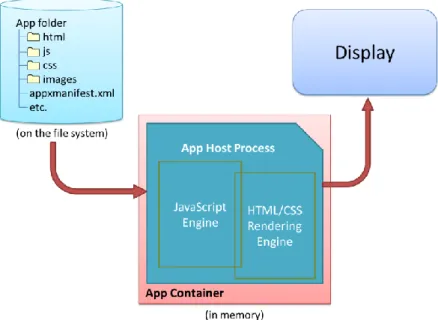
The HTML, CSS, and JavaScript code in a Windows Store app is only parsed, compiled, and rendered at run time. (See the “Playing in Your Own Room: The App Container” section below.) As a result, a number of system-level features for apps written in JavaScript, like controls, resource management, and default styling are supplied through the Windows Library for JavaScript, or WinJS, rather than through the Windows Runtime API. This way, JavaScript developers see a natural integration of those features into the environment they already understand, rather than being forced to use different kinds of constructs.