Operating Systems/ Windows Server ISBN: 978-0-7356-8259-7
Windows Server 2012 R2
Storage, Security, & Networking
Pocket Consultant
The practical, portable guide for
Windows Server administrators!
Portable and precise, this pocket-sized guide delivers ready answers for administering storage, security, and networking features in Windows Server 2012 R2. Zero in on core procedures and operations through quick-reference tables, instructions, and lists. You’ll get the focused information you need to save time and get the job done—whether at your desk or in the field.
Get fast facts to:
•
Administer file systems and drives•
Configure storage and implement RAID•
Configure file sharing and permissions•
Audit system resources and implement quotas•
Administer Group Policy and security settings•
Install and configure DHCP servers•
Set up and optimize DNS on a network•
Manage TCP/IP and network connections•
Manage and troubleshoot print services•
Encrypt, back up, and restore dataAbout the Author
William R. Stanek is a Microsoft MVP with 20+ years of experience in systems management and advanced programming. He is an award-winning author of more than 150 books, including Windows Server 2012 Inside Out and the Pocket Consultants for Microsoft Exchange Server 2013, Windows 8.1, and SQL Server 2012. He is the series editor for the Pocket Consultant line of books.
Also Look For
microsoft.com/mspress
Stanek
Windows Server 2012 R2 Configuration, Storage, & Essentials Inside Out William Stanek ISBN 9780735682672 U.S.A. $39.99 Canada $41.99 [Recommended]Pock
et Consultant
Windows Ser
ver 201
2 R2
Stor
gae, Security
, & Networking
Celebrating 30 years!
Consultant
Windows
Server 2012 R2
Storage, Security,
& Networking
William R. Stanek
Author and Series Editor
PUBLISHED BY Microsoft Press
A Division of Microsoft Corporation One Microsoft Way
Redmond, Washington 98052-6399 Copyright © 2014 by William R . Stanek
All rights reserved . No part of the contents of this book may be reproduced or transmitted in any form or by any means without the written permission of the publisher .
Library of Congress Control Number: 2013956655 ISBN: 978-0-7356-8259-7
Printed and bound in the United States of America . First Printing
Microsoft Press books are available through booksellers and distributors world - wide . If you need support related to this book, email Microsoft Press Book Support at mspinput@microsoft .com . Please tell us what you think of this book at http://www .microsoft .com/learning/booksurvey .
Microsoft and the trademarks listed at http://www .microsoft .com/en-us/legal/ intellectualproperty/trademarks/en-us .aspx are trademarks of the Microsoft group of companies . All other marks are property of their respective owners .
The example companies, organizations, products, domain names, email addresses, logos, people, places, and events depicted herein are fictitious. No association with any real company, organization, product, domain name, email address, logo, person, place, or event is intended or should be inferred .
This book expresses the author’s views and opinions . The information contained in this book is provided without any express, statutory, or implied warranties . Neither the authors, Microsoft Corporation, nor its resellers, or distributors will be held liable for any damages caused or alleged to be caused either directly or indirectly by this book .
Acquisitions Editor: Anne Hamilton Developmental Editor: Karen Szall
Editorial Production: Online Training Solutions, Inc . (OTSI) Project Editor: Karen Szall
Technical Reviewer: Charlie Russell; Technical Review services provided by Content Master, a member of CM Group, Ltd .
Copyeditor: Denise Bankaitis (OTSI) Indexer: Krista Wall (OTSI) Cover: Best & Company Design
iii
What do you think of this book? We want to hear from you!
Microsoft is interested in hearing your feedback so we can continually improve our books and learning resources for you. To participate in a brief online survey, please visit:
microsoft.com/learning/booksurvey
Contents
Introduction xv
Chapter 1 Managing file systems and drives 1 Managing the File And Storage Services role . . . .1 Adding hard drives . . . .5
Physical drives 5
Preparing a physical drive for use 8
Using Disk Management 11
Using removable storage devices 14
Installing and checking for a new drive 16
Understanding drive status 16
Working with basic, dynamic, and virtual disks . . . .18
Using basic and dynamic disks 18
Special considerations for basic and dynamic disks 19
Changing drive types 20
Reactivating dynamic disks 22
Rescanning disks 22
Moving a dynamic disk to a new system 22
Managing virtual hard disks 23
Using basic disks and partitions . . . . 24
Partitioning basics 24
Creating partitions and simple volumes 25
Formatting partitions 28
Compressing drives and data . . . .30
Compressing drives 30
Compressing directories and files 30
Expanding compressed drives 31
iv Contents
Encrypting drives and data . . . .31
Understanding encryption and the encrypting file
system 32
Encrypting directories and files 33
Working with encrypted files and folders 34
Configuring recovery policies 35
Decrypting files and directories 36
Chapter 2 Configuring storage 37
Using volumes and volume sets . . . .38
Understanding volume basics 38
Understanding volume sets 39
Creating volumes and volume sets 42
Deleting volumes and volume sets 44
Managing volumes 44
Improving performance and fault tolerance with RAID . . . .44 Implementing RAID on Windows Server 2012 R2 . . . .45 Implementing RAID-0: disk striping 45 Implementing RAID-1: disk mirroring 46 Implementing RAID-5: disk striping with parity 49 Managing RAID and recovering from failures . . . .50
Breaking a mirrored set 50
Resynchronizing and repairing a mirrored set 50 Repairing a mirrored system volume to enable boot 51
Removing a mirrored set 52
Repairing a striped set without parity 52 Regenerating a striped set with parity 52 Standards-based storage management . . . .53 Getting started with standards-based storage 53 Working with standards-based storage 54 Using storage pools and allocating space 57
Creating a storage pool 58
Creating a virtual disk in a storage space 62
Creating a standard volume 64
Troubleshooting storage spaces 66
Managing existing partitions and drives . . . .67
Assigning drive letters and paths 67
v Contents
Deleting partitions and drives 69
Converting a volume to NTFS 70
Resizing partitions and volumes 72
Repairing disk errors and inconsistencies automatically 73
Analyzing and optimizing disks 78
CHAPTER 3 Data sharing and redundancy 81
Using and enabling file sharing . . . .82
Configuring standard file sharing . . . .85
Understanding SMB changes 85
Viewing existing shares 86
Creating shared folders in Computer Management 88 Creating shared folders in Server Manager 91
Changing shared folder settings 94
Managing share permissions . . . .95 Understanding the various share permissions 95
Viewing and configuring share permissions 95 Managing existing shares . . . .100
Understanding special shares 100
Connecting to special shares 101
Viewing user and computer sessions 102
Stopping file and folder sharing 106
Configuring NFS sharing . . . .107 Using shadow copies . . . .109
Understanding shadow copies 109
Creating shadow copies 110
Restoring a shadow copy 110
Reverting an entire volume to a previous shadow copy 111
Deleting shadow copies 111
Disabling shadow copies 111
Connecting to network drives . . . .112
Mapping a network drive 112
Disconnecting a network drive 113
Configuring synced sharing . . . .114 Getting started with Work Folders 114 Creating sync shares and enabling SMB access 116 Accessing Work Folders on clients 119
vi Contents
CHAPTER 4 Data security and auditing 121
Object management, ownership, and inheritance . . . .121
Objects and object managers 121
Object ownership and transfer 122
Object inheritance 123
File and folder permissions . . . .124
Understanding file and folder permissions 125
Setting basic file and folder permissions 127
Setting special permissions on files and folders 129
Setting claims-based permissions 132
Auditing system resources . . . .134
Setting auditing policies 135
Auditing files and folders 136
Auditing the registry 138
Auditing Active Directory objects 139
Using, configuring, and managing NTFS disk quotas . . . .140
Understanding NTFS disk quotas and how
NTFS quotas are used 141
Setting NTFS disk quota policies 142
Enabling NTFS disk quotas on NTFS volumes 145
Viewing disk quota entries 147
Creating disk quota entries 147
Deleting disk quota entries 148
Exporting and importing NTFS disk quota settings 149
Disabling NTFS disk quotas 150
Using, configuring, and managing Resource Manager
disk quotas . . . .150
Understanding Resource Manager disk quotas 151
Managing disk quota templates 152
Creating Resource Manager disk quotas 155 CHAPTER 5 Enhancing computer security 157 Using security templates . . . .157
Using the Security Templates and Security
Configuration And Analysis snap-ins 159 Reviewing and changing template settings 159 Analyzing, reviewing, and applying security templates 167 Deploying security templates to multiple computers 170
vii Contents Using the Security Configuration Wizard . . . .172
Creating security policies 172
Editing security policies 177
Applying security policies 177
Rolling back the last applied security policy 178 Deploying a security policy to multiple computers 178 CHAPTER 6 Managing users and computers
with Group Policy 181
Centrally managing special folders . . . .181 Redirecting a special folder to a single location 182 Redirecting a special folder based on group
membership 184
Removing redirection 186
User and computer script management . . . .187 Assigning computer startup and shutdown scripts 187 Assigning user logon and logoff scripts 189 Deploying software through Group Policy . . . .190 Getting to know Software Installation policy 190 Deploying software throughout your organization 191
Configuring software deployment options 192
Updating deployed software 194
Upgrading deployed software 194
Automatically configuring Work Folders . . . .195
Automatically enrolling computer and user certificates . . . .196 Managing Automatic Updates in Group Policy . . . .197
Configuring Automatic Updates 198
Optimizing Automatic Updates 199
Using intranet update service locations 200
CHAPTER 7 Managing TCP/IP networking 201
Navigating networking in Windows Server 2012 R2 . . . .201 Managing networking in Windows 8 .1 and
Windows Server 2012 R2 . . . .205 Installing TCP/IP networking . . . .208
Configuring TCP/IP networking . . . .209
viii Contents
Configuring dynamic IP addresses and alternate
IP addressing 211
Configuring multiple gateways 212
Configuring networking for Hyper-V 213 Managing network connections . . . .214
Checking the status, speed, and activity for
network connections 215
Enabling and disabling network connections 215
Renaming network connections 215
CHAPTER 8 Running DHCP clients and servers 217 Understanding DHCP . . . .217
Using dynamic IPv4 addressing and configuration 217
Using dynamic IPv6 addressing and configuration 219
Checking IP address assignment 221
Understanding scopes 222
Installing a DHCP server . . . .223
Installing DHCP components 223
Starting and using the DHCP console 225 Connecting to remote DHCP servers 227 Starting and stopping a DHCP server 227 Authorizing a DHCP server in Active Directory 228
Configuring DHCP servers . . . .228
Configuring server bindings 228
Updating DHCP statistics 229
Auditing and troubleshooting DHCP 229
Integrating DHCP and DNS 230
Integrating DHCP and NAP 232
Avoiding IP address conflicts 236
Saving and restoring the DHCP configuration 236 Managing DHCP scopes . . . .238 Creating and managing superscopes 238
Creating and managing scopes 239
Creating and managing failover scopes 249 Managing the address pool, leases, and reservations . . . .252
Viewing scope statistics 252
Enabling and configuring MAC address filtering 253
ix Contents
Reserving DHCP addresses 255
Modifying reservation properties 257
Deleting leases and reservations 257
Backing up and restoring the DHCP database . . . .257
Backing up the DHCP database 257
Restoring the DHCP database from backup 258 Using backup and restore to move the DHCP
database to a new server 258
Forcing the DHCP Server service to regenerate
the DHCP database 259
Reconciling leases and reservations 259
Chapter 9 Optimizing DNS 261
Understanding DNS . . . .261 Integrating Active Directory and DNS 262
Enabling DNS on the network 263
Configuring name resolution on DNS clients . . . .266 Installing DNS servers . . . .267
Installing and configuring the DNS Server service 268
Configuring a primary DNS server 270
Configuring a secondary DNS server 273
Configuring reverse lookups 274
Configuring global names 275
Managing DNS servers . . . .276 Adding and removing servers to manage 277 Starting and stopping a DNS server 278
Using DNSSEC and Signing Zones 278
Creating child domains within zones 280 Creating child domains in separate zones 281
Deleting a domain or subnet 282
Managing DNS records . . . .282 Adding address and pointer records 283
Adding DNS aliases with CNAME 284
Adding mail exchange servers 284
Adding name servers 285
Viewing and updating DNS records 286
Updating zone properties and the SOA record . . . .287
x Contents
Allowing and restricting zone transfers 289
Notifying secondaries of changes 290
Setting the zone type 291
Enabling and disabling dynamic updates 291
Managing DNS server configuration and security . . . .292 Enabling and disabling IP addresses for a DNS server 292 Controlling access to DNS servers outside the
organization 292
Enabling and disabling event logging 294 Using debug logging to track DNS activity 294
Monitoring a DNS server 295
Chapter 10 Administering network printers and print services 297 Managing the Print and Document Services role . . . .297
Using print devices 298
Printing essentials 298
Configuring print servers 300
Enabling and disabling file and printer sharing 302 Getting started with Print Management . . . .302 Installing printers . . . .304 Using the autoinstall feature of Print Management 305
Installing and configuring physically attached
print devices 307
Installing network-attached print devices 311 Connecting to printers created on the network 314
Deploying printer connections 315
Configuring point and print restrictions 317 Moving printers to a new print server 319
Monitoring printers and printer queues automatically 320
Solving spooling problems 322
Configuring printer properties . . . .322 Adding comments and location information 322 Listing printers in Active Directory 323
Managing printer drivers 323
Setting a separator page and changing print
device mode 324
xi Contents Scheduling and prioritizing print jobs 325 Starting and stopping printer sharing 327 Setting printer access permissions 327
Auditing print jobs 329
Setting document defaults 329
Configuring print server properties . . . .329 Locating the Spool folder and enabling printing
on NTFS 329
Managing high-volume printing 330
Enabling print job error notification 330 Managing print jobs on local and remote printers . . . .331
Viewing printer queues and print jobs 331 Pausing the printer and resuming printing 332
Emptying the print queue 332
Pausing, resuming, and restarting individual
document printing 332
Removing a document and canceling a print job 332 Checking the properties of documents in the printer 333 Setting the priority of individual documents 333 Scheduling the printing of individual documents 333 Chapter 11 Data backup and recovery 335 Creating a backup and recovery plan . . . .335
Figuring out a backup plan 335
Basic types of backup 337
Differential and incremental backups 338 Selecting backup devices and media 339
Common backup solutions 339
Buying and using backup media 340
Selecting a backup utility 341
Backing up your data: the essentials . . . .342 Installing the Windows backup and recovery utilities 343 Getting started with Windows Server Backup 343 Getting started with the Backup Command-Line utility 346
Working with Wbadmin commands 348
Using general-purpose commands 348
Using backup management commands 349
xii Contents
Performing server backups . . . .350
Configuring scheduled backups 352 Modifying or stopping scheduled backups 355 Creating and scheduling backups with Wbadmin 356
Running manual backups 357
Recovering your server from hardware or
startup failure 358
Recovering from a failed start 361
Starting a server in safe mode 361
Backing up and restoring the system state 363
Restoring Active Directory 364
Restoring the operating system and the full system 364 Restoring applications, nonsystem volumes, and
files and folders 367
Managing encryption recovery policy . . . .368
Understanding encryption certificates and
recovery policy 368
Configuring the EFS recovery policy 370
Backing up and restoring encrypted data and certificates . . . .371
Backing up encryption certificates 371
Restoring encryption certificates 372
Index 373
About the author 395
What do you think of this book? We want to hear from you!
Microsoft is interested in hearing your feedback so we can continually improve our books and learning resources for you. To participate in a brief online survey, please visit:
xiii
Acknowledgments
T
o my readers—thank you for being there with me through many books and many years . It has been an honor and a privilege to be your pocket consultant . To my wife—for many years, through many books, many millions of words, and many thousands of pages she’s been there, providing support and encouragement and making every place we’ve lived a home .To my kids—for helping me see the world in new ways, for having exceptional patience and boundless love, and for making every day an adventure .
To Anne, Karen, Martin, Lucinda, Juliana, and many others who’ve helped out in ways both large and small .
Special thanks to my son Will for not only installing and managing my extensive dev lab for all my books since Windows 8 Pocket Consultant but for also perform-ing check reads of all those books as well .
xv
Introduction
W
indows Server 2012 R2 Pocket Consultant: Storage, Security, & Networkingis designed to be a concise and compulsively usable resource for Windows administrators, developers, and programmers, and for anyone else who wants to use the storage, networking, and security features of Windows Server 2012 R2 . This is the readable resource guide that you’ll want on your desk or in your pocket at all times . The book discusses everything you need to perform core tasks . Because the focus is directed on providing you with the maximum value in a pocket-sized guide, you don’t have to wade through hundreds of pages of extraneous information to find what you’re looking for. Instead, you’ll find exactly what you need to get the job done. In short, the book is designed to be the one resource you consult whenever you have questions regarding storage, networking, and security in Windows Server 2012 R2. To this end, the book concentrates on configuration options, frequently used tasks, documented examples, and options that are representative but not necessarily inclusive . One of the goals is to keep the content so concise that the book remains compact and easy to navigate while ensuring that the book is packed with as much information as possible—making it a valuable resource .
Anyone transitioning to Windows Server 2012 R2 from Windows Server 2012 might be surprised at just how much has been updated, as changes both subtle and substantial have been made throughout the operating system . Like Windows Server 2012, Windows Server 2012 R2 supports a touch user interface (UI), in addition to the traditional mouse and keyboard .
Although you might not install Windows Server 2012 R2 on touch UI–capable computers, you can manage Windows Server 2012 R2 from your touch UI–capable computers . If you do end up managing it this way, understanding the touch UI in addition to the revised interface options will be crucial to your success . For this rea-son, I discuss both the touch UI and the traditional mouse and keyboard techniques throughout this book .
When you are working with touch-enabled computers, you can manipulate on-screen elements in ways that weren’t possible previously . You can do any of the following:
■ Tap Tap an item by touching it with your finger. A tap or double-tap
of elements on the screen generally is the equivalent of a mouse click or double-click .
■ Press and hold Press your finger down and leave it there for a few seconds.
Pressing and holding elements on the screen generally is the equivalent of a right-click .
■ Swipe to select Slide an item a short distance in the opposite direction
compared to how the page scrolls . This selects the items and might also bring up related commands . If press and hold doesn’t display commands and options for an item, try using swipe to select instead .
xvi Introduction
■ Swipe from edge (slide in from edge) Starting from the edge of the
screen, swipe or slide in . Sliding in from the right edge opens the Charms panel . Sliding in from the left edge shows open apps and enables you to switch between them easily . Sliding in from the top or bottom edge shows commands for the active element .
■ Pinch Touch an item with two or more fingers, and then move the fingers
toward each other . Pinching zooms out .
■ Stretch Touch an item with two or more fingers, and then move the fingers
away from each other . Stretching zooms in .
You are also able to enter text using the on-screen keyboard . Although the UI changes are substantial, they aren’t the most significant changes to the operating system. The most significant changes are below the surface, affecting the under -lying architecture and providing many new features . Some of these features are revolutionary in that they forever change the way we use Windows .
As you’ve probably noticed, a great deal of information about Windows Server 2012 R2 is available on the Web and in other printed books. You can find tutorials, reference sites, discussion groups, and more to make using Windows Server 2012 R2 easier . However, the advantage of reading this book is that much of the information you need to learn about Windows Server 2012 R2 is organized in one place and pre-sented in a straightforward and orderly fashion . This book has everything you need to customize Windows Server 2012 R2 installations, master Windows Server 2012 R2 configurations, and maintain Windows Server 2012 R2 servers.
In this book, I teach you how features work, why they work the way they do, and how to customize them to meet your needs. I also offer specific examples of how certain features can meet your needs, and how you can use other features to troubleshoot and resolve issues you might have . In addition, this book provides tips, best practices, and examples of how to optimize Windows Server 2012 R2 . This book won’t just teach you how to configure Windows Server 2012 R2, it will teach you how to squeeze every last bit of power out of it and make the most from the features and options it includes .
Unlike many other books about managing Windows Server 2012 R2, this book doesn’t focus on a specific user level. This isn’t a lightweight beginner book. Regard -less of whether you are a beginning administrator or a seasoned professional, many of the concepts in this book will be valuable to you, and you can apply them to your Windows Server 2012 R2 installations .
Who is this book for?
Windows Server 2012 R2 Pocket Consultant: Storage, Security, & Networking covers all editions of Windows Server 2012 R2 . The book is designed for the following readers:
■ Current Windows system administrators
■ Accomplished users who have some administrator responsibilities
■ Administrators upgrading to Windows Server 2012 R2 from previous versions ■ Administrators transferring from other platforms
xvii Introduction
To pack in as much information as possible, I had to assume that you have basic networking skills and a basic understanding of Windows Server . With this in mind, I don’t devote entire chapters to explaining Windows Server architecture or why you want to use Windows Server. I do, however, cover configuring storage, security, auditing, and much more .
I also assume that you are fairly familiar with Windows commands and procedures in addition to the Windows user interface . If you need help learning Windows basics, you should read other resources (many of which are available from Microsoft Press) .
How is this book organized?
Rome wasn’t built in a day, nor was this book intended to be read in a day, in a week, or even in a month . Ideally, you’ll read this book at your own pace, a little each day as you work your way through all the features Windows Server 2012 R2 has to offer . This book is organized into 11 chapters . The chapters are arranged in a logical order, taking you from planning and deployment tasks to configuration and maintenance tasks .
Ease of reference is an essential part of this hands-on guide . This book has an expanded table of contents and an extensive index for finding answers to problems quickly. Many other quick-reference features have been added to the book as well, including quick step-by-step procedures, lists, tables with fast facts, and extensive cross references .
Conventions used in this book
I’ve used a variety of elements to help keep the text clear and easy to follow . You’ll find code listings in monospace type . When I tell you to actually enter a command, the command appears in bold type. When I introduce and define a new term or use a code term in a paragraph of text, I put it in italics .
NOTE Group Policy includes both policies and preferences. Under the Computer
Configuration and User Configuration nodes, you find two nodes: Policies and
Preferences. Settings for general policies are listed under the Policies node. Settings for general preferences are listed under the Preferences node. When referencing settings under the Policies node, I sometimes use shortcut references, such as User
Configuration\Administrative Templates\Windows Components, or specify that the policies are found in the Administrative Templates for User Configuration under
Windows Components. Both references tell you that the policy setting being dis -
cussed is under User Configuration rather than Computer Configuration and can be found under Administrative Templates\Windows Components.
Other conventions include the following:
■ Best Practices To examine the best technique to use when working with
advanced configuration and maintenance concepts
xviii Introduction
■ Important To highlight important concepts and issues ■ More Info To provide more information on a subject
■ Note To provide additional details on a particular point that needs emphasis ■ Real World To provide real-world advice when discussing advanced topics ■ Security Alert To point out important security issues
■ Tip To offer helpful hints or additional information
I truly hope you find that Windows Server 2012 R2 Pocket Consultant: Storage, Security, & Networking provides everything you need to perform the essential administrative tasks on Windows servers as quickly and efficiently as possible. You are welcome to send your thoughts to me at [email protected] . Follow me on Twitter at WilliamStanek and on Facebook at www.facebook.com/William.Stanek. Author .
Other resources
No single magic bullet for learning everything you’ll ever need to know about Windows Server 2012 R2 exists . Even though some books are offered as all-in-one guides, there’s just no way one book can do it all . With this in mind, I hope you use this book as it is intended to be used—as a concise and easy-to-use resource . It covers everything you need to perform core administration tasks for Windows servers, but it is by no means exhaustive .
Your current knowledge will largely determine your success with this or any other Windows resource or book . As you encounter new topics, take the time to practice what you’ve learned and read about . Seek out further information as necessary to get the practical hands-on know-how and knowledge you need .
I recommend that you regularly visit the Microsoft website for Windows Server (microsoft.com/windowsserver) and support.microsoft.com to stay current with the latest changes . To help you get the most out of this book, you can visit my cor-responding website at williamstanek.com/windows . This site contains information about Windows Server 2012 R2 and updates to the book .
Errata and book support
We’ve made every effort to ensure the accuracy of this book and its companion con-tent . Any errors that have been reported since this book was published are listed at:
http://aka.ms/WSR2PC2/errata
If you find an error that is not already listed, you can report it to us through the same page .
If you need additional support, email Microsoft Press Book Support at:
Please note that product support for Microsoft software is not offered through the addresses above .
xix Introduction
We want to hear from you
At Microsoft Press, your satisfaction is our top priority, and your feedback is our most valuable asset . Please tell us what you think of this book at:
http://aka.ms/tellpress
The survey is short, and we read every one of your comments and ideas . Thanks in advance for your input!
Stay in touch
81
CHAP TE R 3
Data sharing and redundancy
■ Using and enabling file sharing 82 ■ Configuring standard file sharing 85 ■ Managing share permissions 95 ■ Managing existing shares 100 ■ Configuring NFS sharing 107 ■ Using shadow copies 109 ■ Connecting to network drives 112 ■ Configuring synced sharing 114
T
he Server Message Block (SMB) protocol is the primary file sharing protocol used by computers running Windows . When folders are shared over a network, an SMB client reads and writes to files and requests services from computers host -ing SMB-shared folders. With SMB, Windows Server 2012 R2 supports standard file sharing and public folder sharing. Standard file sharing makes it possible for remote users to access network resources such as files, folders, and drives. When you share a folder or a drive, you make all its files and subfolders available to a specified set of users. Because you don’t need to move files from their current location, standard file sharing is also referred to as in-place file sharing .You can enable standard file sharing on disks formatted with FAT, FAT32, exFAT, NTFS, or Resilient File System (ReFS) . One set of permissions apply to disks format-ted with exFAT, FAT, or FAT32 . These permissions are called share permissions . Two sets of permissions apply to disks formatted with NTFS or ReFS: NTFS permissions
(also referred to as access permissions) and share permissions . Having two sets of permissions allows you to determine precisely who has access to shared files and the level of access assigned . With either NTFS permissions or share permissions, you do not need to move the files you are sharing.
With public folder sharing, you share files by just copying or moving files to the computer’s Public folder. Public files are available to anyone who logs on to a com -puter locally regardless of whether that person has a standard user account or an administrator user account on the computer . You can also grant network access to the Public folder; however, if you do this, there are no access restrictions . The Public folder and its contents are open to everyone who can access the computer over the local network .
ChAPTeR 3 Data sharing and redundancy 82
Using and enabling file sharing
The sharing settings on a computer determine the way files can be shared. The two file sharing models that Windows Server 2012 R2 supports have the following differences:
■ Standard (in-place) file sharing Allows remote users to access files, fold
-ers, and drives over the network . When you share a folder or a drive, you make all its files and subfolders available to a specified set of users. Share permissions and access permissions together enable you to control who has access to shared files and the level of access assigned. You do not need to move the files you are sharing.
■ Public folder sharing Allows local users and (optionally) remote users to
access any files placed in the computer’s %SystemDrive%\Users\Public folder. Access permissions on the Public folder determine which users and groups have access to publicly shared files in addition to the level of access those users and groups have. When you copy or move files to the Public folder, access permissions are changed to match those of the Public folder . Some additional permissions are added as well . When a computer is part of a work-group, you can add password protection to the Public folder . Separate pass-word protection isn’t needed in a domain because only domain users can access Public folder data .
With standard file sharing, local users don’t have automatic access to any data stored on a computer. You control local access to files and folders by using the security settings on the local disk . With public folder sharing, on the other hand, files copied or moved to the Public folder are available to anyone who logs on locally . You can grant network access to the Public folder as well; however, doing so makes the Public folder and its contents open to everyone who can access the computer over the network .
Windows Server 2012 R2 adds new layers of security through compound identities, claims-based access controls, and central access policies . With both Windows 8 .1 and Windows Server 2012 R2, you can assign claims-based access controls to file and folder resources on NTFS and ReFS volumes . With Windows Server 2012 R2, users are granted access to file and folder resources, either directly with access per -missions and share per-missions or indirectly with claims-based access controls and central access policies .
SMB 3 .0 makes it possible to encrypt data being transferred over the network . You can enable SMB encryption for shares configured on NTFS and ReFS volumes. SMB encryption works only when the computer requesting data from an SMB-based share (either a standard file share or a DFS share) and the server supplying the data support SMB 3 .0 . Both Windows 8 .1 and Windows Server 2012 R2 support SMB 3 .0 . (They have an SMB 3 .0 client .)
Public folder sharing is designed to enable users to share files and folders from a single location. With public folder sharing, you copy or move files you want to share to a computer’s %SystemDrive%\Users\Public folder. You can access public folders in
Data sharing and redundancy ChAPTeR 3 83 File Explorer by double-tapping or double-clicking the system drive, and then accessing the Users\Public folder.
The Public folder has several subfolders you can use to help organize public files:
■ Public Desktop Used for shared desktop items. Any files and program
shortcuts placed in the Public Desktop folder appear on the desktop of all users who log on to the computer (and to all network users if network access has been granted to the Public folder) .
■ Public Documents, Public Music, Public Pictures, Public Videos Used
for shared document and media files. All files placed in one of these subfold -ers are available to all us-ers who log on to the computer (and to all network users if network access has been granted to the Public folder) .
■ Public Downloads Used for shared downloads . Any downloads placed in
the Public Downloads subfolder are available to all users who log on to the computer (and to all network users if network access has been granted to the Public folder) .
NOTE By default, the Public Desktop folder is hidden from view. If hidden items aren’t being displayed in File explorer, tap or click View, and then select hidden Items.
By default, anyone with a user account and password on a computer can access that computer’s Public folder. When you copy or move files to the Public folder, access permissions are changed to match that of the Public folder, and some addi-tional permissions are added as well .
You can change the default Public folder sharing configuration in two key ways:
■ Allow users logged on to the computer to view and manage public files but
restrict network users from accessing public files. When you configure this option, the implicit groups Interactive, Batch, and Service are granted special permissions on public files and public folders.
■ Allow users with network access to view and manage public files. This allows
network users to open, change, create, and delete public files. When you configure this option, the implicit group Everyone is granted Full Control permission to public files and public folders.
Windows Server 2012 R2 can use either or both sharing models at any time . How-ever, standard file sharing offers more security and better protection than public folder sharing, and increasing security is essential to protecting your organization’s data . With standard file sharing, share permissions are used only when a user attempts to access a file or folder from a different computer on the network. Access permis -sions are always used, whether the user is logged on to the console or is using a remote system to access a file or folder over the network. When data is accessed remotely, first the share permissions are applied, and then the access permissions are applied .
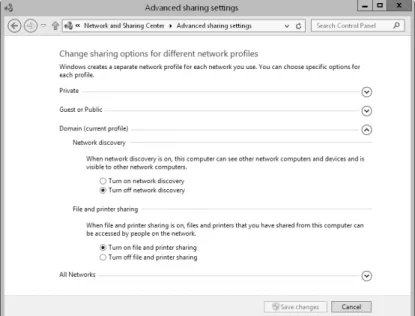
As shown in Figure 3-1, you can configure the basic file sharing settings for a server by using Advanced Sharing Settings in Network And Sharing Center . Separate options are provided for network discovery, file and printer sharing, and public folder sharing .
ChAPTeR 3 Data sharing and redundancy 84
FIGURE 3-1 Network And Sharing Center shows the current sharing configuration .
You can manage a computer’s sharing configuration by following these steps:
1. In Control Panel, tap or click View Network Status And Tasks under the Net-work And Internet heading to open NetNet-work And Sharing Center .
2. In Network And Sharing Center, tap or click Change Advanced Sharing Settings in the left pane. Select the network profile for the network on which you want to enable file and printer sharing. Typically, this will be the Domain profile.
3. Standard file and printer sharing controls network access to shared resources. To configure standard file sharing, do one of the following:
■ Select Turn On File And Printer Sharing to enable file sharing. ■ Select Turn Off File And Printer Sharing to disable file sharing.
4. Public folder sharing controls access to a computer’s Public folder. To config -ure public folder sharing, expand the All Networks panel by tapping or click-ing the related expand button . On the Public Folder Sharclick-ing panel, choose one of the following options:
■ Turn On Sharing So Anyone With Network Access Can Read And
Write Files In The Public Folders Enables public folder sharing by granting access to the Public folder and all public data to anyone who can access the computer over the network . Windows Firewall settings might prevent external access .
Data sharing and redundancy ChAPTeR 3 85
■ Turn Off Public Folder Sharing Disables public folder sharing,
pre-venting local network access to the Public folder . Anyone who logs on locally to your computer can still access the Public folder and its files.
5. Tap or click Save Changes .
Configuring standard file sharing
You use shares to control access for remote users . Permissions on shared folders have no effect on users who log on locally to a server or to a workstation that has shared folders .
Understanding SMB changes
SMB is the primary file sharing protocol used by Windows operating systems. As Windows itself has changed over the years, so has SMB . To allow for version and feature changes, SMB was designed to enable clients and servers to negotiate and then use the highest version supported by both the client attempting to connect an SMB share and the server hosting the share .
The current version of SMB is version 3 .02, which is supported by Windows 8 .1 and Windows Server 2012 R2 . Thus, when a Windows 8 .1 computer connects to an SMB share hosted on a server running Windows Server 2012 R2, SMB 3 .02 is the version used for the SMB session .
The earliest implementation of SMB was called CIFS, which was introduced with Windows NT 4 .0, followed by SMB 1 .0, which was used by all versions of Windows from Windows 2000 to Windows Server 2003 R2 . Beginning with Windows 8 .1 and Windows Server 2012 R2, support for CIFS and SMB 1 .0 is an optional feature that must be enabled . Because CIFS and SMB 1 .0 are outdated, perform poorly, and are less secure than their predecessors, SMB 1 .0/CIFS File Sharing Support should not be enabled unless required. That said, if a computer running Windows 8.1 needs to connect to a server running a legacy Windows operating system, the computer must have the SMB 1 .0/CIFS File Sharing Support feature enabled . In addition, if a computer running a legacy Windows operating system needs to connect to a server running Windows Server 2012 R2, the server must have the SMB 1 .0/CIFS File Sharing Support feature enabled .
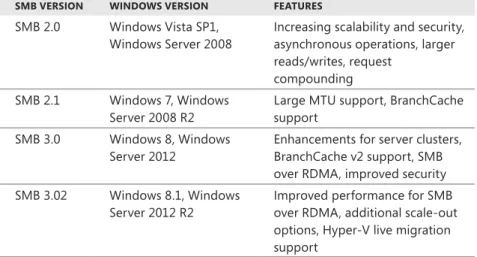
Table 3-1 provides a summary of the current versions of SMB, the associated versions of Windows, and the major features introduced . You can enter Get-Smb-Connection at an elevated, administrator Windows PowerShell prompt to determine the version of SMB a client has negotiated with a file server. In the command output, the version is listed in the Dialect column, as shown in the following sample output: ServerName ShareName UserName Credential Dialect NumOpens --- --- --- --- --- --- Server36 IPC$ CPANDL\williams CPANDL\williams 3.02 0 Server36 PrimaryData CPANDL\williams CPANDL\williams 3.02 14
ChAPTeR 3 Data sharing and redundancy 86
TABLE 3.1 Overview of current SMB versions
SMB VERSION WINDOWS VERSION FEATURES SMB 2 .0 Windows Vista SP1,
Windows Server 2008 Increasing scalability and security, asynchronous operations, larger reads/writes, request
compounding SMB 2 .1 Windows 7, Windows
Server 2008 R2 Large MTU support, BranchCache support SMB 3 .0 Windows 8, Windows
Server 2012 Enhancements for server clusters, BranchCache v2 support, SMB over RDMA, improved security SMB 3 .02 Windows 8 .1, Windows
Server 2012 R2 Improved performance for SMB over RDMA, additional scale-out options, Hyper-V live migration support
IMPORTANT SMB 3.0 and SMB 3.02 brought many enhancements for performance,
especially when you use clustered file servers. A key enhancement that doesn’t rely on a special configuration is end-to-end encryption of SMB data, which eliminates
the need to use Internet Protocol security (IPsec), specialized hardware, or wide area network (WAN) accelerators to protect data from eavesdropping. SMB encryption can be enabled on a per-share basis.
Viewing existing shares
You can use both Computer Management and Server Manager to work with shares . You also can view current shares on a computer by entering net share at a com-mand prompt or by entering get-smbshare at a Windows PowerShell prompt .
TIP The get-smbshare cmdlet is only one of many cmdlets associated with the smbshare module. To get a list of other cmdlets available for working with SMB shares, enter get-command –module smbshare at a Windows PowerShell prompt.
NOTE Computer Management, net share, and get-smbshare display information about SMB-based shares, including standard SMB folder shares, hidden SMB folder
shares (those ending with the $ suffix), and SMB folders shared by using Distributed
File System (DFS). Server Manager displays information about standard SMB folder shares, SMB folders shared by using DFS, and folders shared by using Network File System (NFS). Server Manager does not display information about hidden SMB folder shares.
Data sharing and redundancy ChAPTeR 3 87 In Computer Management, you can view the shared folders on a local or remote computer by following these steps:
1. You’re connected to the local computer by default . If you want to connect to a remote computer, press and hold or right-click the Computer Management node and then tap or click Connect To Another Computer . Choose Another Computer, type the name or IP address of the computer you want to connect to, and then tap or click OK .
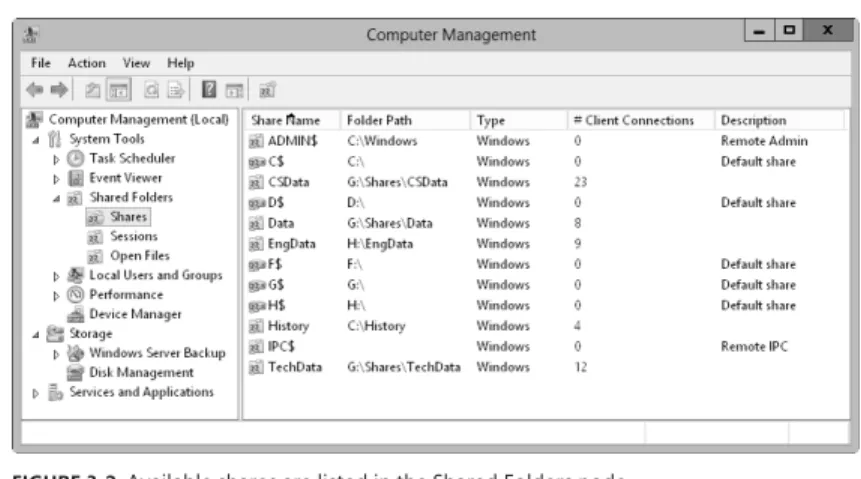
2. In the console tree, expand System Tools, expand Shared Folders, and then select Shares . The current shares on the system are displayed, as shown in Figure 3-2 .
FIGURE 3-2 Available shares are listed in the Shared Folders node .
3. The columns for the Shares node provide the following information:
■ Share Name Name of the shared folder .
■ Folder Path Complete path to the folder on the local system .
■ Type What kind of computers can use the share . This typically shows as
Windows because SMB shares are for Windows-based computers .
■ # Client Connections Number of clients currently accessing the share . ■ Description Description of the share .
In Server Manager, you can view the shared folders on a local or remote com-puter by following these steps:
1. Select the File And Storage Services node, and then select the related Shares subnode .
2. As Figure 3-3 shows, the Shares subnode provides information about shares on each file server that has been added for management. The columns for the Shares subnode provide the following information:
■ Share Name of the shared folder .
■ Local Path Complete path to the folder on the local system . ■ Protocol What protocol the share uses, either SMB or NFS . ■ Cluster Role If the server sharing the folder is part of a cluster, the
ChAPTeR 3 Data sharing and redundancy 88
FIGURE 3-3 Tap or click Shares in the main pane (on the left) to view the available shares .
3. When you tap or click a share in the Shares pane, information about the related volume is displayed in the Volume pane .
REAL WORLD NFS is the file sharing protocol used by UNIX-based systems, which includes computers running Apple OS X. As discussed in “Configuring NFS sharing”
later in this chapter, you can enable support for NFS by installing the Server For NFS
role service as part of the file server configuration.
Creating shared folders in Computer Management
Windows Server 2012 R2 provides several ways to share folders . You can share local folders by using File Explorer, and you can share local and remote folders by using Computer Management or Server Manager .
When you create a share with Computer Management, you can configure its share permissions and offline settings. When you create a share with Server Manager, you can provision all aspects of sharing, including NTFS permissions, encrypted data access, offline settings for caching, and share permissions. Typically, you create shares on NTFS volumes because NTFS offers the most robust solution .
In Computer Management, you share a folder by following these steps:
1. If necessary, connect to a remote computer . In the console tree, expand System Tools, expand Shared Folders, and then select Shares . The current shares on the system are displayed .
2. Press and hold or right-click Shares, and then tap or click New Share . This starts the Create A Shared Folder Wizard . Tap or click Next .
3. In the Folder Path text box, enter the local file path to the folder you want to share. The file path must be exact, such as C:\EntData\Documents . If you don’t know the full path, tap or click Browse, use the Browse For Folder dia-log box to find the folder you want to share, and then tap or click OK. Tap or click Next .
Data sharing and redundancy ChAPTeR 3 89
TIP If the file path you specified doesn’t exist, the wizard can create it for you.
Tap or click Yes when prompted to create the necessary folder or folders.
4. In the Share Name text box, enter a name for the share, as shown in Figure 3-4 . This is the name of the folder to which users will connect . Share names must be unique for each system.
FIGURE 3-4 Use the Create A Shared Folder Wizard to configure the essential share proper-ties, including name, description, and offline resource usage .
TIP If you want to hide a share from users (which means that they won’t be able to view the shared resource when they try to browse to it in File explorer or at the command line), enter a dollar sign ($) as the last character of the shared resource name. For example, you could create a share called PrivengData$, which would be hidden from File explorer, NeT VIeW, and other similar utilities. Users can still con-nect to the share and access its data if they’ve been granted access permission and they know the share’s name. Note that the $ must be typed as part of the share name when mapping to the shared resource.
5. If you want to, enter a description of the share in the Description text box . When you view shares on a particular computer, the description is displayed in Computer Management .
6. By default, the share is configured so that only files and programs that users specify are available for offline use. Typically, this is the option you want to use because this option also enables users to take advantage of the new Always Offline feature. If you want to use different offline file settings, tap or click Change, select the appropriate options in the Offline Settings dialog
ChAPTeR 3 Data sharing and redundancy 90
box, and then tap or click OK . The offline availability settings available include the following:
■ Only The Files And Programs That Users Specify Are Available
Offline Select this option if you want client computers to cache only the files and programs that users specify for offline use. Optionally, if the BranchCache For Network Files role service is installed on the file server, select Enable BranchCache to enable computers in a branch office to cache files that are downloaded from the shared folder, and then securely share the files to other computers in the branch office.
■ No Files Or Programs From The Shared Folder Are Available Offline
Select this option if you don’t want cached copies of the files and pro -grams in the share to be available on client computers for offline use.
■ All Files And Programs That Users Open From The Shared Folder Are
Automatically Available Offline Select this option if you want client computers to automatically cache all files and programs that users open from the share . Optionally, select Optimize For Performance to run cached program files from the local cache instead of the shared folder on the server .
7. Tap or click Next, and then set basic permissions for the share. You’ll find helpful pointers in “Managing share permissions” later in the chapter. The available options are as follows:
■ All Users Have Read-Only Access Gives users access to view files and
read data. They can’t create, modify, or delete files and folders.
■ Administrators Have Full Access; Other Users Have Read-Only Access
Gives administrators complete control over the share . Full access allows administrators to create, modify, and delete files and folders. On an NTFS volume or partition, it also gives administrators the right to change per-missions and to take ownership of files and folders. Other users can view files and read data; however, they can’t create, modify, or delete files and folders .
■ Administrators Have Full Access; Other Users Have No Access Gives
administrators complete control over the share, but prevents other users from accessing the share .
■ Customize Permissions Allows you to configure access for specific users
and groups, which is usually the best technique to use. Setting share per -missions is discussed fully in “Managing share per-missions.”
8. When you tap or click Finish, the wizard creates the share and displays a status report, which should state “Sharing Was Successful.” If an error is dis -played instead, note the error and take corrective action as appropriate before repeating this procedure to create the share . Tap or click Finish .
Data sharing and redundancy ChAPTeR 3 91
Individual folders can have multiple shares . Each share can have a different name and a different set of access permissions . To create additional shares on an existing share, just follow the preceding steps for creating a share with these changes:
■ In step 4, when you name the share, make sure that you use a different
name .
■ In step 5, when you add a description for the share, use a description that
explains what the share is used for and how it’s different from the other shares for the same folder .
Creating shared folders in Server Manager
In Server Manager, you share a folder by following these steps:1. The Shares subnode of the File And Storage Services node shows existing shares for file servers that have been added for management. In the Shares pane, tap or click Tasks, and then tap or click New Share to start the New Share Wizard .
2. Choose one of the available file share profiles, and then tap or click Next. The New Share Wizard has the following file share profiles:
■ SMB Share—Quick A basic profile for creating SMB file shares that
allows you to configure the settings and permissions of the shares.
■ SMB Share—Advanced An advanced profile for creating SMB file shares
that allows you to configure the settings, permissions, management prop -erties, and NTFS quota profile (if applicable) of the shares.
■ SMB Share—Applications A custom profile for creating SMB file shares
with settings appropriate for Hyper-V, certain databases, and other server applications. It’s essentially the same as the quick profile, but it doesn’t allow you to enable access-based enumeration or offline caching.
NOTE If you are using the Server For NFS role service, options are available for creating NFS shares as well.
REAL WORLD SMB 3.0 includes enhancements for server-based applications. These enhancements improve performance for small random reads and writes, which are common with server-based applications, such as Microsoft SQL Server OLTP. With SMB 3.0, packets use large Maximum Transmission Units (MTUs) as well, which enhance performance for large, sequential data transfers, such as those used for deploying and copying virtual hard disks (VhDs) over the network, database backup and restore over the network, and SQL Server data warehouse transactions over the network.
ChAPTeR 3 Data sharing and redundancy
92
3. On the Select The Server And Path For This Share page, select the server and volume on which you want the share to be created. Only file servers you’ve added for management are available . When you are ready to continue, tap or click Next .
By default, Server Manager creates the file share as a new folder in the \Shares directory on the selected volume . To override this, choose the Type A Custom Path option, and then either enter the share path, such as C:\Data, or click Browse to use the Select Folder dialog box to select the share path .
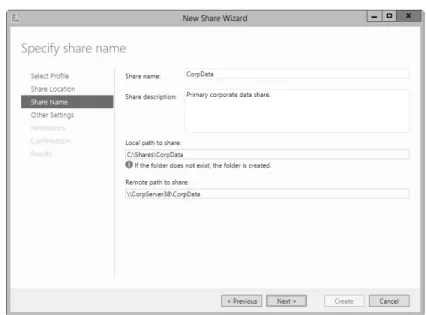
4. On the Specify Share Name page, enter a name for the share, as shown in Figure 3-5 . This is the name of the folder to which users will connect . Share names must be unique for each system.
FIGURE 3-5 Set the name and description for the share .
5. If you want to, enter a description of the share in the Description text box . When you view shares on a particular computer, the description is displayed in Computer Management .
6. Note the local and remote paths to the share . These paths are set based on the share location and share name you specified. When you are ready to continue, tap or click Next .
7. On the Configure Share Settings page, use the following options to configure the way the share is used:
■ Enable Access-Based Enumeration Configures permissions so that
when users browse the folder, only files and folders a user has been granted at least Read access to are displayed . If a user doesn’t have at least Read (or equivalent) permission for a file or folder within the shared
Data sharing and redundancy ChAPTeR 3 93 folder, that file or folder is hidden from view. (This option is dimmed if you are creating an SMB share optimized for applications .)
■ Allow Caching Of Share Configures the share to cache only the files
and programs that users specify for offline use. Although you can later edit the share properties and change the offline files’ availability settings, you typically want to select this option because it allows users to take advantage of the new Always Offline feature. Optionally, if the Branch -Cache For Network Files role service is installed on the file server, select Enable BranchCache to enable computers in a branch office to cache files that are downloaded from the shared folder and then securely share the files to other computers in the branch office. (This option is dimmed if you are creating an SMB share optimized for applications .)
■ Encrypt Data Access Configures the share to use SMB encryption, which
protects file data from eavesdropping while being transferred over the network . This option is useful on untrusted networks .
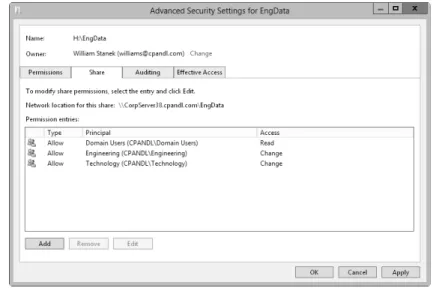
8. On the Specify Permissions To Control Access page, the default permissions assigned to the share are listed . By default, the special group Everyone is granted the Full Control share permission and the underlying folder permis-sions are as listed . To change share, folder, or both permispermis-sions, tap or click Customize Permissions, and then use the Advanced Security Settings dialog box to configure the required permissions. Setting share permissions is dis -cussed fully in “Managing share permissions” later in this chapter. Setting folder permissions is discussed fully in “Understanding file and folder permis -sions” in Chapter 4 “Data security and auditing.”
NOTE If the share will be used for hyper-V, you might need to enable con-strained delegation for remote management of the hyper-V host.
9. If you are using the advanced profile, optionally set the folder management properties, and then tap or click Next . These properties specify the purpose of the folder and the type of data stored in it so that data management policies, such as classification rules, can then use these properties.
10. If you are using the advanced profile, optionally apply a quota based on a template to the folder, and then tap or click Next. You can select only quota templates that have already been created . For more information, see “Man-aging disk quota templates” in Chapter 4.
11. On the Confirm Selections page, review your selections. When you tap or click Create, the wizard creates the share, configures it, and sets permissions. The status should state, “The share was successfully created.” If an error is displayed instead, note the error and take corrective action as appropriate before repeating this procedure to create the share . Tap or click Close .
ChAPTeR 3 Data sharing and redundancy 94
Changing shared folder settings
When you create a share, you can configure many basic and advanced settings, including those for access-based enumeration, encrypted data access, offline set -tings for caching, and management properties . In Server Manager, you can modify these settings by following these steps:
1. The Shares subnode of the File And Storage Services node shows existing shares for file servers that have been added for management. Press and hold or right-click the share with which you want to work, and then tap or click Properties .
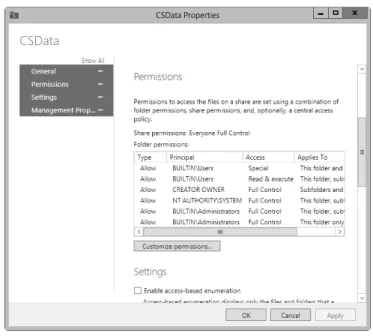
2. In the Properties dialog box, shown in Figure 3-6, you have several options panels that can be accessed by using controls in the left pane . You can expand the panels one by one or tap or click Show All to expand all the panels at the same time .
FIGURE 3-6 Modify share settings by using the options provided .
3. Use the options provided to modify the settings as necessary, and then tap or click OK . The options available are the same whether you use the basic, advanced, or applications profile to create the shared folder.
TIP If you’re creating a share for general use and general access, you can publish the shared resource in Active Directory. Publishing the resource in Active Directory
makes finding the share easier for users; however, this option is not available in Server
Manager. To publish a share in Active Directory, press and hold or right-click the share in Computer Management, and then tap or click Properties. On the Publish tab, select the Publish This Share In Active Directory check box, add an optional description and owner information, and then tap or click OK.
Data sharing and redundancy ChAPTeR 3 95
Managing share permissions
Share permissions set the maximum allowable actions available within a shared folder . By default, when you create a share, everyone with access to the network has Read access to the share’s contents . This is an important security change—in previous editions of Windows Server, the default permission was Full Control .
With NTFS and ReFS volumes, you can use file and folder permissions and owner -ship, in addition to share permissions, to further constrain actions within the share . With FAT volumes, share permissions control only access .
Understanding the various share permissions
From the most restrictive to the least restrictive, the share permissions available are as follows:
■ No Access No permissions are granted for the share . ■ Read Users can do the following:
•
View file and subfolder names•
Access the subfolders in the share•
Read file data and attributes•
Run program files■ Change Users have Read permission and the ability to do the following:
•
Create files and subfolders•
Modify files•
Change attributes on files and subfolders•
Delete files and subfolders■ Full Control Users have Read and Change permissions, in addition to the
following capabilities on NTFS volumes:
•
Change file and folder permissions•
Take ownership of files and foldersYou can assign share permissions to users and groups . You can even assign per-missions to implicit groups . For details on implicit groups, see Chapter 9, “Creating user and group accounts” In Windows Server 2012 R2 Pocket Consultant: Essentials & Configuration.
Viewing and configuring share permissions
You can view and configure share permissions in Computer Management or Server Manager. To view and configure share permissions in Computer Management, fol-low these steps:
1. In Computer Management, connect to the computer on which the share is created . In the console tree, expand System Tools, expand Shared Folders, and then select Shares .
2. Press and hold or right-click the share with which you want to work, and then tap or click Properties .
ChAPTeR 3 Data sharing and redundancy 96
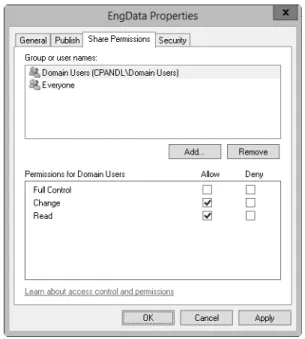
3. In the Properties dialog box, tap or click the Share Permissions tab, shown in Figure 3-7 . You can now view the users and groups that have access to the share and the type of access they have .
FIGURE 3-7 The Share Permissions tab shows which users and groups have access to the share and what type of access they have .
4. Users or groups that already have access to the share are listed in the Group Or User Names list . You can remove permissions for these users and groups by selecting the user or group you want to remove, and then tapping or clicking Remove . You can change permissions for these users and groups by doing the following:
a. Select the user or group you want to change .
b. Allow or deny access permissions in the Permissions list box .
5. To add permissions for another user or group, tap or click Add . This opens the Select Users, Computers, Service Accounts, Or Groups dialog box, shown in Figure 3-8 .