Sollae Systems
http://www.sollae.co.kr
Modular I/O Device Server
CIE-M10 User’s Manual
Version 1.1
2009-07-01
Sollae Systems Co., Ltd. - 1 - http://www. eztcp.com
1
Contents
1 CONTENTS ... 1
-2 PRODUCT BRIEFS ... 5
-2.1 Introduction ... - 5 -
2.2 Components ... - 5 -
3 SPECIFICATION ... 6
-3.1 Brief Specification ... - 6 -
3.2 Hardware Interface ... - 7 -
3.2.1 Dimension ... 7
-3.2.2 JP1 Port ... 7
-3.2.3 Analog Input Port ... 8
-3.2.4 Digital Input Port ... 9
-3.2.5 Digital Output Port ... 10
-3.2.6 Ethernet Port ... 10
-3.2.7 Serial Port ... 10
-3.2.8 LED ... 11
-4 GETTING STARTED ... 13
-4.1 Test Operation ... - 13 -
4.1.1 PC „s IP Address ... 13
-4.1.2 Installing CIEM10 ... 13
-4.1.3 Configuring CIEM10 ... 13
-4.1.4 Testing Modbus/TCP ... 14
-4.1.5 Testing with a Web browser (HTTP) ... 14
-5 CONFIGURING PARAMETERS ... 16
-5.1 Parameters ... - 16 -
5.2 Configuring with ezManager ... - 16 -
5.2.1 ezManager ... 16
-5.2.2 Configuring Method with ezManager ... 17
-5.2.3 ezManager Buttons... 17
-5.2.4 ezManager Parameters ... 19
-5.2.5 Example of ezManager Operation – MAC Address... 23
-6 OPERATION ... 25
Sollae Systems Co., Ltd. - 2 - http://www. eztcp.com
6.1.1 Normal Mode ... 25
-6.1.2 Serial Configuration Mode ... 25
-6.1.3 ISP Mode ... 25
-6.2 Uploading New Firmware ... - 25 -
6.3 Uploading New Web Pages ... - 26 -
7 INPUT / OUTPUT PORTS ... 28
-7.1 Digital Input And Output Ports ... - 29 -
7.1.1 Common Options ... 29
-7.2 Modbus/TCP ... - 30 -
7.2.1 Introduction ... 30
-7.2.2 Standard Modbus/TCP ... 30
-7.2.3 Modbus/TCP Protocol ... 31
-7.2.4 Configuring Modbus/TCP ... 32
-7.2.5 Mater Mode ... 33
-7.2.6 Serialized Modbus/TCP ... 33
-7.3 Macro Mode ... - 34 -
7.3.1 Introduction ... 34
-7.3.2 Operators... 34
-7.3.3 Operand ... 34
-7.3.4 Example of Equation ... 35
-7.4 Web (HTTP) ... - 37 -
7.4.1 Configuring Web Function ... 37
-7.4.2 Security ... 38
-7.4.3 User Web Page ... 38
-8 SERIAL PORT ... 39
-8.1 Introduction ... - 39 -
8.2 Serial Communication Mode ... - 39 -
8.3 TCP Server ... - 39 -
8.3.1 Connection ... 40
-8.3.2 Serial Data Before TCP Connection ... 40
-8.3.3 Data Communication ... 40
-8.3.4 Terminating Connection ... 40
-8.4 TCP Client ... - 41 -
8.4.1 Serial Data Before Connection ... 41
-8.4.2 Data Communication ... 41
-8.4.3 Terminating Connection ... 42
-Sollae Systems Co., Ltd. - 3 - http://www. eztcp.com
8.5 AT Command ... - 42 -
8.6 UDP ... - 43 -
9 AT COMMAND MODE ... 45
-9.1 Introduction ... - 45 -
9.2 AT Command Format ... - 45 -
9.2.1 Basic Command Format ... 45
-9.2.2 Basic Response Format ... 45
-9.2.3 Basic AT Commands ... 45
-9.2.4 Example of Basic AT Commands ... 46
-9.2.5 Expanded AT Command Set ... 47
-9.2.6 Example Of The Extended AT Commands ... 48
-9.3 On-line State and Command State ... - 48 -
9.3.1 Changing to Command State from Online State ... 49
-9.3.2 Changing to Online State from Command State ... 49
-9.4 TCP Connection ... - 50 -
9.4.1 Active Connection – Client ... 50
-9.4.2 Passive Connection – Server ... 50
-9.5 TCP Disconnection ... - 50 -
9.5.1 Active Disconnection ... 51
-9.5.2 Passive Disconnection ... 51
-10 ADDITIONAL FUNCTIONS ... 52
-10.1 Security Function... - 52 -
10.1.1Password ... 52
-10.1.2Access Control with MAC Address ... 52
-10.1.3Access Control with IP Address ... 52
-10.1.4Access Control from ezManager ... 52
-10.1.5Disabling Security Functions ... 52
-10.2 Managing TCP Sessions ... - 53 -
10.2.1How To Disconnect TCP Sessions ... 53
-10.3 IP Address Notification Function ... - 54 -
10.4 Telnet Function ... - 54 -
10.4.1Commands For Telnet Console ... 54
-11 TECHNICAL SUPPORT/WARRANTY /PRECAUTIONS... 56
-11.1 Technical Support ... - 56 -
11.2 Warranty ... - 56 -
-Sollae Systems Co., Ltd. - 4 - http://www. eztcp.com
11.2.2Free A/S ... 56
-11.2.3Charged A/S ... 56
-11.3 Precautions... - 56 -
-Sollae Systems Co., Ltd. - 5 - http://www. eztcp.com
2
Product Briefs
2.1
Introduction
The need for the data communication system via Internet is rapidly increasing due to the development of Internet. In order to send and receive data via Internet, TCP/IP protocol must be used. Any machines that need an Internet connection must implement TCP/IP protocol. In order for any device to implement TCP/IP protocol, the machine must either be able to implement TCP/IP protocol by itself, have an open TCP/IP source implanted, or must use an OS that is capable of implementing the protocol. However, the above options require a great deal of time, cost, and effort to make it work.
CIE-M10 uses Modbus/TCP and HTTP to provide users with ability to control and monitor remote digital output ports and analog/digital input ports. Therefore, with CIE-M10, remote I/O ports can easily be controlled and monitored at the same time. Also, CIE-M10 provides the Macro functions to change automatically the output port values based on the value of input ports.
Not only that CIE-M10 can control and monitor digital I/O ports, it also provides with functions that can covert the serial data to TCP/IP data and vice versa. Therefore, one CIE-M10 can perform numerous functions at the same time.
Along with its strong TCP/IP/UDP functions, CIE-M10 also provides DHCP and PPPoE functions to be used in cable and xDSL networks. And it has DDNS (Dynamic DNS) function, so it can be used more easily in the internet.
It is also equipped with online debugging functions that will allow the users to quickly respond to the problems that might occur during the installation.
2.2
Components
Sollae Systems Co., Ltd. - 6 - http://www. eztcp.com
3
Specification
3.1
Brief Specification
Power
Input
Voltage 3.3V (±10%)
Current
Consumption 190 mA @ 3.3V without load
Size 64.4 mm x 40 mm x 17 mm
Weight about 17 g
Interface
Input Digital Input Ports – 8 Ports (3.3V CMOS)
Analog Input Ports – 1 Port with 10bits ADC
Output Digital Output Ports – 8 Port (3.3V CMOS)
Serial 1 x UART (300bps ~ 230400bps) with 3.3V CMOS
RTS/CTS Flow Control
Network 10Base-T/100Base-TX (RJ45)
Network Ethernet 10/100M bits auto-sense
Auto MDI/MDX(cable auto sensing) Protocols
TCP, UDP, IP, ICMP, ARP, DHCP, PPPoE, Telnet DNS lookup, DDNS(Dynamic DNS), Modbus/TCP, HTTP
RFC2217(Telnet COM Port Control Option)
Debugging Online debugging function
RoHS Compliant to RoHS
Communicati on Mode
I/O Ports
Modbus/TCP – Slave/Master, Passive/Active, Serial Web browser(HTTP)
Macro Mode
Serial Port TCP Server/Client, AT emulation, UDP
Utilities ezManager
Configuration Utility through LAN or Serial Socket Test
Firmware/HTML uploading
ezVSP Virtual Serial – TCP/IP Driver for Windows
Table 3-1 Brief Specification
Sollae Systems Co., Ltd. - 7 - http://www. eztcp.com
3.2
Hardware Interface
3.2.1
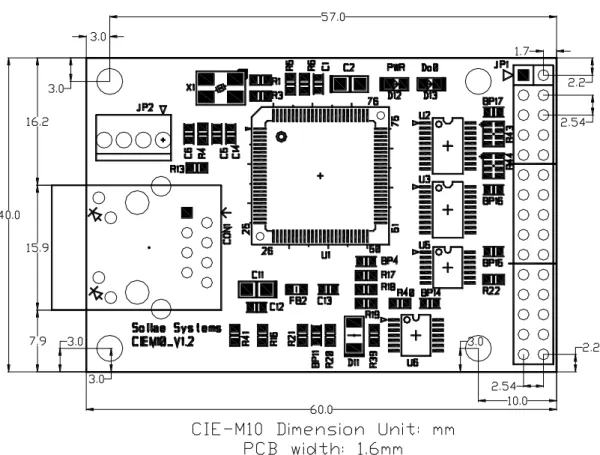
Dimension
Figure 3-1 CIE-M10‟s Dimension
3.2.2
JP1 Port
JP1 is a user interface which is not populated by any connecters to be connected to user device with user‟s conector. The pitch is 2.54mm.
# Name Description Dir. Etc.
1 DI0 Digital Input Port 0 In
Min VIL= -0.3V
Max VIL= 0.8V
Min VIH= 2.0V
Max VIH= 5.5V
2 DI1 Digital Input Port 1 In
3 DI2 Digital Input Port 2 In
4 DI3 Digital Input Port 3 In
5 DI4 Digital Input Port 4 In
6 DI5 Digital Input Port 5 In
Sollae Systems Co., Ltd. - 8 - http://www. eztcp.com
8 DI7 Digital Input Port 7 In
9 DO0 Digital Output Port 0 Out
Min VOH = 2.9V,
Max VOL = 0.4V
10 DO1 Digital Output Port 1 Out
11 DO2 Digital Output Port 2 Out
12 DO3 Digital Output Port 3 Out
13 DO4 Digital Output Port 4 Out
14 DO5 Digital Output Port 5 Out
15 DO6 Digital Output Port 6 Out
16 DO7 Digital Output Port 7 Out
17 GND Ground −
18 GND Ground −
19 ADVREF ADC Reference Voltage
(Input Voltage Range: 2.6V ~ 3.3V) In
20 ADC_IN0 Analog Input Port 0
(Input Voltage Range: 0V~ADVREF) In
10bit ADC Conversion Time:
2.33us
21 RXD Receive Data In
22 CTS Clear To Send In
23 TXD Transmit Data Out
24 RTS Request To Send Out
25 RESET- Reset(Active Low) In
26 ISP- ISP Mode: Low when it boots up
(Internally pulled-up, Active Low) In
27 VCC Power Input (DC 3.3V) −
28 VCC Power Input (DC 3.3V) −
29 GND Ground −
30 GND Ground −
Table 3-2 JP1 Specification
4 pin connector (JP2) will be removed after the first production.
3.2.3
Analog Input Port
There is an analog input port in the CIE-M10. This port is connected to 10 bits ADC (Analog to Digital Converter). User should input 2.6V~3.3V to the ADVREF for reference voltage of the ADC. ADC_IN0 port is for user‟s analog sensors, its input voltage should be between 0V ~ ADVREF. The
Sollae Systems Co., Ltd. - 9 - http://www. eztcp.com
ADC converts the input voltage of the ADC_IN0 (0V~ADVREF) to 0~1023 digital value.
User can read this value through Modbus/TCP and HTTP. User can read the ADC value from the address of (Digital Input Port Address + 4) with Modbus/TCP. When user read the ADC value with a web browser, user can read this value with $a0 variable.
3.2.4
Digital Input Port
CIE-M10‟s digital input ports can be applied variously with circuit configuration – for example: voltage input and Dry-Contact.
• Voltage Input Circuit
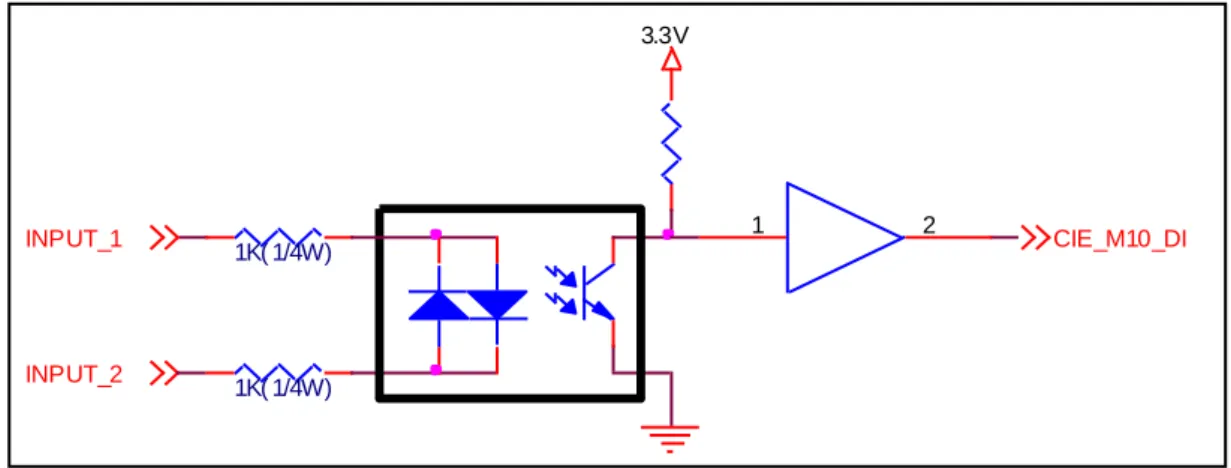
This circuit is to get a voltage from between the two input ports. If the voltage is high the value is 1, and if the voltage is low the value is 0.
The following is a circuit example with photo-coupler which isolates circuits electrically.
Figure 3-2 Voltage Input Interface Circuit
The [EXTERNAL INPUT 1] and [EXTERNAL INPUT 2] ports are user interface port. The working voltage is concluded by the photo-coupler and resistors.
• Dry-Contact Circuit
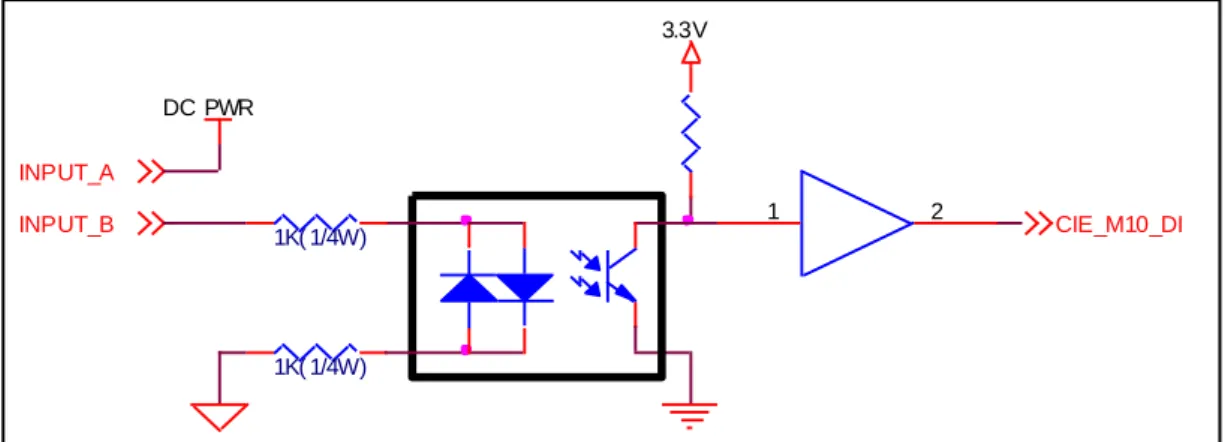
This circuit is to get a signal from mechanical switches or relays which provide just a mechanical contact. This circuit requires an additional DC power supplier which is isolated with CIE-M10‟s input power.
1K( 1/4W)
INPUT_1 CIE_M10_DI
3.3V
INPUT_2
1K( 1/4W)
Sollae Systems Co., Ltd. - 10 - http://www. eztcp.com
Figure 3-3 Dry-Contact Interface
3.2.5
Digital Output Port
The digital output ports can be interfaced with relays or SSR. The following is an example to interface to relays.
Figure 3-4 Relay Interface
3.2.6
Ethernet Port
User can control or monitor the CIE-M10‟s I/O port and serial port through the Ethernet (LAN) port which embeds 10M/100M auto-sensing function and auto MDI/MDIX.
3.2.7
Serial Port
There is a UART port which is CMOS-3.3V level. This port provides serial to TCP/IP converting function working independently with its I/O ports.
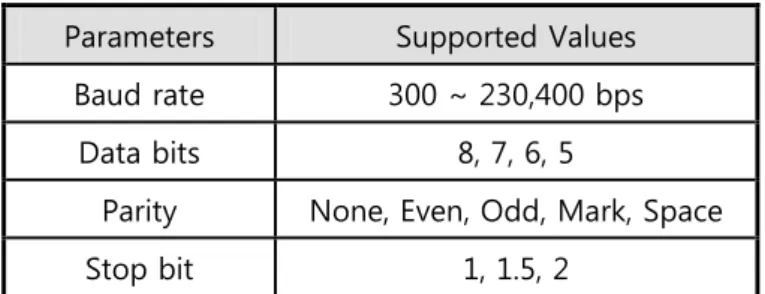
This port supports RTS/CTS flow control function. The RTS informs to the counter part that its receiving buffer is free and is ready to get data. And the CIE-M10 gets CTS information from the counter part‟s RTS.
INPUT_B
1K( 1/4W)
3.3V
INPUT_A
CIE_M10_DI
DC PWR
1K( 1/4W)
1 2
OU TPU T_2 OU TPU T_1
VC C
Sollae Systems Co., Ltd. - 11 - http://www. eztcp.com
Parameters Supported Values
Baud rate 300 ~ 230,400 bps
Data bits 8, 7, 6, 5
Parity None, Even, Odd, Mark, Space
Stop bit 1, 1.5, 2
Table 3-3 Supported Values of the Serial Port
TX Interval
When CIE-M10 sends data to its serial port, there are intervals between data. It is for slow serial devices to give it enough time to process. The unit is byte.
Telnet COM Port Control Option
CIE-M10 has Telnet COM Port Control Option function that is specified by RFC2217. If the Telnet COM Port Control Option is enabled, CIE-M10 sends the CTS control signal to the communication counter part, and CIE-M10 sets its serial port items(RTS, Baud rate, data bits, parity, stop bit) after getting information from the communication counter part.
For more information, please refer to our website. (http://www.eztcp.com)
3.2.8
LED
There are 4 LEDs in the CIE-M10 as followed.
Mode Name Color Status Description
Common PWR Red On Power is on
Do0 Green On When Digital Output Port 0 is 1
Normal Mode
STS_ACT Yellow
Blink every 1 second
Static IP address or An IP address is assigned. Blink 4 times
every IP address isn‟t assigned.
On Modbus/TCP Connected
Blink Transmitting data to LAN
LINK_ACT Green
On LAN link is established
Blink Receiving data from LAN
Off LAN link is not established
ISP Mode
STS_ACT Yellow Off When CIE-M10 is in the ISP mode
in which upload firmware and web pages
Sollae Systems Co., Ltd. - 12 - http://www. eztcp.com
Serial Configuration
Mode
STS_ACT Yellow Blink every 1
second
CIE-M10 is in the ISP mode which Configures CIE-M10 through the
serial port
LINK_ACT Green On/Off
Sollae Systems Co., Ltd. - 13 - http://www. eztcp.com
4
Getting Started
4.1
Test Operation
4.1.1
PC ‘s IP Address
Change PC‟s IP addresses as followed:
IP Address 10.1.0.2
Subnet Mask 255.0.0.0
Gateway IP address -
Table 4-1 PC IP
4.1.2
Installing CIE-M10
CIE-M10‟s operating voltage is DC 3.3V. You have to use a stable power supplier.
Then the green LED of the RJ45 connector will blink.
4.1.3
Configuring CIE-M10
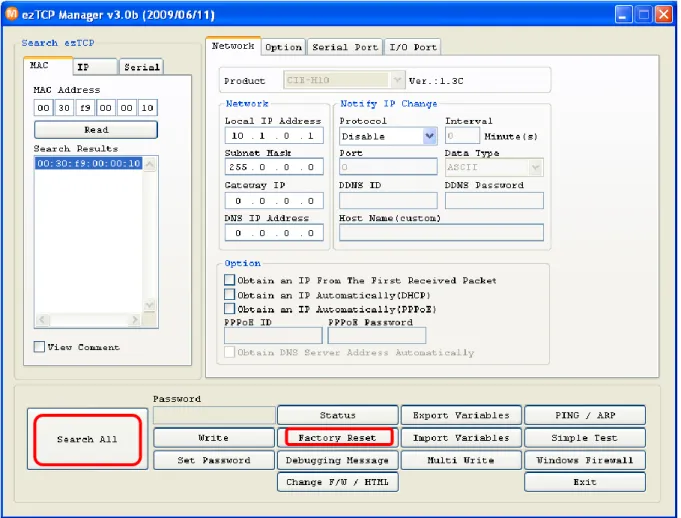
Using ezManager, change the settings of CIE-M10. Click [Search All] button on the ezManager window. Then, ezManager will search for every ezTCP on the local network.
When there is no found device, click [Windows Firewall] button on the ezManager window to check for firewall setting. If this setting is ON, the ezManager could not perform the search.
When CIE-M10 is found, the MAC address of CIE-M10 will be shown on the [Search List] window. (The MAC address is also written on the bottom of the product case.)
Sollae Systems Co., Ltd. - 14 - http://www. eztcp.com
Figure 4-1 Configuring CIE-M10 with an ezManager
4.1.4
Testing Modbus/TCP
It is a test of CIE-M10 to perform control and monitor functions using Modbus/TCP. This test should be performed with Modbus/TCP program provided by Sollae Systems. You can check the digital output port 0 easily because it has an LED.
Connecting a Modbus/TCP
Connect the CIE-M10 with the [Connect] button.
Checking Digital Output ports
You can check the Modbus/TCP function by pressing the buttons in the “I/O Port”.
.
4.1.5
Testing with a Web browser (HTTP)
Start a web browser as shown below and write http:// and IP address in the address window to connect to the CIE-M10 web browser. It will allow users to monitor and control CIE-M10.
Figure 4-2 Testing Modbus/TCP
Sollae Systems Co., Ltd. - 15 - http://www. eztcp.com
If you click the digital output buttons in the web page, then it toggles those and sends its digital and analog input port values to the web browser.
Sollae Systems Co., Ltd. - 16 - http://www. eztcp.com
5
Configuring Parameters
5.1
Parameters
To communicate with TCP/IP, user should set IP address related parameters. All parameters including IP address are set by ezManager which is supplied by Sollae Systems.
5.2
Configuring with ezManager
5.2.1
ezManager
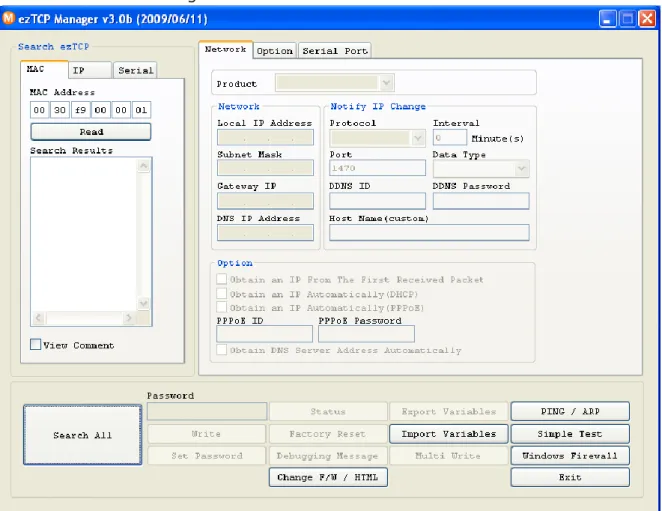
The parameters of CIE-M10 (IP address, I/O ports, serial port and etc) can be configured by an application utility for Windows, ezManager. ezManager operates in Windows platform (Windows 98, 98SE, 2000, ME, XP, Vista). The following window is the window that pops up when the user starts ezManager for the first time.
Sollae Systems Co., Ltd. - 17 - http://www. eztcp.com
5.2.2
Configuring Method with ezManager
There are [MAC], [IP], [Serial] tabs in the ezManager according to configuration method. Please refer to the following table.
MAC IP Serial
Media LAN LAN Serial
Method UDP Broadcast UDP Unicast Serial Port
Identification MAC Address IP Address COM Port
Properties UDP port 50005 UDP Port 50005 115200/N/8/1
Table 5-1 Configuration Method with ezManager
5.2.3
ezManager Buttons
The followings are descriptions about buttons in the ezManager.
Search All
Search for all ezTCP series (including CIE-M10) connected to the local network. The MAC addresses of each ezTCP will be shown on the [Search Results] box. (The MAC address of CIE-M10 is written on the bottom of the product.) The setting values of each ezTCP will be shown on right side of [Search Results].
Read
Input 6 digit number written on the CIE-M10 to the MAC ADDRESS input box or Input CIE-M10‟s IP address in the IP address category on the IP tab. This will allow for the user to read setting parameters for a specific CIE-M10. When there are too many ezTCPs connected to the network and it is hard to find a desired ezTCP from the LIST box, this button may be conveniently used.
Write
After changing the settings, save the changes to ezTCP. CIE-M10 will automatically reset after the save. Therefore, pressing this button may cause system shutdown during normal use.
View Comment
If this check box is checked, ezManager displays CIE-M10‟s nick name which is set in the Comment.
Open To read CIE-M10‟s parameters through serial port, open a serial port
which is connected to the CIE-M10 in advance. Read
(Serial) Reading parameters from CIE-M10 through the serial port.
Write
(Serial) Writing parameters to CIE-M10 through the serial port.
Sollae Systems Co., Ltd. - 18 - http://www. eztcp.com
Password people from changing its settings. The authentication process is done using a password and this button will allow users to change the password. This password will be used when connected to the web (HTTP). The ID is „admin‟ in this case.
Status
User can check the status of CIE-M10 during its operation. When the button is clicked, a new window will pop up and show operation time, current IP address, data amount via serial port and other information. Double-Clicking each devices of the [Search List] will also yield the same information.
Factory
Reset Resetting parameters of the CIE-M10
Debugging Message
This will be used to read debugging messages from CIE-M10. In order to use this function, activate [Debugging Message] option under [Option] tab. When the debugging is over, please deactivate the [Debugging Message] option to reduce network load.
The debugging messages are transmitted to the LAN in shape of UDP broadcast.
Change
F/W HTML uploading new firmware or new html files in the ISP mode
Export
Variables Exporting the current parameters to a file
Import
Variables Importing a saved file to ezManager
Multi
Write Configuring multiple CIE-M10s
PING/ARP Doing ping tests and managing ARP table Simple
Test Doing tests of serial to TCP/IP converting function.
Windows Firewall
When the PC‟s firewall is activated, ezManager may not be operated properly. By clicking this button, the user can easily check their Windows firewall status.
Exit Terminating the ezManager.
Sollae Systems Co., Ltd. - 19 - http://www. eztcp.com
5.2.4
ezManager Parameters
Network
Product Product name and firmware version
Network
Local IP Address CIE-M10‟s IP Address
Subnet Mask Subnet Mask of the network
Gateway IP Gateway IP Address of the network
DNS IP Address Name Server‟s IP Address
Option Obtain an IP From The
First Received Packet
Obtaining an IP address in the first packet after CIE-M10 booted up and is used as CIE-M10‟s Local IP Address temporarily
Obtain an IP
Automatically (DHCP) DHCP Enabled
Obtain an IP
Automatically (PPPoE) PPPoE Enabled
PPPoE ID PPPoE ID
PPPoE Password PPPoE Password
Obtain DNS Server Address Automatically
When CIE-M10 gets IP addresses by DHCP or PPPoE, it gets DNS server IP address automatically.
Notify IP Change Protocol
DDNS(dyndns.org) – Using DDNS service of DynDNS TCP – Sending CIE-M10‟s IP to the host with TCP UDP – Sending CIE-M10‟s IP to the host with UCP
Interval Interval to send IP address information (Unit: Minute)
DDNS ID Account ID: when the Protocol is DDNS
DDNS Password Account Password: when the Protocol is DDNS
Port TCP or UDP port of the host (Protocol: TCP or UDP)
Data Type Data Format (ASCII/HEX) (Protocol: TCP or UDP)
Host Name(custom)
DDNS: CIE-M10‟s host name which is registered in the DDNS server
TCP or UDP: Host name or IP address to connect Table 5-3 ezManager Network Tab
Sollae Systems Co., Ltd. - 20 - http://www. eztcp.com
Option Option
Telnet Enable/Disable the Telnet login function
IP Address Search Enable/Disable the IP Search Function in the IP tab of the
ezManager
Debugging Message Enable/Disable the Debugging Message Function
Comment User Comment about the product (nick name)
ezTCP Firewall
Allowed MAC Address Only the host having the MAC address can connect to the
CIE-M10
Allowed IP Range Only the hosts having IP address range can connect to the
CIE-M10. The range is calculated by making bitwise AND between Allowed IP Range and Network Mask.
(Example)
Allowed IP Range: 192.168.1.1,Network Mask: 255.255.0.0 Bitwise AND: 192.168.0.0
Allowed IP hosts‟ address: 192.168.0.0~192.168.255.255 Network Mask
Apply to ezManager
If this option is enabled, only the host specified in the Allowed MAC address and IP range can access the CIE-M10 with ezManager,
Table 5-4 ezManager Option Tab
Serial Port Serial Port
Serial Type -
Baudrate Baudrate (300bps∼230,400bps)
Parity Parity (NONE, EVEN, ODD, MARK, SPACE)
Data Bits Length of the Data Bits (5, 6, 7, 8 bits)
Stop Bit Stop Bit (1, 1.5, 2 bits)
Flow Flow Control (NONE, RTS/CTS)
TX Interval
Interval between byte which outgoes from CIE-M10‟s the serial Port for slow serial devices
0 ~ 25 (Unit: Byte)
TCP/IP Communication
Sollae Systems Co., Ltd. - 21 - http://www. eztcp.com
Peer Address COD – TCP Client: A host name or IP address to connect
U2S – UDP: A host name of IP address to send UDP datagram
Peer Port COD – TCP Client: A port number to connect
U2S – UDP: A port number to send UDP datagram
Local Port T2S – TCP Server: Local port to listen on as a TCP server
U2S – UDP: Local port to receive UDP datagram
Event Byte
T2S – TCP Server:
- 0: ignores data before the connection
- Not 0: stores data before the connection and transmits it
COD – TCP Client or U2S – UDP:
- CIE-M10 tries to a make a TCP connection or transmits
UDP data if the byte from its serial port is greater than this parameter
Timeout TCP connection will be disconnected if there‟s no data
communication during the Timeout (Unit: second) Data Frame
CIE-M10 transmits data in its buffer if there‟s no incoming data from its serial port during the Data Frame time. (Unit: 10ms, Minimum Value: 4)
Telnet COM Port Control
(RFC2217)
When this field is enabled, it sends not only serial port data but also serial port‟s control signal with telnet protocol. (RFC2217) Disable TCP
Transmission Delay
CIE-M10 stops TCP nagle timer to reduce delay when it send data to the remote host.
Create an ezVSP Port
Creating a new virtual serial port for ezVSP with proper parameters.
(Supporting ezManager from 2.0j and ezVSP from 2.2h) Table 5-5 ezManager Serial Tab
I/O Port – Basic Settings
Web(HTTP) Enable/Disable the web server to monitor and control the
I/O ports with web browers
Web(HTTP) Port Web server‟s port number (default: 80)
Size of Web(HTTP) Page
Size of user‟s web pages (80KB, 96KB, 112KB) 80KB is recommended
Sollae Systems Co., Ltd. - 22 - http://www. eztcp.com
Modbus/TCP Enable/Disable Modbus/TCP to monitor and control the I/O
ports with Modbus/TCP Notify Input Port
Change
When its input port‟s value is changed, it sends response data without any master‟s query.
Master/Slave
Slave: When a master request a query to read and write, it outputs data its output port or sends its input port value Master: Write its input port data to the remote device‟s output ports. Reads the remote device‟s input port and reflects it its output port.
Poll Interval
Interval to sends queries to slave when it operates as a master
(Unit: 1ms, Resolution: 10ms)
Unit ID Modbus/TCP Unit ID
Input Port Base Address
Input Port Address (Reference Number)
The difference between Input Port Base Address and Output Port Base Address should be over 8.
Out Port Base Address
Out Port Address (Reference Number)
The difference between Input Port Base Address and Output Port Base Address should be over 8.
Passive Connection Operates as a TCP server for Modbus/TCP
Active Connection Operates as a TCP client for Modbus/TCP
Peer Address A host name or IP address to make a TCP connection for
Modbus/TCP Peer Port
Passive Connection: TCP port number to listen to
Active Connection: TCP port of the remote host to make a TCP connection
Table 5-6 ezManager I/O Port – Basic Settings Tab
I/O Port – I/O Port Option Digital Input
Valid Time The input signal should keep during the Valid Time to
recognize it. (Unit: 1ms, Resolution: 10ms) Digital Output
Macro Enable/Disable the Macro function
Sollae Systems Co., Ltd. - 23 - http://www. eztcp.com
Delay CIE-M10 outputs data to its output ports after [Delay] time
is expired. (Unit: 1ms, Resolution: 10ms)
Initial State The initial values of its output ports when CIE-M10 boots up
Table 5-7 ezManager I/O Port – I/O Port Option Tab
I/O Port – I/O Port Comment Digital Input
Di0 ~ Di7 Each digital input port name
Digital Output
Do0 ~ Do7 Each digital output port name
Table 5-8 ezManager I/O Port – I/O Port Comment Tab
5.2.5
Example of ezManager Operation – MAC Address
The ezManager can be used to change IP address related settings of ezTCP. The Following example will show you how to read CIE-M10‟s setting values and change those settings. Please follow this procedure to change the setting values of CIE-M10.
When ezManager‟s [Read], or [Search All] button is clicked, the following window will
pop up.
Figure 5-2 Searching ezTCP
If 1 or more ezTCP is found, MAC address will be shown in the ezManager‟s [Search
Result] box. Check to make sure that the MAC address shown in the [Search Result] window is as same as the MAC address written on the product‟s sticker. If there‟s no response, check the firewall in your PC.
Sollae Systems Co., Ltd. - 24 - http://www. eztcp.com
Figure 1-3 A CIE-M10 is found
Configure proper IP address to CIE-M10. Please ask to your network administrator for
the IP address information.
Check the configuration with this button if the configuration is OK. The
following is a screenshot of the ping test.
Sollae Systems Co., Ltd. - 25 - http://www. eztcp.com
6
Operation
6.1
Operation Mode
The following is a table of CIE-M10‟s operation mode.
Mode How to enter Function Baudrate
Normal ISP-: High or Open when it boots up Normal User defined
Serial Configura
tion
ISP- Low for 20ms~1,000ms in the Normal Mode Configuring the CIE-M10 through serial port 115,200bps-None-8-1
ISP 1. ISP- Low when it boots up
2. ISP- Low more than 1 second
Uploading new
firmware and
user‟s web page
–
Table 6-1 ezTCP Operation Mode
6.1.1
Normal Mode
CIE-M10 operates normally in this mode.
If a CIE-M10‟s ISP- pin is high or open, it operates as Normal Mode.
Please refer to “7. Input / Output Ports” and “8. Serial Port” for more information.
6.1.2
Serial Configuration Mode
User can set CIE-M10‟s parameters through its serial port in this mode. CIE-M10 enters into the Serial Configuration Mode by inputting low signal to the ISP- pin for 20ms ~ 1,000ms. User can configure CIE-M10 through the serial port with the ezManager in this mode.
The yellow LED of the RJ-45 connector blinks every 0.5 second and all security functions are disabled. So user can fix some problems because of security functions.
6.1.3
ISP Mode
User can upload new firmware and user‟s web page in the ISP mode. If the ISP pin is low when the CIE-M10 boots up, it enters into the ISP mode. And if the ISP pin is low more than 1 second in the Normal Mode, it enters into the ISP mode as well.
Sollae Systems Co., Ltd. - 26 - http://www. eztcp.com
User can upload a new firmware to CIE-M10 through the Ethernet in the ISP mode with [Change F/W / HTML] menu in the ezManager.
Run CIE-M10 as ISP Mode and connect it to the Ethernet. And press [Search All] to find the CIE-M10.
After find the product, press [Change F/W / HTML] then the following windows will be
open.
Figure 6-1 Change F/W / HTML Window
Select a firmware with [Open Firmware / HTML] button or drag new firmware and drop
into the window. And set the IP address as same as CIE-M10‟s IP address. Press the [Send] button then the ezManager will send the firmware to the CIE-M10.
After completing to send new firmware, it will re-boot automatically.
6.3
Uploading New Web Pages
User can upload user‟s web pages to CIE-M10 through the Ethernet in the ISP mode with [Change F/W / HTML] menu in the ezManager.
Run CIE-M10 as ISP Mode and connect it to the Ethernet. And press [Search All] to find the CIE-M10.
After find the product, press [Change F/W / HTML] then the following windows will be
open.
Sollae Systems Co., Ltd. - 27 - http://www. eztcp.com
the window. And set the IP address as same as CIE-M10‟s IP address. Press the [Send] button then the ezManager will send web pages to the CIE-M10.
Figure 6-2 Uploading user‟s web pages
Sollae Systems Co., Ltd. - 28 - http://www. eztcp.com
7
Input / Output Ports
There are 8 digital input ports, 1 analog input port and 8 digital output ports in the CIE-M10. User should make hardware interfaces to the CIE-m10 for user own purpose.
Those input and output ports are monitored or controlled three ways – Modbus/TCP, Macro, and HTTP.
Method Description
Modbus/TCP
Modbus/TCP protocol is used to communicate with CIE-M10‟s I/O ports. When CIE-M10 is in Slave/Passive mode, it operates as a standard Modbus/TCP device. It can be operated as a master. A master outputs data after reading remote device‟s input ports and write to the remote device‟s output ports after reading its input ports. It can also establish TCP active connection.
Macro
It is a mode that allows the users automatically controls output port‟s value based on input port status by setting Macro values prior to CIE-M10 operation.
During Macro operation, current status values may be read using HTTP or Modbus/TCP, but output values cannot be controlled.
HTTP
CIE-M10 can be controlled and monitored using web browsers. Connect to CIE-M10‟s IP address via web browser to access CIE-M10‟s control and monitor web page. This webpage shows current status values.
User can upload user‟s own web pages into the CIE-M10 as well. Table 7-1 Controlling the I/O port
Sollae Systems Co., Ltd. - 29 - http://www. eztcp.com
7.1
Digital Input And Output Ports
7.1.1
Common Options
Figure 7-1 Digital Input / Output Ports Option
Valid Time
CIE-M10 recognizes its digital input ports‟ signals only if the signal keeps a pre-specified time (Valid Time). If the signal doesn‟t remain for the pre-specified time(Valid Time), this signal will be ignored.
Delay
CIE-M10 will output a value to the output port after waiting for [Delay] ms.
In order to do so, the signal value must last for [Delay] seconds. If the output value does not last for the [Delay] seconds, CIE-M10 will not send that signal to the output port. If the [Delay] value is set as 0, CIE-M10 will send the output value to the output port immediately.
The [Delay] is used for Modbus/TCP, Macro, HTTP, and other functions provided by CIE-M10. The unit used for the [Delay] is 1ms. However, since the accuracy is only guaranteed
Sollae Systems Co., Ltd. - 30 - http://www. eztcp.com
in 10ms, the designated values will round down in units of 10ms according to the designated values by the users
Initial State
User can set the initial state of the output ports. If it boots up, it sets the initial values to its output ports.
7.2
Modbus/TCP
7.2.1
Introduction
Modbus was announced to control PLCs (Programmable Logic Controller) which are used widely for factory automation by Modicon. It is a de-facto standard in industrial automation market now.
Modbus is divided by Master and Slave. Maters are usually programs which are working on the computers and slaves are usually devices which are controlled by masters.
Modbus is a protocol which communicates through serial lines (RS232, RS422, and RS485). But as Ethernet devices are increasing, Modbus/TCP which communicates over TCP/IP network was released.
7.2.2
Standard Modbus/TCP
Usually a master is a program which works on a computer and a slave is a device which is controlled by the master. If the master queries to the slave, the slave replies to the master.
Sollae Systems Co., Ltd. - 31 - http://www. eztcp.com
Figure 7-2 Configuration for standard Modbus/TCP
7.2.3
Modbus/TCP Protocol
CIE-M10 supports Read Multiple Registers (Function Code: 3) and Write Multiple Registers (Function Code: 16) among the Modbus/TCP‟s function codes. Read Multiple Registers is for reading the CIE-M10‟s input port value and Write Multiple Registers is for writing the CIE-M10‟s output ports.
Because CIE-M10 supports both Master and Slave mode and both active and passive TCP connection, it can adapted in various environments.
Sollae Systems Co., Ltd. - 32 - http://www. eztcp.com
7.2.4
Configuring Modbus/TCP
Figure 7-3 Configuring Modbus/TCP
Modbus/TCP
CIE-M10‟s I/O ports are controlled by Modbus/TCP.
Notify Input Port Change
When the CIE-M10‟s input port state is changed, it inform to the connected master with a reply packet. This is useful when user wants to know input ports‟ change as soon as possible.
This option is not standard so it is off in default.
Master/Slave
User can choose the CIE-M10‟s operation mode. To operate as a standard, CIE-M10 should be a slave.
Please refer to following section for master mode..
Poll Interval
Sollae Systems Co., Ltd. - 33 - http://www. eztcp.com
interval. (Unit: ms, minimum value: 10)
Unit ID
Slave: CIE-M10‟s unit ID Master: Slave‟s unit ID
Input Port Base Address
Slave: CIE-M10‟s input port address Master: Slave‟s input port address
Output Port Base Address
Slave: CIE-M10‟s output port address Master: Slave‟s output port address
The difference between Input Port Base Address and Output Port Base Address
should be over 8.
Passive Connection / Active Connection
This field is for specifying TCP connection method. The passive connection is a standard of Modbus/TCP. The CIE-M10 waits for a TCP connection from the master if the passive connection is selected.
CIE-M10 also has an active TCP connection function to make a TCP connection to remote Modbus/TCP device.
Peer Address
When CIE-M10 makes an active TCP connection, Peer Address is the destination address to connect.
Port
Passive Connection: A port number to wait for a TCP connection from remote host. Active Connection: A port number to make a TCP connection to remote host
7.2.5
Mater Mode
A master outputs data after reading remote device‟s input ports and write to the remote device‟s output ports after reading its input ports. User can make a remote switch system with this mode.
7.2.6
Serialized Modbus/TCP
CIE-M10‟s I/O port can be accessed through the serial port with Modbus/TCP. The data is as same as data over TCP of Modbus/TCP.
Sollae Systems Co., Ltd. - 34 - http://www. eztcp.com
To use this function, you have to set it as followed.
Figure 7-4 Enabling Serialized Modbus/TCP
7.3
Macro Mode
7.3.1
Introduction
CIE-M10 can operate by some macros (equations). CIE-M10 turns on or off automatically its output ports according to pre-defined equations.
Check Macro check box in ezManager to activate CIE-M10 macro mode.
7.3.2
Operators
The algorithm used in the Macro mode is Boolean Algebras. The AND, OR, NOT are used as operators. Parenthesis can also be used.
The priority of operators is in the following order: parenthesis > NOT > AND > OR. Each operator is represented by the following symbols.
Operator Symbol Description
Parenthesis Open ( Since calculations within the parenthesis have the
highest priority, they will be calculated first. Parenthesis may be nested used.
Parenthesis Close )
NOT / Operand that follows NOT operator is toggled.
AND *
If Operand values that surrounds AND operator all 1, the result value will be 1. If either one of them is 0, the result will be 0 as well.
OR +
If Operand values that surrounds OR operator all 0, the result value will be 0. If either one of them is 1, the result will be 1
Table 7-2 Macro Operators
7.3.3
Operand
Sollae Systems Co., Ltd. - 35 - http://www. eztcp.com
symbol based on their sequence. The operand is case-insensitive.
7.3.4
Example of Equation
The following is a screenshot which has two equations.
Figure 7-5 ezManager with Macro Equations In this case, the equations for two output port are as the following.
Output Port Equation Description
Do0 i0 + i1 Perform OR for i0 and i1.
Spaces in between two operands may be ignored
Do2 i0 * /(i1 + i7) Perform NOT with value after performing OR for i1
and i7. Then, perform AND with that value and i0 Table 7-3 Examples of Macro Equations
Based on input values from three input ports, the output values are as the following. Output ports that equations are not applied will be maintained as 0 (OFF).
Sollae Systems Co., Ltd. - 36 - http://www. eztcp.com
Input Port Output Ports
i0 i1 i7 Do0 Do1 Do2 Do3 Do4 Do5 Do6 Do7
0 0 0 0 0 0 0 0 0 0 0
0 0 1 0 0 0 0 0 0 0 0
0 1 0 1 0 0 0 0 0 0 0
0 1 1 1 0 0 0 0 0 0 0
1 0 0 1 0 1 0 0 0 0 0
1 0 1 1 0 0 0 0 0 0 0
1 1 0 1 0 0 0 0 0 0 0
1 1 1 1 0 0 0 0 0 0 0
Sollae Systems Co., Ltd. - 37 - http://www. eztcp.com
7.4
Web (HTTP)
When HTTP check box in ezManager is selected, CIE-M10 input/output port values may be monitored and controlled using web browser. User can upload user‟s web pages into the CIE-M10 as well.
7.4.1
Configuring Web Function
Figure 7-6 Enabling Web Function of the CIE-M10
Web(HTTP)
User can monitor and control the CIE-M10‟s input and output ports with web server.
Web(HTTP) Port
The default web port is 80. But changing web port is required in some cases. To access
to the specific web port with web browser, add a colon( and port number in the end of
Sollae Systems Co., Ltd. - 38 - http://www. eztcp.com
(example) http://10.1.0.1:8080
Size of Web(HTTP) Page
User can select user web page space size. But we are strongly recommend you to use 80KB because if you use others your web page might destroyed when you upload new firmware to the CIE-M10.
7.4.2
Security
If you set a password with the [Set Password] button, you have to enter the password when you login with web page. The ID is „admin‟ in this case.
Figure 7-7 Login CIE-M10 with a web server
7.4.3
User Web Page
User can upload user specific web pages. For more information about it, please visit our web site‟s SUPPORT page.
Sollae Systems Co., Ltd. - 39 - http://www. eztcp.com
8
Serial Port
8.1
Introduction
CIE-M10 provides RS232↔TCP/IP conversion function along with input/output port monitor and control function. Using this function, existing serial devices may be easily connected to the TCP/IP network. Also, TCP server, TCP client, AT command emulation, UDP, and many other devices are supported to provide various applications to the users.
8.2
Serial Communication Mode
CIE-M10 has 5 serial communication modes. The following chart is a brief explanation for each communication mode
Communication
Mode Protocol Connection Topology Etc.
TCP Server TCP Passive 1:1
AT Command TCP Active
Passive 1:1
TCP Client TCP Active 1:1
UDP UDP - 1:N
Serial Modbus/TCP
Modbus/
TCP - 1:1
CIE-M10‟s I/O ports are controlled through the serial
port with Modbus/TCP Table 8-1 Communication Mode
8.3
TCP Server
T2S is the mode that CIE-M10‟s serial port operates as a server.
When TCP connection comes through previously designated [Local Port] from remote host, CIE-M10 will accept TCP connection. When CIE-CIE-M10 accepts the connection, TCP connection is established. After establishing connection, data that comes through serial port will be sent to the remote host after TCP/IP process, and TCP/IP data that comes from the remote host will be sent to the serial port after TCP/IP process to establish data communication.
Sollae Systems Co., Ltd. - 40 - http://www. eztcp.com
Figure 8-1 Description of TCP Server Mode
8.3.1
Connection
When remote host connects to CIE-M10, user devices that are connected to CIE-M10 can establish full duplex data communication with remote host.
8.3.2
Serial Data Before TCP Connection
Data before TCP connection will be handled based on the [Event Byte] settings. If it is 0, the data that comes to CIE-M10‟s serial port will be ignored. If it is not 0, the serial data before TCP connection will be temporarily saved to be sent to the host after the connection
8.3.3
Data Communication
When the TCP connection is established, the data communication in between the host and the serial device will be established. Then, CIE-M10 will send data according to the [Data Frame]. In other words, when the data comes through CIE-M10‟s serial port, it will be temporarily saved in the buffer. Then, when there is no incoming data during the designated [Data Frame], CIE-M10 will send the saved data. If the [Data Frame] is 0, CIE-M10 will send serial port‟s data immediately. The unit used for the [Date Frame] is 10m seconds.
8.3.4
Terminating Connection
When the connected host terminates the connection, or there is no data communication during the designated [Timeout], the TCP connection will be automatically terminated. The unit used for [Timeout] is 1 second.
Sollae Systems Co., Ltd. - 41 - http://www. eztcp.com
8.4
TCP Client
COD mode is the mode that CIE-M10 operates as a client.
When previously configured [Event Byte] data comes through the serial port, CIE-M10 will try to connect to the pre-defined [Peer Address] and host‟s TCP port [Peer Port] via TCP connection. When the remote host accepts the TCP connection, the TCP connection will be established. After the connection is established, the data that comes through the serial port will be sent to the remote host after TCP/IP handling. The TCP/IP data that comes from the remote host will be sent to the serial port after TCP/IP handling to form data communication.
Remote Host ezTCP Serial Device Listen
Request TCP connection Accept TCP connection
DATA “AB”
DATA “DEF” DATA “ABC” (TCP/IP)
DATA “GHI” (TCP/IP)
DATA “GHI”
connected
<COD connection sequence – Event Byte: 3> Remote Host
DATA “C”
Ack
DATA “DEF” (TCP/IP)
Figure 8-2 TCP Description of TCP Client Mode
8.4.1
Serial Data Before Connection
Data before TCP connection will be handled based on the [Event Byte] settings. If it is 0, it tries to make a TCP connection automatically when TCP connection is not established. The data that comes to CIE-M10‟s serial port before the TCP connection will be ignored.
If it is not 0, it tries to make a TCP connection after getting the specified size of data from the serial port and will send temporarily saved data to the host after the connection.
8.4.2
Data Communication
When the TCP connection is established, the data communication in between the host and the serial device will be established. Then, CIE-M10 will send data according to the [Data Frame]. In other words, when the data comes through CIE-M10‟s serial port, it will be temporarily saved in the buffer. Then, when there is no incoming data during the designated [Data Frame], CIE-M10
Sollae Systems Co., Ltd. - 42 - http://www. eztcp.com
will send the saved data. If the [Data Frame] is 0, CIE-M10 will send serial port‟s data immediately. The unit used for the [Date Frame] is 10m seconds.
8.4.3
Terminating Connection
When the connected host terminates the connection, or there is no data communication during the designated [Timeout], the TCP connection will be automatically terminated. The unit used for [Timeout] is 1 second.
8.4.4
DNS
If you input an IP address in the [Peer Address], it tries to connect to the IP address. If you input the host name in the [Peer Address], it queries IP address to the DNS server which you have configured in the Network tab.
8.5
AT Command
ATC mode allows users to use AT commands to control CIE-M10 like modem control. In ATC mode, only TCP connection is allowed.
In ATC mode, AT commands can be used to change environmental factor values and IP address. Also, it allows users to establish and terminate TCP connection
Sollae Systems Co., Ltd. - 43 - http://www. eztcp.com
Figure 8-3 AT Command Mode
Please refer to the “9. AT Command Mode” for more information.
8.6
UDP
U2S is a mode that performs UDP communication.
In UDP communication, data is sent in block units. Therefore, data that comes through CIE-M10‟s serial port must be classified in block units to send it elsewhere. The block unit classification process is performed as the following.
Sollae Systems Co., Ltd. - 44 - http://www. eztcp.com
When the amount of received data via CIE-M10 serial port is as same as previously configured data byte count, [Event Byte], or the duration of the data exceeds [Data Frame], the incoming data will be recognized as one block.
Since UDP communication does not involve establishing connection, N: M communication may be performed using broadcast. Therefore, it can be conveniently in changing RS485 multi drop type network to Ethernet.
Serial Device ezTCP
DATA “ABC” (UDP) 5ms
<U2S Transmission sequence – Event Byte:3, Data Frame: 1> Remote Host
“AB”
“C”
“A”
“BC”
10ms
DATA “A” (UDP)
“A”
9ms
DATA “BCA” (UDP)
Sollae Systems Co., Ltd. - 45 - http://www. eztcp.com
9
AT Command Mode
9.1
Introduction
In ATC mode, users can use AT commands to use CIE-M10‟s serial port flexibly. For example, AT+PRIP command can be used to designated an IP address and ATD command to establish connection to that IP address.
Therefore, multiple communications with different hosts can be established after one another. Also, ATA command allows users to perform manual connection.
9.2
AT Command Format
9.2.1
Basic Command Format
AT Command starts with „AT‟ and it ends with „<CR>‟.
AT Command <CR>(0x0d)
Table 9-1 AT Command Format
9.2.2
Basic Response Format
<CR>(0x0d) <LF>(0x0a) Result Code <CR>(0x0d) <LF>(0x0a)
Table 9-2 Response Format
Result Code
ATV1 ATV0 Description
OK 0 Command OK
CONNECT 1 TCP Connected
NO CARRIER 3 TCP Disconnected
ERROR 4 Command Error
Values Values Responses to queries
(example: AT+PRIIP?) Table 9-3 Result Code
9.2.3
Basic AT Commands
Sollae Systems Co., Ltd. - 46 - http://www. eztcp.com
mand
A Passive connection
Wait for connection request from the remote host
(The remote host CIE-M10)
D Active connection CIE-M10 connect to the remote host
(CIE-M10 The remote host)
E Echo / No Echo
Decides whether to echo commands to serial port
(E0 – No Echo, E1 – Echo)
H Off hook TCP Connection Close
I Information
Returns the information of CIE-M10 ATI3: Firmware version
ATI7: MAC address
O Return Online Go back On-line state from Command state
Q Quiet Mode
Decides whether to return result codes (Q0: Displays result codes
Q1: Disable response to serial port)
S S Register
S2: Escape Code(default: 43)
S3: Carriage Return Code(default: 13) S4: Line Feed Code(default: 10) S5: Backspace Code(default: 8)
S12: Escape Code Guard Time(default: 50)
V Selecting Result Code V0 – Number
V1 – String
Z Reset Reset
Figure 9-4 Basic AT Command
9.2.4
Example of Basic AT Commands
Data Description
ATS12?<CR> ▶ Current Escape Code Guard
Time?
◀ <CR><LF>50<CR><LF> 50(500ms)
◀ <CR><LF>OK<CR><LF> Command OK
ATS12=40<CR> ▶ Changing Escape Code Guard
Time into 40(400ms)
◀ <CR><LF>OK<CR><LF> Command OK
Sollae Systems Co., Ltd. - 47 - http://www. eztcp.com
◀ <CR><LF>Sollae Systems Co.,Ltd. ezTCP/LAN AT91 Rev.1.3B<CR><LF>
◀ <CR><LF>OK<CR><LF> Command OK
ATI7<CR> ▶ Query MAC address
◀ <CR><LF>00:30:F9:00:00:01<CR><LF> CIE-M10 MAC address
◀ <CR><LF>OK<CR><LF> Command OK
ATV0<CR> ▶ Result code into numbers
◀ <CR><LF>0<CR><LF> Command OK
ATQ1<CR> ▶ No result code
No Response from the CIE-M10
ATZ<CR> ▶ Reset
◀ <CR><LF>OK<CR><LF> Command OK
Table 9-5 Example of Basic AT Commands
9.2.5
Expanded AT Command Set
Command Description Comment
+PLIP Local IP address
+PSM Subnet Mask
+PGIP Gateway IP address
+PNIP DNS Server IP address
+PLP Local Port
+PRIP Remote IP(IP)
+PRHN Remote host name
After getting the IP address from the name server, it saves the IP address
“+PRIP”
Cannot write it to flash memory with “+PWP”
+PRP Peer Port
+PTO Timeout
+PARP Obtain IP address in the first
received packet ON: 1, OFF: 0
+PDC Enabling DHCP ON: 1, OFF: 0
+PPE Enabling PPPoE ON: 1, OFF: 0
+PPID PPPoE ID Maximum 32 bytes
+PPPW PPPoE Password Maximum 8 bytes
Sollae Systems Co., Ltd. - 48 - http://www. eztcp.com
Address Automatically” option
+PSC To change Serial
Configuration Mode
+PWP Write parameters to flash
memory
All parameters save in SRAM so user has to use this command to save those in
flash memory Table 9-6 Extended AT Commands
9.2.6
Example Of The Extended AT Commands
Data Description
AT+PLIP=192.168.1.200<CR> ▶ Setting Local IP Address
◀ <CR><LF>OK<CR><LF> Command OK
AT+PGIP=192.168.1.254<CR> ▶ Setting Gateway IP Address
◀ <CR><LF>OK<CR><LF> Command OK
AT+PSM=255.255.255.0<CR> ▶ Setting Subnet Mask
◀ <CR><LF>OK<CR><LF> Command OK
AT+PNIP=192.168.1.254<CR> ▶ Setting DNS IP address
◀ <CR><LF>OK<CR><LF> Command OK
AT+PLP=1470<CR> ▶ Setting Local Port
◀ <CR><LF>OK<CR><LF> Command OK
AT+PTO=10<CR> ▶ Setting Timeout
◀ <CR><LF>OK<CR><LF> Command OK
AT+PWP<CR> ▶ Write the parameters in the flash
memory
◀ <CR><LF>OK<CR><LF> Command OK
◀ <CR><LF>NO CARRIER<CR><LF> System rebooted
Table 9-7 Example of the Extended AT Command
9.3
On-line State and Command State
The ezTCP can operate in either Command State or On-line State.
Command State
The ezTCP is Command State right after power on. Incoming serial data is treated as AT command
Sollae Systems Co., Ltd. - 49 - http://www. eztcp.com
On-line State
When TCP connection is established, it automatically changes to On-line State. All incoming serial data is sent to the remote host.
In On-line State, user cannot use AT commands. In order to use AT commands during TCP connection, user must change to Command State.
Command State When TCP connection is not established, AT commands may be
used.
On-line State During TCP connection, all of the data are converted to TCP/IP
format.
Table 9-8 State in the ATC Mode
9.3.1
Changing to Command State from On-line State
In order to change to Command State from On-line State, Escape Code (default: „+‟) must be sent 3 times according to the below sequence.
Communication
Data1 Guard Time +++ Guard Time
Communication Data2 Over 500ms Interval between ‘+’:
0~500ms Over 500ms
Table 9-9 Escape Timing The following is an example.
Data Description
Data Communication
(TCP Connected) On-line state
[Guard Time]+++[Guard Time] ▶ Trying to Change to Command state
◀ <CR><LF>OK<CR><LF> Changing completed
Table 9-10 Example of State Changing The escape characters (+++) are transmitted to the connected host.
9.3.2
Changing to On-line State from Command State
When the CIE-M10 is in Command State during TCP connection, user can change the state to On-line State by an „ATO‟ command.
Sollae Systems Co., Ltd. - 50 - http://www. eztcp.com
9.4
TCP Connection
9.4.1
Active Connection – Client
The following shows an example to connect a remote host as a client.
Data Description
AT+PRHN=”www.eztcp.com”<CR> or
AT+PRIP=192.168.1.201<CR>
▶ Setting host name or IP address to
connect
◀ <CR><LF>OK<CR><LF> Command OK
AT+PRP=1470<CR> ▶ Setting port number to connect
◀ <CR><LF>OK<CR><LF> Command OK
ATD<CR> ▶ Active connection command
Trying to make a TCP connection
◀ <CR><LF>CONNECT<CR><LF> TCP connection is established Data communication
Table 9-11 Example of Active Connection
The local port number is updated randomly when it receives ATD command for an
active connection.
9.4.2
Passive Connection – Server
The following shows an example to accept a TCP connection from a remote host.
Data Description
AT+PLP=1470<CR> ▶ Setting Local Port
◀ <CR><LF>OK<CR><LF> Command OK
ATA<CR> ▶ Passive connection command
Waiting for a TCP connection from foreign host
A Foreign host makes a TCP connection to the CIE-M10
◀ <CR><LF>CONNECT<CR><LF> TCP connection is established Data Communication
Table 9-12 TCP Example of Passive Connection
Sollae Systems Co., Ltd. - 51 - http://www. eztcp.com
9.5.1
Active Disconnection
Data Description
Data Communication (TCP connected)
[Guard Time]+++[Guard Time] ▶ Changing to Command mode
◀ <CR><LF>OK<CR><LF> Changed to Command mode
ATH<CR> ▶ Disconnecting the TCP connection
◀ <CR><LF>OK<CR><LF> TCP connection is disconnected
Table 9-13 TCP Example of Active Disconnection
9.5.2
Passive Disconnection
The foreign host tries to disconnect the connection.
Data Description
Data Communication (TCP connected)
Foreign host tries to disconnect the connection
◀ <CR><LF>NO CARRIER<CR><LF> TCP Disconnected Table 9-14 Example of Passive Disconnection
Sollae Systems Co., Ltd. - 52 - http://www. eztcp.com
10
Additional Functions
10.1
Security Function
10.1.1
Password
User can set a password to the CIE-M10 with the [Set Password] button in the ezManager. Once a password is set to the CIE-M10 user should input it when he configures it with the ezManager. And user needs the password when he logs in with telnet and accesses it with web browser.
10.1.2
Access Control with MAC Address
User can restrict hosts with MAC address. If [Allowed MAC Address] in the Option tab, the only host which has the MAC address can access to the CIE-M10.
10.1.3
Access Control with IP Address
If [Allowed IP Range] is set in the Option tab, the hosts whose IP address is in the range can access the CIE-M10. The [Allowed IP Range] is defined by doing bitwise AND between IP address and the [Network Mask]. The followings are examples.
IP Address Net Mask Hosts can access to the CIE-M10
10.1.0.1 255.0.0.0 10.1.0.1 ~ 10.255.255.254
10.1.0.1 255.255.255.0 10.1.0.1 ~ 10.1.0.254
192.168.1.4 255.255.255.255 192.168.1.4
Table 10-1 Example of IP address range
10.1.4
Access Control from ezManager
If this option isn‟t set, ezManager in any host can read the parameters even though the [Allowed MAC Address] or the [Allowed IP Range] is set. If the [Apply To ezManager] is set, the above two options ([Allowed MAC Address and Allowed IP Range]) are adapted to the ezManager.
10.1.5
Disabling Security Functions
When user can‟t access to the CIE-M10 because of the security functions, user can solve the problem if user run it as ISP mode or Serial Configuration Mode. All security functions are disabled in those modes.
Sollae Systems Co., Ltd. - 53 - http://www. eztcp.com
10.2
Managing TCP Sessions
User can disconnect TCP sessions with ezManager.
10.2.1
How To Disconnect TCP Sessions
User can manage TCP sessions in the [Status] menu of the ezManaser.
Checking TCP sessions
Figure 10-1 Checking CP Sessions
Click right button of mouse on the session to disconnect and press [Close this TCP Connection]. If a password is set in the CIE-M10, user should input the password.
Sollae Systems Co., Ltd. - 54 - http://www. eztcp.com
Figure 10-2 Disconnecting a TCP session
The following table shows each session name.
Session Name Description
tty telnet, managing the CIE-M10 through a TCP session
http web, monitoring and controlling through the web browsers
modbus Modbus/TCP
com1 TCP session to convert from/to serial port to/from ethernet
iptrap IP address notification / DDNS
Table 10-2 TCP Session Names
10.3
IP Address Notification Function
When the CIE-M10 uses IP which is allocated dynamically, it is very hard for user to connect to it. This function is to notify its IP address to a server in order to user can connect to it. CIE-M10 supplies 3 methods for this function – DDNS, TCP, and UDP.
Please refer to application note about this function in our web site.
10.4
Telnet Function
User can login the CIE-M10 and check some information.
10.4.1
Commands For Telnet Console
Checking network status
Sollae Systems Co., Ltd. - 55 - http://www. eztcp.com
Figure 10-3 Checking the network status
Checking serial port status
User can check serial status with a “st sio” command. The “rx_count” is the total size that CIE-M10 receives from its serial port and the “tx_count” is the total size that CIE-M10 transmitted to its serial port.
Figure 10-4 Checking the serial port status
Total Running Time
User can check the total running time with a “st uptime” command.
Sollae Systems Co., Ltd. - 56 - http://www. eztcp.com
11
Technical Support/Warranty /Precautions
11.1
Technical Support
If there are any questions regarding the product, please use FAQ or Q/A board in Sollae Systems‟ homepage. Also, feel free to contact us by email.
Customer support homepage address: http://www.eztcp.com/en/Support/support.php
Email address: [email protected]
11.2
Warranty
11.2.1
Refund
If user demands refund within 2 weeks of purchase, the product will be refunded
11.2.2
Free A/S
If product malfunctions within 1 year of purchase, repair and product exchange will be done without charge.
11.2.3
Charged A/S
Products after 1 year of purchase or product malfunctions due to user‟s miss care will be repaired and exchanged with charge.
11.3
Precautions
If the product is modified, it is no longer guaranteed.
Specifications of the product may be changed without prior notice for performance
improvement.
If the product is used for functions that are not covered by the product, the product is
no longer guaranteed as well.
All kind of Reverse Engineering is prohibited.
It prohibits the use of firmware and provided applications for other purpose.
Do not use the product in extreme temperature or vibration conditions.
Do not use the product in highly humid and oily environment.
Do not use the product in combustible or corrosive gas environment.
The product functions are not guaranteed in environments with too much noise.
Do not use this product for special cases requiring high quality and reliability such as
space - 56 -raveling, airplane, medicine, nuclear power, transportation, and other safety devices.
Sollae Systems Co., Ltd. - 57 - http://www. eztcp.com
If accidents or loss may occur using this product, Sollae Systems will not be liable for
Sollae Systems Co., Ltd. - 58 - http://www. eztcp.com
12
Modification History Of This Document
Date Version Description
2009.06.24. 1.0 Initial Release


![tab. When the debugging is over, please deactivate the [Debugging Message] option to reduce network load](https://thumb-us.123doks.com/thumbv2/123dok_us/8558937.2313477/19.892.160.777.118.1033/debugging-deactivate-debugging-message-option-reduce-network-load.webp)