www.zyxel.com
DMA-1000 Series
Digital Media Adapter
User’s Guide
Version 1.003/2007 Edition 2
About This User's Guide
About This User's Guide
Intended Audience
This manual is intended for people who want to use and configure the 1000 or DMA-1000W. You should have at least basic computer usage knowledge.
Related Documentation • Quick Start Guide
The Quick Start Guide is designed to help you get up and running right away. It contains information on setting up your network and configuring for Internet access.
• Supporting Disk
Refer to the included CD for software and support documents. • ZyXEL Web Site
Please refer to www.zyxel.com for additional support documentation and product certifications.
User Guide Feedback
Help us help you. Send all User Guide-related comments, questions or suggestions for improvement to the following address, or use e-mail instead. Thank you!
The Technical Writing Team, ZyXEL Communications Corp., 6 Innovation Road II,
Science-Based Industrial Park, Hsinchu, 300, Taiwan.
Document Conventions
Document Conventions
Warnings and Notes
These are how warnings and notes are shown in this User’s Guide.
1
Warnings tell you about things that could harm you or your device.
"
Notes tell you other important information (for example, other things you may
need to configure or helpful tips) or recommendations.
Syntax Conventions
• Both the DMA-1000 and DMA-1000W may be referred to as the “DMA”, the “device”, the “system” or the “product” in this User’s Guide. Distinctions are made were needed. • Product labels, screen names, field labels and field choices are all in bold font.
• A key stroke is denoted by square brackets and uppercase text, for example, [ENTER] means the “enter” or “return” key on your keyboard.
• “Enter” means for you to type one or more characters and then press the [ENTER] key. “Select” or “choose” means for you to use one of the predefined choices.
• A right angle bracket ( > ) within a screen name denotes a mouse click. For example,
Maintenance > Log > Log Setting means you first click Maintenance in the navigation panel, then the Log sub menu and finally the Log Setting tab to get to that screen. • Units of measurement may denote the “metric” value or the “scientific” value. For
example, “k” for kilo may denote “1000” or “1024”, “M” for mega may denote “1000000” or “1048576” and so on.
Document Conventions
Icons Used in Figures
Figures in this User’s Guide may use the following generic icons. The DMA icon is not an exact representation of your device.
DMA DMA with Remote Control Notebook computer
Computer Television (TV) USB Memory Stick
Server Firewall Switch
Safety Warnings
Safety Warnings
1
For your safety, be sure to read and follow all warning notices and instructions.
• Do NOT use this product near water, for example, in a wet basement or near a swimming pool.
• Do NOT expose your device to dampness, dust or corrosive liquids. • Do NOT store things on the device.
• Do NOT install, use, or service this device during a thunderstorm. There is a remote risk of electric shock from lightning.
• Connect ONLY suitable accessories to the device.
• Do NOT open the device or unit. Opening or removing covers can expose you to dangerous high voltage points or other risks. ONLY qualified service personnel should service or disassemble this device. Please contact your vendor for further information. • Make sure to connect the cables to the correct ports.
• Place connecting cables carefully so that no one will step on them or stumble over them. • Always disconnect all cables from this device before servicing or disassembling.
• Use ONLY an appropriate power adaptor or cord for your device. Connect it to the right supply voltage (for example, 110V AC in North America or 230V AC in Europe). • Do NOT allow anything to rest on the power adaptor or cord and do NOT place the
product where anyone can walk on the power adaptor or cord.
• Do NOT use the device if the power adaptor or cord is damaged as it might cause electrocution.
• If the power adaptor or cord is damaged, remove it from the device and the power source. • Do NOT attempt to repair the power adaptor or cord. Contact your local vendor to order a
new one.
• Do not use the device outside, and make sure all the connections are indoors. There is a remote risk of electric shock from lightning.
• Do NOT obstruct the device ventilation slots, as insufficient airflow may harm your device.
• If you wall mount your device, make sure that no electrical lines, gas or water pipes will be damaged.
Contents Overview
Contents Overview
Introducing the DMA ... 21
Using the Remote Control ... 25
DMA Menus ... 27
Favorites (Playlists) ... 35
SERVER Menu ... 39
USB Menu ... 41
MUSIC Menu ... 43
PHOTO Menu ... 47
Configuring the DMA ... 51
Media Server Software ... 71
Table of Contents
Table of Contents
About This User's Guide ... 3
Document Conventions... 4
Safety Warnings... 6
Contents Overview ... 9
Table of Contents... 11
List of Figures ... 15
List of Tables... 19
Chapter 1 Introducing the DMA... 21
1.1 Overview ... 21
1.1.1 Play Files on USB ... 21
1.1.2 Play Files on Media Servers ... 21
1.1.3 Play Podcasts ... 22
1.2 LEDs ... 22
Chapter 2 Using the Remote Control... 25
2.1 Using the Remote Control ... 25
Chapter 3 DMA Menus ... 27
3.1 Menus Overview ... 27
3.2 Menu Navigation ... 28
3.3 Menus Summary ... 28
3.4 Menu Description ... 28
3.4.1 File Folder Menu Description ... 29
3.4.2 Using the TOOL Menu From a File Album ... 30
3.5 Playing a Video File Example ... 31
3.5.1 A-B ... 33
3.5.2 Using the TOOL Menu During Video Playback ... 34
Chapter 4 Favorites (Playlists) ... 35
Table of Contents
4.2 Using the TOOL Menu in the Favorites Folder ... 35
4.2.1 Keyboard Input ... 36
4.2.2 Favorites Folders ... 36
4.2.3 Editing Favorites Folders ... 37
Chapter 5 SERVER Menu... 39
5.1 Accessing the SERVER Menu ... 39
5.2 SERVER Menu ... 39
Chapter 6 USB Menu ... 41
6.1 USB Menu ... 41
Chapter 7 MUSIC Menu ... 43
7.1 MUSIC Menu ... 43
7.2 Podcast (RSS) ... 44
7.3 Podcast Menu ... 45
7.3.1 Importing Podcasts ... 45
Chapter 8 PHOTO Menu... 47
8.1 PHOTO Menu ... 47
8.2 Organizing Your Photos ... 48
8.3 Slideshow ... 48
8.3.1 Configuring Slideshow Settings ... 49
8.4 Shuffle ... 49
Chapter 9 Configuring the DMA ... 51
9.1 Accessing the OPTION Menu ... 51
9.2 Network Settings ... 52
9.2.1 DNS Server Address ... 52
9.2.2 MAC Address ... 52
9.3 Network Settings Menu ... 52
9.4 Wired LAN Settings ... 53
9.5 Station Mode ... 55
Table of Contents
9.10 Audio Settings ... 62
9.10.1 Audio Formats ... 64
9.11 Language Settings ... 64
9.12 Settings For Ease of Use ... 65
9.13 Reset Settings ... 66
9.14 Software Update ... 67
9.15 Device Information ... 68
9.16 Screen Saver ... 69
Chapter 10 Media Server Software ... 71
10.1 Media Server Introduction ... 71
10.2 Media Server Tool ... 71
10.3 Configuring the Media Server Software ... 72
Chapter 11 Troubleshooting... 73
11.1 Power, Hardware Connections, and LEDs ... 73
11.2 DMA Usage ... 74
Appendix A Product Specifications... 79
Appendix B Wireless LANs ... 89
Appendix C Setting up Your Computer’s IP Address ... 93
Appendix D Windows Vista Media Server ... 115
Appendix E IP Addresses and Subnetting ... 123
Appendix F Open Software Announcements ... 133
Appendix G Legal Information... 179
Appendix H Customer Support... 183
List of Figures
List of Figures
Figure 1 DMA with USB ... 21
Figure 2 DMA with Media Servers ... 22
Figure 3 Podcasts ... 22
Figure 4 LEDs ... 22
Figure 5 Remote Control ... 26
Figure 6 HOME Menu ... 27
Figure 7 Main Menu Description ... 29
Figure 8 File Folder Menu Description ... 30
Figure 9 VIDEO Icon ... 31
Figure 10 VIDEO Menu ... 32
Figure 11 VIDEO > All Videos ... 32
Figure 12 VIDEO Playback Information Example ... 33
Figure 13 Keyboard Input ... 36
Figure 14 Favorite > TOOL Menu ... 37
Figure 15 SERVER Icon ... 39
Figure 16 SERVER Menu ... 40
Figure 17 USB Icon ... 41
Figure 18 USB Menu ... 42
Figure 19 MUSIC Icon ... 43
Figure 20 MUSIC Menu ... 44
Figure 21 RSS Feed Icon ... 44
Figure 22 PHOTO Icon ... 47
Figure 23 PHOTO Menu ... 48
Figure 24 OPTION Icon ... 51
Figure 25 OPTION Menu ... 51
Figure 26 OPTION > Network Settings ... 53
Figure 27 OPTION > Network Settings > Wired LAN Settings ... 54
Figure 28 Infrastructure Mode ... 55
Figure 29 Ad-Hoc Mode ... 55
Figure 30 OPTION > Network Settings > Wireless LAN Settings ... 56
Figure 31 OPTION > Network Settings > Wireless LAN Settings > Scan ... 56
Figure 32 OPTION > Network Settings > Wireless LAN Settings ... 57
Figure 33 OPTION > TV Settings ... 61
Figure 34 OPTION > Audio Output Settings ... 63
Figure 35 OPTION > Language Settings ... 65
Figure 36 OPTION > Settings for Ease of Use ... 66
Figure 37 OPTION > Reset Settings ... 67
List of Figures
Figure 39 OPTION > Device Information ... 69
Figure 40 Media Server Tool Icon ... 72
Figure 41 Wall-mounting Example ... 86
Figure 42 Masonry Plug and M4 Tap Screw ... 86
Figure 43 Peer-to-Peer Communication in an Ad-hoc Network ... 89
Figure 44 Basic Service Set ... 90
Figure 45 Infrastructure WLAN ... 91
Figure 46 WIndows 95/98/Me: Network: Configuration ... 94
Figure 47 Windows 95/98/Me: TCP/IP Properties: IP Address ... 95
Figure 48 Windows 95/98/Me: TCP/IP Properties: DNS Configuration ... 96
Figure 49 Windows XP: Start Menu ... 97
Figure 50 Windows XP: Control Panel ... 97
Figure 51 Windows XP: Control Panel: Network Connections: Properties ... 98
Figure 52 Windows XP: Local Area Connection Properties ... 98
Figure 53 Windows XP: Internet Protocol (TCP/IP) Properties ... 99
Figure 54 Windows XP: Advanced TCP/IP Properties ... 100
Figure 55 Windows XP: Internet Protocol (TCP/IP) Properties ... 101
Figure 56 Windows Vista: Start Menu ... 102
Figure 57 Windows Vista: Control Panel ... 102
Figure 58 Windows Vista: Network And Internet ... 102
Figure 59 Windows Vista: Network and Sharing Center ... 102
Figure 60 Windows Vista: Network and Sharing Center ... 103
Figure 61 Windows Vista: Local Area Connection Properties ... 103
Figure 62 Windows Vista: Internet Protocol Version 4 (TCP/IPv4) Properties ... 104
Figure 63 Windows Vista: Advanced TCP/IP Properties ... 105
Figure 64 Windows Vista: Internet Protocol Version 4 (TCP/IPv4) Properties ... 106
Figure 65 Macintosh OS 8/9: Apple Menu ... 107
Figure 66 Macintosh OS 8/9: TCP/IP ... 107
Figure 67 Macintosh OS X: Apple Menu ... 108
Figure 68 Macintosh OS X: Network ... 109
Figure 69 Red Hat 9.0: KDE: Network Configuration: Devices ...110
Figure 70 Red Hat 9.0: KDE: Ethernet Device: General ...110
Figure 71 Red Hat 9.0: KDE: Network Configuration: DNS ...111
Figure 72 Red Hat 9.0: KDE: Network Configuration: Activate ...111
Figure 73 Red Hat 9.0: Dynamic IP Address Setting in ifconfig-eth0 ...112
Figure 74 Red Hat 9.0: Static IP Address Setting in ifconfig-eth0 ...112
Figure 75 Red Hat 9.0: DNS Settings in resolv.conf ...112
Figure 76 Red Hat 9.0: Restart Ethernet Card ...112
List of Figures
Figure 82 Library ...117
Figure 83 Media Sharing ...118
Figure 84 Network and Sharing Center ...118
Figure 85 Set Network Location: Customize network settings ...119
Figure 86 Set Network Location: Successfully set network settings ...119
Figure 87 Network ... 120
Figure 88 Media Sharing ... 120
Figure 89 Media Sharing: Select DMA ... 121
Figure 90 Library ... 121
Figure 91 Add To Library ... 122
Figure 92 Add To Library > Advanced ... 122
Figure 93 Add To Library Search ... 122
Figure 94 Network Number and Host ID ... 124
Figure 95 Subnetting Example: Before Subnetting ... 126
Figure 96 Subnetting Example: After Subnetting ... 127
Figure 97 Conflicting Computer IP Addresses Example ... 131
Figure 98 Conflicting Computer IP Addresses Example ... 131
List of Tables
List of Tables
Table 1 LEDs ... 23
Table 2 HOME Menu ... 27
Table 3 Menus Summary ... 28
Table 4 Main Menu Description ... 29
Table 5 File Folder Menu Description ... 30
Table 6 Album > TOOL Menu ... 30
Table 7 VIDEO Playback Information ... 33
Table 8 Video Playback TOOL Menu ... 34
Table 9 Favorite > TOOL Menu ... 35
Table 10 Keyboard Input ... 36
Table 11 Favorite > TOOL Menu ... 37
Table 12 MUSIC > Podcast Menu > TOOL Menu ... 45
Table 13 MUSIC Menu > TOOL Menu ... 49
Table 14 OPTION > Network Settings ... 54
Table 15 OPTION > Network Settings > Wireless LAN Settings ... 57
Table 16 OPTION > TV Settings ... 62
Table 17 OPTION > Audio Output Settings ... 63
Table 18 OPTION > Language Settings ... 65
Table 19 OPTION > Settings for Ease of Use ... 66
Table 20 OPTION > Reset Settings ... 67
Table 21 OPTION > Software Update ... 68
Table 22 OPTION > Device Information ... 69
Table 23 Hardware Specifications ... 79
Table 24 Software Specifications ... 80
Table 25 Standards Supported ... 80
Table 26 MPEG PS Video File Specifications ... 81
Table 27 MPEG-2 TS/TTS Video File Specifications ... 82
Table 28 WMV Video File Specifications ... 82
Table 29 AVI Video File Specifications ... 82
Table 30 MPEG4 Video File Specifications ... 83
Table 31 DVR-MS Video File Specifications ... 83
Table 32 IFO Video File Specifications ... 83
Table 33 Music File Specifications ... 84
Table 34 Photo File Specifications ... 85
Table 35 Ethernet Cable Pin Assignments ... 87
Table 36 Power Adaptor Specifications ... 87
Table 37 IP Address Network Number and Host ID Example ... 124
List of Tables
Table 39 Maximum Host Numbers ... 125
Table 40 Alternative Subnet Mask Notation ... 125
Table 41 Subnet 1 ... 127
Table 42 Subnet 2 ... 128
Table 43 Subnet 3 ... 128
Table 44 Subnet 4 ... 128
Table 45 Eight Subnets ... 128
Table 46 24-bit Network Number Subnet Planning ... 129
C
H A P T E R
1
Introducing the DMA
This chapter introduces the main applications and features of the DMA. See the Quick Start Guide for instructions on connecting the DMA.
1.1 Overview
The DMA plays digital audio, video and photo files on your television (instead of your computer monitor). The DMA has an HDMI (High Definition Multimedia Interface) for high quality digital video and audio output. The remote control lets you easily browse and play your digital content files and configure the DMA’s settings: all on your television screen.
1.1.1 Play Files on USB
The DMA plays media files stored on a USB device like a memory stick or hard drive.
Figure 1 DMA with USB
1.1.2 Play Files on Media Servers
The DMA plays media files stored on your media servers. See the Quick Start Guide to install the included media server software on your Windows XP computers to use them as media servers. The NSA-220 network storage appliance is also a media server.
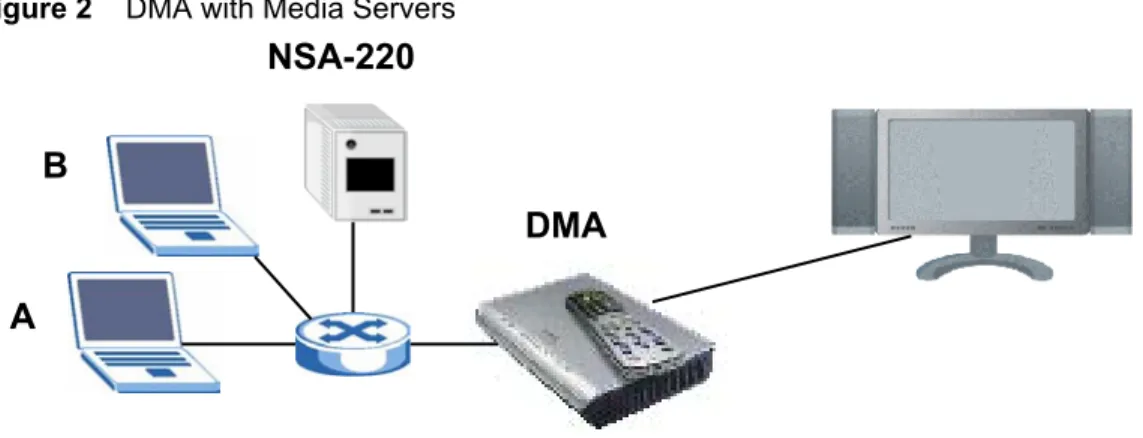
The DMA connects to your media servers through an Ethernet connection. The DMA-1000W also allows you to connect to a IEEE 802.11b/g compliant wireless LAN network. It can connect to an Access Point (AP) or another IEEE 802.11b/g compliant wireless LAN client. Here, the DMA lets the TV play files stored on computers A and B and an NSA-220.
Chapter 1 Introducing the DMA
Figure 2 DMA with Media Servers
1.1.3 Play Podcasts
The DMA can play podcast audio files. Podcasting is a way of publishing audio files through the Internet using feeds. You can play the content on your computer or a mobile device (like an MP3 player). Place the DMA behind a firewall and/or IDP (Intrusion Detection and
Prevention) device to protect it from attacks from the Internet.
Figure 3 Podcasts
1.2 LEDs
The LEDs (lights) tell you about the current status of the DMA.
Figure 4 LEDs
DMA
A
B
NSA-220
Chapter 1 Introducing the DMA
The following table describes the DMA LEDs.
Table 1 LEDs
LED COLOR STATUS DESCRIPTION
STATUS Orange On The DMA is receiving power and in operation mode
(on).
Green On The DMA is receiving power and in standby mode (off). Off The DMA is not receiving power.
PLAY Green Blinking The DMA is playing a file.
Off The DMA is not playing a file.
LAN Green On The DMA has a successful Ethernet connection.
Blinking The DMA is sending/receiving data on this port. Off The DMA does not have a connection on this port. WLAN
(DMA-1000W only) Green On The DMA has a successful wireless LAN connection. Blinking The DMA is sending/receiving data through the wireless
LAN connection.
Off The DMA does not have a wireless LAN connection.
USB Green On The DMA has a USB stick (or hard drive) connected.
C
H A P T E R
2
Using the Remote Control
This chapter describes how to use the remote control to configure and use the DMA.
2.1 Using the Remote Control
Use the remote control to navigate the menus, play files and configure the DMA. The following figure describes the function of each button on the remote control.
Chapter 2 Using the Remote Control
Figure 5 Remote Control
"
You cannot use the
SERVER
,
OPTION
,
PHOTO
,
MUSIC
or
VIDEO
buttons
Use the OK, BACK and arrow buttons to go through the menus and play your files. When configuring, use the arrow and OKbuttons to select a field. Then use the arrow and OK buttons to select an option.
TOOL opens the TOOL menu for additional options.
Power turns the DMA off
and on. HOME return to the main menu.
Use the 0~9, CLEAR and
INPUT buttons to input numbers (like for individual scenes or times).
These buttons perform the previous, play, next, reverse, stop, fast forward, skip, pause and slow motion functions during file playback.
PAGEup/down scroll up or down a list to the previous or next page.
SERVER opens a menu where you select a media server.
ROTATE turns a photo 90° clockwise.
SHUFFLE plays your playlist (favorites) files in random order.
OPTION opens the menu where you configure the DMA’s settings.
PHOTO opens a menu of picture files to view.
VIDEO opens a menu of video files to play.
MUSIC opens a menu of music files to play.
USB opens a menu of files on your USB device.
MUTE turns off the sound.
VOLUME up/down adjust the volume.
AUDIO switches audio output between left, right and stereo speakers.
A-B lets you select start and stop times to repeat an interval.
REPEAT keeps playing (loops) the file.
INFO displays details about the playing file.
C
H A P T E R
3
DMA Menus
This chapter introduces the DMA’s menus and how to navigate them.
3.1 Menus Overview
The DMA uses menus that display on your television screen. The HOME menu is the first menu you see when you turn on the DMA.
Figure 6 HOME Menu
This table describes the HOME menu.
Table 2 HOME Menu
AREA DESCRIPTION
A Select the menu that you want to use (Table 3 on page 28 lists the main menus). B This is the number of media servers the DMA has detected. If it is two or more, use the
SERVER menu to select the one you want to use. See Section on page 39 for details.
B
Chapter 3 DMA Menus
3.2 Menu Navigation
Use the remote control’s OK,BACK and arrow buttons to go through the menus, configure the DMA and play your files.
"
Use the remote control’s arrow and
OK
buttons to select fields and field
options.
3.3 Menus Summary
These are the DMA’s main menus.
3.4 Menu Description
Here are some general menu screen descriptions. The main VIDEO menu is shown here as an example. Other menus work in a similar way.
Table 3 Menus Summary
MENU DESCRIPTION
SERVER Select a media server with content files that you want to play. See Chapter 5 on page 39
for details.
MUSIC Contains music files on the media server you are accessing. Music files on a USB stick that you add to a favorites folder also display here. See
VIDEO Contains video files on the media server you are accessing. Video files on a USB stick that you add to a favorites folder also display here.
PHOTO Contains photos on the media server you are accessing. Photos on a USB stick that you add to a favorites folder also display here.
OPTION Use this menu to configure the DMA. USB Contains the files on an attached USB device.
Chapter 3 DMA Menus
Figure 7 Main Menu Description
This table describes the main VIDEO menu.
3.4.1 File Folder Menu Description
This section describes an folder menu of videos, music or photos. The VIDEO > All Videos
menu is shown as an example. The MUSIC and PHOTO menu file folders work the same way.
Table 4 Main Menu Description
AREA DESCRIPTION
A List of the file folders. The currently selected item is white. The arrows show that you can move up or down in the menu.
The DMA categorizes files into album, artist and genre folders according to the information stored in your files. Files may not appear in the proper folders if they have missing, incorrect or incomplete information.
Album - Search for videos, music or photos by album.
Artist - Search for music by artist.
Genre - Search for videos or music by album.
All Music / All Videos / All Photos - All of the menu’s files display here.
Favorites - Contains folders of the files you have marked as favorites. You can use a favorites folder to have the DMA play the entire list of files (this is also known as a playlist).
B This shows which remote control buttons to use in the menu. For example, in this menu, use the remote control’s arrow and OK buttons to select a folder to see the files sorted by that criteria. Or use the BACK button to go up in the menu structure (return to the
HOME screen).
C This displays the number of the selected menu item followed by the total number of items. In this example menu, the first of four items is selected.
A
Chapter 3 DMA Menus
Figure 8 File Folder Menu Description
This table describes the main VIDEO menu.
3.4.2 Using the TOOL Menu From a File Album
In a video, music or photo album, press the remote’s TOOL button to open the TOOL menu. The following table describes the options in this menu.
Table 5 File Folder Menu Description
AREA DESCRIPTION
A Details about the currently selected file.
TITLE - The name of the file.
ALBUM - Which album the file belongs to.
DATE - The date the file was created (or last modified).
DURATION - The play time of the file in hours:minutes:seconds.
SERVER - The name of the media server where the file is located.
B Select a file and press the remote control’s TOOL button to add it to a favorites folder (see Section 3.4.2 on page 30).
A
B
Table 6 Album > TOOL Menu
LABEL DESCRIPTION
Add Favorite Use this to add the photo to a favorite photos list.
Note: After adding to or editing a favorites list, use the remote control’s Power button to turn the DMA off and then back on to save your change.
Chapter 3 DMA Menus
3.5 Playing a Video File Example
The DMA automatically arranges the video files on the media server into folders in the
VIDEO menu. Here is an example of how to play a video file in the All Videos file folder. Playing music files works in a similar way.
1 Press the VIDEO button on the remote control or use the arrow and OK buttons to select the VIDEO icon in the HOME menu.
Figure 9 VIDEO Icon
2 The Video menu opens.
Filtering Use the filter to search for files by title (or part of a title). After you select this option and select OK, the on-screen keyboard displays (see Figure 13 on page 36). Use the on-screen keyboard to specify up to 16 characters of text that you want to search for in the file titles.
Slideshow
Settings Use this to configure how the slideshow changes from one photo file to the next and how long it displays each photo file. View Current
Slideshow Music You can play music while you navigate the DMA’s menus and play photo files or slideshows. When a music file is playing, you can use this option to go to the music file that is playing.
Back Use this to exit the menu.
Table 6 Album > TOOL Menu
Chapter 3 DMA Menus
Figure 10 VIDEO Menu
3 Use the remote control’s arrow and OK buttons to select the All Videos folder.
Figure 11 VIDEO > All Videos
4 Use the remote’s arrow and OK buttons to select and play a video file.
Chapter 3 DMA Menus
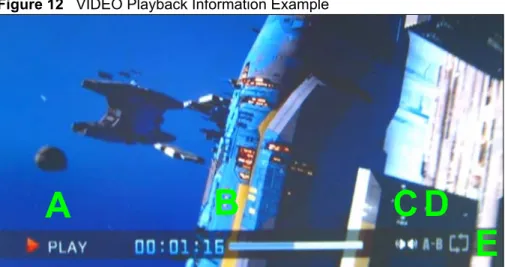
Figure 12 VIDEO Playback Information Example
The following table describes the information you can display during video playback.
3.5.1 A-B
The following example use the A-B function to set the DMA to keep repeating a section of the video starting at ten seconds into the video and ending at 30 seconds into the video.
1 Play a video or music file.
2 Press A-B at 0:10. The “A-” part of the A-B icon on the screen lights up. 3 Press A-B at 0:30. The rest of the A-B icon on the screen lights up. 4 The video or music repeats playing from A to B (0:10 to 0:30).
Table 7 VIDEO Playback Information
AREA DESCRIPTION
A Current function.
B Elapsed time.
C Audio (Left, Right or Stereo).
D The A-B function lets you repeat a certain section of a video or music file. This can be useful for language learners wanting to repeat a particular word or phrase. See Section 3.5.1 on page 33 for an example.
E Repeat -Keep playing (looping) the file.
A
B
C
D
Chapter 3 DMA Menus
3.5.2 Using the TOOL Menu During Video Playback
While a video file is playing, press the remote control’s TOOL button to open the TOOL
menu. The following table describes the options in this menu.
Table 8 Video Playback TOOL Menu
LABEL DESCRIPTION
Add Favorite Use this to add the video to a favorite videos list (which you can use as a playlist). Note: After adding to or editing a favorites list, use the remote
control’s Power button to turn the DMA off and back on to save your change.
Time Search Select this to skip to a specific time in the video. After you select this, use the arrow and OK buttons to select the HOUR and MINUTES input boxes. Then press numbers and the OK button to enter the start time. Then use the arrow and OK buttons to select OK.
C
H A P T E R
4
Favorites (Playlists)
This chapter introduces the DMA’s favorites feature.
4.1 Favorites (Playlists) Introduction
You can have the DMA play all of the files in a favorites folder. This is also known as a playlist.
• See Section Table 8 on page 34 for how to add files to favorites folders.
• See Section Table 13 on page 49 for how to select a favorites folder to use as the music during a slide show.
4.2 Using the TOOL Menu in the Favorites Folder
Use the TOOL menu to edit the playlists.From within the Favorites folder, press the remote’s TOOL button to open the TOOL
menu. The following table describes the options in this menu.
Table 9 Favorite > TOOL Menu
TOOL MENU DESCRIPTION
Change View Use this to select how the files display in the favorites menu. You can have them display as a list, thumbnails, or a list with thumbnails.
Change Name Use this to change the name of the currently selected playlist. After you select
Change Name, select the folder’s name and press OK to use an on-screen keyboard to edit the name. See Section 4.2.1 on page 36 for how to use the software keyboard. You can enter up to 21 characters.
Remove from
Favorites Use this to delete the currently selected file from the playlist. Slideshow
Settings Use this to configure how a slideshow changes from one photo file to the next and how long it displays each photo file. Detailed
Information Use this to view details about the currently selected file. View Current
Slideshow Music You can play music while you navigate the DMA’s menus and play photo files or slideshows. When a music file is playing, you can use this option to go to the music file that is playing.
Chapter 4 Favorites (Playlists)
4.2.1 Keyboard Input
When you use the Change Name option, you use an on-screen keyboard to edit the name.
Figure 13 Keyboard Input
The following table describes the options in this menu.
Table 10 Keyboard Input
TOOL MENU DESCRIPTION
Favorite Name This is the playlist name that you are editing. Use the fields below to edit the name in this field.
Number Select this to change the text input mode to numbers. A check mark displays next to the selected input mode.
Lower Select this to change the text input mode to lower-case letters. A check mark displays next to the selected input mode.
Upper Select this to change the text input mode to upper-case letters. A check mark displays next to the selected input mode.
Symbol Select this to change the text input mode to symbols. A check mark displays next to the selected input mode.
Text Input
Characters Select characters from the center section of the screen to display in the name field. Delete Select this option and press OK to back space (delete individual characters from
the name starting on the right). Press the OK button once for each character you want to delete.
Clear Select this option to delete the whole name.
Space Select this option and press OK to add a space in the name. Press the OK button once for each space you want to add.
OK Select this to save your changes back to the DMA. CANCEL Select this to exit this screen without saving your changes.
Chapter 4 Favorites (Playlists)
• Press Play to start playing the play list.
• Select a file and press OK to play the individual file.
4.2.3 Editing Favorites Folders
Use the TOOL menu to edit an individual favorites folder (playlist). Press the remote’s TOOL button to open the TOOL menu.
The following table describes the options in this menu.
Figure 14 Favorite > TOOL Menu
TOOL MENU
Change View Move
Remove from Favorites Slideshow Settings Detailed Information
View Current Slideshow Music Back
Table 11 Favorite > TOOL Menu
TOOL MENU DESCRIPTION
Change View Use this to select how the files display in the favorites menu. You can have them display as a list, thumbnails, or a list with thumbnails.
Move Use this to change the order of files within the playlist. After you select Move, select the file you want to move and then the place where you want to put it. Remove from
Favorites Use this to delete the currently selected file from the playlist. Slideshow
Settings Use this to configure how a slideshow changes from one photo file to the next and how long it displays each photo file. Detailed
Information Use this to view details about the currently selected file. View Current
Slideshow Music You can play music while you navigate the DMA’s menus and play photo files or slideshows. When a music file is playing, you can use this option to go to the music file that is playing.
C
H A P T E R
5
SERVER Menu
This chapter covers how to use the SERVER menu.
5.1 Accessing the SERVER Menu
If you have content files stored on more than one media server, use the SERVER menu to select the one you want to use.
To open the SERVER menu:
• Press the SERVER button on the remote control. or
• From the HOME menu, use the remote control’s arrow and OK buttons to select the
SERVER icon.
Figure 15 SERVER Icon
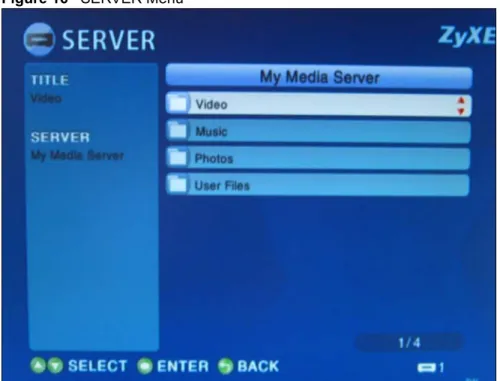
5.2 SERVER Menu
After you are in the SERVER menu, remote control’s arrow and OK buttons to select the media server you want to use. The following screen displays.
Chapter 5 SERVER Menu
Figure 16 SERVER Menu
Use the remote control to navigate to the files you want to play (or use the main menus to do so).
C
H A P T E R
6
USB Menu
This chapter covers how to use the USB menu.
6.1 USB Menu
Use the USB menu to browse the contents stored on a USB device connected to the DMA. To open the USB menu:
• Press the USB button on the remote control. or
• Use the arrow and OK buttons to select the USB icon in the HOME menu.
Figure 17 USB Icon
The USB menu displays your USB devices. Select a USB device to browse through its folders for files to play. The USB device’s folders and files may just display automatically if this is the same USB device that the DMA last accessed.
Chapter 6 USB Menu
C
H A P T E R
7
MUSIC Menu
This chapter covers how to use the MUSIC menus.
7.1 MUSIC Menu
The DMA automatically arranges the music files on the media server into folders in the
MUSIC menu. Use the MUSIC menu to select music files to play.
To open the MUSIC menu, press the MUSIC button on the remote control or use the arrow and OK buttons to select the MUSIC icon in the HOME screen.
Chapter 7 MUSIC Menu
Figure 20 MUSIC Menu
Playing music files is similar to playing video files (see Section 3.5 on page 31 for an example of how to play a video file). One key difference is that you can play music files while you use the DMA’s menus or play photo files or slideshows (use the TOOL menu and the View Current Slideshow Music option to identify a music file that is playing).
7.2 Podcast (RSS)
Podcasting is a way of publishing frequently updated audio files on the Internet. You use an aggregator (also called a reader) to subscribe to podcasts. Subscribe to a podcast and you can access new audio files as they are added. You usually play the content on your computer or a portable music player like an iPod.
At the time of writing, the DMA servers as a reader for audio podcasts that use Really Simple Syndication (RSS 2.0) and iTunes RSS feeds. Websites with an RSS feed usually display an RSS icon (shown next). Add the podcast’s URL in the DMA’s Podcast menu to be able to play the feed’s audio files.
Chapter 7 MUSIC Menu
7.3 Podcast Menu
Go to the Podcast menu within the MUSIC menu and press the remote control’s TOOL
button to open the TOOL menu. Use this menu to configure podcast and slideshow settings. The following table describes the items related to podcast settings. See
7.3.1 Importing Podcasts
You can import a song list from the iTunes Podcast website. You must have the iTunes program installed on your computer to do this.
1 Go to the iTunes Podcast website and select a song list. 2 Export the song list in opml format.
3 Copy the exported file onto a USB stick. Use the root (top) level, in the USB stick. Do not put the file in a folder.
4 Insert the USB stick into the DMA.
5 Press the remote control’s TOOL button to open the TOOLS menu. 6 Select Import.
Table 12 MUSIC > Podcast Menu > TOOL Menu
TOOL MENU DESCRIPTION
Import You can use your computer to save a song list from the iTunes Podcast website to your USB memory stick. Then connect the USB stick to the DMA and use this import option. See Section 7.3.1 on page 45 for details.
Add Podcast Use this to add the URL of an RSS feed that you want to listen to. Change Podcast Do the following to edit a podcast URL entry.
Select a podcast URL entry in the MUSIC menu. Open the TOOL menu.
Select Change Podcast to edit the podcast URL entry from the DMA. Delete Podcast Do the following to remove a podcast URL entry.
Select a podcast entry in the MUSIC menu. Open the TOOL menu.
Select Delete Podcast to remove the podcast entry from the DMA.
C
H A P T E R
8
PHOTO Menu
This chapter tells how to go to and use the PHOTO menu.
8.1 PHOTO Menu
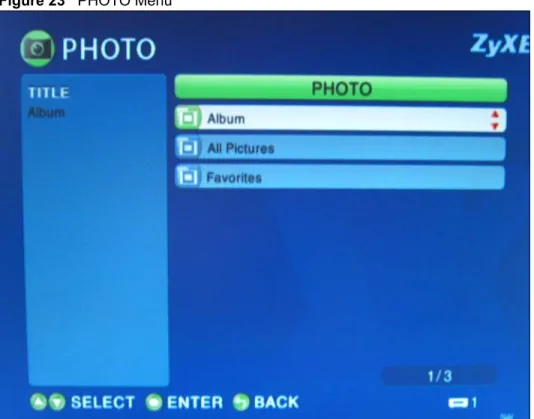
The DMA automatically arranges the photo files on the media server into folders in the
PHOTO menu. Use the PHOTO menu to select photo files to view.
To open the PHOTO menu, press the PHOTO button on the remote control or use the arrow and OK buttons to select the PHOTO icon in the HOME screen.
Chapter 8 PHOTO Menu
Figure 23 PHOTO Menu
8.2 Organizing Your Photos
The DMA automatically organizes your files by album according to their filenames and the folders in which they are stored.
• You can use your computer to arrange your photo files in folders to make them easier to browse.
• You can also use the TOOL menu to add photo files to favorites folders in the DMA to make them easier to find (see Section 8.3.1 on page 49 for details).
8.3 Slideshow
Start a slideshow from within a PHOTO sub-menu by using the arrow buttons to choose a photo and then pressing the Play button. The photos display in clockwise order starting from the selected photo.
• During a slideshow, use the Previous, Play, Next, Stop, and Pause buttons to control the file playback.
• Press the ROTATE or Fast Forward button to rotate a photo 90 degrees clockwise. • Use the Reverse button to rotate the photo 90 degrees counter-clockwise.
Chapter 8 PHOTO Menu
8.3.1 Configuring Slideshow Settings
During a slideshow, press the remote’s TOOL button to open the TOOL menu to configure the slideshow’s settings. The following table describes the options in this menu.
8.4 Shuffle
While playing a playlist (favorites list), use the SHUFFLE button to play the files in random order.
Table 13 MUSIC Menu > TOOL Menu
LABEL DESCRIPTION
Add Favorite Use this to add the photo to a favorite photos list.
Note: After adding to or editing a favorites list, use the remote control’s Power button to turn the DMA off and back on to save your change.
Slideshow Music
Settings Select this to choose a music playlist (favorites list) to play during the slideshow. Slideshow
Settings Use this to configure how the slideshow changes from one photo file to the next and how long it displays each photo file.
C
H A P T E R
9
Configuring the DMA
This chapter explains how you use the remote control to configure the DMA.
9.1 Accessing the OPTION Menu
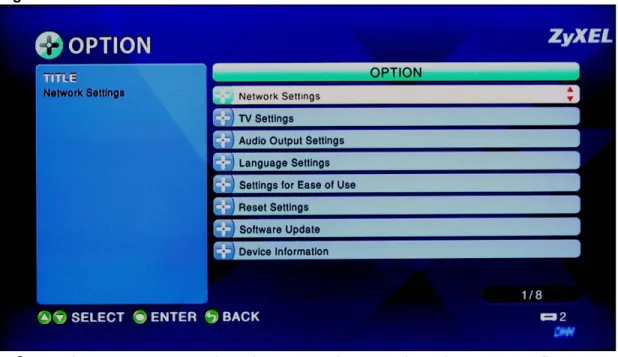
Use the OPTION menu to configure the DMA.Figure 24 OPTION Icon
1 To open the OPTION menu, press the OPTION button on the remote control or use the arrow and OK buttons to select the OPTION icon in the HOME screen.
Figure 25 OPTION Menu
Chapter 9 Configuring the DMA
9.2 Network Settings
The DMA needs an IP address to communicate with the media servers on your network. The DMA can get an IP address automatically if you have a device on your network that gives them out. Or you can assign the DMA a static (fixed) IP address.
9.2.1 DNS Server Address
A DNS (Domain Name System) server maps domain names (like www.zyxel.com) to their corresponding IP addresses (204.217.0.2 in the case of www.zyxel.com). This lets you use domain names to access web sites without having to know their IP addresses. The DMA can receive the IP address of a DNS server automatically (along with the DMA’s own IP address). You can also manually enter a DNS server IP address in the DMA.
9.2.2 MAC Address
Every Ethernet device has a unique MAC (Media Access Control) address. The MAC address is assigned at the factory and consists of six pairs of hexadecimal characters, for example, 00:A0:C5:00:00:02.
9.3 Network Settings Menu
Use this menu to configure your DMA’s settings for connecting to your wired or wireless Ethernet network.
"
The wireless LAN settings apply to the DMA-1000W.
Select OPTION > Network Settings to open the followingmenu.Chapter 9 Configuring the DMA
Figure 26 OPTION > Network Settings
• Select Wired LAN Settings to configure the DMA’s wired LAN settings (see Section 9.4 on page 53).
• Select Wireless LAN Settings to configure the DMA’s wireless LAN settings (see Section 9.7 on page 55).
"
The DMA-1000W can use either a wired LAN connection or a wireless LAN
connection, but only one at a time.
9.4 Wired LAN Settings
Chapter 9 Configuring the DMA
Figure 27 OPTION > Network Settings > Wired LAN Settings
The following table describes the fields in this menu.
Table 14 OPTION > Network Settings
LABEL DESCRIPTION
Get IP Address Use the arrow and OK buttons to select this field. Then use the arrow and OK
buttons to select an option.
Select YES to have the DMA get IP address information automatically.
If no IP address information is assigned, the DMA uses Auto-IP to assign itself an IP address and subnet mask. For example, you could connect the DMA directly to your media server computer. If the computer is also set to get an IP address automatically, the computer and the DMA will choose addresses for themselves and be able to communicate.
Select NO if you want to assign the DMA a static (fixed) IP address.
IP Address Enter the IP address in this field if you selected NO in the Get IP Address field. Subnet Mask Enter the IP subnet mask in this field if you selected NO in the Get IP Address
field.
Default gateway Enter the gateway IP address in this field if you selected NO in the Get IP Address field.
DNS server Enter the DNS server IP address (if your ISP gave you one) in this field if you selected NO in the Get IP Address field.
MAC Address This field displays the MAC address of the DMA. The MAC (Media Access Control) or Ethernet address on a LAN (Local Area Network) is unique to your computer (six pairs of hexadecimal notation).
A network interface card such as an Ethernet adapter has a hardwired address that is assigned at the factory. This address follows an industry standard that ensures no other adapter has a similar address.
OK Select this to save your changes back to the DMA. CANCEL Select this to exit this screen without saving your changes.
Chapter 9 Configuring the DMA
9.5 Station Mode
The DMA-1000W acts as a wireless LAN client. You can either set the network type to
Infrastructure and connect to an Access Point (AP) or use Ad-Hoc mode and connect to another wireless device in Ad-Hoc mode (like a computer with a wireless client) without an AP. See Section 9.7.0.2 on page 57 for how to configure the network type.
The DMA can connect to your computers on the wired network through an Access Point (AP). This is called Infrastructure mode.
Figure 28 Infrastructure Mode
The DMA can also connect to a computer that is a wireless client without using an AP. This is called Ad-Hoc mode.
Figure 29 Ad-Hoc Mode
9.6 WEP Encryption
WEP (Wired Equivalent Privacy) encryption stops unauthorized devices from using your wireless network and protects your wireless communications from eavesdropping.
WEP (Wired Equivalent Privacy) encryption scrambles all data packets transmitted between the DMA and the AP or other wireless stations to keep network communications private. The wireless stations and access point must use the same WEP key for data encryption and decryption. Encryption is like a secret code. If you do not know the secret code, you cannot decrypt (unscramble) the message.
If you do not use WEP with your DMA, the DMA’s wireless communications are accessible to any wireless networking device that is in within range.
9.7 Wireless LAN Settings
Use this menu to select how you want to configure your DMA-1000W’s wireless LAN settings.
DMA AP Computer
Chapter 9 Configuring the DMA
Figure 30 OPTION > Network Settings > Wireless LAN Settings
• Select Scan for wireless LANs to have the DMA scan for available wireless networks (see Section 9.4 on page 53).
• Select Manual Configuration to manually enter the wireless LAN network settings (see Section 9.4 on page 53).
• Select Windows Connect Now to use Windows® Connect Now to save your computer’s wireless settings onto a USB memory stick and then connect it to the DMA to configure the DMA’s wireless settings (see Section 9.7.1 on page 58).
"
WCN is available on Windows XP computers with Service Pack 2 installed.
9.7.0.1 Scan for Wireless LANs
The DMA displays this menu of wireless LANs that it has detected. Select the network to which you want to connect.
Chapter 9 Configuring the DMA
The Wireless LAN Settings Menu displays after you select a wireless LAN, enter any security settings that the network uses (see Section 9.7.0.2 on page 57).
9.7.0.2 Wireless LAN Settings
Your DMA is a wireless LAN client. Use this menu to manually configure your wireless LAN settings.
Figure 32 OPTION > Network Settings > Wireless LAN Settings
The following table describes the fields in this menu.
Table 15 OPTION > Network Settings > Wireless LAN Settings
LABEL DESCRIPTION
Mode Select the network type of the wireless network (Infrastructure or Ad-Hoc). Select Infrastructure to connect to an AP (and configure the rest of the wireless settings to match the AP’s).
Select Ad-Hoc to connect to another wireless client (and configure the rest of the wireless settings to match the other wireless client’s).
Wireless LAN
Type Select the wireless standard that the AP or peer device uses. Select 802.11a to connect to an IEEE 802.11a wireless network.
Select 802.11b /g) to connect to either an IEEE 802.11g or IEEE 802.11b wireless device.
SSID Enter the SSID of the wireless network to which the DMA is to associate. Select this item and use the on-screen keyboard screen (see Section 4.2.1 on page 36) to enter the SSID.
Encryption Type Select WEP if your wireless LAN uses WEP encryption for security. Select None if your wireless LAN does not use encryption for security.
Chapter 9 Configuring the DMA
9.7.1 Wireless LAN Setup Using Windows® Connect Now
Windows® Connect Now lets you save your computer’s wireless settings to a USB memory stick. Then you can connect the USB stick to the DMA to configure the DMA’s wireless settings. This allows you to easily set up a wireless LAN. To take advantage of this feature, you need:
• A USB memory stick with at least 300K of available memory. • Windows XP with Service Pack 2 (SP2).
Follow the steps below to set up a wireless LAN using Windows® Connect Now. You do not need to connect the USB stick to the computer yet, you will be prompted to do so later.
1 Click Start > Control Panel and double-click Wireless Network Setup Wizard.
Cryptography Key The DMA uses a WEP key to encrypt data. All the devices on the wireless LAN must use the same WEP key for data transmission.
Your DMA allows you to configure up to four 64-bit or 128-bit WEP keys. Only one key is used as the default key at any one time. The default key is key 1. Use the (smaller) field on the left to select a key to configure and then select the (larger) field on the right and use the on-screen keyboard screen (see Section 4.2.1 on page 36) to enter the key.
A key can be 5 ASCII characters or 10 hexadecimal characters ("0-9", "A-F") if your network is using 64 bit WEP.
A key can be 13 ASCII characters or 26 hexadecimal characters ("0-9", "A-F") if your network is using 128 bit WEP.
Note: The values for the WEP keys must be set up exactly the same on all wireless devices in the same wireless LAN. Note: ASCII WEP keys are case sensitive.
IP Address
Settings Select this button to go to a menu similar to the Section 9.4 on page 53 for details). Wired LAN settings menu (see OK Select this to save your changes back to the DMA.
CANCEL Select this to exit this screen without saving your changes.
Table 15 OPTION > Network Settings > Wireless LAN Settings (continued)
Chapter 9 Configuring the DMA
2 The first wizard screen displays. Click
Next in each screen to continue.
3 Select Set up a new wireless network to configure a new wireless network.
4 In the Network name (SSID) field, specify a unique name to identify your wireless LAN.
5 Select Automatically assign a network key to have Windows create a security key.
Chapter 9 Configuring the DMA
6 Select Use a USB Flash drive to set up a wireless network.
7 Connect the USB memory stick to your computer’s USB port.
8 This screen appears after your wireless settings are saved on the USB stick. • Remove the USB stick from your
computer and insert it in the DMA’s
USB port.
• Go to the Wireless LAN settings menu and select Windows Connect Now (see Section Figure 30 on page 56).
• After the DMA’s wireless settings are configured, remove the USB stick from the DMA and insert it back into your computer’s USB port and click Next.
Chapter 9 Configuring the DMA
9 This screen displays when you have successfully set up a secure wireless network. Click Finish.
9.8 Video Modes
The DMA supports 480i, 480p, 720p and 1080i video modes. 720p and 1080i are high definition television modes. 480i is used with most standard definition televisions. The number (“1080” for instance) stands for the number of lines of vertical resolution. The letter “i” stands for interlaced scan. The letter “p” stands for progressive scan. Progressive scan provides higher picture quality than interlaced but requires twice the bandwidth.
9.9 TV Settings
Use this menu to configure the video output that the DMA sends to your television. Select OPTION > TV Settings to open the followingmenu.
Chapter 9 Configuring the DMA
The following table describes the fields in this menu.
9.10 Audio Settings
"
The DMA only provides 2 channel (stereo) output. When the DMA plays 5.1
channel files, it downmixes the analog or digital input and provides 2 channel
(stereo) analog or digital output.
Use this menu to configure the DMA’s audio output for music playback. You can turn the S/ PDIF connector’s output (the DMA’s digital output) on or off for individual audio formats. The analog output is always on. You can also select how much volume smoothing you want during audio file playback.
See Section 9.10.1 on page 64 for details on the individual audio formats. Select OPTION > Audio Output Settings to open the followingmenu.
Table 16 OPTION > TV Settings
LABEL DESCRIPTION
Output Type Select Digital if your television accepts digital input. Select Analog if your television only accepts analog input.
Screen Size Select 16:9 if your television supports the 16:9 format (widescreen). Select 4:3 if your television supports the 4:3 format (traditional television). Resolution Select a video mode. Use the highest number that your television supports.
Select from 480i, 480p, 720p and 1080i.
You can also select Auto when the Output Type is set to Digital. OK Select this to save your changes back to the DMA.
Chapter 9 Configuring the DMA
Figure 34 OPTION > Audio Output Settings
The following table describes the fields in this menu.
Table 17 OPTION > Audio Output Settings
LABEL DESCRIPTION
Analog Output The DMA sends two channel (also called left and right or stereo) audio output through the LEFT and RIGHT audio connectors for music files.
S/PDIF Output Use this column to turn the S/PDIF connector’s output (the DMA’s digital output) on or off for individual audio formats.
AAC Select whether or not the DMA sends digital audio output through the S/PDIFaudio connector for AAC music files.
Select LPCM to turn on the channel digital output (also called left and right or stereo) for AAC music files.
Select OFF to turn off the digital output for AAC music files.
Dolby Digital Select whether or not the DMA sends digital audio output through the S/PDIFaudio connector for Dolby Digital music files.
Select LPCM to turn on the channel digital output (also called left and right or stereo) for Dolby Digital music files.
Select OFF to turn off the digital output for Dolby Digital music files.
WMA Select whether or not the DMA sends digital audio output through the S/PDIFaudio connector for WMA music files.
Select LPCM to turn on the channel digital output (also called left and right or stereo) for WMA music files.
Select OFF to turn off the digital output for WMA music files. Auto Volume
Control Strength Automatic volume control averages the volume during music playback to help smooth out the sound level. Select the amount of volume smoothing you want for music playback.
None provides no volume smoothing.
Small provides a low degree of volume smoothing.
Moderate provides some volume smoothing.
Strong provides the greatest degree of volume smoothing. OK Select this to save your changes back to the DMA. CANCEL Select this to exit this screen without saving your changes.
Chapter 9 Configuring the DMA
9.10.1 Audio Formats
This section provides background information on audio formats mentioned in the previous section.
9.10.1.1 S/PDIF
S/PDIF (Sony/Philips Digital Interface Format) is also IEC 958 type II, part of IEC-60958. S/ PDIF is a collection of low-level protocol and hardware specifications for carrying digital audio signals between devices and stereo equipment.
9.10.1.2 AAC
AAC (Advanced Audio Coding) is a standardized digital audio compression method. Sony, AT&T, Dolby, Nokia, Fraunhofer (FhG) and other companies cooperated to develop AAC to provide improved performance compared to MP3 (MPEG-1 Audio Layer 3). Various products including Apple’s iTunes and iPod, the Sony PlayStation 3 and many cell phones support AAC playback. AAC has been promoted as the successor to MP3 although at the time of writing, MP3 still remains popular. AAC is also known as MPEG-4 AAC because it is included in the Moving Pictures Experts Group (MPEG) MPEG-4 standard.
9.10.1.3 Dolby Digital
Dolby Digital is one of several audio compression technologies (codecs) produced by Dolby Laboratories.
Dolby Digital (also called AC-3) is the most common version. It contains up to six discrete channels of sound. Five channels for normal-range speakers (right front, center, left front, right rear and left rear) and one channel for the subwoofer. This is often abbreviated as 5.1. The Dolby Digital format also supports mono and stereo usage.
Dolby Digital is also known as DD, DD 5.1, Dolby Surround AC-3 Digital, Dolby Stereo Digital, Dolby SR-Digital, SR-D, Adaptive Transform Coder 3, AC-3, Audio Codec 3, Advanced Codec 3, Acoustic Coder 3, ATSC A/52, and ATSC A/52 Rev. B.
9.10.1.4 WMA
WMA (Windows Media Audio) is Microsoft’s proprietary audio compression format. Although WMA has not been nearly as popular as MP3, WMA Pro is part of Microsoft's Windows Media framework and is positioned as a competitor to AAC. Many consumer devices and media players support the playback of WMA files.
9.10.1.5 LPCM
LPCM (Linear Pulse Code Modulation is a method for digitally encoding audio information. In LPCM an audio waveform is represented by a sequence of amplitude values recorded at a sequence of times. LPCM most commonly supports two audio channels (stereo).
Chapter 9 Configuring the DMA
Figure 35 OPTION > Language Settings
The following table describes the fields in this menu.
9.12 Settings For Ease of Use
Use this menu to configure settings that control the DMA’s operation. Select OPTION > Settings for Ease of Use to open the followingmenu.
Table 18 OPTION > Language Settings
LABEL DESCRIPTION
Language
Settings Select the language that you want the DMA menus to use. A check mark appears next to the current display language. OK Select this to save your changes back to the DMA.
Chapter 9 Configuring the DMA
Figure 36 OPTION > Settings for Ease of Use
The following table describes the fields in this menu.
9.13 Reset Settings
Use this menu to set the DMA back to the factory default settings.
V
You will lose all of your changes when you reset to the default settings.
Table 19 OPTION > Settings for Ease of Use
LABEL DESCRIPTION
Connect to last accessed server automatically
When the DMA starts up, this option has it automatically connect to the media server that you last used.
A check mark appears next to the option if it is selected. Connect to single
server/USB automatically
When the DMA starts up, this option has it automatically connect to the media server or USB device that you last used.
A check mark appears next to the option if it is selected. Resume last
screen from standby
If you were playing a file when you turned off the DMA, this option has the DMA automatically continue playback from where you left off when you turn the DMA back on.
A check mark appears next to the option if it is selected.
Sound effect Set how loud you want the DMA to beep when you press buttons on the remote control.
OK Select this to save your changes back to the DMA. CANCEL Select this to exit this screen without saving your changes.
Chapter 9 Configuring the DMA
Figure 37 OPTION > Reset Settings
The following table describes the fields in this menu.
9.14 Software Update
Use this menu to upload new software to the DMA.
1
Only use software for your device’s specific model. Refer to the label on the
bottom of your DMA.
Select OPTION > Software Update to open the followingmenu.
Table 20 OPTION > Reset Settings
LABEL DESCRIPTION
RESET Select this to restore all of the DMA’s settings to the factory defaults. CANCEL Select this to exit this screen without saving your changes.
Chapter 9 Configuring the DMA
Figure 38 OPTION > Software Update
The following table describes the fields in this menu.
1
Do not turn off the DMA while software upload is in progress!
The upload process may take up to two minutes. After a successful upload, the system will reboot. See Section 9.15 on page 68 for how to check the software version to know if the new software upload was successful.
9.15 Device Information
Table 21 OPTION > Software Update
LABEL DESCRIPTION
Update over
Internet Select this option and follow the on-screen instructions to have the DMA check for and download new software from a server. The DMA must be connected to the Internet in order to do this.
A check mark appears next to the option if it is selected.
Update from USB Select this option and follow the on-screen instructions to have the DMA download new software from a USB stick. You must first download the software file, unzip it and put it on a USB stick. Find software at www.zyxel.com in a file that (usually) uses the system model name with a .bin extension, for example, "DMA-1000.bin". A check mark appears next to the option if it is selected.
OK Select this to save your changes back to the DMA. CANCEL Select this to exit this screen without saving your changes.
Chapter 9 Configuring the DMA
Figure 39 OPTION > Device Information
The following table describes the fields in this menu.
9.16 Screen Saver
The DMA automatically displays a screen saver when it is on and you are not using it. Press any button on the remote control to return to the normal screens.
Table 22 OPTION > Device Information
LABEL DESCRIPTION
Device Name This is the name of the series to which your device belongs.
Version This is the version of the software currently on the DMA. See Section 9.14 on page 67 for how to update software when there is a new version.
Wired LAN MAC
Address This field displays the MAC address of the DMA’s wired Ethernet interface. Wireless LAN
MAC Address This field displays the MAC address of the DMA-1000W’s wired Ethernet interface. This field does not apply to the DMA-1000. Sound effect Select the sound level that you want the DMA to use for indicating remote control
button presses.
C
H A P T E R
10
Media Server Software
This chapter introduces the media server software included on the CD.
10.1 Media Server Introduction
The DMA can play files on DLNA (Digital Living Network Alliance) compliant media servers. The DLNA is a group of leading personal computer and electronics companies that works to make products compatible and able to work in a home network in order to make digital living easy and seamless. The group’s members include Nokia, Intel, Microsoft, Sony, Motorola, Philips, Samsung, Matsushita, and Hewlett-Packard.
Install the included DLNA-compliant media server software on your Windows XP computers to let the DMA play files stored on the computers.
• The software requires Windows XP.
• If you do not have Windows XP or do not want to install software, you can put your files on a USB stick. The USB stick connects directly to the DMA without need of the media server software
• You must install the media server software on each computer that you will use to share files with the DMA.
• See the Quick Start Guide for how to install the media server software and the requirement details.
The NSA-220 network storage appliance is also a media server.
10.2 Media Server Tool
Use the media server tool to configure the media server settings. Do one of the following to start the media server tool.
• Click Start > All Programs > DigiOn > DiXiM Media Server Tool. • Double-click the DiXiM icon in the system tray (see the following figure).
Chapter 10 Media Server Software
Figure 40 Media Server Tool Icon
10.3 Configuring the Media Server Software
Refer to the Quick Start Guide and the help (Start > All Programs > DigiOn > Help) for details on how to configure and use the media server software.