for Android
OCTOBER 13 2014
MITEL MC 4.3
NOTICE
The information contained in this document is believed to be accurate in all respects but is not warranted by Mitel Networks™ Corporation (MITEL®). The information is subject to change without notice and should not be construed in any way as a commitment by Mitel or any of its affiliates or subsidiaries. Mitel and its affiliates and subsidiaries assume no responsibility for any errors or omissions in this document. Revisions of this document or new editions of it may be issued to incorporate such changes.
No part of this document can be reproduced or transmitted in any form or by any means - electronic or mechanical - for any purpose without written permission from Mitel Networks Corporation.
TRADEMARKS
Other product names mentioned in this document may be trademarks of their respective companies and are hereby acknowledged.
Mitel MC Manual for Android Mitel MC 4.3 – 10/13/2014
®,™ Trademark of Mitel Networks Corporation © Copyright 2014 Mitel Networks Corporation
TABLE OF CONTENTS
Product Overview . . . 6
Fixed Mobile Convergence . . . 6
Introduction to the User Guide . . . 7
Introduction to the Mitel MC . . . 8
Feature Overview . . . 8
How to read this Manual . . . 9
Restrictions . . . 10
For Blackberry Mitel MC on Android Runtime . . . 10
By Mobile HardWare Platform. . . 10
By Network (Cellular) . . . 10
By Mobile OS Version . . . 11
Details. . . 11
Data Usage Overview . . . 12
(Initial) Configuration Download. . . 13
Opening the Application . . . 15
Mitel MC License activation . . . 16
Grace Period . . . 16
General Operation . . . 17
The Widget . . . 17
Home Screen Navigation . . . 17
Drawer and Quick-Settings Menu . . . 18
Screen 1: Dial . . . 18
Screen 2: Contacts. . . 18
Screen 3: History. . . 18
Screen 4: Features. . . 18
Screen 5: Favorites . . . 19
Screen 6: Chat . . . 19
Screen 7: BluStar Web . . . 19
Quick Settings . . . 19
Registration Status . . . 20
Features of the Mitel MC . . . 21
Placing Calls . . . 21
Accepting Calls. . . 21
Emergency Calls . . . 22
Corporate Contacts . . . 22
Call Types. . . 23
Call . . . 23
Callback . . . 23
Call-through Call . . . 24
Direct Call (Mobile call without passing the PBX) . . . 24
Anonymous Call . . . 24
Copy to Clipboard . . . 24
In-Call Features . . . 25
Blind Transfer . . . 25
Toggle, Complete Transfer, and Conference . . . 25
Fast Forwarding . . . 25
Hold call. . . 26
Enquiry/ Consultation . . . 26
Handover to Cellular Networks (GSM) . . . 26
Handover to VoIP. . . 26
Automatic Handover to VoIP. . . 26
Out-Of-Call Features . . . 28
Call Pickup . . . 28
Call Retrieve . . . 28
Voice Mail . . . 28
Activate and Deactivate DnD . . . 28
Absence Info . . . 29
SIM Switch . . . 29
IM and Presence . . . 30
Adding Contacts . . . 30
Chatting . . . 31
Parallel Chats. . . 31
Mobile Least-Cost Routing (MLCR). . . 32
(HTTPS) Callback . . . 32
SIM Switch . . . 33
User Settings . . . 34
FMC Numbers . . . 34
Fast Forwarding Number. . . 34
Exception Numbers . . . 34
Dual Mode Settings . . . 35
VoIP Settings . . . 35
Mic Volume . . . 35
Mic ALC . . . 35
Network Settings . . . 35
Network Preferences. . . 35
Call Preference . . . 36
Dual Identity . . . 36
Always Mobile Client . . . 36
Automatic Start . . . 37
Handover Settings . . . 37
Operator Supported Dialing (OSD) . . . 37
Audio Separation . . . 37
Anonymous Call Prefix. . . 37
Log Level . . . 37
Simple Logging . . . 37
IM/Presence . . . 38
Enable IM/Presence . . . 38
Presence Domain . . . 38
About Application. . . 38
Administrator Settings . . . 39
FMC Numbers . . . 39
PBX Dialing-in Number . . . 39
SIM Switch Number . . . 39
IMS WLAN to Cellular . . . 40
MTC Number(s) . . . 40
Voice Mail Number . . . 41
Fast Forwarding Number. . . 41
Exception Numbers . . . 41
Dual Mode Settings . . . 41
VoIP Settings . . . 42
Registrar and Port Settings . . . 42
Username and Password . . . 42
Protocol (Transport) and Preferred VoIP Codec . . . 42
Echo Cancellation . . . 42
Mic Volume . . . 42
Network Settings . . . 43
Network Preferences. . . 43
Call Preference . . . 43
Dual Identity . . . 44
Always Mobile Client . . . 44
Misc. Settings . . . 45
Automatic Start . . . 45
International Prefix . . . 45
Maximum Number Length . . . 45
HTTPS Port . . . 45
Handover Settings . . . 46
OTA-URL . . . 46
Operator Supported Dialing (OSD) . . . 46
User Account Key . . . 46
Take Number . . . 47
Feature Access . . . 47
LCR . . . 47
Customized Features . . . 47
Audio Separation . . . 47
Jitter Buffer Size (ms) . . . 48
Anonymous Call Prefix. . . 48
Log Level . . . 49
Simple Logging . . . 49
Licensing . . . 49
IM/Presence . . . 49
Enable IM/Presence . . . 49
Presence Domain . . . 49
About Application. . . 50
Thank you for choosing this Mitel Networks Corporation product. Our product meets
the strictest requirements with regard to quality and design. The following user’s guide
will assist you in using the Mitel Mobile Client (Mitel MC) application and answer most
of the questions that may arise. If you require further technical support or
informa-tion about other Mitel products, please refer to our website at http://www.mitel.com. It
provides additional notes and hints on the product.
PRODUCT OVERVIEW
The Mitel Mobile Client brings system telephony features to your mobile telephone. It takes just a few steps to install after which the Mitel MC can be used immediately and conveniently without spending too much time learning it.
FIXED MOBILE CONVERGENCE
Fixed Mobile Convergence (FMC) is the integration of mobile telephones into the fixed-line commu-nications system of a company. The Mitel Mobile Client software (Mitel MC) allows you to access the Mitel communications system services from your mobile phone, enabling complete integration with the communications system as a normal extension.
• Use your mobile phone with the Mitel communications system - the familiar communications envi-ronment accompanies you around the world and is always available.
• Switch at any time from mobile telephone to system telephone - even in the middle of a call. De-pending on the situation, select the mobile telephone or stationary system telephone - accessible worldwide - with the best audio quality.
• Always be accessible under one single number - free people calling you from having to keep track of several network and call numbers.
INTRODUCTION TO THE USER GUIDE
This user’s guide describes the Mitel MC application. You will find the user’s guide and other documents for your application at:
www.mitel.com or http://www.mitel.com/knowledge-hub.
For more information please refer to the documentation or to your dealer’s homepage. It is your re-sponsibility to inform yourself about the scope of functions, operation and proper use of your equipment.
• Check whether you have all the user information available on your product, whether it conforms to your product’s version and whether it is up to date.
• Read through the user information carefully before using the Mitel MC.
• Store the user information within easy reach and refer to it whenever uncertainties arise in connection with the use of the application.
• If individual features differ on the Mitel communications systems, a reference is made in this user’s guide.
INTRODUCTION TO THE MITEL MC
Thank you for using the Mitel MC for Android-based mobile phones. The Mitel MC is a fixed-mobile convergence (FMC) application and runs on most phones based on the Android Version 2.3 and 4.0 - 4.4. Please note that the Mitel MC for Android can also be installed Blackberry OS 10.2.1 and later versions!
Fixed Mobile Convergence (FMC) is the integration of mobile phones into the fixed-line communications system of an enterprise. The Mitel MC installed on your mobile phone behaves like this. It acts as a regular desk phone, supporting all of the important PBX features using mobile networks.
The Mitel MC Solution utilizes existing networks, thereby avoiding additional installation costs. To start with, the existing mobile network or WLAN access point can be used.
FEATURE OVERVIEW
Your Mitel MC is the key to a variety of communication services like: 1. Integrated usage of cellular networks via your corporate PBX 2. Access to PBX features (Conference, Consultation etc.)
3. Voice-over-IP (VoIP) telephony via WLAN or mobile data channel *
4. Automatic handovers (cellular network » WLAN, WLAN » cellular network)* 5. Mobile Least Cost Routing (HTTPS call back & Travel SIM) *
6. Corporate directory search * 7. IM and Presence *
8. Encrypted VoIP *
Furthermore, as part of our Mitel MC Solution, your Mitel MC offers a range of features to make use of mobile least-cost routing (LCR) which enables you to make dynamic use of the most favorable rates depending on your location and on available networks. All user relevant information regarding the above mentioned possibilities and features will be given at the appropriate points throughout this manual.
The features marked with * require a license or depend on the used provider, the available network and the configuration by the administrator.
HOW TO READ THIS MANUAL
This manual is designed to guide you step by step through the installation, configuration and usage of your Mitel MC, providing you with useful hints and advice to facilitate the handling of your Mitel MC.
This manual does not describe how to operate the other functionality of your mobile phone. Please refer to the documentation of the available desktop software or the user manual of the device itself. General pieces of information will be marked with the i-icon to the left.
Information for technicians and/or administrators will be given throughout this manual. Those pieces of information will be marked with the icon to the left.
It is possible to deploy settings over-the-air (OTA Deployment) via the Mitel MC Controller. This is done with key-value pairs (settings’ key and setting). With the icon to the left we will point out, where OTA deployment is possible. Please refer to the Mitel MC Controller Administrator Manual for a general description ofOTA Deployment.
TERMINOLOGY
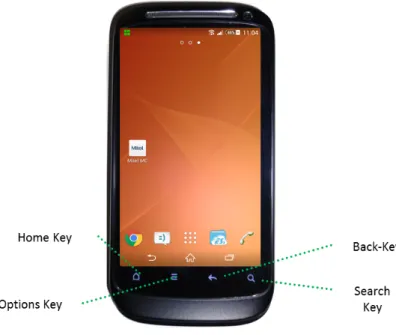
The picture below illustrates the denomination of your mobile phone’s keys as used in this manual:
Figure 1: Button names used in this document. If pure touch-screen devices are used, button names refer to the touch buttons and options with the respective functionality.
RESTRICTIONS
Please note that there are certain restrictions for third-party applications on practically all mobile plat-forms. There are some restrictions on the Android devices which the Mitel MC is subject to. New smart phone types/models are released every week. To avoid solution complexity and to ease management, it is recommended to implement a mobile phone policy in the company to standardize on a limited amount of phone models. A smart phone is like a computer. You have to reboot them now and then to ensure consistent behavior (the recommendation is once a day on average).
The Mitel MC is a powerful application, and if you have all features turned on, the Mitel MC as well as the data connections, battery life can in worst cases be 50% shorter (dependent on phone type, OS version, network and user scenarios).
There are a handful of destination numbers which are Emergency numbers (000, 110, 112, 118, 119, 911 and 999) which together with your mobile operator’s service numbers will result in pure cellular calls ("Direct calls") where the Mitel MC should be inactive. Please make sure these are not part of your number plan.
FOR BLACKBERRY MITEL MC ON ANDROID RUNTIME
Blackberry phones with OS 10 have Android Runtime which enables you to run applications for Android on your phone. Please note that the following limitations apply:
• The OS version must be 10.2.1 or later;
• Due to OS-properties, automatic handovers (to/from VoIP) are not supported;
• No support for speakerphone or Bluetooth Audio;
• The ringtone volume cannot be modified in the ringing screen.
BY MOBILE HARDWARE PLATFORM
Samsung phones could need adaption of speech volume on the Mitel MC Controller for Wi-Fi calls.
BY NETWORK (CELLULAR)
The functionality and features of the Mitel MC are also subject to the used network . If no data con-nection is available, features requiring feedback (for example:checking the status for Call Forwarding) are not available! If Dual-mode usage is part of the solution, you must make sure the Wi-Fi network is "Voice ready".
Most network operators deactivate the usage of data channels for cellular calls. This can be avoided by limiting data usage in cellular networks to WCDMA only. Please note that this setting limits data coverage, e.g. 2G networks, will not be used. No in-call menu will be displayed in 2G-networks.
Some mobile network operators do not send out their Identity in the signaling available for the Mitel MC to present in a Network status bar. If this is the case only "Cellular Network" will be presented.
BY MOBILE OS VERSION
Please note that updates to lower battery consumption has been implemented on Android OS from version 2.2. To reduce power consumption as much as possible, the Mitel MC has a configurable inactiva-tion of the GPRS connecinactiva-tion (refer to page43). The Mitel MC will then not continue sending registration requests when the phone enters power saving mode - unless desired.
There are slight differences in the OS used by manufacturers (HTC, Samsung etc.). Please note that this can lead to differences in the behavior of the Mitel MC.
Note:There is no technical support if the Mitel MC runs on a device with altered ROM (Cyanogen Mod, MIUI and the like).
DETAILS
• Which possibilities exist to present Caller-ID information received by cellular channel are limited by the mobile platform as such.
• TheWi-Fi Sleep Policy of the Android operating system (System Settings » Wireless & Networks, Wi-Fi Settings» Press "Options"» Advanced ) has to be set to "Never" for the Mitel MC to work properly. Any other setting here will interfere with main features of the Mitel MC!
• On some older devices and older OS versions the Mitel MC cannot recognize the connection of a headset. Headsets then have to be activated manually by using the option Loudspeaker in-call menu of the Mitel MC. Bluetooth headsets could interfere with Wi-Fi systems, as both systems use 2.4 GHz frequency band contention can be an issue. Each Wi-Fi transmitter blocks out 20 of the available 79 Bluetooth channels. This is specifically valid for lower end Bluetooth headsets.
• The serviceGSM Callbackis not available on Android.
• Dialing numbers of contact entries from within the Mitel MC with an appended letter ”P” and the like is not supported.
• When performing a handover on some devices from cellular networks to Wi-Fi, the device has re-moved from the ear for a short moment to prevent the built-in proximity sensor from interrupting the handover and cutting off the audio stream in Wi-Fi.
• Connecting the device to a computer and accessing the SD Card may lead to a restart of the Mitel MC.
DATA USAGE OVERVIEW
The following table clarifies exactly how much data usage is required for individual services of the Mitel MC. The settings governing the allowed usage of cellular data channels are described on page43.
SETTING AVAILABLE SERIVICES / DATA VOLUMES
Packet Data Off No features that require Packet Data can be used; 0KB. Packet Data
Mini-mal
Callback service, Corporate Phonebook search, approx. 3KB per Callback at-tempt, 10KB for the Corporate Contacts search with a typical result set of 5-10 users.
Packet Data Local Network & GPRS Dynamic
60KB per hour for registrations and keepalives with MWI, but without IM/ Pres-ence.
100KB for average IM/ Presence usage per hour. 300- 500KB per hour for feature usage in calls.
(INITIAL) CONFIGURATION DOWNLOAD
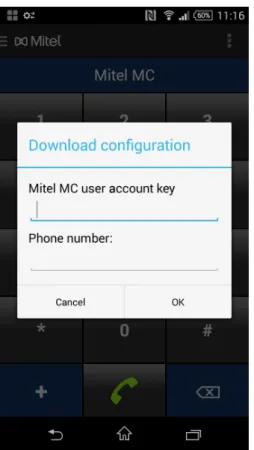
The configuration for your Mitel MC can be downloaded automatically when opening it for the first time. Before opening the Mitel MC, make sure that a data channel (Wi-Fi or 3G) is available. When you open the application a pop-up window will appear (see screenshot):
1. If you have received an Mitel MC User Account key, en-ter it into the pop-up window. Leave blank if you haven’t received a key.
2. Enter your cellular number into the automatic pop-up win-dow. Entering it with a leading plus sign is not necessary, but please provide the number including the country pre-fix.
3. Press "OK" to begin the configuration deployment to your Mitel MC.
4. The Mitel MC will notify you once the configuration down-load has ended and if further steps are necessary.
Figure 2: Download pop-up
→ After this all configuration data provided in the system will be saved and applied by your Mitel MC.
Redirect Server
The deployment method "Redirect Server" will always appear if the client is unconfigured. Your administrator has the option to enable authentication via PIN. Contact him if the PIN-popup appears and you haven’t received the PIN.
In the case of Failure (Fallback)
Should the download via the Redirect Server fail, a pop-up will prompt you to either enter Registrar IP, Username and Password manually or to retry the automatic download. The Mitel MC will then (re)try to download the configuration by the chosen method.
Troubleshooting: Re-download Configuration
In rare cases, the settings data may be corrupted when saved by the Mitel MC. Should prob-lems occur immediately after a configuration download, please re-download the configuration. To download the configuration data manually, open theSettingssection on your Mitel MC, then open the context-sensitive menu, and select the optionConfiguration Download.
Forced Configuration Download
In certain cases a configuration download can be forced from the Mitel MC Controller to the Mitel MC. If necessary for the application of new settings, the Mitel MC will be rebooted automatically.
OPENING THE APPLICATION
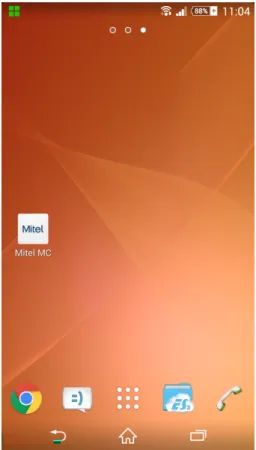
Open the Mitel MC by pressing its icon in the application menu of your Android smartphone. While in the Mitel MC Home screen, press the menu button and select Settings
to view and edit configuration details.
Figure 3: Native home screen.
If configuration download fails, make sure the mobile data Access Point for your mobile provider is configured correctly (if unknown, see their web page).
When you first open the Mitel MC, a configuration download via the Redirect Service (as described on page13) will be attempted. Enter your Mitel MC User Account Key and mobile phone number (in international format) to attempt a download. A data connection is mandatory!
If the administrator has created the Mitel MC license, it will be included in the configuration download. If added to the configuration, the LCR file will also be downloaded and then the feature file. Please don’t close Mitel MC before the download is complete.
Redirect Download Attempts
Until the settings Registrar, Username and Password have been set in the Mitel MC, there will be a pop-up window every time Mitel MC is started e.g. on the first start of the Mitel MC and after a factory reset (refer to page51).
MITEL MC LICENSE ACTIVATION
GRACE PERIODThe Mitel MC is installed with a 30 days trial period. During these 30 days a license download is necessary to avoid license expiration. The Mitel MC will inform you about the expiration of this license period. If a window is presented where you are requested to enter an activation key, your trial period has expired. In such case, contact your administrator. Make sure your administrator has created the license.
Useful Advice
The Mitel MC license information gets included in the configuration data when the Mitel MC portal administrator selects "Create license" for a specific user. This means the license information will ac-tivate a client at configuration download. A client with expired license will download the configuration at every startup.
GENERAL OPERATION OF THE MITEL MC
The Mitel MC seeks to blend in seamlessly with the usability concepts of the platform it runs on, and tries to closely match the functionality of your smartphone’s native phone application. The following chapter contains all user-relevant information for the Mitel MC: how to navigate within the Mitel MC, and how to use in- and out-of-call features.
THE WIDGET
From the latest version on, the Mitel MC for Android offers a widget for the following services (from left to right):
• Registration:This shows your current registration status. Touch this icon to open the home screen of the Mitel MC.
• Voice Messages: Place a call to you voice mailbox by touching this icon. A small red icon will display the number of missed calls. If no voice mail has been received and no calls have been missed, this icon will show reiceived chat messages, and touching the icon then will lead you to the chat screen.
If the settings needed for the Voicemail service have not been configured, this button will not be displayed.
• Call Log:Open the call log view of the Mitel MC.
• Chat:If Chat and Presence is configured, the speech-bubble icon will open the chat options.
• Features:This button either leads you to a quick-options screen forCall-Forwarding(CFW) setup (refer to page28),Do not Disturb(DnD) (refer to page28) and lets you set your Presence State (if these features have been configured). If none of those features have been configured, the button leads you directly to the features view within the Mitel MC.
HOME SCREEN NAVIGATION
The tabs of the toolbar have been replaced with a "drawer" with the latest version of the Mitel MC. Tap the app icon to open the drawer or swipe from left to right navigate to different screens.
DRAWER AND QUICK-SETTINGS MENU
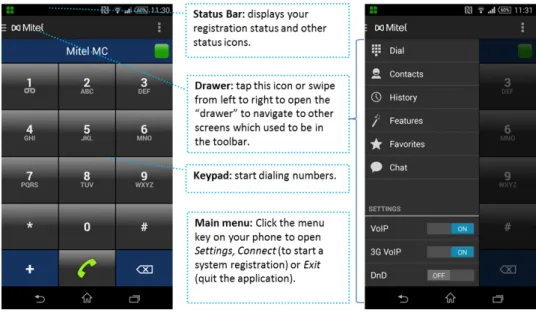
At the bottom of the drawer (see screenshot below) quick-settings options to enable VoIP and 3G VoIP become available if the Mitel MC is configured for dualmode usage.
Figure 4: Explanation of the Mitel MC home screen on Android.
SCREEN 1: DIAL
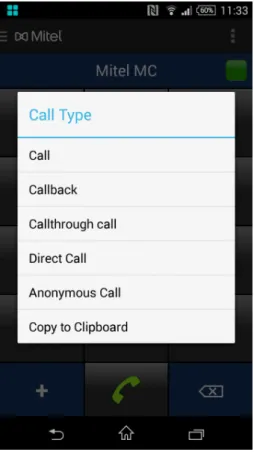
The start-up screen of the Mitel MC is the Dial screen. Type in numbers and start dialing, or long-press the phone button to open call-type options. For further information about call types, refer to page23.
SCREEN 2: CONTACTS
Enter this screen from the drawer or by swiping from left to right once. Depending on your system configuration you can filter contacts and access the corporate directory. Find more information on page 22.
SCREEN 3: HISTORY
Another swipe to the right leads you to the Mitel MC’s call log.
Please note that the call log of the Mitel MC for Android is separate from the phone’s native call log. Mitel MC calls do not appear in the native call log, and native calls do not appear in the Mitel MC call log.
SCREEN 4: FEATURES
In this screen configured out-of-call features are available. Find more information about out-of-call features on page28.
SCREEN 5: FAVORITES
Select a list of favorite contacts in this screen from the phone’s phonebook and from Corporate Con-tacts (if the Corporate Phonebook has been configured for your Mitel MC).
SCREEN 6: CHAT
Please note that this screen is only available if chat is configured! Find more information on page30.
SCREEN 7: BLUSTAR WEB
This screen also only appears if the required settings are configured on the Mitel MC Controller! If available, BluStar Web offers further Presence states and contact lookups.
QUICK SETTINGS
On the bottom part of the Drawer you can switch VoIP (WiFi) and VoIP over 3G on or off, and you can also toggle your DnD status (see page28).
REGISTRATION STATUS
This registration icon indicates that there is a VoIP-capable data connection. This data connec-tion may be Wi-Fi or Packet Data (refer to page43for information about Packet Data settings).
This icon indicates a successfully established data connection. Features can usually be ac-cessed perceivably faster. A SIP-connection is used for feedback and feature access. Please note that this connection produces traffic.
This icon indicates that a system registration is in progress.
The red icon appears if the system registration has failed. This may be caused by faulty user credentials. Please contact support if this problem persists.
You will see this icon if there is currently no data connection available, and therefore no system registration possible. Whenever a configured Access Point becomes available, the Mitel MC can re-registers itself in the system if it is configured to do so. Please note that system registration (data access) is needed for fast mode call setup method.
Registrations in Data Networks other than Wi-Fi
Please note that certain settings have to be enabled for the Mitel MC to register over Packet Data (refer to page43).
Static Roaming
When the Mitel MC is turned off, calls will only be routed to theGSM Numberof a user ifStatic Roamingis activated for this user. IfStatic Roamingis deactivated on the Mitel MC Controller, the Mitel MC will not be available in cellular-only networks.
Static Roaming
When the Mitel MC is turned off, calls will only be routed to theGSM Numberof a user ifStatic Roamingis activated for this user. IfStatic Roamingis deactivated on the Mitel MC Controller, the Mitel MC will not be available in cellular-only networks.
FEATURES OF THE MITEL MC
The following explains all call related services of your Mitel MC.
General Availability of Features
Available in- and out-call features depend on your PBX; for some features please consult your PBX documentation. More or less features than the ones described below might be available in your specific case. Features displayed by the Mitel MC can be configured through the feature file and can hence even vary on a per-user basis. The Feature file is downloaded when you start your Mitel MC the first time. It can also be downloaded manually. There can be several feature files available but only one is assigned per user.
Note: If the features are "greyed out", your Mitel MC is not fully configured. Please contact your administrator should this be the case.
Contacts Sorting
Sorting in the Mitel MC is always done by Family name. This is not configurable as might be the case in the native Contacts. The reason is that access to this capability can differ widely.
PLACING CALLS
Calls with the Mitel MC can be made from within its screens and/or outside of them. This depends on yourCall Preferenceconfiguration, refer to page43. To place a call using the Mitel MC, type in or select a number in theContactsscreen orCall List, and press the green phone button. As soon as a call has been established, in-call features will become available (in Wi-Fi and cellular networks with or without Packet Data). If a Wi-Fi or Packet Data connection is available the Mitel MC Controller will give feedback about the status of the call(s). This feedback will be displayed as icons at the end of the status line of a call.
Mitel MC calls can be triggered by clicking on links in the browser, email and other apps if the link url begins with "fmccall://".
Call Quality
The Mitel MC displays a warning icon if the VoIP call quality is too poor. Tapping on the icon opens a pop-up that enables you to switch from VoIP to the cellular network.
Redial
A double touch of the green phone button will redial the last dialed number.
Call Setup Time
The call setup time when using the Mitel MC is slightly longer than when using the native ap-plication, because the call is set up via the call manager (Mitel MC Controller) in the enterprise network. If the Mitel MC is registered over the cellular network the call setup time is usually less then 10 seconds. If the phone does not have access to data the call setup is done via DTMF which usual takes approx. 10-20 seconds.
ACCEPTING CALLS
Mitel MC calls can be accepted like all other calls by pressing the concerned key. Which calls are intercepted by the Mitel MC is governed by the Dial-Mode setting (refer to page43).
Caller ID
The Mitel MC for Android supports the transmission of Caller IDs ("see who’s calling") via the Mitel MC Controller. To make use of this possibility, and to not be subject to different policies regarding the transmission of Caller IDs of the different providers, the following settings have to be applied:
1. Packet Data has to be set to GPRS Dynamic or Local Network; refer to page43. 2. TheMTC Number has to be set on the Mitel MC if the operator does not include the
original Caller ID in the signaling. For the Caller ID transmission to work properly the
MTC Numberhas to match 100%, a matching prefix is not enough; refer to page40.
EMERGENCY CALLS
Emergency calls have to be placed as direct calls, i.e. not with the Mitel MC.
This is done automatically for the major emergency numbers such as 112 and 911. Local emergency numbers that have to be dialed directly can be specified as Exception Numbers. Refer to page41.
CORPORATE CONTACTS
You can search your local and the corporate contacts (if access is configured by your system administrator) from the search bar.
Click on the icon on the left end of the search bar to select "All Contacts" (default), "Contacts" (local phonebook), "Pres-ence" (contacts enabled for chat), or "Corporate Contacts" (see screenshot to the left). The corporate contacts will not be searched until at least two characters have been entered or three seconds have passed. With the latest version of the Mitel MC also offers a filter to only display contacts that are available for chat ("Presence" filter) - this only applies if Presence is en-abled.
CALL TYPES
There are several call types that you can select before dialing. They give you manual access to the potentially cost saving features of the Mitel MC. Please see the picture below.
Automatic Routing
Administrators may specify and deploy routing rules (for Callback etc.) with in an (M)LCR Table and deploy it to the Mitel MC.
Note:Which of the following call types are available and/or how they are routed (VoIP/cellular) depends your Mitel MC’s settings and on your registration status. For example: Callback will not be offered if you are registrered for VoIP, because there is no advantage in using it.
CALL
This is either a VoIP call (if the needed registration is available), or a Call-Through call for cellular connections.
CALLBACK
Demand a Callback and let yourself be connected with the called party. No call will be established from your smartphone. This may have a favorable effect on costs. A Callback is requested via HTTPS.
To use the HTTPS Callback, the HTTPS Port must be set (refer to page 45) and packet data usage by the Mitel MC must be allowed (refer to page43).
CALL-THROUGH CALL
If there is no registration or if the Mitel MC is only registered for signaling (blue registration icon), you will have the option to select a call-through call to ensure that your call is routed through the system. Otherwise, i.d. if you are registered for VoIP (green icon) this call type will not be offered.
DIRECT CALL (MOBILE CALL WITHOUT PASSING THE PBX)
This option gives you the possibility to place a call "directly" through the mobile network. Such a call will then not be routed through your enterprise network.
ANONYMOUS CALL
When you select anAnonymous Callthe called party will not see your caller ID. UnlikeDirect Call, this feature has to be routed through your enterprise network.
Further Configuration
1. This is a PBX-driven feature. Not every PBX supports this.
2. The Anonymous Call Prefix has to be set in the Settingsof your Mitel MC, refer to page48. 3. An Access Code has to be configured on the Mitel MC Controller to match the feature code that
triggers anAnonymous Call on your PBX (please refer to the Mitel MC Controller Administrator Manual).
COPY TO CLIPBOARD
Copy the entered number to your clipboard with this option. You can then paste it within any other application running on your phone.
IN-CALL FEATURES
If a data channel (Wi-Fi orPacket Data) is available during a call, your Mitel MC will enable the in-call features of your PBX. For example: The in call menu will not be available during a 2G call as no data access is possible during call (if no Wi-Fi is available for signaling). When there’s no data channel, the Mitel MC will give you the option to open the native dialpad which enables you to type in digits (e.g. PINs) to enter conferences and the like.
The in-call screen now displays an icon that warns the user if the VoIP signal quality is decreasing to a point where call quality suffers. Touch the icon to the right of the caller ID to open a pop-up dialog that enables you to switch from WiFi to cellular networks!
The Hold option can be found in the call details screen along with the speaker and mic option (to the left). Pressing the pause button in the Call Details screen also puts the current call on hold.
BLIND TRANSFER
Transfer a call to a second party. Select this feature and choose a contact or select a number. Your call will be terminated and disappear from the home screen as soon as the other party has picked up.
TOGGLE, COMPLETE TRANSFER, AND CONFERENCE
If there are two active calls (one of them onHold), you canToggleback and forth between them, enter a three-party conference (Complete conference), or join the two calls (Complete transfer) and terminate the calls on your end.
FAST FORWARDING
This option will forward the call to a predefined number. While in theory this can be any number, this feature is most often used to transfer the call to the desk phone with a single touch of a button. While the transfer to the predefined number is being executed, the Mitel MC offers you the possibility toResumethe call (the transfer will be interrupted).
Please note that this feature is executed like a Blind Transfer. If your PBX does not support Blind Transfers, the Fast Forwarding feature will not be available.
In this example a Wi-Fi call is placed. Swipe to the features screen for more in-call features.
HOLD CALL
A party can be put on hold by clicking theHoldoption on the screen. You can resume the call at any time.
ENQUIRY/ CONSULTATION
Clicking on this optionain the in-call features screen puts the currently active call on hold and opens the call screen where you can call a second party. A reconnect tone will be played back if the Enquiry fails (called party unavailable). Toggle conveniently between the held party and the second call by touching their call cards in theCall De-tailsscreen.
aThe name of this feature differs depending on the used Mitel Networks
Corpora-tion PBX.It is either "Enquiry" or "ConsultaCorpora-tion".
For immediate transfer aFast Forwarding Numberhas to be set (refer to page41). If noFast Forwarding Number has been set, the Mitel MC will open a keypad with which you can dial or choose a contact.
HANDOVER TO CELLULAR NETWORKS (GSM)
It is possible to trigger a manual Handover to GSM/3G (cellular networks). You can find the selection in the Mitel MC Main Menu (Android button)when in call. The handover request is done through a call towards the Mitel MC Controller.
Muted Calls
Please note that a muted VoIP call may be unmuted when a handover from VoIP to cellular networks is done. The Mitel MC will display a warning message if this occurs.
HANDOVER TO VOIP
It is also possible to trigger a manual Handover to VoIP if the Wi-Fi coverage is good enough, as above the selection can be found in the Mitel MC Main Menu.
AUTOMATIC HANDOVER TO VOIP
IfAuto Handoverhas been enabled in the settings of the Mitel MC, a handover from Wi-Fi to Cellular will be performed automatically if the Wi-Fi signal strength gets too weak to maintain a reliable VoIP connection. A handover from Cellular to Wi-Fi on the other hand will be performed if a known network with sufficient quality gets into range during an ongoing cellular call. At the availability of a network with sufficient quality, the Mitel MC will take some time to assure it is a stable connection before a handover is performed.
If an access point provides VoIP over 3G (and the Mitel MC is set to use this), it will not be possible to get back to a Wi-Fi access point during the call. This depends on that the phone can only have one single IP address.
OUT-OF-CALL FEATURES
Out-of-call features give you the possibility to use your smartphone as a full-fledged equivalent of a desk phone. You can access theFeaturesscreen via the "drawer" (tap the app icon or swip from left to right).
CALL FORWARDING
You have the option to configure rules about when and to which destinationCall Forwarding is to be done. There are three different rules: Always,On no Reply and onBusy. A different number may be configured for each of them.
Rules can be cancelled globally withCancel call forwardingor switched on and off withToggle On/Off. If a call has been forwarded to your Mitel MC, this will be indicated by a diversion arrow in front of the caller’s number.
CALL PICKUP
A pick-up group is a group of people who are notified if one group member receives a call, for example a support group. If there is an inbound call for your pick-up group, the Mitel MC will notify you with a pop-up window and give you the option to pick up the call. Clicking onCall Pickupin theFeaturesscreen also enables you to pick up the first incoming call for your pick-up group.
Pickup Groups
There might also be adjustments to be made on the Mitel MC Controller and PBX-side. Please con-sult the Mitel MC Controller Administrator Manual (keywords:PBX Access Codes,Pickup Groups).
CALL RETRIEVE
This out-call feature enables you to fetch a call from the waiting loop. If this does not work as expected, please verify that your PBX supports this feature, and contact support if the problem persists.
VOICE MAIL
Listen to your corporate voice mail with this option. Click on the selection in the Mitel MC Main Menu. A waiting voice message will be indicated by a small cassette icon just left of the icon for the mobile network signal strength in the upper right corner of the Mitel MC screen. Once you have listened and deleted your received voice mail(s) this icon will disappear.
If the settings needed for the Voicemail service have not been configured, this option will not be dis-played.
Please note that aVoice Mail Numbermust be configured on the Mitel MC Controller and your PBX.
ACTIVATE AND DEACTIVATE DND
Temporarily disable your Mitel MC as your corporate extension with Do-not-Disturb (DnD). This pre-vents inbound calls from being forwarded to your Mitel MC (VoIP and cellular). Deactivate DnD to be available for inbound calls again.
ABSENCE INFO
By selecting the Absence Info menu you can set the absence reason and in some cases the day/time of return, in your PBX as well as cancelling already set information.
SIM SWITCH
This is a least-cost routing feature explained on page39.
Use this option to activate a new SIM card. The latest version of the Mitel MC allows you to add a new number to your User Account if 1) the system administrator has enabled this service and 2) if a data channel is available. If this service is deactivated or if there’s no data connection, the number has to be assigned to your user account beforehand by your system administrator.
If Automatic Start is activated, and if the SIM card requires PIN activation, the Mitel MC won’t detect the new SIM card until the Mitel MC was restarted.
Please note that this feature can be disabled by the system administrator! If deactivated, no SIM-Switch options will be available.
IM AND PRESENCE
The Mitel MC enables basic mobile presence and the ability to chat with your smartphone. Immediately after the required settings have been configured (see infobox below), the Online/Offline Presence Status will be displayed in the Home screen (application bar).
Required Settings
IM/Presence has to be turnedOn(refer to page49) and thePresence Domain(refer to page 49) has to be configured correctly on the Mitel MC, and profiles ofXMPP EndpointsandXMPP User Accounts orSIMPLE User Accounts have to be created on the Mitel MC Controller. Please note that these settings can be turned off (and will then not appear in the Mitel MC) on a global level via the Mitel MC Controller!
IM/Presence Limitation
Please note that only Presence (no IM) is supported with the Aastra BluStar infrastructure. Options will in any case, even if settings are not disabled globally, be limited compared to the screenshots above.
ADDING CONTACTS
The Mitel MC will automatically make contacts available for chat (subscribe to a contact’s Presense status) if the email address of a contact matches the configured Presence Domain and contacts with a valid email address in the IM field.
Note: Please make sure that entered email addresses pass a validity test, i.e. they have to constist of the following: [name]@[domain].[xx]!
Most XMPP servers are case sensitive! Please make sure that email addresses are entered ex-actly as they are configured on the XMPP server. If this is not the case, Presence subscriptions will most likely fail!
CHATTING
To start a chat, touch the speech-bubble icon in the Dial screen on the Mitel MC. Then touch the optionStart Chat. Choose the IM recipient from your contacts. Once theChat screen is open (see screenshot to the left), type in a message and click return to send your message.
PARALLEL CHATS
It is also possible have several conversations at the same time. All ongoing chats will be displayed as a list in the Chat screen.
If a data connection is available, your default presence state will be "Online". To change this, touch the presence status bar in the Chat screen of your Mitel MC to open a menu with the available presence states. Select the one you would like to apply by touching it.
Do not Disturb (DnD):This presence state is set automatically if there is an ongoing call. It will return to the previously set presence status after the call has been terminated.
MOBILE LEAST-COST ROUTING (MLCR)
The following explains how to actively use the featuresCallback,Call through, andSIM Switch.
About MLCR
It is possible to configure number patterns (first couple of digits of a phone number) which will trigger an automatic least-cost routing. These ’routing rules’ can be deployed to the Mitel MC from the Mitel MC Controller (please refer to the Mitel MC Controller Administrator Manual). However, a different routing feature can be selected manually by the user even if these routing rules are present, refer to page23.
(HTTPS) CALLBACK
Use Callback to reduce costs of outbound calls made via the Mitel MC. In a Callback call the call to both the A- and B-party are setup from the PBX. How to start aCallback is explained on page23. If your company makes global use of the MLCR, dialing certain phone numbers might trigger aCallback
automatically! Rules for automatic routing can be made and deployed to the Mitel MCs using the Mitel MC Controller.
Note:The HTTPS Callback request goes through a data connection that might not be available or fail. In the case of failure, the Mitel MC will automatically fall back to a Call-through call. The call is still placed through the PBX, however, you do not have the cost benefits anymore.
How Callback works
Figure 6: Simplified functionality of Callback.
A Callback is invoked via HTTPS. The Mitel MC also sends the phone number that you would actually like to call (1). The Mitel MC Controller in return calls the Mitel MC (2) and the destination number (3). The two calls are connected as soon as they are established.
Further Configuration: HTTPS Callback
HTTPS is enabled automatically on the Mitel MC Controller. On the Mitel MCs the use of packet data (refer to page43) has to be allowed.
SIM SWITCH
You can take advantage of using local SIM cards in different locations. Note that SIM Switch is a feature that is not part of the LCR file. There are two ways to activate a new SIM card.
1. If enabled, SIM Switch will be available in the home screen. Selecting SIM Switch will register your new SIM Card by setting up an unanswered call to the Mitel MC Controller.
2. After insertion of the new SIM card, the Mitel MC will open a dialog in which you can select to execute a SIM Switch and register your new SIM card. If you select the optionLater, the pop-up will reappear at the next startup.
Your system administrator has the option to allow new SIM cards, i.e. new cellular numbers, to be added to a user account. If this option is not used, new SIM numbers have to be configured in the Mitel MC Controller beforehand to be able to register them from the Mitel MC.
Several Number Support
The Mitel MC Solution is able to manage several SIM Cards (GSM Numbers) per user. Please refer to page39for general setup and functionality. A SIM number must not be used more than once in your system!
USER SETTINGS
There are a couple of mandatory settings that have to be configured to be able to use all of your Mitel MC’s features. All settings, mandatory and optional, are explained in this chapter.
Configuration Deployment via Redirect Server
If the option "Redirect Server" is used in the deployment facility of the Mitel MC Controller, the user only has to enter his or her mobile phone number at the first start of the Mitel MC to receive the complete configuration for the Mitel MC.
In the Case of Failure (Fallback)
Should the download via the Redirect Server fail, a pop-up will prompt you to enter Registrar IP, Username and Password manually. The Mitel MC will then try to download the configuration with this information.
Configuration Loss with Firmware Updates
Normally, the configuration is not lost with firmware updates. Should the configuration be lost, however, the Mitel MC has to be redeployed.
Never change preconfigured Settings!
Every number has to be configured on the Mitel MC Controller, and will hence in most cases be preconfigured on the Mitel MC. If one of them does not work properly, ask your administrator to check if the according feature has been activated for your User Account on the Mitel MC Controller. If your Mitel MC has been preconfigured, simply skip the Configuration chapter. However, you may want to consult it, to fully understand how your Mitel MC works.
FMC NUMBERS
FAST FORWARDING NUMBER
Configure the phone number for the phone you want to have as Fast Forwarding destination In most cases this will be your desk-phone number, but it can be any number. The Mitel MC will offer the option
Fast Forwardingin the in-call features menu. This option can be used to transfer an active call instantly to the pre-configured number.
EXCEPTION NUMBERS
Specify numbers that must be dialed directly in all cases. The main purpose is to make sure that special numbers such as operator voice mail and the like are not considered for any special routing via the Mitel MC.
To specify more than one number, separate them with dashes "-" (no white spaces).
Note:Emergency numbers do not have to be specified here, as they are treated separately. The major emergency numbers for all continents such as 112 and 911 are preloaded in the Mitel MC. If you have any special or regional numbers however, you can configure them here.
DUAL MODE SETTINGS
Select Single Mode or Dual Mode:In Single Mode it allows cellular networks and Packet Data for signaling (Packet Dataand/or Wi-Fi, this depends on the device), i.e., if you want to have SIP signaling over Wi-Fi but call-setup signaling and media over the cellular network, you need to select the Single Mode setting!
The setting Dual Mode allows Voice-over-Wi-Fi, but it requires that the Android device supports Wi-Fi and that the required settings in the native OS are made.
Consumption of Packet Data
ThePacket Datasetting lets you specify when packet data (for examplePacket Data) should be used; refer to page43.
Native-Dialer Dependent
Whether a data channel is established via Wi-Fi or viaPacket Datadepends on the Network Preferences you have chosen in the native Android application. If a preferred Wi-Fi network is available, this network will be used for the data channel.
VOIP SETTINGS
MIC VOLUMEIncrease or decrease the volume of your microphone, i.e. the input volume, with this setting for VoIP calls. The default setting is "0". The range from -4 to 4 is supported.
This settins does not apply to non-VoIP calls!
MIC ALC
This setting enables automatic volume control (”clipping prevention”). An algorhythm using "Max Index Spread" and "Max Loops" sets the effect of this setting. Please do not alter these settings, unless advised to do so.
NETWORK SETTINGS
The following settings manage the use of Packet Data for all services offered by the Mitel MC.
NETWORK PREFERENCES
Unlike Wi-Fi connections, cellular connections cannot carry data. Availability of data channels depends on your provider and on your contract. Many contracts come with a certain amount of data traffic included
Packet Data.
The Packet Data settings described here allow you to determine if and how the Mitel MC is allowed to use cellularPacket Data. You can choose to generally disable it for the Mitel MC (Off), use it exclusively for HTTP(S) requests (Minimal, i.e. Corporate Contacts access,HTTPS Callbacksetc.), or allow its usage only in your provider’s network (Local Network). To use it whenever needed for a system registration (no Voice over 3G) set this to GPRS Dynamic.
Local Network + Roaming = Minimal
Please note that while in roaming in other provider networks and while the settingLocal Net-work is active, the actual usage of the cellular data channel is done according to the setting
Minimal, i.e. registrations are not possible and only HTTP(S) requests are allowed.
Native Settings Dependent
Smartphones have preference options to enable or disable the use of packet data. If turned off in the native menu, any preferences made within the Mitel MC remain without effect!
Costs and Battery Life
Please note that the usage of data channels may drain the phone’s battery. If costs run too high, a provider might also disconnect the call. Page12contains information about the amount of data consumed by certain features.
CALL PREFERENCE
By setting theDial Modeyou can configure in which situations your Mitel MC shall handle incoming and outgoing calls.
The rule you choose here will only be applied if the Mitel MC is activated.
DUAL IDENTITY
In Dual Identity mode your Mitel MC will only handle calls made from within the Mitel MC. Calls made from the native Android menu, will not be handled by the Mitel MC automatically.
ALWAYS MOBILE CLIENT
With this setting, the Mitel MC is automatically used for all calls. This means that even calls initiated from the native dialer will be handled by the Mitel MC!
Please make sure that the native setting "Send my caller ID" is set to "Set By Network" under "Call Settings" if this option is used.
AUTOMATIC START
IfAutomatic Startis enabled, the Mitel MC will be started automatically whenever the phone is switched on.
HANDOVER SETTINGS
The following settings determine when a handover from a VoIP call to a cellular call (and vice versa) is triggered.
Automatic Handovers can be enabled and disabled with the checkbox in this section.
OPERATOR SUPPORTED DIALING (OSD)
Some operators can call your configuredPBX Dialing-innumber automatically. Please note that this will only work with the SIM card for which your Mitel MC was activated. If your provider supports OSD and if you would like to use it, set this setting toOn.
This will only be applied when you are not in a roaming state.
AUDIO SEPARATION
Due to platform properties, it is not possible to separate a Wi-Fi audio connection on some devices (for example on Milestone and Droid) as it is possible on other hardware. Solve this issue by activatingAudio Separation.
ANONYMOUS CALL PREFIX
If your PBX supports outbound anonymous calls (no caller ID shown) enter the necessary feature code here. The optionAnonymous Call will become available whenever you enter or select a phone number and open the call options menu by touching and holding the phone button, an entry in the contacts or call log screen.
LOG LEVEL
This setting should only be used by administrators for testing and/or trouble shooting. Using these options is only suitable for advanced administrators.
Terminal
View live logs with the settingTerminal and theddms.exe(which is part of the Android SDK). Turn theTerminal logging on, connect your phone to the computer with the appropriate SDK version and run theddms.exe. Once you click on the hardware device in the ddms-viewer, you will see all live log mes-sages.
File
Set theLog LeveltoFileto have the Mitel MC write logs into a file called
Mitel MCLog.txtin the Mitel MC folder on the SD card of your phone.
SIMPLE LOGGING
This setting enables call debugging. If there are for example issues with the Caller ID or other reoc-curring issues with calls, use the option "Simple Logging". All ”simple logs” will then be saved to the file
IM/PRESENCE
The following settings enable the Chat and Presence services.
ENABLE IM/PRESENCE
Set this to on to enable the use of instant messaging (IM) and presence. Check the IM and Presence chapter on page30to learn more about this functionality.
ThePresence Domainsetting will not be lost even if this option is disabled!
PRESENCE DOMAIN
If you would like to use the IM and Presence service of the Mitel MC, the host URI of the desired Pres-ence Domain in your network has to be entered here. Contact your administrator for further information. As soon as the Presence Domain has been set correctly the presence status line becomes available in the Home screen. Normally this will be your corporate domain.
ABOUT APPLICATION
If asked for the version of your Mitel MC for Android, for support reasons or others, theAbout Applica-tionsection will give you all relevant details. It also contains your SIP User Name.
ADMINISTRATOR SETTINGS
Tap on the screen three times anywhwere in the "About" view of the setting section to open a prompt to enter the passphrase for access to the administrator settings.Passphrases change over time (every day/24h), and can be retrieved from our support team. These settings are blocked from user modification to ensure aptness of settings.
Administrators:Use the Mitel MC Controller to configure settings remotely!
FMC NUMBERS
In order to take advantage of the available Mitel MC Solution features the Mitel MC and the Mitel MC Controller "communicate" via special numbers which must be configured on the Mitel MC Controller to trigger a certain behavior in cellular networks.
PBX DIALING-IN NUMBER
ThePBX Dialing-in Numberis used for cellular calls. It is used by the Mitel MC to route the calls through your company network (Mitel MC Controller). It makes extension dialing from the Mitel MC possible i.e. (calling colleagues via their extensions numbers and not their full numbers). It also ensures that your corporate phone number is displayed to the called party and not the number of your currently used SIM card.
Mitel MC Controller-Side
This number has to be configured for thePBX Dialing-inpurpose on the Mitel MC Controller!
E.164 Format
ThePBX Dialing-in Number has to be configured in E.164 format to ensure that the Mitel MC is always able to dial it independently from its location.
SIM SWITCH NUMBER
If you select Activate SIM Card in the main menu, the Mitel MC uses this number to communicate to the Mitel MC Controller that a new SIM card has been inserted. If the number of this SIM card is configured for yourUser Accounton the Mitel MC Controller, your new SIM card will be activated and you will be able to take advantage of the features of the Mitel MC Solution.
Sim-Switch-Number:[digits]
Advantage of SIM Switch
All of the services offered by the Mitel MC are exclusively available for configured users. However, some users might have several SIM cards, mostly for taking advantage of lower tariffs in different countries. It is possible to configure up to ten cell phone (SIM card) numbers per user, but only one at a time will be "active".
How it works
A call toSIM Switchnumber is placed and hung up immediately. This guarantees that the call is free of charge since it is never really established. If the SIM Switch request was unsuccessful, you will not be able
to make calls from now on, since the Mitel MC Controller cannot authenticate you. Such a failure should not happen, unless your new SIM number was configured incorrectly on the Mitel MC Controller.
What to do if SIM Switch doesn’t work
If Automatic Start is activated, and if the SIM card requires PIN activation, the Mitel MC won’t detect the new SIM card until the Mitel MC was restarted. Restart the Mitel MC to see if the problem persists.
Your previously used SIM card will continue to work, unless there is a problem on the Mitel MC Controller-side: Check if there is a temporary problem by reinserting the former SIM card. If it does not work, the error is likely to be located at the Mitel MC Controller.
If repeated attempts to Activate SIM Cards fail and if the configured number of the second SIM card is correct, the reason could be an improper Caller ID sent from your new SIM card. In those cases the switch has to be conducted manually on the Mitel MC Controller.
IMS WLAN TO CELLULAR
If signal strength of the Wi-Fi hotspot decreases to a point where the voice quality suffers, the client hands over the call to the cellular network. With Android this "handover" is done via IMS.
How it works
The IMS-Number is used by the Mitel MC to communicate to the Mitel MC Controller that a manual handover from Wi-Fi to your cellular network is desired. It has to correspond to the number configured for this purpose on the Mitel MC Controller. The call will then be established via this number.
Ims-Wlan-To-Cellular-Number:[digits]
MTC NUMBER(S)
MTC stands for Mobile Terminated Call. TheMTC Number will be associated as Caller ID for your corporate system (Mitel MC Controller). You could say that this is the identification the Mitel MC Controller uses towards the Mitel MC. If theMTC Number is set, all Enterprise calls must come with this Caller ID otherwise they will not be handled by the Mitel MC. In order to make sure that the number is positively matched, you have to enter your PBX number in international format.
Use Case
TheMTC Number or prefix identifies a call as an Enterprise (Mitel MC) Call. All Mitel MC Solution features become available for identifiedEnterprise Calls. A 100% match of theMTC Number is required for the transmission of Caller IDs (refer to page21).
Note:To be able to present some Caller ID information when an operator uses CLIP-call screening, the Mitel MC introduces an entry in the Contacts if an MTC number is set in the client configuration.
VOICE MAIL NUMBER
If your Voice Mail is configured here, you have the possibility to access your corporate voice mail messages via the Mitel MC.
FAST FORWARDING NUMBER
Configure the phone number for the phone you want to have as Fast Forwarding destination In most cases this will be your desk-phone number, but it can be any number. The Mitel MC will offer the option
Fast Forwardingin the in-call features menu. This option can be used to transfer an active call instantly to the pre-configured number.
Fast-Forward-Number:[digits]
EXCEPTION NUMBERS
Specify numbers that must be dialed directly in all cases. The main purpose is to make sure that special numbers such as operator voice mail and the like are not considered for any special routing via the Mitel MC.
To specify more than one number, separate them with dashes "-" (no white spaces).
Note:Emergency numbers do not have to be specified here, as they are treated separately. The major emergency numbers for all continents such as 112 and 911 are preloaded in the Mitel MC. If you have any special or regional numbers however, you can configure them here.
Premium-Service-Numbers:[digits]-[digits]-[digits]
DUAL MODE SETTINGS
Select Single Mode or Dual Mode:In Single Mode it allows cellular networks and Packet Data for signaling (Packet Dataand/or Wi-Fi, this depends on the device), i.e., if you want to have SIP signaling over Wi-Fi but call-setup signaling and media over the cellular network, you need to select the Single Mode setting!
The setting Dual Mode allows Voice-over-Wi-Fi, but it requires that the Android device supports Wi-Fi and that the required settings in the native OS are made.
Consumption of Packet Data
ThePacket Datasetting lets you specify when packet data (for examplePacket Data) should be used; refer to page43.
Native-Dialer Dependent
Whether a data channel is established via Wi-Fi or viaPacket Datadepends on the Network Preferences you have chosen in the native Android application. If a preferred Wi-Fi network is available, this network will be used for the data channel.
VOIP SETTINGS
The IP address is the IP address or host name of your Mitel MC Controller (or the first network device in between Mitel MC and Mitel MC Controller). The default port is 5062.
REGISTRAR AND PORT SETTINGS
The IP address and port that have to be entered here, as well as your user credentials, should be given to you by your system administrator.
USERNAME AND PASSWORD
TheUsernameis the username that has been registered on the Mitel MC Controller. Usually it is your corporate phone number (to make it unique in the system). ThePasswordis the one that belongs to your username in the Mitel MC Controller.
PROTOCOL (TRANSPORT) AND PREFERRED VOIP CODEC
These settings should only be altered by administrators.
Select UDP, TCP or TLS (with SRTP) as the transport protocol. TCP is preferable for longer battery life.
The preferred VoIP Codec can be set to U-law or iLBC. iLBC required less data which makes 3G usage less expensive (depending on your data plan, refer to page12).
Note:The iLBC is only supported on newer devices (with ARM version 7 or later). The iLBC codec will not be offered in the settings section if the device doesn’t meet the requirements.
Transport Protocol
The transport protocol should be TCP only! The reasons are system performance and battery time.
Transport:UDP, TCP and TLS.
Codec:PCMU (U-law), iLBC.
ECHO CANCELLATION
This setting activates an echo filter to cancel any echo during a call. It is by default activated to improve call quality.
MIC VOLUME
Increase or decrease the volume of your microphone, i.e. the input volume, with this setting for VoIP calls. The default setting is "0". The range from -4 to 4 is supported.
MIC ALC
This setting enables automatic volume control (”clipping prevention”). An algorhythm using "Max Index Spread" and "Max Loops" sets the effect of this setting. Please do not alter these settings, unless advised to do so.
NETWORK SETTINGS
The following settings manage the use of Packet Data for all services offered by the Mitel MC.
NETWORK PREFERENCES
Unlike Wi-Fi connections, cellular connections cannot carry data. Availability of data channels depends on your provider and on your contract. Many contracts come with a certain amount of data traffic included
Packet Data.
The Packet Data settings described here allow you to determine if and how the Mitel MC is allowed to use cellularPacket Data. You can choose to generally disable it for the Mitel MC (Off), use it exclusively for HTTP(S) requests (Minimal, i.e. Corporate Contacts access,HTTPS Callbacksetc.), or allow its usage only in your provider’s network (Local Network). To use it whenever needed for a system registration (no Voice over 3G) set this to GPRS Dynamic.
Local Network + Roaming = Minimal
Please note that while in roaming in other provider networks and while the settingLocal Net-work is active, the actual usage of the cellular data channel is done according to the setting
Minimal, i.e. registrations are not possible and only HTTP(S) requests are allowed.
Native Settings Dependent
Smartphones have preference options to enable or disable the use of packet data. If turned off in the native menu, any preferences made within the Mitel MC remain without effect!
Costs and Battery Life
Please note that the usage of data channels may drain the phone’s battery. If costs run too high, a provider might also disconnect the call. Page12contains information about the amount of data consumed by certain features.
Dual-Mode-Network:
GPRS_OFF, GPRS_MINIMAL, GPRS_DYNAMIC, GPRS_LOCAL_NETWORK
CALL PREFERENCE
By setting theDial Modeyou can configure in which situations your Mitel MC shall handle incoming and outgoing calls.
The rule you choose here will only be applied if the Mitel MC is activated.
DUAL IDENTITY
In Dual Identity mode your Mitel MC will only handle calls made from within the Mitel MC. Calls made from the native Android menu, will not be handled by the Mitel MC automatically.
ALWAYS MOBILE CLIENT
With this setting, the Mitel MC is automatically used for all calls. This means that even calls initiated from the native dialer will be handled by the Mitel MC!
Please make sure that the native setting "Send my caller ID" is set to "Set By Network" under "Call Settings" if this option is used.
MISC. SETTINGS
AUTOMATIC STARTIfAutomatic Startis enabled, the Mitel MC will be started automatically whenever the phone is switched on.
Auto-Start: true or false (default)
INTERNATIONAL PREFIX
In this field you can specify with which characters a leading plus "+" should be replaced whenever it is signaled in DTMF.
Plus-Substitution-Target:default is ” #* ”
MAXIMUM NUMBER LENGTH
The Maximum Number Length determines after how many digits (of a phone number) the Mitel MC will send DTMF (in cellular networks). In most cases, this depends on the first network device on the way (gateways and trunks in many countries support up to 19 sometimes even 21 digits). To ensure the correct functionality, simply set this value to "0".
Attention
This setting can be used to expedite the dialing of Call-through calls, basically getting it to the same level as with operator supported dialing (OSD) functions enabled. This feature will attach the destina-tion number to the Call-through number. It does not require a data connecdestina-tion. You should however be aware that it only works in countries without fixed number lengths and if you have a trunk with your carrier that allows passing the additional digits.
Max-GSM-Number-Length:default is 0
HTTPS PORT
If a port is configured here and if HTTP(S) has been activated on your Mitel MC Controller, data connections will be established automatically whenever necessary(for Callbacks, to access the Corporate Contacts etc.).
HANDOVER SETTINGS
The following settings determine when a handover from a VoIP call to a cellular call (and vice versa) is triggered.
Automatic Handovers can be enabled and disabled with the checkbox in this section. TheDisconnect Threshold determines when a call will be handed over to the cellular network, whereas the Connect Threshold is the minimal signal strength for cellular to Wi-Fi handovers. Also taken into consideration for handovers is the so called Alpha Value which is a correction factor for the hysteresis function for handovers. Higher value means more responsive, lower value means sluggish handover.
Note:Normally, there should not be any need to modify these settings. However, if you think that these handovers happen too late, i.e. if the call quality decreases too much before the handover is done, try adjusting these settings.
DisconnectThreshold:digits (value), default is 80.
ConnectThreshold:digits (value), default is 75.
OTA-URL
If the Redirect-Server option isn’t used to download the configuration (refer to page13), the OTA-URL setting can be used to specify a custom link (HTTP oder HTTPS) to the configuration data.
Which Settings will be downloaded?
All data present on the Mitel MC Controller will be pulled (configuration entered in the GUI as well as theOTA Configurationentered and saved in theLCR/OTA/Feature Fileeditor (Client Deployment tab).
Please refer to page 34where theConfiguration Deployment facility is described for the Mitel MC part.
OPERATOR SUPPORTED DIALING (OSD)
Some operators can call your configuredPBX Dialing-innumber automatically. Please note that this will only work with the SIM card for which your Mitel MC was activated. If your provider supports OSD and if you would like to use it, set this setting toOn.
This will only be applied when you are not in a roaming state.
OperatorSupported: true or false (default).
USER ACCOUNT KEY