HP Operations Agent for NonStop
Event Management Guide for Windows
Part number: 540073-005 Fifth Edition: 12/2008
2
Legal notices
Hewlett-Packard makes no warranty of any kind with regard to this manual, including, but not limited to, the implied warranties of merchantability and fitness for a particular purpose. Hewlett-Packard shall not be held liable for errors contained herein or direct, indirect, special, incidental or consequential damages in connection with the furnishing, performance, or use of this material.
Warranty: A copy of the specific warranty terms applicable to your Hewlett-Packard product can be obtained from your local Sales and Service Office.
Restricted Rights Legend: All rights are reserved. No part of this document may be copied, reproduced, or translated to another language without the prior written consent of Hewlett-Packard Company. The information contained in this material is subject to change without notice. Use, duplication or disclosure by the U.S. Government is subject to restrictions as set forth in subparagraph (c) (1) (ii) of the Rights in Technical Data and Computer Software clause at DFARS 252.227-7013 for DOD agencies, and subparagraphs (c) (1) and (c) (2) of the Commercial Computer Software Restricted Rights clause at FAR 52.227-19 for other agencies.
HEWLETT-PACKARD COMPANY United States of America
Copyright Notices: ©Copyright 1983-2006 Hewlett-Packard Company, all rights reserved.
Reproduction, adaptation, or translation of this material without prior written permission is prohibited, except as allowed under the copyright laws.
Part number: 540073-005 Fifth Edition: 12/2008
Printing History
The printing date and part number of the manual indicate the edition of the manual. The printing date will change when a new edition is printed. Minor changes may be made at reprint without changing the printing date. The part number of the manual will change when extensive changes are made.
Manual updates may be issued between editions to correct errors or document product changes. To ensure that you receive the updated or new editions, you should subscribe to the appropriate product support service. See your HP sales representative for details.
Contents 3
Contents
Preface
Before You Begin ... 6
Audience ... 6
Goals of Documentation ... 6
Organization ... 7
OVNM Documentation Map ... 7
Electronic Versions of the Manuals ... 7
OVNM Manuals... 8
Additional OVNM-Related Products... 8
About OVNM Online Help ... 8
1
Integrating OVNM and HP Operations Manager
1-1 About OVNM ... 91-2 Why OVNM ... 9
1-3 Integration with HP Operations Manager & HP NonStop ... 9
1-4 Event Management through OVNM ... 10
1-5 Event Integration and OVNM Agents... 11
2
HP NonStop Event Management System
2-1 Introduction to EMS... 122-1-1 EMS in the System Environment... 12
2-1-2 EMS Communications in the DSM Environment ... 13
2-1-3 EMS Capabilities and Features ... 14
2-1-4 Applications of EMS... 16
2-2 EMS Components and Architecture ... 17
2-2-1 Event Messages ... 17
2-2-2 Information Contained in Event Messages ... 17
2-2-3 EMS Message Collectors... 21
2-2-4 Event Message Collector Functions ... 21
2-2-5 EMS Message Distributors ... 22
2-2-6 EMS Filters ... 23
2-2-7 Text Formatting Tools... 24
2-2-8 Definition Files ... 25
2-2-9 EMS Object Programs ... 25
2-2-10 EMS Utility Programs ... 25
2-2-11 EMS Procedures... 25
3
Filtering Events
3-1 EMS Filters... 263-2 Filtering at the HP Operations Manager Console ... 26
3-2-1 Create a New Filter... 27
3-2-2 Edit a Filter... 32
3-2-3 Remove a Filter You Have Applied ... 33
4
HP Operations Manager Policies
4-1 Introduction... 344-2 Modifying the Default Policy... 35
4-3 Creating a New Policy ... 36
4-4 Deploying a Policy... 37
4-5 Configuring Actions for an HP Operations Manager Policy ... 38
5
HP Operations Manager Tools
5-1 Introduction... 415-2 Default OVNM Tools... 41
5-2-1 NonStop Operator Tools... 42
Contents 4
5-3 Configuring Actions for NonStop Operator Tools ... 43
5-4 Applying Tools ... 44
6
Browsing Messages
6-1 Information Displayed in the Message Browser Window... 456-2 Message Attribute Keys ... 45
6-3 Modifying the Message Browser Display Options ... 46
6-4 Change Default Message Browser Limit ... 46
6-5 Active Message Browser Menu... 46
6-6 Message Severity Levels... 47
7
Configuring HP Operations Manager Services
7-1 What are Service Models?... 487-2 What is a Service Hierarchy? ... 48
7-3 HP Operations Manager Service Map View of HP NonStop... 49
7-3-1 Infrastructure Component(s) ... 49
7-3-2 Application Component(s) ... 49
7-4 Infrastructure Service Views and Service IDs ... 50
7-4-1 Infrastructure Hardware Server Map and Service IDs ... 51
7-4-2 Infrastructure Resource Server Map and Service Ids ... 51
7-4-3 Infrastructure Network Server Map and Service Ids... 51
7-5 Application Service Map and Service IDs... 52
Appendix A
OVNM Message Mapping in HP Operations Manager ... 53Index
Figures 5
Figures
Figure 1-1 Integration between HP Operations Manager and HP NonStop System ... 9
Figure 1-2 Event Management ... 10
Figure 1-3 HP Operations Manager – Message Properties ... 11
Figure 2-1 EMS in the System Environment ... 13
Figure 2-2 EMS and Command-Response Interfaces ... 13
Figure 2-3 Flow of Event Messages ... 20
Figure 3-1 HPOM Message Browser with a HP NonStop Node Selected... 27
Figure 3-2 HPOM Message Filter Dialog Box ... 27
Figure 3-3 HP Operations Manager: Filter Properties Dialog Box ... 28
Figure 3-4 HP Operations Manager: Filter Properties Dialog Box Time Tab Page ... 29
Figure 3-5 HP Operations Manager: Filter Properties Dialog Box Message Source Tab Page... 30
Figure 3-6 HP Operations Manager: Filter Properties Dialog Box Message Properties Tab Page... 31
Figure 3-7 HP Operations Manager: Message Filter Dialog Box ... 32
Figure 3-8 HP Operations Manager: Apply Message Filter Dialog Box Deactivate Button... 33
Figure 4-1 HP Operations Manager: OVNM Policies ... 34
Figure 4-2 HP Operations Manager: All Tasks/Edit Option ... 35
Figure 4-3 HP Operations Manager: Policy Editor ... 35
Figure 4-4 HP Operations Manager: New/Policy Option... 36
Figure 4-5 HP Operations Manager: Untitled Policy Editor ... 36
Figure 4-6 HP Operations Manager: All Tasks/Deploy On Option ... 37
Figure 4-7 HP Operations Manager: Deploy Policies on Dialog Box... 37
Figure 4-8 HP Operations Manager: Policy Editor ... 38
Figure 4-9 HP Operations Manager: Rule Dialog Box... 38
Figure 4-10 HP Operations Manager: Rule Dialog Box Actions Tab Page ... 39
Figure 4-11 HP Operations Manager: Operator-Initiated Command Dialog Box ... 39
Figure 4-12 NSCMD Message Flow... 40
Figure 5-1 HP Operations Manager: OVNM Tools... 41
Figure 5-2 HP Operations Manager: OVNM NonStop Operator Tools ... 42
Figure 5-3 HP Operations Manager: OVNM Start/Stop Tools ... 42
Figure 5-4 HP Operations Manager: Parameters Dialog Box ... 43
Figure 5-5 HP Operations Manager: Login Dialog Box ... 44
Figure 7-1 Service Hierarchy Example ... 48
Figure 7-2 HP Operations Manager Service Map Views for HP NonStop Servers ... 49
Figure 7-3 HP Operations Manager Infrastructure Service Views ... 50
Figure 7-4 HP Operations Manager Hardware Server Map and Service IDs... 51
Figure 7-5 HP Operations Manager Infrastructure Resource Server Map and Service IDs... 51
Figure 7-6 HP Operations Manager Infrastructure Network Server Map and Service IDs ... 51
Figure 7-7 HP Operations Manager Application Service Map and Service IDs... 52
Tables
Table 2-1 Distributor Types... 22Table 6-1 Message Attribute Keys ... 45
Preface 6
Preface
HP Operations Agent for NonStop (OVNM) is an out-of-the-box solution that provides seamless integration of HP Operations Software (formerly known as HP OpenView) with HP NonStop servers. The software is a natural extension of HP Operations and provides you with true end-to-end management of your NonStop environment. The OVNM Event Management Guide gives you information about the event integration between OVNM and supported Enterprise Managers, for example, HP Operations Manager (HPOM).
Before You Begin
Before reading the documentation, you are expected to have a basic understanding of HP Operations environment, as well as the HP NonStop environment. Familiarity with the HP NonStop Distributed Systems Management software, especially the Event Management Service, would be helpful.
Audience
This guide is intended for two types of users:
• Administrators
Plan, set up, and maintain OVNM and HP Operations Manager
• Operators
Perform daily tasks using OVNM and HP Operations Manager
Goals of Documentation
After reading the OVNM Event Management Guide, you should know the following information.
• OVNM and HP Operations Manager integration
• Introduction to EMS Messages
• Working of OVNM
• Setting filters on HP NonStop server and on HP Operations Manager Console
• Policies and the step-by-step procedure to create, edit and deploy policies
• Default OVNM tools and working with tools in the HP Operations Manager environment
• HP Operations Manager Message Browser
Preface 7
Organization
The guide is organized as follows:
Sr. No Chapter Name Description
Chapter 1. Integrating OVNM with HP
Operations Manager Gives a brief overview of OVNM and its integration with OVNM. Also introduces the concepts of Event Messages. Chapter 2. HP NonStop Event Management
System (EMS) Gives a brief introduction to the EMS system along with its components and architecture. Chapter 3. Filtering Events Provides information about how to control the message flow through the
default and customized filters.
Chapter 4. HP Operations Manager Policies Provides information about the default OVNM policy and how to modify, create and deploy policies in the HP Operations Manager environment. Also details the steps for configuring actions on HP Operations Manager policies
Chapter 5. HP Operations Manager Tools Provides information about the default OVNM tools and how to work with tools in the HP Operations Manager environment. Also details the steps for configuring actions on HP Operations Manager tools.
Chapter 6. Browsing Messages Provides information on the information displayed in the message browser and how to modify the browser display options. It also explains the process of changing the message browser cache limit along with the various commands in the message browser window.
Chapter 7. Configuring HP Operations
Manager Services Introduces the concepts of developing customized business centric services. Appendix A. OVNM Message Mapping in HP
Operations Manager Provides information about the standard and optional HP Operations Manager message variables.
OVNM Documentation Map
HP Operations Agent for NonStop (OVNM) provides a set of manuals and online help that help you use the product and understand the concepts underlying the product. This section describes what information is available and where you can find it.
Electronic Versions of the Manuals
All manuals are available as Adobe Portable Document Format (PDF) files in the documentation directory on the OVNM product CD-ROM. All manuals are also available in the HP web server directory. For details, contact the appropriate HP support service.
Preface 8
OVNM Manuals
This section provides an overview of the OVNM manuals and their contents.
Manual Description Media
OVNM Concepts Guide Explains OVNM features, functions, benefits, architecture, and data flow.
Describes OVNM agent and server components. PDF
OVNM User and Installation
Guide Explains how to install, configure and start & stop OVNM components. Also includes OVNM utilities and troubleshooting. PDF OVNM Object Configuration
Client Guide
Explains the Object Configuration Client (OCC) interface and provides the instructions on how to use the software effectively.
PDF OVNM ObjectStats Guide Explains the ObjectStats interface and the instructions on how to use it
effectively.
PDF OVNM Console Guide Explains the Console interface and provides the instructions on how to use
the software effectively. PDF
OVNM ObjectMAP Guide Explains the ObjectMAP interface and provides the instructions on how to use
the software effectively. PDF
OVNM Event Management Guide
Explains the concepts of Event Integration. PDF
OVNM Object Reference Guide Lists the various threshold policies in Object Configuration Client (OCC). PDF OVNM Troubleshooting Guide Explains the common troubleshooting queries along with the common OVNM
error messages and how to handle them.
Additional OVNM-Related Products
This section provides an overview of the OVNM-related manuals and their contents.
Manual Description Media
Performance Agent
HP Performance Agent for NonStop PDF
SMART Plug-In
SPI for TELCO PDF
SPI for MQ-SERIES PDF
SPI for BASE24 PDF
About OVNM Online Help
This preface describes online documentation for the HP Operations Agent for NonStop Server Management (OVNM) graphical user interfaces (GUIs).
Help File Description
Object Configuration Client Explains the Object Configuration Client GUI and how to use the interface effectively. ObjectStats Explains the ObjectStats GUI and how to use the interface effectively.
Console Explains the Console GUI and how to use the software effectively. ObjectMAP Explains the ObjectMAP GUI and how to use the software effectively.
Host Installation Client Explains the Host Installation Client GUI and how to use the interface effectively. Host Management Client Explains the Host Management Client GUI and how to use the interface effectively.
Integrating OVNM and HP Operations Manager 9
1 Integrating OVNM and HP Operations Manager
1-1 About OVNM
HP Operations Agent for NonStop software (formerly called OpenView NonStop Server Management, and still known as OVNM) is designed as an out-of-the-box solution to provide seamless integration for managing an HP NonStop server-only environment or to bring NonStop server data into larger multi-platform management systems. As its name implies, OVNM is designed to work with HP Operations software running on either the Microsoft®
Windows® or the UNIX® operating system. OVNM brings NonStop server data into enterprise-wide management
views, such as those driven by HP Operations, IBM Tivoli, BMC Patrol, and others, and it also provides a complete NonStop server-only management solution.
OVNM is a natural extension of HP Operations Manager and is fully integrated with the environment. This tight integration gives organizations a cost-efficient, easily configurable, and time-saving way to rapidly and successfully incorporate HP NonStop business applications and management solutions into their service delivery infrastructure.
OVNM helps administrators efficiently monitor distributed enterprise-wide NonStop environments from a central, best-in-class console. The agent helps you increase availability and performance, visualize capacity shortages and trends and lower the overall cost of maintaining your NonStop environment.
1-2 Why OVNM
• Increased Service Availability
• Health-Monitoring of HP NonStop Systems
• Enhanced Productivity
• Enhanced Flexibility
• Consolidated Policy Based Management Views
• Reduced Costs
1-3 Integration with HP Operations Manager & HP NonStop
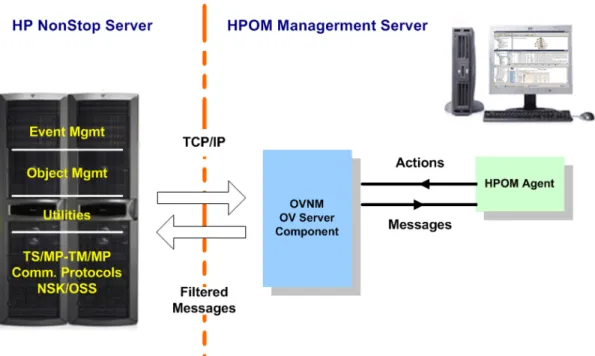
The HP Operations Agent for NonStop enables you to integrate HP Operations Manager with the HP NonStop System.Figure 1-1 Integration between HP Operations Manager and HP NonStop System
Integrating OVNM and HP Operations Manager 10 Figure 2-1 gives an overview of how OVNM integrates HP Operations Manager and a HP NonStop System. It shows that:
1. OVNM is an integrated set of modules with both Event Management and Object Management modules installed on the HP NonStop Server.
2. OVNM accepts messages from HP NonStop Server and forwards them to HP Operations Manager. 3. Action requests that are based on the NonStop messages are passed on to the HP NonStop server through
OVNM.
4. OVNM accepts the action responses from the HP NonStop server and updates the HP Operations Manager Management console.
5. OVNM can be used to configure the HP NonStop system objects’ monitoring parameters, thus providing object management.
OVNM discovers and monitors the status and health of HP NonStop hardware & software peripherals and standard & third party applications. Its collection sources span system messages, application messages, and log files. OVNM applies filters to messages to propagate critical/important messages to the HP Operations Manager console, thereby making the information data stream more efficient.
1-4 Event Management through OVNM
Event Management is the OVNM module, which is concerned with the management of the HP NonStop EMS messages.
For details on the Event Management System (EMS), refer to the Introduction to EMS topic.
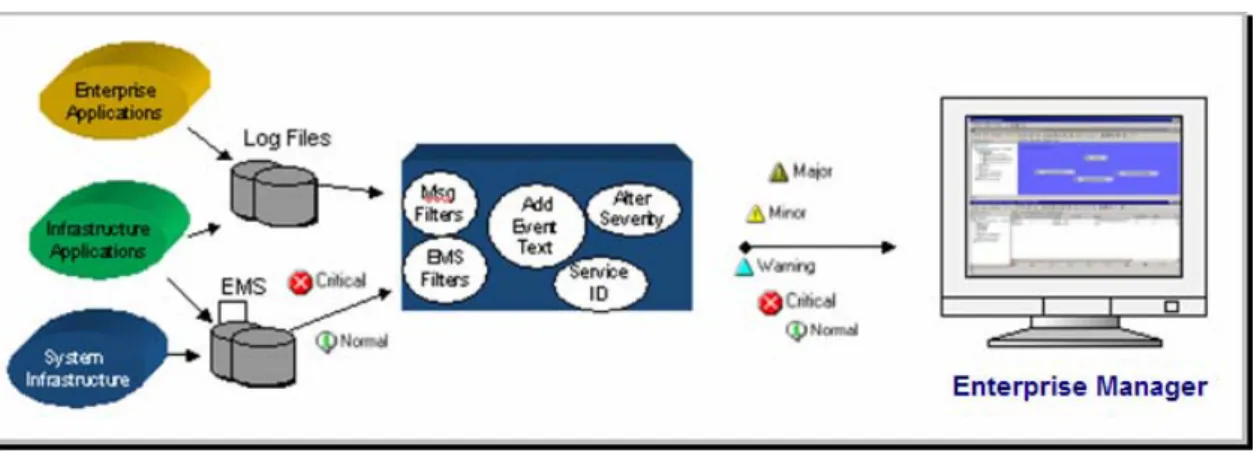
With HP NonStop systems generating events at an extremely fast pace, manual operators are bound to loose events which may have adverse effects on the overall organizational productivity. OVNM’s powerful Event Management functionality allows event messages generated by the HP NonStop system to be forwarded after selective burst suppression and event filtering to the HP Operations Manager Message Browser and console. Figure 1-2 Event Management
Figure 2-2 provides an overview of the OVNM Event Management capabilities. The NonStop event integration facilitates:
• Event processing for all subsystems, EMS events and application generated log files.
• Filters allowing for message selection.
• Ability to add additional message text along with alteration of message severity.
• The ability to map NonStop events to service names within HP Operations Manager.
• The ability to take automatic or manual actions into the NonStop Server from the HP Operations Manager console.
Integrating OVNM and HP Operations Manager 11
1-5 Event Integration and OVNM Agents
OVNM Agents collect HP NonStop event message and package the EMS messages into a defined data structure. These messages are then mapped into the HP Operations Manager environment. These HP NonStop event message are collected and monitored according to predefined rules and filters. The actions performed on the mapped events are then forwarded to the OVNM server components through OVNM agents. OVNM agents are also responsible for configuring OVNM server components for monitoring HP NonStop systems.
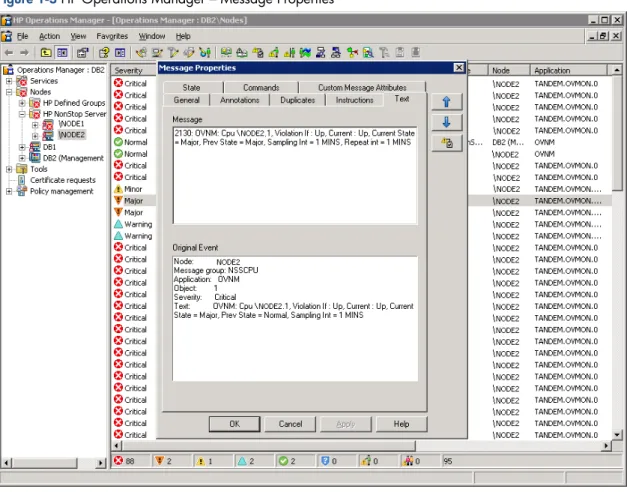
OVNM NSS SPI Agent is responsible of collecting HP NonStop system events and then feeding into the HP Operations Manager Event Browser.
Figure 1-3 HP Operations Manager – Message Properties
HP NonStop Event Management System 12
2 HP NonStop Event Management System
2-1 Introduction to EMS
The Event Management Service (EMS) is a collection of processes, tools, and interfaces that support the reporting and retrieval of event information.
Information retrieved from EMS helps you to:
• Monitor your system or network environment
• Analyze circumstances that led to a problem
• Detect failure patterns
• Adjust for changes in the run-time environment
• Recognize and handle critical problems
• Perform many other tasks required to maintain a productive computing operation
EMS is a major component of NonStop Kernel system management and was originally released on the D series as part of the HP Distributed Systems Management (DSM) product group, which is described in the Introduction to Distributed Systems Management (DSM).
EMS is used on both D-series and G-series releases of the NonStop Kernel.
2-1-1 EMS in the System Environment
EMS runs as a layer between the subsystem environment and the operations environment:
• In the subsystem environment, subsystem software directly controls resources (such as communication lines, files, and processes). Subsystems can be HP products such as Pathway, components of DSM such as ViewPoint, or user-written programs.
• In the operations environment, operations staff and specialized application programs (known as management applications) obtain information needed to manage the system or network.
In the requester-server model, EMS acts as a server to both layers. It responds to requests from the subsystem layer to accept and log event information, and responds to requests from the operations environment to retrieve certain event information as needed.
Because events can occur at any time, a process that logs (or collects) events must run continuously. This process, the primary collector ($0), is installed when the system is generated. EMS allows only one primary collector on each node of a network.
In addition to the primary collector, you can define alternate collectors to provide separate logging facilities for sorting selected events in separate log files. You can define as many alternate collectors on a system as you want, and you can start or stop them whenever you want.
You retrieve events from log files by running EMS processes called distributors. You can initiate and terminate distributors as dictated by your operations environment needs.
HP NonStop Event Management System 13 Figure 3-1 is a simplified diagram of the EMS layer, its components, and their relationships to the subsystem and operations environments.
Figure 2-1 EMS in the System Environment
2-1-2 EMS Communications in the DSM Environment
EMS uses two types of interfaces to communicate with other components of DSM (for example, ViewPoint) and with processes that use DSM to manage a system or network:
• EMS Interface
This interface manages event reporting in a system or network. It is the mechanism used to send event messages to EMS. Subsystems, HP or user-written applications, and DSM processes (such as ViewPoint and DNS) use it to send event information to the EMS primary collector by subsystems. EMS processes
themselves use this interface to report event information to the primary collector.
• Command-Response Interface
This interface is used to issue commands and receive responses about resources in a system or network. HP or user-written management applications can use the command-response interface. For example, a
management application can issue a command to a subsystem to open a communication line. Figure 3-2 is a simplified diagram of the lines of communication between the components of a DSM system. Figure 2-2 EMS and Command-Response Interfaces
The major EMS processes (such as collectors and distributors) are controlled through the command-response interface.
Both the EMS and command-response interfaces are based on the Subsystem Programmatic Interface (SPI) message format. (See the SPI Programming Manual.) The common message format for event messages and commands supported by SPI simplifies the learning and programming tasks for programmers who deal with both interfaces.
HP NonStop
Event
HP NonStop Event Management System 14 Because the interfaces differ in purpose and use, they also differ in certain key characteristics:
• Initiator
In the command-response interface, the management application initiates communication with the subsystem. The operator or management application also controls the flow of information, issuing the commands necessary to accomplish the desired task.
In the EMS environment, the subsystem initiates communication, at least for reporting an event to EMS. Although operators and management applications can control how much information they request from EMS, they do not control the flow of information into EMS itself.
• Communication pattern (synchronous or asynchronous)
The command-response interface supports a dialog between a management application and a subsystem. The management application starts a synchronous session with a subsystem by opening the appropriate subsystem process and sending command messages. For each command, the subsystem returns a response message. The management application and the subsystem communicate synchronously, in a one-command, one-response dialog.
The EMS interface is unidirectional and asynchronous. Operators and management applications cannot use EMS to send information to subsystems, and subsystems report event information regardless of whether or not an operator or management application is interested in that information at the moment.
• Variable urgency
In general, commands are treated as equally urgent, in that each must be completed before the next one is issued. The operator or management application determines what command to issue next. To the
subsystem, a request for status information is no less important or urgent than a request to stop all objects immediately.
In EMS, although operators and management applications control the retrieval and use of EMS information, subsystems can use certain EMS-defined conventions to convey significance or urgency. These conventions are needed to emphasize certain conditions that the operator or management application might otherwise not recognize as significant in the continuous flow of event information.
Because of its unique characteristics, the EMS interface is a valuable complement to the command-response interface. The two interfaces together can provide a wide range of management services. For example, you can use EMS to monitor a large array of subsystems. Then, when a significant situation arises, you can use the command-response interface to initiate a dialog with the appropriate subsystem.
2-1-3 EMS Capabilities and Features
The primary function of EMS is to collect and distribute event messages. Event messages are a special category of SPI messages used to convey information about events, which are significant occurrences in the subsystem environment.
Event messages report many occurrences and conditions, such as:
• Changes in the subsystem environment
• Errors encountered during continuous operation (as opposed to errors encountered during an interaction with a user or application, which are usually reported directly to the user or application)
• Conditions that might lead to a problem if not corrected
• Situations requiring operator intervention
• Significant losses of function or resources
• Indications of why a process terminated
Event messages can be reported by HP NonStop subsystems or subsystems you write. They are subsystem specific, and hundreds of different event messages are produced by HP NonStop subsystems alone. Although this wide range of messages provides the diversity and depth of information required to manage systems and networks, it also creates the need for tools to manage the event messages themselves.
HP NonStop Event Management System 15
Basic Capabilities
EMS supports many aspects of managing event messages, from generation of a message in the subsystem environment to generation of text for display in the operations environment. This list describes the basic EMS capabilities, in the approximate order in which they would apply to a single event message:
• Message building
EMS includes several library procedures that HP NonStop subsystems, and subsystems you write use to build event messages. One procedure initializes a buffer, ensuring that a message has the correct format and providing some of the standard information found in all event messages. The subsystem then calls other procedures to add different kinds of information to the event message.
• Message collection, filtering, and logging
The EMS primary and alternate collectors accept event messages from subsystems, use pre-log filtration (PLF) for specific event messages, use burst detection and suppression (BDS) to suppress specified types of event bursts, and write unfiltered events to log files. Pre-log filtration makes use of compiled filters or filter tables to totally suppress the logging of certain event types.
• Message filtering and distribution
The EMS distributor processes provide:
• Selection (or filtering) of event messages
• Use of burst filters to implement BDS on specified types of event bursts
• Distribution of event messages to their destination devices
As with collector filters, filtering in distributors is the process of evaluating event messages and selecting only those in which a particular requester has expressed interest. Distribution is the returning of a selected event message to a requester through the appropriate interface. EMS can distribute event messages to processes, files, collectors on other nodes, and display devices such as terminals and printers.
• Text formatting
EMS includes a procedure that returns text suitable for display to an operator.
Key Features
EMS has many significant characteristics that help you manage your system or network:
• Subsystem generality
Each EMS message has a number of elements called tokens. Each token consists of a data value and an associated tag that identifies the data value. All subsystems use tokens to build event messages, thus ensuring that messages have the same general format and present similar information in similar ways. For example, EMS requires that all subsystems specify the subject of the event (the primary component involved in the event) in an event message. Thus, a management application can always locate the subject token by requesting it in a standard way. Also, EMS defines conventions for reporting critical events and action events (situations requiring operator action) to ensure that these types of events are recognized in the operations environment.
• Ease of use
Interfaces to EMS use standard file-system procedure calls and, where applicable, standard SPI message formats and conventions. To help you write subsystems that report events, EMS includes procedures that initialize and add tokens to event messages. To help you obtain text for display, EMS includes a procedure that returns the text defined for an event message.
HP NonStop
Event
HP NonStop Event Management System 16 • Versatility
You can use EMS for many types of applications because of the variety of options it provides:
• EMS supports applications that monitor events as they occur, as well as applications that analyze logs of event messages reported in the past.
• Distributor processes are provided for communicating event messages to management applications, forwarding event messages from one node to another, and displaying event-message text on printers and other display devices.
• Filtering lets you select event messages of interest to each application, based on whatever event-message tokens and values you choose.
• EMS provides event information in token form for programmatic use or in text form for operator display. Event information in token form is also known as tokenized event information. Tokenized event
information consists of machine-readable tokens that are generated by the primary collector ($0). Untokenized messages are used to provide compatibility with pre-EMS systems.
• EMS supports both HP NonStop and user-written subsystems. If the user-written subsystems running on your system or network follow the same conventions as HP NonStop subsystems, EMS can provide you with an integrated picture of the subsystem environment.
• Configuration flexibility
EMS supports a wide variety of configurations, so you can select the configuration that best meets the requirements of your data processing environment:
• EMS lets you distribute event-message processing among network nodes and among processors on a single node. Event messages can be distributed from one node to another. SPI interfaces, such as those used to control EMS processes and those used to retrieve event messages, can cross node boundaries.
• You can have any convenient number of distributors on a system.
• Collector processes support many configuration options to let you tailor the logging strategy according to your requirements for performance, reliability, and use of resources.
• In general, both interactive and programmatic methods are provided for configuring and controlling collector and distributor processes.
• Reliability
Both collector and distributor processes can run as process pairs, enabling them to run continuously through any single-component failure. Collector processes are designed to log more than 50 event messages per second without overloading. (Collector performance highly depends on the type of system on which the collector is running and on the settings of various configuration options.
• Extensibility
The token-based message format lets subsystems add information to existing event messages without requiring that applications accessing those messages be reprogrammed.
2-1-4 Applications of EMS
EMS is a set of tools that you can apply to any of several system or network management tasks, including these application areas:
• Monitoring a running network or system
You can use the ViewPoint application or your own management application to recognize situations needing attention as they arise. Depending on the problem and the sophistication of the application, the operator or application can resolve the problem through the appropriate command response interface.
• Managing operator tasks
You can use a management application, or a distributor that routes messages to a display device, to select and display action event messages—those requesting operator attention. If operators see an integrated picture of the required tasks, they can focus on accomplishing the tasks, not on finding out what they are.
• Analyzing problems
To determine what went wrong and why, you must often retrace a series of events leading up to the problem condition. Log files, filters, and other EMS components can help you or your service provider by providing the historical record and the tools needed to sift through it.
• Detecting potential problems in advance
You can write a management application to analyze collector log files. Have it look for repeated warnings or persistent minor problems that singly would not require a recovery action but might disclose a
HP NonStop Event Management System 17
2-2 EMS Components and Architecture
This section describes the processes, files, and interfaces that together provide the event management capabilities described in Introduction to EMS section.
Before working with the process architecture, you must understand more about event messages because they are what EMS exists to manage.
2-2-1 Event Messages
Event messages are based on tokens that convey information about events, which are significant occurrences in the subsystem environment.
Because of their token structure, event messages are much more convenient and efficient for applications to process than text messages. Information is easier to find and in a more convenient form. Character-by-character scans or conversions to internal form—typically required by text messages—are not required by event messages. In addition, EMS provides facilities that derive display text from message tokens. Therefore, with EMS, event information can be presented both to operators and to applications in the format most appropriate to each. Another advantage of event messages is that they are subsystem specific, so the information they contain can be tailored to provide an exact and complete specification of the event circumstances.
Before EMS, the NonStop Kernel supported only text messages (numbered and unnumbered console messages). These messages are still supported for the benefit of subsystems and applications that have not yet migrated to EMS. These messages have the subsystem ID of EMS and have event numbers in the range 1 through 512.
2-2-2 Information Contained in Event Messages
A subsystem generates an event message whenever it detects a significant occurrence. The subsystem sends the event message to EMS, which stores the event message indefinitely (depending on how long the log files are kept).
An event message includes many kinds of information besides what happened, such as:
• Information about the message itself
For example, the message contains a value identifying it as an event message (as opposed to a command or response message), a count of how long the message is, and a time stamp indicating when the message was generated.
• Information about the subsystem reporting the message
All event messages include a subsystem identifier, process identifiers, and other relevant information about the creator of the message.
• Information specifying how the message should be handled
EMS includes some conventions that determine how each message is interpreted after it is reported. These conventions, triggered by certain token values, include whether the message is critical and whether operator action is required.
• Information about the actual event (occurrence)
Every event message includes an event number that uniquely identifies that type of event message among all the types that the subsystem is capable of generating. The event number is the primary indication of what happened (printer out of paper, line down, takeover by backup process, and so on).
Also, every event message includes a subject: the name or number of the hardware or software component most directly involved in the event. Beyond this information, the subsystem usually includes relevant details, such as error codes, disk addresses, pool sizes, or whatever information might serve to explain the error further.
• Additional context
Because an event message might be examined long after the event it is reporting occurred, the subsystem sometimes includes details about its environment, such as the active path to the device or the name of a file or process it has open, even if the path, file, or process is not directly involved in the event. This contextual information can help you when analyzing a problem to link seemingly unrelated event messages into a meaningful pattern.
HP NonStop
Event
HP NonStop Event Management System 18 The exact contents of all messages generated by a subsystem are described in the management programming manual for that subsystem (which is often a separate book with that title). For example, the event messages for Pathway are described in the TS/MP and PATHWAY Management Programming Messages Manual. This manual describes event messages for EMS itself.
Special Kind of Messages
There are two special categories of events:
• Critical events are indicated by assigning the value TRUE to the emphasis token.
• Action events are indicated by including an action-needed token.
Messages with neither of these indicators are reporting events that are neither critical events nor action events. Subsystems rarely report an event that is both a critical event and an action event.
Critical Events
A subsystem designates an event as critical when the consequences of the event might be severe. The subsystem itself cannot accurately determine what conditions you would consider severe for your particular system or network.
For example, you might not consider loss of a rarely used data communication line between two test systems a critical situation, but you would consider loss of a heavily used line between two production systems as critical. These situations look identical to the subsystem. The best the subsystem can do is to identify potentially critical situations and let you (with the help of programmatic tools you select) make the final determination.
Subsystems typically identify these events as critical:
• Potential or actual loss of data
• Loss of a major subsystem function
• Loss of a fault-tolerance capability, such as a redundant resource or failure recovery function
• Loss of subsystem integrity (for example, an unrecoverable internal error in a subsystem)
To indicate a critical event, the subsystem assigns the value TRUE to the ZEMS-TKNEMPHASIS token. The ViewPoint application highlights critical events in its event display. (For details, see the ViewPoint Manual.)
Action Events
A subsystem reports an action event when a situation arises that the subsystem cannot resolve without operator intervention. For example, a subsystem might report an action event when it cannot proceed until a tape is mounted or a printer ribbon is replaced.
Action events are reported in pairs of event messages. The first message, called an action-attention message, reports the problem. The second message, called an action-completion message, reports that the appropriate action has been taken. (In some cases, the subsystem can directly detect that the situation has been corrected. In other cases, the operator has to inform the subsystem of the action taken.)
Action events are designated by the presence of the ZEMS-TKN-ACTION-NEEDED token:
• The value TRUE designates an action-attention message.
• The value FALSE designates an action-completion message.
Another token, ZEMS-TKN-ACTION-ID, should be included in each pair of attention and action-completion messages with the same value in each message. (If the subsystem generates the action-completion message, it includes the correct action ID automatically.)
The action ID lets the operator or management application retrieving an action-completion message identify the action-attention message to which it corresponds.
The ViewPoint application counts and highlights action-attention messages in its event display,
decrementing the count and dimming the message when the corresponding action-completion message is retrieved. (For details, see the ViewPoint Manual.)
HP NonStop Event Management System 19
Flow of Event Messages
Two types of EMS processes manage the flow of event messages from the subsystem environment to the operations environment:
• Event Message Collectors accept event messages from subsystems and log them. Pre-log filtration (PLF) lets a primary or alternate collector use one or more filters to detect and discard all event bursts with specified attributes or specific unwanted events that would otherwise be sent to the collector’s log file.
• Event Message Distributors filter event messages and return selected messages to the operations environment.
HP NonStop
Event
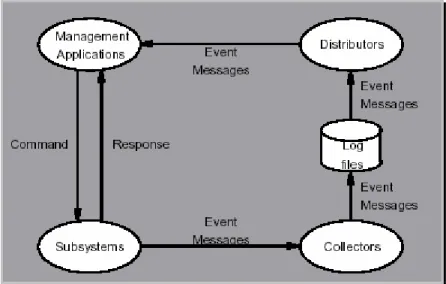
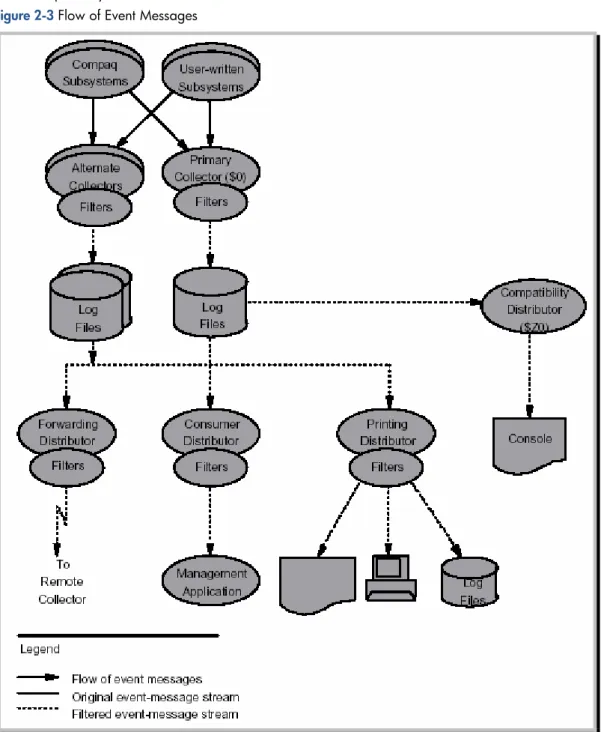
HP NonStop Event Management System 20 Figure 3-3 shows the flow of event messages in a system:
1. Messages originate in the subsystems.
2. The subsystems send the messages to the primary and alternate collector processes. 3. Collectors write passed event messages to the log files.
4. Distributors retrieve selected messages from the log files and send them to processes, printers, terminals, and other destinations in the operations environment.
The four kinds of distributors are each suited to a particular set of destination requirements:
• Forwarding
• Consumer
• Printing
• Compatibility
HP NonStop Event Management System 21
2-2-3 EMS Message Collectors
EMS supports two types of event message collectors.
Primary Collector ($0)
Each system (or node) has only one primary event message collector, named $0. The primary collector, initiated at system generation, provides a central collection point for all events from all subsystems in a system. $0 uses the $ZOPR process to perform waited operations. $ZOPR is a continuous process that, like $0, exists on every node and is initiated at system generation. $ZOPR has no user interface and is used only as described here.
Alternate Collectors
Alternate collectors offer an alternative to the central collection point provided by the primary collector, $0. Alternate collectors provide functions similar to those supplied by $0, but each alternate collector maintains its own log files. The separation of events into several log files speeds up event processing because a network application program does not have to read a single large file containing many events unrelated to that application.
Some features of alternate collector usage are:
• One or more alternate collectors can be started on a system.
• An alternate collector is typically started by entering a TACL RUN command.
• An alternate collector is a named process (or process pair) with a name you define when you initiate it.
• An alternate collector accepts EMS events sent to it rather than to the primary collector.
• An alternate collector writes tokenized events to a log file. This file is identical in structure to the log files maintained by the primary collector.
2-2-4 Event Message Collector Functions
The primary and alternate collectors provide:
• Subsystem support
• Pre-log filtration (PLF)
• Log file management
• Distributor support
Subsystem Support
Subsystems and user-written applications send event information to the primary and alternate collectors by means of the WRITEREAD procedure call. Event messages are based on tokens rather than text.
Pre-Log Filtration (PLF)
Pre-log filtration lets primary and alternate collectors use EMS filters to determine whether specific events should be logged to the EMS log files. Judicious use of PLF conserves disk space and system resources that might otherwise be required to write unnecessary or redundant events to the EMS logs.
PLF is implemented by adding one or more filters to a collector:
• Compiled filters and filter tables can fail one or more particular events, thereby preventing the failed events from being forwarded to the collector’s log files.
• Burst filters can suppress event bursts based on burst size, duration, and other criteria (rather than the event type). Burst filters use the EMS burst detection and suppression (BDS) feature.
HP NonStop
Event
HP NonStop Event Management System 22
Log File Management
The collector writes messages to the log files. The collector writes messages one at a time or writes a number of messages to a buffer then writes that entire message group to the log file. The process of writing a group of messages to a buffer is known as blocking. Blocking significantly increases the speed at which messages are written to the log file.
Tasks associated with log switches (switching to using a new log file when the current file becomes full) are performed when the collector is idle; that is, when there are no events to log. The tasks include purging and deallocating (disk space) the old log file and preallocating (disk space for) the next log file.
Each collector maintains its log files according to parameters you specify. These parameters can vary for each collector, and they control the following log file variables:
• Disk volume and subvolume in which the log files are to be created
• Number of log files that can exist concurrently in one subvolume
• Primary-extent and secondary-extent sizes for each file
• Whether or not event messages are blocked before they are written to the log file
• Whether or not the file label is updated on disk each time the end of file is advanced
• Security attributes of the log files the collector creates
Primary Collector Log-File Attributes
The primary collector assumes default values for log file parameters at system generation. You can change the values programmatically through the collector's SPI ALTER or CONTROL commands or interactively through the EMSCCTRL utility.
Alternate Collector Log-File Attributes
You can assign values to the parameters that control alternate collector log files when you issue the RUN command to start the collector. If you do not specify a value for a log-file parameter, EMS uses a default value. You can change the values of some attributes programmatically by using the SPI CONTROL command or interactively through the EMSCCTRL program.
Distributor Support
In addition to logging event messages for retrieval by distributors, both the primary and alternate collectors support the forwarding, consumer, and printing distributors by:
• Notifying distributors when new event messages are logged
• Accepting event messages forwarded from another node by a forwarding distributor
2-2-5 EMS Message Distributors
Event-message distributors have three basic functions:
• Accessing one or more log files
• Filtering event messages
• Routing the selected event messages to the appropriate destination
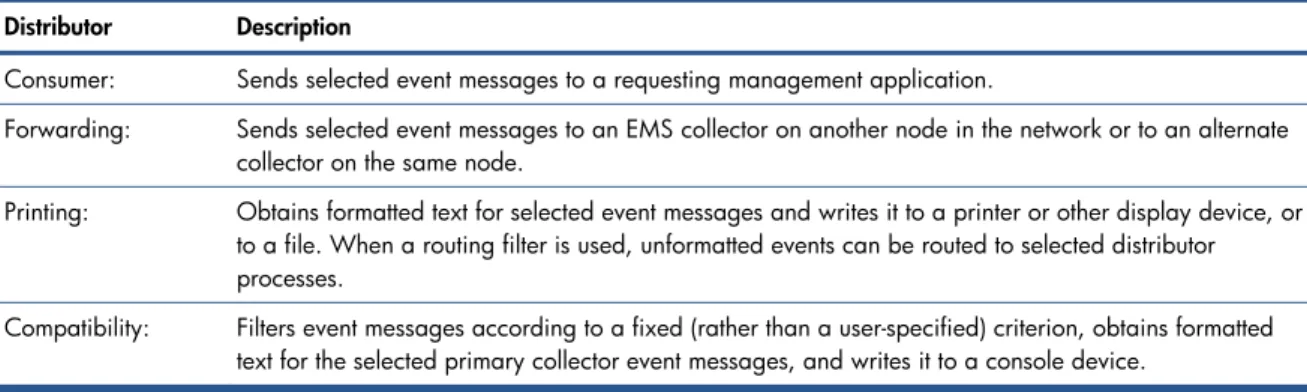
Depending on the nature of the destination, you can use one of four types of distributors: Table 2-1 Distributor Types
Distributor Description
Consumer: Sends selected event messages to a requesting management application.
Forwarding: Sends selected event messages to an EMS collector on another node in the network or to an alternate collector on the same node.
Printing: Obtains formatted text for selected event messages and writes it to a printer or other display device, or to a file. When a routing filter is used, unformatted events can be routed to selected distributor processes.
Compatibility: Filters event messages according to a fixed (rather than a user-specified) criterion, obtains formatted text for the selected primary collector event messages, and writes it to a console device.
HP NonStop Event Management System 23
Consumer, Forwarding, and Printing Distributors
In general, you can initiate and terminate consumer, forwarding, and printing distributors as needed. When you initiate a distributor, you can (in some cases, must) provide:
• The source of the event messages you want the distributor to process: the current primary or alternate collector log files (on a local or remote node) or a specific log file.
• The destination of event messages selected by the distributor (a display device, an EMS collector on another node, or a management application)
• The generation time stamp of the earliest event message you want the distributor to process (or none, if you want only the most recent event messages)
• The filter or filters you want the distributor to use to select event messages to be send to the destination
• The burst detection and suppression (BDS) criteria you want the distributor to use Not all option combinations are allowed and commonly used.
Compatibility Distributor ($Z0)
The compatibility distributor provides continuity between EMS and the prior console message mechanism and allows message viewing during system load. $Z0 is the only mechanism for viewing messages during system load.
Because its purpose is so specialized, the compatibility distributor is not initiated and controlled in the same way as other types of distributors. You can configure the compatibility distributor only during system generation, and only one compatibility distributor is allowed per system (node). The distributor can be stopped by the CDISTSTOP option of the EMSCCTRL utility.
2-2-6 EMS Filters
Every EMS collector and distributor (except the compatibility distributor) can use one or more filters to determine whether to forward specific event messages to their destinations. These filters can select messages in a way that is as detailed and complex as you want. For example, you can design an alternate collector that filters out all events of a certain type from its event log, a forwarding distributor that forwards only critical event messages, a printing distributor that prints only action event messages, and a consumer distributor that returns only Pathway event messages.
EMS collectors and distributors can use three types of filters.
Compiled Filters
You generate compiled filters from filter source statements contained in an EDIT file written in the Event
Management Service Filter (EMF) language. You then compile this filter specification to create the filter, which is returned as an object file.
Filter Tables
Filter tables are EDIT files you load into a collector or distributor. These tables are automatically converted to an object representation that is then evaluated for each event by a collector or distributor.
Burst Filters
Burst filters are filter tables that contain burst detection and suppression (BDS) configuration parameters. These parameter directives are saved in an EDIT file, which the collector or distributor converts to a filter object like they do for standard filter tables. When you add a burst filter to a collector or distributor, as a startup parameter or through the SPI ADD command, all event bursts that conform to the BDS configuration parameter values in the filter are suppressed.
Compared to compiled filters, filter tables (including burst filters) simplify the process of filter installation and modification. You can use filter tables instead of or combined with compiled filters. Because a compile step is not required, they are easier to maintain. Filter tables are especially useful when you need to filter events by
relatively simple criteria (for example, subsystem owner, subsystem ID, and event number) or when you need frequent and fast online updates of filter contents.
To make a filter for a collector or distributor, create an EDIT file containing the filter language constructs that express your selection criteria. For a compiled filter, you then use the filter-language compiler (EMF) to generate an object file suitable for loading to the collector or distributor. After the filter specification is loaded, the collector or distributor uses it to decide whether to pass each event message to its destination. The EMF compiler does not compile filter tables and burst filters. The collector or distributor converts them when they are loaded.
HP NonStop
Event
HP NonStop Event Management System 24
2-2-7 Text Formatting Tools
When passed an event message, the EMSTEXT procedure returns text in DSM display format. EMSTEXT performs these steps when it generates text for an event message:
1. If the event message points to a format template or contains a TEXT token: a. EMSTEXT checks first for a template.
For many HP NonStop and user-written subsystems, EMSTEXT generates display text from an event message by applying a format template found in a template file installed at system generation. The subsystem ID and event number of the message uniquely identify its template. For information on format templates and template files, see the DSM Template Services Manual.
b. If no template is invoked for this message, EMSTEXT checks for the TEXT token.
If EMSTEXT finds ZEMS-TKN-TEXT, it generates displayable message text from the token’s contents. This token appears in the tokenized messages that the collector generates from the pre-EMS-style messages issued by HP and user-written subsystems.
2. If there is no template for the message and it does not contain a TEXT token, but it was formerly a pre-EMS style (console) message, EMSTEXT assigns a subsystem ID of EMS and an event number between 1 and 512, and produces text based on what it was before EMS.
3. Finally, if it cannot produce any text, EMSTEXT returns one of four error messages:
EMSTEXT—No template and no TEXT token for event. SSID = subsystem-ID Event number = event-msg-ID [Subject = first-subject-value]
This message means no format template exists for the event message, it lacks the token ZEMS-TKN-TEXT, and it is not identifiable as one of the pre-EMS messages. first-subject-value is the formatted representation of the first subject token in the event message. This part of the error message does not appear if the data type of the first subject is one that EMSTEXT cannot format.
EMSTEXT—Bad event buffer: buffer-contents
This message means that the event message buffer contains invalid data. Some of it is displayed to help you diagnose the problem. buffer-contents is up to the first 60 words of the buffer in hexadecimal notation.
EMSTEXT—Template file problem (extstat1,extstat2): File [open] error - filename - problem-reason. SSID = subsystem-ID Event number = event-msg-ID [Subject = first-subject-value]
This message means an error occurred in opening or reading the template file. extstat1 and extstat2 are the two halves of the EMSTEXT extended-status code that defines the error. They are followed by “File open error,” or “File error” if the problem was a READ error, and then the template file name and a brief description of the reason for the error.
first-subject-value is the formatted representation of the first subject token in the event message.
This part of the error message does not appear if the data type of the first subject is one that EMSTEXT cannot format. (EMSTEXT can format most token types, such as file, device, string, and integer.)
NOTE: Applications should retry a call to open or read a template file if a timeout message is returned. A timeout is not a fatal error.
EMSTEXT error—(extstat1,extstat2) prevented display of event. SSID = subsystem ID Event number = event-msg ID [Subject = first subject value]
This message covers any case in which EMSTEXT cannot produce text from the event message. extstat1
and extstat2 are the two halves of the EMSTEXT extended-status code that defines the error. first
subject value is the formatted representation of the first subject token in the event message. This part of
the message does not appear if the data type of the first subject is one that EMSTEXT cannot format. A printing distributor or compatibility distributor calls EMSTEXT to create text for an output device and the ViewPoint application to create the text it displays. Any user application can call EMSTEXT. Applications that call EMSTEXT should have a minimum of five data pages (stack).
HP NonStop Event Management System 25
2-2-8 Definition Files
Like all subsystems that support SPI interfaces, EMS has its own DDL (Data Definition Language) file that defines the tokens, values, and data types used in event messages and in command and response messages relating to EMS. The DDL file is called ZEMSDDL, and its language-specific derivative files are called ZEMSTAL, ZEMSTACL, ZEMSCOB, and ZEMSC.
These files are of particular importance to EMS because they include definitions for some widely used tokens. For example, all subsystems that report event messages use the token ZEMS-TKN-EVENTNUMBER, and all programs that need to extract the event number from any event message also use the ZEMS-TKN-EVENTNUMBER token. Thus, the EMS definition files pertain to many subsystems besides EMS.
2-2-9 EMS Object Programs
HP provides two object programs for starting EMS components:
• EMSACOLL (EMS Alternate Collector) starts an alternate collector by invoking the TACL RUN command. Several command parameters are available to customize an alternate collector, including:
• SUPPRESS, which enables burst detection and suppression (BDS)
• FILTER, which identifies the compiled filters, filter tables, and up to one burst filter that can be added to the collector to implement pre-log filtration
• EMSDIST (EMS Distributor) is the object program for starting printing distributors, forwarding distributors, or consumer distributors. Like EMSACOLL, the EMSDIST program provides a number of command parameters, including the FILTER parameter.
2-2-10 EMS Utility Programs
HP NonStop provides three utility programs as part of EMS that provide an interactive means for controlling and inquiring about collectors and distributors:
• EMSCCTRL (EMS Collector Control) lets you change the values of options controlling the primary collector ($0), alternate collectors, and the compatibility distributor ($Z0). Among other things, these options control how a collector maintains its log files.
• EMSCINFO (EMS Collector Information) displays the current settings of the primary and alternate collector options, information about the status of the compatibility distributor, and statistics describing file operations and occurrences of event messages.
• EMSDINFO (EMS Distributor Information) displays the current settings of the distributor options, the status of event message sources and destinations, and statistics about filter operations and errors.
2-2-11 EMS Procedures
Several EMS-related procedures are available as part of the procedures library:
• Retrieve information from event messages
• Create event messages
Several procedures build event messages:
• EMSINIT initializes an event-message buffer, creating the correct header format for event messages and inserting standard information it derives from parameters and from other sources.
• EMSADDTOKENS and EMSADDSUBJECT put additional tokens and event message subjects in the buffer. Subsystems that report events use these procedures to create their event messages.
HP NonStop
Event
Filtering Events 26
3 Filtering Events
3-1 EMS Filters
HP NonStop server can have more then one distributor. Every distributor can use one or more collector and every EMS collector and distributor (except the compatibility distributor) can use one or more filters to determine whether or not to forward specific event messages to their destinations. These filters can select messages in a way that is as detailed and complex as you care to make it. For example, you can design an alternate collector that filters out all events of a certain type from its event log, a forwarding distributor that forwards only critical event messages, a printing distributor that prints only action event messages, and a consumer distributor that returns only Pathway event messages.
By default, OVNM distributors use the PASSALL filter, which passes all the messages, which are then forwarded to the HP Operations Manager console.
In order to establish a selective display of messages to the HP Operations Manager console, use the following methods:
1. Modify the PASSALL filter.
2. Write your own filter and use it in the Event server.
3-2 Filtering at the HP Operations Manager Console
The messages that appear in the active messages browser are received from the nodes managed by the management server, as configured by the administrator. However, by setting filters in HP Operations Manager, you can further customize this display to show only those messages that match the criteria you set.
Messages can be filtered using one or more of the following criteria:
• Message Text: Filter messages containing specific text.
• Severity: Filter messages of the selected severity.
• Ownership: Filter messages of various ownerships.
• Unmatched: Filter messages that either do or do not match any of the message conditions or suppressed conditions defined in the policies deployed on the managed nodes.
• Time: Filter messages created at particular dates and times.
• Application: Filter messages on the application message attribute.
• Object: Filter messages on the object message attribute.
Because you can select multiple properties for a filter, you can create a filter to display just those messages that matter most to you. For example, you could create a filter that would display only messages from a particular service on a particular node, created between specified dates and times.
You can name and save the filters you create and use them again. If you then save your workspace as an .msc file, the filters are saved as part of that customized view and are available whenever you are in that view. NOTE: HP Operations Manager Filtering causes messages to be sent to HP Operations Manager console for processing. This not only causes unnecessary network traffic, but also causes the HP Operations Manager Management Server to do extra processing. HP Operations Manager policy filtering is best used to assign an operator-initiated or automatic command.
Filtering Events 27
3-2-1 Create a New Filter
1. Select a HP NonStop node in the console tree.
Figure 3-1 HPOM Message Browser with a HP NonStop Node Selected
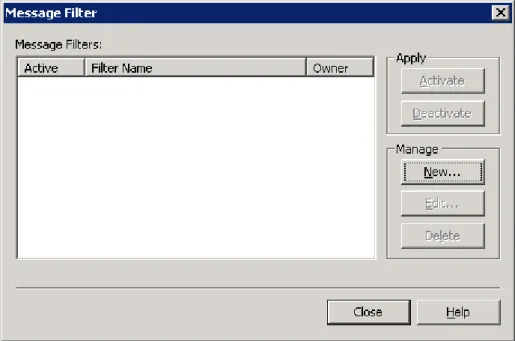
2. Click on the Message Filter icon on the console toolbar to open the Message Filter dialog box. Figure 3-2 HPOM Message Filter Dialog Box
You can also access the Message Filter dialog box using the ApplyMessage Filter option in the Action/All Tasks menu.
Filtering Even
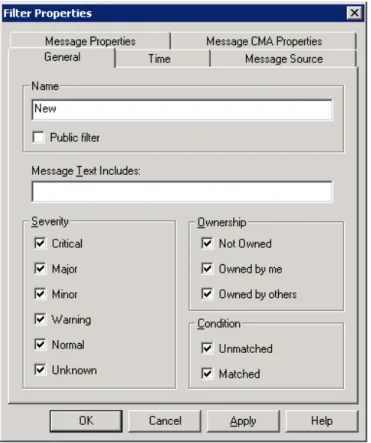
Filtering Events 28 3. Click on the New button to open the Filter Properties dialog box and specify filter properties in the
following areas using the respective tabs: a. General
b. Time
c. Message Source d. Message Properties e. Message CMA Properties
Figure 3-3 HP Operations Manager: Filter Properties Dialog Box
4. Click on the General tab of the Filter Properties dialog box to specify general information about a filter. All information is optional.
a. Enter a name for the filter in the Name box. Select Public filter check box to assign public rights to the existing filter. If the check box is not selected, it will by default be considered as a private filter. b. If you want to filter by message text, enter the text in the Message Text Includes box. Only messages
that contain this specified text would be displayed in the browser. For example, if you enter "error" in the Message Text Includes box, messages will be filtered on message text that contains the word "error," regardless of case.
c. To filter on severity criteria, check one or more check boxes in the Severity group. d. To filter on ownership criteria, check one or more check boxes in the Ownership group.
e. In the Condition criteria, check the Unmatched and/or Matched check boxes to filter for messages that either match or do not match any of the message conditions or suppressed conditions defined in the policies deployed on the managed nodes. Inform your administrator of any unmatched messages so that the corresponding message can be improved or corrective action provided.
You can combine several filtering criteria in one filter. For example, you could select both critical severity and unmatched criteria.
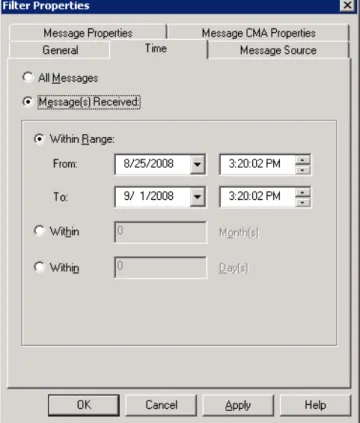
Filtering Events 29 5. Click on the Time tab of the Filter Properties dialog box to filter messages created on a particular date, at a
particular time, or during a specified time period.
Figure 3-4 HP Operations Manager: Filter Properties Dialog Box Time Tab Page
a. Select the All Messages radio button to display messages regardless of the time they were created. b. If you prefer to filter messages created at a specific time, on a specific date, or during a specific
interval of time, select Message(s) Received. Selecting this radio button enables various options in the Message(s) Received group.
c. To specify the time range, click on the Within Range radio button and select specific start and end dates by clicking the down arrows in the From and To date boxes to open the calendar.
In the calendar, click on the start date you want. The calendar closes and the date you selected appears in the From field. Repeat using the To date box to open the calendar again. Select an end date.
d. Select specific start and end times by clicking the down arrows in the From and To time boxes. Specify start and end times using the up and down arrows in the time fields. Place your cursor in the time area that you want to change (hours, minutes, or seconds) and use the arrows to increase or decrease the time and change from am or pm.
e. To filter by a time period such as months or days, rather than specific dates, select the Within Month(s)
or Within Day(s) radio buttons and enter the number of months or days you prefer.
Filtering Even
Filtering Events 30 6. Click the Message Source tab of the Filter Properties dialog box to filter for messages received from
specified message sources such as services and nodes. Only messages from the services and nodes you select will display in the message browser.
Figure 3-5 HP Operations Manager: Filter Properties Dialog Box Message Source Tab Page
Select one or more services or nodes from the Select Services, Nodes, or NodeGroups tree to display only messages from those nodes or services in the message browser. Services can be selected independently of their position in the tree's hierarchy.
If you select a node group, all nodes included in the group are also selected. To deselect an item, click the check box.
Filtering Events 31 7. Click the Message Properties tab of the Filter Properties dialog box to filter on application, object, and
message group properties. Only messages with those properties will display in the message browser. Figure 3-6 HP Operations Manager: Filter Properties Dialog Box Message Properties Tab Page
a. From the Browser Property dropdown list, select the attribute for which you want to filter. You can select one or more of the available choices. You can type in the application, object, or message group name in the Value box beside the list and then click on the Add button.
b. To remove a property from the list being filtered for, select the property and click on the Delete button. 8. Click on the Apply button in the Filter Properties dialog box to save the filter.
9. Click OK to apply your changes and close the Filter Properties dialog box.
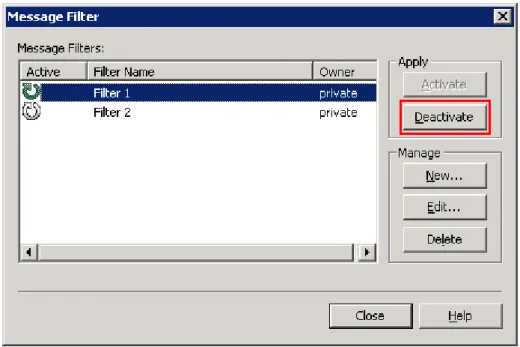
The filter name appears in the list of available filters in the Message Filter dialog box. If a filter is being used, its name is highlighted in the Active column of Message Filters list. Inactive filters appear dimmed. 10. If you want to apply the filter to the selected node in the active messages browser, click on the Activate
button in the Message Filter dialog box.
11. Click on the Close button to return to your console view. If you already have a message browser open, you should see only those messages that match the applied filter. The message browser status line shows which filter, if any, is applied.