Vivado Design Suite
Tutorial
High-Level Synthesis
Notice of Disclaimer
The information disclosed to you hereunder (the “Materials”) is provided solely for the selection and use of Xilinx products. To the maximum extent permitted by applicable law: (1) Materials are made available "AS IS" and with all faults, Xilinx hereby DISCLAIMS ALL WARRANTIES AND CONDITIONS, EXPRESS, IMPLIED, OR STATUTORY, INCLUDING BUT NOT LIMITED TO WARRANTIES OF MERCHANTABILITY,
NON-INFRINGEMENT, OR FITNESS FOR ANY PARTICULAR PURPOSE; and (2) Xilinx shall not be liable (whether in contract or tort, including negligence, or under any other theory of liability) for any loss or damage of any kind or nature related to, arising under, or in connection with, the Materials (including your use of the Materials), including for any direct, indirect, special, incidental, or consequential loss or damage (including loss of data, profits, goodwill, or any type of loss or damage suffered as a result of any action brought by a third party) even if such damage or loss was reasonably foreseeable or Xilinx had been advised of the possibility of the same. Xilinx assumes no obligation to correct any errors contained in the Materials or to notify you of updates to the Materials or to product specifications. You may not reproduce, modify, distribute, or publicly display the Materials without prior written consent. Certain products are subject to the terms and conditions of the Limited Warranties which can be viewed at http://www.xilinx.com/warranty.htm; IP cores may be subject to warranty and support terms contained in a license issued to you by Xilinx. Xilinx products are not designed or intended to be fail-safe or for use in any application requiring fail-safe performance; you assume sole risk and liability for use of Xilinx products in Critical Applications:
http://www.xilinx.com/warranty.htm#critapps.
[© Copyright 2012 Xilinx, Inc. Xilinx, the Xilinx logo, Artix, ISE, Kintex, Spartan, Virtex, Vivado, and other designated brands included herein are trademarks of Xilinx in the United States and other countries. All other trademarks are the property of their respective owners.
Revision History
The following table shows the revision history for this document.
Date Version Revision
Table of Contents
Chapter 1: Vivado HLS: Introduction Tutorial
Introduction . . . 4
Licensing and Installation . . . 4
Overview. . . 5
Starting Your Project . . . 6
C Validation . . . 13
Synthesizing and Analyzing the Design . . . 20
Bit-Accurate Design . . . 32
Design Optimization . . . 40
RTL Verification and Export. . . 52
The Shell and Scripts . . . 57
Chapter 2: Vivado HLS: Integrating EDK
Introduction . . . 60Reference Design . . . 61
Chapter 3: Vivado HLS: Integrating System Generator
Introduction . . . 93Software Application for Vivado HLS . . . 93
Create a Project in Vivado HLS for the FIR Application . . . 96
Create an RTL design . . . 103
Import the Design into System Generator . . . 108
Appendix A: Additional Resources
Xilinx Resources . . . 113Solution Centers. . . 113
Chapter 1
Vivado HLS: Introduction Tutorial
Introduction
This guide provides an introduction to the Xilinx® Vivado High-Level Synthesis (HLS) tool for transforming a C, C++, or SystemC design specification into a Register Transfer Level (RTL) implementation, which can be synthesized into a Xilinx FPGA.
This document is designed to be used with the FIR design example included with this tutorial.
This tutorial explains how to perform the following tasks using the Vivado HLS tool: • Create an Vivado HLS project
• Validate the C design
• Perform synthesis and design analysis • Create and synthesize a bit-accurate design • Perform design optimization
• Understand how to perform RTL verification and export • Review using the Vivado HLS tool with Tcl scripts
Licensing and Installation
The first steps in using the Vivado HLS tool are to install the software, obtain a license and configure it. See the Xilinx Design Tools: Installation and Licensing Guide (UG978).
Overview
Overview
This document uses a FIR design example to explain how the Vivado HLS tool is used to synthesize a C design to RTL that meets specific hardware design goals.
Design Goals
The hardware design goals for this FIR design project are to: • Create a version of the design with the smallest area
• Create a version of this design with the highest throughput
The final design should be able to process 8-bit data supplied with an input valid signal and produce 8-bit output data accompanied by an output valid signal. The filter coefficients are to be stored externally to the FIR design, in a single port RAM.
Tutorial Setup
Begin by copying the fir directory to a local work area.
Note: PC users: The path name to the local work area should not contain any spaces. For example, C:\Documents and Settings\My Name\Examples\fir is not a valid work area because of the spaces in the path name.
Table 1-1: Lab 1 File Summary
Filename Description
fir.c C code to be synthesized into RTL.
fir_test.c C test bench for the FIR design. It is used to validate that the C algorithm is functioning correctly and is reused by the Vivado HLS tool to verify the RTL.
fir.h Header file for the filter and test bench. in.dat Input data file used by the test bench. out.gold.dat
out.gold.8.dat
Starting Your Project
Learning Goals
This design example describes how to:
• Use the Vivado HLS Graphical User Interface (GUI) to create an Vivado HLS design project.
• Validate the C code within the Vivado HLS tool.
• Analyze the results of synthesis, understand the Vivado HLS reports, and be able to use the Design Viewer analysis capability.
• Apply optimizations to improve the design.
• Verify that the functionality of the RTL implementation matches that of the original C design.
• Export the design as an IP block to other Xilinx tools.
Optionally execute logic synthesis during the RTL Export process to evaluate the timing and area results after logic synthesis.
Starting Your Project
The Vivado HLS Graphical User Interface (GUI) is used to perform all operations in this design tutorial. The Tcl based interactive and batch modes are discussed at the end of the tutorial.
Opening the Vivado HLS GUI
To open the GUI, double-click on the Vivado HLS GUI desktop icon.
Note: You can also open the GUI using the Windows menu by selecting Start > All Programs > Vivado <version> > Vivado HLS GUI. The Vivado HLS group is shown in Figure 3-1.
X-Ref Target - Figure 1-1
Starting Your Project
Vivado HLS opens. The Welcome Page shows the primary starting points for Vivado HLS.
The Getting Started options are:
• Create New Project: Launches the project setup wizard.
• Open Project: Opens a window for you to navigate to an existing project.
• Open Recent Project: Gives you a list of recent projects, from which you can select one to open.
• Browse Examples: Open Vivado HLS examples. These can also be found in the examples directory in the Vivado HLS installation area.
The Documentation options are:
• Release Notes Guide: Opens the Release Notes for this version of software. • User Guide: Opens the Vivado HLS User Guide.
• Vivado HLS Tutorial: Opens the Vivado HLS Tutorials. X-Ref Target - Figure 1-2
Starting Your Project
Creating a New Project
1. In the Welcome Page, select Create New Project to open the Project Wizard, shown in
Figure 3-3.
2. Type the project name, fir.prj.
3. Click Browse to navigate to the location of the fir directory.
4. Select the fir directory and click OK.
5. Specify the top-level as C/C++.
Note: A SystemC project is only required when the top-level is a SystemC SC_MODULE. 6. Click Next.
The next window prompts you for information on the design files (see Figure 3-4). X-Ref Target - Figure 1-3
Starting Your Project
7. Specify the top-level function (fir) to be synthesized.
8. Click Add Files.
9. Specify the C design files. In this case there is only one file, fir.c.
10. Click Next.
Figure 3-5 shows the window for specifying the test bench files. The test bench and all files used by the test bench, except header files, must be included. You can add files one at a time, or select multiple files to add using the ctrl and shift keys.
X-Ref Target - Figure 1-4
Starting Your Project
11. Use the Add Files button to include both test bench files: fir_test.c and
out.gold.dat.
12. Click Next.
If you do not include all the files used by the test bench (for example, data files which are read by the test bench, such as out.gold.dat), RTL simulation might fail after synthesis
due to an inability to find the data files.
The Solution Configuration window (shown in Figure 3-6) allows the technical
specifications of the solution to be defined. A project can have multiple solutions, each using a different target technology, package, constraints, and/or synthesis directives. X-Ref Target - Figure 1-5
Starting Your Project
13. Accept the default solution name (solution1), clock period (10ns) and clock
uncertainty (defaults to 12.5% of the clock period, when left blank/undefined). 14. Click the part selection button to open the part selection window and make the
following selections in the drop-down filters: ° Product Category: General Purpose ° Family: Kintex®-7
° Sub-Family: Kintex-7 ° Package: fbg484 ° Speed Grade: -2 ° Temp Grade: Any
15. Select Device xc7k160tfbg484-2 from the list of available devices. 16. Click OK to see the selection made, as shown in Figure 3-6.
X-Ref Target - Figure 1-6
Starting Your Project
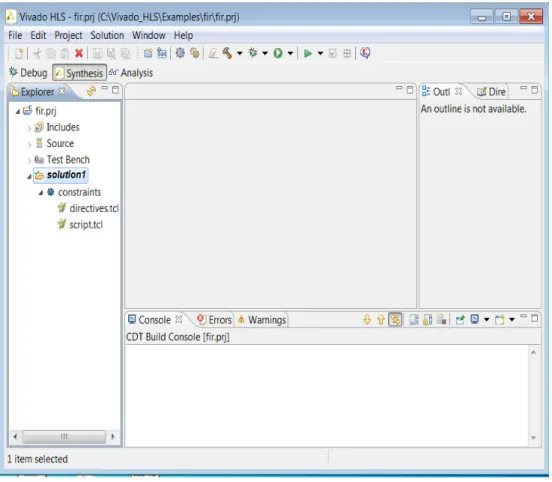
The Vivado HLS GUI opens with the project information included, as shown in Figure 3-7.
Note: You can see the project name on the top line of the Project Explorer pane. An Vivado HLS project arranges data in a hierarchical form.
• The project holds information on the design source, test bench, and solutions. • The solution holds information on the target technology, design directives, and
constraints.
• There can be multiple solutions within a project and each solution is an implementation of the same source code.
Note: It is always possible to access and change project or solution settings by clicking on the corresponding button in the toolbar, as shown Figure 3-8 and Figure 3-9.
X-Ref Target - Figure 1-7
Figure 1-7: Project GUI
X-Ref Target - Figure 1-8
C Validation
Summary
• You can use the Project wizard to set up an Vivado HLS project. • Each project is based on the same source code and test bench.
• A project can contain multiple solutions and each solution can use a different clock rate, target technology, package, speed grade, and more typically, different
optimization directives.
C Validation
You must validate the C design prior to synthesis to ensure that it is performing correctly. You can perform this validation using the Vivado HLS tool.
Test Bench
The test bench file, fir_test.c, contains the top-level C function main(), which in turn
calls the function to be synthesized (fir). A useful characteristic of this test bench is that it
is self-checking and returns a value of 0 (zero) to confirm that the results are correct. Some
other characteristics of this test bench are:
• The test bench saves the output from function fir into output file out.dat.
• The output file is compared with the golden results, stored in file out.gold.dat.
• If the output matches the golden data, a message confirms that the results are correct and the return value of the test bench main() function is set to 0.
• If the output is different from the golden results, a message indicates this and the return value of main() is set to 1 (one).
The Vivado HLS tool can reuse the C test bench to perform verification of the RTL. It confirms the successful verification of the RTL if the test bench returns a value of 0. If any
other value is returned by main(), including no return value, it indicates that the RTL
verification failed.
If the test bench has the self-checking characteristics mentioned above, the RTL results are automatically checked against the golden data. There is no requirement to create RTL in a test bench. This provides a robust and productive verification methodology.
X-Ref Target - Figure 1-9
C Validation
Types of C Compilation
The Vivado HLS tool provides two types of C compilation: Debug and Release.
• Code compiled for Debug can be used in the Vivado HLS debug environment.
• Code compiled for Release executes faster, because it has no debug information.
However, it cannot be used in the debug environment. This tutorial demonstrates both types of C compilation.
C Validation
You can perform C simulation to validate the C algorithm by compiling the C
function/design and executing it. This first example also opens the compiled C code in the Vivado HLS debug environment.
Figure 3-10 shows the Build button on the toolbar and the tool pop-up shows that the
current default build type is for a debug configuration.
1. Click the Build button, shown in Figure 3-10, to compile the design.
The output of the build process is shown in the Console Pane at the bottom of the GUI, as shown in Figure 3-11.
You can now execute the build to validate the C function before synthesis.
2. Click the drop-down arrow next to the Debug button (shown in Figure 3-10) and select
Debug Configurations.
This opens the Run Configuration dialog box shown in Figure 3-12. X-Ref Target - Figure 1-10
Figure 1-10: Build (Debug) Toolbar Button
X-Ref Target - Figure 1-11
C Validation
3. Expand C/C++ Application and select the fir.prj.Debug configuration (see
Figure 3-12). 4. Click Debug.
The build executes and you are prompted to move to the debug environment. 5. Select Yes.
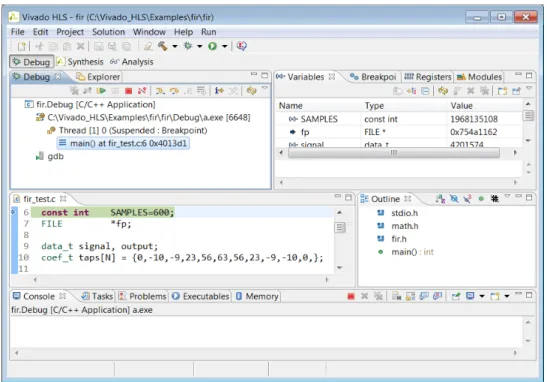
The debugger opens (see Figure 3-14). X-Ref Target - Figure 1-12
C Validation
The following steps describe using the debugger.
6. Step through the code by clicking the Step Into toolbar button, as shown in Figure 3-15. X-Ref Target - Figure 1-13
Figure 1-13: Debug Environment X-Ref Target - Figure 1-14
Figure 1-14: Debugger Window
X-Ref Target - Figure 1-15
C Validation
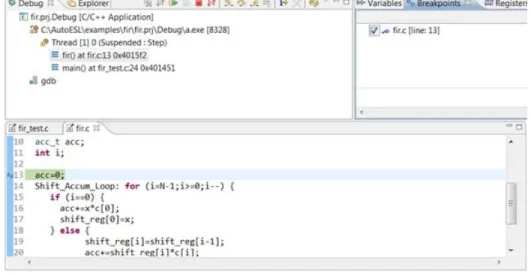
7. Continue stepping through the code until the debugger moves into the FIR code by clicking Step Into approximately nine times.
The code window looks like Figure 3-16.
8. To add a breakpoint, in the left-hand margin of the fir.c tab, double-click on line 13. A breakpoint indication mark appears to the left of the line number, as shown in
Figure 3-17.
9. To confirm the breakpoint has been added, open the Breakpoints tab, shown in
Figure 3-17.
10. Open the Variables tab, shown in Figure 3-18. X-Ref Target - Figure 1-16
Figure 1-16: Debug in the FIR Design
X-Ref Target - Figure 1-17
C Validation
X-Ref Target - Figure 1-18
C Validation
11. Click the Resume button to execute the code until the next breakpoint. The debugger stops each time it reaches line 13.
12. Adjust the Variables window to view the shift_reg variable. This updates the shift
register.
13. Click the Resume button multiple times.
14. Click the Terminate button, shown in Figure 3-19, to end the debug session.
15. Click Synthesis to return to the Synthesis perspective as shown in Figure 3-20.
16. Click the Run button, shown in Figure 3-21, to run the design and verify the results.
The results are shown in the console window (see Figure 3-22), indicating that the fir
function is producing good data and operating correctly. This example assumes that the golden data in the out.gold.dat file has already been verified as correct.
X-Ref Target - Figure 1-19
Figure 1-19: Terminate Button
X-Ref Target - Figure 1-20
Figure 1-20: Synthesis Perspective
X-Ref Target - Figure 1-21
Synthesizing and Analyzing the Design
Summary
• Validate the C code before high-level synthesis to ensure that it has the correct operation.
• You can enhance overall productivity using a test bench, which can self-check the results.
• You can use the C development environment in the Vivado HLS tool to validate and debug the C design prior to synthesis.
Synthesizing and Analyzing the Design
After C validation, there are three major steps in the Vivado HLS design flow: • Synthesis: Create an RTL implementation from the C source code.
• Co-simulation: Verify the RTL through co-simulation with the C test bench. • Export RTL: Export the RTL as an IP block for use with other Xilinx tools.
You can execute each of these steps from the toolbar as shown in Figure 3-23. Because Synthesis is the first step in this process, the Synthesis button is located on the left side.
The Simulation and Implementation buttons are located to the right of the Synthesis
button. Both simulation and implementation require that synthesis completes before they can be performed and so are currently grayed out in Figure 3-23.
X-Ref Target - Figure 1-22
Figure 1-22: C Validation Results
X-Ref Target - Figure 1-23
Synthesizing and Analyzing the Design
Synthesis
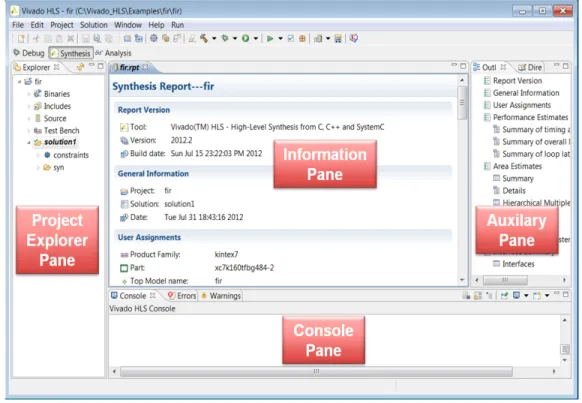
Your design is now ready for synthesis. Click the Synthesis button, as shown in Figure 3-23. When synthesis completes, the GUI updates with the results, as shown in Figure 3-24.
Now all the window panes in the GUI are populated with data. The panes are:
• Project Explorer: This pane now shows a syn container inside solution1, indicating
that the project has synthesis results. Expand the syn container to view containers report, systemc, verilog and vhdl.
The structure in the solution1 container is reflected in the directory structure inside
the project directory. Directory fir.prj now contains directory syn, which in turn
contains directories report, systemc, verilog and vhdl.
• Console: This pane shows the messages produced during synthesis. Errors and warnings are shown in tabs in the Console pane.
• Information: A report on the results automatically opens in the Information pane when synthesis completes. The Information pane also shows the contents of any files opened from the Project Explorer pane.
X-Ref Target - Figure 1-24
Synthesizing and Analyzing the Design
• Auxiliary: This pane is cross-linked with the Information pane. Because the information pane currently shows the synthesis report, the Auxiliary pane shows an outline of this report.
TIP: Click on the items in the Report Outline in the Auxiliary pane to automatically scroll the Information pane to that point of the report.
Table 1-2: Synthesis Report Categories
Category Sub-Category Description
Report Version --- Details on the version of the Vivado HLS tool used to create the results.
General
Information --- Project name, solution name, and when the solution was executed. User
Assignments --- Details on the technology, target device attributes, and the target clock period. Performance
Estimates Summary of timing analysis The estimate of the fastest achievable clock frequency. This is an estimate because logic synthesis and place and route are still to be performed.
Summary of
overall latency The latency of the design is the number of clock cycles from the start of execution until the final output is written. If the latency of loops can vary, the best, average, and worse case latencies is different. If the design is pipelined, this section shows the throughput. Without pipelining the throughput is the same as the latency; the next input is read when the final output is written.
Summary of
loop latency This shows the latency of individual loops in the design. The trip count is the number of iterations of the loop. The latency in this “loop latency” section is the latency to complete all iterations of the loop.
Synthesizing and Analyzing the Design
A section of the report is shown in Figure 3-25.
Area Estimates Summary This shows the resources (such as LUTS, Flip-Flops, and DSP48s) used to implement the design.
The sub-categories are explained in the Details section of this table. Details:
Component The resources specified here are used by the components (sub-blocks) within the top-level design. Components are created by sub-functions in the design. Unless inclined, each function becomes it’s own level of hierarchy. In this example there are no sub-blocks, the design has one level of hierarchy.
Details:
Expression This category shows the area used by any expressions such as multipliers, adders, and comparators at the current level of hierarchy.
Details: FIFO The resources listed here are those used in the implementation of FIFOs at this level of the hierarchy.
Details: Memory The resources listed here are those used in the implementation of memories at this level of the hierarchy.
Details:
Multiplexors All the resources used to implement multiplexors at this level of hierarchy are shown here. Details:
Registers This category shows the register resources used at this level of hierarchy. Hierarchical
Multiplexor Count
A summary of the multiplexors throughput the hierarchy.
Power
Estimate Summary The expected power used by the device. At this level of abstraction the power is an estimate and should be used for comparing the efficiently of different solutions.
Hierarchical
Register Count The estimated power used by resisters throughput the design hierarchy. Interface
Summary Interface This section shows the details on type of interfaces used for the function and the ports, such as port names, directions, and bit-widths.
Table 1-2: Synthesis Report Categories (Cont’d)
Synthesizing and Analyzing the Design
This report shows the initial solution to be: • Meeting the clock frequency of 10ns • Taking 79 clock cycles to output data • Using eight DSP48 blocks
• Using one BRAM memory block. X-Ref Target - Figure 1-25
Synthesizing and Analyzing the Design
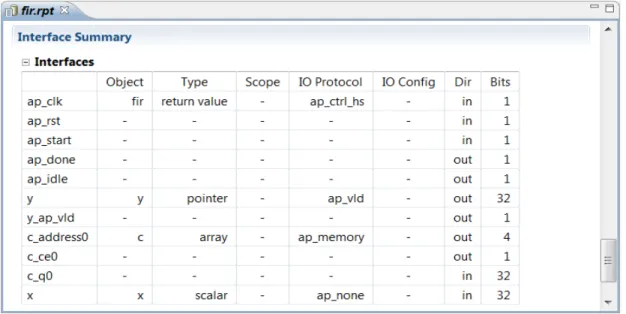
To view details of the interface, select Interface Summary from the Report Outline in the Auxiliary pane, or scroll down the report in the Information pane. See Figure 3-26.
Note the following:
• A clock and reset port were added to the design. • Block-level handshake ports were added.
° By default, block-level handshakes are enabled. These are specified by IO mode
ap_ctrl_hs and ensure that the RTL design can be automatically verified by the autosim feature.
° This IO protocol ensures that the design does not start operation until input port
ap_start is asserted (high), it indicates completion and its idle state by asserting ap_done and ap_idle, respectively.
• A single-port RAM interface is used for coefficient port, c.
° If no RAM resource is specified for arrays, Vivado HLS determines the most appropriate RAM interface (if a dual-port improves performance, it is used).
° In this example, a single port interface is required; therefore, it should be explicitly specified.
• The data output port, y, is by default using an output valid signal (y_ap_vld). This
satisfies the requirements on the output port.
• Data input port, x, has no associated handshake signal and requires a valid input.
X-Ref Target - Figure 1-26
Synthesizing and Analyzing the Design
Design Analysis: The Design Viewer
When synthesis has completed, you can use the Design Viewer to examine the design implementation in detail. You can invoke the Design Viewer can be invoked from the Vivado HLS toolbar (or from the Solutions menu).
To open the Design Viewer, click on the Design Viewer button, shown in Figure 3-27.
The Design Viewer opens, as shown in Figure 3-28.
The Design Viewer comprises three panes:
• Control Flow Graph: This pane is the closest to the software view and is the best place to begin analysis.
• Schedule Viewer: This pane shows how the operations are scheduled in internal control steps. These are mapped to clock cycles, and this view might not correlate exactly to clock cycles in all cases.
X-Ref Target - Figure 1-27
Figure 1-27: Design Viewer Button
X-Ref Target - Figure 1-28
Synthesizing and Analyzing the Design
• Resource Viewer: This view shows how the operations in the Schedule Viewer are mapped to specific hardware resources.
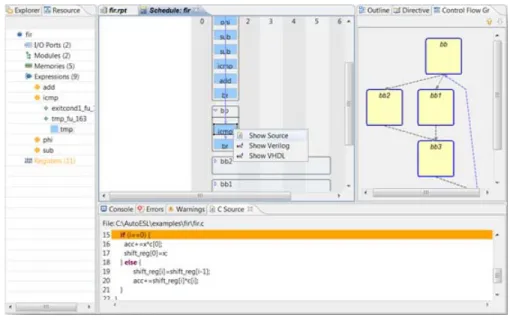
In the Control Flow Graph pane, double-click the Shift_Accum_Loop block and navigate down into the details of the loop, as shown in Figure 3-29.
When the Shift_Accum_Loop is selected, the corresponding items in the Schedule
Viewer are also selected.
Because the Control Flow Graph is closest to the software, this view shows how the design is operating. The flow is as follows:
a. The Shift_Accum_Loop loop starts in basic block bb.
b. The loop proceeds to either block bb2 or block bb1.
c. Both blocks (bb2 and bb1) return control to block bb3.
d. The loop ends in block bb4, which returns to block bb.
The following shows how you can use the Design Viewer to analyze the design:
1. In the Schedule Viewer, expand the first block, bb, by clicking on the arrow in the
top-left corner (beside the name bb); see Figure 3-29.
2. Select the icmp operator and right-click to see the pop-up menu (see Figure 3-30).
X-Ref Target - Figure 1-29
Synthesizing and Analyzing the Design
3. Select Show Source from the menu to view the source of this comparison operation in the C source code.
The source code opens, highlighting the comparison operation implemented by this comparator. This indicates that the highlighted comparator (and block bb) implements
the if-condition at the start of the loop.
The flow is explained here in more detail, using the other blocks in the design (bb1-4)
to give a more detailed understanding of how the code in the design is implemented, allowing the initial understanding of the code to be further developed:
a. The loop starts in block bb.
This is the if-condition at the start of the loop. Because it is a non-conditional for-loop, the loop must be started. The exit condition is checked at the end of the loop.
b. The loop proceeds to either block bb2 or block bb1.
Block bb2 is the else-branch inside the for-loop and performs two memory read
(load) operations, a memory write (store) operation, and a multiplication (mul).
- A load/read operation takes two cycles: one to generate the address and the other to read the data.
- A complete list of operators is available in the Vivado Design Suite User Guide: High-Level Synthesis (UG902) > High-Level Synthesis Operator and Core Guide chapter.
X-Ref Target - Figure 1-30
Synthesizing and Analyzing the Design
Block bb1 is the if-branch inside the for-loop and performs a single memory read,
write and multiplication. Both blocks (bb2 and bb1) return control to block bb3.
This block performs the accumulation common to both branches of the if-else statement.
c. The loop ends in block bb4, which returns to block bb.
Block bb4 is the loop-header, which checks the exit condition and increases the loop
iteration count.
The Resource Viewer shows more details on the implementation and lists the hardware resources in the design using the following top-level categories:
• Ports • Modules • Memories • Expressions • Registers
The items under each category represent specific instances of this resource type in the design; for example, a RAM, multiplier, or adder.
The items under each resource instance show the number of unique operations in the C code implemented using this hardware resource. If multiple operations are shown on the same resource, the resource is being shared for multiple operations.
Figure 3-31 shows a more detailed view of how the Resource Viewer shows sharing (or lack of it, in this case).
Synthesizing and Analyzing the Design
All the multipliers in this design are listed under mul in the Modules category. Each item in
the mul category represents a physical multiplier in the design (the name given is the
instance name of the multiplier in the RTL design).
In this example, there are two multipliers (grp_fu_*) in the design. You can do the
following actions:
• Select a multiplier in the Schedule Viewer to highlight which multiplier instance is used to implement it. If a register is also highlighted, it indicates the output is registered. • Expand each multiplier in the Resource Viewer to show how many unique multiplication
operations in the code (shown as blue squares) are mapped onto each hardware resource.
• Click on the operations (blue squares) to show that the mul operation in block bb1 is
implemented on one multiplier and the mul operation in block bb2 is implemented on
a different multiplier.
In this example, both multiplier resources are being used to implement a single multiplication (mul) operation and there is no sharing of the multipliers.
X-Ref Target - Figure 1-31
Synthesizing and Analyzing the Design
By contrast, examining the memory operations (load and store) in the Schedule Viewer
shows that multiple read (load) and write (store) operations are implemented on the
same memory resource. This also shows that array shift_reg has been implemented as a
memory.
Design Analysis Summary
Selecting the operations in the Schedule Viewer and correlating them with the associated elements in the Resource Viewer to show this design and the required optimizations/ changes can be summarized as follows:
• The implementation, like the C code, is iterating around loop Shift_Accum_Loop and
using the same hardware resources for each iteration.
° The main operation is six clock cycles through blocks bb, bb1/b2, bb3, etc.
repeated 11 times.
° This keeps the resource count low, because the same resources are used in every iteration of the loop, but it costs cycles because the iterations are executed one after the other.
° To produce a design with less latency, this loop should be unrolled. Unrolling a loop allows the operations in the loop to occur in parallel, if timing and sequential dependencies (read and writes to registers and memories) allow.
• In this design, the shift_reg array is being implemented in an internal RAM.
° Even if the loop is unrolled, each iteration of the loop requires a read and write operation to this RAM.
° By default, arrays are implemented as RAMs. The shift_reg array can, however,
be partitioned into individual elements. Each element is implemented by a register, allowing a shift register to be used for the implementation.
° Once the loop is unrolled, the Vivado HLS tool can perform this step automatically because it is a small RAM. All optimizations performed on the design are reported in the Console. However, because this is required, it is always better to explicitly specify it.
• The coefficient port c is using a single-port RAM interface.
° This is correct; however, because this is required, it is always better to explicitly specify it.
• Input port x is required to have an input valid signal associated with it.
° This port requires an IO protocol, which uses an input valid signal.
• There are two multipliers being used, but in the C code they are both in mutually exclusive branches.
° The Vivado HLS tool might not share components if the cost of the multiplexors could mean violating timing.
Bit-Accurate Design
° The timing is close in this example: 10ns minus 1.25ns, the default clock uncertainty. However, the only real way to be sure if they could be shared is to view the results after place and route.
° For this example, sharing is forced. This demonstrates a useful technique for minimizing area.
• Most importantly, The multipliers are taking four cycles each to complete! Additionally, only two multipliers are shown in the Resource Viewer, but the earlier report
(Figure 3-25) gave an estimate that six DSP48s are required.
The multiplication operations are using standard C integer types (32-bit) and it requires three DSP48s to implement a 32-bit multiplication. However, this design is only required to accept 8-bit input data.
IMPORTANT: Ensure that the C code is using the correct bit-accurate types before proceeding to synthesis or it can result in larger and slower hardware.
Before performing any optimizations on this design, you must modify the source code to the required 8-bit data types.
Summary
• When synthesis completes a report on the design, it automatically opens.
• More detailed and in-depth analysis of the implementation can be performed using the Design Viewer.
• In the Design Viewer, start with the Control Flow Graph and work towards the Resource Viewer for a complete understanding of how the C was implemented. The Schedule Viewer allows operations to be correlated with the C source and output HDL code.
Bit-Accurate Design
The first step in bit-accurate design is to introduce the bit-accurate types (also called arbitrary precision types), into the source code.
When arbitrary precision types are added to a C function, it is important to validate the design and ensure that it does what it is supposed to do (rounding and truncation are of critical importance) and validates the results at the C level.
The information to make the source code bit-accurate is already included in the example files.
Bit-Accurate Design
Update the C Code
Creating a New Solution
To preserve the existing results so they can be compared against the new results, create a new solution.
1. In the Vivado HLS GUI, select the New Solution button, shown in Figure 3-32.
The New Solution dialog box opens.
2. Leave the default solution name as solution2. Do not change any of the technology
or clock settings. 3. Click Finish.
The new solution, solution2, is created and opened.
4. Confirm that solution2 is highlighted in bold in the Project Explorer, indicating that it
is the current active solution.
Note: Open files use up memory. If they are required, keep them open; otherwise it is good practice to close them.
5. Close any existing tabs from previous solutions. In the Project menu, select Close Inactive Solution Tabs.
Bit-Accurate Types, Simulation, and Validation
The source already contains the code to use bit-accurate types. The header file fir.h
contains the following: #ifdef BIT_ACCURATE #include "ap_cint.h" typedef int8coef_t; typedef int8data_t; typedef int8acc_t; #else typedef intcoef_t; typedef intdata_t; typedef intacc_t; #endif
X-Ref Target - Figure 1-32
Bit-Accurate Design
This code ensures that if the macro BIT_ACCURATE is defined during compile or synthesis, the Vivado HLS header file (ap_cint.h), which defines bit-accurate C types, is included
and 8-bit integer types (int8) are used instead of the standard 32-bit integer types.
In addition, new 8-bit data types result in different output data from the fir function. The
test bench (fir_test.c) is also written to ensure that the output data can be easily
compared with a different set of golden results, which is done if the macro BIT_ACCURATE is defined.
#ifdef BIT_ACCURATE
printf ("Comparing against bit-accurate data \n"); if (system("diff -w out.dat out.gold.8.dat")) { #else
printf ("Comparing against output data \n"); if (system("diff -w out.dat out.gold.dat")) { #endif
IMPORTANT: In general, changing the project setting is not a good idea as the project settings affect every solution in the design. If solution1 is re-executed, it uses these new
project settings and gives different results. This technique is shown here for two reasons: to show it is a possible way to compare solutions, and to highlight that the results for
solution1 changes if it is re-executed and the project settings have been changed.
To ensure that the macro BIT_ACCURATE is defined for the C simulation and synthesis, the project setting must be updated.
1. Select the Project Settings toolbar button, shown in Figure 3-33.
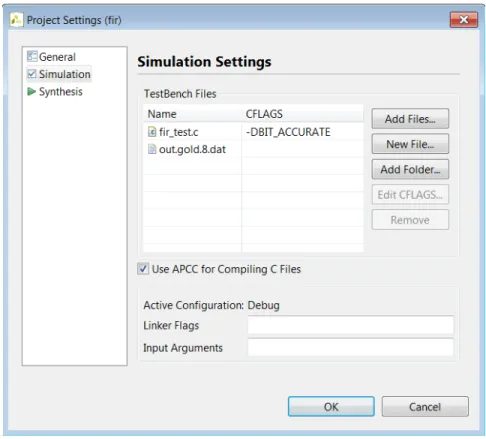
The next few steps describe updating the settings for the C simulation. 2. Define the macro BIT_ACCURATE by doing the following:
a. In the Simulation section of the Project Settings, select fir_test.c.
b. Click the Edit CFLAGS button.
c. Add –DBIT_ACCURATE to define the macro.
d. Click OK.
The CFLAGS section is used to define any options required to compile the C program. This example uses the compiler option –D; however, all gcc options are
supported in the CFLAGS section (-I<include path> etc.).
X-Ref Target - Figure 1-33
Bit-Accurate Design
Note: There is no need to include any Vivado HLS header files, such as ap_cint.h, using the include flag. The Vivado HLS include directory is automatically searched.
3. Update the data file used by the test bench by doing the following: a. In the Simulation section, select the out.gold.dat file.
b. Click the Remove button to remove the file from the project.
If macro BIT_ACCURATE is defined, this file is no longer used by the test bench and is not required in the project.
c. Click the Add Files button.
d. Add the out.gold.8.dat file to the project.
e. Select the Use AutoCC Compiler check box.
The warning dialog box opens, as shown in Figure 3-34.
Note: Designs compiled with AutoCC simulate with bit-accurate behavior but cannot be analyzed in the debug environment.
f. Click Yes to accept this warning.
The updated Simulation section is shown in Figure 3-35. g. Click OK.
The types used to define bit-accurate behavior in a C function require special handling and must be compiled using the Vivado HLS C compiler AutoCC. This is not required for
bit-accurate C++ and SystemC types, only bit-accurate C types. X-Ref Target - Figure 1-34
Bit-Accurate Design
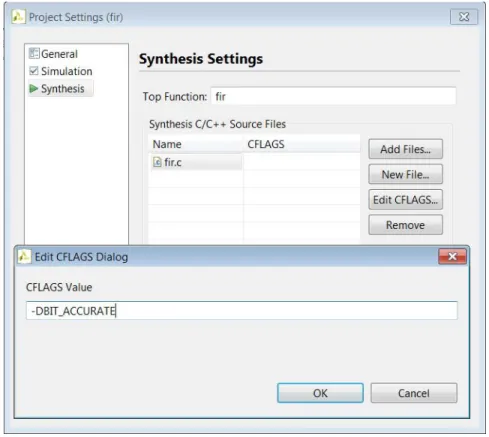
4. Ensure that the new C data types are correctly compiled by doing the following:
a. In the Synthesis section of the Project Simulation Settings dialog box, select source file fir.c.
b. Click the EDITCFLAGS button.
c. Add –DBIT_ACCURATE into the CFLAGS dialog box.
d. Click OK.
Figure 3-36 shows the settings for the CFLAGS to synthesize the design using bit-accurate types.
X-Ref Target - Figure 1-35
Bit-Accurate Design
The next step is to confirm that C function is validated with the new project settings. 5. Click the Build toolbar button to recompile the function.
6. Click the Run toolbar button to re-execute the C simulation. The output displays in the console window. See Figure 3-37.
The console now shows the message “Comparing against bit-accurate data” as specified in the test bench when the BIT_ACCURATE macro is defined.
X-Ref Target - Figure 1-36
Figure 1-36: CFLAGS Settings Dialog Box
X-Ref Target - Figure 1-37
Bit-Accurate Design
Synthesis and Comparison
Click the Synthesis toolbar button to re-synthesize the design.
When synthesis is re-executed for solution2, the results are as shown in Figure 3-38,
where only two DSP48s are used and the estimated clock frequency is now faster.
The effect of changing to bit-accurate types can be seen by comparing solution1 and solution2. To easily compare the two solutions, use the Compare Reports toolbar button
(see Figure 3-39). X-Ref Target - Figure 1-38
Figure 1-38: Synthesis Results Re-done
X-Ref Target - Figure 1-39
Bit-Accurate Design
1. Add solution1 and THEN solution2 to the comparison.
2. Click OK.
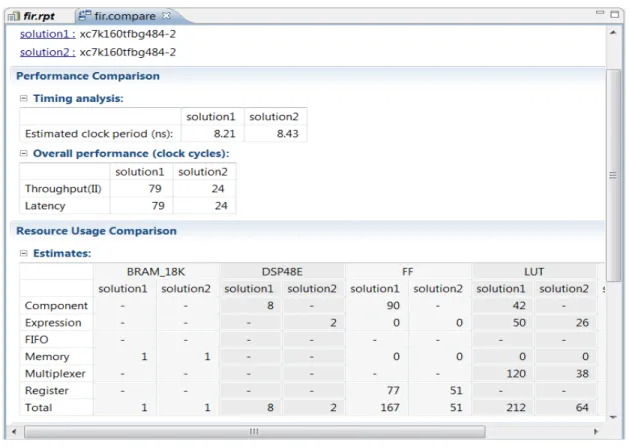
Figure 3-40 shows the comparison of the reports for solution1 and solution2.
Using bit-accurate data types has resulted in a faster and smaller design. Specifically: • The number of DSP48s has been reduced to only two.
• Because a single DSP48 is being used for each multiplication instead of four, each multiplication can be performed in one clock cycle and the latency of the design has been reduced.
• There has also been a reduction in the number of registers and LUTs, which is to be expected with a smaller data type.
It is worth noting the following subtlety in the reporting:
• In solution1, the multiplications were implemented as pipelined multipliers. These
are implemented as sub-blocks (or components) in the RTL and so the DSP were all reported in the components section of the report.
X-Ref Target - Figure 1-40
Design Optimization
• In solution2, the multiplications are single cycle and implemented in the RTL with a
multiplication operator (“*”) and are therefore listed as expressions; operations at this level of the hierarchy.
Summary
The act of rewriting the design to be bit-accurate was deliberately introduced into this tutorial to show the steps for performing it. They are:
1. Update the code to use bit-accurate types.
2. Include the appropriate header file to define the types. ° For C designs, ap_cint.h
Be aware bit-accurate types in C must have the AutoCC option enabled and cannot
be analyzed in the debug environment (C++ and SystemC types can). ° For C++ design, ap_int.h
° For SystemC designs, systemc.h
3. Simulate the design and validate the results before synthesis.
Design Optimization
The following optimizations, discussed earlier, can now be implemented: • Unroll the Shift_Accum_Loop loop to reduce latency.
• Partition the array shift_reg to prevent a BRAM being used, and allow a shift register
to be used.
• Specify the input array c as a single-port RAM in order to guarantee a single-port RAM
interface.
• Ensure that the input port x uses a valid handshake.
• Force sharing of the multipliers.
The first sets of optimizations to perform are those which must be performed: those associated with the interface. No matter what other optimizations are performed, the RTL interface must match the requirements.
Optimization: IO Interface
Design Optimization
• Specify the input array c as a single-port RAM in order to create a single-port RAM
interface.
• Ensure that the input port x uses a valid handshake.
Step 1: Creating a New Solution
To preserve the existing results, create a new solution, solution3, by doing the following.
1. Click the New Solution button to create a new solution.
2. Leave the default solution name as solution3. Do not change any of the technology
or clock settings. 3. Click Finish.
solution3 is created and automatically opens.
When solution3 opens, confirm that solution3 is highlighted in bold in the Project
Explorer pane, indicating that it is the current active solution.
Note: Open files use up memory. If they are required, keep them open; otherwise it is good practice to close them.
4. Close any existing tabs from previous solutions. In the Project menu, select Close Inactive Solution Tabs.
Step 2: Adding Optimization Directives
To add optimization directives to define the desired IO interfaces to the solution, perform the following steps.
Design Optimization
2. Double-click fir.c to open the file in the Information pane.
3. Click the Directive Tab (see Figure 3-41).
You can now apply the optimization directives to the design.
4. In the Directive tab, select the cargument/port (green dot) or the array c.
5. Right-click and select Insert Directives. 6. Implement the array by doing the following:
a. Select RESOURCE from the Directive drop-down menu. b. Click the core box.
X-Ref Target - Figure 1-41
Design Optimization
c. Select RAM_1P_BRAM, as shown in Figure 3-42.
This ensures that the array is implemented using a single port BRAM. 7. To apply the directive, click OK.
This directive informs the Vivado HLS tool that array c is implemented as a single-port
RAM. Because the array is on the function interface, this is equivalent to the RAM being “off-chip.” In this case, the Vivado HLS tool creates the appropriate interface ports to access it.
The interface ports created (the number of address ports) are determined by pins on the RAM_1P_BRAM core. A complete description of the cores in the Vivado HLS library is provided in the Vivado Design Suite User Guide: High-Level Synthesis (UG902) > High-Level Synthesis Operator and Core Guide chapter.
Next, specify port x to have an associated valid signal/port.
1. In the Directive tab, select input port x (green dot).
2. Right-click and select Insert Directives.
3. Select Interface from the Directive drop-down menu. X-Ref Target - Figure 1-42
Design Optimization
4. Select ap_vld for the mode.
5. Click OK to apply the directive.
When complete, the Directive pane looks like Figure 3-43. Select any incorrect directive and use the mouse right-click to modify it.
Step 3: Synthesis
Now that the optimization directives have been applied, run synthesis on solution3. Click
the Synthesis toolbar button to synthesize the design.
When synthesis completes, the synthesis report automatically opens. Scroll down, or use the outline pane to jump to the interface section. Figure 3-44 shows the interfaces are now correctly defined.
X-Ref Target - Figure 1-43
Design Optimization
Port x is now an 8-bit data port with an associated input valid. The coefficient port c is
configured to access a single port RAM and output y has an associated output valid.
Optimization: Small Area
The design in solution3 represents the starting point for further optimizations. Begin by
creating a new solution, as shown in Figure 3-45.
Step 1: Creating a New Solution
1. Click the New Solution button to create a new solution.
2. Name the solution solution4_area. The solution names default to solution1, 2, 3,
and so on, but can be named anything.
3. Select the Copy existing directives from solution check box and select solution3
from the menu.
The IO directives specified in solution3 copy into solution4_area.
4. In the Project menu, select Close Inactive Solution Tabs to close any existing tabs from previous solutions.
When solution4_area opens, confirm that it is highlighted in bold in the Project
Explorer pane, indicating that it is the current active solution. X-Ref Target - Figure 1-44
Design Optimization
Step 2: Sharing of Multipliers
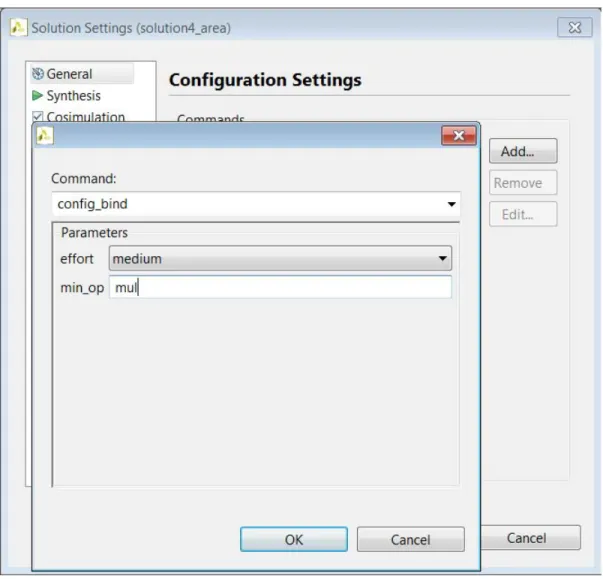
To force sharing of the multipliers, use a configuration setting as follows. 1. Open the solution settings by selecting Solution > Solution Settings. 2. Select General on the left-hand side menu.
3. Click Add to open the list of configurations. 4. Select config_bind from the drop-down menu.
5. Specify mul in the min_op (minimize operator) field, as shown in Figure 1-46.
6. Click OK to set the configuration.
7. Click OK again to close the Solution Settings window.
The config_bind command controls the binding phase, where operators inferred
from the code are bound to cores from the library. The min_op option tells Vivado HLS
X-Ref Target - Figure 1-45
Design Optimization
to minimize the number of the specified operators (mul operations, in this case) and
overrides any mux delay estimation.
Step 3: Synthesis
Click the Synthesis button to synthesize the design.
When synthesis completes, the synthesis report opens showing that the configuration command was successful and only a single multiplier is now used in the design. See
Figure 3-47. X-Ref Target - Figure 1-46
Design Optimization
This design uses the same hardware resources to implement every iteration of the loop. This is the smallest number of resources that this FIR filter can be implemented with: a single DSP, a single BRAM, some flip-flops and LUTs.
Optimization: Highest Throughput
To add the optimizations to create a design with the highest throughput, unroll the loop and partition the memory. The solution solution3, with the correct IO interface, is used as
the starting point.
Step 1: Creating a New Solution
Begin by creating a new solution.1. Click the New Solution button to create a new solution. 2. Name the solution solution5_throughput.
3. Select the Copy existing directives from solution check box. 4. Select solution3 from the drop-down menu.
The IO directives specified in solution3 copy into solution5_throughput.
X-Ref Target - Figure 1-47
Design Optimization
5. In the Project menu, select Close Inactive Solution Tabs to close any existing tabs from previous solutions.
Step 2: Unrolling the Loop
The following steps, summarized in Figure 3-48, explain how to unroll the loop.
1. In the Directive tab, select loop Shift_Accum_Loop.
Note: Open the source code to see the Directive tab. 2. Right-click and select Insert Directives.
3. From the Directive drop-down menu, select Unroll. 4. Select OK to apply the directive.
Leave the other options in the Directives window unchecked and blank to ensure that the loop is fully unrolled.
Apply the directive to partition the array into individual elements, which are then arranged as a shift-register.
X-Ref Target - Figure 1-48
Design Optimization
5. In the Directive tab, select array shift_reg.
6. Right-click and select Insert Directives.
7. Select partition from the Directive drop-down menu. 8. Specify the type as complete.
9. Select OK to apply the directive.
With the two directives imported from solution3 and the two new directives just
added, the directive pane for solution5_throughput is now as shown in
Figure 3-49.
Step 3: Synthesis
1. Click the Synthesis button to synthesize the design.
When synthesis completes, the synthesis report automatically opens.
2. To compare solution4_area with solution5_throughput, click the Compare
Reports button.
3. Add solution4_area and solution5_throughput to the comparison.
4. Click OK.
Figure 3-50 shows the comparison of the reports from solution4_area and solution5 (the LUTS are not shown in Figure 3-50 due to the wide nature of the
report). X-Ref Target - Figure 1-49
Design Optimization
Both designs operate within the 10ns clock period. The small design is using a BRAM but only one DSP48 and about 60 registers. The small design takes 24 clock cycles to complete. The high throughput design processes the samples at the highest possible rate. It requires one clock cycle to read each of the 11 coefficients from the RAM plus one cycle overhead to generate the first address. However, it is using 11 DSP48s and more than twice the number of flip-flops as the small design.
Scroll down the report window to view the estimates for power consumption. At this level of abstraction, the power consumption data should only be used to compare different solutions. In this case, it is clear that solution4_area uses much less power than
solution5_throughput and that the increase is caused by both additional registers and
expressions (logic).
Summary
• You can add optimization directives to the design using the Directive tab. The source code must be open in the Information Pane in order to view the Directive tab.
X-Ref Target - Figure 1-50
RTL Verification and Export
• Creating different solutions for each new set of directives allows for the solutions to be easily compared inside the GUI.
RTL Verification and Export
The Vivado HLS tool allows both RTL verification and RTL export to be performed from the GUI. The RTL verification and RTL export menus in the GUI are also supported at the Tcl command level (discussed later).
Details on the various options are not discussed in this tutorial but can be found by reviewing the associated Tcl command, available from the GUI help menu. The Tcl
commands for RTL verification and RTL export are cosim_design and export_design,
respectively.
RTL Verification
The generated RTL can now be verified with the original C test bench. A new RTL test bench is NOT required with the Vivado HLS tool.
For RTL simulation, the Vivado HLS tool supports industry standard VHDL and Verilog RTL simulators and includes a SystemC simulation kernel allowing the SystemC RTL output to be verified.
The RTL can always be verified using the SystemC kernel and no 3rd party RTL simulator license is required for this.
To use the other supported simulators, a license for the simulator is required, and the simulator executable should be available in the search path.
In this example, the SystemC RTL will be verified. Start with the solution5_throughput
solution. Make sure solution5_throughput is highlighted in bold in the Project
Explorer, indicating it is the currently active solution.
1. Click the Simulation button in the toolbar, as shown in Figure 3-51.
The co-simulation dialog opens, as shown in Figure 3-52. X-Ref Target - Figure 1-51
RTL Verification and Export
2. For VHDL and Verilog, leave the drop-down menus set to Skip, and select SystemC from the corresponding SystemC drop-down menu.
3. Click OK.
Simulation starts.
When the simulation ends it automatically opens the simulation report in the Information pane (see Figure 3-53). For every simulation ran, there is an indication of “pass/fail” and the measured minimum/maximum latency.
The results of the simulation can be seen in the Console pane. The simulation ends with the same confirmation message as the original C simulation (since it’s the same test bench), confirming the RTL results. The message confirms the bit-accurate behavior of the test bench.
X-Ref Target - Figure 1-52
RTL Verification and Export
RTL Export
The final step in the Vivado HLS flow is to export the RTL design as an IP block for use with other Xilinx tools.
Optionally, RTL logic synthesis can be performed: these logic synthesis results are only to evaluate the RTL and confirm the actual timing and area after logic synthesis is similar to the estimated timing and area predicted by Vivado HLS. These RTL results are not part of the exported IP: the IP includes only the RTL which will be synthesized with the remainder of the design.
To use RTL logic synthesis tools, the executable should be available in the search path. For 7-Series devices the path to executable vivado must be in the search path. For other devices, the ISE executable xtclsh must be in the search path.
1. Click the Export RTL button in the toolbar, as shown in Figure 3-54. X-Ref Target - Figure 1-53
RTL Verification and Export
The Export RTL dialog opens, as shown in Figure 3-55.
2. In this example, the design will be exported to IP-XACT format. Refer to the Vivado Design Suite User Guide: High-Level Synthesis (UG902) for an explanation of all export formats and how to import them into the appropriate Xilinx design tool.
3. In this example RTL synthesis will be performed: select the evaluate option. For VHDL or Verilog, select from the drop-down menu. In this example, Verilog is used, as shown in
Figure 3-55. 4. Click OK.
Implementation starts.
The output files are written to fir.prj/solution5_throughput/impl. • The IP-XACT IP is available in directory ip.
• The result of Verilog synthesis are in directory verilog. X-Ref Target - Figure 1-54
Figure 1-54: Export RTL Toolbar Button
X-Ref Target - Figure 1-55
RTL Verification and Export
When RTL synthesis completes, the RTL synthesis report automatically opens (see
Figure 3-56).
The report shows that the design is meeting timing. In some cases, logic synthesis might implement some logic operations, increasing the number of DSP48s and reducing the number of LUTs. Logic synthesis can also be able to decompose and reduce the number of multiplications, thereby reducing the number of DSP48s.
The Vivado HLS tool produces an RTL estimate of the resource. This evaluation step ensures the effects of logic synthesis can be checked while still inside the Vivado HLS tool.
Additionally, the results can be seen in the Console, as shown in Figure 3-57.
5. Exit the Vivado HLS tool using the menu. Select File > Exit. When the project is reopened, all the results will still be present.
The other solutions can be verified and implemented in an identical manner. First select the solution in the Project Explorer and make it the active solution.
X-Ref Target - Figure 1-56
Figure 1-56: solution5_throughput Report
X-Ref Target - Figure 1-57
The Shell and Scripts
Summary
• The path to verification and implementation tool executables must be in the search path prior to execution from within the Vivado HLS tool. See the Xilinx Design Tools: Installation and Licensing Guide (UG978) for details.
° This is not required for RTL SystemC verification.
• RTL verification does not require an RTL test bench be created.
• The RTL can be verified from within the Vivado HLS tool using the existing C test bench. • The design can be can be exported as IP and the implementation evaluated using logic
synthesis tools from within the Vivado HLS tool.
The Shell and Scripts
Everything which can be performed using the Vivado HLS GUI can also be implemented using Tcl scripts at the command prompt. This section gives an overview of using the Vivado HLS tool at the command prompt and how the GUI generated scripts can be copied and used.
Vivado HLS at the Shell
You can be invoked at the Linux or DOS shell prompt.
1. Invoke a DOS shell from the menu by selecting Start > All Programs > Xilinx Design Tool > Vivado 2012.2 > Vivado HLS Command Prompt.
This ensures that the search paths for the Vivado HLS tool are already defined in the shell.
2. Type $ vivado_hls to invoke the GUI.
It can also be invoked in interactive mode, and the exit command can be used to
return to the shell. $ vivado_hls –i Vivado Hls> exit $
The Vivado HLS tool can be run in batch mode using a Tcl script. When the script completes the Vivado HLS tool will remain in interactive mode and if the script has an exit command,
it will exit and return to the shell. $ vivado_hls -f fir.tcl
The Shell and Scripts
Additionally, once a project has been created it can be opened directly from the command line. In this example, project fir.prj is opened in the GUI:
$ vivado_hls -p fir.prj
This final option allows scripts to be run in batch mode and then the analysis to be performed using the GUI.
Creating a Script
When a project is created in the GUI, all the commands to re-create the project are provided in the scripts.tcl file in the solution directory.
To use the script.tcl file, copy it to a new location outside the project directory.
Example script.tcl file:
############################################################ ## This file is generated automatically by vivado_hls. ## Please DO NOT edit it.
## Copyright (C) 2012 Xilinx Inc. All rights reserved. ############################################################ open_project fir.prj
set_top fir
add_file fir.c -cflags "-DBIT_ACCURATE" add_file -tb out.gold.8.dat
add_file -tb fir_test.c -cflags " -DBIT_ACCURATE" open_solution "solution5_throughput"
set_part {xc6vlx240tff1156-2} create_clock -period 10
source "./fir.prj/solution5_throughput/directives.tcl" elaborate
autosyn
If any directives where used in the solution, copy the directives.tcl file to a location
outside the project directory and update the script.tcl file as shown, to use the local
copy of directives.tcl.
############################################################ ## This file is generated automatically by vivado_hls. ## Please DO NOT edit it.
## Copyright (C) 2012 Xilinx Inc. All rights reserved. ############################################################ open_project fir.prj
set_top fir
add_file fir.c -cflags "-DBIT_ACCURATE" add_file -tb out.gold.8.dat
add_file -tb fir_test.c -cflags " -DBIT_ACCURATE" open_solution "solution5_throughput"
set_part {xc6vlx240tff1156-2} create_clock -period 10
The Shell and Scripts
autosyn
Example Scripts Directory
The FIR directory contains a scripts directory that has five scripts, used to create each of the five solutions in this tutorial.
You can run these scripts to reproduce all the solutions in this tutorial. You can then open and analyze the project and solutions in the GUI.
Table 1-3: Summary of Scripts
Filename Solution Description
run1_hls.tcl solution1 Creates the first solution, using standard implementation types.
run2_hls.tcl solution2 Sets the macro to use Vivado HLS bit-accurate types.
run3_hls.tcl solution3 The IO interfaces are defined.
run4_hls.tcl solution4_area Uses the directives from solution3 plus the config_bind command to force sharing of the multipliers.
run5_hls.tcl solution5_throughput Optimizations are applied to create a high-throughput version.
Chapter 2
Vivado HLS: Integrating EDK
Introduction
This document describes how to create an Embedded Developer Kit (EDK) Pcore with an AXI-LITE interface from the Vivado HLS high-level synthesis tool. It describes the necessary steps for integrating the generated Pcore with the MicroBlaze™ processor using the Xilinx® Platform Studio (XPS) Tool Suite.
The reference design has been verified on the Avnet Spartan®-6 LX9 MicroBoard, shown in
Figure 3-1.
Software Requirements
The following software is required to test this reference design:
• Xilinx ISE® WebPACK with the EDK add-on, or ISE version 14.1 Embedded or System Edition
• Installed Silicon Labs CP210x USB-to-UART Bridge Driver (see Silicon Labs CP210x USB-to-UART Setup Guide, listed at http://em.avnet.com/s6microboard)
• Vivado™ Design Suite High-Level Synthesis (HLS) version 2011.4.2 X-Ref Target - Figure 2-1
Reference Design
Reference Design
The reference design consists of an EDK MicroBlaze processor with a custom Pcore generated from the Vivado HLS tool.
You can copy the reference design, AXI_Lite_Interface, from the examples/tutorial
directory in the Vivado HLS installation area.
The MicroBlaze processor based design was created using the XPS Base System Builder (BSB). Figure 3-2, page 61 shows the final design created and provided with this document. For information about using the XPS Base System Builder, refer to http://www.xilinx.com/ support/documentation/sw_manuals/xilinx14_2/platform_studio/ps_c_bsb_using_bsb.htm. The reference design with the MicroBlaze processor runs the standalone board support package software with a simple C application that prompts you to enter values for each input variable and outputs the result.
Vivado HLS Pcore Functionality
The Vivado HLS Pcore functionality is an 8 bit adder. The focus of this document is the interface of the pcore to the MicroBlaze processor through the AXI-Lite interface, not the functionality of the pcore.
The Vivado HLS module has three variables: A, B and C. Of these, A and B are input
variables, and C is an output variable. These three variables are mapped to three registers in
the generated Pcore.
A Vivado HLS module has at least three control signals: AP_START, AP_IDLE, and AP_DONE. These signals are mapped to register in the generated Pcore.
The AP_START register is used to control the start of the Pcore and AP_DONE indicates
when the module operation is done. A signal diagram (waveform of all three involved control signals) should be used toexplain the handshaking mechanism.
Reference Design
Block Diagram
The complete architecture consists of: • MicroBlaze processor
• 16K of Block RAM to run code for the MicroBlaze processor • Custom Pcore created using the Vivado HLS tool
• UART used for communication with the MicroBlaze processor • Two AXI-Interconnects
In addition, it includes the following, which are part of the design but are not used in this demo:
• Interrupt controller • LPDDR
• AXI-Timer • SPI-Flash • Ethernet-Lite X-Ref Target - Figure 2-2