Cloud Services
10/15/2014
ADM
CONTENTS
Launching the Hosted Exchange Tab -‐ Active Directory Users and Computers ... 1
User Properties ... 2
Exchange Properties ... 3
Creating a New User ... 4
Configuring New User Settings for the Control Panel ... 7
Linking Existing Parallels Users ... 8
Unlinking a User ... 9
SharePoint Properties ... 10
Windows Security Group Support ... 11
Contacts ... 11
Unprocessed Transactions ... 11
Resetting Passwords ... 12
User Changes ... 12
User Data Synchronization ... 12
Agent User Interface ... 13
Transactions ... 13
Using the Bulk Upload Tool ... 14
Accessing Logs ... 20
LAUNCHING THE HOSTED EXCHANGE TAB
- ACTIVE DIRECTORY
USERS AND COMPUTERS
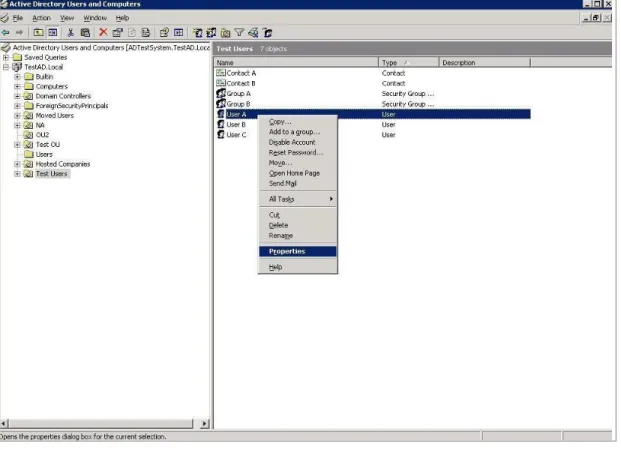
AD Mgmt extends the standard Microsoft toolset by adding an Exchange tab to the Active Directory Users and Computers tool (ADUC). To access the Exchange tab, you should start the ADUC tool as you normally would. This can be found in on any domain controller under Administrative Tools on the Start menu or by typing “dsa.msc” into Start→Run.
Figure 1: Active Directory Users and Computers Tool
Once ADUC has opened, navigate to the user you wish to administer, or right-‐click the domain, and select Find to search for the user. Access the properties for the user by either double-‐clicking the user, or by right-‐clicking the user and selecting Properties from the context menu as illustrated in the image above.
After selecting the properties option, the Properties window for that user will display. You will notice many tabs displayed along the top of this property window. Each tab represents a different configuration item for that user. Locate the <Hosting Company> tab and click it.
USER PROPERTIES
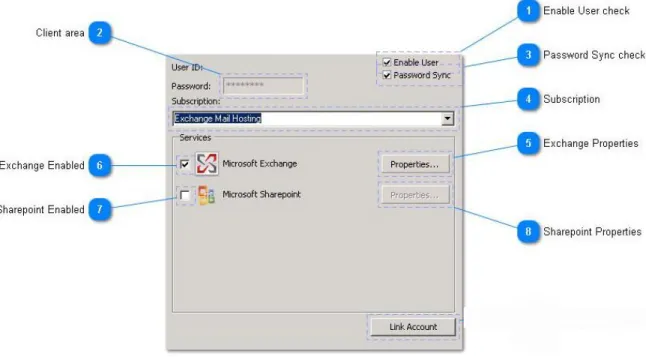
When you select the <Hosting Company>tab, a window similar to the one below displays:
Figure 2: User Properties
1. Enable Account: When checked, this user will be enabled for the Control Panel. If unchecked, then this user is currently disabled for the Control Panel.
NOTE: The Active Directory user will not be disabled by checking this box.
2. Password: This displays the currently set password, which is masked with asterisks (*). This value can be overridden. This is only displayed if the Password Sync box is un-‐checked. This allows for a manual password to be set for a specific user that is NOT synchronized with the user’s normal password. 3. Password Sync: When checked, the value entered in the password field (2) will be locked to the value
stored in the AD Mgmt database. When unchecked the password field (2) will be unlocked and can be edited. This password will be sent to Hosted Exchange when the transaction is submitted. This will not change the password for Windows and Active Directory.
4. Subscription: The Control Panel subscription under which the user is currently provisioned. This drop-‐ down will show all valid subscriptions defined within the hosted system.
5. Exchange [Properties]: Opens a window with the user’s exchange properties and settings. 6. Exchange Enabled: Shows if a user has an Exchange mailbox under the selected subscription. 7. SharePoint Enabled: Shows if the user has SharePoint enabled under the selected subscription. 8. SharePoint [Properties]: Opens a window with the user’s SharePoint properties.
9. Link Account: See Linking Existing Parallels Users on page 9.
EXCHANGE PROPERTIES
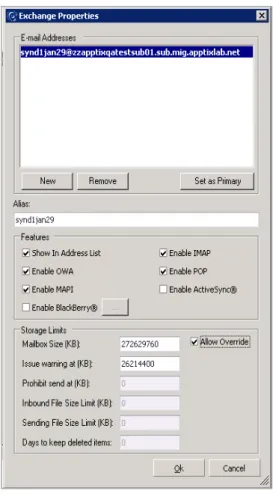
Figure 3: Exchange Properties
Features of the Exchange Properties dialog:
• Email Addresses: This area is used to display and administer information regarding the current
Active Directory user’s Exchange email addresses. The upper-‐most area is a list box of all current email addresses stored for this user.
• [Remove]: Removes the currently selected email address from the user account. • [New]: This button displays a form that allows you to enter new email addresses.
• [Set as Primary]: This sets the currently selected email address to be the primary address for the
user. The selected email address will be repositioned to the top of the list box and will be bolded.
• Mailbox Size: The size of the user’s mailbox (in KB). • IMAP: Checked if the user is allowed IMAP.
• Show in Address List: Checked if the mailbox is show in the address list. • Enable POP: Checked if the user is allowed POP3.
• Enable OWA: Checked if the user is allowed OWA.
• Enable ActiveSync: Checked if the user is allowed ActiveSync. • Enable MAPI: Checked if the user is allowed MAPI.
• Enable Blackberry: Checked if the user is allowed BlackBerry.
• Allow Override: If checked, the values in items 10-‐18 will be applied to the user’s mailbox – if not,
• Issue warning at: The size, in KB, at which a user will receive a warning that their mailbox is getting
full.
• Prohibit send at: The user will not be able to send any new messages when their mailbox reaches this
size (in KB).
• Inbound File Size Limit: The maximum size for an inbound message, in KB, for this mailbox. • Sending File Size Limit: The maximum size for an outbound message, in KB, for this mailbox. • Days to keep deleted items: Number of days for which deleted items are kept.
Creating a New User
When creating a new user in Active Directory, you can automatically create a new Control Panel user as part of this process using Microsoft’s standard ADUC tools. AD Mgmt supports Windows Security Groups to provision a standard set of features and configuration settings within the Control Panel, but in this example we will only cover the provisioning and configuration of a single user.
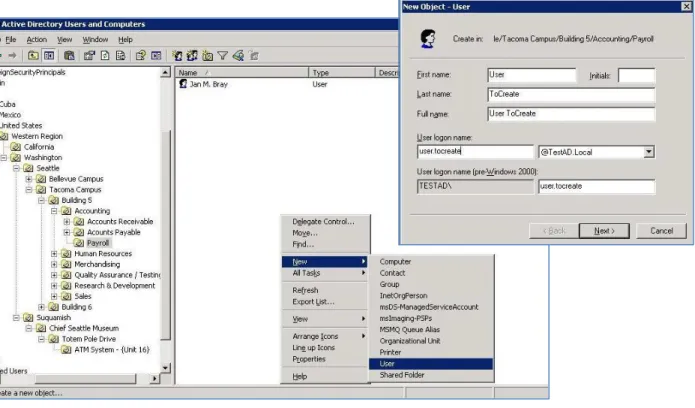
To begin, create a new Active Directory user as you normally would. The steps are outlined below:
• Within Active Directory User and Computers, right-‐click in the appropriate Organizational Unit (OU) and
select the option for New > User from the context menus:
Figure 4: New User
• The New User dialog displays and should be filled out as you normally would for any user.
The first page is general user information including name, logon information, etc.
• Click [Next] to continue.
These should be filled out as normal.
• Click [Next] to continue.
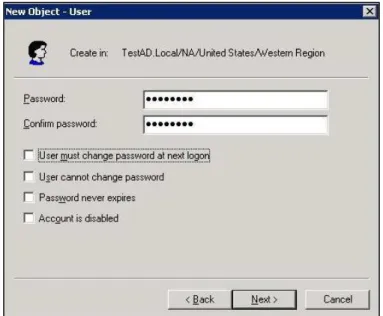
Figure 5: Specify Password
The last page of the dialog will provide you with a summary of the user being created.
• Click [Finish] to create the user.
Figure 6: New User -‐ Finish
• Once created, right-‐click the new user and select Properties from the context menu to display the
property sheet for that user.
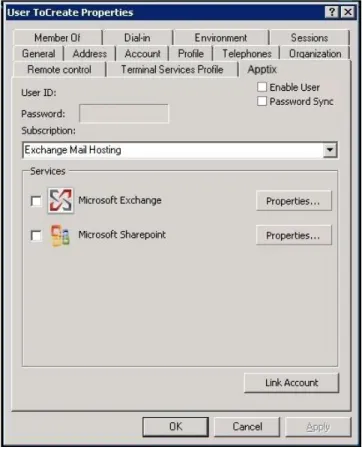
• Select the <Hosting Company> property sheet.
Figure 7: User Properties
Configuring New User Settings for the Control Panel
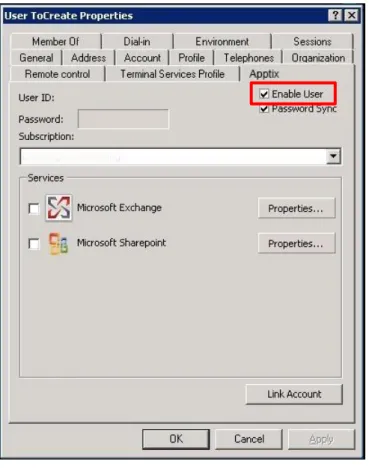
By default, a new user is not provisioned or enabled for any services within the Control Panel. To provision the user for hosted services, first check the Enable User checkbox.
Figure 8: User Properties
If you would like the user to be provisioned with a Microsoft Exchange mailbox, select a subscription from the drop-‐down list, then check the checkbox next to Microsoft Exchange. Adding a user into a Windows Security group that has Exchange selected and configured has a similar effect. After enabling a user for Exchange click the
[Properties] button to the right to configure the individual User Settings for their Exchange mailbox. If a user is enabled for Exchange via a Windows Security group, many of these settings will be automatically defaulted from that group.
After making all necessary changes, click [OK], which will update the information and submit a transaction to the central AD Mgmt service to create the new user and provision the user for use with Hosted Exchange.
See the Agent User Interface section on page 13 for more information.
Linking Existing Parallels Users
There are some instances in which you will have a user that already exists in the Control Panel (for Microsoft Exchange, SharePoint, etc.), but is not configured in the Customer’s Active Directory.
• Once the user is created in your Active Directory, you can link the user with the Control Panel account by
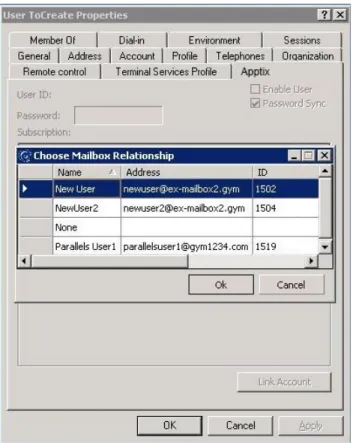
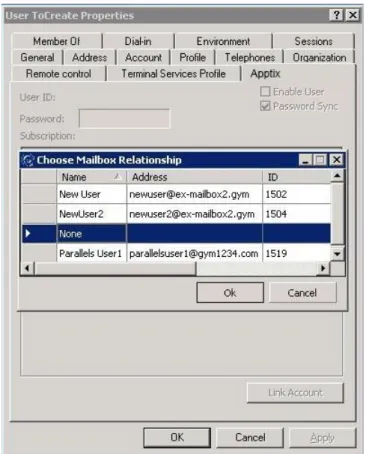
clicking the [Link Account] button at the bottom of the Properties window. This opens the Choose Mailbox Relationship window.
This window will search through the current Control Panel users and select any that are currently not linked to an AD User.
There should be at least one user to select from if a user exists, as illustrated in the image below:
Figure 9: User Properties -‐ Choose Mailbox Relationship
• Once you have selected the desired user by clicking the user in the list, click the [OK] button.
This prompts AD Mgmt to go out to hosted Exchange and retrieve all of the relevant user information. This step may take a few minutes, depending on the connection speed to the Control Panel server. Once the new user data has been retrieved, it will populate the property sheet.
• You must click [OK] to save these settings and the mailbox relationship.
Unlinking a User
• In order to unlink a user, simply open the user’s <Hosting Company> tab. • Click the [Link Account] button to open the Choose Mailbox Relationship form. • Select “None” in the list and click [OK], as illustrated below:
Figure 10: User Properties -‐ Unlinking a User
This will clear out all of the account and configuration information and disable the account in the local database.
NOTE: This will NOT clear out any of the settings in the Control Panel.
SHAREPOINT PROPERTIES
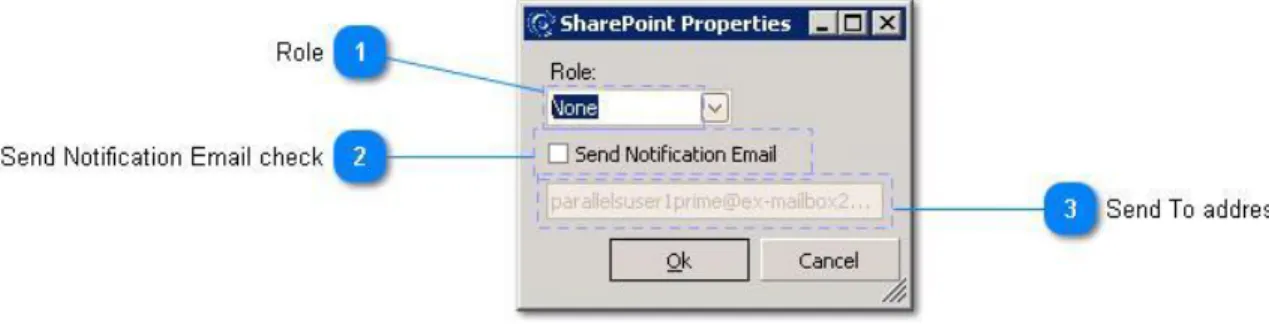
Figure 11: SharePoint Properties
• Role: The user’s SharePoint role.
• Send Notification email: If checked, notification email(s) will be sent. • Send To Address: The address to which notification email(s) will be sent.
WINDOWS SECURITY GROUP SUPPORT
Windows security groups are fully supported for managing Control Panel user configuration and settings. By checking the Enable Group box on the <Hosting Company> tab in the Group property sheet, you can select and manage Microsoft Exchange, SharePoint, and other application settings for the group. Once settings are configured for a particular group, adding users into the group will apply those settings to that user. If a user being added into an hosted-‐services-‐enabled group does not exist in Operations Automation, the user will be automatically provisioned as a result.NOTE: Group features and security settings are additive to the user.
Permissions and settings may still be made at the user level and will remain when/if the user is removed from the group.
CONTACTS
Contacts created within Active Directory are also capable of being integrated with the Control Panel, both to support Microsoft Outlook Global Address List (GAL) display and selection and to support inclusion of those contacts within distribution lists.
UNPROCESSED TRANSACTIONS
When displaying a user’s Properties page, you may occasionally notice that the property sheet may appear locked, with a status message at the bottom of the screen indicating that there are unprocessed transactions for this user.
This is indicating that there are uncommitted changes that have not yet been completed. This message will not display once the pending change has been completed.
The property sheet will automatically attempt to refresh the screen every 30 seconds. Once the transaction processes you will again be able to manage the user’s settings.
RESETTING PASSWORDS
Password changes made by the user at their workstation using standard Windows procedures will automatically be synchronized to the Control Panel immediately upon the user’s request. Should it become necessary to reset the user’s password, you may do so by using the “Reset Password” function within Active Directory.
Right-‐click on the user name and select Reset Password from the context menu. You are prompted for the new password; this will automatically synchronize to the Control Panel.
USER CHANGES
AD Mgmt will automatically keep the Control Panel updated when changes are made to users that are configured for access. When a user is enabled or disabled within Active Directory (even if they are disabled for entering a password incorrectly) – this change in status will be automatically replicated to the Control Panel. These changes are replicated whether they are system-‐generated, user-‐generated, or are automatically generated by Windows. If a user is deleted from Active Directory, that user will be automatically removed (if possible) from the Control Panel. If AD Mgmt attempts to remove a user from the Control Panel, but is unable to do so (due to security settings, mailbox restrictions, etc.), the user will simply be disabled.
USER DATA SYNCHRONIZATION
AD Mgmt automatically keeps the Control Panel updated with changes in user information stored in Active Directory. This includes all of their address, telephone, and organizational information stored on the tabs within the user’s Properties sheet. The General, Address, Telephones, and Organization tabs are all synchronized to the Control Panel.
When a change to this information is made within Active Directory, AD Mgmt will automatically send this change to the Control Panel to keep that information fully up-‐to-‐date with changes that are occurring. The information that is synchronized can be restricted by configuring the Control Panel integration (see the Installation Guide) to remove certain data elements that you do not wish to have maintained.
AGENT USER INTERFACE
Transactions
Transactions are generated for each action a customer takes in their Active Directory.
• The check mark in the Processed column indicates that the transaction has processed. • A failed transaction is indicated by a blank field in the Processed On column.
• A successful transaction is indicated by the current date in the Processed On column.
This is a cue to open a log file to begin troubleshooting.
NOTE: See Accessing Logs on page 19 for information about accessing AD Mgmt log files.
Using the Bulk Upload Tool
Open the AD Mgmt Studio and select the <Hosting Company>/Parallels tab. 1. Select the Bulk Link tab:
2. From the tree view on the left side, select the organizational unit from AD Mgmt you will be working in and check the checkbox next to it:
3. Select the user you would like to link.
This will enable the list view on the right and show all of the users available to link to in Parallels.
4. Select from the list on the left the user in Parallels to which you would like to link. This will populate the Users Properties under the list:
5. Repeat this process for each user you would like to link. Once you have completed linking users click the
6. This will submit link user transactions to the AD Mgmt system.
Accessing Logs
For troubleshooting purposes: you can access AD Mgmt log files to verify changes to Active Directory that you are not seeing in the Control Panel.
1. On the Agent server, open Windows Explorer.
2. Access the C:/Program Files/Identity Syncronizer/ folder.
3. Sort by Date Modified.
4. Select the most recent <Synchronizer.Service.yyyymmdd.log> file.