\ 1
Operating Manual for the Player
Contents
1 FOREWORD... 4
1.1 General Introduction... 4
1.2 Supported File Formats... 4
2 INSTALLATION... 5
3 PLAYER TOOLBAR NAVIGATION... 6
4 FILE OPERATION... 7
4.1 Play the File... 7
4.1.1 Select from the File List... 7
4.1.2 Drag the File to the Player... 7
4.1.3 Auto Play... 7
4.2 Right Mouse Menu... 8
5 CONVERT TO AVI... 9
6 RECORDING... 11
7 PARAMETER SETTING... 12
\ 3
1
Foreword
1.1
General Introduction
This player is a super media player. It supports video file of digital video recorder (DVR),Video Server, IP camera and other products. The player also supports AVI converter. This is a player of high-quality and fluent video, integrating advantages of other players and at the same time features its own unique new functions.
1.2
Supported File Formats
File format: (support recording, snapshot, frame rate setting and etc)
z *.DAV, *.MP4, *.264
Compression format
z *.MP4 *.264 Image formats.
\ 5
2
Installation
Click Setup.exe, system pops up player installation initial interface. This player features simple and user-friendly interface, you can follow the instruction to install.
3
Player Toolbar Navigation
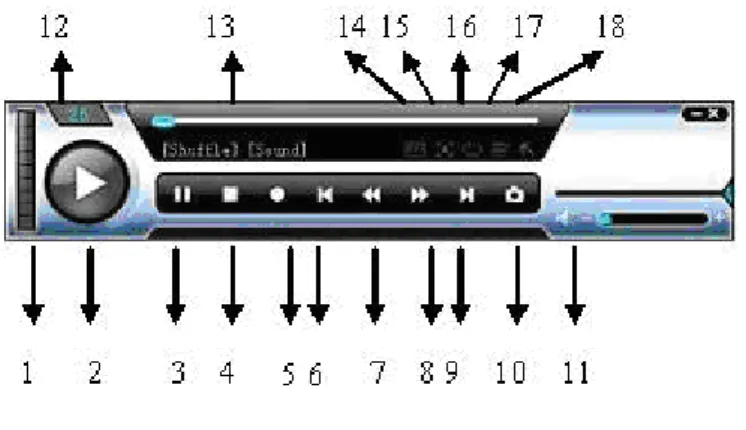
Figure 1 Main Interface In player interface, there are following items:
z 1: Frame rate. There are 9 options:1f/s,2f/s,3f/s,6f/s,12f/s,25f/s,50f/s,75f/s,100f/s.
z 2 :Play
z 3:Pause
z 4:Stop
z 5 :Start record
z 6: Previous file
z 7:Backward
z 8 Forward
z 9 Next file
z 10: Capture: Here is for you to snapshot important image.
z 11: Sound:” + “ is to increase volume, “-“ is to decrease volume. Click icon “ ” to turn on or off volume.
z 12: Current frame rate: Here you can view current frame rate.
z 13: Current status: Here you can view play status bar, play mode and volume status (on or off).
z 14: Convert to AVI: System can convert the video file of suffix name such as *.MP4, *.DAV, *.MPEG, *.264 to AVI format.
z 15: Full-screen: There are two ways: click screen button to review in screen mode. The other way is to double click current window to review in full-screen.
z 16: Play mode: shuffle or repeat.
z 17: Change language: The player supports two languages: English/Chinese. System pops up dialogue box asking for restarting. Click OK, system
automatically restart.
z 18: Parameter setting: Please refer to chapter 7 Parameter setting for more information.
\ 7
4
File Operation
4.1
Play the File
There are three ways for you to play file.
4.1.1 Select from the File List
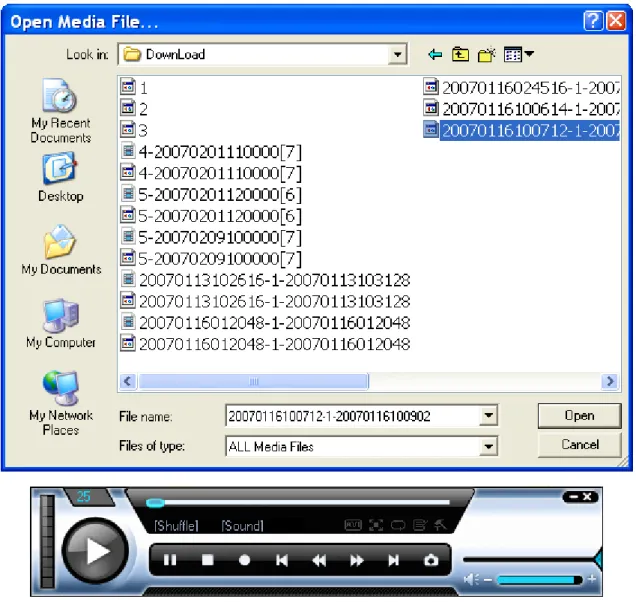
Click play icon, system pops up the following dialogue box. In Figure 2 , you can select one or more video files. Click open to open the file(s). All selected video file(s) will be displayed in the playback list.
Figure 2 Play File
4.1.2 Drag the File to the Player
You can drag the file into the player directly.
4.1.3 Auto Play
If there are video files in player folder. You can double click player to begin auto play. You can click previous ( ) or next ( ) view the previous file or next file in
Note:
When there is no other file in current folder, system repeat playing current file when you click previous or next button.
4.2
Right Mouse Menu
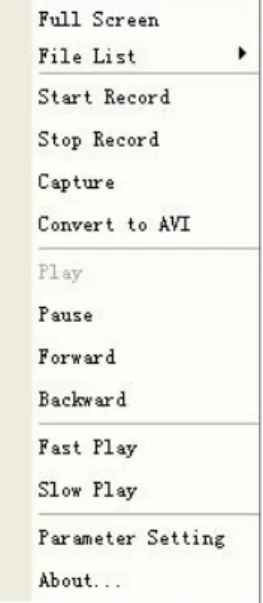
Right click mouse, the image is shown as in figure.
Figure 3 Right Mouse Menu There are the following items:
z Full-screen: Click this button to review in full-screen mode.
z File list: Here is for you can view video file list.
z Start recording
z Stop playing
z Capture: Snapshot important image.
z Convert AVI: Convert the file format to AVI.
z Play
z Pause
z Forward
z Backward
z Fast play
z Slow play
z Parameter setting
z About:: View player information
\ 9
5
Convert to AVI
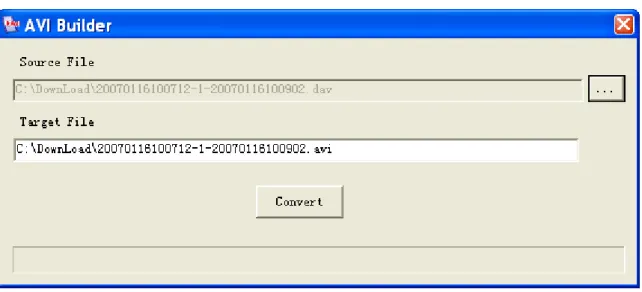
System supports convert video file of suffix such as mp4,Dav, mpeg ,264 to avi formats.
You can follow the instructions below.
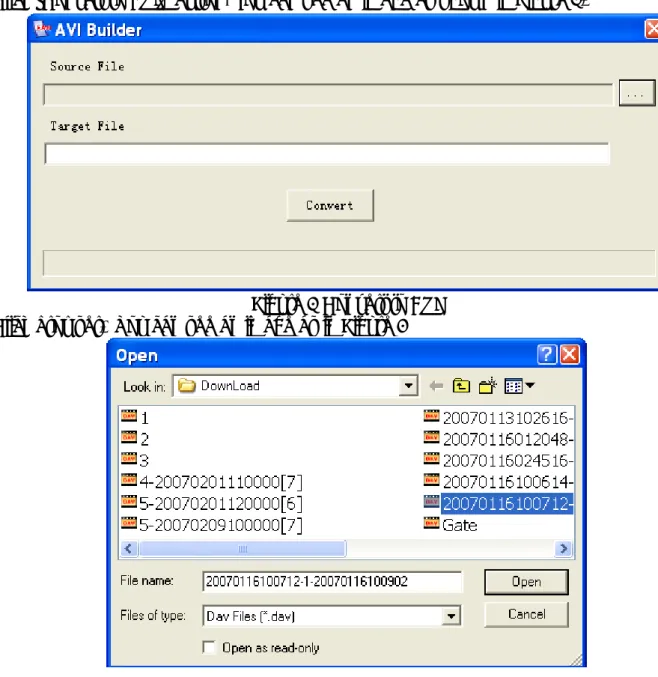
Click “Convert to AVI” button, you can see an image as shown in Figure 4.
Figure 4 Convert to AVI Click browser. You can see an image as in Figure 5
Figure 5 Browser
Select the file you want to convert. Double click file name or select one file and then click open button.
Figure 6 Select File
Click “convert to AVI” button to begin converting. The converted file will be stored in the same path with the original file.
\ 11
6
Recording
Click “Start Recording” button, system starts recording. You can see the “Stop” button change to “Stop recording” button.
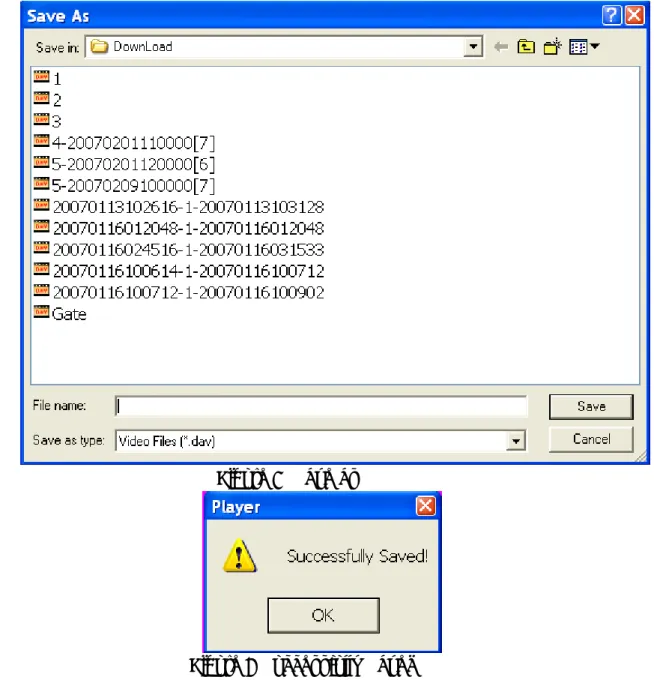
Click “Stop recording” button after finishing recording. Now you can select path for the recorded file. See Figure 8 .
You can see a dialogue box as in Figure 9 after you successfully saved the file.
Tips:
After recording, you can drag status bar to the desired location and then click “stop recording” button to record files. In this way you can save a lot of time.
Figure 8 Save as
Figure 9 Successfully Saved
If you are using CD or USB device to backup, player file list can only display the files in current player folder.
7
Parameter Setting
7.1
Parameter Setting When Playing DVR File
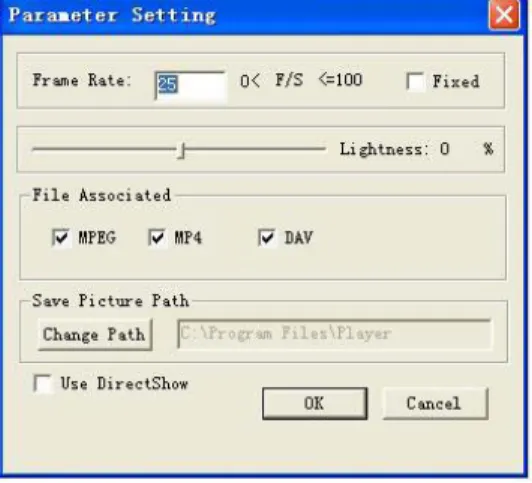
When you are playing DVR format file, you can implement parameter setting function. Click “parameter setting” button, system pops up the parameter setting dialogue box. See Figure 10. The play frame rate ranges from 0 to 100. Here you can also modify brightness and file connection.
Figure 10 Parameter Setting
7.2
Pictures Saving Path
System default path is player installation path. You can modify if necessary.
Click “modify path” button, system pops up the following dialogue box. See Figure 11. You can select you desired location and then click “save” button.
\ 13
Figure 11 Select Path
7.3
Use DirectShow
When you can not play the current file, you can draw “√” before “Use DirectShow” check box and then click OK.
8
More Information
If you still have any problems about these functions, please contact with our engineers.