VMware Horizon View Installation
View 5.2
View Manager 5.2
View Composer 5.2
This document supports the version of each product listed and
supports all subsequent versions until the document is
replaced by a new edition. To check for more recent editions
of this document, see http://www.vmware.com/support/pubs.
You can find the most up-to-date technical documentation on the VMware Web site at:
http://www.vmware.com/support/
The VMware Web site also provides the latest product updates.
If you have comments about this documentation, submit your feedback to:
Copyright © 2010–2013 VMware, Inc. All rights reserved. Copyright and trademark information.
VMware, Inc. 3401 Hillview Ave. Palo Alto, CA 94304 www.vmware.com
VMware Horizon View Installation 5
1
System Requirements for Server Components 7
View Connection Server Requirements 7View Administrator Requirements 9 View Composer Requirements 9 View Transfer Server Requirements 11
2
System Requirements for Guest Operating Systems 15
Supported Operating Systems for View Agent 15Supported Operating Systems for Standalone View Persona Management 16 Remote Display Protocol and Software Support 16
3
Preparing Active Directory 21
Configuring Domains and Trust Relationships 21 Creating an OU for View Desktops 22
Creating OUs and Groups for Kiosk Mode Client Accounts 22 Creating Groups for View Users 22
Creating a User Account for vCenter Server 22 Create a User Account for View Composer 23 Configure the Restricted Groups Policy 24
Using View Group Policy Administrative Template Files 24 Prepare Active Directory for Smart Card Authentication 25
4
Installing View Composer 29
Prepare a View Composer Database 29
Configuring an SSL Certificate for View Composer 35 Install the View Composer Service 35
Configuring Your Infrastructure for View Composer 37
5
Installing View Connection Server 39
Installing the View Connection Server Software 39 Installation Prerequisites for View Connection Server 40 Install View Connection Server with a New Configuration 40 Install a Replicated Instance of View Connection Server 45 Configure a Security Server Pairing Password 50
Install a Security Server 51
Firewall Rules for View Connection Server 57
Reinstall View Connection Server with a Backup Configuration 58 Microsoft Windows Installer Command-Line Options 60
6
Installing View Transfer Server 63
Install View Transfer Server 64Add View Transfer Server to View Manager 65 Configure the Transfer Server Repository 66 Firewall Rules for View Transfer Server 67 Installing View Transfer Server Silently 67
7
Configuring SSL Certificates for View Servers 71
Understanding SSL Certificates for View Servers 71 Overview of Tasks for Setting Up SSL Certificates 73 Obtaining a Signed SSL Certificate from a CA 74Configure View Connection Server, Security Server, or View Composer to Use a New SSL Certificate 75
Configure View Clients to Trust Root and Intermediate Certificates 80 Configuring Certificate Revocation Checking on Server Certificates 82 Configuring Certificate Checking in View Client for Windows 83 Configure the PCoIP Secure Gateway to Use a New SSL Certificate 83 View Transfer Server and SSL Certificates 87
Setting View Administrator to Trust a vCenter Server or View Composer Certificate 88 Benefits of Using SSL Certificates Signed by a CA 88
8
Configuring View for the First Time 89
Configuring User Accounts for vCenter Server and View Composer 89 Configuring View Connection Server for the First Time 93
Configuring View Client Connections 103 Replacing Default Ports for View Services 109
Sizing Windows Server Settings to Support Your Deployment 112
9
Adding the View Desktops Plug-in to the vSphere Web Client 115
Add the View Desktops Plug-in 115Search for View Users in the vSphere Web Client 119 Remove the View Desktops Plug-in 120
10
Configuring Event Reporting 121
Add a Database and Database User for View Events 121 Prepare an SQL Server Database for Event Reporting 122 Configure the Event Database 123
Configure Event Logging for Syslog Servers 124
Index 127
VMware Horizon View Installation explains how to install the VMware® Horizon View™ server and client components.
Intended Audience
This information is intended for anyone who wants to install VMware Horizon View. The information is written for experienced Windows or Linux system administrators who are familiar with virtual machine technology and datacenter operations.
System Requirements for Server
Components
1
Hosts that run VMware Horizon View server components must meet specific hardware and software requirements.
This chapter includes the following topics:
n “View Connection Server Requirements,” on page 7 n “View Administrator Requirements,” on page 9 n “View Composer Requirements,” on page 9 n “View Transfer Server Requirements,” on page 11
View Connection Server Requirements
View Connection Server acts as a broker for client connections by authenticating and then directing incoming user requests to the appropriate View desktop. View Connection Server has specific hardware, operating system, installation, and supporting software requirements.
n Hardware Requirements for View Connection Server on page 8
You must install all View Connection Server installation types, including standard, replica, and security server installations, on a dedicated physical or virtual machine that meets specific hardware requirements.
n Supported Operating Systems for View Connection Server on page 8
You must install View Connection Server on a Windows Server 2008 R2 operating system. n Virtualization Software Requirements for View Connection Server on page 8
View Connection Server requires certain versions of VMware virtualization software. n Network Requirements for Replicated View Connection Server Instances on page 8
If you install replicated View Connection Server instances, configure the instances in the same location and connect them over a high-performance LAN.
Hardware Requirements for View Connection Server
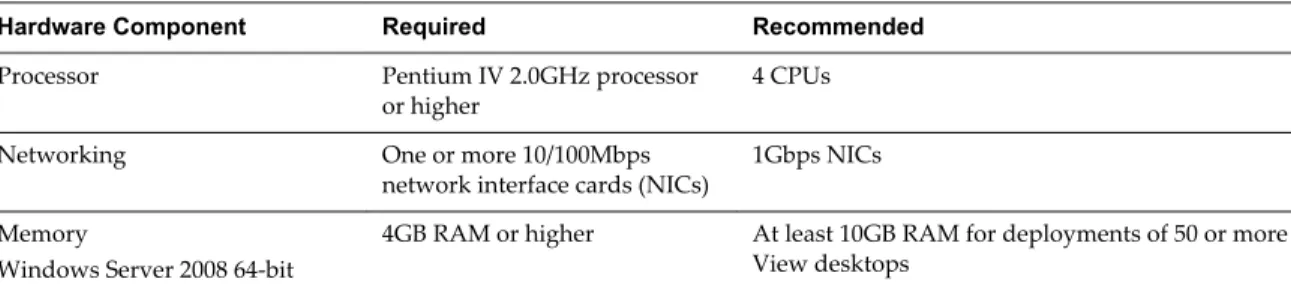
You must install all View Connection Server installation types, including standard, replica, and security server installations, on a dedicated physical or virtual machine that meets specific hardware requirements. Table 1‑1. View Connection Server Hardware Requirements
Hardware Component Required Recommended
Processor Pentium IV 2.0GHz processor
or higher 4 CPUs
Networking One or more 10/100Mbps
network interface cards (NICs) 1Gbps NICs Memory
Windows Server 2008 64-bit
4GB RAM or higher At least 10GB RAM for deployments of 50 or more View desktops
These requirements also apply to replica and security server View Connection Server instances that you install for high availability or external access.
IMPORTANT The physical or virtual machine that hosts View Connection Server must use a static IP address.
Supported Operating Systems for View Connection Server
You must install View Connection Server on a Windows Server 2008 R2 operating system.
The following operating systems support all View Connection Server installation types, including standard, replica, and security server installations.
Table 1‑2. Operating System Support for View Connection Server
Operating System Version Edition
Windows Server 2008 R2 64-bit Standard
Enterprise
Windows Server 2008 R2 SP1 64-bit Standard
Enterprise
Virtualization Software Requirements for View Connection Server
View Connection Server requires certain versions of VMware virtualization software.
If you are using vSphere, you must use a supported version of vSphere ESX/ESXi hosts and vCenter Server. For details about which versions of Horizon View are compatible with which versions of vCenter Server and ESX/ESXi, see the VMware Product Interoperability Matrix at
http://www.vmware.com/resources/compatibility/sim/interop_matrix.php.
Network Requirements for Replicated View Connection Server Instances
If you install replicated View Connection Server instances, configure the instances in the same location and connect them over a high-performance LAN.
When installing replicated View Connection Server instances, you must configure the instances in the same physical location and connect them over a high-performance LAN. Do not use a WAN, MAN (metropolitan area network), or other non-LAN to connect replicated View Connection Server instances.
Even a high-performance WAN, MAN, or other non-LAN with low average latency and high throughput might have periods when the network cannot deliver the performance characteristics that are needed for View Connection Server instances to maintain consistency.
If the View LDAP configurations on View Connection Server instances become inconsistent, users might not be able to access their desktops. A user might be denied access when connecting to a View Connection Server instance with an out-of-date configuration.
View Administrator Requirements
Administrators use View Administrator to configure View Connection Server, deploy and manage
desktops, control user authentication, initiate and examine system events, and carry out analytical activities. Client systems that run View Administrator must meet certain requirements.
View Administrator is a Web-based application that is installed when you install View Connection Server. You can access and use View Administrator with the following Web browsers:
n Internet Explorer 8 n Internet Explorer 9
n Internet Explorer 10 (from a Windows 8 system in Desktop mode) n Firefox 6 and later releases
To use View Administrator with your Web browser, you must install Adobe Flash Player 10 or later. Your client system must have access to the Internet to allow Adobe Flash Player to be installed.
The computer on which you launch View Administrator must trust the root and intermediate certificates of the server that hosts View Connection Server. The supported browsers already contain certificates for all of the well-known certificate authorities (CAs). If your certificates come from a CA that is not well known, you must follow the instructions in the VMware Horizon View Installation document about importing root and intermediate certificates.
To display text properly, View Administrator requires Microsoft-specific fonts. If your Web browser runs on a non-Windows operating system such as Linux, UNIX, or Mac OS X, make sure that Microsoft-specific fonts are installed on your computer.
Currently, the Microsoft Web site does not distribute Microsoft fonts, but you can download them from independent Web sites.
View Composer Requirements
View Manager uses View Composer to deploy multiple linked-clone desktops from a single centralized base image. View Composer has specific installation and storage requirements.
n Supported Operating Systems for View Composer on page 10
View Composer supports 64-bit operating systems with specific requirements and limitations. You can install View Composer on the same physical or virtual machine as vCenter Server or on a separate server.
n Hardware Requirements for Standalone View Composer on page 10
With View 5.1 and later releases, View Composer is no longer required to be installed on the same physical or virtual machine as vCenter Server. If you install View Composer on a separate server, you must use a dedicated physical or virtual machine that meets specific hardware requirements.
n Database Requirements for View Composer on page 10
View Composer requires an SQL database to store data. The View Composer database must reside on, or be available to, the View Composer server host.
Supported Operating Systems for View Composer
View Composer supports 64-bit operating systems with specific requirements and limitations. You can install View Composer on the same physical or virtual machine as vCenter Server or on a separate server. Table 1‑3. Operating System Support for View Composer
Operating System Version Edition
Windows Server 2008 R2 64-bit Standard
Enterprise
Windows Server 2008 R2 SP1 64-bit Standard
Enterprise
If you plan to install View Composer on a different physical or virtual machine than vCenter Server, see “Hardware Requirements for Standalone View Composer,” on page 10.
Hardware Requirements for Standalone View Composer
With View 5.1 and later releases, View Composer is no longer required to be installed on the same physical or virtual machine as vCenter Server. If you install View Composer on a separate server, you must use a dedicated physical or virtual machine that meets specific hardware requirements.
A standalone View Composer installation works with vCenter Server installed on a Windows Server computer and with the Linux-based vCenter Server Appliance. VMware recommends having a one-to-one mapping between each View Composer service and vCenter Server instance.
Table 1‑4. View Composer Hardware Requirements
Hardware Component Required Recommended
Processor 1.4 GHz or faster Intel 64 or
AMD 64 processor with 2 CPUs 2GHz or faster and 4 CPUs
Networking One or more 10/100Mbps
network interface cards (NICs) 1Gbps NICs
Memory 4GB RAM or higher 8GB RAM or higher for deployments of 50 or more
View desktops
Disk space 40GB 60GB
IMPORTANT The physical or virtual machine that hosts View Composer must use a static IP address.
Database Requirements for View Composer
View Composer requires an SQL database to store data. The View Composer database must reside on, or be available to, the View Composer server host.
If a database server already exists for vCenter Server, View Composer can use that existing database server if it is a version listed in Table 1-5. For example, View Composer can use the Microsoft SQL Server 2005 or 2008 Express instance provided with vCenter Server. If a database server does not already exist, you must install one.
View Composer supports a subset of the database servers that vCenter Server supports. If you are already using vCenter Server with a database server that is not supported by View Composer, continue to use that database server for vCenter Server and install a separate database server to use for View Composer and View Manager database events.
IMPORTANT If you create the View Composer database on the same SQL Server instance as vCenter Server, do not overwrite the vCenter Server database.
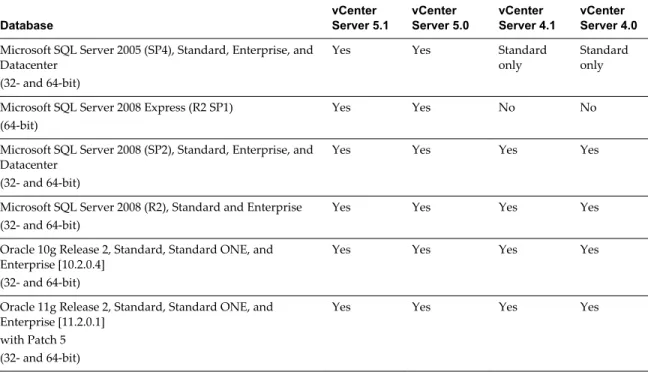
Table 1-5 lists the supported database servers and versions. For a complete list of database versions supported with vCenter Server, see the VMware vSphere Compatibility Matrixes on the VMware vSphere documentation Web site.
The versions of vCenter Server listed in the table column headings are general. For specific supported update versions of each vCenter Server release, see the VMware vSphere Compatibility Matrixes on the VMware vSphere documentation Web site.
Table 1‑5. Supported Database Servers for View Composer
Database vCenter Server 5.1 vCenter Server 5.0 vCenter Server 4.1 vCenter Server 4.0
Microsoft SQL Server 2005 (SP4), Standard, Enterprise, and Datacenter
(32- and 64-bit)
Yes Yes Standard
only Standardonly Microsoft SQL Server 2008 Express (R2 SP1)
(64-bit)
Yes Yes No No
Microsoft SQL Server 2008 (SP2), Standard, Enterprise, and Datacenter
(32- and 64-bit)
Yes Yes Yes Yes
Microsoft SQL Server 2008 (R2), Standard and Enterprise (32- and 64-bit)
Yes Yes Yes Yes
Oracle 10g Release 2, Standard, Standard ONE, and Enterprise [10.2.0.4]
(32- and 64-bit)
Yes Yes Yes Yes
Oracle 11g Release 2, Standard, Standard ONE, and Enterprise [11.2.0.1]
with Patch 5 (32- and 64-bit)
Yes Yes Yes Yes
NOTE If you use an Oracle 11g R2 database, you must install Oracle 11.2.0.1 Patch 5. This patch requirement applies to both 32-bit and 64-bit versions.
View Transfer Server Requirements
View Transfer Server is an optional View Manager component that supports check in, check out, and replication of desktops that run in local mode. View Transfer Server has specific installation, operating system, and storage requirements.
n Installation and Upgrade Requirements for View Transfer Server on page 12
You must install View Transfer Server as a Windows application in a virtual machine that meets specific requirements.
n Supported Operating Systems for View Transfer Server on page 12
You must install View Transfer Server on a supported operating system with at least the minimum required amount of RAM.
n Storage Requirements for View Transfer Server on page 13
View Transfer Server transfers static content to and from the Transfer Server repository and dynamic content between local desktops and remote desktops in the datacenter. View Transfer Server has specific storage requirements.
Installation and Upgrade Requirements for View Transfer Server
You must install View Transfer Server as a Windows application in a virtual machine that meets specific requirements.
IMPORTANT If users will be checking out local desktops that use the space-efficient sparse disk format (SE-Flex), available starting with vSphere 5.1, View Transfer Server must be hosted on a vSphere 5.1 or later virtual machine (virtual hardware version 9). The SE Sparse disk format allows stale or deleted data within a guest operating system to be reclaimed with a wipe and shrink process.
To use the space reclamation feature, you must verify that your vCenter Server and hosts are version 5.1 with ESXi 5.1 download patch ESXi510-201212001 or later. In an ESXi cluster, verify that all the hosts are version 5.1 with download patch ESXi510-201212001 or later.
The virtual machine that hosts View Transfer Server must meet several requirements regarding network connectivity:
n It must be managed by the same vCenter Server instance as the local desktops that it will manage. n It does not have to be part of a domain.
n It must use a static IP address.
The View Transfer Server software cannot coexist on the same virtual machine with any other View Manager software component, including View Connection Server.
Do not manually add or remove PCI devices on the virtual machine that hosts View Transfer Server. If you add or remove PCI devices, View might be unable to discover hot-added devices, which might cause data transfer operations to fail.
You can install multiple View Transfer Server instances for high availability and scalability.
Supported Operating Systems for View Transfer Server
You must install View Transfer Server on a supported operating system with at least the minimum required amount of RAM.
Table 1‑6. Operating System Support for View Transfer Server
Operating System Version Edition Minimum RAM
Windows Server 2008 R2 64-bit Standard
Enterprise
4GB Windows Server 2008 R2 SP1 64-bit Standard
Enterprise
4GB
Storage Requirements for View Transfer Server
View Transfer Server transfers static content to and from the Transfer Server repository and dynamic content between local desktops and remote desktops in the datacenter. View Transfer Server has specific storage requirements.
n The disk drive on which you configure the Transfer Server repository must have enough space to store your static image files. Image files are View Composer base images.
n View Transfer Server must have access to the datastores that store the desktop disks to be transferred. The datastores must be accessible from the ESX/ESXi host where the View Transfer Server virtual machine is running.
n The recommended maximum number of concurrent disk transfers that View Transfer Server can support is 20.
During a transfer operation, a local desktop's virtual disk is mounted on View Transfer Server. The View Transfer Server virtual machine has four SCSI controllers. This configuration allows
multiple disks to be attached to the virtual machine at one time.
n Because local desktops can contain sensitive user data, make sure data is encrypted during its transit over the network.
In View Administrator, you can configure data-transfer security options on each View Connection Server instance. To configure these options in View Administrator, click View Configuration > Servers, select a View Connection Server instance, and click Edit.
n When View Transfer Server is added to View Manager, its Distributed Resource Scheduler (DRS) automation policy is set to Manual, which effectively disables DRS.
To migrate a View Transfer Server instance to another ESX host or datastore, you must place the instance in maintenance mode before you begin the migration.
When View Transfer Server is removed from View Manager, the DRS automation policy is reset to the value it had before View Transfer Server was added to View Manager.
System Requirements for Guest
Operating Systems
2
Systems running View Agent or Standalone View Persona Management must meet certain hardware and software requirements.
This chapter includes the following topics:
n “Supported Operating Systems for View Agent,” on page 15
n “Supported Operating Systems for Standalone View Persona Management,” on page 16 n “Remote Display Protocol and Software Support,” on page 16
Supported Operating Systems for View Agent
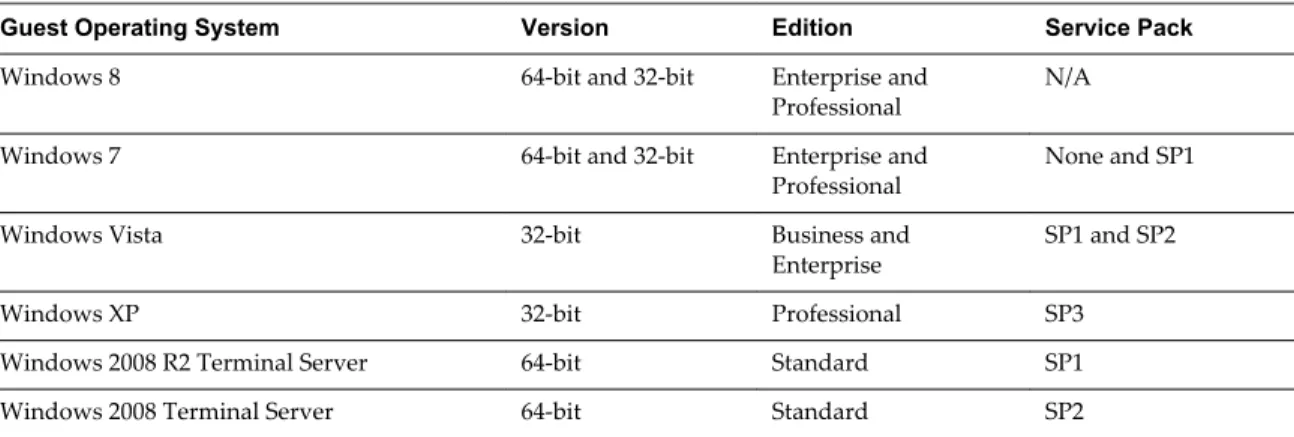
The View Agent component assists with session management, single sign-on, and device redirection. You must install View Agent on all virtual machines, physical systems, and terminal servers that will be managed by View Manager.
Table 2‑1. View Agent Operating System Support
Guest Operating System Version Edition Service Pack
Windows 8 64-bit and 32-bit Enterprise and
Professional N/A
Windows 7 64-bit and 32-bit Enterprise and
Professional None and SP1
Windows Vista 32-bit Business and
Enterprise SP1 and SP2
Windows XP 32-bit Professional SP3
Windows 2008 R2 Terminal Server 64-bit Standard SP1
Windows 2008 Terminal Server 64-bit Standard SP2
To use the View Persona Management setup option with View Agent, you must install View Agent on Windows 8, Windows 7, Windows Vista, or Windows XP virtual machines. This option does not operate on physical computers or Microsoft Terminal Servers.
You can install the standalone version of View Persona Management on physical computers. See “Supported Operating Systems for Standalone View Persona Management,” on page 16.
Supported Operating Systems for Standalone View Persona
Management
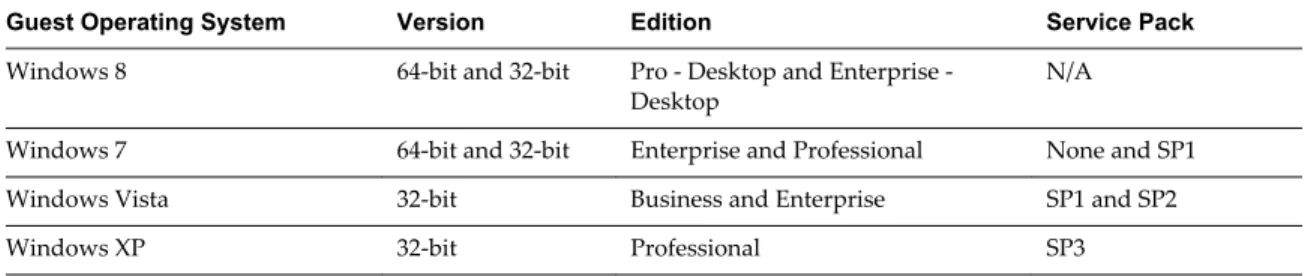
The standalone View Persona Management software provides persona management for standalone physical computers and virtual machines that do not have View Agent 5.x installed. When users log in, their profiles are downloaded dynamically from a remote profile repository to their standalone systems.
NOTE To configure View Persona Management for View desktops, install View Agent with the View
Persona Management setup option. The standalone View Persona Management software is intended for
non-View systems only.
Table 2-2 lists the operating systems supported for the standalone View Persona Management software. Table 2‑2. Operating System Support for Standalone View Persona Management
Guest Operating System Version Edition Service Pack
Windows 8 64-bit and 32-bit Pro Desktop and Enterprise
-Desktop N/A
Windows 7 64-bit and 32-bit Enterprise and Professional None and SP1
Windows Vista 32-bit Business and Enterprise SP1 and SP2
Windows XP 32-bit Professional SP3
The standalone View Persona Management software is not supported on Microsoft Terminal Services or Microsoft Remote Desktop Services.
Remote Display Protocol and Software Support
Remote display protocols and software provide access to the desktops of remote computers over a network connection. View Client supports the Microsoft Remote Desktop Protocol (RDP) and PCoIP from VMware. n Horizon View with PCoIP on page 16
PCoIP provides an optimized desktop experience for the delivery of the entire desktop environment, including applications, images, audio, and video content for a wide range of users on the LAN or across the WAN. PCoIP can compensate for an increase in latency or a reduction in bandwidth, to ensure that end users can remain productive regardless of network conditions.
n Microsoft RDP on page 18
Remote Desktop Protocol is the same multichannel protocol many people already use to access their work computer from their home computer. Microsoft Remote Desktop Connection (RDC) uses RDP to transmit data.
Horizon View with PCoIP
PCoIP provides an optimized desktop experience for the delivery of the entire desktop environment, including applications, images, audio, and video content for a wide range of users on the LAN or across the WAN. PCoIP can compensate for an increase in latency or a reduction in bandwidth, to ensure that end users can remain productive regardless of network conditions.
PCoIP is supported as the display protocol for View desktops with virtual machines and with physical machines that contain Teradici host cards.
PCoIP Features
Key features of PCoIP include the following:
n Users outside the corporate firewall can use this protocol with your company's virtual private network (VPN), or users can make secure, encrypted connections to a View security server in the corporate DMZ.
n Advanced Encryption Standard (AES) 128-bit encryption is supported and is turned on by default. You can, however, change the encryption key cipher to AES-192 or AES-256.
n Connections to Windows desktops with the View Agent operating system versions listed in “Supported
Operating Systems for View Agent,” on page 15 are supported. n Connections from all types of View clients.
n MMR redirection is supported for some Windows client operating systems and some View desktop (agent) operating systems. See "Feature Support Matrix" in the VMware Horizon View Architecture Planning document..
n USB redirection is supported for some client types.
n Audio redirection with dynamic audio quality adjustment for LAN and WAN is supported. n Optimization controls for reducing bandwidth usage on the LAN and WAN.
n Multiple monitors are supported for some client types. For example, on Windows-based clients, you can use up to four monitors and adjust the resolution for each monitor separately, with a resolution of up to 2560x1600 per display. Pivot display and autofit are also supported.
When the 3D feature is enabled, up to 2 monitors are supported with a resolution of up to 1920 X 1200. n 32-bit color is supported for virtual displays.
n ClearType fonts are supported.
n Copy and paste of text and images between a Windows-based client operating system and a View desktop is supported, up to 1MB. Supported file formats include text, images, and RTF (Rich Text Format). You cannot copy and paste system objects such as folders and files between systems. For information about which client devices support specific PCoIP features, go to
https://www.vmware.com/support/viewclients/doc/viewclients_pubs.html.
Recommended Guest Operating System Settings
Recommended guest operating system settings include the following settings: n For Windows XP desktops: 768MB RAM or more and a single CPU.
n For Windows 7 or 8 desktops: 1GB of RAM or more and a dual CPU is recommended for playing in high-definition, full screen mode, or 720p or higher formatted video.
Video Quality Requirements
480p-formatted video You can play video at 480p or lower at native resolutions when the View desktop has a single virtual CPU. If the operating system is Windows 7 or later and you want to play the video in high-definition Flash or in full screen mode, the desktop requires a dual virtual CPU. Even with a dual virtual CPU desktop, as low as 360p-formatted video played in full screen mode can lag behind audio, particularly on Windows clients.
720p-formatted video You can play video at 720p at native resolutions if the View desktop has a dual virtual CPU. Performance might be affected if you play videos at 720p in high definition or in full screen mode.
1080p-formatted video If the View desktop has a dual virtual CPU, you can play 1080p formatted video, although the media player might need to be adjusted to a smaller window size.
3D If you use VMware vSphere 5.1 or later, you can configure View desktops to use software or hardware accelerated graphics.
n With Virtual Shared Graphics Acceleration (vSGA), a vSphere 5.1 feature that uses physical graphics cards installed on the ESXi hosts, you can use 3D applications for design, modeling, and multimedia.
n With the software accelerated graphics feature, available with vSphere 5.0 and later, you can use less demanding 3D applications such as Windows Aero themes, Microsoft Office 2010, and Google Earth. This non-hardware accelerated graphics feature enables you to run DirectX 9 and OpenGL 2.1 applications without requiring a physical graphics processing unit (GPU).
For 3D applications, up to 2 monitors are supported, and the maximum screen resolution is 1920 x 1200. The guest operating system on the View desktops must be Windows 7 or later.
Hardware Requirements for Client Systems
For information about processor and memory requirements, see the "Using VMware Horizon View Client" document for the specific type of desktop or mobile client device. Go to
https://www.vmware.com/support/viewclients/doc/viewclients_pubs.html.
Microsoft RDP
Remote Desktop Protocol is the same multichannel protocol many people already use to access their work computer from their home computer. Microsoft Remote Desktop Connection (RDC) uses RDP to transmit data.
Microsoft RDP provides the following features:
n With RDP 6, you can use multiple monitors in span mode. RDP 7 has true multiple monitor support, for up to 16 monitors.
n You can copy and paste text and system objects such as folders and files between the local system and the View desktop.
n 32-bit color is supported for virtual displays. n RDP supports 128-bit encryption.
n Users outside the corporate firewall can use this protocol with your company's virtual private network (VPN), or users can make secure, encrypted connections to a View security server in the corporate DMZ.
NOTE For Windows XP desktop virtual machines, you must install the RDP patches listed in Microsoft Knowledge Base (KB) articles 323497 and 884020. If you do not install the RDP patches, a Windows Sockets failed error message might appear on the client.
Hardware Requirements for Client Systems
For information about processor and memory requirements, see the "Using VMware Horizon View Client" document for the specific type of client system. Go to
https://www.vmware.com/support/viewclients/doc/viewclients_pubs.html.
Preparing Active Directory
3
View uses your existing Microsoft Active Directory infrastructure for user authentication and management. You must perform certain tasks to prepare Active Directory for use with View.
View supports the following versions of Active Directory: n Windows 2003 Active Directory
n Windows 2008 Active Directory This chapter includes the following topics:
n “Configuring Domains and Trust Relationships,” on page 21 n “Creating an OU for View Desktops,” on page 22
n “Creating OUs and Groups for Kiosk Mode Client Accounts,” on page 22 n “Creating Groups for View Users,” on page 22
n “Creating a User Account for vCenter Server,” on page 22 n “Create a User Account for View Composer,” on page 23 n “Configure the Restricted Groups Policy,” on page 24
n “Using View Group Policy Administrative Template Files,” on page 24 n “Prepare Active Directory for Smart Card Authentication,” on page 25
Configuring Domains and Trust Relationships
You must join each View Connection Server host to an Active Directory domain. The host must not be a domain controller. You place View desktops in the same domain as the View Connection Server host or in a domain that has a two-way trust relationship with the View Connection Server host's domain.
You can entitle users and groups in the View Connection host's domain to View desktops and pools. You can also select users and groups from the View Connection Server host's domain to be administrators in View Administrator. To entitle or select users and groups from a different domain, you must establish a two-way trust relationship between that domain and the View Connection Server host's domain.
Users are authenticated against Active Directory for the View Connection Server host's domain and against any additional user domains with which a trust agreement exists.
NOTE Because security servers do not access any authentication repositories, including Active Directory, they do not need to reside in an Active Directory domain.
Trust Relationships and Domain Filtering
To determine which domains it can access, a View Connection Server instance traverses trust relationships beginning with its own domain.
For a small, well-connected set of domains, View Connection Server can quickly determine the full list of domains, but the time that it takes increases as the number of domains increases or as the connectivity between the domains decreases. The list might also include domains that you would prefer not to offer to users when they log in to their View desktops.
You can use the vdmadmin command to configure domain filtering to limit the domains that a View
Connection Server instance searches and that it displays to users. See the VMware Horizon View Administration document for more information.
Creating an OU for View Desktops
You should create an organizational unit (OU) specifically for your View desktops. An OU is a subdivision in Active Directory that contains users, groups, computers, or other OUs.
To prevent group policy settings from being applied to other Windows servers or workstations in the same domain as your desktops, you can create a GPO for your View group policies and link it to the OU that contains your View desktops. You can also delegate control of the OU to subordinate groups, such as server operators or individual users.
If you use View Composer, you should create a separate Active Directory container for linked-clone desktops that is based on the OU for your View desktops. View administrators that have OU administrator privileges in Active Directory can provision linked-clone desktops without domain administrator privileges. If you change administrator credentials in Active Directory, you must also update the credential
information in View Composer.
Creating OUs and Groups for Kiosk Mode Client Accounts
A client in kiosk mode is a thin client or a locked-down PC that runs View Client to connect to a View Connection Server instance and launch a remote desktop session. If you configure clients in kiosk mode, you should create dedicated OUs and groups in Active Directory for kiosk mode client accounts.
Creating dedicated OUs and groups for kiosk mode client accounts partitions client systems against unwarranted intrusion and simplifies client configuration and administration.
See the VMware Horizon View Administration document for more information.
Creating Groups for View Users
You should create groups for different types of View users in Active Directory. For example, you can create a group called VMware Horizon View Users for your View desktop users and another group called VMware Horizon View Administrators for users that will administer View desktops.
Creating a User Account for vCenter Server
You must create a user account in Active Directory to use with vCenter Server. You specify this user account when you add a vCenter Server instance in View Administrator.
The user account must be in the same domain as your View Connection Server host or in a trusted domain. If you use View Composer, you must add the user account to the local Administrators group on the vCenter Server computer.
You must give the user account privileges to perform certain operations in vCenter Server. If you use View Composer, you must give the user account additional privileges. See “Configuring User Accounts for vCenter Server and View Composer,” on page 89 for information on configuring these privileges.
Create a User Account for View Composer
If you use View Composer, you must create a user account in Active Directory to use with View Composer. View Composer requires this account to join linked-clone desktops to your Active Directory domain. To ensure security, you should create a separate user account to use with View Composer. By creating a separate account, you can guarantee that it does not have additional privileges that are defined for another purpose. You can give the account the minimum privileges that it needs to create and remove computer objects in a specified Active Directory container. For example, the View Composer account does not require domain administrator privileges.
Procedure
1 In Active Directory, create a user account in the same domain as your View Connection Server host or in a trusted domain.
2 Add the Create Computer Objects, Delete Computer Objects, and Write All Properties permissions to the account in the Active Directory container in which the linked-clone computer accounts are created or to which the linked-clone computer accounts are moved.
The following list shows all the required permissions for the user account, including permissions that are assigned by default:
n List Contents n Read All Properties n Write All Properties n Read Permissions n Reset Password
n Create Computer Objects n Delete Computer Objects
NOTE If you select the Allow reuse of pre-existing computer accounts setting for a desktop pool, you only need to add the following permissions:
n List Contents n Read All Properties n Read Permissions n Reset Password
3 Make sure that the user account's permissions apply to the Active Directory container and to all child objects of the container.
What to do next
Specify the account in View Administrator when you configure View Composer for vCenter Server and when you configure and deploy linked-clone desktop pools.
Configure the Restricted Groups Policy
To be able to log in to a View desktop, users must belong to the local Remote Desktop Users group of the View desktop. You can use the Restricted Groups policy in Active Directory to add users or groups to the local Remote Desktop Users group of every View desktop that is joined to your domain.
The Restricted Groups policy sets the local group membership of computers in the domain to match the membership list settings defined in the Restricted Groups policy. The members of your View desktop users group are always added to the local Remote Desktop Users group of every View desktop that is joined to your domain. When adding new users, you need only add them to your View desktop users group. Prerequisites
Create a group for View desktop users in your domain in Active Directory. Procedure
1 On the Active Directory server, navigate to the Group Policy Management plug-in.
AD Version Navigation Path
Windows 2003 a Select Start > All Programs > Administrative Tools > Active Directory Users and Computers.
b Right-click your domain and click Properties.
c On the Group Policy tab, click Open to open the Group Policy Management plug-in.
d Right-click Default Domain Policy, and click Edit.
Windows 2008 a Select Start > Administrative Tools > Group Policy Management.
b Expand your domain, right-click Default Domain Policy, and click Edit.
2 Expand the Computer Configuration section and open Windows Settings\Security Settings. 3 Right-click Restricted Groups, select Add Group, and add the Remote Desktop Users group.
4 Right-click the new restricted Remote Desktop Users group and add your View desktop users group to the group membership list.
5 Click OK to save your changes.
Using View Group Policy Administrative Template Files
View includes several component-specific group policy administrative (ADM) template files. During View Connection Server installation, the View ADM template files are installed in the install_directory\VMware\VMware View\Server\Extras\GroupPolicyFiles directory on your View Connection Server host. You must copy these files to a directory on your Active Directory server.
You can optimize and secure View desktops by adding the policy settings in these files to a new or existing GPO in Active Directory and then linking that GPO to the OU that contains your View desktops.
Prepare Active Directory for Smart Card Authentication
You might need to perform certain tasks in Active Directory when you implement smart card authentication.
n Add UPNs for Smart Card Users on page 25
Because smart card logins rely on user principal names (UPNs), the Active Directory accounts of users that use smart cards to authenticate in View must have a valid UPN.
n Add the Root Certificate to Trusted Root Certification Authorities on page 26
If you use a certification authority (CA) to issue smart card login or domain controller certificates, you must add the root certificate to the Trusted Root Certification Authorities group policy in Active Directory. You do not need to perform this procedure if the Windows domain controller acts as the root CA.
n Add an Intermediate Certificate to Intermediate Certification Authorities on page 26
If you use an intermediate certification authority (CA) to issue smart card login or domain controller certificates, you must add the intermediate certificate to the Intermediate Certification Authorities group policy in Active Directory.
n Add the Root Certificate to the Enterprise NTAuth Store on page 27
If you use a CA to issue smart card login or domain controller certificates, you must add the root certificate to the Enterprise NTAuth store in Active Directory. You do not need to perform this procedure if the Windows domain controller acts as the root CA.
Add UPNs for Smart Card Users
Because smart card logins rely on user principal names (UPNs), the Active Directory accounts of users that use smart cards to authenticate in View must have a valid UPN.
If the domain a smart card user resides in is different from the domain that your root certificate was issued from, you must set the user’s UPN to the Subject Alternative Name (SAN) contained in the root certificate of the trusted CA. If your root certificate was issued from a server in the smart card user's current domain, you do not need to modify the user's UPN.
NOTE You might need to set the UPN for built-in Active Directory accounts, even if the certificate is issued from the same domain. Built-in accounts, including Administrator, do not have a UPN set by default. Prerequisites
n Obtain the SAN contained in the root certificate of the trusted CA by viewing the certificate properties. n If the ADSI Edit utility is not present on your Active Directory server, download and install the
appropriate Windows Support Tools from the Microsoft Web site. Procedure
1 On your Active Directory server, start the ADSI Edit utility.
2 In the left pane, expand the domain the user is located in and double-click CN=Users.
3 In the right pane, right-click the user and then click Properties.
4 Double-click the userPrincipalName attribute and type the SAN value of the trusted CA certificate.
Add the Root Certificate to Trusted Root Certification Authorities
If you use a certification authority (CA) to issue smart card login or domain controller certificates, you must add the root certificate to the Trusted Root Certification Authorities group policy in Active Directory. You do not need to perform this procedure if the Windows domain controller acts as the root CA.
Procedure
1 On the Active Directory server, navigate to the Group Policy Management plug-in.
AD Version Navigation Path
Windows 2003 a Select Start > All Programs > Administrative Tools > Active Directory
Users and Computers.
b Right-click your domain and click Properties.
c On the Group Policy tab, click Open to open the Group Policy Management plug-in.
d Right-click Default Domain Policy, and click Edit.
Windows 2008 a Select Start > Administrative Tools > Group Policy Management. b Expand your domain, right-click Default Domain Policy, and click
Edit.
2 Expand the Computer Configuration section and open Windows Settings\Security Settings\Public
Key.
3 Right-click Trusted Root Certification Authorities and select Import.
4 Follow the prompts in the wizard to import the root certificate (for example, rootCA.cer) and click OK.
5 Close the Group Policy window.
All of the systems in the domain now have a copy of the root certificate in their trusted root store. What to do next
If an intermediate certification authority (CA) issues your smart card login or domain controller certificates, add the intermediate certificate to the Intermediate Certification Authorities group policy in Active
Directory. See “Add an Intermediate Certificate to Intermediate Certification Authorities,” on page 26.
Add an Intermediate Certificate to Intermediate Certification Authorities
If you use an intermediate certification authority (CA) to issue smart card login or domain controller certificates, you must add the intermediate certificate to the Intermediate Certification Authorities group policy in Active Directory.
Procedure
1 On the Active Directory server, navigate to the Group Policy Management plug-in.
AD Version Navigation Path
Windows 2003 a Select Start > All Programs > Administrative Tools > Active Directory Users and Computers.
b Right-click your domain and click Properties.
c On the Group Policy tab, click Open to open the Group Policy Management plug-in.
d Right-click Default Domain Policy, and click Edit.
Windows 2008 a Select Start > Administrative Tools > Group Policy Management.
b Expand your domain, right-click Default Domain Policy, and click Edit.
2 Expand the Computer Configuration section and open the policy for Windows Settings\Security
Settings\Public Key.
3 Right-click Intermediate Certification Authorities and select Import.
4 Follow the prompts in the wizard to import the intermediate certificate (for example,
intermediateCA.cer) and click OK.
5 Close the Group Policy window.
All of the systems in the domain now have a copy of the intermediate certificate in their intermediate certification authority store.
Add the Root Certificate to the Enterprise NTAuth Store
If you use a CA to issue smart card login or domain controller certificates, you must add the root certificate to the Enterprise NTAuth store in Active Directory. You do not need to perform this procedure if the Windows domain controller acts as the root CA.
Procedure
u On your Active Directory server, use the certutil command to publish the certificate to the Enterprise
NTAuth store.
For example: certutil -dspublish -f path_to_root_CA_cert NTAuthCA The CA is now trusted to issue certificates of this type.
Installing View Composer
4
To use View Composer, you create a View Composer database, install the View Composer service, and optimize your View infrastructure to support View Composer. You can install the View Composer service on the same host as vCenter Server or on a separate host.
View Composer is an optional feature. Install View Composer if you intend to deploy linked-clone desktop pools.
You must have a license to install and use the View Composer feature. This chapter includes the following topics:
n “Prepare a View Composer Database,” on page 29
n “Configuring an SSL Certificate for View Composer,” on page 35 n “Install the View Composer Service,” on page 35
n “Configuring Your Infrastructure for View Composer,” on page 37
Prepare a View Composer Database
You must create a database and data source name (DSN) to store View Composer data.
The View Composer service does not include a database. If a database instance does not exist in your network environment, you must install one. After you install a database instance, you add the View Composer database to the instance.
You can add the View Composer database to the instance on which the vCenter Server database is located. You can configure the database locally, or remotely, on a network-connected Linux, UNIX, or Windows Server computer.
The View Composer database stores information about connections and components that are used by View Composer:
n vCenter Server connections n Active Directory connections
n Linked-clone desktops that are deployed by View Composer n Replicas that are created by View Composer
Each instance of the View Composer service must have its own View Composer database. Multiple View Composer services cannot share a View Composer database.
For a list of supported database versions, see “Database Requirements for View Composer,” on page 10. To add a View Composer database to an installed database instance, choose one of these procedures.
n Create a SQL Server Database for View Composer on page 30
View Composer can store linked-clone desktop information in a SQL Server database. You create a View Composer database by adding it to SQL Server and configuring an ODBC data source for it. n Create an Oracle Database for View Composer on page 32
View Composer can store linked-clone desktop information in an Oracle 11g or 10g database. You create a View Composer database by adding it to an existing Oracle instance and configuring an ODBC data source for it. You can add a new View Composer database by using the Oracle Database Configuration Assistant or by running a SQL statement.
Create a SQL Server Database for View Composer
View Composer can store linked-clone desktop information in a SQL Server database. You create a View Composer database by adding it to SQL Server and configuring an ODBC data source for it.
Add a View Composer Database to SQL Server
You can add a new View Composer database to an existing Microsoft SQL Server instance to store linked-clone data for View Composer.
If the database resides locally, on the system on which View Composer will be installed, you can use the Integrated Windows Authentication security model. If the database resides on a remote system, you cannot use this method of authentication.
Prerequisites
n Verify that a supported version of SQL Server is installed on the computer on which you will install View Composer or in your network environment. For details, see “Database Requirements for View Composer,” on page 10.
n Verify that you use SQL Server Management Studio or SQL Server Management Studio Express to create and administer the data source. You can download and install SQL Server Management Studio Express from the following Web site.
http://www.microsoft.com/downloadS/details.aspx? familyid=C243A5AE-4BD1-4E3D-94B8-5A0F62BF7796
Procedure
1 On the View Composer computer, select Start > All Programs > Microsoft SQL Server 2008 or
Microsoft SQL Server 2005.
2 Select SQL Server Management Studio Express and connect to the existing SQL Server instance for vSphere Management.
3 In the Object Explorer panel, right-click the Databases entry and select New Database. 4 In the New Database dialog box, type a name in the Database name text box.
For example: viewComposer 5 Click OK.
SQL Server Management Studio Express adds your database to the Databases entry in the Object Explorer panel.
6 Exit Microsoft SQL Server Management Studio Express. What to do next
Add an ODBC Data Source to SQL Server
After you add a View Composer database to SQL Server, you must configure an ODBC connection to the new database to make this data source visible to the View Composer service.
When you configure an ODBC DSN for View Composer, secure the underlying database connection to an appropriate level for your environment. For information about securing database connections, see the SQL Server documentation.
If the underlying database connection uses SSL encryption, we recommend that you configure your database servers with SSL certificates signed by a trusted CA. If you use self-signed certificates, your database connections might be susceptible to man-in-the-middle attacks.
Prerequisites
Complete the steps described in “Add a View Composer Database to SQL Server,” on page 30. Procedure
1 On the computer on which View Composer will be installed, select Start > Administrative Tools > Data
Source (ODBC).
2 Select the System DSN tab.
3 Click Add and select SQL Native Client from the list. 4 Click Finish.
5 In the Create a New Data Source to SQL Server setup wizard, type a name and description of the View Composer database.
For example: ViewComposer
6 In the Server text box, type the SQL Server database name.
Use the form host_name\server_name, where host_name is the name of the computer and server_name is the SQL Server instance.
For example: VCHOST1\VIM_SQLEXP 7 Click Next.
8 Make sure that the Connect to SQL Server to obtain default settings for the additional configuration
options check box is selected and select an authentication option.
Option Description
Windows NT authentication Select this option if you are using a local instance of SQL Server. This
option is also known as trusted authentication. Windows NT authentication is supported only if SQL Server is running on the local computer.
SQL Server authentication Select this option if you are using a remote instance of SQL Server. Windows NT authentication is not supported on remote SQL Server. 9 Click Next.
10 Select the Change the default database to check box and select the name of the View Composer database from the list.
For example: ViewComposer
11 If the SQL Server connection is configured with SSL enabled, navigate to the Microsoft SQL Server DSN Configuration page and select Use strong encryption for data.
What to do next
Install the new View Composer service. See “Install the View Composer Service,” on page 35.
Create an Oracle Database for View Composer
View Composer can store linked-clone desktop information in an Oracle 11g or 10g database. You create a View Composer database by adding it to an existing Oracle instance and configuring an ODBC data source for it. You can add a new View Composer database by using the Oracle Database Configuration Assistant or by running a SQL statement.
n Add a View Composer Database to Oracle 11g or 10g on page 32
You can use the Oracle Database Configuration Assistant to add a new View Composer database to an existing Oracle 11g or 10g instance.
n Use a SQL Statement to Add a View Composer Database to an Oracle Instance on page 33 The View Composer database must have certain table spaces and privileges. You can use a SQL statement to create the View Composer database in an Oracle 11g or 10g database instance. n Configure an Oracle Database User for View Composer on page 33
By default, the database user that runs the View Composer database has Oracle system administrator permissions. To restrict the security permissions for the user that runs the View Composer database, you must configure an Oracle database user with specific permissions.
n Add an ODBC Data Source to Oracle 11g or 10g on page 34
After you add a View Composer database to an Oracle 11g or 10g instance, you must configure an ODBC connection to the new database to make this data source visible to the View Composer service.
Add a View Composer Database to Oracle 11g or 10g
You can use the Oracle Database Configuration Assistant to add a new View Composer database to an existing Oracle 11g or 10g instance.
Prerequisites
Verify that a supported version of Oracle 11g or 10g is installed on the local or remote computer. See “Database Requirements for View Composer,” on page 10.
Procedure
1 Start the Database Configuration Assistant on the computer on which you are adding the View Composer database.
Database Version Action
Oracle 11g Select Start > All Programs > Oracle-OraDb11g_home > Configuration
and Migration Tools > Database Configuration Assistant.
Oracle 10g Select Start > All Programs > Oracle-OraDb10g_home > Configuration and Migration Tools > Database Configuration Assistant.
2 On the Operations page, select Create a database.
3 On the Database Templates page, select the General Purpose or Transaction Processing template. 4 On the Database Identification page, type a Global Database Name and an Oracle System Identifier
(SID) prefix.
For simplicity, use the same value for both items.
6 On the Database Credentials page, select Use the Same Administrative Passwords for All Accounts and type a password.
7 On the remaining configuration pages, click Next to accept the default settings. 8 On the Creation Options page, verify that Create Database is selected and click Finish. 9 On the Confirmation page, review the options and click OK.
The configuration tool creates the database.
10 On the Database Creation Complete page, click OK. What to do next
Follow the instructions in “Add an ODBC Data Source to Oracle 11g or 10g,” on page 34.
Use a SQL Statement to Add a View Composer Database to an Oracle Instance
The View Composer database must have certain table spaces and privileges. You can use a SQL statement to create the View Composer database in an Oracle 11g or 10g database instance.
When you create the database, you can customize the location of the data and log files. Prerequisites
Verify that a supported version of Oracle 11g or 10g is installed on the local or remote computer. For details, see “Database Requirements for View Composer,” on page 10.
Procedure
1 Log in to a SQL*Plus session with the system account. 2 Run the following SQL statement to create the database.
CREATE SMALLFILE TABLESPACE "VCMP" DATAFILE '/u01/app/oracle/oradata/vcdb/vcmp01.dbf' SIZE 512M AUTOEXTEND ON NEXT 10M MAXSIZE UNLIMITED LOGGING EXTENT MANAGEMENT LOCAL SEGMENT SPACE MANAGEMENT AUTO;
In this example, VCMP is the sample name of the View Composer database and vcmp01.dbf is the name of
the database file.
For a Windows installation, use Windows conventions in the directory path to the vcmp01.dbf file.
What to do next
If you want to run the View Composer database with specific security permissions, follow the instructions in “Configure an Oracle Database User for View Composer,” on page 33.
Follow the instructions in “Add an ODBC Data Source to Oracle 11g or 10g,” on page 34
Configure an Oracle Database User for View Composer
By default, the database user that runs the View Composer database has Oracle system administrator permissions. To restrict the security permissions for the user that runs the View Composer database, you must configure an Oracle database user with specific permissions.
Prerequisites
Verify that a View Composer database was created in an Oracle 11g or 10g instance. Procedure
2 Run the following SQL command to create a View Composer database user with the correct permissions.
CREATE USER "VCMPADMIN" PROFILE "DEFAULT" IDENTIFIED BY "oracle" DEFAULT TABLESPACE "VCMP" ACCOUNT UNLOCK;
grant connect to VCMPADMIN; grant resource to VCMPADMIN; grant create view to VCMPADMIN; grant create sequence to VCMPADMIN; grant create table to VCMPADMIN;
grant create materialized view to VCMPADMIN; grant execute on dbms_lock to VCMPADMIN; grant execute on dbms_job to VCMPADMIN; grant unlimited tablespace to VCMPADMIN;
In this example, the user name is VCMPADMIN and the View Composer database name is VCMP.
By default the resource role has the create procedure, create table, and create sequence privileges
assigned. If the resource role does not have these privileges, explicitly grant them to the View
Composer database user.
Add an ODBC Data Source to Oracle 11g or 10g
After you add a View Composer database to an Oracle 11g or 10g instance, you must configure an ODBC connection to the new database to make this data source visible to the View Composer service.
When you configure an ODBC DSN for View Composer, secure the underlying database connection to an appropriate level for your environment. For information about securing database connections, see the Oracle database documentation.
If the underlying database connection uses SSL encryption, we recommend that you configure your database servers with SSL certificates signed by a trusted CA. If you use self-signed certificates, your database connections might be susceptible to man-in-the-middle attacks.
Prerequisites
Verify that you completed the steps described in “Add a View Composer Database to Oracle 11g or 10g,” on page 32 or “Use a SQL Statement to Add a View Composer Database to an Oracle Instance,” on page 33. Procedure
1 On the View Composer database computer, select Start > Administrative Tools > Data Source (ODBC). 2 From the Microsoft ODBC Data Source Administrator wizard, select the System DSN tab.
3 Click Add and select the appropriate Oracle driver from the list. For example: OraDb11g_home
4 Click Finish.
5 In the Oracle ODBC Driver Configuration dialog box, type a DSN to use with View Composer, a description of the data source, and a user ID to connect to the database.
If you configured an Oracle database user ID with specific security permissions, specify this user ID.
NOTE You use the DSN when you install the View Composer service.
6 Specify a TNS Service Name by selecting the Global Database Name from the drop-down menu. The Oracle Database Configuration Assistant specifies the Global Database Name.
What to do next
Install the new View Composer service. See “Install the View Composer Service,” on page 35.
Configuring an SSL Certificate for View Composer
By default, a self-signed certificate is installed with View Composer. You can use the default certificate for testing purposes, but for production use you should replace it with a certificate that is signed by a Certificate Authority (CA).
You can configure a certificate before or after you install View Composer. In View 5.1 and later releases, you configure a certificate by importing it into the Windows local computer certificate store on the Windows Server computer where View Composer is, or will be, installed.
n If you import a CA-signed certificate before you install View Composer, you can select the signed certificate during the View Composer installation. This approach eliminates the manual task of replacing the default certificate after the installation.
n If you intend to replace an existing certificate or the default, self-signed certificate with a new certificate after you install View Composer, you must import the new certificate and run the SviConfig
ReplaceCertificate utility to bind your new certificate to the port used by View Composer.
For details about configuring SSL certificates and using the SviConfig ReplaceCertificate utility, see
Chapter 7, “Configuring SSL Certificates for View Servers,” on page 71.
If you install vCenter Server and View Composer on the same Windows Server computer, they can use the same SSL certificate, but you must configure the certificate separately for each component.
Install the View Composer Service
To use View Composer, you must install the View Composer service. View Manager uses View Composer to create and deploy linked-clone desktops in vCenter Server.
You can install the View Composer service on the Windows Server computer on which vCenter Server is installed or on a separate Windows Server computer. A standalone View Composer installation works with vCenter Server installed on a Windows Server computer and with the Linux-based vCenter Server
Appliance.
The View Composer software cannot coexist on the same virtual or physical machine with any other View Manager software component, including a replica server, security server, View Connection Server, View Agent, View Client, or View Transfer Server.
Prerequisites
n Verify that your installation satisfies the View Composer requirements described in “View Composer
Requirements,” on page 9.
n Verify that you have a license to install and use View Composer.
n Verify that you have the DSN, domain administrator user name, and password that you provided in the ODBC Data Source Administrator wizard. You enter this information when you install the View Composer service.
n If you plan to configure an SSL certificate signed by a CA for View Composer during the installation, verify that your certificate is imported in the Windows local computer certificate store. See Chapter 7, “Configuring SSL Certificates for View Servers,” on page 71.
n Verify that no applications that run on the View Composer computer use Windows SSL libraries that require SSL version 2 (SSLv2) provided through the Microsoft Secure Channel (Schannel) security package. The View Composer installer disables SSLv2 on the Microsoft Schannel. Applications such as Tomcat, which uses Java SSL, or Apache, which uses OpenSSL, are not affected by this constraint.
n To run the View Composer installer, you must be a domain user with Administrator privileges on the system.
Procedure
1 Download the View Composer installer file from the VMware product page at http://www.vmware.com/products/ to the Windows Server computer.
The installer filename is VMware-viewcomposer-y.y.y-xxxxxx.exe, where xxxxxx is the build number and
y.y.y is the version number. This installer file installs the View Composer service on 64-bit Windows Server operating systems.
2 To start the View Composer installation program, right-click the installer file and select Run as
administrator.
3 Accept the VMware license terms. 4 Accept or change the destination folder.
5 Type the DSN for the View Composer database that you provided in the Microsoft or Oracle ODBC Data Source Administrator wizard.
For example: VMware View Composer
NOTE If you did not configure a DSN for the View Composer database, click ODBC DSN Setup to configure a name now.
6 Type the domain administrator user name and password that you provided in the ODBC Data Source Administrator wizard.
If you configured an Oracle database user with specific security permissions, specify this user name. 7 Type a port number or accept the default value.
View Connection Server uses this port to communicate with the View Composer service. 8 Provide an SSL certificate.
Option Action
Create default SSL certificate Select this radio button to create a default SSL certificate for the View
Composer service.
After the installation, you can replace the default certificate with an SSL certificate signed by a CA.
Use an existing SSL certificate Select this radio button if you installed a signed SSL certificate that you want to use for the View Composer service. Select an SSL certificate from the list.
9 Click Install and Finish to complete the View Composer service installation. The VMware View Composer service starts.
View Composer uses the cryptographic cipher suites that are provided by the Windows Server operating system. You should follow your organization's guidelines for managing cipher suites on Windows Server systems. If your organization does not provide guidelines, VMware recommends that you disable weak cryptographic cipher suites on the View Composer server to enhance the security of your View
environment. For information about managing cryptographic cipher suites, see your Microsoft documentation.