802.11b Access Point
FCC Certifications
This equipment has been tested and found to comply with the limits for a Class B digital device, pursuant to Part 15 of the FCC Rules. These limits are designed to provide reasonable protection against harmful interference in a residential installation. This equipment generates, uses and can radiate radio frequency energy and, if not installed and used in accordance with the instructions, may cause harmful interference to radio communications. However, there is no guarantee that interference will not occur in a particular installation. If this equipment does cause harmful interference to radio or television reception, which can be determined by turning the equipment off and on, the user is encouraged to try to correct the interference by one or more of the following measures:
Reorient or relocate the receiving antenna.
Increase the separation between the equipment and receiver.
Connect the equipment into an outlet on a circuit different from that to which the receiver is connected.
Consult the dealer or an experienced radio/TV technician for help.
CAUTION
:
Any changes or modifications not expressly approved by the grantee of this device could void the user’s authority to operate the equipment.
This device complies with Part 15 of the FCC rules. Operation is subject to the following two conditions: (1) This device may not cause harmful interference, and (2) This device must accept any interference received, including interference that may cause undesired operation.
FCC RF Radiation Exposure Statement
This equipment complies with FCC RF radiation exposure limits set forth for an uncontrolled environment. This equipment should be installed and operated with a minimum distance of 20cm between the radiator and your body.
CE Mark Warning
This is a Class B product. In a domestic environment, this product may cause radio interference, in which case the user may be required to take adequate measures.
All trademarks and brand names are the property of their respective proprietors. Specifications are subject to change without prior notification.
Table of Content
Introduction ... 1
FEATURES... 1
APPLICATION... 2
PARTS NAMES AND FUNCTIONS... 3
FACTORY DEFAULT SETTINGS... 5
Wireless AP... 5
Hardware Connection ... 6
Check the LEDs:... 6
About the Operation Modes ... 7
ACCESS POINT MODE... 7
BRIDGE MODE... 8
CLIENT MODE (INFRASTRUCTURE) ... 9
CLIENT MODE (AD-HOC) ... 10
Configuration... 11
LOGIN... 11
STATUS... 12
System ... 12
System Log... 13
Statistics... 14
Active Clients... 14
WIRELESS... 16
Basic Settings... 16
Advanced Settings... 17
Security ... 21
Access Control... 23
Site Survey ... 24
WDS Setting... 25
TCP/IP ... 27
Basic ... 27
Web Redirection ... 28
DHCP Relay ... 29
SNMP... 30
OTHER... 33
Upgrade Firmware ... 33
Reboot... 33
Save/Reload Settings... 34
INTRODUCTION
This is an IEEE802.11b compliant 11 Mbps Ethernet Wireless Access Point. The Wireless Access Point is equipped with two 10/100 M Auto-sensing Ethernet ports for connecting to LAN and also for cascading to next Wireless Access Point.
This Access Point provides 64/128 bit WEP encryption, WPA and IEEE802.1x which ensures a high level of security to protects users’ data and privacy. The MAC Address filter prevents the unauthorized MAC Addresses from accessing your Wireless LAN. Your network security is therefore double assured.
The web-based management utility is provided for easy configuration that your wireless network connection is ensured to be always solid and hassle free.
Features
• Two LAN ports for Wireless AP cascade.
• Support WPA.
• Support AP client mode.
• Support WDS for bridge mode.
• Support data rate automatic fallback.
• Automatic channel selection.
• Client access control.
• Support 802.1x/Radius client with EAP-MD5, TKIP, AES encryption.
• Support IAPP.
• Adjustable Tx power, Tx rate, and SSID broadcast.
• Allow WEP 64/128 bit.
• Support SNMP v1/v2.
Application
Example 1
Example 2
Parts Names and Functions
1. Front Panel: (LED Indicators)LED Status
Indicator Color Solid Flashing
1 Power Green Turns solid green when
power is applied to this device.
N/A.
2 ErrStatus Red Turns solid red when the
device is not working properly.
Link/Act. Green Turns solid green when connected and associated to at least a client station.
Receiving/ Sending data WEP Orange Turns solid orange when
WEP is enabled.
N/A 3~6
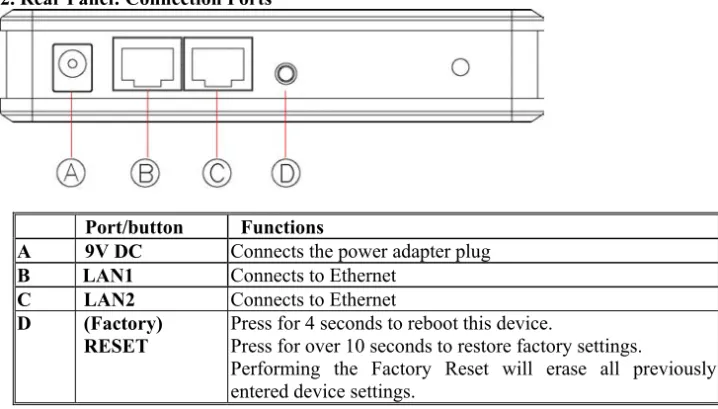
2. Rear Panel: Connection Ports
Port/button Functions
A 9V DC Connects the power adapter plug
B LAN1 Connects to Ethernet
C LAN2 Connects to Ethernet
D (Factory)
RESET
Press for 4 seconds to reboot this device.
Press for over 10 seconds to restore factory settings.
Performing the Factory Reset will erase all previously entered device settings.
Factory Default Settings
Setting Wireless Access Point
Device Name Wireless AP
SSID Default value: 802.11b-SSID Channel 11
WEP Default value: Disabled IP Address 192.168.100.252
HARDWARE CONNECTION
Note: Before you starting hardware connection, you are advised to find an appropriate location to place the Access Point. Usually, the best place for the Access Point is at the center of your wireless network, with line of straight to all your wireless stations. Also, remember to adjust the antenna; usually the higher the antenna is placed, the better will be the performance.
1. Connect to your local area network: connect a Ethernet cable to one of the Ethernet port (LAN1 or LAN2) of this Wireless Access Point, and the other end to a hub, switch, router, or another wireless access point.
2. Power on the device: connect the included AC power adapter to the Wireless Access Point’s power port and the other end to a wall outlet.
Check the LEDs:
The Power and LAN # LEDs should be ON. LAN# LED will even blink if there is traffic. The Link/Act LED will be on in static when associated with a station and blink whenever this AP receives data packets in the air.
If the ErrStatus LED glows after self-test , it means this Wireless Access Point fails on self test. Please ask your dealer for technical support.
3. Configure your PC: Make sure your local PC(s) has wireless network adapter installed.
ABOUT THE OPERATION MODES
This device provides four operational applications with Access Point, Bridge, Client (Ad-hoc) and Client (Infrastructure) modes, which are mutually exclusive.
This device is shipped with configuration that is functional right out of the box. If you want to change the settings in order to perform more advanced configuration or even change the mode of operation, you can use the web-based utility provided by the manufacturer as described in the following sections.
Access Point Mode
When acting as an access point, this device connects all the stations (PC/notebook with wireless network adapter) to a wired network. All stations can have the Internet access if only the Access Point has the Internet connection.
See the sample application below.
To set the operation mode to Access Point, please go to “Wireless JBasic Settings”, in the “Mode” field click the down arrow b to select AP mode.
Bridge Mode
Refer to the illustration below. While acting as Bridges, AP1 (with Station 1 being associated to) and AP2 (with Station 2 being associated) can communicate with each other through wireless interface (with WDS). Thus station 1 can communicate with station 2 and both Station 1 and Station 2 are able to access the Internet if only AP1 or AP2 has the Internet connection.
To set the operation mode to Bridge, please go to “Wireless JBasic Settings”, in the “Mode” field click the down arrow b to select AP mode. And go to “Wireless JWDS Settings” to enable WDS.
Note:
To act as Bridge, both AP1 and AP2 must have WDS enabled and add each other as its WDS Access Point. (e.g. Add AP2’s MAC address to AP1’s “WDS AP List” and vice versa)
Client Mode (Infrastructure)
If set to Client (Infrastructure) mode, this device can work like a wireless station when it’s connected to a computer so that the computer can send packets from wired end to wireless interface.
Refer to the illustration below. This station (AP1 plus the connected computer 1) can associate to another Access Point (AP2), and then can have the Internet access if the other Access Point (AP2) has the Internet connection.
To set the operation mode to Client (Infrastructure), please go to “Wireless JBasic Settings”, in the “Mode” field click the down arrow b to select Client mode, and then select “Network Type” as “Infrastructure”.
Client Mode (Ad-hoc)
If set to the Client (Ad-hoc) mode, this device can work like a wireless station when it is connected to a computer so that the computer can send packets from wired end to wireless interface. You can share files and printers between wireless stations (PC and laptop with wireless network adapter installed).
See the sample application below.
To set the operation mode to Client (Ad-hoc), please go to “Wireless JBasic Settings”, in the “Mode” field click the down arrow b to select Client mode, and then select Network Type as “Ad-hoc”.
CONFIGURATION
Login
1. Start your computer. Connect an Ethernet cable between your computer and the Wireless Access Point.
2. Make sure your wired station is set to the same subnet as the Wireless Access Point, i.e. 192.168.100.12.
3. Start your WEB browser. In the Address box, enter the following:
HTTP://192.168.100.252
The configuration menu is divided into four categories: Status, Wireless, TCP/IP, and Other settings. Click on the desired setup item to expand the page in the main navigation pane. The setup pages covered in this utility are described below.
Status
In this screen, you can see the current settings and status of this Access Point. You can change settings by selecting specific tab described in below.
System
System
Alias Name You can assign a unique name to this Access
Point. The alias name is especially important for identification when there are more than one Access Point is applied in a network.
Uptime The time period since the device was up.
Firmware Version The current version of the firmware installed
in this device. Wireless Configuration
Wireless Mode There are four modes supported, Access
Point, Client (Ad-hoc and Infrastructure), and Bridge. The default mode is Access Point. If you want to change to bridge mode, please go to Wireless/WDS Setting to enable the WDS function.
SSID The SSID differentiates one WLAN from
sensitive and must not exceed 32 characters. A device will not be permitted to join the BSS unless it can provide the unique SSID. An SSID is also referred to as a network name because essentially it is a name that identifies a wireless network.
Channel Number: The number of channels supported depends
on the region of this Access Point. All stations communicating with the Access Point must use the same channel.
Encryption WEP Encryption (Wired Equivalent
Privacy) is set to Disabled by default. When WEP is enabled, data packet is encrypted before being transmitted. The WEP prevents data packets from being eavesdropped by unrelated people. By using WEP data encryption, there may be a significant degradation of the data throughput on the wireless link.
Associated Clients Displays the total number of clients
associated to this AP. You can have up to 64 clients to associate to this Access Point.
BSSID BSSID displays the ID of current BSS,
which uniquely identifies each BSS. In AP mode, this value is the MAC address of this Access Point.
TCP/IP Configuration
IP Protocol Display the method to get the IP of this AP, which could be obtained by Fixed-IP or DHCP-client.
br0 IP Address Current IP address for this Access Point br0 Subnet Mask Current Subnet mask for this Access Point br0 Default Gateway Default Gateway for this Access Point br0 MAC Address The MAC Address for this Access Point
Statistics
The Statistics table shows the packets sent/received over wireless and ethernet LAN respectively.
Active Clients
This page display wireless stations that are associated to this Access Point, with information of their MAC addresses, transmitted/received packets, transmitting rate, power saving mode, and expired time.
Wireless
Basic Settings
This page includes all primary and major parameters. Any parameter change will cause the device to reboot for the new settings to take effect.
Alias Name: Maximum 32 characters alpha-numeric You
can assign a unique name to this Access Point. The alias name is especially useful for identification when there are more than one Access Point is applied in a network.
Disable Wireless LAN Interface: Check the box to disable the Wireless LAN Interface, by so doing, you won’t be able to make wireless connection with this Access Point in the network you are located. In other words, this device will not be visible by any wireless station.
Mode: This Wireless Access Point can support four
modes AP, Client (Ad-hoc), Client (Infrastructure), and Bridge.
The default is set to AP mode. In the “Mode” field Click the pull down arrow d
setting to enable WDS.
Network Type: When in Client mode, you can select
between Ad-Hoc and Infrastructure.
SSID: The SSID differentiates one WLAN from
another, therefore, all access points and all devices attempting to connect to a specific WLAN must use the same SSID. It is case-sensitive and must not exceed 32 characters. A device will not be permitted to join the BSS unless it can provide the unique SSID. An SSID is also referred to as a network name because essentially it is a name that identifies a wireless network.
Channel Number: Allow user to set the channel manually or
automatically.
If set channel manually, just select the channel you want to specify.
If “Auto” is selected, user can set the channel range to have Wireless Access Point automatically survey and choose the channel with best situation for communication. The number of channels supported depends on the region of this Access Point. All stations communicating with the Access Point must use the same channel.
From Channel: To Channel: When select “Auto” in “Channel Number, you have to set a range of channels for the Access Point to automatically survey and choose the channel for optimal performance.
Allowed Clients Enter a number ranging from 1 to 64.
Apply Change Press to save the new settings on the screen.
Reset Press to discard the data you have entered
Authentication Type
To provide a certain level of security, the IEEE 802.11 standard has defined two types of authentication methods, Open System and Shared Key. With Open System authentication, a wireless PC can join any network and receive any messages that are not encrypted. With Shared Key authentication, only those PCs that possess the correct authentication key can join the network. By default, IEEE 802.11 wireless devices operate in an Open System network. Wired Equivalent Privacy (WEP) data encryption is used when the wireless devices are configured to operate in Shared Key authentication mode.
If the Access Point is using "Open Authentication”, then the wireless adapter will need to be set to the same authentication mode.
Shared Authentication is used when both the sender and the recipient share a secret key.
Point Authentication mode.
Fragment Threshold Fragmentation mechanism is used for improving the
efficiency when high traffic flows along in the wireless network. If your 802.11g Wireless LAN PC Card often transmit large files in wireless network, you can enter new Fragment Threshold value to split the packet. The value can be set from 256 to 2346. The default value is 2346. RTS Threshold RTS Threshold is a mechanism implemented to prevent the
“Hidden Node” problem. “Hidden Node” is a situation in which two stations are within range of the same Access Point, but are not within range of each other. Therefore, they are hidden nodes for each other. When a station starts data transmission with the Access Point, it might not notice that the other station is already using the wireless medium. When these two stations send data at the same time, they might collide when arriving simultaneously at the Access Point. The collision will most certainly result in a loss of messages for both stations.
Thus, the RTS Threshold mechanism provides a solution to prevent data collisions. When you enable RTS Threshold on a suspect “hidden station”, this station and its Access Point will use a Request to Send (RTS). The station will send an RTS to the Access Point, informing that it is going to transmit the data. Upon receipt, the Access Point will respond with a CTS message to all station within its range to notify all other stations to defer transmission. It will also confirm the requestor station that the Access Point has reserved it for the time-frame of the requested transmission. If the “Hidden Node” problem is an issue, please specify the packet size. The RTS mechanism will be activated if the data size exceeds the value you set.. The default value is 2347.
DTIM is a countdown field informing clients of the next window for listening to broadcast and multicast messages. When the access point has buffered broadcast or multicast message for associated clients, it sends the next DTIM with a DTIM Period value. Access point clients hear and awaken to receive the broadcast and multicast messages. The default DTIM period is ‘3’.
Data Rate By default, the unit adaptively selects the highest possible rate for transmission. Select the basic rates to be used among the following options: Auto, 1, 2, 5.5, or 11 Mbps. For most networks the default setting is Auto which is the best choice. When Auto is enabled the transmission rate will select the optimal rate. If obstacles or interference are present, the system will automatically fall back to a lower rate.
Preamble Type A preamble is a signal used in wireless environment to
synchronize the transmitting timing including Synchronization and Start frame delimiter. In a "noisy" network environment, the Preamble Type should be set to Long Preamble. The Short Preamble is intended for applications where minimum overhead and maximum performance is desired. If in a "noisy" network environment, the performance will be decreased.
Broadcast SSID Select enabledto allow all the wireless stations to detect the SSID of this Access Point.
Tx Power Level Select the power level to transmit packets.
IAPP To enable IAPP means that Access Points will communicate
across the backbone network, so that mobile stations can roam between them.
Apply Change Press to save the new settings on the screen.
Reset Press to discard the data you have entered since last time
Security
Here you can configure the security of your wireless network. Selecting different method will enable you to have different level of security. Please note that by using any encryption, by which data packet is encrypted before transmission to prevent data packets from being eavesdropped by unrelated people, there may be a significant degradation of the data throughput on the wireless link.
Encryption : None ( Encryption is set to None by default. )
If None is selected, you can still select to Use 802.1x Authentication and Enable MAC Authentication.
To Enable MAC Authentication means to use client MAC address for authentication with RAIDUS server
If both Use 802.1x Authentication and Enable MAC Authentication are selected, the RADIUS Server will check MAC Authentication first; if the MAC Authentication passes, the 802.1x Authentication will be skipped. If not, the RADIUS Server will proceed to check the 802.1x Authentication.
Set WEP key Click the Set WEP Keys will prompt you a window to set 64bit or 128bit Encryption. Select HEX if you are using hexadecimal numbers (0-9, or A-F). Select ASCII if you are using ASCII characters (case-sensitive).
Ten hexadecimal digits or five ASCII characters are needed if 64-bit WEP is used; 26 hexadecimal digits or 13 ASCII characters are needed if 128-bit WEP is used.
Use 802.1x
Authentication If Key won’t be usable. Use 802.1x is selected, then the Set WEP If Use 802.1x is selected, the Enable RADIUS Client will be automatically selected too. If Use 802.1x is selected and “WEP” is selected in Encryption field, then the authentication mechanism to the RADIUS Server will be TTLS. Encryption : WPA
WPA: If WPA is selected, users will have to select the Authentication modes between WPA-RADIUS and Pre-shared Key, both modes need to have TKIP selected. (AES is not functional at present.)
which the 802.1x Authentication will be activated. Make sure the same password is used on client's end.
There are two formats for choice to set the Pre-shared key, i.e. Passphrase and Hex. If Hex is selected, users will have to enter a 64 characters string. For easier configuration, the Passphrase format is recommended.
Group Key Refresh
Time Enter the number of seconds that will elapse before the group key change automatically. The default is 300 seconds.
Apply Change Press to save the new settings on the screen.
Reset Press to discard the data you have entered since last time you
press Apply Change.
Access Control
When Enable Wireless Access Control is checked, only those clients whose wireless MAC addresses listed in the access control list can access this Access Point. If the list contains no entries with this function being enabled, then no clients will be able to access this Access Point.
Enable Wireless Access Control
Check the checkbox to enable this function.
MAC Address Enter the MAC Address of a station that is allowed to access this Access Point.
Comment You may enter up to 20 characters as a remark to the
previous MAC Address.
Apply Change Press to save the new settings on the screen.
Reset Press to discard the data you have entered since last time
you press Apply Change.
Delete Selected To delete clients from access to this Access Point, you may firstly check the Select checkbox next to the MAC address and Comments, and press Delete Selected.
Delete All To delete all the clients from access to this Access Point, just press Delete All without selecting the checkbox.
Reset If you have made any selection, press Resetwill clear all the
select mark.
Site Survey
Site survey displays all the active Access Points and IBSS in the neighborhood. When you are in the client mode, you can select one AP to associate.
WDS Setting
To enable WDS function will let this AP enter “Bridge Mode”. Two APs in bridge modes can communicate with each other through wireless interface. That is, two stations
associated to different AP in bridge mode can communicate with each other.
marking the checkbox.
Delete All You can delete all of the WDS Access Points listed
above.
Reset Press to discard the data you have entered since last time
TCP/IP
Basic
In this page, you can change the TCP/IP settings of this Access Point, select to enable/disable the DHCP Client, 802.1d Spanning Tree, and Clone MAC Address.
IP Address This field can be modified only when DHCP Client is disabled. If your system manager assigned you static IP settings, then you will have to enter the information provided.
Subnet Mask Enter the information provided by your system manager. Default Gateway Enter the information provided by your system manager. DHCP Client To enable the DHCP Client will let the Access Point obtain
802.1d
Spanning Tree To enable 802.1d Spanning Tree will prevent the network from infinite loops. Infinite loop will happen in the network when WDS is enabled and there are multiple active paths between stations.
Clone MAC Address You can specify the MAC address of your Access
Point to replace the factory setting.
Web Server Port: The web server provides the configuration service to manage this Access Point. Generally the web server port is set to 80. You can change it in this field. Apply Change Press to save the new settings on the screen.
Reset Press to discard the data you have entered since last time
you press Apply Change.
If “Web Redirection” is enabled, unauthorized clients associating to this AP will be re-directed to the specified “Redirection URL” when they are trying to access the Internet
Web Redirection Click the “Enable/Disable” radio button to
enable/disable the function of “Web Redirection”.
Redirection URL This URL (Universal Reference Locator) must be a
complete one, which means you can not leave out URL protocol - http:// before the full domain name, i.e. http://www.mycompany.com. Or the web redirection will not work properly.
Open Address 1 The IP address for the URL you entered in the previous field.
Open Address 2 The IP address for your ISP’s DNS. Open Address 3
Open Address 4 Other open IP address allowed to be connected to. Apply Change Press to save the new settings on the screen.
DHCP Relay DHCP Relay is disable by default factory. Clicking the radio button to enable DHCP relay.
DHCP Server Enter the IP address of the DHCP server if you are
using it.
Apply Change Press to save the new settings on the screen.
SNMP
SNMP is an application-layer protocol widely used to facilitate the exchange of management information between network devices. By using SNMP-transported data, network administrators can more easily manage network performance, find and solve network problems, and plan for network growth.
SNMP Setup
Server Click the radio button to enable/disable the SNMP
server. You have to enable this function first to set the following settings.
Trust Host IP Enter the IP address of the NMS (Network
Monitoring Stations). The NMS is the only host PC that is allowed to access this AP. If this filed is left blank, it means that every host PC is allowed to access the AP if only its “Community string” is correct.
Trap Version SNMP Trap version 1 and 2 are both supported. Select your preference.
Trap Activity
Sent on redirect Send a trap to the Trap Receiver (already defined in the Trust Trap IP) when a station (wireless client) is redirected to the default web site.
Sent on Auth Success
(Authorization success) Send a trap to the Trap Receiver (already defined in the Trust Trap IP) when a station (wireless client) gets authorization from the 802.1x server (or RADIUS server). Sent on Auth Failure
(Authorization failure)
Send a trap to the Trap Receiver (already defined in the Trust Trap IP) a wireless client fails to get authorization from the 802.1x server (or RADIUS server).
Sent WEP key failure Send a trap to the Trap Receiver (already defined in the Trust Trap IP) when a wireless client fails to associate to the AP because of wrong WEP keys.
Sent on acct failure Send a trap to the Trap Receiver (already defined in the Trust Trap IP) when the accounting server of a wireless client is invalid or fails.
Sent on boot Send a trap when the AP has booted.
Sent on reboot Send a trap when the AP is asked to reboot itself. Sent on web start Send a trap once the AP web server is ready for use.
Other
Upgrade Firmware
1. Download the latest firmware from your distributor and save the file on the hard drive.
2. Start the browser, open the configuration page, click on Other, and click Upgrade Firmware to enter the Upgrade Firmware window. Enter the new firmware’s path and file name (i.e. C:\FIRMWARE\firmware.bin). Or, click the Browse button, find and open the firmware file (the browser will display to correct file path).
3. Click Reset to clear all the settings on this page. Or click Upload to start the upgrade.
Reboot
Save/Reload Settings
This function enables users to save the current configurations as a file (i.e. config.dat) To load configuration from a file, enter the file name or click Browse… to find the file from your computer.
Save Settings to File: Click SAVE.. to save the current configuration to file.
When prompted the upper left screen, select “Save this file to disk”, and the upper right screen will prompt you a dialog box to enter the file name and the file location. Load Settings From File: Click Browse… if you want to load a pre-saved file, enter the file name with the correct path and then click on Upload. Or click Browse… to select the file.
Password
For secure reason, it is recommended that you set the account to access the web server of this Access Point. Leaving the user name and password blank will disable the protection. The login screen prompts immediately once you finish setting the account and password. Remember your user name and password for you will be asked to enter them every time you access the web server of this Access Point.
User Name Enter your new user name to access the web server. User
name can be up to 30 characters long. User name can contain letter, number and space. It is case sensitive.
New Password Set your new password. Password can be up to 30 characters long. Password can contain letter, number and space. It is case sensitive.
Confirm Password Re-enter the new password for confirmation. Apply Change Press to save the new settings on the screen.
Reset Press to discard the data you have entered since last time you