iGrafx® FlowCharter™ 2015, iGrafx® Process™ 2015, iGrafx® Process™ 2015 for Six Sigma, iGrafx® Process™ 2015 for Enterprise Modeling™, iGrafx® Process™ 2015 for SAP®, Process Central®, iGrafx Process Automation™, iGrafx® Performance Central™, Enterprise Central®, Enterprise Modeler®, Enterprise Modeler® for SAP®, iGrafx® Gateway for SAP® Solution Manager. The software mentioned above is the property of iGrafx, LLC and its licensors and is protected by copyright. Any reproduction in whole or in part is strictly prohibited. iGrafx, Swimlane, iGrafx FlowCharter, iGrafx IDEF0, iGrafx Process, iGrafx Process Central, iGrafx Enterprise Central and iGrafx Enterprise Modeler are trademarks or registered trademarks of iGrafx, LLC and/or its subsidiaries in the U.S. and/or other countries.
Adobe® PDF is a registered trademark of Adobe Systems Incorporated in the United States and/or other countries. iGrafx provides certain modeling and diagram objects in support of and based on the LEAD Reference Framework.
Microsoft, Word, Excel, PowerPoint and SQL Server® are either registered trademarks or trademarks of Microsoft Corporation in the United States and/or other countries.
SAP®, the SAP logo and SAP® Solution Manager are registered trademarks of SAP AG in Germany and in several other countries. Oracle and Java are registered trademarks of Oracle and/or its affiliates. Other names may be trademarks of their respective owners.
MINITAB® and all other trademarks and logos for the Company's products and services are the exclusive property of Minitab Inc. All other marks referenced remain the property of their respective owners. See minitab.com for more information.
JMP is a registered trademark of SAS Institute Inc. in the USA and a trademark in all other countries. Six Sigma is a trademark of Motorola, Inc.
SQL Server 2012 © Copyright 2012, Microsoft Corporation. All rights reserved.
All other product, font and company names and logos are trademarks or registered trademarks of their respective companies. Revision: Dec. 2014
Contents
Logging In 4
Types of Registration 5
Administration Client 7
Overview 8
Administration 9
Context Roles 11
Scheduled Jobs 12
Mail Queue 13
Logging In
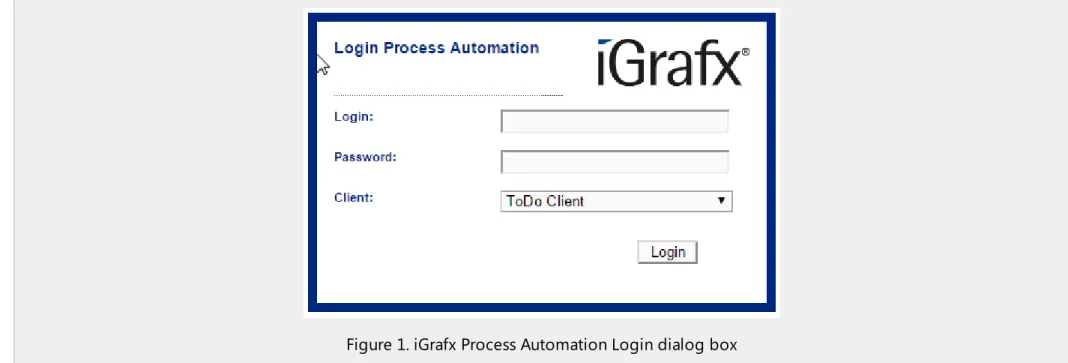
The Process Automation Login dialog box (seeFigure 1below) requires three values that you must specify:
l Login– There are three ways to enter the login credentials; seeTypes of Registrationon the next page. l Password– Your assigned password.
l Client– Specifies which of the various clients you wish to log in to. The set of clients available to you depends on your specific user
permissions.
Options available in the Client drop-down list include the following:
l ToDo Client l ToDo Client 1G
l Process Manager Client l Process Manager Client 4G l Process Monitoring Client l Administration
Types of Registration
There are three ways to log in to iGrafx Process Automation. Not all may be supported by your organization's implementation.
When you have supplied the required values, click theLoginbutton. The Process Automation dashboard, at the URL http://your_internal_server/ opens in your browser.
Log in with client and user name
You can also log in with your iGrafx Process Automation username and a client prefix. This way, iGrafx Process Automation knows which client you want to log in to. The client and username must be specified as follows:
client/name
Thenamevalue must be the one specified in your client profile by your organization's iGrafx Process Automation administrator. Log in with username
If you log in using just your username and password, you'll be logged in to the iGrafx Process Automation client that is specified as the default client in the tim.properties file in the JBoss directory.
Log in with your email address
Each user can be registered with the email address in their user profile when the associated password is correct. Note:The email address specified for you in iGrafx Process Automation must be your system-wide email address.
Administration Client
iGrafx Process Automation includes five different web clients that you can log in to:
l ToDo Client l ToDo Client 1G
l Process Manager Client 4G l Process Manager Client (2G) l Process Monitoring Client l Administration
Note:The ToDo clients are described in theiGrafx® 2015 Process Automation User Guide.
The Process Manager and Process Monitor clients are described in theiGrafx® 2015 Process Automation Manager Guide. Your permissions settings determine your access to the individual clients.
Any user who wants to log in to the Administration Client needs the appropriate Administrator permissions and login credentials.
The Administration client is designed to maintain administrative affairs of the software. The administrator has broad rights, like, for example, the administration of users within a company. In addition, settings specifically for a process definition can be made.
Overview
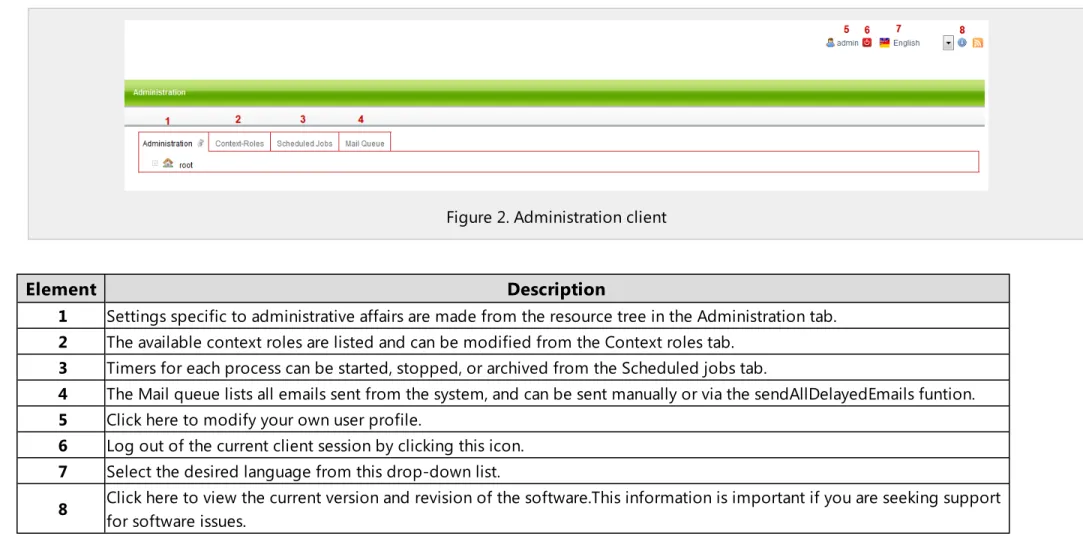
The Administration client is a simple client for managing users, roles, job schedules and emails generated from iGrafx Process Automation.
Figure 2. Administration client
Element
Description
1 Settings specific to administrative affairs are made from the resource tree in the Administration tab. 2 The available context roles are listed and can be modified from the Context roles tab.
3 Timers for each process can be started, stopped, or archived from the Scheduled jobs tab.
4 The Mail queue lists all emails sent from the system, and can be sent manually or via the sendAllDelayedEmails funtion. 5 Click here to modify your own user profile.
6 Log out of the current client session by clicking this icon. 7 Select the desired language from this drop-down list.
Administration
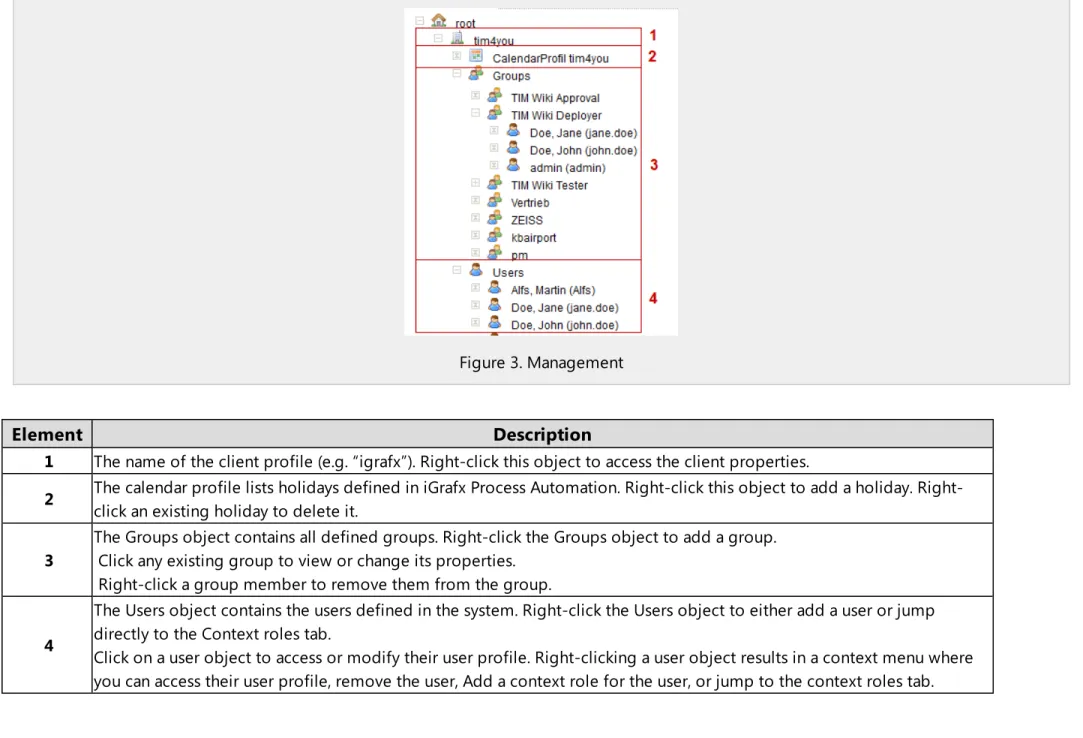
The Administration tab displays available resource definitions in a tree structure. The top level, “root,” is where you can compile a new client. The subsequent levels are created from the client profiles.
When the tree is expanded, Calendar Profiles, Groups, and Users levels are visible.
l The Calendar Profile object shows the holidays defined in the system. You can add and delete holidays by right-clicking on the Calendar
Profile object.
l The Groups object is parent to a set of groups that are comprised of the users assigned to those groups.
Figure 3. Management
Element
Description
1 The name of the client profile (e.g. “igrafx”). Right-click this object to access the client properties.
2 The calendar profile lists holidays defined in iGrafx Process Automation. click this object to add a holiday. Right-click an existing holiday to delete it.
3
The Groups object contains all defined groups. Right-click the Groups object to add a group. Click any existing group to view or change its properties.
Context Roles
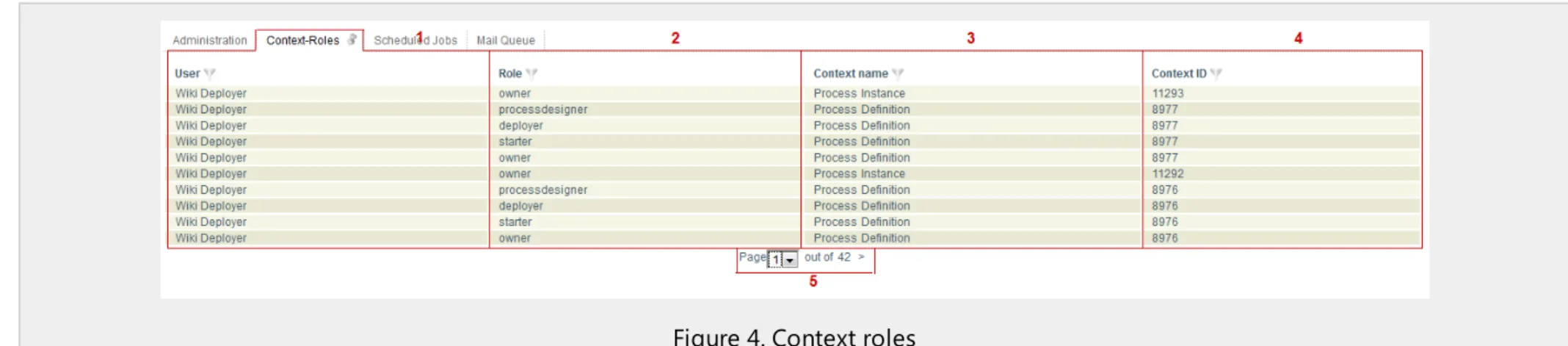
The Context roles tab maps users to their roles in the context of either process instances or process definitions.
Figure 4. Context roles
A click on a context role of this list will open a window where the roles can be adapted.
Element
Description
1 The name of the user for whom this context role is defined. 2 The user's role.
3 The context of the role (process definition, process instance, or process definition template).
4 A unique number indicating the specific definition/instance in which the role is valid. This depends on the value in the Context name column.
Scheduled Jobs
All regularly-executed functions that process time-controlled tasks are called timers.
Figure 5. Scheduled jobs
Timers can be started/stopped, or archived via a right-click.
Element
Description
1 The name assigned to the timer.
2 Any potential errors that occurred during the execution of the timer. 3 The time of the timer's last execution.
4 The time of the timer's first execution.
5 The remaining time until the start of the timer.
6
An icon indicating whether the timer is currently started or stopped. If a little green arrow appears at the bottom right of the icon, the timer has started and is currently running. If this arrow is not present, the timer is stopped. Click this symbol to start
Mail Queue
The Mail queue tab lets you administer email sent from iGrafx Process Automation.
Figure 6. Mail queue
Column
Description
Receiver The recipient of the email. Subject The subject of the email.
Attachments Any attachments are indicated in this column by a paper-clip icon.
sent at If the email was sent from the queue, the date and time it was sent appears in this column. sent by If the email was sent from this queue, the user who sent it appears in this column.
blocked at Emails in this queue can be blocked. The sendAllDelayedEmails timer ignores these emails and does not send them. This column shows you when the email was blocked.
blocked by This column shows which user bocked the associated email. delete Click this button to delete the corresponding email
Global Mail Queue Commands
Across the bottom of the Mail queue list, there is a line of five buttons that perform actions on the entire mail queue.
l Send all emails– Sends all emails in the queue.
l Resend all failed emails– Attempts to resend all failed emails in the queue. l Remove all failed emails– Deletes all failed emails from the queue.
l Remove all blocked emails– Deletes all blocked emails from the queue.
l "all sent emails older thanNdays" delete– Deletes all emails in the queue that are older than the number of days selected in the