Dept., of Computer Science BVRICE Page 1
AN INTRODUCTION TO HTML
A brief History of HTML
HTML stands for Hyper-Text Markup Language. It is a coding language, which uses a method called markup, to create hyper-text. HTML is actually a simplified subset of a more general markup language called SGML, which stands for Standard Generalized Markup Language
In 1989, Tim Berners-Lee, working at the European particle physics institute known as CERN (Centre European pour la Recherche Nucleaire), proposed a system to allow scientists to share papers with other using electronic networking methods.
Tim Berners-Lee suggested that it be based on the already existing SGML.
Here are a few quotes from a 1990 CERN memo that Berners-Lee wrote:
HyperText is a way to link and access information of various kinds as a web of nodes in which the user can browse at will.
A program which provides access to the hypertext world we call a browser…
Marc Andreesen, who was working at the National Center for Supercomputing Applications, created a browser called Mosaic which was released in 1993.
In 1992, Berners-Lee and the CERN team released the first draft HTML 1.0, which was finalized in 1993.
In 1994, HTML 2.0 was developed
by the Internet Engineering Task Force‟s HTML Working Group. This group later was disbanded in favor of the World Wide Web Consortium (http://www.w3.org), which continues to develop HTML.
The World Wide Web Consortium (W3C), which had taken over HTML development, attempted to create some standardization in HTML 3.0. Finally, in 1996 a consensus
version, HTML 3.2, was issued. This added
features like tables, and text flowing around images.
The W3C released the HTML 4.0 specification at the end of 1997, and followed with HTML 4.01 in 1999, which mostly corrected a few errors in the 4.0 specification. XHTML 1.0 is the successor to HTML. The “X” stands for Extensible. This
is a reformulation of HTML 4.01 within XML (Extensible Markup Language)
Dept., of Computer Science BVRICE Page 2 Definition, features, advantages and disadvantages of HTML
HTML:
HTML stands for Hyper-Text Markup Language. It allows us to create web pages. It does not include any control structure and can produce only static content. A HTML page consists of various tags that make a web page. The features, advantages and disadvantages of HTML page are listed below.
Features of HTML:
It is a formatting language for text and images.
It allows us to read the content nonlinearly by using hyperlinks to a file. HTML is an application of SGML.
HTML uses markup tags to describe web pages.
It is not case sensitive i.e. code can be written in small case or uppercase letters. All the HTML documents have “.html” or “.htm” extension.
HTML documents can be edited using editors such as notepad or front page.
The advantages of HTML:
It allows embedding scripts, to generate dynamic content.
It can incorporate images and sounds with the help of HTML tags. It facilitates Moving and layered text.
It allows framed documents.
It allows absolute positioning of text and image.
Spreadsheets, video clips, pdf files can be embedded in HTML documents with the support of third party plug-ins.
The disadvantages of HTML:
HTML can produce only static content.
It does not facilitate headers, footers, footnotes. Mathematical typesetting is difficult.
Browser Dependent.
No tabs and other automatic character spacing
Dept., of Computer Science BVRICE Page 3 Some Basic definitions
HTML
HTML stands for Hyper-Text Markup Language. It allows us to create web pages. It does not include any control structure and can produce only static content. A HTML page consists of various tags that make a web page.
Webpage
A webpage is a simple document displayable by a browser. Such document is written in the HTML language. A webpage can embed a variety of different types of resources such as:
style information — controlling a page's look-and-feel scripts — which add interactivity to the page
media — images, sounds, and videos.
website
A collection of WebPages which are grouped together and usually connected together in various ways. Often called a "web site" or simply a "site."
Web server
A web server is a computer hosting one or more websites. "Hosting" means that all the
WebPages and their supporting files are available on that computer. Web Browser
A web browser is a software application that people use in order to view web pages on the internet. It can be used to upload or download files on FTP servers.
WWW
The World Wide Web (WWW) is an information space where documents and other web resources are identified by URLs, interlinked by hypertext links, and can be accessed via the Internet. The World Wide Web was invented by English scientist Tim Berners-Lee in 1989.
Dept., of Computer Science BVRICE Page 4 HTML Basics
HTML is a language for describing web pages.
• HTML stands for Hyper Text Markup Language
• HTML is a markup language
• A markup language is a set of markup tags
• The tags describe document content
• HTML documents contain HTML tags and plain text
• HTML documents are also called web pages
Structure of HTML document
A HTML document is basically separated in two parts: the head (HTML head tag) and the body (HTML body tag). We also add a Document type declaration on top of it to get the basic document structure and HTML version. The structure of a HTML document is shown below.
Structure of HTML program:
<! DOCTYPE …> version information
<HTML>
<HEAD>
...information about document, scripts, styles….
</HEAD>
<BODY>
...visible content of document….
</BODY>
</HTML>
The !DOCTYPE declaration:
Dept., of Computer Science BVRICE Page 5 the beginning of the document. It tells the processing agent and HTML version. Sample is shown below.
<!DOCTYPE HTML PUBLIC "-//W3C//DTD HTML 4.0//EN">
<HTML> tag:
The html tag acts as a container for the whole document. Every character in the document should be in between the html start and end tags. The html tag can also be used to define the language of the contained document through the "lang" attribute. The content of the html tag is divided in two parts using the head (HTML head tag) and the body (HTML body tag).
<HEAD> tag:
This section is the document's head. All the information contained in the document's head is loaded first, before any other thing in the document, as it's defined before the body segment. It includes tags like title, script, style, meta and so on.
<BODY> tag:
This is the document's body: The body is the container for the visual part of a document. All the things written here will be shown when the document is rendered. Most of the tags in HTML can be inserted in the body section (inside the HTML body tag) and will take care of the visual aspects of the document.
Example:
<HTML>
<HEAD>
<TITLE> My first Page </TITLE>
</HEAD>
<BODY>
<H1> Hello HTML <H1>
</BODY>
</HTML>
Dept., of Computer Science BVRICE Page 6 ******************************************************************************
Tags in HTML
HTML Tags: HTML uses markup tags to describe web pages. HTML markup tags are usually called HTML tags.
Properties of HTML T ags
The properties of tags are listed below.
HTML tags are keywords surrounded by angle brackets as in <tag-name>
HTML tags normally come in pairs like <tag-name> and </tag-name>, such tags are called paired tags.
The first tag in a pair is the start tag, the second tag is the end tag Start and end tags are also called opening tags and closing tags.
Some of the tags have only opening tag. These are called empty tags like <BR>, <HR>. Each tag may have attributes in them as in <font color=’red’>, here color is attribute and
„red‟ is its value.
No tag in HTML is mandatory. But, a well written HTML document has <HTML>, <HEAD> and <BODY> tags.
Tags are not case sensitive i.e. they may be written in lower or upper case letters. Some tags can also be nested within other tags; for example:
<H1> This is my <B> Computer </B> Notes </H1>
If a browser cannot interpret a tag, it will be simply ignored. Tags are also called elements of a HTML document.
Dept., of Computer Science BVRICE Page 7 Text Formatting Tags in HTML
The following HTML tags are used to format the appearance of the text on your web page.
Header - <h?> </h?>
There are 6 levels of headings available, from h1 for the largest and most important heading, down to h6 for the smallest heading.
Bold - <b> </b>
The text in between the tags will be bold, and stand out against text around it, the same as in a word processor.
Italic - <i> </i>
Also working the same way as a word processor, italics displays the text at a slight angle.
Underline - <u> </u>
Again the same as underline in a word processor. Note that html links are already underlined and don't need the extra tag.
Strike-out - <strike> </strike>
Puts a line right through the centre of the text, crossing it out. Often used to show that text is old and no longer relevant.
Preformatted Text - <pre> </pre>
Any text between the pre tags, including spaces, carriage returns and punctuation, will appear in the browser as it would in a text editor (normally browsers ignore multiple spaces)
Typewriter Text - <tt> </tt>
The text appears to have been typed by a typewriter, in a fixed-width font.
Small - <small> </small>
Instead of having to set a font size, you can use the small tag to render text slightly smaller than the text around it.
<basefont>
Dept., of Computer Science BVRICE Page 8 <basefont size=”n”> . . . </basefont>
<font>
Specifies the font face, font size, and font color of text.
Centre - <center> </center>
A useful tag, as it says, it makes everything in between the tags centered (in the middle of the page).
Emphasis - <em> </em>
Used to emphasize text, which usually appears in italics, but can vary according to your browser.
Example: A HTML program that illustrates the text formatting tags.
<html>
<head>
<title>Example - Text Formating Tags</title>
<body>
<h1>Header Size 1</h1>
<p><H3>Header Size 3</h3>
The Next Line of example text should be in the middle of the document
<center>
<p><b>Bold Text</b>, <i>Italic Text</i>, <u>and underlined text.</u>
</center>
<p><font size="5">Font size = 5</font>
<br><font face="arial">Font Face = Arial</font>
<br><font color="#FF0000">Font Colour = Red</font>
<p>Normal Text, <sub>Subscript text</sub>, More Normal Text, <sup>Supersrpit Text</sup>
<p><em>Text in Emphasis</em>
Dept., of Computer Science BVRICE Page 9 <pre>
This is preformatted text (using the PRE) tag
as it appears in the editor
view the source code and you will
notice that there are no tags until here.
It is dsiplayed the exact way that its been
set out in the editor. If required the font can be changed
<font face="arial">like this</font> using
the FONT FACE= tag.
</pre>
<tt>This text should appear as if it has been typed by a typewriter</tt>
<p>
<small>The fine print (small text)</small>
<hr>
<center>
<font size="2">--- End Of Example ---</font>
</body>
</html>
Dept., of Computer Science BVRICE Page 10 ******************************************************************************
Heading Tags
Heading: The <h1> to <h6> tags are used to define HTML headings. <h1> defines the most important heading and <h6> defines the least important heading. The syntax of h1> to <h6> tags are:
<h1 [align=” left” | “ center” | “ right” | “ justify” ] . . . </p>
The “ align” attribute is optional. It defines the horizontal alignment of its content.
<h1 [align=” left” | “ center” | “ right” | “ justify” ] . . . </h1>
<h2 [align=” left” | “ center” | “ right” | “ justify” ] . . . </h2>
<h3 [align=” left” | “ center” | “ right” | “ justify” ] . . . </h3>
<h4 [align=” left” | “ center” | “ right” | “ justify” ] . . . </h4>
<h5 [align=” left” | “ center” | “ right” | “ justify” ] . . . </h5>
Dept., of Computer Science BVRICE Page 11 Horizontal Line Tag:
The HTML <hr> tag draws a horizontal line and that may be used as separator. This tag has a set of attributes such as align, noshade, size and width and they are optional. The <hr> tag does not require and end tag.
Ex: A Basic Example:
<! -- This code demonstrates the --
-- purpose of headers, paragraph, --
-- break and horizontal tags -- > <html>
<head>
<title> This is Sample Page</title> </head>
<body>
<h1 align=”center”>This is heading…1</h1>
<h2 align=”center”>This is heading…2</h2>
<h3 align=”center”>This is heading…3</h3
Dept., of Computer Science BVRICE Page 12 <h5 align=”center”>This is heading…5</h5>
<h6 align=”center”>This is heading…6</h6>
<p align=”center”>This is Basic Web Page Example. <br>
I am studying B. Sc III year(M.S.CS)<br>
This is the first time I am learning HTML</p>
<hr width=”50%”>
</body>
</html>
Output:
******************************************************************************
Escape Sequence tags in HTML
Dept., of Computer Science BVRICE Page 13 Escape Sequence tag Character to display
& Displays &
< Displays <
< Displays <
> Displays >
" Displays "
Displays blank space
© Displays ©
Ex:1 Changing Font Sizes
<html>
<head>
<title>Changing Font Sizes</title>
</head>
<body>
<h1>Changing Font Sizes</h1>
<basefont size=”3”>
<p>Here is some text in size three
<p>And here is some <font size=”7”>larger</font>
<font size=”+3”>t</font>
<font size=”+2”>e</font>
<font size=”+1”>x</font>
<font size=”-1”>t</font>
</basefont>
</body>
Dept., of Computer Science BVRICE Page 14 Output:
******************************************************************************
Hyperlinks in HTML
In HTML <a> tag defines a hyperlink. A hyperlink (or link) is a word, group of words, or image that you can click on to jump to another document. When we move the cursor over a link in a Web page, the arrow will turn into a little hand.
The most important attribute of the <a> element is the href attribute, which indicates the link‟s destination.
By default, links will appear as follows in all browsers:
An unvisited link is underlined and blue A visited link is underlined and purple An active link is underlined and red
HTML Link Syntax
The HTML code for a link is simple. It looks like this:
<a href="url">Link text</a>
The href attribute specifies the destination of a link.
Ex:
<a href="http://www.google.co.in/">Visit www.google.com </a>.
Which will display like this: Visit www.google.com
Dept., of Computer Science BVRICE Page 15 Note: The "Link text" doesn't have to be text. It can be an image or any other HTML element.
HTML Links - the target Attribute
The target attribute specifies where to open the linked document. The following example will open the linked document in a new browser window or a new tab:
Ex:
<a href="http://www.google.co.in/" target="_blank">Visit Google</a>
Ex: Linking to Other Pages
Step:1 Open the Notepad and type the following code and save it as “first.html ”.
<html>
<head>
<title>First Page</title>
</head>
<body>
<h3>Linking to another page</h3>
<p>Hai, this is Naresh<br>
To know about me please <a href="second.html">Click Here</a>
</body>
</html>
Step:2 Open the Notepad and type the following code and save it as “second.html ”.
<html>
<head>
<title>Second Page</title>
</head>
<body>
Dept., of Computer Science BVRICE Page 16 <pre>
Name: B Naresh
Qualification: MCA
Designation: Lecturer in Computer Science
</pre>
<i>To go the Home page please <a href="Home.html">Click Here</a></i>
</body>
</html>
Dept., of Computer Science BVRICE Page 17 Links in same page (OR) Inter Documented Links in HTML
The following code example demonstrates how to use a link to jump to another part of a document.
Ex:
<html>
<body>
<p>
<a href="#C4">See also Chapter 4.</a> </p>
<h2>HTML</h2>
<p>This chapter explains basics of HTML</p>
<h2>CSS</h2>
<p>This chapter explains Cascading Style Sheets</p>
<h2>JavaScript</h2>
<p>This chapter explains JavaScript</p>
<h2><a name="C4">XML</a></h2>
<p>This chapter explains XML </p>
<h2>ASP</h2>
<p>This chapter explains ASP</p>
</body>
Dept., of Computer Science BVRICE Page 18 Output:
******************************************************************************
Relative Path and Absolute Path
Absolute Path:
A path is an absolute path if the entire URL and file name can be pasted into a browser's address field to locate a specific page on the Internet. An absolute path specifies a fully-qualified URL; the protocol (http://) must be present in addition to the site's domain name, and often a subfolder or specific file name is included as well.
This is an example of link to an absolute URL:
<a href="http://www.google.com/">Google search engine</a>
The URL in the link above can be loaded regardless of the current page displayed in a browser.
Relative Path:
Dept., of Computer Science BVRICE Page 19 For example, if all the files in our Web site are contained within the same directory (or folder), and we want to establish a link from page1.html to page2.html, the code on page1.html will look like this:
<a href="page2.html">Go to page 2</a>
This link will be valid only from within the same directory that page2.html is saved in. The browser receives the request for the new page, looks in the current directory (folder) of the current page, and finds a file named page2.html to display.
******************************************************************************
LISTS in HTML
HTML supports three types of lists. They are
1. Ordered Lists
2. Unordered Lists
3. Definition Lists
Ordered lists
Dept., of Computer Science BVRICE Page 20 1. Gather ingredients
2. Mix ingredients together
3. Place ingredients in a baking dish
4. Bake in oven for an hour
5. Remove from oven
6. Allow to stand for ten minutes
7. Serve
An ordered list can be numerical or alphabetical. The <ol> tag defines an ordered list. The <li> tag is used to define list items.
<html>
<head>
<title>Ordered List in HTML</title>
</head>
<body>
<h3>An Ordered List</h3>
<ol>
<li>Gather ingredients</li>
<li>Mix ingredients together</li>
<li>Place ingredients in a baking dish</li>
<li>Bake in oven for an hour</li>
<li>Remove from oven</li>
<li>Allow to stand for ten minutes</li>
<li>Serve</li>
</ol>
Dept., of Computer Science BVRICE Page 21 </html>
Output:
Unordered lists
Unordered lists, or bulleted lists, are used when a set of items can be placed in any order. An example is a shopping list:
milk
bread
butter
coffee beans
Example:
<html>
<head>
<title>An Unordered List</title>
</head>
<body>
<h3>A Bulleted List</h3>
<ul type="disk">
Dept., of Computer Science BVRICE Page 22 <li>coffee beans</li>
<li>milk</li>
<li>butter</li>
</ul>
<h3>A Circled List</h3>
<ul type="circle">
<li>bread</li>
<li>coffee beans</li>
<li>milk</li>
<li>butter</li>
</ul>
<h3>A Square List</h3>
<ul type="square">
<li>bread</li>
<li>coffee beans</li>
<li>milk</li>
<li>butter</li>
Dept., of Computer Science BVRICE Page 23 Output:
Definition List
A definition list is not a list of single items. It is a list of items (terms), together with a description of each item (term). A definition list starts with a <dl> tag (definition list). Each term starts with a <dt> tag (definition term). Each description starts with a <dd> tag (definition description).
Ex:
<html>
<body>
<h4>A Definition List:</h4>
<dl>
<dt>Coffee</dt>
<dd>Black hot drink</dd> <dt>Milk</dt>
Dept., of Computer Science BVRICE Page 24 </dl>
</body>
</html>
Output:
Nested Lists:
A nested list is a list within another list. Usually the second list is indented another level and the item markers will appear differently than the original list.
Ex:
<html>
<body>
<h4>A Nested List:</h4> <ul>
<li>Coffee</li>
<li>Tea
<ul>
<li>Black tea</li> <li>Green tea <ul>
<li>China</li>
<li>Africa</li>
</ul>
</li>
Dept., of Computer Science BVRICE Page 25 </li>
<li>Milk</li>
</ul>
</body>
</html>
Output:
******************************************************************************
Tables in HTML
Tables are an excellent way to organize and display information on a page. Tables are defined using the <table> tag. A table is divided into rows with the <tr> tag, and each row is divided into data cells using the <td> tag. The letters td stand for “table data,” which is the content of a data cell. A data cell can contain text, images, lists, paragraphs, forms, horizontal rules, tables, and so on.
Dept., of Computer Science BVRICE Page 26 HTML Table Tags
Note:
nowrap - Specifies that the content inside a header cell should not wrap
valign-Vertical aligns the content in a header cell
width-Specifies the width of a header cell
Ex:1 The following code creates a table with one row and one column.
<html>
Dept., of Computer Science BVRICE Page 27 <h4>One column:</h4>
<table border="1">
<tr>
<td>100</td>
</tr>
</table>
</body>
</html>
Output:
Ex:2 The following code creates a table with one row and three columns.
<html>
<body>
<table border="1">
<tr>
<td>100</td>
<td>200</td>
<td>300</td>
</tr>
</table>
</body>
Dept., of Computer Science BVRICE Page 28 Output:
Ex:3 The following code creates a table with two rows and three columns.
<html>
<body>
<table border="1"> <tr>
<td>100</td>
<td>200</td>
<td>300</td>
</tr>
<tr>
<td>400</td>
<td>500</td>
<td>600</td>
</tr>
</table>
</body>
</html>
Dept., of Computer Science BVRICE Page 29 Table Borders:
The border attribute controls the appearance of the table‟s borders or lines. The default border is 0, so if we do not specify a border attribute, the table is displayed without any borders. Sometimes this is useful, but most of the time, we want the borders to be visible.
Ex:4 The following code demonstrates the use of different table borders.
<html>
<body>
<h4>With a normal border:</h4>
<table border="1">
<tr>
<td>First</td>
<td>Row</td>
</tr>
<tr>
<td>Second</td>
<td>Row</td>
</tr>
</table>
<h4>With a thick border:</h4>
<table border="8">
Dept., of Computer Science BVRICE Page 30 <td>First</td>
<td>Row</td>
</tr>
<tr>
<td>Second</td>
<td>Row</td>
</tr>
</table>
<h4>With a very thick border:</h4>
<table border="15">
<tr>
<td>First</td>
<td>Row</td>
</tr>
<tr>
<td>Second</td>
<td>Row</td>
</tr>
</table>
</body>
</html>
Dept., of Computer Science BVRICE Page 31 Table with No Border:
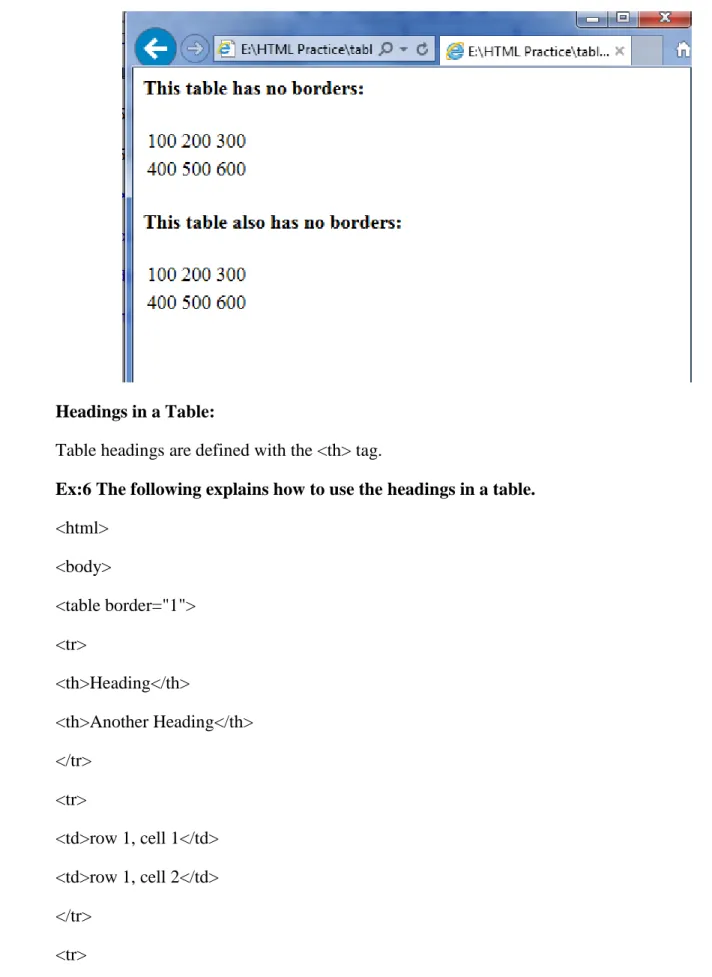
If we don't provide a border attribute, the default is none. The following example shows two ways to create a table with no borders.
Ex:5
<html>
<body>
<h4>This table has no borders:</h4> <table>
<tr>
<td>100</td>
Dept., of Computer Science BVRICE Page 32 <td>300</td>
</tr>
<tr>
<td>400</td>
<td>500</td>
<td>600</td>
</tr>
</table>
<h4>This table also has no borders:</h4> <table border="0">
<tr>
<td>100</td>
<td>200</td>
<td>300</td>
</tr>
<tr>
<td>400</td>
<td>500</td>
<td>600</td>
</tr>
</table>
</body>
</html>
Dept., of Computer Science BVRICE Page 33 Headings in a Table:
Table headings are defined with the <th> tag.
Ex:6 The following explains how to use the headings in a table.
<html>
<body>
<table border="1">
<tr>
<th>Heading</th>
<th>Another Heading</th>
</tr>
<tr>
<td>row 1, cell 1</td>
<td>row 1, cell 2</td>
</tr>
Dept., of Computer Science BVRICE Page 34 <td>row 2, cell 1</td>
<td>row 2, cell 2</td>
</tr>
</table>
<h4>Vertical headers:</h4>
<table border="1">
<tr>
<th>First Name:</th>
<td>Bill Gates</td>
</tr>
<tr>
<th>Telephone:</th>
<td>555 777 1854</td>
</tr>
<tr>
<th>Telephone:</th>
<td>555 777 1855</td>
</tr>
</table>
</body>
</html>
Dept., of Computer Science BVRICE Page 35 Table with a Caption:
The following example demonstrates how to create a table with a caption.
Ex:7
<html>
<body>
<h4>This table has a caption, and a thick border:</h4> <table border="6">
<caption>My Caption</caption> <tr>
<td>100</td>
<td>200</td>
<td>300</td>
</tr>
<tr>
<td>400</td>
<td>500</td>
<td>600</td>
Dept., of Computer Science BVRICE Page 36 </table>
</body>
</html>
Output:
Tags Inside a Table:
The following example demonstrates how to display elements inside other elements.
Ex:7
<html>
<head>
<title>Tags within Tables</title>
</head>
<table border="1">
<tr>
<td>
<p>This is a paragraph</p>
<p>This is another paragraph</p>
</td>
<td>This cell contains a table:
Dept., of Computer Science BVRICE Page 37 <tr>
<td>A</td>
<td>B</td>
</tr>
<tr>
<td>C</td>
<td>D</td>
</tr>
</table>
</td>
</tr>
<tr>
<td>This cell contains a list
<ul>
<li>apples</li>
<li>bananas</li>
<li>pineapples</li>
</ul>
</td>
<td>HELLO</td>
</tr>
</table>
</body>
</html>
Dept., of Computer Science BVRICE Page 38 Table with {thead, tbody, tfoot, th} Tags
thead is used to enclose a group of rows in a table as a header.
tfoot is used to enclose a group of rows in a table as a footer, such as last row for summary.
tbody is for main body of the table.
The {thead, tbody, tfoot} do not have any default rendering. (use CSS for that)
When using thead or tfoot, you can use th instead of td, which will make it bold.
Example:
<html>
<head>
<title>Table wit thead, tfoot and tbody tags</title>
</head>
<body>
<table border="1">
<thead>
<tr>
Dept., of Computer Science BVRICE Page 39 <th>dogs</th>
</tr>
</thead>
<tbody>
<tr>
<td>7</td>
<td>6</td>
</tr>
</tbody>
<tfoot>
<tr>
<th colspan="2">Cats win!</th>
</tr>
</tfoot>
</table>
</body>
</html>
Dept., of Computer Science BVRICE Page 40 bgcolor and color HTML (OR) HTML Colors:
HTML colors are defined using a hexadecimal notation (HEX) for the combination of Red, Green, and Blue color values (RGB). The lowest value that can be given to one of the light sources is 0 (in HEX: 00). The highest value is 255 (in HEX: FF). HEX values are specified as 3 pairs of two-digit numbers, starting with a # sign. The combination of Red, Green, and Blue values from 0 to 255, gives more than 16 million different colors (256 x 256 x 256).
The 17 standard colors are: aqua, black, blue, fuchsia, gray, green, lime, maroon, navy, olive, orange, purple, red, silver, teal, white, and yellow.
Sorted by Color Name:
141 color names are defined in the HTML and CSS color specification (17 standard colors plus 124 more).
bgcolor attribute:
The “bgcolor” attribute specifies the background c olor of a document.
Ex:
<html>
<body bgcolor="red"> <h1>Hello world!</h1>
</body>
</html>
When we execute the above code, the background color of the web page changes to red.
color attribute:
The color attribute specifies the color of the text inside a <font> element.
Ex:
<font color="red">This is some text!</font>
******************************************************************************
Images in HTML
Dept., of Computer Science BVRICE Page 41 To display an image on a page, we need to use the src attribute. src stands for “ source”. The value of the src attribute is the URL of the image we want to display on our page. The syntax of defining an image:
<img src="url" />
The URL points to the location or address where the image is stored.
<img> Tag Syntaxes:
1. <body background=”URL”>…</body>
Sets the background of the page to use the given image.
2. <img src=”URL” | “name” height=”n” width=”n” [a lt=”string‟]
[align=”top”|”center”|”bo ttom” ] [usemap=”URL”]>
Displays an inline image i.e., an image appears in the body of the text.
3. <a href=”URL”>text message </a>
Uses an ordinary hypertext link and URL should point the image file.
4. <a href=”URL”><img src=”filename”></a>
Uses an image for hyper link.
5. <img src=”URL” usemap=”URL”>
To display the source image and to map the second URL.
6. <area shape=”circle”|”rect”|”poly”|”default” hr ef=”URL” cords=”string” alt=”string”>
Creates a clickable area on an image map. The attribute “alt=”string ” indicates for the reader of where the link goes.
Ex:
<html>
<body>
<p>
An image: </p>
Dept., of Computer Science BVRICE Page 42 <img src="E:/B.Sc-2013/JS/Examples/ohm.jpg" width="100" height="100" />
</p>
</body>
</html>
Output:
Each shape is defined by co-ordinates pairs of the integers which give location of the image in pixels.
• The default location does not require coordinates is used to indicate what happens if the user clicks outside of the mapped areas. Each image map can have only one default.
• A rectangle has four coordinates which are paired . The first pair defines the top left corner and second pair is the bottom right corner of the area.
• A circle is defined by its center and its radius. The center is given by a pair of values , the radius by a single value. Therefore this requires just three values in the coordinate string.
• A polygon is made from a set of coordinates with the last pair listed being joined to the first to complete the shape.
Background Images:
The following example demonstrates how to add a background image to an HTML page.
Ex:
<html>
Dept., of Computer Science BVRICE Page 43 <h3>Look: A background image!</h3> <p>Both gif and jpg files can be used as HTML
backgrounds.</p>
<p>If the image is smaller than the page, the image will repeat itself.</p>
</font>
</body>
</html>
Output:
alt Attribute:
The alt attribute is used to define an alternate text for an image. The alt attribute tells the reader what he or she is missing on a page if the browser can‟t load images. The browser will then display the alternate text instead of the image.
The value of the alt attribute is an author-defined text: <img src="boat.gif" alt="Big Boat" />
It is a good practice to include alternate text for every image on a page to improve the display and usefulness of our document who have text-only browsers.
Ex: The following example shows what happens when the image file is not available.
<html>
<body>
Dept., of Computer Science BVRICE Page 44 An image:
<img src="E:/sai.gif" alt=” HAI” width="200" height="50">
</p>
</body>
</html>
Output:
Important Questions
1. HTML History
2. Features, Advantages and Disadvantages of HTML 3. Structure of a HTML document
4. About tags in HTML
5. Text formatting tags in HTML 6. Heading tags in HTML
7. Lists in HTML 8. Tables in HTML 9. Hyperlinks in HTML