Borland
·
ObieclWindows
®
)
Programmer's Guide
Borland
:. ObjectWindows®
. for
C++
Borland may have patents andbr pending patent applications covering subject matter in this document. The furnishing of this document does not give you any license to these patents. COPYRIGHT © 1991, 1993 by Borland International. All rights reserved. All Borland products are trademarks or registered trademarks of Borland International, Inc. ObjectWindows is a registered trademark of Borland International, Inc. Other brand and product names are trademarks or registered trademarks of their respective holders.
Borland International, Inc.
100 Borland Way, Scotts Valley, CA 95067-3249 PRINTED IN THE UNITED STATES OF AMERICA
1 EOR1093 9394959697-9876543
Contents
Introduction 1
ObjectWindows documentation ... 1
ObjectWindows Programmer's Guide organization ... 2
Typefaces and icons used in this book ... 3
Chapter 1 ObjectWindowsoverview 5 Working with class hierarchies ... 5
Using a class ... 5
Deriving new classes ... 5
Mixing object behavior ... 6
Instantiating classes ... 6
Abstract classes ... 7
Inheriting members ... ~ ... 7
Types of member functions ... 8
Virtual functions ... 8
N onvirtual functions ... 8
Pure virtual functions . . . 9
Default placeholder functions ... '. 9
Object typology ... ' ... 9
Window classes ... 10
Windows ... l0 Frame windows ... 10
MDI windows ... 10
Decorated windows ... 10
Dialog box classes ... 10
Common dialog boxes ... ~ ... 11
Other dialog boxes ... 11
Control classes ... 11
Standard Windows controls ... 11
Widgets ... 11
Gadgets ... ; ... ,11
Decorations ... 12
Graphics classes ... 12
DC classes ... 12,
GDI objects ... 13
Printing classes ... 13
Module and application classes ... 13
Doc/View classes ... 14
Miscellaneous classes ... 14
Menus ... 14
Clipboard ... 14
Chapter 2 Learning ObjectWindows 15 Getting started . . . .. 15
Files in the tutorial ... 15
Step 1: The basic application. . . .. 16
Where to find more information ... 17
Step 2: Handling Windows events . . . .. 18
Adding a window class . . . .. 18
Adding a response table ... 18
Event-handling functions ... 20
Encapsulated API calls. . . .. 21
Overriding the CanClose function ... 21
Using TMyWindow as the main window. . .. 22
Where to find more information ... 22
Step 3: Writing in the window ... 23
Constr.ucting a device context. . . .. 23
Printing in the device context . . . .. 24
Clearing the window ... 24
Where to find more information ... ,... 25
Step 4: Drawing in the window ... 25
Adding new events. . . .. 25
Adding a TClientDC pointer. . . .. 26
Initializing DragDC ... 27
Cleaning up after DragDC ... 27
Where to find more information ... 28
Step 5: Changing line thickness ... 28
Adding a pen . . . .. 28
Initializing the pen ... 28
Selecting the pen into DragDC . . . .. 29
Changing the pen size ... 29
Constructing an input dialog box ... 30
Executing an input dialog box ...•.... 30
Calling SetPenSize ... 31
Cleaning up after Pen . . . .. 32
Where to find more information ... 32
Step 6: Pa~ting the window and adding menus, ... 33
Repainting the window ... '" 33 . Storing the drawing ... 33
TPoints ... 34
TPointsIterator ... : ... " 35 Using the,array classes. " ... 36
Adding event identifiers ... 39
Adding menu resources' ... 39
Adding response table entries ... 40
Adding event handlers ... , ... 40
Implementing the event handlers ... 40
Where to find more information ... 41
Step 7: Using common dialog boxes ... 41
Changes to TMyWindow ... 42
FileData ... 42
IsDirty ... 42
IsNewFile .' ... 42
Improving CanClose ... 43
CmFileSave function ... 44
CmFileOpen function ... ; ... 44
CmFileSaveAs function ... 45
Opening and saving drawings ... 45
OpenFile function ... 46
SaveFile function ... . . 46
CmAbout function ... 47
Where to find more information ... 48
Step 8: Adding multiple lines ... 48
TLine class ... 48
TUnes array ... " ... 49
Insertion and extraction of TUne objects . . . 50
Insertion operator« ... 50
Extraction operator > > ... 50
Extending TMyWindow ... 51
Paint function ... 51
Where to find more information ... 52
Step 9: Changing pens ... 53
Changes to the TUne class ... 53
Pen access functions ... 54
Draw function ... 55
Insertion and extraction operators ... 56
Changes to the TMyWindow class ... 56
CmPenColor function ... 56
Where to find more information ... 57
Step 10: Adding decorations ... 57
Changing the main window ... 58
Creating the status bar ... 58
Creating the control bar ... 59
Constructing TControlBar ... 59
Building button gadgets ... 60
Separator gadgets ... 61
Inserting gadgets into the control bar ... 61 .
Inserting objects into a decorated frame ... 62
Where to find more information ... 63
Step 11: Moving to the Doc/View model ...
63
Organizing the application source ... 63
Doc/View model ... 64
TDrawDocument class ... , 65
Creating and destroying TDrawDocument . 65 Storing line data ... ' ... 65
Implementing TDocument virtual functions . . . .. 65
Opening and closing a drawing ... , 66
Saving and discarding changes ... 68
Accessing the document's data ... , 70
TDrawView class ... 71
TDrawView data members ., ... , 72
Creating the TDrawView class . . . .. 72
Naming the class ... ' ... , 73
Protected functions . . . .. 73
Event handling in TDrawView ... , 74
Defining document templates ... , 75
Supporting Doc/View in the application . . .. 76
InitMain Window function ... , 76
InitInstance function. . . .. 77
Adding functions to TMy App ... 78
CmAbout function ... 78
EvDropFiles function ... , 79
EvNewView function. . . .. 80
EvClose View function ... 81
Where to find more information ... 82
Step 12: Moving to MDI ... ~. 82
Supporting MDI in the application ... 82
Changing to a decorated MDI frame ... , 82
Changing the hint mode ... 83
Setting the main window's menu . . . .. 84
Setting the document manager . . . .. 84
InitInstance function ... , 84
Opening a new view. . . .. 84
Modifying drag 'and drop ... 85
Closing a view . . . .. 86
Changes to TDrawDocument and TDrawView ... 86 ~
Defining new events ... , 87
Changes to TDrawDocument ... , 88
Property functions ... 89
New functions in TDrawDocument ... , 92
Changes to TDrawView ... , 95
New functions in TDrawView ... 95
TDrawUstView ... , 97
Creating the TDrawUstView class. . . .. 98
Naming the class .. , ... , 99
Overriding TView and TWindow virtual functions . . . .. 99
Event handling in TDrawListView ... 101
Where to find more information ... 104
For further study ... 104
Chapter 3 Application objects 107 The minimum requirements ... 108
Including the header file. . . 108
Creating an object ... 108
Finding the object ... 108
Creating the minimum application ... 109
Initializing applications ... 109
Constructing the application object ... 109
Using WinMain and OwlMain ... 110
Initializing the application ... 111
Initializing each new instance ... 113
Initializing the main window ... 113
Specifying the main window display mode ... 114
Changing the main window ... 115
Application message handling ... 115
Extra message processing ... 115
Idle processing " ... : .. 115
Closing applications ... 116
Changing closing behavior ... 116
Closing the application ... 116
Modifying CanClose ... 117
Using control libraries ... 117
Using the Borland Custom Controls Library. 117 Using the Microsoft 3-D Controls Library ... 117
Chapter 4 Interface objects 119 Why interface objects? ... 120
What do interface objects do? ... 120
The generic interface object: TWindow ... 120
Creating interface objects ... 121
When is a window handle valid? ... 121
Making interface elements visible ... 122
Object properties ... : ... ;. 122
Window properties ... 123
Destroying interface objects ... 123
Destroying the interface element ... 124
Deleting the iitterface object ... 124
Parent and child interface elements ... 124
Child-window lists ... 125
Constructing child windows ... 125
Creating child interface elements ... 126
Destroying windows ... 127
Automatic creation ... 127
Manipulating child windows ... 128
Operating on all children: ForEach ... 128
Finding a specific child ... 129
Working with the child list ... 129
Registering window classes ... 129
Chapter 5 Event handling 131 Declaring response tables ... 132
Defining response tables ... 132
Defining response table entries ... 133
Command message macros. . . .. 133
Windows message macros ... 135
Child ID notification message macros . . . . .. 136
Chapter 6 Window objects 139 Using window objects ... 139
Constructing window objects . . . .. 139
Setting creation attr~butes ... 140
Overriding default attributes ... 141
Child-window attributes . . . . .. . . .. 141
Creating window interface elements ... 142
Layout windows '" ... 143
Layout constraints ... 143
Defining constraints ... 144
Defining constraining relationships . . . . .. 147
Indeterminate constraints ... 148
Using layout windows ... ',' ... 148
Frame windows . . . .. 150
Constructing frame window objects ... 150
Constructing a new frame window . . . . .. 150
Constructing a frame window alias . . . . .. 151
Modifying frame windows ... . . . 152
Decorated frame windows ... 152
Constructing decorated frame window objects ... 153
Adding decorations to decorated frame windows . . . .. 154
MDI windows ... 154
MDI applications. . . .. 154
MDI Window menu . . . .. 155
MDI child windows ... 155
MDI in ObjectWindows . . . .. 155
Building MDI applications ... 155
Creating an MDlframe window .... , ... 156
Adding behavior to an MDI client window ... 156
Creating MDI child windows . . . .. 157
Querying menu objects ... 161
Using system menu objects ... ; ... ,161
Using pop-up menu objects ... 162
Adding men~ resources to frame windows ... 162
Chapter 8 Dialog box objects , 163 Using dialog box objects ... 163
Constructing a dialog box object ... 164
Calling the constructor ... 164
Executing a'dialog box ... 164
Modal dialog boxes ... 164
Modeless q.ialog boxes ... 165
Using autocreation with dtalog boxes .... 167
Managing dialog boxes ... 168
Handling errors executing dialog boxes ., 168 Closing the dialog box ... 168
Using a dialog box as your main window ... 169
Manipulating controls in dialog boxes ... 170
Communicating with controls ... 170
Associating interface objects with controls .... 171
Control objects ... 171
Setting up controls ... 172
Using dialog boxes ... 173
Using input dialog boxes ... 174
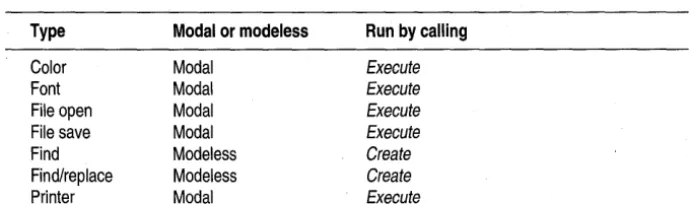
Using common dialog boxes ... 174
Constructing common dialog boxes ... 174
Executing common 'dialog boxes ... 175
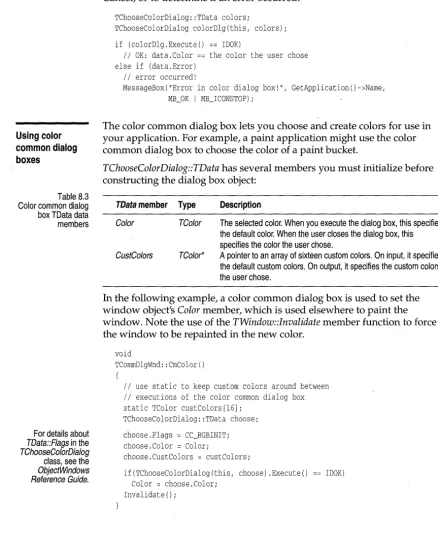
Using color common dialog boxes ... 176
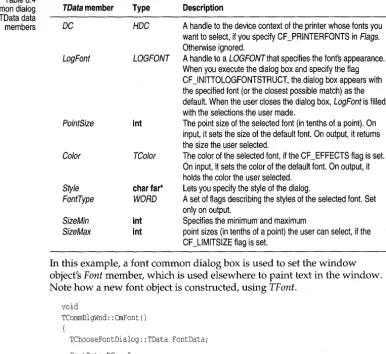
Using font common dialog boxes ... 177
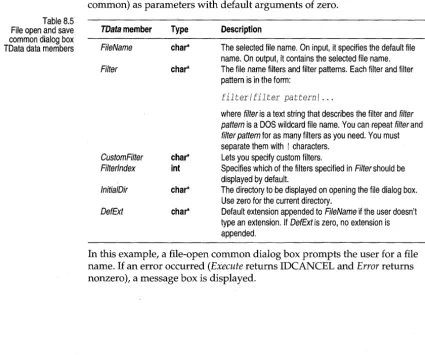
Using file'open common dialog boxes ... 178
Using file save common dialog boxes ... 179
Using find and replace common dialog boxes ... : ... 180
Constructing and creating find and replace common dialog boxes ... 180
Processing find-and-replace messages .... 181
Handling a Find Next command ... 182
Using printer common dialog boxes ... 182
Chapter 9 DocNiew objects 185 How documents and views work together .... 185
Documents ... , ... 187
Views ... " ... 187
Associating document and view classes .... 188
Managing Doc/View . ' ... 189
Document templates ... 189
Designing document template classes ... 189
Creating template class instances ... 190
Modifying existing templates ... 192
iv Using the document manager. . . .. 192
Constructing the document manager ... 194
TDocManager event handling ... 195
Creating a document class ... 196
Constructing TDocument ... 196
Adding functionality to documents ... 196
Data access functions ... ' ... 197,
Stream access ... ~ . . . .. 197
Stream list . . . .. 198
Complex data access .. : ... 198
Data access helper functions ... 199
Closing a document ... 199
Expanding document functionality . . . .. 200
Working with the document manager. . . . .. 200
Working with views ... 200
Creating a view class ... 202
Constructing TView .... . . .. 202
Adding functionality to views ... 203
TView virtual functions . . . .. 203
Adding a menu . . . .. 203
Adding a display to a view . . . .. 203
Adding pointers to interface objects ... 204
Mixing TView with interface objects . . . .. 204
Closing a view . . . .. 205
Doc/View event handling. . . .. 205
Doc/View event handling in the application object ... ','" ... ' 205
Doc/View event handling in a view ... 206
Handling predefined Doc/View events .. 207
Adding custom view events ... 207
Doc/View properties ... 209
Property values and names . . . .. 209
Accessing property information. . . .. 210
Getting and setting properties ... 211
Chapter 10 Control objects 213 Control classes ... ; . . . .. 213
What are control objects? ... 214
Constructing and destroying control objects .. 214
Constructing control objects " ... 214
Adding the control object pointer data member ... 215
Calling control object constructors . . . .. 215
Changing control attributes .'... 216
Initializing the control ... 216
Showing controls ... 217
Destroying the control ... 217
Communicating with control objects. . . .. 217
Responding to controls ... 217
Making a window act like a dialog box ... 218
Using particular controls ... 218
Using list box controls ... 218
Constructing list box objects ... 218
Modifying list boxes ... 218
Querying list boxes ... 219
Responding to list boxes ... 220
Using static controls ... 220
Constructing static control objects ... 221
Modifying static controls ... 221
Querying static controls ... 222
Using button controls ... 222
Constructing buttons ... 222
Responding to buttons ... 222
Using check box and radio button controls .. 223
Constructing check boxes and radio buttons ... 223
Modifying selection boxes ... 224
Querying selection boxes ... 224
U sing group boxes ... 225
Constructing group boxes ... 225
Grouping controls ... 225
Responding to group boxes ... 225
Using scroll bars ... 225
Constructing scroll bars ... 225
Controlling the scroll bar range ... 226
Controlling scroll amounts ... 226
Querying scroll bars ... 226
Modifying scroll bars ... 226
Responding to scroll-bar messages ... 227
Using sliders and gauges ... 228
Using edit controls ... 229
Constructing edit controls ... 229
Using the Clipboard and the Edit menu .. 229
Querying edit controls ... 230
Modifying edit controls ... 231
Using combo boxes ... 231
Varieties of combo boxes ... 232
Choosing combo box types ... 232
Constructing combo boxes ... 233
Modifying combo boxes ... 233
Querying combo boxes ... 233
Setting and reading control values ... 234
Using transfer buffers .... . . 234
Defining the transfer buffer ... 235
·List box transfer ... 236
Combo box transfer ... 236
Defining the corresponding window or dialog box ... 237
Using transfer with a dialog box ... 237
Using transfer with a window ... 237
Transferring the data ... 238
Transferring data to a window . . . .. 238
Transferring data from a dialog box ... 238
Transferring data from a window ... 238
Supporting transfer for customized controls . . . .. 238
Chapter 11 Gadget and gadget window objects 241 Gadgets. . . .. 241
Class TGadget ... . . . .. 241
Constructing and destroying TGadget ... 241
Identifying a gadget . . . .. 242
Modifying and accessing gadget appearance . . . .. 243
Bounding the gadget ... 243
Shrink wrapping a gadget . . . .. 244
Setting gadget size ... 244
Matching gadget colors to system colors . 244 TGadget public data members ... 245
Enabling and disabling a gadget ... 245
Deriving from TGadget ... . . . .. 246
Initializing and cleaning up ... 246
Painting the gadget. . . .. 246
Invalidating and updating the gadget . . .. 247
Mouse events in a gadget ... 247
ObjectWindows gadget classes . . . .. 248
Class TSeparatorGadget ... 249
Class TTextGadget ... 249
Constructing and destroying TTextGadget ... 249
Accessing the gadget text ... 250
Class TBitmapGadget . . . .. 250
Constructing and destroying TBitmapGadget . . . .. 250
Selecting a new image ... 250
Setting the system colors . . . .. 251
Class TButtonGadget ... 251
Constructing and destroying TButtonGadget ... 251
Accessing button gadget information . . .. 252
Setting button gadget style ... 253
Command enabling ... 253
Setting the system colors . . . .. 253
Constructing and destroying
TControlGadget ... 253
Gadgetvvindovvs ... 254
Constructing and destroying TGadgetWindovv ... 254
Creating a gadget vvindovv ... 255
Inserting a gadget into a gadget vvindovv . 255 Removing a gadget from a gadget vvindovv ... 256
Setting vvindovv margins and layout direction ... 256
Laying out the gadgets ... 256
~otifying the vvindovv vvhen a gadget changes SIze . . . 257
Shrink vvrapping a gadget vvindovv ... 257
Accessing vvindovv font ... 257
Capturing the mouse for a gadget ... 258
Setting the hint mode ... 258
Idle action processing . . . 259
Searching through the gadgets ... 259
Deriving from TGadgetWindovv ... 259
Painting a gadget vvindovv ... 259
Size and inner rectangle ... 260
Layout units ... 260
Message response functions ... 261
ObjectWindovvs gadget vvindovv classes ... 261
Class TControlBar ... 262
Class TMessageBar ... 262
Constructing and destroying TMessageBar ... 262
Setting message bar text ... 263
Setting the hint text ... 263
Class TStatusBar ... 263
Constructing and destroying TStatusBar .. 263
Inserting gadgets into a status bar ... 264
Displaying mode indicators ... 264
Spacing status bar gadgets ... 264
Class TToolBox ... 265
Constructing and destroying TToolBox ... 265
Changing tool box dimensions ... 266
Chapter 12 Printer objects 267 Creating a printer object ... 267
Creating a printout object ... 269
Printing vvindovv contents ... 270
Printing a document ... 271
Setting print parameters ... 271
Counting pages ... 272
Printing each page ... 272
vi Indicating further pages ... 272
Other printout considerations. . . .. 273
Choosing a different printer ... 273
Chapter 13 Graphics objects 275 GDI class organization . . . .. 275
Changes to encapsulated GDI functions . . . . .. 276
Working vvith device contexts . . . .. . .. 278
TDC class ... 279
Constructing and destroying TDC . . . .. 279
Device-context operators . . . .. 280
Device-context functions . . . .. 280
Selecting and restoring GDI objects ... 281
Dravving tool functions ... 282
Color and palette functions . . . .. 282
Dravving attribute functions ... 282
Vievvport and vvindovv mapping functions . . . .. 283
Coordinate functions ... 283
Clip and update rectangle and region functions . . . .. 283
Metafile functions . . . .. 283
Current position functions ... 283
Font functions ... 284
Path functions ... 284
Output functions ... 284
Object data members and functions ... 285
TPen class . . . .. 286
Constructing TPen ... 286
Accessing TPen ... . . . .. 287
TBrush class . . . .. 288
Constructing TBrush ... 288
Accessing TBrush ... 289
TFont class ... 290
Constructing TFont . . . .. 290
Accessing TFont ... 291
TPalette class ... 291
Constructing TPalette . . . .. 292
Accessing TPalette ... 292
Member functions . . . .. 293
Extending TPalette ... 294
TBitmap class . . . .. 294
Constructing TBitmap ... 295
Accessing TBitmap. . . .. 296
Member functions . . . .. 297
Extending TBitmap . . . .. 298
TRegion class . . . .. 298
Constructing and destroying TRegion ... 298
Member functions ... 301
Operators ... 302
Tkon class . . . 304
Constructing Tkon ... 304
Accessing Tkon ... 306
TCursor class ... 306
Constructing TCursor ... 306
Accessing TCursor ... 307
TDib class ... 308
Constructing and destroying TDib ... 308
Accessing TDib ... 309
Type conversions ... 309
Accessing internal structures ... 310
Clipboard ... 310
DIB information ... 310
Working in palette or RGB mode ... 311
Matching interface colors to system colors ... 313
Extending TDib ... 313
Chapter 14 Validator objects 315 The standard validator classes ... 315
Validator base class ... 316
Filter validator class ... 316
Range validator class ... 316
Lookup validator class ... 316
String lookup validator class '" ... 317
Picture validator class ... 317
Using data validators ... 318
Constructing an edit control object ... 318
Constructing and assigning validator objects ... 318
Overriding validator member functions ... 319
Member function Valid ... 319
Member function IsValid ... 319
Member function Is ValidInput ... 320
Member function Error ... 320
Chapter 15 Visual Basic control objects 321 Using VBX controls ... 321
VBX control classes ... ,. 322
TVbxControl class ... 322
TVbxControl constructors ... 323
Implicit and explicit construction ... 324
TVbxEventHandler class ... 325
Handling VBX control messages ... 325
Event response table ... 325
Interpreting a control event ... 326
Finding event information ... 327
Accessing a VBX control ... 327
VBX control properties. . . .. 328
Finding property information. . . .. 328
Getting control properties . . . .. 328
Setting control properties ... 329
VBX control methods " . . . .. 330
Chapter 16 ObjectWindows dynamic-link libraries 333 Writing DLL functions ... 333
DLL entry and exit functions ... 334
LibMain ... 334
WEP ... 335
DllEntryPoint ... 335
Exporting DLL functions . . . .. 335
Importing (calling) DLL functions ... 336
Writing shared ObjectWindows classes ... 336
Defining shared classes ... 336
The TModule object ... 337
Using ObjectWindows as a DLL ... 338
Calling an ObjectWindows DLL from a non-ObjectWindows application ... 338
Implicit and explicit loading . . . .. 339
Mixing static and dynamic-linked libraries ... 339
Appendix A Converting ObjectWindows 1.0 code to ObjectWindows 2.0 341 Converting your code ... 342
Converting to Borland C++ 4.0 ... 342
OWLCVT conversions ... . . . .. 344
OWLCVT command-line syntax. . . .. 344
Backing up your old source files ... 345
How to use OWLCVT from the command line ... '" ... " ... 345
How to use OWLCVT in the IDE ... '. . . . . .. 346
Conversion checklist. . . .. 347
Conversion procedures ... 349
Handling messages and events ... 349
Removing DDVT functions . . . .. 350
Adding an event response table declaration ... 352
Adding an event response table definition ... 352
Adding event response table entries ... 352
Event response table sample . . . .. 356
Changing your window objects ... 356
Converting constructors ... 357
U sing the new header file locations ... 359
Using the new streamlined ObjectWindows header files ... 360
ObjectWindows resources ... 360
Compiling resources ... 360
Menu resources ... 361
Constructing virtual bases ... 361
Downcasting virtual bases to derived types . 361 Moving from Object-based containers to the BIDS library ... 363
Streaming ... 363
Removed insertion and extraction operators ... 363
Implementing streaming ... 363
MDI classes ... 364
Making the frame and client ... 365
Making a child window ... 366
WB_MDICHILD ... 366
Relocated functions ... 367
Replacing ActiveChild with GetActiveChild ... 367
Main Window variable ... 367
Using a dialog as the main window ... 368
TApplication message processing functions. 368 GetModule function ... 369
DefXXXProc functions ... 370
Overriding ... 370
Using DefWndProc for registered messages ... 371
Paint function ... , ... 371
viii CloseWindow, ShutDown Window, and Destroy functions . . . .. 371
ForEach and FirstThat functions ... 372
TComboBoxData and TListBoxData classes. 372 TEditWindow and TFileWindow classes ... 373
Using the OLDFILEW example ... 373
Adding TEditSearchand TEditFile client windows. . . .. 374
TSearchDialog and TFileDialog classes . . . .. 375
ActivationResponse function ... 375
Dispatch-handling functions . . . .. 375
DispatchAMessage function . . . .. 375
General messages ... 376
The DefProc parameter ... 376
Command messages. . . .. 376
KBHandlerWnd ... 377
MAXPATH ... 377
Style conventions ... 377
Changing WinMain to OwlMain ... 377
Data types and names ... 378
Replacing MakeWindow with Create .... 379
Replacing ExecDialog with Execute. . . . .. 379
Getting the application and module instance ... 379
Defining WIN30, WIN31, and STRICT ... 380
Troubleshooting ... 380
OWLCVT errors ... 380
Compiler warnings ... , ... 380
Compiler errors ... 381
Run-time errors . . . .. 381
Tables
1.1 Data member inheritance ... 8
1.2· ObjectWindows-encapsulated device contexts ... : ... 13
1.3 CDI support classes ... 13
5.1 Command message macros ... 134
5.2 Message macros ... 134
5.3 Child ID notification macros ... 136
6.1 Window creation attributes ... 141
6.2 Default window attributes ... 142
6.3 Standard MDI child-window menu behavior ... 157
7.1 TMenu constructors for creating menu objects ... 159
7.2 TMenu member functions for modifying menu objects ... 160
7.3 TMenu member functions for querying menu objects ... 161
8.1 ObjectWindows-encapsulated dialog boxes .173 8.2 Common dialog box TData members ... 174
8.3 Color common dialog box TData data members ... 176
8.4 Font common dialog box TData data members ... : .... 177
8.5 File open and save common dialog box TData data members ... 178
8.6 Printer common dialog box TData data membets ... 182
9.1 Document manager's File menu ... 189
9.2 Predefined Doc/View event handlers ... 207
9.3 Doc/View property attributes ... 210
10.1 Controls and their ObjectWindows classes ... : ... 213
10.2 TListBox member functions for modifying list boxes ... ' ... 219
10.3 TListBox member functions for querying list boxes ... 219
10.4 List box notification messages ... 220
10.5 TCheckBox member functions for modifying selection boxes ... 224
10.6 TCheckBox member functions for querying selection boxes ... 224
10.7 Notification codes and TScrollBar member functions ... 228
10.8 TEdit member functions and Edit menu commands ... 230
10.9 TEdit member functions for querying edit controls ... 230
10.10 TEdit member functions for modifying edit controls ... 231
10.11 Summary of combo box styles ... 232
10.12 TComboBox member functions for modifying combo boxes ... 233
10.13 TComboBox member functions for querying combo boxes ... ; ... 234
10.14. Transfer buffer members for each type of control ... 235
10.15 TListBoxData data members ... 236
10.16 TListBoxData member functions ... 236
10.17 TComboBoxData data members ... 236
10.18 TComboBoxData member functions ... 237
10.19 Transfer flag parameters ... , .... 239
11.1 Hint mode flags ... 258
16.1 Allowable library combinations ... ~ .340
Figures
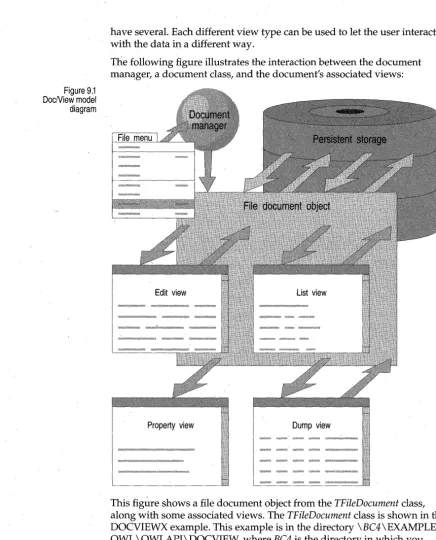
1.1 TDialog inheritance ... 7 9.1 Doc/View model diagram ... 186 4.1 Interface elements vs. interface objects , ... 119
Introduction
ObjectWindows 2.0 is the Borland C++ application framework for Windows 3.1, Win32S, and Windows NT. ObjectWindows lets you build full-featured Windows applications quickly and easily. ObjectWindows 2.0 provides the follo~ing features;
• Ease of portability between 16- and 32-bit platforms • Automated message cracking
• Robust exception and error handling
• Allows easy porting to other compilers and environments because it
doesn't use proprietary compiler and language extensions • Encapsulation of Windows CDI objects
• Doc/View classes for easy data abstraction and display • Printer and print preview classes
• Support for Visual Basic controls
• Input valida tors
ObjectWindows documentation
The ObjectWindows 2.0 documentation set consists of the Object Windows Programmer's Guide (this manual), the Object Windows Reference Guide, and sections of the Quick Reference Card.
The Object Windows Reference Guide presents a comprehensive, alphabetical listing and description of all ObjectWindows classes, their member functions, data members, and so on. The Object Windows Reference Guide
should be your reference for specific technical data about an ObjectWindows class or function.
The Quick Reference Card contains capsule descriptions of the
ObjectWindows Programmer's Guide organization
2
The Object Windows Programmer's Guide presents topics in a task-oriented fashion, describing how to use functional groups of ObjectWindows classes to accomplish various tasks. The manual is organized as follows:
This chapter, Introduction, introduces you to ObjectWindows 2.0 and directs you to other chapters of the book for more information.
Chapter 1: ObjectWindows overview presents a brief, nontechnical
overview of the ObjectWindows hierarchy.
Chapter 2: Learning ObjectWindows contains a 12-step tutorial that
introduces a number of features of ObjectWindows 2.0.
Chapter 3: Application objects describes application objects and the
application class T Application.
Chapter 4: Interface objects discusses the use of interface objects in the
ObjectWindows 2.0 programming model. Interface objects are instances of classes representing windows, dialog boxes, and controls; these classes are based on the class TWindow.
Chapter 5: Event handling explains response tables, the ObjectWindows 2.0
method for event handling.
Chapter 6: Window objects describes window objects, including how to use'
frame windows, layout windows, decorate,d frame windows, and MDI windows.
Chapter 7: Menu objects discusses the use of menu objects and the TMenu
class. .
Chapter 8: Dialog box objects explains how to use dialog box objects (such
as TDialog and TDialog-derived objects) and also Windows common dialog boxes, which are based on the TCommonDialog class.
Chapter 9: DocNiew objects presents the ObjectWindows 2.0 Doc/View
programming model, which uses the TDocument, TView, and TDocManager
classeS.
Chapter 10: Control objects discusses the use of various controls, such as
buttons., list boxes, edit boxes, and so on.
Chapter 11: Gadget and gadget window objects explains gadgets and
gadget windows, including control bars, status bars, button gadgets, and so on.
Chapter 12: Printer objects describes how to use the printer and print
preview classes.
Chapter 13: Graphics objects presents the classes that encapsulate Windows GDI.
Chapter 14: Validator objects describes the use of input validators in edit
controls.
Chapter 15: Visual Basic control objects discusses using Visual Basic
controls and the TVbxControl class in your ObjectWindows application.
Chapter 16: ObjectWindows dynamic-link libraries explains the use of
ObjectWindows-encapsulated dynamic-link libraries (DLLs).
Appendix A: Converting ObjectWindows 1.0 code to ObjectWindows 2.0 describes how to convert your ObjectWindows 1.0 applications so they work properly in ObjectWindows 2.0.
Typefaces and icons used in this book
Boldface Boldface type indicates language keywords (such as char, switch, and
begin) and command-line options (such as -rn).
Italics Italic type indicates program variables and constants that appear in text. This typeface is also used to emphasize certain words, such as new terms.
Monospace Monospace type represents text as it appears onscreen or in a program. It is also used for anything you must type literally (such as TD32 to start up the 32-bit Turbo Debugger);
Key 1 This typeface indicates a key on your keyboard. For example, "Press Esc to exit a menu."
Key1+Key2 Key combinations produced by holding down one or more keys
simultaneously are represented as Key1 +Key2. For example, you can execute the Program Reset command by holding down the Ctr! key and pressing F2
(which is represented as Ctrl+F2).
MenulCommand This command sequence represents a choice from the men~ bar followed by a menu choice. For example, the command "File I Open" represents the Open command on the File menu.
. . . This icon indicates material you should take special notice of.
This manual also uses the following icons to indicate sections that pertain to specific operating environments:
c
H A p T E R1
ObjectWindows overview
This chapter presents an overview of the ObjectWindows 2.0 hierarchy. It
also describes the basic groupings of the ObjectWindows 2.0 classes, explains how each class fits together with the others, and refers you to specific chapters for more detailed information about how to use each class.
Working with class hierarchies
Using a class
Deriving new classes
This section describes some of the basic properties of classes, focusing specifically on ObjectWindows classes. It covers the following topics:
• What you can do with a class • Inheriting members
• Types of member functions
There are three basic things you can do with a class:
• Derive a new class from it
• Add its behavior to that of another class • Create an instance of it (instantiate it)
To change or add behavior to a class, you derive a new class from it:
class TNewWindow : public TWindow
{
}i
public:
TNewWindow( ... ) i
II ...
When you derive a new class, you can do three things:
Mixing object behavior
Instantiating classes
6
Adding new members lets you add to or change the functionality of the base class. You can define a new constructor for your derived class to call the base classes' constructors and initialize any new data members you might have added.
With ObjectWindows designed using multiple inheritance, you can derive new classes that inherit the behavior of more than one class. Such "mixed" behavior is different from the behavior you get from single inheritance derivation. Instead of inheriting the behavior of the base class and being able to add to and change it, you're inheriting and combining the behavior of several classes.
As with single inheritance derivation, you can add new members and override inherited ones to change the behavior of your new class.
To use a class, you must create an instance of it. There are a number of ways you can instantiate a class:
• You can use the standard declaration syntax. This is the same syntax you use to declare any standard variable such as an int or char. In this example, app is initialized by calling the TMyApplication constructor with no arguments:
TMyApplication apPi
You can use this syntax only when the class has a default constructor or a constructor in which all the parameters have default values.
• You can also use the standard declaration syntax along with arguments to call a particular constructor. In this example, app is initialized by calling the TMyApplication constructor with a char * argument:
TMyApplication app ("AppName") i
• You can use the new operator to allocate space for and instantiate an object. For example:
TMyApplication *aPPi app = new TMyApplicationi
• You can also use the new operator along with arguments. In this
example, app is initialized by calling the TMyApplication constructor with
a char * argument:
TMyApplication* app = new TMyApplication("AppName") i
The constructors call the base class' constructors and initialize any needed data members. You can only instantiate classes that aren't abstract; that is, classes that don't contain a pure virtual function.
Abstract classes
Inheriting members
Figure 1.1 TDialog inheritance
Abstract classes, which are classes with pure virtual member functions that you must override to provide some behavior, serve two main purposes. They provide a conceptual framework to build other classes on and, on a practical level, they reduce coding effort.
For example, the ObjectWindows THSlider and TVSlider classes could each
be derived directly from TScrollBar. Although one is vertical and the other
horizontal, they have similar functionality and responses. This
commonality warrants creating an abstract class called TSlider. THSlider
and TVSlider are then derived from TSlider with the addition of a few
specialized member functions to draw the sliders differently.
You can't create an instance of an abstract class. Its pure virtual member functions must be overridden to make a useful instance. TSlider, for
example, doesn't know how to paint itself or respond directly to mouse events.
If you wanted to create your own slider (for example, a circular slider), you might try deriving your slider from TSlider or it might be easier to derive
from THSlider or TVSlider, depending on which best meets your needs. In
any case, you add data members and add or override mein1?er functions to add the desired functionality. If you wanted to have diagonal sliders going both northwest-southeast and southwest-northeast, you might want to create an intermediate abstract class called T AngledSlider.
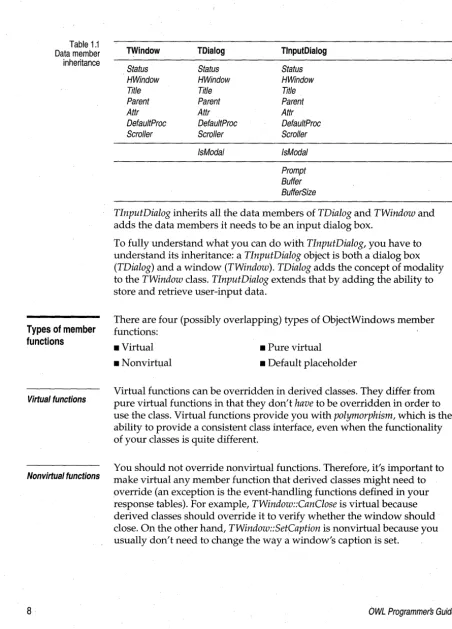
The following figure shows the inheritance of TlnputDialog. As you can see, TlnputDialog is derived from TDialog, which is derived from TWindow,
which is in turn derived from TEventHandler and TStreamable. Inheritance
lets you add more specialized behavior as you move further along the hierarchy.
Table 1.1 Data member inheritance
Types of member functions
Virtual functions
Nonvirtual functions
8
TWindow TDialog TlnputDialog
Status Status Status
HWindow HWindow HWindow
Title Title Title
Parent Parent Parent
Aftr Aftr Aftr
DefaultProc DefaultProc DefaultProc
Scroller Scroller Scroller
IsModal IsModal
Prompt Buffer BufferSize
TlnputDialog inherits all the data members of TDialog and TWindow and adds the data members it needs to be an input dialog box.
To fully understand what you can do with TlnputDialog, you have to understand its inheritance: a TlnputDialog object is both a dialog box
(TDialog) and a window (TWindow). TDialog adds the concept of modality to the TWindow class. TlnputDialog extends that by adding the ability to store and retrieve user-input data.
There are four (possibly overlapping) types of ObjectWindows member functions:
_ Virtual _ Pure virtual
_ Nonvirtual _ Default placeholder
Virtual functions can be overridden in derived classes. They differ, from pure virtual functions in that they don't have to be overridden in order to use the class. Virtual functions provide you with polymorphism, which is the ability to provide a consistent class interface, even When the functionality of your classes is quite different.
You should not override nonvirtual functions. Therefore, it's important to make virtual any member function that derived classes might need to override (an exception is the event-handling functions defined in your response tables). For example, TWindow::CanClose is virtual because derived classes should override it to verify whether the window should close. On the other hand, TWindow::SetCaption is nonvirtual because you usually don't need to change the way a window's caption is set.
[image:21.512.19.471.19.648.2]Pure virtual functions
Default placeholder functions
The problem with overriding nonvirtual functions is that classes that are derived from your derived class might try to use the overridden function. Unless the new derived classes are explicitly aware that you have changed
the functionality of the derived function, this can lead to faulty return values and run-time errors.
You must override pure virtual functions in derived classes. Functions are marked as pure virtual using the = 0 initializer. For example, here's the declaration of TSlider::PaintRuler:
virtual void PaintRuler(TDC& de) = OJ
. You must override all of an abstract class' pure virtual functions in a derived class before you can create an instance of that derived class. In
most cases, when using the standard ObjectWindows classes, you won't find this to be much of a problem; most of the ObjectWindows' classes you might need to derive from are not abstract classes. In lieu of pure virtual
functions, many ObjectWindows classes use default placeholder functions.
Unlike pure virtual functions, default placeholder functions don't have to be overridden. They offer minimal default actions or no actions at all. They serve as placeholders, where you can place code in your derived classes. For example, here's the ,definition of TWindow::EvLButtonDbIClk:
inline void
TWindow: : EvLButtonDblClk (UINT modKeys, TPoint &)
{
DefaultProeessing()j
By default, EvLButtonDblClk calls DefaultProcessing to perform the default
message processing for that message. In your own window class, you could override EvLButtonDblClk by defining'it in your class' response table. Your
version of EvLButtonDblClk can provide some custom behavior you want to
happen when the user clicks the left mouse button. You can also continue to provide the base class' default processing by calling the base class' version of the function.
Object typology
Window classes
Windows
Frame windows
MDlwindows
Decorated windows
Dialog box classes
10
• Windows
• Dialog boxes • Controls • Graphics • Printing
• Modules and applications • Doc/View applications • Miscellaneous Windows
elements
An important part of any Windows application is, of course, the window. ObjectWindows provides several different window classes for different types of windows (not to be confused with the Windows "window class" registration types):
• Windows
• Frame windows • MDI windows • Decorated windows
Chapter 6 describes the window classes in detail.
TWifidow is the base class for all window classes. It rep~esehts the functionality common to all windows, whether they are dialog boxes, controls, MDI windows, or so on.
'FFrame Window is .derived from TWindow and adds the functionality of a frame window·that can hold other client windows.
Multiple Document Interface (MDI) is the Windows standard for managing multiple documents or windows in a single application. TMDIFrame, TMDIClient, and TMDIChild provide support for MDI in ObjectWindows applications.
, Several classes, such as TLayout Window and TLayoutMetrics, work together to provide support for decoration controls like tool bars, status bars, and message bars. Using multiple inheritance, decoration supportis added into frame windows and MDI frame windows in TDecoratedFrame and
TDecoratedMDIFrame.
TDialog is a derived class of TWindow. It's used to create dialog boxes that handle a variety of user interactions. Dialog boxes typically contain controls to get user input. Dialog box classes are explained in detail in Chapter 8.
Common dialog boxes
Other dialog boxes
Control classes
Standard Windows controls
Widgets
Gadgets
In addition to specialized dialog boxes your own application might use, ObjectWindows supports Windows' common dialog boxes for:
• Choosing files (TFileOpenDialog, and TFileSaveDialog)
• Choosing fonts (TChooseFontDialog)
• Choosing colors (TChooseColorDialog)
• Choosing printing options (TPrintDialog)
• Searching and replacing text (TFindDialog, and TReplaceDialog)
ObjectWindows also provides additional dialog boxes that aren't based on the Windows common dialog boxes:
• Inputting text (TlnputDialog)
• Aborting print jobs (TPrinter AbortDlg, used in conjunction with the TPrinter and TPrintout classes)
TControl is a class derived from TWindow to support behavior common to
all controls. ObjectWindows offers four types of controls:
• Standard Windows controls • Widgets
• Gadgets
• Decorations
All these controls are discussed in depth in Chapter la, except for gadgets, which are discussed in Chapter 11.
Standard Windows controls include list boxes, scroll bars, buttons, check boxes, radio buttons, group boxes, edit controls, static controls, and combo boxes. Member functions let you manipulate these controls.
Unlike standard Windows controls, ObjectWindows widgets are
specialized controls written entirely in C++. The widgets ObjectWindows offers include horizontal and vertical sliders (THSlider and TVSlider) and
gauges (TGauge).
Decorations
Graphics classes
Dec/asses
12
elements, gadgets are not windows: gadgets don't have window handles, they don't receive events and messages, and they aren't based on TWindow.
Instead, gadgets must be contained in a gadget window. The gadget window controls the presentation of the gadget, all message processing, and so on. The gadget receives its commands and direction from the gadget window.
Decorations are specialized child windows that let the user choose a command, provide a place to give the user information, or somehow allow for specialized communication with the user.
• A control bar (TControlBar) lets you arrange a set of buttons on a bar attached to a window as shortcuts to using menus (the SpeedBar in the Borland C++ IDE is an example of this functionality).
• A tool box (TTooIBox) lets you arrange a set of buttons on a floating palette.
• Message bars (TMessageBar) are bars, usually at the bottom of a window, where you can display information to the user. For example, the Borland C++ IDE uses a message bar to give you brief descriptions of what menu commands and SpeedBar buttons do as you press them.
• Status bars (TStatusBar) are similar to message bars, but have room for more than one piece of information. The status bar in the Borland C++ IDE shows your position in the edit window, whether you're in insert or overtype mode, and error messages.
Windows offers a powerful but complex graphics library called the Graphics Device Interface (GDI). ObjectWindows encapsulates GDI to make it easier to use device context (DC) classes (TDC) and GDI objects
(TGDIObject).
See Chapter 13 for full details on these classes.
With GDI, instead of drawing directly on a device (like the screen or a printer), you draw on a bitmap using a device context (DC). A device context
is a collection of tools, settings, and device information regarding a
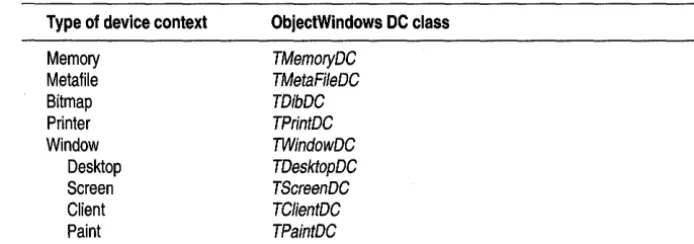
graphics device and its current drawing state. This allows for a high degree of device independence when using GDI functions. The following table lists the different types of DCs that ObjectWindows encapsulates.
Table 1.2 ObjectWindows-encapsulated device contexts GD/objects Table 1.3 GDI support classes
Printing classes
Module and application classes
Type of device context
Memory Metafile Bitmap Printer Window Desktop Screen Client Paint
ObjectWindows OC class
TMemoryDC TMetaFileDC TDibDC TPrintDC TWindowDC TDesktopDC TSereenDC TCfientDC TPaintDC
TGDIObject is a base class for several other classes that represent things you can use to draw with and to control drawings. The following table lists these classes and other ObjectWindows GDI support classes.
Type of GOI object
Pens Brushes Fonts Palettes Bitmaps Icons Cursors Regions Points Size Rectangles Color specifiers RGB triple color RGB quad color Palette entries Metafile
ObjectWindows GOI class
TPen TBrush TFont TPa/ette
TBitmap, TDib, TUiBitmap T/eon TCursor TRegion TPoint TSize TReet TC%r TRgbTrip/e TRgbQuad TPa/etteEntry TMetafilePict
TPrinter makes printing significantly easier by encapsulating the communications with printer drivers. TPrintout encapsulates the task of printing a document. Chapter 12 discusses how to use the printing classes.
A Windows application is responsible for initializing windows and
ensuring that messages Windows sends to it are sent to the proper window. ObjectWindows encapsulates that behavior in T Application. A DLL's
[image:26.510.124.459.244.446.2]DocNiew classes
Miscellaneous classes
Menus
Clipboard
14
The document-viewing classes are a complete abstraction of a generic document-view model. The base classes of the Doc/View model are
TDocManager, TDocument, and TView. The Doc/View model is a system in which data is contained in and accessed through a document object, and displayed and manipulated through a view object. Any number of views can be associated with a particular document type. You can use this to display the same data in a number of different ways.
For example, you can display a line both graphically (as a line in a window) and as sets of numbers indicating the coordinates of the points that make up the line. This would require one document that contains the data and two view classes: one view class to display the line onscreen and another view class to display the coordinates of the points in the line. You can also modify the data through the views so that, in this case, you could change the data in the line by either drawing in the graphical display or by typing in numbers to modify and add coordinates in the numerical display.
The Doc/View model is discussed in depth in Chapter 9.
Since Windows is so varied, not all the classes ObjectWindows provides fall into neat categories. This section discusses those miscellaneous classes.
Menus can be static or you can modify them or even load whole new menus. TMenu and its derived classes (TSystemMenu and TPopupMenu) let you easily manipulate menus. Chapter 7 discusses the menu classes in more detail.
The Windows Clipboard is one of the main ways users share data between applications. ObjectWindows' TClipboard object lets you easily provide Clipboard support in your applications. See Chapter 6 for details.
Getting started
'Files in the tutorial
c
H A p T E R2
Learning ObjectWindows
The,ObjectWindows 2.0 tutorial teaches the fundamentals of programming for Windows, using the ObjectWindows application framework. The tutorial is comprised of an application that is developed in twelve
progressively more complicated ObjectWindows steps. Each-step up in the application represents a step up in the tutorial's lessons. After completing Step 12, you'll have a full-fledged Windows application, with features' like menus, dialog boxes, graphical control bar, status bar, MDI windows, and more.
This tutorial assumes that you're familiar with c++ and have some prior Windows programming experience. Before beginning, it might be helpful to read Chapter 1, which presents a brief, nontechnical overview of the ObjectWindows 2.0 class hierarchy. This should help you become familiar with the principles behind the structure of the ObjectWindows class library.
The tutorial discusses each new version of the application and the
differences between it and the previous version. Each discussion includes possible applications of the current lesson in different real-world contexts. At the end of each lesson, there's a reference section telling you where you can find more information about the topics discussed in that section.
Before you begin the tutorial, you should make a copy of the
ObjectWindows tutorial files separate from the files in your compiler installation. Use the copied files when working on the tutorial steps. While working on the'tutorial, you should try to make the changes in each step on your own., You can then compare the changes 'you make to the tutorial program.
The, tutorial is composed of a number of different source files:
• Later steps in the application use multiple C++ source files. The other files are named STEPXXDV.CPP.
• A number of steps have a header file containing class definitions and the like. These header files are named STEPXXDV.H.
• A number of steps also have a corresponding resource script file named STEPXX.RC.
In all these cases, XX is a number from 01 to 12, indicating which step of the tutorial is in the source file.
Step 1: The basic application
You can find the source for Step 1 in the file STEP01.CPP in the directory EXAMPLES\OWL \ TUTORIAL.
16
To begin the tutorial, open the file STEP01.CPP, which shows an example of the most basic useful ObjectWindows application. Because of its brevity, the entire file is shown here:
II---
~---II ObjectWindows - (C) Copyright 1991, 1993 by Borland International
II Tutorial application -- stepOl.cpp
11---
---~---#include <owl\applicat.h> #include <owl\framewin.h>
class TMyApp : public TApplication
{
pUblic:
TMyApp () : TApplication () {} void InitMainWindow()
{
SetMainWindow(new TFrameWindow(O, "Sample ObjectWindows Program"));
}; .
int OwlMain(int l*argc*I, char* l*argv*1 [])
{
return TMyApp() .Run();
This simple application includes
a
number of important features:• This source file includes two header files, owl \applicat.h and owl \ framewin.h. These files are included because the application uses the
T Application and TFrame Window ObjectWindows classes. Whenever you use an ObjectWindows class you must include the proper header files so your code compiles properly.
Where to find more information
• The class TMyApp is derived from the ObjectWindows T Application class. Every ObjectWindows application has a T Application object-or more usually, a T Application-derived object-generically known as the application object. If you try to use a T Application object directly, you'll find that it's difficult to direct the program flow. Overriding T Application
gives you access to the workings of the application object and lets you override the necessary functions to make the application work the way you want.
• In addition to an application object, every ObjectWindows application has an OwlMain function. The application object is actually created in the
OwlMain function with a simple dechiration. OwlMain is the
ObjectWindows equivalent of the WinMain function in a regular Windows
application. You can use OwlMain to check command-line arguments, set up global data, and anything else you want taken care of before the application begins execution.
• To start execution of the application, call the application object's Run
function. The Run function first calls the InitApplication function, but only if this instance of the application is the first instance (the default
TApplication::lnitApplication function does nothing). After the
InitApplication function returns, Run calls the InitInsiance function, which initializes each instance of an application. The default
T Application::lnitInstance calls the function InitMain Window, which initializes the application's main window, then creates and displays the main window.
• TMyApp overrides the InitMain Window function. You can use this function to design the main window however you want it. The
SetMain Window function sets the application's main window to a
TFrame Window or TFrame Window-derived object passed to the function. In this case, simply create a new TFrameWindow with no parent (the first parameter of the TFrame Window is a pointer to the window's parent) and the title Sample ObjectWindows Program.
This basic application introduces two of the most important concepts in ObjectWindows programming. As simple as it seems, deriving a class from
T Application and overriding the InitMain Window function gives you quite a bit of control over application execution. As you'll see in later steps, you can easily craft a large and complex application from this simple beginning.
Here's a guide to where you can find more information on the topics introduced in this step:
• OwlMain is discussed in Chapter 3 .
• TFrame Window is discussed in Chapter 6.
Step 2: Handling Windows events
You can find the source for Step 2 in the file STEP02.CPP in the directory EXAMPLES\OWL\ TUTORIAL.
Adding a window class
Adding a response table
18
Step 2 introduces response tables, another very important ObjectWindows feature. Response tables control event and message processing in
ObjectWindows 2.0 applications, dispatching events on to the proper event-handling functions. Step 2 also adds these functions.
Add the response table to the application using a window class called
TMyWindow. TMyWindow is derived from TWindow, and looks like this:
class TMyWindow : public TWindow
{
} ;
public:
TMyWindow(TWindow* parent = 0); protected:
II override member function of TWindow BOOL CanClose();
II message response functions void EvLButtonDown(UINT, TPoint&); void EvRButtonDown(UINT, TPoint&); DECLARE_RESPONSE_TABLE(TMywindow);
The constructor for this class is fairly simple. It takes a single parameter, a
TWindow * that indicates the parent window of the object. The constructor definition looks like this:
TMyWindow::TMyWindow(TWindow *parent)
{
Init(parent, 0, 0);
The Init function lets you initialize TMy Window's base class. In this case, the call isn't very complicated. The only thing that might be required for your purposes is the window's parent, and, as you'll see, even that's taken care of for you.
The only public member of the TMy Window class is its constructor. But if
the other members are protected, how can you access them? The answer lies in the response table definition. Notice the last line of the TMyWindow
class definition. This declares the response table; that is, it informs your class that it has a response table, much like a function declaration informs the class that the function exists, but doesn't define the function's activity.
The response table definition sets up your class to handle Windows events and to pass each event on to the proper event-handling function. As a general rule, event-handling functions should be protected; this prevents classes and functions outside your own class from calling them. Here is the response table definition for TMy Window:
DEFINE_RESPONSE_TABLE1(TMyWindow, TWindow) EV_WM_LBUTTONDOWN,
EV_WM_RBUTTONDOWN, END_RESPONSE_TABLE;
You can put the response table anywhere in your source file.
For now, you can keep the response table fairly simple. Here's a description of each part of the table. A response table has four important parts:
• The response table declaration in the class declaration. • The first line of a response table definition is always the
DEFINE_RESPONSE_TABLEX macro. The value of X depends on your class' inheritance, and is based on the number of immediate base classes your class has. In this case, TMy Window has only one immediate base class, TWindow.
• The last line of a response table definition is always the
END_RESPONSE_TABLE macro, which ends the event response table definition .
• Between the DEFINE_RESPONSE_TABLEXmacro and the END_RESPONSE_TABLE macro are other macros that associate particular events with their handling functions.
The two macros in the middle of the response table,
EV _ WM_LBUTTONDOWN and EV _ WM_RBUTTONDOWN, are response table macros for the standard Windows messages WM_LBUTTONDOWN and WM_RBUTTONDOWN. All standard Windows messages have ObjectWindows-defined response table macros. To find the name of a particular message's macro, preface the message name with EV _. For example, the macro that handles the WM_P AINT message is
EV _ WM_P AINT, and the macro that handles the WM_LBUTTONDOWN message is EV _ WM_LBUTTONDOWN.
Event-handling functions
20
and the WM_LBUTTONDOWN message is passed to a function called
EvLButtonDown.
As you can see, two of the protected functions in TMy Window are
EvLButtonDown and EvRButtonDown. Because of the macros in the response
table, when TMy Window receives a WM_LBUTTONDOWN or
WM_RBUTTONDOWN event, it passes it on to the appropriate function.
The functions that handle the WM_LBUTTONDOWN or
WM_RBUTTONDOWN events are very simple. Each function pops up a message box telling you which button you've pressed. The code for these functions should look something like this:
void TMyWindow: : EvLButtonDown(UINT, TPoint&)
{
MessageBox("You have pressed the left mouse button", "Message Dispatched", MB_OK);
void TMyWindow: : EvRButtonDown (UINT, TPoint&)
{
MessageBox ("You have pressed the right mouse button", "Message Dispatched", MB_OK);
This illustrates one of the best features of how ObjectWindows 2.0 handles standard Windows events. The function that handles each event receives what might seem to be fairly arbitrary parameter types (all the macros and their corresponding functions are presented. in Chapter 2 in the
Object Windows Reference Guide). Actually, these parameter types correspond
to the information encoded in the WP ARAM and LP ARAM variables normally passed along with an event. The event information is automatically" cracked" for you.
The advantages of this approach are two-fold:
• You no longer have to manually extract information from the WP ARAM and LP ARAM values.
• The predefined functions allow for compile-time type checking, and prevent hard-to-track errors that can be caused by confusing the values encoded in the WP ARAM and LP ARAM values.
For example, both WM_LBUTTONDOWN and WM_RBUTTONDOWN contain the same type of information in their WP ARAM and LP ARAM variables:
• WP ARAM contains key flags, which specify whether the user has pressed one of a number of virtual keys.
Encapsulated API calls
Overriding the CanClose function
• The low-order word of the LP ARAM specifies the cursor's x-coordinate . • The high-order word of LP ARAM specifies the cursor's y-coordinate.
EvLButtonDown and EvRButtonDown also have similar signatures. The UINT parameter of each function corresponds to the key flags parameter. The values that are normally encoded in the LP ARAM are instead stored in a TPoint object.
You might notice that the calls to the MessageBox function look a little odd. The Windows API function MessageBox takes an HWND for its first parameter. But the MessageBox function called here is actually a member function of the TWindow class. There are a large number of functions like this: they have the same name as the Windows API function, but their signature is different. The most common differences are the elimination of handle parameters such as HWND and HINST ANCE, replacement of Windows data types with ObjectWindows data types, and so on. In this case, the window class supplies the HWND parameter for you.
Another feature of the TMy Window class is the Can Close function. Before an application attempts to shut down a window, it calls the window's Can Close
function. The window can then abort the shutdown by returning FALSE, or let the shutdown proceed by returning TRUE.
From the point of view of the application, this ensures that you don't shut down a window that is currently being used or that contains unstored data. From the window's point of view, this warns you when the application tries to shut down and provides you with an opportunity to make sure that everything has been cleaned up before closing.
Here is the Can Close function from the TMy Window class:
BOOL TMyWindow::CanClose()
{
return MessageBox("Do you want to save?", "Drawing has changed", MB_YESNO I MB_ICONQUESTION) == IDNOi
Using
TMyWindow as the main window
Where to find more information
22
The last thing to do is to actually create an instance of this new TMy Window
class. You might think you can do this by simply substituting TMy Window
for TFrame Window in the SetMain Window call in the InitMain Window
function:
void InitMainwindow()
{
SetMainWindow(new TMyWindow) ;
This won't work, for a number of reasons, but primarily because
TMy Window isn't based on TFrame Window. For this code to compile correctly, you'd have to change TMy Window so that it's based on
TFrameWindow instead of TWindow. Although this is fairly easy to do, it introduces functionality into the TMyWindow class that isn't necessary. As you'll see in later steps, TMy Window has a unique purpose. Adding frame capability to TMyWindow would reduce its flexibility.
The second approach is to use a TMy Window object as a client in a