Contents
1 How to install the Apache web server 1
1.1 Installing Apache and utilities . . . 1
1.2 Checking running status of Apache. . . 1
1.3 Serving your first website with Apache. . . 3
1.4 Wrapping up . . . 6
2 Apache Configuration Tutorial 7 2.1 Inspecting the Apache configuration file . . . 8
2.2 Apache modules. . . 8
2.3 Configuration directives. . . 8
2.4 Basic authentication. . . 10
2.5 Directives in action . . . 11
2.6 Basic security considerations . . . 14
2.7 Conclusion . . . 14
3 Name-based Virtual Host Configuration 15 3.1 Reviewing the Apache configuration file . . . 15
3.2 Defining virtual hosts . . . 15
3.3 Troubleshooting . . . 18
3.4 Limiting bandwidth . . . 19
3.5 Summary . . . 20
4 mod_rewrite: Redirecting and rewriting URLs 21 4.1 Introducing regular expressions (regexs) . . . 21
4.2 Introducing RewriteRule and RewriteCond. . . 22
4.3 Examples . . . 22
4.4 Summary . . . 28
5 Apache SSL / TLS Support 29 5.1 Introducing SSL and TLS. . . 29
5.2 Apache and TLS . . . 29
6 Apache URL rewrite example 35
6.1 Redirecting to a new resource in the same server. . . 35
6.2 Redirecting to a resource moved to another server . . . 36
6.3 Serve browser-dependent content . . . 37
Copyright (c) Exelixis Media P.C., 2016
All rights reserved. Without limiting the rights under copyright reserved above, no part of this publication
Preface
The Apache HTTP Server, colloquially called Apache, is the world’s most used web server software. Originally based on the NCSA HTTPd server, development of Apache began in early 1995 after work on the NCSA code stalled. Apache played a key role in the initial growth of the World Wide Web, quickly overtaking NCSA HTTPd as the dominant HTTP server, and has remained most popular since April 1996. In 2009, it became the first web server software to serve more than 100 million websites.
Apache is developed and maintained by an open community of developers under the auspices of the Apache Software Foundation. Most commonly used on a Unix-like system (usually Linux), the software is available for a wide variety of operating systems besides Unix, including eComStation, Microsoft Windows, NetWare, OpenVMS, OS/2, and TPF. Released under the Apache License, Apache is free and open-source software.
As of November 2015, Apache was estimated to serve 50% of all active websites and 37% of the top servers across all domains. (Source:https://en.wikipedia.org/wiki/Apache_HTTP_Server/)
About the Author
Gabriel Canepa is a Linux Foundation Certified System Administrator (LFCS-1500-0576-0100) and web developer from Villa Mercedes, San Luis, Argentina.
He works for a worldwide leading consumer product company and takes great pleasure in using FOSS tools to increase produc-tivity in all areas of his daily work.
Chapter 1
How to install the Apache web server
In this example we will show how to install the Apache web server in CentOS 7.2 and Ubuntu 14.04.3 using the command line. According torecent reports, Apache continues to keep the lead in the number of websites and Internet-facing machines when compared to other web servers, such as Microsoft’s IIS or Nginx. Such has been the case for a long time, and that is why the skill of knowing how to install, configure, and leverage Apache is on the rise everywhere.
In other words, by acquiring Apache skills you will learn how to use the number one server on the Internet.
1.1
Installing Apache and utilities
Perhaps the first thing that we need to note is that the package that includes Apache has different names in CentOS (httpd) and Ubuntu (apache2). The good news is that in both cases, the package is included in the repositories that are configured when the operating system is installed. For that reason, you do not need to make any modifications to the repositories in order to install Apache.
In addition, we will install an extra package namedapache2-utilsandhttpd-toolsin Ubuntu and CentOS, respectively. This package includes tools that will be useful to benchmark Apache, manage basic and digest authentication to web pages, and resolve IP addresses to host names in the logs, among other things.
However, before you proceed please keep in mind that installing packages require administrative privileges, so you will need to run the following commands either asroot(in CentOS) or usingsudo(in Ubuntu). With that in mind, let us proceed with the installation.
In CentOS, type
yum update && yum install httpd httpd-tools -y
and press Enter. In Ubuntu, do
sudo apt-get update && apt-get install apache2 apache2-utils -y
The package management system (yumorapt-get) will take care of installing all necessary dependencies required by the web server.
1.2
Checking running status of Apache
Once the installation completes, we need to check whether the web server has been automatically started. Typically, that is the case in Ubuntu but not in CentOS.
service apache2 status
In Fig. 1.1 you can see the expected output when the web server is running. Otherwise, if it is stopped (as we forced it to using sudo service apache2 stop
which is also shown in the image) you will need to run sudo service apache2 start
to restart it. By now, you can safely ignore theAH00558error message as it refers to an aspect of the web server configuration that we will cover in the next tutorial of the Apache series.
Figure 1.1: Checking the running status of Apache in Ubuntu
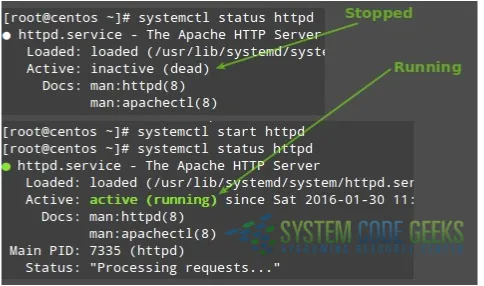
In CentOS, you will usesystemctl(the system and service manager tool) to verify the status of Apache: systemctl status httpd
Figure 1.2: Using systemctl to check Apache’s status in CentOS
Last but not least, we need to ensure that the web server is started automatically the next time the system boots. In Ubuntu, the installation process by default will configure it to start after a reboot whereas in CentOS, you will need to start it by hand: systemctl start httpd
and enable it for future reboots: systemctl enable httpd
This ensures that Apache will be started bysystemdeach time the machine boots.
In Ubuntu, you can also get more information about Apache (web traffic statistics, server load and uptime, percentage of CPU usage, number of requests currently being processed, to name a few examples) using
apachectl status
In CentOS this command is aliased to systemctl status httpd
so you will not get more details than those shown in Fig. 1.2).
1.3
Serving your first website with Apache
After you have successfully installed Apache and got it running, it is time to look into serving web pages. Although we will discuss this further in later articles, you need to know that Apache not only is used as a standalone server (that is, to store a single website or application), but also to run several sites (also known asvirtual hosts) at the same time.
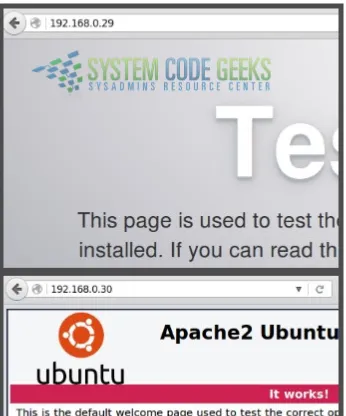
browser and point it to the IP address of the machine where Apache is running, as shown in Fig. 1.3 (192.168.0.29 is a CentOS and 192.168.0.30 is Ubuntu).
Figure 1.3: Apache test page in CentOS and Ubuntu
If you cannot see the test page after starting Apache in CentOS and your web browser says it can’t establish a connection to the web server, please check the following:
• Did you misspell the IP address in the browser’s URL bar? • Is firewalld, the default firewall in CentOS 7 allowing http traffic? You can check #2 as follows:
Type
firewall-cmd --add-services=http
firewall-cmd --add-services=http --permanent
and hit Enter. Then try to access the web server by IP as explained earlier.
To replace this default test page by one of ours, create a simple html file and save it asindex.htmlin/var/www/html. You can use the following example if you want:
<!DOCTYPE html> <html>
<head>
<meta charset=utf-8 />
<title>Your first page served by Apache</title> </head>
<body>
<h1>Check out the Apache series in SystemCodeGeeks.com!</h1>
<img src="https://systemcodegeeks.javacodegeeks.netdna-cdn.com/wp-content/ ← -uploads/2016/01/SystemCodeGeeks-logo.png" />
</body> </html>
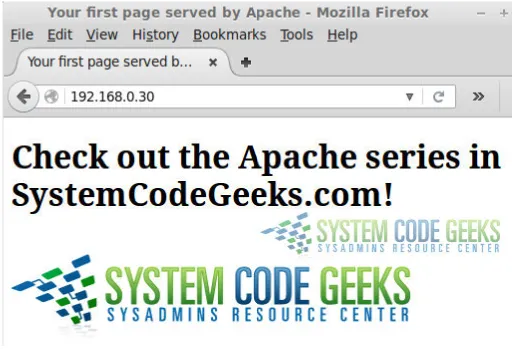
[image:12.595.54.571.333.682.2]The result can be seen in Fig. 1.4:
Figure 1.4: Your first web page served by Apache
1.4
Wrapping up
In this tutorial we have explained how to install Apache, the most used server used by websites and Internet-facing computers, in CentOS 7 and Ubuntu 14.04. In addition, we showed you how to replace the default test page with a custom one.
Chapter 2
Apache Configuration Tutorial
In thefirst article of this serieswe introduced you to Apache. If you took the time to read the introduction, you will have noticed that it is the number one server powering websites and Internet-facing computers - and there are plenty of good reasons for that. In this guide we will discuss one of those reasons: its easiness of configuration and seamless integration with server-side scripting languages such as PHP in the context of a standalone web server. In this type of setup, Apache is used to serve a single domain or application, as opposed to running several sites off a single system (also known asvirtual hosting, the topic of our next tutorial). Note: The configuration syntax and directives of Apache have changed a bit from version 2.2 to 2.4. In addition, some well-known directives in version 2.2 have been deprecated in 2.4. If you followed the steps in the previous tutorial, you should have installed the latest version of the web server (2.4 at the time of this writing).
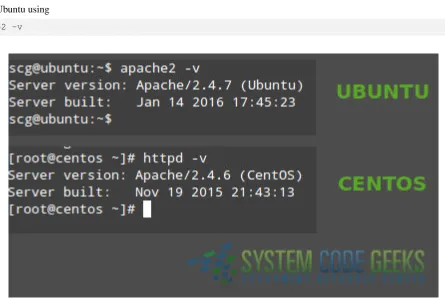
As you can see in Fig. 2.1, you can verify the Apache version in CentOS with httpd -v
[image:14.595.88.534.429.730.2]and in Ubuntu using apache2 -v
2.1
Inspecting the Apache configuration file
As you can already tell based on the first article, the only difference between the Apache installations in CentOS and Ubuntu is the package name. Thus, it is to be expected that the main configuration file be named differently (httpd.confin CentOS andapache2.conf in Ubuntu) and located in a different place in each distribution (/etc/httpd/conf/ and /etc/ apache2/, respectively).
Regardless of the distribution, the main configuration file contains the configuration directives that give the server its instructions. You will use this file to configure system-wide settings for the web server, and additional files to set up virtual hosts (but again, we will expand more on that last topic in the next guide).
It is important to note that you should understand and familiarize yourself with the directives in the configuration file before making changes that can potentially affect the operation of the web server.
2.2
Apache modules
You can easily extend the web server’s operation by using independent, separate pieces of software calledmodulesthat provide specific functionality. Some modules come built-in with Apache, while others can be installed using your distribution’s package management system and enabled to integrate with the web server. Although we will discuss modules in later guides of this series, it is important to have this definition in mind before we dive into the configuration directives. You will see the reason in a minute.
2.3
Configuration directives
The following directives are listed in the main configuration file. All of them (and many, many more!) are explained thoroughly in the Apache 2.4 configuration docs online athttps://httpd.apache.org/docs/current/.
If you want or need to read the Apache documentation offline, you can install the packagehttpd-manualin CentOS: yum install httpd-manual
andapache2-docin Ubuntu:
sudo apt-get install apache2-doc
You can then access the docs through a web browser (https://server/manual, whereservermust be replaced with the hostname or the IP address of the machine). This tool can come in handy if at a given time you cannot access the Internet to check the same resource online.
Directive Description Example
ServerRoot The directory tree where the server’s configuration, error, and log files are kept.
Example
Listen The IP and port where Apache is
bound. The default is listening on port 80 of all network interfaces, although it is more secure to specify a single IP address.
Listen 192.168.0.100:80
User Group The name of the user/group to run the web server as. It is usually good practice to create a dedicated user and group for running Apache, as it is the case with most system services. You can also use the UID and the GID instead of the username and
groupname, although it is not common to do so.
ServerAdmin The system administrator’s email address. Problems with the server will be sent to this address.
ServerAdmin root@ localhost
ServerName The hostname and port that the server uses to identify itself.
ServerName www.example. com:80
DocumentRoot The root directory where web pages and directories will be stored by default. Although all requests are taken made to this directory, you can create symbolic links to point to other locations.
DocumentRoot "/var/www/ html"
ErrorLog The location of the error log file ErrorLog "logs/error_log"
LogLevel Controls the verbosity of messages
logged to ErrorLog. Possible values include:debug,info,notice, warn,error,crit,alert, emergWhen a particular level is specified, messages from higher levels (indicated by the numbered list above) will be logged as well.
LogLevel warn
Directory Used to enclose a group of directives that will apply only to the named directory and all its contents.
<Directory />
AllowOverride none Require all denied </Directory>
Files Use to limit the scope of the enclosed
directives by filename instead of by directory. Wildcards and other regular expressions are allowed.
<Files "restricted.html"> #Insert here directives that apply only to restricted.html </Files> IfModule Used to specify directives that are only
applied if a specific module is present.
<IfModule mod_rewrite.c> RewriteEngine on </ IfModule>
Include Includes other existing configuration files. If an absolute path is not used, it is relative to theServerRoot directory.
Include conf/ssl.conf
IncludeOptional Similar to theIncludedirective, with the only difference is that it is ignored if there are no matches instead of causing an error (as it is the case withInclude).
IncludeOptional sites-enabled/*.conf
To view the values of a certain directive quickly from the command line instead of opening the configuration file, you can use grep as follows. Let’s say we want to find out what is the directory where Apache is expecting web pages and directories to be stored by default. Yes, you guessed it right - that information is provided by the value of theDocumentRootdirective: grep -i documentroot /etc/httpd/conf/httpd.conf
or
grep -i documentroot /etc/apache2/apache2.conf
in CentOS and Ubuntu, respectively.
Figure 2.2: The Directives page
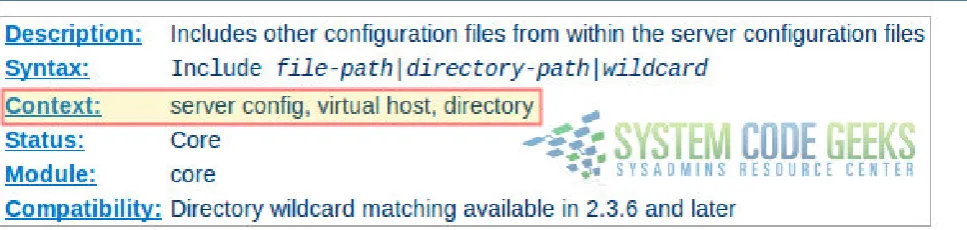
[image:17.595.59.543.294.409.2]you will be taken to the complete list of directives available in the current version of Apache. Choose any directive (we will use Includeas example) and click on the link to be redirected to the detailed description. Pay attention to the highlighted area in Fig. 2.3 below:
Figure 2.3: Context of an Apache directive
Each directive has a Context, or in other words, a place where it is valid and has meaning to the operation of the web server. In the case ofInclude, the description indicates that it can only be used in the system-wide server configuration, inside a virtual host definition, and within Directory tags. If you attempt to use it in a different place or inside the wrong set of tags (such as insideIfModuleorFiles), the web server will complain about it by refusing to restart correctly.
2.4
Basic authentication
Another set of directives, not outlined in the table above as they are not typically present out of the box in the configuration file, are those related with authentication and authorization. These settings allow to grant access to resources after a user has entered valid credentials.
Although there are other authentication mechanisms, we will only cover basic authentication in this guide (which consists of username and password) for brevity. Please be aware that this method sends the password from the server to the client unen-crypted, so it should not be used with sensitive data (in a later tutorial we will introduce more secure options). You can refer to theAuthentication and Authorizationpage of the documentation for further details.
Step 1 -Create the file with htpasswd, the tool that is used to manage basic authentication credentials. Use the-coption to indicate that we are creating a non-existent file:
htpasswd -c /etc/httpd/conf/passwds jdoe
Step 2 -Choose a new password for jdoe and enter it twice when you are prompted to do so.
Step 3 -Change ownership of the file to the user Apache is running as and set its permissions to 600: In CentOS:
chown apache:apache /etc/httpd/conf/passwds chmod 600 /etc/httpd/conf/passwds
In Ubuntu:
chown www-data:www-data /etc/apache2/passwds chmod 600 /etc/apache2/passwds
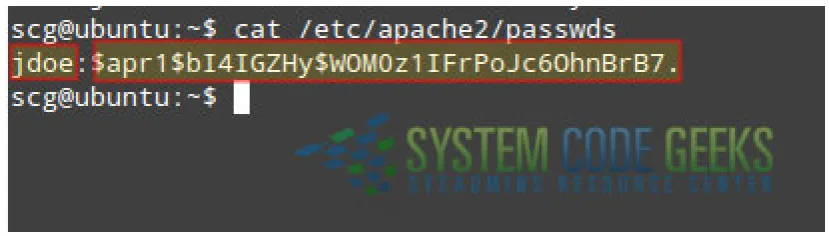
[image:18.595.104.519.318.436.2]Let’s take a look at what the contents of the file looks like in Fig. 2.4 (username and encrypted password are separated by a colon):
Figure 2.4: The Apache passwords file
In the following section you will see how to use these credentials to authenticate userjdoeand authorize him to access a resource served by Apache.
If you want to add other users to the same file, usehtpasswdas explained earlier, only omitting the-cswitch since the file now exists (no need to create a different one).
2.5
Directives in action
To put into practice all of what we have discussed so far, let us work with and modify the example given in the first article of this series. You will recall that we created a simple page namedindex.htmlinside/var/www/html. This directory, as you have learned in this guide, is of special importance as it is the defaultDocumentRoot.
Let’s picture the following scenario. We need to serve a file namedrestricted.html (also located inside/var/www/ html) but only allow userjdoeto access such file after entering his password. Other files present insideDocumentRoot must be accessible to all users without authentication. Of course, this approach assumes this file exists in that directory already. If not, you can use the following example (open with your preferred text editor and save asrestricted.html):
<!DOCTYPE html> <html>
<head>
<meta charset=utf-8 />
<body>
<h1>Restricted file</h1>
<img src="https://files.softicons.com/download/folder-icons/dellios-system-icons-by- ← -dellustrations/png/128/restricted.png" />
</body> </html>
To accomplish our goal, let’s open the Apache configuration file and add the followingDirectoryblock: <Directory /var/www/html>
<Files restricted.html> AuthType Basic
AuthName "SystemCodeGeeks - Restricted file" AuthBasicProvider file
AuthUserFile /etc/apache2/passwds Require user jdoe
</Files> </Directory>
Now restart Apache: In CentOS:
systemctl restart httpd
In Ubuntu:
service apache2 restart
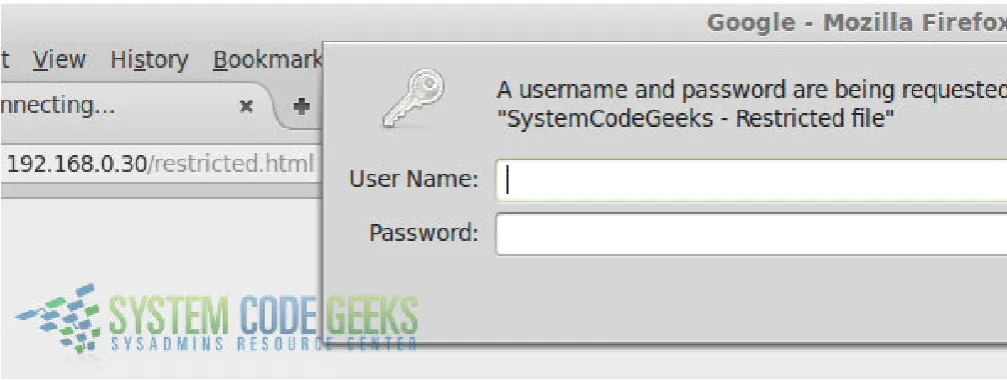
[image:19.595.56.560.439.629.2]And browse tohttps://server/restricted.html(where, again, you will need to replaceserverwith the hostname or IP address of your server) as shown in Fig. 2.5:
Figure 2.5: Browsing to the restricted page
Figure 2.6: Without valid credentials, a restricted resource cannot be accessed
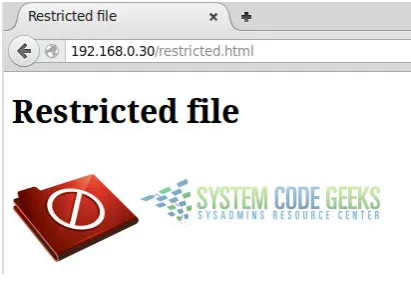
[image:20.595.104.516.401.683.2]Otherwise, you will be able to see the page:
Figure 2.7: With valid credentials, the resource can be accessed
2.6
Basic security considerations
It is advised, though not strictly required, to hide the Apache and operating system versions in error pages (as seen in Fig. 2.6). To do that, make sure the following directives have the indicated values in the configuration file. This will prevent (or at least, make it more difficult for) potential attackers from targeting known vulnerabilities either the web service or your server as a whole.
Add these lines at the end of the main configuration file: ServerSignature Off
ServerTokens Prod
and you’re good to go.
2.7
Conclusion
Chapter 3
Name-based Virtual Host Configuration
In ourprevious tutorial we discussed how to configure Apache as a standalone web server (hosting a single site) and how to configure it. In addition, we outlined the most frequent directives and explained the concept of context, which indicates the place where a directive is valid. If you have not read the Apache configuration tutorial yet, you are highly encouraged to do so before proceeding.
In this guide we will show you how to use Apache to run multiple sites using a single machine. This practice is known as name-based virtual hosting, and is key to our understanding of how a web server works. Using one machine to run several domains clearly has its advantages (low maintenance costs, for example) and a few disadvantages as well (without a bandwidth balancer in place, a single site can end up consuming the entire bandwidth allocated for the server, thus impacting negatively the operation and performance of the rest).
3.1
Reviewing the Apache configuration file
As you will recall from the previous guide, the main configuration file for Apache (where system-wide settings are found) is located in/etc/httpd/conf/httpd.confin CentOS or/etc/apache2/apache.confin Ubuntu. Note how we now refer to such file as the “main configuration file” and not only as “the configuration file” because we will see in a moment how you will use other files to define the directives for each virtual host. Although you can define virtual hosts inside the main configuration file, such practice is often discouraged. Instead, the preferred method for defining virtual hosts consists of using separate .conf files as it allows for scalability and easier maintenance.
Near the bottom of the main configuration file you will see the following lines: In CentOS:
# Load config files in the "/etc/httpd/conf.d" directory, if any.
IncludeOptional conf.d/*.conf
In Ubuntu:
# Include the virtual host configurations: IncludeOptional sites-enabled/*.conf
As the comment indicates, and as theIncludeOptionaldirective suggests, Apache will look for.conffiles in the/etc/ httpd/conf.d(in CentOS) or/etc/apache2/sites-enabled (Ubuntu) which, if present, are used to indicate the various directives that define a virtual host.
3.2
Defining virtual hosts
a) use 2 dummy domains (such aswww.example1.comandwww.example2.com, as in this guide, or others of your choosing), or b) use 2 “real” domains that you have registered. This last option also requires that you have set up DNS entries for those domains with your cloud hosting provider, but such procedure is out of the scope of this tutorial as it is specific for each provider. If you want to implement name-based virtual hosting in your cloud VPS using domains you have previously registered, consult with your provider to set up the necessary DNS entries for each domain, or use a free service such as FreeDNS (https://freedns.afraid.org/). Note that each virtual host will need a directory structure to store files and logs. In addition, the user Apache runs as (apachein CentOS orwww-datain Ubuntu) needs to be able to read the web content. To do it, create the following directories and assign the indicated permissions:
mkdir -p /var/www/example1.com/public_html mkdir -p /var/www/example2.com/public_html chmod -R 0755 /var/www/
Let’s start by definingwww.example1.com. To do it, insert the following block in/etc/httpd/conf.d/example1.com. conf(CentOS) or/etc/apache2/sites-available/example1.com.conf(Ubuntu):
<VirtualHost *:80> DocumentRoot "/var/www/example1.com/public_html/" ServerName www.example1.com ServerAlias example1.com ErrorLog /var/www/example1.com/error.log LogLevel info
CustomLog /var/www/example1.com/access.log combined </VirtualHost>
Then repeat for the other domain: <VirtualHost *:80> DocumentRoot "/var/www/example2.com/public_html/" ServerName www.example2.com ServerAlias example2.com ErrorLog /var/www/example2.com/error.log LogLevel info
CustomLog /var/www/example2.com/access.log combined </VirtualHost>
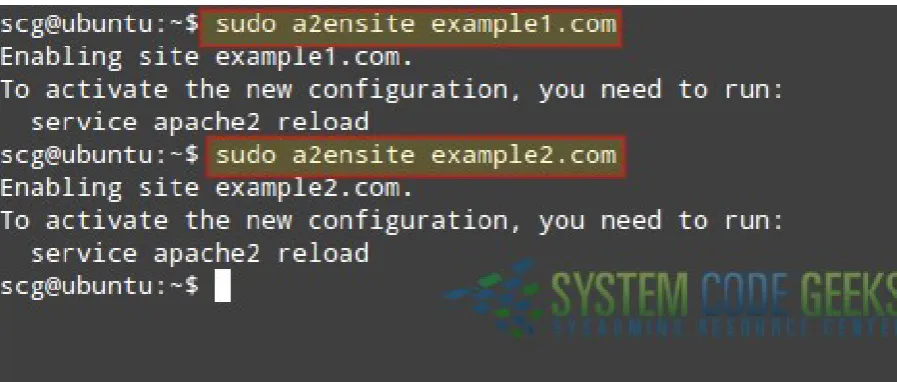
[image:23.595.58.507.523.714.2]In CentOS, creating those files and restarting Apache is enough to define your two virtual hosts. In Ubuntu, however, you will need to use thea2ensiteutility to create a symbolic link inside/etc/apache2/sites-enabledthat points to the configuration file in thesites-availabledirectory, as shown in Fig. 3.1:
sudo a2ensite example1.com sudo a2ensite example2.com
Then restart Apache: In CentOS:
systemctl restart httpd
In Ubuntu:
service apache2 restart
Finally, let’s create a sampleindex.htmlinside/var/www/example1.com/public_html. By indicating the presence of the jQuery library as a resource in this simple page, we will be able to recognize success and failures in the logs later: <!DOCTYPE html>
<html> <head>
<meta charset="utf-8"> <title>Example1.com</title>
<script src="jquery-1.12.0.min.js"></script> </head>
<body>
<h1>Welcome!</h1>
<h3>This is Example1.com</h3> </body>
</html>
and another one inside/var/www/example2.com/public_html: <!DOCTYPE html>
<html> <head>
<meta charset="utf-8"> <title>Example2.com</title>
<script src="jquery-1.12.0.min.js"></script> </head>
<body>
<h1>Welcome!</h1>
<h3>This is Example2.com</h3> </body>
</html>
Since bothwww.example1.comandwww.example2.comare dummy domains, we need to tell our client computer how to find them. The most basic name resolution method is using the/etc/hostsfile in our computer to map the IP address of our web server to those domains.
Using the Ubuntu server’s address (192.168.0.30, change to fit your environment) as example, add the following lines to the/ etc/hostsfile in each client computer that you want to access the virtual hosts:
192.168.0.30 example1.com www.example1.com
192.168.0.30 example2.com https://www.example2.com[www.example2.com]
Figure 3.2: Launching the newly created virtual hosts
3.3
Troubleshooting
When we defined the virtual hosts in each individual file, we declared an ErrorLogand aCustomLogto log errors and successes, respectively, while requesting a resource from the virtual hosts. If you experience an error while browsing, you can refer to each log to find out what is wrong. Also, the access log can help you detect which resources are being requested in each virtual host, the source IP address, the date and time, and more details.
Here are portions oferror.logandaccess.logforexample1.com:
Error log- the client tried to access 3 non-existent resources insidewww.example1.com(/systemcodegeeks,/javacod egeeks, and/jquery-1.12.0.min.js) and received a 404 HTTP response (ERROR):
[Sat Feb 13 15:05:12.886906 2016] [core:info] [pid 1391:tid 139840660322048] [client ← -192.168.0.104:37553] AH00128: File does not exist: /var/www/example1.com/public_html/ ← -systemcodegeeks
[Sat Feb 13 15:06:15.123651 2016] [core:info] [pid 1391:tid 139840460887808] [client ← -192.168.0.104:37558] AH00128: File does not exist: /var/www/example1.com/public_html/ ← -javacodegeeks
[Sat Feb 13 15:06:46.845600 2016] [core:info] [pid 1391:tid 139840536422144] [client ← -192.168.0.104:37559] AH00128: File does not exist: /var/www/example1.com/public_html/ ← -jquery-1.12.0.min.js, referer: https://www.example1.com/
Access log -let’s see what happens when we download the jQuery library to the public_html directory and request the index.html file of www.example1.com:
192.168.0.104 - - [13/Feb/2016:15:11:16 -0300] "GET / HTTP/1.1" 200 494 "-" "Mozilla/5.0 ( ← -X11; Ubuntu; Linux x86_64; rv:42.0) Gecko/20100101 Firefox/42.0"
192.168.0.104 - - [13/Feb/2016:15:11:16 -0300] "GET /jquery-1.12.0.min.js HTTP/1.1" 200 ← -34182 "https://www.example1.com/" "Mozilla/5.0 (X11; Ubuntu; Linux x86_64; rv:42.0) ← -Gecko/20100101 Firefox/42.0"
As you can see above, this time the request received a 200 (OK) HTTP response in return. Make it a habit to inspect the logs for your virtual hosts often.
To temporarily disable a virtual host, follow this instruction depending on your distribution:
mv /etc/httpd/conf.d/example1.com.conf /etc/httpd/conf.d/example1.com
In Ubuntu, you can use thea2dissiteutility as follows: sudo a2dissite example1
In either case, this will prevent the IncludeOptional directive at the bottom of the main configuration file to load the definition of that specific virtual host.
3.4
Limiting bandwidth
As we explained in the introduction, you do not want a virtual host to consume all the bandwidth that is available in your server. To avoid this situation, we will make use ofmod_bw, an Apache module that will allow us to limit the allocated bandwidth per virtual host.
Sincemod_bwis not made available by default along with Apache, we will need to install it and make sure it is loaded before proceeding.
In CentOS 7,mod_bwis not available in an official repository. For that reason we will use an unofficial repo to install the package:
yum install https://repo.unmanarc.com/CentOS/7/RPMS/x86_64/mod_bw-0.92-2.el7.centos.x86_64. ←-rpm[https://repo.unmanarc.com/CentOS/7/RPMS/x86_64/mod_bw-0.92-2.el7.centos.x86_64.rpm]
Once installed, we need to replace the path to the installed module in/etc/httpd/conf.d/mod_bw.conf: sed -i ’s@extramodules/mod_bw.so@modules/mod_bw.so@g’ /etc/httpd/conf.d/mod_bw.conf
Then restart Apache.
In Ubuntu, the installation is more straightforward asmod_bwis provided by thelibapache2-mod-bwpackage: sudo apt-get install libapache2-mod-bw
Apache will then be restarted following the installation oflibapache2-mod-bw.
As a totally silly test, let’s modify the total bandwidth allocated forwww.example1.comto only 256 bytes for all clients (Band-width all 256 and MinBand(Band-width all -1) and limiting the number of connections from all sources to 5:
<VirtualHost *:80> DocumentRoot "/var/www/example1.com/public_html/" ServerName www.example1.com ServerAlias example1.com ErrorLog /var/www/example1.com/error.log LogLevel info
CustomLog /var/www/example1.com/access.log combined BandwidthModule On
ForceBandWidthModule On Bandwidth all 256 MinBandwidth all -1 MaxConnection all 5 </VirtualHost>
If you now restart Apache and try to browse towww.example1.com, you will notice a significant delay to load the page, while www.example2.comcan be loaded just as fast as before.
Let’s take a look at another example. Perhaps you need to store big files (high resolution images, music, or videos, to name a few examples) in a separate directory of your virtual host for people to download - separate from the site pages. As we mentioned in the above paragraph, we can limit the bandwidth available by file type, and we can do so on a specific directory or on the virtual host definition.
That said, let’s create a directory namedmediainside the DocumentRoot ofwww.example1.com. Note that this will not interfere with the operation of the rest of the site:
mkdir /var/www/example1.com/public_html/media
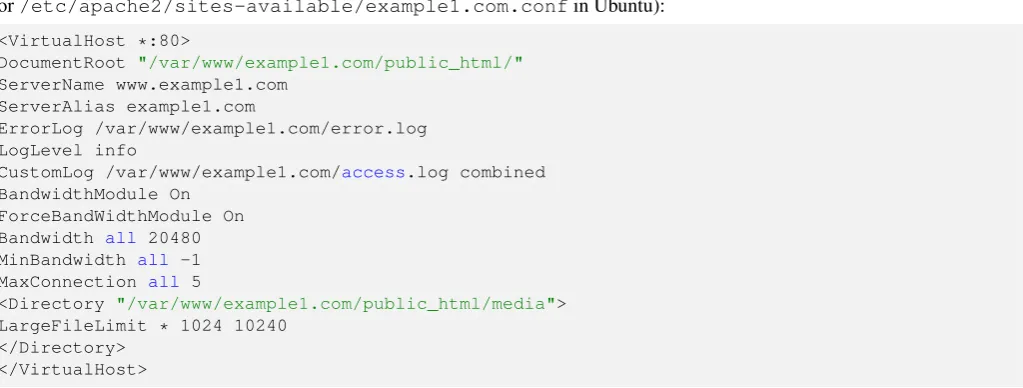
and add aDirectoryblock inside the virtual host definition (/etc/httpd/conf.d/example1.com.confin CentOS or/etc/apache2/sites-available/example1.com.confin Ubuntu):
<VirtualHost *:80> DocumentRoot "/var/www/example1.com/public_html/" ServerName www.example1.com ServerAlias example1.com ErrorLog /var/www/example1.com/error.log LogLevel info
CustomLog /var/www/example1.com/access.log combined BandwidthModule On
ForceBandWidthModule On Bandwidth all 20480 MinBandwidth all -1 MaxConnection all 5
<Directory "/var/www/example1.com/public_html/media"> LargeFileLimit * 1024 10240
</Directory> </VirtualHost>
TheLargeFileLimitdirective above will limit the bandwidth available for all files in the media directory, greater than or equal to 1 MB (1024 KB) to 10 KB/s.
If you want to limit by extension, replace the star(*)with the file extension (such as .avi or .mp3 for example). If you want to limit more than one file extension, use separateLargeFileLimitdirectives for each.
[image:27.595.58.570.204.398.2]Let’s see what happens when we attemp to download a .mp3 file from the media directory, as shown in Fig. 3.3:
Figure 3.3: Limiting the bandwidth on a specific directory
You can place big files in the media directory and limit the bandwidth on that specific directory without interfering with the operation of the rest of the site.
3.5
Summary
In this article we have explained how to configure Apache as a web server for name-based virtual hosts. In order to prevent one (or more) virtual host(s) from consuming all, or a significant amount of the available bandwidth, we also discussed how to use mod_bw. On top of it, we showed you how to check the individual logs of each virtual host to monitor their activity (requests and responses).
Chapter 4
mod_rewrite: Redirecting and rewriting URLs
Ina previous articlewe mentioned that one of Apache’s most distinguishing features is its extensibility via modules, which we defined as "independent, separate pieces of software that provide specific functionality".
Some modules are built-in into Apache as part of the core functionality and are present when the web server is installed as we explained in “How to install the Apache web server”.
Others, such as mod_bw (which we covered in “Apache name-based Virtual Host Configuration Example”), can be installed using your distribution’s package management system.
The current list of all of the modules that come as part of the Apache HTTP Server can be found at https://httpd.apache.org/-docs/current/mod/.
In this article we will explain how to usemod_rewrite(a well-known and widely used module) to dynamically map incoming HTTP requests targeting arbitrary URLs to specific documents in your web server’s or virtual host internal structure, or to another external URL.
In other words, this module will allow you to redirect (as therewritein the name suggests) an URL ( https://www.example.com/-scg/results.php?country=Argentina&province=Cordoba) to a more user or SEO friendly URL ( https://www.example.com/scg/-Argentina/Cordoba) in order to get a higher position in search engines rankings, which ultimately leads to more visitors. To accomplish this purpose, mod_rewrite realies heavily onPCRE(Perl Compatible Regular Expressions) vocabulary, which we will introduce next. Please be advised, however, that this topic can be a little burdensome until you start reaping the benefits out of it.
4.1
Introducing regular expressions (regexs)
In simple words, a regular expression is a text string that represents a search pattern. The following list, adapted from the Apache documentation on PCRE, shows the most common characters used in regular expressions, their meaning, and an example: .(a dot) matches any single character. Thus,b.twill match b*a*t, b*e*t, b*i*t, b*o*t, and b*u*t.
+(the plus sign) repeats the previous characters one or more times. For example, o+ matches oo, ooo, etc.
*(star) repeats the previous match zero or more times. Additionally, * is also used to match an empty string. In other words, the matches returned by a+ are a subset of the matches of a*.
?(question sign) makes the match of the previous characters optional, so colou?r will match both color and colour. ˆ(caret) matches the beginning of the string. For example ˆa matches a string that begins with a.
$(dollar sign) matches the end of the string, so a$ matches a string that ends with a. In addition, you can also group characters into groups of classes:
• A character class[ ]matches at least one of the characters in the set inside square brackets. For example, [alnum] matches any letter of the alphabet or numerical digit. Character classes are well explained in thePCRE regex syntax for PHP.
• On the opposite, a negative character class[ˆ ]matches any character not specified. Thus, c[ˆ/]t matchescatorc2tbut not
c/t.
Finally, you can use the exclamation sign (!) to negate it.
Now we are ready to discuss the RewriteRule and RewriteCond directives, which are essential to the operation of mod_rewrite.
4.2
Introducing RewriteRule and RewriteCond
TheRewriteRuledirective, as its name implies, substitutes a given pattern with either one of three things: • An absolute path to a local resource found inside the system
• A path to a local web resource • An absolute URL
Its basic syntax is:
RewriteRule [Pattern] [Substitution] [Optional --> Flags]
Since the [Flags] parameters is optional, we will not cover it in detail, but only mention it when we use it in an example. You can find the full [Flags] documentationhere. Last, but not least, we need to mention that you can place this directive inside the main configuration file, inside a Virtual host definition or Directory block. You can use multipleRewriteRuledirectives in the same context, each one with its own[Pattern],[Substitution]and (optionally)[Flags]. Alternatively, you can insert RewriteRule directives in .htaccess files. Although this is a widely used but not very secure method, we have chosen to not cover it during this series. However, you can learn more about it in the Apache documentationhere. TheRewriteCond directive introduces a condition that must be met before theRewriteRulerules are “activated”.
To better understand this topic, let’s illustrate with a few examples.
4.3
Examples
Before we proceed with some examples, there are some considerations that we must take into account. In order to actually use mod_rewrite, we need to add the directives listed below in the context where we will use this module. Additionally, we need to make sure the module is loaded. We do this by running (in Ubuntu)
sudo a2enmod rewrite
In CentOS, it is enabled by default, which you can confirm with httpd -M | grep rewrite
You should get the following output: rewrite_module (shared)
If not, you will need to check the presence of the module file (mod_rewrite.so) in/etc/httpd/modulesand make sure Apache is loading the modules in that directory. Look for the following line in the main configuration file:
(By the way,/etc/httpd/modulesis actually a symbolic link to/etc/httpd/conf.modules.d) If it is not there, add it before proceeding.
Suppose we want to enablemod_rewritein the context ofwww.example1.com. We need to modify its configuration file and add RewriteEngine(to enable the rewriting engine). Additionally, you need to set theOptionsdirective to allow FollowSymlinks: <VirtualHost *:80> DocumentRoot "/var/www/example1.com/public_html/" ServerName www.example1.com ServerAlias example1.com ErrorLog /var/www/example1.com/error.log LogLevel info
CustomLog /var/www/example1.com/access.log combined BandwidthModule On
ForceBandWidthModule On Bandwidth all 20480 MinBandwidth all -1 MaxConnection all 5
<Directory "/var/www/example1.com/public_html/media"> LargeFileLimit * 1024 10240
</Directory> RewriteEngine on Options FollowSymLinks </VirtualHost>
With that in place, also add the following lines inside the virtual host definition given above: RewriteCond "%{REMOTE_ADDR}" "^192\.168\.0\.104"
RewriteRule "^/vhosterrors" "/var/www/example1.com/error.log" RewriteRule "^/default\.aspx$" "index.html" [R]
RewriteRule "^/go/to/example2$" "https://example2.com" [R] RewriteRule "^/writer/(.*)/view$" "/var/www/example1.com/$1"
[image:30.595.57.571.155.376.2](Make sure your configuration is similar to that shown in Fig. 4.1)
Figure 4.1: Adding RewriteCond and RewriteRule directives
Let’s see what is happening here:
RewriteCond "%{REMOTE_ADDR}" "^192\.168\.0\.104"
indicates that the below rules apply if the remote address is 192.168.0.104 RewriteRule "^/vhosterrors" "/var/www/example1.com/error.log"
Figure 4.2: Rewriting an URL to point to a local resource
RewriteRule "^/default\.aspx$" "index.html"
If you go tohttps://example1.com/default.aspx, you will be taken to the index.html of the virtual host. Refer to Fig. 4.3 for details.
[image:31.595.96.524.403.724.2]RewriteRule "^/go/to/example2$" "https://example2.com" [R]
Browse tohttps://example1.com/go/to/example2and you will be redirected tohttps://example2.com. By the way, theRinside square brackets stands forRedirect. This rule, as opposed to the previous one (which does a URL rewrite in the full sense of the word), performs a redirect to an external site. You may want to keep in mind thatexample1.comandexample2.com are two different, separate sites even though they are hosted in the same machine.
Finally,
RewriteRule "^/writer/(.*)/view$" "/var/www/example1.com/$1"
[image:32.595.70.542.290.470.2]says that if you go tohttps://example1.com/writer/gabriel/view, you will be taken to/var/www/example1.com/public _html/gabriel. Here the$1is a placeholder for whatever matches the regular expression (.*). As explained earlier, the dot stands for any character, and the star sign represents zero or more occurrences of such character. In other words, that is the regular expression formatch everything. Since this file does not exist, in Fig. 4.4 we can see a portion of the error log that says so:
Figure 4.4: Using a regular expression match to rewrite an URL
Figure 4.5: Verifying that the rules are valid as per the corresponding condition
With a slight change in theRewriteConddirective, you could allow access from the 192.168.0.0/24 network. Replace RewriteCond "%{REMOTE_ADDR}" "^192\.168\.0\.104"
with
RewriteCond "%{REMOTE_ADDR}" "^192\.168\.0"
Figure 4.6: Activating the rules for a given network
Please note that you should consider creating custom 404 error pages to display when the visitor attempts to access a resource that does not exist.
For example, copy the following code in/var/www/example1.com/public_html/error.html: <!DOCTYPE html>
<html> <head>
<title>Not found</title> </head>
<body>
<h1>Not found :(</h1>
<h3>The page you requested has not been found.</h3>
Perhaps you would like to go to our <a href="index.html">home page</a>? </body>
</html>
Now add the following line inside the virtual host definition: ErrorDocument 404 /error.html
Figure 4.7: A custom error page for non-existing resources
As you can see, a custom error page looks much better than Apache’s default. In addition, you can use the error page to provide instructions (such as the suggestion to go to the home page in the Fig. 4.7).
4.4
Summary
Chapter 5
Apache SSL / TLS Support
In the previous articles of this series, we discussed how toinstall Apache,configure virtual hosts,rewrite and redirect URLs, and add basic authentication to access resources, among other things.
Although all those things are necessary in order to have a functional web server, any serious discussion about Apache must take security into account. In other words, you need to ensure that sensitive and other private data that is sent from a client to your web server is protected along its way.
5.1
Introducing SSL and TLS
Originally designed by Netscape to secure transactions between web servers and browsers, the Secure Sockets Layer(best known asSSL) protocol served well its purpose for a long time. This was the case until critical vulnerabilities (such as Heartbleed and Poodle) were found in some of its most-used implementations. This eventually led to the recommendation of avoiding SSL and using theTransport Layer Security, orTLSfor short. Version 1.2 of the TLS protocol is well documented inRFC 5246. When you request a page over HTTPS (https://www.facebook.com/for example), the server responds with a valid certificate that has been signed by a common trusted party, along with its public key. The client then returns an encrypted key (signed with the server’s public key), which is then decrypted using the server’s private key.
From this point on, a secure session is initiated between server and client, and both use the session key to encrypt and decrypt exchanged data. In more technical terms, asymmetric cryptography (public / private key pair) is used while the session key is being exchanged, and then symmetric encryption (shared key) is utilized while the client and the server communicate with each other.
5.2
Apache and TLS
In this guide we will again useexample2.com, one of the virtual hosts that we previously set up. To begin, we need to make sure that the mod_ssl package is installed if we are using CentOS:
yum install mod_ssl
or that the ssl module is loaded in Ubuntu: sudo service apache2 restart
To illustrate, we will use a self-signed certificate, which is easy to create and use. A self-signed certificate is perfectly valid for a private application (as you can generate it on your own at no cost to you), but not for a production application. For a web site or application that other people will use, you may want to consider getting a certificate signed bya trusted Certificate Authority. Note, however, that this option is not free. Let’s begin by creating a special directory to store the certificate and the key.
mkdir /etc/httpd/certs
In Ubuntu:
sudo mkdir /etc/apache2/certs
Important: The following example is based in Ubuntu, so if you are using CentOS make sure you change the path to the certs directory. The rest of the set up is identical for both distributions.
Now we can go ahead and create a certificate that will be valid for 365 days and a 2048-bit RSA key. As you can see in Fig. 5.1, you can fill the required fields with whatever information you want:
[image:37.595.61.571.264.582.2]sudo openssl req -x509 -nodes -days 365 -newkey rsa:2048 -keyout /etc/apache2/certs/apache2 ←-.key -out /etc/apache2/certs/apache2.crt
Figure 5.1: Creating a self-signed certificate and key file
You can find the explanation for the other options in the man page of openssl.
A quick inspection of/etc/apache2/certswill show the certificate and key files, as can be seen in Fig. 5.2: cd /etc/apache2/certs
ls
Figure 5.2: Displaying the certificate and key file type
Now let’s go to the configuration file of example2.com, which up to this point should look as follows: <VirtualHost *:80>
DocumentRoot "/var/www/example2.com/public_html/" ServerName www.example2.com
ServerAlias example2.com
ErrorLog /var/www/example2.com/error.log
CustomLog /var/www/example2.com/access.log combined </VirtualHost>
We need to tell Apache to use TLS for this particular virtual host. To do that, change the IP address and port where the virtual host is defined to 192.168.0.30 (the IP address of the Ubuntu server) and 443, respectively, and then add the following directives: • SSLEngine onenables the usage of SSL and TLS for this virtual host.
• SSLCertificateFile/etc/apache2/certs/apache2.crtindicates the path to the certificate file. • SSLCertificateKeyFile/etc/apache2/certs/apache2.keyindicates the path to the key file.
• SSLProtocol All -SSLv3tells Apache to use all protocols except SSL v3 (which means we are forcing Apache to use TLS only).
Now restart Apache.
The virtual host definition should now look as follows: <VirtualHost 192.168.0.30:443> DocumentRoot "/var/www/example2.com/public_html/" ServerName www.example2.com ServerAlias example2.com SSLEngine on SSLCertificateFile /etc/apache2/certs/apache2.crt SSLCertificateKeyFile /etc/apache2/certs/apache2.key SSLProtocol All -SSLv3
ErrorLog /var/www/example2.com/error.log
CustomLog /var/www/example2.com/access.log combined </VirtualHost>
In CentOS 7, you will need to allow the https service through your firewall: firewall-cmd --add-service=https
To test, you can now either open a browser and go tohttps://example2.com(you will be asked to confirm a security exception that indicates that the server is presenting a self-signed certificate) or add the following line to the /etc/hosts file:
192.168.0.30 example2 example2.com
and use the openssl tool as follows.
First, test a non-supported protocol (SSLv3 for example): openssl s_client -connect example2.com:443 -ssl3
Then repeat the test using TLS:
openssl s_client -connect example2.com:443 -tls1
You should see a significant difference between the output of these two tests.
Figure 5.3: Inspecting the connection details
Congratulations! You have setup TLS with Apache.
5.3
Summary
Chapter 6
Apache URL rewrite example
InApache mod_rewrite example: Redirecting and rewriting URLs, we introduced you to Perl Compatible Regular Expressions (PCRE) and explained how to integrate them with themod_rewriteApache module. These tools allow us to perform URL rewriting and redirecting for a variety of purposes at our convenience.
In this tutorial we will build on these concepts and share other examples of URL rewriting you should have handy as a system administrator.
6.1
Redirecting to a new resource in the same server
If you have changed the name of a page and want both the old and new URLs to be functional (meaning both lead to the new URL), mod_rewrite allows you to get the job done in a transparent way for end users, who will not notice the difference in their browsers. In this example we will use theexample1.comvirtual host.
For simplicity, let’s suppose that we had a page namedabout.htmland we renamed it toaboutus.html. Since we do not want users to notice the change, all requests toabout.htmlmust be rewritten toaboutus.html.
To accomplish this, we need to insert the following line at the end of the virtual host block for example1.com: RewriteRule "^/about\.html$" "/aboutus.html"
After saving changes to the configuration file, restart Apache and browse tohttps://example1.com/about.htmlas seen in Fig. 6.1:
As you can see, there is no page namedabout.htmlin theDocumentRootofexample1.com, but the rewrite rule caused Apache to serveaboutus.htmlinstead. In the address bar the end user will not notice the difference. However, if you use replace the previously added rewrite rule with this one
RewriteRule "^/about\.html$" "aboutus.html" [R]
[image:43.595.59.569.176.448.2]the URL in the address bar WILL change and the request will be logged accordingly, as we can see in Fig. 6.2:
Figure 6.2: Redirecting to a new resource with visible URL change
In this last case, the[R]rewrite flag is used to cause the HTTP redirect to be issued to the browser. The 302 HTTP response indicates that the browser is “told” to make a second request to the new URL. This behavior can be see in Fig. 6.2 above.
6.2
Redirecting to a resource moved to another server
If for some reason you need to move a page (or any kind of file, for that matter) to a different server, you will want your users to still be able to access that resource by browsing to the usual URL. This option may come in handy if you need to move a site between servers, or to leverage the available bandwidth of the second system.
Figure 6.3: Moving a video file to a different virtual host
To allow users to access video.mp4 when they typehttps://example1.com/video.mp4, use the following rewrite rule in the virtual host block:
RewriteRule "^/video\.mp4" "https://example2.com/$1" [R,L]
Now save changes, don’t forget to restart Apache, and let’s see what happens in Fig. 6.4:
Figure 6.4: Serving a resource that has been moved to a new server
In Fig. 6.4 we can see that the request tohttps://example1.com/video.mp4was actually handled by example2.com. The combination of theRandLflags in the rewrite rule tells Apache to 1) perform a redirect, and 2) disregard further rules, respectively.
6.3
Serve browser-dependent content
[image:44.595.57.562.310.529.2]Figure 6.5: Different pages to present depending on the user’s browser
Add the following lines to the configuration file ofexample2.cominside the virtual host block. Note that this relies on the HTTP_USER_AGENTenvironment variable, which stores the user-agent string identifying the browser:
RewriteCond "%{HTTP_USER_AGENT}" ".*Firefox.*"
RewriteRule "^/foo\.html$" "/firefox.html" [L] RewriteCond "%{HTTP_USER_AGENT}" ".*ELinks.*"
RewriteRule "^/scg\.html$" "/elinks.html" [L] RewriteCond "%{HTTP_USER_AGENT}" ".*Chrome.*"
RewriteRule "^/scg\.html$" "/chrome.html" [L] RewriteCond "%{HTTP_USER_AGENT}" ".*Trident.*" RewriteRule "^/scg\.html$" "/ie.html" [L] RewriteRule "^/scg\.html$" "/index.html" [L]
You will notice that the regular expressions used in the above rewrite rules look for a match inside the user agent string (which can be rather large, such asMozilla/5.0 (Windows NT 6.1; rv:44.0) Gecko/20100101 Firefox/44.0).
Depending on the browser, a different page will be displayed when the user requestshttps://example2.com/scg.html (note that this file does not exist in theDocumentRootof this virtual host). If the browser is neither Firefox, Chrome, IE (identified by the stringTrident) or elinks, the request will be redirected to index.html.
Figure 6.6: Returning different pages depending on the user agent string
Why would you want to usemod_rewritefor this? For example, because some browsers may not be compatible with certain versions of Javascript libraries, or perhaps you want to have a minimal page for text-based browsers.
6.4
Summary
In this article we have shared a few extra examples of URL rewriting and redirecting with the intent to give you a glimpse of the capabilities ofmod_rewrite. Fortunately, the Apache website provides lots of useful information and examples about the use of this module. With that in mind, the sky is the limit!