Page 470
A PROGRAMMING ENVIRONMENT FOR NOVICES WITH VISUAL BLOCK AND TEXTUAL INTERFACES
1
Tomohiro Nishida, 2Ryota Nakamura, 2Yuki Shuhara, 3Akira Harada, 4Michio Nakanishi, 2
Toshio Matsuura 1
Osaka Gakuin University, Suita Osaka, Japan 2Osaka City University, Sumiyoshi-ku Osaka, Japan
3Otemon Gakuin University, Ibaraki Osaka, Japan 4Osaka Institute of Technology, Hirakata Osaka, Japan
Abstract
Visual block languages such as Scratch are introduced in computing curricula in several countries. However, there exists a gap between assembling graphical blocks and writing code textually. In order to bridge the gap, we have developed a programming environment which consists of two components, oPEN and PEN. oPEN is a visual block language based on Openblocks and PEN is a usual text code environment. Learners can use both separately. Also, a stack of blocks plugged on oPEN can be converted to PEN’s code. The syntax of oPEN and PEN is expressed in Japanese and novices in Japan can easily understand the code.
Key words: novice programming environment, visual block language, text code
1. INTRODUCTION
The necessity of programming in education is now widely recognized, and coding is already introduced in computing curricula of primary schools in UK, Russia, Estonia, and other countries. In Japan, on April 19, 2016, Prime Minister Shinzo Abe announced in the Council for Industrial Competitiveness that the government plans to introduce programming in elementary and junior-high school education. As the educational platform, block-structured visual programming languages such as Scratch and Blockly are often used. They allow users to code programs by plugging blocks together. Many papers have been published on the practices, which show that they are suitable for novices because they are easy to use and do not cause structural code bugs (Price and Barnes 2015). However, there exists a gap between plugging blocks and writing code textually in practical languages like C or Java.
We have developed a programming environment to bridge this gap. The environment consists of two components. One is oPEN which is a visual block language based on Openblocks and the other is PEN (Nishida et al. 2008) which is a usual text code based environment. A Click on a stack of blocks plugged by oPEN generates the source code sequence of PEN. The constructs of PEN are expressed in Japanese and the syntax is so simple that novice programmers in Japan can easily understand the text code after learning basic structural concepts of conditional branch and loop using oPEN. This paper describes concepts and features of oPEN and PEN. A sample courseware for novices in our programming environment is also included in this paper.
2. REQUIREMENTS OF PROGRAMMING ENVIRONMENTS FOR NOVICES
2.1 Learning objectives of programming
Page 471
2.2 Visual Block-based Programming Environments
We now discuss the requirements of the programming environments with which novices can learn programming in a relatively short time. Visual block-based programming environments are suitable for teaching programming to novices, because they do not incorporate mistyping and lexical or syntax errors (Price and Barnes 2015). However, these environments tend to have so many blocks, that novices would take time to find the necessary block. We think it is necessary for programming environments to have a few stages according to the students learning level and to show a limited number of blocks that are needed only for each stage, so that entry-level students can easily find blocks.
Since it is difficult to experience debugging only in block programming environments, we think text-based coding is necessary. So, we also provide text-text-based interface in our programming environment.
2.3 Requirements for Text-based Programming Environments
When novices are learning text-based programming languages, they are sometimes annoyed by compiler error messages. Furthermore, they will get bored with plain input/output text that appears on screen. We think following programming language features are necessary for novice learners.
The language should be written in mother tongue, especially in Japan, Korea, China and so on, where non-alphabet characters, namely Kanji, Hangul, or Chinese characters are ordinarily used, because novices are usually not familiar with control constructs like "while do" written in English. The language should have text-code input support feature, in order to be free from typing errors as
possible.
Debugging feature should also be provided. For example, executing status indicator, slow execution, stepwise execution, variable inspection would be useful.
Graphics drawing feature is also preferable, because we found from our experience that drawing circles and/or rectangles is well received to novices.
3. RELATED WORK
There are various educational programming environments with visual block interface.
Scratch (MIT Media Lab 2003) is a visual programming environment, which is designed especially for ages 8 to 16 (Resnick et al. 2009). Students can easily program their own interactive stories, games and so on, and share their creations with one another. However, scripts on Scratch cannot be translated into text languages.
Blockly (Google 2011) is a JavaScript library for building visual programming editors and can translate programs with visual block expressions into text languages such as JavaScript, Python, PHP. There are a lot of applications using Blockly. For example, Code Studio (Code.org 2014) which is the main platform used in Code.org instruction is one such example. Code Studio can translate programs with visual block expressions into JavaScript codes. However, JavaScript is not suitable for novices, because there is no easy-to-use debugging tools. In addition, learners in Japan feel it difficult to read codes in English.
Page 472 4. oPEN
4.1 Overview of oPEN
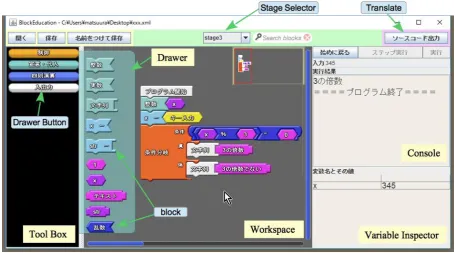
First, we will introduce a new programming environment for novices, oPEN (see Figure 1) which we have developed by using a GUI library Openblocks (MIT STEP 2009).
Figure 1. A screen shot of oPEN
The user interface of oPEN consists of panes and buttons. On "Workspace" pane, users can construct a program combining blocks. "Tool Box" pane has "Drawer" buttons. If a user clicks a button, its "Drawer" appears and related blocks are displayed (see Figure 2). A user can select a block and put it on the workspace. "Console" pane is used for input and output of the program. On "Variable Inspector" pane, values of variables are displayed.
At the first step of learning programming, novices are likely to be puzzled by many kinds of blocks. If all kinds of blocks are displayed, they would feel it difficult to select a proper block because they hardly know the usage of each block. Thus, the blocks displayed on "Drawer" should be selected according to the step of study. So, oPEN provides "Stages" that can limit the blocks on "Drawer". Teachers can prepare "Stages" according to the lesson plan. Learners can select a "Stage" from the pull-down menu "Stage Selector" (see Figure 1).
Page 473
Figure 2. A "Tool box" of oPEN
4.2 Functions of oPEN
4.2.1 Execution and debugging
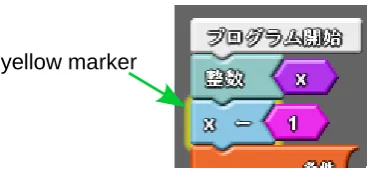
oPEN can run a program step by step. In a stepwise execution, learners can observe the values of all variables on "Variable Inspector" pane. Learners can confirm values and find out if the program has some errors. The currently executed block is emphasized by a yellow marker as shown in Figure 3.
Figure 3. The block of executing (Emphasized by yellow frame)
If a stack of blocks has an error, a red marker appears around the error block as shown in Figure 4, and a detailed message is shown on "Console".
Figure 4. Display of a runtime error
Declaration/ Assignment Control
Input/Output Arithmetics
string real integer
Drawer Tool Box
yellow marker
Page 474
4.2.2 Stage
A "Stage" is a set of drawers as shown in a "Tool Box" pane. Since each "Stage" is written in an XML file, teachers can customize "Stages" by rewriting each XML file according to the courseware. Learners can choose an appropriate "Stage" from the pull-down menu of "Stage Selector". Generally, as learning phase proceeds, leaners can choose higher level Stage that have more kinds of blocks.
4.2.3 Translation to text-based computer language
oPEN can translate a stack of blocks on "Workspace" to a text-based program code of PEN. We believe that reading and writing text-based programs are important to understand programming. Learners can perform translation by pressing "Translate" button.
4.2.4 Drawing graphic figures
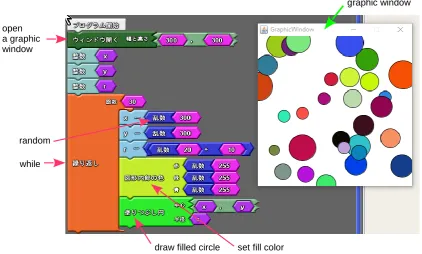
oPEN provides some blocks to draw figures on a dedicated graphic window. Learners can draw graphics easily using these blocks. Figure 5 shows a sample program and its output on a graphic window. This program generates 30 random colored circles at random position on a graphic window. The radius of each circle is also determined by a random number between 10 and 30.
Figure 5. A sample program of drawing figures
5. PEN
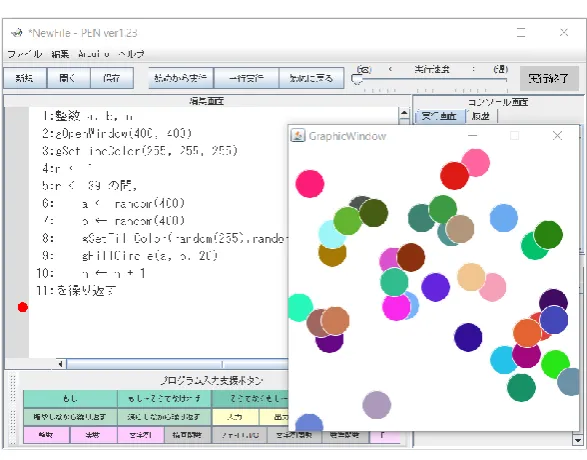
A screen shot of PEN is shown in Figure 6. PEN is implemented as a Java application and has several features: an editing feature to edit user programs, an execution control feature to control program execution/suspension/stepwise execution, a console feature to display execution results and history, and a variable inspection feature to display values of all variables while executing a user program.
open a graphic window
while
set fill color draw filled circle
random
Page 475
5.1 Programming Language
As the programming language for PEN, we chose "DNCL", which is used in an examination subject "Basics in Information Processing" of the nationwide paper-based examination at the first stage entrance examination of Japanese universities. DNCL is expressed in Japanese and is quite easy for novices to understand. Furthermore, as DNCL was designed only for paper examination, there were no programming environments. When we implemented PEN, we added several language constructs to DNCL for PEN, and we named it xDNCL, eXtended DNCL.
Figure 6. A screen shot of PEN
5.2 Editing Feature with Code Input Support
The constructs of xDNCL are based on Japanese words, so xDNCL programs are easy to read. However, it takes more time to type the program code compared to popular languages like C or Java that mainly use ASCII characters, because constructs of xDNCL are relatively long and need Kana-Kanji conversion, an operation to input Japanese characters, which is bothersome for novices. Therefore, an input support feature is important. To reduce keystrokes and mistyping, a set of "Input Support Buttons", shown in the bottom part of Figure 6, is implemented. If you push a button, the corresponding template, such as 'if then else' control structure, is inserted in the "Edit Pane".
5.3 Execution Control Features
Page 476 Executing Status Label
To comprehend program’s executing status, "Executing Status Label" is displayed (in the right upper corner in the Figure 6). By providing this information, students can easily recognize the execution status of the program, such as running, stopped, waiting for keyboard inputs and so on.
Slow Execution
The slow execution feature allows students to observe the behavior of the program. The "Speed Control Bar", shown in the right upper corner in Figure 6, controls the executing speed. Since the speed can be changed while executing, students can carefully observe the program by slowing down the speed. Stepwise Execution
The stepwise execution feature allows students to closely examine program execution. This feature is controlled by "Stepwise Execution Button", shown in the upper part of Figure 6. When it is pushed, the current line of the program, indicated by the "Execution Marker", is executed and the program stops at the next line, changing the state to "suspended".
Variable Inspection Feature
When observing a program execution, it is necessary to know the current value of each variable. The value and the type of all variables are displayed in the "Variable Inspector".
6. A SAMPLE COURSEWARE
In this section we will show a sample courseware. It consists of five lessons (50 minutes/lesson). In each lesson a teacher explains the important points through sample programs, and then learners run them, observe their behavior, and work on exercises.
6.1 Lesson 1 and 2: oPEN
The purpose of the first two lessons is to get used to the operation of oPEN and to learn sequential processing, conditional branching, and repetitive processing.
[1] Sequential processing
[sample 01] A program which inputs an integer N and outputs the value of N multiplied by 3 on the console.
(exercise 01) Make a program which inputs two integers, width and height of a rectangle, and outputs its area.
[2] Conditional branching
[sample 02] A program which inputs an integer N and outputs a message "multiple of 3" if N is divisible by 3.
[sample 03] A program which inputs an integer N and outputs a message "multiple of 3" if N is divisible by 3, or "not multiple of 3" if N is not divisible by 3 (see Figure 7).
(exercise 02) Make a program which generates a random integer N between 0 and 100, and displays "success" if N is greater than or equal to 60, or "failure" if not.
[3] Repetitive processing
[sample 04] A program which outputs ten random integers between 0 and 100.
(exercise 03) Make a program which outputs the summation of the numbers that are multiple of 3 between 1 and 100.
Page 477
6.2 Lesson 3: oPEN to PEN
The purpose of this lesson is to understand the correspondence of block programs on oPEN to text-based programs on PEN. Let students translate programs made in former lessons into PEN. Then, they run these programs on PEN and observe their behavior. In addition, they may make a slight modification to the programs and run them.
Figure 7. A result of translation of sample03
6.3 Lesson 4 and 5: PEN
Learners learn how to write a text-based program on PEN.
[sample 05] A program drawing eight red circles which are displayed on a horizontal line on 400x400 graphic window. Let radius of each circle be 25, and let Y coordinate of the center of the circle be 200. (exercise 05) Make a program which draws green circles aligned on the diagonal of the 400x400 graphic window. Let radius of each circle be 25, and let (X, Y) coordinates of center of the circle be (25,25), (50,50), (75,75)...
(exercise 06) Make a program which draws green circles aligned on the diagonal of the 400x400 graphic window. Let radius of each circle be 25 and (X, Y) coordinates of center the circle be (375,25), (350,50), (325,75)...
[sample 06] A program which places 30 filled-green circles at random on 400x400 graphic window. Let the radius be 25.
(exercise 07) Make a program which places 30 random colored circles at random point on 400x400 graphic window. Let radius of each circle be 25 (see Figure 8).
Page 478
Figure 8. A sample program of exercise 07 and its result
7. CONCLUSIONS
We have developed a programming environment which consists of two components. One is oPEN, which is a visual block language based environment, and the other is PEN, which is a usual text code environment. A stack of blocks plugged on oPEN can be converted to PEN's code. We have also developed a courseware using the environment. We are planning to teach programming to high school students using this courseware in June. We will show its result in the conference.
ACKNOWLEDGEMENTS
Authors are grateful to Mr. Natsuki Inaba for his effort of implementing oPEN. This work was supported by JSPS KAKENHI Grant Number 26350327.
REFERENCES
T. W. Price and T. Barnes 2015, Comparing Textual Block Interface in a Novice Programming Environment, ICER '15 Proceedings of the eleventh annual International Conference on International Computing Education Research, pp.91-99.
T. Nishida, A. Harada, T. Yoshida, R. Nakamura, M. Nakanishi, H. Toyoda, K. Abe, H. Ishibashi and T. Matsuura 2008, PEN: A Programming Environment for Novices - Overview and Practical Lessons -, ED-Media 2008, pp.4755-4760.
MIT Media Lab 2003, Scratch, viewed 31 March 2016, <https://scratch.mit.edu/>.
Resnick, M. et al. 2009, Scratch: Programming for All, Communications of the ACM, Vol.52, No.11, pp.60-67.
Google 2011, Blockly, viewed 31 March 2016, <https://developers.google.com/blockly/>. Code.org 2014, Code Studio, viewed 31 March 2016, <https://studio.code.org/>.