Grandstream Networks, Inc.
GXP2124
4-Line Enterprise HD IP Phone
GXP2124 User Manual
Index
GUI INTERFACE EXAMPLES ... 5
GNU GPL INFORMATION ... 6
CHANGE LOG ... 7
FIRMWARE VERSION 1.0.8.4 ... 7 FIRMWARE VERSION 1.0.7.11 ... 7 FIRMWARE VERSION 1.0.7.4 ... 7 FIRMWARE VERSION 1.0.6.11 ... 7 FIRMWARE VERSION 1.0.6.7 ... 7 FIRMWARE VERSION 1.0.5.58 ... 8 FIRMWARE VERSION 1.0.5.32 ... 8 FIRMWARE VERSION 1.0.5.26 ... 8 FIRMWARE VERSION 1.0.5.24 ... 8 FIRMWARE VERSION 1.0.5.15 ... 8 FIRMWARE VERSION 1.0.4.23 ... 9 FIRMWARE VERSION 1.0.4.10 ... 9WELCOME ... 11
PRODUCT OVERVIEW ... 13
FEATURE HIGHTLIGHTS ... 13 GXP2124 TECHNICAL SPECIFICATIONS ... 13INSTALLATION ... 15
EQUIPMENT PACKAGING ... 15CONNECTING YOUR PHONE ... 15
SAFETY COMPLIANCES ... 16
WARRANTY ... 16
USING THE GXP2124 ... 17
GETTING FAMILAR WITH THE LCD ... 17
GETTING FAMILAR WITH THE KEYPAD ... 21
HANDSET, SPEAKER AND HEADSET MODE ... 22
MULTIPLE SIP ACCOUNTS AND LINES ... 22
COMPLETING CALLS... 23
MAKING CALLS USING IP ADDRESSES ... 25
ANSWERING PHONE CALLS ... 26
RECEIVING CALLS... 26
DO NOT DISTURB ... 27
DURING A PHONE CALL ... 27
CALL WAITING/CALL HOLD ... 27
MUTE ... 27
CALL TRANSFER ... 27
5-WAY CONFERENCING ... 28
VOICE MESSAGES (MESSAGE WAITING INDICATOR) ... 30
SHARED CALL APPEARANCE (SCA) ... 31
INSERTING PAUSE INTO SPEED DIALS AND PHONEBOOK ENTRIES ... 31
CALL FEATURES ... 33
CUSTOMIZED LCD SCREEN & XML ... 34
CONFIGURATION GUIDE ... 35
CONFIGURATION VIA KEYPAD ... 35
CONFIGURATION VIA WEB BROWSER ... 40
DEFINITIONS ... 41
STATUS PAGE DEFINITIONS ... 41
ACCOUNT PAGE DEFINITIONS ... 42
SETTINGS PAGE DEFINITIONS ... 51
NETWORK PAGE DEFINITIONS ... 59
MAINTENANCE PAGE DEFINITIONS ... 61
PHONEBOOK PAGE DEFINITIONS ... 65
NAT SETTINGS ... 67
WEATHER UPDATE ... 67
PUBLIC MODE ... 68
MULTICAST PAGING ... 69
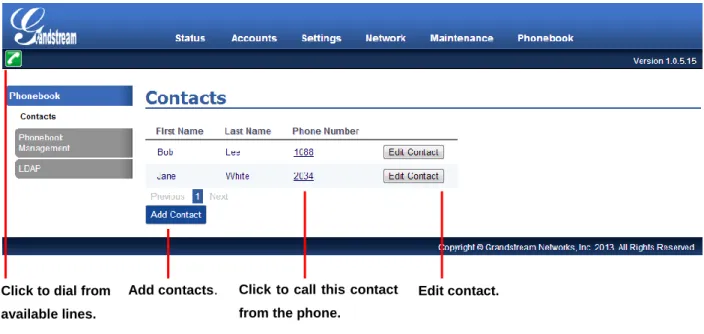
EDITING CONTACTS AND CLICK-TO-DIAL ... 72
UPGRADING AND PROVISIONING ... 75
UPGRADE VIA KEYPAD MENU ... 75
UPGRAGE VIA WEB GUI ... 75
NO LOCAL TFTP/HTTP SERVERS ... 76
RESTORE FACTORY DEFAULT SETTINGS ... 79
EXPERIENCING THE GXP2124 ... 81
Table of Tables GXP2124 User Manual Table 1: GXP2124 TECHNICAL SPECIFICATIONS ... 13
Table 2: GXP2124 EQUIPMENT PACKAGING ... 15
Table 3: GXP2124 CONNECTORS ... 15
Table 4: LCD DISPLAY DEFINITIONS ... 17
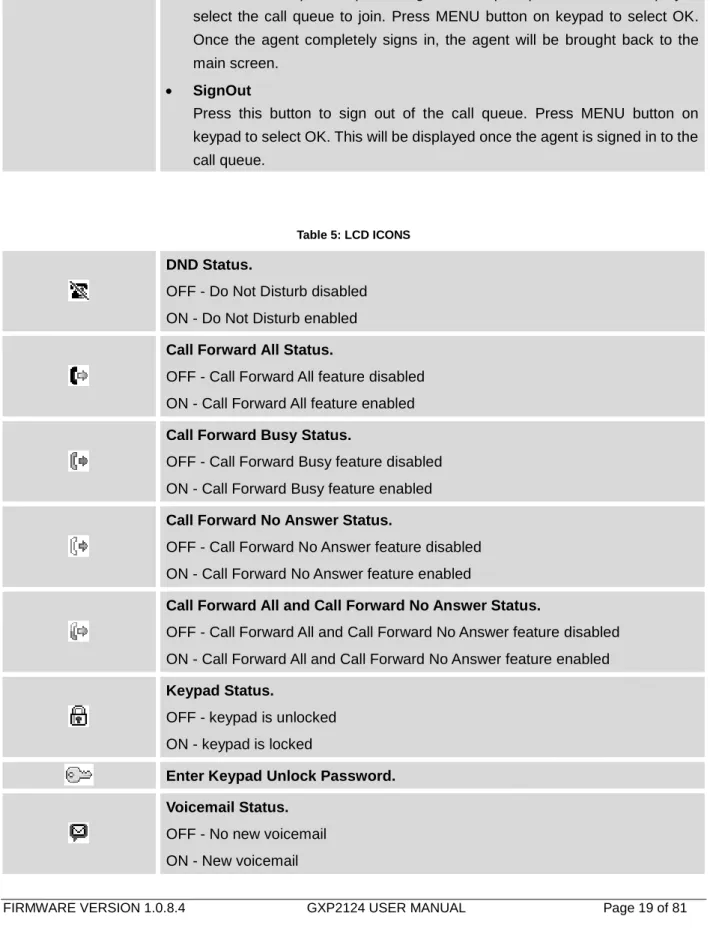
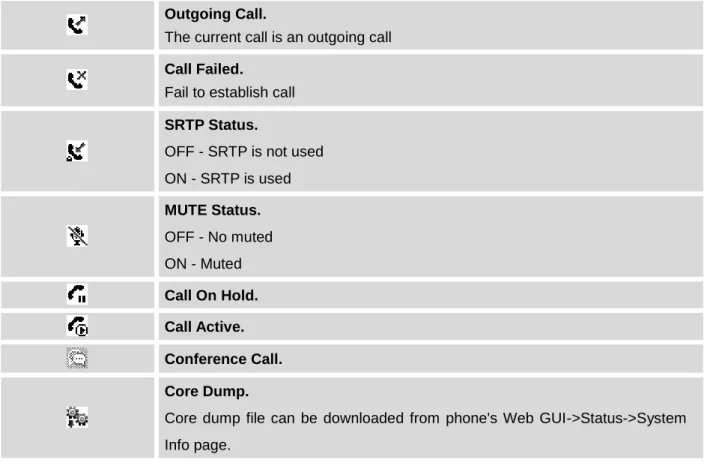
Table 5: LCD ICONS ... 19
Table 6: KEYPAD DEFINITIONS ... 21
Table 7: CALL FEATURES ... 33
Table 8: CONFIGURATION MENU ... 35
Table of Figures GXP2124 User Manual Figure 1: GXP2124 Ports ... 15
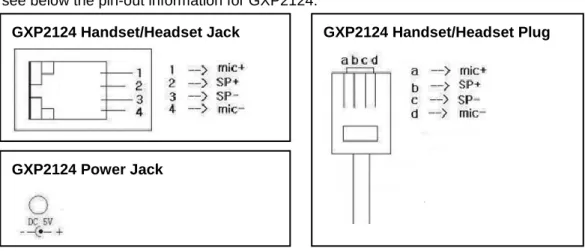
Figure 2: GXP2124 Pin-out ... 16
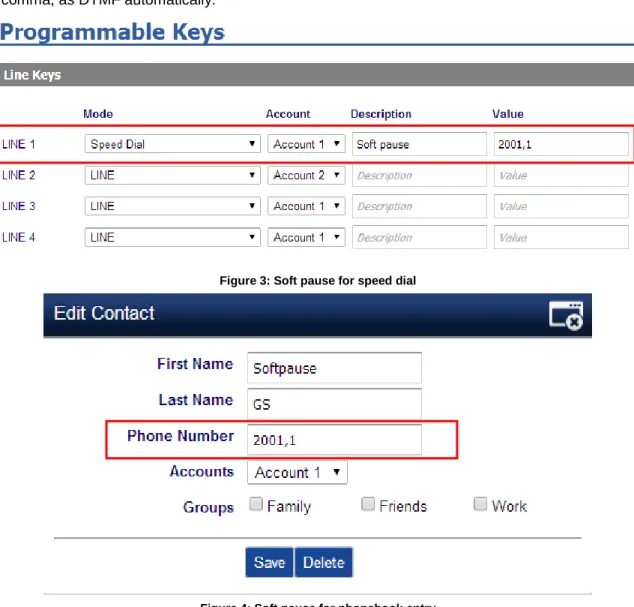
Figure 3: Soft pause for speed dial ... 32
Figure 4: Soft pause for phonebook entry ... 32
Figure 5: Keypad MENU Flow ... 39
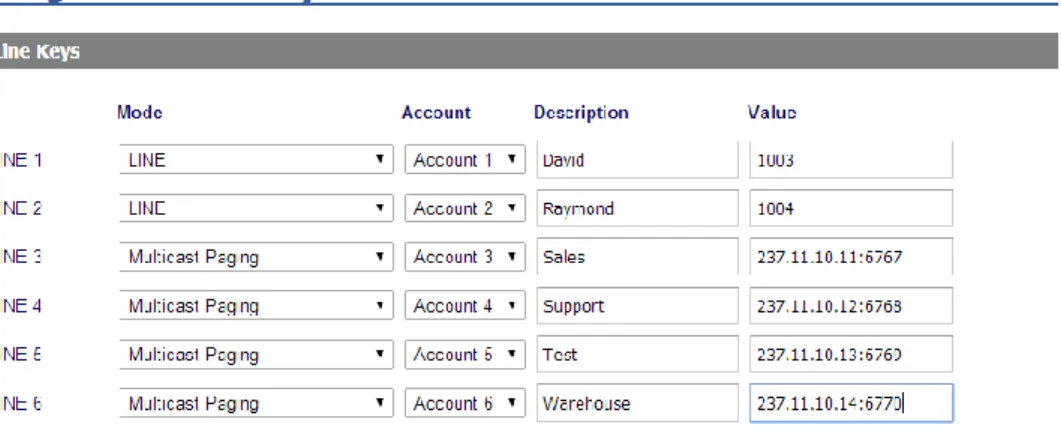
Figure 6: Sending Multicast Page Configuration by using Line Keys ... 69
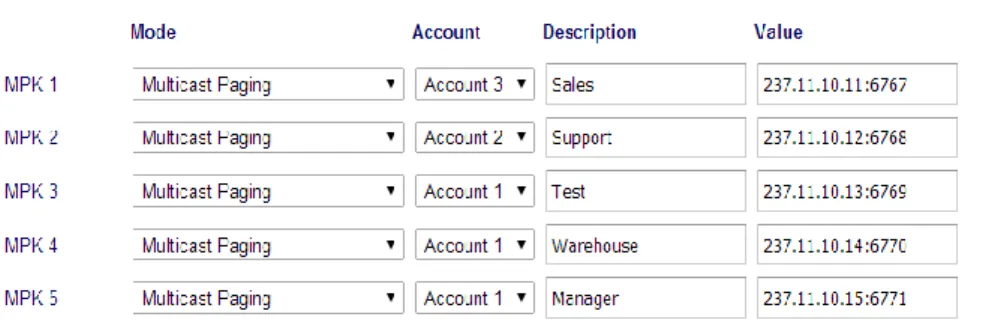
Figure 7: Sending Multicast Page Configuration by using MPK ... 70
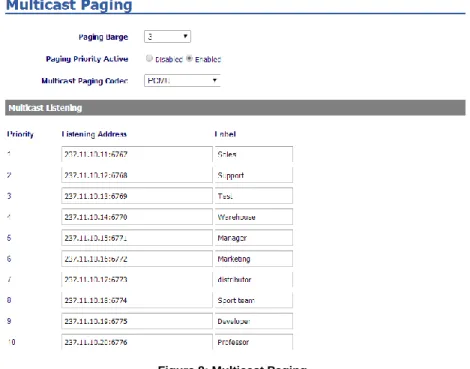
Figure 8: Multicast Paging ... 71
GUI INTERFACE EXAMPLES
http://www.grandstream.com/products/gxp_series/general/documents/gxp21xx_gui.zip
1. Screenshot of Login Page 2. Screenshots of Status Pages 3. Screenshots of Accounts Pages 4. Screenshots of Settings Pages 5. Screenshots of Network Pages 6. Screenshots of Maintenance Pages 7. Screenshots of Phonebook Pages
GNU GPL INFORMATION
GXP2124 firmware contains third-party software licensed under the GNU General Public License (GPL). Grandstream uses software under the specific terms of the GPL. Please see the GNU General Public License (GPL) for the exact terms and conditions of the license.
Grandstream GNU GPL related source code can be downloaded from Grandstream web site from: http://www.grandstream.com/support/faq/gnu_gpl
CHANGE LOG
This section documents significant changes from previous versions of user manuals for GXP2124. Only major new features or major document updates are listed here. Minor updates for corrections or editing are not documented here.
FIRMWARE VERSION 1.0.8.4
Added option to ignore Alert-Info header when used for distinctive ringtone. [Ignore Alert-Info header] Added dual Outbound SIP Proxy support. [Backup Outbound Proxy]
Added support for sending SIP Option messages to verify connectivity to the SIP server. [OPTIONS Keep Alive]
Added option to select Call Pickup mode. [Force BLF Call-pickup by prefix]
FIRMWARE VERSION 1.0.7.11
Added support to disable the Call park subscription. [Broadsoft Call Park] Added support of DHCP OPTION 160. [DHCP option 160]
Enabled HTTP(S) ID/Pass prompt. [HTTP/HTTPS User Name and Password]
FIRMWARE VERSION 1.0.7.4
Added Multicast Paging support. [MULTICAST PAGING]
Added support to disable SIP NOTIFY Authentication. [MAINTENANCE PAGE DEFINITIONS] Added support to Map Polish characters in phonebook entries.
FIRMWARE VERSION 1.0.6.11
Added support for inserting pauses into speed dials and phone book entries. [INSERTING PAUSE INTO SPEED DIALS AND PHONEBOOK ENTRIES]
Added support for Svenska language.
Added “Date Time” setting under Preference setting on menu. [CONFIGURATION VIA KEYPAD]
FIRMWARE VERSION 1.0.6.7
FIRMWARE VERSION 1.0.5.58
Added “3CX Auto Provision” under Maintenance. [MAINTENANCE PAGE DEFINITIONS] Added “Second Dial Tone” under Settings. [SETTINGS PAGE DEFINITIONS]
Added “Sort Phonebook by” under Phonebook Management. [PHONEBOOK PAGE DEFINITIONS] Added “Public Mode Login Expiration” under Settings. [SETTINGS PAGE DEFINITIONS]
Added “Hold Method” under Account setting. [ACCOUNT PAGE DEFINITIONS] Added “Crypto Life Time” under Account setting.[ACCOUNT PAGE DEFINITIONS] Added “UCM Connection” under LCD Main menu.[CONFIGURATION VIA KEYPAD]
FIRMWARE VERSION 1.0.5.32
Added “Web Access Mode” under Security setting. [SECURITY]
Replaced “Disable Telnet” under Web Access by “Disable SSH” under Security setting page. [SECURITY]
FIRMWARE VERSION 1.0.5.26
Updated “Use Phonebook Key for LDAP Search” under LDAP settings to “Phonebook Key function” under Phonebook Management settings. [PHONEBOOK PAGE DEFINATION]
FIRMWARE VERSION 1.0.5.24
Updated TFTP server download link for 1.0.5.24. [NO LOCAL TFTP/HTTP SERVERS]
Added “Enable LLDP” feature under Network Advanced Settings.[NETWORK PAGE DEFINITIONS]
FIRMWARE VERSION 1.0.5.15
Updated Web GUI interface examples with new screenshots for 1.0.5.15. [GUI INTERFACE EXAMPLES]
Added pin-out information.
Updated Auto Attended Transfer information. [CALL TRANSFER] Modified Public Mode information. [PUBLIC MODE]
Updated Click-To-Dial feature information. [EDITING CONTACTS AND CLICK-TO-DIAL] Updated keypad MENU options and Keypad configuration flow. [Figure 5: Keypad MENU Flow] Updated Web GUI options "Music On Hold URI", "Authenticate Incoming INVITE", "Click-To-Dial
Feature", "Call-Waiting Tone Gain", "Accept Incoming SIP from Proxy Only", "Caller ID Display", "Broadsoft Call Center", "Hoteling Event", "Call Center Status", "PUBLISH to Call Center", "Use First Matching Vocoder in 200OK SDP" and etc. [DEFINITIONS]
FIRMWARE VERSION 1.0.4.23
Updated XML Application documentation link. [CUSTOMIZED LCD SCREEN & XML] Added "Headset Type" in phone's LCD MENU->Config. [CONFIGURATION VIA KEYPAD] Added "Use Privacy Header" and "Use P-Preferred-Identity Header" options in web GUI. Added Date Display Format options in web GUI.
Added "Use Phonebook Key for LDAP Search" option in web GUI.
Added customize city code information for weather update feature. [WEATHER UPDATE] Updated generic config file cfg.xml information. [CONFIGURATION FILE DOWNLOAD]
FIRMWARE VERSION 1.0.4.10
Added instructions for connecting the phone. [CONNECTING YOUR PHONE]
Updated Keypad MENU options and Keypad configuration flow. [CONFIGURATION VIA KEYPAD] Added Line Key options Call Park, LDAP Search, and etc.
Added Multi Purpose Key options Call Park, LDAP Search, and etc. Added IPv6 configuration options.
Added LDAP options information.
Added Public Mode information for hot desking feature. [PUBLIC MODE] Added NAT setting information. [NAT SETTINGS]
Added Matching Incoming Caller ID function in Account Setting.
Added Editing Contacts and Click-to-Dial information. [EDITING CONTACTS AND CLICK-TO-DIAL] Added GNU GPL information. [GNU GPL INFORMATION]
WELCOME
Thank you for purchasing Grandstream GXP2124 4-Line Enterprise HD IP Phone. GXP2124 is a next generation enterprise grade IP phone that features 240x120 backlit graphical LCD, 4 line keys with up to 4 SIP accounts, 4 dedicated XML programmable context-sensitive soft keys, 24+4 XML programmable speed-dial/BLF extension keys, dual network ports with integrated PoE, 5-way conference, and Electronic Hook Switch (EHS). The GXP2124 delivers superior HD audio quality, rich and leading edge telephony features, personalized information and customizable application service, automated provisioning for easy deployment, advanced security protection for privacy, and broad interoperability with most 3rd party SIP devices and leading IP PBX/Soft Switch/IMS platforms. It is an ideal solution for enterprise users looking for a high quality, feature rich multi-line IP phone with many extension keys.
Caution:
Changes or modifications to this product not expressly approved by Grandstream, or operation of this product in any way other than as detailed by this User Manual, could void your manufacturer warranty.
Warning:
Please do not use a different power adaptor with the GXP2124 as it may cause damage to the products and void the manufacturer warranty.
This document is subject to change without notice. The latest electronic version of this user manual is available for download here:
http://www.grandstream.com/support
Reproduction or transmittal of the entire or any part, in any form or by any means, electronic or print, for any purpose without the express written permission of Grandstream Networks, Inc. is not permitted.
PRODUCT OVERVIEW
FEATURE HIGHTLIGHTS
240x120 pixel backlit graphical LCD display with up to 8 level grayscale
4 line keys with up to 4 SIP accounts, 4 XML programmable context-sensitive soft keys, and up to 32 call appearances with 24+4 speed-dial/BLF extension keys with dual-color LED
HD wideband audio, superb full-duplex hands-free speakerphone with advanced acoustic echo cancellation and excellent double-talk performance
Large phonebook with up to 2000 contacts and call history with up to 500 records, up to 5-way conference
Built-in personalized application service (e.g., local weather, stock, currencies, etc), flexible LCD content customization using XML
Dual switched auto-sensing 10/100/1000Mbps network ports with integrated PoE; supports Electronic Hook-Switch (EHS)
Automated provisioning using TR-069 or encrypted XML configuration file, TLS/SRTP/HTTPS for advanced security protection, 802.1x for media access control, LLDP, IPv6
GXP2124 TECHNICAL SPECIFICATIONS
Table 1: GXP2124 TECHNICAL SPECIFICATIONS
Protocols and Standards
SIP RFC3261, TCP/IP/UDP, RTP/RTCP, HTTP/HTTPS, ARP/RARP, ICMP, DNS (A record, SRV, NAPTR), DHCP, PPPoE, TELNET, TFTP, NTP, STUN, SIMPLE, TR-069, 802.1x, LLDP, LLDP-MED, LDAP, IPv6, TLS, SRTP
SIP PUBLISH method (RFC3903), SIP Presence Package (RFC3856, 3863) for use of MPKs, SIP Dialog Package (RFC4235), SIP Message method (RFC3428)
Network Interfaces Dual switched 10/100/1000Mbps port with integrated PoE
Graphic Display Back-lit 240x120 graphical LCD display with up to 8 level grayscale
Feature Keys 4 line keys with up to 4 SIP accounts, 4 XML programmable context sensitive soft keys, 24+4 speed-dial/BLF extension keys with dual-color LED, 5 navigation/menu keys, 9 dedicated function keys for MUTE, PHONEBOOK, MESSAGE (with LED indicator), HEADSET, TRANSFER, CONFERENCE, SEND/REDIAL, VOLUME, SPEAKERPHONE
Voice Codec Support for G.723.1, G.729A/B, G.711u/a-law, G.726, G.722 (wide-band) and iLBC, in-band and out-of-band DTMF (in audio, RFC2833, SIP INFO)
Telephony Features Hold, transfer, forward, 5-way conference, busy-lamp-filed (BLF), call park, pickup, shared-call-appearance (SCA) / bridged-line-appearance (BLA), downloadable phone book (XML, LDAP, up to 2000 items), call waiting, call log (up to 500 records), XML customization of screen, off-hook auto dial, auto answer, click-to-dial, flexible dial plan, hot desking, personalized music ringtones, music on hold, server redundancy and fail-over
HD Audio Yes, both on handset and speakerphone
Headset Jack RJ9, supporting EHS (Electronic Hook-Switch) with Plantronics headsets
Base Stand Yes, 2-angle positions available
Wall Mountable Yes
QoS Layer 2 (802.1Q, 802.1p) and Layer 3 (ToS, DiffServ, MPLS) QoS
Security User and administrator level passwords, MD5 and MD5-sess based authentication, 256-bit AES encrypted configuration file, TLS, SRTP, 802.1x media access control
Multi-language English, German, Italian, French, Spanish, Portuguese, Russian, Croatian, Simplified Chinese, traditional Chinese, Korean, Japanese, and etc
Upgrade and Provisioning
Firmware upgrade via TFTP/HTTP/HTTPS, mass provisioning using TR-069 or AES encrypted XML configuration file
Power and Green Energy Efficiency
Universal power adapter:
Input: 100-240VAC 50-60Hz; Output: +5VDC, 800mA Integrated Power-over-Ethernet (802.3af)
Max power consumption 3W (power adapter) or 3.5W (PoE)
Physical Dimension: 222mm (W) x 210mm (H) x 93mm (D) Unit weight: 0.98KG Package weight: 1.63KG Operating Temperature and Humidity 32-104 oF / 0-40 oC, 10-90% (non-condensing)
Package Content GXP2124 phone, handset with cord, base stand, universal power supply, network cable, quick start guide
Compliance FCC Part 15 (CFR 47) Class B; EN55022 Class B, EN55024, EN61000-3-2, EN61000-3-3, EN60950-1; AS/NZS CISPR 22 Class B, AS/NZS CISPR 24, RoHS; UL 60950 (power adapter)
INSTALLATION
EQUIPMENT PACKAGING
Table 2: GXP2124 EQUIPMENT PACKAGING
Main Case Yes 1
Handset Yes 1
Phone Cord Yes 1
Power Adaptor Yes 1
Ethernet Cable Yes 1
Phone Stand Yes 1
Wall Mount Yes 1
Quick Start Guide Yes 1
CONNECTING YOUR PHONE
Figure 1: GXP2124 Ports Table 3: GXP2124 CONNECTORS
Handset Port RJ9 handset connector port
Headset Port RJ9 headset connector port, supporting EHS (Electronic Hook-Switch) with Plantronics headsets
LAN Port 10/100/1000Mbps RJ-45 port connecting to Ethernet, integrated PoE
Power Jack 5V DC Power connector port To set up the GXP2124, follow the steps below:
1. Attach the phone stand or wall mount to the back of the phone where there are slots; 2. Connect the handset and main phone case with the phone cord;
3. Connect the LAN port of the phone to the RJ-45 socket of a hub/switch or a router (LAN side of the router) using the Ethernet cable;
4. Connect the 5V DC output plug to the power jack on the phone; plug the power adapter into an electrical outlet. If PoE switch is used in step 3, this step could be skipped;
5. The LCD will display provisioning or firmware upgrade information. Before continuing, please wait for the date/time display to show up;
6. Using the keypad configuration menu or phone's embedded web server (Web GUI) by entering the IP address in web browser, you can further configure the phone.
Please see below the pin-out information for GXP2124.
Figure 2: GXP2124 Pin-out
SAFETY COMPLIANCES
The GXP2124 phone complies with FCC/CE and various safety standards. The GXP2124 power adapter is compliant with the UL standard. Use the universal power adapter provided with the GXP2124 package only. The manufacturer’s warranty does not cover damages to the phone caused by unsupported power adapters.
WARRANTY
If the GXP2124 phone was purchased from a reseller, please contact the company where the phone was purchased for replacement, repair or refund. If the phone was purchased directly from Grandstream, contact the Grandstream Support for a RMA (Return Materials Authorization) number before the product is returned. Grandstream reserves the right to remedy warranty policy without prior notification.
Warning: Use the power adapter provided with the phone. Do not use a different power adapter as this may damage the phone. This type of damage is not covered under warranty.
GXP2124 Power Jack
GXP2124 Handset/Headset Jack
USING THE GXP2124
GETTING FAMILAR WITH THE LCD
GXP2124 has a dynamic and customizable screen. The screen displays differently depending on whether the phone is idle or in use (active). The following table describes the items displayed on the GXP2124 idle screen.
Table 4: LCD DISPLAY DEFINITIONS
DATE AND TIME Displays the current date and time. It can be synchronized with Internet time
servers.
LOGO Displays company logo. This logo can be customized via xml screen
customization.
NETWORK STATUS Shows the status of network in the middle of the screen. It will indicate whether
the network is down or starting.
STATUS ICON Shows the status of the phone for registration status, call features and etc, using
icons as shown in the next table.
LINE STATUS INDICATOR
Displays the name of the account that is in use.
SOFTKEYS in Idle Screen
The softkeys are context sensitive and will change depending on the status of the phone. Typical functions assigned to softkeys are:
SwitchSCR
Toggles between different idle screens: default idle screen, weather information, stock information and currency information.
ForwardAll
Unconditionally forwards the phone line (account 1) to another phone. MissedCalls
Shows up unanswered calls to this phone. Redial
Redials the last dialed number in idle screen when there is existed call log.
Note:
If XML application is used, the softkey for XML application will show up in the default idle screen as configured.
SOFTKEYS in Call Screen
The softkeys are context sensitive and will change depending on the call status of the phone.
Redial
Redials the last dialed number after off hook when there is existed call log. Dial
Dials the call out after off hook and entering the number. Hold
Puts the current active call on hold. Pressing the blinking line key to resume. AnswerCall
Answers the incoming call when the phone is ringing. RejectCall
Rejects the incoming call when the phone is ringing. EndCall
Ends the active call. Transfer
Transfer softkey will show up after pressing TRAN button and entering transfer target number. Press Transfer softkey to do blind transfer.
Split
In auto-attended transfer mode, after establishing the second call, press Split to quit transfer and go back to normal talking status.
ConfCall
Conferences the active calls. ReConf
Re-establish the conference among the calls on hold.
SPECIAL SOFTKEYS (when integrated with GXE5024/5028)
Call Parking: Please refer to GXE5024/5028 Online User Manual for more information.
CallPark
When the phone dials out, the Call Park softkey will display on screen. To park the call, press the "Call Park" softkey and select a green MPK to park the call on available parking lot.
PickUp
When the phone goes off-hook, the "Pickup" softkey will display on screen. To pick up the parked call, press the "Pickup" softkey and select the red MPK where the call is parked to retrieve the call.
Call Queue: Please refer to GXE5024/5028 Online User Manual for more information.
Press this button to sign in to the call queue. If the current account is included in multiple call queues, agent will be prompted in the LCD display to select the call queue to join. Press MENU button on keypad to select OK. Once the agent completely signs in, the agent will be brought back to the main screen.
SignOut
Press this button to sign out of the call queue. Press MENU button on keypad to select OK. This will be displayed once the agent is signed in to the call queue.
Table 5: LCD ICONS
DND Status.
OFF - Do Not Disturb disabled ON - Do Not Disturb enabled
Call Forward All Status.
OFF - Call Forward All feature disabled ON - Call Forward All feature enabled
Call Forward Busy Status.
OFF - Call Forward Busy feature disabled ON - Call Forward Busy feature enabled
Call Forward No Answer Status.
OFF - Call Forward No Answer feature disabled ON - Call Forward No Answer feature enabled
Call Forward All and Call Forward No Answer Status.
OFF - Call Forward All and Call Forward No Answer feature disabled ON - Call Forward All and Call Forward No Answer feature enabled
Keypad Status.
OFF - keypad is unlocked ON - keypad is locked
Enter Keypad Unlock Password.
Voicemail Status.
OFF - No new voicemail ON - New voicemail
Instant Message.
OFF - No new instant message ON - New instant message
Voice Mail and Instant Message.
OFF - No new instant message or voicemail ON - New instant message and voicemail
Network Status.
OFF - Network connection is up ON - Network connection is down
Missed Call Status.
OFF - No missed call ON - New missed call
Save Call Record Status.
OFF - No saving call record activity
ON - The phone is writing the call records into the flash at the moment
Waiting For Response.
Please wait for the phone to response before the keypad entry
Handset Status.
OFF - handset on hook ON - handset off hook
Speaker Status.
OFF - speaker off ON - speaker on
Headset Status.
OFF - headset off ON - headset on
Calling Out.
The phone is calling out
Calling In.
Phone is ringing with incoming call
Incoming Call.
Outgoing Call.
The current call is an outgoing call
Call Failed.
Fail to establish call
SRTP Status.
OFF - SRTP is not used ON - SRTP is used MUTE Status. OFF - No muted ON - Muted Call On Hold. Call Active. Conference Call. Core Dump.
Core dump file can be downloaded from phone's Web GUI->Status->System Info page.
GETTING FAMILAR WITH THE KEYPAD
The following table describes the buttons used on the GXP2124 keypad.
Table 6: KEYPAD DEFINITIONS
LINE KEYS Open or switch line.
Send/Redial.
Send. Enter the digits and then press Send to dial out the number; Redial. Redial when there is a previously dialed call.
Transfer. Transfer an active call to another number.
Conference. Establish conference call with other parties.
Headset. Answers/hangs up phone calls when using headset. It also allows users to toggle between headset and speaker.
Voicemail. Press to retrieve voice mails.
Phonebook. Brings phonebook on screen.
Speaker. Enables/disables hands-free speaker.
Volume. Adjusts volume by pressing "-" or "+".
Navigation Keys/Menu.
Press the 4 navigation keys to move up/down/left/right;
Press the round button in the center to enter Keypad Configuration MENU when phone is in idle;
The round button "MENU" can also be used as ENTER key when in Keypad Configuration.
0 - 9, *, # Standard phone keypad.
Multi Purpose Keys
Configure key mode and User ID to use the Multi Purpose key as Speed Dial, BLF, Call Park and etc.
MAKING PHONE CALLS
HANDSET, SPEAKER AND HEADSET MODE
The GXP2124 allows users to switch among handset, speaker or headset when making calls. Press the Hook Switch to switch to handset; press the Headset button to switch to headset; or press the Speaker button to switch to speaker.
MULTIPLE SIP ACCOUNTS AND LINES
GXP2124 can support up to 4 independent SIP accounts. Each account is capable of independent SIP server, user and NAT settings. Each of the line buttons is "virtually" mapped to an individual SIP account. In off hook state, select an idle line and the dial tone will be heard.
To make a call, select the line you wish to use. The corresponding LINE LED will light up in green. The user can switch lines before dialing any number by pressing the LINE buttons.
For example: If 2 independent accounts are registered on the phone, when LINE 1 is pressed, the LINE 1 LED will light up in green. If LINE 2 is pressed, the LINE 2 LED will light up in green and the subsequent call will be made through SIP account 2.
Incoming calls to a specific account will attempt to use its corresponding LINE if it is not in use. When the "virtually" mapped line is in use, the phone will flash the other available LINE in red. A line is ACTIVE when it is in use and the corresponding LED is red.
COMPLETING CALLS
There are several ways to complete a call on GXP2124.
On hook dialing. Enter the number when the phone is on hook and then send out.
When the phone is in idle, enter the number to be dialed out;
Take handset off hook; or Press Speaker button; or
Press Headset button with headset plugged in; or Select an available LINE key;
The call will be dialed out.
Off hook and dial. Off hook the phone, enter the number and send out.
Take handset off hook; or Press Speaker button; or
Press Headset button with headset plugged in; or Press an available LINE key to activate speaker;
You shall hear dial tone after off hook;
Enter the number;
Press SEND key or # to dial out. Redial. Redial the last dialed number.
Take handset off hook; or Press Speaker button; or
Press Headset button with headset plugged in; or Press an available LINE key to activate speaker; or
When the phone is in idle;
Press SEND key, or the REDIAL softkey.
Via Call History. Dial the number logged in phone's call history.
Press MENU button to bring up the main menu;
Enter Call History and select "Answered Calls", "Missed Calls", "Transferred Calls" or "Forwarded Calls";
Select the entry you would like to call using the navigation arrow keys;
Press SEND button to dial out.
Via Phonebook. Dial the number from the phonebook.
Press MENU button to bring up the main menu;
Select and enter Phonebook;
Select the phonebook entry you would like to call using the navigation arrow keys. Press MENU button to enter the entry detail;
Select option "Dial" using the navigation arrow keys and then press MENU button again to dial out. Speed Dial. Dial the number configured as Speed Dial on Line Key.
Go to phone's Web GUI->Settings->Programmable Keys, configure the Line Key's Key Mode as Speed Dial. Select the account to dial from, enter the Name and User ID (the number to be dialed out) for the Line Key. Click on "Save and Apply" at the bottom of the Web GUI page;
Off hook the phone, or directly press the Speed Dial key to dial out.
Call Return. Dial the last answered call.
Go to phone's Web GUI->Settings->Programmable Keys, configure the Line Key's Key Mode as Call Return. Select the account to dial from, no Name or User ID has to be set on for Call Return;
Off hook the phone, or directly press the Call Return key to dial out.
Via Page/Intercom.
Take handset off hook; or Press Speaker button; or
Press Headset button with headset plugged in; or Press an available LINE key to activate speaker;
You shall hear dial tone after off hook;
Press MENU button to switch the call screen from "Dialing" to "Paging";
Enter the number;
Press SEND key or # to dial out.
After entering the number, the phone waits for the No Key Entry Timeout (Default timeout is 4 seconds, configurable via Web GUI) before dialing out. Press SEND or # key to override the No Key Entry Timeout;
If digits have been entered after handset is off hook, the SEND key will works as SEND instead of REDIAL;
By default, # can be used as SEND to dial the number out. Users could disable it by setting "User # as Dial Key" to "No" from Web GUI->Account X->Call Settings;
For Paging/Intercom, if the SIP Server/PBX supports the feature and has Paging/Intercom feature code set up already, users might not necessarily need toggle to paging mode in the call screen of the phone. Simply dial the feature code with extension as a normal call.
When dial out via paging, user can see the “call-info” header contains “answer-after=0” and “the “alert-info” header contains “info=alert-autoanswer;delay=0” in the outgoing INVITE.
MAKING CALLS USING IP ADDRESSES
Direct IP Call allows two phones to talk to each other in an ad-hoc fashion without a SIP proxy. VoIP calls can be made between two phones if:
Both phones have public IP addresses; or
Both phones are on the same LAN/VPN using private or public IP addresses; or
Both phones can be connected through a router using public or private IP addresses (with necessary port forwarding or DMZ).
To make a direct IP call, please follow the steps below: Press MENU button to bring up main menu;
Select "Direct IP Call" using the navigation arrow keys; Press MENU to enter the Direct IP Call mode;
Input the 12-digit target IP address (Please see example below);
Press the "More" softkey to make sure the softkey selection "IPv4" or "IPv6" is correctly selected depending on your network environment;
Press "OK" softkey to dial.
For example:
If the target IP address is 192.168.1.60 and the port is 5062 (i.e., 192.168.1.60:5062), input the following: 192*168*1*60#5062. The * key represents the dot (.), the # key represents colon (:). Wait for about 4
seconds and the phone will initiate the call.
Quick IP Call Mode:
The GXP2124 also supports Quick IP Call mode. This enables the phone to make direct IP calls using only the last few digits (last octet) of the target phone's IP address. This is possible only if both phones are under the same LAN/VPN. This simulates a PBX function using the CSMA/CD without a SIP server. Controlled static IP usage is recommended.
To enable Quick IP Call Mode, go to phone's Web GUI->Settings->Call Features, set "Use Quick IP Call Mode" to "Yes". Click on "Save and Apply" on the bottom of the Web GUI page to take the change. To make Quick IP Call, take the phone off hook first. Then dial #xxx where x is 0-9 and xxx<255. Press # or SEND and a direct IP call to aaa.bbb.ccc.XXX will be completed. "aaa.bbb.ccc" is from the local IP address regardless of subnet mask. The number #xx or #x are also valid. The leading 0 is not required (but it's OK).
For example:
192.168.0.2 calling 192.168.0.3 -- dial #3 followed by # or “SEND”; 192.168.0.2 calling 192.168.0.23 -- dial #23 followed by # “SEND”; 192.168.0.2 calling 192.168.0.123 -- dial #123 followed by # “SEND”;
192.168.0.2: dial #3 and #03 and #003 results in the same call -- call 192.168.0.3.
Note:
The # will represent colon ":" in direct IP call rather than SEND key as in normal phone call;
If you have a SIP server configured, direct IP call still works. If you are using STUN, direct IP call will also use STUN;
Configure the "User Random Port" to "No" when completing direct IP calls.
ANSWERING PHONE CALLS
RECEIVING CALLS Single incoming call. Phone rings with selected ring tone. The corresponding LINE key will flash in red. Answer call by taking handset off hook, or using Speaker/Headset, or pressing the flashing LINE key;
Multiple incoming calls. When another call comes in while having an active call, the phone will produce a Call Waiting tone (stutter tone). The other LINE key will flash in red. Answer the incoming call by pressing the flashing LINE key. The current active call will be put on hold automatically.
paging/intercom call, the phone will beep once and then automatically establishes the call via SPEAKER.
DO NOT DISTURB
Do Not Disturb can be enabled/disabled from phone's Menu following the steps below: Press the Menu button and select "Preference" using navigation keys;
Press Menu button again to get into Preference options; Select "Do Not Disturb" and press Menu button;
Use arrow keys to select and press Menu button to enable or disable "Do Not Disturb" feature.
When Do Not Disturb feature is turned on, the DND icon will appear on the right side of the LCD. The incoming call will not be accepted or the call will directly go into voicemail.
DURING A PHONE CALL
CALL WAITING/CALL HOLD Hold. Place a call on hold by pressing the HOLD softkey. The active LINE key will blink in green; Resume. Resume call by pressing the blinking LINE key;
Multiple calls. Automatically place active call on hold or switch between calls by pressing the LINE key. Call waiting tone (stutter tone) will be audible on incoming call during the active call.
MUTE
During an active call, press the MUTE button to mute/unmute the microphone. The LCD will show "Talking" or "MUTE" to indicate the mute status, with Mute icon displayed on the screen.
CALL TRANSFER
GXP2124 supports Blind Transfer, Attended Transfer and Auto-Attended Transfer. Blind Transfer.
Press SEND key or # to complete transfer of active call.
Attended Transfer.
During the first active call, press LINE key. The first call will be put on hold;
Enter the number for the second call in the new line and establish the call;
Press TRANSFER key ;
Press the other LINE key which is on hold to transfer the call.
Auto-Attended Transfer.
Set "Auto-Attended Transfer" to "Yes" under Web GUI->Settings->Call Features. And then click "Save and Apply" on the bottom of the page;
Establish one call first;
During the call, press TRANSFER key . A new line will be brought up and the first call will be automatically placed on hold;
Enter the number and press SEND key or # to make a second call. (Once the number is entered, a "Transfer" softkey will show. If "Transfer" softkey is pressed instead of SEND or #, a blind transfer will be performed);
Press TRAN key again. The call will be transferred;
For Auto-Attended Transfer, after dialing out the number for the second call, a "Split" softkey will show. If the second call is not established yet (ringing), pressing "Split" will hang up the second call. If the second call is established (answered), pressing "Split" will resume the second call and keep the first call on hold.
Note:
To transfer calls across SIP domains, SIP service providers must support transfer across SIP domains.
5-WAY CONFERENCING
Initiate a conference call.
Establish calls with 2 or more parties respectively;
While 1 call is active, the other call will be put on hold with its LINE key blinking in green;
Press CONFERENCE key ;
Press the desired LINE key on hold, the conference will be established;
Repeat the previous 2 steps for all the other parties to join the conference. Cancel Conference.
If after pressing the CONFERENCE key , the user decides not to conference, press Cancel softkey or the current active LINE key (LED in solid green);
This will resume the 2-way conversation with the current line.
Split and Re-conference.
During the conference, press HOLD softkey. The conference call will be split and the calls will be put on hold separately with the LINE keys blinking in green;
Select 1 LINE key and press to resume the 2-way conversation;
If users would like to re-establish conference call, before 1 separate LINE is selected, press the ReConf softkey right after the conference call is held/split;
End Conference.
Press HOLD softkey to split the conference call. The conference call will be ended with both calls on hold; Or
Users could press the EndCall softkey or simply hang up the call to terminate the conference call. GXP2124 supports Easy Conference Mode, which can be used combined with the traditional way to establish the conference.
Initiate a conference call.
Establish 1 call;
Press CONFERENCE key and a new line will be brought up using the same account;
Dial the number and press SEND key to establish the second call;
Join more parties in established conference call.
Establish conference call;
Press CONFERENCE key and a new line will be brought up using the same account;
Dial the number and press SEND key to establish the second call;
Press CONFERENCE key or press the ConfCall softkey to join the new party in the established conference.
Split and Re-conference.
During the conference, press HOLD softkey. The conference call will be split and both calls will be put on hold separately with 2 LINE keys blinking in green;
Select 1 LINE key and press to resume the 2-way conversation;
If users would like to re-establish conference call, before 1 separate LINE is selected, press the ReConf softkey right after the conference call is split.
Cancel Conference.
If users decides not to conference after establishing the second call, press EndCall softkey instead of the ConfCall softkey/CONFERENCE key;
This will end the second call and the screen will show the first call on hold. End Conference.
Press HOLD softkey to split the conference call. The conference call will be ended with both calls on hold; Or
Users could press the EndCall softkey or simply hang up the call to terminate the conference call.
Note:
The party that starts the conference call has to remain in the conference for its entire duration, you can put the party on mute but it must remain in the conversation. Also, this is not applicable when the feature "Transfer on Conference Hangup" is turned on.
The option "Disable Conference" has to be set to "No" to establish conference.
When using Easy Conference Mode, use SEND key to dial out the second call instead of using #, even when # could be used as SEND in normal phone calls.
VOICE MESSAGES (MESSAGE WAITING INDICATOR)
is waiting. Dial into the voicemail box to retrieve the message by entering the voice mail number of the server or pressing the Voicemail button (Voice Mail User ID has to be properly configured as the voice mail number under Web GUI->Account x->General Settings). An IVR will prompt the user through the process of message retrieval.
SHARED CALL APPEARANCE (SCA)
The GXP2124 phone supports shared call appearance by Broadsoft standard. This feature allows members of the SCA group to shared SIP lines and provides status monitoring (idle, active, progressing, hold) of the shared line. When there is an incoming call designated for the SCA group, all of the members of the group will be notified of an incoming call and will be able to answer the call from the phone with the SCA extension registered.
All the users that belong to the same SCA group will be notified by visual indicator when a user seizes the line and places an outgoing call, and all the users of this group will not be able to seize the line until the line goes back to an idle state or when the call is placed on hold (with the exception of when multiple call appearances are enabled on the server side).
In the middle of the conversation, there are two types of hold: Public Hold and Private Hold. When a member of the group places the call on public hold, the other users of the SCA group will be notified of this by the red-flashing button and they will be able to resume the call from their phone by pressing the line button. However, if this call is placed on private-hold, no other member of the SCA group will be able to resume that call.
To enable shared call appearance, the user would need to register the shared line account on the phone. In addition, they would need to navigate to "Settings"->"Basic Settings" on the web UI and set the line to "Shared Line". If the user requires more shared call appearances, the user can configure multiple line buttons to be "shared line" buttons associated with the account.
INSERTING PAUSE INTO SPEED DIALS AND PHONEBOOK ENTRIES
GXP2124 supports to insert pause into speed dials and phonebook entries. There are two types of pause: soft pause and hard pause.
Soft pause:
Insert “,” into a speed dial number or phonebook number. Please see Figure 3 and Figure 4 for the configurations of inserting soft pause for speed dial and phonebook entry, correspondingly.
For example, the destination number is “2001,1”. When dial out, “2001”, the number before comma, will be sent as the caller number first. After the call established, phone will wait 1 second and dial “1”, the number after comma, as DTMF automatically.
Figure 3: Soft pause for speed dial
Figure 4: Soft pause for phonebook entry
Hard pause:
Insert “;” into a phone number to represent hard pause. The configuration of inserting hard pause is similar to that of soft pause.
For example, number “2003;1” is configured in speed dial or phonebook entry. When the item is dialed, “2003” will be sent as the caller number first. After the call is established, user needs to press DTMF softkey manually to send “1” as DTMF.
CALL FEATURES
The GXP2124 supports traditional and advanced telephony features including caller ID, caller ID with caller Name, call forward and etc.
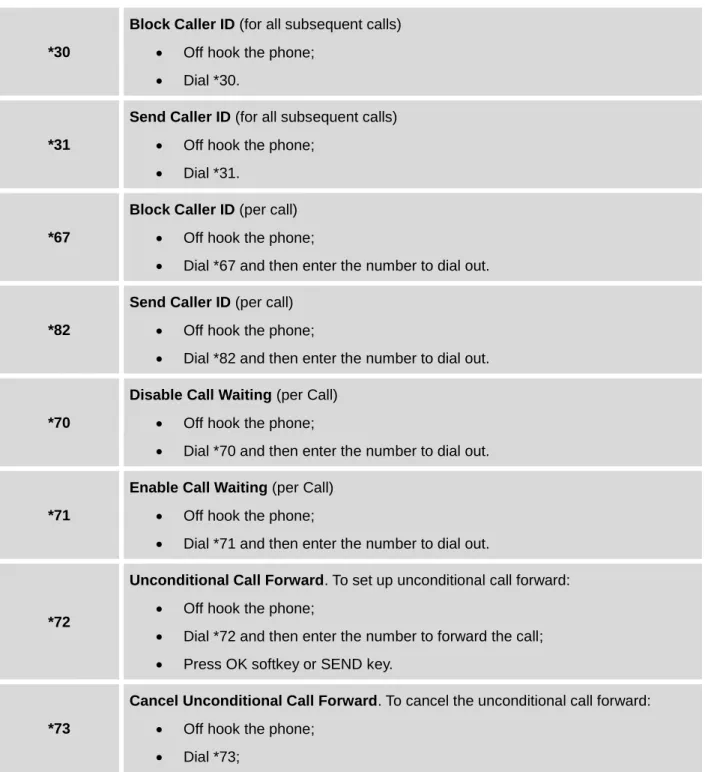
Table 7: CALL FEATURES
*30
Block Caller ID (for all subsequent calls) Off hook the phone;
Dial *30.
*31
Send Caller ID (for all subsequent calls) Off hook the phone;
Dial *31.
*67
Block Caller ID(per call) Off hook the phone;
Dial *67 and then enter the number to dial out.
*82
Send Caller ID (per call) Off hook the phone;
Dial *82 and then enter the number to dial out.
*70
Disable Call Waiting (per Call) Off hook the phone;
Dial *70 and then enter the number to dial out.
*71
Enable Call Waiting (per Call) Off hook the phone;
Dial *71 and then enter the number to dial out.
*72
Unconditional Call Forward. To set up unconditional call forward: Off hook the phone;
Dial *72 and then enter the number to forward the call; Press OK softkey or SEND key.
*73
Cancel Unconditional Call Forward. To cancel the unconditional call forward: Off hook the phone;
Hang up the call.
*90
Busy Call Forward. To set up busy call forward: Off hook the phone;
Dial *90 and then enter the number to forward the call; Press OK softkey or SEND key.
*91
Cancel Busy Call Forward. To cancel the busy call forward: Off hook the phone;
Dial *91;
Hang up the call.
*92
Delayed Call Forward. To set up delayed call forward: Off hook the phone;
Dial *92 and then enter the number to forward the call; Press OK softkey or SEND key.
*93
Cancel Delayed Call Forward. To cancel the delayed call forward: Off hook the phone;
Dial *93;
Hang up the call.
CUSTOMIZED LCD SCREEN & XML
The GXP2124 IP phone supports the following XML applications. Please refer to the corresponding link for documentation and templates.
XML custom idle screen (customize idle screen logo, softkey layout, and etc.)
http://www.grandstream.com/products/gxp_series/general/documents/GXP21xx_14xx_XML_Screen_ Customization.zip XML downloadable phonebook http://www.grandstream.com/products/gxp_series/general/documents/gxp_wp_xml_phonebook.pdf XML Application http://www.grandstream.com/products/gxp_series/general/documents/xml_application_guide.zip
CONFIGURATION GUIDE
The GXP2124 can be configured via two ways: LCD Configuration Menu using the phone's keypad
Web GUI embedded on the phone using PC's web browser
CONFIGURATION VIA KEYPAD
To configure via the LCD configuration menu using phone's keypad, follow the instructions below:
Enter MENU options. When the phone is in idle, press the round MENU button to enter the configuration menu;
Navigate in the menu options. Press the arrow keys up/down/left/right to navigate in the menu options;
Enter/Confirm selection. Press the round MENU button to enter the selected option; Exit. Press LEFT arrow key to exit to the previous menu;
The phone automatically exits MENU mode with an incoming call, when the phone is off hook or the MENU mode if left idle for more than 60 seconds.
When the phone is in idle, pressing the navigation keys UP/DOWN/RIGHT can access the call history entries:
UP - Missed Calls DOWN - Dialed Calls RIGHT - Answered Calls
The MENU options are listed in the following table.
Table 8: CONFIGURATION MENU
Call History Displays call logs for answered calls, dialed calls, missed calls,
transferred calls and forwarded calls.
Status
Displays network status, account registration status, software version number, MAC address, hardware version number, P/N number.
Network status
IP/PPPoE), IPv4 address, IPv6 address, MAC address, Subnet Mask, Gateway and DNS server.
Account X: Registered/Not Registered. Boot version
Prog version: This is the main firmware release number. Core version Base version Aux version DSP version MAC address HW version P/N number Power Source Phone Book
Displays phonebook. Users could add, edit, search and delete contacts here, or download phonebook XML to the phone. When doing phonebook search, user can only search ASCII characters.
Note: Besides 3 embedded groups: Family, Friends and Work, user can create your own new groups. GXP phone allows at most 7 customized groups.
LDAP Directory
Configures LDAP directory options, displays LDAP directory by searching. LDAP search does not support entering Non-ASCII characters
Instant Messages Displays received instant messages.
Direct IP Call Makes direct IP call.
Preference
Preference sub menu includes the following options: Do Not Disturb
Enables/disables Do Not Disturb on the phone. Ring Tone
Configures different ring tones for incoming call. Ring Volume
Adjusts ring volume by pressing left/right arrow key. LCD Contrast
Adjusts LCD contrast by pressing left/right arrow key. LCD Brightness
Adjusts LCD brightness by pressing left/right arrow key. Download SCR XML
Triggers the phone to download the XML idle screen file immediately. The XML idle screen server path and downloading method need to be set up correctly in Web GUI->Settings->XML Applications.
Erase Custom SCR
Erases custom XML idle screen previously loaded on the phone. After erasing it, the phone will show default idle screen.
Display Language
Selects the language to be displayed on the phone. Users could select Automatic for local language based on IP location if available. Data and Time
Configures date, time and NTP server on the phone. Star Key Lock
Turns on/off keypad lock feature and configures keypad lock password.
Config
Config sub menu includes the following options: SIP
Configures SIP Proxy, Outbound Proxy, SIP User ID, SIP Auth ID, SIP Password, SIP Transport and Audio information to register SIP account on the phone.
Upgrade
Configures firmware server and config server for upgrading and provisioning the phone.
Factory Reset
Resets the phone to factory default settings. Layer 2 QoS
Configures 802.1Q/VLAN Tag and priority value. Headset Type
Selects headset type used on GXP2124.
Audio Loopback
Speak to the phone using speaker/handset/headset. If you can hear your voice, your audio is working fine. Press Menu button to exit audio loopback mode.
Diagnostic Mode
All LEDs will light up. Press any key (except MENU key) on the keypad to display the button name in the LCD. Lift and put back the handset or press Menu button to exit diagnostic mode.
Keyboard Diagnostic
Press all the available keys on the phone. The LCD will display the name for the keys to be pressed to finish the keyboard diagnostic mode.
Network
Selects IP mode (DHCP/Static IP/PPPoE); Configures PPPoE account ID and password; Configures IP address, Netmask, Gateway, DNS Server 1 and DNS Server 2; Configures 802.1x mode.
Call Features Configures call forward features for Forward All, Forward Busy, Forward
No Answer and No Answer Timeout.
Voice Mails Displays voicemail message information in the format below:
new messages/all messages (urgent messages/all urgent messages)
UCM Connection UCM Server List
Displays connected UCM server List. Input Server IP Manually
Specifies Protocol, IP and Port of the target UCM server Reboot Reboot the phone.
Exit Exit from this menu.
Call History Status Phone Book LDAP Directory Instant Messages Direct IP Call Preference Config Factory Functions Network Call Features Voice Mails Reboot Exit MENU Answered Calls Dialed Calls Missed Calls Transferred Calls Clear All Back Groups New Entry Search Download Phonebook XML Delete All Entries
Back First Name Last Name Number Acct Groups Confirm Add Cancel & Return
Search LDAP Configuration Back Server Address Port Base User Name Password
LDAP Number Filter LDAP Name Filter LDAP Version ... Do Not Disturb Ring Tone Ring Volume LCD Contrast LCD Brightness Download SCR XML Erase Custom SCR Display Language Time Settings Star Key Lock Back SIP Upgrade Factory Reset Layer 2 QoS Headset Type Back Audio Loopback Diagnostic Mode Keyboard Diagnostic Back Enable DND Disable DND Back Default Ring Ring1 Ring2 Ring 3 Back Account SIP Proxy Outbound Proxy SIP User ID SIP Auth ID SIP Password SIP Transport Audio Save Cancel Firmware Server Config Server Upgrade Via Back 802.1Q/VLAN Tag Priority value Reset Vlan Config Back IP Setting PPPoE Settings IP Netmask Gateway DNS Server 1 DNS Server 2 802.1X Back Account X Forward All Forward Busy Forward No Answer No Answer Timeout NTP Server DHCP Override NTPServer Time Zone
DHCP Override Time zone …
CONFIGURATION VIA WEB BROWSER
The GXP2124 embedded Web server responds to HTTP/HTTPS GET/POST requests. Embedded HTML pages allow a user to configure the IP phone through a Web browser such as Microsoft’s IE, Mozilla Firefox and Google Chrome.
To access the Web GUI:
1. Connect the computer to the same network as the phone;
2. Make sure the phone is turned on and shows its IP address. You may check the IP address on the LCD;
3. Open a Web browser on your computer;
4. Enter the phone’s IP address in the address bar of the browser;
5. Enter the administrator’s login and password to access the Web Configuration Menu.
Note:
The computer has to be connected to the same sub-network as the phone. This can be easily done by connecting the computer to the same hub or switch as the phone connected to. In absence of a hub/switch (or free ports on the hub/switch), please connect the computer directly to the PC port on the back of the phone;
If the phone is properly connected to a working Internet connection, the IP address of the phone will display in MENU->Status->Network Status. This address has the format: xxx.xxx.xxx.xxx, where xxx stands for a number from 0-255. Users will need this number to access the Web GUI. For example, if the phone has IP address 192.168.40.154, please enter “http://192.168.40.154” in the address bar of the browser;
There are two default passwords for the login page:
User Level Password Web Pages Allowed
End User Level 123 Only Status and Basic Settings
Administrator Level admin Browse all pages
The password is case sensitive with maximum length of 25 characters.
When changing any settings, always SUBMIT them by pressing the "Save" or "Save and Apply" button on the bottom of the page. If the change is saved only but not applied, after making all the changes, click on the "APPLY" button on top of the page to submit. After submitting the changes in all the Web GUI pages, reboot the phone to have the changes take effect if necessary (All the options under "Accounts" page and "Phonebook" page do not require reboot. Most of the options under "Settings" page do not require reboot).
DEFINITIONS
This section describes the options in the phone's Web GUI. As mentioned, you can log in as an administrator or an end user.
Status: Displays the Account status, Network status, and System Info of the phone; Account: To configure the SIP account;
Network: To configure network settings;
Settings: To configure call features, ring tone, LCD display, Web services, XML applications, programmable keys, and etc;
Maintenance: To configure web/Telnet access, upgrading and provisioning, language settings, TR-069, security and etc.
Phonebook: To manage Phonebook and LDAP.
STATUS PAGE DEFINITIONS Status -> Account Status
Account x Account index.
SIP User ID Displays the configured SIP User ID.
SIP Server Displays the configured SIP Server address. SIP Registration Displays SIP registration status YES/NO.
Status -> Network Status
MAC Address
Global unique ID of device, in HEX format. The MAC address will be used for provisioning and can be found on the label coming with original box and on the label located on the back of the device.
IP Setting DHCP, Static IP or PPPoE.
IPv4 Address The IPv4 address obtained on the phone. IPv6 Address The IPv6 address obtained on the phone. Subnet Mask The subnet mask obtained on the phone. Gateway The gateway address obtained on the phone. DNS Server 1 The DNS server address 1.
DNS Server 2 The DNS server address 2.
PPPoE Link Up PPPoE connection status. 802.1q/802.1p(LLDP) The 802.1q/802.p status.
802.1q/VLAN Tag The assigned VLAN tag on phone. 802.1q Priority The assigned 802.1q priority on phone. NAT Traversal NAT traversal status for each account.
Status -> System Info
Product Model Product model of the phone. Part Number Product part number.
Software Version
Boot: boot version number; Core: core version number; Base: base version number;
Prog: program version number. This is the main firmware release number, which is always used for identifying the software system of the phone; Aux: Aux version number;
Dsp: DSP version number. System Up Time System up time since the last reboot. System Time Current system time on the phone system. Service Status GUI and Phone service status.
Core Dump Core dump file that could be downloaded for troubleshooting purpose.
ACCOUNT PAGE DEFINITIONS Account x -> General Settings
Account Active Activates/deactivates account. The default setting is "Yes". Account Name The name associated with the SIP account.
SIP Server The URL or IP address, and port of the SIP server. This is provided by your VoIP service provider (ITSP).
Secondary SIP Server The URL or IP address, and port of the SIP server. This will be used when the primary SIP server fails.
Outbound Proxy
IP address or Domain name of the Primary Outbound Proxy, Media Gateway, or Session Border Controller. It's used by the phone for Firewall or NAT penetration in different network environments. If a symmetric NAT is detected, STUN will not work and ONLY an Outbound Proxy can provide a solution. Backup Outbound Proxy Secondary Outbound Proxy which will be used when the primary proxy cannot
SIP User ID
User account information, provided by your VoIP service provider (ITSP). It's usually in the form of digits similar to phone number or actually a phone number.
Authenticate ID SIP service subscriber's Authenticate ID used for authentication. It can be identical to or different from the SIP User ID.
Authenticate Password
The account password required for the phone to authenticate with the ITSP (SIP) server before the account can be registered. After it is saved, this will appear as hidden for security purpose.
Name The SIP server subscriber's name (optional) that will be used for Caller ID display.
Voice Mail User ID
Allows you to access voice messages by pressing the MESSAGE button on the phone. This ID is usually the VM portal access number. For example, in Asterisk server, 8500 could be used.
Account x -> Network Settings
DNS Mode
This parameter controls how the Search Appliance looks up IP addresses for hostnames. There are four modes: A Record, SRV, NATPTR/SRV, Use Configured IP. The default setting is "A Record". If the user wishes to locate the server by DNS SRV, the user may select "SRV" or "NATPTR/SRV". If "Use Configured IP" is selected, please fill in the three fields below:
Primary IP: The primary IP address where the phone sends DNS query to;
Backup IP 1; Backup IP 2.
If SIP server is configured as domain name, phone will not send DNS query, but use “Primary IP” or “Backup IP x” to send SIP message if at least one of them are not empty. Phone will try to use “Primary IP” first. After 3 tries without any response, it will switch to “Backup IP x”, and then it will switch back to “Primary IP” after 3 re-tries.
If SIP server is already an IP address, phone will use it directly even “User Configured IP” is selected.
NAT Traversal
This parameter configures whether the NAT traversal mechanism is activated. Users could select the mechanism from No, STUN, Keep-Alive, UPnP, Auto or VPN. If set to "STUN" and STUN server is configured, the phone will route according to the STUN server. If NAT type is Full Cone, Restricted Cone or Port-Restricted Cone, the phone will try to use public IP addresses and port number in all the SIP&SDP messages. The phone will send empty SDP packet to the SIP server periodically to keep the NAT port open if it is configured to be "Keep-Alive". Configure this to be "No" if an outbound proxy is used. "STUN"
cannot be used if the detected NAT is symmetric NAT.
Proxy-Require
A SIP Extension to notify the SIP server that the phone is behind a NAT/Firewall. Do not configure this parameter unless this feature is supported on the SIP server.
Account x -> SIP Settings -> Basic Settings
TEL URI
If the phone has an assigned PSTN telephone number, this field should be set to "User=Phone". Then a "User=Phone" parameter will be attached to the Request-Line and "TO" header in the SIP request to indicate the E.164 number. If set to "Enable", "Tel:" will be used instead of "SIP:" in the SIP request. The default setting is "Disable".
SIP Registration Selects whether or not the phone will send SIP Register messages to the proxy/server. The default setting is "Yes".
Unregister On Reboot
If set to "Yes", the SIP user's registration information will be cleared when the phone reboots. The SIP Contact header will contain "*" to notify the server to unbind the connection. The default setting is "No".
Register Expiration
Specifies the frequency (in minutes) in which the phone refreshes its registration with the specified registrar. The default value is 60 minutes. The maximum value is 64800 minutes (about 45 days).
Reregister Before Expiration
Specifies the time frequency (in seconds) that the phone sends re-registration request before the Register Expiration. The default value is 0. Enable OPTIONS Keep
Alive Enable OPTIONS Keep Alive to check SIP server status. OPTIONS Keep Alive
Interval Time interval for OPTIONS Keep Alive feature in seconds. OPTIONS Keep Alive
Max Lost
Number of max host packets for OPTIONS Keep Alive feature before the phone re-registration.
Local SIP Port
Defines the local SIP port used to listen and transmit. The default value is 5060 for Account 1, 5062 for Account 2, 5064 for Account 3 and 5066 for Account 4.
SIP Registration Failure Retry Wait Time
Specifies the interval to retry registration if the process is failed. The default value is 20 seconds.
SIP T1 Timeout SIP T1 Timeout. The default setting is 0.5 seconds. SIP T2 interval SIP T2 Interval. The default setting is 4 seconds.
SIP Transport Determines the network protocol used for the SIP transport. Users can choose from TCP, UDP and TLS.
using TLS Transport. The default setting is "sips:". Use Actual Ephemeral
Port in Contact with TCP/TLS
This option is used to control the port information in the Via header and Contact header. If set to No, these port numbers will use the permanent listening port on the phone. Otherwise, they will use the ephemeral port for the particular connection.
Remove OBP from route Configures to remove outbound proxy from route. This is used for the SIP Extension to notify the SIP server that the device is behind a NAT/Firewall. Support SIP Instance ID Defines whether SIP Instance ID is supported or not. The default setting is
"Yes".
SUBSCRIBE for MWI
When set to "Yes", a SUBSCRIBE for Message Waiting Indication will be sent periodically. The phone supports synchronized and non-synchronized MWI. The default setting is "No".
SUBSCRIBE for Registration
When set to "Yes", a SUBSCRIBE for Registration will be sent out periodically. The default setting is "No".
Enable 100rel
The use of the PRACK (Provisional Acknowledgment) method enables reliability to SIP provisional responses (1xx series). This is very important in order to support PSTN internetworking. To invoke a reliable provisional response, the 100rel tag is appended to the value of the required header of the initial signaling messages.
Caller ID Display
When set to "Auto", the phone will look for the caller ID in the order of P-Asserted Identity Header, Remote-Party-ID Header and From Header in the incoming SIP INVITE. When set to "Disabled", all incoming calls are displayed with "Unavailable". When set to "From Header", the phone will display the caller ID based on the From Header in the incoming SIP INVITE. The default setting is "Auto".
Use Privacy Header
Controls whether the Privacy Header will present in the SIP INVITE message or not. The default setting is "default": the Privacy Header will show in INVITE unless "Huawei IMS" special feature is on. If set to "Yes", the Privacy Header will always show in INVITE. If set to "No", the Privacy Header will not show in INVITE.
Use P-Preferred-Identity Header
Controls whether the P-Preferred-Identity Header will present in the SIP INVITE message or not. The default setting is "default": the P-Preferred-Identity Header will show in INVITE unless "Huawei IMS" special feature is on.
If set to "Yes", the P-Preferred-Identity Header will always show in INVITE. If set to "No", the P-Preferred-Identity Header will not show in INVITE. Ignore Alert-Info header Configured default ringtone will be played by ignoring Alter-Info header.