E-Allocation Software User Guide
MN150004EN
Contents
Contents
1. INTRODUCTION . . . 1
1.1 E-Allocation Software Overview . . . .1
1.2 Minimum System Requirements . . . .3
1.3 Acronyms . . . .3
1.4 Glossary . . . .3
2. INSTALLING THE E-ALLOCATION SOFTWARE . . . 4
1. Introduction
1. Introduction
Eaton’s E-Allocation Software is a User friendly, graphical User Interface (GUI) based Java application. It is designed to use data collected via meter to calculate and allocate util-ity usage for each tenant in a multi-tenant facilutil-ity.
The E-Allocation software is provided free of charge by Eaton to support the configuration and commissioning of the Power Xpert Multi-Point Meter (PXMP Meter). This utility is included on a CD provided with each PXMP Meter Base.
While Eaton’s E-allocation software was designed specifical-ly to interface with Eaton’s PXMP Meter system, it can use data collected by any metering devise that records pulse data for energy, demand, water, gas, air, or steam data.
Figure 1. Main Screen for Entering the Base Electrical System Information.
1.1 E-Allocation Software Overview
The E-Allocation software has the following key functional-ities:
●
● Pre-configuration of each meter and its tenants for
gener-ating E-Allocation statements.
●
● Creation of its own database for holding details such as
application Users, meter’s primary details, tenant details, and meter data ( in comma separated value [.csv] files).
●
● Functionality for connecting to meters through secure
FTP once the User logs in successfully and downloads meter information like meter name, IP address, and meter usage data.
●
● Generation of the E-Allocation reports and distribution via
email to each tenant.
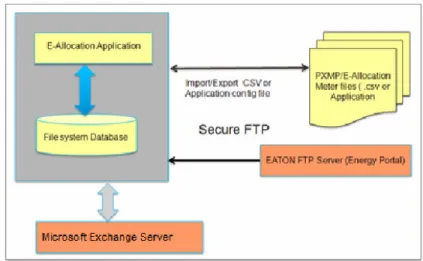
Figure 1 contains the high level block diagram of the E-Allocation software.
1. Introduction
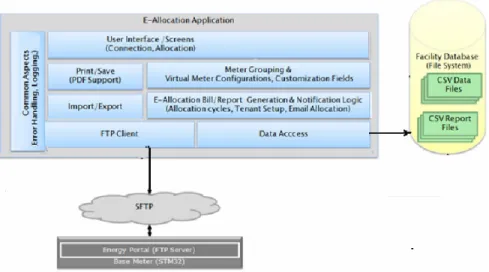
Figure 2. E-Allocation Software Components.
1.1.1 How It Works
●
● The E-Allocation software communicates with the FTP
server and collects the meter information and energy usage consumption details through a set of .csv files.
●
● The E-Allocation software stores configuration details
about each meter and its tenant’s into its own database (file system). It also stores all the data related to energy consumption into this database.
●
● The E-Allocation software database is a file system based
database that can easily be transferred to different com-puter systems.
●
● The E-Allocation software is responsible for retrieving the
required .csv files from the FTP server and synchronizing (updating) with the E-Allocation database.
●
● The E-Allocation software supports view, edit logs, and
recovery of E-Allocation reports in case of error from E-Allocation application Database.
●
● The E-Allocation software sends emails to respective
tenant(s) as per the configuration via Enterprise E-Mail server.
●
● The E-Allocation software has password recovery
func-tionality so that the “Admin” User is able to retrieve/reset passwords.
1.1.2 Key Features
●
● Secure Login
Because it contains sensitive information, the facility manager can be identified as the only one with access to this software. Therefore, a username and password are required before any data can be viewed.
●
● Range-based Configuration
Each date range has its own configuration.
●
● Support for Multiple PXMP Meters
Multiple PXMP meters with Energy Portal Modules can be entered into the E-Allocation software. The E-Allocation software will identify the sub-meters and associated tenants for allocation purposes.
●
● Support for Manual-Entry Meters
Additional metering points can be added as manual-entry meters. These meters can accept both positive and negative values for maximum flexibility.
●
● Support for Energy, Demand, and Utilities
The E-Allocation software supports allocations by energy, demand, water, gas, air, and steam by default. PXMP sub-meters contain energy and demand information and PXMP Meters contain demand, water, gas, air, or steam data. Manual-entry meters also contain energy, water, gas, air, or steam data.
●
● Custom Tenant Information
Tenants can be created and deleted at the User’s discre-tion. Optional header fields for tenants are available. These headers are used when allocation reports are cre-ated directly from the E-Allocation software.
●
● Custom Meter-Tenant Mapping
Tenants can be associated with one or more sub-meters, pulse meters, or manual-entry meters. A tenant may also be associated with part of one of these meters. This association is used directly for allocation.
●
● Cost Allocation
The User may enter a cost for a utility, and that cost will be divided into each tenant according to their usage.
1. Introduction
●
● Data Export
The User can utilize the E-Allocation software to export data gathered at any stage in its usage. Thus the follow-ing data can be exported:
●
● Source data from the PXMP meters; same format as it
is received
●
● Tenant details, including associated meter mapping ●
● Metering point totals, as seen on the Metering Page ●
● Usage and cost allocation breakdown per utility ●
● Summary of each tenant’s usage and allocated costs
●
● Report Creation
E-Allocation supports the creation of PDF files that con-tain each tenant’s custom header, usage, and allocated costs.
E-Allocation can e-mail created reports to each tenant using SMTP access to an e-mail server.
●
● Configuration Export / Import
Configuration, including the meters, tenants, meter-tenant mappings, and ranges, is transferrable between installa-tions of E-Allocation software.
●
● Persistent Data Storage
When a date range is selected, the pertinent data is downloaded to the PC. This data is then kept in offline storage and updated when a new range is created and the offline storage does not have complete information. The User also has a way of clearing the offline storage and reloading the data.
●
● Additional Utilities
The E-Allocation software supports adding other utilities besides energy, water, and gas. These new utilities are treated in the same way as energy, water, or gas.
●
● Manual Edit of Allocations
The E-Allocation software allows the User to edit any val-ues in an allocation.
●
● Tenant Merge Wizard
The E-Allocation software contains a guided step-by-step process that will merge two tenants together. The end result will be one tenant with all of mappings of the previ-ous two tenants.
●
● Tenant Split Wizard
The E-Allocation software contains a guided step-by-step process that will split a tenant into two different tenants. This can be done by ratio or by date-range.
1.2 Minimum System Requirements
The E-Allocation software can be run on a computer or lap-top equipped with JAVA Version 7.0 or higher.
The E-Allocation software can be run on the following types of systems.
●
● Linux i386 ●
● Linux x86_64 ●
● Mac 10.5 ●
● Windows 32-Bit ●
● Windows 64-Bit
1.3 Acronyms
CSV Comma Separated Values Ft3 Cubic Foot (Feet)
FTP File Transfer Protocol gal Gallon
GUI Graphical User Interface kW Kilowatt(s)
kWh Kilowatt Hour(s) lbs Pounds
PXMP Meter Power Xpert Multi-point Meter SFTP Secure File Transfer Protocol SMTP Simple Mail Transfer Protocol
1.4 Glossary
Manual-Entry Meter: A metering point for Users of the E-Allocation software to enter meter data not found on the PXMP Meter. It is effectively a pulse meter with a fixed value defined by the User. It can be defined as any kind of utility.
Metering Point: Refers to a sub-meter, pulse meter, or manual-entry meter. A metering point can be allocated to multiple tenants.
Pulse Meter: A metering point defined in the PXMP meter configuration software as a pulse meter. It is trended and can be defined as any kind of utility.
Sub-meter: A metering point defined in the PXMP Meter configuration software as a sub-meter. It may have one, two, or three phases, but it is always considered to have a utility type of electric.
Tenant: The receiver of the allocation. A tenant can be associated with one or more metering points. Tenants can have an e-mail address and a header, which are needed if an allocation is created and e-mailed to the tenant.
Utility: A category for allocation. The main types are elec-tric, water, and gas. Electric is sub-divided into energy and demand. A utility that is Electric is considered both energy and demand.
2. Installing the E-Allocation Software
2. Installing the E-Allocation Software
The E-Allocation installation wizard installs the E-Allocation program files onto a User’s computer. The wizard
requires the User to have administrator rights to install the E-Allocation program files.
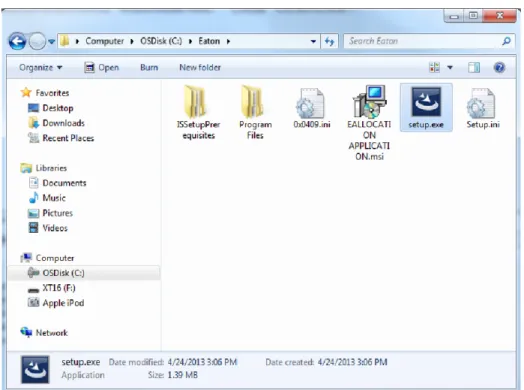
1. Double click the “setup.exe” file to launch the E-Allocation installation wizard.
2. Installing the E-Allocation Software
2. In the E-Allocation installation wizard window, click “Next”
to proceed to the E-Allocation Software Installation Wizard Welcome Screen.
Figure 4. The E-Allocation Software Installation Wizard Welcome Screen.
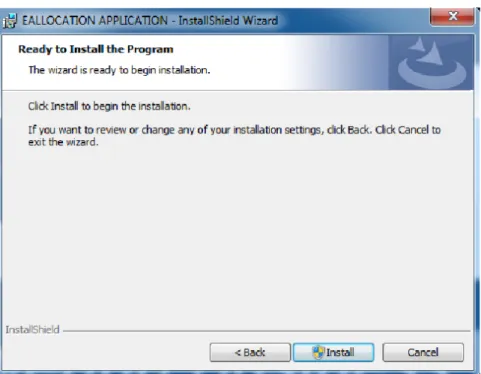
3. On the License Agreement screen, select “I accept the terms in the license agreement” and click “Next”. Administrator rights are required to proceed and install the E-Allocation program files. Click “Install” to continue.
3. Running the E-Allocation Software
4. Click “Yes” in the User Account Control screen to continue with the installation. The installation wizard will guide the User through the rest of the installation process.
Figure 6. The User Account Control Screen.
5. The InstallShield Wizard Completed screen appears upon a successful completion of the installation. Click “Finish” to exit the wizard.
3. Running the E-Allocation Software
3. Running the E-Allocation Software
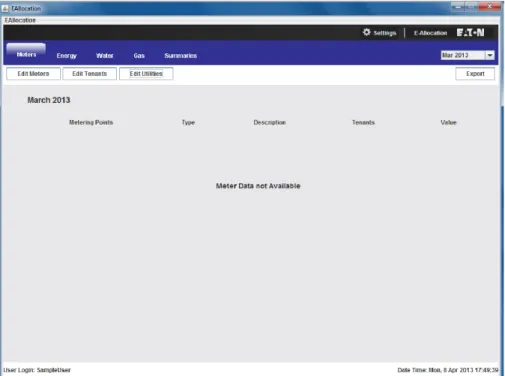
The E-Allocation software provides an easy to use User interface to allocate multiple utilities and their associated costs among various tenants. The software’s main screen, as it appears the first time a User logs in, is shown inFigure 8.
Figure 8. Main Screen of the E-Allocation Software.
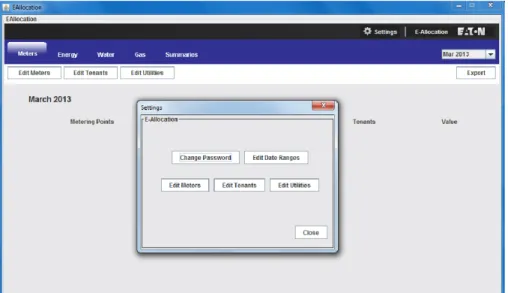
To add or edit meters, tenants, and utilities, the User clicks the corresponding buttons on the top left side of the screen. The User can also perform those tasks by clicking on the “Settings” icon on the bar across the top of the screen. A “Settings” dialog box appears after the User clicks on the “Settings” icon (see Figure 9).
3. Running the E-Allocation Software
Figure 9. The Settings Dialog Box.
It is useful to set date ranges before adding or modifying other information. To do so, click the “Edit Date Range” but-ton in the “Settings” dialog box (see Figure 10). The User can create multiple date ranges, modify start and end dates of each date range, and delete date ranges that are no lon-ger useful.
3. Running the E-Allocation Software
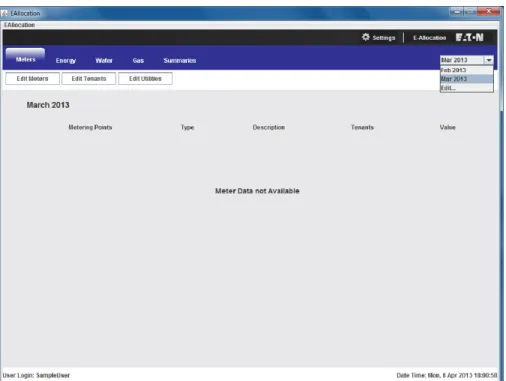
The date ranges that are created in the “Edit Date Range” dialog box can be accessed directly from the software main screen using the pull-down list on the top right (see
Figure 11).
Figure 11. Select a Date Range from the Main Screen.
The E-Allocation software can be configured to access mul-tiple PXMP Meters. To do so, from the “Settings” dialog box, click the “Edit Meters” button, and then click the “Add Power Xpert Multi-Point Meter” button. In the “address” field, the User needs to specify corresponding IP addresses when adding PXMP Meters (see Figure 12).
3. Running the E-Allocation Software
Figure 12. Adding a PXMP Meter.
3. Running the E-Allocation Software
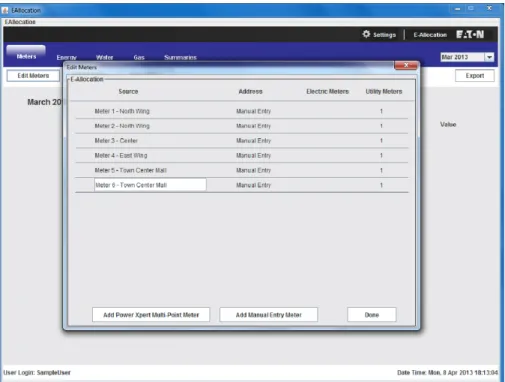
The User may create manual entry meters without physi-cally connecting to the PXMP Meters. To do so, click the “Add Manual Meter” button in the “Settings” dialog box. In
Figure 14, a total of six manual meters have been entered in the “Edit Meters” dialog box.
3. Running the E-Allocation Software
Next, the tenant information needs to be entered into the E-Allocation software. To do so, click the “Edit Tenants” but-ton in the “Settings” dialog box. In the example in Figure 15, a total of three tenants have been added to the tenants list. The tenant information can also be modified or deleted from the “Edit Tenants” dialog box.
Figure 15. Adding/Editing Tenant Information.
The E-Allocation software allows the User to split the fol-lowing utilities and their associated costs among multiple tenants.
●
● Energy; ●
● Demand; ●
● Water; ● ● Gas;
●
● Air; and ●
3. Running the E-Allocation Software
To choose one or more utilities from the list shown in
Figure 15, click the “Edit Utilities” button in the “Settings” dialog box. In the example shown in Figure 16, the electric energy, water, and natural gas have been selected. The selected utilities will appear as separate tabs on the main screen, in the same line as the “Meters” and “Summaries” tabs.
Figure 16. Editing Utilities Information.
Once this process is completed, the meters entered in the “Edit Meters” dialog box will appear on the E-Allocation software’s main screen under the “Meters” tab. Each meter is associated with a meter type. For a manual meter, the User can modify its type, description, tenants, and value by editing the appropriate fields (see Figure 17).
3. Running the E-Allocation Software
Figure 17. Modifying the Meter Type.
To determine the exact split of metered utilities and associ-ated costs, the User must specify the tenants’ proportions for each meter. In the example in Figure 18, meter 6 mea-sures the natural gas consumption at the Town Center
Mall. The total gas consumption in the month of March 2013 is split among three tenants. Tenant 1 consumes 60% of the total natural gas, tenant 2 consumes 30%, and tenant 3 consumes the remaining 10%.
3. Running the E-Allocation Software
Based on the provided inputs in the main screen under the “Meters” tab (Figure 18), the E-Allocation software automatically calculates the proportions that each tenant is responsible for and displays such information under cor-responding tabs. For example, Figure 19 shows under the “Energy” tab each tenant’s share of the electric energy con-sumed in the month of March 2013.
Figure 19. Tenants’ Electric Utility Allocated Proportions.
For a particular utility bill, if the User enters the total amount allocated in the “Total $” field, the E-Allocation software will calculate the cost that each tenant incurs. In Figure 20, the User entered 2817.1 in the “Total $” field, and this amount is split automatically among the tenants.
3. Running the E-Allocation Software
Figure 20. Water Allocation Split Among Tenants.
The “Summaries” tab provides a chart with an overall view of all the utilities and each tenant’s incurred proportions. Information on costs, if available, is also listed here (see
3. Running the E-Allocation Software
The User may choose to preview the results by first select-ing appropriate tenants in the “Summaries” tab, and then clicking the “Preview” button on the top left. The example in Figure 22 displays a consolidated PDF with tenants’ util-ity consumptions and costs.
Figure 22. Preview Results.
The “Save” button under the “Summaries” tab saves detailed utility consumptions and costs for each tenant in a folder designated by the User. The “Print” button prints the results, and the “Email” button emails information through an SMTP server to designated email address(es). In the example in Figure 18, the User fills in the appropriate fields in the “Email” dialog box to allow message(s) be sent to the intended recipient(s).
3. Running the E-Allocation Software
Figure 23. Email Results Window.
To export selected information in a comma separated value (CSV) format to a folder designated by the User, click the “Export” button on the top right. In the example in Figure 24, the summary information has been selected for export..
3. Running the E-Allocation Software
Eaton
Electrical Sector
3. Running the E-Allocation Software
This user manual is published solely for information pur-poses and should not be considered all-inclusive. If further information is required, you should consult an authorized Eaton sales representative.
The sale of the product shown in this literature is subject to the terms and conditions outlined in appropriate Eaton selling policies or other contractual agreement between the parties. This literature is not intended to and does not enlarge or add to any such contract. The sole source governing the rights and remedies of any purchaser of this equipment is the contract between the purchaser and Eaton.
NO WARRANTIES, EXPRESSED OR IMPLIED, INCLUDING WARRANTIES OF FITNESS FOR A PARTICULAR
PURPOSE OR MERCHANTABILITY, OR WARRANTIES ARISING FROM COURSE OF DEALING OR USAGE OF TRADE, ARE MADE REGARDING THE INFORMATION, RECOMMENDATIONS, AND DESCRIPTIONS CONTAINED HEREIN. In no event will Eaton be responsible to the pur-chaser or user in contract, in tort (including negligence), strict liability or otherwise for any special, indirect, incidental or consequential damage or loss whatsoever, including but not limited to damage or loss of use of equipment, plant or power system, cost of capital, loss of power, additional expenses in the use of existing power facilities, or claims against the purchaser or user by its customers resulting from the use of the information, recommendations and description contained herein.