Hortonworks Data Platform: Hive Performance Tuning
Copyright © 2012-2015 Hortonworks, Inc. Some rights reserved.The Hortonworks Data Platform, powered by Apache Hadoop, is a massively scalable and 100% open source platform for storing, processing and analyzing large volumes of data. It is designed to deal with data from many sources and formats in a very quick, easy and cost-effective manner. The Hortonworks Data Platform consists of the essential set of Apache Hadoop projects including MapReduce, Hadoop Distributed File System (HDFS), HCatalog, Pig, Hive, HBase, ZooKeeper and Ambari. Hortonworks is the major contributor of code and patches to many of these projects. These projects have been integrated and tested as part of the Hortonworks Data Platform release process and installation and configuration tools have also been included.
Unlike other providers of platforms built using Apache Hadoop, Hortonworks contributes 100% of our code back to the Apache Software Foundation. The Hortonworks Data Platform is Apache-licensed and completely open source. We sell only expert technical support, training and partner-enablement services. All of our technology is, and will remain, free and open source.
Please visit the Hortonworks Data Platform page for more information on Hortonworks technology. For more information on Hortonworks services, please visit either the Support or Training page. Feel free to
contact us directly to discuss your specific needs.
Except where otherwise noted, this document is licensed under
Creative Commons Attribution ShareAlike 3.0 License. http://creativecommons.org/licenses/by-sa/3.0/legalcode
Table of Contents
1. Hive Architectural Overview ... 1
1.1. Detailed Query Execution Architecture ... 1
2. Hive High Performance Best Practices ... 4
2.1. Use the Tez Query Execution Engine ... 4
2.1.1. Configuring Tez ... 5
2.2. Use the ORC File Format ... 5
2.3. Use Column Statistics and the Cost-Based Optimizer (CBO) ... 7
2.4. Design Data Storage Smartly ... 8
2.5. Better Workload Management by Using Queues ... 9
2.5.1. Hive Setup for Using Multiple Queues ... 10
2.5.2. Guidelines for Interactive Queues ... 13
2.5.3. Guidelines for a Mix of Batch and Interactive Queues ... 13
2.5.4. Create and Configure YARN Capacity Scheduler Queues ... 14
2.5.5. Refreshing YARN Queues with Changed Settings ... 15
2.5.6. Setting Up Interactive Queues for HDP 2.2 ... 16
2.5.7. Hive, Tez, and YARN Settings in Ambari 2.1 and HDP 2.3 ... 18
2.5.8. Setting Up Queues for Mixed Interactive and Batch Workloads ... 20
3. Configuring Memory Usage ... 22
3.1. Memory Settings for YARN ... 22
3.2. Selecting YARN Memory ... 22
3.3. Tez Memory Settings ... 22
3.4. Hive Memory Settings ... 23
List of Figures
1.1. SQL Query Execution Process ... 1
1.2. SQL Query Execution Process ... 2
2.1. Tez Query Execution Compared to MapReduce ... 4
2.2. ORC File Structure ... 6
2.3. Hive Data Abstractions ... 8
2.4. Cluster Configuration Using Queues ... 10
2.5. Hive Setup Using Multiple Queues ... 10
2.6. Multiple HiveServer2 Installation ... 11
2.7. YARN Capacity Scheduler ... 14
2.8. Ambari Capacity Scheduler View ... 15
2.9. Interactive Query Pane of Hive Configuration Page in Ambari ... 19
2.10. Optimization Pane of Hive Configuration Page in Ambari ... 19
2.11. Ordering Policy Setting in Ambari ... 20
3.1. Tez Container Configuration in Hive Web UI of Ambari ... 23
List of Tables
2.1. ORC Properties ... 7 2.2. Queues and Sessions for Increasing Numbers of Concurrent Users ... 18
1. Hive Architectural Overview
Important
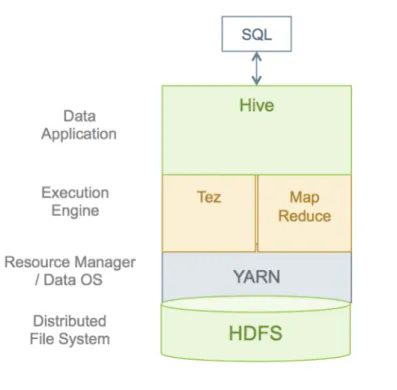
This guide is intended as an introduction to Hive performance tuning. The content will be updated on a regular cadence over the next few months. SQL queries are submitted to Hive and they are executed as follows:
1. Hive compiles the query.
2. An execution engine, such as Tez or MapReduce, executes the compiled query. 3. The resource manager, YARN, allocates resources for applications across the cluster. 4. The data that the query acts upon resides in HDFS (Hadoop Distributed File System).
Supported data formats are ORC, AVRO, Parquet, and text. 5. Query results are then returned over a JDBC/ODBC connection. A simplified view of this process is shown in the following figure.
Figure 1.1. SQL Query Execution Process
1.1. Detailed Query Execution Architecture
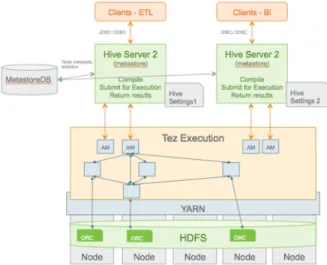
Figure 1.2. SQL Query Execution Process
The following sections explain major parts of the query execution architecture.
Hive Clients
You can connect to Hive using a JDBC/ODBC driver with a BI tool, such as Microstrategy, Tableau, BusinessObjects, and others, or from another type of application that can access Hive over a JDBC/ODBC connection. In addition, you can also use a command-line tool, such as Beeline, that uses JDBC to connect to Hive. The Hive command-line interface (CLI) can also be used, but it has been deprecated in the current release and Hortonworks does not recommend that you use it for security reasons.
SQL in Hive
Hive supports a large number of standard SQL dialects. In a future release, when SQL:2011 is adopted, Hive will support ANSI-standard SQL.
HiveServer2
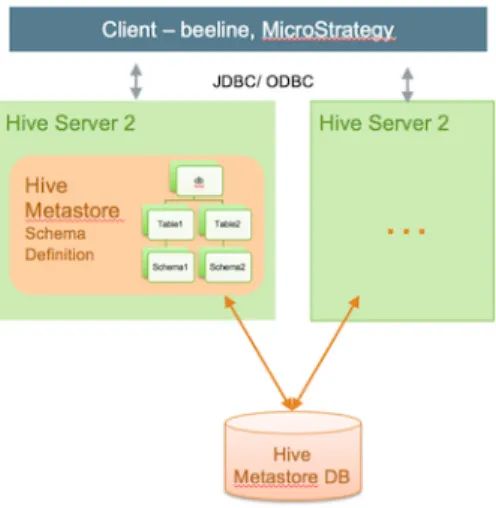
Clients communicate with HiveServer2 over a JDBC/ODBC connection, which can handle multiple user sessions, each with a different thread. HiveServer2 can also handle long-running sessions with asynchronous threads. An embedded metastore, which is different from the MetastoreDB, also runs in HiveServer2. This metastore performs the following tasks:
• Get statistics and schema from the MetastoreDB • Compile queries
• Generate query execution plans • Submit query execution plans • Return query results to the client
Multiple HiveServer2 instances can be used for:
• Load-balancing and high availability using Zookeeper • Running multiple applications with different settings
Because HiveServer2 uses its own settings file, using one for ETL operations and another for interactive queries is a common practice. All HiveServer2 instances can share the same MetastoreDB. Consequently, setting up multiple HiveServer2 instances that have embedded metastores is a simple operation.
Tez Execution
After query compilation, HiveServer2 generates a Tez graph that is submitted to YARN. A Tez Application Master (AM) monitor the query while it is running.
Security
HiveServer2 performs standard SQL security checks when a query is submitted, including connection authentication. After the connection authentication check, the server runs authorization checks to make sure that the user who submits the query has permission to access the databases, tables, columns, views, and other resources required by the query. Hortonworks recommends that you use SQLStdAuth or Ranger to implement security. Storage-based access controls, which is suitable for ETL workloads only, is also available.
File Formats
Hive supports many file formats. You can write your own SerDes (Serializers, Deserializers) interface to support new file formats.
2. Hive High Performance Best Practices
The following sections in this chapter describe best practices for increasing Hive performance:
•Use the Tez Query Execution Engine
•Use the ORC File Format
•Use Column Statistics and the Cost-Based Optimizer
•Design Data Storage Smartly
•Better Workload Management by Using Queues
2.1. Use the Tez Query Execution Engine
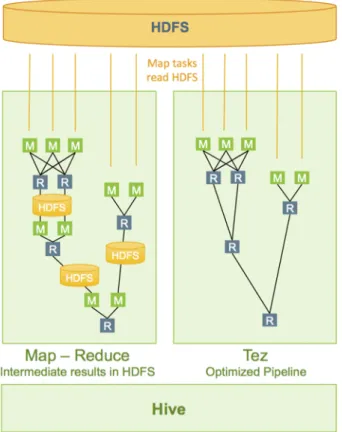
The Tez query execution engine replaces MapReduce, executing Hive queries more efficiently. For the best Hive performance, always use Tez. Currently, Hive on Spark shows promise, but does not offer the same maturity that Tez offers. The following diagram compares Tez to MapReduce query execution.
2.1.1. Configuring Tez
Tez works correctly after installing it without additional configuration, especially in later releases of HDP (HDP 2.2.4 and Hive 0.14 and later). In current releases of HDP, Tez is the default query execution engine. Make sure that you are using Tez by setting the following property in hive-site.xml or the Hive web UI in Ambari:
SET hive.execution.engine=tez;
Tip
To analyze query execution in Tez, use the Ambari Tez View, which provides a graphical view of executing Hive queries. See the Ambari Views Guide.
Advanced Settings
Using map joins is very efficient because one table (usually a dimension table) is held in memory as a hash map on every node and the larger fact table is streamed. This minimizes data movement, resulting in very fast joins. However, there must be enough memory for the in-memory table so you must set more memory for a Tez container with the following settings in hive-site.xml:
• Set the Tez container size to be a larger multiple of the YARN container size (4GB):
SET hive.tez.container.size=4096MB
• Set how much of this memory can be used for tables stored as the hash map (one-third of the Tez container size is recommended):
SET hive.auto.convert.join.noconditionaltask.size=1370MB
Note
The size is shown in bytes in the hive-site.xml file, but set in MB with Ambari. MB are shown in the above examples to make the size settings easier to understand.
Tez Container Size Configuration Example
If you discover that you are not getting map joins, check the size of your Tez containers in relation to YARN containers. The size of Tez containers must be a multiple of the YARN container size. For example, if your YARN containers are set to 2GB, set Tez container size to 4GB. Then run the EXPLAIN command with your query to view the query execution plan to make sure you are getting map joins instead of shuffle joins. Keep in mind that if your Tez containers are too large, the space is wasted. Also, do not configure more than one processor per Tez container to limit the size of your largest container. As an example, if you have 16 processors and 64GB of memory, configure one Tez container per processor and set their size to 4GB and no larger.
2.2. Use the ORC File Format
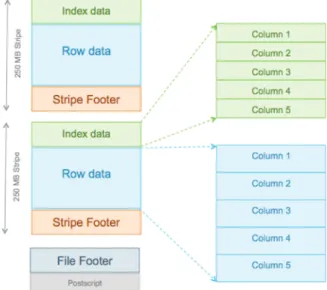
•Efficient compression: Stored as columns and compressed, which leads to smaller disk reads. The columnar format is also ideal for vectorization optimizations in Tez.
•Fast reads: ORC has a built-in index, min/max values, and other aggregates that cause entire stripes to be skipped during reads. In addition, predicate pushdown pushes filters into reads so that minimal rows are read. And Bloom filters further reduce the number of rows that are returned.
•Proven in large-scale deployments: Facebook uses the ORC file format for a 300+ PB deployment.
Figure 2.2. ORC File Structure
Specifying the Storage Format as ORC
In addition, to specifying the storage format, you can also specify a compression algorithm for the table:
CREATE TABLE addresses ( name string,
street string, city string, state string, zip int
) STORED AS orc tblproperties ("orc.compress"="Zlib");
Note
Setting the compression algorithm is usually not required because your Hive settings include a default algorithm.
Switching the Storage Format to ORC
You can read a table and create a copy in ORC with the following command:
CREATE TABLE a_orc STORED AS ORC AS SELECT * FROM A;
A common practice is to land data in HDFS as text, create a Hive external table over it, and then store the data as ORC inside Hive where it becomes a Hive-managed table.
Advanced Settings
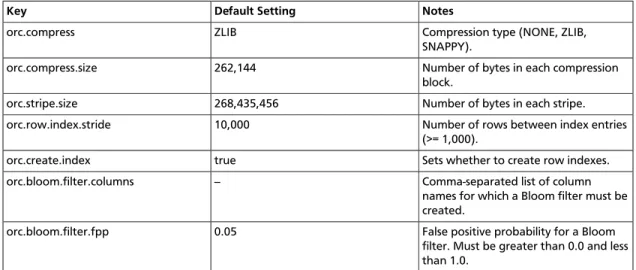
ORC has properties that usually do not need to be modified. However, for special cases you can modify the properties listed in the following table when advised to by Hortonworks Support.
Table 2.1. ORC Properties
Key Default Setting Notes
orc.compress ZLIB Compression type (NONE, ZLIB,
SNAPPY).
orc.compress.size 262,144 Number of bytes in each compression
block.
orc.stripe.size 268,435,456 Number of bytes in each stripe.
orc.row.index.stride 10,000 Number of rows between index entries
(>= 1,000).
orc.create.index true Sets whether to create row indexes.
orc.bloom.filter.columns -- Comma-separated list of column
names for which a Bloom filter must be created.
orc.bloom.filter.fpp 0.05 False positive probability for a Bloom
filter. Must be greater than 0.0 and less than 1.0.
2.3. Use Column Statistics and the Cost-Based
Optimizer (CBO)
A CBO generates more efficient query plans. In Hive, the CBO is enabled by default, but it requires that column statistics be generated for tables. Column statistics can be expensive to compute so they are not automated. Hive has a CBO that is based on Apache Calcite and an older physical optimizer. All of the optimizations are being migrated to the CBO. The physical optimizer performs better with statistics, but the CBO requires statistics.
Enabling the CBO
The CBO is enabled by default in Hive 0.14 and later. If you need to enable it manually, set the following property in hive-site.xml:
SET hive.cbo.enable=true;
For the physical optimizer, set the following properties in hive-site.xml to generate statistics:
SET hive.stats.fetch.column.stats=true; SET hive.stats.fetch.partition.stats=true;
Gathering Statistics--Critical to the CBO
The CBO requires both table-level and column-level statistics: •Table-level statistics:
Table-level statistics should always be collected. Make sure the following property is set as follows in hive-site.xml to collect table-level statistics:
SET hive.stats.autogather=true;
If you have an existing table that does not have statistics collected, you can collect them by running the following query:
ANALYZE TABLE <table_name> COMPUTE STATISTICS;
•Column-level statistics (critical):
Column-level statistics are expensive to compute and are not yet automated. The recommended process to use for Hive 0.14 and later is to compute column statistics for all of your existing tables using the following command:
ANALYZE TABLE <table_name> COMPUTE STATISTICS for COLUMNS;
As new partitions are added to the table, if the table is partitioned on "col1" and the new partition has the key "x," then you must also use the following command:
ANALYZE TABLE <table_name> partition (coll="x") COMPUTE STATISTICS for COLUMNS;
2.4. Design Data Storage Smartly
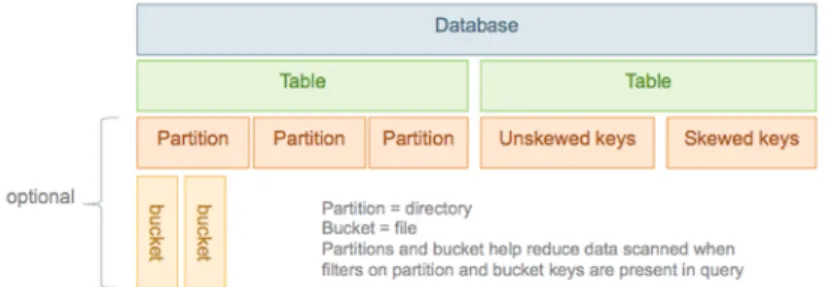
Figure 2.3. Hive Data Abstractions
Partitions
In Hive, tables are often partitioned. Frequently, tables are partitioned by date-time as incoming data is loaded into Hive each day. Large deployments can have tens of thousands of partitions. Partitions map to physical directories on the file system.
Using partitions can significantly improve performance if a query has a filter on the partitioned columns, which can prune partition scanning to one or a few partitions that match the filter criteria. Partition pruning occurs directly when a partition key is present in the WHERE clause. Pruning occurs indirectly when the partition key is discovered during query processing. For example, after joining with a dimension table, the partition key might come from the dimension table.
Partitioned columns are not written into the main table because they are the same for the entire partition, so they are "virtual columns." However, to SQL queries, there is no difference:
CREATE TABLE sale(id in, amount decimal) PARTITIONED BY (xdate string, state string);
To insert data into this table, the partition key can be specified for fast loading:
INSERT INTO sale (xdate='2016-03-08', state='CA') SELECT * FROM staging_table
WHERE xdate='2016-03-08' AND state='CA';
Without the partition key, the data can be loaded using dynamic partitions, but that makes it slower:
hive-site.xml settings:
SET hive.exec.dynamic.partition.mode=nonstrict; SET hive.exec.dynamic.partition=true;
SQL query:
INSERT INTO sale (xdate, state) SELECT * FROM staging_table;
The virtual columns that are used as partitioning keys must be last. Otherwise, you must re-order the columns using a SELECT statement similar to the following:
INSERT INTO sale (xdate, state='CA') SELECT id, amount, other_columns..., xdate FROM staging_table
WHERE state='CA';
Buckets
Tables or partitions can be further divided into buckets that are stored as files in the directory for the table or the directories of partitions if the table is partitioned.
2.5. Better Workload Management by Using
Queues
Queues are the primary method used to manage multiple workloads. Queues can provide workload isolation and can guarantee that capacity is available for different workloads. Queues can also support meeting Service Level Agreements (SLAs) for different workloads. Within each queue, you can allow one or more sessions to live simultaneously. Sessions cooperatively share the resources of the queue.
For example, if you have a queue that is assigned 10% of cluster resources, those cluster resources can be allocated anywhere in the cluster, depending on the query and data placement. Where resources are allocated might change as more queries run.
The following figure shows a configuration in which 50% of the cluster capacity is assigned to a "Default" queue for batch jobs, along with two queues for interactive Hive queries. Each Hive queue is assigned 25% of cluster resources. Two sessions are used in the batch queue and three sessions are used in each Hive queue:
Figure 2.4. Cluster Configuration Using Queues
2.5.1. Hive Setup for Using Multiple Queues
For multiple workloads or applications, using multiple HiveServer2 instances is recommended. Each HiveServer2 instance can have its own settings for Hive and Tez.
Figure 2.5. Hive Setup Using Multiple Queues
Installing a Second Instance of HiveServer2
Figure 2.6. Multiple HiveServer2 Installation
To install a second instance of HiveServer2 manually:
1. Use the installation instructions from the "Installing Apache Hive and Apache HCatalog" chapter of the Non-Ambari Cluster Installation Guide to install the Hive package:
yum install hive hcatalog hadoop hadoop-hdfs hadoop-libhdfs hadoop-yarn hadoop-mapreduce hadoop-client openssl
If the new node is part of the cluster, which means it already has Hadoop and HDFS installed on it, then you only need to install Hive and HCatalog:
yum install hive hcatalog
Note
Installing HCatalog separately is required for HDP 1.3.x because Hive and HCatalog were not merged in that release.
2. Copy the following configuration files from the original HiveServer2 instance to the new HiveServer2 instance:
•hive-site.xml and hiveserver2-site.xml (in HDP 2.2 and later) located under /etc/hive/ conf
•core-site.xml, hdfs-site.xml, mapred-site.xml, yarn-site.xml located under /etc/ hadoop/conf
3. Copy the database driver for the backing metastore DB (for example postgresql-jdbc.jar for Postgre) from the lib folder of the original HiveServer2 instance to the lib folder of the new HiveServer2 instance.
su $HIVE_USER
/usr/lib/hive/bin/hiveserver2 -hiveconf hive.metastore.uris=" " -hiveconf hive.log.file=hiveserver2.log
>$HIVE_LOG_DIR/hiveserver2.out 2 >$HIVE_LOG_DIR/hiveserver2.log &
Note
For more information see Validate the Installation in the "Installing Apache Hive and Apache HCatalog" chapter of the Non-Ambari Cluster Installation Guide.
5. Connect to the new HiveServer2 instance by using Beeline and validate that it is running: a. Open the Beeline command line shell to interact with HiveServer2:
/usr/bin/beeline
b. Establish a connection to the server:
!connect jdbc:hive2://$hive.server.full.hostname:10000 $HIVE_USER password org.apache.hive.jdbc.HiveDriver
c. Run sample commands:
show databases;
create table test2(a int, b string); show tables;
Note
For more information, see the Validate the Installation section of the "Installing Apache Hive and Apache HCatalog" chapter of the Non-Ambari Cluster Installation Guide
To install a second instance of HiveServer2 with Ambari:
1. If the new HiveServer2 instance is on a new host that has not yet been added to the cluster:
a. Open Ambari and navigate to the Hosts tab.
b. Follow the wizard instructions to add the new host to the cluster. 2. Navigate to the Hive services page.
3. Under Service Actions, select Add HiveServer2, and follow the wizard instructions to add the HiveServer2 instance.
For information about adding hosts to a cluster or adding services with Ambari, see the
2.5.2. Guidelines for Interactive Queues
The following general guidelines are recommended for interactive Hive queries. The YARN, Tez, and HiveServer2 configuration settings used to implement these guidelines are discussed in more detail in subsequent sections of this guide.
•Limit the number of queues--Because Capacity Scheduler queues allocate a fixed
percentage of cluster capacity, Hortonworks recommends configuring clusters with a few small-capacity queues for interactive queries for HDP versions 2.2.x and earlier. For HDP 2.3 and later, a single interactive queue is recommended.
•Allocate queues based on query duration--For example, if you have two applications with two different types of commonly used queries. One type of query takes
approximately 5 seconds to run, and the other type takes approximately 45 seconds to run. If both of these types of queries were assigned to the same queue, the shorter-running queries must wait for the longer-shorter-running queries. In this case, it is recommended that the two queries with different execution times be assigned to separate queues. •Re-use containers to increase performance--Enabling Tez container re-use improves
performance by avoiding the memory overhead of reallocating container resources for every task.
•Use sessions to allocate resources within individual queues--This strategy is better than increasing the number of queues.
The following sections of this chapter contain instructions for configuring the above best practices:
•Create and Configure YARN Capacity Scheduler Queues
•Refreshing YARN Queues with Changed Settings
•Setting Up Interactive Queues for HDP 2.2
•Hive, Tez, and YARN Settings in Ambari 2.1 and HDP 2.3
•Setting Up Queues for Mixed Interactive and Batch Workloads
2.5.3. Guidelines for a Mix of Batch and Interactive Queues
When using a mix of batch and interactive queues, Hortonworks recommends that you use multiple HiveServer2 instances with different settings for different applications. The following section explains how to split up queues based on usage.Usage-Based Queue Capacity Change
Set up two queues--one for batch and one for interactive workloads. Often, one of the queues is under-utilized while the other queue is overwhelmed. In this situation, it is optimum if one queue can use the unused resources of the other queue. To load-balance between queues, set the capacity and maximum capacity properties for queues in the
conf/capacity-scheduler.xml file. Then when a queue workload reaches the level specified in the capacity property and there is additional workload and unused capacity in the other queue, the workload can expand to take up to the level specified in the maximum
capacity property. However, if the queue needs the capacity back, it is returned if the first queue requests it.
Note
For information about how to set up a mix of batch and interactive queues, see
Setting Up Queues for Mixed Interactive and Batch Workloads.
2.5.4. Create and Configure YARN Capacity Scheduler
Queues
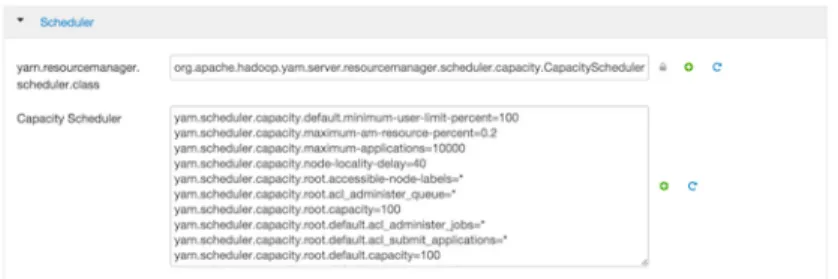
Capacity Scheduler queues can be used to allocate cluster resources among users and groups. These settings can be accessed from Ambari > YARN > Configs > Scheduler or in
conf/capacity-scheduler.xml.
The following configuration example demonstrates how to set up Capacity Scheduler queues. This example separates short- and long-running queries into two separate queues: •hive1--This queue is used for short-duration queries and is assigned 50% of cluster
resources.
•hive2--This queue is used for longer-duration queries and is assigned 50% of cluster resources.
The following capacity-scheduler.xml settings are used to implement this configuration:
yarn.scheduler.capacity.root.queues=hive1,hive2 yarn.scheduler.capacity.root.hive1.capacity=50 yarn.scheduler.capacity.root.hive2.capacity=50
Configure usage limits for these queues and their users with the following settings:
yarn.scheduler.capacity.root.hive1.maximum-capacity=50 yarn.scheduler.capacity.root.hive2.maximum-capacity=50 yarn.scheduler.capacity.root.hive1.user-limit=1
yarn.scheduler.capacity.root.hive2.user-limit=1
Setting maximum-capacity to 50 restricts queue users to 50% of the queue capacity with a hard limit. If the maximum-capacity is set to more than 50%, the queue can use more than its capacity when there are other idle resources in the cluster. However, any user can use only the configured queue capacity. The default value of "1" for user-limit means that any single user in the queue can at a maximum occupy 1X the queue's configured capacity. These settings prevent users in one queue from monopolizing resources across all queues in a cluster.
This example is a basic introduction to queues. For more detailed information on allocating cluster resources using Capacity Scheduler queues, see the "Capacity Scheduler" section of the YARN Resource Management Guide.
Setup Using the Ambari Capacity Scheduler View
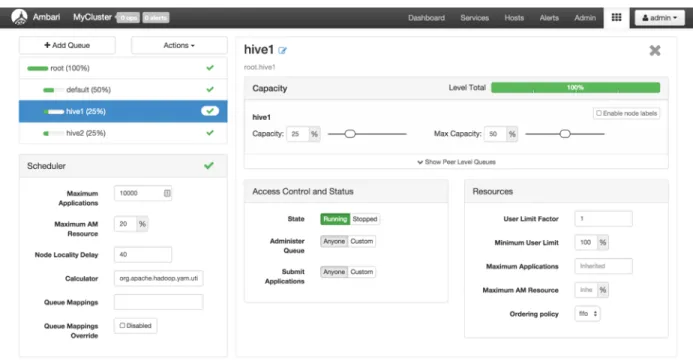
If you are using Ambari 2.1 or later, queues can be set up using the Ambari Capacity Scheduler View as shown in the following image:
1. In Ambari, navigate to the administration page.
2. Click Views > CAPACITY-SCHEDULER > <your_view_name>, and then click Go to instance at the top of your view page.
3. In your view instance page, select the queue you want to use or create a queue. See the
Ambari Views Guide.
To create the scenario that is shown in the following screen capture, select the root
queue and add hive1 and hive2 at that level.
Figure 2.8. Ambari Capacity Scheduler View
2.5.5. Refreshing YARN Queues with Changed Settings
YARN capacity can be changed without restarting the cluster by using the command-line interface or by using Ambari.Using the Command-Line Interface
Change queue properties and add new queues by editing the conf/capacity-scheduler.xml
$ vi $HADOOP_CONF_DIR/capacity-scheduler.xml
$ $HADOOP_YARN_HOME/bin/yarn rmadmin -refreshQueues
Note
Queues cannot be deleted. Currently, only adding new queues is supported. The collective queue capacities must equal 100% in the queue configuration. For example, if you have two queues in your configuration and one queue's capacity is set to 25%, the other queue's capacity must be set to 75%.
Using Ambari
The Ambari Capacity Scheduler View allows the option to refresh the queue capacity by using the Actions menu on the top left of the page in Ambari. In versions of Ambari before 2.1 and HDP 2.3, you must refresh the queue configuration by selecting Refresh YARN Capacity Scheduler on the Service Actions menu of the YARN page in Ambari.
2.5.6. Setting Up Interactive Queues for HDP 2.2
In HDP 2.2 and earlier, interactive queues can be set up at the command-line. See
Configure HiveServer2 Settings.
In HDP 2.3 and later, you can use Ambari (a GUI) to set up interactive queues.
Configure Tez Container Reuse
Tez settings can be accessed from Ambari > Tez > Configs > Advanced, or in tez-site.xml. Enabling Tez to re-use containers improves performance by avoiding the memory overhead of reallocating container resources for every task. This can be achieved by configuring queues to retain resources for a specified amount of time. Then subsequent queries run faster. However, these settings apply globally to all jobs running in the cluster. To ensure that the settings apply to only one application, you must use separate tez-site.xml files on separate HiveServer2 nodes.
For better performance with smaller interactive queues on a busy cluster, retain resources for 5 minutes. On a less busy cluster, or if consistent timing is important, you can retain resources for up to 30 minutes.
Use the following settings in tez-site.xml to configure container reuse in Tez:
•Tez Application Master Waiting Period (in seconds)--Specifies the amount of time that the Tez Application Master (AM) waits for a directed acyclic graph (DAG) to be submitted before shutting down. For example, to set the waiting period to 15 minutes (15 minutes X 60 seconds per minute=900 seconds) set the following property to 900:
tez.session.am.dag.submit.timeout.secs=900
•Tez min.held-containers--Specifies the minimum number of containers that the AM starts with and retains after a query run is complete. If an AM retains a lot of containers, it gives them up over time until it reaches the number set for min.held-containers. Set the minimum number of containers to be retained with the following property:
For example, if you have an application that generates queries that require five to ten containers, set the min.held-containers value to 5.
For more information on these settings and other Tez configuration settings, see the "Configure Tez" section in the Non-Ambari Cluster Installation Guide
Configure HiveServer2 Settings
HiveServer2 is used for remote concurrent access to Hive. HiveServer2 settings can be accessed from Ambari > Tez > Configs > Advanced or in hive-site.xml. You must restart HiveServer2 for the updated settings to take effect.
Configure the following settings in hive-site.xml:
•Hive Execution Engine--Set this to "tez" to execute Hive queries using Tez:
hive.execution.engine=tez
•Enable Default Sessions--When enabled, a default session is used for jobs that use HiveServer2 even if they do not use Tez. To enable default sessions, set to "true":
hive.server2.tez.initialize.default.sessions=true
•Specify the HiveServer2 Queues--To set multiple queues, use a comma-separated list of queue names. For example, the following specifies the queues "hive1" and "hive2":
hive.server2.tez.default.queues=hive1,hive2
•Set the Number of Sessions in Each Queue--Sets the number of sessions for each queue listed in hive.server2.tez.default.queues:
hive.server2.tez.sessions.per.default.queue=1
•Set enable.doAs to "False"--When set to "false," the Hive user identity is used instead of the individual user identities for YARN. This setting enhances security and reuse:
hive.server2.enable.doAs=false
Note
When doAs is set to false, queries execute as the Hive user and not the end user. When multiple queries run as the Hive user, they can share resources. Otherwise, YARN does not allow resources to be shared across different users. When the Hive user executes all of the queries, a Tez session opened for one query and is holding onto resources can use those resources for the next query without re-allocation.
For more information about these and other HiveServer2 configuration settings on Tez, see the "Configure Hive and HiveServer2 for Tez" section in the Non-Ambari Cluster Installation Guide
Adjusting Settings for Increase Numbers of Concurrent Users
As the number of concurrent users increases, keep the number of queues to a minimum and increase the number of sessions in each queue. For example, for 5-10 concurrent users,
2-5 queues with 1-2 sessions each might be adequate. To set 3 queues with 2 sessions for each queue:
hive.server2.tez.default.queues=hive1,hive2,hive3 hive.server2.tez.sessions.per.default.queue=2
If the number of concurrent users increases to 15, you might achieve better performance by using 5 queues with 3 sessions per queue:
hive.server2.tez.default.queues=hive1,hive2,hive3,hive4,hive5 hive.server2.tez.sessions.per.default.queue=3
The following table provides general guidelines for the number of queues and sessions for various numbers of concurrent users.
Table 2.2. Queues and Sessions for Increasing Numbers of Concurrent Users
Number of Users Number of Concurrent
Users Number of Queues Number of Sessions perQueue
50 5 2-5 1-2
100 10 5 2
150 15 5 3
200 20 5 4
2.5.7. Hive, Tez, and YARN Settings in Ambari 2.1 and HDP
2.3
HiveServer2 and Tez settings can also be set from the Hive configuration page in Ambari.
Hive and Tez
Hive configuration in the Interactive Query pane of the Hive configuration page in Ambari enables choosing a set of default queues for the interactive queries. This pane also enables you to initialize Tez sessions per session and choose sessions per queue:
Figure 2.9. Interactive Query Pane of Hive Configuration Page in Ambari
Under Optimization on the Hive configuration page, you can select holding containers and choose the number of containers to hold:
YARN Single Queue with Fair Scheduling
The concept of "fair scheduling" policy in YARN is introduced in HDP 2.3. Fair scheduling enables all sessions running within a queue to get equal resources. For example, if there is a query running already in a queue and taking up all of the resources, when the second session with a query is introduced, the sessions eventually end up with equal numbers of resources per session. Initially, there is a delay, but if ten queries are run concurrently most of the time, the resources are divided equally among them.
Fair scheduling is specified by setting Ordering policy to fair in the Capacity Scheduler View in Ambari, shown in the following figure. This is supported in HDP 2.3 and later. To manually set this in the capacity-scheduler.xml file, see the YARN Resource Management Guide.
Figure 2.11. Ordering Policy Setting in Ambari
2.5.8. Setting Up Queues for Mixed Interactive and Batch
Workloads
For queues that contain both interactive and batch workloads, you can set queues that are based on usage or queues that are based on time.
Setting Up Usage-Based Queue Capacity Change
In general, adjustments for interactive queries do not adversely affect batch queries, so both types of queries can run well together on the same cluster. You can use Capacity Scheduler queues to divide cluster resources between batch and interactive queries. For example, you might set up a configuration that allocates 50% of the cluster capacity to a default queue for batch jobs, and two queues for interactive Hive queries, with each assigned 25% of cluster resources as shown below:
yarn.scheduler.capacity.root.queues=default,hive1,hive2 yarn.scheduler.capacity.root.default.capacity=50
yarn.scheduler.capacity.root.hive1.capacity=25 yarn.scheduler.capacity.root.hive2.capacity=25
The following settings enable the capacity of the batch queue to expand to 100% when the cluster is not being used (for example, at night). The maximum-capacity of the default batch queue is set to 100%, and the user-limit-factor is increased to 2 to enable the queue users to occupy half the configured capacity of the queue (50%):
yarn.scheduler.capacity.root.default.maximum-capacity=100 yarn.scheduler.capacity.root.default.user-limit-factor=2
Setting Up Time-Based Queue Capacity Change
It is common to allocate capacity to an interactive queue during the day when business users are active and to allocate capacity to a batch queue during the night when batch workloads are frequently executed. To configure this scenario, schedule-based policies are used. This is an alpha Apache feature.
3. Configuring Memory Usage
Setting memory usage is simple, but very important. If configured incorrectly, jobs fail or run inefficiently.
3.1. Memory Settings for YARN
YARN takes into account all of the available computing resources on each machine in the cluster. Based on the available resources, YARN negotiates resource requests from applications running in the cluster, such as MapReduce. YARN then provides processing capacity to each application by allocating containers. A container is the basic unit of processing capacity in YARN, and is an encapsulation of resource elements (for example, memory, CPU, and so on).
In a Hadoop cluster, it is important to balance the memory (RAM) usage, processors (CPU cores), and disks so that processing is not constrained by any one of these cluster resources. Generally, allow for 2 containers per disk and per core for the best balance of cluster utilization.
3.2. Selecting YARN Memory
It is important to leave enough memory for system tasks to run. Then divide the remaining memory into containers and see what makes sense.
In yarn-site.xml, set yarn.nodemanager.resource.memory-mb to the memory that YARN uses:
• For systems with 16GB of RAM or less, allocate one-quarter of the total memory for system use and the rest can be used by YARN.
• For systems with more than 16GB of RAM, allocate one-eighth of the total memory for system use and the rest can be used by YARN.
For more information, see the Non-Ambari Cluster Installation Guide
3.3. Tez Memory Settings
Tez must use the majority of the YARN container to run query fragments, but it must also leave some space for system tasks to run.
For HDP 2.2 and earlier versions, the following settings in hive-site.xml work well: •Xmx= 80% of container size
•Xms= 80% of container size
For HDP 2.3 and later versions, verify that the
TezConfiguration.TEZ_CONTAINER_MAX_JAVA_HEAP_FRACTION property is set to .8. The following figure shows where you can configure the size of Tez containers in the Hive web UI of Ambari:
Figure 3.1. Tez Container Configuration in Hive Web UI of Ambari
3.4. Hive Memory Settings
There are 2 key memory size settings for Hive: Map Join hash table size and bytes per reducer. However, these settings have implications on other optimizations.
Map Join Hash Table Size
hive.auto.convert.join.noconditionaltask.size is the maximum size of a table that is converted into a hash table for Map Join. For smaller clusters, one-third of the total memory is sufficient. If you have many dimension tables that join a fact table, these can add up to a large size. In that case, memory can be limited to one-half GB to be on the safe side.
Bytes Per Reducer
hive.exec.reducers.bytes.per.reducer is the size of data processed per reducer. Setting this to a large number results in less parallelism. Setting it to a smaller number results in more parallelism. How you set this depends on the application and the user priorities in terms of latency and throughput in your environment. Usually, the default value works well and for each application query this can be set once for a HiveServer2.
4. Query Optimization
This provides a checklist of common issues that you can use to diagnose query performance in Hive.
Tip
To view query execution in Hive, use the Ambari Hive View, which has a Visual Explain feature that presents a graphical representation of how the query executes. See the Ambari Views Guide.
If a query is slow, check the following:
1. Are you getting the correct parallelism in the Mappers/Reducers?
You can see the number of tasks running per vertex using Hive View or Tez View. You can then modify the parallelism to check if that helps.
a. If reducers do not have the correct parallelism, check
hive.exec.reducers.bytes.per.reducer. You can change this to a smaller value to increase parallelism or change it to a larger value to decrease parallelism.
b. If mappers do not have the correct parallelism, you can modify tez.am.grouping.split-waves. This is set to 1.7 by default, which means that the number of tasks set for a vertex is equal to 1.7 of the available containers in the queue. Adjusting this to a lower value increases parallelism but allocates less resources per job.
2. Are you getting unusually high garbage collection times?
a. Sometimes garbage collection inside the Java Virtual Machine can take up a
substantial portion of the total execution time. Check garbage collection time against the CPU time by either enabling hive.tez.exec.print.summary, or by checking the Tez UI:
Figure 4.1. Garbage Collection Time
b. If you see high garbage collection times, identify the operator that is causing it. Based on the operator that is causing the high garbage collection times, you can take the following actions:
•Map join: A large hash table can cause high garbage collection and can
negatively affect performance. For versions of HDP prior to 2.3, you can reduce
hive.auto.convert.join.noconditionaltask.size to reduce the number of map joins, changing them into shuffle joins instead. However, this can decrease performance. Alternatively, you can increase the container size, still using map joins, but there will be more memory available to reduce the effects of garbage collection. In HDP 2.3
and later, map join operators support spilling if the hash table is too large. In this case, garbage collection time is not high, but the join spill of the larger hash table may impact the runtime performance.
•Insert into ORC: If inserting into a table that has a large number of columns, try reducing hive.exec.orc.default.buffer.size to 64KB or increase the container size. •Insert into partitioned table: Inserting a large number of tasks into multiple
partitions at the same time can create memory pressure. If this is the case, enable
hive.optimize.sort.dynamic.partition. Do not enable this flag when inserting into a small number of partitions (less than 10) because this can slow query performance. 3. Are you getting a shuffle join and not a map join for smaller dimension tables?
hive.auto.convert.join.noconditionaltask.size determines whether a table is broadcasted or shuffled for a join. If the small table size is larger than
hive.auto.convert.join.noconditonaltask.size a shuffle join is used. For accurate size accounting by the compiler, run ANALYZE TABLE [table_name] COMPUTE STATISTICS for COLUMNS. Then enable hive.stats.fetch.column.stats. This enables the Hive physical optimizer to use more accurate per-column statistics instead of the uncompressed file size in HDFS.
4. Are you getting an inefficient join order?
• The cost-based optimizer (CBO) tries to generate the most efficient join order. For query plan optimization to work correctly, make sure that the columns that are involved in joins, filters, and aggregates have column statistics and that
hive.cbo.enable is enabled. CBO does not support all operators, such as "sort by," scripts, and table functions. If your query contains these operators, rewrite the query to include only the supported operators.
• If the CBO is still not generating the correct join order, rewrite the query using a Common Table Expression (CTE).