James Wood
SAP HANA
®Cloud Platform Mobile
Services
from
Getting Started with SAP HANA
®This chapter introduces one of the most recent additions to the SAP HCP family: SAP HANA Cloud Platform Mobile Services, which provides an open development model for producing native mobile applications that tightly integrate with SAP HCP.
12
SAP HANA Cloud Platform Mobile
Services
In earlier chapters of this book, we explored examples of how SAP HCP and SAPUI5 can be used to develop and deploy web applications. Through the responsive design elements of SAPUI5, those applications can automatically adapt their appearance to run on a range of browsers and screen sizes; desktop brows-ers, mobile tablets, and phones are all supported. However, for security reasons, a browser limits the range of OS features and device access that are granted to a web application. In many cases (especially on mobile devices) we’ll want our applications to gather information or to interact with the user in ways that go beyond what we can accomplish in such a restricted model.
Device OS vendors offer the ability to create native mobile applications to gain deeper access to the features of each device. Each OS vendor offers unique soft-ware development kits (SDKs) and a companion integrated development environ-ment to streamline developenviron-ment on each operating system. Such tools deliver maximum performance and the highest quality user experience, but they also come with a hefty learning cost—although that’s not to suggest that they are not worth the effort. Often, however, the goals for a given application make it highly desirable to deliver the same functionality on the widest number of device types possible. This is especially common for internally facing applications if the sup-porting IT department allows employees to use their personal mobile devices for work purposes. This “bring your own device” approach has given rise to a num-ber of frameworks to support a writeonce,runmany programming model. Many write once, run many systems are available today. Probably the most pop-ular programming model of this type is called a hybrid container. In this case,
“hybrid” means a combination of an HTML5 web view wrapped in a specialized native execution container. The web view houses HTML5, CSS, and JavaScript code that make up the user interface and business logic of the application. That code is generally identical across all platforms. The native container exposes an abstract interface layer as a JavaScript object and functions along with native OS code to execute the device features exposed by the container.
As part of SAP HCP, SAP offers SAP HANA Cloud Platform Mobile Services (HCPms). SAP HCPms can be used to develop and deploy mobile applications more rapidly and reliably. In this chapter, we start out with an overview of the purpose of SAP HCPms (Section 12.1), and then move on to a discussion of Cor-dova application development, which is important to SAP HCPms because it is the most popular hybrid container available today (Section 12.2). We then mention the software prerequisites required to run SAP HCPms, with links to further detailed information about how to make sure these prerequisites are met (Section 12.3). With these basics out of the way, we dive into the technicalities of SAP HCPms: First, in Section 12.4, we introduce the most commonly used compo-nents and explain how to work with them. Then, in Section 12.5, we walk you step-by-step through the development of a simple hybrid application. Finally, in 1.6, we offer some additional information about adding “true mobile capabili-ties,” such as offline functionality and push notifications.
Note
Although we will focus on the Android platform, the example application can be run on iOS and Windows Phone with a little extra effort.
12.1
Overview
SAP HCPms supports two distinct client architectures: true native and hybrid con-tainer. “True” native applications are developed using a device vendor’s native IDE and UI frameworks: Xcode as an IDE and Cocoa for the UI targeting Apple iOS, for example. For true native development, SAP HCPms supplies class librar-ies to give you access to platform functions. These class librarlibrar-ies are dropped directly into your IDE project. As we’ll explore in a moment, a hybrid client using SAP HCPms provides a complete chain of tools and programming frameworks that builds on the capabilities of the Web IDE and SAPUI5.
Overview 12.1
SAP HCPms provides capabilities to address common requirements that you will typically encounter when building mobile applications that are left unaddressed today by device OS vendors:
왘Offline data caching with synchronization
Device OS vendors will provide frameworks for persisting data on a device, but that doesn’t provide a complete solution. They’ll leave the details of obtaining the data and synchronizing any changes you might make to it as problems for you to solve, and these can be complex problems to address. Because most modern applications need at least some capability to continue operating while disconnected from a mobile network, SAP provides an offline SDK within SAP HCPms. This SDK is a simple yet effective approach to enabling disconnected operation and data synchronization in your mobile application.
왘Integrated authentication services
User credentials come in many forms in modern enterprise and consumer applications; SAML, OAuth, LDAP, and Microsoft Active Directory are all examples of protocols that support a unified user identity in your business. You’ll almost certainly need to be able to integrate your mobile applications into those systems and avoid creating a completely separate notion of user identity in your mobile operations, and SAP HCPms allows you to do exactly that. SAP HCPms provides APIs to supply secure program logic as well as stan-dardized user interfaces to support login and authentication, along with the server interactions required to pass authenticated user credentials to backend applications.
왘Device registration and reporting
SAP HCPms registers each instance of an application automatically as the user logs in. The SAP HCPms administrative console provides reporting on aggre-gate usage statistics, per-user operational performance, and the demographics of your user population.
왘Encryption of data stored on the device
Any time you store data on a mobile device, you run the risk that data might fall into the hands of bad actors. SAP HCPms SDKs provide services to encrypt per-sisted data on your device. SAP HCPms also exclusively uses HTTPS to encrypt your communications to SAP HCPms and any backend systems connected to your application.
왘Device-independent push notification services
Push notification services provide a power-efficient mechanism for your back-end service to alert one or more users of some sort of interesting event, but each device OS vendor has its own infrastructure and methods for contacting applications on its devices. SAP HCPms provides a web services API and abstraction layer to simplify the task of adding push notifications to your appli-cations.
왘Application update
SAP HCPms provides a mechanism to update your hybrid mobile applications in a way that doesn’t require the user to visit a traditional app store. This can prove especially handy to deliver application updates quickly to your user base. 왘Diagnostics, including remote client log file harvesting
SAP HCPms provides both client and server functions that cooperate to make administration and problem identification easier. The SAP HCPms Admin Cockpit allows authorized administrators to globally set client-logging level, upload, and examine application log files from specific remote devices. These are especially useful features, as it is often impractical (or even impossible) for a user to physically return a device to your support staff for examination. SAP HCPms runs within your SAP HCP infrastructure as a subscription service. Figure 12.1 depicts a typical SAP HCPms deployment, in which the supporting services reside completely within SAP HCP. SAP HCPms typically consumes data via OData web services (we’ll explore how OData web services are important to SAP HCPms when we look at offline operation in Section 12.4.3). SAP HCPms isn’t particularly fussy about where the web services come from; in SAP HCP, for example, they might be surfaced directly from an SAP HANA database, or they might be part of a deployed Java application running in SAP HCP. SAP HCP deployed web applications won’t often be integrated into an SAP HCPms applica-tion, but don’t rule that completely out: More complex applications might include having parts of the mobile application content being served dynamically from a web application server; HCPms would support that.
Cordova Application Development with SAP Web IDE 12.2
Figure 12.1 SAP HCPms within the SAP HCP Landscape
12.2
Cordova Application Development with SAP Web IDE
Probably the most popular hybrid container available today is Apache Cordova, the open-source version of one of the earliest hybrid containers, Adobe PhoneGap. SAP’s write once, run many programming model leverages Apache Cordova to create an open approach to development. The structure of a Cordova application is simple, yet extensible. In this section, we look at the basic elements of a Cordova application and show you how SAP’s Web IDE environment can play a key role in developing your mobile hybrid applications.
12.2.1 Architecture of a Cordova Application
The Apache Cordova website (https://cordova.apache.org/) provides a succinct summary of the Cordova architecture:
Apache Cordova is a set of device APIs that allow a mobile app developer to access native device function such as the camera or accelerometer from JavaScript. Com-bined with a UI framework such as jQuery Mobile or Dojo Mobile or Sencha Touch, this allows a smartphone app to be developed with just HTML, CSS, and JavaScript.
HANA Cloud Platform
HANA
Databases XS WebServices
Java Applications HTML5 Applications HCP Mobile Services OData OData Vendor Push Services Push Notification
When using the Cordova APIs, an app can be built without any native code (Java, Objective-C, etc) from the app developer. Instead, web technologies are used, and they are hosted in the app itself locally (generally not on a remote http server). And because these JavaScript APIs are consistent across multiple device platforms and built on web standards, the app should be portable to other device platforms with minimal to no changes.
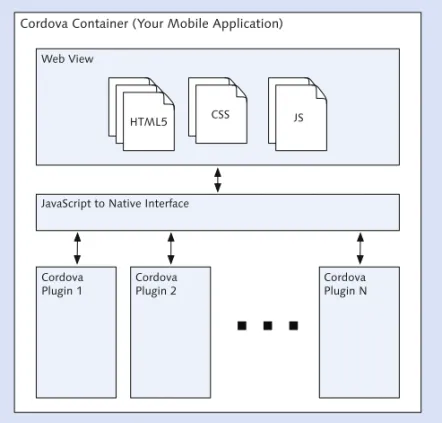
SAP uses Apache Cordova in its purest form (Figure 12.2). The container architec-ture is not modified in any way, except to make available SAP’s own set of plug-ins to add SAP HCPms features. Because Cordova is used in this pure state, you have direct access to an extensive library of open-source plug-ins maintained for use with Cordova. You can review the current registry of Apache Cordova plug-ins at http://plugins.cordova.io/#.
Figure 12.2 Apache Cordova’s Mobile Client Architecture
SAPUI5 is an extensive collection of business-oriented UI controls and charting tools based on jQuery Mobile. You will see that the client development tooling for SAP HCPms is completely open, too. You may use whatever JavaScript UI
Cordova Container (Your Mobile Application)
Web View
HTML5 CSS JS
JavaScript to Native Interface
Cordova Plugin 1 Cordova Plugin 2 Cordova Plugin N
Cordova Application Development with SAP Web IDE 12.2
framework suits your needs. By the end of this chapter, though, you should understand that SAP has put a lot of effort into making SAPUI5 your UI frame-work of choice for developing applications using the Web IDE.
12.2.2 SAP’s Cordova Hybrid Development Tool Chain
If you think about it for a moment, the sequence of tools required to create a hybrid mobile application seems pretty daunting: You need a robust tool to edit and test the HTML, JavaScript, and CSS. You need something to package all those assets into a web view as part of a larger native container. You need something else to manage the build process of that container application. That manager must take into account the details of building for difference devices. Finally, you need tools to manage connecting and testing the application with vendor simulators and real devices. Clearly, that’s not something we want to construct or even man-age ourselves.
SAP has designed a tool chain to automate this process. This sequence of tools starts with the Web IDE. As with conventional mobile web development, it pro-vides the JavaScript and HTML editing and preview capabilities. Mobile develop-ment, however, requires us to build the software for each specific device OS ven-dor and—for now, at least—requires us to have additional components installed on our local workstation.
In order to bridge development between the cloud-based tools and your local machine, SAP introduces a local component known as the Hybrid App Toolkit.
SAP Mobile Platform Naming: On-Premise vs. Cloud
Product names from SAP are sometime less than completely clear to the casual observer, and we have an example of it in their mobile platform products. SAP HCPms is derived from the on-premise mobile platform, named the SAP Mobile Platform. By design, the two platforms share a common client SDK. This shared SDK approach allows you to focus on the functionality of your mobile application first, without having to decide whether you prefer an on-premise or cloud deployment until later.
Because SAP Mobile Platform was released before SAP HCPms, this shared SDK is named the SAP Mobile Platform SDK; that’s the name you should look for at the SAP Store and SAP Service Marketplace.
12.3
Software Prerequisites
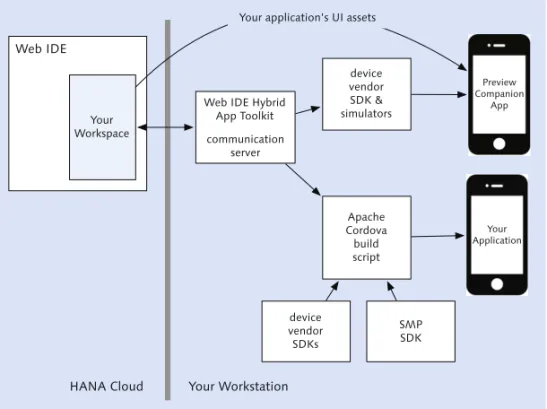
You will need to install a number of software components locally on your work-station to support mobile software development using the Web IDE (Figure 12.3). If you have done any mobile software development previously, some of these components may already be installed on your workstation. These new local com-ponents include the following:
왘The SAP Mobile Platform SDK, which includes hybrid application development plug-in modules, which SAP often refers to as the KapselSDK
왘Operating system SDKs and simulators for each target device: iOS, Android, and Windows Phone
왘A Web IDE subscription with the SAP HCP trial account 왘The Web IDE Hybrid App Toolkit
We’ll offer a general description of each of these pieces and parts next. The best source for detailed information on preparing your local workstation for mobile development with the Web IDE will always be found in the SAP HCP online doc-umentations set: https://help.hana.ondemand.com/webide_hat/frameset.htm.
Figure 12.3 Web IDE and Hybrid App Toolkit: Previewing and Building Mobile Applications Your application’s UI assets
Web IDE
Your Workspace
Web IDE Hybrid App Toolkit communication server device vendor SDK & simulators Apache Cordova build script device vendor SDKs SMP SDK Your Application Preview Companion App
Software Prerequisites 12.3
12.3.1 SAP Mobile Platform SDK
The SAP Mobile Platform SDK provides plug-ins for SAP Mobile Platform func-tionality that you’ll be using to build your hybrid application in this chapter. It also includes components for developing true native applications, along with Agentry clients, a mobile architecture that is currently specific to the on-premise edition of SAP Mobile Platform.
The installers for the SAP Mobile Platform SDK can be downloaded from the SAP Store, or, if you are currently an SAP customer, they can be downloaded from the SAP Service Marketplace. Download links for the SAP Mobile Platform SDK will be found in the Hybrid App Toolkit online installation instructions.
12.3.2 Device SDKs
You will need the SDK for at least one mobile operating system in order to develop applications. If you are on an OS X workstation, you have your choice of iOS applications, Android applications, or both. On a Windows machine, your options are Android or Windows Phone (although, as of this writing, Windows Phone development remains unsupported by the Web IDE).
왘AndroidSDK
Follow the instructions found at https://developer.android.com/sdk/installing/ index.html that explain how to install the standalone SDK tools. The Android SDK tools are currently available at no cost to you.
왘XcodeforiOS
Visit the Apple site https://developer.apple.com/devcenter/ios/index.action; iOS development requires Xcode, Apple’s IDE and development tooling. Xcode for iOS requires an annual subscription fee from Apple (cost varies by region; it is approximately $100 per year in the United States). Note that HAT and Cordova builds require an additional Apple component called the Xcode Command Line Build Tools, which is packaged in a separate installer found at the iOS Deve-loper Center site.
12.3.3 SAP HCPms Trial Instance
You almost certainly have an SAP HCP trial account by this point in the book. If not, you can register for an account at the following URL: http://scn.sap.com/docs/ DOC-56411.
SAP HCPms is available as a no-cost subscription within your SAP HCP trial account. As of this writing, the subscription process requires some manual steps in order to correctly configure your subscription. You can consult the SAP HCPms document to find instructions covering the setup steps for an SAP HCPms subscription: https://help.hana.ondemand.com/hana_cloud_platform_mobile_services/ SAP_HANA_Cloud_Platform_Mobile_Services.pdf.
12.3.4 Web IDE Hybrid App Toolkit
When using the Web IDE, you are developing in the cloud. The Web IDE’s Hybrid App Toolkit is a collection of tools that connects to your cloud instance of the Web IDE to allow you to build and sign your mobile application locally on your workstation. It also includes a nifty tool called the Companion app. The Companion app can be installed on device simulators or even live mobile devices to allow you to preview your application’s UI and business logic on the fly, with-out forcing you to wait for a full application build each time you’d like a peek. The Hybrid App Toolkit is a no-cost download from the SAP Store (visit https:// store.sap.com and search for “Hybrid App Toolkit”). It includes relatively friendly setup scripts for both Windows and OS X systems. Each script will verify the installation and configuration of the components we’ve previously mentioned, plus a few other prerequisites that are all easy to install.
12.4
Most Commonly Used Components
In Section 12.1, we listed the major capabilities provided by SAP HCPms and its companion client SDK. In this section, we’ll briefly introduce the three most com-monly used components: Logon, Push Notification, and the Offline Data Caching services.
12.4.1 Logon: Device Registration and Authentication
Application authentication, especially in enterprise environments, can be a sur-prisingly complex series of operations to program. An application must gather credentials from the mobile user and then relay them to an identity provider (IdP) for verification. By modern convention, it is often desirable to only require the user to enter those credentials once. However, if they are to be stored for future
Most Commonly Used Components 12.4
use, how can they be stored securely? How will the application know what serv-ers to communicate with? What if the application has just been installed and has never interacted with your server infrastructure before? What sort of registration for usage tracking and notification purposes will be required?
It turns out that the SAP Mobile Platform SDK provides a modular approach for handing all of these interactions. You will be able to add and configure it for oper-ation with only a few lines of code. For native applicoper-ations you might develop, the Login module is supplied as a series of class libraries to your application. For our hybrid application, it is delivered as a Cordova plug-in as part of the Kapsel SDK.
The Kapsel Logon plug-in provides these features:
왘An authentication UI view for gathering credentials and (optionally) gathering server connection parameters, such as the SAP HCPms server hostname and port
왘Program logic to connect to the SAP HCPms server, authenticate the user, and, if needed, register a newly installed application instance with the server 왘User interface and program logic to securely store user credentials in an
encrypted storage location called the DataVault
왘Support for a user-selectable application passcode used to control access to the application and to secure the Data Vault
12.4.2 Push Notification
Normally, a mobile application will periodically poll a service to obtain fresh information. However, it is also possible to send asynchronous notifications from your own servers to alert a user or application to some interesting event. Each vendor provides a device-specific way to enable push notifications. Push notifica-tions are discussed in more detail in Section 12.6.2.
12.4.3 Disconnected (Offline) Operation
It’s surprisingly common to see requirements to at least perform basic operations with an application in airplane mode or while data service is otherwise unavail-able. Even something as simple as displaying the last information retrieved by an application can become a complex task to program. There are more advanced use
cases, as well; for example, you might have a requirement to be able to modify or even create new data records while disconnected. When you are distributing the same data across thousands or even hundreds of thousands of devices, the syn-chronization of such data becomes a daunting task. Different mobile platforms have taken different paths to addressing these needs. SAP’s approach involves a degree of simplicity uncommon among many mobile platforms, and it has evolved from the technology experience gained from earlier SAP mobile plat-forms, such as Sybase Unwired Platform, Sybase MobiLink, and Syclo Agentry, which have been around for well over 10 years.
In almost any programming model that supports disconnected operation, you start by defining what data elements you’ll need to access while offline. The SAP Mobile Platform SDK calls this bill of materials a defining request. A defining request is a list of OData-style queries. In JavaScript, it might look something like Listing 12.1. definingRequests = { "Products": "/Products", "ProductCategories": "/ProductCategories", "Suppliers": "/Suppliers" };
Listing 12.1 Defining Requests Data Structure
This is a simple case, basically indicating “take all elements of all three of these entity collections and store them for later use.”
However, because defining requests recognize most of the OData query language, one can get more elaborate, as shown in Listing 12.2.
definingRequests = {
"Products": "/Products?$expand=Supplier", "ProductCategories": "/ProductCategories“
};
Listing 12.2 Alternative (and Equivalent) Defining Request Showing how OData URI Syntax can be Used Inside a Request
In this instance, we still retrieve all ProductCategories, but we limit the Supplier
list to only those directly linked to a Product. In this example data model, there is
one Supplier for each Product record. Specifying $expand for related data can be
an especially useful technique to limit the data on the device to only what’s rele-vant to a few key data rows.
Most Commonly Used Components 12.4
Once the data is provisioned on the device in the cached data store, the store can be periodically updated from the server using a refresh() call. The SAP Mobile
Platform SDK currently defines no policy for refreshing data—programmatically or otherwise—so choices about when to call refresh() are completely up to you
as the developer.
You will use OData web-services-style I/O operations to interact with the data store. In fact, the Offline Kapsel plug-in simply implements the data interface to the Offline plug-in as a hook function intercepting all JavaScript HTTP interac-tions; the activator of the hook function is named sap.OData.applyHttpClient().
You typically invoke it once: after the Offline plug-in initialization is complete in your application. If you are offline for a period of time, then any modifications are recorded silently and transmitted to the server at the time your application next calls refresh().
The net result is a remarkably easy-to-program offline interface: You set up your defining requests, execute them as the application starts, call applyHttpClient(),
and then code your SAPUI5 data mappings in the same manner that you would while online; reading, updating, creating, and deleting data all works pretty much the same way as it would for online operations.
Creating Records while Offline: OData Record IDs, Primary Keys
Modifying a shared data set across a population of loosely connected systems presents challenges. Modifying a field in an existing record is relatively straightforward. Creating a new record involves some subtle points, though, and you will want to be aware of such points, including the following:
왘 The OData services you access will often wrap traditional SQL data tables.
왘 It is quite common for SQL databases to own the responsibility of automatically gen-erating a primary key at creation time to identify each new row.
왘 If you generate a new record at a device while disconnected, then you have no way of consulting the server to obtain a generated primary key.
In order to deal with the previously mentioned situation, there is an extra, essentially hidden column created for each table in the device’s UltraLite SQL storage. This column is named lodata_sys_eid, and is populated with a unique record ID for each row. This ID value is private to the local device.
With this mechanism in place, there is no need to supply a Key field for a record when you create one. In effect, the Offline API uses the lodata_sys_eid column as the table’s primary key for local reference on the device. This hidden column in each table is also used to provide foreign key linkage between tables.
There are more features of the SAP HCPms Offline module that you’ll want to explore on your own. For example, your application can define global characteristics for defining requests, including specifying details of how defining requests should be processed and even marking some data collections as “shared” and cached at the server to reduce backend resource impact. You will find more details on these capabilities in the SAP HCPms online documentation: http://help.sap.com/saphelp_smp305sdk/helpdata/en/ f5/a25877c16f4fc384c44fcf0b92dab8/content.htm.
12.5
Creating a Simple Hybrid Application using
SAP HCPms and the Web IDE
Let’s get down to business and use the Web IDE to create a hybrid mobile appli-cation. Suppose you have a web service that supplies a list of products, and you would like to construct an application that lists all products. The application must also provide the capability for the user to select a product in order to obtain extra details and related information.
In this section, we will use this example to explore how the Web IDE leverages destinations, project templates, and other features to streamline the creation of a first-order application. We’ll get the basic application running in order to under-stand the tools, and then we’ll expand the capabilities of the app in subsequent sections to add interesting capabilities that we can only have in a mobile applica-tion.
12.5.1 Deploying a Test OData Web Service
You’ll want to have a private OData web service available that will allow you to add or modify records for your own purposes. It turns out that there’s a handy, Java-based version of such a service that is easy to deploy in your SAP HCP trial landscape, and it’s a variant of the Extended Sales and Procurement model (ESPM) that’s used in a lot of SAP training. The source code can be found on SAP’s GitHub at https://github.com/SAP/sap_mobile_platform_espm_olingo_ser-vices; instructions for building this Apache Olingo web services project are avail-able at the project’s GitHub page, but we’ve provided a prebuilt copy of the proj-ect’s WAR file ready for deployment as part of this book’s code distribution (downloadable from www.sap-press.com/3638).
Creating a Simple Hybrid Application using SAP HCPms and the Web IDE 12.5
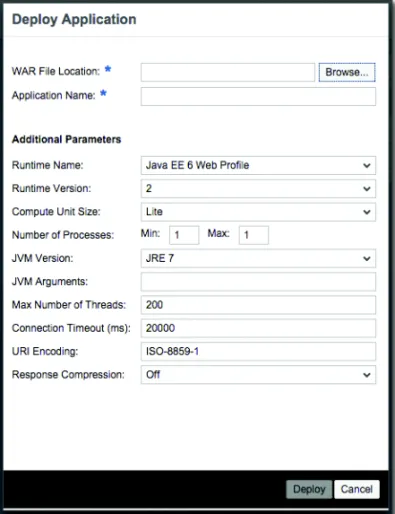
To deploy this web service in your SAP HCP trial landscape, follow these steps: 1. Visit the SAP HCP Cockpit and click on JavaApplications on the left-hand tab.
Click on the DeployApplication button. You will see a dialog that looks some-thing like Figure 12.4.
Figure 12.4 Deploying your ESPM Web Service as a Java Application
2. Click on the Browse button. Navigate to the ESPM_V1.war file in the Chap-ter12/Example12_01/ code samples directory.
3. Enter “espm” as the ApplicationName.
4. Click on Deploy. It typically takes several minutes to deploy the application into the SAP HCP landscape and have it readied for use. Upon completion of that process, you should see a screen resembling Figure 12.5.
Figure 12.5 The ESPM Web Service Deployed in SAP HCP
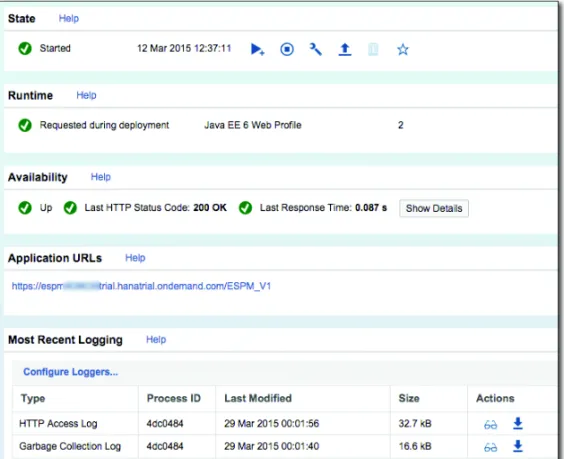
5. Click on the espm link. Scroll down to the ApplicationURLs section and click on the link you see in that section (it should end with “/ESPM_V1”; see Figure 12.6).
Figure 12.6 ESPM Web Service Application Status Display (with Application URL Shown)
6. When you click on that link, you should see something like what’s shown in Figure 12.7 in your browser. At this point, you are viewing the index.html file that was deployed along with the web service. It includes a couple of handy links (Figure 12.7).
Creating a Simple Hybrid Application using SAP HCPms and the Web IDE 12.5
Figure 12.7 The Welcome Page for the ESPM Web Service
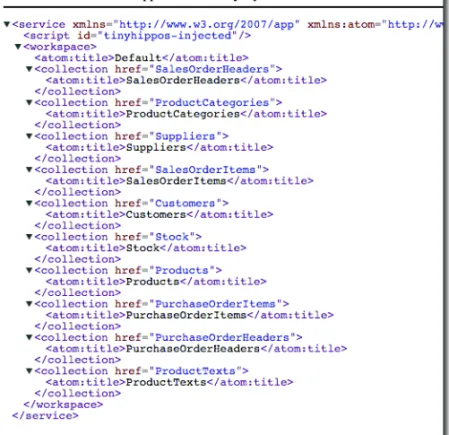
7. Click on the ServiceDocument link. You should see something like what’s de-picted in Figure 12.8.
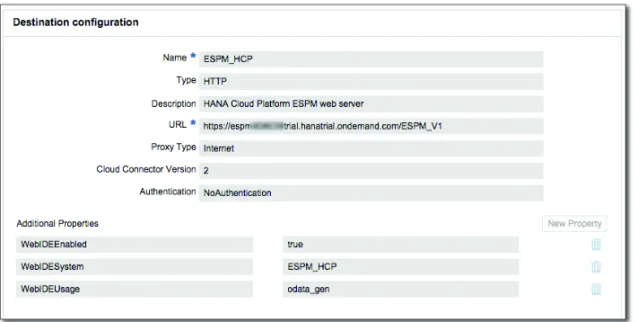
With these steps completed, you now have a self-contained database and OData web service available as the base for building your mobile application. This web application will prepopulate itself with a few hundred test records each time it is initialized. Because this web service is private to your SAP HCP trial account, you will be able to modify data any time you like without disrupting other users. 12.5.2 Creating an SAP HCP Destination for the ESPM OData Service In order to use this service within the Web IDE, you will now need to use the SAP HCP Cockpit to create a new destination. The procedure for creating destinations is described in Chapter 7, Section 7.3.3. For the destination you are creating, enter the following information:
왘Name: Enter “ESPM_HCP”.
왘Description: Enter “HANA Cloud Platform ESPM web server”.
왘URL: Enter “https://espm<your-id>trial.hanatrial.ondemand.com/ESPM_V1” 왘ProxyType: Internet
왘Authentication:NoAuthentication
As explained in Section 7.3.3, in order to make an SAP HCPms destination visible as a Web IDE application data source, you must add three properties to the desti-nation definition. In the AdditionalProperties section, add each of these key– value pairs in sequence by clicking on the NewProperty button and then insert-ing the followinsert-ing information as specified for each new property:
왘“WebIDEEnabled” and “true” 왘“WebIDESystem” and “ESPM_HCP” 왘“WebIDEUsage” and “odata_gen”
Creating a Simple Hybrid Application using SAP HCPms and the Web IDE 12.5
Figure 12.9 The SAP HCP Destination Definition for the ESPM Web Service
12.5.3 Configuring the Web IDE for SAP HCPms Development
As of this writing, the SAP HCPms components for the Web IDE are only available in the SAP HCP trial landscape, although they are expected to be available in pro-duction SAP HCP instances very soon. Also, the version of the Web IDE available in the trial landscape is typically newer than that available for SAP HCP produc-tion. Therefore, you may see differences between your Web IDE screens and those shown in this book.
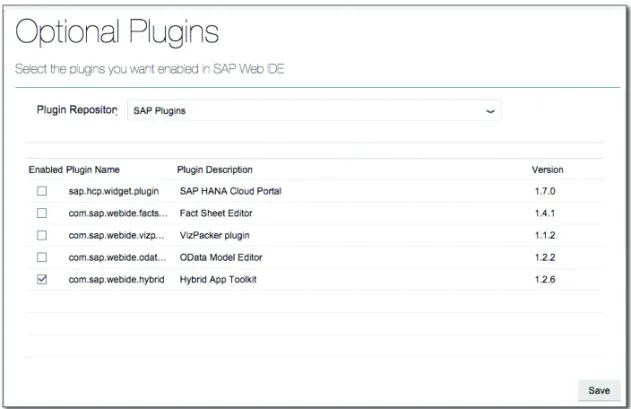
The hybrid container development capabilities are delivered as an extension plug-in for Web IDE. The following steps will enable this plug-in for your use: 1. Open the Web IDE in your browser.
2. From the menu bar, select Tools 폷Preferences….
3. Select OptionalPlugins on the left tab bar (Figure 12.10).
4. If it isn’t already selected, choose SAPPlugins as the PluginRepository. 5. Locate the HybridAppToolkit plug-in from the list. Enable it by selecting the
Figure 12.10 Web IDE’s Optional Plug-Ins Configuration (from Web IDE 1.9.3) 12.5.4 Creating a New Kapsel Project
With all the setup tasks behind you now, you can create your first mobile appli-cation using the Web IDE. In the sections that follow, we’ll walk screen by screen through a typical Web IDE new project wizard to construct a simple application.
Invoking the Master Detail Application Template
In Chapter 7, you used the Web IDE to create an SAPUI5 web application from the ground up. You started with a project composed of a single view and manu-ally connected the data source to a destination. In this chapter, we’ll leverage a more advanced new project template: the Master Detail template.
It’s a fairly common pattern in an application to start with a list of some type of data (customers or products, for example), to display that data in a list, and then to allow the user to drill down into the details of an item by selecting it. The Web IDE Hybrid plug-in provides a Master Detail Kapsel Application template that will generate that UI pattern with all the extra parts required to drop it into a hybrid container mobile application.
Creating a Simple Hybrid Application using SAP HCPms and the Web IDE 12.5
In order to kick off the process of generating your application from the Master Detail Kapsel template, follow these steps:
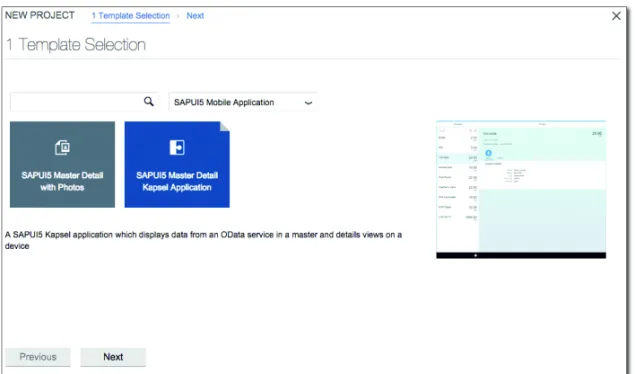
1. From the Web IDE menu, select File폷New폷 ProjectfromTemplate.
2. From the Categories dropdown (Figure 12.11), select SAPUI5Mobile Appli-cations.
3. Select SAPUI5MasterDetailKapselApplication. As you select a project tem-plate, notice that there’s a thumbnail view of the application shown on the right side of the wizard.
4. Click Next.
Figure 12.11 Web IDE’s Mobile Application New Project Templates
5. Select a project name, which must be composed of lowercase characters. We suggest using something simple for this walkthrough, such as “hybrid”. 6. Click Next.
The preceding steps are just the start. You’ve named the new project, but the new project wizard will take you through several more steps. Next, you will connect the application to your products data and map that source data to the template application.
Mapping the OData Service in the Template Wizard
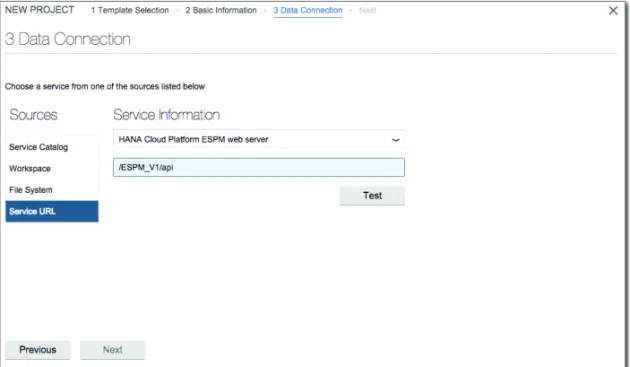
In Chapter 7, you manually connected your web service’s destination to the appli-cation within the source code. The template wizard allows you to connect directly to the destination and begin mapping data to the application code (see Figure 12.12, which resulted from clicking on Next in the previously outlined steps). To map this data, continue as follows:
1. Select ServiceURL from Sources.
2. Under ServiceInformation, select HANACloudPlatformESPMwebserver (or whatever name you assigned to the web service you installed as a Java appli-cation).
3. In the Workspace field, enter “/ESPM_V1/api”. 4. Click Test.
The wizard will verify the OData web service and display the metadata model for the service in a tree view at the right side of the panel.
5. Click Next.
Creating a Simple Hybrid Application using SAP HCPms and the Web IDE 12.5
Customizing the Template
In this next wizard step, you will be supplying elements that will be inserted into the screens of the generated application. In some cases, you are just supplying static text, such as the title of the Master screen. In many cases, though, you will be selecting collections and fields taken from your source data model. In the Tem-plateCustomization tab (partially shown in Figure 12.13), enter the following values:
왘Title: Enter “Products” 왘ODataCollection: Products
왘SearchPlaceholder: Search (the default)
왘SearchTooltip: Searchforitemsinthelist (the default) 왘SearchField: Name
왘ItemTitle: Name
왘NumericAttribute: Price 왘UnitsAttribute: CurrencyCode 왘Title: Enter “Product Details”
왘AdditionalAttribute1: ShortDescription 왘AdditionAttribute2: CategoryName 왘ODataNavigations: Suppliers
왘NavigationAttribute1: SupplierName 왘NavigationAttribute2: Country 왘NavigationAttribute3: PhoneNumber
왘Namespace: This should be the same name as the project name you entered in the first step of this wizard. In our example, this is “hybrid”.
Figure 12.13 Template Customization Tab
Hybrid Application Project Settings
Now, you need to set up the new application’s hybrid container configuration. Right-click on the newly created hybrid Web IDE project and select Project Set-tings. Select the Device Configuration tab (partially shown in Figure 12.14). Enter the following settings:
왘AppName: Enter “Products”
왘Description: Enter “Products Mobile Application” 왘AppID: Enter “com.hcpbook.hybrid”
왘AppVersion: Enter “1.0.0”
왘CordovaPlugins: Select DeviceInformation, DebugConsole 왘KapselPlugins: Select LogonManager, Offline, Push, and Logging 왘SMPServerHost: Enter “hcpms-<your-id>trial.hanatrial.ondemand.com” 왘Port: 443
Creating a Simple Hybrid Application using SAP HCPms and the Web IDE 12.5
Figure 12.14 Device Configuration Tab
Note
Replace <your-id> in the SAP Mobile Platform server hostname with your SCN user ID.
After entering all of this information, click on Save. There’s a bug in the current version of Web IDE’s plug-in, which raises an error claiming that SAP HCPms is not currently supported. If you click on Save again, the server name will be high-lighted in red, but the setting will be stored properly for use in your project. 12.5.5 Creating the Corresponding SAP HCPms Application at
the SAP HCPms Admin Console
With the basic application created as a Web IDE project, you can now transform it from a web application into a mobile application by defining it as an application in the SAP HCPms Cockpit. From the cockpit, you can administer application defi-nitions and connections to backend services and can view application registra-tions and users. The SAP HCPms Cockpit also generates many useful, real-time reports on application usage and user demographics, and enables administrative
and fault-isolation tasks, such as allowing the inspection of log files. It even pro-vides a client service to remotely control logging levels in device applications and to remotely harvest client application logs.
Log into the SAP HCPms Cockpit as follows: 1. Log in to your SAP HCP Cockpit (Figure 12.15). 2. Click on Subscriptions.
3. Click on the HCPms admin link in SubscribedHTML5Applications. 4. Click on the ApplicationURL link to open the cockpit.
Figure 12.15 The SAP HCPms Cockpit
To define an application in the SAP HCPms Cockpit, proceed as follows: 1. Click on the Application tile.
2. Click on the Add (+) icon.
3. Fill out the AddDialog section as follows (see also Figure 12.16):
왘ApplicationID: Enter “com.hcpbook.hybrid”
왘Version: Enter “1.0”
왘Name: Enter “Products”
Creating a Simple Hybrid Application using SAP HCPms and the Web IDE 12.5
왘Description: Enter any descriptive message you like
왘Vendor: Enter your name
왘SecurityConfiguration: Basic 4. Click Save.
Figure 12.16 Creating a New Application in the SAP HCPms Cockpit
At this point, the cockpit will return you to the ApplicationDetails for your new Products application. A red flag will be shown next to the ApplicationID, indi-cating that the application configuration isn’t quite complete (Figure 12.17).
Figure 12.17 Defining the New Application’s Backend Service Connection
To fix this, click on Backend and fill out the form with the following values: 왘BackendURL: https://espm<your-id>trial.hanatrial.ondemand.com:443/
ESPM_V1/api
왘AuthenticationType: NoAuthentication 왘Maximumconnections: 500 (default) 왘CertificateAlias: (empty) (default)
왘RewriteMode: RewriteURLonHANAMobileServer (default) 왘RelativePaths: (empty) (default)
왘ProxyType: Internet Click Save.
Note
Due to a defect in the current release of SAP HCPms, the backend URL must include the HTTPS port number (443), in addition to using the https:// protocol indicator.
You have now supplied enough information in the application definition that it is ready for use. There are no further steps to take in the SAP HCPms Cockpit; once the application is configured properly, it is active and ready to service requests.
Creating a Simple Hybrid Application using SAP HCPms and the Web IDE 12.5
12.5.6 Reviewing the Wizard-Created Code
It’s great that we can leverage a wizard to write code for us, but it will pay off in the long run if we take a moment to get a deeper understanding of the code that was generated. In the subsections that follow, we’ll review some of the more important sections of the application source code.
Note: New Project Templates Are Evolving Quickly in the Web IDE
SAP’s development teams are constantly improving and adding to the features in many of the Web IDE’s new project templates. An updated version of the Web IDE is being released to the developer community every month.
Logon and Application Startup
The initial application startup is found in JavaScript code that is part of index.html at the root project folder. Cordova startup varies slightly from a con-ventional SAPUI5 web application, but there’s conditional code to support both startup modes present in the generated code, as shown in Listing 12.3.
if (window.cordova || getUrlParameterName("companionbuster")) { devapp.initialize(); } else { startApp(); }
Listing 12.3 Conditional Code Supporting Both Startup Modes
The devapp.initialize() function is defined in the dev/index.js module.
Cor-dova/Kapsel applications require more elaborate initialization: Each Cordova plug-in must be initialized before use, and in order to use SAP HCPms’s services we must pass control to the SAP Mobile Platform SDK Login plug-in’s init()
function to authenticate the user and register the application. Once the Login plug-in authenticates the user, it will pass control back to the onLogonInitSuc-cess() function in the logon.js module, which in turn invokes the same start-App() function we’d jump directly into in a non-Cordova environment.
In effect, having this conditional code in place preserves the ability to use the Web IDE preview as well as to deploy the application in your hybrid container. This proves to be a handy feature, so you will generally want to leave this code untouched.
The Master List View and Controller
The main screen of this application is a list of all products. It is derived from an SAPUI5 XML-based view definition called views/Master.view.xml. All View and Controller code will be located in that same view folder.
SAPUI5 supports defining views using your choice of either an XML structured language or by simply defining the view using JavaScript code. This wizard gen-erates the views as XML definitions. If you plan to create any SAPUI5 views, then you must limit yourself to XML-defined views in any place you plan to use the Visual Layout Editor in the Web IDE.
Our list of products is the Master view; open view/Master.view.xml and examine the contents, shown in Listing 12.4.
<mvc:View ... <Page id="page" title="{i18n>masterTitle}" > ... <List id="list" items="{/Products}" ... > <items> <ObjectListItem type="{device>/listItemType}" press="onSelect" title="{Name}" number="{Price}" numberUnit="{CurrencyCode}" > </ObjectListItem> </items> </List> ... </Page> </mvc:View>
Creating a Simple Hybrid Application using SAP HCPms and the Web IDE 12.5
A few notable items are as follows:
왘The title attribute is an example of a reference to a localized string found in
the application’s i18n messageBundle properties files.
왘The items attribute of the List SAPUI5 control specifies the source data
collec-tion for the List. This can be almost any value OData URI specification, so let’s
put that to the test: change {/Products} to read {/Products?$orderby=Name}.
When you rerun the application, this will have the effect of sorting the prod-ucts in the list by the Name field.
왘Items in an SAPUI5 List control in a number of flexible ways. Each item can be
formatted with multiple subfields to obtain almost any desired look. This wiz-ard uses a composite list item called ObjectListItem. This item style displays a
title and a number along with a unit of measure, so it is very well adapted for the purpose of listing product names and prices.
If you are well-versed in SAPUI5, you are probably comfortable editing these XML view definitions by hand. If you aren’t yet, then the Web IDE provides a Visual Layout Editor. You can get a feel for how that operates by right-clicking on the view/Master.view.xml file name and choosing Openwith폷LayoutEditor (Fig-ure 12.18).
Internationalization Constructs
Internationalization support in an SAPUI5 hybrid application works exactly as it does for a conventional SAPUI5 web application. Internationalized text strings are localized in files in the project’s i18n folder. The default values for all strings are set in a file named i18n/messageBundle.properties. The contents of this file are shown in Listing 12.5.
masterTitle= detailTitle=
notFoundTitle=Not Found
notFoundText=The requested resource was not found masterListNoDataText=No entities
masterSearchPlaceholder= masterSearchTooltip=
Listing 12.5 Application’s Base String Localization Message Bundle
It’s worth noting that there is a minor bug in the current Master Detail Kapsel template, which leaves the title bar of both the Master and Detail views blank. The masterTitle and detailTitle properties in this file should have been
assigned values, but they were not. You can fix that problem while you’re visiting this file. Change the masterTitle and detailTitle properties as follows:
왘masterTitle=Products
왘detailTitle=Product Details
Localizing your application follows a standard SAPUI5 pattern. For example, if you wanted to support all dialects of Spanish, then you’d add a file named mes-sageBundle_es.properties and include values such as those shown in Listing 12.6.
masterTitle= Productos
detailTitle= Detalles
notFoundTitle= Extraviado
notFoundText= No se encontraron los datos solicitados
masterListNoDataText= No hay entradas
masterSearchPlaceholder= masterSearchTooltip=
Listing 12.6 A Sample Spanish Localization Message Bundle File
Similarly, if you wanted to provide a localized version of the strings for British English, then you’d populate a file named messageBundle_en_GB.properties. You
Creating a Simple Hybrid Application using SAP HCPms and the Web IDE 12.5
can find complete details on localization in the “Internationalization” section of the SAPUI5 Developer’s Guide ( http://help.sap.com/saphelp_hanaplatform/help-data/en/b6/d1a9511f994b3a86e2f34a32e40a34/content.htm).
12.5.7 Testing the Application
The Web IDE supports two styles of application preview for hybrid application development. The one you choose will often depend on the program features you need to test.
Web IDE Preview Mode
The first application preview style is the live preview mode that you saw in Chap-ter 7. You can access this quickly by first clicking on the index.html file in the Web IDE’s project tree and then clicking on the Run button in the toolbar. This live preview mode (Figure 12.19) executes directly in the browser, so it starts quickly. It does have limitations, though.
Because it runs in the browser, the JavaScript code that executes within your application will not have access to the full Cordova and SAP Mobile Platform SDK programming models. Based on that limitation, live preview mode is often best suited to a quick verification of UI layout.
Building and Running the Application in a Simulator
An alternative to the Web IDE preview mode is building and running the appli-cation in a simulator. In this case, mobile appliappli-cation builds will be performed on your local workstation. You will run the Hybrid App Toolkit component called the Communicator in the background. The Communicator application runs paired with your Web IDE instance (you may recall providing the URL of your Web IDE instance during the setup of the Hybrid App Toolkit; this is why you supplied that information). Similarly, the HAT Communicator also responds to commands to run your application on simulators or mobile devices, and it also controls the mobile Preview Companion App.
In order to test or run the application on a device or simulator, you must first start the Hybrid App Communicator in a shell window (Figure 12.20). The Communi-cator command script is run.cmd for Windows and run.sh for OS X. After starting
the Communicator, you are free to minimize this terminal command window. Any messages related to the commands you run will be directed to the Web IDE console.
Creating a Simple Hybrid Application using SAP HCPms and the Web IDE 12.5
You will also want to start the Android Monitor application ( http://devel-oper.android.com/tools/help/monitor.html). This application is supplied as part of the Android SDK distribution. It is located in a subfolder named tools within your Android SDK home folder. Simply double-click on the monitor executable file found in that folder. The default layout of the application will look something like Figure 12.21.
Figure 12.21 The Android Device Monitor (OS X Main Window Shown)
The Monitor application is useful for a number of development and debugging tasks. You will find detailed instructions in the Android SDK documentation, but the three most common functions are as follows:
왘RunningDDMS
This tool gives you complete access to the device or simulator’s message logs. Console messages you add to your application will be displayed in DDMS.
왘AccesstotheAndroidVirtualDevice(AVD)Manager
This tool manages the creation, configuration, and execution of any Android device emulators you’ll run on your machine.
왘AccesstotheAndroidSDKManager
Use this tool to manage which Android (and Google) SDK API releases are avail-able on your machine.
You must define a new Android device emulator configuration to test your appli-cation. To do so, proceed as follows:
1. From the menu bar, select Window폷AndroidVirtualDeviceManager (Fig-ure 12.22).
Figure 12.22 The Android Virtual Device (AVD) Manager
2. You will likely be starting with a different set of AVDs. Click on the Create but-ton; we’ll go through the steps required to create a phone emulator compatible with the SAP Mobile Platform SDK. Enter the values as shown in Figure 12.23 and click on OK.
Creating a Simple Hybrid Application using SAP HCPms and the Web IDE 12.5
Figure 12.23 Defining a New Android Device Emulator
3. Back in the AVD Manager, select the AVD you just created and click on Start. Most emulators will take a few minutes to start. Once the emulator starts, you will typically see an Android lock screen. Once you unlock the device, you will see something like Figure 12.24.
Figure 12.24 An Android Nexus 4.4.2 Emulator Window
With an Android emulator instance created using AVD, you can now deploy your application to the local workstation, then build and run it in this emulator. Within Web IDE, right-click on the hybrid project and select Run폷 Run On 폷 Android Emulator; the application will be built as a Cordova application, installed and executed on the emulator.
12.6
Adding True Mobile Capabilities
As we alluded to at the start of this chapter, a browser limits application capabil-ities and access privileges for security’s sake. It is now time for us to branch out a bit and to begin adding interactions that we can only get when we run as a mobile application. SAP sometimes refers to these as “mobile qualities” or “true mobile capabilities.” Let’s explore some of these elements now.
Adding True Mobile Capabilities 12.6
12.6.1 Disconnected Operation: The Offline Plug-In
As of this writing, the Master Detail template we’ve used generates an application that is only fully usable while online. Future roadmaps call for a more advanced version of this template that will be “offline ready.” Even if this new version isn’t available by the time that you are reading this book, it’s surprisingly easy to alter our current application to support disconnected operation. We’ll explain how to do so in this section.
The SMP Kapsel SDK supplies an Offline plug-in, which connects to the hybrid container’s web services layer. At a high level, it operates as follows:
왘The first time your application runs, it cooperates with the SAP HCPms server to provision your application with any data that it might need to access when-ever it is offline.
왘It maintains that cache of structured data, called a store, in an SAP UltraLite SQL database.
왘It tracks any records you change, create, or delete while disconnected.
왘It manages a refresh operation. Once you are reconnected to the SAP HCPms server and invoke refresh(), client-side modifications are sent to the server,
and changes at your system of record are sent down to the client to update the application’s cache store.
왘It maintains an error table in the store to record any client changes that could not be applied to a backend system for whatever reason.
왘It connects into your hybrid application directly at the web services access point, making most of these interactions transparent to an SAPUI5 program-mer.
Proceed as follows to make your hybrid test application offline-ready:
1. In index.html, starting at line 21, add the bolded lines shown in Listing 12.7.
<script type="text/javascript" src="cordova.js"></script> <script type="text/javascript" src="dev/logon.js"></script> <script type="text/javascript" src="dev/index.js"></script>
<script type="text/javascript" src="dev/smp_helpers.js"></script>
<link rel="stylesheet" type="text/css" href="css/style.css"> <script>
// OFFLINE
definingRequests = {
"Products": "/Products",
"Suppliers": "/Suppliers"
};
// END of OFFLINE
function getUrlParameterName(sParam) {
var sPageURL = window.location.search.substring(1); var sURLVariables = sPageURL.split('&');
for (var i = 0; i < sURLVariables.length; i++) {
var sParameterName = sURLVariables[i].split('='); if (sParameterName[0] == sParam) { return true; } } return false; }
Listing 12.7 Updates to the index.html File
2. From the Chapter 12/hybrid-offline-project/dev folder in the book’s code sam-ples collection (downloadable from www.sap-press.com/3638), import the file named smp_helper.js into your project’s dev/ folder; right-click on the dev folder in your project view and select Import 폷File. Navigate to Chapter12/ Example12_01/hybrid/dev/smp_helper.js and click OK.
3. Open the view/Master.control.js file and add the highlighted lines following the existing onSelect() function (the lines will be inserted around line 113 of
the existing file, as shown in Listing 12.8).
onSelect : function(oEvent) {
// Get the list item, either from the listItem parameter or // from the event's
// source itself (will depend on the device-dependent mode). this.showDetail(oEvent.getParameter("listItem") || oEvent.getSource()); }, // OFFLINE onRefresh: function() { refreshStore(); }, // END of OFFLINE
Adding True Mobile Capabilities 12.6
4. Save the file.
5. Open view/Master.view.xml as a text file. Modify the Bar (the search bar)
ele-ment to add a <contentLeft/> section that includes a Refresh button, as shown in Listing 12.9. ... <Bar id="searchBar"> <contentLeft> <Button type="Emphasized" icon="sap-icon://synchronize" text="Refresh" press="onRefresh" /> </contentLeft> <contentMiddle> <SearchField id="searchField" showRefreshButton="{device>/isNoTouch}" placeholder="{i18n>masterSearchPlaceholder}" search="onSearch" tooltip="{i18n>masterSearchTooltip}" width="100%"> </SearchField> </contentMiddle> </Bar> ...
Listing 12.9 Additions to the Master View Definition (Added Lines in Bold)
6. Finally, save the file. 12.6.2 Push Notifications
The SAP Mobile Platform SDK supports platform-independent push notifications. Each device vendor has a proprietary way of handling notifications. There is a server element in the cloud that receives a notification message, and this message typically originates from one of your backend systems after being triggered by some event. Each vendor has an always-on client component running on the device that marshals the notification to the correct target application on the device (Figure 12.25).
Figure 12.25 Push Notification Message Flow for Android Devices
SAP HCPms acts as a router of push notification messages. In order to utilize push notifications, you only need to register your intent to use push notifications with the applicable device vendors and then add the registration information and ven-dor API keys into your existing SAP HCPms application definition. At that point, there’s a single REST web services API exposed by SAP HCPms to send a message to one or more users of an application.
Testing Push Notifications on Android Requires Google Extensions
Google Cloud Messaging supplies the infrastructure for push notifications on Android devices. This is a proprietary service that will be present on any physical Android device and will also be available on an Android emulator that you have specifically configured to run the Google APIs. An emulator configured to run the conventional Android APIs will not be able to receive push notifications.
You must be signed on to the device or emulator with a valid Google ID to receive push notification messages.
Let’s add push notification support to your HCPms application (Figure 12.26). First, you will configure push in the server definition of the application. After you add support at the server, you’ll have to make some changes to the existing client application source code to complete the process. Finally, you can test the push notifications in the application.
Your Server HCP Mobile Services
REST service call Your Network Your SMP Application Definition
Apple APNS Configuration Microsoft MPNS Configuration Google GCM Configuration Apple Google Microsoft Your SMP Application (Android)
Adding True Mobile Capabilities 12.6
Figure 12.26 Push Notifications Rely on Settings in Your SAP HCPms Application Definition
Once again, we’ll limit what we’re setting up to Android, because developing for Android devices is supported by both OS X and Windows development machines.
External Changes and Subscriptions to Support Push Notifications
First, sending push notifications is limited by SAP HCPms to authorized users only. You will need to configure your SAP HCPms service to grant your user the Notification User role. To do this, proceed as follows:
1. Open the SAP HCP Cockpit in your browser. 2. Click on Service.
3. On the right-hand side of the HCP MobileServices row, you will see a Con-figureRoles button (Figure 12.27, right side); click on it.
Figure 12.27 SAP HCPms Subscription Links
4. On the following panel, locate the Role row marked NotificationUser. Click on it to highlight it (Figure 12.28).
Your Servers HCP Mobile Services
REST service call Your SMP Application Definition Apple Google Microsoft Android Push Notification Client Your Application
Figure 12.28 SAP HCPms Subscription: Roles Assignment Panel
5. Click on the AssignUser… link. In the dialog box, enter your SCN account user ID and click on Assign.
Now you will need to register your application with Google API Services and obtain a server API key. This procedure is outlined ahead. Detailed instructions can be found at the Google Developer site: http://developer.android.com/google/ gcm/gs.html. Proceed as follows:
1. Create a Google API project.
2. Enable the Google Cloud Messaging Service using your Google account. 3. Generate a server application API key. Registering for a Google Server API key
requires that you supply the IP address of your server; as the documentation indicates, you may use 0.0.0.0/0 for testing purposes.
4. At the end of your GCS server API key registration process, record the API key issued to you and the project number; the project number will become your sender ID, used in both the SAP HCPms application definition and within the application itself.
Adding True Mobile Capabilities 12.6
6. Click on the Applications tile.
7. Click on your application, com.hcpbook.hybrid. 8. Click on the Push icon in the tab bar.
9. Enter the following settings for Android (Figure 12.29):
왘APIKey
Enter the server API key provided by Google for your application.
왘SenderID
You will be issued an API project ID as part of your GCM registration pro-cess with Google. Use the project number associated with the project ID as the sender ID.
10. Click Save.
Figure 12.29 Configuring Android Push Settings in your Application
Note
The sender ID should be the project number assigned to your API project by Google.
Application Changes to Support Push
The sender ID you added to the application’s push settings must also be coded into your application. Insert the bolded code shown in Listing 12.10 after the
offline defining request definitions located near line 25 of your project’s index.html file. <script> // OFFLINE definingRequests = { "Products": "/Products", "ProductCategories": "/ProductCategories", "Suppliers": "/Suppliers" };
// Your sender ID for Android push is the project number
// (not project ID) associated with your Google API project
// see https://console.developers.google.com/project
GCMSenderID = "999999999999"; // END of OFFLINE
Listing 12.10 Adding the Google Sender ID to index.html (added code in bold)
Add this code, using your Google project number as the sender ID. Click on Save, then Deploy폷DeploytolocalHybridAppToolkit.
Testing Push Notifications in the Application
There’s a small issue you will need to work around manually. For push notifica-tions to operate correctly, you will need to obtain one special Google API JAR file and add it to the Android libraries used in the build. Proceed as follows:
1. Open the Android SDK Manager.
2. Select the Obsolete box to include older components in the tree view. 3. Install GoogleCloudMessagingforAndroidLibrary.
4. Locate the gcm.jar file in your SDK tree and copy it to ~/SAPHybrid/hybrid/ hybrid/platforms/android/libs/ (presuming your project name is “hybrid”). 5. You may then run your application from the Web IDE.
The simplest way to test the push messaging is to manually compose and send a
RESTPUSH API call directly to your SAP HCPms server. This is most easily done
using a Chrome REST API client plug-in called POSTMAN (Figure 12.30).
You can consult the SAP HCP development documentation for details on how to send a push notification message, but the following is an overview of the steps: 1. Install POSTMAN in your Google Chrome browser.
Adding True Mobile Capabilities 12.6
3. Select BasicAuth.
4. Enter your SAP HCP user credentials.
5. Select Post as the HTTPMethodtoExecute.
6. Select the destination URL: https://hcpms-<your-id>trial.hanatrial.onde-mand.com/restnotification/application/com.hcpbook.hybrid
This URL format is used to notify all users of the specified application. (Note: The synopsis of your SAP HCPms application definition shows a push URL, but it is not quite correct in the current release of SAP HCPms; replace /Noti-fication with /restnotification as shown previously.)
7. Add a Content-Type HTTP header; set the value to application/json.
8. Select Raw and JSON for ContentType.
9. Add the following payload message text: {"alert":"Your latest meme is availableforreview","data":"foo"}.
10. Click Send.
12.7
Summary
In this chapter, you’ve seen how combining SAPUI5, the SAP Mobile Platform SDK, and Apache Cordova in a mobile programming model yields an effective way to run applications on multiple devices types from a single source code base. SAP HCPms and the Web IDE, in particular, provide a rich set of tools to stream-line the mobile development process.