SND-560
1/3" High Performance WDR Network Dome Camera
Thank you for purchasing a SAMSUNG CCD CAMERA.
Before attempting to connect or operate this product,
please read these instructions carefully and save this manual for future use.
A brand that is integrated into Samsung's network products, stands for a convenient world (Polis) made safe (Police) through Samsung's superior network performance(Internet protocol). With products ' clear digital images transmitted over the internet, real-time monitoring is possible anywhere with an internet connection. Easy remote control functions and the use of existing networks minimize installation costs. With experience a world of convenience connected anytime, anywhere.
■
Preface
■
Note to User
Thanks for purchasing of SND-560 camera.
This is a user instruction manual for high resolution WDR network camera and the product mentioned here designates the high resolution WDR network camera. The user who installs and operates the product shall be aware of this manual and other manuals referenced by this manual before the installation and operation and use properly.
This manual and the software and hardware explained here are protected by copyright law.
So the copy, reprint and translation to other languages of a part of or all contents of this user manual without permission of SamsungTechwin Co., LTD are not allowed except for the copy for general use within the scope of copyright law.
This machine’s electromagnetic waves have been registered as suitable for business purposes; the retailer and consumer should be aware of this registration. If in the case of wrongful purchases, please exchange the product for a home use product.
This installation should be made by a qualified service person and should conform to all local codes.
The lightning flash with an arrowhead symbol, within an equilateral triangle is intended to alert the user to the presence of uninsulated “dangerous voltage” within the product's enclosure that may be of sufficient magnitude to constitute a risk of electric shock to persons.
The exclamation point within an equilateral triangle is intended to alert the user to the presence of important operating and maintenance (servicing) instructions in the literature accompanying the appliance.
INFORMATION-This equipment has been tested and found to comply with limits for a Class A digital device, pursuant to part 15 of the FCC Rules. These limits are designed to provide reasonable protection against harmful interference when the equipment is operated in a commercial environment. This equipment generates, uses, and can radiate radio frequency energy and, if not installed and used in accordance with the instruction manual, may cause harmful interference to radio communications.
Operation of this equipment in a residential area is likely to cause harmful interference in which case the user will be required to correct the interference at his own expense.
WARNING -Changes or modifications not expressly approved by the manufacturer could void the user’s authority to operate the equipment.
WARNING -To prevent electric shock and risk of fire hazards:
◆ Do NOT use power sources other than that specified.
Contents
Contents
• If you refer to the enclosed Quick guide and the Manual in the CD, you can learn how to use Network Manager.
Notes
■Preface… ……… …2…
■Note to User……… …2
Contents ……… 4
■Product Warranty and Limitations… ……… …6…
■Warning Symbols… ……… …6
Precautions ……… 7
Ch1. Overview ……… 8
1.1. SND-560 Network Camera Introduction……… …8…
1.2. Features……… …9……
Ch2. Production Description……… 10
2.1. Components and Accessories… ……… …10…
2.2. Section names and functions……… …11………
2.3. Recommended PC specifications……… …12
Ch3. Installation and Network Setup ……… 12
3.1. Camera Installation……… …12…
… … 3.1.1. When installing on a adapter plate……… …13…
3.2. Adjust the panning and tilting, rotating while watching the monitor……… …14………
3.3. Connecting to Monitor… ……… …15………
3.4. Connecting to Power……… …16………
3.5. Connection to External Control Connector……… …17……
3.6. Network configuration and connection method using Web page… ……… …20……
Ch4. How to Use Web Viewer ……… 24
4.1. How to Use Web Viewer… ……… …24…………
… … 4.1.1. Login… ……… …24…
… … 4.1.2. Web Viewer screen……… …25…
4.2. Using Administration page……… …30…………
… … 4.2.1. Initialization Screen after Connecting (Basic Screen)… ………… …30…
… … 4.2.2. Live……… …31…
… … 4.2.3. Basic… ……… …32…
… … 4.2.4. Network……… …34…
… … 4.2.5. Video Analytics……… …46…
… … 4.2.6. Privacy… ……… …47…
… … 4.2.7. Record (Using the SD Memory)……… …48…
… … 4.2.8. User……… …50… … … 4.2.9. Motion Detection……… …52… … … 4.2.10. Alarm/Sensor……… …53… … … 4.2.11. Time……… …56… … … 4.2.12. LOG… ……… …57… … … 4.2.13. Upgrade… ……… …58… … … 4.2.14. System Reboot……… …59
Ch5. How to Operate Camera ……… 60
5.1. Setup MENU……… …60…
5.2. How to Set Up Functions……… …61…
… … 5.2.1. LENS… ……… …62…
… … 5.2.2. EXPOSURE……… …62……
… … 5.2.3. WHITE BALALACE (WHITE BAL.)……… …64……
… … 5.2.4. BACKLIGHT… ……… …65… … … 5.2.5. SSNR… ……… …67…… … … 5.2.6. DAY/NIGHT……… …67…… … … 5.2.7. IMAGE ADJ……… …69… … … 5.2.8. SPECIAL……… …70… … … 5.2.9. EXIT……… …74…
Ch6. Troubleshooting ……… 75
Specifications… ……… …77… Dimension……… …79■
Product Warranty and Limitations
■
Warning Symbols
Danger
The manufacturers of this product do not take any responsibility for this product; therefore, the manufacturer does not authorize the third-party, but allows that retailer is responsible.
The product warranty does not extend to cover accidents, negligence, abuse, or wrongful use for the whole or any part of the product. Additionally, the manufacturer does not provide warranty for any additional parts or affiliations.
The warranty does not extend to malfunction in these areas. ·Malfunction due to user’s negligence
·Dismantlement or replacement by the user ·Connection to alternate power source
·Malfunction due to natural disasters (fire, flood, tsunami, etc.) ·Replacement due to wear and tear
·Instability of network
Before attempting to connect or operate this product,
please read these instructions carefully and save this manual for future use.
· Random replacement of built-in battery by other types of batteries may cause explosion. The battery shall be replaced by the same battery. The used batteries shall be disposed carefully because they can cause environment pollutions.
· The battery shall be replaced by the same battery.
· The used batteries shall be disposed carefully because they can cause environment pollutions.
· The lithium battery incorporated in this product is not user replaceable. Replacement of the lithium battery will be done by a trained technician.
· For information on its replacement, please contact your service provider. Danger :
Misuse or wrongful operation of the product may result in death, injury or bring about other fatal results. It indicates absolute caution when operating.
Caution :
Misuse or wrongful operation of the product may result in slight injury or damage to the product. It indicates caution when operating. Note :
Indication that the user needs to be aware of certain matters, or will find matters helpful in operating the product.
Samsung Techwin cares for the environment at all product manufacturing stages to preserve the environment, and is taking a number of steps to provide customers with more environment-friendly products.The Eco mark represents Samsung Techwin’s will to create environment-friendly products, and indicates that the product satisfies the EU RoHS Directive.
Precautions
Do not install under extreme
temperature conditions. Do not install in high humidity environment.
The lens is the most important component of the camera. Be careful not to smear it with fingerprints.
Severe lighting changes or flickering may hinder normal camera operation.
May lower image quality. Use only under temperature conditions between
-10ºC and +50ºC. Provide good ventilation when using in high temperature conditions.
Avoid touching the camera lens.
Do not drop the camera or subject it to physical shock.
May damage the CCD. May cause a product malfunction.
Never keep the camera face to strong light directly. Do not install under unstable
• Exposure to a spotlight or an object emitting strong light may cause smear or blooming. • Ensure that the power source complies with normal specifications before supplying it to
the camera. Notes
Do not expose the camera to radioactivity.
If it is exposed to radioactivity, For heated CCD, it will be out of order.
Precautions
Ch1. Overview
1.1. SND-560 Network Camera Introduction
1.2. Features
The SND-560 is a high-tech network camera that uses MPEG-4 codec technology
to allow high compression rates and clear picture quality by allowing for high
frame rates to be transmitted through the network.
By using the network, remote connection, monitoring, and control is possible
from any location for simple use; additionally, set-up requires only a network.
The SND-560 Network Camera utilizes embedded software solutions (Embedded
Web Server, Embedded Streaming Server, Network Protocol) developed by
SamsungTechwin, and guarantees performance and safety while offering
various solutions through Internet integration.
Wide Dynamic Range (WDR)
High sensitivity against low illumination The main function of the Wide Dynamic Range (WDR) is to accumulate the scope of contrast between the brightest and darkest points in the picture. WDR employing SV-IV chipset provides prominent back light compensation effect in high-contrast environment.
Diagonal 6 mm (1/3”) CCD of enhanced sensitivity and DSP chipset catch contour and color of objectives only with starlight illumination in the dark, which provides reliable outdoor surveillance performance. - 0.001Lux (Lux for color mode)
- 0.00004Lux (Lux for black and white mode)
DAY & NIGHT fuction
Day & night function and Sens-up function by ICR (IR Cut-Filter Removal) operation produce high quality images for 24 hours.
Sens-Up function delays exposing time to improve CCD sensitivity.
Day & Night function allows users choose color mode or BW mode depending upon illumination.
PoE (Power Over Ethernet) PoE function is to supply power through the LAN cable together with data transmission without power cable for user convenience.
DIS (Digital Image Stabilizer) DIS (Digital Image Stabilizer) function compensates camera shaking to obtain clear-cut images.
SD Memory function
SD Memory function is to memorize an event at the SD Memory when it activated.
Privacy function
Privacy function is to determine surveillance area not to display on the monitor for privacy protection. Multi-channel Real-time image
encoding
Single Chip MPEG4 and JPEG codec enables real time image encoding and transmission through multi-channel of classified resolution of D1/CIF/QCIF. High Resolution
The horizontal resolution of 560TV lines at color mode and 700TV lines at BW mode can be achieved by using a high density SONY CCD having double speed 410,000 pixels, which provides clean, noiseless and reliable pictures.
Ch2. Production Description
1 SND-560 2 User’s Manual / CD / Quick Guide
3 DC 12V Adaptor / Power Cord 4 Cross Cable
5 M4 Tapping Screw 3EA 6 Installation Video Output Cable
7 Installation Template
2.1. Components and Accessories
❶… 2…… 6 7 3 4 5 ❿ ⓫ 1 2 3… 6 7 8 9 4 5
❶ Pan Base : control panning angle of camera
2 Rotate Base : control rotating angle of camera
3 x3.6, 2.8 - 10.0mm (F1.2)
4 Rotate Base Holding Screw : fix rotated position
5 Pan Base Holding Screws (Color : black) : fix panned position
6 Audio Input/Output Jack 7 Alarm Jack
8 Ethernet 9 Power
❿ Shield Case ⓫ Dome Cover
• When you connect SND-560 network camera to the PoE apparatus, the voltage transferred via LAN cable may be abnormally high. Please contact to our distributor for installation or dismantling PoE system.
Notes
2.2. Section names and functions
Ch1. Overview
High data compression ratio
Additional functions High compression in MPEG-4 provides fast
transmission and relatively high volume transmission of frame in the same network band.
SENS-UP, Mirror, SHARPNESS, SYNC choice (INT/LL) Combination of motion detection and alarm
Combination of motion detection, video analytics and alarm enables still image storage in the SD Memory or transmission of still image via email or FTP. SSNR (Samsung Super Noise
Reduction)
Samsung’s high performance DSP chipset SV-IV reduces GAIN variance effectively to deliver clean and clear-cut images.
1) Separate the dome cover by counterclockwise rotation. 2) Separate the shield case by pulling from the camera body.
Ch3. Installation and Network Setup
3.1. Camera Installation
2.3. Recommended PC specifications
Latch Locking direction [Figure-1] Unlocking direction(Counterclockwise) Locking direction(Clockwise) Main Body (Camera)
Shield Case
Dome cover
* To install the dome cover on the camera body, turn the latches in locking direction as shown in the figure 1.
• The installation should be done by qualified service personnel or sysytem installers. • If the ceiling material is not strong enough to hold the installation screws, the camera may
fall off. Reinforce the ceiling as needed. Notes
3.1.1 When installing on a adapter plate
① Place the installation template on the installation surface.
② Bore three holes signed on the installation Template through the installation surface and place the camera body and fix it with the M4 tapping screws.
③ When placing the camera body on the plate, make sure the power and the ETHERNET cables pass through their respective designated holes.(When placing the cable through its side, thread it through the hole at the bottom.) ④ After installation and adjustment of the
camera are complete, secure the dome cover by turning it clockwise. Unlocking direction Dome cover adapter plate
An arrow for installing directions
CAMERA
Locking direction
Items Specifications
CPU Intel core2 duo E4300 or higher processor
Main Memory 2GB or higher RAM
VGA 256M or higher recommended
OS Window 2000, XP, 2003
Web Browser Internet explorer 5.5 or higher
Resolution 1024*768 or higher
Network 10/100 Base-T Ethernet
DirectX 9.0C or higher
Ch3. Installation and Network Setup
3.2. Adjust the panning and tilting, rotating while watching the monitor
73˚ -170˚ 145˚ 195˚ 170˚ Pan Base Tilt Base Rotate Base1) You can adjust camera to any direction by using Pan, Tilt, Rotate mechanism.
• Pan Base moves by 170˚ to each side direction and 340˚ on the whole. • Tilt Base covers total 146˚ angle(73˚ to each side).• Angle range of Rotate Base is the same as that of Pan Base. But One side range is 195˚ and another is 145˚
2) Methods of adjustment
• The case of wall installation… 1 After mounting the camera on a wall, adjusting the panning angle so that the camera can
face the direction to monitor when tilting.
… 2 And then adjust the tilting angle by rotating the tilt base. … 3 Loosen the rotate base hold screw and adjust rotate base for the best monitoring.
… 4 Tighten the rotate base hold screw.
• The case of ceiling installation
… 1 After mounting the camera on a ceiling, adjusting the panning angle for better monitoring
area by rotating the pan base.
… 2 And then adjust the tilting angle by rotating the tilt base. … 3 Loosen the rotate base hold screw and adjust rotate base for the best monitoring.
… 4 Tighten the rotate base hold screw.
3.3. Connecting to Monitor
Connect the VIDEO-OUT jack to the VIDEO-IN jack of monitor.
• As the connecting method varies with the instruments, refer to the manual supplied with the instrument.
• If necessary, you can connect the monitor to the REMOTE jack on the body of your camera. • Only connect the cable when the power is turned off.
SND-560 Network Camera Monitor
• This product is the network camera which transmits video through network, video output
terminal is for installation and used to determine imaging range when installing the product.
• Please make sure that the video output terminal of this product is not connected to any
recording equipment as this can cause problems. Notes
• As shown in the table above, voltage decreases as the wire gets longer. Therefore use of an excessively long adaptor output line for connection to the camera may affect the performance of the camera.
…Standard voltage for camera operation : DC 12V±10%, AC 24V±10%
…There may be some deviation in voltage drop depending on the type of wire and the manufacturer. When the resistance value of copper wire is at [20°C(68°F)]
Copper wire size (AWG) #24(0.22mm2) #22(0.33mm2) #20(0.52mm2) #18(0.83mm2) Resistance (Ω/m) 0.078 0.050 0.030 0.018 Voltage Drop (V/m) 0.028 0.018 0.011 0.006
Ch3. Installation and Network Setup
3.4. Connecting to Power
■ AC/DC PowerBoth of AC24V and DC12V can be used for the input power of this product.
When using other adaptor not the adaptor (DC12V/4A) provided by the company, make sure that the specification is over AC 24V/1A or DC12V/2A.
■ PoE(Power Over Ethernet)
POE(Power Over Ethernet)is the function of LAN related devices, which supports data and power simultaneously with only connection of LAN cable without separate power input cable installation for power excitation to the product.
When connecting camera to PoE device, please connect to the device complying with PoE (IEEE802.3af) specifications. In case non-standard product is used, it may cause performance degradation or trouble.
The input order of terminal from left is Alarm input/Alarm output/Ground.
When connecting cable, push stripped part of electric wire in while pushing quadrangle button and take hands off from the button then the wire will be fixed.
■ AC/DC Combined use
• In case PoE and power adaptor are connected to camera simultaneously, the power
authorized first by the product is used. Notes
3.5. Connection to External Control Connector
❶Alarm Input 2Alarm Output 3Ground
CMOS Output GND Open Collector 2.2KΩ 10KΩ Relay Power Output Alarm Out Relay Relay
Ch3. Installation and Network Setup
■ Connecting Alarm Input
This is the input terminal for external alarm signal, use it by connecting as following.
■ Connecting Alarm output
This is the output terminal for external alarm signal, use it by connecting as following.
• In case of selecting Normal Open at setup menu :
In case of contact type, it is short and in case of active type, sensor input acts at “LOW” level. • In case of selecting Normal Close at setup menu :
In case of contact type, it is open and in case of active type, sensor input acts at high impedance status(open collector).
• Alarm output part is Open Collector structure and can be composed by using relay. Rated maximum value is DC +24V, 100 mA.
Sensor Camera Internal GND Alarm In 10KΩ 120Ω 3.3V Sensor Input 5.1KΩ
Ch3. Installation and Network Setup
3.6. Network configuration and connection method using Web page
Use when there is one SND-560 network camera to be installed. 1. Please connect user’s PC to SND-560 network camera using cross cable.
2. Please launch a Web browser on user’s PC and enter [192.168.1.100] in the URL address field and push <Enter> button. Connect to Webviewer login window of SND-560 network camera.
3. Please login with administrator’s authorization and move to ‘Network’ page.(Default value for administrator login is ID: admin, PW:11111111)
Note
Note
• Default value is ID: admin, PW: 11111111 • After pressing internet protocol (TCP/IP)properties, press the ‘advanced’ button to go into advanced configurations.
• Add with 192.168.1.XXX.
• 192.168.1.100 is the IP address for the camera and will be unavailable as an internal IP
address. Notes
Ch3. Installation and Network Setup
4. Please configure according to the network environment where SND-560 network camerawill be installed and push <Save> button to save the configuration.
①LAN / xDSL/ DHCP Configuration
②Port Configuration
Item Description
LAN Use When network product is connected to normal local LAN or when connected to static IP, the network data to be allotted to the IP is configured.
xDSL When using xDSL dynamic IP, enter the ID and PW. DHCP
When automatically receiving IP through DHCP server, the DHCP functions are activated. ‘DHCP’ is used in the LAN environment where the DHCP is activated. Generally, for mid/large scale, DHCP servers are operated through LAN and for small-scales, IP sharers use DHCP functions.
Item Description
Port Setting The connection port and http, ftp port configurations can be set here and the DDNS use can be checked.
Note •
Use DDNS changes its IP address every time the user attempts to connect to theISP and when the product is connected to a cable modem or xDSL modem. In this case, the user cannot know the changed IP address. When a product that uses dynamic IP is registered on the DDNS server, when wishing to connect to the product, the changed IP address can be easily recognized. Register the product in the DDNS server in order to register the IP address in the DDNS server. Enable the “Use DDNS” option and enter the submitted ID and password into the server.
Ch4. How to Use Web Viewer
4.1. How to Use Web Viewer
4.1.1. Login
4.1.2. Web Viewer screen
To connect the login page, enter IP address of the camera on a internet Web browser and push enter key.
Web Viewer screen is composed of menu area for camera/video configuration and screen area for displaying input video from camera.
Video Analytics (Convert to Video Analytics mode)
This button is activated when the Video Analytics Enable option is selected on the Video Analytics page. A menu arrangement of the Analytics mode is different with one of the Control mode.
Enter user ID and password and push <Login> button, then it move to related Web page. (Default value is ID: admin, PW: 11111111 ) If you click <Guest> button, it move to WebViewer page under the Guest authenticated status. In this case, administrator should permit the Guest connection.
■ Controls SND560
Note
• If you logged in first as a administrator mode, please change the password of administrator. It can prevent from other users connection to administration page.SND560
SND560 SND560
SND560
Ch4. How to Use Web Viewer
RESET (Displayed when the Video Analytics mode is on) This sets the current screen image to the background.
Flip Image
Turns the screen upside down.
Stretch Image
Expands the screen to the size of D1 when selecting CIF and QCIF for resolution.
Save Image
Saves the channel screen as a JPEG file. Compression
Video compression mode (the mode of compressing video)
- MPEG, JPEG Resolution
Video resolution (the size of video screen transmitted) - NTSC : D1(704x480), CIF(352x240), QCIF(176x120) - PAL : D1(704x576), CIF(352x288), QCIF(176x144) Frame Rate - Setting on the Basic page
The number of maximum video frame transmitted for each second.
Alpha branding (Displayed when the Video Analytics mode is on) Makes changed parts appear half-transparent.
• It is not recommended to use alpha branding in the low specification system.
Notes SND560
How to Use the Camera
- 1, 5, 10, 15, 20, 25, 30Quality - Setting on the Basic page Video quality
- Very High, High, Normal, Low, Very Low
Ch4. How to Use Web Viewer
SND560
Pause : Stops video for a while.
OSD : Displays related information. Day&Night : Day&Night configuration function (Color, B/W configuration)
<↑>, <↓> button : Moves selection displaying arrows up and down on camera OSD menu. <←>, <→> button : Changes configuration of selected field on camera OSD menu. <Set> button : Displays camera OSD or moves to upper/lower menu of selected field. <Exit> button : Terminates camera OSD.
Camera Setup : Displays OSD control button of camera. Displays the title
Camera OSD is displayed
Removes the title
SND560
■ Instruction for Camera OSD control button
* For configuring the function and detail operating method of SND-560 network camera, refer ‘ch5. How to Operate Camera’.
Ch4. How to Use Web Viewer
4.2. Using Administration page
4.2.1. Initialization Screen after Connecting (Basic Screen)
When connection is successful, the below screen will be displayed.
4.2.2. Live
Please Move to Web Viewer page
Ch4. How to Use Web Viewer
4.2.3. Basic
Setup menu for basic configuration.
■ Video/Audio Setup
■ Product Information
Item Description
Video Format If you select the type of camera installed (NTSC or PAL), you can choose the size of the view on the camera.
Item Description
Compression Type Video compression type (This defines how the video is compressed.) Initial Resolution Defines the size of the live screen view.
Video Quality Selects the video quality. You can still view uninterrupted video with the quality reduced if you use a low speed Internet connection.
Video FrameRate Defines how many frames the camera will transfer per second. Video Channel Defines what video channel will be used by the camera. Audio-In Channel Determines whether to use an audio input channel for the camera. Audio-Out
Channel
Determines whether to use an audio output channel for the camera.
Max User Count Specifies how many users (up to 20) can connect to the camera via the network. Microphone
Sensitivity
Audio Amplifier
You need to set the sensitivity to Low with an amplifier-equipped microphone and to High with an amplifier-free Microphone (set it to low for line-in signals).
Item Description
Model Describe camera model. Mac Address Describe MAC address of camera.
Camera Name Name each camera to identify multi cameras on the network. Location Describe each camera location.
Description Describe more information of camera. Memo Describe contact number of the camera operator.
Ch4. How to Use Web Viewer
4.2.4. Network
Network Configuration menu.
■ Network Configuration
■ Port/DDNS Configuration
■ Continuous Jpeg Image Transmission
Item Description
LAN Configure network assignment information of a camera connected to the local area network or to the static IP of xDSL modem. xDSL For dynamic IP of xDSL, enter ID and password of xDSL in the username box and password box. DHCP For IP router or cable modem interface, select DHCP.
Item Description
Connection Port Connection port is to control communication with camera. (Default : 4000) HTTP Port/
FTP Port
HTTP /FTP port is to access to the camera web page or to use FTP function. (Default : http=80, ftp=21)
Use DDNS Determine use of DDNS server. DDNS allows you to connect to the server transforming dynamic IP.
Item Description
Enable Determine use of Continuous JPEG Image Transmission function. FrameRate Determine frame rate (frame per seconds) to send out. Server Name Enter domain name or IP address of the FTP server.
Home Directory Configure home directory to store assigned data of the FTP server. User ID Enter ID to access to the FTP server.
User Password Enter Password to access to the FTP server.
You can select LAN interface for static IP configuration, xDSL modem and DHCP for cable modem.
Ch4. How to Use Web Viewer
■ Continuous Jpeg Image Transmission
Item Description
RTSP/TCP Enable Determines whether to use RTSP/TCP. RTP/UDP Enable Determines whether to use RTP/UDP. RTP/
Multicast Enable Determines whether to use RTP/Multicast. Streaming Image The default setting of Multicast IP is 224.0.1.1. Resolution Determines the resolution of the Streaming Engine.
• Unicast RTP streaming (RTP over UDP) is the adequate image transmission method to send out the latest image despite of video loss.
• RTP over RTSP (RTP tunneled over RTSP) is useful to install a relatively simple firewall which accepts RTSP data streaming.
• Multicast RTP (RTP over UDP) sends out the latest video image to the users anytime despite of video loss.
• It is more efficient to use broadband transmission to broadcast video image for multi users simultaneously. Since multicast through internet is not available, you need a router to allow multicast.
■ DDNS Usage
Registration process of DDNS is as following
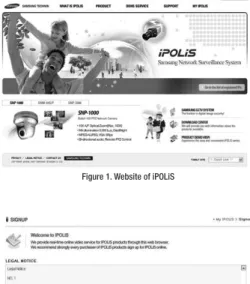
The website is ‘www.samsungipolis.com’.
❍
…Step1) Complete the registration form in iPOLiS website.Figure 1. Website of iPOLiS
Figure 2. Membership Registration: SIGNUP
Note
Note
• Unicasting is adequate to VOD (Video On Demand) broadcasting, since it sends out video data only with data transmission demand.
Ch4. How to Use Web Viewer
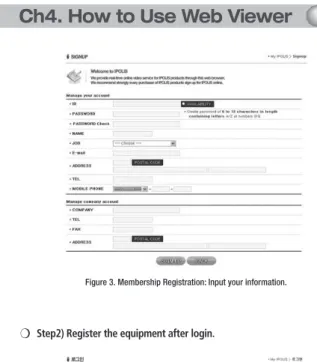
Figure 3. Membership Registration: Input your information.
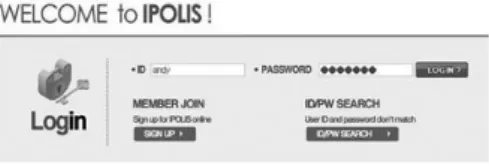
Figure 4. Login
Figure 6. Product Registration. (Confirm repetition certainly at domain registration.)
❍
…Step2) Register the equipment after login.Ch4. How to Use Web Viewer
Figure 7. The list of registered equipment.
• Click the part of Network Configuration in website of Network Camera. • Click “USE DDNS” in order to do “Enable” and input the address of DDNS Server
(Default: www.samsungipolis.com )
• Enter the ID and Password that is written when register product is in iPOLiS website.
The Configuration of DDNS in SND-560 is Completed.
Figure 10. Edit/Delete
Ch4. How to Use Web Viewer
❍
…Step4) Confirm the connection status of relevant product in product list of iPOLiS website.Figure 8. The List of Product.
Figure 9. Product information
Be able to confirm the information of connected equipment if click <check> button of ‘Product information’.
Move to Login website of relevant product if click <view> button of ‘ view’. The buttons which are <Edit> and <Delete> of ‘product management’ move to relevant page through input password to item that fertilize or erase information of registered equipment in List of product. Only, ‘ID(Domain)’ of product should establishes again as ‘ID(Domain)’ after deleting because it can’t be fertilized.
■ How to use Streaming Engine
We recommend VLC media player among Streaming Engine products. Click the certain function of Streaming Engine and press <Save> button. - To update Network Page configuration, the system will reboot. When you execute VLC media player, below screen capture will appear.
❍
…Step1) Network Page configuration❍
…Step2) VLC media player execution• RTP/UDP connection
Select ‘FILE’ in the menu and click ‘Open Network Stream…’.
Enter ‘rtsp://[serverip]/mpeg4unicast’ in the RTSP URL and press <OK> button to connect to RTP/UDP.
Ch4. How to Use Web Viewer
• RTP/TCP connection
Select ‘Settings’ in the menu and click ‘Preferences...’ then check the ‘Advanced options’ box at the bottom of right side of the monitor, below options will appear.
• RTP Multicast connection
Enter ‘rtsp://[serverip]/mpeg4unicast’ in the RTSP URL to connect to multicast.
Check the ‘Use RTP over RTSP (TCP)’. Enter ‘rtsp://[serverip]/mpeg4unicast’ in the RTSP URL and press <OK> button to connect to RTP/TCP.
Ch4. How to Use Web Viewer
4.2.5. Video Analytics 4.2.6. Privacy
The Analytics feature compares the current screen against the one at the time of clicking on Set
button and marks changed areas. It can detect up to 5 areas. For privacy protection, you can specify areas to hide.
Item Description
Video Analytics Enable Determines whether to use Video Analytics.
Transition Time Shows the period of time maintaining a changed screen for Detection. (3, 6, 9, 12, or 15 sec)
Item Description
Reset Time This is the time needed to convert the current screen to the standard one. (30 or 60 sec, 10 min, 30 min or ∞) Stable Ratio Determines whether to detect an object, depending on the size. (1:Low - 5:High)
Item Description
Grid Display Auto hide mode of screen split tool to select area. Select Area
In the process of Privacy configuration, press <Select All> button to configure the whole screen or press <Deselect> button to cancel the configured screen area.
Privacy Enable Determine use of Privacy function.
Item Description
Blending Level Blending Level function is to determine masking transparency of excluded area in the range of 1 to 255. Level 255 is perfect transparent.
Masking Color Masking color can be selected among Grey, Blue and Violet..
• When Video Analytics is enabled, the motion detection feature is automatically disabled.
Ch4. How to Use Web Viewer
4.2.7. Record (Using the SD Memory)
When Motion Detection, Video Analytics or Sensor is detected, you can save them. Then, if an Event is occurred, you can also watch them.
Item Description
SD Memory Size It shows total storage capacity of SD memory. SD Memory Using Size It shows SD memory occupation. SD Memory Free Size It shows balance capacity of SD memory.
Item Description
Overwrite In the event of memory overflow, it erases record files chronically and records new events.
Analytics Detection
Recording When Analytics is detected, you can save it. Motion Detection
Recording When a motion is detected, you can save it (MD). Sensor Detection
Recording When the Sensor detects a motion, you can save it. Plays the video.
Stops the video. Pauses the video.
Save the video image as a JPEG file.
Event Record List
Event record list stored in the SD memory.
※ This system records images 5 seconds before and after the event.
※ You can record Event up to one minute.
• We provide SD Memory card only, not the MMC.
• Only 128MB - 2GB SD cards can be used while 4GB SDHC is supported. • We recommend the FAT32 format.
• Make sure that you turn off the camera before you insert or take out the SD memory card.
4.2.8. User
This describes password change for administrator or user registration.
Ch4. How to Use Web Viewer
Item Description
Administrator
Password Change Change password of administrator
Guest Setup User clicks ‘Guest’ button to decide whether allowing guest to connect Main Viewer. Current User You can register new user or delete, and set up user’s authority. The default password is user1 - user5.
Item Description
Video Use video related setup function (Compression, Resolution, Video Analytics) Control Audio output, Alarm output
Audio Audio Input
USE Whether relevant account is used(If not checked, not allowed log-in)
■ Set up user authority
User’s authorities set up at ‘Current User’ are as follows.
• Example 1) In case control function is limited (Do not check Controls box)
• Example 2) In case video function is limited (Do not check Video) * audio output, alarm output function icon is inactivated
4.2.9. Motion Detection 4.2.10. Alarm/Sensor
This sets up motion detection function of camera. This sets up necessary information when using alarm function by attaching sensor to camera.
Ch4. How to Use Web Viewer
Item Description
Grid Display Basic grid, used to choose area on the screen, is displayed or hidden. Select Area When selecting motion detection area, click <Select All> button to select all areas, or click <Deselect> button to cancel the selected area. MD Enable Decide whether you use motion detection function.
Item Description
MD Sensitivity Setting up sensitivity to detect motion to adjust input video by situation. You can select 1-5, and 5 is the highest.
• When the motion detection feature is enabled, the Video Analytics feature is automatically
disabled. Notes
Ch4. How to Use Web Viewer
Item Description
Sensor No. Shows the sensor number (Sensor1).
Sensor Type Types of sensors are ‘Normal open’ and ‘Normal close.’ This selects up type of connected sensor.
Item Description
FTP
Server Name Enter domain or IP address of FTP server.
Home Directory Set up home directory to save relevant data at FTP server. User ID Enter ID to connect FTP server.
User Password Enter PW to connect FTP server.
Item Description FTP Recipient E-mail Address 1 Recipient E-mail Address 2
You can designate up to two e-mail address receiving data when alarm occurs.
SMTP Server Name
If you use an external E-mail server, enter the name of the E-mail server.
Use Authentication
If you use an external E-mail server, determine whether to use ID and password.
ID Enter ID to connect the outside e-mail server. Password Enter PW to connect the outside e-mail server. Mail Subject Enter the subject of mail to be transferred. Mail Body Enter the body of mail to be transferred.
Item Description
Alarm Set up Digital Out responding when event is recognized by connected sensor (Sensor 1), Video Analytics or Motion Detection (MD)
Duration Set up time to operate relay. It means the period from the time when sensor detects event to the time when relay is released. (1, 2, 3, 4, 5, 30 sec and 1, 2, 3 min, or always)
FTP In case event occurs by sensor (Sensor 1) or Motion Detection (MD) or Video Analytics on the screen, decide whether transferring related information to FTP.
E-mail In case event occurs by sensor (Sensor 1) or Motion Detection (MD) or Video Analytics on the screen, decide whether transferring related information by e-mail.
■ Alarm/Sensor Setup
■ FTP/E-mail Setup ◊ Digital In Setup
Set up FTP server and e-mail information to which related information is transferred in case alarm occurs.
◊ Digital Out Setup
Note
• When an event is occurred, a copy of JPEG-format image is transferred to the E-mail or FTP server.Ch4. How to Use Web Viewer
4.2.11. Time
Item Description
Date Current setup date displayed
Time Current setup time displayed
Item Description
Set Manually Adjust time manually.
Time Server Set up address of time server for Server 1 - 5.
Item Description
Lines Set up number of lines of the list.
View Log is viewed with number of lines you set up most recently.
Clear Delete logs.
Send Log to Administrator E-mail per Day
Sends logs to the administrator via E-mail at the same time (04:00) every day.
■ Current Time
■ Time Setup
4.2.12. LOG
Ch4. How to Use Web Viewer
4.2.13. Upgrade 4.2.14. System Reboot
Upgrade program of SND-560 network camera.
Server is rebooted after confirmation procedure of administrator.
Click <OK> button to reboot server. ■ System Upgrade Configuration.
■ Factory Mode Setup
If you click <Reset> button, server is returned to initial value when shipped from the factory after confirmation procedure by administrator.
Item Description
SND-560 Firmware Upgrades the firmware of the SND-560 network camera.
• If you perform the Factory Mode Reset function, the IP will be reset to 192.168.1.100, a value
set at the time of shipment from the factory. In this case, you may not log in depending on the installation environment.
• When you reset a camera function related to video, you need to initialize the setting of the
OSD menu as well (see How to Operate Camera in Chapter 5). Notes
Ch5. How to Operate Camera
5.1. Setup MENU
Setup Menu
LENS ●DC
EXPOSURE ●●SHUTTER RETURN ●AGC ●SENS-UP WHITE BALANCE ●●ATW OUTDOOR ●●MANUAL INDOOR ●AWC→SET
BACKLIGHT ●OFF ●BLC ●WDR
●HLC
SSNR ●ON ●OFF
DAY/NIGHT ●COLOR ●B/W ●AUTO
IMAGE ADJUSTMENT
(IMAGE ADJ.) ●
V-REV ●H-REV ●D-ZOOM
●SHARPNESS ●RETURN SPECIAL
●CAMTITLE… ●SYNC… ●MOTION DET…
●PRIVACY… ●DIS… ●LANGUAGE
●RESET… ●RETURN EXIT
5.2. How to Set Up Functions
Use OSD button displayed on Web Viewer screen to set up functions. • : OSD button is popped up in Web Viewer.
1. Please press the <SET> button.
• Main setup menu is displayed on the monitor screen.
MAIN SETUP 1.LENS DC 2.EXPOSURE 3.WHITE BAL ATW 4.BACKLIGHT OFF 5.SSNR ON 6.DAY/NIGHT AUTO 7.IMAGE ADJ 8.SPECIAL 9.EXIT
Select the function using the UP
or DOWN button Change the status using the LEFT or RIGHT button..
2. Select a desired function using the Up and Down buttons. • Place the cursor over a desired item.
3. Set up a selected item by using the Left and Right buttons. 4. To finish the setting, select ‘EXIT’ and press the SET button. 5. Press the OSD button to quit OSD.
• An item with the icon also has sub menus. To select a sub menu, select an item with the icon and press the SET button.
• An item with the - - - icon is unavailable due to function settings. Notes
Ch5. How to Operate Camera
5.2.1. LENS
5.2.2. EXPOSURE
Using this function, you can control screen brightness.
MAIN SETUP 1.LENS DC 2.EXPOSURE
• DC : Auto iris lens selection
When DC is selected, you can control screen brightness. The range of brightness control is between 1 and 70. Adjust the brightness appropriately for optimal screen brightness.
• MANUAL : Select Manual lens
• To produce better results with A.FLK, do not use it in conjunction with the WDR mode of the BACKLIGHT menu.
• When the SHUTTER is set to A.FLK mode, SENS-UP will be disabled. Notes
MAIN SETUP 1.LENS DC 2.EXPOSURE 3.WHITE BAL ATW
1. When the SETUP menu screen is displayed, select EXPOSURE by using the Up and Down buttons so that the arrow indicates EXPOSURE.
2. Select a desired mode using the Up and Down buttons. • SHUTTER :
- A.FLK : Select this when you experience picture flicker, which can happen when there is a clash with the frequency of the installed lighting.
• AGC (AUTO GAIN CONTROL) : The higher the gain level, the brighter the screen - but the higher the noise.
- OFF : Deactivates the AGC function.
- LOW : Allows automatic gain control from 0 to 30dB. - HIGH : Allows automatic gain control from 0 to 42dB.
• SENS-UP : When it is night or dark, the camera automatically detects the light level and maintains a clear picture if this mode is activated.
- OFF : Deactivates the SENS-UP function. - AUTO : Activates the SENS-UP function. • RETURN : Select this to save the changes in the
EXPOSURE menu and return to the SETUP menu.
• If you press the SET button in ‘AUTO’ mode, You can adjust brightness by increasing or decreasing the shutter speed. (X2~X256)
• Note that the higher the zoom level, the brighter the screen, but the more likely it is that an after-image will appear.
• Although Noise, Spots, and Whitish symptoms may occur in SENS-UP operation when the level is increased, this is normal.
Ch5. How to Operate Camera
• ATW : Select this when the color temperature is between 1800°K and 10500°K. • INDOOR : Select this when the color temperature is between 4500°K and 8500°K. • OUTDOOR : Select this when the color temperature is between 1800°K and 10500°K.
(sodium light inclusion)
• AWC → SET : To find the optimal setting for the current luminance environment in this mode, set the point the camera towards a sheet of white paper and press the SET button. If the environment changes, readjust it. • MANUAL : Select this to fine-tune White Balance
manually. Set White Balance first by using the ATW or AWC mode. After that switch to MANUAL mode, fine-tune the White Balance and then press the SET button.
White Balance may not work properly under the following conditions. In this case select the AWC mode. • When the color temperature of environment surrounding the subject is out of the control range (e.g. clear sky,
or sunset)
• When the ambient illumination of the subject is dim.
• If the camera is directed towards a fluorescent light or is installed in a place where illumination changes dramatically, the White Balance operation may become unstable.
Notes
5.2.3. WHITE BALALACE (WHITE BAL.) 5.2.4. BACKLIGHT
MAIN SETUP 1.LENS DC 2.EXPOSURE 3.WHITE BAL ATW 4.BACKLIGHT OFF
Use the White Balance function to adjust the screen color. This camera is designed so that it delivers a distinctive subject and background at the same time, even when the subject is in backlight, unlike conventional cameras, by adopting a proprietary SV-IV DSP chip.
1. When the SETUP menu screen is displayed, select ‘White Bal.’ by using the Up and Down buttons so that the arrow indicates ‘White Bal.’.
2. Select a desired mode using the Up and Down buttons. 1. When the SETUP menu screen is displayed, select ‘BACKLIGHT’ by using the Up and Down buttons so that the arrow indicates BACKLIGHT.
* Select one of the following 5 modes, as appropriate for your purpose.
MAIN SETUP 1.LENS DC 2.EXPOSURE 3.WHITE BAL ATW 4.BACKLIGHT OFF 5.SSNR ON
2. Select a desired mode using the Left and Right buttons depending on the camera purpose.
• BLC : Enables a user to directly select a desired area from a picture, and to view the area more clearly. - Select ‘BLC’ to adjust the area to be enhanced and
enhancement level.
• WDR : When there are both bright and dark areas at the same time, this mode makes both areas distinctive.
WDR OFF
- Select WDR to adjust the WDR LIMIT and LEVEL. LIMIT : Adjust the WDR Sensitivity by selecting LOW,
MIDDLE, or HIGH.
LEVEL : Adjust the WDR Brightness by controlling the bar from 0 to 100.
3. Select a desired mode using the Left and Right buttons and press the SET button.
Ch5. How to Operate Camera
• HLC (High Light Compensation) :
If there is a high light installed in a limited environment such as an apartment parking garage or gas station entrance, removing the high light makes it possible to view car license plates efficiently.
- DAY : In normal daylight conditions, the HLC is not activated.
- NIGHT : If a high light that is larger than a certain size is present on the screen, remove the high light to see license plates clearly.
- HLC : Enable a user to select a mask color of high light area from a picture.
• OFF : Not being used.
• Since the following symptoms may occur according to the ambient illumination when WDR is selected, set it to OFF.
- Color or screen changes unnaturally. - Noise appears in the bright part of the screen.
• Since the performance of the WDR function may be affected by the area of the bright part of the screen, optimize the installation angle for the best WDR performance.
• If you increase LIMIT, the screen display may be distorted.
• Because there can be a difference in the effectiveness of HLC according to the amount of light area in the screen, optimize the installation angle for the best HLC performance.
• In a dark environment, the HLC is only activated when a high light that is larger than a certain area is present. • The HLC is not activated in light or overly dark conditions.
Notes
5.2.5. SSNR
5.2.6. DAY/NIGHT
This function reduces the background noise in a low luminance environment.
You can display pictures in color or black and white.
1. When the SETUP menu screen is displayed, select ’SSNR’ by using the Up and Down buttons so that the arrow indicates ’SSNR’.
1. When the SETUP menu screen is displayed, select ‘DAY/NIGHT’ by using the Up and Down buttons so that the arrow indicates DAY/NIGHT.
MAIN SETUP 1.LENS DC 2.EXPOSURE 3.WHITE BAL ATW 4.BACKLIGHT OFF 5.SSNR ON 6.DAY/NIGHT AUTO
2. Select a desired mode using the Left and Right buttons.
3. Set the SSNR mode to ‘ON’ and press the SET button. Then you can adjust the noise reduction level.
• OFF: Deactivates SSNR. Noise is not reduced. • ON: Activates SSNR so that noise is reduced.
• You cannot set the SSNR to ‘ON’ or ‘OFF’ when the AGC mode of the EXPOSURE menu is ‘OFF’. • When adjusting the noise reduction level of the SSNR mode, remember that the higher the level set, the more
the noise level will be reduced but that after image may also occur. Notes
Ch5. How to Operate Camera
2. Select a desired mode using the Left and Right buttons according to the picture display you want.
• COLOR : The picture is always displayed in color. • B/W : The picture is always displayed in black and white.
Please press SETUP button to turn on or off the burst signal on B/W mode.
• AUTO : The mode is switched to Color in a normal environment, but switches to B/W mode when ambient illumination is low. To set up the sswitching time or speed for AUTO mode, press the SET button.
• You can easily switch between night and day modes by adjusting the D&N button on the webpage. (AUTO ↔ BW, COLOR ↔ BW)
MAIN SETUP 1.LENS DC 2.EXPOSURE 3.WHITE BAL ATW 4.BACKLIGHT OFF 5.SSNR ON 6.DAY/NIGHT AUTO 7.IMAGE ADJ
- DWELL TIME : You can select the duration time about changing the day/night mode. (5s, 7s, 10s, 20s, 30s, 40s, 60s)
- DURATION : You can select brightness of illumination about changing the day/night mode.
* The brightness of illumination is changeable by installed environment.
Color →…B/W B/W →…Color Fast 2.5 lux 4 lux Slow 0.8 lux 6 lux
• You cannot control the DAY/NIGHT menu when AGC in the EXPOSURE menu is ‘OFF’. At this time, the exchange between DAY mode and NIGHT mode operates as like selecting ‘COLOR’ mode.
Notes
5.2.7. IMAGE ADJ.
1. When the SETUP menu screen is displayed, select ‘IMAGE ADJ.’ by using the Up and Down buttons so that the arrow indicates IMAGE ADJ.
2. Select a desired mode using the Up and Down buttons.
MAIN SETUP 1.LENS DC 2.EXPOSURE 3.WHITE BAL ATW 4.BACKLIGHT OFF 5.SSNR ON 6.DAY/NIGHT AUTO 7.IMAGE ADJ 8.SPECIAL IMAGE SETUP 1. V-REV OFF 2. H-REV OFF 3. D-ZOOM OFF 4. SHARPNESS ON 5. RETURN
Ch5. How to Operate Camera
5.2.8. SPECIAL
1. When the SETUP menu screen is displayed, select ‘SPECIAL’ by using the Up and Down buttons so that the arrow indicates ‘SPECIAL’.
• V-REV: You can flip the image vertically. • H-REV: You can flip the image horizontally. • D-ZOOM: You can digitally zoom by a factor of X1 to X10. • SHARPNESS: As you increase this value, the picture
outline becomes stronger and clearer. Adjust this value appropriately depending on the sharpness of the picture. • RETURN : Select this to save the settings for the IMAGE
ADJ. menu and to return to the SETUP menu.
• When H-REV or V-REV is selected, any text in the picture also will be flipped horizontally or vertically. • If you increase the SHARPNESS level too high, the picture may become distorted or noise may appear.
Notes
MAIN SETUP 1.LENS DC 2.EXPOSURE 3.WHITE BAL ATW 4.BACKLIGHT OFF 5.SSNR ON 6.DAY/NIGHT AUTO 7.IMAGE ADJ 8.SPECIAL 9.EXIT
2. Select a desired mode using the Up and Down buttons.
SPECIAL 1. CAM TITLE OFF 2. SYNC INT 3. MOTION DET OFF 4. PRIVACY OFF 5. DIS OFF 6. LANGUAGE ENGLISH 7. PRESET 8. RETURN • CAM TITLE
If you enter a title, the title will appear on the monitor.
1) If the SPECIAL menu screen is displayed, use the Up and Down buttons so that the arrow indicates ‘CAM TITLE’.
2) Set it to ‘ON’ by using the Left and Right buttons.
• When the CAM TITLE menu is ‘OFF’, no title will be displayed on the monitor screen even if you enter one.
Notes
SPECIAL
1. CAM TITLE OFF
2. SYNC INT
3. MOTION DET OFF
4. PRIVACY OFF
5. DIS OFF
6. LANGUAGE ENGLISH
7. PRESET 8. RETURN
Ch5. How to Operate Camera
• SYNC :
In areas where the supply is at 60Hz, you can synchronize the output phase of multiple cameras using the power synchronization function (Line-Lock) without using a synchronization signal generator.
INT : Internal Synchronization Type L/L : Power Synchronization Type, Line-lock
CAM TITLE SETUP A B C D E F G H I J K L M N O P Q R S T U V W X Y Z a b c d e f g h i j k l m n o p q r s t u v w x y z - . 0 1 2 3 4 5 6 7 8 9 ← →C L R P O S E N D 3) Press the <SET> button.
4) Use the 4 direction buttons to move to a desired letter and select the letter by pressing the SET button. Repeat this to enter multiple letters. You can enter up to 15 letters.
5) Enter a title, move the cursor to ’POS’ and press the <SET> button. The entered title appears on the screen. Select the position to display the title on the screen by using the 4 direction buttons and press the <SET> button. When the position is determined, select ’END’ and press the <SET> button to return to the SPECIAL menu.
• If you move the cursor to CLR and press the <SET> button, all the letters are deleted. To edit a letter, change the cursor to the bottom left arrow and press the <SET> button. Move the cursor over the letter to be edited, move the cursor to the letter to be inserted and then press the <SET> button.
Notes
FRONT DOOR
- Press the <SET> button.
- You can select a desired phase from 0 to 359 when select 'phase'. - You can decide the synchronization between luminance and color signal when
select the 'mode'.
• When using AC power at 60Hz frequency, you can use the L/L type synchronization. • When the power is DC 12V, the SYNC. menu is fixed to the ‘INT’ mode.
Notes
• MD areas show only MOTION DET menu. Therefore, MD areas don’t display on the monitor screen. Notes
• MOTION DET
If you connect an alarm device to this camera, you can monitor activity more efficiently, because a signal is generated by the camera whenever motion is detected. The motion detection signal is output through the MD OUT port.
1) When the SPECIAL menu screen is displayed, press the
• PRIVACY
Hide an area you want to hide on the screen. 1) When the SPECIAL menu screen is displayed, press the
Up and Down buttons so that the arrow indicates ‘PRIVACY’.
2) Set up the mode using the 4 direction buttons. - AREA SEL : You can select up to 8 MD areas.
Up and Down buttons so that the arrow indicates MOTION DET . 2) Set up the mode using the 4 direction buttons.
- SENSITIVITY : You can select up to 8 MD areas. When SENSITIVITY number is high, motion detection sensitivity is increased to recognize even small movement.
- AREA MODE : Determines whether to use the MD area selected in SENSITIVITY. - SEL POS : Determines which of the 4 vertices of each MD area is to be used. - YPOS : Determines the coordinate of the vertical axis for SEL POS. - XPOS : Determines the coordinate of the horizontal axis for SEL POS.
- FILL→SET : Fills in a selected MD area. Fills in a selected MD area. The color of filling is sequentially selected as brown, orange, blue, cyan, yellowish green, yellow and red.
- RETURN : Select this to save the MOTION DET menu settings and return to the SPECIAL menu.
Ch5. How to Operate Camera
• The chance of resolution decrease is existed because DIS function uses the digital zoom. • DIS doesn’t operate when background illumination is too low.
• DIS doesn’t operate when object pattern is monotonic as like sky or white wall. • When using the DIS mode, the D-ZOOM level is required to set up over 46.
Notes
- AREA MODE : Determines whether to use the area selected in the AREA SEL, and the size and position of the area.
- TRANSP : Determine the transparency of selected area as controlling number from 0 to 3.
- RETURN : Select this to save the PRIVACY menu settings and return to the SPECIAL menu.
- AREA SEL : You can select up to 8 MD areas. - AREA MODE : Determines whether to use the area
selected in the AREA SEL, and the size and position of the area.
- MASK COLOR : Determine area color. You can select Gray, Green, Red, Blue, Black, White.
• DIS (Digital Image Stabilizer) :
This function mitigates any picture movement due to external factors such as wind.
• LANGUAGE: You can select the menu language according to your requirements. • RESET: Resets the camera settings to the factory defaults.
• RETURN: Select this to save the SPECIAL menu settings and return to the SPECIAL menu.
5.2.9. EXIT
Press the SET button in the EXIT menu to save the current settings and exit the SET menu.
Ch6. Troubleshooting
If there are problems in operation, please refer to the items below. If the problem persists, please contact the agent you purchased this product from. ● Nothing appears on the screen.
▶ Please check the power connection. ▶ Please check the video signal line connection. ● The video image is not clear.
▶ Please check if the lens is clean. Please clean the lens with a clean cloth or brush. ▶ Please adjust the contrast feature of the monitor.
▶ Please make sure that the screen is not exposed directly to a bright light. Please move the camera if necessary.
▶ Please readjust the back focus of the camera. ● The screen is dark.
▶ Please adjust the contrast feature of the monitor.
● There is a problem with the camera operation. The camera surface is too hot and black stripes appear on the screen.
▶ Please check if an appropriate power source to the camera complies with the manufacturer's standard requirement, or if the voltage keeps changing.
● The MOTION DETECTION function is not working. ▶ Please check if 'MOTION DETECTION' mode is turned on. ▶ Please check if the MD LEVEL is too low.
▶ Please check the setting of the MD AREA. ● Colors are not quite right.
▶ Please check the 'WHITE BAL' setting. (Please refer to page 92) ● The screen is flickering.
▶ Please check if the camera is facing directly into sunlight or fluorescent light. ▶ Please check the connection of the lens connector cable.
● L/L mode isn't able to be selected.
▶ Have you connected your camera to DC power source? Connect it to AC power source. ▶ Please check the frequency of power supply (60Hz for NTSC, 50Hz for PAL). ● DAYNIGHT(Auto) mode is not working.
▶ Please check if the AGC menu is set to the OFF position. ● SENS-UP function is not working.
▶ Please check if the AGC menu is set to the OFF position. ▶ Please check if the SHUTTER menu is set to A.FLK mode. ▶ Please check the limit of SENS-UP AUTO mode.
Ch6. Troubleshooting
● Audio is not working
▶ Please check the audio is selected from admin page. ▶ Please check speaker volume from the viewer.
▶ In case input sound through microphone at Viewer is not outputted through Audio Out of server, please check whether Audio Out channel is selected at admin page. Or check whether microphone is available at Viewer.
▶ Please check audio driver is working in user’s PC. ● Video is stopped
▶ Please check whether network cable of SND-560 network camera is correctly connected ▶ In case user uses hub or IP router, check whether these network equipments are working properly. ▶ Open MS-DOS window and check whether SND-560 network camera is connected to network. ● No image from web viewer
▶ Click ‘refresh (shortcut; F5) ’ button at browser to recall the page ▶ Check whether power of camera and network cable is properly connected. ▶ Check whether computer is connected to network.
▶ If you use hub or router, check whether such equipments are properly operated. (Note: Open MS-DOS window and enter network ID of camera at ping 192.168.1.100,)
▶ Connect to Admin page to check whether video output is selected. ● Image transferred to FTP or by E-mail cannot be viewed
▶ Video may not be viewed since Divx codec is not installed in user’s PC. Divx codec can decode video compressed with MPEG4. Download and install the latest Divx codec, and check video. http://www.divx.com/divx/download
● Saved contents is not displayed in the SD memory
▶ Make sure that you do not take out the memory card while contents are being saved. ▶ Check if the SD memory card is properly inserted.
▶ Check if the capacity on the card is correct on the Record Page. ● Product information is not displayed on the local network
▶ Check if the network cables are properly connected.
▶ Check the status after pressing the RESET switch on the back of the product for five seconds to initialize it.
Specifications
Model Name SND-560N SND-560P VIDEO
Imaging Device 1/3" Vertical double density interline CCD Total Pixels 811(H) x 508(V) 795(H) x 596(V) Effective Pixels 768(H) x 494(V) 752(H) x 582(V) Scanning System 2:1 Interlace
Frequency H:15.734 KHz / V:59.94 Hz H: 15.625 KHz / V : 50.00 Hz Horizontal Resolution Color : 560 TV Lines (Min.), B/W: 700 TV Lines (Min.) Min. Illumination Color : 0.3 Lux (50 IRE @ F1.2), 0.001 Lux ( Sens-up, 256X )B/W : 0.01Lux (50 IRE @ F1.2), 0.00004Lux ( Sens-up, 256X) S/N (Y signal) 52 dB
OSD Built-In (Korean, English, Japanese, Spanish) Camera Title On/Off
Day & Night Auto (ICR) / Color / BW Backlight Compensation WDR / BLC / HLC / Off Dynamic Range 52dB
Motion Detection On/Off (Output via communication)
DIS On/Off
Privacy Masking On / Off (8 Programmable zones) SSNR On / Off (Level adjustable) Sens-up Auto / Off (Selectable limit ~ X256) Gain Control High / Low / Off
White Balance ATW / AWC / Manual / Indoor/ Outdoor Electronic shutter speed Fixed (NTSC : 1/60sec, PAL : 1/50sec) / A.FLK
IRIS DC
LENS
Zoom Ratio 3.6x (Manual) Focal Length 2.8~10.0mm (F1.2)
Specifications
Model Name SNC-570N SNC-570P Performance
Video Encoding
Resolution 704x480(D1), 352x240(CIF), 176x120(QCIF) 704x576(D1), 352x288(CIF), 176x144(QCIF) Compression MPEG-4/JPEG Dual CODEC
Encode Rate Up to 30fps @ 704x480 Up to 25fps @ 704x576 Audio
Encoding Compression ADPCM, 8KHz
Network
Transmission speed Up to 100Mbps Remote users
Maximum 20 simultaneously
Protocol support RTP/UDP, RTP/Multicast, RTSP, TCP/IP, DHCP, DNS, DDNS, HTTP, SMTP, FTP, PPPoE and NTP Alarm(Remote
notification) Via E-mail or oneshot FTP, continuous FTP transmission Video Analytics Missing object detection(Appear/Disappear) Security Password Protection 5 User Level
Interface
Monitor Output 1 BNC (560 TVL, For installation) Audio
Input 1 Phone Jack, Line in (1Vpp) / MIC in (2K ohm) Output 1 Phone Jack, Line out (1Vpp) Compression ADPCM
Sampling rate 8 KHz
Alarm Inputs Terminal 1 input, NO/NC Outputs Terminal 1 output, NO/NC Connections Ethernet RJ-45 10/100 Base-T
Storage SD(SDHC) Memory Stored event image, Back-up 64MB,128MB,256MB,512MB,1GB,2GB SD memory card, 4GB SDHC memory card
S/W
Install program Provided IP installer Provided Dedicated viewer Provided ActiveX controller for Web server Provided
General
Input Voltage Dual (12V DC/ 24V AC), PoE (IEEE 802.3af) Power Consumption Max. 8.5W
Operating Temperature/Humidity -10°C ~ +50°C / 30% ~ 80%RH Dimension Ø:132.4mm, H:144.2mm Weight 880g(1.94lb) Ø96mm 132.4mm 144.2mm
Dimension
www.samsungtechwin.com www.samsungcctv.com • SAMSUNG TECHWIN CO.,LTD.
145-3, Sangdaewon-dong, Jungwon-gu, Seongnam-si, Gyeonggi-do, 462-120, Korea TEL : +82-31-740-8151~8 FAX : +82-31-740-8145
• SAMSUNG TECHWIN EUROPE CO., LTD.
Samsung House, 1000Hillswood Drive, Hillswood Business Park Chertsey,Surrey,UNITED KINGDOM KT16 OPS TEL : +44-1932-45-5308 FAX : +44-1932-45-5325 • SAMSUNG TECHWIN AMERICA Inc.
1480 Charles Willard St. Carson, CA 90746, UNITED STATES TEL : +1-310-632-1234 FAX : +1-310-632-2195 SALES NETWORK