Embed-It!
®
Integrator Online™
Release E-2011.03
March 2011
(c) 1998-2011 Virage Logic Corporation, All Rights Reserved (copyright notice reflects distribution which may not necessarily be a publication).
Virage Logic Corporation 47100 Bayside Parkway Fremont, California 94538 USA
This product and document are protected by copyright and distributed under licenses restricting their use, copying, distribution and decompilation. The material in this manual may not be reproduced, adapted, merged, translated, stored or used without prior written approval of Virage Logic.
RESTRICTED RIGHTS LEGEND: Use, duplication, or disclosure by the government is subject to restrictions as set forth in subparagraph (c)(1)(ii) of the Rights in Technical Data and Computer Software clause at DFARS 252.227-7013 and FAR 52.227-19.
The product described in this manual may be protected by one or more U.S. patents, foreign patents, or pending patent applications.
TRADEMARKS AND REGISTERED TRADEMARKS
The license manager portion of this product is based on FLEXlm license Manager from Macrovision Corporation.
All Virage Logic products ASAP™ Memory and ASAP™ Logic, FirstPass-Silicon™ Characterization Lab,
Intelli™DDR, Intelli™ PHY+DLL and Intelli™ Models, SiWare™ Memory and SiWare™ Logic, STAR™ Memory System, STAR™ Yield Accelerator, emPROM™ Memory System, Silicon Aware IP™ and System Aware IP™ are trademarks of Virage Logic Corp. Embed-It!®, NOVeA® and AEON® are registered trademarks of Virage Logic Corp. All rights reserved.
All other product and company names used in this document may be trademarks of their respective owners. Virage Logic Corporation reserves the right to make changes to any products or services herein at any time without notice. Virage Logic does not assume any responsibility or liability arising out of the application or use of any product or service described herein, except as expressly agreed to in writing by Virage Logic; nor does the purchase, lease, or use of a product or service from Virage Logic Corporation convey a license under any patent rights, copyright, trademark rights, or any other intellectual property rights of Virage Logic or of third parties.
The information furnished in this manual is believed to be accurate at the time of printing. Virage Logic Corporation reserves the right to make changes to any products or services herein at any time without notice. Virage Logic does not assume any responsibility or liability arising out of the application or use of any product or service described herein, except as expressly agreed to in writing by Virage Logic; nor does the purchase, lease, or use of a product or service from Virage Logic Corporation convey a license under any patent rights, copyright, trademark right, or any other intellectual property rights of Virage Logic or third parties.
Contents
Contents ... iii
Chapter 1 Introduction ... 1
1.1 The Benefit to Virage Logic Customers ... 1
1.2 What You Need to Run Integrator Online™ ... 1
Chapter 2 Running the Integrator Online ... 3
2.1 Working with Memory Components ... 6
2.1.1 Creating a New Component ... 7
2.1.2 Importing a Component ... 13
2.1.3 Generating a Component... 13
2.1.4 Downloading the Generated Files... 14
2.2 Performing Certain Tasks on Components ... 14
2.2.1 Editing the Selected Component... 15
2.2.2 Showing the Output View for a Selected Component ... 15
2.2.3 Deleting a Component ... 15
2.3 Disconnecting and Exiting... 16
Chapter 3 Integrator Online: Command Line Access ... 17
Appendix A: Output File Structure ... 19
Chapter 1 Introduction
1.1 The Benefit to Virage Logic Customers
Integrator Online TM provides you access to the functionality of Virage Logic's Embed-It!® Integrator
software. If you are a System-on-a-Chip designer evaluating Virage Logic Products, you can generate memory instances and study the trade-offs between memory-core types and variants. You can thus make better decisions about the suitability of Virage Logic intellectual property for inclusion in your designs. If you are a designer considering Virage Logic's Compiler Tools, you can use the software without having to install it on your own computers.
Integrator Online is available both as a client-side Java application deployed using Sun's Java™ Web Start technology and a browser-based tool. The interface of the browser-based and client-side Java versions of Integrator Online are almost identical to each other, and also very similar to Embed-It® Integrator. However, the client-side Java version of the tool has many features that make the usage, customization and generation of memory instances as easy as possible. Hence, it is recommended that you use the client-side Java application instead of the browser-based tool wherever possible. An Integrator Online command line client is also available for execution and can be used according to instructions in Chapter 3, “Integrator Online: Command Line Access” on page 17.
1.2 What You Need to Run Integrator Online™
All you need to be able to run Integrator Online as a client-side Java application is a Java Runtime Emvironment (JRE) 1.4.2 + and Java™ Web Start software. The Web Start software is available free of charge at http://java.sun.com/products/javawebstart/. The default locale for Integrator Online is set to English(US).
To run the browser-based client, you need an active Internet connection and a Java 1.1 enabled browser. Once a Virage Logic staff member has set up an account for you, you can simply go to the URL they provide you, log in, and start using the tool.
Chapter 2 Running the Integrator Online
Once your Integrator Online account has been created, you will receive an email from the Integrator Online Account Administrator providing you with your User Name and IOL Key, as well as the URLs for the browser-based and client-side versions of Integrator Online.
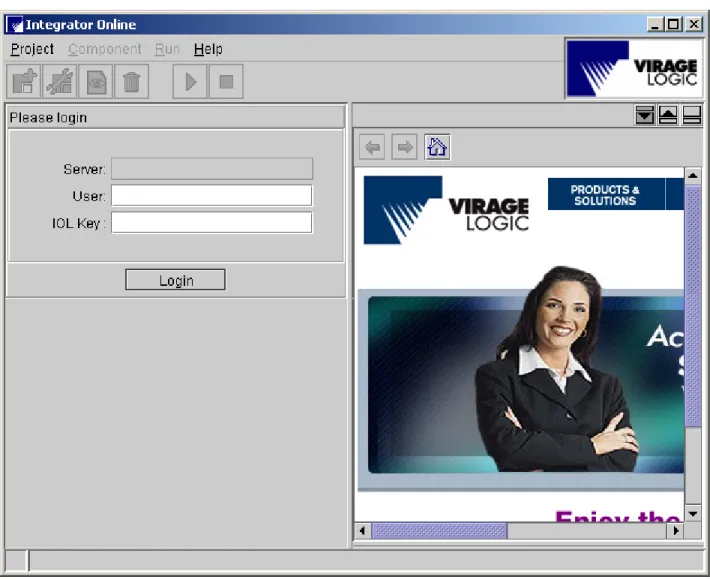
To run the client-side Java version of Integrator Online, simply enter the URL for that version into any browser window. The application will be downloaded and launched, as shown in Figure 2-1, “Login Window”. Integrator Online supports HTTPS connection for secure instance generation. Note that this version runs in a separate window from your browser. Also, note that you must have JRE 1.4.2+ and Sun's Java™ Web Start (JWS) software installed before you run the client-side version of Integrator Online. In section 1.2, “What You Need to Run Integrator Online™” of this guide, there is information on how to obtain the necessary software.
The next time you use the client-side Java version of Integrator Online, it will launch from the copy that was downloaded and installed the first time if Integrator Online is not updated on the server, and it will start up much faster.
Figure 2-1 Login Window
In the Login Window, enter your user name in the field marked User and your IOL Key in the field marked IOL Key and press Login.
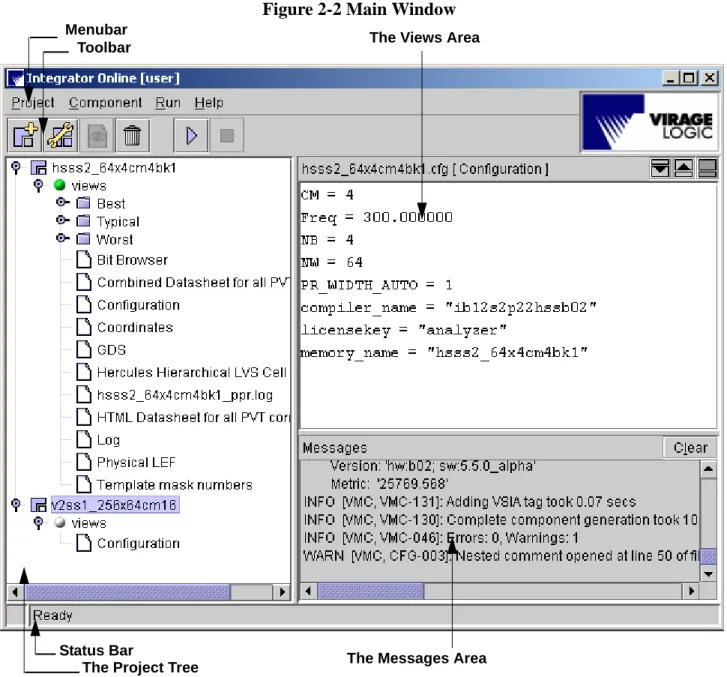
Once you have successfully logged in, the Main window shown in Figure 2-2, “Main Window”
appears:
Figure 2-2 Main Window
This window has themenu bar, the toolbar below the menus and the status bar at the bottom. The area between the toolbar and the status bar is occupied by a three-part window.
• There is a Project Tree that appears when you create a new component or import an existing component into your project. The Project Tree shows the components by their names and associated views. Indicator “lights” for each component in the Project Tree provide the status of each action run on the component. Gray means that the component has not been generated yet. Green means successful run without Errors or Warnings. Red means Errors/Warnings are encountered during run.
Menubar
Toolbar The Views Area
Status Bar
• There is a Views Area that shows an output view for a component in the Project Tree. Highlighting an output view for a component in the Project Tree and double-clicking the mouse displays the file contents in the Views area. Use the button if you want to show the Views area only and the button to show Messages and Views windows concurrently. • There is a Messages Area that displays all information messages that occur when you apply a command to a project. Use the button if you want to show the Messages area only and the button to show Messages and Views windows concurrently.
2.1 Working with Memory Components
Integrator Online application provides you with an easy way to work with memory components. Only a few successive steps are required to create a new component and generate an output view for it. To create a new component, you simply select a compiler and start configuring the component by supplying necessary parameters and data. Information on different memory parameters and data that you may need to supply during component configuration stage is available in section 2.1.1, “Creating a New Component”.
Integrator Online also enables you to create components based on existing *.cfg files that contain component configuration. See section 2.1.2, “Importing a Component” for more details on how you import a component.
After you configure your component, you must generate it to create an output view for it. See “Generating a Component” on page 13. The component creation process involves a few formal procedures that Integrator Online accomplishes automatically. When you generate a component, the tool automatically sets up an initial directory structure for the component on the server. When you attempt to download the files for the generated component, the initial directory structure is preserved.
See “Downloading the Generated Files” on page 14.
At any time during your work, you can consult this User’s Manual for assistance by selecting Help > User’s Manual from themenu option or by pressingthe F1 key on your keyboard.
2.1.1 Creating a New Component
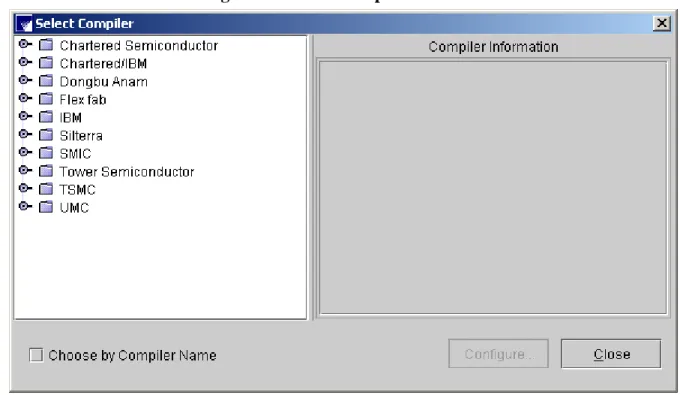
Selecting Component > New menu option ( ) opens the Select Compiler dialog shown in Figure 2-3, “Select Compiler Window” below:
Figure 2-3 Select Compiler Window
By default, the compilers added to your account by the Administrator are listed by type of compiler. Integrator Online allows to configure memory and ROM compilers only.
Click on the node handle beside the name of compiler to display the sub-categories of available compilers. The tree of sub-categories is based on compiler identification information including target foundry (Foundry), process geometry (Process), compiler name (Compiler) and compiler revision level (Revision). Once you have navigated down to selecting a specific compiler, the Compiler Info area on the right-hand side of the Configure Compiler dialog displays all the identification
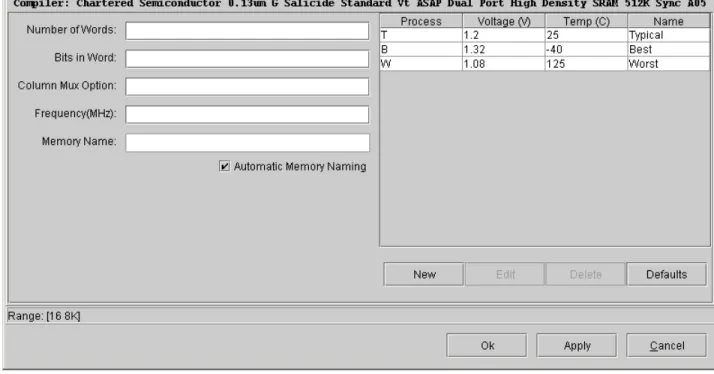
You can also check the Choose by Compiler Name checkbox to list the compilers by name. After you choose the required compiler, select the Configure button to open the Configure Componentdialog shown in Figure 2-4, “Configure Component Window” below:
Figure 2-4 Configure Component Window
The Configure Component dialog can look slightly different for two or more compilers of the same type, depending on the features available for that compiler.
The general instance parameters to supply are: • The Number of Words in the instance.
• The number of Bits in Word for the memory instance.
• The Column Mux Option (or number of physical columns per I/O pin). It provides the set of valid CM values and identifiers for the various estimated aspect ratios for the compiler. You
• The Number of Vertical Banks for the memory instance. • The Number of Bits in Subword for the memory instance. • The Signal Metal for the memory instance.
• The Redundancy enable for the memory instance: true for a STAR and false for an ASAP memory.
• There is also a check box for Automatic Memory Naming. If you check this box, the Memory Name field will be filled in automatically for you.
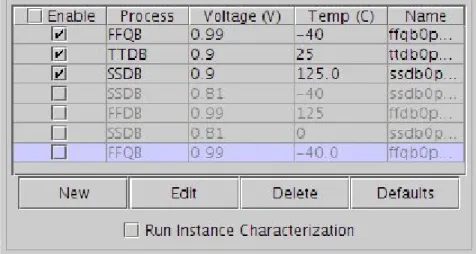
On the right hand side of the General Parameters window you can define and edit the operating points, or PVT conditions, for which data will be generated during the instance generation process. Three operating points are already listed when you start setting the parameters, each with a Process condition, Operating Voltage (V), and Junction Temperature (C) already defined. Click the New
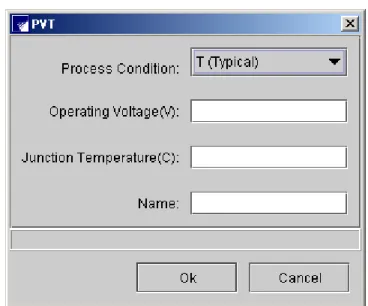
button to add an operating condition or the Edit button to change the parameters for an existing operating point. In either case, the PVT window appears as shown in Figure 2-5, “PVT Window”
below:
Figure 2-5 PVT Window
Specify the Process Condition, Operating Voltage (V), and Junction Temperature (C), and assign a
Name to the operating point you are adding or changing. Just like the General Parameter Window, as you click in each field and enter values for the operating parameters, Integrator Online shows you the allowed values and ranges for each parameter in the Status Area at the bottom of the window. When you download the output files for an instance, Integrator Online creates a subdirectory under the instance directory for each operating point. The Name you specify for each operating point in the above window becomes the name of the subdirectory. If available for the specific compiler, enter/ modify the bias voltage values to be used for corner definition. Click the Ok button in the PVT Window after you finish adding the new operating point or making the changes to an existing one. This will save the changes you made and take you back to the window with parameters in the General
tab. Clicking Cancel discards any changes to the operating points and takes you back to the to the window with parameters in the General tab.
Use the check boxes in each PVT row to enable or disable a PVT. A selected check box for a PVT means that this PVT is enabled and will be generated while running component generation. A deselected one is greyed out and means that it will not be generated while running component generation. Using the check box in the header of the PVT table, you can enable or disable all PVTs.
On the General tab, clicking Ok saves all the settings, including memory parameters and PVT conditions that define the compiler output files.Clicking the Defaults button in the General tab restores all PVT values to their default values. Clicking Apply keeps the Configure Component dialog open for you to enter edits for additional component configurations based on the same compiler. Any PVT that matches a user-characterized corner in the characterization database cannot be edited or deleted. Upon edit or delete operations an error message is displayed warning that the given user-characterized corner can only be enabled or disabled for instance generation.
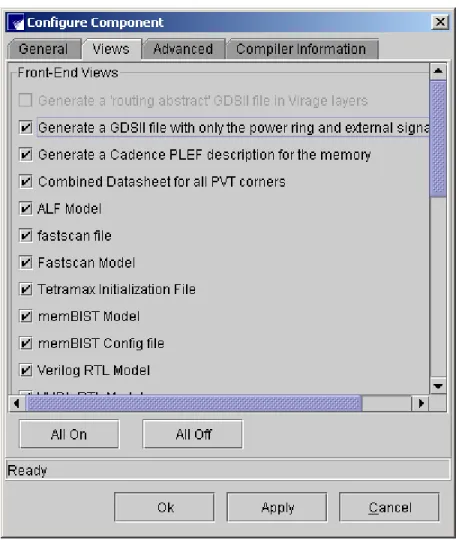
The Views tab lists the views you can generate for a given memory. These define the output files that will be generated for the memory. Views available for the compiler you selected but which you do not
have a license for will be grayed out. You can select which specific views have to generated for your memory.
Figure 2-6 Configure Component Dialog - Views Tab
The top portion of the tab lists front-end views, the datasheet views are in the middle, and the backend views are along the bottom. Buttons at the bottom of the dialog enable you to change the settings for all the views you have access to with one click. The All Off button turns off the generation of all the views active on the Views tab, while All On turns on the generation of all licensed views.
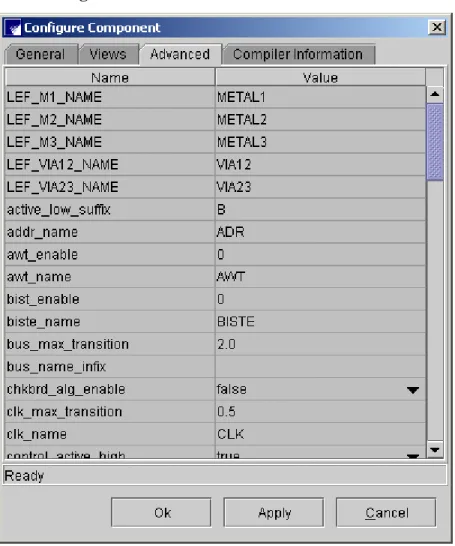
Clicking the Advanced tab on the Configure Component dialog takes you to the Advanced Parameters window. This window contains a number of additional parameters that control the instance and associated Views generated by Integrator Online. The Advanced Parameters window comes up with
these parameters set to their default values, as shown in Figure 2-7, “Advanced Parameters Window”
below:
Figure 2-7 Advanced Parameters Window
For parameters that have a range, Integrator Online shows you the allowed values and ranges in the
Status Area at the bottom of the window. Use the Advanced Parameters window when you need to generate an instance with more specific settings than the basic parameters in the General Parameters window can provide. These parameters are a subset of the Embed-It!® control parameters that are available to the user of Virage Logic's Embed-It! ® Integrator software. Click the Ok button to save any changes you specify for the advanced parameters. Clicking Cancel discards any change to the
view the compiler identification information, including target foundry (Foundry), process geometry (Process), compiler name (Compiler) and compiler revision level (Revision).
2.1.2 Importing a Component
Existing components can be imported into an Integrator Online project from other projects using the
Component > Import menu option. Different components and variations have just one type of configuration file *.cfg that can be read by Integrator Online.
In the Import Component dialog, select the Configuration Files (*.cfg) options in the Files of Type field. Browse over to the *.cfg file you want, click on it in the browse pane and press Import to import it. Note that trying to import the same component twice will cause Integrator Online to produce an error saying that duplicate instance names are not allowed.
2.1.3 Generating a Component
Indicator “lights” for each component in the Project Tree provide the status of each action run on the component. Gray means that the component has not been generated yet. Green means successful run without Errors or Warnings. Red means Errors/Warnings are encountered during run. When you want to generate a component, only those components that have gray and red indicators lights in the Project Tree can be generated.
Selecting Run > Generate menu option starts the generation process of a selected component.
Selecting the Run > Generate All menu option starts the process of generating the instances that have
Not [Generated] status in the Project Tree. In either case, this will display the progress of the generation process while it is taking place in the Messages Area.
The Status Area in the lower left hand corner of the Main window informs you of progress while the generation is in progress. During this time, only the Abort toolbar button is active. The Messages Area in the Main window displays the progress of the process as it happens. When instance generation is complete, the Status Area says Ready. You can now see all generated instances in the Project Tree with the status changed to [Generated].
The scripts list is displayed in the Run->Script menu of Integrator Online if there are scripts installed for your account.
Select the script you want to execute. To terminate a running script, the Abort button can be used. All other actions will be unavailable while the script runs.
2.1.4 Downloading the Generated Files
After you generate a component, its output files stay residing on the server until you download the files. Once you decide to download them, you have three options to choose from: All, Component, and View. Note that you downloadable are only the generated components with green indicator light in the Projrcet Tree.
If you want to download all components and their output views that are in the Project Tree, simply use the Project > Download > All menu option. In the Save As dialog, browse over to (or create) a directory where you want your files to be downloaded to and press the Save As button. This will start the process of downloading all components into the download directory you defined. While the files are downloaded, only the Abort button is active in the Download dialog. Use the Abort button if you want to stop downloading the files and the Close button to close the Download dialog when the download is complete.
If you want to download a component, simply highlight its name in the Project Tree and select
Project > Download > Component menu option. In the Save As dialog, browse over to (or create) a directory where you want the component to be downloaded to and press the Save As button. This will start the process of downloading the selected component into the download directory you defined. While the files are downloaded, only the Abort button is active in the Download dialog. Use the Abort
button if you want to stop downloading the files and the Close button to close the Download dialog when the download is complete.
If you want to download a view, simply highlight its name in the Project Tree and select Project > Download > View menu option. In the Save As dialog, browse over to (or create) a directory where you want your views to be downloaded to and press the Save As button. This will start the process of downloading the selected views into the download directory you defined. While the files are
downloaded, only the Abort button is active in the Download dialog. Use the Abort button if you want to stop downloading the files and the Close button to close the Download dialog when the download is complete.
• Generate all components in the project. See “Generating a Component” on page 13.
• Abort running the job. See “Generating a Component” on page 13.
Most of these options are realized as toolbar buttons and popup menus that open upon right-click on a component or its view in the Project Tree.
2.2.1 Editing the Selected Component
The Edit and Delete commands in the Component menu of the Integrator Online let you perform editing and delete operations on the component currently selected in the Project Tree. These
commands work in the same way as Edit and Delete commands that appear in the popup menu upon right-click on the name of the component in the Project Tree. You can also use the and
toolbar buttons to perform the editing and delete operations on the selected component.
If you select Component > Edit menu option, it displays the Configure Component dialog where you can change the general and advanced parameters for the selected component as required or view the compiler identification information for the component on the Compiler Information tab in the Configure Component dialog. Click the Ok button when you finish your edits to save the changes. This operation cleans the views for the former component if it was generated and changes the state of the new component to NOT Generated.
2.2.2 Showing the Output View for a Selected Component
The Views area allows you to look at the compiler output views generated for the component.
Highlight the desired view in the views subtree in the Project Tree and select Component > Show View
menu option. You can also double-click the selected view in the Project Tree. In either case, it displays the contents of the selected file in the Views area. Components with status [NOT GENERATED]
have only the Configuration file available for preview in the Views area.
You cannot change the values of the components directly in the Views area. Only text and HTML files can be viewed in the Views area. Any external reference in HTML files will be opened in a separate Internet browser window for preview. Binary files such as GDS must first be downloaded in order that you can preview them with the corresponding software. Just as with the Messages area, you can show the Views area only by using the button.
2.2.3 Deleting a Component
To delete a component from the project, simply highlight its name in the Project Tree and select
2.3 Disconnecting and Exiting
Use the Project > Disconnect menu option to disconnect from the server and the Project > Exit menu option to exit the Integrator Online. When you disconnect the connection with the server, the
Integrator Online Login Window shown in Figure 2-1, “Login Window” appears. When you exit the Integrator Online, this window disappears after you confirm that you want to exit Integrator Online.
Chapter 3 Integrator Online: Command
Line Access
Integrator Online command line client is implemented as a single jar (Java archive) file. Application contacts the server, passes the memory configuration, initiates generation of the memory instance and then downloads all output files to the client host. If the process fails, it exits with a non-zero code and the corresponding error message is displayed.
The usage of the Integrator command line is:
java -jar rvmc.jar -u hostname[:port] -l loginname [-p password] -c configuration_file [-d destination] [-k] [-f] [-h]
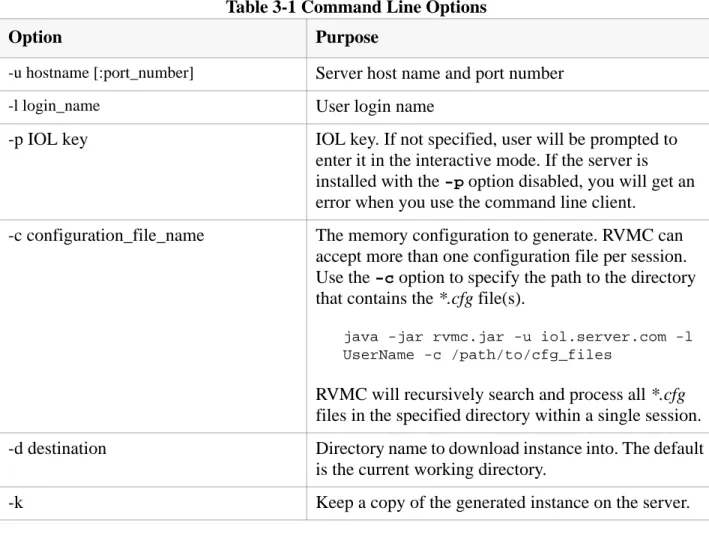
Table 3-1, “Command Line Options” below describes the purpose for each of the options: Table 3-1 Command Line Options
Option Purpose
-u hostname [:port_number] Server host name and port number -l login_name User login name
-p IOL key IOL key. If not specified, user will be prompted to
enter it in the interactive mode. If the server is installed with the -p option disabled, you will get an error when you use the command line client.
-c configuration_file_name The memory configuration to generate. RVMC can
accept more than one configuration file per session. Use the -c option to specify the path to the directory that contains the *.cfg file(s).
java -jar rvmc.jar -u iol.server.com -l UserName -c /path/to/cfg_files
RVMC will recursively search and process all *.cfg
files in the specified directory within a single session.
-d destination Directory name to download instance into. The default
is the current working directory.
The exit codes are: 0 - Success
1 - Connection error 2 - Access denied
3 - Configuration file not found 4 - Parameter check error 5 - Generation Failed
6 - Destination directory does not exist 7 - Command line parsing error
8 - Unexpected errors
Note that if your network communicates with the Internet via a proxy server, Integrator Online allows using Java keys for specifying the proxy server name and proxy port number in the commands. The format for such commands can have the following view:
java Dhttp.proxyHost=your_proxy_server_name
-Dhttp.proxyPort=your_proxy_port_number -jar rvmc.jar -u iol2.viragelogic.com etc.
where your_proxy_server_name and your_proxy_port_number must be replaced with the actual
values for your proxy server name and proxy port number, and the etc. means all other command
line options to use.
If a termination signal is detected, RVMC closes current connection correctly, which is accompanied by "Logging out..." text message in the command line. The next connection session may be established as soon as the interrupted connection is closed.
-f Overwrite, if there is an instance with the requested
name on the server.
-h Print usage information and exit
Appendix A: Output File Structure
Integrator Online's output files reside in the instance directory.
The instance directory contains back-end files for building the memory as well as a subdirectory for each operating point.
The subdirectories each contain a set of front-end views for the respective operating point. The names and number of files in each sub-directory is the same. For example, if you specified an instance named ts128x8cm4 and operating points named Best, Typical, and Worst, the instance directory will contain the following files and subdirectories:
ts128x8cm4.cfg Configuration File ts128x8cm4.gds GDSII File ts128x8cm4_func.v Verilog Netlist File ts128x8cm4.cir Spice Netlist File ram1. ts128x8cm4 Abstract LEF File ram1. ts128x8cm4 Log File
Best Subdirectory containing Front-End Views for Best Operating Point Typical Subdirectory containing Front-End Views for Typical Operating Point Worst Subdirectory containing Front-End Views for Worst Operating Point.
The contents of the subdirectories depend on the values for various advanced parameters. As an example, a subdirectory for the instance mentioned above might include the following:
ts128x8cm4.ds Datasheet ts128x8cm4.llef Logical LEF ts128x8cm4.summ Summary
ts128x8cm4_stim.v Testbench for Verilog Behavioral Model and Verilog Netlist ts128x8cm4.v Verilog Model
ts128x8cm4.vhd Vital Model (VHDL) ts128x8cm4_qa.txt Compiler QA Information ts128x8cm4.lib Synopsys Model
ts128x8cm4_vhd_stim.v Verilog Behavioral Model and VHDL Behavioral Model Testbench ts128x8cm4_vhd_wrapper.v Verilog Wrapper for VHDL.
Index
A
Abort 12Advanced Parameters window 11
Automatic Memory Naming 9
B
Bits in Word 8
C
Client-side Java 1
Column Mux Option 8
Command Line Options 15
D
Deleting a Component 14
Downloading Files 12
E
Editing Selected Component 14
Embed-It!® Integrator software 1
Embed-It® Integrator software 1
Exit Codes 15
F
Frequency (in MHz) 8
Front-end views 17
G
Generating a Component 12
I
Import a Component 12
Instance directory 17
Integrator Online Account Administrator 3
Integrator Online Command Line Client 15
Integrator Online™ Benefits 1
Integrator Online™ Interfaces 1
IOL Key 3, 15
J
JAVA Web Start 1
Junction Temperature (C) 9
Junction Temperature(C) 9
JWS 3
N
Number of Banks 8
Number of Bits in Subword 9
Number of Vertical Banks 9
Number of Words 8
O
Operating Points 17
operating points 9
Operating Voltage (V) 9
P
Parameters to control instance 11
Performing Tasks 13
Process Condition 9
Process condition 9
PVT conditions 9
R
Read ports 8
Redundancy enable 9
Running Integrator Online™ Software 1
S
Server host name and port number 15
Signal Metal 9
Status Area 9, 11, 12
U
User login name 15
User Name 3
W
Working with Components 6