Proficio Database Schema
Use the following database schema information to assist in setting up your web site using the Proficio Web Toolkit.
There are 3 system databases created during the installation of Proficio: RediscoveryMaster_Dbf
RediscoveryMaster_Imaging UpgradesMaster
All 3 are required for operation of the program.
Each subsequent data directory that is created within the modules is its own separate SQL database prefixed with "RediscoveryMaster_".
(Note: When installing Proficio using Full SQL instead of SQL Express, you have the option to change the database suffix from 'Master' to anything you like. Therefore, the name after
"Rediscovery" and before the underscore may be different in your installation. The default suffix for the SQL Express installation is "Master" and will be used throughout this document when referencing database names.)
Major database tables by module
(SQL database name = RediscoveryMaster_directoryname)
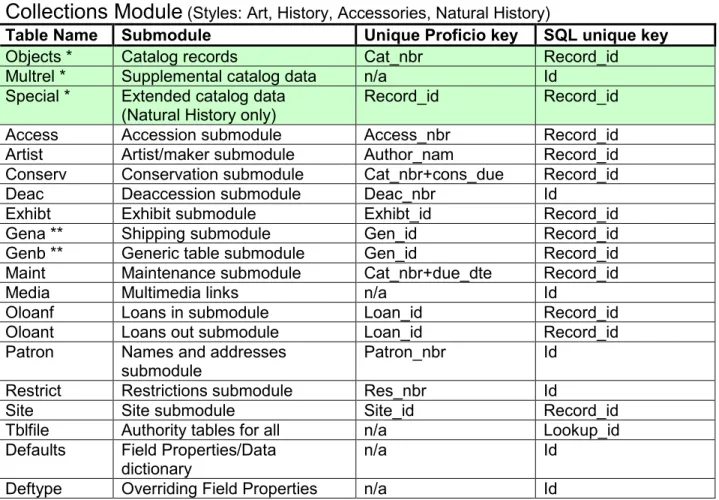
Collections Module
(Styles: Art, History, Accessories, Natural History)Table Name Submodule Unique Proficio key SQL unique key
Objects * Catalog records Cat_nbr Record_id
Multrel * Supplemental catalog data n/a Id Special * Extended catalog data
(Natural History only)
Record_id Record_id Access Accession submodule Access_nbr Record_id Artist Artist/maker submodule Author_nam Record_id Conserv Conservation submodule Cat_nbr+cons_due Record_id
Deac Deaccession submodule Deac_nbr Id
Exhibt Exhibit submodule Exhibt_id Record_id
Gena ** Shipping submodule Gen_id Record_id
Genb ** Generic table submodule Gen_id Record_id Maint Maintenance submodule Cat_nbr+due_dte Record_id
Media Multimedia links n/a Id
Oloanf Loans in submodule Loan_id Record_id
Oloant Loans out submodule Loan_id Record_id Patron Names and addresses
submodule
Patron_nbr Id Restrict Restrictions submodule Res_nbr Id
Site Site submodule Site_id Record_id
Tblfile Authority tables for all n/a Lookup_id Defaults Field Properties/Data
dictionary
n/a Id
* Shaded rows are the main catalog data. All directory styles except Natural History use paired tables. Natural History has a 3rd table, Special, for extended catalog data related to the
disciplines.
** Gena and Genb tables can be defined by the client under Tools – System Options – Generic Table Configuration. They are defined for the entire system, not individual directories or modules.
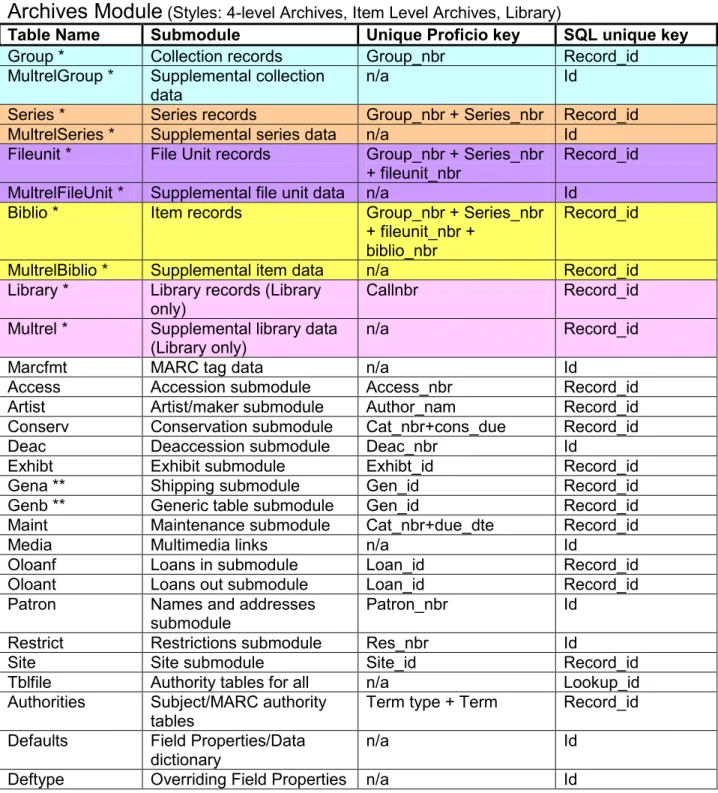
Archives Module
(Styles: 4-level Archives, Item Level Archives, Library)Table Name Submodule Unique Proficio key SQL unique key Group * Collection records Group_nbr Record_id MultrelGroup * Supplemental collection
data
n/a Id
Series * Series records Group_nbr + Series_nbr Record_id MultrelSeries * Supplemental series data n/a Id
Fileunit * File Unit records Group_nbr + Series_nbr + fileunit_nbr
Record_id MultrelFileUnit * Supplemental file unit data n/a Id
Biblio * Item records Group_nbr + Series_nbr + fileunit_nbr +
biblio_nbr
Record_id
MultrelBiblio * Supplemental item data n/a Record_id Library * Library records (Library
only)
Callnbr Record_id
Multrel * Supplemental library data (Library only)
n/a Record_id
Marcfmt MARC tag data n/a Id
Access Accession submodule Access_nbr Record_id Artist Artist/maker submodule Author_nam Record_id Conserv Conservation submodule Cat_nbr+cons_due Record_id
Deac Deaccession submodule Deac_nbr Id
Exhibt Exhibit submodule Exhibt_id Record_id
Gena ** Shipping submodule Gen_id Record_id
Genb ** Generic table submodule Gen_id Record_id Maint Maintenance submodule Cat_nbr+due_dte Record_id
Media Multimedia links n/a Id
Oloanf Loans in submodule Loan_id Record_id
Oloant Loans out submodule Loan_id Record_id
Patron Names and addresses submodule
Patron_nbr Id
Restrict Restrictions submodule Res_nbr Id
Site Site submodule Site_id Record_id
Tblfile Authority tables for all n/a Lookup_id Authorities Subject/MARC authority
tables
Term type + Term Record_id Defaults Field Properties/Data
dictionary
n/a Id
* Shaded rows are the main catalog data for each level of archives and library. Note: Library directory uses only the Library table pair for the main data. Item Level Archives directory uses only the Biblio table pair for the main item record. Each level in the 4-level archives directory is its own table pair.
** Gena and Genb tables can be defined by the client under Tools – System Options – Generic Table Configuration. They are defined for the entire system, not individual directories or modules.
Images
Database Table Name Linking Field SQL unique key RediscoveryMaster_Dbf Images Image_key Image_id
RediscoveryMaster_Imaging FullImages Image_Name Id RediscoveryMaster_Imaging Thumbnails Image_Name Id
Web calls: Several web calls use parameters for including images. E.g., 'bool IncludeImages', 'bool OnlyIfImages'. These are already programmed to display the images associated with the specified record.
The RediscoveryMaster_Imaging table is only used in systems that use full SQL (not SQL Express) and have chosen the option to store images internally in a SQL database table (Tools—System Options – Imaging). Otherwise, images are stored as files on disk with a reference to that file name in the RediscoveryMaster_Dbf.Images.image_desc.
An image is linked to a submodule record via the file_name field that exists in each submodule table. This is a unique key autogenerated for each submodule record. The file_name data is copied to the Images.Image_key field when an image is attached. The order of the images attached is determined by the Images.image_seq field starting with 0.
E.g., when an image is attached:
RediscoveryMaster_Submodule table.file_name = RediscoveryMaster_Dbf.images.image_key It then uses the root image path from System Options (Tools – System Options – Imaging) along with the image file name in the images.image_desc field to display the image on the record. Note that there are 2 image files for each image – one is a smaller thumbnail located in the \Thumbnails folder and the other is the full image located in the \FullImages folder in the specified root path in System Options.
The Images.image_seq field is used to maintain the order of the images attached to a record, starting with the number 0 for the first image attached. (Note: Users can change this order from the Images screen on the record.)
Multimedia
SQL table referenced: media Web calls: GetMultimediaPaths()
Multimedia files, such as PDF, doc, audio and video files, can be attached to any catalog record or submodule record via the Multimedia tab/window on the record. Each data directory has its own Media table (RediscoveryMaster_datadirectory.Media) where these links are stored. The Media table is connected to the record data by using the record id and table name of the catalog or submodule record on which the multimedia is attached.
For example, if a multimedia file is attached to a catalog record in a History directory: Media.record_id = objects.record_id
Media.relatedTable = 'objects'
Or for an Archives collection level record: Media.record_id = group.record_id Media.relatedTable = 'group'
The original path of the file is recorded in the media.originalPath field. In Proficio Version 8.14 and older, the multimedia is stored internally in the Media.media field as binary data.
Starting in Version 8.15, it is only stored within the Media table if it is smaller than 25MB. If the multimedia file is larger than 25MB, the file is copied to the Rediscovery Proficio
SQL\FullImages folder. The program then uses just the file name from the Media.originalPath field along with the root path for the FullImages folder defined in the System Options – Imaging tab (see Images above) to launch the file. (Note: Proficio launches the file using the program that is associated with that file extension on the workstation that is viewing it.)
The Media.mediasequence field is used to maintain the order of the files attached to a record, starting with the number 0 for the first file attached. (Note: Users can change this order from the Multimedia screen on the record.)
Data Dictionary (aka Field Properties)
SQL tables referenced: defaults, deftype
Web calls: in almost every web call used in the Web Toolkit, you will need to know the name of the SQL field to search or include in the record displayed.
Each directory has its own data dictionary in a table named 'defaults'. The label on the screen usually differs from the actual SQL field name in that table.
You can look up an individual field's name by right clicking in that field on the Proficio screen and choosing Properties.
The General/Security page indicates the table that the field belongs, the actual SQL table field name as well as the Word Type letter assigned to this field for Word Search.
You can access the complete list of fields in a directory by choosing Field Properties from the Directory home page or going to View – Go To – Field Properties.
From here, you can print a data dictionary for any table in that directory. The list pane includes the Table name, the Field Name in that table, the Label as seen on the Proficio screen, the Field Type assigned to that field and the Word Type letter assigned for word search.
(Note: if a field does not have a Label, it likely does not appear on the Proficio screen – there are unused fields in many of the tables. Also, if a field does not have a Word Type letter assigned, it is not searchable using Word Search.)
In certain directories, such as Archives and Natural History, certain tables have fields that are used in multiple ways depending on a category or classification selected for that record. For example, at the File Unit and Item levels of the 4-level archives directories, several fields are defined depending on the Category selected on the record. These fields have Overriding field labels that appear on the screen when a certain Category is selected. Just choose the Override Labels/Help tab to see the various labels that the particular field may use. These entries are in a separate table called 'deftype' within each database
Note in the example below that it appears that there is no Label for the Fileunit.categ_2 field in the List Pane. However, it does have a Word Type letter which is generally a clue that it likely has Overriding Labels controlled by a classification or category field.
However, no matter the label used on the Proficio screen, the underlying field name in the SQL table is the same for any of the Record Types.
Also, due to sorting constraints in SQL on the length of a field that can be sorted, memo fields (also known as ntext fields in SQL) have been assigned a 'sortable' field in Proficio that limits the amount of data to the first 100 characters for sorting purposes only. You can see these sortable fields in the Data Dictionary (e.g., Field_name=Sortable1) with the field assigned to it in angle brackets, <field name>, in the Field Label column. You must use the Sortable field
assigned to a memo field when including it as one of the SortFields in the web calls (e.g., the "string SortFields" parameter in the FindItXmlStringPage web call.
Sorts
SQL table referenced: cdxdesc
Web calls: these predefined sorts are not used in the Web Toolkit functions, but are used in the standard Web Module within Proficio.
Each data table in Proficio has one or more predefined sorts. There is always a unique sort that prevents duplication of records within each submodule. The unique Proficio key for each table is listed in the module tables at the beginning of this document.
These predefined sorts can be found in each directory's database in the Cdxdesc table. This table lists the sorts by table name in the cdxdesc.file field with the sort formula in the
cdxdesc.sort_form field. The name of the sort is in the cdxdesc.key_name field
Note: Due to sorting constraints in SQL on the length of a field that can be sorted, memo fields (also known as ntext fields in SQL) have been assigned a 'sortable' field in Proficio that limits
the amount of data to the first 100 characters. These sortable fields are used for these
predefined sorts when a memo field is involved. You can see these sortable fields in the Data Dictionary (e.g., Field_name=Sortable1) with the field assigned to it in angle brackets, <field name>, in the Field Label column.
Word Search
SQL tables referenced: defaults, *classuse, *classwor Web calls: FindItXmlString...()
Each field seen on a Proficio data screen is assigned a single letter or number for word search purposes. Note: There are a few exceptions where a field may not be included in word search. These are generally true date fields or numeric fields which are easier to use filters on instead of Word Search.
The defaults table in each database contains the Field Properties or Data Dictionary (see above). Defaults.word_type field is used to indicate the letter assigned to that field.
The words in a field are indexed in the classuse and classwor tables where the classwor table is the list of all words used in a table and the classuse table indicates in which records the word is used. Each submodule table has its own classuse/classwor table set generally preceded by the table name – e.g., AccessClassUse and AccessClassWor are used by the Access table. The web calls beginning with FindItXmlString...() are already programmed to use these tables when performing a word search.
Proficio's Word Search will search all fields with a Word Type letter/number assigned. You can limit the search to a specific field by indicating that search letter/number in your search string. For example, the word type letter for Object Name may be the letter O.
Search string: O=teapot
Returns only records where the word 'teapot' appears in the object name field. It ignores the other fields even if that word appears in them.
Search string: teapot
Returns records where the word 'teapot' appears in any field assigned a word type letter/number.
For more information on Word Search functionality, such as wildcards and Boolean searching, see the System Help within Proficio for Word Search tips.
Note: On the 4-level archives directory, each level is a separate table and has separate word indexes: GroupClassuse, SeriesClassuse, etc. Therefore, each level is searched separately unless you use a global search option across archival levels.
How are submodule records connected to the main catalog data?
There are two ways that submodule data (e.g., accessions, exhibits, loans, artist/creator, names and addresses, gena, genb) can be connected to the main catalog record.
1. Direct connection using the submodule's unique Proficio key in a data field on the main catalog record. For example, Accession number from Accession submodule (Access), Patron ID from Names and Addresses submodule (Patron) and Artist Name from Artist/Maker
submodule (Artist) are entered directly in a field on the main catalog record. Accession #: Objects.access_nbr = access.access_nbr
Artist: Objects.artist = artist.author_nam
Accession Source: Access.aq_source = patron.patron_nbr
These relationships are defined in the Field Properties on the Default Labels/Help tab (see above) for that field on the main catalog record. The Field Type indicates if the field is connected to a submodule table.
Example: Field properties for the Source field in Accessions (Access.Aq_source) indicating that it does a lookup on the Patron ID of the patron table.
2. Supplemental record (Multrel table) attached to the main catalog record which then uses the unique Proficio key of the submodule. For example, Exhibits, Gena, Genb, Loans In and Loans Out are set up this way. Each supplemental type has its own specific type number in the multrel table (see below).
Exhibit Supplemental:
• Objects.record_id = Multrel.record_id; multrel.cat_fld1 = exhibt.exhibt_id for multrel.type_nbr = 16.
• Group.record_id =MultrelGroup.record_id; multrelgroup.cat_fld1 = exhibt.exhibt_id for multrelgroup.type_nbr = 16.
Loans Out Supplemental:
• Objects.record_id = Multrel.record_id; multrel.cat_fld1 = exhibt.exhibt_id for multrel.type_nbr = 14.
• Biblio.record_id = Multrelbiblio.record_id; multrelBiblio.cat_fld1 = exhibt.exhibt_id for multrel.type_nbr = 14.
Note: In the 4-level Archives directory, each archival level table (Group, Series, FileUnit, Biblio) has its own multrel table – MultrelGroup, MultrelSeries, MultrelFileUnit, MultrelBiblio).
Supplementals are defined in the RediscoveryMaster_Dbf.libtyp table. Supplemental Type Numbers:
Supplemental Name Directory Style where Available Type Nbr Supplemental Type
Accessions AR,IT,LB, AE 13 Links to Accessions
Action CR,NH,RT,AC 65 General
Additional Forms AR,IT,LB 4 General
Appraisals CR,NH,RT,AC,AR,IT,LB,AE 8 General
Arch Status AR,IT,LB,AE 45 History tracking
Catalog Notes CR,NH,RT,AC,AE 40 History tracking
Component Parts CR,NH,RT,AC 42 General
Condition History CR,NH,RT,AC,AR,IT,LB,AE 1 History tracking Condition Reports CR,RT,NH,AC 66 General
Conservation SH,CR,NH,RT,AC,AR,IT,LB,AE 20 Links to Conservation
Contact CR,RT,NH,AR,IT,LB 67 General
Container List AR 7 General
Deaccession SH,CR,NH,RT,AC,AR,IT,LB,AE 17 Links to Deaccessions Electronic Resource AR,IT,LB 10 General
Exhibits SH,CR,NH,RT,AC,AR,IT,LB,AE 16 Links to Exhibits
Fmtd Cntents LB 76 General
"Gena" (Shipping Database, but can be user defined)
All 60
Links to Gena table
"Genb" (user defined) All 61 Links to Genb table
Holdings LB 85 General
Images CR,NH,RT,AC,AE 43 General
Inventory CR,RT,NH,AC 69 General
Item Records LB 81 General
Loans In SH,CR,NH,RT,AC,AR,IT,LB,AE 15 Links to Loans In Loans Out SH,CR,NH,RT,AC,AR,IT,LB,AE 14 Links to Loans Out Location AR,IT,LB,NH,CR,RT,AC,AE 12 History tracking Maintenance CR,RT,AC,AR,IT,LB,AE 18 Links to Maintenance
Obj Status CR,NH,RT,AC 45 History tracking
Originals Duplicates AR,IT 5 General
Owncust LB 86 General
Packing Information CR,RT,NH,AC 70 General Photo Requests CR,RT,NH,AR,IT,LB 68 General
Preparation/Treat NH 18 Links to Prep/Treatment
Preservation CR,NH,RT,AC,AR,IT,LB 9 General
Processing/Action AR,IT,LB 6 General
Provenance CR,NH,RT,AC 33 General
Rel Links CR,NH,RT,AC 44 General
Renovation Refit AC 72 General
Reproduction LB 82 General
Research Notes CR,NH,RT,AC,AR,IT,LB 32 General
Restrictions SH,CR,NH,RT,AC,AR,IT,LB,AE 2 Links to Restrictions
Scientific Name NH 50 History tracking
Series LB 84 General
Series Ae LB 83 General
Source Citation CR,NH,RT,AR,IT,AE 3 General
Tech Access AR,IT,LB 11 General
Directory styles: CR = History, NH = Natural History, RT = Art, AC = Accessories, AR = 4-level Archives, IT = Item level Archives, LB = Library, AE = Archaeology (not available on the web) Note: Gena and Genb supplementals/submodules are user defined. Gena is generally installed as the Shipping Database but can be repurposed as the client prefers. Genb is not defined with the standard installation but can be turned on through Tools – System Options – Generic Table Definition. Both the submodule and supplemental will appear with the name given to it by the client.
For catalog records that have multiple supplementals of one type, they are sorted by the Start Date field (if used in the supplemental) with the newest first. Supplementals that don't use a Start Date are sorted by when they are entered with the newest last.
Specific Examples:
1. When a field on the main catalog record is configured to connect directly to a submodule, the user will be able to choose an entry from that submodule. The relationship between the tables is therefore through this data field.
For example, the Artist/Maker field (Objects.artist) on the catalog record has a subfield for the artist name. The user selects the name of the artist/maker from a list of the entries in the Artist/Maker submodule. So the link is the actual name of the Artist/Maker from the
Artist.Author_nam field. As long as the catalog data entry matches exactly the name in the Artist table, the information between the two tables is linked.
Catalog record: Objects.artist field
Artist record: Artist.Author_nam field.
Objects.artist = Artist.Author_nam so that the 2 records are linked.
The same works for the Names and Addresses table. In Accessions, for example, the Source field (Access.aq_source) is linked directly to the list of Names and Addresses by using the data in the Patron ID field of Names and Addresses (Patron.patron_nbr).
Accession record: Access.aq_source
Patron record: patron.patron_nbr
Once the relationship is established, you can call any field from the related table for that particular record.
2. For the submodule records that are connected through a Supplemental, there is a linking table called Multrel (MultrelGroup, MultrelSeries, MultrelFileUnit, MultrelBiblio for the different tables in a 4-level Archives style directory).
The Multrel table in a directory is linked to the main catalog record by using the Record ID of the catalog record. E.g., Objects.record_id = multrel.record_id or Group.record_id =
MultrelGroup.record_id. This is a one-to-many relationship in that you can have several multrel records related to one catalog record.
Each Multrel record also has a type number (Multrel.type_nbr) to indicate the type of
supplemental. These numbers are standard in all systems. See the chart above for the number associated with each supplemental type. (Note: not all supplemental types are available in all directories – some are specific to a certain style.)
Many of the supplemental types are simply auxiliary data for the main catalog record, like Appraisals, Condition Reports, and Location. They may keep a history of the changes to the record. Other supplemental types such as Exhibits and Loans Out connect the main catalog record with a submodule record but allow additional information from the submodule record to be displayed in the supplemental. Generally the name of the supplemental will be the same as the submodule to which it connects.
For example, the Exhibits submodule is connected through the Exhibits supplemental so that multiple Exhibit records can be linked to one catalog record. This maintains an exhibit history for the object and can also serve as pending exhibit information.
The relationship from the supplemental (multrel) record to the submodule record is always through the multrel.cat_fld1 field. This field is configured for that specific supplemental to
connect to the list of entries in the specified submodule. E.g., Multrel.cat_fld1 = Exhibt.exhibt_id for multrel.type_nbr = 16.
Therefore, to connect the catalog record to an exhibit record, you must use the Multrel table. Objects.record_id = Multrel.record_id
Multrel.cat_fld1 = exhibt.exhibt_id for multrel.type_nbr = 16
Note: the multrel record often contains data from the submodule record. For example, the Start and End data for the Exhibit are copied into the date fields (dte_fld1 and dte_fld2) of the multrel record for displaying on the catalog record on the Supplemental Information tab.
There are 2 exceptions to the above supplementals: Conservation and Maintenance. These 2 submodules use the catalog number to connect the records although they have a supplemental listed on the Supplemental Information tab. In these two cases, conserv.cat_nbr =