CSC 160 – Introduction to
Programming for Non-majors
Lecture 1 – Creating A Web Page
Using HTML
This is a really a course about programming, so why are we starting off talking about web pages and HTML?
The reason is that we are going to be learning Javascript, a language very closely associated with the World Wide Web and we are going to be running our programs using a browser (such as Firefox) and a text editor (Notepad). Javascript is most commonly associated with web pages and what are called client-side applications (meaning that they run in your browser).
The Web, the Net, and Hypertext
•
The Web is an interlinked collection of information
•
A hypertext is a group of interlinked files
–
Hypertext link
•
An HTML document is
one way to store data
for a Web page
–
HTML tags
The World Wide Web is the largest application running on the Internet. It was developed originally by Tim Berners-Lee as a way for physicists and other experimental scientists to share their data. Your browser requests a particular document on a particular machine that is connected to the Internet and the machine that storing (or "hosting") that page replies by transmitting that page to your browser. The machine hosting your page is called a "server" and the service it provides is passing on to your machine (also called a "client") a document, usually one that uses Hypertext Markup Lanaguage, which marks your document with a series of "tags" indicating what this text represents within your document.
The Web, the Net, and Hypertext
Web browsers and Web servers exchange HTTP
messages.
Everything on the Internet uses one set of communications standards or another. We call these sets of standards protocols. And the protocol used by the World Wide Web is called Hypertext Transfer Protocol.
After you enter the URL (Uniform resource locator) for the document that you wish to download (transfer over the Internet to your computer) or when you click on a link, your browser issues a request using HTTP for that particular file. The server then responds by transmitting the file to your computer so your browser can display it.
HTML and XHTML
•
HTML is a markup language containing
special instructions
–
World Wide Web Consortium (W3C) developed
and revises HTML specifications
–
XHTML is the follow-up version to HTML 4
–
HTML tags are enclosed in angle brackets
• Self-closing tags
• Formatting tags, link tags, media tags, and operational tags
We briefly discussed HTML before. It is a markup language, meaning that it allows us to mark up our document with special instructions regarding how our document are supposed to look. The current version is version 4, with version 5 about to be introduced. There is a newer language called XHTML (eXtended HyperText Markup Language), which is favored by web designers and the World Wide Web Consortium for various reasons but that is beyond the scope of our course.
HTML tags serve a few purposes: they mark the basic structure of our documents,
indicating a document's heading, title, and body, among other things. Within the document, it marks the beginning and end of paragraphs, indicates the links to other HTML documents available on the web, as well as tellingour browser where it can find various applications that we are running within the browser, such as videos, sounds clip and small programs known as "applets."
It can also provide some basic formatting information, although this is consider deprecated (an older feature of the lanaguage that is becoming obsolete). Instead, we indicate
HTML and XHTML
What you see in the background is an example of an HTML document, which usually ends with the extension ".html" or ".htm", which tells the computer exactly what it is. Your browser uses the information in the tags to indicate how this page is going to be displayed on the screen. In the case of the HTML document on this slide, it also indicates that it contains an images whose file name is "library.jpg"
HTML and XHTML
Most browsers include a menu option for viewing an HTML source document and the HTML tags it contains. This example illustrates how to view source HTML while using Internet Explorer.
Most browser gives you the option of examining the HTML document as it is stored on the server and as your browser receives it. This can help you figure out how the document is constructed and it can help you determine why it did not load into your browser as you expected it if there is a problem.
Web Browsers
•
Help you access Web pages
•
Upgrade to new browser versions as they
become available
•
Popular browsers include:
–
Internet Explorer
–
Firefox
–
Google Chrome
–
Safari
As we discussed earlier, a browser is the program that we use to request a document over the World Wide Web and to display it. There are several browsers available, almost all of them available as free downloads, including Internet Explorer, Firefox, Chrome and Safari.
Internet Explorer comes together with your Windows-equipt PC. If you are interested in a newer version, these are freely available on Microsoft's web site. It has been the most popular browser for several years.
Firefox has become more popular over the years. It is an example of open sourcesoftware. It is freely available and people wishing to work on it can get access to its source code (the version of the program as the programmer originally wrote it, before it was translated into the binary numbers that the computer understands). It has become very popular over th last few years and trails only Internet Explorer in popularity.
Chrome was created by Google, a company that is best known for its extremely popular search engine. It is relatively new, but it is very quick and is becoming popular as well. Safari was created by Apple Computer.
Helper Applications, Plug-ins,
and Players
•
Helper applications extend the browser
’
s
ability to work with file formats
–
A plug-in is a type of helper application
–
A player is any helper application or plug-in
that helps a browser display a particular file
format
There are many things that we wish to do using our browsers when we access the World Wide Web. We want to buy books, electronics and other things; we want to play online games; we want to listen to music and we want to watch videos. But our browser cannot do all these things.
Browsers are designed so they can use other programs to provide functions that are not included in the browser itself. These applications are called "plug-ins" because they are "plugged" into the browser are and used to run certain files accessed by the browser when the HTML document specifies them.
Web Servers
•
Includes HTTP software to fulfill HTTP
requests
•
Server farms can handle thousands of requests
each second
•
Excessive demand can crash a Web server
A server is a computer on a network, whether it is a local area network (like you will find on a college campus) or the Internet, that provides certain services to other computers. It can be a file server that stores files for everyone's use or web server that provides HTML documents.
Web servers use special software that instruct them in how to fulfill web requests. As we discussed before, these requests are written in HTTP (hypertext transfer protocol) and specify which documents are to be uploaded (sent to your computer) and to which computer to send them.
It is a system that usually works well. But a web server, like the library's photocopier, to a computer lab's printer or counterman at a local deli, can be overwhelmed if too many
requests come in and if they come in too quickly for the web server to handle them all. This can lead to long delays, and in the worst case, to a server "crashing", i.e., not continuing to do it jobs.
Getting Started With HTML
•
To get started creating a web page with
hypertext mark-up language, you need:
–
A text editor
–
A web browser
•
After you write the text with the appropriate
tags, save the file with the extension .html or
.htm
•
Then open it using your web browser
We are going to spend some time learning how to construct a basic web page. While this may sound very hard, it really is not. And it does not require any special software, only a text editor for writing the HTML document and a web browser.
After creating the document, we will give it name that includes the extension ."html" or ".htm" – and then it is only a matter of opening it using your favorite web browser.
A First Web Page
<html>
<head>
<title>Title goes here</title>
</head>
<body>Body goes here</body>
</html>
Begins an HTML document
Marks the beginning of the title
Ends an HTML document
Marks the end of the title
Beginning of the body End of the body
This is our first web page. There are a few things that need to be pointed out. Everything on this page that between < and > is a tag – this is how we "mark up" the document. And each of the tags that you see here need a closing tag at the end. Let's take a look at each of these tags:
<html>indicates that this is an HTML document; everything up until the closing tag
</html>is part of this HTML document.
Every document needs two main parts – a head and a body, each of which are indicated by a pair of tags to open and close each of them. The head appears between the <head>and
</head>tags. While there are other things that can appear inside a head, the only thing that we will consider at the present is a title for the document. The title, which appears between the <title> and </title> tags
The body comes after the head and makes up most of the document. It appears after the
<body>tag and until the </body>tag. It will have many tags of its own, indicating the various parts of the document that it may contain.
Headings
•
There are six different sizes of headings:
<h1>Heading size 1</h1>
<h2>Heading size 2</h2>
<h3>Heading size 3</h3>
<h4>Heading size 4</h4>
<h5>Heading size 5</h5>
<h6>Heading size 6</h6>
Different sections of a document will usually have their own headings. These different headings are designed for different organizational levels within a document, but they will usually appear to be different sizes. Proper style requires that you use the <h1>…</h1>
How headings might look in your
browser
Heading size 1
Heading size 2
Heading size 3
Heading size 4
Heading size 5 Heading size 6This should give you an idea of how the different headings will look. Obviously, the lower the number, the more significant the heading and it will usually be larger.
Paragraphs
•
The opening tag for a paragraph is
<p>
, and
the closing tag is
</p>
.
–
The closing tag for a paragraph is not always
needed, but I recommend using it anyway.
<p>I thought that it was a good
idea to include a few examples so
you could see what it might look
like.</p>
Most of our text will be part of a paragraph. Paragraphs will always begin with the <p>tag and should end with the </p>tag. But the closing tag IN THIS CASEis not always strictly necessary. If the paragraph is immediately followed by something clearly outside the paragraph, like a heading, the end of the paragraph is assumed. But it is a very bad practice.
Closing tags
• Certain closing tags may be left out in HTML if their
presence can be inferred by the browser.
<p>One paragraph.
<p>Another paragraph implies the other one is closed.
• In XHTML, closing tags are required. In tags that do
not include contents, it is sufficient to include the
slash (/) at the end of the tag.
This text goes <br /> on another line.
Certain tags need to be matched with closing tags and others do not need to be matched this way. And in some cases, it does not really seem to matter.
Paragraph tags SHOULD be closed, but they do not really need to be. On the other hand, heading tags ALWAYS need to be close; if you do not do this, your document will not be displayed correctly.
In XHTML, which is an extended and (arguably) better form of HTML, all tags need to be closed. That is why we have the slash (/) at the end of the line break tag above. But it will not be interepreted correctly by the browser unless it is separated from the text in the tag by a blank space.
A Second HTML Document
<!-- second.html A second web page -->
<html>
<head><title>The Second Web Page</title> </head>
<body>
<h1>A poem</h1>
<p>Mary had a little lamb,<br /> little lamb, little lamb</p>
<p>his fleece was white as snow.</p> </body>
</html>
This second HTML document of ours illustrates the poem "Mary had a little lamb." It also includes two new features that we have not yet seen. At the top of the page is some text that will not appear in our document when it is displayed in the browser. It's there for the web page designer to read, to tell him or her what the page is all about. This is called a
comment, a very common feature in programs as well, because it can be difficult sometimes to figure out what a program is supposed to do unless you have this extra text here.
Comments in HTML begin with <!and end with >
There is also another new tag <br />- which indicated a line break (or new line). the space followed by a slash (/) is there to let the browser know that there is no closing tag here as there was for <head>, <body>, <p>, etc. HTML does not pay close attention to the spacing that we insert in an HTML document. It treats five spaces the same as it treats one space and it doesn't need lines on its own unless there is no more space on the line. If you want text to continue on the next line every time, you need either the <br />tag or to start a new paragraph.
Formatting Text
•
There are several different types of tags that
format text:
<strong>Bold Face</strong>
<em>Italics</em>
<big>Bigger type</big>
<small>Smaller type</small>
Text <sup>superscript</sup>
Text<sub>subscript</sub>
Although it is officially frowned upon, there is some formatting that you can do with
HTML. There are several tags that you can use that will format your text for you. Here you see a small sample of them.
There are many times that you will want to put text in boldface or in italics; this can be done in HTML using the <strong>and <em>tags respectively. the older versions of this are <b>
for bold and <i>for italics but these are deprecated and should not be used. That why we have <strong>and <em>, which have taken their place.
You can change the size of the text easily using <big>and <small>, which do exactly what you would expect them to do. If you want something even larger (or smaller), you can use them more them once.
Frequently, you may want to have a superscript (small text that appears on the upper portion of a line) or a subscript (small text that appears on the lower portion of a line). The <sup>
A View of Formatted Text
Bold Face
Italics
Bigger type
Smaller typeText
superscriptText
subscript<big>
and
<small>
• The
<big>
and
<small>
tags allow for
relative sizing of text.
• Example
Mary <big>had <big>a <big>little <big>lamb </big> </big> </big> </big>
is displayed as
Mary had a
little lamb
The advantage that <big>and <small>have is that you do not need to know the exactly dimensions of the type before or after the tag appears. And by using it more than once, you can get text that is even larger (or smaller) than you could achieve with just the one pair of tags.
Just remember to place the closing tag at the end, or the entire remainder of the document will have a different size than you intended.
<small>
• Example
Mary <small>had <small>a <small>little <small>lamb</small> </small> </small> </small>
is displayed as
Mary
had
a little lambAdding Emphasis
• The easiest way to emphasize text is by use of
the inline tags
<b>
(bold face) and
<i>
(italics).
However, these tags are deprecated.
• One can use
<strong>
for boldface (or an
equivalent) and
<em>
for italics (or an
equivalent).
The <b>and <i>tags have fallen into disuse because they are rather inflexible – if there is another way to place emphasis or strength on text, <strong>and <em>will allow it where
Character Entities
• XHTML and HTML provide a means of
displaying characters that cannot be written as
themselves within the XHTML document.
They are defined as entities.
• These entities are replaced when the document
is displayed by the specified character.
There are some characters that can't appear on a web page if you try to type them in your HTML document. A few examples come to mind almost immediately. One is the less than symbol (<) and greater than symbol (>). Since these are used to mark the beginning and end of the tags, we cannot use them as regular characters because it would be misinterpreted. Nor can we use quotation marks (") as a regular character for the same reason.
We get around this by introducing some new special characters, which all begin with an ampersand and end with a semi-colon. And, as you may have guessed, the ampersand has to be written this way to be used as a regular character.
Commonly Used Character Entities
Character Entities Meaning
& & Ampersand
< < Less than
> > Greater than
" " Quotation Mark
' :' Apostrophe (single quotes)
¼ ¼ One quarter
½ ½ One half
¾ ¾ Three quarters
° ° Degrees
(space) Nonbreaking space
The "character entities" are the special character codes that we use in HTML. While there are other character entities, these are the ones that are the most common. Notice that it includes the less than and greater than signs as well as the ampersand (because we use ampersands to write character entities).
The last one is especially worth noting: without character entities, it would be impossible to have more than one consecutive space appear in an HTML document without using the character entity. By the way, nbsp stands for "non-breaking space."
Line Breaks
•
The web browser will not show the spacing as
it appears in your HTML file.
•
If you wish to have extra line breaks, you have
to include the
<br>
tag.
–
The HTML:
<p>This new paragraph should be
broken into<br> 2 lines</p>
–
appears as:
This new paragraph should be broken into
2 lines
Using line breaks is different from placing a line break. You can see the difference when you insert it in a document – there is less space separating the two lines of text than if there were a new paragraph. Also, a paragraph is a unit unto itself. This statement may not make sense right now, but it will when you learn more HTML.
In the example above, The paragraph is split between two lines. But they are consider part of the same paragraph despite that.
align
Attribute
•
Many tags support
ALIGN
attributes.
•
The
ALIGN
attribute is placed in the opening tag
before the
>
.
•
Examples:
<h4 align=“left”>Left align</h4> <h4 align=“center”>Centered</h4> <h4 align=“right”>Right align</h4>
Left align
Centered
Right align
Many tags, including headings, paragraphs and tables can use thealignattribute. An attribute is a property that a tag may possess. By default, thealignattribute is left, as in left-aligned or left-justifies – if the text does not fill up all the space from left to right, the extra space is on the right; in other words, the left margin is aligned.
But you can change this and the text right aligned (where the extra blank space is on the left and the right margin is aligned) or centered. You can see this in the example above.
Unordered and Ordered Lists
•
It is easy to set up unordered lists with bulleted
points:
<ul>
<li>Bullet point one</li> <li>Bullet point two</li> </ul>
•
We can also set up ordered list with numbered items:
<ol><li>First numbered point</li> <li>Second numbered point</li> </ol>
HTML supports both unordered lists and ordered lists. In an unordered list, there is no numbering; each item is preceded by a bullet or some similar mark. In an ordered list, each item is numbered and the order in which they appear is marked on the document.
In both cases, the entire list is marked by an opening tag at the beginning and a closing tag at the end. Additionally, each item on the list is also delimited by the <li>and </li>tags. Also, in both cases, everything appearing within the tags delimiting the entire list (the
A View of Unordered and Ordered Lists
•
Bullet point one
•
Bullet point two
1. First numbered point
2. Second numbered point
Unordered Lists – Another Example
<ul><li>This is the first item.</li> <li>This is second item.</li>
<li>This is third item. <ul><li>Subitem A</li> <li>Subitem B</li> </ul></li>
<li>The fourth item</li> </ul>
You can place a list within a list if you wish. It's a bit like writing an outline where each item can be subdivided itself into other items.
The way to do it is to have an entire list (including the <ul> … </ul> <li>…</li> tags) appear as a list item, as you can see in this slide. In this list the third item includes subitems A and B.
How the Unordered List Appears
• This is the first item.
• This is second item.
• This is third item.
o Subitem A
o Subitem B
• The fourth item
Why Tables?
• Tables are commonplace in documents, books and
web pages.
• Tables provide a means of laying out content on a
web page.
• A table is a matrix of rows and columns, with each
entry called a
cell
.
• While some cells contain labels for the row or
columns, most hold data. This data can be text,
images or even nested tables.
Tables are somewhat commonplace in documents and books and very common in web pages. They allow you to lay out data in ways that cannot be done so easily in web pages if they did not exist, because web pages do not normally allow you to have multiple spaces (or tabs) appear in a row without using the character entity many, many, MANY times!
Tables also give you a way to lay out a web page in general, although this is frowned on. But the most common alternative, frames (which we will not cover) has just as many problems and is particularly inaccessible to blind computer users.
A table is a two-dimensional array of entries, where each entry is called a cell. A horizontal group of cells is called a rowand a vertical group of cells is called a column. While most of these cells will hold data, some of them (particular along the top and left margins) will hold headings. It is even possible to place regular text, images and even nested tables in a table's cell.
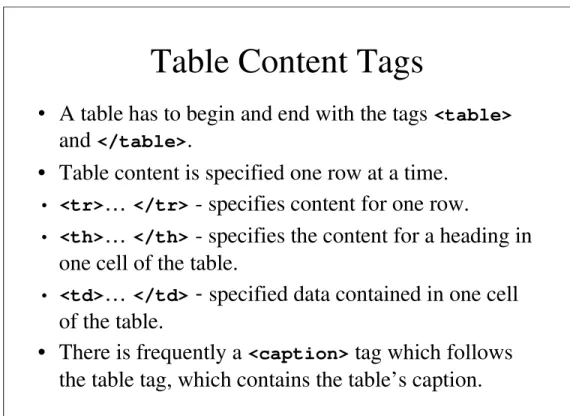
Table Content Tags
•
A table has to begin and end with the tags <table>
and </table>.
• Table content is specified one row at a time.
• <tr>
…
</tr>- specifies content for one row.
• <th>
…
</th>- specifies the content for a heading in
one cell of the table.
• <td>
…
</td>-
specified data contained in one cell
of the table.
• There is frequently a <caption>
tag which follows
the table tag, which contains the table’s caption.
A table begins with the <table>tag and ends with the </table>tag. Leaving either of these out will prevent it from being displayed correctly. Additionally, the contents of every row must be specified, beginning and ending with <tr>and </tr>respectively.
Within each row, you have as many (or as few) items as you wish. Each item is enclosed within <td>and </td>tags. However, table headings are enclosed within the <th> and </th> tags instead; this will enable the headings to stand out be and more obvious to readers.
Lastly, if you wish to have a caption attached to the table, it should appear immediately after the <table>tag, enclosed by the <caption>and </caption>tags.
An Example of a Table
<table border="1">
<caption>
How a table is laid out
</caption>
<tr> <td>row 1, cell 1</td>
<td>row 1, cell 2</td> </tr>
<tr> <td>row 2, cell 1</td>
<td>row 2, cell 2</td> </tr> </table>
In this example, the table begins with a caption (which will appear immediately above the table). Then each line contains the layout for that row, cell by cell. It is important to remember that we are doing the layout one row at a time from the left to right.
The Table Displayed
row 1, cell 1 row 1, cell 2
row 2, cell 1 row 2, cell 2
How a table is laid out
Tables – An Example
<table border="border">
<caption>Fruit Juice Drinks</caption>
<tr> <th /> <th>Apple</th> <th>Orange</th> <th>Strawberry</th> </tr> <tr> <th>Breakfast</th> <td>0</td> <td>1</td> <td>0</td> </tr> <tr> <th>Lunch</th> <td>1</td> <td>0</td> <td>0</td> </tr> <tr> <th>Dinner</th> <td>0</td> <td>0</td> <td>1</td> </tr> </table>
This slide includes headings along the top and along the left. Notice that there is a heading tag with the /at the end – it does not match any closing tag and there is no heading in that first cell in the top row. That's deliberate – we want that upper left corner to be blank.
How the Table Appears
Apple Orange Strawberry
Breakfast 0 1 0
Lunch 1 0 0
Dinner 0 0 1
Fruit Juice Drinks
Images
•
Images are an important addition to any web
page.
•
Images are typically stored in a file in the
same directory as the XHTML file that
references them.
They say that a picture is worth a thousand words. Pictures are important on a web page because people think visually. And we want to be able to insert them into an HTML document.
The images (whether they are photographs or drawings) are kept in a separate file, preferably in the same directory as the HTML document itself. There is a tag used to specify where the picture is inserted as well as the information the web browser needs to display it properly.
Including An Image
•
Images can be included if they are saved in a file
format that is recognized by the browser.
•
The most common formats are JPEG, GIF and PNG
•
Examples:
<img src = "myphoto.jpg"> <img src = "scooby.gif">
•
The align
attribute can be used with the img tag.
•
The alt
attribute should be added to provide
information about the image.
The picture should be saved in JPEG, GIF or PNG formats- these are all readily recognized by web browsers; we will discuss them momentarily. The <img>tag requires the name of the file containing the image (srcis short for "source"). One should include an alt attribute that contains a description of the picture in case the picture is not loaded for whatever reason and also to help the blind make sense of what they do not see.
Additionally, you can also specify the alignment, which will either left- or right-align or center the picture. Also left and right alignment allows the browser to wrap text around the other side of the image.
<image>
Tag
• The standard format for an image tag is:
<image src="FileName"
alt= " A description of the picture " />
• Example
<image src="cessna.jpg"
alt= " Picture of a Cessna 210" />
• Attributes include height and width which can be
expressed in pixels or as a percentage of its size.
<img src="rms.jpg" align="right"height="240" alt="My Picture">
Here you can see the standard layout for the imagetag. Notice that you can write either
imageor img, although imgis used far more frequently. This is followed by the src
attribute, which identifies the file holding the image and then by the altattribute, which contains a description of the picture.
After this you can put other attributes that you may need in this case: align to set the alignment, height or width to resize the picture. If you only specify height OR width, the other dimension is changed as well to make the proportions. Also, you can specify height or width in pixels (those little dots on the screen) or percentage of its original size.
Image Formats
• There are three image formats that are most
commonly used on the World Wide Web:
– GIF
– JPEG
– PNG
• The advantage in using standard file formats is
that browsers will be able to open these files.
There are three image foramts most commonly used: GIF, JPEG and PNG. The advantage is that this guarantees that any browser will be able to view the image.
GIF
• GIF (Graphic Interchange Format) was
developed by CompuServe specifically for
moving images.
• It uses 8-bit color representation, limiting
pictures to 256 colors (a smaller number than
you would imagine).
It helps to know a little about the formats in which pictures are stored. The oldest of these three format is GIF (Graphic Interchange Format), which was developed by CompuServe, one of the oldest online computer services. IT was developed for moving images, which it can represent as well as still images.
The biggest limitation of GIF is that it uses 8 bits to represent colors, which limits pictures to 256 colors. As a result, photograph do not look as good as they would in other format because of the limited range of colors.
JPEG
• JPEG (Joint Photographic Experts Group) uses
24-bit color representation, allowing for over
16 millions colors.
• JPEG uses a lossy compression method to save
pictures, which leads to the loss of some color
information.
• JPEG files will usually be smaller than Gif
files of the same image.
JPEG, which stands for Joint Photographic Experts Group, was developed specifically for representing photographs. It uses 24 bits to represent colors, which mean that you have literally millions of colors available to you.
JPEG compresses the image, not saving data that is outside of the range of colors that the human eye can perceive. As a result, it is "lossy", i.e, you cannot recreate the original picture. But this really does not matter because the only data that is lost does not register with the human eye.
JPEG tend to be smaller than GIF file for the same image, but take a little longer to view and to save because of the compression.
PNG
• PNG (Portable Network Graphics) was designed in
1996 to replace GIF when its patent holder, Unisys),
suggested that it might start charging for its use.
• PNG has advantages over both GIF and JPEG in that
it combines the best features of both.
• PNG supports transparency like GIF and a large
number of colors.
• Because its compression algorithm is not lossy, its
fles are bigger than JPEG files for the same image.
PNG, which stands for Portable Network Graphics, is the newest of the three, begin developed in 1996. It was designed to replace GIF, when Unisys, the patent holder, suggested that it might start charging for the use of the GIF format. PNG is available without charge and as a result, it eventually saw widescale use.
PNG has many of the advantages of both – it supports transparency like GI and a large number of colors like JPEG. It has only one real disadvantage –its files tend to be bigger than FPEG for the same image.
Horizontal Rules
• A horizontal rule can be used to separate two
areas of text in the browser window.
• The tag is
<hr />
• The properties of
<hr />
, including its
thickness, length and exact horizontal
placement is determined by the browser.
• There is no closing tag.
Sometimes we want to be able to separate different areas of the browser window. We might want to separate a heading from the text of the window, or the text from the menu. We can do this with a horizontal rule.
The tag is pretty simple <hr />. While it has properties, there are none that we really need to worry about right now. Its thickness, length and exact horizontal placement can be determined by the browser. And there is no closing tag.
Hypertext Links
• A link points to a different document that should
share some logical connection to the document with
which it is linked.
• Links all use the inline anchor tag <a>, which
connects to the source document (with the tag) to the
target document (the one to which it is linked).
• There are three main types of links:
– Links/ to other pages – Links within the page – Links to external sites
There may be other things that you can do with anchor tags, but the single most important thing is to link to either other web pages or to other places within the same page.
Adding Links
•
With a web site, there will typically be several
different web pages that are saved as separate file that
can be linked together:
<p>This is a link to
<a href="myotherpage.html">My Other Page</a>
•
Linking to pages elsewhere on the World Wide Web
is a little more involved:
<p>This is a link to<a href=“http://www.myothersite.com">My Other Page</a>
The main reason that anyone browses the Web is the ability to go from one linked page to another - this how people find things on the web. That makes it essential that we learn how to add links on a page.
Every link has two main parts – the tags (the opening tag includes the hypertext reference to which you are going to go) and the text that serves as a label for that link.
The hypertext reference can be absolute or relative. A relative link refers to another page on the same system and either in the same directory or another directory that is close to the one in which this page was stored. The first example above shows an example of a relative link, in this case, "myotherpage.html"
An absolute link is anywhere else on the World Wide Web. In this case, if it is on another system, you need to include the "http://" – otherwise the browser will assume it is on the same system and directory as the page containing the link.
Links To Other Places In the Same
Page
• It is possible to set up a link that takes the
browser from one part of a document to
another.
• The anchor is set to mark the spot using
<a name=
"
SpotName
">
• You can jump to that other spot in the
document by writing
<a href="#SpotName">
We learned earlier that the anchor tag can be used to take us to another place within the same web page. This requires two different anchor tags: one to mark the spot in the page to which we want TOjump and another to mark the spot FROMwhich we are jumping.
The spot from which we are jumping is almost like any other link that we place in a document. The only significant difference is that the hrefattribute begins with the # character – this tells the browser that it is a spot within the same page.
The spot to which we are jumping is a bit different. It does not get the hrefattribute – it get a nameattribute. This indicates that this is the place to which we are ju,ping.
align
and
valign
Attributes
• Most elements in an XHTML document have
default alignment.
– Headings and paragraphs are left-aligned.
– Table headings are center-aligned, while other
entries are left-aligned.
• Many of these elements will allow the use of
the align attribute, which changes the
alignment to left, center or right depending on
the programmer’s choice.
Most of the elements in a web page will have a default alignment. It is usually left
alignment and you will see this in headings and in paragraphs. In table, the headings will be centered while the other entries are typically left-aligned.
You can change this using the align attribute as we discussed earlier, but for data there is also something called the valign attribute, which controls the vertical alignment as well.
align
Attribute
• The
align
attribute can be used within the
<tr>
to realign data in the entire row.
• The
align
attribute can also be used with the
<th>
and
<td>
tags to realign data within the
cell.
You can use the align attribute to align either a single cell by placing it in the <td>or <th>