iSCSI SAN Configuration Guide
ESX 4.1
ESXi 4.1
vCenter Server 4.1
This document supports the version of each product listed and
supports all subsequent versions until the document is replaced
by a new edition. To check for more recent editions of this
document, see
http://www.vmware.com/support/pubs
.
You can find the most up-to-date technical documentation on the VMware Web site at: http://www.vmware.com/support/
The VMware Web site also provides the latest product updates.
If you have comments about this documentation, submit your feedback to: [email protected]
Copyright © 2009, 2010 VMware, Inc. All rights reserved. This product is protected by U.S. and international copyright and intellectual property laws. VMware products are covered by one or more patents listed at
http://www.vmware.com/go/patents.
VMware is a registered trademark or trademark of VMware, Inc. in the United States and/or other jurisdictions. All other marks and names mentioned herein may be trademarks of their respective companies.
VMware, Inc. 3401 Hillview Ave. Palo Alto, CA 94304 www.vmware.com
Updated Information 5
About This Book 7
1
Using ESX/ESXi with an iSCSI Storage Area Network 9
Understanding Virtualization 9 iSCSI SAN Concepts 11
Overview of Using ESX/ESXi with a SAN 16 Specifics of Using SAN Storage with ESX/ESXi 17 Understanding VMFS Datastores 18
Making LUN Decisions 19
How Virtual Machines Access Data on a SAN 21 Understanding Multipathing and Failover 22 Choosing Virtual Machine Locations 27 Designing for Server Failure 27 LUN Display and Rescan 28
2
Configuring iSCSI Initiators and Storage 29
ESX/ESXi iSCSI SAN Requirements 29 ESX/ESXi iSCSI SAN Restrictions 30 Setting LUN Allocations 30
Network Configuration and Authentication 30 Setting Up Independent Hardware iSCSI Adapters 31
Setting Up and Configuring Dependent Hardware iSCSI Adapters 32 Setting Up and Configuring Software iSCSI Adapter 34
Networking Configuration for Software iSCSI and Dependent Hardware iSCSI 36 Bind iSCSI Ports to iSCSI Adapters 40
Using Jumbo Frames with iSCSI 41
Enabling Jumbo Frames for Software and Dependent Hardware iSCSI 42 Configuring Discovery Addresses for iSCSI Initiators 43
Configuring CHAP Parameters for iSCSI Adapters 44 Configuring Additional Parameters for iSCSI 48 iSCSI Session Management 49
Add iSCSI Storage 51
3
Modifying SAN Storage Systems for ESX/ESXi 53
Testing ESX/ESXi SAN Configurations 53
General Considerations for iSCSI SAN Storage Systems 54 EMC CLARiiON Storage Systems 54
EMC Symmetrix Storage Systems 55
NetApp Storage Systems 57 EqualLogic Storage Systems 59
LeftHand Networks SAN/iQ Storage Systems 59 Dell PowerVault MD3000i Storage Systems 59 iSCSI Targets in vApps 59
4
Booting from iSCSI SAN 61
General Boot from iSCSI SAN Recommendations 62 Prepare the iSCSI SAN 62
Configure ESX Hosts to Boot from iSCSI SAN 63 iBFT iSCSI Boot Overview 64
Collecting Diagnostic Information for ESXi Hosts 69
5
Managing ESX/ESXi Systems That Use SAN Storage 71
Viewing Storage Adapter Information 71 Viewing Storage Device Information 72 Viewing Datastore Information 74 Resolving Storage Display Issues 75 Path Scanning and Claiming 79 Sharing Diagnostic Partitions 84
Avoiding and Resolving SAN Problems 84 Optimizing SAN Storage Performance 85 Resolving Performance Issues 88 SAN Storage Backup Considerations 91 Managing Duplicate VMFS Datastores 93 Storage Hardware Acceleration 96
A
iSCSI SAN Configuration Checklist 99
B
VMware vSphere Command-Line Interface 101
resxtop Command 101 vicfg-iscsi Command 101 vicfg-mpath Command 101
esxcli corestorage claimrule Command 102 vmkping Command 102
C
Managing Multipathing Modules and Hardware Acceleration Plug-Ins 103
Managing Storage Paths and Multipathing Plug-Ins 103 Managing Hardware Acceleration Filter and Plug-Ins 110 esxcli corestorage claimrule Options 113
This iSCSI SAN Configuration Guide is updated with each release of the product or when necessary. This table provides the update history of the iSCSI SAN Configuration Guide.
Revision Description
EN-000288-01 “ESX/ESXi iSCSI SAN Restrictions,” on page 30 has been updated to clarify multipathing support for different types of iSCSI adapters.
The iSCSI SAN Configuration Guide explains how to use VMware® ESX™ and VMware ESXi systems with an iSCSI storage area network (SAN). The manual includes conceptual background information and installation requirements for ESX, ESXi, and VMware vCenter™ Server.
Intended Audience
This manual is written for experienced Windows or Linux system administrators who are familiar with virtual machine technology datacenter operations.
VMware Technical Publications Glossary
VMware Technical Publications provides a glossary of terms that might be unfamiliar to you. For definitions of terms as they are used in VMware technical documentation, go to
http://www.vmware.com/support/pubs.
Document Feedback
VMware welcomes your suggestions for improving our documentation. If you have comments, send your feedback to [email protected].
VMware vSphere Documentation
The VMware vSphere documentation consists of the combined VMware vCenter Server and ESX/ESXi documentation set.
Technical Support and Education Resources
The following technical support resources are available to you. To access the current version of this book and other books, go to http://www.vmware.com/support/pubs.
Online and Telephone Support
To use online support to submit technical support requests, view your product and contract information, and register your products, go to
http://www.vmware.com/support.
Customers with appropriate support contracts should use telephone support for the fastest response on priority 1 issues. Go to
http://www.vmware.com/support/phone_support.html.
Support Offerings To find out how VMware support offerings can help meet your business needs, go to http://www.vmware.com/support/services.
VMware Professional Services
VMware Education Services courses offer extensive hands-on labs, case study examples, and course materials designed to be used as on-the-job reference tools. Courses are available onsite, in the classroom, and live online. For onsite pilot programs and implementation best practices, VMware Consulting Services provides offerings to help you assess, plan, build, and manage your virtual environment. To access information about education classes,
certification programs, and consulting services, go to http://www.vmware.com/services.
Using ESX/ESXi with an iSCSI Storage
Area Network
1
You can use ESX/ESXi in conjunction with a storage area network (SAN), a specialized high-speed network that connects computer systems to high-performance storage subsystems. Using ESX/ESXi together with a SAN provides storage consolidation, improves reliability, and helps with disaster recovery.
To use ESX/ESXi effectively with a SAN, you must have a working knowledge of ESX/ESXi systems and SAN concepts. Also, when you set up ESX/ESXi hosts to use Internet SCSI (iSCSI) SAN storage systems, you must be aware of certain special considerations that exist.
This chapter includes the following topics:
n “Understanding Virtualization,” on page 9 n “iSCSI SAN Concepts,” on page 11
n “Overview of Using ESX/ESXi with a SAN,” on page 16 n “Specifics of Using SAN Storage with ESX/ESXi,” on page 17 n “Understanding VMFS Datastores,” on page 18
n “Making LUN Decisions,” on page 19
n “How Virtual Machines Access Data on a SAN,” on page 21 n “Understanding Multipathing and Failover,” on page 22 n “Choosing Virtual Machine Locations,” on page 27 n “Designing for Server Failure,” on page 27 n “LUN Display and Rescan,” on page 28
Understanding Virtualization
The VMware virtualization layer is common across VMware desktop products (such as VMware Workstation) and server products (such as VMware ESX/ESXi). This layer provides a consistent platform for development, testing, delivery, and support of application workloads.
The virtualization layer is organized as follows:
n Each virtual machine runs its own operating system (the guest operating system) and applications. n The virtualization layer provides the virtual devices that map to shares of specific physical devices. These
devices include virtualized CPU, memory, I/O buses, network interfaces, storage adapters and devices, human interface devices, and BIOS.
Network Virtualization
The virtualization layer guarantees that each virtual machine is isolated from other virtual machines. Virtual machines can talk to each other only through networking mechanisms similar to those used to connect separate physical machines.
The isolation allows administrators to build internal firewalls or other network isolation environments so that some virtual machines can connect to the outside, while others are connected only through virtual networks to other virtual machines.
Storage Virtualization
ESX/ESXi provides host-level storage virtualization, which logically abstracts the physical storage layer from virtual machines.
An ESX/ESXi virtual machine uses a virtual disk to store its operating system, program files, and other data associated with its activities. A virtual disk is a large physical file, or a set of files, that can be copied, moved, archived, and backed up as easily as any other file. You can configure virtual machines with multiple virtual disks.
To access virtual disks, a virtual machine uses virtual SCSI controllers. These virtual controllers include BusLogic Parallel, LSI Logic Parallel, LSI Logic SAS, and VMware Paravirtual. These controllers are the only types of SCSI controllers that a virtual machine can see and access.
Each virtual disk that a virtual machine can access through one of the virtual SCSI controllers resides on a VMware Virtual Machine File System (VMFS) datastore, an NFS-based datastore, or on a raw disk. From the standpoint of the virtual machine, each virtual disk appears as if it were a SCSI drive connected to a SCSI controller. Whether the actual physical disk device is being accessed through parallel SCSI, iSCSI, network, or Fibre Channel adapters on the host is transparent to the guest operating system and to applications running on the virtual machine.
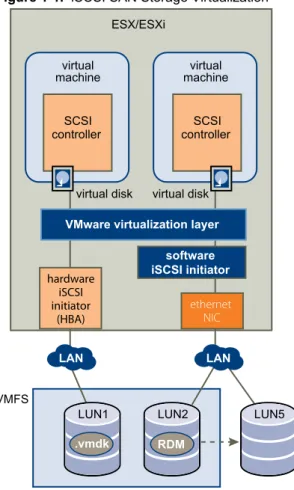
Figure 1-1 gives an overview of storage virtualization. The diagram illustrates storage that uses VMFS and storage that uses raw device mapping. The diagram also shows how iSCSI storage is accessed through either iSCSI HBAs or by using a general-purpose NIC that uses iSCSI initiator software.
Figure 1-1. iSCSI SAN Storage Virtualization
VMFS
VMware virtualization layer
.vmdk
LUN1 LUN2 LUN5
virtual machine SCSI controller virtual machine SCSI controller virtual disk virtual disk LAN LAN hardware iSCSI initiator (HBA) ethernet NIC software iSCSI initiator ESX/ESXi RDM
iSCSI SAN Concepts
If you are an ESX/ESXi administrator who plans to set up ESX/ESXi hosts to work with SANs, you must have a working knowledge of SAN concepts. You can find information about SAN in print and on the Internet. iSCSI SANs use Ethernet connections between computer systems, or host servers, and high performance storage subsystems. The SAN components include iSCSI host bus adapters (HBAs) or Network Interface Cards (NICs) in the host servers, switches and routers that transport the storage traffic, cables, storage processors (SPs), and storage disk systems.
iSCSI SAN uses a client-server architecture. The client, called iSCSI initiator, operates on your host. It initiates iSCSI sessions by issuing SCSI commands and transmitting them, encapsulated into iSCSI protocol, to a server. The server is known as an iSCSI target. The iSCSI target represents a physical storage system on the network. It can also be provided by a virtual iSCSI SAN, for example, an iSCSI target emulator running in a virtual machine. The iSCSI target responds to the initiator's commands by transmitting required iSCSI data.
Ports in the iSCSI SAN
A single discoverable entity on the iSCSI SAN, such as an initiator or a target, represents an iSCSI node. Each node has one or more ports that connect it to the SAN.
iSCSI ports are end-points of an iSCSI session. Each node can be identified in a number of ways.
IP Address Each iSCSI node can have an IP address associated with it so that routing and switching equipment on your network can establish the connection between the server and storage. This address is just like the IP address that you assign to your computer to get access to your company's network or the Internet. iSCSI Name A worldwide unique name for identifying the node. iSCSI uses the iSCSI
Qualified Name (IQN), Extended Unique Identifier (EUI), and Network Address Authority (NAA) formats.
By default, ESX/ESXi generates unique iSCSI names for your iSCSI initiators, for example, iqn.1998-01.com.vmware:iscsitestox-68158ef2. Usually, you do not have to change the default value, but if you do, make sure that the new iSCSI name you enter is worldwide unique.
iSCSI Alias A more manageable name for an iSCSI device or port used instead of the iSCSI name. iSCSI aliases are not unique and are intended to be just a friendly name to associate with a port.
iSCSI Naming Conventions
iSCSI uses a special unique name to identify an iSCSI node, either target or initiator. This name is similar to the WorldWide Name (WWN) associated with Fibre Channel devices and is used as a way to universally identify the node.
iSCSI names are formatted in two different ways. The most common is the IQN format.
For more details on iSCSI naming requirements and string profiles, see RFC 3721, RFC 3722, and RFC 3980 on the IETF Web site.
iSCSI Qualified Name (IQN) Format
The IQN format takes the form iqn.yyyy-mm.naming-authority:unique name, where:
n yyyy-mm is the year and month when the naming authority was established.
n naming-authority is usually reverse syntax of the Internet domain name of the naming authority. For
example, the iscsi.vmware.com naming authority could have the iSCSI qualified name form of iqn. 1998-01.com.vmware.iscsi. The name indicates that the vmware.com domain name was registered in January of 1998, and iscsi is a subdomain, maintained by vmware.com.
n unique name is any name you want to use, for example, the name of your host. The naming authority must
make sure that any names assigned following the colon are unique, such as:
n iqn.1998-01.com.vmware.iscsi:name1 n iqn.1998-01.com.vmware.iscsi:name2 n iqn.1998-01.com.vmware.iscsi:name999
Enterprise Unique Identifier (EUI) Format
The EUI format takes the form eui.16 hex digits.The 16-hexadecimal digits are text representations of a 64-bit number of an IEEE EUI (extended unique identifier) format. The top 24 bits are a company ID that IEEE registers with a particular company. The lower 40 bits are assigned by the entity holding that company ID and must be unique.
iSCSI Initiators
To access iSCSI targets, your host uses iSCSI initiators. The initiators transport SCSI requests and responses, encapsulated into the iSCSI protocol, between the host and the iSCSI target.
VMware supports different types of initiators.
Software iSCSI Adapter
A software iSCSI adapter is a VMware code built into the VMkernel. It allows your host to connect to the iSCSI storage device through standard network adapters. The software iSCSI adapter handles iSCSI processing while communicating with the network adapter. With the software iSCSI adapter, you can use iSCSI technology without purchasing specialized hardware.
Hardware iSCSI Adapter
A hardware iSCSI adapter is a third-party adapter that offloads iSCSI and network processing from your host. Hardware iSCSI adapters are divided into categories.
Dependent Hardware iSCSI Adapter
Depends on VMware networking, and iSCSI configuration and management interfaces provided by VMware.
This type of adapter can be a card that presents a standard network adapter and iSCSI offload functionality for the same port. The iSCSI offload functionality depends on the host's network configuration to obtain the IP, MAC, and other parameters used for iSCSI sessions. An example of a dependent adapter is the iSCSI licensed Broadcom 5709 NIC. Independent Hardware
iSCSI Adapter
Implements its own networking and iSCSI configuration and management interfaces.
An example of an independent hardware iSCSI adapter is a card that either presents only iSCSI offload functionality or iSCSI offload functionality and standard NIC functionality. The iSCSI offload functionality has independent configuration management that assigns the IP, MAC, and other parameters used for the iSCSI sessions. An example of a independent adapter is the QLogic QLA4052 adapter.
Hardware iSCSI adapters might need to be licensed. Otherwise, they will not appear in the vSphere Client or vSphere CLI. Contact your vendor for licensing information.
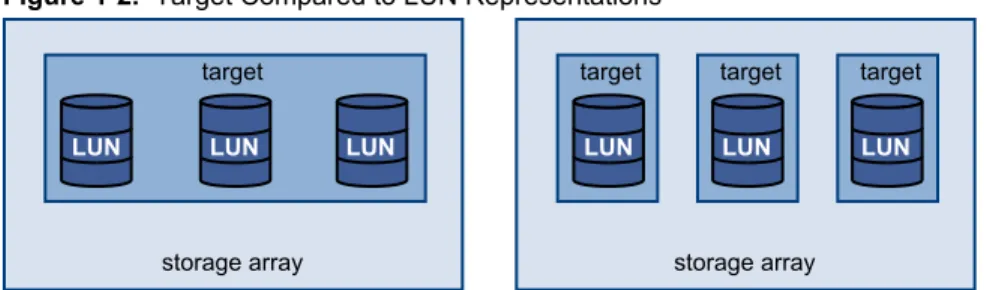
Target Compared to LUN Representations
In the ESX/ESXi context, the term target identifies a single storage unit that your host can access. The terms storage device and LUN describe a logical volume that represents storage space on a target. Typically, the terms device and LUN, in the ESX/ESXi context, mean a SCSI volume presented to your host from a storage target and available for formatting.
Different iSCSI storage vendors present storage to servers in different ways. Some vendors present multiple LUNs on a single target, while others present multiple targets with one LUN each. While the way the storage is used by an ESX/ESXi is similar, the way the information is presented through administrative tools is different.
Figure 1-2. Target Compared to LUN Representations
storage array target
LUN LUN LUN
storage array
target target target
LUN LUN LUN
Three LUNs are available in each of these configurations. In the first case, ESX/ESXi detects one target but that target has three LUNs that can be used. Each of the LUNs represents individual storage volume. In the second case, the ESX/ESXi detects three different targets, each having one LUN.
ESX/ESXi-based iSCSI initiators establish connections to each target. Storage systems with a single target containing multiple LUNs have traffic to all the LUNs on a single connection. With a system that has three targets with one LUN each, a host uses separate connections to the three LUNs. This information is useful when you are trying to aggregate storage traffic on multiple connections from the ESX/ESXi host with multiple iSCSI HBAs, where traffic for one target can be set to a particular HBA, while traffic for another target can use a different HBA.
Multipathing and Path Failover
When transferring data between the host server and storage, the SAN uses a technique known as multipathing. Multipathing allows you to have more than one physical path from the ESX/ESXi host to a LUN on a storage system.
Generally, a single path from a host to a LUN consists of an iSCSI adapter or NIC, switch ports, connecting cables, and the storage controller port. If any component of the path fails, the host selects another available path for I/O. The process of detecting a failed path and switching to another is called path failover.
Storage System Types
ESX/ESXi supports different storage systems and arrays.
The types of storage that your host supports include active-active, active-passive, and ALUA-compliant. Active-active storage
system
Allows access to the LUNs simultaneously through all the storage ports that are available without significant performance degradation. All the paths are active at all times, unless a path fails.
Active-passive storage system
A system in which one storage processor is actively providing access to a given LUN. The other processors act as backup for the LUN and can be actively providing access to other LUN I/O. I/O can be successfully sent only to an active port for a given LUN. If access through the active storage port fails, one of the passive storage processors can be activated by the servers accessing it. Asymmetrical storage
system
Supports Asymmetric Logical Unit Access (ALUA). ALUA-complaint storage systems provide different levels of access per port. ALUA allows hosts to determine the states of target ports and prioritize paths. The host uses some of the active paths as primary while others as secondary.
Virtual port storage system
Allows access to all available LUNs through a single virtual port. These are active-active storage devices, but hide their multiple connections though a single port. The ESX/ESXi multipathing cannot detect the multiple connections to the storage. These storage systems handle port failover and connection balancing transparently. This is often referred to as transparent failover.
Discovery, Authentication, and Access Control
You can use several mechanisms to discover your storage and to limit access to it.
You must configure your host and the iSCSI storage system to support your storage access control policy.
Discovery
A discovery session is part of the iSCSI protocol, and it returns the set of targets you can access on an iSCSI storage system. The two types of discovery available on ESX/ESXi are dynamic and static. Dynamic discovery obtains a list of accessible targets from the iSCSI storage system, while static discovery can only try to access one particular target by target name.
Authentication
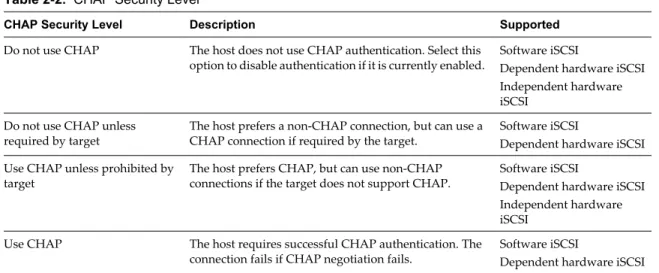
iSCSI storage systems authenticate an initiator by a name and key pair. ESX/ESXi supports the CHAP protocol, which VMware recommends for your SAN implementation. To use CHAP authentication, the ESX/ESXi host and the iSCSI storage system must have CHAP enabled and have common credentials.
Access Control
Access control is a policy set up on the iSCSI storage system. Most implementations support one or more of three types of access control:
n By initiator name n By IP address
n By the CHAP protocol
Only initiators that meet all rules can access the iSCSI volume.
Error Correction
To protect the integrity of iSCSI headers and data, the iSCSI protocol defines error correction methods known as header digests and data digests.
Both parameters are disabled by default, but you can enable them. These digests pertain to, respectively, the header and SCSI data being transferred between iSCSI initiators and targets, in both directions.
Header and data digests check the end-to-end, noncryptographic data integrity beyond the integrity checks that other networking layers provide, such as TCP and Ethernet. They check the entire communication path, including all elements that can change the network-level traffic, such as routers, switches, and proxies. The existence and type of the digests are negotiated when an iSCSI connection is established. When the initiator and target agree on a digest configuration, this digest must be used for all traffic between them.
Enabling header and data digests does require additional processing for both the initiator and the target and can affect throughput and CPU use performance.
NOTE Systems that use Intel Nehalem processors offload the iSCSI digest calculations, thus reducing the impact
Overview of Using ESX/ESXi with a SAN
Using ESX/ESXi with a SAN improves flexibility, efficiency, and reliability. Using ESX/ESXi with a SAN also supports centralized management, failover, and load balancing technologies.
The following are benefits of using ESX/ESXi with a SAN:
n You can store data securely and configure multiple paths to your storage, eliminating a single point of
failure.
n Using a SAN with ESX/ESXi systems extends failure resistance to the server. When you use SAN storage,
all applications can instantly be restarted on another host after the failure of the original host.
n You can perform live migration of virtual machines using VMware vMotion.
n Use VMware High Availability (HA) in conjunction with a SAN to restart virtual machines in their last
known state on a different server if their host fails.
n Use VMware Fault Tolerance (FT) to replicate protected virtual machines on two different hosts. Virtual
machines continue to function without interruption on the secondary host if the primary one fails.
n Use VMware Distributed Resource Scheduler (DRS) to migrate virtual machines from one host to another
for load balancing. Because storage is on a shared SAN array, applications continue running seamlessly.
n If you use VMware DRS clusters, put an ESX/ESXi host into maintenance mode to have the system migrate
all running virtual machines to other ESX/ESXi hosts. You can then perform upgrades or other maintenance operations on the original host.
The portability and encapsulation of VMware virtual machines complements the shared nature of this storage. When virtual machines are located on SAN-based storage, you can quickly shut down a virtual machine on one server and power it up on another server, or suspend it on one server and resume operation on another server on the same network. This ability allows you to migrate computing resources while maintaining consistent shared access.
ESX/ESXi and SAN Use Cases
You can perform a number of tasks when using ESX/ESXi with a SAN. Using ESX/ESXi in conjunction with a SAN is effective for the following tasks: Maintenance with zero
downtime
When performing ESX/ESXi host or infrastructure maintenance, use VMware DRS or vMotion to migrate virtual machines to other servers. If shared storage is on the SAN, you can perform maintenance without interruptions to the users of the virtual machines.
Load balancing Use vMotion or VMware DRS to migrate virtual machines to other hosts for load balancing. If shared storage is on a SAN, you can perform load balancing without interruption to the users of the virtual machines.
Storage consolidation and simplification of storage layout
If you are working with multiple hosts, and each host is running multiple virtual machines, the storage on the hosts is no longer sufficient and external storage is required. Choosing a SAN for external storage results in a simpler system architecture along with other benefits.
Start by reserving a large volume and then allocate portions to virtual machines as needed. Volume allocation and creation from the storage device needs to happen only once.
Disaster recovery Having all data stored on a SAN facilitates the remote storage of data backups. You can restart virtual machines on remote ESX/ESXi hosts for recovery if one site is compromised.
Simplified array migrations and storage upgrades
When you purchase new storage systems or arrays, use storage vMotion to perform live automated migration of virtual machine disk files from existing storage to their new destination without interruptions to the users of the virtual machines.
Finding Further Information
In addition to this document, a number of other resources can help you configure your ESX/ESXi system in conjunction with a SAN.
n Use your storage array vendor's documentation for most setup questions. Your storage array vendor might
also offer documentation on using the storage array in an ESX/ESXi environment.
n The VMware Documentation Web site.
n The Fibre Channel SAN Configuration Guide discusses the use of ESX/ESXi with Fibre Channel storage area
networks.
n The VMware I/O Compatibility Guide lists the currently approved HBAs, HBA drivers, and driver versions. n The VMware Storage/SAN Compatibility Guide lists currently approved storage arrays.
n The VMware Release Notes give information about known issues and workarounds. n The VMware Knowledge Bases have information on common issues and workarounds.
Specifics of Using SAN Storage with ESX/ESXi
Using a SAN in conjunction with an ESX/ESXi host differs from traditional SAN usage in a variety of ways. When you use SAN storage with ESX/ESXi, keep in mind the following considerations:
n You cannot directly access the virtual machine operating system that uses the storage. With traditional
tools, you can monitor only the VMware ESX/ESXi operating system. You use the vSphere Client to monitor virtual machines.
n The HBA visible to the SAN administration tools is part of the ESX/ESXi system, not part of the virtual
machine.
n Your ESX/ESXi system performs multipathing for you.
Third-Party Management Applications
You can use third-party management applications in conjunction with your ESX/ESXi host.
Most iSCSI storage hardware is packaged with storage management software. In many cases, this software is a web application that can be used with any web browser connected to your network. In other cases, this software typically runs on the storage system or on a single server, independent of the servers that use the SAN for storage.
Use this third-party management software for the following tasks:
n Storage array management, including LUN creation, array cache management, LUN mapping, and LUN
security.
If you decide to run the SAN management software on a virtual machine, you gain the benefits of running a virtual machine, including failover using vMotion and VMware HA. Because of the additional level of indirection, however, the management software might not be able to see the SAN. In this case, you can use an RDM.
NOTE Whether a virtual machine can run management software successfully depends on the particular storage
system.
Understanding VMFS Datastores
To store virtual disks, ESX/ESXi uses datastores, which are logical containers that hide specifics of storage from virtual machines and provide a uniform model for storing virtual machine files. Datastores that you deploy on storage devices typically use the VMware Virtual Machine File System (VMFS) format, a special high-performance file system format that is optimized for storing virtual machines.
A VMFS datastore can run multiple virtual machines. VMFS provides distributed locking for your virtual machine files, so that your virtual machines can operate safely in a SAN environment where multiple ESX/ ESXi hosts share the same VMFS datastore.
Use the vSphere Client to set up a VMFS datastore in advance on a block-based storage device that your ESX/ ESXi host discovers. A VMFS datastore can be extended to span several physical storage extents, including SAN LUNs and local storage. This feature allows you to pool storage and gives you flexibility in creating the datastore necessary for your virtual machine.
You can increase the capacity of a datastore while virtual machines are running on the datastore. This ability lets you add new space to your VMFS datastores as your virtual machine requires it. VMFS is designed for concurrent access from multiple physical machines and enforces the appropriate access controls on virtual machine files.
Sharing a VMFS Datastore Across ESX/ESXi Hosts
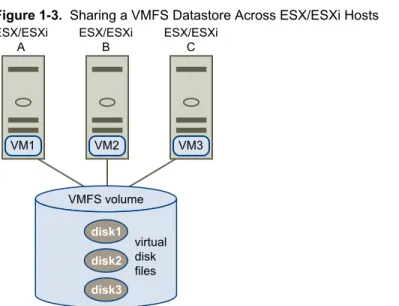
As a cluster file system, VMFS lets multiple ESX/ESXi hosts access the same VMFS datastore concurrently. To ensure that multiple servers do not access the same virtual machine at the same time, VMFS provides on-disk locking.
Figure 1-3 shows several ESX/ESXi systems sharing the same VMFS volume. Figure 1-3. Sharing a VMFS Datastore Across ESX/ESXi Hosts
VMFS volume ESX/ESXi A ESX/ESXi B ESX/ESXi C virtual disk files VM1 VM2 VM3 disk1 disk2 disk3
Because virtual machines share a common VMFS datastore, it might be difficult to characterize peak-access periods or to optimize performance. You must plan virtual machine storage access for peak periods, but different applications might have different peak-access periods. VMware recommends that you load balance virtual machines over servers, CPU, and storage. Run a mix of virtual machines on each server so that not all experience high demand in the same area at the same time.
Metadata Updates
A VMFS datastore holds virtual machine files, directories, symbolic links, RDM descriptor files, and so on. The datastore also maintains a consistent view of all the mapping information for these objects. This mapping information is called metadata.
Metadata is updated each time the attributes of a virtual machine file are accessed or modified when, for example, you perform one of the following operations:
n Creating, growing, or locking a virtual machine file n Changing a file's attributes
n Powering a virtual machine on or off
Making LUN Decisions
You must plan how to set up storage for your ESX/ESXi systems before you format LUNs with VMFS datastores.
When you make your LUN decision, keep in mind the following considerations:
n Each LUN should have the correct RAID level and storage characteristic for the applications running in
virtual machines that use the LUN.
n One LUN must contain only one VMFS datastore.
n If multiple virtual machines access the same VMFS, use disk shares to prioritize virtual machines.
You might want fewer, larger LUNs for the following reasons:
n More flexibility to create virtual machines without asking the storage administrator for more space. n More flexibility for resizing virtual disks, doing snapshots, and so on.
n Fewer VMFS datastores to manage.
You might want more, smaller LUNs for the following reasons:
n Less wasted storage space.
n Different applications might need different RAID characteristics.
n More flexibility, as the multipathing policy and disk shares are set per LUN.
n Use of Microsoft Cluster Service requires that each cluster disk resource is in its own LUN. n Better performance because there is less contention for a single volume.
When the storage characterization for a virtual machine is not available, there is often no simple method to determine the number and size of LUNs to provision. You can experiment using either a predictive or adaptive scheme.
Use the Predictive Scheme to Make LUN Decisions
When setting up storage for ESX/ESXi systems, before creating VMFS datastores, you must decide on the size and number of LUNs to provision. You can experiment using the predictive scheme.
Procedure
1 Provision several LUNs with different storage characteristics.
2 Create a VMFS datastore on each LUN, labeling each datastore according to its characteristics.
3 Create virtual disks to contain the data for virtual machine applications in the VMFS datastores created on LUNs with the appropriate RAID level for the applications' requirements.
4 Use disk shares to distinguish high-priority from low-priority virtual machines.
NOTE Disk shares are relevant only within a given host. The shares assigned to virtual machines on one
host have no effect on virtual machines on other hosts.
5 Run the applications to determine whether virtual machine performance is acceptable.
Use the Adaptive Scheme to Make LUN Decisions
When setting up storage for ESX/ESXi hosts, before creating VMFS datastores, you must decide on the number and size of LUNS to provision. You can experiment using the adaptive scheme.
Procedure
1 Provision a large LUN (RAID 1+0 or RAID 5), with write caching enabled. 2 Create a VMFS on that LUN.
3 Create four or five virtual disks on the VMFS.
4 Run the applications to determine whether disk performance is acceptable.
If performance is acceptable, you can place additional virtual disks on the VMFS. If performance is not acceptable, create a new, large LUN, possibly with a different RAID level, and repeat the process. Use migration so that you do not lose virtual machines data when you recreate the LUN.
Use Disk Shares to Prioritize Virtual Machines
If multiple virtual machines access the same VMFS datastore (and therefore the same LUN), use disk shares to prioritize the disk accesses from the virtual machines. Disk shares distinguish high-priority from low-priority virtual machines.
Procedure
1 Start a vSphere Client and connect to vCenter Server.
2 Select the virtual machine in the inventory panel and click Edit virtual machine settings from the menu. 3 Click the Resources tab and click Disk.
4 Double-click the Shares column for the disk to modify and select the required value from the drop-down menu.
Shares is a value that represents the relative metric for controlling disk bandwidth to all virtual machines. The values Low, Normal, High, and Custom are compared to the sum of all shares of all virtual machines on the server and, on an ESX host, the service console. Share allocation symbolic values can be used to configure their conversion into numeric values.
5 Click OK to save your selection.
NOTE Disk shares are relevant only within a given ESX/ESXi host. The shares assigned to virtual machines on
one host have no effect on virtual machines on other hosts.
How Virtual Machines Access Data on a SAN
ESX/ESXi stores a virtual machine's disk files within a VMFS datastore that resides on a SAN storage device. When virtual machine guest operating systems issue SCSI commands to their virtual disks, the SCSI virtualization layer translates these commands to VMFS file operations.
When a virtual machine interacts with its virtual disk stored on a SAN, the following process takes place: 1 When the guest operating system in a virtual machine reads or writes to SCSI disk, it issues SCSI
commands to the virtual disk.
2 Device drivers in the virtual machine’s operating system communicate with the virtual SCSI controllers. 3 The virtual SCSI Controller forwards the command to the VMkernel.
4 The VMkernel performs the following tasks.
n Locates the file in the VMFS volume that corresponds to the guest virtual machine disk.
n Maps the requests for the blocks on the virtual disk to blocks on the appropriate physical device. n Sends the modified I/O request from the device driver in the VMkernel to the iSCSI initiator (hardware
or software).
5 If the iSCSI initiator is a hardware iSCSI adapter (both independent or dependent), the adapter performs the following tasks.
n Encapsulates I/O requests into iSCSI Protocol Data Units (PDUs). n Encapsulates iSCSI PDUs into TCP/IP packets.
n Sends IP packets over Ethernet to the iSCSI storage system.
6 If the iSCSI initiator is a software iSCSI adapter, the following takes place.
n The iSCSI initiator encapsulates I/O requests into iSCSI PDUs. n The initiator sends iSCSI PDUs through TCP/IP connections. n The VMkernel TCP/IP stack relays TCP/IP packets to a physical NIC. n The physical NIC sends IP packets over Ethernet to the iSCSI storage system.
7 Depending on which port the iSCSI initiator uses to connect to the network, Ethernet switches and routers carry the request to the storage device that the host wants to access.
Understanding Multipathing and Failover
To maintain a constant connection between an ESX/ESXi host and its storage, ESX/ESXi supports multipathing. Multipathing is a technique that lets you use more than one physical path that transfers data between the host and an external storage device.
In case of a failure of any element in the SAN network, such as an adapter, switch, or cable, ESX/ESXi can switch to another physical path, which does not use the failed component. This process of path switching to avoid failed components is known as path failover.
In addition to path failover, multipathing provides load balancing. Load balancing is the process of distributing I/O loads across multiple physical paths. Load balancing reduces or removes potential bottlenecks.
NOTE Virtual machine I/O might be delayed for up to sixty seconds while path failover takes place. These
delays allow the SAN to stabilize its configuration after topology changes. In general, the I/O delays might be longer on active-passive arrays and shorter on activate-active arrays.
Managing Multiple Paths
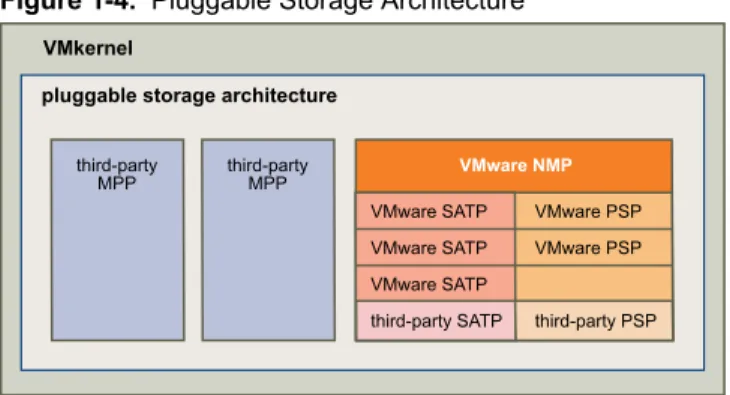
To manage storage multipathing, ESX/ESXi uses a special VMkernel layer, the Pluggable Storage Architecture (PSA). The PSA is an open, modular framework that coordinates the simultaneous operation of multiple multipathing plug-ins (MPPs).
The VMkernel multipathing plug-in that ESX/ESXi provides by default is the VMware Native Multipathing Plug-In (NMP). The NMP is an extensible module that manages sub plug-ins. There are two types of NMP sub plug-ins, Storage Array Type Plug-Ins (SATPs), and Path Selection Plug-Ins (PSPs). SATPs and PSPs can be built-in and provided by VMware, or can be provided by a third party.
If more multipathing functionality is required, a third party can also provide an MPP to run in addition to, or as a replacement for, the default NMP.
When coordinating the VMware NMP and any installed third-party MPPs, the PSA performs the following tasks:
n Loads and unloads multipathing plug-ins.
n Hides virtual machine specifics from a particular plug-in.
n Routes I/O requests for a specific logical device to the MPP managing that device. n Handles I/O queuing to the logical devices.
n Implements logical device bandwidth sharing between virtual machines. n Handles I/O queueing to the physical storage HBAs.
n Handles physical path discovery and removal. n Provides logical device and physical path I/O statistics.
As Figure 1-4 illustrates, multiple third-party MPPs can run in parallel with the VMware NMP. When installed, the third-party MPPs replace the behavior of the NMP and take complete control of the path failover and the load-balancing operations for specified storage devices.
Figure 1-4. Pluggable Storage Architecture third-party MPP third-party MPP VMkernel
pluggable storage architecture
VMware NMP
VMware SATP VMware PSP VMware SATP VMware PSP VMware SATP
third-party SATP third-party PSP
The multipathing modules perform the following operations:
n Manage physical path claiming and unclaiming.
n Manage creation, registration, and deregistration of logical devices. n Associate physical paths with logical devices.
n Support path failure detection and remediation. n Process I/O requests to logical devices:
n Select an optimal physical path for the request.
n Depending on a storage device, perform specific actions necessary to handle path failures and I/O
command retries.
n Support management tasks, such as abort or reset of logical devices.
VMware Multipathing Module
By default, ESX/ESXi provides an extensible multipathing module called the Native Multipathing Plug-In (NMP).
Generally, the VMware NMP supports all storage arrays listed on the VMware storage HCL and provides a default path selection algorithm based on the array type. The NMP associates a set of physical paths with a specific storage device, or LUN. The specific details of handling path failover for a given storage array are delegated to a Storage Array Type Plug-In (SATP). The specific details for determining which physical path is used to issue an I/O request to a storage device are handled by a Path Selection Plug-In (PSP). SATPs and PSPs are sub plug-ins within the NMP module.
Upon installation of ESX/ESXi, the appropriate SATP for an array you use will be installed automatically. You do not need to obtain or download any SATPs.
VMware SATPs
Storage Array Type Plug-Ins (SATPs) run in conjunction with the VMware NMP and are responsible for array-specific operations.
ESX/ESXi offers a SATP for every type of array that VMware supports. It also provides default SATPs that support non-specific active-active and ALUA storage arrays, and the local SATP for direct-attached devices. Each SATP accommodates special characteristics of a certain class of storage arrays and can perform the array-specific operations required to detect path state and to activate an inactive path. As a result, the NMP module itself can work with multiple storage arrays without having to be aware of the storage device specifics.
After the NMP determines which SATP to use for a specific storage device and associates the SATP with the physical paths for that storage device, the SATP implements the tasks that include the following:
n Monitors the health of each physical path. n Reports changes in the state of each physical path.
n Performs array-specific actions necessary for storage fail-over. For example, for active-passive devices, it
can activate passive paths. VMware PSPs
Path Selection Plug-Ins (PSPs) run with the VMware NMP and are responsible for choosing a physical path for I/O requests.
The VMware NMP assigns a default PSP for each logical device based on the SATP associated with the physical paths for that device. You can override the default PSP.
By default, the VMware NMP supports the following PSPs: Most Recently Used
(VMW_PSP_MRU)
Selects the path the ESX/ESXi host used most recently to access the given device. If this path becomes unavailable, the host switches to an alternative path and continues to use the new path while it is available. MRU is the default path policy for active-passive arrays.
Fixed
(VMW_PSP_FIXED)
Uses the designated preferred path, if it has been configured. Otherwise, it uses the first working path discovered at system boot time. If the host cannot use the preferred path, it selects a random alternative available path. The host reverts back to the preferred path as soon as that path becomes available. Fixed is the default path policy for active-active arrays.
CAUTION If used with active-passive arrays, the Fixed path policy might cause
path thrashing.
VMW_PSP_FIXED_AP Extends the Fixed functionality to active-passive and ALUA mode arrays. Round Robin
(VMW_PSP_RR)
Uses a path selection algorithm that rotates through all available active paths enabling load balancing across the paths.
VMware NMP Flow of I/O
When a virtual machine issues an I/O request to a storage device managed by the NMP, the following process takes place.
1 The NMP calls the PSP assigned to this storage device.
2 The PSP selects an appropriate physical path on which to issue the I/O. 3 The NMP issues the I/O request on the path selected by the PSP. 4 If the I/O operation is successful, the NMP reports its completion. 5 If the I/O operation reports an error, the NMP calls the appropriate SATP.
6 The SATP interprets the I/O command errors and, when appropriate, activates the inactive paths. 7 The PSP is called to select a new path on which to issue the I/O.
Host-Based Path Failover
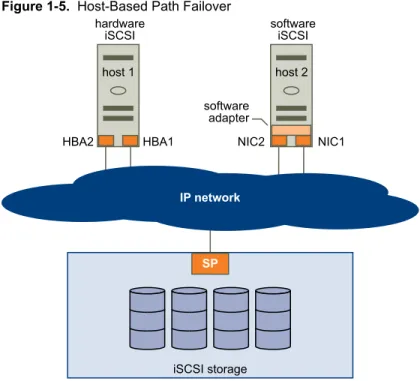
When setting up your ESX/ESXi host for multipathing and failover, you can use multiple iSCSI HBAs or multiple NICs depending on the type of iSCSI initiators on your host.
Figure 1-5. Host-Based Path Failover IP network hardware iSCSI host 1 SP iSCSI storage HBA2 HBA1 software iSCSI host 2 NIC2 NIC1 software adapter
Failover with Hardware iSCSI
With the hardware iSCSI, the host typically has two or more hardware iSCSI adapters available, from which the storage system can be reached using one or more switches. Alternatively, the setup might include one adapter and two storage processors so that the adapter can use a different path to reach the storage system. On the Figure 1-5 illustration, Host1 has two hardware iSCSI adapters, HBA1 and HBA2, that provide two physical paths to the storage system. Multipathing plug-ins on your host, whether the VMkernel NMP or any third-party MPPs, have access to the paths by default and can monitor health of each physical path. If, for example, HBA1 or the link between HBA1 and the network fails, the multipathing plug-ins can switch the path over to HBA2.
Failover with Software iSCSI
With the software iSCSI, as shown on Host 2 of Figure 1-5, you can use multiple NICs that provide failover and load balancing capabilities for iSCSI connections between your host and storage systems.
For this setup, because multipathing plug-ins do not have direct access to physical NICs on your host, you first need to connect each physical NIC to a separate VMkernel port. You then associate all VMkernel ports with the software iSCSI initiator using a port binding technique. As a result, each VMkernel port connected to a separate NIC becomes a different path that the iSCSI storage stack and its storage-aware multipathing plug-ins can use.
For information on how to configure multipathing for the software iSCSI, see “Networking Configuration for Software iSCSI and Dependent Hardware iSCSI,” on page 36.
Array-Based Failover
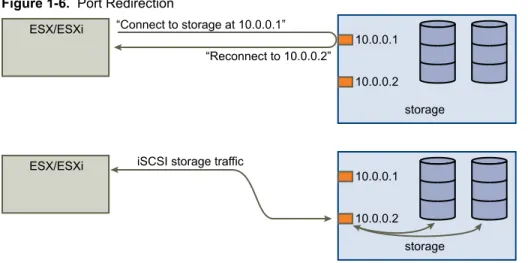
Some iSCSI storage systems manage path use of their ports automatically and transparently to ESX/ESXi. When using one of these storage systems, ESX/ESXi does not see multiple ports on the storage and cannot choose the storage port it connects to. These systems have a single virtual port address that ESX/ESXi uses to initially communicate. During this initial communication, the storage system can redirect ESX/ESXi to communicate with another port on the storage system. The iSCSI initiators in ESX/ESXi obey this reconnection request and connect with a different port on the system. The storage system uses this technique to spread the
If ESX/ESXi loses connection to one of these ports, it automatically attempts to reconnect with the virtual port of the storage system, and should be redirected to an active, usable port. This reconnection and redirection happens quickly and generally does not disrupt running virtual machines. These storage systems can also request that iSCSI initiators reconnect to the system, to change which storage port they are connected to. This allows the most effective use of the multiple ports.
Figure 1-6 shows an example of port redirection. ESX/ESXi attempts to connect to the 10.0.0.1 virtual port. The storage system redirects this request to 10.0.0.2. ESX/ESXi connects with 10.0.0.2 and uses this port for I/O communication.
NOTE The storage system does not always redirect connections. The port at 10.0.0.1 could be used for traffic,
also.
Figure 1-6. Port Redirection
storage 10.0.0.1 10.0.0.2 ESX/ESXi “Connect to storage at 10.0.0.1”
“Reconnect to 10.0.0.2”
storage 10.0.0.1 10.0.0.2 ESX/ESXi iSCSI storage traffic
If the port on the storage system that is acting as the virtual port becomes unavailable, the storage system reassigns the address of the virtual port to another port on the system. Figure 1-7 shows an example of this type of port reassignment. In this case, the virtual port 10.0.0.1 becomes unavailable and the storage system reassigns the virtual port IP address to a different port. The second port responds to both addresses. Figure 1-7. Port Reassignment
storage 10.0.0.1 10.0.0.2 storage 10.0.0.1 10.0.0.1 10.0.0.2
With array-based failover, you can have multiple paths to the storage only if you use multiple ports on the ESX/ESXi host. These paths are active-active. For additional information, see “iSCSI Session Management,” on page 49.
Choosing Virtual Machine Locations
When you’re working on optimizing performance for your virtual machines, storage location is an important factor. A trade-off always exists between expensive storage that offers high performance and high availability and storage with lower cost and lower performance.
Storage can be divided into different tiers depending on a number of factors:
n High Tier. Offers high performance and high availability. Might offer built-in snapshots to facilitate
backups and point-in-time (PiT) restorations. Supports replication, full SP redundancy, and SAS drives. Uses high-cost spindles.
n Mid Tier. Offers mid-range performance, lower availability, some SP redundancy, and SCSI or SAS drives.
May offer snapshots. Uses medium-cost spindles.
n Lower Tier. Offers low performance, little internal storage redundancy. Uses low end SCSI drives or SATA
(serial low-cost spindles).
Not all applications need to be on the highest-performance, most-available storage—at least not throughout their entire life cycle.
NOTE If you need some of the functionality of the high tier, such as snapshots, but do not want to pay for it,
you might be able to achieve some of the high-performance characteristics in software. For example, you can create snapshots in software.
When you decide where to place a virtual machine, ask yourself these questions:
n How critical is the virtual machine?
n What are its performance and availability requirements? n What are its PiT restoration requirements?
n What are its backup requirements? n What are its replication requirements?
A virtual machine might change tiers throughout its life cycle because of changes in criticality or changes in technology that push higher-tier features to a lower tier. Criticality is relative and might change for a variety of reasons, including changes in the organization, operational processes, regulatory requirements, disaster planning, and so on.
Designing for Server Failure
The RAID architecture of SAN storage inherently protects you from failure at the physical disk level. A SAN provides multiple paths between servers and storage, which protects against network or port failures. The final step in making your whole environment failure resistant is to protect against server failure.
Using VMware HA
One of the failover options ESX/ESXi provides is VMware High Availability (HA).
VMware HA allows you to organize virtual machines into failover groups. When a host fails, all its virtual machines are immediately started on different hosts. When a virtual machine is restored on a different host, it loses its memory state, but its disk state is exactly as it was when the host failed (crash-consistent failover). Shared storage (such as a SAN) is required for HA.
Server Failover and Storage Considerations
When you are configuring your ESX/ESXi host to work in conjunction with SAN, you must make your whole environment failure resistant and protect it against host failures.
For each type of server failover, you must follow these practices:
n Approaches to server failover work only if each server has access to the same storage. Because multiple
servers require a lot of disk space, and because failover for the storage system complements failover for the server, SANs are usually employed in conjunction with server failover.
n When you design a SAN to work in conjunction with server failover, all ESX/ESXi hosts must see all
datastores that the clustered virtual machines use.
Although a datastore is accessible to a host, all virtual machines on that host do not necessarily have access to all data on that datastore. A virtual machine can access only the virtual disks for which it was configured. In case of a configuration error, virtual disks are locked when the virtual machine boots so no corruption occurs.
NOTE As a rule, when you boot from a SAN, each boot volume should be seen only by the host that is booting
from that volume. An exception is when you try to recover from a failure by pointing a second host to the same volume. In this case, the SAN volume in question is not really for booting from a SAN. No host is booting from it because it is corrupted. The SAN volume is a regular non-boot volume that is made visible to a host.
LUN Display and Rescan
A SAN is dynamic, and which LUNs are available to a certain host can change based on a number of factors. The VMkernel discovers LUNs when it boots, and those LUNs are then visible in the vSphere Client. If changes are made to the LUNs, you must rescan to see those changes.
n New LUNs created on the iSCSI storage n Changes to LUN access control
Configuring iSCSI Initiators and
Storage
2
Before ESX/ESXi can work with a SAN, you must set up your iSCSI initiators and storage.
To do this, you must first observe certain basic requirements and then follow best practices for installing and setting up hardware or software iSCSI initiators to access the SAN.
This chapter includes the following topics:
n “ESX/ESXi iSCSI SAN Requirements,” on page 29 n “ESX/ESXi iSCSI SAN Restrictions,” on page 30 n “Setting LUN Allocations,” on page 30
n “Network Configuration and Authentication,” on page 30 n “Setting Up Independent Hardware iSCSI Adapters,” on page 31
n “Setting Up and Configuring Dependent Hardware iSCSI Adapters,” on page 32 n “Setting Up and Configuring Software iSCSI Adapter,” on page 34
n “Networking Configuration for Software iSCSI and Dependent Hardware iSCSI,” on page 36 n “Bind iSCSI Ports to iSCSI Adapters,” on page 40
n “Using Jumbo Frames with iSCSI,” on page 41
n “Enabling Jumbo Frames for Software and Dependent Hardware iSCSI,” on page 42 n “Configuring Discovery Addresses for iSCSI Initiators,” on page 43
n “Configuring CHAP Parameters for iSCSI Adapters,” on page 44 n “Configuring Additional Parameters for iSCSI,” on page 48 n “iSCSI Session Management,” on page 49
n “Add iSCSI Storage,” on page 51
ESX/ESXi iSCSI SAN Requirements
You must meet several requirements for your ESX/ESXi host to work properly with a SAN.
n Verify that your SAN storage hardware and firmware combinations are supported in conjunction with
ESX/ESXi systems. For an up-to-date list, see the Storage/SAN section of the online Hardware Compatibility
Guide.
n Configure your system to have only one VMFS datastore for each LUN. In VMFS-3, you do not need to
n Unless you are using diskless servers (booting from a SAN), do not set up the diagnostic partition on a
SAN LUN. In the case of diskless servers that boot from a SAN, a shared diagnostic partition is appropriate.
n Use RDMs for access to any raw disk.
n Set the SCSI controller driver in the guest operating system to a large enough queue. You can set the queue
depth for the physical HBA during system setup.
n On virtual machines running Microsoft Windows, increase the value of the SCSI TimeoutValue parameter to allow Windows to better tolerate delayed I/O resulting from path failover.
ESX/ESXi iSCSI SAN Restrictions
Specific restrictions apply when you use ESX/ESXi with an iSCSI SAN.
n ESX/ESXi does not support iSCSI-connected tape devices.
n You cannot use virtual-machine multipathing software to perform I/O load balancing to a single physical
LUN.
n ESX/ESXi does not support multipathing when you combine an independent hardware adapter with either
software iSCSI adapter or dependent hardware iSCSI adapter.
Setting LUN Allocations
When preparing your ESX/ESXi system to use iSCSI SAN storage you need to set LUN allocations. Note the following points:
n Storage Provisioning. To ensure that the ESX/ESXi host recognizes LUNs at startup time, configure all
iSCSI storage targets so that your host can access them and use them. Also, configure your host so that it can discover all available iSCSI targets.
n vMotion and VMware DRS. When you use vCenter Server and vMotion or DRS, make sure that the LUNs
for the virtual machines are provisioned to all ESX/ESXi hosts. This configuration provides the greatest freedom in moving virtual machines.
n Active-active versus active-passive arrays. When you use vMotion or DRS with an active-passive SAN
storage device, make sure that all ESX/ESXi systems have consistent paths to all storage processors. Not doing so can cause path thrashing when a vMotion migration occurs.
For active-passive storage arrays not listed in the Storage/SAN section of the online VMware Compatibility Guide, VMware does not support storage-port failover. You must connect the server to the active port on the storage system. This configuration ensures that the LUNs are presented to the ESX/ESXi host.
Network Configuration and Authentication
Before your ESX/ESXi can discover iSCSI storage, the iSCSI initiators must be configured and authentication might have to be set up.
n For software iSCSI and dependent hardware iSCSI, networking for the VMkernel must be configured. You
can verify the network configuration by using the vmkping utility. For hardware iSCSI, network parameters, such as IP address, subnet mask, and default gateway must be configured on the HBA.
n The discovery address of the storage system must be set and should be pingable using vmkping.
n For CHAP authentication, enable it on the initiator and the storage system side. After authentication is
enabled, it applies for all of the targets that are not yet discovered, but does not apply to targets that are already discovered. After the discovery address is set, the new targets discovered are exposed and can be used at that point.
For details on how to use the vmkping command, search the VMware Knowledge Base.
Setting Up Independent Hardware iSCSI Adapters
An independent hardware iSCSI adapter is a specialized third-party adapter capable of accessing iSCSI storage over TCP/IP. This iSCSI adapter handles all iSCSI and network processing and management for your ESX/ESXi system.
The setup and configuration process for the independent hardware iSCSI adapters involves these steps: 1 Check whether the adapter needs to be licensed.
See your vendor documentation. 2 Install the adapter.
For installation information, see vendor documentation. 3 Verity that the adapter is installed correctly.
See “View Independent Hardware iSCSI Adapters,” on page 31. 4 Configure discovery addresses.
See “Configuring Discovery Addresses for iSCSI Initiators,” on page 43. 5 Configure CHAP parameters.
See “Configuring CHAP Parameters for iSCSI Adapters,” on page 44.
For your host to be able to access iSCSI storage, you must first install the hardware iSCSI adapter and configure discovery address and CHAP parameters.
View Independent Hardware iSCSI Adapters
View a hardware iSCSI adapter to verify that it is correctly installed and ready for configuration. Prerequisites
After you install a hardware iSCSI adapter, it appears on the list of storage adapters available for configuration. You can view its properties.
Required privilege: Host.Configuration.Storage Partition Configuration Procedure
1 Log in to the vSphere Client, and select a host from the inventory panel. 2 Click the Configuration tab and click Storage Adapters in the Hardware panel.
3 Select the initiator to view.
The default details for the initiator appear, including the model, iSCSI name, iSCSI alias, IP address, and target and paths information.
4 Click Properties.
The iSCSI Initiator Properties dialog box appears. The General tab displays additional characteristics of the initiator.
You can now configure your hardware initiator or change its default characteristics.
Change Name and IP Address for Independent Hardware Initiators
When you configure your independent hardware iSCSI initiators, make sure that their names and IP addresses are formatted properly.
Procedure
1 Access the iSCSI Initiator Properties dialog box. 2 Click Configure.
3 To change the default iSCSI name for your initiator, enter the new name.
Make sure the name you enter is worldwide unique and properly formatted or some storage devices might not recognize the hardware iSCSI initiator.
4 (Optional) Enter the iSCSI alias.
The alias is a name that you use to identify the hardware iSCSI initiator. 5 Change the default IP settings.
You must change the default IP settings so that they are configured properly for the IP SAN. Work with your network administrator to determine the IP setting for the HBA.
6 Click OK to save your changes.
If you change the iSCSI name, it is used for new iSCSI sessions. For existing sessions, new settings are not used until logout and re-login.
Setting Up and Configuring Dependent Hardware iSCSI Adapters
A dependent hardware iSCSI adapter is a third-party adapter that depends on VMware networking, and iSCSI configuration and management interfaces provided by VMware.
This type of adapter can be a card, such as a Broadcom 5709 NIC, that presents a standard network adapter and iSCSI offload functionality for the same port. The iSCSI offload functionality appears on the list of storage adapters as an iSCSI adapter. Although the iSCSI adapter is enabled by default, to make it functional, you must set up networking for the iSCSI traffic and bind the adapter and an appropriate VMkernel iSCSI port. You can then configure the adapter.
The entire setup and configuration process for the dependent hardware iSCSI adapters involves these steps: 1 View the dependent hardware adapters.
See “View Dependent Hardware iSCSI Adapters,” on page 33.
If your dependent hardware adapters do not appear on the list of storage adapters, check whether they need to be licensed. See your vendor documentation.
See “Determine Association Between Dependent Hardware iSCSI and Physical Network Adapters,” on page 34
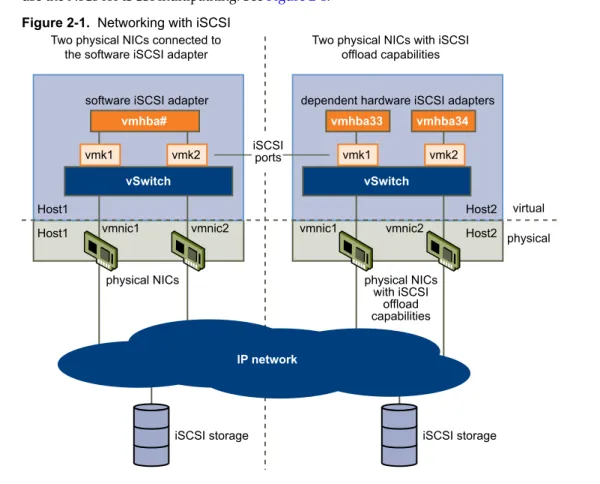
Make sure to note the names of the corresponding physical NICs. For example, the vmhba33 adapter corresponds to vmnic1 and vmhba34 corresponds to vmnic2.
3 Configure the iSCSI networking by creating ports for the iSCSI traffic.
See “Networking Configuration for Software iSCSI and Dependent Hardware iSCSI,” on page 36. Open a port for each NIC. For example, create the vmk1 port for the vmnic1 NIC and the vmk2 port for vmnic2.
4 Bind the iSCSI ports to corresponding dependent hardware iSCSI adapters. This step is necessary no matter whether you have multiple adapters or just one.
See “Bind iSCSI Ports to iSCSI Adapters,” on page 40.
In this example, you bind port vmk1 to vmhba33 and port vmk2 to vmhba34. 5 Configure discovery addresses.
See “Configuring Discovery Addresses for iSCSI Initiators,” on page 43. 6 Configure CHAP parameters.
See “Configuring CHAP Parameters for iSCSI Adapters,” on page 44.
Dependent Hardware iSCSI Considerations
When you use dependent hardware iSCSI adapters with ESX/ESXi, certain considerations apply.
n When you use any dependent hardware iSCSI adapter, performance reporting for a NIC associated with
the adapter might show little or no activity, even when iSCSI traffic is heavy. This behavior occurs because the iSCSI traffic bypasses the regular networking stack.
n The Broadcom iSCSI adapter performs data reassembly in hardware, which has a limited buffer space.
When you use the Broadcom iSCSI adapter in a congested network or under load, enable flow control to avoid performance degradation.
Flow control manages the rate of data transmission between two nodes to prevent a fast sender from overrunning a slow receiver. For best results, enable flow control at the end points of the I/O path, at the hosts and iSCSI storage systems.
n Broadcom iSCSI adapters do not support IPv6 and Jumbo Frames.
View Dependent Hardware iSCSI Adapters
View a dependent hardware iSCSI adapter to verify that it is correctly loaded.
If the dependent hardware adapter does not appear on the list of storage adapters, check whether it needs to be licensed. See your vendor documentation.
Procedure
1 Log in to the vSphere Client, and select a host from the Inventory panel. 2 Click the Configuration tab and click Storage Adapters in the Hardware panel.
If installed, the dependent hardware iSCSI adapter should appear on the list of storage adapters. 3 Select the adapter to view and click Properties.
The iSCSI Initiator Properties dialog box displays the default details for the adapter, including the iSCSI name and iSCSI alias.
Determine Association Between Dependent Hardware iSCSI and Physical
Network Adapters
You need to determine the name of the physical NIC with which the dependent hardware iSCSI adapter is associated. You need to know the association to be able to perform the port binding correctly.
Procedure
1 Use the vSphere CLI command to determine the name of the physical NIC, with which the iSCSI adapter is associated.
esxcli swiscsi vmnic list -d vmhba#
vmhba# is the name of the iSCSI adapter.
2 In the output, find the vmnic name: vmnic# line.
vmnic# is the name of the network adapter that corresponds to the iSCSI adapter.
What to do next
After you determined the name of the NIC, create an iSCSI port on a vSwitch connected to the NIC. You then bind this port to the dependent hardware iSCSI adapter, so that your host can direct the iSCSI traffic through the NIC.
Setting Up and Configuring Software iSCSI Adapter
With the software-based iSCSI implementation, you can use standard NICs to connect your host to a remote iSCSI target on the IP network. The software iSCSI adapter that is built into ESX/ESXi facilitates this connection by communicating with the physical NICs through the network stack.
When you connect to a vCenter Server or a host with the vSphere Client, you can see the software iSCSI adapter on the list of your storage adapters. Only one software iSCSI adapter appears. Before you can use the software iSCSI adapter, you must set up networking, enable the adapter, and configure parameters such as discovery addresses and CHAP. The software iSCSI adapter configuration workflow includes these steps:
1 Configure the iSCSI networking by creating ports for iSCSI traffic.
See “Networking Configuration for Software iSCSI and Dependent Hardware iSCSI,” on page 36. 2 Enable the software iSCSI adapter.
See “Enable the Software iSCSI Adapter,” on page 35.
3 If you use multiple NICs for the software iSCSI multipathing, perform the port binding by connecting all iSCSI ports to the software iSCSI adapter.
See “Bind iSCSI Ports to iSCSI Adapters,” on page 40.
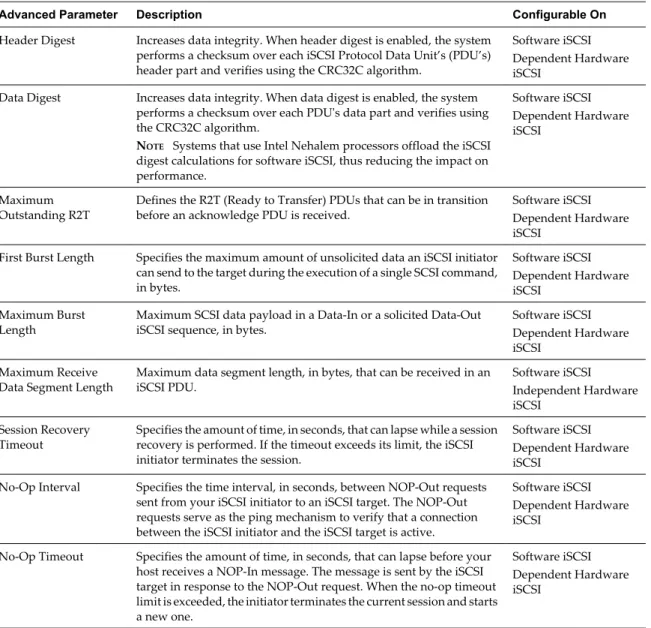
4 If needed, enable Jumbo Frames. Jumbo Frames must be enabled for each vSwitch through the vSphere CLI.
5 Configure discovery addresses.
See “Configuring Discovery Addresses for iSCSI Initiators,” on page 43. 6 Configure CHAP parameters.