© 2001 Polycom, Inc. All rights reserved.
No part of this document may be reproduced or transmitted in any form or by any means, electronic or mechanical, for any purpose, without the express written permission of Polycom, Inc. Under the law, reproducing includes translating into another language or format.
As between the parties, Polycom, Inc. retains title to, and ownership of, all proprietary rights with respect to the software contained within its products. The software is protected by United States copyright laws and international treaty provision. Therefore, you must treat the software like any other copyrighted material (e.g, a book or sound recording).
Warning
This is a Class A product. In a domestic environment, this product may cause radio interference, in which case the user may be required to take adequate measures.
Other Restrictions
You shall not allow any third party to 1) decompile, disassemble, or otherwise reverse- engineer or attempt to reconstruct or discover any source code or underlying ideas or algorithms of the software by any means whatsoever or 2) remove any product.
Trademark Information
Polycom®, ShowStation®, and the Polycom logo design are registered trademarks, and ViewStation™ is a trademark of Polycom, Inc. in the United States and various other countries. ADTRAN® is a registered trademark and Expert ISDN™ is a trademark of ADTRAN, Inc. All other trademarks are the property of their respective owners. Every effort has been made to ensure that the information in this manual is accurate. Polycom, Inc. is not responsible for printing or clerical errors. Information in this document is subject to change without notice.
Patent Information
The accompanying product is protected by one or more U.S. and foreign patents and patents pending held by Polycom, Inc.
Warranty
Polycom, Inc. warrants its products to be free of defects in materials and factory workmanship for a period of thirty-six (36) months from date of purchase. This warranty does not apply to damage to products resulting from accident, misuse, service, or modification by anyone other than a Polycom, Inc. authorized service facility/dealer. The warranty is limited to the original purchaser and is not transferable. Any liability of Polycom, Inc. or its suppliers with respect to the product or the performance thereof under any warranty, negligence, strict liability, or other theory will be limited exclusively to product repair or replacement as provided above. Except for the foregoing, the product is provided “as is” without warranty of any kind including, without limitation, any warranty of merchantability or fitness for a particular purpose. The entire risk of the quality and performance of the software programs contained in the system is with you.
Limitation of Remedies and Damages
Polycom, Inc., its agents, employees, suppliers, dealers, and other authorized representatives shall not be responsible or liable with respect to the product or any other subject matter related thereto under any contract, negligence, strict liability, or other theory for any indirect, incidental, or consequential damages, including, but not limited to, loss of information, business, or profits.
• Close supervision is necessary when the system is used by or near children. Do not leave unattended while in use.
• Only use electrical extension cords with a current rating at least equal to that of the system. • Always disconnect the system from power before cleaning and servicing and when not in use. • Do not spray liquids directly onto the system when cleaning. Always apply the liquid first to a
static-free cloth.
• Do not immerse the system in any liquid or place any liquids on it.
• Do not disassemble this system (except as instructed in the manufacturer's instructions). To reduce the risk of shock and to maintain the warranty on the system, a qualified technician must perform service or repair work.
• Connect this appliance to a grounded outlet.
• In case of lightning storms, disconnect the telephone line cord from the system, and only connect the system to surge-protected power outlets.
• Keep ventilation openings free of any obstructions. • SAVE THESE INSTRUCTIONS.
Plug Acts as Disconnect Device
The socket outlet to which this apparatus is connected must be installed near the equipment and must always be readily accessible.
Regulatory Notices
FCC Notice
This equipment has been tested and found to comply with the limits for a Class A digital device, pursuant to Part 15 of the FCC Rules. These limits are designed to provide reasonable protection against harmful interference when the equipment is operated in a commercial environment. This equipment generates, uses, and can radiate radio frequency energy and, if not installed and used in accordance with the instruction manual, may cause harmful interference to radio communications. Operation of this equipment in a residential area is likely to cause harmful interference, in which case the user will be required to correct the interference at his own expense.
Changes or modifications not expressly approved by Polycom could void the user's authority to operate this equipment.
• This equipment complies with Part 68 of the FCC Rules. On the bottom of this equipment is a label that contains, among other information, the FCC registration number and Ringer Equivalence Number (REN) for this equipment. If requested, provide this information to your telephone company. • Before connecting your unit, you must inform your telephone company of the following information:
• FCC compliant telephone cords and modular plugs are provided with this equipment. This equipment is designed to be connected to the telephone network or premises’ wiring using a compatible modular jack, which is Part 68 compliant. See installation instructions for details.
• The REN is useful to determine the quantity of devices that may be connected to the telephone line. Excessive REs on the telephone line may result in the devices not ringing in response to an incoming call. In most, but not all areas, the sum of REs of all devices that may be connected to a line, as determined by the total RENs, contact the local telephone company.
• If your ViewStation causes harm to the telephone network, the telephone company will notify you in advance that temporary discontinuance of service may be required. However, if advance notice is not practical, you will be notified as soon as possible. You will be advised of your right to file a complaint with the FCC if you believe it is necessary.
Port ID REN/SOC USOC
• If you experience trouble with this equipment, ViewStation, please contact your equipment provider for repair/warranty information. If your equipment is causing harm to the telephone network, the telephone company may request that you disconnect the equipment until the problem is resolved. • There are no user-serviceable parts inside the videoconferencing unit, remote control, microphone pod,
or power supply.
• This equipment may not be used on a public coin service provided by the telephone company. Connection to party lines is subject to state tariffs. Contact your state public utility commission or corporation commission for information.
Underwriters Laboratories Statement
The system is intended to be powered only by the accompanying power supply unit.
CE Mark R&TEE Directive:
This ViewStation and ViewStation product line has been marked with the CE mark. This mark indicates compliance with EEC Directives 89/336/EEC, 73/23/EEC 1999/5/EC. A full copy of the Declaration of Conformity can be obtained from Polycom Ltd. 270 Bath Road, Slough UK, SL1 4DX.
Declaration of Conformity:
Hereby, Polycom, Ltd. declares that this ViewStation and ViewStation product line is in compliance with the essential requirements and other relevant provisions of Directive 1999/5/EC.
Konformitetserklæring:
Hermed erklærer Polycom, Ltd., at indestående ViewStation and ViewStation product line er i overensstemmelse med de grundlæggende krav og de relevante punkter i direktiv 1999/5/EF.
Konformitätserklärung:
Hiermit erklärt Polycom. Ltd., dass der ViewStation and ViewStation product line die grundlegenden Anforderungen und sonstige maßgebliche Bestimmungen der Richtlinie 1999/5/EG erfüllt.
Vaatimustenmukaisuusvakuutus:
Polycom, Ltd. vakuuttaa täten, että ViewStation and ViewStation product line on direktiivin 1999/5/EC keskeisten vaatimusten ja sen muiden tätä koskevien säännösten mukainen.
Déclaration de conformité :
Par la présente, Polycom, Ltd. déclare que ce ViewStation and ViewStation product line est conforme aux conditions essentielles et à toute autre modalité pertinente de la Directive 1999/5/CE.
Dichiarazione di conformità:
Con la presente Polycom, Ltd. dichiara che il ViewStation and ViewStation product line soddisfa i requisiti essenziali e le altre disposizioni pertinenti della direttiva 1999/5/CE.
Verklaring van overeenstemming:
Hierbij verklaart Polycom, Ltd. dat diens ViewStation and ViewStation product line voldoet aan de basisvereisten en andere relevante voorwaarden van EG-richtlijn 1999/5/EG.
Declaração de Conformidade:
cumple los requisitos esenciales y otras cláusulas importantes de la directiva 1999/5/CE.
Överensstämmelseförklaring:
Polycom, Ltd. förklarar härmed att denna ViewStation and ViewStation product line överensstämmer med de väsentliga kraven och övriga relevanta stadganden i direktiv 1999/5/EG.
Omnitel Statement
Preface — How To Use This Guide
ViewStation Basics... xiv
Usability Conventions... xv
Getting Started
What You Need to Get Started ... 1Power Source... 2
NT-1 Device ... 2
What’s in the Box ... 2
Using the Remote Control... 3
Setting Up the ViewStation ... 3
Connecting the ViewStation to the ISDN or DCP Network ... 4
ViewStation H.323 with Quad BRI ... 5
ViewStation H.323 with Avaya DCP... 5
ViewStation 128 ... 6
Connecting the ViewStation H.323 with V.35 to a Network ... 7
Connecting the V.35 Network Interface Module to the ViewStation ... 7
Connecting the V.35 Network Interface Module to the V.35 DCE ... 7
Connecting the ViewStation to an Ethernet LAN ... 8
Initial System Configuration ... 9
Setup Common to all ViewStations... 9
Network Status Indicators ... 26
Using the ViewStation Help... 28
Using ViewStation Help... 28
Technical Support ... 29
Optional Configurations
User Setup ... 31Admin Setup... 34
General Setup ... 35
Video Network... 39
ViewStation H.323 with Quad BRI ... 39
ViewStation H.323 with Avaya DCP... 47
ViewStation 128 ... 54
ViewStation H.323 with V.35 ... 57
Gatekeeper... 70
Dialing Speeds ... 71
Quality of Service (QoS) and Firewalls ... 72
SNMP ... 73
Global Address... 75
Global Management ... 84
GMS Setup ... 85
Global Management Information ... 87
Data Conference ... 87
Telephone & Audio... 88
Video/Camera ... 90
Security ... 93
Software/Hardware... 95
Software Information ... 95
Hardware Information ... 96
System Options ... 96
Using the ViewStation
Placing and Answering Calls... 97Main Calling Screen ... 97
ViewStation Network Line Indicators ... 98
Placing a Video Call ... 99
Placing a Video Call Manually ... 100
Placing a Video Call Using Speed Dial ... 102
Placing a Video Call From the Web lnterface... 104
Using the Address Book... 104
Adding New Entries to the Address Book ... 104
Editing an Existing Entry in the Address Book ... 107
Deleting an Entry from the Address Book ... 108
Transferring an Address Book... 109
Using the Global Address Book ... 110
Using Multi-Point Address Book Entries... 110
Placing a Video Call Using the Address Book... 111
Placing a Video Call from the Web Interface... 112
Placing Telephone Calls with the ViewStation ... 113
Placing a Telephone Call ... 113
Answering a Video Call ... 114
Manual... 114
Auto-Answer ... 114
Placing Multi-Point Calls (ViewStation MP Only) ... 114
Using a ViewStation with a StreamStation... 121
Starting a Webcast... 122
Ending a Webcast ... 123
Displaying ChatBack Messages... 124
Adjusting Cameras and Sound ... 125
Selecting ViewStation Cameras... 125
Pan, Tilt, and Zoom for the ViewStation Camera... 127
Setting Camera Presets ... 127
Automatic Voice Tracking ... 128
Automatic Tracking of Camera Presets ... 128
Adjusting Sound ... 129
Positioning Microphone Pods... 129
Sending Snapshots ... 129
Snapshot Timeout ... 130
Using Optional Equipment ... 130
Using the ViewStation with a PC
Connecting The PC to a LAN Through the ViewStation ... 134PC Network Properties... 135
Connecting The ViewStation to a Stand-Alone PC ... 136
Using the ViewStation Web Interface... 139
Select and View a Presentation ... 139
Sending Snapshots to the ViewStation ... 145
Viewing Snapshots from the ViewStation ... 145
Closed Caption... 146
Accessing and Using Closed Caption ... 146
Usage Information and Restrictions About Closed Caption ... 147
Using Microsoft NetMeeting™ ... 147
NetMeeting Application Sharing ... 149
H.323 Video Calls with NetMeeting... 149
System Information and Remote Management... 149
Placing a Call from the ViewStation Web Interface... 150
ViewStation Web Interface Icons ... 153
ViewStation Software ... 165
Downgrading Software... 165
Upgrading Software ... 165
Upgrading Software over ISDN ... 165
Upgrading Software over the LAN ... 166
System Information ... 171
Diagnostics... 172
Network Stats ... 173
Advanced Stats ... 173
Call Status ... 173
Color Bar ... 174
Audio ... 174
Near End Loop ... 174
Far End Loop... 174
Reset System ... 175
Troubleshooting
General Problems ... 177Audio ... 178
Video ... 180
Network and Communications ... 182
IMUX ... 184
LAN/Intranet ... 185
Presentations ... 186
System Control... 188
Network Address Translation
Before You Start Configuring NAT ... 189Setting up NAT ... 189
Video and Audio Input and Output Levels
Video Levels... 191Video Output Levels ... 191
Video Input Levels... 191
Audio Levels... 191
Audio Output Levels ... 191
Audio Input Levels... 192
V.35 Technical Information
General V.35 Information ... 193Serial Interface Control Signals... 193
Nondialed User-Initiated Call State Machine ... 197
Nondialed Network-Initiated Call State Machine... 198
Crypto Resync... 199
V.35 Cabling Diagram and Schematic ... 200
ISDN Information
Sample NT-1 Settings ... 203ISDN Switches ... 205
ISDN Errors... 205
Optional Equipment Configuration
StreamStation Configuration ... 211Using a ShowStation IP ... 213
Glossary
ABC... 215DEF ... 218
GHIJK... 221
LMN... 224
OPQ ... 225
RST ... 226
UVW... 227
XYZ ... 228
Preface — How To Use This Guide
Thank you for purchasing a Polycom ViewStation! Soon you will discover that video communications using the ViewStation is easy, fun, and productive. Polycom ViewStations are the most easy to use video communications systems on the market today.
This User Guide provides information about setting up and using the following Polycom ViewStation products:
• ViewStation H.323 with stand-alone IP
• ViewStation H.323 with a Quad BRI network interface module
• ViewStation 128 with single ISDN
• ViewStation H.323 with a V.35 network interface module
• ViewStation H.323 with Avaya DCP network interface module
• ViewStation MP — ViewStation with Quad BRI or Avaya DCP with Multi-Point enabled software.
If you purchased a ViewStation SP or ViewStation SP384, see the
ViewStation SP or SP384 User Guide.
If you purchased a ViewStation FX or VS4000, see the ViewStation FX and VS4000 User Guide.
Each ViewStation product has a document called a QuickStart card,
which is shipped in the box with your ViewStation. The QuickStart
ViewStation Basics
The Graphic User Interface (GUI) is designed for ease of use. The following table is a definition of key icon functions:
Icon
Icon Name
Function
Text Tab
The purpose of the Text Tab is to enable the user to enter alphanumeric characters into the ViewStation. Numbers are entered with the remote control. To enter alpha characters press the SELECT button on the remote control.
Select Button The SELECTbutton shown is
on the remote control.
Network Connectivity Error
The Network Connectivity Error icon indicates severe packet loss between the near end and the far end
ViewStations.
Call Speed Indicators
The Call Speed Indicators illustrate the call speed of the near end or the far end ViewStation. Speeds may be set from the Dialing Speeds
screen. See Dialing Speeds on page 71.
Network Line Indicator
The Network Line Indicators are shown when the ViewStation is powered on.
Yellow Box: Checking line status
Red Down Arrow: Error in network link
Usability Conventions
This guide uses navigational conventions to make ViewStation setup and troubleshooting easy. These conventions are marked in
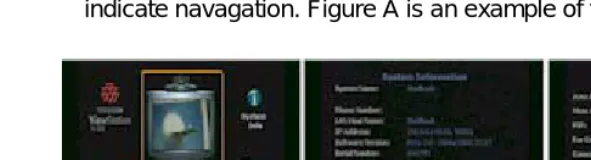
BOLD for each screen followed by a greater than symbol (>) to indicate navagation. Figure A is an example of this convention.
Figure A: Conventions Flow Example
1
Getting Started
This chapter explains what you need to get started, what’s in the box, how to use the remote control, how to up the ViewStation, how to configure the ViewStation for a specific network interface, and how to use ViewStation help.
What You Need to Get Started
The following items are required:
• A television monitor
• A network connection
• A power source
Additionally, the following items are required for each ViewStation as listed below:
• ViewStation H.323 — A Local Area Network (LAN) Ethernet connection.
• ViewStation H.323 with optional Quad BRI network interface module — Up to four ISDN lines from the ISDN service provider and an optional Ethernet LAN connection if H.323 is used.
• ViewStation H.323 with optional Avaya DCP network interface module — Up to four DCP lines from a Definity PBX. The ViewStation DCP uses the wall jack ports connected to the Lucent Definity PBX and an optional Ethernet LAN connection if H.323 is used.
• ViewStation 128 — An ISDN line for up to 128 Kbps video communications and an optional Ethernet LAN connection if H.323 is used.
• ViewStation H.323 with V.35 network interface module — Access to a Data Communications Equipment (DCE) or Data Service Unit (DSU) and an Ethernet LAN connection if H.323 is used.
to enable multi-point calling capability on the ViewStation H.323 with BRI or DCP, and an Ethernet LAN connection if H.323 is used.
Note Multi-Point is available for the ViewStation H.323 or ViewStation 128 with a hardware upgrade.
Television Monitors
Any S-Video or composite television monitor with RCA input ports may be used with the ViewStation. The size of the television monitor should be proportional to the size of the room where the ViewStation is used. One television monitor may be used for video and a second monitor may be used to display graphics.
Power Source
The ViewStation has an auto-sensing 62-watt external power supply that supports line voltages between 100 and 240 VAC, 50 to 60 Hz.
NT-1 Device
An ISDN Network Termination (NT-1) device may be required between the ISDN line and the ViewStation if your system is connected to a PBX or an ISDN line in North America, specifically, an ISDN U interface.
What’s in the Box
The following items are included in the box. These items pertain to all ViewStation models. If an item is missing or damaged, contact your reseller.
What’s in the Box ViewStation Models
H.323 512 128 V.35 MP DCP
ViewStation Unit √ √ √ √ √ √
Microphone Pod √ √ √ √ √ √
Remote Control √ √ √ √ √ √
Using the Remote Control
The remote control packaged with the ViewStation is an integral part of the unit. Use the remote to highlight and select icons on the television monitor, enter alphanumeric characters in text fields, configure the address book, move the camera, adjust the volume, and place video calls. Remote control functionality is described on the ViewStation QuickStart card.
Setting Up the ViewStation
Setting up the ViewStation is easy. First, locate the QuickStart card in the ViewStation box.
The cable connectors are color-coordinated with the corresponding connectors on the back of the ViewStation and the optional network interface modules. To connect the ViewStation, use the QuickStart
card as a guide and follow the steps below.
QuickStart Card √ √ √ √ √ √
Read Me First Document √ √ √ √ √ √
User Documentation on CDROM √ √ √ √ √ √
Required Cables 3 3 3 3 3 3
Optional Cables 8 8 8 8 8 8
Miscellaneous Package √ √ √ √ √ √
RJ-45 Cables 4 4
V.35 Interface Adapter √
Quad BRI (IMUX) √ √
DCP Module √
Embedded 4-Port MCU √
RJ-45 White Connector Cable 1
What’s in the Box ViewStation Models
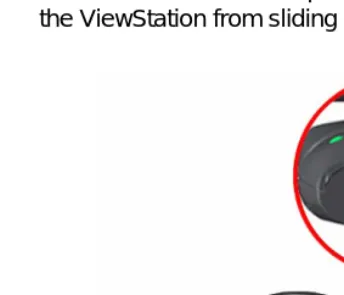
1. Place the ViewStation unit on top of the television monitor as shown in Figure 1-1. Ensure that the front lip of the ViewStation unit hangs over the edge of the television monitor.
Note Verify that the top surface area on the monitor is adequate to support the ViewStation. The surface area of the television monitor should provide enough support to prevent the ViewStation from sliding off the monitor.
Figure 1-1. Placing the ViewStation
2. Connect the required cables to the back of the ViewStation as shown in the ViewStation QuickStart card.
3. Center the microphone pod on a flat surface between the meeting participants and the ViewStation.
4. Connect optional equipment, such as an additional television monitor, a Video Cassette Recorder (VCR), a laptop, or a document camera to the back of the ViewStation.
Secure all loose cables with the provided cable tie. This prevents cables from getting tangled.
1. Slide one end of the cable tie through the square plastic cable holder.
2. Attach the square connector to the back of the television monitor.
Connecting the ViewStation to the ISDN or DCP Network
• ViewStation H.323 with Quad BRI
• ViewStation H.323 with Avaya DCP
• ViewStation 128
Before setting up the ViewStation to an ISDN network, ensure all network connectivity issues are tested and resolved.
ViewStation H.323 with Quad BRI
The ViewStation H.323 with Quad BRI uses up to four ISDN lines for network connectivity and requires a Polycom Quad BRI inverse multiplexer. The Quad BRI provides connectivity at a maximum H.320 data rate of 512 Kbps. Complete the following steps to connect the ViewStation H.323 with Quad BRI to the network:
1. Connect four ISDN lines from RJ-45 wall jacks on the ISDN network to the connectors labeled ISDN S/T on the Quad BRI network interface module.
2. Connect the green-tipped RJ-45 cable to the green RJ-45 port on the back of the ViewStation as shown on the QuickStart card.
3. Connect the opposite end of the green-tipped RJ-45 cable into the green RJ-45 port labeled xon the Quad BRI network interface module.
NT-1. If you are connected to an internal phone system, commonly called a PBX, you need to connect the ISDN cables from the Quad BRI network interface module to an ISDN network termination (NT-1) device, which is connected to the ISDN wall jack.
For more ISDN information, refer to the Appendix D, ISDN Information," on page 203.
Once the interface is properly connected, the ViewStation H.323 with Quad BRI is ready to be configured for Ethernet LAN connectivity.
ViewStation H.323 with Avaya DCP
The ViewStation H.323 with Avaya DCP uses up to four DCP lines for network connectivity and requires an Avaya DCP inverse multiplexer. The Avaya DCP inverse multiplexer provides
rate of 512 Kbps. Complete the following steps to connect the ViewStation H.323 with Avaya DCP to the network:
1. Connect up to four DCP lines from RJ-45 wall jacks on the DCP network to the connectors labeled ISDN S/T on the DCP network interface module.
2. Locate the DCP cable shipped with the DCP network interface module. This cable is identified with one transparent-tipped keyed RJ-45 connector and a black-tipped non-keyed RJ-45 connector. Connect the RJ-45 cable with the black tip to the green RJ-45 port on the back of the ViewStation as shown on the QuickStart card.
3. Connect the opposite end of the keyed, white-tipped RJ-45 cable into the green RJ-45 port labeled xon the DCP network interface module.
Once the interface is properly connected, the ViewStation H.323 with Avaya DCP is ready to be configured for Ethernet LAN connectivity. See Connecting the ViewStation to an Ethernet LAN,"
on page 8.
Note The ViewStation MP uses the Polycom Quad BRI network interface module or the Avaya DCP network interface module and up to four ISDN or DCP lines for network connectivity. Use the Quad BRI or Avaya DCP network configurations to connect your ViewStation MP to the network.
ViewStation 128
The ViewStation 128 uses a single ISDN line and requires no additional hardware (e.g., network interface module) for ISDN connectivity at a maximum H.320 data rate of 128 Kbps. Complete the following steps to connect the ViewStation 128 to an ISDN network:
1. Connect the green-tipped RJ-45 cable to the green RJ-45 port on the back of the ViewStation 128.
2. Connect the opposite end of the green-tipped cable to an ISDN wall jack.
For more ISDN information, refer to “Appendix D, ISDN Information,"
Once the interface is properly connected, the ViewStation 128 is ready to be configured for Ethernet LAN connectivity. See “Connecting the ViewStation to an Ethernet LAN," on page 8.
Connecting the ViewStation H.323 with V.35 to a Network
The ViewStation H.323 with V.35 uses a Polycom V.35 network interface module and has two HD-25 female ports (labeled 1 and 2) that are used to connect to your Data Communications Equipment (DCE).
Note Cable diagrams and pinout schematics are located in V.35 Technical Information," on page 193.
Connecting the V.35 Network Interface Module to the
ViewStation
Complete the following steps to connect the V.35 network interface module to the ViewStation:
1. Connect the green-tipped RJ-45 cable to the green RJ-45 port on the back of the ViewStation.
2. Insert the opposite end of the green-tipped RJ-45 cable to the port labeled xon the network interface module.
Connecting the V.35 Network Interface Module to the V.35
DCE
Complete the following steps to connect the V.35 network interface module to the V.35 DCE:
1. Connect the male HD-25 cable ends to ports 1 and 2 on the network interface module. If you want to connect only one cable, connect to port 1 on the interface module.
Connector screws should be lightly snug, not tight.
LED Activity on the V.35 Network Interface Module
The LEDs on the front of the V.35 network interface module indicate the connection status to the ViewStation.
When the ViewStation is powered on, the following light sequence occurs:
1. Both LEDs flash once to indicate that the LED is working properly.
2. The bottom amber LED glows solid to indicate that the ViewStation is communicating with the network interface module.
3. The top green LED glows solid to indicate that the ViewStation is communicating with the network.
The top green LED corresponds to port status, and the bottom amber LED corresponds to DCE clock status.
Once the interface is properly connected, the ViewStation H.323 with V.35 is ready to be configured for Ethernet LAN connectivity.
Connecting the ViewStation to an Ethernet LAN
All ViewStation models use the same configuration type for connecting the ViewStation to an Ethernet LAN. Complete the following steps to connect the ViewStation to an Ethernet LAN:
1. Connect the orange-tipped RJ-45 cable to the orange RJ-45 port labeled LAN on the back of the ViewStation H.323.
2. Connect the opposite end of the orange-tipped RJ-45 cable to an Ethernet LAN wall jack.
Initial System Configuration
This section explains how to set up the ViewStation. Except where noted, the following section applies to all ViewStation models.
Setup Common to all ViewStations
The following instructions is a set of general setup procedures which cover all ViewStation models. Specific information that is unique to each ViewStation model is noted.
1. Power on the television monitor and ViewStation.
2. On the Welcome screen (shown in Figure 1-2) select the language used to display screens and information on the ViewStation.
Figure 1-2. ViewStation Select Language Screen
3. There are two ViewStation Welcome screens. The first is the ViewStation Select Languagescreen (shown in Figure 1-2) Specify the desired country and language on this screen, and press the SELECT button on the remote control to continue.
Figure 1-3. ViewStation Main Welcome Screen
4. The next screen is the How to Select MenuItems screen shown in Figure 1-4. Take a moment to familiarize yourself with this screen. Press the SELECT button on the remote control to continue.
Figure 1-4. How to Select Menu Items Screen
5. The System Name screen is where you assign a unique name to the ViewStation.
Highlight the Return icon and press the SELECT button on the remote control. Select the Save icon to continue.
Figure 1-5. ViewStation System Name Screen
Figure 1-6. Select Country Screen
7. The Call Preference screen (Figures 1-7, 1-8, and 1-9) are used to specify the type of calling preference.
ViewStation H.323 with Quad BRI and ViewStation 128.
ISDN Video Calls (H.320):
• Checked: Enables H.320 videoconferencing for the ViewStation.
• Not Checked: Disables H.320 videoconferencing for the ViewStation.
LAN/Internet Calls (H.323)
• Checked: Enables H.323 videoconferencing for the ViewStation.
• Not Checked: Disables the H.323 videoconferencing for the ViewStation.
Note At least one calling preference must be selected.
Display IP Dialing Extension: The IP Dialing Extension is used if a ViewStation uses the Global Address Book (GAB). For more information see Global Address," on page 75.
• Not Checked: The IP or E.164 Dialing Extension is not displayed when an H.323 video call is initiated.
Figure 1-7. Call Preference Screen For ISDN
8. For all ViewStation H.323 with Avaya DCP.
DCP Video Calls (H.320):
• Checked: Enables H.320 videoconferencing for the ViewStation.
• Not Checked: Disables H.320 videoconferencing for the ViewStation.
LAN/Internet Calls (H.323):
• Checked: Enables H.323 videoconferencing for the ViewStation.
Figure 1-8. DCP Call Preference Screen
Note At least one calling preference must be selected.
Display IP Dialing Extension: The IP Dialing Extension is used if a ViewStation uses the Global Address Book (GAB.) For more information see Global Address," on page 75.
• Checked: The IP or E.164 Dialing Extension is displayed when an H.323 video call is initiated.
• Not Checked: The IP or E.164 Dialing Extension is not displayed when an H.323 video call is initiated.
For ViewStation H.323 with V.35:
V.35 Video Calls:
• Checked: Enables V.35 videoconferencing for the ViewStation.
• Not Checked: Disables V.35 videoconferencing for the ViewStation.
LAN/Internet Calls (H.323)
• Checked: Enables H.323 videoconferencing for the ViewStation.
Note One calling preference must be selected.
Display IP Dialing Extension: The IP Dialing Extension is used if a ViewStation uses the Global Address Book (GAB.) For more information see Global Address," on page 75.
• Checked: The IP or E.164 Dialing Extension is displayed when an H.323 video call is initiated.
• Not Checked: The IP or E.164 Dialing Extension is not displayed when an H.323 video call is initiated.
Figure 1-9. V.35 Call Preference Screen
Figure 1-10. H.323 Setup Screen
An Auto H.323 Dialing check box appears below the H.323 extension (E.164) when two or more dialing protocols are enabled. Complete the following steps to enter information on the H.323 Setup screen.
1. Enter a name in the H.323 name when calling this system text box. Select a name which is easy to remember, such as the name of a conference room.
2. Enter the H.323 extension (E.164). E.164 is a naming scheme based on the ViewStation’s serial number and MUST be unique to each ViewStation system.
3. Uncheck the Auto H.323 Dialing check box if displayed.
10. The Gatekeeper screen (shown in Figure 1-11) provides terminal gateway registration, address resolutions, bandwidth, and admission control. It is commonly used for point-to-point
Internet video calls.
A gatekeeper is not required for point-to-point Intranet video calls. Select one of the following options for Gatekeeper:
• Off: Gatekeeper is not used.
• Specify: Enter the Gatekeeper IP address.
setting is changed. If the LAN has more than one gatekeeper, specify the correct gatekeeper manually.
Figure 1-11. ViewStation H.323 Gatekeeper Screen
The following configuration screens are for specific ViewStation models:
• For ViewStation H.323 with V.35, continue to step 11.
• For ViewStation 128, skip to step 12.
• For ViewStation H.323 with Quad BRI, skip to step 12.
• For ViewStation MP with Quad BRI, skip to step 12.
• For ViewStation H.323 with Avaya DCP, skip to step 13.
• For ViewStation MP with Avaya DCP, skip to step 13.
• For ViewStation H.323, skip to Step 17.
11. The Video Network screen (shown in Figure 1-12) is displayed for ViewStations with a V.35 network interface module.
RS-366 Dialing:
• Checked: Enable the RS-366 dialing option if a call is made from the ViewStation through the DCE connection to the far site video communications system.
• Not checked: Disable RS-366 dialing option if:
• The DCE is used to dial the video call.
V.35 Ports Used:
• 1: For 1-channel calls when dialing through the V.35, or when the ViewStation is in non-dialed mode.
• 1-2: For 2 X 56 Kbps or 2 X 64 Kbps calls when dialing through the V.35.
Figure 1-12. V.35 Video Network Screen
Dialing Protocol: RS-366 is displayed as the dialing protocol if the RS-366 Dialing option is enabled. This field cannot be changed.
Broadcast Mode: The ViewStation V.35 supports H.331 broadcast mode for broadcast transmissions over satellite. In H.331 broadcast mode, the ViewStation sends and receives audio and video without handshaking with either the far site ViewStation or H.331-compatible video communications systems. One ViewStation can send video and audio to many ViewStations or other H.331-compatible systems, as in a large satellite network.
• Checked: Enables broadcast mode. When checked, the
Broadcast Mode Setup icon appears.
Figure 1-13. Broadcast Mode Screen
Broadcast Mode: The Broadcast Mode screen (shown in Figure 1-13) is used to configure the V.35 broadcast mode properties:
• Video Format:
QCIF: To transmit QCIF (Quarter Common Interchange Format) 176 X 144 resolution, select QCIF.
FCIF: To transmit FCIF (Full Common Interchange Format) 352 X 288 resolution, select FCIF.
• Video Protocol:
H.261: To transmit video using the H.261 standard, select H.261.
H.263: To transmit video using the H.263 enhanced video algorithm, select H.263. If the far-site systems support H.263, your system receives H.263. If the far site systems support H.261, your ViewStation adjusts to support H.261 video.
• Audio Mode: The audio mode can be adjusted to compensate for distorted audio due to high packet loss. Select the preferred audio protocol for transmitting audio:
G.728 (Default)
G.722-48 Off
• Frame Rate: The frame rate is the number of frames per second (fps) transmitted by the ViewStation to the far site. This is adjustable to compensate for distorted video due to high packet loss. Select the preferred video frame rate for the broadcast transmission in frames per second or fps:
– 30 fps (Default)
– 15 fps – 10 fps – 7.5 fps
Set broadcast configuration parameters to accommodate the lowest common denominator of the video communication systems that receive the video and audio broadcasts. For example, if one video communication system participating in the video supports H.261 only, set the video protocol to H.261 to ensure that all systems are able to participate.
Figure 1-14. Advanced Dialing Screen
If RS-366 Dialing is enabled on the Video Network screen, the
Advanced V.35 screen is displayed.
suffixes are numbers and characters that are sent to the DCE equipment after the dialed number is sent.
Use prefixes and suffixes to set the DCE speed used to dial a call.
Note Prefixes and suffixes are a function of the DCE. See your
DCE User Documentation for information about setting dialing profiles to the DCE specific equipment.
• Calling Profiles: Calling profiles are configured on the
Advanced V.35 screen. To select and change the profiles, highlight the Calling Profile field and select the specific equipment.
• Dialing Speeds: If RS-366 dialing is enabled on the Video Network screen, the Dialing Speeds screen is displayed.
Figure 1-15. Dialing Speeds Screen
On this screen, specify the dialing speeds available to users when placing video calls. The default speeds are:
– 2 X 64 Kbps
– 256 Kbps
– 384 Kbps
– 512 Kbps
the preferred dialing speeds. A red check is displayed when a dialing speed is selected.
12. On the ISDN Video Numbers screen (shown in Figure 1-16), complete the following:
• Enter your local area or STD code.
• Enter the ISDN numbers assigned to your ViewStation. The ISDN service provider should have provided this number when your ISDN line was installed.
Figure 1-16. ISDN Video Numbers Screen
13. DCP Video Numbers
• On the DCP Video Numbers screen (shown in Figure 1-17), enter the area or STD code.
Figure 1-17. DCP Video Numbers Screen
14. Auto Detect SPIDs:
• On the Auto Detect SPIDs screen (shown in Figure 1-18), enter the Service Profile ID (SPIDs) numbers for the ViewStation. If connected to an internal phone system (PBX) or if the ViewStation is outside North America, a SPID may not be required.
OR
• Select the START icon for the ViewStation to automatically detect SPIDs.
Figure 1-18. Auto Detect SPIDs Screen
To manually enter the SPID numbers for the ViewStation as shown in Figure 1-18, highlight each line and channel, and press the SELECT button on the remote control. Enter the SPID numbers accordingly.
15. If PBX is selected on the Auto Detect SPIDs screen, the following screen (shown in Figure 1-19) requires the number used to obtain an outside line.
16. ISDN Switch Protocol:
Select the ISDN switch protocol according to the ISDN switch type used with the ISDN network, as shown in Figure 1-20.
Figure 1-20. ISDN Switch Protocol Screen
17. The Telephone Numbers screen shown in Figure 1-21 is where the telephone number for the ViewStation (if used) is entered. An additional field is provided for the telephone where the ViewStation is used.
Figure 1-21. Telephone Numbers Screen
Figure 1-22. Main Calling Screen
At the top left of the Main Calling screen is the ViewStation type indicator, which is displayed below the Polycom logo. This indicates the network interface module (if any) that is configured with the ViewStation.
Network Status Indicators
Each time the ViewStation is powered on, a set of network status indicators (network icons) are displayed below the Video Call icon on the Main Calling screen. The Network icon flashes a yellow numbered box while the ViewStation is validating each network line or is waiting for the DHCP server (if used) to assign it an IP address. If the ViewStation uses a static or fixed IP address, the ViewStation verifies the IP is not in use.
Icon Meaning
Green Up Arrow
Network line is connected.
Yellow Box
The ViewStation is checking the status of the network line.
Red Down Arrow
Network line failed to validate:
Using the ViewStation Help
To access the ViewStation Help screen, press the INFO button on the remote control. If your organization is not using the Polycom Global Management System, pressing the INFO button on the remote control takes you directly to the Help screen. If your organization is using the Polycom Global Management System, two icons appear on the screen. The first icon is the Help screen (noted below). The second icon is the Global Management System
Technical Support icon and appears only when GMS is used.
Figure 1-23. Help Screen
Using ViewStation Help
To access the Help screen, highlight the INFO button and press the SELECT button on the remote control.
The Help screen is used to obtain information about:
• Navigation with the remote control
• Placing a video call
• Connecting to a PC
• Using PowerPoint to display slides
• Making camera selections
• Using voice tracking
• Sending telephone touch tones.
Figure 1-24. Help Screen
To choose a topic on the Help screen, highlight the desired icon and press the SELECT button on the remote control.
Technical Support
Figure 1-25. Technical Support Help Screen
To obtain Technical Support from the Polycom Global Management System, highlight the Technical Support icon and press the SELECT button on the remote control. A dialog box appears (Figure 1-25) asking you to enter a phone number. In order to provide rapid assistance, please include the area code with your phone number.
2
Optional Configurations
This chapter contains user and administrative setup information. Except where noted, this applies to all ViewStation models.
User Setup
The User Setup screen (System Info > User Setup) serves as a quick configuration tool allowing the ViewStation administrator or LAN manager to set basic options for the ViewStation as shown in Figure 2-1.
Figure 2-1. User Setup Screen
Auto Answer: The Auto Answer option allows the ViewStation to automatically answer incoming video calls.
• Checked: The ViewStation automatically answers incoming video calls.
• Not Checked: Incoming calls ring until the call is manually answered or the far site disconnects.
• Checked: The ViewStation mutes near site audio for incoming video calls when the ViewStation automatically answers incoming video calls.
• Not Checked: The ViewStation sends audio to the far site as normal.
When the ViewStation is muted, both sites are notified with a microphone image located in the lower left side of the main screen. A red light illuminates on the microphone pod when the near site is muted.
PiP or Picture-in-Picture: The PiP feature allows the near site to adjust near camera views while in a videoconference. In this configuration, the Camera icon in the top right corner disappears when the remote control is placed on a flat surface.
• Auto: The ViewStation shows a PiP window when the call is first connected and when the remote control is not resting on a flat surface.
• On: The ViewStation shows a PiP window that remains in the lower right corner until the video call is completed.
• Off: The ViewStation does not show a PiP window.
Far Control of Near Camera: The Far Control of Near Camera
option allows users at the far site to control the camera at the near site.
• Checked: A user on the far site may control the framing or angle of the camera on the near site by pressing the FAR button on the remote control.
• Not Checked: A user cannot change the framing and angle of the camera. When a far site user presses the FAR or ZOOM button on the remote control, any attempts to change the current orientation of the camera are ignored.
Backlight Compensation: The backlight compensation is used in conference rooms where the subject appears darker than the background. Use backlight compensation if the meeting
participants appear to be in shadow.
• Checked: The camera automatically adjusts for a light background.
Allow Remote Monitoring: Remote monitoring allows a user to remotely view a conference room prior to a scheduled meeting using the ViewStation Web interface. See "Using the ViewStation with a PC" on page 133.
• Checked: The ViewStation sends images every 10 seconds to the ViewStation Web page.
• Not Checked: The ViewStation does not send any images.
Meeting Password: The meeting password is used to grant or restrict access to the non-administrative functions of the ViewStation’s Web interface. See "Using the ViewStation Web Interface" on page 139.
• Text field empty: No password is required.
• Text field populated: When the Meeting Password text field is populated with a password, that password is used to grant or restrict access the non-administrative features of the ViewStation web interface.
Far site name display time: The far site name display time displays the name of the far site for a defined number of seconds.
• 15 seconds: (Default) The far site name is displayed for 15 seconds.
• Blank: The far site name is displayed until the call is ended.
MP Mode: (MP-enabled ViewStations only.)The MP mode sets the viewing mode for multi-point video calls into one of the following options:
• Auto: The ViewStation automatically switches between discussion and presentation modes.
• Discussion: This mode is also called the continuous presence. Each site remains on the screen in a tiled arrangement.
• Presentation: The main presenter remains on the screen.
Admin Setup
The Admin Setup screen (System Info > Admin Setup) is used to access the advanced configuration features of the ViewStation.
Figure 2-2. Admin Setup Screen
The following table lists which icons are available for each ViewStation model:
Icon Name ViewStation Model Location
General Setup All System Info > Admin Setup >
General Setup
Video Network BRI, DCP, V.35, 128 System Info > Admin Setup > Video Network
LAN / H.323 All System Info > Admin Setup >
LAN / H.323
Data Conference All System Info > Admin Setup >
Data Conference
Phone / Audio All System Info > Admin Setup >
Phone / Audio
Video / Camera All System Info > Admin Setup >
General Setup
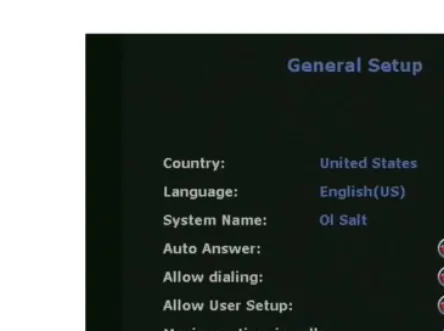
The General Setup screen (System Info > Admin Setup> General Setup) is used to access the advanced configuration features of the ViewStation not contained in the User Setup screen. The General Setup screen (shown in Figure 2-3) has the following seven user-configurable fields:
• Country: Sets the country where the ViewStation is used
• Language: Sets one of the languages used for the ViewStation
• System Name: Sets the name displayed in a call for the ViewStation
• Auto Answer: Sets the auto-answer feature when the ViewStation receives an incoming call
• Allow Dialing: Permits or denies the ability to place a video call from the ViewStation
• Allow User Setup: Permits or denies access to the
User Setup screen
• Maximum Time in a Call: Sets the maximum time for a video call
Security All System Info > Admin Setup >
Security
Software / Hardware All System Info > Admin Setup >
Figure 2-3. General Setup Screen
Country: The Country field of the General Setup screen (shown in Figure 2-3) allows you to specify country specific calling parameters for your location. Click the Country field to access the Country Setup screen (Figure 2-4).
Figure 2-4. Country Setup Screen
The fields in the Country Setup screen allow you to set local calling parameters:
the desired country. The country code appears with the corresponding country.
• Area Code Required:
• Checked: The ViewStation automatically adds the area code to the ISDN or DCP dialing prefix of calls placed from the ViewStation.
• Not Checked: The ViewStation dials all calls as if the calls were placed within the local area code.
• Phone International Access: The international prefix is 011 for North America and 00 for European countries. The default depends on the country. Highlight the blue text field on the Phone International Access field. Enter the assigned prefix to make international calls.
When complete, highlight the Menu icon and press the SELECT button on the remote control.
Language: The Language field selects the language used for the ViewStation (see "Setup Common to all ViewStations" on page 9.) Highlight the desired flag associated with a language and press the SELECT button on the remote control.
System Name: The system name is the name assigned by the user to identify the ViewStation. This can be any combination of alphanumeric characters up to 34 characters in length.
Auto Answer: The Auto Answer option allows the ViewStation to automatically answer incoming video calls.
• Checked: The ViewStation automatically answers incoming video calls.
• Not Checked: Incoming calls ring until they are manually answered or the far site disconnects the call.
Allow Dialing: The Allow Dialing option enables or disables dialing and access to the address book on the ViewStation.
• Checked: The ViewStation allows dialing and access to the address book.
Figure 2-5 shows the message that is displayed when the
Allow Dialing feature is not checked.
Figure 2-5. Allow Dialing Disabled Screen
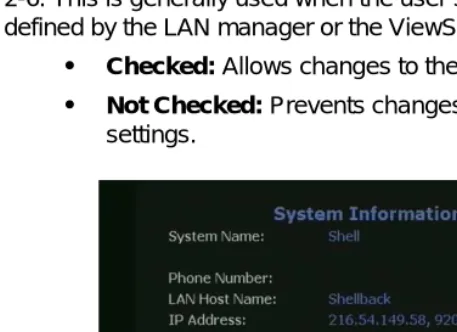
Allow User Setup: The Allow User Setup option enables or disables users from changing the User Setup by removing the icon from the System Information screen as shown in Figure 2-6. This is generally used when the user setup policy has been defined by the LAN manager or the ViewStation administrator.
• Checked: Allows changes to the User Setup settings.
• Not Checked: Prevents changes to the User Setup
settings.
Maximum Time in Call: The default time for the maximum time in a call is 480 minutes. When the maximum time in a call is met, the ViewStation displays a yellow dialog box stating that the length of the call has reached the set time and asks if you want to continue the call. If the call is extended, the time of the extended call is equal to the set maximum time in a call.
Video Network
The Video Network is used to configure ISDN, DCP, MP, and V.35 configurations for the ViewStation.
ViewStation H.323 with Quad BRI
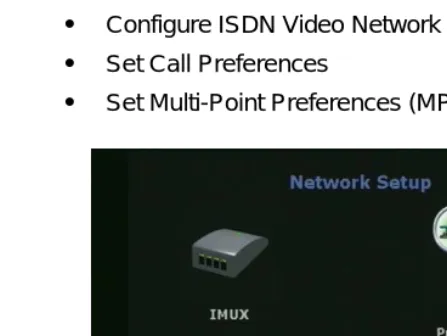
The Network Setup screen (System Info > Admin Setup> Video Network) shown in Figure 2-7 provides four icons, which:
• Configure IMUX properties
• Configure ISDN Video Network properties
• Set Call Preferences
• Set Multi-Point Preferences (MP enabled systems only)
Figure 2-7. Video Network Screen (MP Enabled ViewStations Only)
IMUX (Inverse Multiplexer):
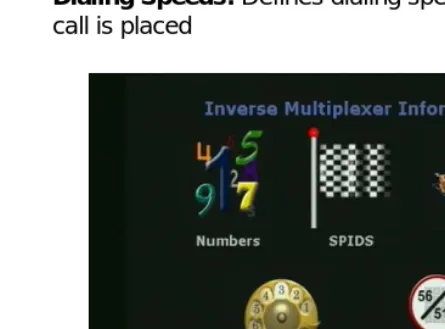
On the IMUX screen (System Info > Admin Setup> Video Network>IMUX) the five icons as shown in Figure 2-8 are:
• SPIDs: Sets the Service Profile IDs. SPID numbers are assigned to every terminal device by the ISDN provider. This is generally used in North America only
• Audio Quality: Adjusts the audio quality of a video call
• Advanced Dialing: Defines how a channel is dialed
• Dialing Speeds: Defines dialing speed available when a call is placed
Figure 2-8. Inverse Multiplexer Information Screen
Numbers
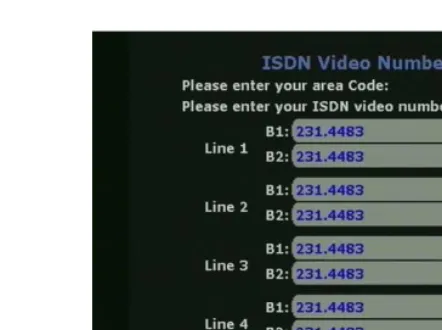
Figure 2-9. ISDN Video Numbers Screen
1. Enter the STD or area code and press the down arrow on the remote control to continue to the next line.
2. Enter the ISDN phone number used for each line.
3. When complete, highlight the Saveicon and press the SELECT button on the remote control.
Service Profile Identifier
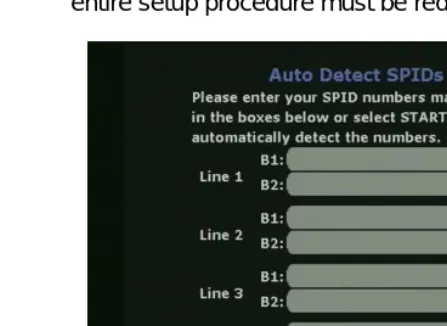
The Service Profile Identifier screen (System Info > Admin Setup > Video Network> IMUX > SPIDS) or SPIDs appears only if United States or Canada is selected as the country. If the ViewStation is connected to an internal phone system (PBX), a SPID may not need to be entered.
Note If the ViewStation is unable to find the SPIDs, check the network connection and verify that the ISDN numbers have been entered correctly.
• Enter the SPID numbers provided by the ISDN service provider.
• If the ViewStation is connected to a PBX, select the PBX
icon. In some cases you may not need to locate SPIDs.
Note If this process is canceled, the ViewStation reboots and the entire setup procedure must be redone.
Figure 2-10. Auto Detect SPIDs Screen
Audio Quality
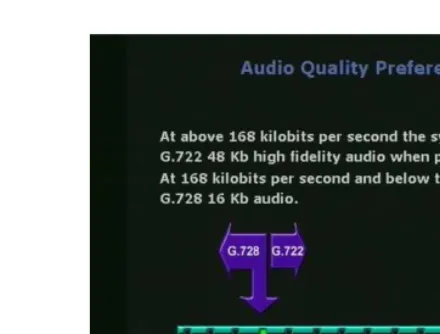
The Audio Quality Preference screen (System Info > Admin Setup> Video Network> IMUX > Audio Quality) allows the selection of an audio protocol. G.722 audio delivers a higher quality of audio than G.728 and uses 48 Kbps of the call bandwidth. G.728 delivers telephone quality audio and only uses 16 Kbps of the call bandwidth. G.728 is generally used for lower data rates.
To set the audio protocol, use the + and
- zoom buttons on the
remote control to move the slider.Figure 2-11. Audio Quality Screen
Advanced Dialing
On the Advanced Dialing screen (System Info > Admin Setup> Video Network> IMUX > Advanced Dialing) you can define how each ISDN channel is dialed. By default, channels are dialed in parallel.
• Dial channels in parallel: When this option is selected, the ViewStation dials all ISDN channels simultaneously.
Figure 2-12. Advanced Dialing Screen
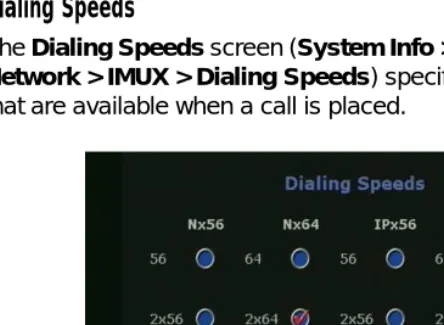
Dialing Speeds
The Dialing Speeds screen (System Info > Admin Setup> Video Network> IMUX > Dialing Speeds) specifies the dialing speeds that are available when a call is placed.
Figure 2-13. Dialing Speeds Screen
ISDN Video Network
The ISDN Video Network screen (System Info > Admin Setup> Video Network> ISDN Video Network) contains information entered during system setup. The five user-configurable fields are:
Country Code: Choose the country code associated with the country where the ViewStation is used.
Area Code: Choose the area code or STD code where the ViewStation is used.
Number A: Enter the primary ISDN number assigned to the ViewStation.
Number B: Enter the secondary ISDN number assigned to the ViewStation.
ISDN Switch Protocol: Select the appropriate ISDN switch protocols. Contact the ISDN provider to determine the ISDN switch protocol.
ISDN Dialing Prefix: The ISDN dialing prefix is used to access an outside line if the ViewStation is connected to a PBX.
Call Preference
The Call Preference screen (System Info > Admin Setup> Video Network> Call Preference) shown in Figure 2-15 determines how a video call is made. The two types of calls made are:
• ISDN Video Calls (H.320)
• LAN/Internet Calls (H.323)
ISDN Video Calls (H.320):
• Checked: Enables ISDN videoconferencing on the ViewStation.
• Not Checked: Disables ISDN videoconferencing ability on the ViewStation.
Figure 2-15. Call Preference Screen
LAN/Internet Calls (H.323):
• Checked: Enables H.323 videoconferencing on the ViewStation.
• Not Checked: Disables H.323 videoconferencing on the ViewStation.
• Display IP Dialing Extension: The IP dialing extension is used if a ViewStation uses the Global Address Book (GAB).
Not Checked: The E.164 dialing extension is not displayed when a video call is initiated in H.323 calls.
Multi-Point Setup (MP Enabled ViewStations)
The Multi-Point setup screen determines which mode the multi-point feature is used. The modes are:
• Auto: The ViewStation automatically switches between discussion and presentation mode.
• Discussion: This mode is also called the continuous presence. Each site remains on the screen in a tiled arrangement.
• Presentation: The main presenter remains on the screen while each end point switches on and off.
• Full Screen: Whoever is speaking is viewed in full screen. When a new endpoint speaks, that endpoint appears full screen.
ViewStation H.323 with Avaya DCP
The NetworkSetup screen (System Info > Admin Setup> Video Network) shown in Figure 2-16 provides four icons which:
• Configure IMUX properties
• Configure DCP Video Network properties
• Set Call Preferences
IMUX (Inverse Multiplexer):
On the IMUX screen (System Info > Admin Setup> Video Network>IMUX), the four icons as shown in Figure 2-17 are:
• Numbers: Sets DCP video numbers
• Audio Quality: Adjusts the audio quality of a video call
• Advanced Dialing: Defines how a channel is dialed
• Dialing Speeds: Defines dialing speed available when a call is placed.
Figure 2-17. Inverse Multiplexer Information Screen
Numbers
Figure 2-18. DCP Video Numbers Screen
1. Enter the STD or area code and press the down arrow on the remote control to continue to the next line.
2. Enter the DCP phone number used for each line.
3. When complete, highlight the Saveicon and press the SELECT button on the remote control.
Audio Quality
The Audio Quality Preference screen (System Info > Admin Setup> Video Network> IMUX > Audio Quality) allows the selection of an audio protocol. G.722 audio delivers a higher quality of audio than G.728 and uses 48 Kbps of the call bandwidth. G.728 delivers telephone quality audio and only uses 16 Kbps of the call bandwidth. G.728 is generally used for lower data rates.
To set the audio protocol, use the + and
- zoom buttons on the
remote control to move the slider.Figure 2-19. Audio Quality Screen
Advanced Dialing
On the Advanced Dialing screen (System Info > Admin Setup> Video Network> IMUX > Advanced Dialing) you can define how each DCP channel is dialed. By default, channels are dialed in parallel.
• Dial channels in parallel: When this option is selected, the ViewStation dials all DCP channels simultaneously.
Figure 2-20. Advanced Dialing Screen
Dialing Speeds
The Dialing Speeds screen (System Info > Admin Setup> Video Network> IMUX > Dialing Speeds) specifies the dialing speeds that are available when a call is placed.
Figure 2-21. Dialing Speeds Screen
DCP Video Network
The DCP Video Network screen (System Info > Admin Setup> Video Network> DCP Video Network) contains information entered during system setup. The five user-configurable fields are:
Country Code: Choose the Country Code associated with the country where the ViewStation is used.
Area Code: Choose the Area Code or STD Code where the ViewStation is used.
Number A: Enter the primary DCP number assigned to the ViewStation.
Number B: Enter the secondary DCP number assigned to the ViewStation.
DCP Switch Protocol: Select the appropriate DCP switch protocols. Contact the DCP provider to determine the DCP switch protocol.
DCP Dialing Prefix: The DCP dialing prefix is used to access an outside line if the ViewStation is connected to a PBX.
Call Preference
The Call Preference screen (System Info > Admin Setup> Video Network> Call Preference) shown in Figure 2-23 determines how a video call is made. The two types of calls made are:
• DCP Video Calls (H.320)
• LAN/Internet Calls (H.323)
DCP Video Calls (H.320):
• Checked: Enables H.320 videoconferencing on the ViewStation.
• Not Checked: Disables H.320 videoconferencing ability on the ViewStation.
Figure 2-23. Call Preference Screen
LAN/Internet Calls (H.323):
• Checked: Enables H.323 videoconferencing on the ViewStation.
• Not Checked: Disables H.323 videoconferencing on the ViewStation.
• Display IP Dialing Extension: The IP dialing extension is used if a ViewStation uses the Global Address Book (GAB).
Not Checked: The E.164 Dialing Extension is not displayed when a video call is initiated in H.323 calls.
Multi-Point Setup (MP Enabled ViewStations only)
The Multi-Point setup screen determines which mode the multi-point is used in. These modes are:
• Auto: The ViewStation automatically switches between discussion and presentation modes.
• Discussion: This mode is also called the continuous presence. Each site remains on the screen in a tiled arrangement.
• Presentation: The main presenter remains on the screen.
Full Screen: Whoever is speaking is viewed in full screen. When a new endpoint speaks, that endpoint appears full screen.
ViewStation 128
The Network Setup screen (System Info > Admin Setup> Video Network) shown in Figure 2-24 provides three icons, which:
• Set Dialing Speeds
• Configure Video Network properties
• Set Call Preferences
Dialing Speeds
The Dialing Speeds screen (System Info > Admin Setup> Video Network> Dialing Speeds) specifies the dialing speeds that are available when a call is placed.
Figure 2-25. Dialing Speeds Screen
Highlight the box to the right of a speed and press the SELECT button to select that speed. A red check mark appears on the
Dialing screen when a speed is selected.
ISDN Video Network
The ISDN Video Network screen (System Info > Admin Setup> Video Network> ISDN Video Network) contains information entered during system setup. The six user configurable fields are:
Country Code: Choose the Country Code associated with the country where the ViewStation is used
Area Code: Choose the Area Code or STD Code where the ViewStation is used
Number A: Enter the primary ISDN number assigned to the ViewStation
ISDN Switch Protocol: Select the appropriate ISDN switch protocols. Contact the ISDN provider to determine the ISDN switch protocol.
Service Profile IDs (SPIDs): The Service Profile Identifiers
screen (SPIDs) appears only if United States or Canada is selected as the country. If the ViewStation is connected to an internal phone system (PBX), a SPID might not need to be entered.
Note If the ViewStation is unable to find the SPIDs, check the network connection and verify that the ISDN numbers have been entered correctly:
• Enter the SPID numbers provided by the ISDN service provider.
• If the ViewStation is connected to a PBX, select the PBX
icon.
To auto-detect the SPID numbers, highlight the Start icon and press the SELECT button on the remote control.
Note If this process is canceled, the ViewStation reboots and the entire setup procedure must be redone.