EAR 5000
This publication refers to the EAR 5000 Auto Attendant System, Release 2
Additional copies of this manual may be obtained from Aleen Technologies. Reproduction of this manual or parts thereof without written permission from Aleen Technologies is strictly prohibited.
Aleen Technologies reserves the right to modify the hardware and software described herein without prior notice. However, changes made to the hardware or software described do not necessarily render this publication invalid.
WARRANTY
In the event that the product proves to be defective in workmanship or materials within a period of one year from date of shipment, Aleen Technologies shall repair or replace the same at its discretion. Transportation will be the responsibility of the dealer/distributor.
Under no circumstances shall Aleen Technologies be liable for consequential or special damages, loss of revenue or user/dealer expenses arising out of or in connection with the use or performance of the product, whether base on contract, tort or any other legal agreement.
TABLE OF CONTENTS
1. INTRODUCTION...1-1
1.1 FEATURES AND SERVICES...1-2 1.1.1 System Features ...1-2
1.1.2 Automated Attendant Features...1-4
1.1.3 Voice Mail Features ...1-6
1.2 ABOUT THIS MANUAL...1-8 2. DESCRIPTION AND INSTALLATION...2-1
2.1 THE BASIC SYSTEM...2-2 2.2 PHYSICAL DESCRIPTION...2-3 2.2.1 Side Panel ...2-3
2.2.2 Front Panel ...2-4
2.3 INSTALLATION...2-5 2.3.1 Unpacking ...2-5
2.3.2 Installing the EAR 5000 ...2-5
2.3.3 Expanding the System...2-8
3. DTMF PROGRAMMING...3-1
3.1 ENTERING AND EXITING THE PROGRAMMING MODE...3-1 3.2 FIRST TIME PROGRAMMING CHECKLIST...3-2 3.3 DEFINING PBX PARAMETERS...3-3 3.4 SETTING THE TIME AND DATE...3-8 3.5 PROGRAMMING THE OPERATIONAL MODE...3-8 3.6 PROGRAMMING THE EAR 5000 ...3-10 3.6.1 Creating Mailboxes ...3-10
3.6.2 Creating Mailbox Groups ...3-12
3.7 PROGRAMMING THE AUTOMATED ATTENDANT SCRIPT MENU...3-17 3.7.1 Recording Script Messages ...3-17
3.7.2 Programming Script Messages ...3-18
3.7.3 Directory Listing Programming ...3-25
3.7.4 Reset Script Message Programming to Default ...3-26
3.7.5 Supervised, Semi-Supervised and Non-Supervised Transfers ...3-26
3.8 ADDITIONAL FEATURES...3-29 3.8.1 Changing Passwords...3-29
3.8.2 Activate Force Reorganize ...3-30
3.8.3 Changing to/from Day Light Saving Time...3-31
3.8.4 Changing the Operational Mode...3-31
3.8.5 Playing a System Message ...3-32
3.8.6 Playing All System Messages ...3-32
3.8.7 System Message Setting...3-32
3.8.8 Listening to the Software Version Number...3-33
3.8.9 Resetting the System ...3-33
3.8.10 Adjusting Recording Length...3-33
4. PROGRAMMING BY COMPUTER...4-1
4.1 CONNECTING THE EAR 5000 TO THE COMPUTER...4-1 4.2 SYSTEM REQUIREMENTS...4-2 4.3 INSTALLING THE EUP ...4-2 4.4 STARTING EUP ...4-3 5. USER OPERATION INSTRUCTIONS...5-1
5.1 INTRODUCTION...5-1 5.2 USER’S MAIN MENU...5-1 5.3 RETRIEVE MESSAGE MENU...5-1 5.4 MAILBOX PARAMETERS...5-2 5.4.1 Record Greeting ...5-3
5.4.2 Record Name...5-3
5.4.4 Change Password...5-4
5.4.5 Do Not Disturb (DND)...5-5
5.4.6 External Notification ...5-5
5.4.7 Pager Notification ...5-6
5.4.8 Return to Previous Menu...5-6
5.5 SEND MESSAGE...5-7 5.6 RETURN TO AUTO ATTENDANT...5-7 5.7 QUICK REFERENCE GUIDE...5-8 6. PROGRAMMING THE IN-BAND DTMF PROTOCOL...6-1
6.1 PROGRAMMING THE EAR 5000 BY TELEPHONE...6-1 6.1.1 Defining an In-Band DTMF Code for an Event ...6-1
6.1.2 Selecting an Operation Type ...6-3
6.1.3 Selecting a destination ...6-4
6.1.4 Defining the Time to Wait for the First DTMF Character ...6-4
6.1.5 Defining the Time to Wait Between DTMF Characters ...6-4
6.1.6 MATRA Support ...6-5
6.2 SAMPLE PROGRAMMING...6-5 6.2.1 Working with the SIEMENS Hicom 150E Office PBX ...6-5
7. TROUBLESHOOTING ...7-1
APPENDIX A PROGRAMMING COMMANDS... A-1
APPENDIX B PROGRAMMING FORMS... B-1
APPENDIX C SYSTEM MESSAGES ... C-1
1. INTRODUCTION
The EAR 5000 is a small stand alone multilingual Automated Attendant system for organizations that have between eight and eighty employees. The EAR 5000 incorporates state of the art technology, including DSP, flash memory and SMT production.
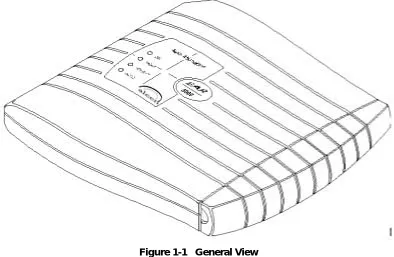
Figure 1-1 General View
The EAR 5000 is available in two or four ports and with up to 8 mailboxes. It provides a three hours recording time .
The EAR 5000 can be integrated with most types of PBX’s through the analog ports or through the RS-232 serial port.
The system administrator can be programmed by the computer using the EAR Utility Program (EUP) or by touch-tone telephone.
The EAR 5000 is ready for use immediately after the system administrator completes a short procedure that includes setting up integration parameters, mailboxes, notification type, system schedules and opening greetings. Mailbox owners can then set up their own personal mailbox parameters.
1.1 Features and Services
The EAR 5000 is a powerful Auto Attendant system at an affordable price. It contains most of the useful features and services provided by PC-based systems but at a lower cost. The EAR 5000’s features can be divided into three groups:
• System Administration
• Automated Attendant
• Voice Mail
1.1.1 System Features
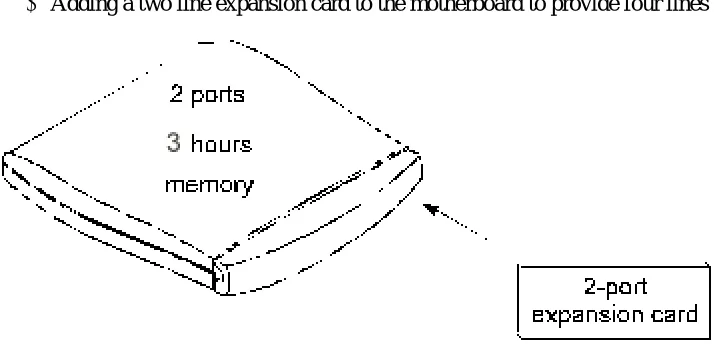
• ConfigurationThe EAR 5000 is available with two ports and three hours of recording time. The system administrator can upgrade the EAR 5000 by:
− Adding a two port expansion card to the motherboard to provide four ports
• Programming
The system administrator can program the EAR 5000 by:
− Touch-tone telephone using DTMF tones
− Computer using the EAR Utility Program (EUP). The installer should save the files containing the parameters set in each installation.
• Integration with your PBX
The system administrator can integrate the EAR 5000 with the PBX through:
− In-Band DTMF Protocol integration using DTMF strings. This type of integration is achieved by setting up the communication parameters on the PBX and the EAR 5000s, including answering a call, transfer, recall from busy, recall from no answer, the notification parameters and more.
•••• Loop Current Disconnection
Some PBXs have the capability, which enables them to notify the EAR 5000 through the line interface when a call is terminated. When this situation is detected by the unit, the line is disconnected and the EAR 5000 is then ready to receive another call.
• Message Notification
The EAR 5000 automatically notifies the mailbox owner of new messages in different ways according to the system configuration. Notification may be local (to a PBX extension) or remote (to a telephone at a remote location, a cellular telephone or a pager).
• Security Passwords
The EAR 5000 supports three types of passwords, each with four digits:
− System Administrator. Gives access to all data stored in the EAR 5000.
− Operator. Gives access to the operating modes of the system. The available operating modes are: Day, Night, Holiday and Break.
− Mailbox. Gives access to individual mailboxes. Mailbox owners can change the password at any time.
• Line Monitor
1.1.2 Automated Attendant Features
The EAR 5000’s automated attendant answers incoming calls and through a series of recorded menus and telephone directories, helps the callers reach the desired extensions.
• Opening Greeting
The EAR 5000 plays a pre-recorded greeting to callers. The opening greeting usually includes the organization’s name, how to reach an extension,
department or operator, how to switch languages, how to leave a message and to access a directory.
During the greeting, callers can access a department by dialing a single digit, dialing the extension number or holding for assistance.
• Operating Modes
Depending on the time and the system schedule, the EAR 5000 answers external calls with one of four opening greetings:
− Day Mode
During normal business hours, the EAR 5000 answers calls with a pre-recorded daytime greeting. The daytime greeting enables the caller to reach a requested extension, mailbox, department, and directory or to switch languages.
− Night Mode
During non-working hours, the EAR 5000 answers calls with a pre-recorded nighttime greeting that enables the caller to leave a message in a requested mailbox.
− Holiday Mode
During holidays, the EAR 5000 answers calls with a special greeting that enables the caller to leave a message in a specific mailbox or in the operator’s mailbox.
− Break Mode
The system administrator can program part of the day mode as break time. During break time, the EAR 5000 answers calls with a special greeting that enables the caller to leave a message in a specific mailbox or in the
•••• System Schedules (Auto-Mode)
If your organization has operating hours that vary from day to day, the system administrator can define the daily operating schedules on a weekly basis, including daytime, nighttime and break time hours. When the Auto mode is activated, the EAR 5000 automatically switches between the day, night and break modes according to the pre-defined schedule.
The operator can override the pre-defined system schedule and switch manually to day, night, break, or holiday mode using a password.
• Holiday Schedules
The EAR 5000 switches automatically to Holiday mode on dates programmed as holidays. During holidays the EAR 5000 answers calls with the special holiday greeting.
• Fax Detection
If the EAR 5000 detects a fax tone (CNG) during the opening greeting, it automatically transfers the call to the pre-defined fax extension.
• Directory Listing (Dial By Name)
The EAR 5000 can provide a list of mailbox owner names. The directory listing enables calls to be transferred to all extensions configured within the list. A caller can access the directory listing by following instructions during the opening greeting.
In order to enable a directory listing call transfer, the mailbox owner must record his name and a three-letter code. A caller can reach the proper extension after dialing the respective code and verifying a correct extension according to the mailbox owner’s name.
The system administrator enables two methods of directory listing: according to the mailbox owners first or last name.
• Call Transfer
The system administrator can program the EAR 5000 to detect the Call Progress tone and DTMF signals sent by the PBX and transfer the calls to extensions in one of the following modes:
− Non-Supervised. The EAR 5000 transfers the call immediately without verifying the status of an extension.
− Semi-Supervised. The EAR 5000 only checks for a busy signal before transferring the call to an extension.
• Multilingual Option
The EAR 5000 can operate in three languages simultaneously. The system administrator can configure each mailbox to operate in one of the three selected languages. The caller can select the language in which the system messages (prompts) are played.
• Answering on the First Ring
To avoid delays, the system administrator can set up the EAR 5000 on each individual port to answer incoming calls on the first ring.
• Script Menus
The EAR 5000 supports up to 39 script menus. A script menu is a recorded announcement that can accept a digit entry (0-9) during playback. Based on the digit entered, the EAR 5000 can take one of the following actions:
− Transfer the call to another script menu
− Transfer the call to another script menu and change the language
− Transfer the call to an extension or hunt group
− Transfer the call to a mailbox or a mailbox group
− Dial a strings of DTMF
− Retrieve messages from a mailbox
− Disconnect the line
− Leave a message
− Play the directory listing
− Record a call
1.1.3 Voice Mail Features
•••• Real/Virtual Mailboxes
The EAR 5000 supports 8 real and virtual mailboxes. A real mailbox has a telephone extension, whereas a virtual mailbox does not.
• Personalized Mailboxes
Mailbox owners can personalize their mailboxes by recording a personal greeting, assigning a personal password to the mailbox and setting optional parameters.
• Personal Greeting
Mailbox owners can record or change personal greetings at any time from any touch-tone telephone. Callers first hear the personal greeting of the extension called and then they can leave a message.
• Day and Time Stamp
The system administrator can program the EAR 5000 to indicate the start of each message and the day and time it was recorded.
• Message Deletion
Mailbox owners can manually delete messages or the system administrator can program the EAR 5000 to automatically delete all messages after a specified number of days.
•••• Message Forwarding
Mailbox owners can forward copies of messages to other mailboxes or mailbox groups. Mailbox owners can also record an introduction to the forwarded message.
• Message Reply
Mailbox owners can reply, directly, to a message and record a message in the sender’s mailbox.
• Mailbox Groups
A caller can send a message to all the members of a mailbox group at one time.
•••• Do Not Disturb Mode
Mailbox owners can set their mailboxes in the Regular Mode or Do Not Disturb Mode. When a caller dials a Do Not Disturb extension using the Automated Attendant menus, the EAR 5000 plays a special “Do Not Disturb” menu and does not transfer the call to the extension.
•••• Individual Language Selection
The mailbox owner or caller can select one of the languages supported by the EAR 5000. When the mailbox owner or caller enters the mailbox, the EAR 5000 automatically switches to the selected language.
•••• Adjustable Recording Length
The system administrator can select the length of all recorded messages in the EAR 5000. The selected length will control the following types of messages: scripts, greetings, names and incoming messages. Changing this parameter will affect the operation EAR 5000.
• Automatic Gain Control (AGC)
1.2 About this Manual
This manual presents information needed to install, program and maintain the EAR 5000. It is divided into the following sections:
1. INTRODUCTION
Introduces the EAR 5000 and lists its features.
2. DESCRIPTION AND INSTALLATION
Provides a functional description of the EAR 5000 and installation instructions.
3. DTMF PROGRAMMING
Describes how to program the EAR 5000 from any DTMF telephone.
4. PROGRAMMING BY COMPUTER
Describes the installation and basic operational concepts of the EAR Utility Program (EUP).
5. USER OPERATING INSTRUCTIONS Explains how to program and use a mailbox.
6. PROGRAMMING THE IN-BAND PROTOCOL
Describes how to program the EAR 5000 to detect the In-Band DTMF protocol sent by the PBX.
7. TROUBLESHOOTING
Presents answers to commonly asked questions on operating the EAR 5000.
APPENDIX A
Summarizes the programming commands.
APPENDIX B
Contains the DTMF programming forms.
APPENDIX C
Lists the system messages.
APPENDIX D
The EAR 5000 is a digital system consisting of a:
• Sophisticated DSP voice-processing device
• Flash memory for storing voice recording and parameter data
• Central Processing EAR 5000
• Two or four ports
• Real-time clock
The EAR 5000 provides two major services:
• Automated Attendant
Uses menus and sub-menus to transfer calls to specific departments, extensions or mailboxes.
• Voice Mail
Receives and delivers messages. Each mailbox has its own number and mailbox owners have passwords enabling them access to their mailboxes.
Messages can be saved, deleted or transferred to other mailboxes. Mailbox owners can also send identical messages to groups of mailboxes or to all the mailboxes in the system.
By configuring the following, the EAR 5000’s Automated Attendant and Voice Mail System can be customized to suit the needs of the company:
• PBX parameters
• Automated Attendant script menus and customized “Busy”, “No Answer” and “Do Not Disturb” menus in up to three different languages simultaneously.
2.1 The Basic System
The EAR 5000 comes with two lines and three hours recording time.
You can upgrade the EAR 5000 by:
• Adding a two line expansion card to the motherboard to provide four lines
2.2 Physical Description
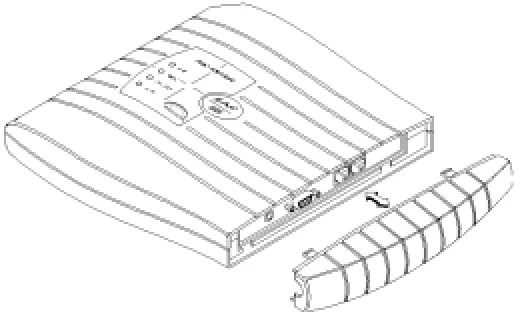
The functional components of the EAR 5000 are located under the side panel cover. The LEDs are on the left side of the front panel. The bottom panel has two indented holes for wall mounting.
Figure 2-2 General View of the EAR 5000 after Removing the Cover
2.2.1 Side Panel
Figure 2-3 Side Panel
The numbered items in the following description correspond to the labels in Figure 2-3.
1. Power Supply Connector Connects the EAR 5000 to the external power supply 2. RS-232 Connector Connects the EAR 5000 to the PBX or a PC
2.2.2 Front Panel
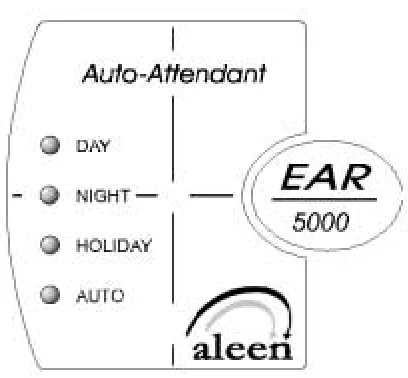
Figure 2-4 LEDs on the Front Panel
The following table describes the function of the four LEDS on the front panel.
STATUS DAY NIGHT HOLIDAY AUTO
Day Mode: Manual On Off Off Off
Night Mode: Manual Off On Off Off
Holiday Mode: Manual Off Off On Off
Break Mode: Manual On On Off Off
Day Mode: Auto On Off Off On
Night Mode: Auto Off On Off On
Break Mode: Auto On On Off On
System Error1 Off Flashing Off Off
System Error1 Flashing Flashing Flashing Flashing
System Error1 Flashing Flashing Flashing Off
Automatic Self-Test On On On On
1
2.3 Installation
The EAR 5000 is delivered completely assembled. It is designed for mounting on a wall close to the PBX.
2.3.1 Unpacking
Before unpacking, inspect the package, if you notice any damage, immediately report it to your local dealer.
!
To unpack the EAR 5000:
1. Place the package on a flat surface and open it.
2. Remove the contents of the package and place them on a clean surface.
3. Remove all packing material.
4. Inspect the contents, if you notice any physical damage, immediately report it to you local dealer.
2.3.2 Installing the EAR 5000
!
To install the EAR 5000:
1. Mount the EAR 5000 on a wall close to the PBX cabinet. Use the drill template to place the two screws.
2. Remove the side panel cover.
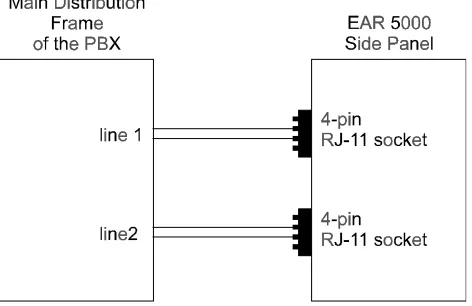
3. Connect the RJ-11 connector on one end of the cables to the RJ-11 sockets on the side panel of the EAR 5000. Connect the other end of the cables to one or two analog telephone lines on the Main Distribution Frame (MDF) of the PBX (see Figure 2-5).
Figure 2-5 Analog Line Connections
4. On the side panel of the EAR 5000, plug the 9V DC adapter jack into the power supply connector.
6. If your PBX supports full-authorized RS-232 integration with the EAR 5000, connect one end of the RS-232 cable to the EAR 5000’s RS-232 connector and the other end to the RS-232 connector of the PBX.
7. Call each EAR 5000 line from any extension and verify the answer. You should hear the default greeting (system message no. 000. See Appendix C).
8. Replace the side panel cover.
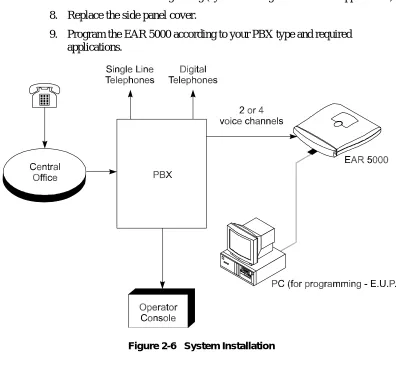
9. Program the EAR 5000 according to your PBX type and required applications.
2.3.3 Expanding the System
2.3.3.1 Expanding to Four Lines
The two-line expansion kit contains:• 2-line expansion card
• 4-wire cable
• Two plastic spacers
!
To install the expansion card:
1. Disconnect all external cables and connectors.
2. Remove the 9V DC adapter power plug from the main power supply outlet to turn the EAR 5000 off.
3. Open the EAR 5000’s top cover by unscrewing the four screws.
4. Place the two plastic spacers into the corresponding holes.
5. Insert the expansion card into the corresponding J6 connector.
6. Connect one end of the 4-wire cable to J5 on the motherboard and the other end to J5 on the expansion card.
7. Replace the top panel cover and plug the 9V DC adapter into the main power supply outlet to turn the EAR 5000 on.
8. Reconnect all the external cables and connectors to the EAR 5000.
The EAR 5000 can be programmed by:
• Telephone using DTMF tones
• Computer using the EAR Utility Program (see Section 4)
This section describes programming the EAR 5000 using DTMF tones.
Note: You will hear a confirmation tone every time you enter a programming command.
3.1 Entering and Exiting the Programming Mode
The EAR 5000 does not handle calls when in the programming mode.
!
To enter the programming mode:
1. Connect a PBX analog line to the EAR 5000.
2. Call the PBX analog line from any touch-tone telephone.
3. Wait until the EAR 5000 answers and plays the opening menu. Then dial *900.
4. Dial the System Administrator’s password (the default password is 1234) to enter the programming mode.
!
To exit the programming mode:
• Dial *900. –or–
Do not dial for one minute.
3.2 First Time Programming Checklist
1. Call from a touch-tone telephone to the EAR 5000. You will hear the default message (system message 000 - see Appendix C).
2. Dial *900 and the administrator password (default: 1234) to enter the programming mode.
3. Set the PBX parameters (see Sections 3.3 and Section 6) to ensure the proper operation of the EAR 5000 with your PBX.
4. Set the EAR 5000’s real-time clock (see Section 3.4).
5. Set the system schedule (see Section 3.5).
6. Create mailboxes (see Section 3.6.1).
7. Define a notification type for each mailbox (see Section 3.6.3).
8. Define notification parameters (i.e., message light on and message light off and interval between ring notification in Section 3.6.3.)
3.3 Defining PBX Parameters
To integrate the EAR 5000 with your PBX, apply the PBX parameters to the EAR 5000.
To obtain your current PBX parameters, check your PBX User’s Manual or the current PBX setup configuration.
To configure the EAR 5000 to detect the in-band DTMF protocol sent by your PBX, refer to Section 6.
Note: Do not forget to enter programming mode by dialing *900 and the administrators password before using the programming commands.
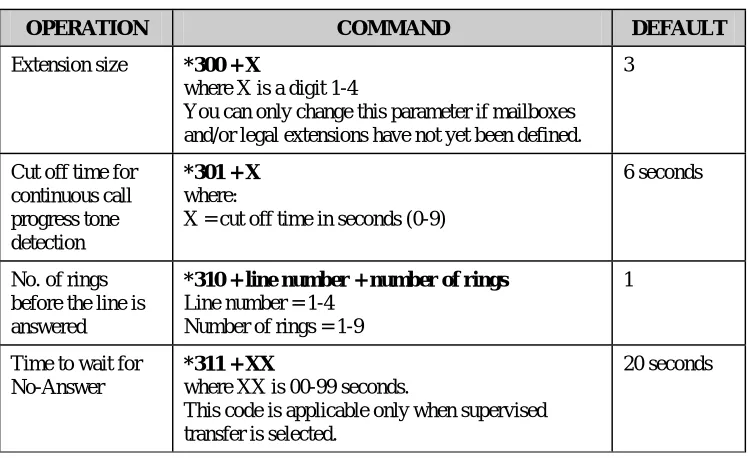
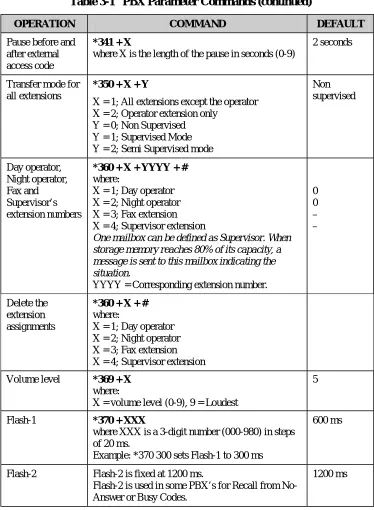
Table 3-1 presents the commands you must enter to apply the PBX parameters to the EAR 5000.
Table 3-1 PBX Parameter Commands
OPERATION COMMAND DEFAULT
Extension size *300 + X
where X is a digit 1-4
You can only change this parameter if mailboxes and/or legal extensions have not yet been defined.
3
Cut off time for continuous call progress tone detection
*301 + X where:
X = cut off time in seconds (0-9)
6 seconds
No. of rings before the line is answered
*310 + line number + number of rings Line number = 1-4
Number of rings = 1-9
1
Time to wait for No-Answer
*311 + XX
where XX is 00-99 seconds.
This code is applicable only when supervised transfer is selected.
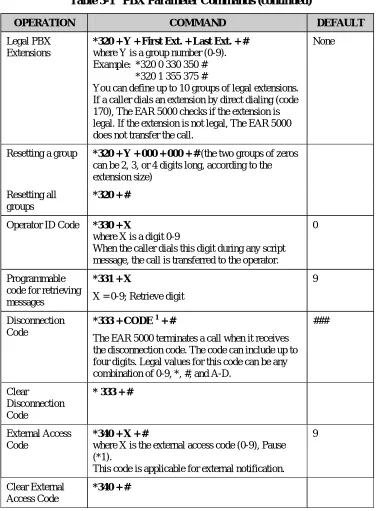
Table 3-1 PBX Parameter Commands (continued)
OPERATION COMMAND DEFAULT
Legal PBX Extensions
*320 + Y + First Ext. + Last Ext. + # where Y is a group number (0-9). Example: *320 0 330 350 #
*320 1 355 375 #
You can define up to 10 groups of legal extensions. If a caller dials an extension by direct dialing (code 170), The EAR 5000 checks if the extension is legal. If the extension is not legal, The EAR 5000 does not transfer the call.
None
Resetting a group *320 + Y + 000 + 000 + # (the two groups of zeros can be 2, 3, or 4 digits long, according to the extension size)
Resetting all groups
*320 + #
Operator ID Code *330 + X
where X is a digit 0-9
When the caller dials this digit during any script message, the call is transferred to the operator.
0
Programmable code for retrieving messages
*331 + X
X = 0-9; Retrieve digit
9
Disconnection Code
*333 + CODE 1 + #
The EAR 5000 terminates a call when it receives the disconnection code. The code can include up to four digits. Legal values for this code can be any combination of 0-9, *, #, and A-D.
###
Clear
Disconnection Code
* 333 + #
External Access Code
*340 + X + #
where X is the external access code (0-9), Pause (*1).
This code is applicable for external notification. 9
Clear External Access Code
Table 3-1 PBX Parameter Commands (continued)
OPERATION COMMAND DEFAULT
Pause before and after external access code
*341 + X
where X is the length of the pause in seconds (0-9)
2 seconds
Transfer mode for all extensions
*350 + X + Y
X = 1; All extensions except the operator X = 2; Operator extension only
Y = 0; Non Supervised Y = 1; Supervised Mode Y = 2; Semi Supervised mode
Non supervised Day operator, Night operator, Fax and Supervisor’s extension numbers
*360 + X + YYYY + # where:
X = 1; Day operator X = 2; Night operator X = 3; Fax extension X = 4; Supervisor extension
One mailbox can be defined as Supervisor. When storage memory reaches 80% of its capacity, a message is sent to this mailbox indicating the situation.
YYYY = Corresponding extension number.
0 0 – – Delete the extension assignments
*360 + X + # where:
X = 1; Day operator X = 2; Night operator X = 3; Fax extension X = 4; Supervisor extension Volume level *369 + X
where:
X = volume level (0-9), 9 = Loudest
5
Flash-1 *370 + XXX
where XXX is a 3-digit number (000-980) in steps of 20 ms.
Example: *370 300 sets Flash-1 to 300 ms
600 ms
Flash-2 Flash-2 is fixed at 1200 ms.
Flash-2 is used in some PBX’s for Recall from No-Answer or Busy Codes.
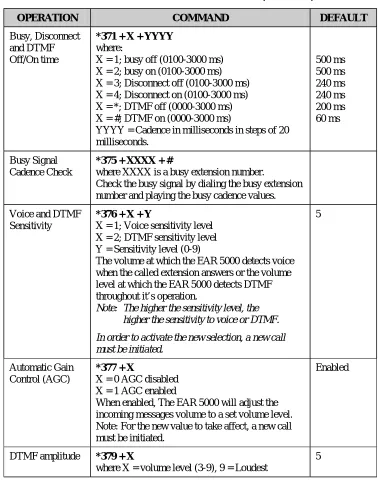
Table 3-1 PBX Parameter Commands (continued)
OPERATION COMMAND DEFAULT
Busy, Disconnect and DTMF Off/On time
*371 + X + YYYY where:
X = 1; busy off (0100-3000 ms) X = 2; busy on (0100-3000 ms) X = 3; Disconnect off (0100-3000 ms) X = 4; Disconnect on (0100-3000 ms) X = *; DTMF off (0000-3000 ms) X = #; DTMF on (0000-3000 ms)
YYYY = Cadence in milliseconds in steps of 20 milliseconds. 500 ms 500 ms 240 ms 240 ms 200 ms 60 ms Busy Signal Cadence Check
*375 + XXXX + #
where XXXX is a busy extension number.
Check the busy signal by dialing the busy extension number and playing the busy cadence values. Voice and DTMF
Sensitivity
*376 + X + Y
X = 1; Voice sensitivity level X = 2; DTMF sensitivity level Y = Sensitivity level (0-9)
The volume at which the EAR 5000 detects voice when the called extension answers or the volume level at which the EAR 5000 detects DTMF throughout it’s operation.
Note: The higher the sensitivity level, the higher the sensitivity to voice or DTMF.
In order to activate the new selection, a new call must be initiated.
5
Automatic Gain Control (AGC)
*377 + X
X = 0 AGC disabled X = 1 AGC enabled
When enabled, The EAR 5000 will adjust the incoming messages volume to a set volume level. Note: For the new value to take affect, a new call must be initiated.
Enabled
DTMF amplitude *379 + X
where X = volume level (3-9), 9 = Loudest
Table 3-1 PBX Parameter Commands (continued)
OPERATION COMMAND DEFAULT
Procedural codes sent to the PBX in order to perform a specific task
*380 + X + CODE 1 + # X = 1; LED1 notification code X = 2; LED2 notification code X = 3; LED notification off code X = 4; Transfer code
X = 5; Recall from Busy X = 6; Recall from No Answer CODE 1= Respective PBX code
None None None Flash 1 + Ext Flash 1 Flash 1 Delete a specific
procedural code
*380 + X + #
X = 1; LED1 notification code X = 2; LED2 notification code X = 3; LED notification off code X = 4; Transfer code
X = 5; Recall from Busy X = 6; Recall from No Answer Dial a String from
the Auto Attendant to the PBX
*381 + X + YY…YY + #
X = String number (0-9) YY…YY = DTMF string Note: Use CODE 1
3.3
Answer number of samples
*386 + X where:
X = number of samples (0-9)
5
CODE 1=
DTMF CHARACTER NUMBER TO DIAL
Digits 0-9 0-9
* ** Extension *0
Pause *1, indicates a 1 second pause
Hook Flash 1 *2
Hook Flash 2 *3
# *4 A *5 B *6
C *7
3.4 Setting the Time and Date
Table 3-2 presents commands used to set the EAR 5000 clock and calendar.
Note: Do not forget to enter programming mode by dialing *900 and the administrator’s password before using the programming commands.
Table 3-2 Commands to Set the EAR 5000 Clock and Calendar
OPERATION COMMAND
Setting the time and day of the week *420 + HH + MM where
HH = hour (00-23) MM = minutes (00-59)
Example: *420 15 25 stands for 3:25 p.m.
Setting the date *430 + DD + MM + YY
where
DD = date of the month (01-31) MM = month (01-12)
YY = year (00-99) Example: *430 15 03 97
March 15, 1997 Note: 00 represents Year 2000.
Note: The day of the week is automatically calculated by the system, based on the entered date.
Listening to the system time *440
The system announces the date and time.
3.5 Programming the Operational Mode
The EAR 5000 can operate in Day, Night, Break, or Holiday mode. If the EAR 5000 is in the Auto mode, it automatically changes modes according to
programmed schedules.
Table 3-3 Programming the Operational Modes
OPERATION COMMAND
Selecting an Operational Mode
*400 + X
where X stands for the operational mode. Day mode = 0 (default mode)
Night mode = 1 Holiday mode = 2 Auto mode = 3 Break mode = 4 Selecting time stamp format
(Used by English and Chinese languages only)
*410 + X where
X = 0 means the time stamp is in 12-hour format (default) X = 1 means the time stamp is in 24-hour format
Setting the Working Time (for Auto mode only)
*450 + D + hh:mm + hh:mm where
D is the day of the week (1-7)1
First hh:mm = start of work time in 24 hour format Second hh:mm = end of work time in 24 hour format Repeat for all days of the week.
Example: *450 1 08 30 1700 means that the EAR 5000 will play the Day mode opening greeting on Monday from 8:30 until 17:00. It will play the Night mode opening greeting the rest of the time.
1: Day 1 is Monday.
Setting the Break Time (for Auto mode only)
*460 + D + hh:mm + hh:mm where
D is the day of the week (1-7) 1
First hh:mm = start of break time in 24 hour format Second hh:mm = end of break time in 24 hour format Repeat for all days of the week.
Example 1: *460 1 13 15 14 30
This will play the Break mode opening greeting on Monday, from 13:15 until 14:30.
Table 3-3 Programming the Operational Modes (continued)
OPERATION COMMAND
Entering annual holiday dates
(For Auto mode only)
*470 + DD + MM + hh:mm + hh:mm where:
DD = Day of the month (01-31) MM = month (01-12)
hh:mm = Start time; Hour and minutes in 24 hour format hh:mm = End time; Hour and minutes in 24 hour format Repeat for holidays
Example 1: *470 02 12 08 15 23 45
The EAR 5000 will play the Holiday mode opening greeting on December 2nd, from 8:15 until 23:45.
Delete all holidays on a specific date
*470 + DD + MM # where:
DD = Day of the month (01-31) MM = month (01-12)
Delete all holidays on a specific month
*470 + ** + MM + # MM = month (01-12) Delete all holidays *470 + #
External Notification Active Time
*490 + hh:mm + hh:mm where:
hh:mm = Start time; Hour and minutes in 24 hour format hh:mm = End time; Hour and minutes in 24 hour format Example 1: *490 09 00 20 00
The will activate the External Notification between 9 a.m. to 8 p.m.
3.6 Programming the EAR 5000
3.6.1 Creating Mailboxes
You can define 8 mailboxes. The mailbox number and its extension number are identical. Make sure that the number of digits in the mailbox number conforms to the number of digits in an extension (*300).
• Plays all menus in the selected language.
• Plays all system messages (e.g., time stamp and error messages) in the selected language.
• If ring or remote notification is enabled, the mailbox owner is notified in the selected language.
A virtual mailbox can also be created for users who do not have extensions. When a caller dials a virtual mailbox number on the Automated Attendant menu, the call is immediately transferred to the Do Not Disturb menu and the caller is given the option to leave a message.
You may use the external notification features for the virtual mailboxes. Do not select internal notification because virtual mailboxes do not have extensions.
You can assign a mailbox for announcing messages without the ability to record incoming messages. This mailbox is called an Announcer mailbox. All mailboxes can be changed from a regular mailbox to an announcer mailbox and vice versa at any time.
Note: Do not forget to enter programming mode by dialing *900 and the administrator’s password before using the programming commands.
Table 3-4 Commands to Create Mailboxes
OPERATION COMMAND
Creating a range of mailboxes *500 + First Mailbox + Last Mailbox + # Creating one mailbox *501 + Mailbox Number + #
Selecting an announcer mailbox *502 + XXXX + Y + # where:
XXXX = existing mailbox number Y = 0; Regular mailbox (default) Y = 1; Announcer mailbox Deleting a mailbox *510 + Mailbox Number + #
Make sure to remove any transfer to the mailbox from the Automated Attendant scripts before deleting the mailbox.
Table 3-4 Commands to Create Mailboxes (continued)
OPERATION COMMAND
Defining whether to play or skip the time and date stamp during message playback for a range of mailboxes
*530 + First Mailbox + Last Mailbox + B + # where
B = 0; Play the date and time stamp (default) B = 1; Skip the date and time stamp
Defining whether to play or skip the time and date stamp during message playback for one mailbox
*531 + Mailbox Number + B + # where
B = 0; Play the date and time stamp (default) B = 1; Skip the date and time stamp
Defining a language for a range of mailboxes
*532 + First Mailbox + Last Mailbox + Z + # where
Z = 1, 2 or 3 (language number) Defining a language for a mailbox *533 + Mailbox Number + Z + #
where
Z = 1, 2 or 3 (language number)
3.6.2 Creating Mailbox Groups
You can create up to four mailbox groups for distributing messages. Each mailbox group can contain up to 8 mailboxes. The group numbers are by default 000, 001, 002 and 003. Group 099 consists of all mailboxes (real and virtual).
You can select a different number for the first digit of the mailbox groups using code *545. Make sure that you select a number that does not interfere with your PBX’s numbering plan.
Table 3-5 Commands to Create Mailbox Groups
OPERATION COMMAND
Adding a mailbox to a group *540 + Group Number + Mailbox Number + # Note: You must define the mailbox before adding
it to a group.
Changing the number of the first digit in the mailbox groups
*545 + X
where X is the first digit of the mailbox groups. Default is 0.
Deleting a mailbox from a group *550 + Group Number + Mailbox Number + # Resetting a group *560 + Group Number
Note: Resetting a group removes all the mailboxes within that group.
Note: A separate greeting message can be recorded for each mailbox group.
3.6.3 Notification
The EAR 5000 notifies the mailbox owner of new messages in different ways according to the system configuration. Notification may be local or remote.
Notification is always done on the second line.
Local Notification
You can select one of the following options:
• None. The notification feature is disabled.
• Message Light On 1. The EAR 5000 signals the PBX that a mailbox has received a message. The PBX then turns on the message light of the telephone extension. If the Message Light Off code is programmed, the code is
transferred to the PBX after the mailbox owner retrieves all his new messages.
• Message Light On 2. Same as Message Light On 1 but used only for PBXs that have two different codes for different telephones or for special tone notification (see Table 3-3).
The system administrator can set the notification method to one of the two states (code *760):
− Notification on 1st new message
− Notification on every new message
• Sign Rings. The EAR 5000 rings the notified extension number. These Sign Rings may be sent at programmed intervals (code *720). The EAR 5000 stops sending Sign Rings after the mailbox owner retrieves all his new messages or the maximum number of retries has been made (code *750).
• Rings. The EAR 5000 rings the notified extension for a programmed time period (code *730). When the mailbox owner answers, the EAR 5000 prompts him to enter his password. After entering the password, the mailbox owner may retrieve his messages. If the mailbox owner does not answer, the EAR 5000 tries again at programmed intervals (code *720). The EAR 5000 stops sending Ring notifications after the mailbox owner retrieves all his new messages or the maximum number of retries has been made (code *750).
Remote Notification
The mailbox owner may choose to be notified at a remote location (i.e., his mobile telephone, home telephone or pager) by entering a remote telephone number (of up to 20 digits) or pager number (of up to 40 digits). You can use any combination of *, #, A-D, 0-9, and Pause when setting the remote notification telephone number.
After remote notification is enabled, the EAR 5000 will dial the remote phone or pager number and notify the mailbox owner of any new messages. After entering the password, the mailbox owner can retrieve his messages. The duration of remote notification rings is programmed using code *730.
The remote notification activation time can be programmed so the administrator can decide on the daylights hours for the external notification to be activated. The time span of this service is programmed using code *490.
When permission has been granted and the mailbox owner enables remote
notification, the EAR 5000 first dials the external access digit (programmed using code *340) and then dials the mailbox owner’s remote telephone or pager number.
Note: Make sure that you enter the remote telephone or pager number before enabling remote notification.
Notification is always done on the second line.
3.6.3.1 Setting Notification for Mailboxes
Note: Do not forget to enter programming mode by dialing *900 and the administrator’s password before using the programming commands.
Note: Virtual mailboxes do not have extensions and may not be configured for internal notification.
Table 3-6 Commands to Program Notification for Mailboxes
OPERATION COMMAND
Setting local notification for a range of mailboxes
*700 + First Mailbox + Last Mailbox + X + # where
X = 0 means notification is disabled
X = 1 means Message Light On 1 is selected X = 2 means Message Light On 2 is selected X = 3 means Sign Rings is selected
X = 4 means Rings is selected Disable local notification for all
mailboxes
*700 + # Setting local notification for one
mailbox
*701 + Mailbox + X + # where X is defined as above Permitting remote notification for a
range of mailboxes
*710 + First Mailbox + Last Mailbox + Y + # where
Table 3-6 Commands to Program Notification for Mailboxes (continued)
OPERATION COMMAND
Disable remote notification for all mailboxes
*710 + #
Permitting remote notification for one mailbox
*711 + Mailbox + Y + #
Y = 0 means remote notification is not permitted Y = 1means remote notification is permitted Ring Notification Interval *720 + XX
where XX is a 2 digit number in minutes (1-99). Default = 30 minutes
Ring Notification Duration *730 + X where
X = 0 stands for short time for rings (default) X = 1 stands for long time for rings
Maximum number of days to store messages
*740 + XX
where XX stands for number of days (00-99). 00 = Messages are not deleted by the unit. Time to wait after off-hook for
notification dialing
*741 + X
X = Time in seconds (0-9) Number of Ring Notification retries *750 + XX
where XX refers to the number of ring notification attempts.
Default is 05. Activate the LED notification *760 + X
where
3.7 Programming the Automated Attendant Script Menu
The EAR 5000 supports up to 21 script messages (00-20) for building the Automated Attendant menu. The EAR 5000 also supports another six script messages in three languages (21-26 for the first language, 31-36 for the second and 41-46 for the third) for Busy menu, No Answer menu, Do Not Disturb menu and Post Recording menu (see Section 3.7.5).
The opening scripts for each line are selected by command *112.
The following numbers are dedicated by default to specific script messages:
• Script message number 00 to the Day Mode Opening Menu
• Script message number 10 to the Night Mode Opening Menu
• Script message number 15 to the Break Time Opening Menu
• Script message number 20 to the Holiday Mode Opening Menu
The rest of the script messages (01-09, 11-14 and 16-19) may be used in all modes without limitations.
Each script message has three parts:
• Script message number
• Recorded announcement
• Programming that indicates the action to be taken when a caller dials one digit (0-9) or dials nothing during an announcement
3.7.1 Recording Script Messages
Table 3-7 describes how to record script messages.
Table 3-7 Commands for Recording Script Messages
OPERATION COMMAND
Recording a script message *100 + XX + Beep + Record + # Playback a script message *101 + XX
3.7.2 Programming Script Messages
You can program each script message separately. The programming command format for script messages is:
* + Command Code + XX + B + YY + #
where:
• Command Code defines the action that should be taken when B is pressed during playback of script message XX.
• XX refers to a script message number.
• B refers to the digit dialed by the caller during playback of script message XX or at the end of the message. B can be 0-9 or * (for end of message).
• YY refers to the destination, which can be an extension, mailbox or another script message.
IMPORTANT: Do not define the Operator ID digit on script messages.
Table 3-1 describes how to define the operator ID digit which is then automatically reserved on all script messages.
The command codes used to build the Automated Attendant Script Menu are presented on the following pages. You can program one of the following actions for each script message:
• Play another script message
• Return to the opening menu
• Play another script message and change the language
• Transfer the call to an extension
• Transfer the call to the operator
• Transfer the call to a mailbox
• Disconnect the line
• Leave a message in a mailbox
• Direct dial to an extension
• Transfer a call directly to a mailbox
• Place a call on hold
• Blind Transfer to the busy extension
• Play the directory listing
Technicians and System Administrators should program the script messages according to the application.
3.7.2.1 End Of Message Timeout
Sets the EOM timeout period for each script individually.
Command: *105 + XX + Y + # where:
XX = Script number
Y = Timeout in seconds
Example 1: *105 05 6 #
The EAR 5000 sets the EOM timeout to 6 seconds for script message 05.
3.7.2.2 Play Another Script Message
Builds submenus by transferring the caller from one script message to another.
Command: *110 + XX + B + YY + # Example: *110 00 3 02 #
The EAR 5000 plays script message 02 when “3” is dialed during playback of script message 00.
3.7.2.3 Select Opening Script
Selects the opening script message.
Command: *112 + XX + YY + Z + #
XX = Default script number 00,10,15 or 20 YY = Replacement script number 00-20 Z = Line number 1-4
3.7.2.4 Transfer to the Opening Menu
Transfers the caller to the opening main menu. Used mainly by Busy and No-Answer script messages (21-24 for the first language, 31-34 for the second language and 41-44 for the third language), where the caller is given the option to return to the main menu.
Command: *115 + XX + B # Example: *115 21 5 #
The EAR 5000 plays the opening menu when “5” is dialed during playback of script message 21.
3.7.2.5 Transfer to a Script Message and Change the Language
Changes the system language and plays another script message. The EAR 5000 supports up to three system languages simultaneously (factory loaded).
Command: *117 + XX + B + YY + Z + #
XX refers to the current script message
B refers to the digit dialed by the caller during playback of script message XX
YY refers to the destination script message
Z refers to the system language digit (1, 2 or 3)
Example: *117 00 7 01 3 #
Note: Make sure that script message 01 has been recorded in the appropriate language.
3.7.2.6 Select the Default Language
The EAR 5000 can support up to three languages. The default language is the language the EAR 5000 automatically uses if no other language has been selected. To change the default language, dial *900 and the administrator password to enter the programming mode, then dial:
*118 + Z + #
Z = 1 is the first language (default)
Z = 2 is the second language
Z = 3 is the third language
Note: he available languages are listed on the bottom panel of the EAR 5000.
3.7.2.7 Transfer the Call to an Extension
Transfers the caller to an extension or department (hunt group).
The designated extension number may contain up to 4 digits and does not have to be in the range of legal extensions.
Command: *120 + XX + B + extension number + # Example 1: *120 05 3 123 #
The EAR 5000 transfers the call to extension 123 when “3” is dialed during playback of script message 05.
Example 2: *120 00 * 1000 #
3.7.2.8 Transfer the Call to the Operator at the End of the Script Message
Transfers the call to the operator at the end of the script message. The operator extension is defined in Table 3-1 (code *360).
The EAR 5000 transfers the call in supervised, semi-supervised or non-supervised mode depending on code *350 (see Section 3.7.5).
Command: *125 + XX + # Example: *125 00 #.
The EAR 5000 transfers the call to the operator at the end of script message 00.
3.7.2.9 Transfer the Call to a Mailbox
Transfers the caller to a specific mailbox number. The mailbox must be defined (see Section 3.6.1).
Command: *130 + XX + B + Mailbox number + # Example: *130 01 5 152 #
Transfers the call to mailbox 152 when “5” is dialed during playback of script message 01.
3.7.2.10 Disconnect the Line
Disconnects the call at the end of the script message or if the caller dialed the disconnect digit during playback.
This command may or may not include the system message 001
Command: *140 + XX + B + Z + #
Z = 0; means disconnect the line with no message.
Z = 1; means disconnect the line with the above system message
Example: *140 10 * 1 #
3.7.2.11 Leave a Message in a Mailbox
Initiates the procedure for leaving a message in a mailbox.
Command: *150 + XX + B + # Example: *150 00 8 #
The EAR 5000 asks for a mailbox number when “8” is dialed during playback of script message 00. After dialing the requested mailbox number, the caller hears the mailbox’s greeting and can leave a message.
3.7.2.12 Retrieve Messages from a Mailbox
Initiates the procedure for retrieving messages from a mailbox.
Command: *160 + XX + B + # Example: *160 00 9 #
The EAR 5000 asks for a mailbox number and password when “9” is dialed during playback of script message 00. After dialing the requested mailbox number and password, the mailbox owner can retrieve his messages and access the user menu to record a personal greeting, change his password, etc.
3.7.2.13 Direct Call to an Extension
Enables the caller to dial an extension directly by programming the first digit of the extension. When a caller dials the first digit of an extension during playback of a script message, the EAR 5000 stops the message and waits for the rest of the digits of the extension. The number of digits in an extension is defined by code *300 in
Table 3-1. You can enter up to four different digits.
Command: *170 + XX + first digit(s) + # Example 1: *170 00 2 #
Example 2: *170 00 2 4 #
Same as Example 1, except the extension number starts with 2 or 4 (for extension numbers 2xx and 4xx).
3.7.2.14 Transfer Call Directly to a Mailbox
Transfers the call directly to a mailbox number. This feature is similar to directly dialing an extension, except the call is transferred directly to a mailbox. You can enter up to four different digits.
Command: *175 + XX + first digit(s) + # Example 1: *175 00 2 #
The EAR 5000 waits for the rest of the mailbox number when “2” is dialed during playback of script message 00. After the caller dials the rest of the mailbox number, the EAR 5000 transfers the call to the mailbox.
Example 2: *175 00 2 4 #
Same as Example 1, except the mailbox number starts with 2 or 4.
3.7.2.15 Place a Call on Hold
Gives the caller the option to remain on hold. Valid only for script messages 21-22 (for the first language), 31-32 (for the second language) and 41-42 (for the third language), which are reserved for the extension Busy menus.
Command: *180 + XX + B + # Example: *180 21 3 #
The EAR 5000 places the call on hold for 10 seconds before trying to transfer the call again when “3” is dialed during playback of script message 21.
3.7.2.16 Blind Transfer to a Busy Extension
Example: *185 21 5 #
The EAR 5000 immediately tries to transfer the call again when “5” is dialed during playback of script message 21.
Note: Both Place a Call on Hold and Blind Transfer to a Busy Extension are used to transfer calls to a busy extension. Place a Call on Hold gives the option to retry every 10 seconds to transfer the call until the extension is available. In a Blind Transfer, calls are transferred to a Busy Extension immediately. This option is used when the EAR 5000 is connected to a PBX that
incorporates In-Band DTMF signaling.
3.7.3 Directory Listing Programming
The directory-listing feature (Dial By Name) allows calls to be transferred to proper extensions based on recorded names and codes of mailbox owners. The Directory Listing parameters are set through the commands explained in the following paragraphs.
3.7.3.1 Directory listing format
Changes the format of the directory listing. The EAR 5000 supports two directory listing formats.
Command: *011 + X
X = 0; List according to last name (Default) X = 1; List according to first name
3.7.3.2 Transfer to the directory listing
Transfers the call to the directory listing.
Command: *111 + XX + B + #
XX = Script number Example: *111 00 5 #
3.7.4 Reset Script Message Programming to Default
Resets a complete script message or only one entry. This command does not delete the recorded script message.
Resetting a Complete Script Message
Command: *190 + XX + # Example: *190 03 #
Resets script message 03 to its default values.
Resetting One Entry in a Script Message
Command: *190 + XX + B + # Example: *190 02 5 #
Resets entry 5 in script message 02 to its default value.
Default Values
• 0-9. If a caller dials a digit that has not been programmed (or set to default) during playback of a script message, the EAR 5000 plays “This entry is not supported” and repeats the script message.
• If the caller dials the Operator ID code, the call is forwarded to the operator extension regardless of script message programming.
• At the end of a script message. If the caller does not dial a number during playback of a script message, the EAR 5000 disconnects the call at the end of the message.
3.7.5 Supervised, Semi-Supervised and Non-Supervised Transfers
Transfer to an extension may be supervised, semi-supervised or non-supervised. In a supervised mode, the EAR 5000 detects Busy and No-Answer signals from the PBX. In a semi-supervised mode, the EAR 5000 only detects Busy signals.In a non-supervised mode, the EAR 5000 transfers a call to the required extension without checking the status of the extension.
If DTMF signals are selected for the supervised mode, you must define DTMF codes for the Answer, Busy and Do Not Disturb conditions.
Note: Do not forget to enter programming mode by dialing *900 and the administrator’s password before using the programming commands.
Table 3-8 Commands to Detect Answer, Busy and Do Not Disturb Conditions
OPERATION COMMAND
Selecting DTMF code or Call Progress tone detection
*220 + X where
X = 0; Supervised call transfer using Call Progress tones (default)
X = 1; Supervised call transfer using DTMF codes Defining the DTMF code for the
Answer condition, Busy condition and Do Not Disturb condition
*221 + X + CODE1+ #
X = 1; Answer condition X = 2; Busy condition
X = 3; Do Not Disturb condition
CODE1 = DTMF code sent by the PBX for the Transfer Supervision operation 0-9,*,#,A-D See page 3-7 for the proper codes
Delete all DTMF condition codes *221 + # Delete the DTMF code for a
specific condition
*221 + X + #
X = 1; Answer condition X = 2; Busy condition
X = 3; Do Not Disturb condition
If you select Call Progress tone supervision, the EAR 5000 detects a busy tone based on the cadence parameters set using code *371. It detects an answer when voice is recognized. The EAR 5000 does not check for Ring-Back tone cadences.
The EAR 5000 distinguishes between two types of transfers:
• Transfer to operator
• Transfer to the rest of the extensions
Table 3-9 Commands to Program the Transfer Modes
OPERATION COMMAND
Transfer mode for all extensions *350 + X + Y where
X = 1; All extensions except the operator X = 2; Operator extension only
Y = 0; Non-Supervised (Default) Y = 1; Supervised
Y = 2; Semi-Supervised
3.7.5.1 Detecting a Busy Extension
If the EAR 5000 detects a busy extension, it performs a Recall-from-Busy and by default plays system message 96 (if the extension has a mailbox) or 103 (if the extension does not have a mailbox). Refer to Section 3.7.5.3 for information on changing the default system messages.
3.7.5.2 Detecting a No Answer from an Extension
If the EAR 5000 does not detect an answer from the extension, it performs a Recall-from-No-Answer and by default plays system message 97 (if the extension has a mailbox) or 104 (if it does not have a mailbox). Refer to Section 3.7.5.3 for information on changing the default system messages.
3.7.5.3 Changing the Busy and No Answer Menus
System messages 96, 97, 103, and 104 are default messages. The System Administrator can replace the system messages with script messages as follows:
• System message 96 (Busy and the extension has a mailbox) is replaced by script message 21 in the first language, script message 31 in the second language and 41 in the third language.
• System message 103 (Busy and the extension does not have a mailbox) is replaced by script message 22 in the first language, script message 32 in the second language and 42 in the third language.
• System message 104 (No-Answer and the extension does not have a mailbox) is replaced by script message 24 in the first language, script message 34 in the second language and script message 44 in the third language.
For instructions on programming the above script messages, see Section 3.7.2. For instructions on recording the script messages, see Section 3.7.1.
3.7.5.4 Do Not Disturb
Using the user menu, a mailbox owner can activate the Do Not Disturb mode. When a caller dials a Do Not Disturb extension, the EAR 5000 plays system message 121 and does not transfer the call to the extension. The System Administrator can replace this message with script message 25 in the first language, script message 35 in the second language and script message 45 in the third language.
3.8 Additional Features
3.8.1 Changing Passwords
The EAR 5000 uses three types of passwords:
• System Administrator’s password
• Operator’s password
• Mailbox owner’s password (see Section 5.4.4)
A password always contains four digits (0-9). The default for all three types of passwords is 1234.
3.8.1.1 Changing the System Administrator’s Password
The System Administrator can change his password by dialing code *900 to enter the programming mode, dialing the current password and then dialing:
*600 + * + Old Password + New Password + # System administrator password must be 4 digits.
Warning: Do not use * and # keys.
3.8.1.2 Changing the Operator’s Password
The System Administrator can change the operator’s password by dialing code *900 to enter the programming mode, dialing the System Administrator’s password and then dialing:
*601 + * + Old Password + New Password + # Operator’s password must be 4 digits.
Warning: Do not use * and # keys.
To disable the operator’s password, enter “0000”.
3.8.1.3 Resetting the Mailbox Password
The System Administrator can reset a mailbox password to its default (1234) by dialing code *900 to enter the programming mode, dialing the System
Administrator’s password and then dialing:
*570 + XXXX + #
where XXXX is the mailbox number.
The mailbox password can be changed by the mailbox owner. Please refer to section 5.4.4 for more information.
3.8.2 Activate Force Reorganize
The force reorganize option automatically reorganizes and optimizes the data stored in the EAR 5000.
The system administrator can activate the Force Reorganize option by calling the EAR 5000 and, during the opening greeting, dialing:
*900 + Password + *610
3.8.3 Changing to/from Day Light Saving Time
The operator can change to/from Day Light Saving time by calling the EAR 5000 and, during the opening greeting, dialing:
*7 + XXXX + Y
XXXX refers to the operator’s password.
This password can be disabled. See Section 3.8.1.2.
Y = 0; Reduce the time by one hour Y = 1; Increase the time by one hour
3.8.4 Changing the Operational Mode
The operator can change the operational mode by calling the EAR 5000 and, during the opening greeting, dialing:
*8 + XXXX + Y
XXXX refers to the operator’s password.
This password can be disabled. See Section 3.8.1.2.
Y = 0; Day Mode
Y = 1; Night Mode
Y = 2; Holiday Mode
Y = 3; Auto Mode
3.8.5 Playing a System Message
To listen to any system message, dial *900 and the administrator password to enter the programming mode, then dial:
*690 + Z + XXX
Z refers to the language number
Z = 1 is the first language
Z = 2 is the second language
Z = 3 is the third language
XXX is the message number
See Appendix C for a list of system messages.
3.8.6 Playing All System Messages
To listen to all system messages, dial *900 and the administrator password to enter the programming mode, then dial:
*691 + Z
Z refers to the language number
Z = 1 is the first language
Z = 2 is the second language
Z = 3 is the third language
See Appendix C for a list of system messages.
3.8.7 System Message Setting
To determine if some of the system messages are played, dial *900 and the administrator password to enter the programming mode, then dial:
where X is system message affected:
X = 1 system message 004
X = 2 system message 102
X = 3 system message 095
Y = 0 play the message (default)
Y = 1 do not play the message
Y = 2 (only when X = 3) plays message to mailboxes without a greeting message
3.8.8 Listening to the Software Version Number
To hear the EAR 5000’s software version number, dial *900 and the administrator password to enter the programming mode, then dial:
*680
3.8.9 Resetting the System
The System Administrator can reset the EAR 5000 to its factory default settings by dialing *900 and the administrator password to enter the programming mode, then dial:
*654 + * + XXXX + #
where XXXX is the System Administrator’s password.
Note: If you plan to reconfigure the EAR 5000 for use with your current PBX and the EAR 5000 had previously been configured for use with a different PBX type, use this command to clear all existing settings and return to the factory default settings.
3.8.10 Adjusting Recording Length
To set message length dial *900 and the administrator password to enter the programming mode, then dial:
*790 + X
where X = 1-9 minutes.
This section describes the purpose and main features of the EAR Utility Program (EUP) and details the installation process.
The EUP enables you to:
• Define PBX parameters
• Set the EAR 5000 clock and calendar
• Build Automated Attendant menus
• Create and maintain mailboxes
• Review traffic statistics
• Print system parameters and statistics
Programming the EAR 5000 via the PC is done offline until sent in one block to the EAR 5000.. We recommend that you save the new configuration in a file.
Using the EUP, you can also:
• Open a configuration file to make changes and then to upload them to the EAR 5000
• Open the default configuration file
• View EAR 5000 statistics, e.g., line and memory utilization
4.1 Connecting The EAR 5000 To The Computer
! ! !
! To connect your computer to the EAR 5000: 1. Remove the side panel cover of the EAR 5000.
2. Remove any cable attached to the EAR 5000’s RS-232 connector.
PC EAR 5000
2
3
5
2
3
5
Female 9 pin D-type
Male 9 pin D-type
Figure 4-1 RS-232 Cable Connection
4.2 System Requirements
Before installing the EUP, check that your computer meets the following minimum requirements:
• PC 486 or higher
• 8 MB RAM free memory
• 5 MB free hard disk space
• Microsoft Windows 95, Windows 98 or Windows NT 3.51 or higher
4.3 Installing the EUP
!
To install the EUP:
1. Exit all open applications.
2. Insert the EUP installation diskette into the floppy disk drive.
3. Use Windows Explorer to locate the setup file.
4. Double-click the setup file.
4.4 Starting EUP
To start the EUP click on the EUP icon.
For further instructions go to the required parameter and press the F1 key.
5.1 Introduction
The following paragraphs describe the user’s operational menus.
5.2 User’s Main Menu
Users can enter their mailbox menus for retrieving messages and set up their mailboxes in 3 ways, through the auto attendant using access digits for the retrieve message process (*160), by pressing an access digit during the mailbox greeting or by dialing the EAR 5000 extension and if the PBX supports in-band DTMF protocol the users will automatically enter their mailbox menus. Then the EAR 5000
announces the number of messages and plays the users menu:
DIGIT NAME DESCRIPTION
1 Retrieve Message Listen to Messages
2 Mailbox Parameters Enter Mailbox Parameters Menu
8 Send Message Send a Message to a Specific Mailbox
9 Return to Auto Attendant Exit Current Menu and Return to Auto Attendant
Note: The User’s main menu can also be entered by dialing the programmed “Key to retrieve messages” during the mailbox greeting playback. This
parameter is programmed via command *331 or from the EUP. (Digit 9 is the default)
5.3 Retrieve Message Menu
If the mailbox owner dials “1” while in user’s main menu, the EAR 5000 plays the new messages, followed by previously saved messages. At the end of each
DIGIT NAME DESCRIPTION
1 Next Message Play next message
2 Replay Replay current message
3 Save Save current message
4 Forward Forward current message to another mailbox
5 Reply Reply to message sender (Internal messages only)
8 Delete Delete current message
9 Return to Previous Menu Return to previous menu (User’s main menu)
5.4 Mailbox Parameters
If the mailbox owner dials “2” while in user’s main menu, the EAR 5000 plays the user’s Parameters menu:
DIGIT NAME DESCRIPTION
1 Record Greeting Record a greeting message for the mailbox
2 Record Name Record your name