1. Barracuda Cloud Control - Overview . . . 2
1.1 Deployment Options . . . 2
1.1.1 Use Case Scenarios . . . 3
1.1.1.1 How to Aggregate Reports Across Multiple Products . . . 3
1.1.1.2 How to Configure Policies Across Multiple Barracuda Web Filters . . . 4
1.1.1.3 How to Manage a Mixed Mode Deployment . . . 4
1.1.1.4 How to Open a Support Tunnel on Multiple Devices . . . 5
1.1.1.5 How to Synchronize Firmware and Energize Updates . . . 5
1.1.1.6 How to Synchronize Security Policies Across Products . . . 5
1.2 Getting Started . . . 6
1.2.1 Create a Barracuda Cloud Control Account . . . 6
1.2.2 Understanding Your Barracuda Cloud Control Account . . . 6
1.2.3 How to Connect Your Barracuda Networks Products to Barracuda Cloud Control . . . 7
1.3 Management Contexts . . . 7
1.3.1 Cloud Control Context . . . 8
1.3.2 Group Context . . . 8
1.3.3 Product Context . . . 9
1.4 Accounts and Roles . . . 9
1.4.1 How to Add and Modify Users . . . 9
1.4.2 How to Manage Users . . . 11
1.5 Managing Products and Groups . . . 12
1.5.1 How to Administer Barracuda Cloud Control . . . 12
1.5.2 How to Connect and Disconnect Devices . . . 13
1.5.3 How to Use the Audit Log . . . 13
1.5.4 How to Use the Product Tree . . . 13
1.5.5 How to View Connected Device Status . . . 13
1.5.6 How to View Device Statistics and Settings . . . 14
1.5.7 Managing Groups . . . 15
1.5.7.1 How to Create Groups . . . 15
1.5.7.2 How to Work with Exceptions . . . 15
1.5.7.3 Settings that Cannot be Configured in the Group Context . . . 17
1.5.7.4 Synchronizing Settings Across a Group . . . 17
1.5.8 Managing Your Account . . . 17
1.6 Monitor Barracuda Cloud Control . . . 18
1.6.1 Understanding Device Statistics . . . 18
1.6.2 Viewing the Task Manager . . . 18
1.7 How to Troubleshoot Barracuda Cloud Control . . . 18
1.8 Barracuda User Community . . . 18
1.9 Tools and Add-Ins . . . 22
1.9.1 Barracuda Networks iOS Mobile Application for iPad . . . 22
1.9.2 Barracuda Networks iOS Mobile Application for iPhone and iPod Touch . . . 31
Barracuda Cloud Control - Overview
Searching Barracuda Cloud Control
Barracuda Cloud Control is a comprehensive cloud-based service that enables administrators to monitor and configure multiple Barracuda Networks products from a single console. With Barracuda Cloud Control, you can check the health of all connected devices, run reports that are generated by gathering data from all the devices, and assign roles with varied permissions to different types of users.
Where to Start
Create a Barracuda Cloud Control Account
Understanding Your Barracuda Cloud Control Account
How to Connect Your Barracuda Networks Products to Barracuda Cloud Control
Mobile Applications
Barracuda Networks iOS Mobile Application for iPad
Barracuda Networks iOS Mobile Application for iPhone and iPod Touch
Use Case Scenarios
How to Aggregate Reports Across Multiple Products
How to Configure Policies Across Multiple Barracuda Web Filters How to Manage a Mixed Mode Deployment
How to Open a Support Tunnel on Multiple Devices How to Synchronize Firmware and Energize Updates How to Synchronize Security Policies Across Products
Deployment Options
Barracuda Cloud Control and the web interface allow you to manage multiple Barracuda Networks products. The administrator can monitor and configure multiple Barracuda Networks products from a single web console, check the health of all connected devices, run reports that are generated by gathering data from all the devices, and assign roles with varied permissions to different types of users. You can select a cloud-based or mixed mode deployment:
Barracuda Cloud Control Deployment – Cloud-based service available
through your Barracuda Networks customer account; no need to install software or deploy hardware.
Mixed Mode Deployment – Hardware device for security and privacy controls.
Manage your Barracuda Networks products through the Barracuda Cloud Control web interface.
Related Article
Use Case ScenariosBarracuda Cloud Control Deployment
The powerful Barracuda Cloud Control web interface provides for convenient configuration and management of multiple Barracuda Networks device settings, while providing a view of each device web interface for individual configuration or reporting.
View key statistics by device type at a glance on the CLOUD CONTROL >Status page of the web interface, or drill down into the individual web interface for each connected device for more detail.
Mixed Mode Deployment
You can connect a Barracuda Networks product to Barracuda Cloud Control including both a cloud component and an appliance component. This mixed mode deployment is depicted in the product tree by including the cloud component listed under the appliance name and serial number. For
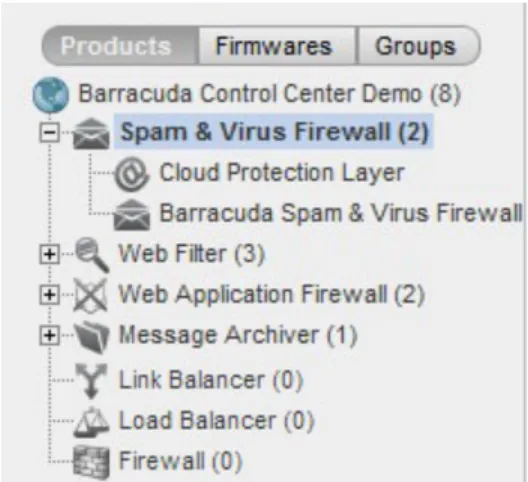
example, Barracuda Cloud Control can include the optional Cloud Protection Layer (CPL) component which blocks email-borne threats before they reach your network and provides email continuity. Spam and policy filters are then applied by the Barracuda Spam & Virus Firewall device on your network. The deployment appears in Barracuda Cloud Control as shown in Figure 1 where the CPL is shown as a component of Barracuda Cloud Control.
Figure 1. Barracuda Spam & Virus Firewall with optional Cloud Protection Layer.
You can ‘drill down’ into the CPL web interface by clicking on it directly. The CPL web interface is ONLY available by connecting your Barracuda Spam & Virus Firewall to Barracuda Cloud Control.
Use Case Scenarios
In this Section
How to Aggregate Reports Across Multiple Products
How to Configure Policies Across Multiple Barracuda Web Filters How to Manage a Mixed Mode Deployment
How to Open a Support Tunnel on Multiple Devices How to Synchronize Firmware and Energize Updates How to Synchronize Security Policies Across Products
How to Aggregate Reports Across Multiple Products
Suppose you have connected three Barracuda Web Filters to Barracuda Cloud Control and you want to run a report aggregating a list of users by bandwidth across all three devices. You assume all three devices are up and running. Run the report by clicking on the group of Barracuda Web Filters from the Appliance Control pane. Select the Users by Bandwidth report from the BASIC > Reports page.
As shown in Figure 1 below, for the Barracuda Web Filters listed at the top of the report, an aggregated list of users shows in the table below the graph, sorted by the user with the most bandwidth used for the report time frame shown at the top.
Figure 1. Data aggregated across multiple Barracuda Web Filters.
1. 2. 3. 4. 5.
Problem: In the report in Figure 1 you can see by the highlighted devices that two of the Barracuda Web Filters have data included in the report,,
but one of the three devices, "SN 121153", was unreachable by Barracuda Cloud Control. This is an alert that there may be a power outage or network issue where that device is located.
Solution: Try logging into the web interface directly for the Barracuda Web Filter SN 121153. If you can, then you can use the troubleshooting fea tures on the ADVANCED > Troubleshooting page for that device. Or you can open a support tunnel from the same page and call Barracuda
if necessary. If you cannot log in directly from the web interface, you may need to check on the physical device.
Technical Support
How to Configure Policies Across Multiple Barracuda Web Filters
As an administrator of Barracuda Web Filters for a university, you may have two groups of devices; one group for faculty and staff and another group for students. You want to allow Skype and Yahoo IM internally for faculty and staff, but not for students.
To configure,
Click on the Barracuda Web Filter group assigned to faculty and staff.
From the web interface, you would set Allow for those applications on the BLOCK/ACCEPT > Applications page.
For the Barracuda Web Filters filtering student traffic, you want to block those applications, but allow Googletalk. Click on the Barracuda Web Filter group assigned to faculty and staff.
From the BLOCK/ACCEPT > Applications page you can configure these settings for the student group.
Additionally, your IT department may want to push Microsoft updates to the student’s PCs, so, in the Updates section of the BLOCK/AC
page, you might set Microsoft Updates to . However, the faculty and staff have admin rights to their PCs
-CEPT > Applications Block
you’d set this value to Allow on that group.
How to Manage a Mixed Mode Deployment
You must use Barracuda Cloud Control to view and manage mixed mode deployments such as the Cloud Protection Layer component of the Barracuda Spam & Virus Firewall. Click the plus symbol (+) next to the Barracuda Spam & Virus Firewall in the product tree, then click on the Clo
link to access the web interface. A subset of the pages and features offered by the Barracuda Spam & Virus Firewall that
ud Protection Layer
1.
2.
Unlike the Barracuda Spam & Virus Firewall, the Cloud Protection Layer captures the message body for email messages blocked due to Rate Control, Barracuda Reputation, and other IP analysis filtering.
Note that the aggregated statistics do NOT combine data from the Cloud Protection Layer and the Barracuda Spam & Virus Firewall, as the two products perform different filtering functions. Barracuda Cloud Control shows separate traffic statistics for each component on the Cloud Control
page.
context
Settings you see in the Cloud Protection Layer web interface are unique for that component and are not shared across other devices or services.
How to Open a Support Tunnel on Multiple Devices
With Barracuda Cloud Control, you can troubleshoot problem devices in a remote location from your office, or anywhere, by opening a support tunnel on one or more of your Barracuda Networks products at the same time. Barracuda Networks Technical Support can then assist you with any or all of the devices connected to your Barracuda Cloud Control.
Using the Barracuda Web Application Firewall as an example, you’d click on the Message Archiver group, and, in the group context web interface, click on ADVANCED > Troubleshooting:
Each Barracuda Web Application Firewall is listed by serial number. If the Action column shows Open, there is not a support tunnel currently open to the device. Click Open to open a support tunnel. You can then click Close at any time to close the support tunnel.
How to Synchronize Firmware and Energize Updates
Barracuda Cloud Control provides a fast and convenient method of keeping track of firmware versions running on all of your Barracuda Networks products. Click the Firmwares button in the Appliance Control left pane, and expand the product tree. Each firmware version displays as a separate folder beneath the device name. Expand the folder to view all devices currently on that firmware version.
To change the firmware version of a device, click on the device name, and click on the ADVANCED > Firmware Update page. Click the Downlo
button to update the device to the latest firmware release.
ad Now
To update device definitions, click on the device name, and click on the ADVANCED > Energize Updates page. Click the Update button to update the device to the latest definition, or click Revert to downgrade to the previous definition version.
How to Synchronize Security Policies Across Products
You have four Barracuda Web Application Firewalls serving three locations: New York, San Francisco and London. Your master Security Policies database dictates that all devices should have the HttpOnly attribute set to Yes for cookies, preventing the cookie from being accessed by client-side scripts.
To configure,
Click on the group of Barracuda Web Application Firewalls from the Cloud Control pane, and check the SECURITY POLICIES > Cookie
page. An triangle for this setting may display, as shown in the image below, if the devices are not in sync for this
Security exception
setting.
2. 1. 2. 1. 2. 3. 1. 2. 3. To resolve an exception,
To resolve the issue, click on the NYC and London Web Application Firewalls, successively, in the product tree, and change the settings to match those of the two San Francisco systems.
Once you save those settings, the exception triangle no longer displays next to the setting when viewed in the Group context.
Getting Started
Recommended Steps
Create a Barracuda Cloud Control Account
Understanding Your Barracuda Cloud Control Account
How to Connect Your Barracuda Networks Products to Barracuda Cloud Control
Create a Barracuda Cloud Control Account
Before you can connect your Barracuda Networks products to Barracuda Cloud Control, you must first create an account:
If you do not already have an account with Barracuda Networks, visit https://login.barracudanetworks.com/ and click the Creat
link.
e a user
Enter your name and email address, and click Create User. Follow the instructions emailed to the entered email account to log in and create your Barracuda Cloud Control account. After submitting your new account information, the Account pag e displays your account name, associated privileges, and username.
Related Articles
Understanding Your Barracuda Cloud Control Account
How to Connect to Barracuda Cloud Control Add Barracuda Networks Products to Barracuda Cloud Control
Understanding Your Barracuda Cloud Control Account
Related Articles
How to Add and Modify Users How to Manage Users
1. 2. 3.
4.
5.
Networks appliances and services to Barracuda Cloud Control.
Go to https://login.barracudanetworks.com/ and enter your email address and password. Click Sign In to log in to your account. After you have logged in you can create users in your Barracuda Cloud Control account, and assign various permissions to each user for access to Barracuda Cloud Control.
You can link additional Barracuda Networks services to your Barracuda Networks account, including: Barracuda Backup
Barracuda Web Security Barracuda Email Security Barracuda Spam & Virus Firewall Barracuda Web Filter
Barracuda Web Application Firewall Barracuda Message Archiver Barracuda Link Balancer Barracuda Load Balancer Barracuda Firewall
When you log in to your Barracuda Networks account, the Appliance Control ( ) icon displays in the left pane as well as icons for the services listed above.
Continue with How to Connect Your Barracuda Networks Products to Barracuda Cloud Control.
How to Connect Your Barracuda Networks Products to Barracuda Cloud
Control
Related Articles
Deployment Options Use Case ScenariosYou can connect one or more Barracuda Networks products to Barracuda Cloud Control by doing the following: Go to https://login.barracudanetworks.com/ , enter your login and password details, and click Login.
Click Appliance Control in the left pane. The Status page displays, including a message indicating that no products have been connected.
In another browser window, log into the product you wish to connect to Barracuda Cloud Control. From the product ADVANCED > page, check to make sure you have the latest firmware installed on the product. If not, download and install it before
Firmware Upgrade
proceeding.
From the ADVANCED > Cloud Control page in the product, enter your Barracuda Cloud Control account username and password, click to connect to Barracuda Cloud Control, and click . Note that your product can connect with only Barracuda Cloud
Yes Save Changes one
Control account at a time.
In the Barracuda Cloud Control web interface, refresh your browser page and you should see, in the Products pane on the left side of the page, a (1) immediately to the right of the newly connected Barracuda Networks product type. By default, statistics are presented for that product. Click on the product link to configure using the web interface for that device.
Management Contexts
There are three 'contexts' you use to administer Barracuda Cloud Control and the connected products. These contexts include: The Cloud Control Context; for managing Barracuda Cloud Control configuration;
Before a user can connect Barracuda Networks Products to Barracuda Cloud Control, the account administrator must enable Applianc
under on the page for the selected user.
1.
2.
The Product Context; for managing an individual Barracuda Networks product using the product web interface;
The Group Context; for managing a group of the same type of Barracuda Networks products with one web interface, or for grouping products by company, location, or department.
In this Section
Cloud Control Context Group Context Product Context
Cloud Control Context
When you log into Barracuda Cloud Control, you first see the Cloud Control context—on the Cloud Control > Status page—which displays a snapshot of product traffic statistics for the connected Barracuda Networks product(s), and any services to which your account subscribes. The Appliance Control pane on the left displays either a list of individual products connected to Barracuda Cloud Control, or groups of products which you create. The center pane provides an interface for managing your account and for connecting products as well as a snapshot of product traffic statistics for all connected products. The Unit Health pane on the right includes a performance overview, connectivity, firmware, and subscription status for each individual product organized by product type.
Once you click on an individual product in the product tree, the Appliance Control pane, or in the Unit Health pane, you leave the ‘Cloud Control context’ and drill-down into the product type web interface. The product web interface displays activity for an individual product if you have only one of that type connected. If you have multiple of one product type connected, the settings and statistics for all products of that type display in one web interface as described in Group Context.
Click Help in the web interface for detailed information about the currently selected page.
Group Context
Related Articles
Non-Configurable Settings How to Work with ExceptionsSettings that Cannot be Configured in Group Context
Synchronizing Settings Across a Group
Grouping Barracuda Networks products enables you to manage settings and apply policies across multiple Barracuda Networks products of the same type from one web interface. You can also use “grouping” to organize your Barracuda Networks products by location, company,
department, etc., and you can include products of different types. Grouping happens in one of two ways:
By default, Barracuda Cloud Control groups Barracuda Networks products by product type. For example, if you have two or more Barracuda Web Application Firewalls connected to Barracuda Cloud Control, they are automatically grouped as such. You can then click on that product type in the Appliance Control pane and see one web interface with aggregated statistics and settings for all of the devices within that group. See Figure 1 below. From the web interface, you can set policies for all of the products in the group at the same time since they are the same product type. This group context also enables reporting on aggregated statistics across a group.
You can create a grouping of two or more products. When you click on that group in the Appliance Control pane, aggregated statistics display on the Status page for each product type in the group.
Additional benefits of managing products in the group context include:
If you have many devices in one or more locations, managing them with a central console enables you to easily track firmware versions across products and keep them up to date.
Grouping devices by location helps you keep track of where each device is physically located in case it needs service. As long as the unit is joined to Barracuda Cloud Control, you do not need to look up the admin password to configure or update the product.
Grouping devices of the same type enables viewing ‘exceptions’ in which values for the same setting differ across the devices.
Exceptions
When you have more than one of a Barracuda Networks product type connected to Barracuda Cloud Control, and you view the settings of all of them as a roup (with one web interface), a yellow g Exception ( ) icon displays if the value of the setting is not the same on all devices in the group. When you hover the mouse over the icon, Barracuda Cloud Control clearly indicates what the values for that setting are on each device, so that you can change the settings if desired.
1.
Grouping either devices of the same type or of different types provides a performance and traffic statistic snapshot on the CLOUD page for each device in the group. Statistics are aggregated for devices of the same type. For example, if you have
CONTROL > Status
several Barracuda Networks products in your London office and several in your New York office, click on that group to quickly view the traffic and performance statistics.
Product Context
If you have only one of any Barracuda Networks product type connected to Barracuda Cloud Control, when you click on that product link under Appliance Control in the product pane or in the Unit Health pane, the web interface for that individual device displays. From the product web interface, you manage the individual settings just as you would if you logged into the device directly.
Accounts and Roles
In this Section
How to Add and Modify Users How to Manage Users
How to Add and Modify Users
To create a new Barracuda Cloud Control user, first add the user to your Barracuda Networks account, and set permissions for that user within the account. For that user, these permissions apply to all Barracuda Networks products and services connected to your Barracuda Networks account. You then create permissions for the user within Barracuda Cloud Control, defining whether the user can view and run reports, manage other Barracuda Cloud Control users, connect products, etc.
Add a New User
Once you log into Barracuda Cloud Control, click the Account link at the top of the screen, and click Manage Users in the right pane. The Accou
page displays a table of users associated with your Barracuda Networks account. Use the following steps to add a new user:
nt > Users
Click Add User; the new user options display:
Before a user can connect Barracuda Networks Products to Barracuda Cloud Control, the account administrator must enable Applianc
under on the page for the selected user.
1. 2. 3. 4. 5. 6. 7. 1. 2.
Enter the new user name and email address; the user email address will be their username. Select the Starting Page for this user from the following options:
Default Account
Community/Forum Support
In the
Product Entitlements
list, turn on the subscribed to Barracuda Networks products and services that
this user can see when they log into the account.
Click Add to add this user to the table of users; an email is then sent to the user prompting them to set their password. Click on the user name in the list, and set their user privileges:
User Management – If checked, enables user to add, remove, and edit users for this account.
Billing Administration – If checked, enables user to view and update billing information for this account.
Click Save at the top of the page to save your settings.
Edit a User
From Barracuda Cloud Control, click the Account link at the top of the screen, and click Manage Users. The Account > Users page displays a list of users associated with your Barracuda Networks account.
Appliance Control
Turn on Appliance Control to allow this user to add Barracuda Networks devices to this account.
Product Entitlements
For details on setting Barracuda Backup permissions, refer to the section
Barracuda Backup Permissions
. For
details on setting Appliance Control permissions, refer to the section
Barracuda Appliance Control
.
2. 3. 1. 2. 3. 1. 2. 3. 4. a. b. c.
Click on the user name you wish to edit; the user details display in the right pane.
Make the desired modifications, and click Save.
Delete a User
From Barracuda Cloud Control, click the Account link at the top of the screen, and click Manage Users. The Account > Users page displays a list of users associated with your Barracuda Networks account.
Click on the user name you wish to remove, and click Remove at the top of the page. Click OK in the confirmation dialog box to permanently remove the user.
Barracuda Backup Permissions
You can customize user permissions to Barracuda Backup.
From Barracuda Cloud Control, click the Account link at the top of the screen, and click Manage Users. The Account > Users page displays a list of users associated with your Barracuda Networks account.
Click on a user name to add Barracuda Backup permissions; the user details display in the right pane.
Under Backup in the
Product Entitlements
section, click Configure Permissions:
In the Barracuda Backup permissions page, you can set the following options: Turn on the Barracuda Email Notifications for this user:
Reports – When turned on, a report is sent to this user for each backup job.
Alerts – When turned on, an alert is sent to this user if an error occurs during a backup job or if the Barracuda Backup
Server goes offline.
Notices – when turned on, a notice is sent to this user when the Barracuda Backup Server software is updated. Authentication – If you wish to restrict the IP address that this user is allowed to log in from, enter a value in the IP Login
field.
Restrictions
Specify user Permissions:
– User has full access to all Barracuda Backup Servers within the
Account Administrator
account.
– User has full access to all selected Barracuda Backup Servers; user
BBS Administrator
does not have edit or view user accounts access. When selected, the Backup Server
section displays:
Permissions
– When turned
, user has full access to all Barracuda Backup
Select All Backup Servers
On
Servers within the account, when turned
Off
, a list of all connected devices displays. Turn
On
th
e Barracuda Backup Servers to which this user is to have access.
Barracuda Appliance Control Permissions
You can edit user preferences, role, and access privileges by clicking Configure Permissions under Appliance Control in the Product
section.
Entitlements
How to Manage Users
Role-Based Administration
The following account roles and associated permissions are available on Barracuda Cloud Control through the Edit link for users listed on the CL
page:
OUD CONTROL > User Management Barracuda Backup
View Status Only – User can only view statistics on the CLOUD CONTROL > Status page. If you have Barracuda Networks products installed in various departments or locations, you may wish to assign this role to a local support person.
View Reports, Logs and Status Only – User can view statistics on the CLOUD CONTROL > Status page, view the Message Log, and create and view reports. You may wish to assign this role to a support person or office manager to provide performance and traffic reports for each product type.
All Actions – User can use all aspects of the Barracuda Cloud Control web interface. This role enables complete management of all
connected Barracuda Networks products; however, the user cannot connect products or change user passwords.
Account Admin – User has all permissions.
Once you select the role, you can assign permissions by device or by group in the Access control window; manage your own account information using the CLOUD CONTROL > My Account page.
Audit Log
You can track events such as login, connecting, or disconnecting specific devices by user, account name, and date/time on the CLOUD page.
CONTROL > Audit Log
Managing Products and Groups
Use these features to manage your devices individually or in a
group context
.
In this Section
How to Administer Barracuda Cloud Control How to Connect and Disconnect Devices How to Use the Audit Log
How to Use the Product Tree How to View Connected Device Status How to View Device Statistics and Settings Managing Groups
Managing Your Account
How to Administer Barracuda Cloud Control
Related Articles
Use Case Scenarios
When you log into Barracuda Cloud Control, the Barracuda Cloud Control context and the CLOUD CONTROL > Status page of Barracuda Cloud Control web interface display. In this context you view a summary of all devices connected to Barracuda Cloud Control. Any Barracuda Networks product you have already connected is listed in the left Products pane. The central portion of the page displays aggregated performance and traffic statistics for all connected devices.
For all devices of the same type, the CLOUD CONTROL > Status page shows a graph and corresponding table listing statistics aggregated across all devices over the past 30 days. For example, if you connect multiple Barracuda Web Application Firewalls, the CLOUD CONTROL >
page shows a graph and corresponding table listing detected attacks, totaled by attack type (XSS Injections, Injection Attacks, Cookie
Status
Poisoning, etc.), over the past hour, 24 hour period, and grand total since the last system reset. If you connect multiple Barracuda Web Filters, a table and graph display total Spyware downloads, Virus Downloads, Policy (number of threats blocked by your configured policies), etc. aggregated across your connected Barracuda Web Filters.
If you have various different Barracuda Networks products connected to your Barracuda Cloud Control, a separate set of statistics displays for each device on the CLOUD CONTROL > Status page. This is useful for having a ‘snapshot’ of activity on all of your Barracuda Networks products on one page.
On the right of the page the Unit Health pane summarizes performance statistics for each system by device type. From the CLOUD CONTROL tab:
The Connect Products page gives instructions for adding Barracuda Networks products to Barracuda Cloud Control.
1. 2. 3. 4.
(the default time zone used to display statistics and report data).
The User Management page lists users including roles, status (Active, Inactive), Administrator actions, and time zone. The Audit Log page lists login activity.
From the product context or group context, you can always return to the Cloud Control context by clicking the Appliance Control icon in the left pane:
How to Connect and Disconnect Devices
You must log into your Barracuda Networks product web interface directly, from your browser, to connect or disconnect your Barracuda Networks .
product(s) to/from Barracuda Appliance Control, and to update the firmware on the product
To disconnect a product from Barracuda Cloud Control, using your browser, log in to your Barracuda Networks product web interface directly. From the ADVANCED > Cloud Control page, click No for Connect to Barracuda Cloud Control, and click Save Changes. The Barracuda
on the page of your product changes from to , and when you log
Cloud Control Status ADVANCED > Cloud Control Connected Not Connected
in to Barracuda Cloud Control, the product no longer appears in the product tree.
How to Use the Audit Log
All activity made in relation to Barracuda Cloud Control is listed in the CLOUD CONTROL > Audit Log page:
Date – Date and time of the action, displayed in local time. Action – The type of event that occurred.
User – The email address associated with the account that took the action. Account – The name or label given to the above account.
Data – Any additional information that might be associated with the action, such as the system name and serial number of a device that
was attached to Barracuda Cloud Control.
You can drag the column headings to change the display order. To show or hide a heading, click on a heading and click the Down arrow; turn on those headings you wish to display, and turn off those you do not wish to display.
You can specify the number of entries you wish to display per page in the log. To modify the number of entries,
In the CLOUD CONTROL > Audit Log page, click Preferences.
In the Preferences page, enter the number of entries you wish to display in the Messages Per Page field. Click Save Changes to save your settings and close the dialog box.
The Audit Log updates based on your entry.
How to Use the Product Tree
Related Articles
How to Connect and Disconnect Devices
Once you connect one or more Barracuda Networks products (devices) to Barracuda Cloud Control, the products display as a list in the product tree in the Appliance Control pane on the left side of the web interface. In the Appliance Control pane, your Barracuda Networks products are listed by product type (Barracuda Message Archiver, Barracuda Web Filter, etc.) under Products. If you click on Groups, your Barracuda Networks products are listed by groups you have defined, or you can create new groups. A group can contain one or more devices that may be of the same or different product type.
How to View Connected Device Status
Related Articles
How to Connect and Disconnect Devices
Click Appliance Control above the product tree in the left pane to return to the Cloud Control context, where you can see the Unit Health pane on the right side of the screen. The Unit Health pane indicates, for each of the connected Barracuda Networks products, a general status for performance statistics. Click on the Expand ( ) icon on the right side of the pane to expand the detailed list of performance statistics for the selected device. This list varies among product types:
Unit Health pane legend:
Connectivity – Green indicates device is connected, red indicates device is not connected.
Firmware – Green indicates current release, yellow indicates that a new minor release is available for
download, and red indicates that a new major release is available for download.
– General indicator of device performance statistics.
Health
– Green indicates there are no storage issues, red indicates there are storage issues.
Storage
– Green indicates that Energize Updates, Instant Replacement (where applicable) and
Subscription
Premium Support (where applicable) are current for the device, red indicates that one or more of these
subscription items is either expired or not yet activated.
How to View Device Statistics and Settings
Related Articles
How to Connect and Disconnect Devices
When you click on a particular device in the product tree or the Unit Health pane, Barracuda Cloud Control displays the unique statistics and settings for that device with the same web interface you would see if you logged directly into the web interface of that device outside of the Barracuda Cloud Control. For example, to view the individual web interface of Barracuda Web Application Firewall serial# 261171, click on that device in the product tree:
1.
2.
The product web interface displays settings only for that device. For the selected product, you can view and change all settings available from within Barracuda Cloud Control; note that some settings are not available from within Barracuda Cloud Control and must be configured from logging into the device directly from your browser. Pages or settings not available from within Barracuda Cloud Control are grayed out.
Managing Groups
In this Section
How to Create Groups How to Work with Exceptions
Settings that Cannot be Configured in the Group Context Synchronizing Settings Across a Group
How to Create Groups
If you want to create a group of a ‘mix’ of different types of Barracuda products:
From the Appliance Control left pane, click Groups, and click Add. Enter a name for the group of devices. For example, if you want to group all of the Barracuda Web Filters in your Paris office by location, you might call your group ParisWF. If you want to group multiple types of Barracuda Networks products that serve the Marketing department, you could name the group MarketingVarious, indicating that there is more than one type of product in the group.
Next, click on each device you want to add, and drag it to the group name. The screen refreshes and that device is added to the group. Use the Rename and Delete buttons at the bottom of the pane to manage groups. Note that deleting a group does notdisconnect the devices in the group from Barracuda Cloud Control, it just removes the grouping.
How to Work with Exceptions
In this article:
Exception Triangle Exception Circle
Related Articles
Barracuda Cloud ControlManagement Contexts Synchronize Security Policies Across Products
Barracuda Web Filter
6.x Exception Policies BLOCK/ACCEPT Precedence Order
Barracuda Web Application Firewall
Tuning Security Rules Best Practices in Configuring Policy
Exception Triangle
When you are using the group context to view the settings on all devices of one type, if you see the yellow Exception ( ) icon next to the setting, this means that for a particular setting, the values of that setting differ across the devices in the group. You can hover the mouse over the setting to see a text box or table displaying the actual value of the setting on each device.
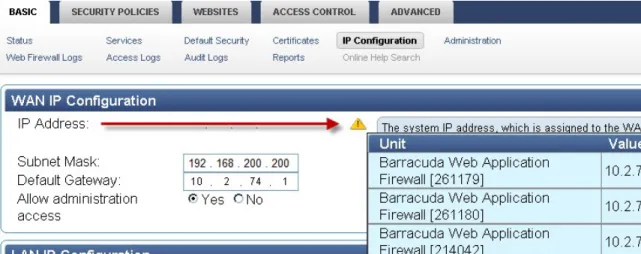
As shown in Figure 1, if you hover the mouse over the Exception icon, Barracuda Cloud Control displays the value of that setting for each product in the group. In this example, each Barracuda Web Application Firewall in the group has, of course, a different value for the IP Address, each of which displays in a pop-up table when you hover the mouse over the Exception icon.
Figure 1. Exception triangle indicates different values for settings on products of the same type.
Exception Circle
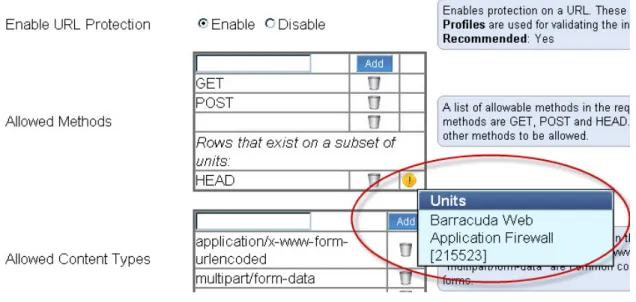
If you see the round yellow Exception ( ) icon next to a setting, this indicates that the setting is unique to each device and is not shared or aggregated. For example, suppose you have multiple Barracuda Web Application Firewalls and you have configured the GET and POST Allowed
for each of them on the page. Additionally, you have configured the HEAD for
Methods Security Policies > URL Protection Allowed Method
only one of the devices, so the round Exception icon displays next to the HEAD Allowed Method indicating that this value is additional and unique to a particular device. If you hover the mouse over the icon, a pop-up text box displays the device serial number as shown in Figure 2.
1. 2. 3.
In another example, if you have multiple Barracuda Web Application Firewalls in a group, you might configure an HTTP Service from the BASIC >
page on all devices, but give each Service a unique name. The exception circle, as shown below in Figure 3, indicates that the Service
Services
is unique to the device by Name, even though it’s the same actual Service type (HTTP) as the Services on the other devices. If an HTTP service with the same Name was configured on each of the devices, you see one entry for the Service and no exception circle.
Figure 3. Exception circle indicates the Service is unique to the device by Name.
Settings that Cannot be Configured in the Group Context
Some features must be configured on each individual device within a group. Examples include IP Address, Quarantine settings on the Spam & Virus Firewall, Services on the Barracuda Web Application Firewall, and Default Host Name on various product types. Note that some tabs or pages of the web interface (in the group context) for a product may be grayed out (unavailable) for this reason, or because the features on that tab or page are not supported in the group context.
Synchronizing Settings Across a Group
Applying policies across a group of same-type Barracuda products is perhaps the most powerful feature of the group context. For example, if you have several Barracuda Web Application Firewalls grouped and you want to enable Encrypted Cookie Security Mode on all of the devices, you would do the following:
Click on the group link for those products in the product tree.
Navigate to the BASIC > Default Security page and click on Encrypted for Cookie Security Mode, the Save Changes. This setting synchronizes across all devices.
To change the value of a setting on just one of the devices, from the product tree, click on the device itself within the group. You’ll see the individual product web interface, where you can navigate to the appropriate page and change the setting as needed. Doing so causes a yellow Exception ( ) icon to appear in the Group context web interface.
Managing Your Account
1. 2.
are logged in as an administrator, you can add users that can perform administrative tasks. Each user uses their own user name to log in.
Select Account Options
Once you add a Barracuda Networks product to Barracuda Cloud Control, you can perform these account-related tasks:
Add, edit and remove users, including setting their privileges and start page. When you add a user you can select the services that the user is able to access.
Update contact and billing information for your Barracuda Networks account. View invoices.
Manage services associated with your account.
Click on the associated link on the top left hand side to go to the Barracuda Networks product web interface.
Monitor Barracuda Cloud Control
Use the ADVANCED > Task Manager and CLOUD CONTROL > Status pages to monitor Barracuda Cloud Control.
In this Section
Understanding Device Statistics Viewing the Task Manager
Understanding Device Statistics
The CLOUD CONTROL > Status page provides an overview of the performance and health of all of the Barracuda Networks devices connected to Barracuda Cloud Control. In this view, the same traffic and performance statistics available in the BASIC > Status page for your other Barracuda Networks products display. Where there are multiple products of the same type, the statistics are aggregated in one section of the page. To view the traffic and performance statistics of a single device, click on the device name in the product tree or in the Unit Health pane.
Viewing the Task Manager
The ADVANCED > Task Manager page provides a list of tasks that are in the process of being performed, and displays any errors encountered when performing these tasks. Barracuda Cloud Control tracks tasks including configuration restoration.
If a task takes a long time to complete, you can click the Cancel link next to the task name and then run the task at a later time when the system is less busy. The Task Errors section lists an error until you manually remove it from the list; errors are not automatically phased out over time.
View Task Errors
Any task that results in an error is listed in the Task Errors section, with a red Error Summary link to this list present on every page in the web interface as long as there are errors in this list. Click on the Clear link to remove errors, since all errors remain in this list until explicitly removed.
How to Troubleshoot Barracuda Cloud Control
Related Articles
How to Connect and Disconnect Devices
You can connect to Barracuda Support Servers to troubleshoot products connected through Barracuda Appliance Control. To connect to Barracuda Support Servers,
Log in to the Barracuda Networks product web interface, and go to the ADVANCED > Troubleshooting page.
In the Support Diagnostics section, you can initiate a connection between your device and the Barracuda Networks Technical Support
Center which allows technical support engineers to troubleshoot any issues you may be experiencing.
1. 2.
In this article:
Search Product Forums
Product Forum Posting Rules Available Actions
Search Forums Product-Specific Forums
The Barracuda User Community allows you to access product and general forums where you can discuss issues, ask questions, share solutions, and contribute product enhancement ideas.
To access the Barracuda User Community:
Log in to your Barracuda Customer account.
At the top of the left pane, click Community; the User Community page displays. From this view you can: Search topics
Access product forums
View recent posts and comments Vote on product suggestions
Search
You can search across all products and services, or select a specific forum in which to search for discussions and solutions.
Product Forums
Once you log in to your Barracuda Customer account, you can begin participating in product forums.
Product Forum Posting Rules
Barracuda Networks encourages open communication between all forum users; however, there are some basic rules that everyone must adhere to:
No profanity, vulgar or offensive language. No personal attacks or libelous statements.
No references to unpublished internal components, systems, or processes related to Barracuda Networks or other vendors’ products shall be used in any post.
Do not use the Barracuda Technical Forums as a channel for criticizing specific customer-Barracuda Networks interactions. No impersonation of any person or entity – including impersonation of a Barracuda Networks official or forum leader – or misrepresentation of your affiliation with a person, entity, or organization is allowed.
No discussion of illegal activities such as software and music piracy or other intellectual property violations is allowed.
Do not post messages that serve mostly or exclusively to drive forum members to the forums or web sites in which you have a stake. It is, however, acceptable to list your personal website URL in your profile and/or in your signature, as long as it is done discreetly.
Mirroring, reposting, or archiving the forums on any public web site is not permitted without the written permission of Barracuda Networks. All active accounts MUST be associated with a valid and functional email address. Any accounts associated with email addresses that are found to not accept any emails, or are otherwise deemed to be faked or invalid in any way, will be disabled IMMEDIATELY. These rules are subject to change. It is the users’ responsibility to know and abide by them.
It is Barracuda Networks’ hope that forum users will understand and comply with these rules to ensure that all users’ experience is a positive one.
Available Actions
The following table describes the different actions available on the User Community page:
The Search tool supports text-based strings and does not currently support wildcards or compound search strings.
Any posts that are discovered by or reported to Barracuda Networks as being in violation of these rules will be immediately removed from the forum. Barracuda Networks may, at its discretion, subsequently inform the author(s) of the offending post with the reason(s) for its removal.
Action Description
Quick Navigation ( ) From within a forum, click the Quick Navigation icon to select from a list of other forums.
Messenger ( ) From within a forum, click Messenger to access your private .
messages
Notifications ( ) From within a forum, click to view all of your notifications; click Optio to modify your notification preferences:
ns
Community Administrator Updates Topics & Posts
Status Updates Profiles & Friends Private Messages Other Notifications
Search Enter a search topic
Choose a product Select a specific product forum: Security Networking Data Protection Cloud Services General Questions Barracuda University Barracuda Experience Forum Feedback Forum Rules
Avatar Click on the Avatar icon to edit your settings: Change your photo
Set your time zone
Specify comment and visitor settings Edit profile
Specify contact methods
PMs Click PMs to access your private messages:
Create a new message to send to one or more specified recipients
Send a new message as an invitation to specified recipients to participate in a single conversation
Send a new message as a copy which sends a separate conversation to each recipient
Manage private messages Store up to 50 messages Search messages
1. 2. 3. 4. 5. 6. a. i. ii. iii. b. i. ii. iii. iv. c. 7.
Create a New Topic Navigate to the desired forum, and click Start New Topic: Enter the Topic Title
Enter up to 10 Topic Tags Enter topic content
Manage Topic Poll - Click to add polling options Post Options- Turn on the desired options:
Enable emoticons Enable signature Follow this topic
Post New Topic - Click to post the topic to the selected forum Preview Post - Click to preview your post before adding it to the
forum
Cancel - Click to close the topic without saving
Your Last Topic Click to view the last topic you added to a forum.
Recent Posts Lists the last 4 forum posts:
New Post - Click to create a new topic
-
View More Click to view the last 50 most recent posts
Noteworthy Topics Displays the 4 top viewed posts:
View More - Click to view the top 50 viewed posts
Vote on Product Suggestions Displays the top 4 most popular product suggestions
View More - Click to see the 50 most popular product
suggestions
I like this - Click to vote for a product suggestion
Click on a product suggestion title and select from the following options:
Follow this topic Reply to this topic Like This
Report (not available on locked topics) Multiquote (not available on locked topics) Quote (not available on locked topics)
Search Forums
Use the following steps to search posts across all products:
Log in to your Barracuda Customer account, and click the Community link in the left pane.
Enter your search criteria in the Search field; a list of matching criteria displays dynamically as you type. Click on a title in the list to go directly to the topic discussion in the community forum.
If you prefer to search all forums, click Search to display all matching items. In the Search Results page, all matching results display.
From this view you can select to: View posts By Content type:
Forums Members Help Files
In the Sort by section, you can select to view posts by:
Last Update Time Title
Replies Views
Additionally, you can select to view posts by either Descending or Ascending order. Click on the post you wish to view.
1. 2. 3. a. b. i. ii. iii. iv. v. vi. vii. 1. 2. 3. 4. viii.
Use the following steps to browse posts for a specific Barracuda Networks device or service: Log in to your Barracuda Customer account, and click the Community link in the left pane.
From the Choose a product list, scroll down to and click on the desired Barracuda Networks device or service, or you can select from other forums such as Barracuda University.
Once you select your forum, the forum page displays the following information:
Subforums - additional device or service-related forums covering topics such as feature requests, and firmware releases, APIs,
and product announcements.
Posts - displays a list of all posts related to the selected device or service
Use the navigation tools to move through multiple pages of posts
Mark this forum as read - Click to add a check mark to the currently selected post for your own tracking Recently Updated - Click to display the most recently updated posts based on recently update
Start Date - Displays the date the topic was created Most Replies - Displays the topic in order of most replies Most Viewed - Displays topics in order of most viewed Custom - Click to create your own topic filter:
Show topic type Sort by
Sort direction Time frame
A list of users currently browsing the selected forum displays at the bottom of the view.
Tools and Add-Ins
In this Section
Barracuda Networks iOS Mobile Application for iPad
Barracuda Networks iOS Mobile Application for iPhone and iPod Touch
Barracuda Networks iOS Mobile Application for iPad
This article refers to the Barracuda Networks iOS Mobile App version 1.1 or greater, on an iPad running iOS 5.0 or greater. If you wish to run this application on an iPhone or iPod touch, see the article Barracuda Networks iOS Mobile Application for iPhone and iPod Touch.
In this article:
Available Actions Log In
Request New Password View Demo Account View Products and Groups View Health Details Contact Support Open Support Tunnel Access Settings and Log Out Error and Warning Messages
Related Articles
Barracuda Networks iOS Mobile Application for iPhone and iPod TouchMonitor Barracuda Cloud Control Cloud Control
Through the Barracuda Networks iOS Mobile App you can view the status of your Barracuda Backup Servers and devices connected through Barracuda Appliance Control. Additionally, you can contact Barracuda Networks Technical Support for assistance and, if necessary, open a support tunnel for your connected devices.
Once you download and install the Barracuda Networks iOS Mobile App from the App Store, you can log in and manage your devices.
Available Actions
The following table describes the available actions in the Barracuda Networks iOS Mobile App:
Action Icon Description
Barracuda launch icon Tap to launch the Barracuda Networks iOS Mobile App.
Email Address and Password Enter your Barracuda Customer account logi n email address and the associated passwor d to log in to the Barracuda Networks iOS Mobile App.
Forgot Password Tap to request a new password sent to your Barracuda Customer account login email address; note that there is no notification if an invalid login email account is entered. Tap
to return to the log in screen.
Cancel
Log In Once you enter your login credentials, tap Lo to access device status by product.
g In
Log Out On the Settings page, tap Log Out to log out of the Barracuda Networks iOS Mobile App.
Remember me When set to On on the device, the Barracuda Networks iOS Mobile App remembers your login and password in a secure location, and you are no longer required to enter your user name and password at log in.
When set to Off on the device, you must enter your user name and password each time you log in to the Barracuda Networks iOS Mobile App. Note that when the application is pushed to the background, you remain logged in unless it remains in the background for an extended amount of time (e.g., 60 minutes).
View Demo Account Tap to log in to a demonstration account. Note that this account has a limited set of features.
Products/Groups Tap Products to view available devices and Barracuda Backup Servers by product type, or tap Groups to view devices by your predefined Barracuda Cloud Control device groupings.
You must have a free Barracuda Cloud Control account to access your devices through the Barracuda Networks iOS Mobile App. To view a demo without logging in to your Barracuda Cloud Control account, launch the Barracuda Networks iOS Mobile App, and tap Vie
1. 2. 3. 4. 5. 1. 2.
Support Tap to view details on contacting Barracuda Networks Technical Support, or to open a tunnel for devices connected through Barracuda Cloud Control.
Arrow Tap to view more information for the selected item.
Refresh Tap to refresh the display. Note that the display automatically refreshes approximately every 60 seconds.
Settings Tap to access the Settings page where you can log out of Barracuda Networks iOS Mobile App and access additional information including the 'About' statement, application version, and privacy and third party legal software licenses.
Support Tunnel Support Tunnel access for troubleshooting. Note that this feature is available only for devices connected through Barracuda Appliance Control, and is not available for Barracuda Backup.
Log In
Launch the Barracuda Networks iOS Mobile App:
Tap the Email Address field, and enter your Barracuda Cloud Control account email address. Tap the Password field, and enter the associated password.
You can optionally tap Remember Me to set the option to On if you wish the device to remember your login details. Tap Log In; your Barracuda Backup and connected devices display in the Products view.
Request New Password
Launch the Barracuda Networks iOS Mobile App.
2.
3. 4.
Tap in the Email Address field and enter your Barracuda customer account email address. Tap Submit. Instructions to reset your password are sent to your email address.
View Demo Account
If you wish to "test drive" the Barracuda Networks iOS Mobile App, tap View Demo Account to access a reduced set of features.
View Products and Groups
Once you log in to the Barracuda Networks iOS Mobile App, swipe right to view Barracuda Backup and devices connected through Barracuda Appliance Control by product type. Each device displays an icon indicating the device status; note that each indicator has a unique shape to support users with color blindness:
Green circle – Indicates the status is fine
Orange triangle – Indicates one or more warnings were encountered on the device
Red square – Indicates one or more critical errors and/or warnings were encountered on the device
If you defined groups for your connected devices in Barracuda Appliance Control, tap Groups to view the devices alphabetically by grouping.
View Health Details
When you drill into a Barracuda Backup or device, the health details display. Device Details:
Screen Orientation
You can view the iOS Mobile Application in both Portrait and Landscape modes on an iPad.
Portrait Mode – Each time you select a device, by default the device details display in a new slider pane;
however, you can swipe right or click the slide icon to view all devices in the left pane and the
selected device details in the right pane.
Landscape Mode – Each time you select a device, all connected devices display in the left pane and the
selected device details display in the right pane.
Note that you can tap on the serial number at the top of the view to copy and paste into an email when contacting Barracuda Networks Technical Support.
1. 2. 3. 4.
Contact Support
If at any time you wish to contact support, tap the Support ( ) icon to access the Support page; note that the Barracuda Technical Support Office contact information displays based on you iPad locale setting (Settings > General > International > Region Format):
Open Support Tunnel
For devices connected through Barracuda Appliance Control, you can open a support tunnel to allow Barracuda Network Technical Support to troubleshoot your device. Because Barracuda Networks has support centers around the world, the Barracuda Technical Support Office email address is automatically selected based on the iOS device locale setting.
On the Products page, tap on the device in question. Tap Support Tunnel to open the Support page.
The device details, including the serial number, display at the top of the page. Tap Open Tunnel. Once the tunnel opens, tap Email Support (or tap Close Tunnel if you do not wish to continue):
4.
5. 6.
1.
2.
An email displays the selected device details and support tunnel information.
Tap in the email to bring up the keyboard if you wish to edit the details, and then tap Send at the top of the view to send the email to Barracuda Networks Technical Support.
Access Settings and Log Out
Tap the Settings ( ) icon to access the Settings screen:
This screen displays the following information:
2.
3. 4.
Barracuda Networks iOS Mobile App version
Access to Barracuda Cloud Control version and connection details Privacy and third-party agreements
To log out of Barracuda Networks iOS Mobile App, tap Log Out at the top of the Settings screen. To access settings, tap on an item to view the content.
Tap Settings to return to the Settings view.
Error and Warning Messages
The following table lists error and warning messages and solutions:
Error Description Error Message Solution
Account Authorization If you log in with an account that does not have authorization to access devices through Barracuda Appliance Control or Barracuda Backup, an error message displays.
Tap OK to close the error message. Check your login credentials and try logging back into the Barracuda Networks iOS Mobile App.
Account Setup If you log in with an account that is not subscribed to any service, an error message displays.
Tap OK to close the error message. Create a Barracuda Cloud Control or Barracuda Backup account, and then log in to the Barracuda Networks iOS Mobile App.
Support Tunnel Authorization If you access the Barracuda Networks iOS Mobile App via the 'Demo Account' and tap Support
, an error message
Tunnel
displays.
Log in to the Barracuda Networks iOS Mobile App using your login credentials.
Support Tunnel Error If you log in using your login credentials and an error is encountered when opening a support tunnel, an error message displays.
Tap OK to close the error message. Attempt to open the support tunnel once again. If the error is again encountered, contact Barracuda Networks Technical Support.
Group Set Up If you have not yet created
, or if your groups are
groups
empty, the Groups Fetch message displays.
Status
Tap OK to close the error message. Log in to the Barracuda Cloud Control web interface and define device groupings.
No Products Found If there are no products associated with the login account, the Products Fetch
message displays.
Status
Tap OK to close the error message. Log into the Barracuda Cloud Control web interface and connect your devices through Barracuda Appliance Control.
Barracuda Networks iOS Mobile Application for iPhone and iPod Touch
This article refers to the Barracuda Networks iOS Mobile App version 1.0 or greater, on an iOS device running 5.0 or greater (iPhone and iPod Touch). If you wish to run this application on an iPad, see the article Barracuda Networks iOS Mobile Application for iPad.
In this article:
Available Actions Log In
Request New Password View Demo Account View Products and Groups View Health Details Contact Support Open Support Tunnel Access Settings and Log Out Error and Warning Messages
Related Articles
Barracuda Networks iOS Mobile Application for iPadMonitor Barracuda Cloud Control Cloud Control
Through the Barracuda Networks iOS Mobile App you can view the status of your Barracuda Backup Servers and devices connected through Barracuda Appliance Control. Additionally, you can contact Barracuda Networks Technical Support for assistance and, if necessary, open a support tunnel for your devices.
Once you download and install the Barracuda Networks iOS Mobile App from the App Store, you can log in and manage your devices. You must have a free Barracuda Cloud Control account to access your devices through the Barracuda Networks iOS Mobile App. To view a demo without logging in to your Barracuda Cloud Control account, launch the Barracuda Networks iOS Mobile App, and tap Vie
Available Actions
The following table describes the available actions in the Barracuda Networks iOS Mobile App:
Action Icon Description
Barracuda launch icon Tap to launch the Barracuda Networks iOS Mobile App.
Email Address and Password Enter your Barracuda Customer account logi n email address and the associated passwor d to log in to the Barracuda Networks iOS Mobile App.
Forgot Password Tap to request a new password sent to your Barracuda Customer account login email address; note that there is no notification if an invalid login email account is entered. Tap
to return to the log in screen.
Cancel
Log In Once you enter your login credentials, tap Lo to access device status by product.
g In
Log Out On the Settings page, and tap Log Out to log out of the Barracuda Networks iOS Mobile App.
Remember me When set to On on the device, the Barracuda Networks iOS Mobile App remembers your login and password in a secure location, and you are no longer required to enter your user name and password at log in.
When set to Off on the device, you must enter your user name and password each time you log in to the Barracuda Networks iOS Mobile App. Note that when the application is pushed to the background, you remain logged in unless it remains in the background for an extended amount of time (e.g., 60 minutes).
View Demo Account Tap to log in to a demonstration account. Note that this account has a limited set of features.
Products/Groups Tap Products to view available devices and Barracuda Backup Servers by product type, or tap Groups to view devices by your predefined Barracuda Appliance Control device groupings.
Support Tap to view details on contacting Barracuda Networks Technical Support, or to open a tunnel for devices connected through Barracuda Cloud Control.
Arrow Tap to view more information for the selected item.
1. 2. 3. 4. 5. 1. 2.
Refresh Tap to refresh the display. Note that the display automatically refreshes approximately every 60 seconds.
Settings Tap to access the Settings page where you can log out of Barracuda Networks iOS Mobile App and access additional information including the 'About' statement, application version, and privacy and third party legal software licenses.
Back When you are on the Contact Support scre
en, tap Back to return to the device view.
Support Tunnel Support Tunnel access for troubleshooting. Note that this feature is available only for devices connected through Barracuda Cloud Control.
Health Details View health and status details.
Log In
Launch the Barracuda Networks iOS Mobile App:
Tap the Email Address field, and enter your Barracuda Cloud Control account email address. Tap the Password field, and enter the associated password.
You can optionally tap Remember Me to set the option to On if you wish the device to remember your login details. Tap Log In; your Barracuda Backup and connected devices display in the Products view.
Request New Password
Launch the Barracuda Networks iOS Mobile App.
2.
3. 4.
Tap in the Email Address field and enter your Barracuda Cloud Control account email address. Tap Submit. Instructions to reset your password are sent to your email address.
View Demo Account
If you wish to "test drive" the Barracuda Networks iOS Mobile App, tap View Demo Account ( ) to access a reduced set of features.
View Products and Groups
Once you log in to the Barracuda Networks iOS Mobile App, the status of each Barracuda Backup and devices connected through Barracuda Appliance Control display by product type:
Each device displays an icon indicating the device status; note that each indicator has a unique shape to support users with color blindness: