..
...
. , ..
.@[P!~D®®
~. J.' •. " ' "
..
. ~.,:, . '
.
". . ~
.'
.
,
VECTOR 4: CP 1M-86
USER'S MANUAL·
P
IN
73~8-f882Rev. 98
May 2, 1983
Copyright 1983 by Vector Graphic Inc.
, ..
,.
Copyright 1983 by Vector Graphic Inc.
i,· All rights reserved.
',' .
;".' ..
Disclaimer
:':"'YeQtor Graphic makes no representations or warranties with respect to the contents
f! of this manual itself, even if the product it describes is covered by a warranty or
, repair agreement. Furthermore, Vector Graphic reserves the right to revise this " publication and to make changes from time to time in the content hereof without obligation of Vector Graphic to notify any person of such revision or changes, ( .' except when an agreement to the contrary exists.
,~
.
,;' " '! Revision Numbers and Updates
. The date, I:evision and part number of each pages herein appears on the bottom line
of the page. The revision number (which may range from
se
to 99) is appended to:the eight-digit Vector Graphic part number by a hyphen. The date and revision numbers o,n the Title Page correspond to that of the page most recently revised.
In addition, there is included a sheet listing the latest revision level and date of
each page in
tbe
manual. THIS MANUAL' SHOULD BE USED ONLY WITHPRODUCT(S) IDENTIFIED ON THE TITLE PAGE.
TRADEMARK
Page Rev. Level
i 99 95/92/83
ii 9~ ~5/~2/83
iii 99 95/92/83 iv 99 95/92/83 v 99 95/92/83 vi Blank
vii
98
95/92/83 viii98
95/92/83 ix 99 95/92/83x Blank
1-1 99 ~5/92/83
1-2 00 05/02/83 1;..3 ~9 ~5/92/83
1-4 09 95/02/83
I-S 09 95/~2/83
1-6 99 95/~2/83
U-l 09 95/92/83 -n-~-2 - 90 95/02/83 U-3 9~ 95/92/83 U-4 00 05/92/83
u-s
~9 95/92/83 U-6 09 95/02"/83m-l 09 95/02/83 m-2 00 05/S2/83 m-3 ~0 95/92/83 m-4 00 85/92/83 m-5 00 95/02/83 W-6 99 0S/02/83 m-7 09 95/92/83 m-8
n
95/02/83IV-I 09 95/02/83 IV-2 99 05/92/83 IV-3 90 95/92/83
V-I ~9 95/02/83 V-2 99 95/02/83 V-3 00 95/02/83 V-4 99 95/92/83 V-5 90 05/92/83 V-6 99 95/92/83 V-7 00 95/92/83 V-8 99 95/92/83 V-9 99 95/92/83
PAGE REVISION LEVEL AND DATE
Page Rev. Level
V-I 0 ~9 ~5"2/83
V-II ~9 95/~2/83
V-12 99 05/92/83 V-I 3 lI9 95/~2/83
V-14 99 95/02/83 V-IS 99 95/02/83 . V-IS 99 95/92/83 V-I 7 ~9 95/92/83 V-I 8 ~9 95/92/83 V-I 9 S9 95/~2/83
V-20 99 95/92/83 V-2l ~8 85/82/83
VI-l ~HJ 95/92/83 VI-2 09 95/02/83 VI-3 9~ 95/~2/83
VI-4 99 05/92/83 VI-5 09 05/02/83 VI-6 ~9 05/92/83 VI-7 09 05/02/83 VI-8 90 95/92/83
VU-l 99 95/92/83 VII-2 90 05/92/83 VU-3 99 05/92/83 VU-4 09 95/92/83 VII-5 00 95/02/83 VU-6 99 95/92/83 VII-7 99 95/02/83 VU-8 99 95/92/83 VU-9 00 05/92/83 VU-HI 09 95/92/83 VU-I! 99 95/02/83 VII-I 2 99 95/92/83 VU-13 09 05/02/83 VII-l 4 99 05/02/83
VIII-l 90 95/02/83 vm-2 90 9S/92/83 vm-3 09 . 95/02/83 vm-4 09 95/02/83 VllI-5 00 95/92/83 VUI-6 90 95/02/83 VllI-7 00 95/92/83 VUI-8 ~0 95/92/83 vm-9 99 95/02/83 vm-10 09 95/92/83
VECTOR 4 CP 1M-86
REVISION LEVELS
Page Rev. Level
IX-I ~9 95/92/83 IX-2 99 95/92/83 IX-3 99 95/92/83 IX-4 99 95/92/83 IX-S 99 95/92/83 IX-6 99 95/92/83 IX-7 99 95/92/83 IX-8 ~9 95/02/83 IX-9 ~9 95/92/83 IX-19 99 95/92/83 IX-I! ~9 95/92/83 IX-12 90 95/92/83 IX-13 00 95/02/83 IX-14 99 95/92/83 IX .. 15 9~ 95/~2/83
IX-16 90 95/92/83 IX-17 99 05/92/83 IX-20 09 95/02/83 IX-I9 09 05/92/83 IX-2l 09 95/02/83 IX .. 22 99 05/92/83 IX-23 09 05/92/83 IX-24 90 95/02/83 IX-25 90 05/02/83 IX-26 09 05/02/83 IX-27 ~0 05/02/83 IX-28 ~9 95/02/83 IX-29 ~0 9S/92/83 IX-30 89 95/02/83 IX-3l 00 95/92/83 IX-32 09 95/92/83 IX-33 99 95/92/83 IX-34 ~0 05/02/83 IX-35 99 95/02/83 IX-3S 90 95/92/83 IX-37 90 05/02/83 IX-38 09 95/92/83 IX-39 09 05/02/83 IX-40 99 05/92/83 IX-41 09 05/02/83 IX-42 09 95/02/83 IX-43
90
95/02/83 IX-44 00 95/92/83 IX-45 09 95/92/83 IX-46 ~9 ~5/02/83Page Rev. Level
IX-49 99 05/92/83 IX-59 09 95/S2/83 IX-51 ~9 S5/92/83 IX-52 9S 05/92/83
X-I 90 95/02/83 X-2 S0 95/02/83
X-3
9"
85/92/83X-4 "0 S5/92/83 X-5 "0 S5/92/83 X-6 "0 95/92/83 X-7 "9 95/92/83 X-8 9S S5/92/83 X-9 "S S5/S2/83 X-I" 0S 05/92/83 X-ll B9 95/92/83 X-12 S9 95/92/83 X-13 99 95/92/83 X-14 99 95/S2/83. X-15 99 S5/92/83 X-IS "9 95/92/83 X-I 7 "S 05/92/83 X-18 "9 05/92/83 X-19 00 95/62/83
XI-I B9 95/92/83 XI-2 99 05/92/83 XI-3 SS 05/02/83 XI-4 BS S5/92/83 XI-5 "S 95/92/83 XI-6 BS 05/02/83 XI-7 90 95/92/83
XII-I "0 95/92/83 xn-A-I B9 95/92/83 XII-A-2 "S S5/S2/83 XII-A-399 95/92/83 Xn-A-49" 95/92/83 XII-A-5 "9 05/92/83 XII-B-I 99 95/S2/83 XII-B-2 9" ,,5/92/83 XII-B-3 BS ,,5/S2/83 XII-B-4 99 S5/S2/83 XII-B-5 9S 95/92/83
XII-B-6 "S S5/S2/83
05/02/83
PAGE REVISION LEVEL AND DATE
Page Rev. Level
XII-C-l ~0 05/02/83 xn-C-2 S0 95/92/83 XII-C-3 S0 S5/92/83 XII-C-4 S9 95/92/83 xn-C-5
9"
95/92/83 xn-C-6 S9 S5/,,2/83 XII-C-7 S" S5/92/83 XII-C-8 S8 S5/S2/83 xn-C-9 99 S5/92/83 xn-c-19 lHJ S5/S2/83 xn-C-ll "9 S5/92/83 XU-C-12 "9 95/92/83 XII-C-13 9S 95/92/83 Xn-C-14""
95/92/83xn-C-15 99 95/92/83 XII-C-IS 99 95/92/83
XII-D-I 9" 95/92/83 XII-D-2 B9 95/02/83 xn-D-3 S" 95/92/83 xn-D-4 "9 95/"2/83
XII-E-I S9 95/92/83 xn-E-2 99 95/92/83 XII-E-3 "9 95/92/83 XII-E-4 90 95/92/83 XII-E-5 99 95/S2/83 XII-E-6 SS S5/S2/83 XII-E-7 "S 95/92/83 XII-E-8 90 95/S2/83 XII-E-9 9S 05/92/83 XII-E-IS "9 95/S2/83
Xil-F-l 99 S5/92/83 XII-F-2 "9 95/S2/83 xn-F-3 9" S5/92/83 Xn-F-4 9S 95/92/83 XII-F-5 B9 95/92/83
Index-l S0 ,,5/S2/83 Index-2 9" 05/S2/83 Index-3 B9 95/92/83 Index-4 99 95/92/83
7300-0002-00
VECTOR 4 CP/M-86 REVISION LEVELS
Page Rev. Level
FOREWORD
VECTOR 4 CP /M-86 FOREWORD
Audience The User's Manual for Vector 4 CP/M-86 is intended for first-time and
experienced users of Vector 4 computer systems and the CP/M-86 Operating
System.
Scope The User's Manual gives complete information on use of the Vector 4 and
CP/M-86. It tells how to install and begin working with the computer, describes system commands, and presents an overview of CP/M-86 and Vector Graphic's Disk Partition System.
Organization The User's Manual has twelve sections. These fall into two main parts:
*
Sections I through VI are for the first-time user of computers or of theVector 4 system. They introduce the Vector 4 system, show how to set up it up, and describe the most frequently used CP/M-S6 commands.
*
Sectionsvn
through XlI are for more experienced users. They give furtherinformation about CP/M-S6 and Vector Graphic's Disk Partition System, provide a complete guide to system commands, and show how to install art operating system on the hard disk. Section XU contains appendices, including information on the use of diskettes and on troubleshooting.
The User's Manual is accompanied by the User's Guide to CP/M-86 by Digital Research, Inc., the creator of CP/M-S6. That manual describes all basic CP /M-S6 programs. Because CP/M-S6 has been customized for the Vector 4, it differs in
important ways from what is described in the Digital Research manual. In
particular, Vector Graphic has created universal versions of CONFIG, FORMAT, SYSGEN, and COPYDISK commands to be used in place of the standard CP/M-86 programs and also for any other operating system installed on Vector 4 systems.
Refer to this User's Manual as your guide to CP/M-S6 for the Vector 4, and see the Digital Research User's Guide for further information about CP/M-S6 commands, including the utilities for advanced programming that are not covered here.
NOTE
In Sections I through VI, it is assumed that CP/M-S6 has been installed on Vector 4s wi th a hard disk. Normally, installation is done by your dealer· or by an experienced member of your staff.
If CP/M-S6 has not been installed, consult your dealer or see Section XI for
VECTOR 4 CP IM-86
TABLE OF CONTENTS
TABLE OF CONTENTS
FOREWORD
SECTION I
MEET YOUR VECTOR 4
SECTION
n
INSTALLATION INSTRUCTIONS
SECTION
m
TURNING ON THE COMPUTER
SECTION IV
BOOTING CP/M-8S
SECTION V
INTRODUCTION TO CP/M-8S
VECTOR 4 OPERATING COMMANDS
SECTION VI
QUICK REFERENCE GUIDE TO VECTOR 4 COMMANDS
y
1-1
1-2
B-1
IT-I
m-l
ITI-l
IV-I
IV-l
V-I
V-l
V-I
VI-I
SETTING UP YOUR SYSTEM VI-l
ENTERING COMMANDS VI-2
EMERGENCY BRAKES VI-3
WILD CARDS VI-4
COPYING AND BACKING UP FILES VI-5
FILE MAN AGEMENT VI-6
ERASE FILES AND DISKS VI-7
FILE CHECKING AND PRINTING VI-7
VECTOR GRAPHIC, INC.
SECTION VB
CP /M-8S AND THE DISK PARTITION SYSTEM
SECTION
vm
BUILT-IN COMMANDS
SECTION IX
THE UTILITY PROGRAM
THE FORMAT FUNCTION
THE SYSGEN FUNCTION
THE DISK COpy FUNCTION
THE CONFIG UTILITY
THE PRINTER COMMANDS
THE COMMUNICATION COMMANDS
THE DISK SYSTEM COMMANDS
THE KEYBOARD COMMANDS
THE VIDEO DRIVER COMMANDS
MISCELLANEOUS COMMANDS
SECTION X
CP /M-SS TRANSIENT COMMANDS
HELP COMMAND
STAT COMMAND
PIP COMMAND
STORE COMMAND
RESTORE COMMAND
TIME OF DAY COMMAND
THE RUNS COMMAND
SECTION Xl
INSTALLING CP/M-86 ON YOUR HARD DISK
viii PIN 7300-0002~0
APPENDICES
SYSTEM SPECIFICATIONS
CARE AND HANDLING OF DISKETTES
VECTOR 4 CP IM-S6
TABLE OF CONTENTS
USER'S GUIDE TO TROUBLESHOOTING THE VECTOR 4
GLOSSARY OF TERMS
XII-A-l
Xll-B-l
XII-C-l
XII-D-l
Xll-E-l
XII-F-l
DISKETTE DIRECTORIES
DEALER'S GUIDE TO THE DISK PARTITION SYSTEM
MEET YOUR VECTOR "
USERtS MANUAL: VECTOR" CP/M-86 MEET YOUR VECTOR "
SECTION I
The Components Of Your System
Your Vector 4 computer system is made up of several components that work together to process and store information. Before you go on, take a moment to look at what these components do.
The console is the part of the Vector 4 with the video screen. Inside the
console are the many electronic parts that make up the system, including the
microprocessor. Beneath this console are two dis~ drjyes. In front of the
console is a separate keyboard.
CONSOLE
KEYS
DISKETTES
POWER CORD
_"--
...
. . . . ... ' .- . I .. .
.. . - . . ...
=z;:
VECTOR GRAPmC, INC.
1-2
The Keyboard
You will use the keyboard to give instructions to your Vector 4. The layou',
of the keyboard is very much like that of an electric typewriter. There arE
the usual typewriter keys and, in addition, a ten-key calculator pad for rapic
entry of numbers, 15 special function keys, and several special keys such a~
[DEL] and [ESC]. All these extra keys will help you in working with thE
computer. They will be explained later. ,.
SPECIAL FUNcrION KEYS
7300-0002-00
CALCULATOR-sTYLE TEN-KEY PAD
The Microprocessor
USER'S MANUAL: VECTOR 4 CP 1M-86
MEET YOUR VECTOR 4
The microprocessor "chip" is the most important component of the computer. Your Vector 4 has and can use either of two different microprocessor chips. Whichever one is in use is responsible for making decisions, performing calculations, and executing the instructions or commands that you give it. The microprocessors, along with other electronic devices, are mounted on a printed circuit board inside the console.
~
00 0
0
0
[]
DDDIJ
a
0
U
DOg
II
D(J
OO(]
DQ1
DODQ
U (]
o
(J
O[]
Oil
0
[]
VECTOR GRAPHIC, INC.
The Disk Drives
Depending on its configuration (the arrangement of its parts), your Vector·
contains one or two kinds of disk drives. Look at the lower part of you computer's console (the cabinet that holds the screen). It will look like on, of the two illustrations below:
The system on the right has two flo.ggy-djskette drives The diskette drive to
the right is called Drive A; the drive to the left is called Drive B.
The system on the left has one fioppy-diskette drive and one hard;=disk drjye. The hard disk holds very large quantities of information and, as you will learn
later, it can be "divided" into parts that the computer "thinks" about it as if
they were several separate disks.
Both kinds of drives are used for storing permanent copies of your work.
The Printer
USER'S MANUAL: VECTOR 4 CP/M-86
MEET YOUR VECTOR 4
VECTOR GRAPHIC, INC.
The Hidden Component
The hidden component of your computer system is its software. (What w
have been describing so far is called hardware.) Software means programs, th instructions that tell the hardware components what to do. These instruction direct the hardware to "print this character at the printer," "display thi: number on the screen," or "look at the keyboard to see if anything has bee] typed"-and much more.
Software is stored on the hard disk in the console and on diskettes. Diskette:
can be easily exchanged, so you can change software as easily as changing l
record.
INSTALLATION INSTRUCTIONS
USER'S MANUAL: VECTOR 4 CP IM-86
INSTALLATION INSTRUCTIONS
SECTION II
Connecting Your Vector 4 Components
Your Vector 4 packing box should contaia the following components:
CQ\lSOLE
DISKEms DISK DRIVES
IV
KEYS
KEYBOARD
VECTOR GllAPmC, INC.
2. Place the keyboard in front of the console.
3. Push the end of the keyboard connector into the socket on the lower right
front of the console. Listen for the connector to "click" into place.
USER'S MANUAL: VECTOR 4 CP IM-S6
INSTALLATION INSTRUCTIONS
Connecting The Printer To Your Vector 4
Your Vector 4 is designed to use either a Vector 7700 or Vector 3500 Letter
Quality Printer. The first step in setting up your printer is connecting its
cables. After that, you need to configure your computer system (make
adjustments to its software) to allow it to operate the printer you have attached. See Section V, "Choosing Printers,"· for information.
If you will not be installing a printer, go to the next heading, "Connecting
Your Vector 4 to Power."
IIIIb]]i. The Printer
1. Place the printer on flat and sturdy surface, one to five feet from your
Vector 4.
VECTOR GRAPmC, INC.
2. Firmly insert the connector end of the printer ribbon cable to the larger of
the two sockets on the rear of the console (see illustration).
I
I
-I
I
0\!
t;\ r:::::"l-\:1 \,::.::./l!P
I
'-I
I
3. Connect the printer's power cord to the three-prong socket on the rear of the
print.er and to a grounded AC outlet.
USER'S MANUAL: VECTOR 4 CP/M-86 INSTALLATION INSTRUCTIONS
Connecting Your Vector 4 to Power
1. Remove the cardboard insert from the diskette drive or drives by pulling the
tab marked REMOVE THIS AT OPERATION straight out from the drive.
2. Connect the Vector 4 's power cable to the 3-prong connector at the rear of
the computer.
go
1/ • . ' ~t#i-'~5iJ ",=-=:-1 ~
e
rra'i1~~. . I!:.<>JI·
_~:::_;r-VECTOR GRAPmC, INC.
3. Make sure that the Vector 4's power key on the front panel is in a vertical
position. If necessary, turn the key to the vertical position.
To assure proper operation, connect your
Vector-To
a dedicated power line-that is,one which is not shared with high-load machines such as photocopiers or air conditioners. For more details, read the information on "Power Source" in Appendix
A.
4. Connect the power cable to an appropriate wall outlet.
STARTING UP YOUR VECTOR 4
Turning On the Computer
USER'S MANUAL: VECTOR 4 CP/M-S6 STARTING UP YOUR VECTOR 4
SECTION
m
1. Turn the contrast knob clockwise.
2. Insert the key into the lock on the front of the computer and turn clockwise.
VECTOR GRAPHIC, IRC.
The console will take approximately 30 seconds to warm up.
3. When the console warms up, this message appears on the screen:
m-2
VECIOl GRAPHIC V4/MW [C]
-
...
-
..
---
...
~.,....
,..---
...
-
..
~...
soo
EXIDItIVE - BEVISIQ{ V. VV (XX)••• 'I'BS'l'IIIJ •••
In your display, "MM" in the top line is replaced by the model number of your
Vector·4 system-for example,
"311"
(for V 4/30) or "48" (for V4/40)."e"
isreplaced by a letter representing the "configuration" of your system: the kind and number of its disk drives.
"V.VV" and "XX" in the second line also are replaced by numbers and letters representing the version of your system's software.
After a few moments, the line " ••• TESTING ••• " is replaced by
••• PLEASE WAIT •••
If the message does not appear after several minutes:
o Turn the system off,
o Wait 60 seconds,
o Repeat the steps in this section, beginning with Step 1.
If the message does not appear after repeated tries, refer to Appendix C, "User's Guide to Troubleshooting The Vector 4," for information.
A more detailed explanation of the automatic self-test feature follows in this chapter.
USER'S MANUAL: VECTOR 4 CP/M-86 STARTING UP YOUR VECTOR 4
4. If your system includes a hard disk and CP IM-86 has been installed, the
message is replaced after a moment by the Systems Menu. It shows what
operating systems are available on the disk, and it varies depending on what
actually is installed on the disk. It may look like this:
[p] ••
•
[1] •• Ult\D CP/M-86 SiSt . . PBO'tf UX'AL WIH:lJESTER
Or it may include additional options:
[p] •• Ult\D SiSTBM PBO'tf puppy
[N] •• Ult\D SiS'I'J3M PBO!tt NE'l1DfK
[1] •• Ult\D CP /M-8S PBO'tf LCr.AL WIH:lJESTHR
[2] •• :tOM> MS-ID; 2.0 P'IDtf urAL W1NCl1ESTER
5.- If no operating system has been installed on the hard disk, or if your system
has diskette drives but no hard disk, the Basic Menu appears instead:
VPCJDl GRAPHIC V4/ltM [C]
SIC EXEUIl'IVE - REVISICIt V. VV (XX)
[W] •• LQ\D StSTFM P'IDtf WlNaIESTER
[p] •• LeW> SiS'I'FM F'BO'tf FLOPPY
VECTORGRAPmC, INC.
6. Adjust the screen display to suit lighting conditions and your personal taste.
Turning the contrast control knob on the front of the computer clockwise
makes the screen brighter; turning it counterclockwise makes the screen
dimmer.
NOTE
For either system type, if the screen displays an error message, refer to Appendix C, "User's Guide to Troubleshooting the Vector 4."
Using Diskettes
USER'S MANUAL: VECTOR 4 CP IM-86
STARTING UP YOUR VECTOR 4
Diskettes are an important part of your system. All information handled by your Vector 4 will be stored either on diskettes or on the hard disk. Improper use of diskettes can cause loss of valuable information.
This section shows the proper methods for using diskettes. If you have never used diskettes before, read this section before continuing. Even if you plan to store most of your work on the hard-disk drive, knowing how to handle diskettes is important because you will periodically back up information from the hard disk onto diskettes.
Loading Diskettes
There are two steps to loading a diskette: inserting and mounting.
VECTOR GRAPmC, INC.
2. The diskette is now inserted but not yet mounted. To mount the diskette, push down on the door of the drive until you feel increased resistance at the half-way point, then STOP. Continue pushing slowly until the door "clicks" and stays closed.
If you cannot fully close the door, the diskette is not inserted properly. Open the door, remove the diskette, and repeat Step 1.
USER'S MANUAL: VECTOR 4 CP/M-S6 STARTING UP YOUR VECTOR 4
Once mounted, the diskette is ready for use. When the diskette drive is in use, its red "activity" light glows. When the drive is no longer in use, the red light goes out.
Unloading Diskettes
To unload a 5-l/4-inch diskette:
1. Make sure that the red light is off. Slowly open the door by swinging the
VECTOR GRAPmC, INC.
2. Gently pull the diskette straight out from the drive. It should move out
m-8
. easUy. If there is any resistance, be careful not to pull too hard. Excessive
force can harm the surface.
It is best to remove the diskette when it is not in use. This reduces wear of the diskette against its protective jacket. You may leave it inserted but not mounted (that is, with the door to the drive open), or simply take the diskette out of the drive and replace it in its protective storage envelope. Refer to Appendix C, "Care and Handling Of Diskettes," for more information.
SECTION IV
BOOTING CP/M-86
VECTOR 4 CP 1M-86
BOOTING
To process informa tion, your Vector 4 relies on a special program of
instructions called the operating system. This is CP /M-86: the instructions
that run the system. Now that you've powered up the computer, the next
step is to bring in CP/M-S6. This is . done by "booting."
When to Boot
If your system is diskette-based (no hard disk), you need to boot whenever the
Basic Menu is displayed on the screen:
VICItJl GRAPHIC V4/fIM [C
1
SOC HXlUIflVE - REVISICN V. VV (XX)
[W] •• I.(W) SYSTFM :F.ROW WIlCHESTER
[F] •• I.(W) SYSTEM :F.ROW FI.{PPY
[T] •• TEST ENVlROlMENT
If your system has a hard disk, you need to boot whenever you see the
Systems Menu on the screen:
Or:
[F
1 ••
IQ\D SYSIBf FlDf PUPPY[1] •• I.O\D 0l1M-86 SYSfiM FlDf lOCAL wnomsmR
[F] •• I.O\D SYSIHd FlDf FUPPY
[N] •• I.O\D SYSfiM FlO1 NE'Il\{EK
[1] •• lO\D 0l1M-86 FlDf urAL WIN:llFSIl!R
[2] •• I.O\D ?f)-In) 2.0 EO urAL wnomsmR
VECTOR GRAPHIC, INC.
Booting Hard-Disk Systems
If your system has a hard disk and CP/M-8S is already installed, select from
the Options Menu.
*
The first option, "Load System from Floppy," is offered in case you stillwant to boot trom a diskette. (See the section below, "Booting Floppy-Disk Systems.")
*
The second option, "Load System from Network," allows you to boot intoVector Graphic's LINC communications network if this is use.
*
The fourth option allows booting from another operating system offered byVector Graphic, MS-DOS 2.0.
*
The third option, "Load CP/M-8S System From Local Winchester," is the oneyou will use now. (If one of the others is clearly what you intend, see the
Vector Graphic user's manual for that system. To boot CP/M-8S from a floppy
diskette, see below.) The "local Winchester" is the hard disk in your console.
1. To boot CP/M-8S from the hard disk, press [1].
The menu disappears and the screen displays:
VECTOR GRAPHIC CP /M-88 P..BVISlON V. VV (XX) y(Y)
A>
Booting Floppy-Disk Systems
To boot floppy-based systems (or if CP/M-8S has not yet been installed on
your hard disk):
1. Insert the Vector Graphic System Diskette into Drive A (the right hand drive)
and close the drive door.
2. Press [F].
IV-2
The message disappears and the screen displays:
VECTOR GRAPHIC CP /M-88 REVISION V.VV (XX) Y(Y)
A>
CP /M-86 At Your Command
VECTOR 4 CP/M-86 BOOTING
Whichever way you followed above, your system is now ready. Turn to the
next section to learn how to use CP /M-SS commands.
If anything different from the above happens, see Appendix C, "User's Guide
to Troubleshooting The Vector 4," for information.
The Automatic System Test
One of the important features of the Vector 4 is its Automatic System Test. You will notice that the screen displays the
message--when you first turn on the power or press the RESET button. The Vector 4 performs three automatic test programs every time you start up.
These programs
check-o the ability of the memory to retain information accurately;
o the system executive program for any errors;
o the keyboard, to ensure tha t i t is correc tly, attach ed and
functioning.
This helps ensure that your Vector 4 is functioning properly.
If the automatic test uncovers any errors, it will display one of the three
following messages:
MEM ERR, BLK xx, EVEN/ODD ADDR, MASK
=
xx PROM CS ERRORKBD ERROR
"xx" is replaced by a two-digit number.
If any of these messages appear when you turn your system on, see Appendix
VECTOR 4 CP/M-86 VECTOR 4 OPERATING COMMANDS
SECTION V
INTRODUCTION TO CP/M-86
Vector 4 Operating Commands
CP IM-SS has two kinds of commands: screen-handling commands and program commands.
*
Screen-handling commands are one- or two-letter entries for correctingwhat you have typed at the keyboard and see on the screen. They also allow you to start and stop some programs.
*
Program commands call programs, both system and application.All commands are entered at the keyboard. The keys on your Vector 4 keyboard are shown below:
Return key
Control key
Tab key
Backspace
Line Feed
Arrows
[RETURN]
CALCULATOR-sTYLE
TEN-KEY PAD
Escape key [ESC]
[CTRL-X]. "X" stands for another letter key pressed while
[CTRL] is held down.
[TAB]
[BACKSPACE]
[LF]
Space Bar
Delete key
Shift
[SPACE]
[DEL]
[SHIFT]
VECTOR GRAPmC, INC.
How Commands Are Shown
V-2
Your Vector 4 is programmed to expect certain commands, and it acts upon those entered in the right way. It can recognize entries that are correctly
"spelled," but if it meets with a wrong form, it's stuck: all it can do is repeat
your entry followed by a question mark.
To make clear the right spelling, commands are shown in this manual using the following symbols:
The screen-handling commands (and any one- or two-key entry) are enclosed in square brackets-[ ].
(The brackets aren't part of the command, so don't type them with the key itself. They simply show that [RETURN] means the key with the word "RETURN" printed on it.
Program commands are shown by format, like this:
A)ERA ufn <options> [RETURN]
A format line shows the parts of a command without actually filling in the "blanks. "
*
It begins with the command name (here, ERA, for ERAse).*
Then comes one or more required parts. In the example, "ufn" isrequired: it shows what CP/M-86 needs to carry out the command.
("Ufn" stands for "unambiguous file name." You need to state the name of the file to be erased.)
*
Third, optional entries may be included. Optional items are enclosed inangle brackets-< ).
*
[RETURN] is the last step in every command. It sends the command toprocessing.
Often in using commands you will give a drive letter-such as A: or B:-to show CP/M-86 where it should look for a program or file. The drive letter is
entered with a colon (:) and goes in front of the filename. For example:
ERA B:OLDFILE.MEM [RETURN]
In examples, command entries are shown in UPPER CASE. But in actual use you may enter commands either in upper or lower case.
All commands are described in full, with examples, in Sections YIn, IX, and X.
VECTOR 4 CP/M-86
VECTOR 4 OPERATmG COMMANDS
The Screen Handling Commands
These commands can be used to edit typing entries and control the screen display.
SCREEN HANDLING COMMANDS
To Do
This-Erase a mis-typed character
Erase an entire line
Clear screen before executing command line entered.
Start printer from keyboard: press once to start, again to stop
Pause scrolling of display: press once to stop, again to resume.
Enter This;. ••
[BACKSPACE]
[CTRL X]
[CTRL D]
[CTRL P]
VECTOR GRAPmC, INC.
"Emergency Brakes"
V-4
Sometimes you may want to stop a program before it reaches its normal conclusion. These "emergency brake" commands force most programs on your
Vector 4 to quit. You then return to the CP/M-8S command level (the A)
prompt).
•
"EMERGENCY BRAKES"
To Do
This-Stop most programs
Stop certain programs
Reset the entire system
NOTE: RESET clears memory: All work since the last "write-to-disk" command is lost. In addition, after RESET you must REBOOT the operating system.
7300-0002-00
Enter This
[CTRL C]
[ESC]
Press RESET
(rear of console)
VECTOR 4 CP IM-S6
VECTOR 4 OPERATING COMMANDS
The Program Commands
Program commands allow you to use both system programs--the CP/M-86 commands and special Vector utilities--and application programs such as as Memorite or ExecuPlan.
Some program commands work any time you have booted CP/M-86, no matter
what logical drive you are in (see more about logical drives below). Others
must be on the drive or diskette whose letter appears on your screen prompt
(for example,
A».
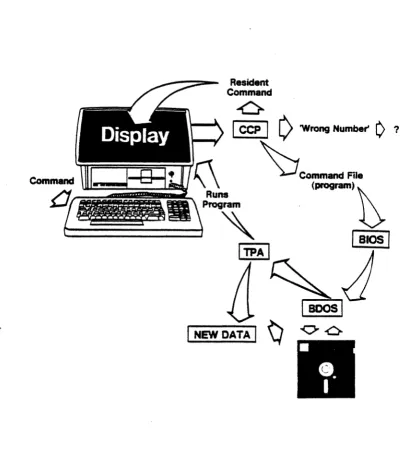
The first type of commands are called "built-in," becausethey are in the part of CP/M-86 loaded into internal memory during booting. The second type are called "transient," because they remain on the disk until called for use. They only "visit" the internal memory.
The meetroDie Fning Cabinet
Most of the time spent with your Vector 4 will be devoted to working with
information stored in compartments on a disk called files. A compu ter file,
like a file in an office drawer, is a collection of related information stored
under a given name. All data stored on your disk or diskettes is organized in
files.
There are two kinds of fUes: program files and data files. Of these two, you
will work inside just the second, the data files. Data files store your
information: lists of customers or business letters to vendors. In contrast, program files hold instructions' for the computer (the transient commands just mentioned are examples of program files). Generally, they can be changed only by a skilled programmer. You will never change the contents of program files, but you will use them to move, copy, rename, delete, and check on the other type of fUe: your data files.
All CP/M-86 files have names formed following a few simple rules.
*
Each fUe is identified by a two-part file name*
The first part is the name. It can be up to eight characters long,letters or numbers (it must begin with a letter).
*
The second part is the extension. It can be one to three characterslong. .
*
The two are separated by a period.Even if your system is new, it already includes many files: the command files
for your system programs. To see that this is true, type Dm after the A)
prompt:
VECTOR GRAPmC, INC.
The DIR (Directory) command brings to the screen a list of the files stored on your current drive (Drive A). Notice the file names, eight letters or fewer, then a space, then the extension.
The difference between a file's name and its extension is this: The name identifies the file and is used by CP/M-S6 to find the file in memory. The extension tells CP/M-S6 what kind of fUe it is.
Wild Cards
Keep the directory on your screen. Notice that several files have an extension of CMD. These are the command files mentioned above, such as the transient commands and other program fUes.
Suppose that later, when you have data fUes, you want to look at a directory listing of only .CMD files. You have a quick way of doing this, using "wild card" symbols. In card games, wild cards are those that can stand for any other card. In CP/M-S6, wild-card characters can stand for another letter or group of letters.
On your Vector 4, the wild cards are the asterisk (*) and the question mark
(1).
The question mark (?) takes the place of one character. It means: "Any thing
here is acceptable." The asterisk (*) can stand for several characters, from the
position where it appears up to the end of the "field"-for example, up to eight characters for a file name, or up to three for an extension.
Why Use Wild Cards?
Wild cards give you a simple way to look· at groups of files that share a similar characteristic, such as type (example: all files with a .MEM extension) or title (example: all files titled JANS3). The wild card lets you enter one command to cover many files.
EXAMPLE: To look at all files with the extension .CMD, enter this command:
A)DIR • .CMD [RETURN]
This displays only the .CMD (command) files on the Drive A.
EXAMPLE: To look at all Memorite files (these have a .MEM extension):
A) DIR • .MEM [RETURN]
VECTOR 4 CP IM-S6 VECTOR 4 OPERATING COMMANDS
Getting Around The Disks
If you have been following the instructions up to here, your screen now shoWs
the A) prompt. This says that you are ''logged onto" Drive A. You can move
to another drive, say Drive B, by entering the letter of the drive followed by a colon. (If you have a floppy-only system, insert a diskette into the left-hand drive before continuing.)
Enter the command:
A) B: [RETURN]
The screen will display:
A)B:
B)
If you enter this command with no diskette in the drive, you will meet with your first "error message":
ERROR - B: DRIVE NOT READY
Just press [RETURN] and the A) prompt wlll return.
You also can select a "User Area" within the drive whose letter shows in the screen prompt. User areas are smaller segments of the drives themselves and are used as separate compartments for different kinds of files. At the start, the system puts you in User Area O. But you have the option of selecting User Area 1, 2, 3, and so on up to User Area 15.
EXAMPLE: To change from User Area 0 of Drive A to User Area 4, type:
. A>USER 4 [RETURN]
To change back to User Area 0, type:
A> USER 0 [RETURN]
You can also type the User command to find out what user area you currently
are in:
A) USER [RETURN]
VECTOR GRAPHIC, INC.
Displaying A Fne's Name
V-S
As we saw, the resident command nIll can be used to display a directory of files on your current drive.
We also saw that the CP/M-S6 wild cards ? and
*
can be used to mean "anycharacter" or "any characters." A file name that includes a wild-card symbol is called an ambiguous tne name, or AFN. In contrast, a file name that can mean only one file (it has no wild-eard characters) is called an unambiguous
fne name, or UFN.
Although we used the nlR command without filenames, DIR is one of many CP/M-S6 commands that accept ambiguous file names in the command line. You can use DIR to check for many files on the disk by entering a command with this format:
A)nIll <AFN) [llBTUlUI]
EXAMPLE:
A)nIR -.CMD [RETURN]
RESULT:
The screen displays a listing of all fUes with an extension of CMD no matter
what the fUe name.
EXAMPLE:
A)nIll VECTOR.- [RETURN]
RESULT:
The screen displays a directory of all files with the name VECTOR and any
extension.
EXAMPLE:
A)nIR ST*.COM [RETURN]
RESULT:
The screen displays one file, STORE.COM. Its name begins with ST, the wild-eard - replaces "ORE," and it bas the extension COM.
VECTOR 4 CP IM-86
VECTOR 4 OPERATING COMMANDS
EXAMPLE:
A) Dm ST* .CMD [RETURN]
RESULT:
The screen display shows the file STAT.CMD.
Copying FRes: The PIP Command
PIP stands for "Peripheral Interchange Program." PIP is a command t'or moving files. You can use PIP to put programs onto the diskettes for use, and also to make backup copies of files on other diskettes. PIP can copy from one drive to another or from one disk or diskette to another, and also gives the option of changing the names of files as they are transferred.
You can use PIP with ambiguous file names (file names that include wild cards symbols) to copy groups of files at one time.
PIP's format varies with its use, but one thing always stays the same: the order of the "to" and "from" filenames. In every PIP command, you must
give-...r
o FIRST: the name (and disk location) of the "target" file;
o SECOND: the name (and location) of the "source" file;
o THIRD: any options
o LAST, [RETURN]
In other words, in PIP commands, the "to" always comes first, the "from" second.
EXAMPLES:
To Copy to Drive B the file FILE.EXT from
Drive A. PIP B:=A:FILE.EXT
VECTOR GRAPmC, INC.
PIPping Several Fnes At Onee
V-IO
There are several ways to use PIP to copy groups of fUes. The simplest is
shown just above: use the CP/M-86 wUd card symbols (* and ?) to match your
command entry against different fUes on the drive.
EXAMPLE: To copy all the command (.CMD or .COM) fUes from Drive A to Drive B:
A)PIP B:=A:*.CMD [RETURN]
And,
A)PIP B:=A:*.COM [RETURN]
The "repea t mode" of PIP is another way to copy multiple fUes if wild card symbols cannot easily be used. The repeat mode begins with this command line:
A)PIP(RETURN]
Type "PIP" and [RETURN] without hitting the [SPACE] bar. After a moment,
an
*
prompt displays. You now can enter any valid PIP command line, withouthaving to repeat the PIP command itself. This saves time. You can still enter ambiguous fUe names to name groups of fUes.
EXAMPLE:
A)PIP[RBTURH] *B:=A:*.CMD
COPYING:
STAT.CMD PIP.CMD
(etc.)
To end the multiple PIP command line session, enter [RETURN] after the
*
prompt.*
[RETURN]A)
Copying Fftes for Backup
VECTOR 4 CP/M-86 VECTOR 4 OPERATING COMMANDS
For copying individual files, you have already learned the PIP command. There are two other ways of copying to a floppy diskette. One is for making a backup copy of a source diskette. The other is for backing up the hard disk. Diskettes can be copied using the DISKCOPY command. Back~p of the hard disk is done through the STORE and RESTORE programs.
(The STORE/RESTORE commands are described below and in Section X.
DISKCOPY is a function of the UTILITY program. See Section IX.)
The STORE Command
The STORE program is used to back-up files from the hard disk to disk.ettes. Qfyour system has only diskette drives, you can ignore this section as well as the section on RESTORE.)
It's good to be familiar with STORE before you plan your electronic office system, because the STORE and RESTORE programs have a special requirement: they work only for files with names of seven characters or less. This is because STORE allows copying to multiple -diskettes. To keep track of how files continue from one diskette to another, STORE adds a number to the end of each filename. CP/M-SS allows eight characters per filename, but to make room for this "tracking number," one of those eight characters must be made available to STORE.
Remember this if you plan to do backups on diskettes (rather than to a SAFSTORE tape drive, for example).
The command line formats for STORE and RESTORE are virtually identical to that of the PIP program.
EXAMPLE: To copy all files from the Drive A (on the hard disk) to Drive E (one of the diskette drives). Enter this command while logged into Drive
A:
A)STORE C:=*.* {RETURN]
STORE copies all files with names of seven letters or less.
VECTOR· GRAPmC, INC.
The RESTORE Command
This program puts back on the hard disk the files STORE put on diskettes. Everything described above for STORE also holds true for RESTORE, except that the action is in reverse. RESTORE only works for STOREd files; you cannot use it to recopy files that were backed up the DISKCOPY or PIP.
Since STORE and RESTORE keep track of partial files by the number at the end of the filename, using RESTORE wbrks this way (remember that computer
counting begins with 0):
EXAMPLE: To RESTORE a file called SAMPLE.DOC to the hard disk, insert the first of your diskettes and enter the command:
A) RESTORE A:=C:SAMPLEO.DOC [RETURN]
Notice the "0" at the end of the file name. This begins restoring the entire file SAMPLE.DOC.
RESTORE prompts you to insert another diskette when it has filled up the
first, and the process repeats until all your backup diskettes have been copied
to the hard disk.
For complete information on STORE and RESTORE, see Section X.
Erasing Fnes
V-12
To remove unneeded files from mass memory, you can erase them using the ERA command. Be careful using ERA: once a file is erased, it cannot be recovered. Erase only fUes which are truly no longer useful or files which you know have been backed up. Although it sometimes seems convenient to gain new storage space by ERAsing old files, it's usually safer just to buy more diskettes: diskettes are far less expensive than lost work and information.
To erase our sample file from the current drive, enter:
A)ERA SAMPLE.DOC [RETURN]
When the A) prompt returns, the file has been erased.
If you want to erase a file from Drive B while logged onto Drive A, you have
two choices. You can either move from A to B by the usual method (entering
the command B: [RETURN]), then erase the file. Or you can en ter this
command:
A) ERA B:SAMPLE.DOC [RETURN]
The second method saves a little time.
VECTOR 4 CP IM-86
VECTOR 4 OPERATING COMMANDS
Erasing Groups of FUes
The ERA command also accepts ambiguous file names, so you can use the wild-card symbols to erase more than one file at a time. Again, be careful: make sure that the wild-card combination you create does not apply to files you wish to keep.
EXAMPLE: To erase all .MEM (MEMO RITE) files from a diskette:
A) ERA
*
.MEM [RETURN]EXAMPLE: To erase all. files from a diskette:
A)ERA
*.*
[RETURN]Since this could be disastrous, CP/M-86 gives you one "last chance" to reconsider, asking:
ALL FILES (Y-N)?
To proceed, enter Y [RETURN]. If you realize that the diskette holds valuable information, enter N [RETURN] to stop the program.
What If __
••• You erase a good file, one you didn't want to erase?
It's lost. So learn to be careful with ERA, and erase only files you know are unimportant. Also, be sure to back up your information. A schedule for backup should be a regular part of any computerized officeplace.
For suggestions on backup schedule and techniques, refer to the section on Diskette Handling in the Appendices. The "Backup Rule Of Thumb" is: Al ways backup as soon as your mass memory holds more information than you can afford to lose.
Checking Remaining Storage
VECTOR GRAPHIC, INC.
V-14
EXAMPLE: To check the remaining area on the currently-logged disk:
A>STAT [RETURN]
The screen
displays-disk: <AT1'>, Space: Illk
-for each drive that has been used since the last boot.
The symbols "###" are replaced by a number showing the remaining space, in Kbytes (about one-thousand bytes: lK bytes=1024 characters of storage).
The <ATT> column lists the "attributes" of each drive-that is, whether any limits that have been placed on them. The attributes are:
RIO: Read-only: document cannot be changed or deleted untU reset by STAT command.
R/W:
Read-write: document can be changed or deleted.SYS: Changes file to "system" type. . -It is not" listed-by the DIR command (it is listed by DIRS).
DIR: Removes "system" status from the fUe, so that it again appears in directory.
For another use of STAT, you can enter the command:
A>STAT d:[RETURN]
This brings this
display-Bytes remainiDg on d: Illk
-showing information only for the disk requested. In contrast, the STAT [RETURN] command gives the status of all drives accessed since the last cold boot.
VECTOR 4 CP /M-8&
VECTOR 4 OPERATING COMMANDS
Bunni. STAT For Fnes
The uses of STAT shown above are for getting information about drives. You also can use STAT to find the size and attributes for one file or for a number of files. "Size" means how much of the disk surface is dedicated to the particular file. "Attributes" means any restrictions that apply to the file.
As with drives, you also can use STAT to change the attributes of a file: to "Read Only" if you wish to protect it against change or erasure, or "Read/Write" to allow change.
EXAMPLE: To use STAT to check th-e size and attributes of a file or range of files:
A)STAT
<APN>
[RETURN]EXAMPLE: To check the status of all .CMD (CP/M-86 program) files:
STAT *.CMD
The screen gives a display like the following for each file name that matches the AFN:
Rees Bytes Ext Aee
••• ,"k I
xxxd:FILENAME.EXT
Bytes remaining on d:"'k
A>
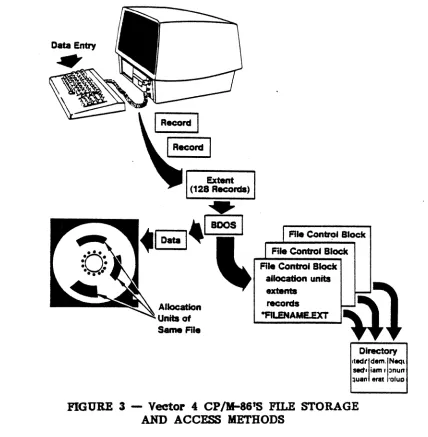
The "Recs" column gives the number of "records" (a CP/M-86 storage unit of 128 bytes) that makes up the file.
The "Bytes" column shows how much disk space is used by the file.
The "Ext" column gives the number of "extents" in which the file is stored
(one extent
=
128 records).VECTOR GRAPmC, INC.
A typical status line for our file SAMPLE.DOC, including the STAT command, might look like this:
A)STAT SAMPLE.IXX! [RE'I'ORN]
Recs Bytes Ext Ace
2'1 8k 1 R/W A:SAMPLE.IXX!
Bytes remaining on d: 422k
A>
(Most of the information in this status line is useful only in advanced programming.)
Using STAT to Change FRe Attributes
V-I6
As we saw, you can use STAT to protect a fUe or diskette from change or erasure by setting it to "Read-Only." "Read-Only" means that you can use the
diskette or f~le but you can make no changes.
EXAMPLE: To change any attribute for our file SAMPLE.DOC:
A)STAT d:SAMPLE.DOC <A TT> (RETURN]
Here, <ATT) is replaced by one of the four attributes (R/O, R/W, DIR, or
SYS) explained above.
As with other commands, STAT can be used for files stored on a different
drive. Enter the letter of the drive in place of the d: in the line above.
EXAMPLE: To protect the fUe SAMPLE.DOC from erasure, when it is stored
on Drive B:
A)STAT B:SAMPLE.DOC RIO [RETURN]
The screen shows:
SAMPLE.DOC set to RIO
A)
EXAMPLE: To protect an entire disk or diskette the same way (say, a diskette
in Drive C):
A)STAT C: RIO [RETURN]
VECTOR 4 CP/M-86 VECTOR 4 OPERATING COMMANDS
Using STAT to Create System Ffies
STAT can be \used to set CP/M-8S program files to "SYS" status, which means that they can be used from any user area of a drive so long as they are stored in User Area 9. Ordinarily, CP/M-8S command files are only locally accessible: if you are working in User Area 5 and want to use the PIP command, there must be a copy of the PIP cOlllmand file in User Area 5. By setting a "main copy" of PIP in User Area 9 to SYS status, you make it available from every other user area on the drive.
EXAMPLE: To set the CP/M-8S Editor, ED, to SYS status:
A)STAT ED.CMD SYS [RETURN]
EXAMPLE: To set all .CMD files on Drive B to SYS status:
A)STAT B:*.CMD [RETURN]
The opposite of SYS status is DIR: a file returned to DIR status is once again only loc~y accessible. Files may be either SYS or DIR status but not both. EXAMPLE: To reset the ED command file to DIR status:
A)STAT ED.CMD Dm [RETURN]
Getting HELP From the System
The HELP command provides a quick, on-screen guide to the use of all CP/M-8S commands and of the Vector Graphic programs, UTILITY and CONFIG. HELP can be entered in two ways: either for a display of all available topics (commands and optiOns), or for information about a specific command.
Entered alone, HELP shows a list of all topics. At the end of the list is a special prompt, HELP), which allows you to request information on a topic by entering its name.
Entered with a command name, HELP gives information on how to use the command.
EXAMPLE: This
command-A)HELP [RETURN]
VECTOR GRAPHIC, INC.
EXAMPLE: This
command-A)HELP STAT [RETURN]
-gives information about the use of the STAT command.
EXAMPLE: For further information about STAT:
A)BELP STAT OPTIONS (RETURN]
Use HELP in your work with CP/M-86 ,for quick information about commands and command options.
Setting Up Your System
Although your Vector 4 is ready to work now, there are several options you can and should set to make operation more efficient. These include:
o choosing between two possible printers you may have attached.
o selecting "modes" of use for the keyboard and console screen to suit
them to an application program you intend to run
o setting the diskette drive for use of single- and double-sided
diskettes
The general name for selecting these options is "configuring" your system. The commands to do it are part of the UTILITY and CONFIG programs. These are programs Vector Graphic provides to supplement the standard CP/M-86 commands.
Choosing Printers
, V-18
The Vector 4 can support ("knows how to run") three different kinds of
printers. To control these, the operating system uses special programs called "printer drivers." A printer driver is a program that sends instructions to advance the paper, type a character, and so on. Any program that uses the printer goes to the selected command file to get the printer services it needs.
For your Vector 4 system, the printer drivers are called List Device files, and
CP/M-86 offers three, one for each of three kinds of printers. As the first step in configuring your system, you must inform CP/M-86 which List Device file should be used for the printer you have connected to your computer. This is done using the Printer commands of the CONFIG utility.
See Section IX, "CONFIG Printer Commands," for a description of how to configure your system for the attached printer.
Selecting Keyboard and Video Modes
VECTOR 4 CP IM-86 VECTOR 4 OPERATING COMMANDS
Two other CONFIG commands allow you to select modes of use for the keyboard and console screen. These modes are ways of handling the "meaning" of each key and how this value is sent to and displayed on the console screen. Different modes are needed because different application programs are based on one mode or the other. For example, most programs in Vector Graphic's Professional Series Applications Packages require a video mode different from other software you may obtain for your system.
These commands are also part of the CONFIG Utility and are part of the Keyboard and Video Commands. You need to set the modes only if you have used one of the earlier Vector Graphic systems--such as the Vector 3--and software designed for it. If your Vector 4 is your first Vector Graphic system, the keyboard and video modes already are correctly set.
See Section IX for descriptions of the Keyboard and Video commands of the CONFIG Utility.
Logical and Physical Drives
Two terms you '11 get to know as you work with your system are "logical" and "physical." They are used for the hard-disk and diskette drives, and they have to do with the difference between your system's hardware and software. A physical drive means one of your disk drive units-the circuitry and metal and so on-inside the Vector 4's console. A logical drive is the software that runs
that hardware.
This double way of looking at things comes in handy because it allows you to have several software programs (logical drives) to run one hardware unit (physical drive). It gives flexibility. You can use the same diskette drive for two kinds of diskettes (see below), and you can divide your hard disk into different memory areas, called Drive A, Drive B, Drive C, and so on.
This is like having a room that, at one time, is used as nursery, then as a study, then later for storage. It's the same "physical" room, but it is put to different "logical" uses. If you could change the furnishings quickly enough, it would be the same as what you can do with your computer when you change one diskette drive from Drive E (single-sided use) to Drive F (double-sided use), or go from Drive A to Drive B on the same hard disk.
VECTOR GRAPmC, INC.
Sqle and Double Sided Diskettes
Your Vector 4 is able to use both single- and double-sided diskettes. If your
system has two diskette drives (no hard disk), each drive is already set for use of one kind of diskette: both Drive A (on the right) and Drive B (on the left) are set for double-sided diskettes, and a third logical drive, Drive C (also the left-hand slot) is set for single-sided diskettes.
.
If your Vector 4 has the diskette drive .and a hard-<iisk drive, you can assign
two logical drive names to your diskette drive, one for double-sided diskettes, one for single-sided.
For example, you could set up one logical drive for double-sided diskettes and call it Drive E, then another for single-sided diskettes, called Drive F. For both of these, you would slip the actual diskette into the same physical drive slot. CP /M-S6 handles the processing in the right way.
The hard disk usually is divided into logical drives A, B, C, and 0, and it always begins with Drive A. On hard-disk systems, Drive A is reserved for the disk.
For hard-disk systems, setting logical diskette drives is part of the FORMAT
function. It is done when CP/M-86 is installed on the hard disk. See Section
IX, "UTILITY and CONFIG," and Section XI, "Installing CP/M-S6 on Your Hard Disk," for information.
Do I Need Botb Kinds Of Diskettes!
If your Vector 4 is your first Vector Graphic system, you may not need both
kinds of diskettes and drives. Older Vector Graphic computers used
single-sided diskettes, and to transfer information from that system to your Vector 4 you need a single-sided drive. Otherwise, double-sided diskettes are preferred: they hold twice the information of single-sided diskette.
u~ Your System's Memory
V-20
Your diskettes or hard disk provide your permanent record of programs and data. They're not completely permanent, because you can always erase information if you want to. But until you do, the information stays, even when the computer is turned off.
What you see on your screen, on the other hand, is never permanent. It's held only temporarily in what might be called "scratch-pad memory," and it's there so that you can make changes and send information to processing. Once changes have been made, or a program has finished, you must save your work by "writing" the information from your screen back to mass storage, to the ( hard disk or to a diskette. If your work is new, a new file is created. If your file was old-there was a copy already there-this updated version takes its place and becomes your new permanent copy.
VECTOR 4 CP/M-86 VECTOR 4 OPERATING COMMANDS
When you bring a file from the disk to your screen, what you see is a copy of what is on the disk. It's something you can work with knowing that an original is still safely stored. It's also something that's never "permanent" until you "write to disk," copying what you see on the screen back to mass storage.
Information in the "scratch-pad" memory stays there either until new
information is brought in or until power is turned off. But because RAM can
only be so large, new arrivals from mass storage must be "written over" information already there, erasing it.
System Housekeeping with UTILlTY
Three of the most commonly-needed commands for maintaining your system are functions of Vector's UTILITY program. They are:
1-SYSGEN: "generates" (copies) an operating system for use on a disk;
2- DISKCOPY: copies the contents of one diskette to another;
3- FORMAT: "cleans up" and prepares the hard disk and floppy diskettes for use ..
See Section IX for a full description of the UTILITY program and the three functions.
For More DetaUs •••
All of the commands described above and other CP/M-86 commands are
discussed at greater length in Sections IX and X. See those sections for
USER' MANUAL: VECTOR 4: CP/M-86 QUICK REFERENCE GUIDE
SECTION VI
QUICK REPERENCE GUIDE TO VECTOR 4: COMMANDS
Setting Up Your System
To Do This...
Boot from floppy diskette
Boot from hard disk
Enter
This-P
1, for CP /M-86, or select from Systems
Menu
NOTE: The Systems Menu varies depending on what operating systems have been installed on your hard disk. See Section IV.
Repeat system testing T, ESC, or RESET*
NOTE: The above commands apply to a system that has been recently powered up or reset. *On ESC or RESET, screen returns to Basic Menu
To Do This_
Select single- or double-sided configuration for floppy drives
(Permits multiple logical configurations for each physical floppy drive)
Use This Program
UTILITY:
VEcrOR GRAPmC, INC.
To Do
This-Set up disk or diskette for operation:
CAUTION: The Format Function erases all data from the disk or diskette. Use it only if the disk to be formatted holds no valuable information.
Copy CP IM-86 system to new disk or diskette: Allows booting from the new copy. You must format the disk or diskette before using Sysgen.
Specify system options and setup:
Entering Commands
To Do This...
Send a command line to be processed.
Erase a character entered by mistake.
Erase an entire line.
VI-2
7300-0002-00Use This
Program-UTIUl'Y:
Format Function
UTIUrY: Sysgen
Function
CONPIG
Enter
This-[RETURN]
[BACKSPACE]
[CTRL X]
USER' MANUAL: VECTOR 4 CP/M-86
QUICK REFERENCE GUIDE
To Do
This.-Clear the screen before executing the command line entered.
Cancel program operation; returns control to keyboard.
Set printer "ON" from keyboard: press once to send entry and screen response to printer, again to cancel.
Pause scrolling of display while reading or taking notes: press once to stop, again to resume.
"Emergency Brakes"
To Do This...
Stop most programs.
Stop some programs.
Stop all activity (and lose information in memory)
NOTE: This erases any new information added
since the last "write-to-disk" operation. You also must re-boot the system. On hard-disk systems, if Basic Menu is present, press [W] to return to Systems Menu.
Enter
This.-[CTRL D] [RETURN]
[CTRL C]
[CTRL P]
[CTRL
S1
Enter This
[CTRL C]
[ESC]
RESET (button at
VECTOR GRAPmC, INC.
wnd
cardsVI-4
To Do
This-Refer to several file names (1):
• • • CP /M-86 matches any single character in the location, as it finds files on the current drive. Example:
I'lL ?.EXT From a disk holding fUes named FILE.EXT, FILO.EXT, FILL.EXT, FILM.EXT, and FINES.EPL, CP/M-86 selects all but the last as matching FIL?EXT.
Refer to several file names (2):
• • • CP /M-86 matches any group of characters in the location. Can be used in combination with regular letters or as
*.*
to cover all files. Example:PILE.* From a disk holding files named FILE.EXT, FILO.MEM, FILL.COM, FILE.ASM, FILE.LD1, CP/M-86 selects all as matching FILE.
*
The "1" and
"*"
symbols are "wild cards." File names with wild cards are called ambiguous file names because they refer to more than one file. File names without wildcards are called unambiguous file names, because they refer to only one file (no ambiguity).7300-0002-00
Enter
This-?
*
USER1 MANUAL: VECTOR 4 CP/M-86 QUICK REFERENCE GUIDE
Copying and Backing Up FUes
To Do This_
Make a copy