TAPI
User Guide
Release 4.0
Part No. 77000TAPI02 April 2001
WARNING!
Toll fraud is committed when individuals unlawfully gain access to customer telecommunication systems. This is a criminal offense. Currently, we do not know of any telecommunications system that is immune to this type of criminal activity. NEC America will not accept liability for any damages, including long distance charges, which result from unauthorized and/or unlawful use. Although NEC America has designed security features into its products, it is your sole responsibility to use the security features and to establish security practices within your company, including training, security awareness, and call auditing.
NOTICE
While every effort has been made to ensure accuracy, NEC America will not be liable for technical or editorial errors or omissions contained within the documentation. The information contained in this documentation is subject to change without notice.
This documentation may be used only in accordance with the terms of the NEC America License Agreement.
NEC America, Inc., Corporate Networks Group 4 Forest Parkway
Shelton, CT. 06484 Telephone: 203-926-5400 Fax: 203-929-0535 Web site: cng.nec.com
TRADEMARKS
NEC, NCS Serv, NCS Ware, Extended Caller ID, N-TeliTouch, NCS LinkPlus, NCS Console, NCS Admin and N-TeliCall are trademarks or registered trademarks of NEC.
All other brand names mentioned are trademarks or registered trademarks of their respective manufacturers.
Table of Contents
Using TAPI with NCS Ware 4.0 . . . 1
Introduction to TAPI . . . 1
NEC's TAPI Implementation . . . 2
System Requirements . . . 5
Server Installation . . . 6
Client Installation . . . 6
Introduction to TAPI
TAPI
Using TAPI with NCS Ware 4.0
TAPI stands for Telephony Application Programming Interface. It is a specification by Microsoft for writing telephony-based (the application's purpose is telephony and call control) or telephony-enabled (the
application's purpose is something else, but it supports telephony functions such as calling a contact - e.g. Microsoft Outlook, Act, Goldmine) applications. There are several off-the-shelf applications such as Microsoft Outlook, Act and Goldmine that support TAPI for calling contacts right from the application without having to manually enter the number on the telephone's keypad. If you have such an application installed at your site and would like to use this functionality using the NCS Serv system, you should read this document and install and configure the appropriate components.
Introduction to TAPI
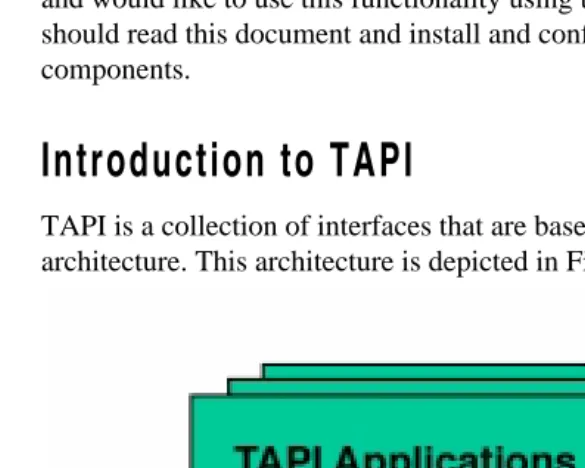
TAPI is a collection of interfaces that are based on a 3-layer telephony architecture. This architecture is depicted in Fig. 1.
Using TAPI with NCS Ware 4.0
The service providers implement the telephony functions necessary to write a telephony application as specified in the TSPI. The telephone system manufacturer typically implements this layer so that all the TAPI applications can function with the telephone system. Microsoft
implemented the TAPI middleware and this layer aggregates all the service providers available and provides a uniform API to the applications. It also adds value by implementing a few other high level functions. The application layer is where all the applications such as Microsoft Outlook function. These applications are written to TAPI specification so that they can work with any telephone system that has its own service provider.
TAPI functions are of two kinds:
• First party call control functions - these are the functions that control the device directly. These functions are specified in TAPI version 1.4. • Third-party call control functions - these are functions that instruct a telephone system such as the NCS Serv system to control telephony devices such as trunks and extensions. These functions are specified in TAPI version 2.1.
With Windows 2000, Microsoft released a new version of TAPI called TAPI 3.0 that provides an object oriented API for telephony functions. Even though the application layer specification has been completely rewritten, the service provider interface is compatible with TAPI 2.1. Since NCS Ware implements its service provider based on TAPI 2.1, applications written to TAPI 3.0 can make full use of all the telephony functions implemented by NCS Ware.
NEC's TAPI Implementation
NEC's TAPI Implementation
TAPI
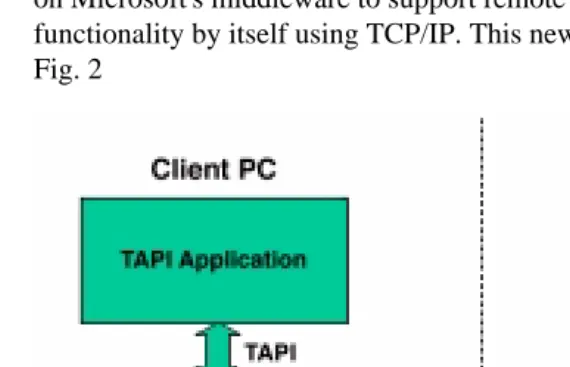
In NCS Ware 4.0, NEC has implemented an innovative solution to overcome the problems mentioned above. The new solution does not rely on Microsoft's middleware to support remote clients and implements that functionality by itself using TCP/IP. This new architecture is depicted in Fig. 2
Figure 2. NEC’s TAPI Implementation
TAPI Gateway consists of two components:
1. TAPI Proxy Server - this component should be installed on the NCS Serv system and this component actually implements all the TSP functionality by communicating with the NCS Serv software components. It runs as an NT service.
2. TAPI Service Provider (TSP) - this component should be installed on each client system that intends to use a TAPI application.
Using TAPI with NCS Ware 4.0
As is evident from Fig. 2, when a client application registers with TAPI for controlling a telephony device such as an extension, NCS Serv will send all events happening on that device to the TAPI proxy, which will, in turn send the events to the client system's service provider. The service provider will report these events to the TAPI middleware on the client system and TAPI will report them to the client application. Similarly, when the client application sends a command to TAPI, it is transported all the way to the NCS Ware system software and the results are sent back via the same components.
System Requirements
TAPI
S y s t e m R e q u i r e m e n t s
In order to use TAPI applications such as Microsoft Outlook , Act 2000 or Goldmine successfully, your environment has to meet certain
requirements. These requirements are given below for your reference. Before implementing TAPI in an environment, you should make sure these requirements are met and also make sure you understand the restrictions and exceptions to the TAPI support in NCS Ware 4.0 as outlined on page 8.
Server Requirements
The server system (NCS Serv system) should meet the following requirements to support TAPI:
• Windows NT Server 4.0 with Service Pack 6a or Windows 2000 Server
• NEC telephony boards (Quantum and/or Triton boards)
• Sufficient memory for your configuration as indicated in NCS Ware Installation Manual
• Network connection with TCP/IP enabled • Center (Option Pack) license
• One session license for each concurrent TAPI client connection • NEC TAPI Proxy Server 4.0 software
Client Requirements
The client system should meet the following requirements to support TAPI: • Windows 98, Windows NT 4.0 with SP 6a or Windows 2000
Using TAPI with NCS Ware 4.0
Server Installation
Before you install the client software (TAPI SP), you should prepare the server system. The first step in preparing the server system is to install and configure the NCS Ware software. For more details on this step, refer to NCS Serv Getting Started Manual. Once you have installed the telephony hardware, installed the NCS Ware software and configured it, test the system by making a few calls into and out of the system and make sure it works as expected.
Then, install the TAPI Proxy Server software. This software can be found in the NCS Ware 4.0 CD and also in the Center 4.0 CD. Run the
SETUP.EXE file from the TAPIGateway\TAPIServer folder. Remember that you should be logged in as a user that has Administrator privileges to install the software properly.
Once you install this server component, the service is started automatically. No configuration parameters need to be set on the server.
Client Installation
Before you begin client installation, make sure that the client system meets all the requirements listed on page 5. Then, check that the server
installation is complete. You should also note the name or the IP address of the server.
From the TAPIGateway\TAPIClient folder in the NCS Ware or Center 4.0 CD, run the SETUP.EXE file. This will launch the setup wizard that will walk you through the installation process. During installation, you will be asked for the following information:
• Server IP address - enter the name or the IP address of the NCS Serv system to which your extension belongs
Client Installation
TAPI
Now, you are ready to use TAPI application from your client PC. To test your client installation, launch Phone Dialer from
Start=>Programs=>Accessories. Enter a number to call in the Number to Dial box and then click on Dial button. If the installation is correct, your extension should ring and once you pick up the telephone handset, the system will dial the number you entered and you will be connected to that number.
If it does not work or if you need to change any of your configuration parameters,
• Go to Start=>Settings=>Control Panel=>Telephony. (In the case of Windows 2000, go to Start=>Settings=>Control Panel=>Modem and Phone Options)
• Click on the Telephony Drivers tab. (In the case of Windows 2000, click on the Advanced tab)
• You should see an entry called Communications Service Provider. Choose this entry and click on the Configure button.
• You will get a dialog box with an entry for your extension. Select that entry, and click on the Configure button.
• You will now see a dialog that displays all of the detected devices from NCS Serv. Click on the Configure button. You will get a dialog box with an entry for your extension.
• To change any parameters, you should delete this entry and create a new entry with the new values.
• To delete an entry, click on the Extension button. In the new dialog box, enter the extension number and password of the entry you want to delete and click on the Delete button.
Using TAPI with NCS Ware 4.0
Restrictions and Exceptions
In NCS Ware 4.0, only outbound dialing functions are supported in the TAPI gateway. With this support, a client application can make outbound calls from an extension.
TAPI call control functions such as transfer, hold, park, etc. are not