TD Bridge
Technical Reference Guide
M00009302 Rev.C
TD Bridge Overview
Install
Development Guide for a
Cooperative Application
Setting
Cautions
• No part of this document may be reproduced, stored in a retrieval system, or transmitted in any form or by any means, electronic, mechanical, photocopying, recording, or otherwise, without the prior written permission of Seiko Epson Corporation.
• The contents of this document are subject to change without notice. Please contact us for the latest information.
• While every precaution has taken in the preparation of this document, Seiko Epson Corporation assumes no responsibility for errors or omissions.
• Neither is any liability assumed for damages resulting from the use of the information contained herein. • Neither Seiko Epson Corporation nor its affiliates shall be liable to the purchaser of this product or third
parties for damages, losses, costs, or expenses incurred by the purchaser or third parties as a result of: accident, misuse, or abuse of this product or unauthorized modifications, repairs, or alterations to this product, or (excluding the U.S.) failure to strictly comply with Seiko Epson Corporation’s operating and maintenance instructions.
• Seiko Epson Corporation shall not be liable against any damages or problems arising from the use of any options or any consumable products other than those designated as Original EPSON Products or EPSON Approved Products by Seiko Epson Corporation.
Trademarks
EPSON and Disc ProducerTM are registered trademarks of Seiko Epson Corporation in the U.S. and other countries.
Windows, Windows Vista are registered trademarks of Microsoft Corporation in the U.S.A. and other countries.
Meaning of Symbols
The following symbols are used throughout this guide in order to draw your attention to important information for handling the product.
Restrictions of Use
When this product is used in a system that must have high reliability and safety level, such as a traffic control system for aircraft, trains, or ships, a disaster/crime-prevention system, safeguard system, please give due consideration to ensure overall system high reliability and safety. Employing fail-safe or redundancy design may be required for incorporating our product.
This product is not intended to collaborate with extremely highly-reliable equipment such as aerospace equipment, communication equipment for mainline, atomic energy control equipment, medical equipment. If you are considering the use of this product with those equipment, please make sure to carefully evaluate the appropriateness of this product to decide whether to use or not.
About This Guide
Purpose
This guide is aimed to provide necessary information for development engineers who take charge of developing a disc publishing system using PP-100.
Contents
This guide consists of the following chapters.
Provides information that must be observed to avoid damage to your equipment or a malfunction.
Provides important information and useful tips.
Chapter 1
TD Bridge Overview
Chapter 2
Install
Chapter 3
Setting
4
Contents
■ For Your Safety ...3
Meaning of Symbols ...3
■ Restrictions of Use ...3
■ About This Guide ...3
Purpose...3 Contents...3 ■ Contents ...4
TD Bridge Overview ... 5
■ What is TD Bridge?...5 Diagram of Connection ...5System Conceptual Diagram ...6
System Operation ...6
Status Check Method...10
■ System Requirements...11
■ Number of PP-100/PP-100N Units Connectable11 ■ Available Disc Types ...12
■ System Building Examples...13
System Building Example Using PP-100 ...13
System Building Example Using PP-100N ...16
■ Added Functions of TD Bridge Ver2.00...19
■ Restrictions...20
Install... 21
■ Install Procedure ...21 Installing TD Bridge...21 Starting TD Bridge...24Setting ... 27
■ TD Bridge Settings ...27■ Setting Items List...29
Setting EPSON Total Disc Setup ...30
Setting EPSON Total Disc Net Administrator...32
Setting the Printer Driver...34
Setting EPSON Total Disc Maker...35
D eve l o p m e n t G u i d e fo r a
Cooperative Application ... 37
■ Functions of a Cooperative Application37 ■ JDF File ... 38
JDF File Transition...38
JDF File Contents Example ...39
Setting Item List ...41
Specifying Track Information on Audio CD ...45
Creating Data Discs - Specifying write data file/ folder...46
Creating a Label File...48
Merge Print of Text...52
Merge Print of Barcodes ...56
■ STF File ... 61
STF File Status Transition...62
STF File Status ...63
Error Codes and Remedies ...65
INFORMATION Code List...74
■ JCF File... 78
JCF File Example ...78
■ Log Function ... 79
1
TD Bridge Overview
This chapter provides an overview of TD Bridge and explains the functions. In addition to that, the following information is provided; system requirements, supported disc types, and system examples using TD Bridge with cooperative applications.
What is TD Bridge?
TD Bridge allows you to interface your system to PP-100/PP-100N for publishing discs by means of HotFolder method.
TD Bridge allows you to publish CD/DVD discs with write data/print data or print only.
You need to develop a cooperative application for controlling TD Bridge. Then you can publish CD/DVD discs directly from your system.
EPSON Total Disk Maker is required for using TD Bridge. See PP-100/PP-100N User’s Guide for the details of the EPSON Total Disk Maker.
Diagram of Connection
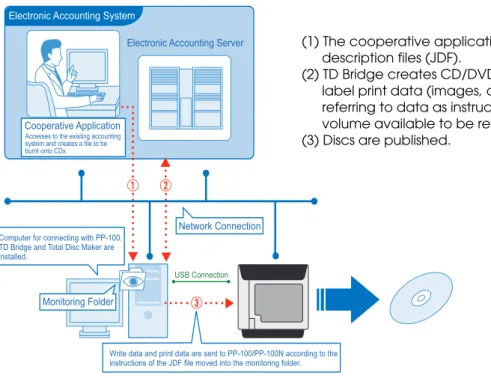
The following shows a diagram of connection in a system that incorporates TD Bridge and a cooperative application.
In this case, the cooperative application is incorporated in an electronic accounting slip system.
Electronic Accounting System
Electronic Accounting Server
Cooperative Application
Accesses to the existing accounting system and creates a file to be burnt onto CDs.ޓ
Network Connection
USB Connection
Monitoring Folder
Write data and print data are sent to PP-100/PP-100N according to the instructions of the JDF file moved into the monitoring folder. Computer for connecting with PP-100.
TD Bridge and Total Disc Maker are installed.
(1) The cooperative application sends job description files (JDF).
(2) TD Bridge creates CD/DVD images and label print data (images, characters) referring to data as instructed by JDF (data volume available to be referred is limited). (3) Discs are published.
6
System Conceptual Diagram
Your cooperative application and TD Bridge work together as shown below.
System Operation
The following shows the operation flow for publishing discs and operations of a cooperative application and TD Bridge in the case of cancel, pause, and error.
TD Bridge
Total Disc Maker
File List
JDF STF JCF
PP-100/PP-100N
Your Cooperative Application
Specifying path Write data Label design Merge Merge print data
In the same computer Monitoring Folder
Creates/Gets status
Reads/Updates status Updates status Reads/Updates status Gets status Creates/Gets status
Specifies
Tasks of the cooperative application
Tasks of TD Bridge JDF: Job Description File
STF: Status File JCF: Job Cancel File
TD Bridge Total Disc Maker JDF STF PP-100/PP-100N Write data Print data
Your Cooperative Application
In the same computer Monitoring Folder
TD Bridge Total Disc Maker
JDF STF
Write data Print data
Your Cooperative Application
In the same computer Monitoring Folder
PP-100/PP-100N
Prepare Set data Preprocessing Starts writing Check during operation End
Move the JDF file into the folder to monitor. Prepare write data and print data, then create
JDF file using the cooperative application. (When printing data only, record data is not necessary.)
Operation flow for publishing discs
1
TD Bridge Total Disc Maker
INP STF RJD 㧼㧾㧺 Write data Print data
Your Cooperative Application In the same computer
Monitoring
Folder Start writingRJD -> INP
Updated every 5 seconds
Disc image data
PP-100/PP-100N
Prepare Set data Preprocessing Starts writing Check during operation End
TD Bridge Total Disc Maker
STF JDF RJD 㧼㧾㧺 Ԙ ԙ Ԛ Ԛ Write data Print data
Your Cooperative Application
In the same computer
Monitoring Folder PreprocessingJDF -> RJD Job information is written Disc image data PP-100/PP-100N
In the preprocessing process, the JDF file is checked for discrepancy and then a disc burn image (CD/DVD image) is created if necessary. (1) TD Bridge keeps monitoring the folder to
monitor.
(2) When a JDF file is found in the folder, preprocessing is started.
(3) The JDF file is read and preprocessing is started. At this process, the JDF file is changed to RJD
(Received Job Description) file.
When writing is started, the RJD file is changed to INP (IN Process) file. The job information is written to a STF file.
Preprocessing
Start writing/printing
When writing or printing is started, the RJD file is changed to INP (IN Progress) file.
The job information is written to a STF (STatus File) file.
TD Bridge Total Disc Maker
STF
㧼㧾㧺
INP
Your Cooperative Application
In the same computer
Monitoring Folder Updated every 5 seconds Disc image data Check as necessary PP-100/PP-100N TD Bridge
Total Disc Maker
STF
㧼㧾㧺
INP DON
Your Cooperative Application In the same computer
Monitoring Folder Job information is updated Disc image data Check as necessary Completed INP - DON Completed Disc > PP-100/PP-100N Log folder
Prepare Set data Preprocessing Starts writing Check during operation End
When publishing discs is completed, the INP file is changed to DON (DONe) file.
DON file moves to a log folder after one or two hours.
The STF file is updated every five seconds. The cooperative application checks the STF file as necessary.
8
Canceling the job
The following diagram shows the operation sequence when the JCF file is moved to the monitoring folder and then canceled by the cooperative application.
Pausing the job
The following diagram shows the operation sequence when an event that causes a job to pause occurs, such as cover open on PP-100/PP-100N, and pause processing by EPSON Total Disc Monitor.
TD Bridge
Total Disc Maker
INP STF JCF Ԙ ԙ JCF Ԛ DON Ԛ
Your Cooperative Application
In the same computer
Monitoring Folder TD Bridge recognizes JCF file Moved into monitoring folder Specifies JobID to be created when cancelled
Sends cancel command to Total Disc Maker Cancel
DON - INP<
PP-100/PP-100N
(1) The cooperative application creates a JCF file and moves it to the monitoring folder. (2) When a JDF file is found in the folder,
cancel processing is started.
(3) A cancel command is sent to EPSON Total Disc Maker.
The INP file in the monitoring folder is changed to DON file.
TD Bridge
Total Disc Maker
INP STP STF
PP-100/PP-100N
ԙ
Ԛ
Ԙ
Total Disc Monitor
Ԙ
Your Cooperative Application
In the same computer Monitoring Folder Check as necessary Pausing INP - STP Cover Open Stop >
(1) Occurrence of an event that causes a job to pause.
(2) The INP file in the monitoring folder is changed to STP file.
(3) The cooperative application confirms the pause status.
(4) When the cause of the pause is removed, such as PP-100/PP-100N cover is closed, or the job is restarted by EPSON Total Disc Monitor, the disc publishing operation is resumed.
1
Error handling
When an error occurs while checking the RJD file or writing data to a disc, the RJD file or INP file is changed to ERR (ERRor) file. The error code is written to the STF file.
When an error occurs while checking the RJD file or writing/printing data to a disc, the RJD file or INP file is changed to ERR (ERRor) file. The error code is written to the STF file.
In the case of errors during operation, job error information moves to the log folder after one or two hours, and device error information remains in the STF file unless the reason for the error is removed. (For more details on STF file, see "STF File" on page 4-61.)
Registering another job during operation
You can register another job during operation. When a JDF file is created and moved to the monitoring folder using the cooperative application, preprocessing is performed and the JDF file is changed to RJD file. Then when the preprocessing is completed, the RJD file is changed to INP file and holds the status until the ongoing job is finished.
Upon completion of the ongoing job, the registered job is automatically started.
When multiple jobs are registered, they are processed in the order of registering. You cannot change the order after registration.
TD Bridge INP STF JDF RJD PRN PP-100/PP-100N ERR
Your Cooperative Application
In the same computer Monitoring Folder Check as necessary Error code is written Disc image data Error during preprocessing Error during operation
Total Disc Maker
TD Bridge Total Disc Maker
INP1 STF JDF2 RJD2 PRN PP-100 INP2 PRN 2 JDF2
Your Cooperative Application
In the same computer
Monitoring Folder
Error code is written
Next job becomes INP file and waits until the ongoing job is finished
Disc image data 2 Disc image data Write data 2 Print data 2
10
Status Check Method
There are the following three methods to check PP-100/PP-100N status.
❏
Checking the STF file
•
See the STF file using the cooperative application.
•
This file contains status information on the job and PP-100/PP-100N, and error code issued
by the cooperative application. We recommend that you use this file for error handling.
❏
Checking the JDF file extension
•
See the JDF file extension using the cooperative application.
•
The status of each job can be checked easily.
•
The extension of the JDF file changes according to the operation status. Only by checking the
extension, you can know the status.
❏
Checking the EPSON Total Disc Monitor screen on the computer
•
Activate EPSON Total Disc Monitor on a computer connected to PP-100/PP-100N to check
the status. This cannot be automated by the cooperative application.
•
EPSON Total Disc Monitor allows you to check status of jobs performed directly by EPSON
Total Disc Maker in addition to jobs using the cooperative application.
•
You cannot see the status information over a network.
TD Bridge
Total Disc Maker
INP STF
PP-100/PP-100N
Total Disc Monitor Your Cooperative Application
In the same computer
Monitoring Folder Checks STF file Updated every 5 seconds Check on the screen Checks JDF file extension
1
System Requirements
The following shows the minimum system requirements for TD Bridge.
Number of PP-100/PP-100N Units Connectable
❏
PP-100: 1
Although 2 PP-100 units can be connected, when one PP-100 is executing a job, the other PP-100
cannot execute a job.
❏
PP-100N: 10
You can issue a job to 10 PP-100N units at the same time. Operation when connecting 11 or more
PP-100N units is not supported.
The number of computers connected to one PP-100N is unlimited.
One PP-100N can receive jobs from 5 computers at the same time. When a PP-100N receives a
job from a sixth computer or more, TD Bridge on each computer keeps retrying the job.
Item Specification
Minimum system requirements
OS Windows Vista SP1
Ultimate/ Enterprise/ Business/ Home Premium/ Home Basic (Supports Windows Vista 32bit editions only)
Windows XP SP2
Professional/ Home Edition
(Supports Windows XP 32bit editions only) Windows2000 Professional SP4
CPU Pentium4 1.4GHz
Memory For Windows Vista 1GB or larger
For Windows XP/2000 512MB or larger HDD
capacity
Disc space half as much again as write data size is required. The minimum requirement is 1GB. (7200rpm or faster HDD is
recommended)
Software restrictions EPSON Total Disc Maker Ver 2.00 must be installed on the same computer. The cooperative application does not need to be installed on the same computer.
EPSON Total Disc Maker must be used by the user who started TD Bridge.
12
Available Disc Types
The table below shows the available disc types and formats.
Item Specification
Disc types CD-R 650MB/700MB
DVD-R 4.7GB (one side, one layer) DVD+R 4.7GB (one side, one layer) DVD-R DL 8.5GB (one side, two layers) DVD+R DL 8.5GB (one side, two layers)
Disc format Audio CD Audio CD
Data CD ISO9660 Level 2
Joliet UDF1.0.2
VideoCD VideoCD
Data DVD UDF1.0.2
UDF1.0.2 + ISO Bridge
DVD-Video DVD-Video
1
System Building Examples
This section provides examples of system using TD Bridge.
System Building Example Using PP-100
Case 1: Hospital
Explanation of the systemApplications location: The cooperative application, EPSON Total Disc Maker, and TD Bridge are installed on a computer connected to PP-100.
Write/print data location: The write data (medical record) is stored on the medical system server. The print data (template for merge print) is stored on the computer.
Access right: The right of access to the data on the medical system server is set on the computer.
Operation of
the cooperative application: Personnel charged with computerizing
Operation scenario
(1) The personnel charged with computerizing receives a commission to copy medical records of a patient to CD.
(2) The personnel operates the cooperative application to issue commands for publishing the CD.
(3) The cooperative application downloads the medical records including radiograph or any other medical pictures from the medical system server.
(4) The cooperative application creates JDF file and data for merge print, and copy or move them to the monitoring folder.
(5) TD Bridge publishes the CD according to instructions of the JDF file. The patient’s medical record and pictures are written to CD-R. On the CD-R, the hospital special design is printed merged with the patient’s name and the date of the record.
TD Bridge Total Disc Maker
PP-100 JDF
JDF
Server room Medical System Server XX department
XX department XX department
Computer for doctor Computer for doctor
Computer room Computer for disc publishing Medical record (unique format) Medical picture (unique format) Cooperative application Medical picture (general format) Medical record (general format) Print
data Mergeprint Monitoring folder
14
Case 2: Photo studio
Explanation of the systemApplications location: EPSON Total Disc Maker and TD Bridge are installed on a computer connected to PP-100. The cooperative application is installed on another computer that controls the photo developing system.
Write/print data location: The write data (customer’s photo data) is stored on the computer that controls photo developing system.
Several types of print data (multiple label designs from which the customer can choose) is stored on the computer connected to PP-100.
Access right: The right of access to the photo data on the photo developing control computer is set on the computer connected to PP-100.
Operation of
the cooperative application: Photo studio clerk
Operation scenario
(1) A customer inserts his/her storage medium into the photo print order machine and select photos to be printed and/or copied to a CD.
(2) The clerk operates the photo developing control computer to print the specified photos.
(3) The customer selects a CD label design from the multiple options using the photo print order machine. The machine sends commands to the cooperative application to make a CD.
(4) The cooperative application obtains the paths to the specified photo data, and creates a JDF file. (5) The cooperative application creates the CD label print data using the selected label design merged
with the selected photo.
(6) PP-100 writes selected photo data to a CD. (7) The created label print image is printed on the CD.
(8) The completed CD is handed to the customer from the clerk.
TD Bridge Total Disc Maker
PP-100 JDF
JDF
Photo studio
Computer for controlling photo development Cooperative application Monitoring folder Customer Order machine Order by his/herself
Clerk receives photo data
Photo data
Print data Mergeprint
Computer for disc publishing Photo developer
1
Case 3: Backup / Archive
Explanation of the systemApplications location: The cooperative application, EPSON Total Disc Maker, and TD Bridge are installed on a backup computer connected to PP-100.
Write/print data location: The write data is stored on servers.
The print data is stored on the backup computer.
Access right: The right of access to the data on the server 1, 2, and 3 is set on the backup computer connected to PP-100.
Operation of
the cooperative application: Automatic operation using the task scheduler (administrator of the servers)
Operation scenario
(1) The cooperative application is activated by the task scheduler and starts backup operation.
(2) The cooperative application calculates the data size and creates a JDF file considering the disc configuration.
(3) PP-100 writes the backup data to discs.
(4) The backup date and disc number given in the order of the creation are printed on the CD label.
TD Bridge Total Disc Maker
PP-100
JDF JDF
Office
Server room
Server 1 Server 2 Server 3
Cooperative application
Computer for data backup
Print data Mergeprint Monitoring folder Data to be backed up Data to be backed up Data to be backed up
16
System Building Example Using PP-100N
Case 4: Hospital
Explanation of the systemApplications location: The cooperative application, EPSON Total Disc Maker, and TD Bridge are installed on a computer.
Write/print data location: The write data (medical record) is stored on the medical system server. The print data (template for merge print) is stored on the computer.
Access right: The right of access to the data on the medical system server is set on the computer.
Operation of
the cooperative application: Personnel charged with computerizing
Operation scenario
(1) The personnel charged with computerizing receives a commission to copy medical records of a patient to CD.
(2) The personnel operates the cooperative application to issue commands for publishing the CD.
(3) The cooperative application downloads the medical records including radiograph or any other medical pictures from the medical system server.
(4) The cooperative application creates JDF file and data for merge print, and copy or move them to the monitoring folder.
(5) TD Bridge publishes the CD according to instructions of the JDF file. The patient’s medical record and pictures are written to CD-R. On the CD-R, the hospital special design is printed merged with the patient’s name and the date of the record.
(6) The CD-R is handed to the patient at the reception desk. TD Bridge
JDF
JDF
Server room
Medical System Server XX department
XX department XX department
Computer for doctor Computer for doctor
Computer room Computer for disc publishing Medical record (unique format) Medical picture (unique format) Cooperative application Medical picture (general format) Medical record (general format) Print
data Mergeprint Monitoring folder
PP-100N
Total Disc Maker
1
Case 5: Photo studio
Explanation of the systemApplications location: The cooperative application, EPSON Total Disc Maker, and TD Bridge are installed on a computer. The cooperative application is installed on another computer that controls the photo developing system.
Write/print data location: The write data (customer’s photo data) is stored on the computer that controls photo developing system.
Several types of print data (multiple label designs from which the customer can choose) is stored on the computer connected to PP-100N.
Access right: The right of access to the photo data on the photo developing control computer is set on the computer connected to PP-100N.
Operation of
the cooperative application: Photo studio clerk
Operation scenario
(1) A customer inserts his/her storage medium into the photo print order machine and select photos to be printed and/or copied to a CD.
(2) The clerk operates the photo developing control computer to print the specified photos.
(3) The customer selects a CD label design from the multiple options using the photo print order machine. The machine sends commands to the cooperative application to make a CD.
(4) The cooperative application obtains the paths to the specified photo data, and creates a JDF file. (5) The cooperative application creates the CD label print data using the selected label design merged
with the selected photo.
(6) PP-100N writes selected photo data to a CD. (7) The created label print image is printed on the CD.
(8) The completed CD is handed to the customer from the clerk.
TD Bridge
PP-100N JDF
JDF
Photo studio
Computer for controlling photo development Cooperative application Monitoring folder Customer Order machine Order by his/herself
Clerk receives photo data
Photo data
Print data Mergeprint
Computer for disc publishing Photo developer
Photos
18
Case 6: Backup / Archive
Explanation of the systemApplications location: The cooperative application, EPSON Total Disc Maker, and TD Bridge are installed on a computer.
Write/print data location: The write data is stored on servers.
The print data is stored on the backup computer.
Access right: The right of access to the data on the server 1, 2, and 3 is set on the backup computer connected to PP-100N.
Operation of
the cooperative application: Automatic operation using the task scheduler (administrator of the servers)
Operation scenario
(1) The cooperative application is activated by the task scheduler and starts backup operation.
(2) The cooperative application calculates the data size and creates a JDF file considering the disc configuration.
(3) PP-100N writes the backup data to discs.
(4) The backup date and disc number given in the order of the creation are printed on the CD label.
TD Bridge JDF
JDF
Office
Server room
Server 1 Server 2 Server 3
Cooperative application
Computer for data backup
Print data Mergeprint Monitoring folder Data to be backed up Data to be backed up Data to be backed up PP-100N
1
Added Functions of TD Bridge Ver2.00
The added functions of TM Bridge Ver2.00 are as follows.If you are using TD Bridge Ver1.5x or earlier, it is recommended to shift to Ver2.00.
❏
Supports PP-100N.
❏
Can publish DVD-Video. (See
"Available Disc Types" on page 1-12
.)
❏
Can use a label file made with your other application than EPSON Total Disc Maker.
(See
"Creating with another application" on page 4-49
.)
❏
Can print a barcode. (See
"Merge Print of Barcodes" on page 4-56
.)
❏
Has a log function. (See
"Log Function" on page 4-79
.)
20
Restrictions
❏
Pausing a job cannot be made by the cooperative application. Use EPSON Total Disc Monitor to
interrupt the job.
❏
While a job is processed, another job cannot interrupt the ongoing job, and publishing discs
directly from EPSON Total Disc Maker cannot be made.
❏
Status of progress of writing or printing cannot be obtained. A writing complete status also
cannot be obtained when both writing data and printing label jobs are performed.
❏
When confirming the job information of the STF file right after the job is issued, the status may
be shown as STATUS=99 and ERROR=OTH000. In this case, wait for 5 seconds or more, and
then reconfirm the STF file.
❏
TD Bridge does not have a function to obtain job and error logs. Include the function in your
cooperative application if necessary.
❏
Create the JDF file, JCF file, file list file, and text item file in ANSI text format. Other than ANSI
such as Unicode, UTF-8 cannot be used.
❏
The supported versions of EPSON Total Disc Maker and TD Bridge are as follows.
●: Supported, ▲: Not supported
❏
PIN Controlled Mode and Security Mode for PP-100N is not supported.
TD Bridge 1.00 1.5X 2.0X Epson Total Disc Maker 1.0X ● ▲ ▲ 1.5X ▲ ● ▲ 2.0X ▲ ▲ ●
2
Install
This chapter explains how to install TD Bridge.
Install Procedure
TD Bridge must be installed on the computer on which EPSON Total Disc Maker has already been installed.
Installing TD Bridge
Follow the procedure below to install TD Bridge. Make sure to install TD Bridge as an administrator.
1
Double-click on the [setup.exe] icon.
2
Click [Next].
3
Tick the checkbox for “I accept the terms of the license agreement”, and click
[Next].
Click
Check
22
4
Confirm the destination folder and click [Next].
If you need to change the destination folder, click [Change] to browse and specify the target folder, and click [Next].
5
Confirm the location of folder to be monitored by TD Bridge and click [Next].
If you need to change the folder, click [Change] to browse and specify the target folder, and click [Next].
The system folder cannot be selected as a monitorning folder.
Click
2
6
Click [Install].
7
Click [Finish].
When you do not use TD Bridge immediately after the installation, uncheck the checkbox for “Starts EPSON TD Bridge”, and click [Finish].
Upgrade installation
You can install a new version of TD Bridge without uninstalling the current TD Bridge.
When upgrading the current TD Bridge, just follow the same procedure for normal installation. Click
24
Starting TD Bridge
When the installation is completed, start TD Bridge.
1
Click [Start]-[All Programs]-[EPSON TD Bridge]-[EPSON TD Bridge] to start TD Bridge.
When TD Bridge starts to run, its icon appears on the Task Tray.
2
Double-click on the icon. “EPSON TD Bridge Environment Settings” window is
displayed.
For Windows Vista, the [User Account Control] screen is displayed. Then, click [Continue]. (See chapter 3 for explanation on the settings)
TD Bridge executes various checkings when it starts. If some problem is detected, an error indication is displayed, and TD Bridge closes itself. See "Checks after starting TD Bridge" for the details.
2
Checks after starting TD Bridge
TD Bridge executes the following checks soon after it starts. If some problem is detected, an error message is displayed.
• Version check for EPSON Total Disc Maker
Checks the version of EPSON Total Disc Maker, and if it is not supported, the message is displayed accordingly.
In such a case, install EPSON Total Disc Maker Ver 1.5X or later again. • Check for the default output equipment
Checks if the default output equipment on the environment settings is [enabled] or not. If it is set to [disabled], the message is displayed accordingly.
Configure the default output equipment on the environment settings. (See "TD Bridge Settings" on page 3-27 for the environment settings.)
• Check the monitorning folder
Check if the monitoring folder is accessible or not. If not, the message is displayed accodingly.
If the system folder should be set as a monitoring folder, make sure to select a folder other than the system folder.
If the monitoring folder can not be found, set a monitoring folder on the environment settings again. (See
3
Setting
This chapter explains each of the setting items of TD Bridge, and the other applications settings related to the cooperative application.
TD Bridge Settings
Make the settings of TD Bridge referring to the following explanations.
When TD Bridge has not been started, click [Start] - [All Programs] - [EPSON TD Bridge] - [EPSON TD Bridge] to start TD Bridge. Double-click on the TD Bridge icon on the Task Tray to display “EPSON TD Bridge Environment Settings” window.
For Windows Vista, the [User Account Control] screen is displayed. Then, click [Continue].
TD Bridge Environment Settings allows you to make the following settings.
Make sure to install TD Bridge as an administrator. Otherwise, the settings can be checked but can not be changed.
Setting Item Explanation
Monitoring Folder Specify a folder to be monitored by TD Bridge. (when a JDF file is moved into this folder, TD Bridge starts disc publishing operation.) When you want to change the default monitoring folder, click [Browse] to select a desired folder on the local computer. Start TD Bridge automatically when
logging on
This allows you to select whether to start TD Bridge automatically or not.
Tick the checkbox for this option to start TD Bridge automatically whenever one logs on to Windows.
28
Start EPSON Total Disc Monitor minimized
This allows you to select whether to minimize the EPSON Total Disc Monitor window that is displayed when a job is issued.
Tick the checkbox for this option to run EPSON Total Disc Monitor with its window minimized.
Default output device When you connecting multiple PP-100/PP-100N duplicators, this allows you to specify the default one.
If a PP-100/PP-100N other than the default one is specified by the JDF file, the JDF setting is given priority over the TD Bridge setting.
Default output location in standard mode
This allows you to specify the default stacker to be used for stacking ejected discs when the PP-100/PP-100N is used in the standard mode. The stackers available for ejected discs are Stacker 2 and Stacker 4. If a stacker other than the default one is specified by the JDF file, the JDF setting is given priority over the TD Bridge setting.
Print Setting Label Type Select label type from the following three options; “CD/DVD Label”, “CD/DVD Premium Label”, and “EPSON Specified CD/DVD Label”. Print Mode Setting Select the print quality from the following two options; “Quality” (for
the best print quality) and “Speed” (for the highest print speed).
3
Setting Items List
In order to operate PP-100/PP-100N from the cooperative application, some settings must be made on the related applications as shown in the table below.
● : The setting is required
▲ : Making the setting is possible (not related to the cooperative application) -- : Making the setting is impossible
Category Setting Item JDF TD BridgeEnvironment Settings EPSON Total Disc Setup Printer Driver EPSON Total Disc Maker Remarks Settings related to PP-100/PP-100N operations Publishing mode -- -- ● --
--Disc type in the
stacker -- -- ● -- --Disc type to be published ● -- -- -- --Drive setting -- -- ● -- --Number of retries -- -- ● -- --Prints an error mark or not -- -- ● -- --Source -- -- -- ▲ --TD Bridge automatically detects the disc type according to that specified by the JDF file.
Output location
● ● -- ▲
--The JDF setting is given priority over the TD Bridge setting. If the stacker is not specified in the JDF file, the TD Bridge setting is applied.
Settings related to printing Label type -- ● -- ▲ --Color / Black -- -- -- ● --Quality / Speed -- ● -- ▲ --Bi-directional printing -- -- -- ● --Color setting -- -- -- ● --Label size -- -- -- ● --Number of copies ● -- -- ▲
--One copy is made when the number of copies has not been specified in the JDF file.
Drying time -- -- -- ● --Settings related to terminal computers Working folder -- -- -- -- ●
The setting items listed above are those available on the listed applications. The JDF file includes more setting items, but those are omitted here.
30
Setting EPSON Total Disc Setup
EPSON Total Disc Setup allows you to configure major setting for publishing discs, such as PP-100 operation mode selection, source/output stackers selection.
This section explains only about the required settings to be used by the cooperative application.
Click [Start]-[All Programs]-[EPSON Total Disc Maker]-[EPSON Total Disc Setup] to start EPSON Total Disc Setup.
For Windows Vista, the [User Account Control] screen is displayed. Then, click [Continue]. Select the PP-100 to be used, and click [Properties].
EPSON Total Disc Setup Properties window is displayed. In the window, the following settings can be made. • For PP-100N, settings other than the name cannot be changed.
• To change the settings of PP-100N, use EPSON Total Disc Net Administrator. (See "Setting EPSON Total Disc Net Administrator" on page 3-32.)
Setting Item Explanation
Name You can change the name of PP-100/PP-100N. The name is
used to be specified in the JDF file using Publisher key. Up to 64 characters can be used for the name.
You cannot register multiple PP-100/PP-100N with the same name.
Stacker Settings
Publish Mode Select the publishing mode from the following three options; “Standard Mode”, “External Output Mode”, and “Batch Mode”. See the PP-100 User’s Guide for more information on the publishing mode.
Click Select
3
Displaying the confirmation message
If the publish mode is set to “Batch Mode”, the message is displayed before publishing the discs. This is to avoid using and overwriting the prefabricated discs.
The messages are displayed in following conditions.
• When publishing the first disc after starting the computer.
• When publishing the first disc after the stacker 2 is removed and re-installation of it is detected.
• When detecting the state that the disc cover is closed after the stacker 2 is removed and re-installation of it is detected during publishing a disc.
• When publishing the first disc after changing the publish mode from “Standard Mode”, or “External Output Mode” to “Batch Mode”.
Stacker
Settings Stacker 1,2 When “Standard Mode” is selected:Select disc type for Stacker 1 that is used for blank discs. Stacker 2 is used for ejected (published) discs.
When “External Output Mode” is selected:
Select disc type for both Stacker 1 and 2 that are used for blank discs.
When “Batch Mode” is selected:
Select disc type for both Stacker 1 and 2 that are used for blank discs. An error occurs if the disc type specified for Stacker 1 and 2 is different from that specified in the JDF file.
Drive
Settings Drive to Use Select the drive to be used for writing data to the blank discs. Select one from the following three options; “Use Both”, “Use Drive 1 Only”, and “Use Drive 2 Only”.
Number of write retries
Specify the number of retries in the case of writing errors. The number can be entered in the range of 0 to 9.
Printer
Settings Show error mark on discs that experience error
Tick the checkbox when you want to print an error mark on published discs that may have been improperly burnt (an error occurs during writing). This helps you to separate the failed discs from the normal ones.
• The confirmation message is displayed only when the publish mode is set to “Batch Mode”.
• For PP-100N, the next job is not executed unless discs are removed after one job is finished. (A job can be executed, but no disc is published.)
32
Setting EPSON Total Disc Net Administrator
EPSON Total Disc Net Administrator allows you to configure major setting for publishing discs, such as PP-100N operation mode selection, source/output stackers selection.
This section explains only about the required settings to be used by the cooperative application. The following procedures should be executed by a user who has the role of administrator.
Click [Start]-[All Programs]-[EPSON Total Disc Maker]-[EPSON Total Disc Setup] to start EPSON Total Disc Setup.
For Windows Vista, the [User Account Control] screen is displayed. Then, click [Continue]. Select the PP-100 to be used, and click [Stat EPSON Total Disc Net Administrator].
Login screen of EPSON Total Disc Net Administrator is displayed. Input your user name and password, and click [Login].
• EPSON Total Disc Net Administrator is not available for PP-100.
• For more details of EPSON Total Disc Net Administrator , See PP-100N User’s Guide.
Click Select
3
Select [System settings] - [Output device]. Following settings can be made.
Setting Item Explanation
Device name You can change the name of PP-100N.
Publish mode
Mode Select the publishing mode from the following three options;
“Standard Mode”, “External Output Mode”, and “Batch Mode”. See the PP-100N User’s Guide for more information on the publishing mode.
Stacker 1, 2 When “Standard Mode” is selected:
Select disc type for Stacker 1 that is used for blank discs. Stacker 2 is used for ejected (published) discs.
When “External Output Mode” is selected:
Select disc type for both Stacker 1 and 2 that are used for blank discs.
When “Batch Mode” is selected:
Select disc type for both Stacker 1 and 2 that are used for blank discs. An error occurs if the disc type specified for Stacker 1 and 2 is different from that specified in the JDF file.
Drive
Settings Drive used Select the drive to be used for writing data to the blank discs. Select one from the following three options; “Use Both”, “Use Drive 1 Only”, and “Use Drive 2 Only”.
Number of write retries
Specify the number of retries in the case of writing errors. The number can be entered in the range of 0 to 9.
Printer
Settings Show error mark on discs that experience errors
Tick the checkbox when you want to print an error mark on published discs that may have been improperly burnt (an error occurs during writing). This helps you to separate the failed discs from the normal ones.
34
Setting the Printer Driver
The printer driver allows you to configure various print settings. This section explains only about the required settings to be used by the cooperative application.
Click [Start]-[All Programs]-[EPSON Total Disc Maker]-[EPSON Total Disc Maker] to start EPSON Total Disc Maker.
When EPSON Total Disc Maker is started, click [Publish] - [Tool] - [Print Setting].
Printer driver setting window is displayed. In the window, the following settings can be made.
Setting Item Explanation
Mode
Setting Color/Black Select color print or black (monochrome) print.
High Speed When this is selected, the bi-directional printing method is applied. Color
Settings
Color tone applied to the printing can be configured.
Drying Time Specify the time for drying ink (from when label print is finished until when the disc is moved toward the output stacker). Selectable up to 600 seconds in increments of one second.
3
Setting EPSON Total Disc Maker
On EPSON Total Disc Maker, you need to specify the working folder for the terminal computer connected to PP-100/PP-100N. Write data and print data are developed to image files in the folder. Make sure that there is enough space for the image files.
Click [Start]-[All Programs]-[EPSON Total Disc Maker]-[EPSON Total Disc Maker] to start EPSON Total Disc Maker. When EPSON Total Disc Maker is started, click [Tool] - [Options].
Total Disc Maker setting window is displayed. In the window, the following settings can be made.
Setting Item Explanation
36
Select [Edit Data] tab. The window shown below is displayed. In the window, the following settings can be made.
The following message window will pop up when write data does not conform to ISO9660.
Setting Item Explanation
Always show ISO 9660 warning message
This setting is applied only when JOLIET or UDF102_BRIDGE format is specified in the JDF file. When any other format has been specified, this setting is ignored.
Tick the checkbox to be notified with a message when write data does not conform to ISO9660. Burning the data is not started.
Uncheck the checkbox to burn data regardless of the ISO9660 conformity.
4
Development Guide for a Cooperative Application
This chapter describes necessary information on how to create a cooperative application.
Functions of a Cooperative Application
Incorporate the following functions to the cooperative application.
Functions Description
Creating a JDF file/Copying to the Monitoring Folder
Used to print/write to discs. These are necessary functions. Monitoring a JDF file (Changing
extensions) You can monitor the job status.This is not a necessary item since the same information is obtained from STF files.
Monitoring an STF file/Handling errors
You can acquire information on such as job status/error code/ the remaining of disc/ink level from STF files. Create and display necessary messages using the information above.
Creating a JCF file/Copying to the Monitoring Folder/Monitoring when cancelling a job
Used when cancelling a job in the middle. The status of cancelling can be judged with the file’s extension. These are recommended functions.
It is selectable whether to incorporate your cooperative application in your system side computer or the computer connected to PP-100/PP-100N. In each case, make sure to include all required functions in the cooperative application to ensure proper operation.
38
JDF File
The JDF file is an instruction file to publish discs. This file needs to be created by your cooperative application. When the JDF file is moved into the monitoring folder, disc publishing operation specified by the file is started.
❏
Specify the job ID (not indispensable), disc type, number of copies, write data file, and label print
data file.
❏
The JDF file must be created in ANSI text format with extension "JDF". Save the file under
desired name.
❏
The extension of the JDF file changes according to the operating status. See the JDF File
Transition section for more details.
❏
To specify the path, the UNC (Universal Naming Convention) can be used.
❏
The file is automatically deleted after a lapse of 60 to 120 minutes since the job is completed,
canceled, or paused due to an error.
❏
Do not create (store) the JDF file directly in the monitoring folder. Always create the file in
another folder, then copy or move it into the monitoring folder.
❏
The JDF file moves from the monitoring folder to the log folder one or two hours after the job is
completed/cancelled/finished abnormally. (See
"Log Function" on page 4-79
.)
JDF File Transition
The extension of the JDF file changes according to the job status. Checking on the progress of the job can be made by monitoring the extension. If you need to grasp more detailed status of a job, monitor the STF file using your cooperative application. The job status and PP-100/PP-100N status also can be checked on the EPSON Total Disc Monitor screen.
Do not delete the JDF files using your cooperative application.
Cooperative Application RJD ERR INP DON STP Creating file Monitoring folder JDF JDF Copied to monitoring folder
Preprocessing Operating Completed
Automatically deleted Finished abnormally Pausing Automatically deleted
4
JDF File Contents Example
The JDF file shown below is for burning 10 CDs, making merge print on each of them, and ejecting them to the Stacker 2.
The JDF file shown below is for burning one Video CD, printing the label, and ejecting the CD to the Stacker 4. Merge print is not specified.
The JDF file shown below is for burning one Audio CD, printing the label, and ejecting the CD to the Stacker 4. Merge print is not specified.
# Making data CD JOB_ID=001 PUBLISHER=Publisher 0 COPIES=10 OUT_STACKER=2 DISC_TYPE=CD FORMAT=ISO9660L2 DATA=C:\Datafile\patient1 VOLUME_LABEL=PCdatadisc LABEL=C:\Datafile\image1.tdd REPLACE_FIELD=C:\Datafile\print.dat
Instructions for burning data
Instructions for merge print Comment line JOB_ID=002 PUBLISHER=Publisher 0 COPIES=1 OUT_STACKER=4 DISC_TYPE=CD VIDEO=C:\videofile\video.mpg VIDEO_TITLE=Educational_video LABEL=C:\videofile\videoimage1.tdd
Instructions for burning video files Instructions for printing the label
JOB_ID=003
PUBLISHER=Publisher 0 COPIES=1
OUT_STACKER=4 DISC_TYPE=CD
AUDIO_TRACK=PATH:C:\audiodata\musicfile1.wav (TAB) TITLE:music1 (TAB) PERFORMER:Singer (TAB) PREGAP:150
AUDIO_TRACK=PATH:C:\audiodata\musicfile2.wav (TAB) TITLE:music2 (TAB) PERFORMER:Singer (TAB) PREGAP:150
AUDIO_TITLE=Best_music
LABEL=C:\audiodata\audioimage1.tdd
Instructions for burning audio files
40
The JDF file shown below is for printing the label, and ejecting the CD to the Stacker 4.
About comment lines
When writing the JDF file, lines which starts with "#” are regarded as comment lines, and ignored. Lines which starts with other than “#” are not regarded as comment lines.
Example 1: #DATA=C:¥Data¥test1.dat ← Regarded as a comment line. Ecample 2: ##DATA=C:¥Data¥test1.dat ← Regarded as a comment line.
Example 3: # ← Regarded as a comment line.
DATA=C:¥Data¥test1.dat ← Not regarded as a comment line.
# ← Regarded as a comment line.
An image file created by another application and converted to PRN file using the PP-100/ PP-100N printer driver also can be specified as the label file.
JOB_ID=004
PUBLISHER=Publisher 0 COPIES=1
OUT_STACKER=4 DISC_TYPE=CD
4
Setting Item List
The table below lists the available setting items in a JDF file. You may not need some of the settings. Referring to each explanation, include the settings only required for your system.
Key name: Case sensitive. A key name including lowercase characters is ignored as an invalid command. Spaces before and/or after a key name also make the key name invalid.
Setting: Characters written from immediately after "=" to a linefeed code or EOF are regarded as the setting.
End of instruction: The instructions written on the file are processed from the top and continued until a linefeed or EOF is found.
Key name Explanation How to specify the setting Maximum characters Available characters (strings) Necessary /Arbitrary
JOB_ID Specify a job ID
for identification. Specify a job ID that has not been used for existing jobs. (this ID is used in a STF file as hereinafter described, and for canceling the job using a JCF file.) When no job ID is specified, TD Bridge will automatically create the ID.
40
characters One byte alphanumeric, "-", "_" Arbitrary
PUBLISHER Specify a name of disc publishing machine to be used for the job.
Use the name registered by EPSON Total Disc Setup. When not specified, the publishing machine specified in the Environment Setting of TD Bridge will be used.
If the Environment Setting also has not specified the machine, the machine registered by EPSON Total Disc Setup will be used as long as only one machine has been registered.
(When multiple machines have been registered, an error will occur)
64
characters Machine names registered by EPSON Total Disc Setup.
Arbitrary
COPIES Specify the number of discs to be published.
[When the publisher is in Standard Mode] Selectable from 1 to 1,000.
[When the publisher is in External Output Mode] When the same disc type is specified for stacker 1 and 2
Selectable from 1 to 100.
When the disc type is different for each of stacker 1 and 2
Selectable from 1 to 50.
[When the publisher is in Batch Mode] Selectable from 1 to 100.
[Common to the all modes]
When not specified, only one disc will be published.
Four
characters One bite numbers Arbitrary
OUT_
STACKER Specify an output stacker. [When the publisher is in Standard Mode]When selecting the stacker 2 as the output stacker, specify "2".
When selecting the stacker 4 as the output stacker, specify "4".
When not specified, the stacker specified in the Environment Setting of TD Bridge is used. If the Environment setting also has not specified the output stacker, the stacker 2 will be used. [When the publisher is Not in Standard Mode]
Invalid (ignored if a stacker is specified)
One
character "2" or "4" Arbitrary
DISC_
TYPE Specify the type of disc to be published.
Specify "CD" when publishing a CD.
Specify "DVD" when publishing a single-layer DVD. Specify "DVD-DL" when publishing a two-layer DVD.
Six
42
WRITING_SP
EED Specify the writing speed depending on the specified disc type.
Specify the write speed [N] (_X write). [When CD-Rs are set in the source stacker]
Any of "40", "32", "24", "16", "10", "4". [When DVD-Rs are set in the source stacker]
Any of "12", "8", "6", "4", "2".
[When DVD+Rs are set in the source stacker] Any of "12", "8", "6", "4", "2.4".
[When DVD-R DLs are set in the source stacker] Any of "8", "6", "4", "2".
[When DVD+R DLs are set in the source stacker] Any of "8", "6", "4", "2.4".
[Common to the all disc types]
When a write speed other than listed above is specified, the next slower speed in the available settings is applied.
When not specified, the highest speed is applied. Three characters * Periods are included. Any of "40","32","24","16","12", "10","8","6","4","2","2.4". Arbitrary
COMPARE Specify whether to compare the written data with the source data.
Specify "YES" when carrying it out. Specify "NO" when not carrying it out.
The data are not compared if “YES” is not specified. In the case of Audio CDs, the data are not compared even if “YES” is specified.
Three
characters "YES" or "NO" Arbitrary
CLOSE_
DISC Specify whether to close (finalize) the burnt disc.
Specify "YES" when closing the disc after burning. Specify "NO" when not closing the disc after burning. If not specified, the disc will be closed. This setting cannot be applied to DVD+R DL and DVD-R DL (ignored when any of the disc types has been selected).
Three
characters "YES" or "NO" Arbitrary
FORMAT
(*1) Specify a disc format when creating a data disc.
[When the disc type is CD]
Specify "ISO9660L2" when creating the CD in ISO9660 Level 2 format.
Specify "JOLIET" when creating the CD in Joliet format.
Specify "UDF102" when creating the CD in UDF1.0.2 format.
When not specified, the CD is burnt in ISO9660 Level 2 format.
[When the disc type is DVD]
Specify "UDF102" when creating the DVD in UDF1.0.2 format.
Specify "UDF102_BRIDGE" when creating the DVD in UDF1.0.2 + UDF Bridge format.
When not specified, the DVD is burnt in UDF1.0.2 + UDF Bridge format.
13
characters Any of "ISO9660L2","JOLIET","U DF102","UDF102_BRID GE"
Arbitrary
DATA (*1) Specify folders and files to be written to the data disc.
When creating data discs, specify the directory path to the source file and that to the destination. The directory path to the source file must be the path from the computer on which TD Bridge installed.
(For explanation on the directory path to the destination, see "Creating Data Discs - Specifying write data file/folder".)
511
characters Up to 128 levels of directory hierarchy is available.
The path length to the target folder or file must be within 255 characters.
The following symbols or characters cannot be used for the file and folder name: "\", "/", ":", "?", """, "<", ">", and "|". (*2)
Arbitrary
DATA_
LIST (*1) When specifying write data using a file list, specify the directory path to the file list file.
The directory path must be the path from the computer on which TD Bridge is installed. (For explanation on the directory path to a source file specified in the file list file, see "Creating Data Discs - Specifying write data file/folder".)
255
characters Characters valid as a directory path Arbitrary
VOLUME_
LABEL (*1) Specify a Volume Label of the data disc.
Specify a Volume Label to set the volume label to
the data disc. 62 characters English one byte uppercase characters One byte numeric characters and "_" also can be used. (*4)
Arbitrary
Key name Explanation How to specify the setting charactersMaximum
Available characters
(strings)
Necessary /Arbitrary
4
*1 Specify this item when creating data discs.
*2 In the case of ISO9660L2 format, directory hierarchy is limited to up to eight levels with up to 31 characters for the folder or file name.
Only "a" characters can be used for the folder or file name.
In the case of Joliet format, the number of characters for the folder or file name is limited to up to 64 characters. In the case of UDF format, up to 126 characters can be used for the folder or file name.
In the case of UDF Bridge format, the same limitation as ISO9660L2 is applied.
VIDEO (*3) When burning Video CDs, specify the directory path to the video file to be set as video track. When burning DVD-Video, specify the directory path to the VIDEO_TS folder.
The directory path must be the Video file path or the VIDEO_TS folder path from the computer on which TD Bridge is installed.
When burning Video CDs, specify “CD” for “DISC_TYPE,” and when burning DVD-Video, specify “DVD” or “DVD-DL” for it.
When "DATA" or "DATA_LIST" has been specified, this setting becomes invalid. (ignored if the setting is made)
255
characters Characters valid as a directory path Arbitrary
VIDEO_
TITLE (*3) Specify a video title to set the title to the Video CD.
Specify a character string as the video title. When "DATA" or "DATA_LIST" has been specified, this setting becomes invalid. (ignored if the setting is made)
32
characters d characters Arbitrary
IMAGE (*5) Specify a directory path to an image file when burning discs using the image file.
The image file directory path must be the path from the computer on which TD Bridge is installed. When any of "DATA", "DATA_LIST", or "VIDEO" has been specified, this setting becomes invalid (ignored if the setting is made)
255
characters Characters valid as a directory path Arbitrary
AUDIO_TRA
CK When burning Audio CDs, specify the track information.
Specify the track information for all the tracks. When "DATA", "DATA_LIST", "VIDEO" or "IMAGE" has been specified, this setting becomes invalid. (ignored if the setting is made)
See "Specifying Track Information on Audio CD" on page 4-45 for the details.
520
characters Music file path:Not limited Track title: Characters changeable into multi-byte characters. Track artist name: Characters changeable into multi-byte characters. Pregap: Half size values
Arbitrary
AUDIO_TITLE Specify an album title to set the title to the Audio CD.
Specify a character string as the Audio CD title. When "DATA","DATA_LIST","VIDEO" or "IMAGE" has been specified, this setting becomes invalid. (ignored if the setting is made)
128
characters Characters changeable into multi-byte characters.
Arbitrary
AUDIO_PER
FORMER Specify an artist name to set the name to the Audio CD.
Specify a character string as the Audio CD artist. When "DATA","DATA_LIST","VIDEO" or "IMAGE" has been specified, this setting becomes invalid. (ignored if the setting is made)
128
characters Characters changeable into multi-byte characters.
Arbitrary
LABEL When making a label print, specify the directory path to the label data file.
The label file directory path must be the path from the computer on which TD Bridge is installed. A file made with EPSON Total Disc Maker (.tdd), or a PRN/ BMP/JPEG/TIFF/PNG file is specified for a label file.
255
characters Characters valid as a directory path Arbitrary
REPLACE_
FIELD When making a merge print, specify the directory path to the text item file.
The text item file directory path must be the path from the computer on which TD Bridge is installed. (When a PRN file is specified as the label data file, merge print cannot be made. For more details on the merge print, see "Merge Print Settings".)
255
characters Characters valid as a directory path Arbitrary
LABEL_AREA Specify the printing area for the labal image.
Specify the outside and inside diameters Unless one of these file types: BMP/JPEG/TIFF/PNG has been specified for the LABEL key, this setting becomes invalid. (ignored if the setting is made) For more details, see "Specifying the print area" on page 4-51.
4 characters One bite numbers Arbitrary
Key name Explanation How to specify the setting charactersMaximum
Available characters
(strings)
Necessary /Arbitrary
44
*3 Specify only when creating video CDs.
*4 In the case of ISO9660L2 format, the number of characters is limited to up to 32. Characters other than English one byte uppercase/numerical characters and "_" cannot be used.
In the case of Joliet format, the number of characters is limited to up to 16. Characters other than English one byte uppercase/numerical characters and "_" cannot be used.
In the case of UDF format, up to 62 characters can be used.
In the case of UDF Bridge format, the same limitation as ISO9660L2 is applied. *5 Specify only when burning discs using image files.
4
Specifying Track Information on Audio CD
The following explains how to specify the track information on Audio CDs. If you want to write more than one piece of track information, repeat specification and line feed for the number of tracks you want.
AUDIO_TRACK=PATH:musicfile(TAB)TITLE:tracktitle(TAB)PERFORMER:trackartist(TAB)PREGAP
• Music file path (necessary)
Specify the file to be set for the Audio CD track as a path from the computer on which TD Bridge is installed. The exention of settable files is either WAV, MP3 or WMA.
Specify one after keyword "PATH:". • Track title (arbitrary)
Enter the title you want to specify for the Audio CD track. Specify one after keyword "TITLE:".
The tab character can not be used for a title character. • Track artist name (arbitrary)
Enter the artist name you want to specify for the Audio CD track. Specify one after keyword "PERFORMER:".
The tab character can not be used for a track artist name. • Pregap (arbitrary)
Enter the pregap you want to specify for the Audio CD track by frame.
The range of settable values is from 0 to 269999. (00:00:00 frame to 59:59:74 fame) Specify one after keyword "PREGAP:".
Examples
When specifying a music file only
AUDIO_TRACK=PATH:C:\Audiodata\musicfile1.wav
When specifying all of them
AUDIO_TRACK=PATH:C:\Audiodata\musicfile1.wav(TAB)TITLE:music1(TAB)PERFORMER:Singer(TAB) PREGAP:150
When specifying only the music file paths to more than one music files
AUDIO_TRACK=PATH:C:\Audiodata\musicfile1.wav AUDIO_TRACK=PATH:C:\Audiodata\musicfile2.wav AUDIO_TRACK=PATH:C:\Audiodata\musicfile3.wav
46
Creating Data Discs - Specifying write data file/folder
The following explains how to specify source write data file/folder and the destination. Style: DATA=source file/folder(TAB)destination
Source: Specify a directory path to the desired source file/folder from the computer on which TD Bridge installed. When a folder is specified, all files and sub folders under the specified folder are regarded as the source to be written to a disc. The specified folder itself is not included.
Destination: Specify an absolute path to the destination file/folder from the root directory of a disc.The "\" symbol that represents the root directory of a disc is not necessary. And when writing data directly under the disc root directory, you do not need to specify the destination including the TAB characters.
Specifying multiple files/folders:When you want to write multiple files/folders at a time, specify the source and destination for each file/folder separating each instruction with a linefeed.
In the JDF file, you can directly write the directory path to the write data, or specify a file list file.
File list file
The file list file is a file to be used for writing directory paths to write data.
Creating the file list file allows you to minimize changes of JDF file for specifying write data. The file list file must be written in ANSI text format.
(The following extensions cannot be specified; CDN, CER, DON, ERR, INP, JCF, JDF, and RJD. See above "Specifying file list file (list.dat) in a JDF file" for how to write the directory paths in the file.)
JOB_ID=XXX : DATA=C:\abc\aaa.txt(TAB)abc\aaa.txt DATA=C:\abc\bbb.txt(TAB)abc\bbb.txt DATA=C:\xyz/ccc.pdf(TAB)xyz\ccc.pdf :
Directly specifying write data in a JDF file
JOB_ID=XXX :
DATA_LIST=C:\abc\list.dat :
Specifying file list file (list.dat) in a JDF file
list.dat file
DATA=C:\abc\aaa.txt(TAB)abc\aaa.txt DATA=C:\abc\bbb.txt(TAB)abc\bbb.txt DATA=C:\xyz\ccc.pdf(TAB)xyz\ccc.pdf