SAGE Systems
Technical Specifications
Manual for Online Testing
For Technology Coordinators
2015–2016
Updated July 22, 2015
Table of Contents
Introduction to the Technical Specifications Manual ... 5
Manual Content ... 5
Other Resources ... 6
Section I. Supported Operating Systems ... 7
Desktops, Laptops, and Netbooks ... 7
Tablets ... 8
Chromebooks ... 9
Thin Clients: NComputing and Terminal Servers for Windows ... 10
NComputing ... 10
Terminal Servers ... 10
Section II. Network and Internet Requirements ... 11
General Requirements ... 11
Common Network Performance Bottlenecks... 12
Bandwidth ... 12
Determining Bandwidth Requirements ... 13
Total Number of Students Simultaneously Testing ... 14
Size of the Test Content... 14
Secure Browser Installation ... 14
Network Configuration ... 15
Protocols ... 15
Domain Name Resolution... 15
Content Filter, Firewalls, and Proxy Servers ... 15
Quality of Service (QoS)/Traffic Shaping ... 15
Certificate Revocation List ... 16
Symantec Recommendations ... 16
Wireless Networking ... 17
Wireless Access Points ... 17
Network Diagnostic Tools ... 18
AIR’s Network/Bandwidth Diagnostic Tool ... 18
Microsoft Windows Specific Tools ... 18
Mac OS X Specific Tools ... 18
Multi‐Platform Tools ... 19
Section III. General Hardware Requirements ... 20
Monitors and Screen Display Requirements ... 20
Screen Dimensions ... 20
Screen Resolution ... 20
Headphones ... 21
Printers... 22
Section IV. General Software Requirements ... 23
Requirements for All Systems ... 23
Enabling Pop-Up Windows ... 23
Requirement for Flash ... 24
Windows Requirements ... 25
Disabling Fast User Switching ... 25
Disabling Fast User Switching in Windows XP ... 25
Disabling Fast User Switching in Windows 7 ... 26
Disabling Fast User Switching in Windows 8.0 and 8.1 ... 27
Enabling Web Fonts in Internet Explorer 10 and 11 ... 28
Installing Windows Media Pack for Windows 8.1 N and KN ... 29
Mac OS X Requirements ... 30
Mission Control and Spaces ... 30
Function Keys and Application Launches ... 31
Disabling Spaces and Application Launches from the Command Line ... 32
Disabling Spaces and Application Launches on Remote Machines ... 32
Linux Requirements ... 33
Mobile Requirements ... 34
Enabling Guided Access on iOS ... 34
Enabling Guided Access ... 34
Configuring Using Autonomous Single App Mode ... 36
Overview of Autonomous Single App Mode and the Secure Testing Environment ... 36
Step 1: Creating a Mobile Device Management Profile ... 36
Step 1a (Optional): Restricting Features in iOS 8.1.3 ... 36
Step 2: Creating a Supervisory Profile ... 38
Step 3: Placing iPads in Autonomous Single App Mode ... 40
Enabling the Secure Browser Keyboard on Android ... 43
Enabling the Secure Browser Keyboard ... 43
Enabling Kiosk Mode and Wiping Chrome OS... 45
Section V. Text-to-Speech Requirements ... 46
Overview of Text-to-Speech ... 46
Using Text-to-Speech ... 46
How the Secure Browsers Work With Voice Packs ... 46
Desktop Secure Browsers... 46
Mac OS X Text-to-Speech Settings ... 50
Linux Text-to-Speech Settings ... 52
Voice Packs Recognized by Desktop Secure Browsers ... 53
Windows ... 53
Mac OS X ... 53
Linux ... 54
Appendix A. Systems and URLs Provided by AIR ... 55
Non-Testing Sites ... 55
Testing TA and Student Testing Sites ... 55
Online Dictionary and Thesaurus ... 55
Appendix B. Symantec IP Addresses ... 56
Appendix C. System Administrator Checklist... 57
Appendix D. Scheduling Online Testing ... 58
Appendix E. Change Log ... 59
User Support ... 61
List of Tables
Table 1. Key Symbols and Elements ... 5Table 2. Supported Desktop Operating Systems for 2014–2015 ... 7
Table 3. Supported Tablets and Operating Systems for 2014–2015... 8
Table 4. Supported Chromebooks for 2014–2015 ... 9
Table 5. Supported NComputing Information lists the supported hardware and software for NComputing solutions.Table 5. Supported NComputing Information ... Error! Bookmark not defined. Table 6. Supported Terminal Servers ... 10
Table 7. Average Bandwidth Used by Secure Browser for Testing ... 12
Table 8. Ports for Test Delivery System ... 15
Table 9. Wireless Access Points ... 17
Table 10. Flash Requirements ... 24
Table 11. Profile Keys for iOS 8.1.3 Features ... 37
Introduction to the Technical Specifications Manual
This manual provides information about supported operating systems and related requirements, network and Internet requirements, general hardware and software
requirements, and text-to-speech information. Instructions for specific software configuration changes are also provided.
Where applicable, information is grouped by operating system.
Manual Content
Below is a brief description of each section in this manual, as well as common symbols and elements used throughout the document.
Section I, Supported Operating Systems, provides information about which operating systems are supported. Related requirements are also included.
Section II, Network and Internet Requirements, provides information about bandwidth, networking, and available diagnostic tools.
Section III, General Hardware Requirements, outlines requirements for monitors and screen displays, keyboards, headphones, and printers.
Section IV, General Software Requirements, outlines required configurations for supported operating systems.
Section V, Text-to-Speech Requirements, contains information for ensuring text-to-speech settings are enabled on desktop operating systems. Information about the NeoSpeech™ Julie voice pack for Windows is also included.
The Appendices contain URLs for systems provided by the American Institutes for Research, Symantec addresses, a checklist for system administrators, and a sample scheduling
worksheet.
Table 1. Key Symbols and Elements
Element Description
Alert: This symbol accompanies important information regarding a task that may cause minor errors.
Note: This symbol accompanies additional information that may be of interest.
Policy: This symbol accompanies important information that is guided by policy decisions.
[text] Bold text in brackets is used to indicate a link or button that is clickable. Tip: This symbol accompanies suggestions that may be useful.
Other Resources
This manual does not contain information about secure browser installation or Braille requirements.
For information about installing secure browsers, refer to the Secure Browser Installation Manual.
For information about Braille hardware and software requirements, as well as basic test administration processes, refer to the Braille Requirements and Testing Manual.
The above resources as well as test administration manuals and user guides for other systems are available on the SAGE Portal (http://sageportal.org).
Section I. Supported Operating Systems
This section contains information regarding supported operating systems and their requirements for online testing.
Desktops, Laptops, and Netbooks
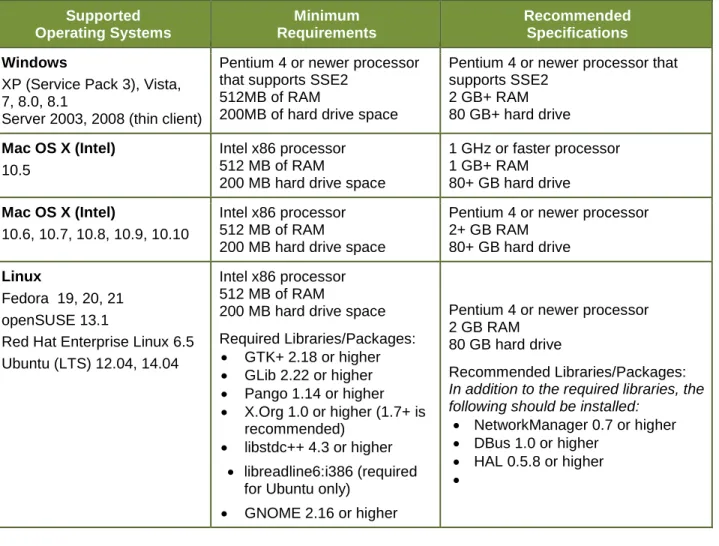
Computers used for testing must have a supported operating system and meet the specifications as shown in the table below.
Table 2. Supported Desktop Operating Systems for 2015–2016 Supported Operating Systems Minimum Requirements Recommended Specifications Windows
XP (Service Pack 3), Vista, 7, 8.0, 8.1
Server 2003, 2008 (thin client)
Pentium 4 or newer processor that supports SSE2
512MB of RAM
200MB of hard drive space
Pentium 4 or newer processor that supports SSE2 2 GB+ RAM 80 GB+ hard drive Mac OS X (Intel) 10.5 Intel x86 processor 512 MB of RAM
200 MB hard drive space
1 GHz or faster processor 1 GB+ RAM 80+ GB hard drive Mac OS X (Intel) 10.6, 10.7, 10.8, 10.9, 10.10 Intel x86 processor 512 MB of RAM
200 MB hard drive space
Pentium 4 or newer processor 2+ GB RAM
80+ GB hard drive Linux
Fedora 19, 20, 21 openSUSE 13.1
Red Hat Enterprise Linux 6.5 Ubuntu (LTS) 12.04, 14.04
Intel x86 processor 512 MB of RAM
200 MB hard drive space Required Libraries/Packages: GTK+ 2.18 or higher GLib 2.22 or higher Pango 1.14 or higher X.Org 1.0 or higher (1.7+ is recommended) libstdc++ 4.3 or higher libreadline6:i386 (required for Ubuntu only)
GNOME 2.16 or higher
Pentium 4 or newer processor 2 GB RAM
80 GB hard drive
Recommended Libraries/Packages: In addition to the required libraries, the following should be installed:
NetworkManager 0.7 or higher DBus 1.0 or higher
HAL 0.5.8 or higher
Warning: Support for New Desktop Operating Systems
If a new desktop operating system becomes available after the secure browsers for this year are released and it is not listed in the above table, it may not be supported. Please do not upgrade to new operating systems on computers that will be used to administer online
assessments.
Note: About the Minimum Requirements for Current Computers
AIR’s secure browser for desktops is based on the open-source Mozilla Firefox web browser. The minimum requirements align with the minimum recommendations for running Mozilla
or school is contemplating purchasing new computers, we suggest that you consider the recommended specifications. These specifications will ensure that your computers work effectively with the online testing system and provide additional functionality and longevity. About Supported Linux Operating Systems
The operating systems listed in the Linux column are specific distributions that AIR conducts quality testing on and officially supports.
AIR highly recommends that you use the one of the supported Linux distributions for operational student testing. If you are using a distribution that is not on this list, we encourage you to try the training tests first to ensure that your Linux distribution works with the online assessments. That way, any potential issues can be addressed before operational testing begins. About Libraries
The secure browser requires the listed libraries to be installed in order to run optimally. In most cases, these libraries should already come packaged with your Linux distribution; in some cases, you may need to update the libraries to meet the requirements.
About Linux LTSP Configurations
If you are using a supported Linux distribution with an LTSP configuration, the server build must include the following:
All required libraries and packages for the secure browser
All required Festival and SoX files for text-to-speech (for more information about Festival and SoX, refer to the Text-to-Speech for Linux section in this document)
Voice pack files for text-to-speech Verdana TrueType font files
AIR conducts quality testing on the following LTSP configuration: LTSP Server build based on Ubuntu 12.04 (LTS)
Tablets
Unlike desktops, laptops, and netbooks, only specific tablets are supported. The supported tablets listed below have been tested for use with AIR’s Test Delivery System and may be used for testing. Supported tablets must run a supported operating system and have related
requirements enabled.
Table 3. Supported Tablets and Operating Systems for 2015–2016 Supported
Operating Systems Supported Tablets Related Requirements
iOS (iPads) 7.0, 7.1 8.0, 8.1, 8.2
iPad 2 iPad 3
Fourth-generation (Retina Display) iPad Air
iPad Air 2 ( iOS 8.* only)
Guided Access must be enabled. (Guided Access is not the same as Single App Mode.)
For more information, refer to the Secure Browser Installation document.
Android
4.3, 4.4, 5.0, 5.1
Google Nexus 10 Motorola Xoom
Samsung Galaxy Note (10.1) Samsung Galaxy Tab 2 (10.1) LearnPad Quarto
The secure browser keyboard must be enabled after installing the secure browser. For more information, refer to the Secure Browser Installation document.
Windows 8.0, 8.1
AIR supports any tablet running Windows 8.0 and 8.1 Pro.
Chromebooks
Chromebooks and Chromebases running a supported Chrome operating system can be used for student testing.
Table 4. Supported Chromebooks for 2015–2016 Supported
Operating Systems Related Requirements
Chrome OS 41–42
Kiosk mode must be enabled.
For more information, refer to the Secure Browser Installation document. About Chrome OS and Automatic Updates
AIR recommends turning off or delaying automatic updates of the Chrome operating system. Doing so will allow AIR to review changes from Google and address any that pose a potential risk to student testing. The recommended period for delaying automatic updates is one to two weeks. Automatic update settings are configured in Google’s admin console.
Thin Clients: NComputing and Terminal Servers for Windows
NComputing
Supported NComputing Information lists the supported hardware and software for NComputing solutions. Table 5. Supported NComputing Servers
Supported Server Host Supported Server Software Supported Terminals
Windows 2008 R2 vSpace Server 8 L300 About NComputing Terminals
AIR conducts quality testing with L300 terminals.
Terminal Servers
Terminal servers can be used for online testing when used with a thin client machine. Table 5. Supported Terminal Servers
Supported Terminal Servers Supported Thin Client
Windows Server 2003, 2008, 2012
Note: Windows Server 2012 can be used; however, AIR conducts quality testing on and officially supports Windows Server 2003 and 2008.
Any thin client that supports a Windows Server.
Security Issues With Terminal Services or Remote Desktop Connections to Servers Using a terminal services or remote desktop connection to access a Windows Server or workstation that has the secure browser installed is typically not a secure test environment.
Section II. Network and Internet Requirements
The information in this section provides an overview of network and Internet configuration requirements and available diagnostic tools.
General Requirements
A stable, high-speed (wired or wireless) Internet connection is required for online testing. The response time for each assessment depends on the reliability and speed of your school’s Internet network.
If your Internet connection is not working or stops working, students will need to complete their tests at a later time or on another day. Any answers they have already submitted will be saved, and students will resume their tests where they left off. (Students will return to the first unanswered item in the test.)
For the online testing applications to work properly, you may need to verify your network settings. If you are not sure whether your network is properly configured or you have
questions, contact your network administrator or technology specialist to find the right contact person in your area. You may also contact the SAGE Help Desk.
Network configuration settings should include the following:
Content filters, firewalls, and proxy servers should be configured to allow traffic on the protocols and to the servers listed below.
Session timeouts on proxy servers and other devices should be set to values greater than the average scheduled testing time. If testing sessions are scheduled for 60 minutes, consider session timeouts of 65–70 minutes. This will help limit network interruptions during testing.
Data cannot be cached.
If your client network uses any device(s) that performs traffic shaping, packet prioritization, or Quality of Service, the URLs for the systems provided by AIR should be given a high priority to guarantee the highest level of performance.
For information about URLs that should be open or whitelisted, refer to Appendix A. Systems and URLs Provided by AIR.
Common Network Performance Bottlenecks
All network communications are accomplished using the IP protocol suite. The local area network (LAN) must be able to route IP traffic to and from the Internet.
The Test Delivery System (TDS) is delivered directly through the Internet. Students must access their tests using the appropriate secure browser. For testing to take place, all workstations where tests will be administered must have reliable Internet connectivity.
In general, the performance of TDS will depend on a number of factors, including bandwidth, total number of students simultaneously testing, size of test content, secure browser
installation, proxy server (if used), and the wireless networking solution (if used).
Bandwidth
Bandwidth is the measure of the capacity of a network. Utilized bandwidth measures the amount of data traveling across the network at a given point in time. Bandwidth performance can be affected on either the internal network (LAN) traffic or the Internet traffic from the router. Regardless of hardware or network topology, the LAN should be analyzed to determine the potential for traffic bottlenecks.
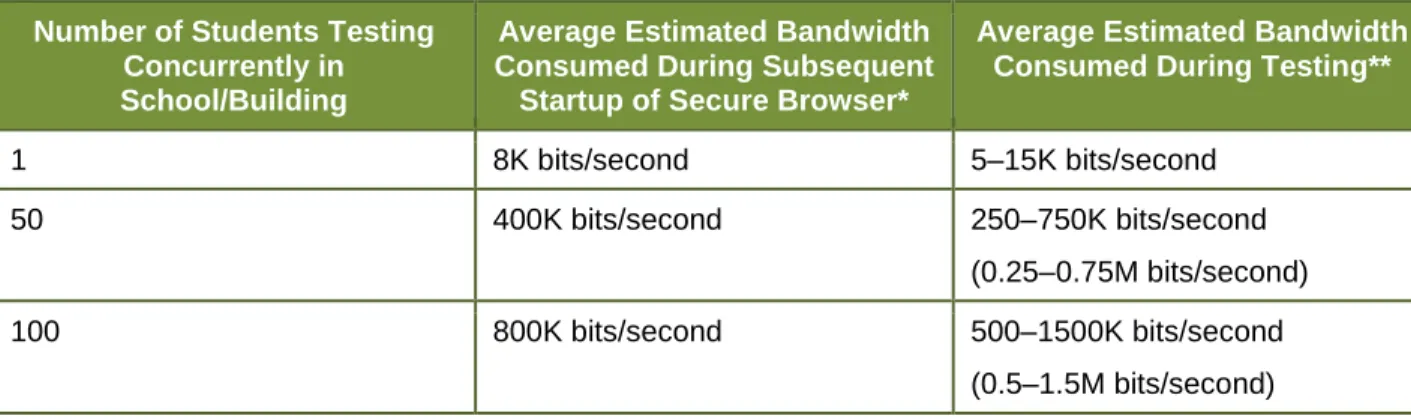
The following table displays the estimated average bandwidth used by the secure browser for testing. (Note that there is a one-time exception to these averages; during initial secure browser startup, the load can be greater, leading to a longer load time.) All numbers provided are based on rigorous testing using Wireshark.
Table 6. Average Bandwidth Used by Secure Browser for Testing Number of Students Testing
Concurrently in School/Building
Average Estimated Bandwidth Consumed During Subsequent Startup of Secure Browser*
Average Estimated Bandwidth Consumed During Testing**
1 8K bits/second 5–15K bits/second
50 400K bits/second 250–750K bits/second
(0.25–0.75M bits/second)
100 800K bits/second 500–1500K bits/second
(0.5–1.5M bits/second) * Bandwidth consumed when opening the secure browser and accessing an assessment for the first
time is significantly higher than when opening the secure browser and accessing an assessment subsequently. The reason for this is that the initial launch of the secure browser downloads non-secure cacheable content (not test content) that can be immediately accessed upon opening the secure browser at a later time.
** Bandwidth will vary during a student’s testing experience, as some pages contain low-bandwidth content, such as selected-response items (formerly referred to as multiple-choice items), and other pages contain higher-bandwidth content, such as animations, audio clips, or American Sign Language videos. Consequently, the estimated average values in this column are based on computing averages from multiple assessments and subjects.
Determining Bandwidth Requirements
Schools need to factor the bandwidth requirements of each assessment along with all other non-testing-related Internet traffic in order to determine how many concurrent test sessions their Internet connections can support.
Some assessments include animations and interactive item types. These may increase the bandwidth required, but the bandwidth should not exceed the peak usage
experienced when the test initially loads. We encourage you to run the diagnostics on your network to determine how many students you can reasonably test at one time.
For information about running diagnostics on your network, refer to the Network Diagnostic Tools section.
For wired networks, internal bandwidth is typically not a problem, because new
switches generally operate at speeds of between 100M bits per second and 1000M bits per second. However, LAN performance can be hindered in cases where hubs are used instead of switches. A hub device will allow broadcast signals from various network devices to propagate across the network, potentially saturating the network and causing traffic competition and/or collisions of data.
For Internet networks, the most common bottleneck is the ISP’s router connection, which typically operates at speeds of between 1.5M bits per second and 100M bits per second. Network administrators should spend time prior to test administration
determining whether their Internet infrastructure has the capacity to accommodate current and future growth.
Analyzing Infrastructure
Determining whether infrastructure is capable of current and future growth involves a number of steps, including but not limited to: (1) the analysis of the current number of users; (2) current day‐ to‐day Internet bandwidth statistics; and (3) the desired response time for applications.
Total Number of Students Simultaneously Testing
As the number of students testing at one time increases, competition for network bandwidth increases. Network bandwidth resembles highway traffic; as the number of cars traveling on a given road increases, the speed of traffic flow decreases.
Size of the Test Content
The size of the test is determined by two factors: (1) the number of items on the test and (2) the average size of each item. The more items a test contains and the larger the average size of a test item, the higher the bandwidth requirement for a given test. For example, ELA tests typically deliver all items associated with a passage at one time, and this may slightly impact the bandwidth for these tests.
Secure Browser Installation
The recommended installation of the secure browser is local installation on each individual testing workstation. It is possible to install the secure browser on a network or shared drive and then have the testing workstations run the secure browser from that drive, but there may be some performance impacts under this configuration. There will be competition for network bandwidth, and the network or shared disk drive will also be subject to some resource
competition as there will be multiple clients reading from the network drive, thus slowing the overall processing speed.
Network Configuration
Protocols
All communication with the Test Delivery System takes place over the following Internet
port/protocol combinations. Please ensure that the following ports are open for these systems. Table 7. Ports for Test Delivery System
Port/Protocol Purpose
80/tcp HTTP (initial connection only)
443/tcp HTTPS (secure connection)
Domain Name Resolution
All system URLs must be resolvable by all client hosts attempting to connect to the Test Delivery System. This means that the client workstations should be able to convert the friendly names (URLs) to their corresponding IP address by requesting the information from the DNS server. For a list of URLs, refer to Appendix A. Systems and URLs Provided by AIR.
Content Filter, Firewalls, and Proxy Servers
Content filters, firewalls, and proxy servers should be configured to allow traffic on the protocols listed above to the applications’ servers.
In addition, session timeouts on proxy servers and other devices should be set to values greater than the average duration it takes a student to participate in a test session or complete a given test. For example, if your school determines that students will test in 60-minute sessions, then consider setting the session timeout to 65 or 70 minutes (or 90 minutes for performance task tests).
System administrators will need to make sure that information is not blocked in their content filters and that data are not cached. The URLs listed in Appendix A should be open for these systems.
Quality of Service (QoS)/Traffic Shaping
If the client network utilizes any device(s) that performs traffic shaping, packet prioritization, or Quality of Service, the URLs should be given a high level of priority in order to guarantee the highest level of performance.
Certificate Revocation List
Schools should open their firewalls to allow the secure browser to check the certificate authenticity at Symantec Certificate Revocation List (CRL) at http://crl.verisign.com/.
Symantec Recommendations
Note: The following information was provided by Symantec.
It is strongly recommended that any firewall policies and/or access control devices use URLs and not IP addresses. Symantec can change these IP addresses at any time without notification. If possible, white list the following entries on your firewall policies and/or access control
devices to ensure seamless access to our Online Certificate Status Protocol (OCSP) services: *.thawte.com
*.geotrust.com *.ws.symantec.com
Note: If white listing wildcard entries is not permitted, you can white list the following specific fully qualified domain names (FQDNs):
oscp.ws.symantec.com oscp.geotrust.com oscp.thawte.com
If your firewall is configured to allow only a certain set of IP addresses to be accessed from your network, you will need to take the following actions:
Get the full list of IP addresses for the new sites. Complete a short form and then you will gain access to the site list.
Install or add the IP addresses to your existing list. Do not replace the old IP addresses and your existing rules for Symantec OCSP IP addresses should not be deleted.
Wireless Networking
Over the past several years, there have been several revisions to wireless networking technology.
802.11ac has a theoretical throughput of up to 1G bits per second. 802.11n has a throughput of up to 300M bits per second.
802.11g has a theoretical throughput of up to 54M bits per second. 802.11b has a theoretical throughput of 11M bits per second.
Wireless Security
Due to the sensitivity of test-related data, it is highly recommended that wireless traffic use WPA2/AES data encryption. Because encryption/decryption is part of the data exchange process, there may be a slight decrease in the overall speed of the network. A properly configured wireless network should provide adequate bandwidth for the testing applications.
Wireless Access Points
AIR recommends that schools maintain a ratio of wireless systems to wireless access points (WAPs) of no more than 20 to 1. Typically, the test performance begins to deteriorate after that threshold has been reached. In some instances, older WAPs may also see performance
degradation when more than 15 devices are concurrently connected.
Recommendations on the optimal number of student workstations per wireless connection:
The optimal (or maximum) number of student workstations (computers and tablets) supported by a single wireless connection will depend on the type of networking standard being used for the connection. The two most common networking standards are 802.11g (54Mbps) and the newer and faster standard, 802.11n (300Mbps). Both the access point, which emits the wireless signal, and the computer’s wireless card, which receives the signal, will use one of these two standards. The recommendations in Table 8 are based on the standard in use. Refer to your WAP documentation for specific recommendations and guidelines.
Table 8. Wireless Access Points
802.11g Access Point 802.11n Access Point
802.11g Wireless Cards 20 workstations or devices 40 workstations or devices 802.11n Wireless Cards 20 workstations or devices 40 workstations or devices Mix of 802.11g and
802.11n Wireless Cards
20 workstations or devices 40–50 workstations or devices (depending on the ratio of wireless cards used)
Network Diagnostic Tools
A performance analysis of the LAN/Internet infrastructure is recommended in order to identify any bottlenecks that may impact test performance. Identifying the diagnostic tool most
appropriate for a network depends on the testing operating system, the network
administrator’s knowledge base and the desired level of network analysis. A number of network diagnostic tools are available. These include the following:
AIR’s Network/Bandwidth Diagnostic Tool
AIR provides a diagnostic tool that can be directly accessed from the student training test login page.
1. On the training test login page, click the [Run Diagnostics] link. The Diagnostic Screen page will display.
2. In the Network Diagnostics section, select a test.
3. Select the approximate number of students who may take that test at one time. 4. Click the [Run Network Diagnostics Tests] button.
The results will display your current upload and download speed as well as a general idea of whether you can reliably test the given number of students (the number entered in step 3). You may want to run this test several times throughout the day to verify that your upload and download speeds remain relatively consistent.
Microsoft Windows Specific Tools
PRTG Traffic Grapher (www.paessler.com/prtg)
This Windows software monitors bandwidth usage and other network parameters via Simple Network Management Protocol (SNMP). It also contains a built‐in packet sniffer. A freeware version is available.
NTttcp (www.microsoft.com/whdc/device/network/TCP_tool.mspx)
NTttcp is a multithreaded, asynchronous application that sends and receives data between two or more endpoints and reports the network performance for the duration of the transfer.
Pathping
Pathping is a network utility included in the Windows operating system. It combines the
functionality of Ping with that of Traceroute (Windows filename: tracert) by providing details of the path between two hosts and Ping‐like statistics for each node in the path based on samples taken over a time period.
Mac OS X Specific Tools Network Utility.app
Multi
‐
Platform ToolsWireshark (www.wireshark.org)
Wireshark is a network protocol analyzer. It has a large feature set and runs on most computing platforms including Windows, OS X, Linux, and UNIX.
TCPDump (http://sourceforge.net/projects/tcpdump)
TCPdump is a common packet sniffer that runs under the command line and is compatible with most major operating systems (UNIX, Linux, Mac OS X). It allows the user to intercept and display data packets being transmitted or received over a network.
A Windows port WinDump is also available (www.winpcap.org/windump/).
Ping, NSLookup, Netstat, Traceroute (in Windows: tracert)
This is a set of standard UNIX network utilities. Versions of these utilities are included in all major operating systems (UNIX, Linux, Windows, and Mac OS X).
Iperf (http://sourceforge.net/projects/iperf/)
Iperf measures maximum TCP bandwidth, allowing the tuning of various parameters and User Datagram Protocol (UDP) characteristics. Iperf reports bandwidth, delay jitter, and datagram loss.
Section III. General Hardware Requirements
The information in this section is general. Because of the myriad ways school computers can be set up, we encourage you to verify that all related hardware is configured correctly.
About Braille Requirements
This manual does not contain information about required hardware for students taking online assessments with Braille support. For information about Braille hardware and software requirements, refer to the Braille Requirements and Testing Manual, which is available on the SAGE Portal.
Monitors and Screen Display Requirements
All supported computers, laptops, netbooks, and tablets must meet the following requirements.
Screen Dimensions
Screen dimensions must be 10” or larger (iPads with a 9.5” display are included). This means the following devices are not supported:
Apple iPad Mini
Google Nexus 7 and similar-sized Android tablets Netbooks with screen dimensions smaller than 10”
Screen Resolution
All devices must meet the following minimum resolution. Larger resolutions can be applied as appropriate for the monitor or screen being used.
Desktops, laptops, and tablets: 1024 x 768 Netbooks: 1024 x 600
Depending on the screen size, students may need to use vertical and/or horizontal scroll bars to view all test-related information. Students may also use the Zoom tool in the online test to enlarge the content on the screen.
Alert: Common Issues with Brightness and Contrast
Some test items include images that are shaded. Because monitors and screens vary widely, we cannot guarantee that the “default” settings on monitors are optimal. Monitor settings may need to be adjusted if a student says test items with shaded images (e.g., pie charts) are very light or cannot be seen.
Policy: No Testing on Computers with Dual Monitors
Students should not take online tests on computers that are connected to more than one monitor. Systems that use a dual monitor setup typically display an application on one monitor while another application is accessible on the other monitor. This creates a security risk.
Keyboards
The use of external keyboards is strongly recommended for tablets that will be used for testing. Students may use mechanical, manual, and Bluetooth-based keyboards. Some external
keyboards have additional “shortcut” buttons that can create security issues. These buttons may allow students to open another application or the tablet's default on-screen keyboard. AIR strongly cautions against using keyboards that have these shortcut buttons.
For Android tablet users:
The Android mobile secure browser requires the secure browser keyboard to be used because the default tablet keyboard includes a row for predictive text. Therefore, any external keyboard that has a shortcut button to open the tablet’s default keyboard is not permitted, as this default keyboard will override the mobile secure browser keyboard.
AIR has determined that the following external keyboard contains a shortcut button that opens the default keyboard and should NOT be used with Android tablets:
EZOWare Slim Full Size Keyboard
Headphones
All students will need headphones or ear buds to listen to audio in the assessments. Some assessments contain several items that have recorded audio.
Students who are using text-to-speech can listen to stimuli or test items being read aloud.
Students who use Braille can use the Job Access with Speech (JAWS®) screen reading software.
School Assessment Coordinators should determine how many students will need headphones prior to testing to ensure that there is an adequate supply on hand.
Note: USB headphones are recommended, as they are typically plug-and-play devices.
Text-to-speech requires the use of the secure browser. Students who require text-to-speech for the training tests should use the secure browser.
Printers
Test Administrators can print out test session information and can approve student requests to print stimuli or test items (for students with the print-on-request accommodation). In order to preserve test security, Test Administrators must follow the test security protocols for printed test materials.
We strongly suggest that Test Administrators be connected to a single local or network printer in the testing room. Only the Test Administrator’s computer should have access to this printer.
Special Note Regarding Wireless Printing
Apple iOS devices have native printing support (AIR Print), which connects to printers on a wireless network). Devices that have an Android or Chrome operating system or Chrome browser allow people to use the Google Cloud Print option.
If users need to print, it is recommended that they use a computer or device with a direct connection to a printer.
AboutBraille Devices
For information about Braille devices and related software, refer to the Braille Requirements and Testing Manual, which is available on the SAGE Portal.
Section IV. General Software Requirements
In addition to installing the secure browser, you may need to adjust operating system settings or install additional software on students’ machines that are used for testing.
These requirements can be completed before or after installing the secure browser on machines that will be used for testing. However, required configuration changes must be completed prior to launching the secure browser to take a practice or operational assessment.
About Braille Requirements
This manual does not contain information about required software for students taking online assessments with Braille support. For information about Braille hardware and software requirements, refer to the Braille Requirementsand Testing Manual, which is available on the SAGE Portal.
Requirements for All Systems
Enabling Pop-Up Windows
All systems provided by AIR except for the secure browser require pop-up windows to be enabled. These systems use pop-up windows to provide warning or error messages to users. Navigate to the appropriate menu option to globally disable pop-up blockers.
To globally enable pop-up windows:
Firefox: Tools > Options > Content > uncheck “Block pop-up windows”
Google Chrome: Menu > Settings > Show advanced settings (at the bottom of the screen) > Privacy > Content Settings > Pop-ups > click “Allow all sites to show pop-ups”
o For the Chrome browser on Android tablets:
Menu > Settings > Advanced > Content Settings > Block pop-ups > uncheck box
Internet Explorer: Tools > Pop-up Blocker > Turn Off Pop-up Blocker
Safari: Application Menu (Safari) > Block Pop-Up Windows (make sure this is unchecked) iOS Safari: Settings > Safari > Block Pop-ups (make sure toggle is set to “off” mode)
If you want only allow certain sites to have pop-up windows, you can add exceptions and whitelist AIR’s systems. For URLs and information about whitelisting, refer to Appendix A. Systems and URLs Provided by AIR.
To add exceptions to the pop-up blocker:
Firefox: Tools > Options > Content > click [Exceptions]. Enter the URL or whitelist protocol for each system.
Google Chrome: Menu > Settings > Show advanced settings (at the bottom of the screen) > Privacy > Content Settings > Pop-ups > click [Manage Exceptions]. Enter the URL or whitelist protocol for each system and select “Allow.”
o Note: This option is not available for the Chrome browser on Android tablets.
Internet Explorer: Tools > Pop-up Blocker > Pop-up Blocker Settings. Enter the URL or whitelist protocol for each system and click [Add]. Configure other settings as desired. Safari and iOS Safari: N/A
Requirement for Flash
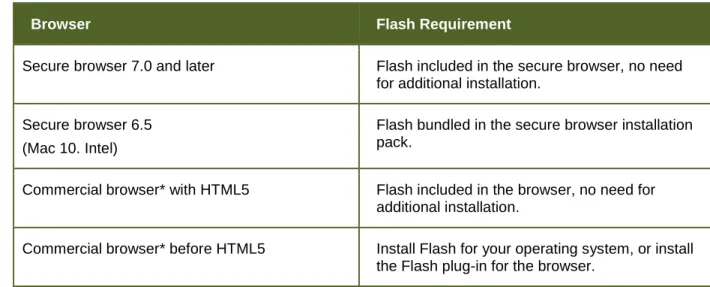
Some test items require Flash. Table 9 lists the requirements for installing Flash on the testing computers.
Table 9. Flash Requirements
Browser Flash Requirement
Secure browser 7.0 and later Flash included in the secure browser, no need for additional installation.
Secure browser 6.5 (Mac 10. Intel)
Flash bundled in the secure browser installation pack.
Commercial browser* with HTML5 Flash included in the browser, no need for additional installation.
Commercial browser* before HTML5 Install Flash for your operating system, or install the Flash plug-in for the browser.
*Commercial browsers—the versions of Internet Explorer, Chrome, Safari, and mobile browsers listed in the System Requirements.
Windows Requirements
This section contains information specific to Windows users:
Disabling Fast User Switching
Microsoft Windows (XP, Vista, 7, 8.0, and 8.1) allows computers to be configured to allow multiple users to log in to a computer without requiring one user to log out before another logs in. This feature is called “Fast User Switching” and presents a test security risk if it is enabled. If a student can access multiple user accounts from a single computer, you are required to disable the Fast User Switching function. Instructions for disabling Fast User Switching in Windows XP, 7, and 8 follow.
Disabling Fast User Switching in Windows XP
Click [Start], click [Control Panel], then click [User Accounts].
Click [Change the Way Users Log On or Off]. 1. Ensure the Use the Welcome Screen
option is checked.
2. Ensure the Use Fast User Switching
option is not checked. Click [Apply Options].
*Please note that Fast User Switching is not an option if joined to a domain.
Disabling Fast User Switching in Windows 7
The instructions for disabling Fast User Switching in Vista are very similar.
Option A: Access the Group Policy Editor
a. Click [Start], type gpedit.msc in the Start Search dialog box, and press [Enter]. b. Navigate to the following location:
Local Computer Policy > Computer
Configuration > Administrative Templates > System > Logon
c. Click [Hide entry pointsfor Fast User Switching], select Enabled, and click [OK]. d. Close the Fast User Switching window. e. Close the Local Group Policy Editor window. Note: Because the Group Policy Editor does not exist in certain editions of Windows Vista, you may need to configure these settings via the registry if the above method is unavailable. See below for registry instructions.
Option B: Access the Registry
1. Click [Start], type regedit.exe in the Start Search dialog box, and press [Enter]. 2. Navigate to the following location:
HKEY_LOCAL_MACHINE > SOFTWARE > Microsoft > Windows > CurrentVersion > Policies > System
3. Right-click the System folder. 4. Click [New, DWORD (32-bit)] value. 5. Type in HideFastUserSwitching and press
[Enter].
6. Click the HideFastUserSwitching value. 7. Type 1 into the Value data box and click
[OK].
Disabling Fast User Switching in Windows 8.0 and 8.1
1. Navigate to the Search option. (From the home screen, mouse to the lower right corner and then click the Search icon.) 2. In the search box, type gpedit.msc.
Double-click the gpedit icon in the Apps pane. The Local Group Policy Editor window will open. 3. Navigate to the following location:
Computer Configuration > Administrative Templates > System > Logon
4. In the Setting pane, double-click “Hide entry points for Fast User Switching.”
5. Select “Enabled” and then click [OK].
6. Navigate to the Search option (from the home screen, mouse to the lower right corner and then click the Search icon. 7. In the search box, type run. The Run
dialogue box will open.
8. Enter the command gpupdate /force into the text box and then click [OK]. (Note the space before the backslash).
9. The Windows system command box will open. When you see the message “Computer Policy update has completed successfully,” then Fast User Switching has been successfully disabled.
Enabling Web Fonts in Internet Explorer 10 and 11
If students use Internet Explorer 10 or 11 to access the training tests, web fonts may need to be enabled in order for some item types to display properly.
Enabling Web Fonts in Internet Explorer:
1. Open the [Tools] menu in Internet Explorer and click [Internet Options]. The Internet Options window will open.
2. Click the [Security] tab.
3. Click the [Custom Level] button. The Security Settings window will open.
4. Scroll to “Font Download” in the Settings list and click the [Enable] radio button. 5. Click [OK]. The Security Settings Window
will close.
6. Click [OK]. The Internet Options window will close.
Installing Windows Media Pack for Windows 8.1 N and KN
Some versions of Windows 8.1 are not shipped with media software installed. As a result, you may need to install software in order for students to listen to and record audio as well as watch videos.
Microsoft provides additional information as well as a download package for computers with the following Windows 8.1 versions:
Windows 8.1 N
Windows 8.1 N/K with Bing Windows 8.1 Enterprise N Windows 8.1 Pro N
Windows 8.1 Pro N/K for EDU
AIR encourages downloading this software and ensuring it works with sample websites and video and audio files prior to installing the Windows secure browser. Installation instructions are provided on Microsoft’s download page.
Microsoft Resources:
About the Media Feature Pack for Windows 8.1 N and Windows 8.1 KN Editions: April 2014 (http://support.microsoft.com/kb/2929699/en-us)
Download Media Feature Pack for N and KN Versions of Windows 8.1
Mac OS X Requirements
This section contains information specific to Mac OS X users. These settings can be configured before or after installing the Mac Secure Browser.
Mission Control and Spaces
For security purposes, Spaces must be disabled on computers that students will use for online testing. If Spaces is not disabled, students will be unable to test. Mission control and spaces must be disabled on computers running Mac OS 10.7, 10.8, 10.9, and 10.10. (You can disable Spaces quickly from the command line; see Disabling Spaces and Application Launches from the Command Line for details.)
Note: The instructions in this section are for disabling Spaces on individual Mac computers.
To disable Spaces in Mission Control:
1. Navigate to Apple System Preferences
2. In System Preferences, click the
[Keyboard] icon. The Keyboard window will be displayed.
3. Click the [Keyboard Shortcuts] tab. The Keyboard Shortcuts options will be displayed.
Note: The tab may say “Shortcuts.” 4. In the left panel, click “Mission Control.”
The right panel will show all Mission Control options.
5. In the right panel, make sure the boxes for the following are NOT checked:
a. Move left a space b. Move right a space
c. Switch to Desktop 1 (this may already be unchecked)
To re-enable Spaces, follow steps 1–4 again, and check the boxes for spaces.
Function Keys and Application Launches
When students use the secure browser for testing, the Test Delivery System conducts regular checks to ensure that other applications are not open. These checks help maintain the integrity of the secure test environment.
Some Mac computers are configured to launch iTunes and other applications by pressing the function keys (e.g., F8) on the keyboard. This section contains information on how to prevent the function keys from directly launching applications, including iTunes. This action will help prevent students from accidentally pressing a function key instead of a key in the number row. Note: These instructions are based on Mac 10.9 and should be similar for other supported Macs. (You can disable application launches quickly from the command line; see Disabling Spaces and Application Launches from the Command Line for details.)
Modifying Function Keys:
1. Open System Preferences.
2. In the Hardware row, click [Keyboard]. This will open the Keyboard preferences window.
3. In the Keyboard preferences window, you will see an option to “Use all F1, F2, etc. keys as standard function keys.” Make sure this option is checked.
You should no longer be able to launch applications with just the function keys. If you need to launch iTunes or another application, press the [Fn] key and then press the desired function key. This combination will launch the application.
Important: If a student is testing with the
secure browser and presses the [Fn] key and a function key, this action will open the linked application and result in the test being paused.
Disabling Spaces and Application Launches from the Command Line
The sections Mission Control and Spaces and Function Keys and Application Launches describe how to configure OS X through the desktop. This section describes how to perform those configurations from the command line, which can be faster than working through the desktop. To perform this task, you need to be familiar with logging in to OS X machines through Terminal or other terminal emulator.
To disable spaces and application launches from the command line: 1. Log in to the machine (as the user that runs the secure browser). 2. Enter the following commands:
defaults write com.apple.symbolichotkeys AppleSymbolicHotKeys -dict-add 79 "{enabled = 0; value = {parameters = (65535,123, 262144); type = standard; }; }" defaults write com.apple.symbolichotkeys AppleSymbolicHotKeys -dict-add 80
"{enabled = 0; value = { parameters = (65535, 123, 393216); type = 'standard'; }; }"
defaults write com.apple.symbolichotkeys AppleSymbolicHotKeys -dict-add 81
"{enabled = 0; value = { parameters = (65535, 124, 262144); type = 'standard'; }; }"
defaults write com.apple.symbolichotkeys AppleSymbolicHotKeys -dict-add 82
"{enabled = 0; value = { parameters = (65535, 124, 393216); type = 'standard'; }; }"
These commands modify the file
~/Library/Preferences/com.apple.symbolichotkeys.plist.
3. If you logged in to a computer running OS X 10.8.5 or later, log out of OS X desktop and then log back in.
If you need to restore Spaces and the default application launchers, repeat steps 1–3. In step 2, change enabled = 0 to enabled = 1.
Disabling Spaces and Application Launches on Remote Machines
The sections Mission Control and Spaces, Function Keys and Application Launches, and
Disabling Spaces and Application Launches from the Command Line describe procedures for configuring a secure test environment in OS X. This configuration is stored in the file ~/Library/ Preferences/com.apple.symbolichotkeys.plist. If you have many OS X testing machines, it may be easier to push this file to those machines instead of configuring each one individually. You can push the configuration file to remote machines using a variety of tools, such as the following:
File Distributor
Apple’s Open Directory and Profile Manager Centrify & PowerBrokers Identity Enterprise Apple Remote Desktop
Linux Requirements
This section contains information specific to Linux users. (Information about installing and enabling text-to-speech settings appears in Linux Text-to-Speech Settings.)
Some assessments have content that uses the Verdana TrueType font. You must ensure that Verdana is appropriately installed on all Linux machines that will be used for testing.
Microsoft TrueType fonts such as Verdana are freely available for download and installation on computers running Linux. However, the End User License Agreement for these fonts restricts their direct inclusion in Linux distributions. Therefore, Verdana must be installed as an add-on.
Fedora, openSUSE, and Red Hat Enterprise
Follow the steps in the “How to Install” section of the following website:
http://corefonts.sourceforge.net/. You will need to build an rpm package of the fonts prior to installing them.
Ubuntu
In a terminal window, enter the following command to install the msttcorefonts package:
Mobile Requirements
This section provides a brief overview of the requirements for student testing on tablets, Chromebooks and Chromebases
The AIRSecureTest mobile secure browsers for iOS and Android tablets, Chromebooks and Chromebases are designed to support a secure testing environment. In addition to installing the secure browser, some device settings may need to be adjusted.
Enabling Guided Access on iOS
To ensure a secure test environment, Guided Access must be enabled and activated before students can log in to a test session. Guided Access is an iOS feature that restricts activity to a single application and prevents taking screenshots or changing to another application. Students will not be able to log in if Guided Access is not enabled and activated. (As an alternative to Guided access, you may want to use Single App mode, which is easier to enable and activate than Guided Access; for more details about this configuration, see Configuring Using
Autonomous Single App Mode.) Guided Access
Guided Access is enabled on individual iPads and requires a security passcode. Guided Access must be activated before students can log in to the secure browser. It is not possible to
remotely activate Guided Access via Apple Configurator or another mobile device management (MDM) software program.
For more information about Guided Access, refer to the following document developed by Apple:
Assessment with iPad
(http://images.apple.com/education/docs/assessment_with_ipad_mar2013_v2.pdf)
Enabling Guided Access
1. Tap the [Settings] icon to open the Settings application.
2. Navigate to General > Accessibility > Learning and tap [Guided Access].
3. Tap [Off]; it will change to [On] (enabled). 4. Set the passcode for Guided Access. This
passcode is required to deactivate Guided Access after students are finished testing. (If you do not set the passcode now, you will be prompted to set it later.) To set the passcode:
a) Tap [Set Passcode]. b) Enter a passcode. c) Confirm the passcode.
5. Save this number in a safe place. There is no ability to retrieve a forgotten passcode.)
Configuring Using Autonomous Single App Mode
If you have iOS tablets running version 7.1 or higher, and if you have a Mac running version 10.10 or higher, then you can use Autonomous Single App Mode (ASAM) to quickly create a secure testing environment on all iPads used for testing. (Tablets running a version earlier than 7.1 require Guided Access; for details about this configuration, see Enabling Guided Access on iOS.) Compared to Guided Access, ASAM requires less time to prepare for test sessions; there is no need to activate Guided Access on each iPad before each test session.
Overview of Autonomous Single App Mode and the Secure Testing Environment
To manage multiple iPads using ASAM, you need the do the following:
Step 1: Creating a Mobile Device Management Profile Step 1a: (Optional): Restricting Features in iOS 8.1.3 Step 2: Creating a Supervisory Profile
Step 3: Placing iPads in Autonomous Single App Mode
After completing these three steps, each time a student starts a test, the iPad enters ASAM and the test environment is secure.
Step 1: Creating a Mobile Device Management Profile
The first step in provisioning iPads with ASAM is to create an MDM profile. No special settings are required in the profile—all default settings are compatible. However, you may wish to restrict certain features in iOS 8.1.3 devices (see Step 1a (Optional): Restricting Features in iOS 8.1.3). Deploy the profile to a host that the iPads can access.
Creating an MDM profile is beyond the scope of this specification manual. The following references provide introductory information:
IT in the Classroom, available at https://www.apple.com/education/it/mdm/.
Apple Configurator Help, available at https://help.apple.com/configurator/mac/1.0/#. Pro tip: Use OS X Server Profile Manager for MDM, available at
http://www.techrepublic.com/article/pro-tip-use-os-x-server-profile-manager-for-mdm/.
Step 1a (Optional): Restricting Features in iOS 8.1.3
You can restrict features in supervised iOS 8.1.3 devices that may give students an unfair testing advantage, including the dictionary, predictive keyboard, spell check, and auto-correction. If you wish to restrict any of these features, you may do so when creating the MDM profile for these devices.
Note: The current version of Apple Configurator does not allow you to restrict these features. If you wish to restrict these features when configuring the MDM profile, you must use a third-party MDM solution.
To restrict features in iOS 8.1.3 devices or later:
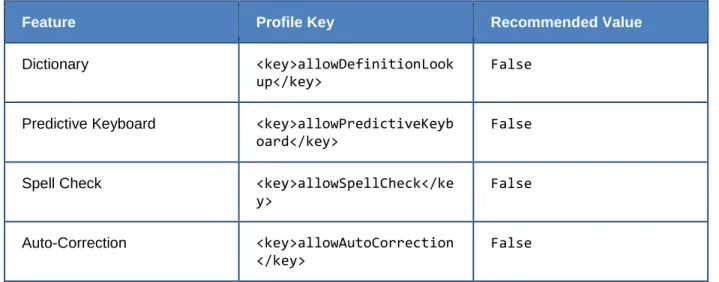
In the Custom Settings section of the MDM solution, insert the profile key for each feature you wish to restrict. Table 10 provides a list of the relevant profile keys.
Table 10. Profile Keys for Features in iOS 8.1.3 or later
Feature Profile Key Recommended Value
Dictionary <key>allowDefinitionLook up</key>
False
Predictive Keyboard <key>allowPredictiveKeyb oard</key>
False
Spell Check <key>allowSpellCheck</ke y>
False
Auto-Correction <key>allowAutoCorrection </key>
False
The following snippet turns off the iPad’s auto-correction feature. The snippets for dictionary, predictive keyboard, and spell check are similar.
<dict> <key>allowAutoCorrection</key> <false /> <key>PayloadDisplayName</key> <string>Restrictions</string> <key>PayloadDescription</key> <string>RestrictionSettings</string> <key>PayloadIdentifier</key> <string>31eb53ac-3a08-46f7-8a0a-82e872382e15.Restrictions</string> <key>PayloadOrganization</key> <string></string> <key>PayloadType</key> <string>com.apple.applicationaccess</string> <key>PayloadUUID</key> <string>56199b2c-374d-4152-bc50-166d21fa9152</string> <key>PayloadVersion</key> <integer>1</integer> </dict>
Step 2: Creating a Supervisory Profile
To create a supervisory profile:
4. On a Mac 10.10, download and install Apple Configurator from the Mac App Store. When the installation completes, open Apple Configurator.
5. Click Prepare, then Settings. The Settings window appears.
6. Click + below the Profiles list and select Create New Profile…. A configuration window appears.
7. In the General section, in the Name field, enter a name for the profile. 8. In the Restrictions section, click Configure. A list of restrictions appears. 9. Make any required changes to the restrictions, or retain the defaults settings. 10. Click Save. You return to the Settings tab, and the profile appears in the Profiles list. 11. Click to export the profile to the Mac.
Step 3: Placing iPads in Autonomous Single App Mode
TIP: Installing on multiple iPads at once Before starting this procedure, connect the iPads to the Mac through a USB hub. That way you can perform the installation on many of them at one time.
To install the MDM profile, supervisory profile, and secure browser:
12. On the Mac where you performed Step 2: Creating a Supervisory Profile, open the Apple Configurator.
13. From the Apple Configurator menu, select Preferences. The Preferences window opens.
14. Under General, clear the Automatically refresh and Remove apps and profiles Configurator did not install checkboxes.
15. Close the Preferences window.
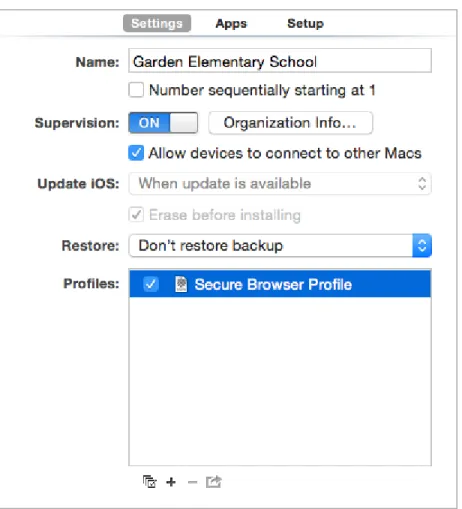
16. Back in Apple Configurator, click Prepare, then Settings. The Settings window appears (see
Figure 1).
17. In the Name field, enter a name to apply to the iPads.
18. Optional: Mark the Number sequentially starting at 1 checkbox. This adds a number to each iPad’s name. For example, if the Name field is Garden Elementary School, and if three iPads are connected, each device receives the name Garden Elementary School 1, Garden Elementary School 2, and Garden Elementary School 3.
20. Click Organization Info… The Organization Info window appears.
21. In the Organization field, enter Smarter Balanced and then click Done. The Organization Info window closes.
22. If the profile you created in Step 2: Creating a Supervisory Profile does not appear in the Profiles list, import it by doing the following:
a. Click + below the Profiles list and select Import Profile….
b. Navigate to the profile you saved in step 11 on page 39, and then click Open. 23. Mark the checkbox for the profile you want to prepare onto the iPads (see Figure 1). 24. Connect each iPad to the Mac via a USB cable or USB hub.
25. On each connected iPad, uninstall any existing versions of the secure browser. 26. In the Apple Configurator, under the Prepare tab, click Prepare at the bottom of the
27. Click Apply in the confirmation message. Preparation starts and may take several minutes, after which the iPad restarts. The Apple Configurator displays progress messages during the preparation.
Note: iOS Upgrade Apple Configurator may force the iPads to upgrade to the latest version of iOS.
28. After the iPad restarts, follow the prompts on the iPad to configure it until the home screen appears.
29. Optional: Confirm the supervisory profile is installed on the iPad. Go to Settings > General > Profiles. The profile name you used in step 7 on page 39 appears under Configuration Profiles.
30. On the iPad, download and install the MDM profile you created in Step 1: Creating a Mobile Device Management Profile.
31. After the MDM profile installation completes, install the secure browser onto the iPad. You can take a copy of the secure browser for iOS from http://azmeritportal.org. (Detailed instructions for installing the secure browser are in the section “Installing the Secure Browser on iOS” of the Secure Browser Installation Manual.)
32. Optional: After installation completes, test it by doing the following: a. Open the Secure Browser.
b. Log into a test site.
c. Select a test, have the TA approve the test. d. Start the test. The iPad enters ASAM.
33. Repeat steps 24–32 to prepare additional iPads.
34. In the Apple Configurator, click Stop and close the Apple Configurator.
Setting the iPad into ASAM is complete. When a student starts a test, the iPad enters ASAM mode.
Enabling the Secure Browser Keyboard on Android
The mobile secure browser for Android tablets requires the secure browser keyboard to be selected before students can access the login page. The reason for this is that the default Android keyboard allows predictive text, which would unduly aid students when entering written responses to test items. The secure browser keyboard is a basic keyboard, with no row for predictive text functionality.
The first time you open the Mobile Secure Browser on an Android tablet, you will be prompted to select the secure browser keyboard.
Instructions for enabling the secure browser keyboard follow. Aboutthe Secure Browser Keyboard and General Settings
Once the secure browser keyboard is set, it becomes the default keyboard for all Android tablet applications, not just the secure browser. If you want to return to the default Android keyboard after using the secure browser, you will need to navigate to Settings > Language & Input and uncheck the secure browser keyboard.
If you change back to the default Android keyboard, you will be prompted to select the secure browser keyboard the next time you open the secure browser. The secure browser will not allow you to access the student login page until the secure browser keyboard has been selected.
Enabling the Secure Browser Keyboard
Note: All screenshots in this section were taken with a Samsung Galaxy Tab 2; other Android versions may vary.
1. Select the secure browser icon on the home screen.
2. You will be prompted to change the keyboard. Select [Close].
3. Select [Set up input methods]. The Language and Input settings screen will automatically open.
4. Select the checkbox next to “AIRSecureTest” so that a checkmark appears.
You will be prompted to acknowledge that this selection is okay. Select [OK] to
continue.
Note: This action allows the mobile secure browser to use the secure browser keyboard. 5. Navigate to the secure browser to open it.
(You can use the application switcher or go back to “Home” and select the secure browser icon.)
You will be prompted to change the keyboard. Select [Close].
6. The Android tablet’s default keyboard will still be selected.
Select the checkmark or circle for the “AIRSecureTest” keyboard.
7. Select [Continue]. You will be prompted to complete the application launch using the preferred method.
8. Select AIRSecureTest (ensure it is shaded and highlighted blue) and then select [Always].
Note: You will need to acknowledge that the secure browser’s default settings have changed. (This is a result of selecting the secure browser keyboard.)
Enabling Kiosk Mode and Wiping Chrome OS
A secure browser application for Chromebooks is available from the Chrome Web Store. Using the AIRSecureTest kiosk application requires Chromebooks to run in kiosk mode. Instructions for installing the application and enabling kiosk mode are in the Secure Browser Installation Manual.
Non-managed Chromebooks must not already be configured with user accounts before you enable kiosk mode. If you have already added user accounts to Chromebooks, you will need to wipe the devices.
Google has provided instructions for wiping Chromebooks:
https://support.google.com/chrome/a/answer/1360642?hl=en.
After you wipe the Chromebooks, follow the instructions in the Secure Browser Installation Manual to enable kiosk mode and install the AIRSecureTest app.