The <e-Adventure> platform
User’s guide
Authors:
The <e-Adventure> team
<e-UCM> research group
www.e-ucm.es
Latest version:
1.3RC-2
Updated:
April 2011
http://e-adventure.e-ucm.es
License
<e-Adventure> is freeware: can be used, redistributed, integrated in your Project (event for commercial purposes) and/or modified under the terms of the GNU Lesser General Public License , published by the Free SoftwareFoundation, either version 3 or newer.
<e-Adventure> is distributed in the hope that it will be useful, but WITHOUT ANY
WARRANTY; without even the implied warranty of MERCHANTABILITY or FITNESS FOR A PARTICULAR PURPOSE. The full license terms are available at:
http://www.gnu.org/licenses/lgpl.html.
This document is registered in Safe Creative (http://www.safecreative.org) under the terms of license“Creative Commons
Attribution-NonCommercial-NoDerivs 3.0”. A full version of this license can be obtained at: http://creativecommons.org/licenses/by-nc-nd/3.0/legalcode
According to this license, this user’s guide can be shared (copied, distributed and transmitted) under the following conditions:
Attribution: You must attribute the work in the manner specified by ) the <e-UCM> group, form Universidad Complutense of Madrid (the author) (but not in any way that suggests that they endorse you or your use of the work.
Non-commercial: this user’s guide can’t be used for commercial purposes. No Derivative Works: You may not alter, transform, or build upon this work.
Acknowledgements
<e-Adventure> version 1.3-RC2 has been partially funded by the following institutions:
Spanish Ministry of Science, through the national research project TIN2010-21735-C02-02
Spanish Ministry of Industry, Tourism and Trade, through the Avanza 2008-2011 program (TSI-020110-2009-170, TSI-020312-2009-27).
European Commission, through the “Life Long Learning Programme-LLP” and the 7th Framework program (505469-2009-LLP-ES-KA3-KA3MP y FP7-ICT-2009-5-258169). Complutense University of Madrid, (research group nº 921340).
http://e-adventure.e-ucm.es
Index of contents
License __________________________________________________________________________ 3 Acknowledgements _______________________________________________________________ 3 Index of contents _____________________________________________________________ 4 Index of figures ______________________________________________________________ 7 1. <e-Adventure> basics ________________________________________________________ 9 1.1. About <e-Adventure> __________________________________________________________ 9 1.2. About this document ___________________________________________________________ 9 1.3. Starting out with the editor: basic project management and running games ____________ 10 1.3.1. Create a new project ________________________________________________________________ 11 1.3.2. Open an existing project, a game stored as an .ead file or a recently opened project ______________ 11 1.3.3. Exporting a project as an .ead file ______________________________________________________ 12 1.3.4. Importing an existing game as a new project _____________________________________________ 12 1.3.5. Running a .ead game in the engine or from the editor ______________________________________ 13 1.4. Interaction in <e-Adventure> games _____________________________________________ 142. My first <e-Adventure> game ________________________________________________ 15 2.1. Chapters ____________________________________________________________________ 16 2.1.1 Importing Chapters __________________________________________________________________ 16 2.2. Scenes and cut-scenes _________________________________________________________ 16 2.2.1. Adding a new scene_________________________________________________________________ 16 Background image (required) ____________________________________________________________ 19 Foreground mask (optional) _____________________________________________________________ 19 Background music (optional) ____________________________________________________________ 20 2.2.2. EXAMPLE: Defining the assets of a scene ______________________________________________ 20 2.2.3. Connecting scenes: adding an exit _____________________________________________________ 22 2.2.4. Scene initial position ________________________________________________________________ 25 2.3. Items _______________________________________________________________________ 26 2.3.1. Adding a new item _________________________________________________________________ 26 2.3.2. Interacting with items: actions ________________________________________________________ 29 Examine ____________________________________________________________________________ 29 Grab _______________________________________________________________________________ 29 Use ________________________________________________________________________________ 29 Use with ____________________________________________________________________________ 29 Custom _____________________________________________________________________________ 30 Give to _____________________________________________________________________________ 30 Drag to _____________________________________________________________________________ 30 2.3.3. Information _______________________________________________________________________ 31 2.3.4. EXAMPLE: Adding an item to a scene _________________________________________________ 32 2.4. Set-items ____________________________________________________________________ 34 2.4.1. Creating a new set-item ______________________________________________________________ 34 2.4.2. Information _______________________________________________________________________ 35 2.4.3. Adding a set-item to a scene __________________________________________________________ 35 2.5. Characters __________________________________________________________________ 35
2.5.1. Create a new character ______________________________________________________________ 36 2.5.2. Character dialog configuration ________________________________________________________ 37 2.5.3. Adding characters to the scene ________________________________________________________ 38 2.5.4. Conversations _____________________________________________________________________ 38 2.5.5. EXAMPLE: Editing a conversation ____________________________________________________ 42 2.5.6. The player ________________________________________________________________________ 44 2.6. Books ______________________________________________________________________ 44 2.6.1. EXAMPLE: Create and edit a simple content book ________________________________________ 44 2.6.2. EXAMPLE: Create and edit a formatted text book ________________________________________ 47 2.7. Cutscenes ___________________________________________________________________ 49 2.7.1. Slidescenes _______________________________________________________________________ 49 2.7.2. Videoscenes _______________________________________________________________________ 51 2.7.3. Connecting cutscenes with other scenes _________________________________________________ 52
3. Extending basic games: Advanced features _____________________________________ 54 3.1. Conditions and effects _________________________________________________________ 54 3.1.1. EXAMPLE: A simple condition _______________________________________________________ 54 3.1.2. Variables _________________________________________________________________________ 56 3.1.3. Global states ______________________________________________________________________ 57 3.1.4. Condition edition dialog _____________________________________________________________ 57 3.1.5. What can be done with conditions? ____________________________________________________ 59 3.1.6. Activating and deactivating flags: Effects _______________________________________________ 60 3.1.7. Setting the value of a variable _________________________________________________________ 61 3.1.8. Other effects ______________________________________________________________________ 62 3.1.9. EXAMPLE: Clarification about effects “consume object” and “generate object”. Grab objects and place them in different scenes. __________________________________________________________________ 63 3.1.10. Macros __________________________________________________________________________ 65 3.2. Organization of the element references in the scene ________________________________ 66 3.2.1. Layers ___________________________________________________________________________ 66 3.2.2. Conditions ________________________________________________________________________ 67 3.2.3. References list _____________________________________________________________________ 67 3.2.4. Elements preview __________________________________________________________________ 67 3.3. Export as a Learning Object (LO) ______________________________________________ 68 3.4. Export games as JAR (runnable Java programs) __________________________________ 70 3.5. Adaptation and evaluation profiles ______________________________________________ 71 3.5.1. Assessment profiles _________________________________________________________________ 71 Regular rules _________________________________________________________________________ 72 Timed rules __________________________________________________________________________ 73 Report ______________________________________________________________________________ 74 3.5.2. Adaptation profiles _________________________________________________________________ 75 3.5.3. Choosing the active profiles of the chapter _______________________________________________ 76 3.6. Active areas _________________________________________________________________ 77 3.7. Barriers ____________________________________________________________________ 78 3.8. Player movement _____________________________________________________________ 79 3.9. Timers _____________________________________________________________________ 81 3.10. Custom actions _____________________________________________________________ 83 3.11. Built-in art resources edition tools _____________________________________________ 85 3.11.1. Animations editor _________________________________________________________________ 85
http://e-adventure.e-ucm.es
3.11.2. HTML editor _____________________________________________________________________ 88 3.12. Polygonal exits and active areas _______________________________________________ 89 3.13. Other features: error dialog and zoom panels ____________________________________ 90 Error dialogs ___________________________________________________________________________ 90 Zoom in panels _________________________________________________________________________ 90 4. Menu options _____________________________________________________________ 92 4.1. File menu ___________________________________________________________________ 92 4.2. Edit menu ___________________________________________________________________ 92 4.3. Adventure menu _____________________________________________________________ 92 4.3.1. Check adventure consistency _________________________________________________________ 92 4.3.2. Edit adventure data _________________________________________________________________ 93 4.3.3. Visualization sub-menu: customize GUI elements _________________________________________ 94 4.3.3.1. Cursors _______________________________________________________________________ 94 4.3.3.2. Action buttons _________________________________________________________________ 95 4.3.3.3. Inventory _____________________________________________________________________ 96 4.3.4. Visualization sub-menu: select graphic configuration ______________________________________ 96 4.3.5. Change adventure mode (Convert to 1st/3rd person) _______________________________________ 97 4.3.6. Delete unused assets ________________________________________________________________ 97 4.4. Chapters menu ______________________________________________________________ 97 4.5. Run menu ___________________________________________________________________ 98 4.6. Configuration menu __________________________________________________________ 98 4.7. About menu _________________________________________________________________ 98
Index of figures
Figure 1. Starting dialog of the <e-Adventure> editor... 10
Figure 2. Choosing a project. a) shows the tab allowing for the selection of a project in the file system; and b) shows the selection of a recently opened project. ... 11
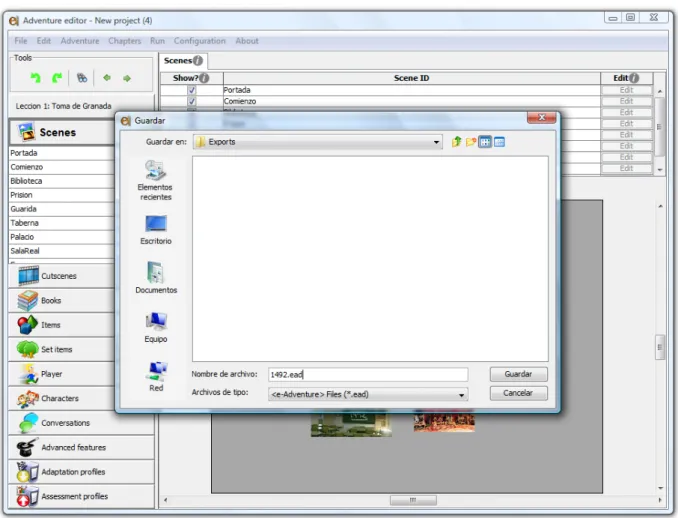
Figure 3. Exporting a game as an .ead file. By default, the Exports folder will be selected ... 12
Figure 4. The <e-Adventure> engine start dialog. ... 13
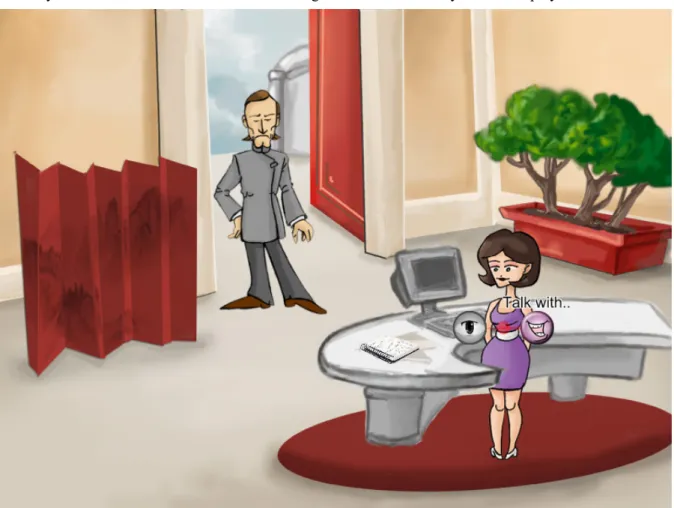
Figure 5. Example of a contextual interaction menu in an <e-Adventure> game... 14
Figure 6. Edition tools in <e-Adventure> ... 15
Figure 7. Initial view of the <e-Adventure> editor, once a new project is created or an existing one opened ... 15
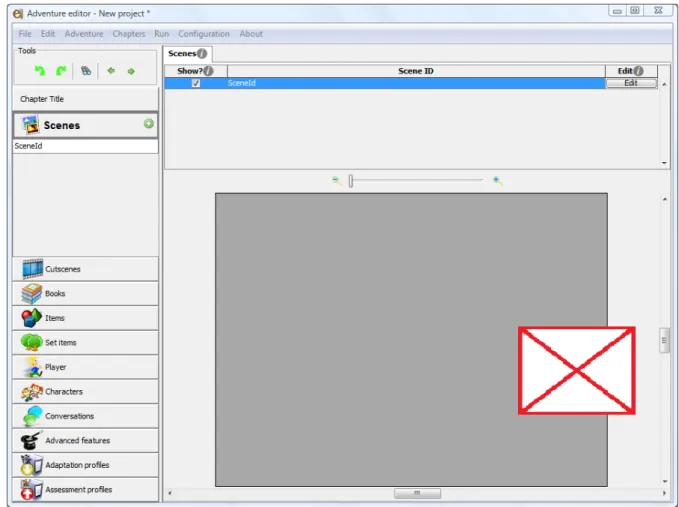
Figure 8. Scene edition shows a preview of all the scenes in the chapter. By default games include an empty scene 17 Figure 9. Scene edition panel, with the “Documentation” tab selected ... 18
Figure 10. Scene edition panel, with the “Appearance” tab selected ... 19
Figure 11. Background image (a) and mask (b). The back parts of the mask mark the parts of the background image that will be painted in the front of other elements and the white parts those that will be painted behind ... 20
Figure 12. Asset selection dialog for the scene background ... 20
Figure 13. Foreground mask selection dialog ... 21
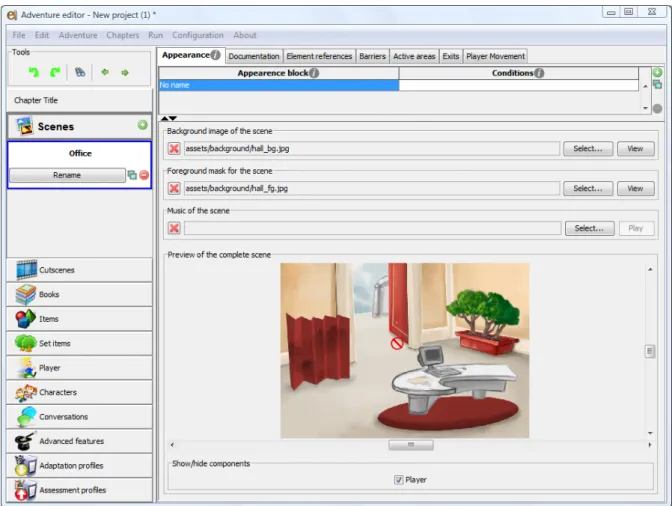
Figure 14. Scene edition panel in the “Appearance” tab, after assets were selected for both the background and the foreground mask ... 22
Figure 15. Scene edition panel, selecting the next scene when adding an exit ... 23
Figure 16. Scene edition panel while adding a new exit. The exit can be dragged and re-sized as needed ... 24
Figure 17. Scene edition panel when previewing the scenes in a chapter. This shows all scenes in the game and the relation between scenes created as a consequence of exits from one to another ... 25
Figure 18. Scene edition panel while on the “Player movement” tab ... 26
Figure 19. Item edition panel in the “Appearance” tab with no selected asset ... 27
Figure 20. Item edition panel in the “Appearance” tab, when the item has an image attached. ... 28
Figure 21. View/Edit image dialog ... 28
Figure 22. Item edition panel, “Actions” tab. This tab shows the list of actions and, after click the add button, the different kinds of actions that can be selected ... 30
Figure 23. Item edition panel, “Information” tab ... 31
Figure 24. Scene edition panel, “Element references” tab just after adding a new element reference ... 32
Figure 25. Scene edition panel at the “Element references” tab. After moving and scaling the “Book”, it now sits correctly over the table in the scene ... 33
Figure 26. “Set items” general view, with just one set-item in the chapter ... 34
Figure 27. Set-item edition panel in the “Appearance” tab after setting the image ... 35
Figure 28. Character edition panel in the “Appearance” tab allows for the edition of the characters animations ... 36
Figure 29. Character edition panel in the “Dialog configuration” tab. This shows the dialog to choose the color of the main font color ... 37
Figure 30. Dialog nodes. (a) represents the initial node in the conversation and (b) any other dialog node ... 38
Figure 31. Options node ... 39
Figure 32. End or finish node ... 39
Figure 33. Conversation edition panel with a node selected ... 39
Figure 34. Conversation line edition ... 40
Figure 35. Option panels for different nodes in the graph. (a) shows the options available for dialog nodes and end nodes, while (b) shows the options for option nodes ... 40
Figure 36. Edition of a dialog node ... 41
Figure 37. Edition of an option node ... 42
Figure 38. Creating loops in the conversation edition panel ... 43
Figure 39. A preview of a conversation ... 43
Figure 40. Simple content book edition panel in the “Book content” tab ... 44
Figure 41. The “Appearance” tab in the simple content book edition panel ... 45
Figure 42. Simple content book edition panel, after adding a title element ... 46
http://e-adventure.e-ucm.es
Figure 44. Simple content book edition panel, after resorting the elements in the book ... 47
Figure 45. A web page about raspberries ... 48
Figure 46. Preview of a formatted text book ... 49
Figure 47. Slidescene edition panel ... 50
Figure 48. Cutscene edition panel after adding a slide. The slide is the opening title for a game ... 51
Figure 49. Audio and video formats tested in <e-Adventure>... 52
Figure 50. Cutscene edition panel in the “Cutscene end configuration” tab ... 53
Figure 51. Adding a new flag ... 55
Figure 52. Adding a new condition using an existing flag ... 56
Figure 53. Adding a condition to an action based on the value of a variable ... 57
Figure 54. Condition edition dialog (showing the contextual menu of a condition) ... 58
Figure 55. Creating a complex expression with the condition edition dialog ... 59
Figure 56. An element with several appearances with different conditions ... 60
Figure 57. Editing the effects of an action, selecting the “Activate” effect ... 61
Figure 58. Effects to set the value of a variable or increase its value in 3 units ... 61
Figure 59. Table with all the effects available in <e-Adventure> ... 63
Figure 60. EXAMPLE: Pick up and place objects in different scenes. Adding to active areas to the scene "Restaurant." ... 64
Figure 61. EXAMPLE: Pick up and place objects in different scenes. Adding effects to “Book” object. ... 65
Figure 62. Edition of the layer of element references ... 66
Figure 63. Example of using layers to adjust depth in the scene ... 67
Figure 64. LTSC-LOM meta-data editor for Learning Objects ... 69
Figure 65. Assessment profile edition panel ... 72
Figure 66. Edition of a regular assessment rule ... 73
Figure 67. Edition of a timed assessment rule ... 74
Figure 68. A sample assessment report... 74
Figure 69. Adaptation profile edition panel after adding a new rule ... 75
Figure 70. Adaptation rule edition panel, “LMS State” tab. ... 76
Figure 71. Adaptation rule edition panel, “Game state” tab ... 76
Figure 72. Static initial state edition panel in an adaptation profile ... 76
Figure 73. Choosing the adaptation and assessment profiles in the chapter edition panel ... 77
Figure 74. “Active areas” tab in the scene edition panel ... 78
Figure 75. “Barrier” edition tab, in the scene edition panel ... 79
Figure 76. “Player movement” tab in the scene edition panel ... 80
Figure 77. Editing the influence area of an element reference in the “Element references” tab ... 81
Figure 78. Edition of advanced features, “Timers” tab ... 83
Figure 79. Example of normal and over images for a custom action button ... 84
Figure 80. Adding a new custom action ... 85
Figure 81. Animation editor ... 86
Figure 82. Properties of a frame in the animations editor ... 87
Figure 83. Properties of a transition in the animations editor ... 88
Figure 84. HTML editor ... 88
Figure 85. Creation of polygonal exits in a scene ... 89
Figure 86. Error dialog ... 90
Figure 87. Zoom controls ... 91
Figure 88. Check adventure consistency dialog... 93
Figure 89. Adventure data dialog ... 94
Figure 90. User interface customization dialog, “cursors” tab ... 95
Figure 91. User interface customization dialog, “buttons” tab ... 95
Figure 92. User interface customization dialog, “inventory” tab ... 96
Figure 93. Graphic configuration dialog ... 97
Figure 94. Running a game in debug mode ... 98
1. <e-Adventure> basics
1.1. About <e-Adventure>
<e-Adventure> is a platform for the development of classic adventure computer games with educational purposes (although other types of 2D games can also be produced). This platform was developed by the <e-UCM> research group (http://www.e-ucm.es) at the Complutense University in
Madrid. “Adventure games” (sometimes referred to as graphic or point-and-click adventures) include
games such as the MonkeyIslandTM or MystTM sagas, original titles of the genre. The platform is specially focused on this genre because it is considered one of the most suitable for educational purposes.
<e-Adventure> 1.3 RC2 is the latest version of the platform currently available. It can be downloaded at http://e-adventure.e-ucm.es. This web site also includes sample games and more information regarding the platform.
<e-Adventure> runs both in Windows (XP, Vista & 7) and Mac OS X (Leopard and Snow Leopard). Besides, a multi-platform version is available and should be suitable for Linux based systems. Windows users are strongly advised to use version 1.6.0_18 of the Sun Java runtime environment if problems arise (this is freely available online at http://www.java.com). Mac users are encouraged to have their systems up-to-date.
Every <e-Adventure> distribution includes both the game engine and the editor. The game editor is the application that allows for the creation of games, while the game engine is used to run previously created games.
When running the <e-Adventure> installer three new folders will be added to the system user folder
(e.g. “My documents” in Windows): Projects, Exports and Reports. The first folder is the default place
where new projects are created; the second one is the default place for executable game exports to be
stored; and Reports contains the evaluation reports generated when the games are played.
Please, before you start using <e-Adventure> make sure you update your Java JRE (Java Runtime Environment) if necessary (http://www.java.com). <e-Adventure> 1.2 was compiled for JRE 1.6 and it is not warranted to work on previous versions (JRE version 1.6.0_18 is recommend and can be downloaded at http://java.sun.com/products/archive/j2se/6u18/index.html).
If you find <e-Adventure> of your interest, and want to find out about our publications and other investigations of our research group, you can visit our web site: http://www.e-ucm.es.
1.2. About this document
This document aims to be a complete user guide, including descriptions of every feature available in <e-Adventure>. Although features of the engine and editor are described, this document focuses on the use of the editor for the creation of new educational video games. We tried to cover every available feature, but some of them might be left out. We apologize for any inconvenience.
This is not the only documentation available about <e-Adventure>. You could find shorter tutorials and other learning materials on our website (http://e-adventure.e-ucm.es). You can also access the contextual
http://e-adventure.e-ucm.es
help pages that are embedded in the <e-Adventure> editor application. Just click on any info button like this and context-sensitive information will be displayed.
This guide was prepared to be read from start to end, taking the reader though the different parts of the editor in an order that can be easily followed and that usually goes from the easiest to the hardest details. However, this guide can also be used as reference and for that a detailed table of contents is included which allows for a quick solution of doubts about the platform.
1.3. Starting out with the editor: basic project management and
running games
To start using the <e-Adventure> platform, you should start up the editor. This will show the starting dialog (Figure 1). From this dialog we can create new adventures or open existing ones.
1.3.1. Create a new project
<e-Adventure> games are managed as “Adventure projects” in the editor, which are nothing more than an empty .eap file and a folder that contains all the data of the game. These games can not be played in the engine, and for that they should be later exported as .ead files.
To create a new project we should click the “Create New” button. A dialog will appear asking for a
name and destination (by default the Project folder in the user folder) for the project folder. The folder
name should be made up of numbers, letters, white-spaces and [,], (,), _, - symbols. Other characters, such as /, \, |, @, & or $ are not allowed in the project folder name.
Two different game types can be selected, each represented by its own icon:
Third person games: These games, similar to the MonkeyIslandTM saga, have a visible player representation. The player is shown as an avatar in the game, which he/she can control. The movement of the player’s avatar requires time (the avatar must walk from one place to the other) and the text is shown directly above its head (just like in a comic book).
First person games: The player has no avatar in these games, thus exploring the game in the first
person and with instant consequences for the different actions. These games are more alike to the MystTM
saga. This sort of game is usually better suited for photo-realistic games, in which photographs are used as the setting of the game.
1.3.2. Open an existing project, a game stored as an .ead file or a recently
opened project
The start dialog also allows for the selection of an .eap file (or a project folder) to be opened (Figure 2, a), besides showing a list of recently opened project to select from (Figure 2, b). By default, the dialog will show the projects available in the Projects folder. This folder is destined to store all the projects that are created with the editor, but the user can chose to create or place projects in a different folder.
Once the file is selected, clicking the “open” button will start the editor with the selected game project. If the user tries to open an .ead file (a game already exported from the editor) the system will automatically import the game in the folder the user will be asked to choose.
Figure 2. Choosing a project. a) shows the tab allowing for the selection of a project in the file system; and b) shows the selection of a recently opened project.
http://e-adventure.e-ucm.es
1.3.3. Exporting a project as an .ead file
The editor works with game projects, however, a project is made up of several different files and can make it hard to distribute the game among students. This is the reason why the game engine uses .ead files, which are zip files with all the game resources. To export a game project as an .ead file the following steps must be followed:
1) Check that the adventure is valid. This can be done form the “Adventure” menu in the menu-bar,
choosing the “Check consistency” option. Should the adventure not be valid, the reported errors should
be fixed before the adventure can be exported.
2) Export the game as an .ead file. This option can be found in the menu-bar at File > Export project
> Export as EAD file. This will prompt us to choose a name and place for the game (Figure 3), which, after a few seconds, will be ready to be played in the engine. By default, games will be placed in the
Exports folder.
Figure 3. Exporting a game as an .ead file. By default, the Exports folder will be selected
1.3.4. Importing an existing game as a new project
Using the File > Open menu the starting dialog will be displayed, allowing us to open .eap or .ead files. When an .ead file is selected, we will be prompted to choose a folder where to extract its contents.
This menu can also be used to import games previously exported as Learning Objects (LO) or executable .jar files. To do this, the .zip or .jar extensions should be selected within the dialog.
1.3.5. Running a .ead game in the engine or from the editor
As stated earlier, adventure games can be exported as .ead files. These files are the ones supported by the game engine. To run the games in such files, the game engine can be launched and a dialog that allows for the selection of the game will appear (Figure 4). By default, the Exports folder will be selected, but this can be changed by click in the “Browse” button. This dialog will show all the .ead files in the selected folder, selecting one of them will show detailed information about the game and double-clicking will launch the game.
http://e-adventure.e-ucm.es
1.4. Interaction in <e-Adventure> games
Although this document is oriented to explaining the features of the <e-Adventure> game editor, it is important that potential users of the platform get an idea of what the games will look like when the engine runs them. In this regard, how interaction is carried out is an important issue.
When the game is launched the player will perceive the scene as it is. Therefore no further menus or head-ups will be displayed. Players can explore the scene with the mouse. When the mouse pointer is over any interactive element the cursor will change and a brief text may also be displayed.
Figure 5. Example of a contextual interaction menu in an <e-Adventure> game
Some elements (e.g. exits, see section 2.2.3) can be interacted by clicking the left button of the mouse. To interact with other elements the player must right-click (or equivalent behavior in Mac systems) on it, leave the mouse left button pressed for a couple of seconds, or make a double click (only in Windows systems). Then a contextual menu with different interaction options will appear. Press on any of the options of this menu to trigger the interaction.
There is a structure called “Inventory” where all the objects collected by the player during the game
will be stored. This inventory can be accessed by moving the mouse cursor towards the bottom or the top of the scene, although this behavior is configurable (see section 4.3.3.3).
2. My first <e-Adventure> game
Once a project is selected and the editor opened, the editor window will be visible (Figure 7). We will start by studying the options available in the editor. To the left we find a structure made up of collapsible panels used to organize all the elements in the game, as well as a handy set of edition tools (Figure 6). These tools are: undo, redo, search, back and forward.
Figure 6. Edition tools in <e-Adventure>
When an element is selected in the structure panel, the properties of that element will be editable in the right side panel. This way, the structure panel is used to access the different elements, modify them, delete them and create new ones. To perform some of these operations, a common set of buttons is used to: add new elements ( ), delete elements ( ) and duplicate elements ( ). These same icons are used in other contexts in the editor.
Figure 7. Initial view of the <e-Adventure> editor, once a new project is created or an existing one opened
http://e-adventure.e-ucm.es
2.1. Chapters
<e-Adventure> games can be divided into chapters. This allows for games to be fragmented into smaller parts that are easier to manage, design, edit and maintain. Each chapter can be viewed as a totally independent mini-game, or an act in a theatre play. Elements on a chapter are only available within the chapter and not from other chapters in the game.
The editor can only edit one chapter at a time. In the “Chapter” menu (found in the menu-bar) has options to create, import, delete and organize the chapters in the game, as well as to allow for the
modification of the current chapter’s name. This menu also has options to modify the flags and variables
available in the chapter, but this will be detailed later on this guide.
Once a chapter is selected, the title, the description and the first (or initial) scene of the chapter can be modified. Besides, the active evaluation and adaptation profiles can be selected, as shown in Figure 7, but these features will be left for the “Evaluation and adaptation” section of this document.
2.1.1 Importing Chapters
This feature aims to be a first approach to introduce collaborative edition support in <e-Adventure>. In this manner different authors can distribute the game in chapters, implement them separately, and then merge them into a single game.
Full chapters can be added from other existing <e-Adventure> games. We only need to go to Chapters menu and select Import chapter option.
We must navigate through the folders in the pop-up dialog until the desired <e-Adventure> game is found. Then, we select XML file defining the chapter to be imported. Usually, chapter file names are chapterN.xml.
2.2. Scenes and cut-scenes
<e-Adventure> chapters are organized into scenes and cut-scenes. On the one hand, scenes are the scenarios or places where the action of the game takes place, that is, where the player interacts with the
objects and characters in the game, and these are connected to other scenes by exits. On the other hand,
cut-scenes are used to increase the educational value of games and can be either Slidescenes or
Videoscenes. The first kind is made up of slides or images that are shown using the full screen. The other kind, the Videoscenes, display a video using the full screen too.
2.2.1. Adding a new scene
To add a new scene, the “Scene” or “Cut-scene” element in the structure panel must be selected, depending on the kind of scene that is to be added (Figure 8). When the kind of element is selected, the list with all the elements of that kind is displayed. Besides, a button to add a new element ( ) appears to
the right. Clicking on the button adds a new element with a default identifier (from now on, id). The id
can be modified by clicking in the “Rename” button, which appears when the element is selected, and must be unique, only contain letters and numbers, and start with a letter. This applies to all ids in <e-Adventure>.
Figure 8. Scene edition shows a preview of all the scenes in the chapter. By default games include an empty scene
When a scene is selected in the structure panel, 7 tabs appear in the right side panel (Figure 10). The “Information” tab will appear first and this is common to most <e-Adventure> elements. In this case it
allows for the edition of the scene general description and its name. The element name should not be
confused with its id; the former is used in the game while the latter is unique and shown only in the
http://e-adventure.e-ucm.es
character.
Figure 9. Scene edition panel, with the “Documentation” tab selected
Figure 10. Scene edition panel, with the “Appearance” tab selected
The “Appearance” tab is used to change how the scene is shown (or, more broadly, how it is perceived), and the same is true for any other element in <e-Adventure> that has an “Appearance” tab. For the scene appearance, three resources or assets can be edited but only one (background image) is required while the other two are optional. The contents and meanings of the other tabs will be studied later in this guide.
Background image (required)
This is the most important asset of the scene, given that it represents the actual scene in the game. These images must be at least 800x600 pixels in size. However, although all scenes must be exactly 600 pixels in height, the width of the scene can be bigger. This way, in third person games, the scene will move along with the player’s avatar when it reaches the border of the screen. In first person adventure, a cursor (button) will appear to each side of the screen allowing the user to move the background as needed
during the game. Images for the background, as for any other asset in <e-Adventure> can be: PNG,
JPEG (or JPG), BMP, WBMP or non-animated GIF. Foreground mask (optional)
The foreground mask is a black and white image that identifies which parts of the background image should be drawn in front of the objects, characters and the player and which parts should be drawn behind. Figure 11 shows a background image and its corresponding foreground mask.
http://e-adventure.e-ucm.es
Figure 11. Background image (a) and mask (b). The back parts of the mask mark the parts of the background image that will be painted in the front of other elements and the white parts those that will be
painted behind
Foreground masks are obsolete and their use is not encouraged, as they are rather complex to use and
present many limitations. This behavior can be reproduced by the use of set items as explained later in
this guide, which at the same time provide a greater degree of flexibility. Background music (optional)
This is a music track that will play in a loop while the scene is on screen. It supports both MP3 and MIDI audio.
2.2.2. EXAMPLE: Defining the assets of a scene
To add a background to a new scene, we start out by clicking the “Select” button next to the asset. Clicking this will make a dialog to select an image, like the one in Figure 12, visible.
Figure 12. Asset selection dialog for the scene background
This kind of screens (the dialog) is used to select a valid resource for the file system (an image in this case). It must be noted that background images must be at least 800x600 as previously established. The lower part of the dialog shows a preview of the selected image. By clicking OK, the image asset will be automatically added to the project.
Besides, in this dialog a button is preset which makes it possible to have direct access to the resources of the same type already in the project. This button is marked as “Project” and appears on the lower left side of the window.
Once the image has been added the foreground mask can be selected. As shown in the previews image, the background has the table and the computer in the front. When a character or the player’s avatar is there, those elements should be draw in front. This is done by choosing a foreground image created specifically for this background as shown in Figure 13.
Figure 13. Foreground mask selection dialog
After these steps are completed we can see the final result in Figure 14. It should be noted that red crossed-out circle in the image appears because we are editing a third person game with no assets defined for the player avatar (which would otherwise appear there).
http://e-adventure.e-ucm.es
Figure 14. Scene edition panel in the “Appearance” tab, after assets were selected for both the background and the foreground mask
Other elements can also be defined in a scene, such as exits, active areas, barriers and trajectories, and references (to characters, items and set items), each in a different tab. Later we will show how to add all these different elements, but we will start by adding exits to the scene.
2.2.3. Connecting scenes: adding an exit
If we want to connect different scenes, creating a heterogeneous world, we have to add exits to the scenes in the game. Without exits, the game would mostly take place in the same scene. Exits can be thought of as invisible rectangles which, when the player click on them, this action results in a change of scene (only after the avatar reaches them, in the case of third person games).
To better understand this concept, let’s suppose we have two scenes, the one we created in the last example (2.2.2) that we called “Office” and a new one called “Restaurant”. As shown in Figure 14, the office had an open door near the center, which we can use to simulate an exit in that area that makes the player go from the office to the restaurant.
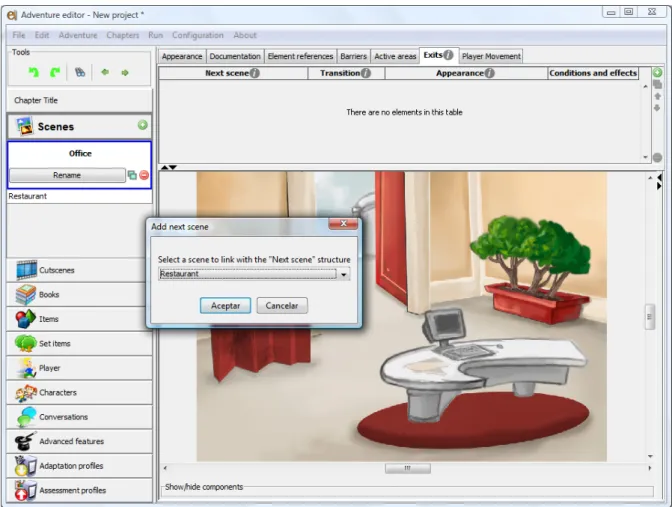
The first step is to select the “Exits” tab for the “Office” scene. This shows in the right side panel a list of exists and a preview of the scene. To the right of the table, a + button can be used to add a new exit. When we do, a pop-up dialog will ask where the exit leads to as show in Figure 15. In this case, we choose “Restaurant”.
Figure 15. Scene edition panel, selecting the next scene when adding an exit
After selecting a destination scene, a new element is added to the list of exits and the new exit, now selected in the list, is shown in the preview panel of the scene. The highlight red area in the preview corresponds to the selected exit, and it can be dragged anywhere on the scene; and the exit can be re-sized by clicking and dragging the green element in the lower left corner (Figure 16). It must be noted, however, that during the game the exit will be completely invisible.
http://e-adventure.e-ucm.es
Figure 16. Scene edition panel while adding a new exit. The exit can be dragged and re-sized as needed
The name (which will be displayed when the cursor is over the exit) and an image for the cursor when placed over the exit can be modified in the “Appearance” column of the table. This way, in our example, when the player moves the mouse over the exit its name (“Go to restaurant”) will be shown over the cursor, and when the player clicks the scene will change.
Exits (as well as other “rectangular areas”) can also have complex shapes. To do this we must click the “Convert to irregular area” button. This will be detailed later.
If we now go back to the “Scenes” element in the left structure panel we will see the two scenes in our game and the exit that links them represented as an arrow (Figure 17). This helps when editing large games to see every scene in a game and every exit that links it to another.
Figure 17. Scene edition panel when previewing the scenes in a chapter. This shows all scenes in the game and the relation between scenes created as a consequence of exits from one to another
2.2.4. Scene initial position
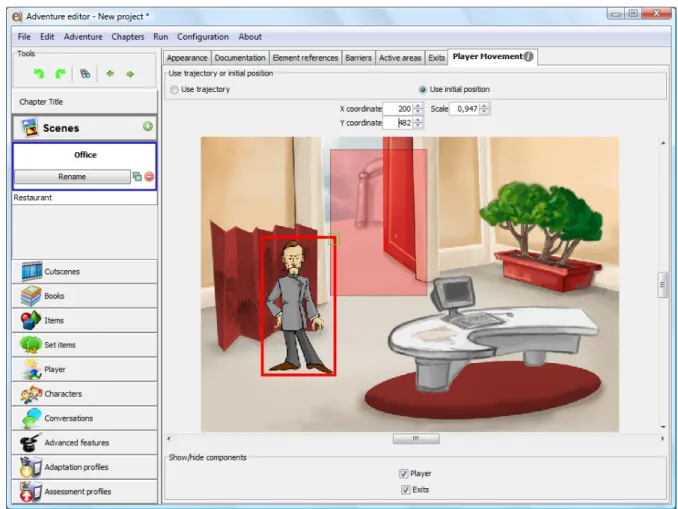
Before being able to test the game, the player assets must be defined, but this is studied in detail in section 2.5.5. However, it is possible to do that the player would still appear in an apparently random position. This can be changed by defining an initial position, which we will do for the office scene. To do this, we choose the “Player movement” tab while the “Office” scene is selected in the structure panel.
This tab will show a preview of the scene with every element defined in it (Figure 18). In this case, the “Use initial position” choice is selected. The player can be dragged to the desired position in the scene. The player scale in the scene can also be modified by dragging the green element in the upper left corner. At the bottom of the preview panel there are check-boxes for the different kind elements of a scene, deselecting a kind of element will make it disappear from the preview (note that there are only check-boxes for those elements that were defined at least once in the scene). These check-check-boxes only affect the behavior of the preview and have no consequences in the game-play.
http://e-adventure.e-ucm.es
Figure 18. Scene edition panel while on the “Player movement” tab
Finally, the entire configuration regarding the placement of the player avatar in the scene is only available in third person games. Besides, an advanced mechanism to define the position of the player in the scene (as well as how to move through it) based on trajectories is also available and studied in section 3.8 of this guide.
2.3. Items
New items (or objects) with which the player can interact can be added to <e-Adventure> games. This section describes how to add these items in a game.
2.3.1. Adding a new item
Creating a new item is very similar to creating a new scene. It starts out by selecting the “Items” element in the structure panel and click on the add button ( ). Click the button will add a new item with a unique default id. This id has the same conditions, and is edited in the same way, as the id for the scene as seen in section 2.2.1.
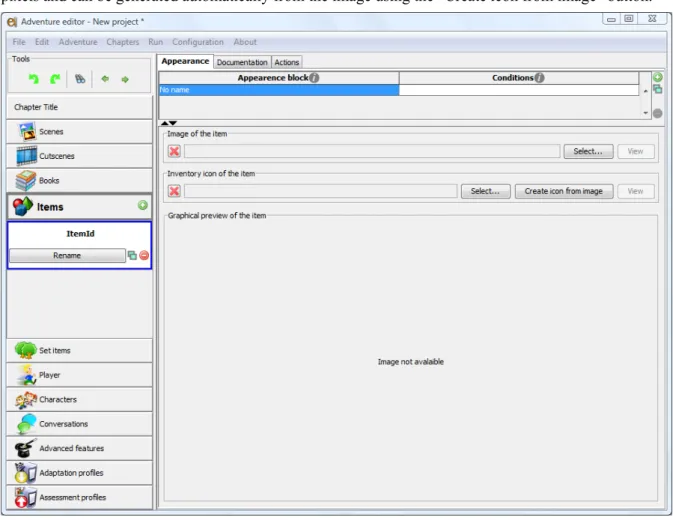
When the item is selected in the structure panel, the edition process is similar to the one followed for scenes (Figure 19). In the case of objects, the “Appearance” tab only requires that will be used when the item appears in the scene and an icon that represents the appearance of the item, will also appear in the
inventory1. Although there are no fixed restrictions for the image of the object, the icon must be 80x48
pixels and can be generated automatically from the image using the “Create icon from image” button.
Figure 19. Item edition panel in the “Appearance” tab with no selected asset
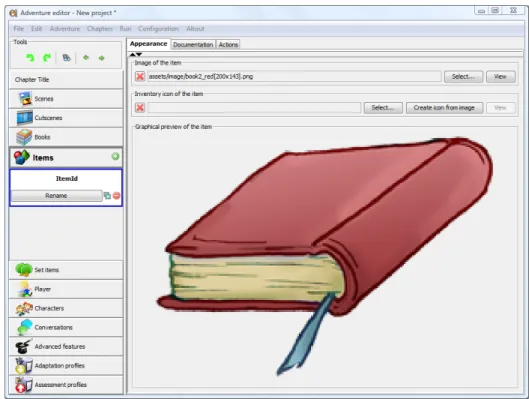
For example, if we can choose an image for a new object we see the preview of the object in the lower part of the right side panel (Figure 20). Remember that the id of the element can be changed using the “Rename button” on the left side panel, just as done for the scene in section 2.2.1.
1
As in traditional graphic adventure games, the player has an inventory where all items are placed once grabbed from the scene. This items can be used later in the game just as if they where in the scene.
http://e-adventure.e-ucm.es
Figure 20. Item edition panel in the “Appearance” tab, when the item has an image attached.
Moreover, after an image is selected for the item, the “View” button to the left is enabled. This option is available for all image assets. If we click this button a dialog will appear where we can preview the selected image, and it allows from some basic manipulation (Figure 21).
Figure 21. View/Edit image dialog
In this view dialog the background of an image can be removed and made invisible in the game. To do this we first click the “Select transparent color” button and then click somewhere in the background of the image. After this, two more settings are available:
● Threshold: The threshold gives a measure of how similar the colors should be to the selected one to be made transparent. The higher the threshold, the higher the number of pixels that will be made invisible.
● Continuous: If this option is selected, only pixels adjacent to the one selected will be made
invisible.
2.3.2. Interacting with items: actions
Following the previous explanation it is possible to create a basic object. However, that isn’t everything that can be done with an item. If we select the “Actions” tab for an item (for instance, for the recently created “Book” item) a list of actions will be displayed in the right side panel. When an action is selected, its details appear in the panel below the list. A new action can be added by clicking the add button ( ).
Besides, when the player left-clicks any item (and this is also true for characters) in <e-Adventure> it results in the player character “reading” its description. This description can be edited in the “Documentation” tab. If the game is in first person, the description will appear near the center of the screen.
The actions available for items (Figure 22) are: Examine
When an object is examined, by default, the detailed description of the object is shown in the screen. Even when not added to the item, the “Examine” action will be available to the player. However, the “Examine” action can be reconfigured and this is achieved by adding the action to the list and creating a new behavior for it.
Grab
Once the “Grab” action is defined for an item the player will be able to grab the object from the scene and place it in the inventory. This item can later be used or combined with another object, as well as given to another character. This default behavior can be overridden by the use of a special effect later described.
Use
This action defines that the item has a use in itself, that those not requires another character or object. This use can be different for every object and will have unique consequences that must be explicitly defined.
Use with
This action, although similar to “Use”, requires the intervention of another item. When our item is used with the “target” item, the effects of this action will be evident. However, using the item with an item different from the target will have no consequences.
http://e-adventure.e-ucm.es
Custom
Custom actions allow for a greater number of details to be edited, such as the name or icon of the action and other features of its behavior. These actions are studied in detail among the advanced features of the platform (section 3.10).
Give to
“Give to” behaves just like the “Use with” action, but the target of this action has to be a character. Besides, this action is only available for items once they have been grabbed and placed in the inventory. By default, after an element is given to a character, it will disappear from the inventory and the other consequences made evident.
Drag to
This action, defined just like “Use with”, only differs from the former in the way it is used by the
player during the game. The effects of this action will be triggered when the item is dragged onto the
target item or character.
Figure 22. Item edition panel, “Actions” tab. This tab shows the list of actions and, after click the add button, the different kinds of actions that can be selected
An infinite number of actions can be defined for the same object. When more than one action of a certain type is defined (for instance, two “Examine” actions) the engine will choose which to use based on the conditions (these can be edited in the actions list). The rule followed is that the first action whose
conditions are valid is used. This is further explained when the concepts of conditions and effects are
detailed. The actions can be sorted in the list by using the arrows to the right of the list ( ).
The column named “Needs to reach item”, which is only relevant in third person games, allows for actions to be restricted to when the player’s avatar is able to reach the item in the scene. This allows for
actions such as “Shout to” that can be preformed from anywhere and others (such as “Grab”) that need the player close. If this option is checked, barriers or other obstacles can make it impossible to perform the action.
2.3.3. Information
Just like for scenes, the information about items can be modified in the “Information” tab (Figure 23). There are 4 fields that can be modified by the user, and a checkbox:
● Documentation: this field is used to document (i.e. it is not used during the game) the item.
Information in this field is stored in the game but only used by the game editor, to provide further information about the item when edited by someone else or at a different time.
● Name: This is the name of the item. This name will be shown to the game user when the mouse
cursor is over the item.
● Brief description: This description should be concise and provide an idea of the nature or possible
use of the item. The player will be able to see this description by left-clicking the item in a scene.
● Detailed description: This description can be longer, providing additional details about the object.
By default, this description is shown to the user when “Examining” the item. However, such default behaviour could be overridden.
● The item returns to its initial position: This checkbox establishes how the item will behave in the
case of being dragged. If it is selected, items will return to there original position once the player releases the mouse button.
http://e-adventure.e-ucm.es
2.3.4. EXAMPLE: Adding an item to a scene
Once an item has been created, it can be referenced form anywhere in the chapter. For instance, a reference to the item can be added to one or more scenes. This example shows how to add an item to a scene.
The first step is selecting the relevant element from the left panel or structure panel. In this case we will select the scene where we want to place the item and the “Element references” tab of that scene in the right side panel. Now the center panel shows a list of references on top and a preview of the scene at the bottom. Clicking the add button ( ) next to the reference list allows us to add a new reference of one of the three element types in <e-Adventure>: items, NPC (Non-Player Characters) and set-items. To add an item to the scene, choose that option. This will prompt a dialog asking for the specific item that we wish to reference by providing a list of elements of the selected type. For this example we will choose the recently created “Book” item y then click the OK button. The item will be added in a default position (Figure 24).
Figure 24. Scene edition panel, “Element references” tab just after adding a new element reference
As most elements in <e-Adventure>, element references can be scaled and moved using drag-and-drop. Changes in the element reference only affect that reference and not the item in itself. Besides, this panel includes fields (just on top of the preview) to modify the position and scale of the references with higher precision. This allows the book to be correctly placed over the table in our example (Figure 25).
Figure 25. Scene edition panel at the “Element references” tab. After moving and scaling the “Book”, it now sits correctly over the table in the scene
Other settings are available in the reference list:
● Layer: The layer is used to provide a sense of depth. A lower value means that the element is
further from the viewer (more information about this can be found in section 3.2).
● Checkbox: This box is used to hide or show the reference in the preview. It has no effect in the
game, as seen in section 2.2.4.
● Referenced element: This column shows the actual <e-Adventure> element that is being
referenced.
● Condition: This is the condition that establishes when, during the game, will the reference be
visible to the player. If the conditions are true, the reference is shown and if they are false the element is hidden. Conditions are edited as any other in <e-Adventure> (see section 3.1).
In scenes with trajectories, this panel also allows for the edition of the “influence area” of an element reference (i.e. the area where the player must be as to be able to interact with the object). This, however, only affects scenes with trajectories and is studied in detail en the “Player movement”, in section 3.8 of this guide.
Note: Clarification about how “Grab” action Works with the element referents
The same object can be included in different scenes. As discussed in Section 2.3.2 when the user perform a “Grab” action the game engine removes the object form the scene and adds it to the inventory.
http://e-adventure.e-ucm.es
This action affects the whole chapter, that is, the object will not be shown in the chapter even it is referenced in other scenes (more information about in section 3.1.9).
Moreover, when a “Use” and “Grab” actions are defined over the same interactive element the engine will only display the action “Grab” when hiding the action “Use” is not active, it means, when the conditions over “Use” actions are not met.
2.4. Set-items
Set-items only provide visual information and cannot be interacted with.
2.4.1. Creating a new set-item
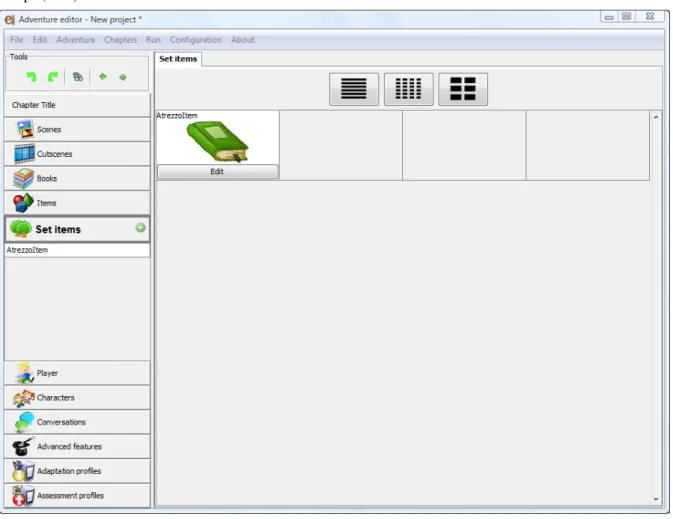
Just like for regular items, set-items are added by clicking the add button ( ) after selecting “Set items” in the structure panel (Figure 26). The new set-item will have a default id that can be changed by clicking the “rename” button, with the same restrictions as other ids in <e-Adventure> (starts with letter, unique, etc.).
Figure 26. “Set items” general view, with just one set-item in the chapter
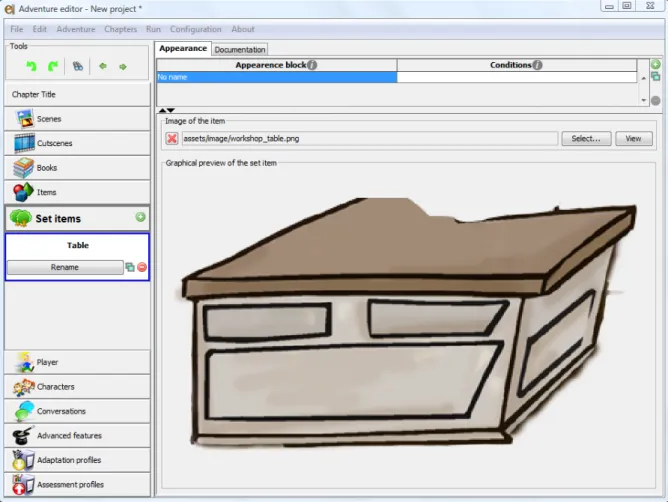
The edition panel for set-items is similar to the one for items but with fewer tabs. The “Appearance” tab is used to choose an image for the set-item, but in this case no icon is needed (Figure 27). There are no restrictions to the size the image of the set-item must have.
Figure 27. Set-item edition panel in the “Appearance” tab after setting the image
2.4.2. Information
Just like for regular items, set-items can be documented in the “Information” tab. There is also a “Name” field, this is not used during the game and is also used for documentation purposes.
2.4.3. Adding a set-item to a scene
This process is the same as the one for regular items (see 2.3.4), just that instead of adding an “Item reference” we add a “Set-item reference”. Set-items can be moved and scaled in the same way too.
2.5. Characters
Characters are game elements which, among other things, the player can talk with. Characters (also referred to as NPC or Non-Player Characters) have several differences to the items from the edition point of view. In the first place, characters can be assigned animations, providing them with life like characteristics. Moreover, some actions are different given that characters cannot be grabbed, used or given to, but they can “receive” an item and can be talked to. However, characters can be dragged.
http://e-adventure.e-ucm.es
2.5.1. Create a new character
New characters are added following a similar procedure to other objects. To do this, see sections 2.3.1 and 2.4.1.
Ones the character is added, some difference become apparent. The appearance of this sort of element requires much more resources. This means that different animations must be provided for different situations (talking, grabbing, and walking) and with different orientations (Figure 28).
Figure 28. Character edition panel in the “Appearance” tab allows for the edition of the characters animations
Several features of animations in <e-Adventure> must be detailed. Animations are a set of images, drawn one after the other. The basic sort of animation uses JPG or PNG images with the same name but with the _N suffix, where N is 01, 02, 03, etc. depending on the position of the image in the animation. For example, an animation called “characterSpeaking” made up of 5 PNG images is made up of “characterSpeaking_01.png”, “characterSpeaking_02.png”, “characterSpeaking_03.png”, “characterSpeaking_04.png” and “characterSpeaking_05.png”.
A more advanced kind of animation is available, which allows images to be used in a more flexible way and the addition of sound. Animations are automatically converted to this format when clicking the “Create/edit” button and their edition is detailed in section 3.11.1 of this guide.
● Standing animations: looking up, looking down, looking right and looking left (this last one is optional)
● Talking animations: speaking up, speaking down, speaking right and speaking left (this last one is
optional)
● Using animations: object to the right, object to the left (optional)
● Walking animations: walking up, walking down, walking right and walking left (optional)
When an animation to the left is not provided for an action, a mirrored image of the animation to the right is used.
2.5.2. Character dialog configuration
This panel has several options that affect how the player speaks. The first set of options refers to how the text will be displayed in the screen:
● Show speech bubble: If selected, the dialogs of the character will be shown inside a bubble just as
in comic books.
● Font front color: this button allows for the configuration of the front (or center) color of the font.
Clicking the button will open a color chooser (Figure 29).
● Font border color: this changes the color for the border of the font.
● Bubble background color: this button changes the color for the background of the bubble. During
the game, this will be filled with a semitransparent tone.
● Bubble border color: this button changes the border of the bubble.
Figure 29. Character edition panel in the “Dialog configuration” tab. This shows the dialog to choose the color of the main font color
http://e-adventure.e-ucm.es
The second set of options is used to add a voice, used by the text-to-speech system, when the character speaks. This is used both to improve accessibility and to add audio to the game at a small expense. Checking the “Synthesize all conversation” option will make the character pronounce every line in the game, while if this option is not selected the option will have to be done for each line (see “Conversations” in section 2.5.4).
2.5.3. Adding characters to the scene
Characters are added to scenes in the “Element reference” panel. This is done just like for the other elements (see 2.2.3 or 2.3.3).
2.5.4. Conversations
Just like the player interacts with items, the player might also interact with characters. However, the kinds of interactions are significantly different. In the “Actions” tab of the characters we find an action specific for characters: “Talk to”. This sort of action requires the existence of conversations in the chapter. Conversations are dialogs between the player and one or more characters, and are created for 3 aims: guiding the player, provide information, or evaluate the player.
More than one character, besides the player, can take part in a conversation. Just like in classic Lucas
ArtsTM games, sometimes the player might be presented with a list of options to choose from. These
options correspond with the following line the player will utter. The path followed by the conversation will change as a consequence.
Conversations should be bound to a character to be triggered when the player talks to it. To do this, first a new conversation element must be created by selecting “Conversations” in the structure panel and clicking on the add button ( ). The conversation will then be then get bounded to the character by adding a “Talk to” action in the character’s “Action” tab.
Conversations have a graph structure, made up of a set of nodes and the links between them. All conversations start at an initial node and follow a linear path (one node is “read” after the other). Bifurcations can be added to the conversation, adding special nodes named “option nodes”. Circular paths can also be created to repeat parts of a conversation (e.g. until the correct answer to a question is given).
Nodes in a conversation use different graphic representations, depending on their type, and can be linked to each other. There are three basic node types:
● Dialog nodes. This nodes have dialog lines that will be read by the characters and player in the
given order. This nodes are displayed as circle for the case of the initial node and as a rectangle with a curved bottom when a regular node (Figure 30).
Figure 30. Dialog nodes. (a) represents the initial node in the conversation and (b) any other dialog node
● Option nodes. This nodes specify the options that the player has to choose from when that point
reads, and will determine the path followed by the conversation. They are represented with a diamond (Figure 31).
Figure 31. Options node
● End or finish nodes. This are just like the dialog nodes, but they represent the end of the
conversation. The are displayed as a rectangle with a triangle on top (Figure 32).
Figure 32. End or finish node
Any node in a conversation can be selected by clicking on it (Figure 33). When a node is selected, its border will be highlighted and an option panel appears next to the node. These options allow for the creation of new nodes of the different types. In the lower part of the panel the lines of the selected node are visible and the character, text and other features of each line can be edited there.
http://e-adventure.e-ucm.es
When any node in the conversation is selected, the lines of the node will be displayed in the bottom part of the panel. The add ( ) and delete ( ) buttons can be used to add and delete new dialog lines. The lines can be then edited in the table (Figure 34).
Figure 34. Conversation line edition
The down ( ) and up ( ) buttons next to the lines can be used to sort them. The first column in the
table defines who speak the line, among all the characters in the chapter or the player. The second column provides a button con configure an audio track for the line to allow for recorded conversations to be played. The third column provides a checkbox to select the line to be synthesized (only when a voice was configured for the character, as shown in 2.5.2). The last column allows for the definition of conditions for when the line should be used (the definition of conditions is studied in section 3.1).
For every line in the conversation the O button ( ) can be used to define the type of bubble to be
used when displayed. This way, different feelings can be expressed such as “thinking”, “angry”, etc. The option panel appears only when a node is selected. The options in this panel vary depending on the type of node and of its position along the graph (Figure 35).
Figure 35. Option panels for different nodes in the graph. (a) shows the options available for dialog nodes and end nodes, while (b) shows the options for option nodes
The options available for a node are:
● Edit effects: this is used to define the block of effects that is triggered after all the lines in the
node are read. This are game effects, just like the consequences of actions (see 3.1 for a detail explanation). Nodes with effects will have the word “Effect” printed inside them.
● Add dialog node/Add option node: this buttons add a new dialog or option node just after the
currently selected node. For option nodes, this button read “Add new option” and will add a new dialog node as the result of a choice of the player.
● Delete node: delete the currently selected node and all its children.
● Link node to... : allows to create a link between the currently selected node and an already
existing node in the graph.
● Delete link: deletes the link to the following node, and, if necessary, the node and all its children. Dialog and end nodes have an option to wait for the user input after each line, making the text in the game easier to read. This option can be configured globally or for each node in the different
conversations. The global option is activated in the Adventure > Edit Adventure data... menu. By
checking the “Keep text until user interacts” option the game will wait for the user after each line and the option will not be configurable at a node level. If the option is not selected, however, it will be
configurable at each node by activating the option that will be visible on top of the conversation lines (Figure 36).
Figure 36. Edition of a dialog node
Option nodes have different options that can be selected (Figure 37):
● Order options randomly: When selected, the order of the options presented to the player will
change each time.
● Show previous question: When selected, the last line of the previous node will be kept on screen
while the player answers.
● Show response: When selected, after the user selects an answer, the following line will be the
http://e-adventure.e-ucm.es
Figure 37. Edition of an option node
2.5.5. EXAMPLE: Editing a conversation
Starting from a new conversation, we select the initial node (this node appears by default in the conversation). We will add two lines to the conversation, the first one read by the player and the second by a character. To choose who read the line, we are presented with a combo box with all possible characters. The text of the line is written directly into the box.
The next step is to present the player with two options. To do this, we select the node and using the option panel we add a new option node. The new node will be automatically linked to the selected node.
Options are added to the option node by choosing the “Add new option” button in the panel. This will, at the same time, create the target node for the option. This node will be a dialog or end node. The option will be added as a line of the option node, which when selected will highlight the corresponding target node. We can use “This is our first option” and “This is our second option” for the text of the options of the node. This will result in a conversation as the one shown in Figure 37.
Finally, we will create a loop in the conversation, making the first option the write choice and presenting the user with the question once again if the second option is chosen. To do this, we select the
target node of the second option, click the “Link to node...” button and end by choosing the option node. The result should look something like Figure 38.
Figure 38. Creating loops in the conversation edition panel
The conversation can be previewed in full at any time by clicking the “Preview” button at the top (Figure 39). When a node is selected, the “Preview from selected node” is enabled, which allows for the preview of just a part of the conversation.