Using Plan 9 from Bell Labs
(Draft
9/28/2007)
Using effectively the operating system is very important for anyone working with computers. It can
be the difference between performing most tasks by hand, and asking the computer to perform them. Traditionally, Operating Systems courses used UNIX to do this. However, today there is no such thing as UNIX. Linux is a huge system, full of inconsistencies, with programs that do multiple tasks and do not perform them well. Linux manual pages just cannot be read.
These lecture notes use Plan 9 from Bell Labs to teach a first (practical!) course on operating sys-tems. The system is easy to use for programmers, and is an excellent example of high-quality system design and software development. Studying its code reveals how simplicity can be more effective than contortions made by other systems.
The first Operating Systems course at Rey Juan Carlos University is focused on practice. Because in theory, theory is like practice, but in practice it is not. What is important is for you to use the system, and to learn to solve problems. Theory will come later to fill the gaps and try to give more insight about what a system does and how can it be used.
The whole text assumes that you have been already exposed to computer, and used at least a com-puter running Windows. This is so common that it makes no sense to drop this assumption. Furthermore, we assume that you already know how to write programs. This is indeed the case for the lecture this text is written for. One last assumption is that you attended a basic computer architecture course, and you know at least basic concepts. There is a quick review appendix in case you need to refresh your memory.
Through the text, the boldface font is used when a new concept is introduced. This will help you to make quick reviews and to double check that you know the concepts. All important concepts are listed in the index, at the end of the book. Theconstant widthteletype font is used to refer to machine data, including functions, programs, and symbol names. In many cases, text in constant width font reproduces a session with the system (e.g., typing some commands and showing their output). The text written by the user (and not by the computer) is slightlyslanted, but still in constant width. Note the difference with respect to the font used for text written by a program, which is notslanted. Italics are used to emphasize things and to refer to the system manual, like in intro(1). Regarding numeric values, we use the C notation to represent hexadecimal and octal numeric bases.
Unlike in most other textbooks for operating systems courses, bibliographic references are kept to the bare minimum. We cite a particular text when we think that it may be worth reading to continue learning about something said in this book. So, do not quickly dismiss references. We encourage you to read them, to learn more. There are not so many ones. If you want to get a thorough set of references for something discussed in the test, we suggest looking at a more classical operating systems textbook, like for example [1].
It is important to note that this book is not a reference for using an operating system nor a reference for Plan 9 from Bell Labs. The user’s manual that comes installed within the system is the proper reference to use. These lecture notes just shows you how things work, by using them. Once you have gone through the course, you are expected to search and use the user’s manual as a reference.
One final note of caution. This text is to be read with a computer side by side. The only way to learn to use a system is by actually using it. Reading this without doing so is meaningless.
questions in the9fanslist. For what is worth, I have to say that I am deeply grateful to people like Rob Pike, Dave Presotto, Jim McKie, Russ Cox, and many others. In particular, Russ Cox seems to be a pro-gram listening for questions at9fans, at least his response time suggests that. I have learned a lot from you all (or I tried). Other colleagues from Rey Juan Carlos University helped me as well. Pedro de las Heras was eager to get new drafts for this manuscript. Sergio Arévalo was an unlimited supply of useful comments and fixes for improving this book, specially for using it as a textbook. José Centeno was scared to hell after reading our initial description of computer networks, and helped to reach a much better descrip-tion.
Francisco J. Ballesteros Laboratorio de Sistemas,
Rey Juan Carlos University of Madrid Madrid, Spain
1.
Getting started
1
1.1. What is an Operating System? 1
1.2. Entering the system 3
1.3. Leaving the system 6
1.4. Editing and running commands 6
1.5. Obtaining help 8
1.6. Using files 10
1.7. Directories 12
1.8. Files and data 15
1.9. Permissions 18
1.10. Writing a C program in Plan 9 20
1.11. The Operating System and your programs 22
1.12. Where are the files? 24
1.13. The Shell, commands, binaries, and system calls 25 1.14. The Operating System and the hardware 25
2.
Programs and Processes
29
2.1. Processes 29
2.2. Loaded programs 31
2.3. Process birth and death 35
2.4. System call errors 40
2.5. Environment 42
2.6. Process names and states 45
2.7. Debugging 47
2.8. Everything is a file! 49
3.
Files
55
3.1. Input/Output 55
3.2. Write games 60
3.3. Read games 64
3.4. Creating and removing files 65
3.5. Directory entries 67
3.6. Listing files in the shell 72
3.7. Buffered Input/Output 75
4.
Parent and Child
83
4.1. Running a new program 83
4.2. Process creation 84
4.3. Shared or not? 88
4.4. Race conditions 91
4.5. Executing another program 91
4.6. Using both calls 93
4.7. Waiting for children 94
4.8. Interpreted programs 97
5.
Communicating Processes
101
5.1. Input/Output redirection 101
5.2. Conventions 106
5.3. Other redirections 106
5.4. Pipes 107
5.5. Using pipes 112
5.7. Reading, notes, and alarms 120 5.8. The file descriptor bulletin board 123
5.9. Delivering messages 125
6.
Network communication
135
6.1. Network connections 135
6.2. Names 139
6.3. Making calls 141
6.4. Providing services 144
6.5. System services 150
6.6. Distributed computing 151
7.
Resources, Files, and Names
153
7.1. Resource fork 153
7.2. Protecting from notes 155
7.3. Environment in shell scripts 157
7.4. Independent children 158
7.5. Name spaces 159
7.6. Local name space tricks 164
7.7. Device files 166
7.8. Unions 167
7.9. Changing the name space 169
7.10. Using names 170
7.11. Sand-boxing 172
7.12. Distributed computing revisited 174
8.
Using the Shell
179
8.1. Programs are tools 179
8.2. Lists 180
8.3. Simple things 183
8.4. Real programs 186
8.5. Conditions 190
8.6. Editing text 193
8.7. Moving files around 198
9.
More tools
201
9.1. Regular expressions 201
9.2. Sorting and searching 205
9.3. Searching for changes 210
9.4. AWK 214
9.5. Processing data 219
9.6. File systems 224
10.
Concurrent programming
229
10.1. Synchronization 229
10.2. Locks 232
10.3. Queueing locks 239
10.4. Rendezvous 246
10.5. Sleep and wakeup 248
10.6. Shared buffers 252
10.7. Other tools 255
11.
Threads and Channels
261
11.2. Thread names 264
11.3. Channels 269
11.4. I/O in threaded programs 274
11.5. Many to one communication 277
11.6. Other calls 285
12.
User Input/Output
289
12.1. Console input 289
12.2. Characters and runes 292
12.3. Mouse input 295
12.4. Devices for graphics 298
12.5. Graphics 300
12.6. A graphic slider 303
12.7. Keyboard input 309
12.8. Drawing text 312
12.9. The window system 313
13.
Building a File Server
321
13.1. Disk storage 321
13.2. The file system protocol 325
13.3. Semaphores for Plan 9 331
13.4. Speaking 9P 332
13.5. 9P requests 336
13.6. Semaphores 338
13.7. Semaphores as files 341
13.8. A program to make things 349
13.9. Debugging and testing 354
14.
Security
357
14.1. Secure systems 357
14.2. The local machine 358
14.3. Distributed security and authentication 359
14.4. Authentication agents 362
14.5. Secure servers 368
14.6. Identity changes 371
14.7. Accounts and keys 374
______
1.1. What is an Operating System?
The operating system is the software that lets you use the computer. What this means depends on the user’s perspective. For example, for my mother, the operating system would include not just Windows, but most programs in the computer as well. For a programmer, many applications are not considered part of the system. However, he would consider compilers, libraries, and other programming tools as part of it. For a systems programmer, the software considered part of the system might be even more constrained. We will get back to this later.
This book aims to teach you how to effectively use the system (in many cases, we say just system to refer to the operating system). This means using the functions it provides, and the programs and languages that come with it to let the machine do the job. The difference between ignoring how to ask the system to do things and knowing how to do it, is the difference between requiring hours or days to accomplish many tasks and being able to do it in minutes. You have to make your choice. If you want to read a textbook that describes the theory and abstract concepts related to operating systems, you may refer to [1].
So, what is an operating system? It is just a set of programs that lets you use the computer. The point is that hardware is complex and is far from the concepts you use as a programmer. There are many different types of processors, hardware devices for Input/Output (I/O), and other artifacts. If you had to write software to drive all the ones you want to use, you would not have time to write your own application software. The concept is therefore similar to a software library. Indeed, operating systems begun as libraries used by people to write programs for a machine.
When you power up the computer, the operating system program is loaded into memory. This program is called the kernel. Once initialized, the system program is prepared to run user programs and permits them use the hardware by calling into it. From this point on, you can think about the system as a library. There are three main benefits that justify using an operating system: 1 You don’t have to write the operating system software yourself, you can reuse it.
2 You can forget about details related to how the hardware works, because this library pro-vides more abstract data types to package services provided by the hardware.
3 You can forget about how to manage and share the hardware among different programs in the same computer, because this library has been implemented for use with multiple pro-grams simultaneously.
Most of the programs you wrote in the past used disks, displays, keyboards, and other devices. You did not have to write the software to drive these devices, which is nice. This argument is so strong that nothing more should have to be said to convince you. It is true that most programmers underestimate the effort made by others and overestimate what they can do by themselves. But surely you would not apply this to all the software necessary to let you use the hardware.
Abstract data types are also a convenience to write software. For example, you wrote pro-grams using files. However, your hard disk knows nothing about files. Your hard disk knows how to store blocks of bytes. Even more, it only knows about blocks of the same size. However, you prefer to use names for a piece of persistent data in your disk, that you imagine as contiguous storage nicely packaged in a file. The operating system invents thefiledata type, and provides you with operations to handle objects of this type. Event the file’s name is an invention of the system.
blocks. However, this is far from being the truth. Running in the circuitry of a hard disk there is a plethora of software inventing this lie. These days, nobody (but for those working for the disk manufacturer) knows really what happens inside your disk. Many of them use complex geome-tries to achieve better performance. Most disks have also memory used to cache entire tracks. What old textbooks say about disks is no longer true. However, the operating system still works because it is using its familiar disk abstraction.
Using abstract data types instead of the raw hardware has another benefit: portability. If the hardware changes, but the data type you use remains the same, your program would still work. Did your programs using files still work when used on a different disk?
Note that the hardware may change either because you replace it with more modern one, or because you move your program to a different computer. Because both hardware and systems are made with backward-compatibility in mind, which means that they try hard to work for pro-grams written for previous versions of the hardware or the system. Thus, it might even be unnec-essary to recompile your program if the basic architecture remains the same. For instance, your Windows binaries would probably work in any PC you might find with this system. When they do not work, it is probably not because of the hardware, but due to other reasons (a missing library in the system or a bug).
This is the reason why operating systems are sometimes called (at least in textbooks) a
virtual machine. They provide a machine that does not exist, physically, hence it is virtual. The
virtual machine provides files, processes, network connections, windows, and other artifacts unknown to the bare hardware.
With powerful computers like the ones we have today, most machines are capable of exe-cuting multiple programs simultaneously. The system makes it easy to keep these programs run-ning, unaware of the underlying complexity resulting from sharing the machine among them.
Did you notice that it was natural for you to write and execute a program as if the computer was all for itself? However, I would say that at least an editor, a web browser, and perhaps a music player were executing at the same time. The system decides which parts of the machine, and at which times, are to be used by each program. That is, the system multiplexes the maching among different applications. The abstractions it provides try to isolate one executing program from another, so that you can write programs without having to consider all the things that hap-pen inside your computer while they run.
Deciding which resources are used by which running programs, and administering them is called, not surprisingly, resource management. Therefore the operating system is also a resource
manager. It assigns resources to programs, and multiplexes resources among programs.
Some resources must be multiplexed on space, i.e. different parts of the resource are given to different programs. For example, memory. Different programs use different parts of your computer’s memory. However, other resources cannot be used by several programs at the same time. Think on the processor. It has a set of registers, but a compiled program is free to use any of them. What the system does is to assign the whole resource for a limited amount of time to a program, and then to another one in turn. In this case, the resource is multiplexed on time. Because machines are so fast, you get the illusion that all the programs work nicely as if the resource was always theirs.
People make mistakes, and programs have bugs. A bug in a program may bring the whole system down if the operating system does not take countermeasures. However, the system is not God, and magic does not exist (or does it?). Most systems use hardware facilities to protect exe-cuting programs, and files, from accidents.
means that a misleading pointer in a buggy program would not affect other programs. Did you notice that when your programs crash the other programs seem to remain unaffected? Can you say why?
To summarize, the operating system is just some software that provides convenient abstrac-tions to write programs without dealing with the underlying hardware by ourselves. To do so, it has to manage the different resources to assign them to different programs and to protect ones from others. In any case, the operating system is just a set of programs, nothing else.
1.2. Entering the system
In this course you will be using Plan 9 from Bell Labs. There is a nice paper that describes the entire system in a few pages [2]. All the programs shown in this book are written for this operat-ing system. Before proceedoperat-ing, you need to know how to enter the system, edit files and run commands. This will be necessary for the rest of this book. One word of caution, if you know UNIX, Plan 9 is not UNIX, you should forget what you assume about UNIX while using this sys-tem.
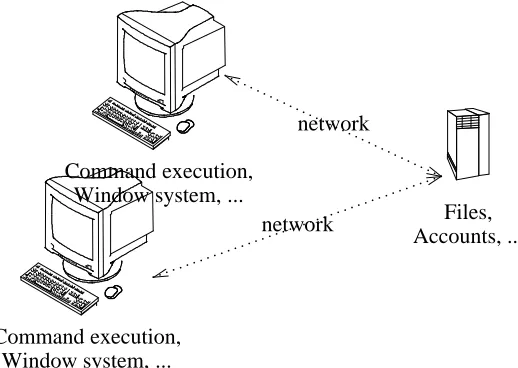
In a Plan 9 system, you use a terminal to perform your tasks. The terminal is a machine that lets you execute commands by using the screen, mouse, and keyboard as input/output devices. See figure 1.1. A command is simply some text you type to ask for something. Most likely, you will be using a PC as your terminal. The window system, the program that imple-ments and draws the windows you see in the screen, runs at your terminal. The commands you execute, which are also programs, run at your terminal. Editing happens at your terminal. How-ever, none of the files you are using are stored at your terminal. Your terminal’s disk is not used at all. In fact, the machine might be diskless!
Command execution, Window system, ...
. . . .. . . . . . . . . . . .. . . . . . . .. . . . . . . .. . network . . . . . . . . . . . . . . . . . . . . . . . . . . . . . . . . . . . . . . . . . . . network Command execution, Window system, ...
[image:13.612.159.418.386.570.2]Files, Accounts, ...
Figure 1.1: You terminal provides you with a window system. Your files are not there.
There is one reason for doing this. Because your terminal does not keep state (i.e., data in your files), it can be replaced at will. If you move to a different terminal and start a session there, you will see the very same environment you saw at the old terminal. Because terminals do not keep state, they are called stateless. Another compelling reason is that the whole system is a lot easier to administer. For example, none of the terminals at the university had to be installed or cus-tomized to be used with Plan 9. There is nothing to install because there is no state to keep within the terminal, remember?
network of computers (or programs) a server is a program that provides any kind of service (e.g., file storage). Other programs order the server to perform operations on its files, for example, to store new files or retrieve data. These programs placing orders on the server are called clients. In general, a client sends a message to a server asking it to perform a certain task, and the server replies back to the client with the result for the operation.
To use Plan 9, you must switch on your terminal. Depending on the local installation, you may have to select PXE as the boot device (PXE is a facility that lets the computer load the sys-tem from the network). But perhaps the terminal hardware has been configured to boot right from the network and you can save this step. Once the Plan 9 operating system program (you know, the
kernel) has been loaded into memory, the screen looks similar to this:
PBS... Plan 9
cpu0: 1806MHz GenuineIntel P6 (cpuid: AX 0x06D8 DX 0xFE9FBBF) ELCR: 0E20
#l0: AMD79C970: 10Mbps port 0x1080 irq 10: 000c292839fc #l1: AMD79C970: 10Mbps port 0x1400 irq 9: 000c29283906 #U/usb0: uhci: port 0x1060 irq 9
512M memory: 206M kernel data, 305M user, 930M swap root is from (local, tcp)[tcp]:
There are various messages that show some information about your terminal, including how much memory you have. Then, Plan 9 asks you where do you want to take your files from. To do so, it writes a prompt, i.e., some text to let you know that a program is waiting for you to type something. In this prompt, you can see tcpbetween square brackets. That is the default value used if you hit return without further typing. Replyingtcpto this prompt means to use the TCP network protocol to reach the files kept in the machine that provides them to your terminal (called, the file server). Usually, you just have to hit return at this stage. This leads to another prompt, asking you to introduce your user name.
You may obtain a user name by asking the administrator of the Plan 9 system to provide one for you (along with a password that you will have to specify). This is called opening an
account. In this example we will type nemoas the user name. What follows is the dialog with the machine to enter the system.
user[none]: nemo time...version...
!Adding key: dom=dat.escet.urjc.es proto=p9sk1 user[nemo]: Return
password: type your password here and press return
!
This dialog shows all conventions used in this book. Text written by the computer (the system, a program, ...) is in constant width font, like in user[none]. Text you type is in a slightly slanted variant of the same font, like innemo. When the text you type is a special key not shown in the screen, we use boldface, like in Return. Any comment we make is in italics, like in type
your password. Now we can go back to how do we enter the system.
At theuserprompt, you told your terminal who you are. Your terminal trusts you. There-fore, there is no need to give it a password. At this point you have an open account at your termi-nal! This is to say that you now have a program running on your name in the computer. By the way, entering the system is also called loging into the system. Leaving the system is called usu-ally loging out.
If you come from UNIX, beware not to type your password immediately after you typed your user name for the first time. That would be the file server user name, and not the password. All your password would be in the clear in the screen for anyone to read.
You are in! If this is the first time you enter a Plan 9 system you have now the prompt of a system shell (after several error messages). A shell is a program that lets you execute commands in the computer. In Windows, the window system itself is the system shell. There is another shell in Windows, if you executeRun command in the start menu you get a line of text where you can type commands. That is a command line.
At this point in your Plan 9 session, you can also type commands to the shell that is running for you. The shell is a program,rcin this case, that writes a prompt, reads a command (text) line, executes it, waits for the command to complete, and then repeats the whole thing.
The shell prompt may beterm%, or perhaps just a semicolon (which is the prompt we use in this book). Because you never entered the system, and because your files are yours, nobody created a few files necessary to automatically start the window system when you enter the system. This is why you got some error messages complaining about some missing files. The only file created for you was a folder (we use the name directory) where you can save your files. That directory is your home directory.
Figure 1.2: Your terminal after entering rio. Isn’t it a clean window system?
Proceeding is simple. If you execute
; /sys/lib/newuser
thenewuser program will create a few files for you and startrio, the Plan 9 window system. To run this command, type /sys/lib/newuserand press return. All the commands are exe-cuted that way, you type them at the shell prompt and press return.
Running newuser is only necessary the first time you enter the system. Once executed, this program creates for you a profile file that is executed when you enter the system, and
starts rio for you. The profile for the user nemo is kept in the file
1.3. Leaving the system
To leave your terminal you have all you need. Press the terminal power button (don’t look at the window system for it) and switch it off. Because the files are kept in the file server, any file you changed is already kept safe in the file server. Your terminal has nothing to save. You can switch it off at any time.
1.4. Editing and running commands
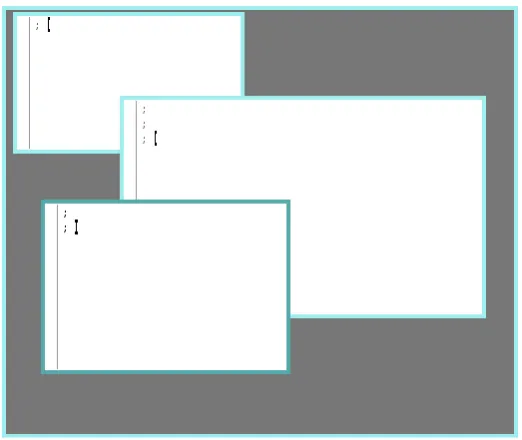
The window system is a program that can be used to create windows. Initially, each window runs the Plan 9 shell, another program calledrc. To create a window you must press the right mouse button (button-3) and hold it. A menu appears and you can move the mouse (without releasing the button) to select a particular command. You can select New (see figure 1.3) by releasing the mouse on top of that command.
Becauserio is now expecting one argument, the pointer is not shown as an arrow after executingNew, it is shown as a cross. The argumentriorequires is the rectangle where to show the window. To provide it, you press button-3, then sweep a rectangle in the screen (e.g., from the upper left corner to the bottom right one), and then release button-3. Now you have your shell. The otherrio commands are similar. They let you resize, move, delete, and hide any window. All of them require that you identify which window is to be involved. That is done by a single button-3 click on the window. Some of them (e.g., Resize) require that you provide an addi-tional rectangle (e.g., the new one to be used after the resize). This is done as we did before.
Figure 1.3: The rio menu for mouse button-3.
The window system uses the real display, keyboard, and mouse, to provide multiple (virtual) ones. A command running at a window thinks that it has the real display, keyboard, and mouse. That is far from being the truth! The window system is the one providing a fake set of display, keyboard, and mouse to programs running in that window. You see that a window system is sim-ply a program that multiplexes the real user I/O devices to permit multiple programs to have their own virtual ones.
You can edit all the text in the window. However, commands may be typed only at the end. You can always use the mouse to click near the end and type new commands if you changed. The
Delete key can be used to stop a command, should you want to do so.
To edit files, and also to run commands and most other things (hence its name), we use
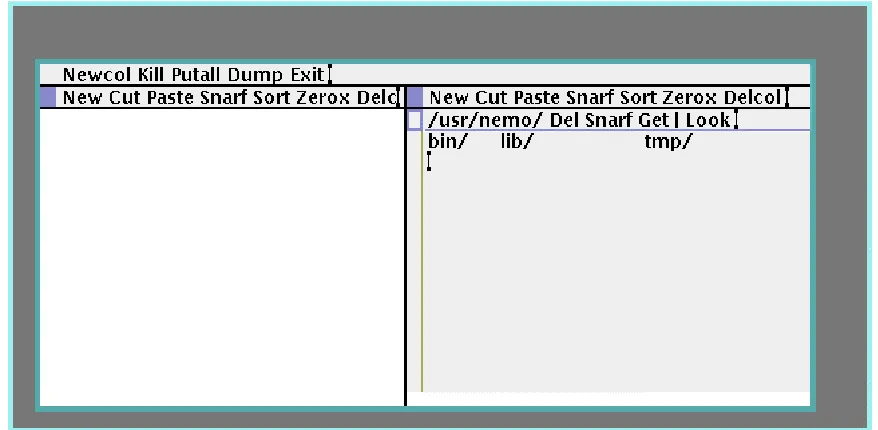
[image:17.612.68.507.183.398.2]acme, a user interface for programmers developed by Rob Pike. When you run acme in your new window it would look like shown in figure 1.4. Just type the command name, in the new window (which has a shell accepting commands) and press return.
Figure 1.4: Acme: used to edit, browse system files, and run commands.
As you can see, acme displays a set of windows using two columns initially. Acme is indeed a window system! Each window in acme shows a file, a folder, or the output of com-mands. In the figure, there is a single window showing the directory (remember, this is the name we use for folders)/usr/nemo. For Nemo, that is the home directory. As you can see, the hor-izontal text line above each window is called the tag line for the window. In the figure, the tag line for the window showing/usr/nemocontains the following text:
/usr/nemo Del Snarf Get | Look
Each tag line contains on the left the name of the file or directory shown. Some other words fol-low, which represent commands (buttons!). For example, our tag line shows the commandsDel,
Snarf,Get, andLook.
Within acme, the mouse left mouse button (button-1) can be used to select a portion of text, or to change the insertion point (the tiny vertical bars) where text is to be inserted. All the text shown can be edited. If we click beforeLookwith the left button, do not move the mouse, and typeCould, the tag line would now contain:
/usr/nemo Del Snarf Get | Could Look
The button-1 can be also used to drag a window and move it somewhere else, to adjust its posi-tion. This is done by dragging the tiny square shown near the left of the tag line for the window. Resizing a window is done in the same way, but a single click with the middle button (button-2) in the square can maximize a window if you need more space. The shaded boxes near the top-left corner of each column can be used in the same way, to rearrange the layout for entire columns.
would executeDel(an acme command), and delete the window. Any text shown by acme can be used as a command. For commands acme does not implement, Plan 9 is asked to execute them.
Some commands understood by acme areDel, to delete the window,Snarf, to copy the selected text to the clipboard,Get, to reread the file shown (and discard your edits), andPut, to store your edits back to the file. Another useful command isExit, to exit from acme. For exam-ple, to create a new file with some text in it:
1 ExecuteGetwith a button-2 click on that word. You get a new window (that has no file name).
2 Give a name to the file. Just click (button-1) near the left of the tag line for the new window and type the file name where it belongs. The file name typed on the left of the tag line is used for acme to identify which file the window is for. For example, we could type
/usr/nemo/newfile(you would replacenemowith your own user name).
3 Point to the body of the window and type what you want.
4 ExecutePutin that window. The file (whose name is shown in the tag line) is saved. You may notice that the window for/usr/nemois not showing the new file. Acme only does what you command, no more, no less. You may reload that window usingGetand the new file should appear.
The right button (button-3) is used to look for things. A click with the button on a file name would open that file in the editor. A click on a word would look for it (i.e., search for it) in the text shown in the window.
Keyboard input in acme goes to the window where the pointer is pointing at. To type at a tag line, you must place the pointer on it. To type at the body of a window, you must point to it. This is calledpoint to type. Note that in rio things are different. Input goes to the window where you did click last. This is calledclick to type.
Although you can use acme to execute commands, we will be using a rio window for that in this book, to make it clear when you are executing commands and to emphasize that doing so has nothing to do with acme.
But to try it at least once, typedateanywhere in acme (e.g., in a tag line, or in the window showing your home directory. Then execute it (again, by a click with button-2 on it). You will see how the output of date is shown in a new window. The new window will be called
/usr/nemo+Errors. Acmes creates windows with names terminated in+Errorsto display output for commands executed at the directory whose name precedes the+Errors. In this case, to display output for commands executed at /usr/nemo. If you do not know whatatmeans in the last sentences, don’t worry. Forget about it for a while.
There is a good description ofAcmein [3], although perhaps a little bit too detailed for us at this moment. It may be helpful to read it ignoring what you cannot understand, and get back to it later as we learn more things.
1.5. Obtaining help
Most systems include their manual on-line, for users to consult. Plan 9 is not an exception. The Plan 9 manual is available in several forms. From the web, you can consult
http://plan9.bell-labs.com/sys/manfor a web version of the manual. At Rey Juan Carlos University, we suggest you usehttp://plan9.lsub.org/sys/maninstead, which is our local copy.
And there is even more help available in the system! The directory /sys/doc, also avail-able at http://plan9.bell-labs.com/sys/doc, contains a copy of most of the papers relevant for the system. We will mention several of them in this book. And now you know where to find them.
depending on its topic. For us, it suffices to know that section 1 is for commands, section 8 is for commands not commonly used by users (i.e., they are intended to administer the system), and section 2 is for C functions and libraries. To refer to a manual page, we use the name of the page followed by the section between parenthesis, as in acme(1). This page refers to a command, because the section is 1, and the name for the page (i.e., the name of the command) isacme.
From the shell, you can use themancommand to access the system manual. If you don’t know how to use it, here is how you can learn to do it.
; man man
Asks the manual to give its own manual page.
; man man
MAN(1) Plan 9 4th edition MAN(1)
NAME
man, lookman, sig - print or find pages of this manual
SYNOPSIS
man [ -bnpPStw ] [ section ... ] title ...
lookman key ...
sig function ...
DESCRIPTION
Man locates and prints pages of this manual named title in the specified sections. Title is given in lower case. Each ....
As you can see, you can give toman the name of the program or library function you are inter-ested in. It displays a page with useful information. If you are doing this in the shell, you can use the down arrow key, , to page down the output. To read a manual page found at a particular section, you can type the section number and the page name after themancommand, like in
; man 1 ls
If you look at the manual page shown above, you can see several sections. The synopsis section of a manual page is a brief indication on how to use the program (or how to call the function if the page is for a C library). This is useful once you know what the program does, to avoid re-reading the page again. In the synopsis for commands, words following the command name are arguments. The words between square brackets are optional. They are called options. Any option starting with - represents individual characters that may be given as flags to change the pro-gram behavior. So, in our last example, 1andlsare options forman, corresponding to section and title in the synopsis of man(1).
The description section explains all you need to know to use the program (or the C func-tions). It is suggested to read the manual page for commands the first time you use them. Even if someone told you how to use the command. This will always help in the future, when you may need to use the same program in a slightly different way. The same happens for C functions.
The source section tells you where to find the source code for programs and libraries. It will be of great value for you to read as much source as you can from this system. Programming is an art, and the authors of this system dominate that art well. The best way for you to quickly become an artist yourself is to study the works of the best ones. This is a good opportunity.
Another command that comes with the manual is sig. It displays the signature, i.e., the prototype for a C function documented in section 2 of the manual. That is very useful to get a quick reminder of which arguments receives a system function, and what does it return. For example,
; sig chdir
int chdir(char *dirname)
When a new command or function appears in this book, it may be of help for you to take a look at its manual page. For example, intro(1) is a kind introduction to Plan 9. The manual page rio(1) describes how to use the window system. The meaning of all the commands inriomenus can be found there. In the same way, acme(1) describes how to useacme, and rc(1) describes the shell,
rc.
If some portions of the manual pages seem hard to understand, you might ignore them for the time being. This may happen for some time while you learn more about the system, and about operating systems in general. After completing this course, you should have no problem to understand anything said in a manual page. Just ignore the obscure parts and try to learn from the parts you understand. You can always get back to a manual page once you have the concepts needed to understand what it says.
1.6. Using files
Before proceeding to write programs and use the system, it is useful for you to know how to use the shell to see which files you created, search for them, rename, and remove them, etc.
When you open a window, riostarts a shell on it. You can type commands to it, as you already know. For example, to executedate from the shell we can simple type the command name and press return:
; date
Sat Jul 8 01:13:54 MDT 2006
In what follows, we do not remember to press return after typing a command. Now we will use the shell in a window to play a bit with files. You can list files usingls:
; ls bin lib tmp ;
There is another command,lc(list in columns), that arranges the output in multiple columns, but is otherwise the same:
; lc
bin lib tmp
;
If you want to type several commands in the same line, you can do so by separating them with a semicolon. The only;we typed here is the one betweendateandlc. The other ones are the shell prompt:
; date ; lc
Sat Jul 8 01:18:54 MDT 2006
bin lib tmp
;
line and pretends that you typed an space instead of pressing return.
; date ; \
;; date ; \
;; date
Sat Jul 8 01:19:54 MDT 2006 Sat Jul 8 01:19:54 MDT 2006 Sat Jul 8 01:19:54 MDT 2006 ;
The double semicolon that we get after typing the backslash and pressing return is printed by the shell, to prompt for the continuation of the previous line (prompts might differ in your system). By the way, backslash,\, is called an escape character because it can be used to escape from the special meaning that other characters have (e.g., to escape from the character that starts a new line).
We can create a file by using acme, as you know. To create an empty file, we can use
touch, and thenlcto see our outcome.
; touch hello ; lc
bin hello lib tmp
;
Thelc command was not necessary, of course. But that lets you see the outcome of executing
touch. In the following examples, we will be doing the same to show what happens after exe-cuting other commands.
Here, we gave an argument to thetouchcommand:hello. Like functions in C, com-mands accept arguments to give parameters to them. Command arguments are just strings. When you type a command line, the shell breaks it into words separated by white space (spaces and tabs). The first word identifies the command, and the following ones are the arguments.
We can ask lsto give a lot of information abouthello. But first, lets list just that file. As you see,lslists the files you give as arguments. Only if you don’t supply a file name, all files are listed.
; ls hello hello ;
We can see the size of the file we created giving an option tols. An option is an argument that is used to change the default behavior of the command. Some options specify certain flags to adjust what the command does. Options that specify flags always start with a dash sign,-. The option-soflscan be used to print the size along with the file name:
; ls -s hello 0 hello
;
Touchcreated an empty file, therefore its size is zero.
You will be creating files using acme. Nevertheless, you may want to copy an important file so that you don’t loose it by accidents. We can usecpto copy files:
; cp hello goodbye ; lc
bin goodbye hello lib tmp
;
; rm hello ; lc
bin goodbye lib tmp
;
Many commands that accept a file name as an argument also accept multiple ones. In this case, they do what they know how to do to all the files given:
; lc
bin goodbye lib tmp
; touch mary had a little lamb ; lc
a goodbye lamb little tmp
bin had lib mary
; rm little mary had a lamb ; lc
bin goodbye lib tmp
Was rmvery smart? No. Forrm, the names you gave in the command line were just names for files to be removed. It did just that.
A related command lets you rename a file. For example, we can rename goodbye to
helloagain by usingmv(move):
; mv goodbye GoodBye ; lc
GoodBye bin lib tmp
;
Let’s remove the new file.
; rm goodbye
rm: goodbye: ’goodbye’ file does not exist
What? we can see it! What happens is that file names are case sensitive. This means that
GoodBye,goodbye, andGOODBYEare entirely different names. Becausermcould not find the file to be removed, it printed a message to tell you. We should have said
; rm GoodBye ; lc
bin lib tmp
In general, when a command can do its job, it prints nothing. If it completes and does not com-plaint by printing a diagnostic message, then we know that it could do its job.
Some times, we may want to remove a file and ignore any errors. For example, we might want to be sure that there is no file namedgoodbye, and would not want to see complaints from
rmwhen the file does not exist (and therefore cannot be removed). Flag-ffor rmachieves this effect.
; rm goodbye
rm: goodbye: ’goodbye’ file does not exist ; rm -f goodbye
Both command lines achieve the same effect. Only that the second one is silent.
1.7. Directories
doesn’t matter if the files have the same name. If they are at different directories, they are differ-ent.
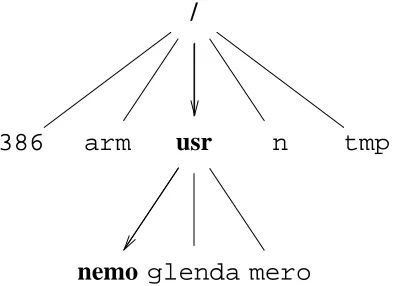
/
386 usr tmp
nemo glenda mero
[image:23.612.212.365.119.278.2]bin lib tmp
Figure 1.5: Some files that user Nemo can find in the system.
Directories may contain other directories. Therefore, files are arranged in a tree. Indeed, directo-ries are also files. A directory is a file that contains information about which files are bounded together in it, but that’s a file anyway. This means that the file tree has only files. Of course, many of them would be directories, and might contain other files.
Figure 1.5 shows a part of the file tree in the system, relevant for user Nemo. You see now that the filesbin,lib, andtmpfiles that we saw in some of the examples above are kept within a directory callednemo. To identify a file, you name the files in the path from the root of the tree (called slash) to the file itself, separating each name with a slash, /, character. This is called a
path. For example, the path for the file libshown in the figure would be/usr/nemo/lib. Note how /tmp and /usr/nemo/tmpare different files, depite using the name tmp in both cases.
The first directory at the top of the tree, the one which contains everything else, is called the
root directory (guess why?). It is named with a single slash,/.
; ls / 386 usr tmp
...other files omitted...
;
That is the only file whose name may have a slash on it. If we allowed using the slash within a file name, the system would get confused, because it would not know if the slash is part of a name, or is separating different file names in a path.
Typing paths all the time, for each file we use, would be a burden. To make things easier for you, each program executing in the system has a directory associated to it. It is said that the pro-gram is working in that directory. Such directory is called the current directory for the propro-gram, or the working directory for the program.
Another important directory is /usr/nemo, it is called the home directory for the user Nemo. The reason for this name is that Nemo’s files are kept within that directory, and because the shell started by the system when Nemo logs in (the one that usually runs the window system), is using that directory initially as its current directory. That is the reason why all the (shells run-ning at) windows we open inriohave/usr/nemoas their initial current directory. What fol-lows is a simple way to know which users have accounts in the system:
; lc /usr
esoriano glenda nemo mero paurea
;
There is an special file name for the current directory, a single dot:.". Therefore, we can do two things to list the current directory in a shell
; lc
bin lib tmp
; lc .
bin lib tmp
;
Note the dot given as the file to list to the second command. When ls or lc are not given a directory name to list, they list the current directory. Therefore, both commands print the same output. Another special name is .., called dot-dot. It refers the parent directory. That is, it walks up one element in the file tree. For example, /usr/nemo/.. is /usr, and
/usr/nemo/../..is simply/.
To change the current directory in the shell, we can use thecd(change dir) command. If we give no argument to cd, it changes to our home directory. To know our current working direc-tory, the commandpwd(print working directory) can be used. Let’s move around and see where we are:
; cd ; pwd /usr/nemo ; cd / ; pwd /
; cd usr/nemo/lib ; pwd /usr/nemo/lib
; cd ../.. ; pwd /usr
This command does nothing. Can you say why?
; cd . ;
; cd
; mkdir dir ; lc
bin dir lib tmp
; rm dir ; lc
bin lib tmp
;
The command mv, that we saw before, can move files from one directory to another. Hence its name. When the source and destination files are within the same directory,mv simply renames the file (i.e., changes the name for the file in the directory).
; touch a ; lc
a bin lib tmp
; mkdir dir ; lc
a bin dir lib tmp
; mv a dir/b ; lc
bin dir lib tmp
; lc dir b
;
Now we have a problem,lscan be used to list a lot of information about a file. For example, flag
-maskslsto print the name of the user who last modified a file, along with the file name. Sup-pose we want to know who was the last user who created or removed a file atdir. We might do this, but the output is not what we could perhaps expect:
; ls -m dir [nemo] dir/b ;
The output refers to fileb, and not todir, which was the file we were interested in. The problem is thatls, when given a directory name, lists its contents. Option-daskslsnot to list the con-tents, but the precise file we named:
; ls -md dir [nemo] dir
Like other commands, cp works with more than one file at a time. It accepts more than one (source) file name to copy to the destination file name. In this case it is clear that the destination must be a directory, because it would make no sense to copy multiple files to a single one. This copies the two files named to the current directory:
; cp /LICENSE /NOTICE . ; lc
LICENSE NOTICE bin dir lib tmp
1.8. Files and data
; cat /NOTICE
Copyright © 2002 Lucent Technologies Inc. All Rights Reserved
;
This program reads the files you name and prints their contents. Of course, if you name just one, it prints just its content. If you cata very long file in a Plan 9 terminal, beware that you might have to press the down arrow key in your keyboard to let the terminal scroll down.
What is stored at/NOTICE? We can see a dump of the bytes kept within that file using the program xd(hexadecimal dump). This program reads a file and writes its contents so that it is easy for us to read. Option-basksxdto print the contents as a series of bytes:
; xd -b /NOTICE
0000000 43 6f 70 79 72 69 67 68 74 20 c2 a9 20 32 30 30 0000010 32 20 4c 75 63 65 6e 74 20 54 65 63 68 6e 6f 6c 0000020 6f 67 69 65 73 20 49 6e 63 2e 0a 41 6c 6c 20 52 0000030 69 67 68 74 73 20 52 65 73 65 72 76 65 64 0a 000003f
;
The first column in the program output shows the offset (the position) in the file where the bytes printed on the right can be found. This offset is in hexadecimal (we write hexadecimal numbers starting with 0x, as done in C). For example, the byte at position 0x10, which is the byte at posi-tion 16 (decimal) has the value 0x32. This is the 17th byte! The first byte is at posiposi-tion zero, which makes arithmetic more simple when dealing with offsets.
So, why doescatdisplay text? It’s all numbers. The programcatreads bytes, and writes them to its output. Its output is the terminal in this case, and the terminal assumes that everything it shows is just text. The text is represented using a binary codification known as UTF-8. This for-mat encodes runes (i.e, characters, kanjis, and other glyphs) as a sequence of bytes. For most of the characters we use, UTF-8 uses exactly the same format used by ASCII (another standard that codifies each character using a single byte). The program implementing the terminal (the win-dow) decodes UTF-8 to obtain the runes to display, and renders them on the screen.
We can askxdto do the same for the file contents. Adding option -c, the program prints the character for each byte when feasible:
; xd -b -c /NOTICE
0000000 43 6f 70 79 72 69 67 68 74 20 c2 a9 20 32 30 30
0 C o p y r i g h t c2 a9 2 0 0
0000010 32 20 4c 75 63 65 6e 74 20 54 65 63 68 6e 6f 6c
10 2 L u c e n t T e c h n o l
0000020 6f 67 69 65 73 20 49 6e 63 2e 0a 41 6c 6c 20 52
20 o g i e s I n c . \n A l l R
0000030 69 67 68 74 73 20 52 65 73 65 72 76 65 64 0a
30 i g h t s R e s e r v e d \n
000003f
Here we see how the value 0x43 represents the character C. If you look after the text
Copyright, you see 0xc2 0xa9, which is the UTF-8 representation for the©sign. This pro-gram does not know and all it can do is print the byte values.
Another interesting thing is shown near the end of each line in the file. After the text in the first line, we see a\n. That is a byte with value 0x0a. The same happens at the end of the sec-ond line (the last line in the file). The syntax \n is used to represent control characters, i.e., characters not to be printed as text. The character\nis just a 0x0a byte stored in the file, butxd
printed it as\nto let us recognize it. This systax is understood by many programs, like for exam-ple the C compiler, which admits it to embed control characters in strings (like in"hello\n").
(but of course they do not!). For example, \n is the new-line character. It can be generated using the keyboard by pressing the Return key. When printed, it causes the current line to termi-nate and the following text will be printed starting at the left of the next line.
If you compare the output ofxdand the output of catyou will see how each one of the two lines in/NOTICE terminates with an end of line character that is precisely\n. That is the convention in Plan 9 (and UNIX). The new line character terminates a line only because programs in Plan 9 (and UNIX) follow the convention that lines terminate with a\ncharacter. The termi-nal shows a new line when it finds a\n, programs that read files a line at a time decide that they get a line when a\ncharacter is found, etc. It is just a convention.
Windows (and its ancestor MSDOS) uses a different format to encode text lines, and termi-nates each line with two characters:\r\n(or carriage-return, and new-line). This comes from the times when computers used a typewriter machine for console output. The former character,
\r, makes the carriage in the typewriter return to its left position. We have to admit, there are no typewriters anymore. But the character\rmakes the following text appear on the left of the line. The\n character advances (the carriage, we are sorry) to the next line. That is why \n is also known as the line-feed character. A consequence is that if you display in Plan 9 a Windows text file, you will see one little control character at the end of each line:
; cat windowstext This is one line# and this is another# ;
That is the\r. Going the other way around, and displaying in Windows a text typed in Plan 9, may produce this output
This is one line
and this is another
because Windows misses the carriage-return character.
Now that we can see the actual contents of a file, there is another interesting thing to note. There is no EOF (end of file) character! Such thing is an invention of some programming lan-guages. For Plan 9, the file terminates right after the last byte that has been stored on it.
Another interesting control character is the tabulator, generated pressing the Tab key in the keyboard. It is used in text files to cause editors and terminals to advance the text following the tabulator character to the next tab-stop. On typewriters (sorry once more), the carriage could be quickly advanced to particular columns (called tab-stops) by hitting a Tab key. This control char-acter achieves the same effect. Of course, there is no carriage any more and Tab advances to, say, the next column that is a multiple of 8 (column 8, 16, etc.). This value is called the tab-width. The filescorescontains several tabs.
; cat scores
Real Madrid 1
Barcelona 0
; xd -c scores
0000000 R e a l M a d r i d \t 1 \n B a
0000010 r c e l o n a \t 0 \n
000001a
Note how in the output for cat, the terminal tabulates the scores to form a column after the names. The number0is shown right below the number1. However, the output fromxdreveals that there are no spaces afterMadridandBarcelona. Following each name, there is a single
following text 8, 4, 2, or any other number of characters (it depends on where the editor considers the tab stop to be).
The point is that characters like\n, \r, and \tare control characters, with special mean-ing, just because there are programs that use them to represent actions and not to represent literal text. Table 1.1 shows some usual control characters and their meaning.___________________________________________________________
Byte value Character Keyboard Description
___________________________________________________________ 04 control-d end of transmission (EOT) 08 \b Backspace remove previous character
09 \t Tab horizontal tabulation
0a \n line feed
0d \r Return carriage return
1b Esc escape
___________________________________________________________
Table 1.1: Some control characters understood by most systems and programs.
The table shows the usual escape syntax (a backslash and a character) used by most pro-grams to represent control characters (including the C compiler), and how to generate the charac-ters using the keyboard. Not all the control characcharac-ters are shown and not all the cells in the table contain information. We included just what you should know to avoid discomfort while using the system.
To summarize, files contain just data that has no meaning per-se. Only programs and users give meaning to data. This is what you could see here.
1.9. Permissions
Each file in Plan 9 can be secured to provide some privacy and restrict what people can do with the file. The security mechanism to control access to files is called an access control list. This is like the list given to security guards to let them know who are allowed to get into a party and what are they allowed to do inside. In this case, the system is the security guard, and it keeps an access control list (or ACL) for each file. To be more precise, the program that keeps the files, i.e., the file server, keeps an ACL for each file.
The ACL for a file describes if the file can be read, can be written, and can be executed. Who can be allowed by the ACL to do such things? The file server keeps a list of user names. You had to give your user name to log into the system and access your files in the file server. Depending on your user name, you may be allowed or not to read, write, and execute a particular file. It depends on what the file’s ACL says.
Because it would be too inconvenient to list these permissions for all the users in the ACL for each file, a more compact representation is used. Each file belongs to a user, the one who cre-ated it. And each user is entitled to a group of users. The ACL lists read, write, and execute per-missions for the owner of the file, for any other user in the group of users, and for the rest of the world. That is just nine permissions instead of a potentially very long list.
In the file server, each user account can be used as a group. This means that your user name is also a group name. The group that contains just you as the only member. This is the output of
lswhen called to print long listing for a file. It list permissions and ownership for the file:
; cd
; ls -l lib/profile
--rwxrwxr-x M 19 nemo nemo 1024 May 30 16:31 lib/profile ;
The initial-printed bylsindicates that the file is a not a directory. For directories, ad
would be printed instead. The following characters show the ACL for the file, i.e., its permis-sions.
There are three groups ofrwxpermissions, each one determining if the file can be read (r), written (w) and executed (x). The firstrwxgroup refers to the owner of the file. For example, ifr
is set on it, the owner of the file can read the file. As you see for lib/profile, nemo (its owner) can read, write, and execute this file.
The secondrwxgroup determines permissions applied to any other user who belongs to the group for the file. In this case the group is alsonemo, which contains just this user. The lastrwx
group sets permissions applied to any other user. For example,esorianocan read and execute this file, but he cannot write it. The permissions for him (not the owner, and not in the group) are
r-x, which mean this.
Because it does not makes sense to grant the owner of a file less permissions than to others, the file owner has a particular permission if it is enabled for the owner, the group, or for the oth-ers. The same applies for members of the group. They have permission when either permissions for the group or permissions for others grant access.
In general, read permission means permission to access the file to consult its contents. Write permission means permission to modify the file. This includes not just writing the file, but also truncating it. Execute permission means the right to ask a Plan 9 kernel to execute the file. Any file with execution permission is an executable file in Plan 9.
For directories, the meaning of the permissions is different. For a directory, read permission means permission to list the directory. Because the directory has to be read to list its contents. Write permission means permission to create and remove files in the directory. These operations require writing the directory contents. Execute permission means the right to enter, i.e., to cd
into it.
When there is a project involving several users, it is convenient to create a directory for the files of the project and to create a group of users for that project. All files created in that directory will be entitled to the group of users that the directory is entitled to. For example, this directory keeps documents for a project called Plan B:
; ls -ld docs
d-rwxrwxr-x M 19 nemo planb 0 Jul 9 21:28 docs
If we create a file in that directory, permissions get reasonable:
; cd docs ; touch memo ; ls -l memo
--rw-rw-r-- M 19 nemo planb 0 Jul 9 21:30 memo
The group for the new file is planb, because the group for the directory was that one. The file has write permission for users in the group because that was the case for the directory.
To modify permissions, thechmod(change mode) command can be used. Its first argument grants or revocates permissions. The following arguments are files where to perform this permis-sion change. For example, to grant execution permispermis-sion for fileprogram, you may execute
; chmod +x program
To remove write permission for an important file that is not to be overwritten, you may
; chmod -w file
The+sign grants permission. The-sign removes it. The characters following this sign indicate which permissions to grant or remove. For example,+rxgrants both read and execution permis-sions.
anyone else, you may specify this before the+or-sign. For example,
; chmod g+r docs
grants read permission to users in the group. Permissions for the owner and for the rest of the world remain unaffected. In the same way u+rwould grant read permission for the owner, and
o+rwould do the same for others.
In some cases, for example, in C programs, you are going to have to use an integer to indi-cate file permissions. There are three permissions repeated three times, once for the user, once for the group, and once for others. This is codified as nine bits. Using a number in octal base, which has three bits for each digit, it is very simple to write a number for a given permission set.
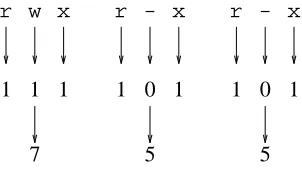
For example, consider the ACLrwxr-xr-x. That is three bits for the user, three for the group, and three for others. A bit is set to grant permission and clear to deny it. For the user, the bits would be 111, for the group, they would be 101, and for the others they would also be 101.
You know that 111 (binary) is 7 decimal. It is the same in octal. You also know that 101 (binary) is 5 decimal. It is the same in octal. Therefore, an integer value representing this ACL would be 0755 (octal). We use the same format used by C to write octal numbers, by writing an initial 0 before the number. Figure 1.6 depicts the process. Thus, the command
; chmod 755 afile
would leaveafilewithrwxr-xr-xpermissions.
r w x r - x r - x
1 1 1 1 0 1 1 0 1
[image:30.612.213.364.345.432.2]7 5 5
Figure 1.6: Specifying permissions as integers using octal numbers.
1.10. Writing a C program in Plan 9
Consider the traditionaltake me to your leader!programq, that we show here. We typed it into a file namedtake.c. When we show a program that is stored in a particular file, the file name is shown in a little box before the file contents.
________________
______take.c
#include <u.h>
#include <libc.h>
void
main(int, char*[])
{
print("take me to your leader!\n");
exits(nil);
}
This program is just text stored in a file. To execute it, we must compile it and then link the pro-gram with whatever libraries are necessary (in this case, the C library). There is one command for each task:
; 8c take.c # compile it
; 8l take.8 # link the resulting object ;
As you see, the shell ignores text following the#sign. That is the line-comment character forrc. That is usual in most shells found in other systems, like UNIX. The C compiler for Intel architec-tures is8c(80x86 compiler) and8lis the linker (In Plan9,8lis called a loader, because it pre-pares the way for loading the resulting program into memory). Object files generated by8cuse the extension.8, to make it clear that the object is for an Intel (it reminds of 8086). The binary file produced by linking the object file(s) and the libraries implied is named8.out, when using
8l. This binary has execute permission and can be executed.
In Plan 9 there are many C compilers. One for each architecture where the system runs. And, as it could be expected, each compiler has been compiled for all the architectures where the system runs. For example, for the Arm, the compiler is 5cand the linker 5l. We have these programs available for all the architectures (e.g., PCs, and Arms). To compile for one architec-ture you only have to use the compiler that generates code for it. But you can compile from any other architecture because the compiler itself is available for all of them.
For the Arm, the files generated by the compiler and the linker would be take.5 and
5.out. This makes it easy to compile a single program for execution at different platforms in the same directory. We still know which file is for which architecture. Now you may have the pleasure of executing your first hand-made Plan 9 program
; 8.out
take me to your leader! ;
The Plan 9 C dialect is not ANSI (nor ISO) C. It is a variant implemented by Ken Thompson. One of the authors of UNIX. It has a few differences with respect to the C language you can use in other system. You already noticed some. Most programs include just two files, u.h, which contains machine and system definitions, and libc.h, which contains most of the things you will need. The header files include a hint for the linker that is included in the object file. For example, this is the first line in the filelibc.h:
#pragma lib "libc.a"
The linker uses this to automatically link against the libraries with headers included by your pro-grams. There is no need to supply a long list of library names in the command line for8l!.
; 8c -FVw take.c
The binary file generated by 8lis8.out, by default. But it may be more convenient to give a better name to this file. This can be done with the-ooption for the linker. If we use a file name liketake, the file should be kept at a directory where it is clear which architecture it has been
compiled for. For example, for PCs, binaries are kept at /386/bin or at
/usr/nemo/bin/386for the usernemo. This is what is done when the program is installed for people to use. People enjoy typing just the program name.
But otherwise, it is a custom to generate a binary file with a name that states clearly the architecture it requires. Think that you may be compiling a program today while using a PC as a terminal. Tomorrow morning you might be doing the same on an Alpha. You wouldn’t like to get confused.
The tradition to name the binary file is to use the name8.outif the directory contains the source code for just one program, or a name like8.takeif there are multiple programs that can be compiled in the same directory. This is our case.
In this text we will always compile for the same architecture, an Intel PC, unless said other-wise, and generate the binary in the directory where we are working. For example, for our little program, this would be the command used to generate its binary:
; 8l -o 8.take take.8
For the first few programs, we will explicitly say how we compiled them. Later, we start assum-ing that you remember that the binary for a file namedtake.cwas compiled and linked using
; 8c -FVw take.c ; 8l -o 8.take take.8 ;
and the resulting executable is at8.take.
There is an excellent paper for learning how to use the Plan 9 C compiler [4]. It is a good thing to read if you want to learn more details not described here about how to use the compiler.
1.11. The Operating System and your programs
So far so good. But, what is the actual relation between the system and your programs? How can you understand what happens? You will see that things are more simple than you did image. But lets revisit what happens to your program after your write it, before introducing the operating system in the play. We can use some commands to do this. By now, ignore what you cannot understand.
; ls -l take.c take.8 8.take
--rwxr-xr-x M 19 nemo nemo 36280 Jul 2 18:46 8.take --rw-r--r-- M 19 nemo nemo 388 Jul 2 18:46 take.8 --rw-r--r-- M 19 nemo nemo 110 Jul 2 18:46 take.c
The commandlstells us thattake.chas 110 bytes in it. That is the text of our program. After
8c compiled it, the resulting object file take.8 has just 388 bytes in it. The contents are machine instructions for our program plus initial values for our variables (e.g., the string printed) and some other information. If we take this object file, and give it to8lto link it against the C library and produce the binary file8.take, we get a file with 36.280 bytes on it.
; nm take.8 U exits T main U print ; nm 8.take
... more output... 1131 T exits
1020 T main 118d T print
... more output... ;
It seems thattake.8 contains a procedure calledmain. We call text to binary program code, and nm prints a T before names for symbols that are text and are contained in the object file. Besides, our object file requires at least two other procedures, exits, and print to build a complete binary program. We know this because nm prints U (undefined, but required) before names for required things.
If we look at the output for the executable file, you will notice that the three procedures are in there. Furthermore, they now have addresses! The code forexits is at address 1131 (hex-adecimal), and so on. The code that is now linked to our object file comes from the C library. It was included because we included the library’s headerlibc.hin our program and called some functions found in that library. The linker,8l, knew where to find that code.
But there is more code that is used by our program and is not contained in the binary file. When our program callsprint, this function will write bytes to the output (e.g., the window). But the procedure that knows how to write is not in our program, nor is in the C library. This pro-cedure is within the operating system kernel. A propro-cedure provided by the system is known as a
system call, calling such procedure is known as making a system call.
main() { ...}
write() { ...} main() { ...} procedure
call print() { ...}
system call
Your program Other program
System kernel
Figure 1.7: System calls, user programs, and the system kernel.
Figure 1.7 depicts two different programs, e.g., the one you executed before and another one, and the system kernel. Those programs are executing, not just files sitting on a disk. Your program contains all the code it needs to execute, including portions of the C library. Yourmain
procedure calls print, with a local procedure call. The code for print was taken from the C library and linked into your program by8l. To perform its job,printcalls another procedure,
write, that is contained within the operating system kernel. That is a system call. As you can see in the figure, the other program might perform its own system calls as well.
However, only one, or maybe a few, are actual system calls. The others are implemented within the C library in terms of the real system call(s). Going from one version of the system to another, we may find that an old system call is now a library function, and vice-versa. What matters is that the function is part of the programmer’s interface for a system provided abstraction. Indeed, in what follows, we may refer to functions within the C library as system calls. Be warned. But in any case, the entire section 2 of the manual describes the functions available.
As a remark, programmer’s interfaces are usually called APIs, for Application Programmer’s Interface.
1.12. Where are the files?
If you remember, we said that your files are not kept in the machine you use to execute Plan 9 commands and programs. Plan 9 calls the machine you use, a terminal, and the machine where the files a kept, a file server. The Plan 9 that runs at your terminal lets you use the files that you have available at other places in the network, and there can be many of them. For simplicity, we assume that all your files are stored at a single machine behaving as the file server.
How does this work? What we said about how a program performs a system call to the ker-nel, to write into a file, is still true. But there was something missing in the description we made in the last section. To do the write you requested, your Plan 9 kernel is likely to need to talk to another machine. Most probably, your terminal does not have the file, and must get in touch with the file server to ask him to write the file.
Figure 1.8 shows the steps involved for doing the sameprintshown in the last section. This time, it shows how the file server comes into play, and it shows only your program. Other programs running at your terminal would follow a similar path.
main(){ ... }
print(){ ... }
1. call
6. return
write(){ ... }
2. system call 5. return
write(){ ... } ...3. message: write! ...
4. message: done!
Your program
Your terminal’s kernel File server
Figure 1.8: Your system kernel makes a remote procedure call to write a file in the file server.
1 Your program makes a procedure call, to the functionprintin the C library.
2 The function makes a system call to the kernel in your machine. This is similar to a proce-dure call, but calls a proceproce-dure that is implemented by your kernel and shared among all the programs in your terminal. Because the kernel protects itself to prevent your program from calling arbitrary procedures in the kernel, a software interrupt is the mechanism used to per-form this call. This is called a trap, and is mostly irrelevant for you now.