Turbo Tutor
A Self-Study Guide to Turbo Pascal
Table
of Contents
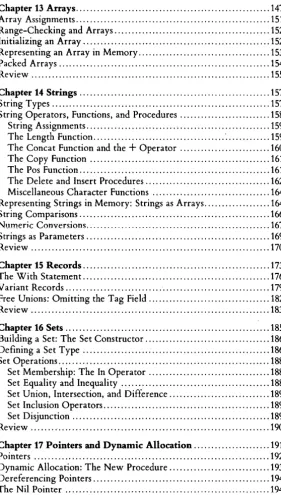
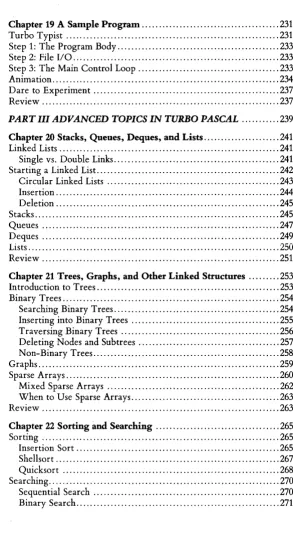
Introduction ... xiii
About this Book ... xiii
What We'll Teach You ... xv
PART I TURBO PASCAL FOR THE ABSOLUTE NOVICE ... 1
Chapter 1 Getting Started with Turbo Pascal ... 3
Using the Disk with this Ma.nual. " " " , , , ,.". " , , , , , , " ", "'" ... , 4
TUTOR.PAS and the .EX Files ... 4
Main Menu ... 4
Subprograms ... 4
Modifying the Examples ... 5
Files on the Disk ... 5
Chapter 2 Computers: Myth Versus Reality . ... 7
Beyond the Misconceptions ... 8
Computers are Fast ... 8
Computers are Stupid ... 8
Computers are Literal ... 8
Chapter 3 Computer Basics ... 11
Computer Hardware ... 11
Central Processing Unit ... 12
Memory ... 12
Mass Storage ... 12
Input Devices ... 13
Output Devices ... 13
Digital Data ... 13
Computer Software ... 14
Operating Systems ... 15
Application Software ... 16
Characters ... 16
Chapter 4 A Brief History of Programming ... 21
In the Beginning ... 21
A Programming Shorthand ... 22
High-Level Languages ... 23
Programming Languages and Microcomputers ... 24
And Finally.· .. Pascal ... 24
Interpreters and Compilers ... 25
The Turbo Pascal Advantage ... 26
Chapter 5 Getting Ready to Use Turbo Pascal ... 29
Backing Up Your Original Turbo Disk ... 30
Making Backups: MS-DOS and IBM PC-DOS ... 30
Getting Ready to Work ... 31
Making a Turbo System Disk ... 31
Installing Turbo Pascal ... 31
Using TINST with Non-IBM PC Systems ... 33
Using TINST on the IBM PC and Compatible Systems ... 35
Additional Files ... 35
Another Backup ... 36
Using a Single Drive System ... 37
U sing a Hard Disk ... 37
Chapter 6 Using Turbo Pascal ... 39
Starting Turbo Pascal. ... 40
Main Menu Overview ... 41
Choosing a File Name ... 41
Using The Editor ... 42
Writing the Program ... 44
Typing the Program ... 44
Compiling and Running the Program ... 45
Saving Your Source Program ... 45
Saving Your Compiled Program ... 46
Finishing Up ... 47
Review ... 48
PART II A PROGRAMMER'S GUIDE TO TURBO PASCAL .... 51
Chapter 7 The Basics of Pascal ... 53
Some Pascal Terms ... 53
Data Types ... 54
Predefined Data Types ... 54
User-Defined Data Types ... 55
Identifiers ... 55
Exercises ... 58
Constants ... 59
Constant Definitions ... 60
Variables ... 61
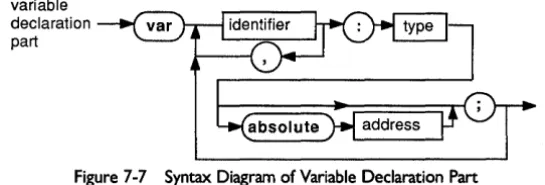
Variable Declarations ... 61
Operators ... 62
Expressions ... 63
The Order of Operations in Expressions ... 64
Exercises ... 65
Statements ... 66
Comments ... 66
A Program Example ... 67
The Program Heading ... 69
The Declaration Part ... 69
The Statement Part ... 69
Exercises ... 72
Review ... 73
Chapter 8 Program Structure ... ... 75
The Program Heading ... 75
The Declaration Part ... 76
Formatting Your Declarations ... 77
The Statement Part ... : ... 79
Formatting Your Statements ... 79
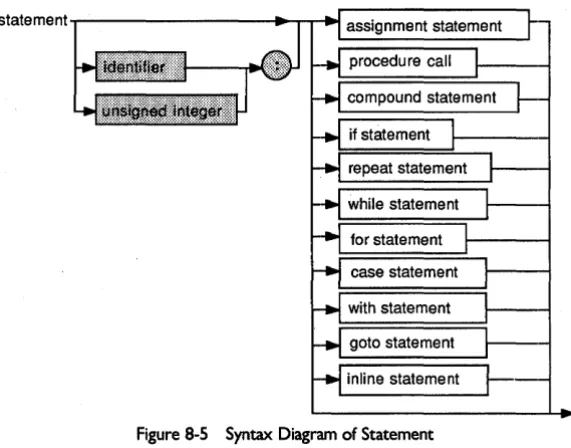
Statement Types ... 80
Comments: The Rest of the Story ... 81
Review ... 84
Chapter 9 Predefined Data Types .... ... 87
Integers ... 87
Integer Operators ... 88
Integers and Arithmetic Overflow ... 89
Exercises ... 89
Byte ... 90
Real ... 90
Real Operators ... 91
Exponential Notation ... 91
Boolean ... 93
Char ... 94
Strings ... 96
String Constants ... 97
Putting Control Characters in a String ... 97
Declaring String Variables ... 97
Review ... 99
Chapter 10 Defined Scalar Types ... 101
Enumerated Scalar Types ... 102
Ordinal Values ... 103
Standard Functions for Scalar Types ... 104
Cyclical Enumerated Types-Avoiding Range Errors ... 106
Exercises ... 106
Range-Checking ... 106
Undefined Values in Enumerated Types ... 107
Sub ranges ... 108
Subranges as Anonymous Types ... 109
Input and Output ... 110
Memory Usage ... 110
Review ... 110
Chapter 11 Control Structures ... 111
Conditional Execution: The If Statement ... 111
Compound Statements and the If Statement ... 112
Boolean Expressions ... 113
Boolean Operators ... 114
Exercises ... 115
Repetitive Tasks ... 116
Iteration ... 116
The While Statement ... 117
The Repeat ... Until Statement ... 118
The For Statement ... 119
Simulating a Step Size Larger Than 1 ... 121
Endless Loops ... 122
The Case Statement ... 123
The Constant List ... 125
Review ... 125
Chapter 12 Procedures and FUDctioDs ... 127
Subprograms ... 127
Scope ... 130
Exercises ... 133
The Lifetime of Local Variables ... 135
Parameters ... 135
Functions ... 138
Recursive Subprograms ... 141
Forward Declarations ... 142
Scope and Recursion ... 143
The Exit Procedure ... 144
Chapter 13 Arrays ... 147
Array Assignments ... 151
Range-Checking and Arrays ... 152
Initializing an Array ... 152
Representing an Array in Memory ... 153
Packed Arrays ... 154
R.eview ... 155
Chapter 14 Strings ... 157
String Types. '" ., ... 157
String Operators, Functions, and Procedures ... 158
String Assignments ... 159
The Length Function ... ' ... 159
The Concat Function and the
+
Operator ... 160The Copy Function ... 161
The Pos Function ... 161
The Delete and Insert Procedures ... 162
Miscellaneous Character Functions ... 164
Representing Strings in Memory: Strings as Arrays ... 164
String Comparisons ... 166
Numeric Conversions ... 167
Strings as Parameters ... 169
Review ... 170
Chapter 15 Records ... 173
The With Statement ... 176
Variant Records ... 179
Free Unions: Omitting the Tag Field ... 182
Review ... 183
Chapter 16 Sets ... 185
Building a Set: The Set Constructor ... 186
Defining a Set Type ... 186
Set Operations ... " ... 188
Set Membership: The In Operator ... 188
Set Equality and Inequality ... 188
Set Union, Intersection, and Difference ... ; ... 189
Set Inclusion Operators ... 189
Set Disjunction ... 189
Review ... " ... 190
Chapter 17 Pointers and Dynamic Allocation ... 191
Pointers ... 192
Dynamic Allocation: The New Procedure ... 193
Dereferencing Pointers ... " ... 194
The Nil Pointer ... 194
[image:8.417.64.345.42.536.2]Linked Lists ... 195
The Heap ... 199
The Max A vail Function ... 199
Deallocation of Dynamic Variables: Memory Management ... 200
l)ispose ... 200
Mark and Release ... 202
Review ... 203
Chapter 18 Files . ... 205
Turbo's Pascal 110 Procedures ... 205
Read and Readln ... 206
Write and Writeln ... 206
Write Parameters ... 207
Get and Put ... 210
File Types ... 210
Reading and Writing Text Files ... 211
The Assign Procedure ... 213
Reset and Rewrite ... 214
The Append Procedure ... 214
Read and Readln with Text Files ... 214
Eof, Eoln, SeekEof, and SeekEoln ... 215
The Close Procedure ... 215
Random Access Files ... 216
Creating a Random Access File ... 216
Properties of Random Access Files ... 219
The Seek Procedure ... 220
The FilePos and LongFilePos Functions ... 221
The FileSize and LongFileSize Functions ... 221
The Truncate Procedure ... 221
Other Built-in File Procedures and Functions ... 221
For MS-DOS and PC-DOS Only: Directory Management Procedures ... 222
Talking to Your Computer's Peripherals: Device 110 ... 223
Logical Devices ... 223
Standard Files ... , ... 224
Advanced Keyboard Handling: KeyPressed and the Standard File Kbd ... 224
Untyped Files ... 225
Declaring Untyped Files ... 226
Using Untyped Files ... 226
MS-DOS/PC-DOS Only: Specifying a Block Size ... 227
110 Error Handling ... 227
Chapter 19 A Sample Program ... 231
Turbo Typist ... 231
Step 1: The Program Body ... 233
Step 2: File I/O ... 233
Step 3: The Main Control Loop ... 233
Anima tion ... 234
Dare to Experiment ... 237
Review ... 237
PART III ADVANCED TOPICS IN TURBO PASCAL ... 239
Chapter 20 Stacks, Queues, Deques, and Lists ... 241
Linked Lists ... 241
Single vs. Double Links ... 241
Starting a Linked List ... 242
Circular Linked Lists ... 243
Insertion ... 244
Deletion ... 245
Stacks ... 245
Queues ... 247
Deques ... 249
Lists ... 250
Review ... 251
Chapter 21 Trees, Graphs, and Other Linked Structures ... 253
Introduction to Trees ... 253
Binary Trees ... , ... 254
Searching Binary Trees ... 254
Inserting into Binary Trees ... 255
Traversing Binary Trees ... 256
Deleting Nodes and Subtrees ... 257
Non-Binary Trees ... 258
Graphs ... 259
Sparse Arrays ... 260
Mixed Sparse Arrays ... 262
When to Use Sparse Arrays ... 263
Review ... 263
Chapter 22 Sorting and Searching ... 265
Sorting ... 265
Insertion Sort ... 265
Shellsort ... 267
Quicksort ... 268
Searching ... 270
Sequential Search ... 270
Binary Search ... 271
[image:10.416.56.350.25.563.2]Hashing ... ; ... 272
External Search ... 273
Review ... 274
Chapter 23 Writing Large Programs ... ... 275
A Program's Memory Requirements ... 275
Too Much Data ... 276
Too Much Code ... ~ ... 277
Too Much Text ... 278
The Stack ... 278
The Heap ... 280
Solutions ... 280
Include Files ... ' ... 280
Modular Programming ... 281
Libraries ... 282
Using Overlays to Save Code Space ... 282
Menu Program Example 1: Overlays ... 285
Location of Overlay Files ... 286
Overlay Restrictions ... 286
Chaining ... 287
Executing Files ... 289
Menu Program Example 2: Chain and Execute ... 290
Overlay vs. Chain/Execute ... 291
Review ... 292
Chapter 24 Typed Constants . ... 293
Defining a Typed Constant ... 294
Array Constants ... : ... 295
Record Constants ... 296
Set Constants ... 296
Special Properties of Typed Constants ... 297
Mutability ... 297
Lifetime ... 297
Scope ... 297
Typed Constants as Static Variables ... 298
Typed Constants as Initialized Variables ... 299
Manipulating Components of Constants ... 299
Saving Constant Space ... 300
Passing Constants as Var Parameters ... 301
How Typed Constants are Stored in Memory ... 301
A Final Caveat: Typed Constants and Execution from Memory .... 302
Chapter 25 The Goto Statement ... 303
Syntax of the Goto Statement ... 303
How to Use the Goto Statement-And Why Not to ... 304
Review ... 306
Chapter 26 Absolute Variables and Untyped Parameters . ... 307
Absolute Variables ... 307
Untyped Parameters ... 309
Using Untyped Parameters ... 310
Review ... 312
Chapter 27 Computer Numbering Systems and Boolean Operations on Integers .... ~ ... 313
Integers as Bits and Bytes: How Integers are Represented in Memory ... " ... " ... 313
place Value ... 313
The Special Relationship Between Binary and Hex ... 317
Two's Complement Notation: Representing Negative Numbers .... 317
How Byte Values are Stored in Memory ... 318
Boolean Operations on Integers and Bytes ... 319
The Shifting Operators: Shl and Shr ... 320
Review ... 321
Chapter 28 Using 8088/8086 Assembly Language with Turbo Pascal ... ... ' ... 323
External Subprograms ... 323
Accessing Parameters from External Subprograms ... 325
Allocating Local Variable Space ... 327
Allocating Static Storage ... 327
Libraries (PC-DOS/MS-DOS Only) ... 328
The Inline Statement ... 330
Syntax and Semantics of the Inline Statement ... 330
Speeding Up Turbo Programs with Inline Statements ... 332
Interrupt Handling ... 332
Review ... 334
PART IV APPENDICES ... . 335
Appendix A Syntax Diagrams for Turbo Pascal ... 337
Appendix B Exercise Solutions . ... 351
Chapter 7 ... 351
Answers to Sample Program Questions ... 351
Chapter 9 ... 352
First Set ... 352
Second Set ... 352
Third Set ... 352
Chapter 10 ... 352
Chapter 27 ... 353
First Set ... 353
Second Set ... 353
Appendix C Summary of Standard Procedures and Functions . ... 355
Input/Output Procedures and Functions ... 355
Arithmetic Functions ... 356
File Handling Routines ... 356
Heap Control Procedures and Functions ... 357
Miscellaneous Procedures and Functions ... " ... 357
Scalar Functions ... 358
Directory-Related Procedures and Functions (PC/MS-DOS) ... 358
Screen-Related Procedures and Functions ... 359
String Procedures and Functions ... 359
Transfer Functions ... 359
IBM PC Procedures and Functions ... " ... 360
Basic Graphics, Windows, and Sound ... 360
Extended Graphics ... 361
Turtlegraphics ... 361
Appendix D Using Turbo Pascal with Other Borland Products ... 363
SideKick ... 363
The Notepad ... 363
Reminders ... 363
Documentation ... 364
Include Files ... 364
Interruptions ... 365
The Calculator ... 365
The ASCII Table ... 365
SuperKey ... 365
Using the Predefined Macros in TURBO.MAC ... 366
Fast Entry to Turbo ... , ... , ... '" ... 366
Turbo Pascal Templates ... 366
Saving Your Work ... 367
Other Macros ... 367
Other SuperKey Functions ... 367
Turbo Lightning ... 368
Appendix E Programming Style ... 369
Consistency: A Matter of Style ... " ... 369
Indentation ... , ... 369
Parameters ... 371
Structures ... 372
Constants ... 374
Comments ... 374
Summing it Up ... 375
Appendix F Using Turbo Pascal with CP IM-80 and CP IM-86 Systems ... '.< •••••••••••••••••••••••••••••• 377 Making Backups ... 377
Installation and BDOS Errors ... 378
Compiling to Disk ... 379
The Execute Option ... 380
Appendix G Common Questions and Answers About Turbo Pascal ... 381
General ... " ... " ... 381
16-bit Machines Only (including IBM PC) ... 385
IBM PC Only ... 386
CP IM-80 Machines Only ... 389
Appendix H Glossary ... 391
List of Tables 3-1 Switch Usage ... 13
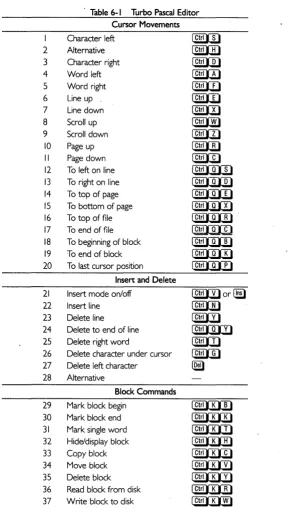
3-2 Partial ASCII Character Set ... '" 18 6-1 Turbo Pascal Editor ... 49
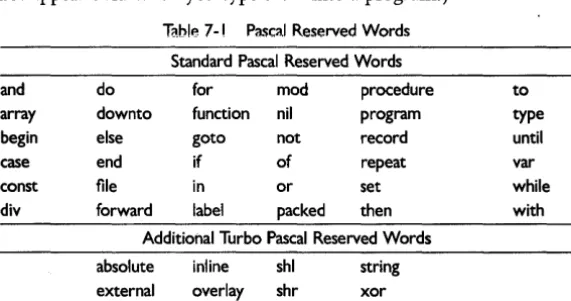
7-1 Pascal Reserved Words ... 59
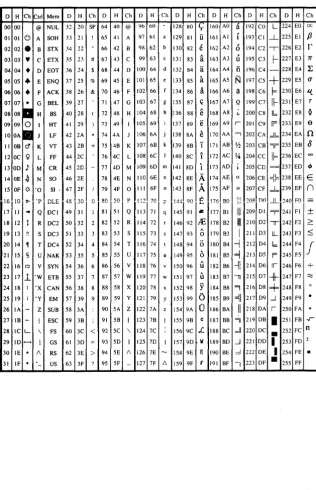
9-1 Complete ASCII Table ... 95
14-1 String Procedures and Functions ... 159
18-1 Write Parameters and Output ... 208
Introduction
Congratulations on joining the ranks of the over 500,000 owners and users of Turbo Pascal! You probably bought this book to learn to use Turbo Pascal, or to overcome a problem you're trying to solve with Turbo Pascal. Well, that's exactly what this book is for, and we don't think you'll be disappointed.
Only after you begin writing Turbo Pascal programs will you have an appreciation for the particulars of the language. For this reason, it's important that you use this book as a tutorial, and actually try entering and running the progratllS that we show and explain.
About this Book ...
If you're a novice computer user or programmer, you'll want to begin with Part I, "Turbo Pascal for the Absolute Novice." This part of the book will give you basic information about computers and program-ming, as well as a simple example of a Pascal program.
If you're a more experienced programmer, you may Want to skim through Part I and go right to Part II, "A Programmer's Guide to Turbo Pascal." This section provides you with the basic elements of Pascal programming, taking you step-by-step through the different aspects of Pascal in general, and Turbo Pascal in particular.
Initially, you may want to write only simple programs. However, when you learn what you can do, you will probably want to learn more complicated things. For this reason, we've included Part III, "Advanced Topics in Turbo Pascal." This part of the book gives a brief introduction to such topics as nonlinear data structures, linked lists, stacks, typed constants, writing large programs, and more. Each of these topics could fill an entire book, so our explanation is really just an introduction.
Appendices A through H provide information about using other Borland products with Turbo Pascal, a glossary of programming terms, a complete set of syntax diagrams showing how each component of Turbo Pascal is used, the standard procedures and functions of Turbo Pascal, common questions and answers about Turbo Pascal, general guidelines for programming style, basic Turbo Pascal operations for CP /M-80/86 users, and a solution guide to the exercises provided throughout the book.
This tutorial comes complete with a disk filled with programs to run, and a ready-made library of routines to copy into your own programs. The routines are both timesaving and educational, especially if you tailor them to your needs.
This book is not intended to repla~e the Turbo Pascal Reference Manual. Rather, its goal is to help you grasp basic Pascal principles; the reference manual can then be used to give exact definitions of the Turbo Pascal implementation.
This book assumes that you have version 3.0 (or later) of Turbo Pascal. If you have an earlier version, you'll find a few differences, but they are not really significant until you get into advanced programming. (If you are that knowledgeable, you may want to consider buying an upgrade so that you can take advantage of Turbo Pascal's latest features and functions. )
For the sake of clarity, various typefaces have been used in this manual. The body of this manual is set in a normal typeface; an alternate typeface is used in program examples; italics are used to emphasize certain concepts and first-mentioned terms; and boldface type is used to mark reserved words in the main text as well as in programming examples. We also refer to several different products in this manual; the following is a list of them and their respective companies:
• SideKick, SuperKey, and Turbo Pascal are registered trademarks and Turbo Lightning is a trademark of Borland International, Inc. • IBM is a registered trademark ofInternational Business Machines, Inc. • Xenix and MS-DOS are registered trademarks of Microsoft Corp. • WordStar is a registered trademark of MicroPro International, Inc. • Kaypro is a registered trademark of Kaypro Corp.
• DEC is a trademark of Digital Equipment Corp. • 8088 is copyrighted by Intel Corp.
• Z80 is a registered trademark of Zilog Inc.
What We'll Teach You
Before we teach you how to program in Pascal, we'11 give you a little background on computers and computer programming. We'll also en-courage you to develop some habits that will keep your programs simple and unconfused, no matter how complex the problem you are trying to solve.
Next, we'll look at each part of a Pascal program and explain its function. We'll also look at different kinds of numbers and what they are used for. We'll teach you about a logical algebra called Boolean. From time to time we will refer to the Turbo Pascal Reference Manual that comes with your Turbo Pascal disk. While the reference manual may seem a bit confusing to you at this time, it will prove to be a real treasure chest of information once you know more about Pascal.
Besides this tutorial and the Turbo Pascal Reference Manual, there are a few other things you'll need. First, you'll need a computer. The best way to learn Pascal is to actually do the things we tell you to do as you go through the tutorial. You'll also need a supply of blank disks (unless your computer has a hard disk). In addition, you'll need your Turbo Pascal program disk and the Turbo Tutor disk (the one that came with this book).
Once you've obtained all of these items, find a comfortable and quiet place with a large work area so that you can spread out your work and keep everything handy.
Finally, it will be helpful if you have a printer connected to your computer. You see, although Turbo Pascal will find most of your syntactical errors for you-mistakes where you leave out a punctuation mark or misspell a variable name-it won't find
all
errors. Every now and then, you will find yourself stumped by a logical bug-something in your program that won't let it work the way you think it should. A printed copy of your program can be of great value at times like these, so you can see and compare different parts of your program at the same time, or so you can compare a new version with an older version.We sincerely hope you enjoy exploring Turbo Pascal. Good luck and have fun!
p
A
R
T
I
Turbo Pascal
for the Absolute Novice
I Getting Started with
Turbo Pascal
Welcome! You are about to begin an exciting and rewarding learning experience. This book will teach you how to write computer programs in Pascal, a very powerful and flexible programming language. To be specific, you'll be learning how to program in Turbo Pascal, which is Borland International's name for its version of Pascal.
There is no easy way to learn a "foreign" language-the best way is to use it. The rewards will be well worth the effort; when you finish (and practice what you've learned), you'll be able to program.in one of the best-selling languages in the history of computers. Moreover, you'll gain control over your computer, making it do what you want, in just the way that you want.
We don't know how much you know about computers, but we'll assume that you're like most people when they get their first com-puter-a bit overwhelmed and perhaps intimidated by all the fancy words that describe how to use your computer. If it's any consolation, computers are much easier to use now than they were a few years ago, and this trend will continue. Early "personal" computers consisted of many individual components that were not really intended to work together, and were poorly documented to boot. They were generally usable only by dedicated hobbyists and computer professionals. Today, you can (and probably did) buy an integrated computer system with all of its components, and perhaps several programs, ready to plug in and use.
If you don't know much about your computer, your most important information resource may be the dealer who sold it to you. If you don't have a dealer who can help you, a friend who already knows how to use computers can be a lot of help. And if you don't know anyone with a personal computer (or even if you do), a users' group can be invaluable. (Users' groups usually focus on a particular computer system or software program.) You can fmd out about users' groups by
looking through computer magazines and other trade publications, or by asking a computer dealer.
Having contacts such as these may prove indispensable in a time of need. One missing piece of information can prevent you from doing anything with your computer. It could take hours or days to find that piece of information in a manual or book (if you can find it at all), whereas someone who's been through it before could possibly fill in these gaps for you in a matter of minutes.
With that said, we'll continue with the assumption that you know how to do certain basic functions with your computer: how to turn it on and off, how to "boot" the computer (load its operating system so that you can run other programs), copy files and entire disks, and other basic operations. And now we'll tell you something about the disk and its flies.
USING THE DISK WITH THIS MANUAL
TUTOR.PAS and the .EX Files
In addition to the examples described throughout this manual, we have provided an online tutorial that describes and demonstrates important Pascal and microcomputer topics. The main program, TUTOR.PAS, uses several separate subprograms also contained on your disk (in . EX flies). You can use TUTOR to look at the source code for each procedure, run the procedure, and then take a quiz on the program-ming topic demonstrated.
Main Menu
When you load TUTOR.COM (or compile and run TUTOR.PAS), the screen will clear and split into two windows .. A menu of procedures will be displayed in the lower window. Each procedure listed on the menu demonstrates one or more Turbo Pascal features. To select an example or to see the quiz questions associated with each topic, follow the menu instructions listed on the function bar at the bottom of your screen.
Subprograms
Modifying the Examples
Once you have· studied an example using the TUTOR "shell," you may wish to make changes to the example in order to master its material. Assuming the example we are studying is called ARRA Y1. EX, here is an easy way to modify and test the code:
• Copy ARRAY1.EX to ARRAY1.PAS rather than modifying the . EX flie itself (this way the source code displayed when running TUTOR.COM will not contain your modifications). Load the compiler, then press f]) and specify ARRA Y1. PAS as your work flie. Press
CU
to enter the editor and @Ei)])]) to move to the end of the file, then follow the instructions contained in the comment at the end of the flie. (It will instruct you to move a few lines of text.) Make sure there is no MAIN file specified on the Turbo main menu (press!]l
andIB
at the main menu to de-select a MAIN file). Compile and run the short program by exiting the editor ~) and pressingI]l
(for Run).Note: Always use a backup copy of the Tutor disk and put the distribution copy in a safe place. This way if you modify the. EX files, you can easily restore them from your original disk.
Files on the Disk
A complete list of the flies included with Turbo Pascal Tutor is con-tained in the READ. ME flie on your distribution disk. Here is a brief description of the disk:
README.COM Run this program to view the READ.ME file and learn about last-minute changes to Tutor and information about obtaining technical support. TUTOR. PAS To use this tutorial program, load the Turbo
Pas-cal compiler and specify TUTOR as your MAIN flie. Compile TUTOR by typing the sequence OCQC. When the compilation is complete, quit Turbo and type TUTOR to run the tutorial pro-gram .
. EX files Contains sample procedures that demonstrate Pas-cal topics. These procedures are included with the TUTOR.PAS program and can be compiled and run by following the instructions outlined in the previous paragraph. You can also compile each . EX file separately by following the instructions at the end of each flie.
· PAS files contain several larger Turbo Pascal programs:
• MANUAL.PAS contains the source code for all complete examples printed in the Turbo Tutor manual. Run README.COM to look for a list of the examples in MANUAL. PAS and information on how to run them.
• TYPIST. PAS is a typing game that uses many Pascal structures and data structures (sets, arrays, records, strings, enumerated scalar types, booleans, and so on).
• FILEMGR.PAS is a disk-file manager that demonstrates many DOS utilities (DIR, COPY, RENAME, CHDIR, TYPE, and so forth).
• ANIMALS. PAS uses binary trees and "artificial intelligence" to play a guessing game.
• LISTT. PAS lists your Turbo Pascal programs. It comes with several .LPT files, which contain printer codes for specific printer brands and models.
• .INC and .LIB files are include modules for several of the .PAS programs.
Don't forget to refer to the READ.ME file on your distribution disk for the latest information about Turbo Tutor's programs and files.
2 Computers:
Myth
versus Reality
Turbo Pascal is a complete and powerful programming language that can be used to write almost any kind of program you might want to use, including databases, text editors, games, and a host of other applications. But, for now, let's begin by exploring some of the most common myths about computers.
There are a lot of misconceotions about what comouters are and what they can do. In fact, there a;e so many
misconcepti~ns,
we're going to devote this entire chapter to dissolving myths and presenting some important points. We'll look at some basic properties of computers and programming languages.If you've just bought your computer, or if you're thinking about buying one, you may have some unrealistic expectations. Many people form their ideas about computers based on what they've seen in science-fiction movies or read in science-fiction books. Many of these otherwise harmless presentations give computers powers beyond those of mere machines-such as true intelligence and human emotions. We've seen at least one movie about a computer that learns about life by watching television, composes and performs songs, and even falls in love!
It sure would be nice if computers could do all of this. Then there would be no need for you to read this book to learn how to make your computer do things. You'd be able to point it at whatever you were doing and it would learn the task instantly and perfectly. But for the time being, you'll have to be satisfied with programming your com-puter by using the keyboard and a programming language like Turbo Pascal.
BEYOND THE MISCONCEPTIONS
What are computers really like, then? Well, beyond all of the miscon-ceptions lie three basic properties shared by all modern computers: • Computers are fast.
• Computers are stupid. • Computers are literal.
Computers Are Fast
Computers are much faster than human beings at doing certain simple, repetitive tasks, like counting or adding numbers together. For instance, if you were to write a simple program (perhaps in Turbo Pascal) that told an IBM PC® to count from
°
to 10,000 by 1s, it could finish the job in about 0.26 seconds. Knowing this, you could easily imagine it counting to 100,000 or even 100 million in just a few seconds. (For comparison purposes, if you were to count a number every second, it would take you about three hours to reach 10,000.)Computers Are Stupid
Computers are stupid-that is, they have no "common sense" or intuition. They cannot do anything without being told first.
Every single action a computer takes is based on an instruction given to it. Thus, a computer-the actual, physical hardware-is useless without sufficient software (that is, without the necessary commands to make it do useful work). If you were to turn on your computer hardware, and it had no software installed, it would do absolutely nothing. It
wouldn't even know how to display characters on the screen or accept characters from the keyboard. This is why all modern computers come with some software built into their electronic circuits-enough to run BASIC, or to read other programs (such as the operating system) from a disk.
Once you have completed this tutorial, you will be able to give your computer instructions to perform new tasks-you will be creating your own software.
Computers Are Uteral
would count "0 ...
o ...
0 ... " very quickly (and, potentially, forever) until you somehow stopped it. A human being would quickly see that counting by zeroes accomplishes nothing, and would give up; the computer has no such wisdom.The paradox here is that computers are simultaneously more and less powerful than we generally believe. There are some tasks that com-puters do very well, in times too short for us to perceive. Because of that, we often fall into the trap of thinking that a computer can do anything very well and/or very fast.
The bottom line is that computers aren't magic. They don't do every-thing well, and there may be some things you're hoping to make your computer do that it won't be able to. Remember, though, that there are some things that computers do very well indeed, tasks that are useful and/or entertaining. Most of all, you may discover (as many of us have) that there is a certain fascination in making that mass of wire and silicon do just what you want it to. Be forewarned, though: Program-ming can be psychologically addictive, and you may find yourself spending countless hours hunched over your keyboard, adding just one more feature or removing one last bug.
Well, enough about computer nlyths and facts. Just keep ill mind that you must tell your computer exactly what you want it to do, and when and how you want it to do it: Fortunately for all of us, this process is now much simpler than it used to be--as you shall see in the next chapter.
3 Computer Basics
"THINGS ARE ALWAYS AT THEIR BEST IN THEIR BEGINNING."
-Blaise Pascal, Lettres Provinciales, No.4
Now that we have exposed some of the more common misconceptions about computers, we will teach you some basic computer concepts-what they are, how their components interact, and so forth. It is by no means the final word on computer operation; rather, it is meant to be a brief, concise, up-to-date discussion on the modern microcomputer. In this chapter, we'll cover the following concepts:
• Computer hardware • Digital data
• Computer software • Characters
So let's get started-we have much to learn.
COMPUTER HARDWARE
Hardware refers to the equipment comprising a computer system. For the purpose of this discussion, we'll assume that your computer is one of those capable of running Turbo Pascal. This type of computer would consist of the following hardware:
• Central Processing Unit (or CPU)
• Memory (Random-Access Memory (RAM) and Read-Only Mem-ory (ROM))
• Mass storage device(s) (floppy disk drive or hard disk drive) • Input devices (keyboard)
• Output devices (display screen, printer)
Your computer may have more components, but this is a typical minimum configuration for effective programming.
Central Processing Unit
The CPU is the "brain" of the computer. It's really not very smart-it is capable of executing very simple instructions. It can do such things as get a number stored in a memory location, get another number, add the two numbers, and put the result in yet another memory location. The type of CPU determines the types of programs your computer will run. Some popular CPUs are the Z80® (which is usually used in computers running the CP/M® operating system) and the 8088© (used in the IBM PC to run PC-DOS or MS-DOS). We'll talk more about operating systems in a moment.
Memory
Read/write, random-access memory (RAM) stores programs and data while the computer is turned on. This type of memory is changeable and very fast. It is called random-access memory because the computer can read or write any part of it at any time (rather than having to access things in a particular order).
Another type of memory in your computer is called read-only memory (or ROM). ROM is used to store the instructions (programs) the manufacturer built into the computer; these are not alterable. For example, the IBM PC has BASIC stored in ROM so that you need not insert a disk to write BASIC programs (although you would need a disk or a cassette recorder to store your own program permanently).
Mass Storage
Computers have certain limitations; for example, they have a limited amount of RAM. The RAM in any computer can hold only a certain number of programs and a certain amount of data, not all the pro-grams and data you would want to have available. Another limitation is that, in most cases, turning off the power to the computer will cause everything stored in RAM to be erased.
The solution to both of these limitations is called mass storage. Also referred to as secondary storage (to differentiate from memory), these peripheral devices can store large volumes of data. Mass storage on a micro is available in the form of a disk drive-something your computer must have to store programs and data. Thus, you can have many floppy disks (software medium), each containing different programs and data files.
this book's purposes, we will refer to mass storage as a disk drive unless it is important to distinguish between a floppy disk and a hard disk.
Input Devices
Your primary input device is your keyboard. You can also have other input devices, such as a mouse, a digitizing tablet, a modem, or a touch screen. The distinguishing characteristic of an input device is that it sends data to the computer.
Output Devices
Your primary output device is probably your display screen. When you type, the characters usually appear on the screen; however, they don't go directly to the screen-first they go to the CPU, where they are evaluated and then sent to the screen.
You may have other output devices in your computer system, for example, a printer or a modem. The main feature of an output device is that it receives data from the computer.
DIGITAL DATA
To oversimplify a very complex piece of equipment, think of your computer as a huge number of switches. Each switch has only two positions, on and off. When a switch is on, it lets electricity flow through a wire to another part of the computer, and when it's off, no electricity can flow from that switch~ Let's call the on state of the switch a "1" and the off state a "0."
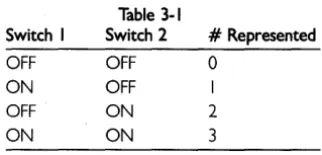
A single switch can control (or represent) only a single bit of informa-tion. But by arranging two switches side by side, four different things can be controlled or represented, as shown in Table 3-1.
Table 3-1
Switch I Switch 2 # Represented
OFF OFF 0 ON OFF
OFF ON 2
ON ON 3
By using eight switches arranged next to one another, you can control or represent 256 different things. Each switch you add doubles the number of possible states. This system of representing items by either a
[image:32.419.132.293.421.498.2]o
or a 1 is called the binary (or base 2) system. The system of numbers you're most familiar with is the decimal (base 10) system.Now let's look at how the computer's memory stores instructions and data. For the moment, think of RAM as a group of switches arranged in a matrix of8 columns of switches by 65,536 rows of switches. Each of the 65,536 rows can store an 8-bit code representing a number, a character, or an instruction that the CPU will understand. (The CPU is "told" what operation to perform via a coded instruction from mem-ory.)
As it turns out, 8 bits is a handy number for computers to work with, and so a group of 8 bits has been given a special name: a byte. The memory we just described (8 bits by 65,536 bits) is said to be a 65,536-byte memory. And since computer engineers often use the abbrevia-tion kilo to mean 1,024, a 65, 536-byte memory is often referred to as 64 kilobytes, or simply a 64K memory. If your computer contains 512 Kbytes of RAM, it has the equivalent of 8 columns of switches by 524,288 rows of switches.
The actual "switches" are microscopic electronic circuits capable of controlling the flow of electricity. They are contained in integrated circuits (also called chips) that are installed in your computer.
The CPU retrieves instructions stored in RAM by requesting the contents of a particular address in memory. The address defines the intersection of a row and a column. The binary (is and Os) code contained in memory passes over wires (or printed circuits) to the CPU. CPU instructions are codes that instruct the CPU to move data from one location to another, add, subtract, multiply, and divide data, and perform other very basic operations on data. This binary code is called machine language. (Some people like to write programs in machine language and then enter their instructions by entering the actual 1 s and Os required by each instruction and data element.) If the instruction retrieved by the CPU happens to require data, the instruction tells the CPU to go to a particular memory address and get that data. If the instruction creates new data (say, by adding two numbers), it will instruct the CPU to place the new data in an empty (or unneeded) memory location.
COMPUTER SOFTWARE
software. In fact, some of the messages displayed by an IBM PC when you turn on the power are the result of quite complex firmware. So, our original comment is tru~without some type of software, your computer will do absolutely notl?ng.
I? general, computer software can be divided into two broad catego-nes:
• Operating systems • Application software
Operating Systems
As a computer user (or a programmer, for that matter), you don't want to have to tell the computer how to accept characters from the key-board, display characters on the screen, send characters to the printer in the correct format, write a byte of data to the disk, read a byte of data from the disk, and so forth. Indeed, if you had to tell the computer how to do all of these things, you'd never get around to the original problem you set out to solve.
Such menial and routine tasks are instead handled by an operating system. The operating system is the program that displays a prompt and allows you to type on your keyboard. The operating system knows that when you type a program name, you want to load that program into memory from a disk drive and begin executing the program. The operating system also knows how to do routine tasks such as copy disks, erase files, rename files, display a list of files, and perhaps keep track of the date and time.
The primary purpose of the operating system, therefore, is to perform some of the most basic functions you would expect your computer to do, in response to commands that you (or a program) issue. This frees you to concentrate on what needs to get done, rather than the nitty-gritty details of day-to-day operations.
Another vitally important function of an operating system is to hide the differences between different types of hardware from you and the software you run. For instance, the CP/M operating system runs on hundreds of computers of all brands, shapes, and sizes. Each of these computers may have its own unique combination of terminals, printers, mass storage devices, and other hardware. Yet, if you know the command to show a file on the screen (which, incidentally, is TYPE, followed by the name of the file), you can walk up to any CP/M system and make it show you a file. Similarly, Turbo Pascal will run on nearly all of these machines (though you may have to "install" it first), because the way that a program asks CP/M to perform a task (such as reading a file) is the same on all CP/M systems.
The operating system you run on your computer is largely determined by the type of CPU in your computer. For example, if your computer has a Z80 CPU, you will most likely use the CP/M operating system. (This is just about your only choice.) On the other hand, if you have an
IBM PC (which has an 8088 CPU), you can run PC-DOS or MS-DOS, CP/M-86, Concurrent DOS, XENIX, and several others. You may also choose a particular operating system because of the application programs you'd like to run, or your preference for a certain command style.
Application Software
Application software generally consists of specific task-oriented pro-grams. Some of these programs may come with your computer, while still others are available for purchase. Application software may also be written by you, your friends, or your company to solve a particular problem. Examples of application software are word processors, spreadsheets, database managers, Borland's SideKick, and communi-cations software.
Assemblers, compilers, and interpreters are special kinds of application software used to translate programs written in a computer language, such as Pascal or BASIC, into a form your computer can run. Virtually all modern application software is created using one of these tools (including Turbo Pascal, which was written using an assembler). We will talk more about computer languages, assemblers, interpreters, and compilers in the next chapter.
CHARACTERS
When you type on your keyboard, or when your program displays information on your screen or printer, the computer is sending binary codes (1s and Os) to input/output devices. Circuits inside keyboards or other input devices convert meaningful characters into codes, and circuits inside output devices (such as display screens) convert codes into meaningful characters.
Characters are the letters, numbers, punctuation marks, symbols, and in some cases, graphics components displayed by your computer's screen and depicted on its keyboard. The computer's definition of a character also includes many "invisible," or nonprinting, characters that are used as signals to the computer hardware rather than to display or 'print things.
and a through z), the digits 0 through 9, and the punctuation symbols
(,.I?()#&, and so forth). And, believe it or not, spaces (the characters you get when you press the space bar) are considered to be characters, since you can display and print a space.
Some computers have an extended character set, which is often specific to a particular manufacturer. Extended character sets may have graphics-type symbols that can be used to construct boxes, charts, and other simple graphic images, or they may have foreign-language char-acter sets. You'll need to refer to your computer or terminal's docu-mentation to learn what, if any, extended characters it has, and the methods by which you can use them.
Nonprinting characters (those characters that don't display anything on the screen) are also called control characters, performing a particular function when they are entered from, or written to, the terminal. Control characters can be entered from the keyboard by holding down
[]ill) and pressing a letter of the alphabet. For example, you can issue a
I]illJ]l
by holding down the []ill) key and pressing1]).
Many control characters have their own keys. For example, the
fEl
key actually issues aI]![J]l
character, and theC§J
key actually issues a ~. character. The effect of issuing a control character depends on the program your computer is running. For example, when running WordStar®, pressingI]illJ]l
deletes the character the cursor is on. Thus, your computer has printing characters (alphabet, digits, sym-bols, space, and perhaps graphics characters) and nonprinting charac-ters (control characcharac-ters), but does not store characcharac-ters directly in its memory or on its disk; instead, it stores codes that represent the charac-ters.Now it would be a real mess if all computer manufacturers used their own codes for representing characters. But fortunately, most computer manufacturers follow a standard established by the Electronic Indus-tries Association (EIA), called the American Standard Code for Infor-mation Interchange (or ASCII for short). (IBM mainframes use another code called EBCDIC.) The ASCII character set is nothing more than a unique numeric code for 128 frequently used characters. When you type a character on your keyboard, the keyboard sends an ASCII code to your computer. When a program displays a character on your screen, the program is sending an ASCII code to circuits that convert ASCII codes into images of characters. And when a program prints a character on your printer, it does so by sending an ASCII code over the wires to your printer.
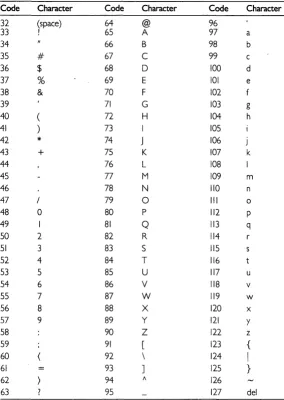
So, now you know what people are talking about when they refer to ASCII characters. Table 3-2 shows the printing characters of the ASCII character set. In Chapter 9, we'll show the character set together with codes in decimal and hexadecimal.
Note that there is a fixed relationship between the upper- and lower-case letters of the alphabet. Each lower-lower-case letter's code is exactly 32 greater than its upper-case equivalent. This means, for example, that you can convert characters entered from lower case to upper case by simply subtracting 32 from their ASCII code (or vice versa, by adding 32). This is all you really need to know about characters to get started. We'll talk more about the complete ASCII character set and its uses later in this tutorial.
Table 3-2 Partial ASCII Character Set
Code Character Code Character Code Character
32 (space) 64 @ 96
33 ! 65 A 97 a
34 66 B 98 b
35 # 67 C 99 c
36 $ 68 0 100 d
37 % 69 E 101 e
38 & 70 F 102
39 71 G 103 g
40 72 H 104 h
41 73 I 105
42
*
74 J 106 j43
+
75 K 107 k44 76 L 108 I
45 77 M 109 m
46 78 N 110 n
47 79 0 III 0
48 0 80 P 112 P
49 I 81 Q 113 q
50 2 82 R 114
51 3 83 S 115
52 4 84 T 116
53 5 85 U 117 u
54 6 86 V 118 v
55 7 87 W 119 w
56 8 88 X 120 x
57 9 89 y 121
Y
58 90 Z 122 z
59 91 [ 123 {
60 92 \ 124 I
61 93 ] 125 }
62 94 A 126
[image:37.415.61.345.151.551.2]We'll talk more about the complete ASCII character set and its uses later in this tutorial.
REVIEW
This chapter briefly discussed the basics of modern microcomputers. A modern microcomputer consists of a central processing unit (CPU), random-access memory (RAM), read-only memory (ROM), a mass storage device (disk drive), and a keyboard and screen. An operating system provides you with some basic operations and allows you to run application programs. When you tell your computer to do things, you do so by sending it characters in the form of ASCII codes. Your display and printer also work by receiving ASCII codes and converting them into characters.
This should be enough information to get you started. We are now ready for a discussion of programming languages in general, and Pascal in particular.
4 A Brief History
of
Programming
While an understanding of the history of computer programming isn't a prerequisite for using Turbo Pascal, we think you'll find this informa-tion both interesting and informative. It will also give you an apprecia-tion of just how far computer technology has come in a very short time. However, if you'd like to get started with Pascal programming right away, skip ahead to Chapter 5.
IN THE BEGINNING ...
In the early days of computers, there was nothing resembling a modern programming language. Programs were created by connecting wires inside the computers. Then someone had the marvelous idea of install-ing switches in place of the wires. (Many computers still have switches that can be used for entering small programs, but the· majority of modern computers use other methods.)
To program by flipping switches, you had to convert everything to a number. (Since the switches had only two positions--on and off--each switch could represent only one of two digits, a 1 or a
o.
We referred to this in Chapter 3 as a binary, or base 2, system.) You would enter one instruction by flipping up to 64 switches (representing one number or code), press another switch to enter the instruction, then repeat this process to enter another instruction. A series of lights corresponding to each switch indicated the contents of each instruction entered. In many cases, the result of running a program was simply a display of lights that had to be converted into a meaningful number. And the program-mer was in big trouble if one of those light bulbs burned out!Let's say you wanted to make the computer do one simple task: calculate the result of2
+
2. You would have to convert these numbers to binary (0000000000000010+
0000000000000010), enter the num-bers, then enter the binary code to add the contents of the two memorylocations holding those numbers (perhaps a code such as 00011000110100(1). You would then press the Run button, the lights would blink, and you would have your answer displayed in a row of
lights. The correct answer would be 0000000000000100, ~hich is the
binary representation of the decimal number "4." If instead you got the answer "1," you probably inadvertently set a switch that told the computer to divide rather than add. You can imagine the complications of dealing with negative numbers and fractions.
A PROGRAMMING SHORTHAND
The practice of entering instructions as binary numbers (also called machine language) was far too tedious, time-consuming, and error-prone to allow productive work. Frustrated programmers soon devised ways to make the computers themselves perform this chore, and began using a shorthand-an English-like method of representing
instructions. This shorthand was called assembly language.
Using assembly language, the programmer could enter a line such as "MOVE (1),(2)" (which might move the contents of memory location 2 to memory location 1), and the computer would do the "dirty work" of converting the programmer's shorthand into machine codes. The
program that performed the conversion was called an assembler.
Assemblers are still widely used today. To program in assembly lan-guage, you need an assembler designed specifically for the CPU in your computer (Z80, 8088, and so on), and a good understanding of both advanced programming techniques and the computer hardware you are using. It'also helps to have an inexhaustible supply of patience and a knack for detailed planning and organization. Assembly language programming is not for everyone, but many people prefer to program in it above all other languages-even though it is sometimes much easier to perform the same task using Pascal. (See Chapter 28, "Using
8088/8086 Assembly Language with Turbo Pascal.")
Assembly language allows the programmer to create the smallest, fastest programs possible for a given machine (which is why Turbo Pascal is written in assembly language). However, both the assembler and its assembly language programs can only be used with one
particu-lar CPU type. It is possible to spend months (and many thousands of
one reason why "high-level" programming languages, such as Pascal, . were invented.
So, for the vast majority of us, the best way to write application software is to use a language like Turbo Pascal.
HIGH-LEVEL LANGUAGES
A high-level programming language is a programming language in which
a single line of text may do the work of many lines of assembly language, saving the programmer much of the tedium of assembly language programming (another reason why high-level languages were developed). A high-level language also eliminates the need for the programmer to know many of the technical details of the machine on which the program will run. Most high-level languages "look" the same to the programmer, regardless of what computer is being used. In theory, if you had two very different computers and had the same programming language available for each (the programs that allow the machines to understand the language are machine-specific), you could write a program in the language and it would run on both computers. This is called portability, and is a very important consideration,
espe-cially when much effort goes into the writing of a single program. When the United States Department of Defense (DOD) decided that it wanted to run its programs on many kinds of machines, it began to look for a portable programming language. The language they chose
was the "Common Business Oriented Language," or COBOL for
short. By using COBOL they found that the same program could be run on different computers without modifications. (They have since switched to using Ada.)
However, the ability to run the same program on two computers-even if the two computers have the same language-is not universal. Certainly, if you have a computer that has color, graphics, and sound capabilities, and another computer that has none of these, you wouldn't expect a program that used the features of the first machine to run properly on the second. For this reason, most languages have a set of standard instructions that will run on any computer. When features are added to a language to take advantage of a particular computer's special features, they are called extensions. If you wish to make a program truly
portable, you must avoid using extensions.
COBOL was the first of many high-level languages developed. When scientists learned that computers could be helpful in their calculations, they invented a language specifically designed to help them process scientific formulas. They called it, appropriately enough, FORmula
TRANslator (or FORTRAN). Still widely used today, much of FOR-TRAN's popularity is due to the fact that IBM adopted it as the "official" language for its mainframe computers.
Other languages, with such unusual names as ALGOL, APL, SNO-BOL, and LISP, also appeared on the scene. Each of these languages has special features that make it useful for a particular kind of work-PROLOG, for example, is widely used in artificial intelligence (AI) research, and APL is well-suited to some types of scientific and statisti-cal work.
PROGRAMMING LANGUAGES
AND MICROCOMPUTERS
When microcomputers came along in the early 1970s, they had very little memory and ran much slower than their larger "siblings." While it was possible to use FORTRAN and COBOL on them, these lan-guages stretched the microcomputer's resources to its limit (while also being too complex for the average microcomputer user to learn). A simpler language was needed, and the language that most micro-computer manufacturers chose was called BASIC (an acronym for "Beginner's All-purpose Symbolic Instruction Code"). Originally developed at Dartmouth University with funds from General Electric Corp., BASIC is relatively easy to learn, and is an excellent choice for solving simple problems.
However, BASIC is quickly outgrown as your programming needs become more sophisticated. It is not a convenient language to use when writing a large, complex program, or when many programmers are working on the same program at once. It is difficult to divide a BASIC program into many small parts and construct each part separately. And because BASIC discourages this "divide-and-conquer" approach to programming, many teachers of computer science believe that BASIC promotes bad programming habits. Pascal, as we shall see, began as one educator's answer to this problem.
AND FINALLY ... PASCAL
Pascal is one of the newer programming languages. It was developed by a distinguished computer scientist named Niklaus Wirth in Zurich, Switzerland, in 1970-1971. Wirth based some of Pascal's concepts on other computer languages he helped develop, PLI1 and ALGOL. He also designed Pascal to teach his students how to program a computer effectively.
com-mands that tell the computer how to solve each of these smaller problems, one at a time. Pascal is a "structured" language, which means that it is conducive to writing programs in small pieces by following predefined steps. (COBOL was the first structured lan-guage.) Certain parts must be placed in certain locations within a program and must follow certain rules. You'll learn all about struc-tured programming in later chapters.
Structured languages were once quite awkward, but have become more and more human- and problem-oriented. It may not be apparent initially, but as you learn to read Pascal programs, you'll fmd that the statements read very much like English sentences. The result is that the definition of the problem, the smaller parts that comprise it, and the ways in which the smaller problems are solved, are all very easy to see.
INTERPRETERS AND COMPILERS
Regardless of what computer language you are using, the computer (which "thinks" only in terms ofls and Os) has to translate the English-like words, which people understand, into machine language, which the computer's CPU understands. The programs that perform this translation can be divided into two broad categories: interpreters and
compilers. .
What is the difference between an interpreter and a compiler? Both convert a high-level language to one the computer will understand-the difference has to do mostly with when that conversion takes place. Turbo Pascal and most other high-level languages are compiled. Most versions of BASIC, however, are interpreted. The difference is in how your programs are executed by your computer.
An interpreter is a program that "translates" your instructions during execution. You run the interpreter program every time you want to execute your application program. The interpreter program then reads each line of your program, one at a time, and performs the necessary functions.
A compiler, unlike an interpreter, translates your entire program, from beginning to end, into machine language before the program begins to run. Once the translation process is finished, the compiler is no longer needed; the application program can run on its own, usually directly from the computer's operating system prompt. Because the translation is not being done while your program is being run, a compiled program almost always runs faster than one which must be inter-preted.
Which of these two approaches is best for a given problem? The answer depends on your point of view. Large programs written with
interpreters tend to require less memory than an equivalent compiled program, but often execute as much as 10 to 50 times slower. Pro-grams compiled with a powerful, efficient compiler can approach the size and speed of assembly language; however, because the program must be recompiled each time a change is made, the speed with which you can test your program, find errors, fix those errors, and retest the program is greatly reduced.
An interpreted language, such as BASIC, is most efficient if you are in the process of testing and modifying your program. There is no need to wait for the program to recompile-at any time, you can type RUN and try your program out.
Turbo Pascal is as convenient to use as an interpreted language, unlike most "traditional" compilers. With traditional compilers, you must write your application program using a stand-alone text editor, then start up the compiler and give it the name of the file you want to compile. And once you've done that, you can go have lunch, since most compilers take several minutes to compile a moderately complex program. Then, when you return to link and execute your program, you may find mistakes (commonly referred to as bugs). If so, you'll have to restart your editor, reload the original program, and try to figure out what went wrong (known as debugging). Then, you must recompile the program and test it again. You will usually have to repeat this editing compilation testing process many times to fmally produce a program that works the way you want it to.
THE TURBO PASCAL ADVANTAGE
Turbo Pascal is a compiler, but unlike most compilers, it doesn't require you to endure the long, grueling cycle just described. First, you can perform all of the functions necessary to write a program without leaving the Turbo environment. When you start Turbo, a menu appears on your screen, and all of the necessary program development functions can be summoned by typing a single key. Second, Turbo has a built-in editor (with user-definable commands so you don't have to learn a new editor). Third, the Turbo compiler is fast. This means that you can compile most programs in a matter of seconds instead of minutes. Fourth, once compiled, you can run your program to test it without leaving the Turbo environment. And finally, when errors are found, Turbo automatically re-enters the editor and points to the line of the program that it "thinks" contains the error.
Turbo Pascal is the state of the art in powerful, easy-to-use program-ming environments. In the next chapter, you will learn how to prepare your computer for Turbo Pascal.
5 Getting
Ready
to
Use
Turbo Pascal
Before you can use Turbo Pascal, there are a few things you must do: write-protect your disks, copy your disks to make backups and work-ing copies. This chapter explains how to do all of these thwork-ings, and also covers how to use Turbo Pascal on single floppy disk and hard disk systems.
First, and foremost, we strongly recommend that you write~protect your original disks before beginning to copy, to guard against accidental erasure. The write-protect procedure you use will depend on the size of your disk--on 8-inch disks, you remove an adhesive tab from a notch to write protect; on 5-1/ 4-inch disks, you place a tab over a notch; on 3-112-inch disks you slide open the tab. After you have write-protected your disks, make a backup copy of your original Turbo Pascal disk. Next make a working copy of Turbo Pascal that is configured specifically for your needs. And finally, make a backup copy of your working copy, so that if something goes wrong with your working copy you can easily make a new one.
To begin, we'll assume you know a little something about your computer and its operating system (CP/M, MS-DOS, or whatever). Here is what we figure you already know:
• How to turn your computer on and off.
• How to "boot" your computer (that is, bring up your operating system).
• How to perform a few simple commands (DIR, COPY [or PIP for CP/M], FORMAT, and so forth).
• How to format a blank disk.
• How to make a "system" disk (one that will start your computer). • How to copy fues from one disk to another.
• How to delete fues on a disk.
• How to use a hard disk if you have one (to create directories, user areas, volumes, or whatever is necessary to separate certain files from others on your system disk).
You don't need to know much more than that to start using Turbo Pascal. If you're not sure you know how to do these things, or if you're not that familiar with your system, take a day or two to play around with it. Get to know it. Read your manuals. Best of all, have someone who does know these things take the time to teach you the basics. You'll find it a lot easier to learn Turbo Pascal if you're not nervous about, or scared by, your computer.
Now, let's get started.
BACKING UP YOUR ORIGINAL TURBO DISK
The first thing you absolutely must do (if you have not done so already) is to make backup copies of your original Turbo Pascal disk and Turbo Tutor disk. Disks are easily damaged by many things: coffee,