2
1
Table of Contents
Entry to Geographic Information System ... 4
Geographic Information System ... 7
1.1 Search by Name... 10
1.1.1 Screen buttons: Search by name window:... 10
1.2 Find a Health Facility by Location (Spatial Search) ... 12
1.2.1 Screen Buttons – Spatial Search Window ... 12
1.3 Find a Health Facility by Distance (Buffer) ... 14
1.3.1 Screen Buttons _ Search by Buffer window ... 14
1.4 Search Nearest ... 16
1.4.1 Screen Buttons- Search Nearest Window ... 16
1.5 Search by Coordinates ... 18
1.5.1 Screen buttons: Search by coordinates window: ... 18
1.6 Measure ... 20
1.6.1 Screen buttons – Measure Window ... 20
3
Table of Figures
: MOH Portal Homepage ... Figure1
4
Services List : Figure2 ... 5
: GIS Services Figure3... 7
(1) : GIS Figure4 ... 8
: GIS 2 ... Figure5 9 : Find a health facility by name (2 ... Figure6 10 : Search by name (2) ... Figure7 11 Find a health facility by name (3) ... : Figure8 11 Figure 9:Spatial search (1) ... 12
: Spatial search (2) ... Figure11 13 : spatial search (3) ... Figure11 13 Figure 12: Find a health facility by distance (1) ... 14
: Find a health facility by distance (3) Figure13... 15
Figure 14: Search nearest (1) ... 16
: Search nearest (2) ... Figure15 17 Figure 16: Search by coordinates (1) ... 18
Figure 17: Search by coordinates (2) ... 19
:Measure ... Figure18 20 Figure 19: zone’s Area ... 21
: Measure distance Figure21 ... 22
Figure 21: Measure - Location ... 22
4
Entry to Geographic Information System
The user of MOH portal can us Geographic Information System by accessing the URL to the following screen:
),
moh.gov.sa
(
: MOH Portal Homepage Figure
1
The MOH portal homepage contains 4 main sections: 1. Ministry
2. Ministry Sectors 3. Awareness 4. Services
To access (Geographic Information System), please click ‘’services’’ on the homepage, then the list of services will show as below:
5 Services List
: Figure 2
The above Figure shows that the Ministry offers many e-services for its beneficiaries, which include:
1. Medical Licences services that include: ‘’ Facilities Medical Licensing, Individuals Licensed for Health Facility, Individuals Medical Licenses, Medical Licenses Department (Eastern Region), Medical Licenses Department (Jeddah), Medical Licenses Infringement, Query on the Prevention of the Practice, and Query on the Prevention of Travel’’
2. Tenders System- Riyadh 3. Tenders System- Jeddah
4. Electronic Medical Directories that include: ‘’ Governmental Health Centers Directory, Governmental Hospitals Directory, and Private Health Facilities Directory’’
5. Employment Services
6. Staff Services that include: ‘’ Update Employee Information & Issuing MOH
Electronic ID Assignments, Assignments and Rewards, Email Service, Payroll, and Overtime Hours’’
7. Transactions Inquiry Service 8. Exchange Orders Inquiry Service
6 9. Citizen’s Voice System
10.Geographic Information System that consists of: ‘’ Find a health facility by name, Find a health facility distance, Find a health facility of geographical coordinates, and geographical information system’’
11.Hajj Health Services which consist of: ‘’ Ejad System, Ykez System, Temporary Visiting Hajj Manpower’’
12.Poison control centres – Eastern, which includes: ‘’ Ask poison specialist, Awtar, and Results of analysis’’
13.Hospital Services which include: ‘’ Deaths System- Eastern, and Emergency System – Eastern’’
14.Patient Services that include: ‘’ Tickets- Eastern’’
This user manual booklet will focus on illustrating ‘’ Geographic Information System’’ available under the Geographic Information System list of services.
7
Geographic Information System
The user of MOH Portal can access Geographic Information System by following the below steps:
Go to the homepage, and then go to Services.
Click on Geographic Information System services, the below screen will appear:: GIS Services Figure
8 You can click (Geographic Information System), the below screen will appear:
(1) : GIS
Figure 4
You can see above a definition of GIS, which explains the target of providing a group of services by the MOH, which assists the visitors of the portal to geographically locate health facilities
9
To start using the service, please press (Click here to start the service), the below screen will appear:
: GIS 2 Figure
10
1.1 Search by Name
To start using the service, you can press on “click here to start the service”, the below screen will appear:
: Find a health facility by name (2 Figure
6
1.1.1
Screen buttons: Search by name window:
Description Button’s Name
To show search window by name Search by name
To show results Results
To minimize the search by name window
Minimize
To close the search by name window
Close
To hide the search by name window Hide
To search according to the entries specified
Search
To clear entries Clear
Table 1:Screen buttons: Search by name window
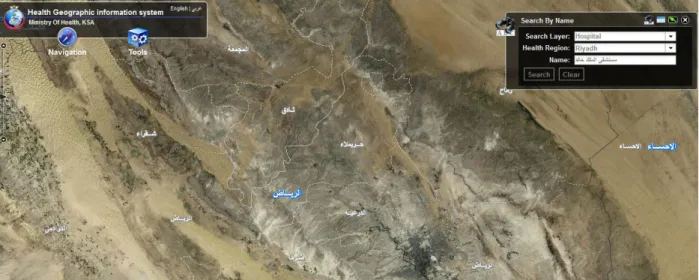
Through the previous Figure, you can press ‘‘Tools’’ and select search by name. A ‘‘ search by name window‘‘ will show up in the same screen, you can enter the type of facility in the search layer space, the city in the health region space, and the name, then press search. The following window will appear:
11 : Search by name (2)
Figure 7
From the previous figure, you can notice that by entering (type of facility, region/city, and title), then pressing (Search), search results will appear as illustrated below. Search results include a list of all health facilities under the specified name in the region. You can select the desired health facility from search results to be displayed on the map, the below screen will appear:
Find a health facility by name (3) :
Figure 8
12
1.2 Find a Health Facility by Location (Spatial Search)
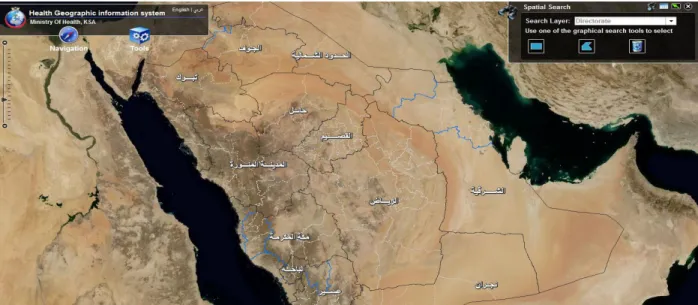
The GIS enables a spatial search by pressing search tools, then selecting (spatial search), a spatial search window will appear in the same screen as illustrated below:
Figure 9:Spatial search (1)
1.2.1 Screen Buttons – Spatial Search Window
Button’s Name Description
Spatial search To display spatial search window
Results To display results Minimize To minimize spatial search
window
Close To close spatial search window
hide To hide spatial search window
Search by rectangle To Search by rectangle Search by polygon To search by polygon Clear search results To clear entered results
13 Table 2: Spatial search window
From the pervious figure, you can press on (Tools) then select (Spatial Search), a special search window will appear in the same screen. You can enter the type of facility
(Directorate) in the search layer box, then select a search tool (Rectangle,Polygon), and locate the location on the map; the results will show as follows:
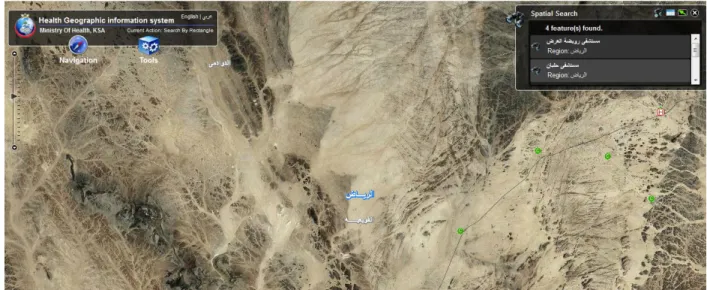
: Spatial search (2) Figure
11
From the previous figure, you can see that by entering the type of facility (Directorate), then selecting the search tool (rectangle, polygon), and specifying the location on the map, the results will appear as you can see above. Search results include a list of all health facilities in the location. You can select the health facility from the results list to be displayed in the map. The below screen will appear:
: spatial search (3) Figure
14
1.3 Find a Health Facility by Distance (Buffer)
The GIS allows search by buffer (Distance) feature by pressing on (Tools), then selecting (Search in Buffer), a search by buffer window will appear, as illustrated below:
Figure 12: Find a health facility by distance (1)
1.3.1 Screen Buttons _ Search by Buffer window
Description Button’s Name
To display search by buffer window
Search by Buffer
To show results Results
To minimize search by buffer window Minimize
To close search by buffer window
Close
To hide search by buffer window
Hide
To search in the desired buffer specified in the map Search by buffer
To clear search results Clear results
: Search by buffer window 3
Table
15 From the previous figure, you can press on (Tools), and select search by buffer in the same screen. You can enter the name of the directorate (facility) in the search layer, Kilometres, then click on (search in buffer) icon, and click on the desired location on the map. The search results will show as follows:
: Find a health facility by distance (3) Figure 13
From the previous figure, you can notice that by entering (Directorate type, and desired kilometres), then pressing (search in buffer button), and specifying the desired location to search on the map, the results will show up as illustrated above. The results include a list of all health facilities in the region according to the desired distance. You can select the health facility from the list of results for the location to be displayed on the map.
16
1.4 Search Nearest
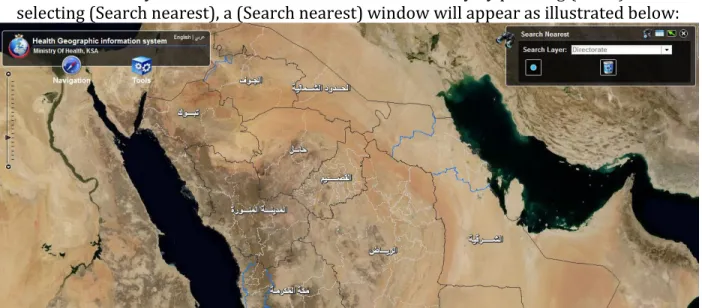
The GIS allows you to search for the nearest health facility by pressing (Tools), then selecting (Search nearest), a (Search nearest) window will appear as illustrated below:
Figure 14: Search nearest (1)
1.4.1 Screen Buttons- Search Nearest Window
Description Button’s Name
To display search nearest window
Search Nearest
To show results Results
To minimize search nearest window
Minimize
To close search nearest window
Close
To hide search nearest window
Hide
To search the nearest location to what’s specified
in the map Search nearest
To clear search results Clear results
17 From the pervious figure, you can press search tools, then select (search nearest), a search nearest window will appear in the same screen. You can enter the facility type in search layer box, then press the ( search nearest icon) , and click on the desired location to
ook for on the map. The results will show as illustrated below: l
: Search nearest (2) Figure
11
From the previous figure, you can see that by entering the facility (Directorate) type, then clicking the (search nearest) icon and specifying the desired location to look for on the map; the search results will show as illustrated above. The search results include all health facilities in that location. You can select the health facility from the results list to be
18
1.5 Search by Coordinates
The GIS allows you to search by coordinates by clicking on ‘‘Tools’’ and selecting search by coordinates (XY), as illustrated below:
Figure 16: Search by coordinates (1)
1.5.1 Screen buttons: Search by coordinates window:
Description Button’s Name
To show results by coordinates By coordinates
To show results Results
To minimize the search by coordinates window Minimize
To close the search by coordinates window
Close
To hide the search by coordinates window
Hide
To search for coordinates Locate
To clear results Clear
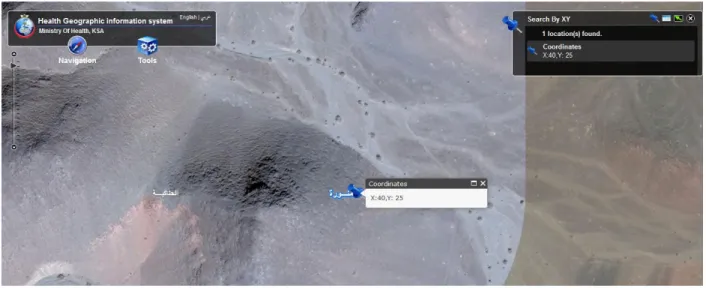
19 From the previous Figure, the user then clicks on ‘‘Tools’’ and selects search by
coordinates. A ‘‘ search by coordinates window‘‘ will show up in the same screen, the user enters the coordinates ( east, north) and clicks ‘‘locate‘‘ for the requested results to appear as illustrated below:
20
1.6 Measure
The system enables the user to measure distance, area as well as to identify the degree by pressing on ‘‘Tools‘‘, and then selecting ‘‘Measure‘‘. A window for the measure feature will appear in the same screen, as illustrated below:
:Measure Figure
81
1.6.1
Screen buttons – Measure Window
Description Button’s Name
To minimize measure window
Minimize
To close measure window Close
To measure the zone’s area Area
To measure the zone’s distance
Distance
To identify the location’s degree
Location
To display and select the desired unit of measure Unit of Measure
21 The user can utilize ‘‘Measure’’ feature to know the following: (measure zone’s area,
measure distance, identifying the locations by degree), by following the next step:
Clicking on ‘’Tools’’ and then selecting ‘’ Measure’’
‘’ Measure’’ window will appear in the same screen.
To display the result of measuring a zone’s area, please click on the icon , then specify the area on the map by clicking in the starting point, to the next point, and finally double click the end point. The following screen will appear:
Figure 19: zone’s Area
To display the results of measuring distance, please click the icon , then specify the desired distance on the map by clicking on the starting point, then to the next point reaching to the end point and double click. The below
22 : Measure distance
Figure
02
To identify the degree of the location, please click the icon , and then press on the desired location. The below screen will appear:
23
1.7 Navigation
For a complete navigation experience, the user can click on Navigation, the select the desired tool; the ’’Navigation ’’ tool includes the following: (zoom in, zoom out, previous extent, next extent, full extent, move map, legend, overview map, bookmarks), as illustrated below.