LABSHEET 1: creating a table, primary keys and data types
Before you begin, you may want to take a look at the following links to remind yourself of the basics of MySQL and the SQL language.• MySQL 5.7 Reference Manual: http://dev.mysql.com/doc/refman/5.7/en/
• Quick Reference on the Standard SQL Syntaxes: http://www.w3schools.com/sql/default.asp For accessing the Birkbeck DCS MySQL Server, follow the instructions at
http://www.dcs.bbk.ac.uk/dcswiki/index.php/MySQL_Server
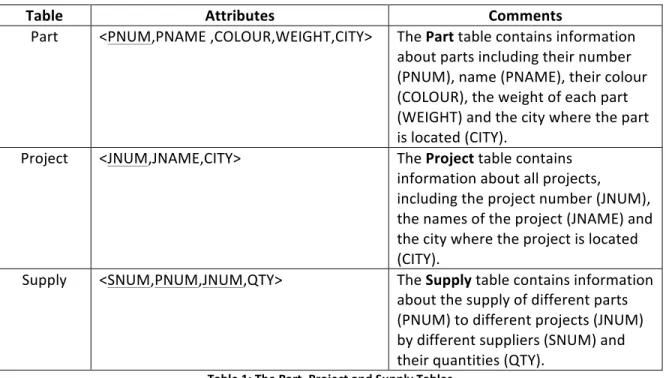
Throughout the lab sessions, we will be working with the tables listed in Table 1 (you will also create a Supplier table during the first session). The underlined attributes are the primary keys for each table.
Table Attributes Comments
Part <PNUM,PNAME ,COLOUR,WEIGHT,CITY> The Part table contains information about parts including their number (PNUM), name (PNAME), their colour (COLOUR), the weight of each part (WEIGHT) and the city where the part is located (CITY).
Project <JNUM,JNAME,CITY> The Project table contains information about all projects, including the project number (JNUM), the names of the project (JNAME) and the city where the project is located (CITY).
Supply <SNUM,PNUM,JNUM,QTY> The Supply table contains information about the supply of different parts (PNUM) to different projects (JNUM) by different suppliers (SNUM) and their quantities (QTY).
Table 1: The Part, Project and Supply Tables
Logging into MySQL using MySQL Workbench
1. MySQL database provides a GUI application called “MySQL Workbench” for issuing and executing queries. You can find it from “Start Menu à All Programs à MySQL à MySQL Workbench 6.3 CE”.
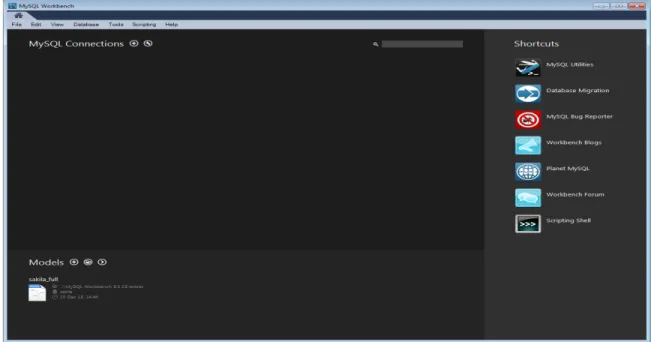
The main window allows you to log in to the Birkbeck DCS MySQL server.
Figure 1: MySQL Workbench Connection GUI
If there is a connection already set up double-‐click on it to connect to the MySQL server, otherwise click on the symbol located next to “MySQL Connections” and enter the server login details as shown in Figure 2. Substitute <username> with your departmental username in the both the “Connection Name” and the “Username” fields. In the “Default Schema” field enter <username>dbm, where <username> is again your departmental username. In the Hostname field enter mysqlsrv.dcs.bbk.ac.uk. Click the “OK” button to proceed.
The password for logging in to the Department MySQL Server will be given to you in the lab.
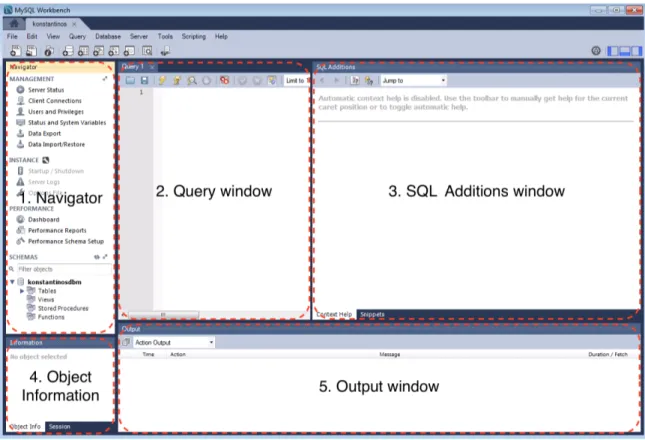
Once you have successfully logged in, the main Workbench GUI will appear as in Figure 3.
Figure 3: MySQL Workbench database GUI
The MySQL Workbench database GUI (Figure 3) contains 5 main areas:
1) Navigator window for accessing and editing table-‐level information, contains the “MANAGEMENT”, “INSTANCE”, “PERFORMANCE” and “SCHEMAS” sections 2) Query window for creating and editing SQL queries
3) SQL Additions window shows built-‐in, local, and shared custom snippets, which can be inserted into the SQL editor or the system's clipboard
4) Object Information window gives full details of the object selected in the Navigator window
5) Output window for displaying query results
Full details on MySQL Workbench can be found at:
http://dev.mysql.com/doc/workbench/en/index.html
2. In the “Navigator” window under the “SCHEMAS” section right-‐click on your schema (<username>dbm) and select “Set as Default Schema” from the menu that appears. Unfold your schema and each table’s name and you can see the attributes contained in each table. You can also right-‐click on a table’s name and click “Alter Table” from the drop list to observe and edit the table details.
Create the Supplier table and enter data for it
We now need to create a Supplier table that contains information about all suppliers (Table 2) and insert values into this table.
Table Attributes Comments
Supplier <SNUM,SNAME,STATUS,CITY> The Supplier table contains information about all suppliers, including their number (SNUM), name (SNAME), their status (STATUS) and the city where the supplier is located (CITY).
Table 2: Supplier Table Create the Supplier table
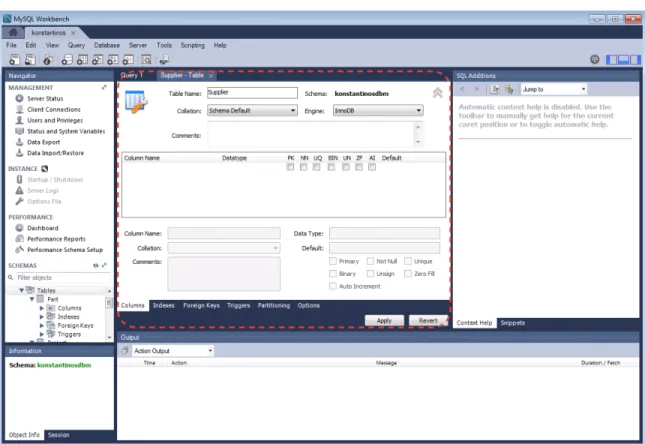
1. In the MySQLWorkbench Navigator window, unfold your schema (<username>dbm), right-‐ click on “Tables” and select “Create Table”.
2. Enter the name of the table as “Supplier” as shown in Figure 4. Do not click “Apply” yet.
Figure 4: Creating New Supplier Table
3. Carefully enter the details (schema) of the supplier table exactly as shown in Figure 5. Once you have checked that you have entered the schema correctly, click on “Apply”.
Figure 5: Supplier Table Schema
4. A window will now appear showing the SQL statement that will be used to create the new table (see Figure 6). Click “Apply”
5. A window will then appear in order to execute the SQL (see Figure 7). Click “Finish”.
Figure 7: Execute SQL Script to create Supplier table
Insert data into the Supplier table
1. In the Navigator window, select from the overlay icons that appear next to the “Supplier” table:
2. Carefully enter the data for the Supplier table exactly as shown in Figure 8.
Figure 8: Insert Data into Supplier Table
3. Click the “Apply” button
4. Click “Apply” on the next window showing the SQL statements for creating the new table, and then click “Finish” on the following window to execute the SQL statement.
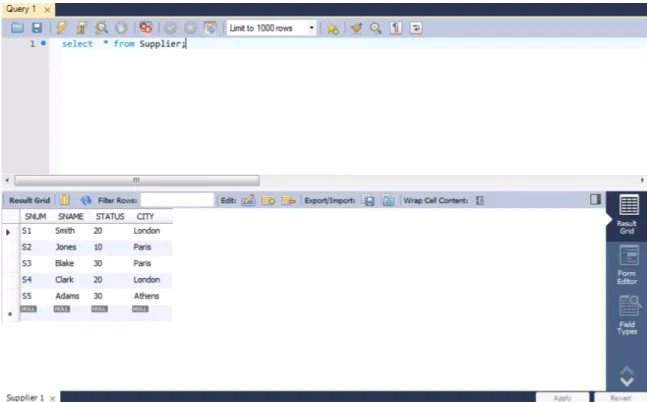
5. Close the “Supplier” tab. Then type “SELECT * FROM Supplier;” in the “Query 1” window and click the “Execute” button: . You can see that the query returns all data contained in the Supplier table. See Figure 9.
Figure 9: Query on Supplier Table
Labsheet 2: simple queries on a single table using selection and
projection operators
Objectives:
• To become familiar with the MySQL Workbench.
• To be able to write different types of queries on a single table.
Basic Query Structure:
A general SQL query contains three parts
• select – for selecting the attributes to be displayed. One or more attributes could be selected.
• from – for indicating which tables are considered in the query. One or more tables could be included in the same query. We will introduce queries involving multiple tables in later labs.
• where – for giving the restrictions on the values returned by the query.
Details on how to write SQL queries can be found at http://www.w3schools.com/sql/default.asp Examples:
Question SQL Query
Find information about all parts. select * from Part;
Find the names of parts and their weights. select PNAME,WEIGHT from Part; Find information about all parts whose weight
is less than 20. select * from Part where WEIGHT < 20; Find the names of parts whose colour is red. select PNAME from Part where colour=’Red’; Find the names of parts whose colour is not
red. select PNAME from Part where colour <> ‘Red’;
Queries:
1. Find all the details of all projects located in London. Answer:
2. Find the supplier numbers and names of all suppliers whose status is 20. Answer:
3. Find the name, weight and city of all parts located in Paris. Answer:
4. Find the supplier name, city and status of all suppliers whose status is less than or equal to 20.
Answer:
5. Find the part number, weight and colour of each non-‐blue part. Answer:
6. Find the weight, city and part name of all screw parts with a weight greater than 15. Answer:
7. Find the part name, weight and city of all parts with a weight greater than 12, which are located in London or Paris.
Answer: