Bandwidth Management
Gateway
BM-500
PLANET Technology does not warrant that the hardware will work properly in all environments and applications, and makes no warranty and representation, either implied or expressed, with respect to the quality, performance, merchantability, or fitness for a particular purpose.
PLANET has made every effort to ensure that this User’s Manual is accurate; PLANET disclaims liability for any inaccuracies or omissions that may have occurred.
Information in this User’s Manual is subject to change without notice and does not represent a commitment on the part of PLANET. PLANET assumes no responsibility for any inaccuracies that may be contained in this User’s Manual. PLANET makes no commitment to update or keep current the information in this User’s Manual, and reserves the right to make improvements to this User’s Manual and/or to the products described in this User’s Manual, at any time without notice. If you find information in this manual that is incorrect, misleading, or incomplete, we would appreciate your comments and suggestions.
CE mark Warning
This is a class B device, In a domestic environment, this product may cause radio interference, in which case the user may be required to take adequate measures.
Trademarks
The PLANET logo is a trademark of PLANET Technology.
This documentation may refer to numerous hardware and software products by their trade names. In most, if not all cases, these designations are claimed as trademarks or registered trademarks by their respective companies.
Customer Service
For information on customer service and support for the Bandwidth Management Gateway, please refer to the following Website URL:
http://www.planet.com.tw
Before contacting customer service, please take a moment to gather the following information:
♦ Bandwidth Management Gateway serial number and MAC address
♦ Any error messages that displayed when the problem occurred
♦ Any software running when the problem occurred
♦ Steps you took to resolve the problem on your own
Revision
User’s Manual for PLANET BM-500 Model: BM-500
Rev: 1.0 (March, 2004) Part No. EM-BM500
Table of Contents
CHAPTER 1: INTRODUCTION... 1
1.1 FEATURES... 1
1.2 PACKAGE CONTENTS... 1
1.3 BANDWIDTH MANAGEMENT GATEWAY FRONT VIEW... 2
1.4 BANDWIDTH MANAGEMENT GATEWAY REAR PANEL... 2
1.5 SPECIFICATION... 3
CHAPTER 2: HARDWARE INSTALLATION ... 4
2.1 INSTALLATION REQUIREMENTS... 4
2.2 OPERATION MODE... 4
2.2.1 Transparent Mode Connection Example... 4
2.2.2 NAT Mode Connecting Example... 5
CHAPTER 3: GETTING STARTED... 7
3.1 WEB CONFIGURATION... 7
3.2 SETTING UP IN TRANSPARENT MODE... 8
3.3 SETTING UP IN NAT MODE... 10
CHAPTER 4: WEB CONFIGURATION ... 12
4.1 SYSTEM... 12
4.1.1 Admin... 13
4.1.2 Settings... 16
4.1.3 Date/Time... 23
4.1.4 Language... 24
4.1.5 Permitted IPs... 25
4.1.6 Multiple NAT... 28
4.1.7 Hacker Alert... 31
4.1.8 Route Table... 33
4.1.9 DHCP... 37
4.1.10 DNS Proxy... 39
4.1.11 DDNS... 40
4.1.12 Logout... 45
4.1.13 Software Update... 46
4.2 INTERFACE... 48
4.3 ADDRESS... 53
4.3.1 LAN... 53
4.7 AUTHENTICATION... 82
4.8 POLICY... 86
4.8.1 Outgoing... 86
4.8.2 Incoming... 91
4.9 CONTENT FILTERING... 97
4.9.1 URL Blocking... 97
4.9.2 General Blocking... 101
4.10 VIRTUAL SERVER... 102
4.10.1 Mapped IP... 103
4.10.2 Virtual Server... 106
4.11 LOG... 115
4.11.1 Traffic Log...115
4.11.2 Event Log...118
4.11.3 Connection Log... 121
4.11.4 Log Backup... 123
4.12 ALARM... 126
4.12.1 Traffic Alarm... 126
4.12.2 Event Alarm... 127
4.13 ACCOUNTING REPORT... 130
4.13.1 Outbound Accounting Report... 130
4.13.2 Inbound... 135
4.14 STATISTICS... 140
4.14.1 WAN Statistics... 140
4.14.2 Policy Statistics... 141
4.15 STATUS... 144
4.15.1 Interface Status... 144
4.15.2 ARP Table... 145
Chapter 1: Introduction
BM-500 is specifically designed for SOHO networks. It has built-in 4-port 10/100Mbps Ethernet LAN ports and NAT function. Thus, no broadband router is required for users which have only one public IP address. It also supports virtual server, Multi-DMZ and dynamic DNS function which is very useful for users to share local resource to Internet users.For bandwidth management, packets can be classified based on IP address, IP subnet and TCP/UDP port number. The device has more than 40 of the most common protocols such as H.323, Oracle, HTTP, FTP, etc. for ease of definition; the administrator can then define policies to ensure committed and maximum bandwidth levels for inbound / outbound traffic in each class. The administrator can also define three priority levels for each policy to ensure that high priority packets receive the maximum available bandwidth. In addition, each policy can have a schedule defined for when the policy is activated or inactivated in increments of 30 minutes. Both the NAT mode and transparent mode are supported, therefore allowing the existing network structure to remain the same without reconfiguring. The BM-500 provides policy-based firewall protection and several hacker protections to prevent any hacker attack. Besides, the comprehensive alarm and log function allow the network Management Gateway to easily enhance the security of local network.
1.1 Features
♦ Provides four 10/100Mbps LAN port and one 10/100Mbps WAN port ♦ Supports NAT mode and transparent mode
♦ Transparent mode requires no changing for the original network structure ♦ Traffic classification bases on IP, IP range/subnet, TCP/UDP port range ♦ Guaranteed and maximum bandwidth with 3 level of priorities
♦ Dynamic and prioritized bandwidth sharing with fairness between equal-level priority ♦ Assigns daily and weekly access schedule to each individual policy
♦ Professional Network Log and Accounting Report
♦ Supports MRTG-like Traffic Statistics, easy to trace and analyze ♦ Provides Multi-Servers Load Balancing
♦ Provides Dynamic DNS and DHCP server functions ♦ Supports Content Filter on scheduled time
♦ Supports Virtual Server and IP mapping (Multi-DMZ Host) ♦ Supports Multi-language web UI, easy to manage
♦ Support user authentication based user’s user name and password
1.2 Package Contents
The following items should be included: ♦ Bandwidth Management Gateway ♦ Power Adapter
♦ Quick Installation Guide ♦ User’s Manual CD
STATUS Blinks to indicate this devise is being turned on. After one minute, this LED indicator will stop blinking, it means this device is now ready to use.
100 Steady on indicates the port operate on 100Mbps speed
WAN & LAN
LNK/ACT Steady on indicates the port is connected to other network device. Blink to indicates there is traffic on the port
1.4 Bandwidth Management Gateway Rear Panel
Port or
button
Description
RESET
Press this button to restore to factory
default settings.
WAN
Connect to your xDSL/Cable modem
or other Internet connection device
LAN 1 to 4
Connect to your local PC, switch or
1.5 Specification
Product Bandwidth Management Gateway
Model BM-500
Hardware
WAN 1 x 10/100Base-TX Connections
LAN 4 x 10/100Base-TX, Auto-MDI/MDI-X
Button Reset button fro hardware reset / factory default System LED System: PWR, STATUS
Network: LNK/ACT, 100
Power 5V DC, 2.4A
Operating Environment Temperature: 0~50°C Relative Humidity: 5%~90% Dimension W x D x H 220 x 149 x 37 mm
Regulatory FCC, CE Mark
Software
Maximum Bandwidth Transparent: 10Mbps NAT: 8Mbps
NAT + logging + statistics: 3Mbps Maximum concurrent
session
5000
Management Web (English, Traditional Chinese, Simplified Chinese ) Operation Mode Transparent, NAT
WAN connection type in NAT mode
PPPoE, DHCP and Fixed IP Traffic Classification IP, IP subnet, TCP/UDP port
Bandwidth Allocation Policy rules with Inbound/Outbound traffic management Guaranteed and maximum bandwidth
Scheduled in unit of 30 minutes 3 Priorities
Log Traffic Log, Event Log, Connection Log, Log backup by mail or syslog server
Statistics WAN port statistics and policy statistics with graph display Firewall Security Policy-based access control
Stateful Packet Inspection (SPI) Scheduled in unit of 30 minutes
Hacker Alert Detect SYN Attack, Detect ICMP Flood, Detect UDP Flood, Detect Ping of Death Attack, Detect Tear Drop Attack, Detect IP Spoofing Attack, Filter IP Route Option, Detect Port Scan Attack, Detect Land Attack Alarm w Traffic alarm for user-defined traffic level
w Event alarm for hacker attack
w The alarm message can sent to administrator by e-mail Other Functions Firmware Upgradeable through Web
NTP support
Configuration Backup and Restore through Web Dynamic DNS support
Multiple NAT and multiple DMZ ( mapped IP) support Multiple server load balancing
the power outlet.
- Electrical Requirements
The Bandwidth Management Gateway is a power-required device, it means, the Bandwidth Management Gateway will not work until it is powered. If your networked PCs will need to transmit data all the time, please consider use an UPS (Uninterrupted Power Supply) for your Bandwidth Management Gateway. It will prevent you from network data loss. In some area, installing a surge suppression device may also help to protect your Bandwidth Management Gateway from being damaged by unregulated surge or current to the Bandwidth Management Gateway.
- Network Requirements
In order for Bandwidth Management Gateway to manage traffic, the traffic must pass through Bandwidth Management Gateway at a useful point in a network. In most situations, the bandwidth Management Gateway should be placed behind the Internet connection device.
This deployment allows the network administers to control all bandwidth based on business priorities and give business-critical and time-sensitive applications guarantee bandwidth and higher priority.
Business-critical applications can receive maximum performance while other less urgent traffic is still available on remaining bandwidth. Bandwidth Management Gateway also provides comprehensive security, log and statistics functions to help monitor network and bandwidth usage and allow adjustment of the bandwidth management policies accordingly.
2.2 Operation Mode
BM-500 supports two operation modes, Transparent and NAT. In transparent mode, BM-500 works as proxy with forward LAN packet to WAN and forward WAN packet to LAN. The LAN and WAN side IP addresses are in the same subnet. In NAT mode, LAN side user will share one public IP address of WAN port to make Internet connection. Please find the following two pictures for example.
All the WAN and LAN side IP addresses are on the same subnet.
Chapter 3: Getting Started
3.1 Web Configuration
STEP 1:
Connect both the Administrator’s PC and the LAN port of the Bandwidth Management Gateway to a hub or switch. Make sure there is a link light on the hub/switch for both connections. The Bandwidth Management Gateway has an embedded web server used for management and configuration. Use a web browser to display the configurations of the Bandwidth Management Gateway (such as Internet Explorer 4(or above) or Netscape 4.0(or above) with full java script support). The default IP address of the Bandwidth Management Gateway is 192.168.1.1 with a subnet mask of 255.255.255.0. Therefore, the IP address of the Administrator PC must be in the range between 192.168.1.2– 192.168.1.254
If the company’s LAN IP Address is not subnet of 192.168.1.0, (i.e. LAN IP Address is 172.16.0.1), then the Administrator must change his/her PC IP address to be within the same range of the LAN subnet (i.e. 172.16.0.2). Reboot the PC if necessary.
By default, the Bandwidth Management Gateway is shipped with its DHCP Server function enabled. This means the client computers on the LAN network including the Administrator PC can set their TCP/IP settings to automatically obtain an IP address from the Bandwidth Management Gateway.
The following table is a list of private IP addresses. These addresses may not be used as a WAN IP address. 10.0.0.0 ~ 10.255.255.255
172.16.0.0 ~ 172.31.255.255 192.168.0.0 ~ 192.168.255.255
STEP 2:
Once the Administrator PC has an IP address on the same network as the Bandwidth Management Gateway, open up an Internet web browser and type in http://192.168.1.1 in the address bar.
A pop-up screen will appear and prompt for a username and password. A username and password is required to connect to the Bandwidth Management Gateway. Enter the default login username and password of Administrator (see below).
Username: admin Password: admin Click OK.
3.2 Setting Up in Transparent Mode
STEP 1:
After entering the username and password, the Bandwidth Management Gateway WEB UI screen will display. Select the Interface tab on the left menu and a sub-function list will be displayed.
• Select Transparent Mode.
• Enter required information to their corresponding fields. LAN interface IP Address
NetMask Default Gateway DNS Server
.
Note: The above figures are only examples. Please fill in the appropriate IP address information provided to you by the ISP.
STEP 2:
Click on the Policy tab from the main function menu, and then click on Outgoing from the sub-function list.
STEP 3:
Click on New Entry button.
STEP 4:
When the New Entry option appears, enter the following configuration: Source Address – select “Inside_Any”
Destination Address – select “Outside_Any” Service - select “ANY”
Action - select “Permit” Click on OK to apply the changes.
STEP 5:
The configuration is successful when the screen below is displayed. Make sure that all the computers that are connected to the LAN port have their Default Gateway IP Address set to the Bandwidth Management Gateway’s LAN IP Address (i.e. 192.168.1.1). At this point, all the computers on the LAN network should gain access to the Internet immediately. If a Bandwidth Management Gateway filter function is required, please refer to the Policy section in the user’s manual.
Enter the information that your ISP provided.
STEP 2:
Click on the Policy tab from the main function menu, and then click on Outgoing from the sub-function list. Click on the Policy tab from the main function menu, and then click on Incoming from the sub-function list.
STEP 3:
Click on New Entry button.
STEP 4:
When the New Entry option appears, enter the following configuration: Source Address – select “Inside_Any”
Destination Address – select “Outside_Any” Service - select “ANY”
Action - select “Permit”
STEP 5:
The configuration is successful when the screen below is displayed. Make sure that all the computers that are connected to the LAN port have their Default Gateway IP Address set to the Bandwidth Management Gateway’s LAN IP Address (i.e. 192.168.1.1). At this point, all the computers on the LAN network should gain access to Internet immediately. If a Bandwidth Management Gateway filter function is required, please refer to Address and Policy sections.
3. Set up alerts for Hackers invasion.
“System” is the managing of settings such as the privileges of packets that pass through the Bandwidth Management Gateway and monitoring controls. Administrators may manage, monitor, and configure Bandwidth Management Gateway settings. All configurations are “read-only” for all users other than the Administrator; those users are not able to change any settings for the Bandwidth Management Gateway.
Admin:has control of user access to the Bandwidth Management Gateway. He/she can add/remove users and change passwords.
Setting:TheAdministrator may use this function to backup Bandwidth Management Gateway configurations and export (save) them to an “Administrator” computer or anywhere on the network; or restore a
configuration file to the device; or restore the Bandwidth Management Gateway back to default factory
settings. Under Setting, the Administrator may enable e-mail alert notification. This will alert Administrator(s) automatically whenever the Bandwidth Management Gateway has experienced unauthorized access or a network hit (hacking or flooding). Once enabled, an IP address of a SMTP (Simple Mail Transfer protocol) Server is required. Up to two e-mail addresses can be entered for the alert notifications.
Date/Time: This function enables the Bandwidth Management Gateway to be synchronized either with an Internet Server time or with the client computer’s clock.
Language: Both Chinese and English are supported in the Bandwidth Management Gateway. Multiple NAT Multiple NAT allows local port to set multiple subnet works and connect with the Internet through different WAN IP Addresses.
Address: Enables the Administrator to authorize specific internal/external IP address(s for Management Gateway.
Hack Alert When abnormal conditions occur, the Bandwidth Management Gateway will send an e-mail alert to notify the Administrator, and also display warning messages in the Event window of Alarm.
Route Table Use this function to enable the Administrator to add static routes for the networks when the dynamic route is not efficient enough.
DHCP Administrator can configure DHCP (Dynamic Host Configuration Protocol) settings for the LAN (LAN) network.
to a static hostname, allowing your device to be more easily accessed by specific name. When this function is enabled, the IP address in Dynamic DNS Server will be automatically updated with the new IP address provided by ISP
Logout Administrator logs out the Bandwidth Management Gateway. This function protects your system while you are away.
Software Update The administrator can update the device’s software with the latest version.
Administrators may visit distributor’s web site to download the latest firmware. Administrators may update the device firmware to optimize its performance and keep up with the latest fixes for intruding attacks.
4.1.1 Admin
On the left hand menu, click on Setup, and then select Admin below it. The current list of Administrator(s) shows up.
Settings of the Administration table
Administrator Name: The username of Administrators for the Bandwidth Management Gateway. The user admin cannot be removed.
Privilege: The privileges of Administrators (Admin or Sub Admin)
The username of the main Administrator is Administrator with read / write privilege.
Sub Admins may be created by the Admin by clicking New Sub Admin. Sub Admins have read only privilege.
Configure: Click Modify to change the “Sub Administrator’s” password and click Remove to delete a “Sub Administrator.”
Step 2. Click OK to confirm password change or click Cancel to cancel it.
Adding a new Sub Administrator
Step 1. In the Add New Sub Administrator window:
n Sub Admin Name: enter the username of new Sub Admin.
n Password: enter a password for the new Sub Admin.
n Confirm Password: enter the password again.
Removing a Sub Administrator
Step 1. In the Administration table, locate the Administrator name you want to edit, and click on the
Remove option in the Configure field.
Step 2. The Remove confirmation pop-up box will appear. Click OK to remove that Sub Admin or click
4.1.2 Settings
TheAdministrator may use this function to backup Bandwidth Management Gateway configurations and export (save) them to an “Administrator” computer or anywhere on the network; or restore a configuration file to the device; or restore the Bandwidth Management Gateway back to default factory settings.
Entering the Settings window
Click Setting in the System menu to enter the Settings window. The Bandwidth Management Gateway Configuration settings will be shown on the screen.
Exporting Bandwidth Management Gateway settings
Step 1.
Under Bandwidth Management Configuration, click on the Download button next to ExportSystem Settings to Client.
Step 2.
When the File Download pop-up window appears, choose the destination place to save theexported file. The Administrator may choose to rename the file if preferred.
çç
Restoring Factory Default Settings
Step 1. Select Reset Factory Settings under Bandwidth Management Configuration.
Enabling E-mail Alert Notification
Step 1. Select Enable E-mail Alert Notification under E-Mail Settings. This function will enable the
Bandwidth Management Gateway to send e-mail alerts to the System Administrator when the network is being attacked by hackers or when emergency conditions occur.
Step 2. SMTP Server IP: Enter SMTP server’s IP address.
Step 3. E-Mail Address 1: Enter the first e-mail address to receive the alarm notification.
Step 4. E-Mail Address 2: Enter the second e-mail address to receive the alarm notification. (Optional)
Web Management (WAN Interface) (Remote UI Management)
The administrator can change the port number used by HTTP port anytime. (Remote UI Management)
Step 1. Set Web Management (WAN Interface). The administrator can change the port number used
by HTTP port anytime.
Authentication
The administrator can specify the port number and authentication time of authentication management system for LAN user to access WAN network. (Needs to setup authentication table in advance)
Authentication functions:
Authentication Port: The port number used for user login page. When user want to access WAN network and the authentication (Policy -> Outgoing) is enabled, the user has to send http request with this port number. The Bandwidth Management Gateway will send a User Login page for user to input user name and password. For example, if the gateway IP address is 192.168.1.1 and authentication port is 82, user have to open a web browser and input http://192.168.1.1:82 on the address file to have the user login page.
Re-Login if Idle: When the LAN user access to WAN network and do not use for a while, the connection will be time-out. User has to re-login again. The default time is 30 minutes and you can configure this time by “System”-> “Setting” page.
MTU (set networking packet length)
The administrator can modify the networking packet length.
To-Appliance Packets Log
Once this function is enabled, every packet to this appliance will be recorded for the administrator to trace.
Step 1. Select this option to the device’s To-Appliance Packets Log. Once this function is enabled,
System Reboot
Once this function is enabled, the Bandwidth Management Gateway will be rebooted. Reboot Bandwidth Management Gateway: Click Reboot.
A confirmation pop-up box will appear. Follow the confirmation pop-up box, click OK to restart Bandwidth Management Gateway or click Cancel to discard changes
4.1.3 Date/Time
Synchronizing the Bandwidth Management Gateway with the System Clock
Administrator can configure the Bandwidth Management Gateway’s date and time by either syncing to an Internet Network Time Server (NTP) or by syncing to your computer’s clock.
Follow these steps to sync to an Internet Time Server Step 1. Enable synchronization by checking the box.
Step 2. Click the down arrow to select the offset time from GMT.
Step 3. Enter the Server IP Address or Server name with which you want to synchronize.
Step 4. Update system clock every 5 minutes You can set the interval time to synchronize with outside servers. If you set it to 0, it means the device will not synchronize automatically.
4.1.4 Language
Administrator can configure the Bandwidth Management Gateway Select the Language version
Step 1. Select the Language version (English Version, Traditional Chinese Version or Simplified
Chinese Version).
4.1.5 Permitted IPs
Only the authorized IP address is permitted to manage the Bandwidth Management Gateway.
çç
n WebUI: Check this item, Web User can use HTTP to connect to the Setting window of BandWidth Management Gateway.
Step 3. Click OK to add Permitted IP or click Cancel to discard changes.
Modify Permitted IP Address
Step 1.
In the table of Permitted IPs, highlight the IP you want to modify, and then click Modify.Step 2.
In Modify Permitted IP, enter new IP address.Remove Permitted IP addresses
Step 1.
In the table of Permitted IPs, highlight the IP you want to remove, and then click Remove.Step 2.
In Remove Permitted IP, enter new IP address.4.1.6 Multiple NAT
Multiple NAT allows local port to set multiple subnetworks and connect with the Internet through different WAN IP Addresses.
NOTE: This function is only available when the device is configured to NAT mode.
For instance, the lease line of a company applies several real IP Addresses 168.95.88.0/24, and the company is divided into R&D department, service, sales department, procurement department, accounting department, the company can distinguish each department by different subnetworks for the purpose of convenient Management Gateway. The settings are as the following:
1.R&D department subnetwork: 192.168.1.11/24(Internal) ßà 168.95.88.253(WAN) 2. Service department subnetwork: 192.168.2.11/24(Internal) ßà 168.95.88.252(WAN) 3.Sales department subnetwork: 192.168.3.11/24(Internal) ßà 168.95.88.251(WAN) 4.Procurement department subnetwork 192.168.4.11/24(Internal) ßà 168.95.88.250(WAN) 5.Accounting department subnetwork 192.168.5.11/24(Internal) ßà 168.95.88.249(WAN)
The first department(R&D department) was set while setting interface IP, the other four ones have to be added in Multiple NAT,after completing the settings, each department use the different WAN IP Address to connect to the Internet. The settings of each department are as the following
Service IP Address: 192.168.2.1 Subnet Mask: 255.255.255.0 Default Gateway: 192.168.2.11
The other departments are also set by groups, this is the function of Multiple NAT.
Multiple NAT settings
Step 1. Click Multiple NAT in the System menu to enter Multiple NAT window.
External Interface IP: WAN port IP Address.
Alias IP of Int. Interface / Netmask: Local port IP Address and subnet Mask.
Configure: Modify the settings of Multiple NAT. Click Modify to modify the parameters of Multiple NAT or click Delete to delete settings.
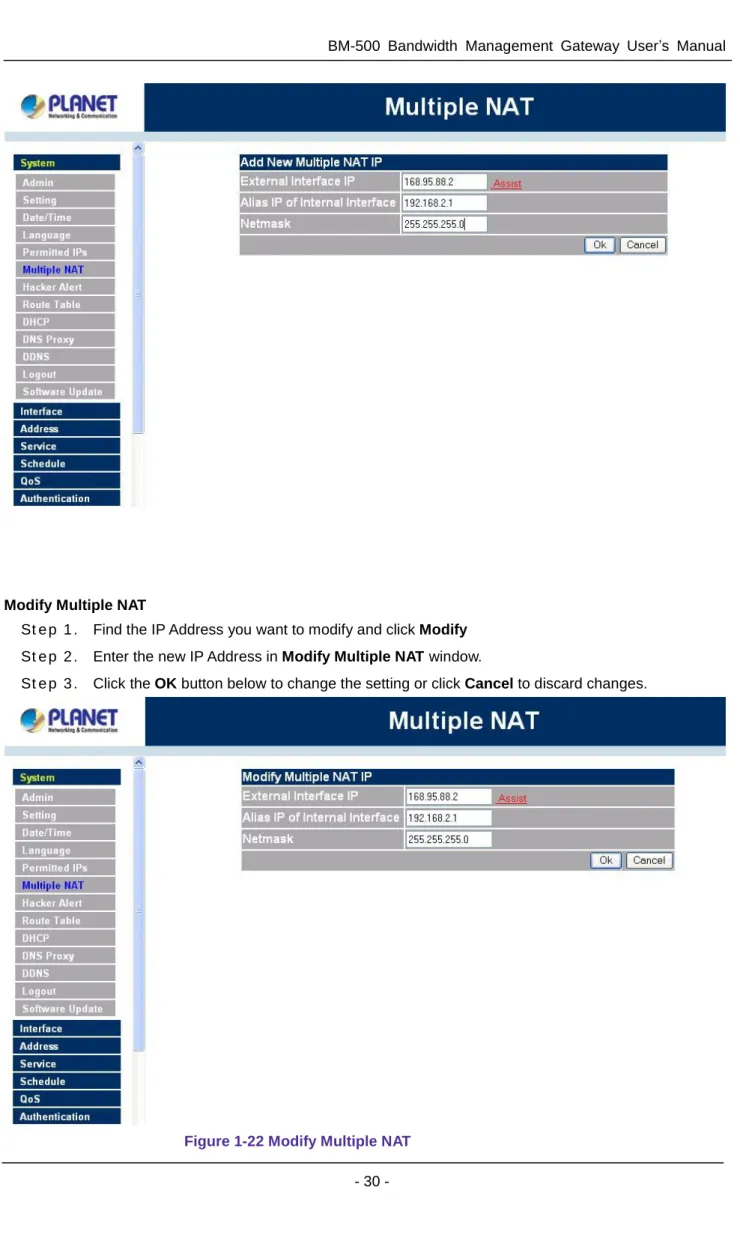
Add Multiple NAT
Step 1. Click the Add button below to add Multiple NAT.
Step 2. Enter the IP Address in the website name column of the new window.
n External interface IP Address: Select Global port IP Address.
n Alias IP of Internal Interface: Enter Local port IP Address.
n NetMask: Enter Local port subnet Mask.
Step 3. Click OK to add Multiple NAT or click Cancel to discard changes.
Modify Multiple NAT
Step 1. Find the IP Address you want to modify and click Modify
Step 2. Enter the new IP Address in Modify Multiple NAT window.
Step 3. Click the OK button below to change the setting or click Cancel to discard changes.
Delete Multiple NAT
Step 1.
Find the IP Address you want to delete and click Remove.Step 2.
A confirmation pop-up box will appear, click OK to delete the setting or click Cancel to discardchanges.
4.1.7 Hacker Alert
The Administrator can enable the device’s auto detect functions for hacker attackin this section. When abnormal conditions occur, the Bandwidth Management Gateway will send an e-mail alert to notify the Administrator, and also display warning messages in the Event window of Alarm.
Auto Detect functions
n Detect SYN Attack: Select this option to detect TCP SYN attacks that hackers send to server computers continuously to block or cut down all the connections of the servers. These attacks will prevent valid users from connecting to the servers. After enabling this function, the System Administrator can enter the number of SYN packets per second that is allowed to enter the network/Bandwidth Management Gateway. Once the SYN packets exceed this limit, the activity will be logged in Alarm and an email alert is sent to the Administrator. The default SYN flood threshold is set to 200 Pkts/Sec .
n Detect ICMP Flood: Select this option to detect ICMP flood attacks. When hackers continuously send PING packets to all the machines of the LAN networks or to the Bandwidth Management Gateway, your network is experiencing an ICMP flood attack. This can cause traffic congestion on the network and slows the network down. After enabling this function, the System Administrator can enter the number of ICMP packets per second that is allowed to enter the network/Bandwidth Management Gateway. Once the ICMP packets exceed this limit, the activity will be logged in Alarm and an email alert is sent to the Administrator. The default ICMP flood threshold is set to 1000 Pkts/Sec.
n Detect UDP Flood: Select this option to detect UDP flood attacks. A UDP flood attack is similar to an ICMP flood attack. After enabling this function, the System Administrator can enter the number of UDP packets per second that is allow to enter the network/Bandwidth Management Gateway. Once the UDP packets exceed this limit, the activity will be logged
in Alarm and an email alert is sent to the Administrator. The default UDP flood threshold is set to 1000 Pkts/Sec .
n Detect Ping of Death Attack: Select this option to detect the attacks of tremendous trash data in PING packets that hackers send to cause System malfunction This attack can cause network speed to slow down, or even make it necessary to restart the computer to get a normal operation.
n Detect Tear Drop Attack: Select this option to detect tear drop attacks. These are packets that are segmented to small packets with negative length. Some Systems treat the negative value as a very large number, and copy enormous data into the System to cause System damage, such as a shut down or a restart.
n Detect IP Spoofing Attack: Select this option to detect spoof attacks. Hackers disguise themselves as trusted users of the network in Spoof attacks. They use a fake identity to try to pass through the Bandwidth Management Gateway System and invade the network.
n Filter IP Source Route Option: Each IP packet can carry an optional field that specifies the replying address that can be different from the source address specified in packet’s header. Hackers can use this address field on disguised packets to invade LAN networks and send LAN networks’ data back to them.
n Detect Port Scan Attack: Select this option to detect the port scans hackers use to continuously scan networks on the Internet to detect computers and vulnerable ports that are opened by those computers.
n Detect Land Attack: Some Systems may shut down when receiving packets with the same source and destination addresses, the same source port and destination port, and when
SYN on the TCP header is marked. Enable this function to detect such abnormal packets.
n Default Packet Deny: Denies all packets from passing the Bandwidth Management Gateway. A packet can pass only when there is a policy that allows it to pass.
After enabling the needed detect functions, click OK to activate the changes.
4.1.8 Route Table
In this section, the Administrator can add static routes for the networks.
Entering the Route Table screen
Step 1. Click System on the left side menu bar, then click Route Table below it. The Route Table
Route Table functions
n Interface: Destination network, LAN or WAN 1 networks.
n Destination IP: IP address of destination network.
n NetMask: Netmask of destination network.
n Gateway: Gateway IP address for connecting to destination network.
n Configure: Change settings in the route table.
Adding a new Static Route
Step 1. In the Route Table window, click the New Entry button.
Step 2. In the Add New Static Route window, enter new static route information.
Step 3. In the Interface field’s pull-down menu, choose the network to connect (LAN, WAN).
Modifying a Static Route:
Step 1. In the Route Table menu, find the route to edit and click the corresponding Modify option in the
Configure field.
Step 2. In the Modify Static Route window, modify the necessary routing addresses.
Removing a Static Route
Step 1. In the Route Table window, find the route to remove and click the corresponding Remove option
in the Configure field.
Step 2. In the Remove confirmation pop-up box, click OK to confirm removing or click Cancel to cancel
4.1.9 DHCP
In the section, the Administrator can configure DHCP (Dynamic Host Configuration Protocol) settings for the LAN (LAN) network.
Entering the DHCP window
Click System on the left hand side menu bar, then click DHCP below it. The DHCP window appears in which current DHCP settings are shown on the screen.
Dynamic IP Address functions n Subnet: LAN network’s subnet
n NetMask: LAN network’s netmask
n Gateway: LAN network’s gateway IP address
n Broadcast: LAN network’s broadcast IP address
Enabling DHCP Support
Step 1. In the Dynamic IP Address window, click Enable DHCP Support.
Domain Name: The Administrator may enter the name of the LAN network domain if preferred. DNS Server 1 : Enter the distributed IP address of DNS Server 1.
DNS Server 2 : Enter the distributed IP address of DNS Server 2. WINS Server 1 : Enter the distributed IP address of WINS Server 1. WINS Server 2 : Enter the distributed IP address of WINS Server 2.
Client IP Address Range 1: Enter the starting and the ending IP address dynamically assigning to DHCP clients.
Client IP Address Range 2: Enter the starting and the ending IP address dynamically assigning to DHCP clients. (Optional)
Step 2. Click OK to enable DHCP support.
4.1.10 DNS Proxy
The Bandwidth Management Gateway’s Administrator may use the DNS Proxy function to make the
Bandwidth Management Gateway act as a DNS Server for the LAN and DMZ network. All DNS requests to a specific Domain Name will be routed to the Bandwidth Management Gateway’s IP address. For example, let’s say an organization has their mail server (i.e., mail.planet.com.tw) in the DMZ network (i.e.
192.168.10.10). The outside Internet world may access the mail server of the organization easily by its domain name, providing that the Administrator has set up Virtual Server or Mapped IP settings correctly. However, for the users in the LAN network, their WAN DNS server will assign them a public IP address for the mail server. So for the LAN network to access the mail server (mail.planet.com.tw, they would have to go out to the Internet, then come back through the Bandwidth Management Gateway to access the mail server. Essentially, the LAN network is accessing the mail server by a real public IP address, while the mail server serves their request by a NAT address and not a real one.
This odd situation occurs when there are servers in the DMZ network and they are bound to real IP addresses. To avoid this, set up DNS Proxy so all the LAN network computers will use the Bandwidth Management Gateway as a DNS server, which acts as the DNS Proxy.
If you want to use the DNS Proxy function of the device, the end user’s main DNS server IP address should be the same IP Address as the device.
Step 2: Fill in the appropriate settings for the domain name and virtual IP address. Step 3: Click OK to save the policy or Cancel to cancel.
Modifying a DNS Proxy
Step 1: In the DNS Proxy window, find the policy to be modified and click the corresponding Modify option in the Configure field.
Step 2: Make the necessary changes needed.
Step 3: Click OK to save changes or click on Cancel to cancel modifications.
Removing a DNS Proxy
Step 1: In the DNS Proxy window, find the policy to be removed and click the corresponding Remove option in the Configure field.
Step 2: A confirmation pop-up box will appear, click OK to remove the DNS Proxy or click Cancel.
4.1.11 DDNS
The Dynamic DNS (require Dynamic DNS Service) allows you to alias a dynamic IP address to a static hostname, allowing your device to be more easily accessed by specific name. When this function is enabled, the IP address in Dynamic DNS Server will be automatically updated with the new IP address provided by ISP.
Click DDNS in the System menu to enter Dynamic DNS window. The nouns in Dynamic DNS window:
!: Update Status, Connecting; Update succeed; Update fail; Unidentified error. Domain name: Enter the password provided by ISP.
WAN IP Address: IP Address of the WAN port.
Modify: Modify dynamic DNS settings. Click Modify to change the DNS parameters; click Delete to delete the settings.
How to use dynamic DNS:
The Bandwidth Management Gateway provides many service providers, users have to register prior to use this function. For the usage regulations, see the providers’ websites.
How to register:
Firstly, Click Dynamic DNS in the System menu to enter Dynamic DNS window, then click Add button,on the right side of the service providers, click Register, the service providers’ website will appear, please refer to the website for the way of registration.
Add Dynamic DNS settings
Step 1. Click Add button.
Step 2. Click the information in the column of the new window.
Service providers: Select service providers. Register: to the service providers’ website. WAN IP Address: IP Address of the WAN port.
¨ automatically fill in the WAN IP: Check to automatically fill in the WAN IP.。 User Name: Enter the registered user name.
Password: Enter the password provided by ISP(Internet Service Provider). Domain name: Your host domain name provided by ISP.
Click OK to add dynamic DNS or click Cancel to discard changes.
Modify dynamic DNS
Step 1. Find the item you want to change and click Modify.
Step 2. Enter the new information in the Modify Dynamic DNS window.
Remove Dynamic DNS
Step 1. Find the item you want to change and click Remove.
Step 2. A confirmation pop-up box will appear, click OK to delete the settings or click Cancel to discard
4.1.12 Logout
Step 1. Select this option to the device’s Logout the Bandwidth Management Gateway. This function
protects your system while you are away.
Step 2. Click Logout the Bandwidth Management Gateway.
4.1.13 Software Update
Under Software Update, the admin may update the device’s software with a newer software.
You may acquire the current version number of software in Version Number. Administrators may visit distributor’s web site to download the latest version and save it in server’s hard disc.
Step 1. Click Browse to select the latest version of Software.
Step 2. Click OK to update software.
NOTE: It takes three minutes to update the software. The system will restart automatically after updating the software.
Step 2. Then click on Interface below it. The current settings of the interface addresses will appear on the screen.
LAN Interface
Using the Internal Interface, the Administrator sets up the Internal (LAN) network. The Internal network will use a private IP scheme. The private IP network will not be routable on the Internet.
Transparent Mode: All the IP internetwork uses real IP.
NAT Mode: All the IP Internetwork uses NAT (Network Address Translation), which allows the private IP internetworks use non-registered IP addresses to connect to the Internet.
IP Address: The private IP address of the Firewall’s internal network is the IP address of the Internal (LAN) port of the Bandwidth Management Gateway. The default IP address is 192.168.1.1.
NOTE: The IP Address of Internal Interface and the DMZ Interface is a private IP address only.
If the new Internal IP Address is not 192.168.1.1, the Administrator needs to set the IP Address on the computer to be on the same subnet as the Firewall and restart the System to make the new IP address effective. For example, if the Firewall’s new Internal IP Address is 172.16.0.1, then enter the new Internal IP Address 172.16.0.1 in the URL field of browser to connect to Firewall.
NetMask: This is the netmask of the internal network. The default netmask of the Bandwidth Management Gateway is 255.255.255.0.
Ping: Select this to allow the internal network to ping the IP Address of the Firewall. If set to enable, the Bandwidth Management Gateway will respond to ping packets from the internal network.
WebUI: Select this to allow the Bandwidth Management Gateway WEBUI to be accessed from the Internal (LAN) network.
ADSL user Interface setting
PPPoE(External Interface)
Step 1. Select Interface function in the menu bar.
Step 2. Check the item PPPoE (ADSL User) below WAN Interface.
Step 3. Enter each parameter of WAN Interface.
çç
çç
Fixed: Select this if you were given a static IP address. Enter the IP address that is given to you by your ISP. Upload/Download Bandwidth: The bandwidth your ISP provided. (Maximum bandwidth for
Upload/Download Bandwidth is 10Mbps)
Service-On-Demand:
Auto Disconnect: The PPPoE connection will automatically disconnect after a length of idle time (no
activities). Enter in the amount of idle minutes before disconnection. Enter ‘0’ if you do not want the PPPoE connection to disconnect at all.
Ping: Select this to allow the external network to ping the IP Address of the Firewall. This will allow people from the Internet to be able to ping the Firewall. If set to enable, the Bandwidth Management Gateway will respond to echo request packets from the external network.
WebUI: Select this to allow the Bandwidth Management Gateway WEBUI to be accessed from the External (WAN) network. This will allow the WebUI to be configured from a user on the Internet. Keep in mind that the Bandwidth Management Gateway always requires a username and password to enter the WebUI.
After completing the setting, click OK.
For Dynamic IP Address (Cable Modem User): This option is for users who are automatically assigned an IP address by their ISP, such as cable modem users. The following fields apply:
IP Address: The dynamic IP address obtained by the Firewall from the ISP will be displayed here. This is the IP address of the External (WAN) port of the Bandwidth Management Gateway.
MAC Address: This is the MAC Address of the Bandwidth Management Gateway. User Name (Some ISPs may require): This is provided by your ISP.
Hostname: This will be the name assign to the Bandwidth Management Gateway. Some cable modem ISP assign a specific hostname in order to connect to their network. Please enter the hostname here. If not required by your ISP, you do not have to enter a hostname.
Max. Upstream/Downstream Bandwidth: The bandwidth provided by ISP. (Upstream/Downstream can be up to 10Mbps)
Renew: Requests for receiving the new WAN IP address. Release: Requests for releasing the obtained WAN IP address.
Ping: Select this to allow the external network to ping the IP Address of the Firewall. This will allow people from the Internet to be able to ping the Firewall. If set to enable, the Bandwidth Management Gateway will respond to echo request packets from the external network.
WebUI: Select this to allow the Bandwidth Management Gateway WEBUI to be accessed from the External (WAN) network. This will allow the WebUI to be configured from a user on the Internet. Keep in mind that the Bandwidth Management Gateway always requires a username and password to enter the WebUI.
After setting all of the parameters, click OK button.
For Static IP Address:This option is for users who are assigned a static IP Address from their ISP. Your ISP will provide all the information needed for this section such as IP Address, Netmask, Gateway, and DNS. Use this option if you have more than one public IP Address assigned to you.
IP Address: Enter the static IP address assigned to you by your ISP. This will be the public IP address of the External (WAN) port of the Bandwidth Management Gateway.
Netmask: This will be the Netmask of the external (WAN) network. (i.e. 255.255.255.0) Default Gateway: This will be the Gateway IP address.
DNS Server 1/2: Enter the DNS 1/2 server provided by ISP. (See Note.)
Max. Upstream Bandwidth / Max. Downstream Bandwidth: The bandwidth provided by ISP. (Upstream/Downstream can be up to 10Mbps)
Ping: Select this to allow the external network to ping the IP Address of the Firewall. This will allow people from the Internet to be able to ping the Firewall. If set to enable, the Bandwidth Management Gateway will respond to echo request packets from the external network.
If you want to set up DNS Server, you have to go to Virtual Server function to map the real IP address from DNS server to the corresponding private IP address of internal DNS server. Enter the mapped IP address of internal server in DNS server address field.
4.3 Address
The Bandwidth Management Gateway allows the Administrator to set addresses of the LAN network, LAN network group, WAN network, WAN group. These settings are to be used for policy editing.
What is the Address Table?
An IP address in the Address Table can be an address of a computer or a sub network. The Administrator can assign an easily recognized name to an IP address. Based on the network it belongs to, an IP address can be an LAN IP address, WAN IP address. If the Administrator needs to create a control policy for packets of different IP addresses, he can first add a new group in the LAN Network Group or the WAN Network Group and assign those IP addresses into the newly created group. Using group addresses can greatly simplify the process of building control policies.
With easily recognized names of IP addresses and names of address groups shown in the address table, the Administrator can use these names as the source address or destination address of control policies. The address table should be built before creating control policies, so that the Administrator can pick the names of correct IP addresses from the address table when setting up control policies.
How to use Address Table
With easily recognized names of IP addresses and names of address groups shown in the address table, the Administrator can use these names as the source address or destination address of control policies. The address table should be built before creating control policies, so that the Administrator can pick the names of correct IP addresses from the address table when setting up control policies.
4.3.1 LAN
Entering the LAN window
Step 1. Click LAN under the Address menu to enter the LAN window. The current setting information
Definition
Name: Name of LAN network address. IP: IP address of LAN network
Netmask: Netmask of LAN network.
MAC Address: MAC address corresponded with LAN IP address.
Configure: You can configure the settings in LAN network. Click Modify to change the parameters in LAN network. Click Remove to delete the settings.
In the LAN window, if one of the members has been added to Policy or LAN Group, the Configure column will show the message – In Use. In this case, you are not allowed to modify or remove the setting.
Adding a new LAN Address
Step 1. In the LAN window, click the New Entry button.
Step 2. In the Add New Address window, enter the settings of a new LAN network address.
If you want to enable Add in Static DHCP function, enter the MAC Address then check the Add in Static DHCP.
Modifying an LAN Address
Step 1. In the LAN window, locate the name of the network to be modified. Click the Modify option in
its corresponding Configure field. The Modify Address window appears on the screen immediately.
Step 2. In the Modify Address window, fill in the new addresses.
Removing a LAN Address
Step 1. In the LAN window, locate the name of the network to be removed. Click the Remove option in
its corresponding Configure field.
Step 2. In the Remove confirmation pop-up box, click OK to remove the address or click Cancel to
4.3.2 LAN Group
Entering the LAN Group window
The LAN Addresses may be combined together to become a group.
Step 1. Click LAN Group under the Address menu to enter the LAN Group window. The current setting
information for the LAN network group appears on the screen.
Definitions (LAN group): Name: Name of the LAN group. Member: Members of the group.
Configure: Configure the settings of LAN group. Click Modify to change the settings of LAN group. Click Remove to delete the group.
In the LAN Group window, if one of the LAN Group has been added to Policy, the Configure column will show the message – In Use. In this case, you are not allowed to modify or remove the LAN group. You have to delete the Group in Policy window, and then you are allowed to configure the LAN Group.
Adding a LAN Group
çç
<<Remove button to remove these members from Selected Address list.
Step 5. Click OK to add the new group or click Cancel to discard changes.
Modifying a LAN Group
Step 1. In the LAN Group window, locate the network group desired to be modified and click its
corresponding Modify option in the Configure field.
Step 2. A window displaying the information of the selected group appears:
n Available Address: list names of all members of the LAN network.
n Selected Address: list names of members which have been assigned to this group. Step 3. Add members: Select names in Available Address list, and click the Add>> button to add
them to the Selected Address list.
Step 4. Remove members: Select names in the Selected Address list, and click the <<Remove
Click OK to save changes or click Cancel to discard changes.
Figure3-7 Modify LAN Group
Removing a LAN Group
Step 1. In the LAN Group window, locate the group to be removed and click its corresponding Remove
option in the Configure field.
Step 2. In the Remove confirmation pop-up box, click OK to remove the group or click Cancel to
4.3.3 WAN
Entering the WAN window
Step 1. Click WAN under the Address menu to enter the WAN window. The current setting
information, such as the name of the WAN network, IP and Netmask addresses will show on the screen.
Definitions
Name: Name of WAN network address.
IP/Netmask: IP address/Netmask of WAN network.
Configure: Configure the settings of WAN network. Click Modify to change the settings of WAN network. Click Remove to delete the setting of WAN network.
NOTE: In the WAN Network window, if one of the members has been added to Policy or LAN Group, the Configure column will show the message – In Use. In this case you are not allowed to modify or remove the settings.
Adding a new WAN Address
Step 1. In the WAN window, click the New Entry button.
Step 2. In the Add New Address window, enter the settings for a new WAN network address.
Step 3. Click OK to add the specified WAN network or click Cancel to discard changes.
Modifying an WAN Address
Step 1. In the WAN table, locate the name of the network to be modified and click the Modify option in
its corresponding Configure field.
Step 2. The Modify Address window will appear on the screen immediately. In the Modify Address
Removing an WAN Address
Step 1. In the WAN table, locate the name of the network to be removed and click the Remove option in
its corresponding Configure field.
Step 2. In the Remove confirmation pop-up box, click OK to remove the address or click Cancel to
4.3.4 WAN Group
Entering the WAN Group window
Step 1. Click the WAN Group under the Address menu bar to enter the WAN window. The current
settings for the WAN network group(s) will appear on the screen.
will appear in the Configure column. You are not allowed to modify or remove the settings. Go to the Policy window to remove the setting, and then you can configure.
Adding an WAN Group
Step 1. In the WAN Group window, click the New Entry button and the Add New Address Group
window will appear.
Step 2. In the Add New Address Group window the following fields will appear:
n Name: enter the name of the new group.
n Available Address: List the names of all the members of the WAN network.
n Selected Address: List the names to assign to the new group.
n Add members: Select the names to be added in the Available Address list, and click the Add>> button to add them to the Selected Address list.
n Remove members: Select the names to be removed in the Selected Address list, and click the <<Remove button to remove them from the Selected Address list.
Modifying a WAN Group
Step 1. In the WAN Group window, locate the network group to be modified and click its corresponding
Modify button in the Configure field.
Step 2. A window displaying the information of the selected group appears:
n Available Address: list the names of all the members of the WAN network.
n Selected Address: list the names of the members that have been assigned to this group.
Step 3. Add members: Select the names to be added in the Available Address list, and click the
Add>> button to add them to the Selected Address list.
Step 4. Remove members: Select the names to be removed in the Selected Address list, and click the
<<Remove button to remove them from the Selected Address list.
Step 5. Click OK to save changes or click Cancel to discard changes.
Removing a WAN Group
Step 1. In the WAN Group window, locate the group to be removed and click its corresponding Modify
option in the Configure field.
Step 2. In the Remove confirmation pop-up box, click OK to remove the group or click Cancel to
4.4 Service
In this section, network services are defined and new network services can be added. There are three sub menus under Service which are: Pre-defined, Custom, and Group. The Administrator can simply follow the instructions below to define the protocols and port numbers for network communication applications. Users then can connect to servers and other computers through these available network services.
What is Service?
TCP and UDP protocols support varieties of services, and each service consists of a TCP Port or UDP port number, such as TELNET(23), SMTP(21), POP3(110),etc. The Bandwidth Management Gateway defines two services: pre-defined service and custom service. The common-use services like TCP and UDP are defined in the pre-defined service and cannot be modified or removed. In the custom menu, users can define other TCP port and UDP port numbers that are not in the pre-defined menu according to their needs. When defining custom services, the client port ranges from 1024 to 65535 and the server port ranges from 0 to 1023.
How do I use Service?
The Administrator can add new service group names in the Group option under Service menu, and assign desired services into that new group. Using service group the Administrator can simplify the processes of setting up control policies. For example, there are 10 different computers that want to access 5 different services on a server, such as HTTP, FTP, SMTP, POP3, and TELNET. Without the help of service groups, the Administrator needs to set up 50 (10x5) control policies, but by applying all 5 services to a single group name in the service field, it takes only one control policy to achieve the same effect as the 50 control policies.
4.4.1 Pre-defined
Entering a Pre-defined window
Step 1. Click Pre-defined under it. A window will appear with a list of services and their associated IP
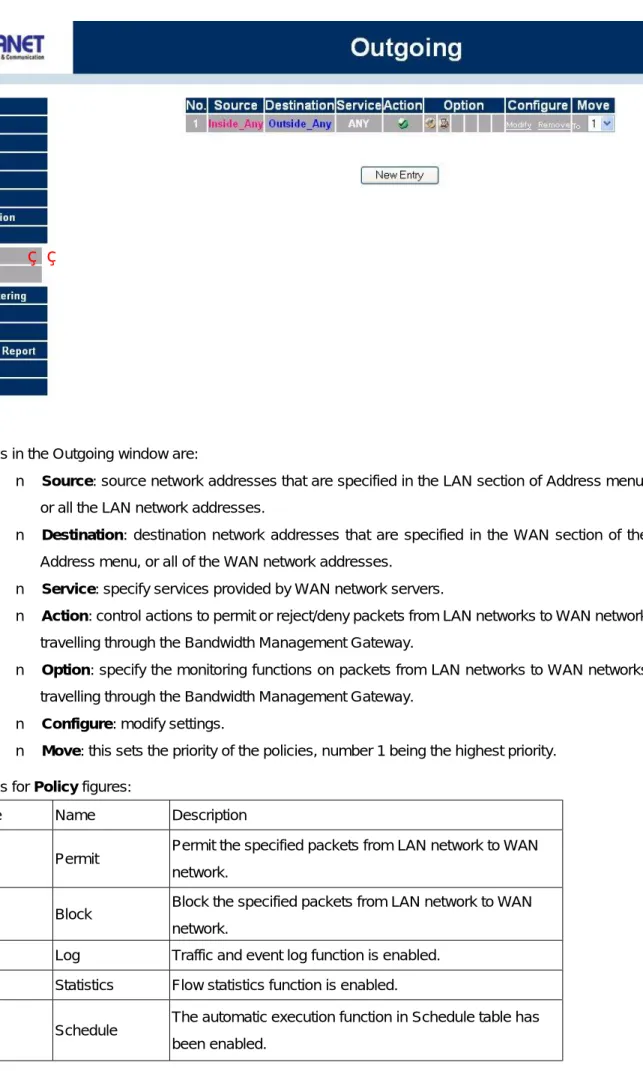
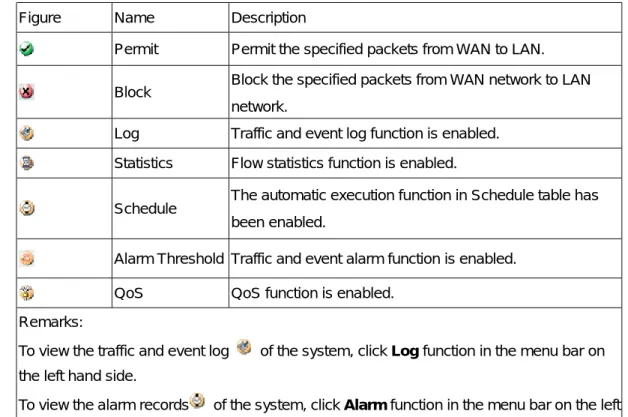
Icons and Descriptions Figur Description
TCP services, i.g. FTP、FINGER、HTTP、、HTTPS 、IMAP、SMTP、POP3、 ANY、AOL、BGP、GOPHER、InterLocator、IRC、L2TP、LDAP、NetMeeting、 NNTP、PPTPReal、 Media、RLOGIN、SSH、TCP ANY、TELNET、VDO Live、 WAIS、WINFRAME、X-WINDOWS, etc.
UDP services, i.g. IKE、DNS、NTP、IRC、RIP、SNMP、SYSLOG、TALK、 TFTP、UDP-ANY、UUC, etc.
ICMP services, i.g. PING、TRACEROUTE, etc.
4.4.2 Custom
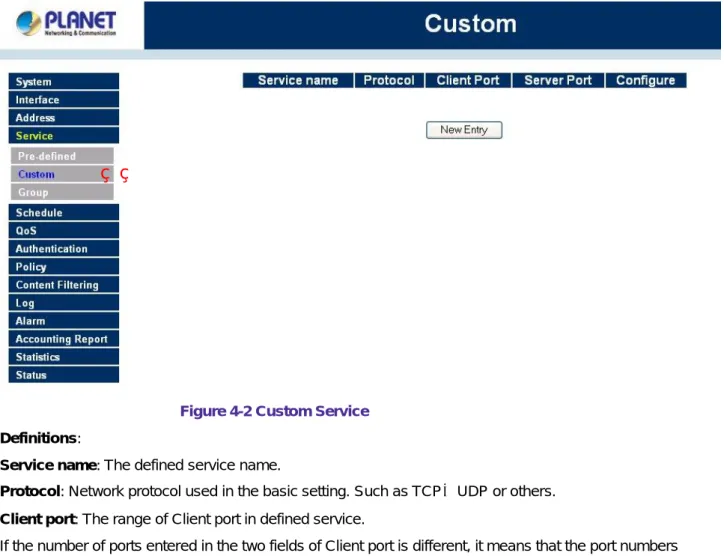
Entering the Custom window
Step 1. Click Custom under it. A window will appear with a table showing all services currently defined
Figure 4-2 Custom Service Definitions:
Service name: The defined service name.
Protocol: Network protocol used in the basic setting. Such as TCP、UDP or others. Client port: The range of Client port in defined service.
If the number of ports entered in the two fields of Client port is different, it means that the port numbers between these two numbers are opened. If the number of ports entered in the two fields of Client port is identical, it means that the entered port number is opened.
Service port: The range of Service port in defined service.
If the number of ports entered in the two fields of Service port is different, it means that the port numbers between these two numbers are opened. If the number of ports entered in the two fields of Service port is identical, it means that the entered port number is opened.
Configure: Configure the settings in Service table. Click Modify to change the parameters in Service table. Click Remove to delete the selected setting.
NOTE: In the Custom window, if one of the services has been added to Policy or Group, ”In Use” message will appear in the Configure column. In this case you are not allowed to modify or remove the settings. Go to the Policy or Group window to delete the setting, and then you can configure the settings.
Adding a new Service
In the Custom window, click the New Entry button and a new service table appears. In the new service table:
Step 2. Click OK to accept editing; or click Cancel.
Modifying Custom Services
Step 1. A table showing the current settings of the selected service appears on the screen
Step 2. Enter the new values.
Removing Custom Services
Step 1. Click its corresponding Remove option in the Configure field.
Step 2. In the Remove confirmation pop-up box, click OK to remove the selected service or click
Definitions:
Group name: The Group name of the defined Service. Service: The Service item of the Group.
Configure: Configure the settings of Group. Click Modify to change the parameters of the Group. Click Remove to delete the Group.
NOTE: In the Group window, if one of the Service Groups has been added to Policy. “In Use” message will appear in the Configure column. You are not allowed to modify or remove the settings. Go to the Policy window, remove the Service group first, and then you are allowed to configure the setting.
Adding Service Groups
Step 1. In the Group window, click the New Entry button.
Step 2. In the Add Service Group window, the following fields will appear:
n Available Services: list all the available services.
n Selected Services: list services to be assigned to the new group.
Step 3. Enter the new group name in the group Name field. This will be the name referencing the
created group.
çç
Step 4. To add new services: Select the services desired to be added in the Available Services list and then click the Add>> button to add them to the group.
Step 5. To remove services: Select services desired to be removed in the Available Services, and
then click the <<Remove button to remove them from the group.
Step 6. Click OK to add the new group.
Modifying Service Groups
Step 1. In the Mod (modify) group window the following fields are displayed:
n Available Services: lists all the available services.
n Selected Services: list services that have been assigned to the selected group.
Step 2. Add new services: Select services in the Available Services list, and then click the Add>>
button to add them to the group.
Step 3. Remove services: Select services to be removed in the Selected Services list, and then click
the <<Remove button to remove theses services from the group.
Removing Service Groups
In the Remove confirmation pop-up box, click OK to remove the selected service group or click Cancel to cancel removing.
4.5 Schedule
The Bandwidth Management Gateway allows the Administrator to configure a schedule for policies to take affect. By creating a schedule, the Administrator is allowing the Bandwidth Management Gateway policies to be used at those designated times only. Any activities outside of the scheduled time slot will not follow the Bandwidth Management Gateway policies therefore will likely not be permitted to pass through the Bandwidth Management Gateway. The Administrator can configure the start time and stop time, as well as creating 2 different time periods in a day. For example, an organization may only want the Bandwidth Management Gateway to allow the LAN network users to access the Internet during work hours. Therefore, the
Administrator may create a schedule to allow the Bandwidth Management Gateway to work Monday-Friday, 8AM - 5PM only. During the non-work hours, the Bandwidth Management Gateway will not allow Internet access.
Accessing the Schedule window
Step 1. Click on Schedule on the menu bar and the schedule window will appear displaying the active
schedules.
The following items are displayed in this window: Name: the name assigned to the schedule
Comment: a short comment describing the schedule Configure: modify or remove
NOTE: In setting a Schedule, the value in Start time must be less than the value in Stop Time, or you cannot add or configure the setting.
Modifying a Schedule
Step 1. In the Schedule window, find the policy to be modified and click the corresponding Modify
option in the Configure field. Make needed changes.
Removing a Schedule
Step 1. In the Schedule window, find the policy to be removed and click the corresponding Remove
option in the Configure field.
QoS through Policy to control and efficiently distribute bandwidth. The Bandwidth Management Gateway also makes it convenient for the administrator to use the Bandwidth Management Gateway with the best Utility.
Configuration of QoS
Click QoS in the menu bar on the left hand side.
Definitions:
Name: The name of the QoS you want to configure.
Downstream Bandwidth: To configure the Guaranteed Bandwidth and Maximum Bandwidth. Upstream Bandwidth: To configure the Guaranteed Bandwidth and Maximum Bandwidth.
QoS Priority: To configure the priority of distributing Upstream/Downstream and unused bandwidth.
Add New QoS
Step 1. Click QoS in the menu bar on the left hand side.