Product Guide
Revision EMcAfee Data Loss Prevention 9.3.0
For use with ePolicy Orchestrator 4.5, 4.6, 5.0 Software
COPYRIGHT
Copyright © 2014 McAfee, Inc. Do not copy without permission.
TRADEMARK ATTRIBUTIONS
McAfee, the McAfee logo, McAfee Active Protection, McAfee DeepSAFE, ePolicy Orchestrator, McAfee ePO, McAfee EMM, Foundscore, Foundstone, Policy Lab, McAfee QuickClean, Safe Eyes, McAfee SECURE, SecureOS, McAfee Shredder, SiteAdvisor, McAfee Stinger, McAfee Total Protection, TrustedSource, VirusScan, WaveSecure are trademarks or registered trademarks of McAfee, Inc. or its subsidiaries in the United States and other countries. Other names and brands may be claimed as the property of others.
Product and feature names and descriptions are subject to change without notice. Please visit mcafee.com for the most current products and features.
LICENSE INFORMATION License Agreement
NOTICE TO ALL USERS: CAREFULLY READ THE APPROPRIATE LEGAL AGREEMENT CORRESPONDING TO THE LICENSE YOU PURCHASED, WHICH SETS FORTH THE GENERAL TERMS AND CONDITIONS FOR THE USE OF THE LICENSED SOFTWARE. IF YOU DO NOT KNOW WHICH TYPE OF LICENSE YOU HAVE ACQUIRED, PLEASE CONSULT THE SALES AND OTHER RELATED LICENSE GRANT OR PURCHASE ORDER DOCUMENTS THAT ACCOMPANY YOUR SOFTWARE PACKAGING OR THAT YOU HAVE RECEIVED SEPARATELY AS PART OF THE PURCHASE (AS A BOOKLET, A FILE ON THE PRODUCT CD, OR A FILE AVAILABLE ON THE WEBSITE FROM WHICH YOU DOWNLOADED THE SOFTWARE PACKAGE). IF YOU DO NOT AGREE TO ALL OF THE TERMS SET FORTH IN THE AGREEMENT, DO NOT INSTALL THE SOFTWARE. IF APPLICABLE, YOU MAY RETURN THE PRODUCT TO MCAFEE OR THE PLACE OF PURCHASE FOR A FULL REFUND.
Contents
Preface 13
About this guide . . . 13
Audience . . . 13
Conventions . . . 13
Find product documentation . . . 14
1 Introduction to McAfee Data Loss Prevention 15 Understanding McAfee DLP products . . . 15
McAfee DLP product suite . . . 15
McAfee DLP data vectors . . . 16
How McAfee DLP works . . . 16
How McAfee DLP handles data . . . 16
How McAfee DLP acts on data . . . 19
Integrating multiple McAfee DLP products . . . 20
Deployment
2 Deployment options 25 Types of installations . . . 25Management options . . . 25
Using McAfee DLP with other McAfee products . . . 26
3 Deployment scenarios 27 Deployment scenario: McAfee DLP Monitor . . . 27
Deployment scenario: McAfee DLP Discover and McAfee DLP Prevent . . . 28
Deployment scenario: Full product suite integration . . . 29
4 Plan your deployment 31 Product-specific requirements . . . 31
Network integration requirements for McAfee DLP Monitor . . . 31
Requirements for configuring MTA servers with McAfee DLP Prevent . . . 33
Supported repositories with McAfee DLP Discover . . . 33
Network placement . . . 34
Default ports used in McAfee DLP communications . . . 34
Order of deployment . . . 36
Deployment Checklist . . . 37
Installation
5 Set up the hardware 41 Check the shipment . . . 41Integrate the appliance using a SPAN port . . . 43
Integrate the appliance using a network tap . . . 43
Connect the management port . . . 44
6 Install or upgrade the system 45 Installing or upgrading the software on 4400 and 5500 appliances . . . 45
Download the 4400 or 5500 archive . . . 45
Install a new image on 4400 or 5500 appliances . . . 46
Upgrading appliances in a managed environment . . . 47
Upgrade the products on 4400 or 5500 appliances . . . 47
Boot options . . . 49
Set the next boot image . . . 50
Installing or upgrading the software on 1650 and 3650 appliances . . . 50
Download the 1650 or 3650 archive . . . 50
Install a new image on 1650 or 3650 appliances . . . 51
Upgrading appliances in a managed environment . . . 52
Upgrade the products on 1650 or 3650 appliances . . . 52
Applying hotfixes . . . 54
Re-imaging an appliance . . . 54
7 Complete post-installation tasks 55 Configure McAfee DLP Manager . . . 55
Add McAfee DLP Manager to ePolicy Orchestrator . . . 56
Install the network extension . . . 56
Add an ePolicy Orchestrator database user . . . 56
Register McAfee DLP Manager on ePolicy Orchestrator . . . 56
Install the host extension . . . 57
Required ePolicy Orchestrator registration information . . . 57
Register ePolicy Orchestrator on McAfee DLP Manager . . . 58
Add McAfee DLP devices to McAfee DLP Manager . . . 58
Configure standalone McAfee DLP appliances using the Setup Wizard . . . 59
Configure servers for McAfee DLP Prevent . . . 60
Link negotiation for McAfee DLP appliances . . . 60
Testing the system . . . 61
Additional tasks . . . 61
System configuration
8 Integrating network servers 65 Using external authentication servers . . . 65OpenLDAP and Active Directory server differences . . . 65
How directory server accounts are accessed . . . 65
How directory servers are used with DLP systems . . . 66
How LDAP user accounts are monitored . . . 66
Monitoring LDAP users . . . 67
Add Active Directory servers . . . 67
Add Active Directory or OpenLDAP users . . . 69
Export certificates from Active Directory servers . . . 69
How ADAM servers extend McAfee DLP Manager . . . 70
Mapping default to custom attributes . . . 70
Using Active Directory attributes . . . 71
Viewing Active Directory incidents . . . 71
Search for user attributes in LDAP data . . . 72
Find user attributes in LDAP data . . . 72
LDAP columns available for display . . . 73
Add columns to display user attributes . . . 73 Contents
Using McAfee Logon Collector . . . 74
Connect McAfee Logon Collector to McAfee DLP Manager . . . 74
How McAfee Logon Collector enables user identification . . . 75
How McAfee DLP uses SIDs . . . 75
Using DHCP servers . . . 75
Add DHCP servers to DLP systems . . . 76
Using NTP servers . . . 76
Correct time in the McAfee DLP Manager interface . . . 76
Synchronize McAfee DLP devices with NTP servers . . . 77
Reset time manually . . . 78
Using syslog servers . . . 78
9 Administrator accounts 81 Managing user accounts . . . 81
Configure primary administrator accounts . . . 81
Activate a failover account . . . 82
Customize logon settings . . . 82
Customize password settings . . . 82
Managing user groups . . . 83
Add user groups . . . 83
Delete user groups . . . 84
Managing permissions . . . 84
Assign incident permissions . . . 84
Assign task and policy permissions . . . 85
Check user permissions . . . 85
Check group incident permissions . . . 85
Policy configuration and data use
10 Policies and rules 89 How policies and rules can be used . . . 89Analyzing trends in data matching . . . 89
Use Chart and Compare to prioritize policies . . . 90
Use Chart and Compare to tune policies and rules . . . 90
Managing policies . . . 91
Policy inheritance . . . 91
Policy activation . . . 92
Activate or deactivate policies . . . 92
Add, modify, and deploy policies . . . 92
Managing rules . . . 96
Add rules . . . 97
Find rules . . . 97
View rule parameters . . . 98
Copy rules to policies . . . 98
Disable rule inheritance . . . 99
Reconfigure rules for web traffic . . . 99
Delete rules . . . 100
Modify rules . . . 100
Refining rules . . . 100
Tune rules . . . 100
Identify false positives . . . 102
Define exceptions . . . 102
Add new rules with exceptions . . . 103 Contents
Block data containing source code . . . 105
Block transmission of financial data . . . 105
Modify alphanumeric patterns in rules that produce false positives . . . 106
Track intellectual property violations . . . 107
11 Rule elements 109 Action rules . . . 109
How McAfee DLP Prevent uses action rules . . . 110
How McAfee DLP Endpoint uses action rules . . . 110
How McAfee DLP Discover uses action rules . . . 111
Add, modify, or delete action rules . . . 112
Concepts . . . 117
Types of concepts . . . 117
How content concepts work . . . 117
Regular expression syntax for concepts . . . 117
Add, apply, restore, and delete concepts . . . 118
Typical scenarios . . . 123
Templates . . . 124
How templates work . . . 125
Add, modify, and delete templates . . . 126
Typical scenarios . . . 127
Content types . . . 129
Advanced documents content types . . . 129
Apple application content types . . . 130
Binary content types . . . 130
Chat content types . . . 130
Compressed and archive formats . . . 130
Desktop content types . . . 131
Engineering drawing and design content types . . . 131
Executable content types . . . 132
Image content types . . . 132
Language classification content types . . . 132
Mail content types . . . 133
Microsoft content types . . . 133
Multimedia content types . . . 134
Office application content types . . . 134
Peer-to-peer content types . . . 135
Protocol content types . . . 135
Source code content types . . . 136
Unclassified content types . . . 136
UNIX content types . . . 137
12 Policy configuration options 139 Policy definition options . . . 139
Rule options . . . 140
Action rule options . . . 140
Template options . . . 141
Concept options . . . 142
Document property options . . . 142
Registered document options . . . 143
Policy setting options . . . 143
13 Integrating McAfee DLP Endpoint 145 How McAfee DLP Endpoint works with McAfee DLP Manager . . . 145
Setting up McAfee DLP Endpoint . . . 146
Installing McAfee DLP Endpoint . . . 146 Contents
Configure McAfee Agent on ePolicy Orchestrator . . . 147
Add an evidence folder on ePolicy Orchestrator . . . 147
Configuring McAfee DLP Endpoint on McAfee DLP Manager . . . 148
Working with a unified policy . . . 151
Unified policy content strategy . . . 151
Integration into the unified workflow . . . 152
How McAfee DLP Endpoint rules are mapped . . . 152
Adding endpoint parameters to rules in McAfee DLP Manager . . . 152
Using protection rules in McAfee DLP Manager . . . 154
Extending McAfee DLP Discover scans to endpoints . . . 155
Applying tags by scanning . . . 155
How signatures used at endpoints are stored . . . 155
Scanning local drives . . . 156
Tagging and tracking . . . 157
Using tags . . . 157
Application-based tagging . . . 158
Location-based tagging . . . 165
Controlling devices . . . 167
Device classes . . . 168
Classifying devices . . . 168
Controlling devices with device definitions . . . 170
Using device rules . . . 173
Device parameters . . . 176
Working with endpoint events . . . 178
View endpoint events . . . 178
Events reported to McAfee DLP Manager . . . 178
Typical scenarios . . . 179
Keep data from being copied to removable media . . . 179
Keep data from being cut and pasted . . . 180
Protect data with Document Scan Scope . . . 181
Keep data from being printed to file . . . 181
Protect data from screen capture . . . 182
Protect data by identifying text in title bars . . . 183
Keep data from being printed on network printers . . . 184
Create user list templates to control access . . . 185
Keep data from being printed on local printers . . . 185
Protect data using specific encryption types . . . 186
14 Scanning databases and file repositories 189 Types of scans . . . 189
Supported repositories with McAfee DLP Discover . . . 190
Scanning network attached storage . . . 190
Firewall options for scanning . . . 191
Scanning databases . . . 191
Database terminology . . . 192
How database content is registered . . . 192
Database filtering options . . . 193
Using SSL certificates . . . 196
Scanning file repositories . . . 198
How McAfee DLP Discover uses OLAP . . . 198
How the classification engine works . . . 199
How data classification scans work . . . 200
How classified data is displayed . . . 200 Contents
How signatures are shared with managed systems . . . 204
Upload documents and data for registration . . . 205
Reconfigure Firefox 3.5.x to view complete paths . . . 205
Exclude text from registration . . . 206
Unregister content . . . 206
Re-register content . . . 207
Managing scans . . . 207
Preparing to scan . . . 207
Configuring Microsoft SharePoint scans . . . 208
Defining scans . . . 208
Using credentials to authorize entry . . . 215
Scheduling scans . . . 217
Scan states . . . 218
Managing scan load . . . 221
McAfee DLP Discover scan permissions . . . 222
McAfee DLP Discover registration permissions . . . 223
Managing discovered files . . . 224
Types of remedial actions . . . 224
Compliance with FIPS standards . . . 225
Review remedial actions . . . 225
Add columns to display remedial actions . . . 225
Add remedial action rules . . . 226
Apply remedial action rules . . . 226
Set up locations for exported files . . . 227
Copy discovered files . . . 227
Move discovered files . . . 228
Encrypt discovered files . . . 229
Delete discovered files . . . 230
Revert remediated files . . . 230
Scan statistics and reports . . . 231
View scan results . . . 231
View the list of scanned files . . . 232
Export reports of scan statistics . . . 232
Get historical scan statistics . . . 233
Types of task status messages . . . 233
Types of system status messages . . . 234
Typical scenarios . . . 235
Scheduling lengthy scans to run at regular intervals . . . 235
Create a one-time scan that runs until it completes . . . 235
Create a scan that runs only when started manually . . . 237
Identify and track sensitive documents . . . 237
Control copies of sensitive documents . . . 238
15 Incident dashboards and reports 239 Using the Home page . . . 239
Customize the Home page . . . 240
Assign Home page permissions . . . 240
Managing incidents . . . 241
Sort incidents . . . 241
Filter incidents . . . 242
Getting incident details . . . 244
Set up incident views . . . 246
Customizing dashboards . . . 249
Expand dashboard displays . . . 249
Add rows to the dashboard . . . 249
Configure dashboard columns . . . 249 Contents
Add a match string column . . . 250
Controlling dashboard settings . . . 250
Troubleshooting dashboard incidents . . . 251
Generating reports . . . 252
Create PDF reports . . . 252
Create HTML reports . . . 252
Create CSV reports . . . 253
Schedule reports . . . 253
Add titles to reports . . . 254
Add custom logos to reports . . . 254
Typical scenarios . . . 255
Find policy violations by user . . . 255
Find high-risk incidents . . . 256
16 Case management 257 Managing cases . . . 257
Add, delete, or save cases . . . 258
Manage case permissions . . . 260
Updating cases . . . 261
Change ownership of a case . . . 261
Change status of a case . . . 261
Change the priority of a case . . . 261
Change the resolution stage of a case . . . 262
Add notes to a case . . . 262
Customizing cases . . . 262
Add or remove attachments to cases . . . 262
Add or remove custom case attributes . . . 263
Customize Case List columns . . . 264
Customize case notifications . . . 264
Notify stakeholders of case updates . . . 264
Typical scenario . . . 265
Resolve credit card violations using a case . . . 265
17 Searching captured data 267 How McAfee DLP handles searching . . . 267
Distributed searching . . . 267
Large-scale searches . . . 268
Number of results supported . . . 268
Archive handling . . . 268
Case insensitivity . . . 268
Microsoft Office 2007 anomalies . . . 268
Negative searches . . . 269
Proper name treatment . . . 269
Parts of speech excluded from capture . . . 269
Special character exceptions . . . 269
Word stemming . . . 270
Search basics . . . 270
Add or delete parameters . . . 271
Retrieve data from directory servers . . . 271
Get search details . . . 272
View search results . . . 272
Stop searching . . . 272
Set up notification for backgrounded queries . . . 273 Contents
Examples of queries using logical operators . . . 274
Using keywords in searches . . . 275
Using keywords to find incidents . . . 275
Find incidents using keywords . . . 276
Find incidents by excluding keywords . . . 276
Find exact keyword matches . . . 276
Find non-English keywords . . . 277
Build keyword expressions with logical operators . . . 277
Using concepts in searches . . . 278
Find incidents using content concepts . . . 278
Build concept expressions with logical operators . . . 278
Exclude concepts to filter results . . . 279
Search based on network parameters . . . 280
Search using time parameters . . . 280
Search by port . . . 282
Search by port range . . . 282
Search by excluding ports . . . 283
Common port assignments . . . 283
Search by using protocols . . . 284
Search by excluding protocols . . . 284
Find incidents related to geographic locations and web sites . . . 285
Find IP addresses in incidents . . . 285
Search for email . . . 287
Search based on file parameters . . . 293
Finding document properties in context . . . 294
Find files by signature . . . 295
Find common names in different organizational units . . . 295
Find files by size . . . 296
Find files by type . . . 296
Find document types . . . 297
Find Microsoft or Apple documents . . . 297
Find office documents . . . 298
Find proprietary documents . . . 298
Find files with human imagery . . . 299
Find images using file types . . . 299
Search discovered data . . . 299
Typical scenarios . . . 306
Find leaked documents . . . 306
Monitor sensitive files after close of business in different time zones . . . 307
Find email using non-standard ports . . . 307
Find evidence of frequent communications . . . 308
Find source code leaving the network . . . 309
Find encrypted traffic and files . . . 309
Find unencrypted user data . . . 310
Find geographic users and incidents . . . 310
Find evidence of foreign interference . . . 310
Search for social networking activity . . . 311
Find postings to message boards . . . 311
Find frequently visited web sites . . . 312
18 Capture filters 313 How capture filters work . . . 313
Types of capture filters . . . 313
How content capture filters work . . . 314
How network capture filters work . . . 315
Manage capture filters . . . 316 Contents
Add content capture filters . . . 316
Add network capture filters . . . 317
Copy capture filters . . . 318
Deploy capture filters . . . 318
View deployed capture filters . . . 318
Remove deployed capture filters . . . 319
Reprioritize capture filters . . . 319
Modify capture filters . . . 320
Typical scenarios . . . 320
Filter out traffic using common IP addresses . . . 320
Manage data capture with network capture filters . . . 321
Exempt users from detection . . . 322
Maintenance
19 Managing McAfee DLP systems 327 Configure McAfee DLP system information . . . 327Add McAfee DLP devices to McAfee DLP Manager . . . 328
Unregister McAfee DLP devices . . . 328
Restart McAfee DLP appliances or services . . . 329
Change link speed . . . 329
Manage McAfee DLP appliance disk space . . . 330
Setting wiping policies . . . 330
Monitoring audit logs . . . 330
Auditing live users . . . 330
SNMP management . . . 332
Configure SNMP on 4400 or 5500 appliances . . . 333
Configure SNMP on 1650, 3650, or virtual appliances . . . 334
Default SNMP v3 settings . . . 334
Using network statistics . . . 335
Types of network statistics . . . 335
Filtering network statistics . . . 335
Technical specifications . . . 336
McAfee DLP rack mounting requirements . . . 336
McAfee DLP power redundancy . . . 336
McAfee DLP FCC compliance . . . 336
McAfee DLP safety compliance guidelines . . . 337
20 Disaster recovery backup and restore 339 How the backup and restore process works . . . 339
What a backup contains . . . 339
Backup and restore considerations . . . 340
Restoring on different hardware . . . 341
Back up McAfee DLP systems . . . 341
Restore McAfee DLP systems . . . 342
Test a restored system . . . 343
21 Technical support 345 Contact technical support . . . 345
Create a technical support package . . . 345
Index 347
Preface
This guide provides the information you need to configure, use, and maintain McAfee® Data Loss
Prevention.
Contents
About this guide
Find product documentation
About this guide
This information describes the guide's target audience, the typographical conventions and icons used in this guide, and how the guide is organized.
Audience
McAfee documentation is carefully researched and written for the target audience. The information in this guide is intended primarily for:
• Administrators — People who implement and enforce the company's security program.
Conventions
This guide uses these typographical conventions and icons.
Book title, term,
emphasis Title of a book, chapter, or topic; a new term; emphasis.
Bold Text that is strongly emphasized. User input, code,
message
Commands and other text that the user types; a code sample; a displayed message.
Interface text Words from the product interface like options, menus, buttons, and dialog boxes.
Hypertext blue A link to a topic or to an external website.
Note: Additional information, like an alternate method of accessing an option.
Tip: Suggestions and recommendations.
Important/Caution: Valuable advice to protect your computer system, software installation, network, business, or data.
Warning: Critical advice to prevent bodily harm when using a hardware product.
Find product documentation
McAfee provides the information you need during each phase of product implementation, from
installation to daily use and troubleshooting. After a product is released, information about the product is entered into the McAfee online KnowledgeBase.
Task
1 Go to the McAfee Technical Support ServicePortal at http://mysupport.mcafee.com.
2 Under Self Service, access the type of information you need: To access... Do this...
User documentation 1 Click Product Documentation.
2 Select a product, then select a version.
3 Select a product document.
KnowledgeBase • Click Search the KnowledgeBase for answers to your product questions. • Click Browse the KnowledgeBase for articles listed by product and version. Preface
1
Introduction to McAfee Data Loss
Prevention
McAfee® Data Loss Prevention (McAfee DLP) is a suite of products that identifies and protects data
within your network.
Use McAfee DLP to understand what type of data is on your network. McAfee DLP allows you to determine how the data is being accessed and transmitted, to determine if the data is sensitive, and to implement effective protection policies while reducing the need for extensive trial and error, all from a single management console.
Contents
Understanding McAfee DLP products How McAfee DLP works
Understanding McAfee DLP products
McAfee DLP offers several products to accommodate different types of data within your network.
McAfee DLP product suite
Five separate products make up the McAfee DLP product suite.
• McAfee DLP Manager — Provides centralized management of all your McAfee DLP products • McAfee DLP Monitor — Captures and analyzes traffic flowing through your network
• McAfee DLP Prevent — Works with your web proxy or Mail Transfer Agent (MTA) server, protecting email and web traffic
• McAfee DLP Discover — Scans databases and file repositories to identify and protect sensitive data
• McAfee DLP Endpoint — Runs on endpoint devices to inspect and control user actions
1
McAfee DLP data vectors
McAfee DLP collects data and categorizes it in one of three vectors — Data in Motion, Data at Rest, and Data in Use.
Table 1-1 Data vector descriptions
Data vector Description Associated products
Data in Motion Data in Motion applies to live traffic on your network. Traffic is analyzed, categorized, and stored in the McAfee DLP database.
• McAfee DLP Monitor • McAfee DLP Prevent Data at Rest Data at Rest applies to data residing in databases, file
shares, and repositories. McAfee DLP can scan, track, and perform remedial actions on data at rest.
McAfee DLP Discover
Data in Use Data in Use applies to the actions of users on endpoint devices, such as copying data and files to removable media, printing files to a local printer, and taking screen captures. These actions are monitored and can be prevented.
McAfee DLP Endpoint
How McAfee DLP works
McAfee DLP features a capture engine that collects, analyzes, and classifies data within a network. Classified data is saved as objects in the McAfee DLP database. These objects contain a variety of attributes. These terms describe the workflow for using McAfee DLP to identify and protect your data. • Policies and rules — Create policies and rules to identify data that matches specified attributes. • Incidents — If data retrieved from the network, a repository, or an endpoint device matches the attributes in a rule, McAfee DLP generates an incident. Incidents are reported to the McAfee DLP dashboard.
• Cases — Group related incidents to a case. Assign cases to an administrator or a group of administrators for further analysis.
• Capture filters — Configure capture filters to filter out portions of data that does not require analysis, reducing the number of false positives and increasing the performance of the system. • Searches — Search historical data, which can be used to create new policies and rules where
necessary.
How McAfee DLP handles data
The McAfee DLP products handle data differently, depending on what the data is and where the data is on the network.
Monitoring data with McAfee DLP Monitor
McAfee DLP Monitor connects to either a Switched Port Analyzer (SPAN) port or a network tap to passively monitor live traffic.
McAfee DLP Monitor captures, analyzes, and stores data, but does not take any blocking or preventive actions. Data collected by McAfee DLP Monitor is used to determine who sends what kind of data through the network, and where the data is sent.
1
Introduction to McAfee Data Loss PreventionPlacement of the appliance on the network determines the data that is captured. Typically, McAfee DLP Monitor is connected to the LAN switch before the WAN router.
Figure 1-1 McAfee DLP Monitor traffic flow
1 The LAN switch receives network packets from internal users and servers.
2 McAfee DLP Monitor receives copies of network packets and analyzes them.
3 The switch sends packets to the WAN router. Packets sent from the WAN router to the switch will also be analyzed by McAfee DLP Monitor.
Protecting email and web traffic with McAfee DLP Prevent
McAfee DLP Prevent integrates with an MTA server or web proxy to monitor and act upon email and web traffic.
McAfee DLP Prevent does not support processing both web and email traffic on the same appliance.
McAfee DLP Prevent and email
McAfee DLP Prevent receives SMTP connections from an MTA server, analyzes email messages to detect policy violations, adds message headers to perform the configured action, and returns the message to the server.
Examples of actions taken on email traffic include: • Blocking confidential data breaches
• Encrypting authorized transmissions
• Monitoring traffic, allowing email but still generating incidents • Quarantining suspicious traffic
• Bouncing email that violates policies • Notifying supervisory personnel • Recording incidents in a system log
Introduction to McAfee Data Loss Prevention
• Allowing email that is determined to be legitimate • Redirecting email to other users or groups
McAfee DLP Prevent supports up to 30 concurrent SMTP connections. McAfee recommends configuring the MTA server to limit the number of connections to McAfee DLP Prevent to 25.
Figure 1-2 McAfee DLP Prevent email traffic flow
1 User email messages are sent to the MTA server.
2 The MTA server forwards the email messages to McAfee DLP Prevent. McAfee DLP Prevent inspects the email messages, adds appropriate headers, and sends the email messages back to the MTA server.
3 The MTA server sends the email messages to the appropriate destinations.
Some networks might have more than one email server that handles email messages that must be inspected. McAfee DLP Prevent can be configured to accept email messages from more than one MTA server. However, McAfee DLP Prevent forwards the inspected email messages to only one MTA server, known as the Smart Host.
McAfee DLP Prevent and web traffic
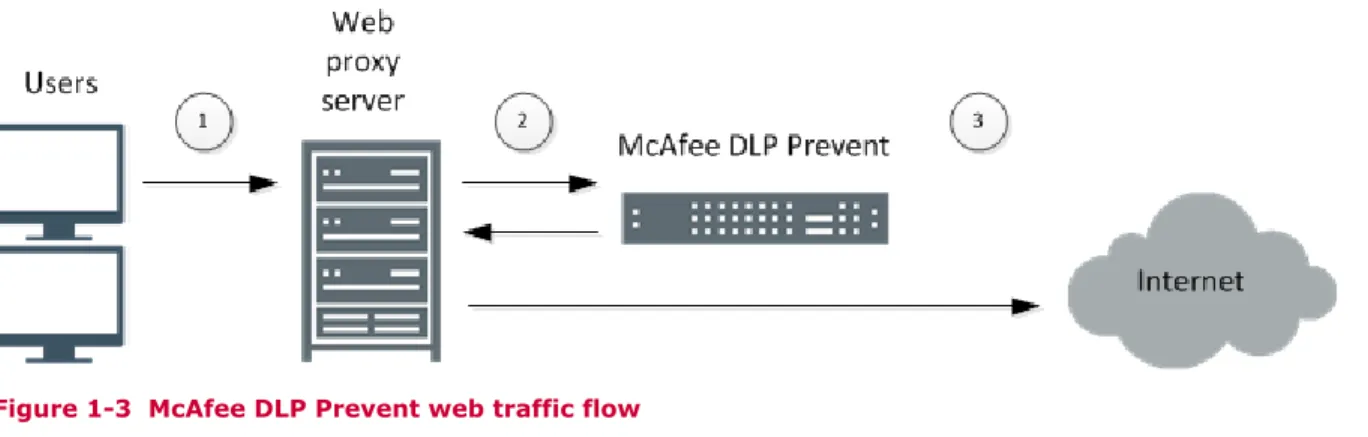
McAfee DLP Prevent receives ICAP connections from a web proxy server, analyzes the content, and determines if the traffic should be allowed or blocked.
McAfee DLP Prevent supports up to 4000 concurrent ICAP connections.
Figure 1-3 McAfee DLP Prevent web traffic flow
1 Users send web traffic to the web proxy server.
2 The web proxy server forwards the web traffic to McAfee DLP Prevent. McAfee DLP Prevent inspects the web traffic, adds appropriate headers, and sends the traffic back to the web proxy server.
3 The web proxy server sends the inspected web traffic to the appropriate destinations.
1
Introduction to McAfee Data Loss PreventionScanning data and files with McAfee DLP Discover
McAfee DLP Discover scans databases and file repositories to identify sensitive data.
McAfee DLP Discover features different types of scans to retrieve the type and level of information you need. McAfee DLP Discover can perform a high-level scan, informing you of the number and types of files residing on a repository. In-depth scans analyze the entire contents of a database or set of files. McAfee DLP Discover can create signatures used to identify the same data or files on other
repositories.
In a managed environment, sensitive data and files found by McAfee DLP Discover can be registered to McAfee DLP Manager. You can configure policies for other McAfee DLP devices to take action if sensitive files or data are accessed or transmitted across the network improperly.
Controlling user actions with McAfee DLP Endpoint
McAfee DLP Endpoint is software that runs on supported endpoint devices. McAfee DLP Endpoint inspects and controls users' activity.
Actions that McAfee DLP Endpoint can take include: • Determine if a user is transmitting encrypted files • Prevent copy and paste functionality
• Prevent a user from taking screen captures
• Prevent a user from transmitting files to removable media • Scan a device file system to identify sensitive files or data • Quarantine or delete files that are in violation of company policy
McAfee DLP Endpoint requires McAfee® ePolicy Orchestrator® (ePolicy Orchestrator) for management.
McAfee DLP Manager is required to integrate McAfee DLP Endpoint with full McAfee DLP product suite. If McAfee DLP Endpoint is the only McAfee DLP product you are deploying, see the McAfee Data Loss
Prevention Endpoint Product Guide for installation and configuration instructions.
How McAfee DLP acts on data
Depending on the product, you can take preventive or corrective actions in the event of a policy violation.
Table 1-2 McAfee DLP actions by product
Product Data vector Action McAfee DLP Monitor Data in Motion Allow
McAfee DLP Prevent Data in Motion In use with a proxy server: • Block
• Monitor
In use with an MTA server:
• Block • Notify
• Bounce • Quarantine
• Encrypt • Redirect
• Monitor
Introduction to McAfee Data Loss Prevention
Table 1-2 McAfee DLP actions by product (continued)
Product Data vector Action McAfee DLP Discover Data at Rest • Move • Copy • Encrypt • Delete
McAfee DLP Endpoint Data in Use • Block • Quarantine
• Delete • Request Justification • Encrypt • Store Evidence
• Monitor • Tag
• Notify
Integrating multiple McAfee DLP products
The McAfee DLP products can fully integrate to utilize the full feature set of the product suite.
Example: You configure McAfee DLP Discover to run a scan on a local file repository. Using the results
of the scan, you determine several documents that are company confidential. You configure a block rule on McAfee DLP Prevent that will trigger if a user tries to send one of these documents in an email message. However, the blocking action must take place on the MTA server. McAfee DLP Monitor will receive copies of all outbound connections initiated by the MTA server. You configure a rule on McAfee DLP Monitor to detect if the MTA server is not properly blocking email messages containing the confidential files.
1
Introduction to McAfee Data Loss PreventionThis illustration shows a simplified network diagram where all McAfee DLP products and ePolicy Orchestrator are deployed.
Reference Description Data vector
1 ePolicy Orchestrator connects to McAfee DLP Manager for policy
configuration and incident management. McAfee DLP Manager connects to managed McAfee DLP Manager devices for policy and configuration updates.
Not applicable
2 McAfee DLP Endpoint software on endpoint devices monitors and
restricts users' data use. Data in Use
3 McAfee DLP Discover connects to databases and file repositories,
scanning data and files to find sensitive information. Data at Rest 4 McAfee DLP Monitor receives copies of network packets from the LAN
switch, either through a SPAN port on the switch or a network tap. McAfee DLP Monitor analyzes and classifies data from network connections.
Data in Motion
5 McAfee DLP Prevent receives email messages from one or more MTA servers. McAfee DLP Prevent analyzes the email messages, adds appropriate headers based on configured policy, and sends the email messages to a single MTA server, also known as the Smart Host. 6 McAfee DLP Prevent receives web traffic from one or more web proxy
servers. McAfee DLP Prevent analyzes the web traffic, determines if the traffic should be allowed or blocked, and sends the traffic back to the appropriate web proxy server.
Introduction to McAfee Data Loss Prevention
1
Introduction to McAfee Data Loss PreventionDeployment
Chapter 2
Deployment options
Chapter 3
Deployment scenarios
2
Deployment options
The McAfee DLP product suite offers several different options for integration in your network.
Contents
Types of installations Management options
Using McAfee DLP with other McAfee products
Types of installations
McAfee DLP can be installed on hardware appliances or virtually.
McAfee DLP hardware appliances allow for full performance optimization. These appliance models are supported:
• 5500 • 4400 • 3650 • 1650
Virtual installations allow for multiple instances of McAfee DLP to run on the same system. However, this impacts McAfee DLP performance — service loading time is longer, and network throughput and available disk space is reduced.
Management options
McAfee DLP offers different ways to manage your systems.
Standalone appliances — McAfee DLP Monitor, McAfee DLP Prevent, and McAfee DLP Discover can all operate as standalone appliances. A standalone appliance can be converted to a managed
appliance, but policy configuration, captured data, and incidents are lost when converting to a managed appliance.
Choose this option if only one McAfee DLP appliance is deployed on your network.
McAfee DLP Manager — McAfee DLP Manager manages up to 39 McAfee DLP appliances and handles all policy configuration, incident and case management, and reports. This allows you to configure policy, view captured data, and manage incidents from a single user interface. You can create and apply the same rules to multiple McAfee DLP appliances. Incidents generated from managed devices are collected into a central repository for easy correlation of incidents from different devices.
McAfee DLP Manager can integrate with ePolicy Orchestrator to support all management options and configurations, including McAfee DLP Endpoint.
• McAfee DLP Manager without ePolicy Orchestrator — Choose this option if multiple McAfee DLP appliances are deployed on your network and you are not using ePolicy Orchestrator. • McAfee DLP Manager with ePolicy Orchestrator — Choose this option if you are managing
with ePolicy Orchestrator or integrating the McAfee DLP Endpoint software with McAfee DLP Manager.
If you are using McAfee DLP Endpoint but not any of the McAfee DLP appliance products, McAfee DLP Manager is not required. For more information, see the McAfee Data Loss Prevention Endpoint
Product Guide.
Using McAfee DLP with other McAfee products
McAfee DLP integrates with several other McAfee products, increasing the functionality of the product suite.
• ePolicy Orchestrator — Integrates McAfee DLP Endpoint with McAfee DLP Manager for a unified policy solution
ePolicy Orchestrator can also be used without McAfee DLP Endpoint to manage McAfee DLP devices • McAfee® Logon Collector — Provides directory credentials for McAfee DLP, extending the amount
of user information collected by McAfee DLP
• McAfee® Email Gateway — Integrates with McAfee DLP Prevent for email protection
• McAfee® Web Gateway — Integrates with McAfee DLP Prevent for web protection
2
Deployment options3
Deployment scenarios
Due to the number of McAfee DLP products and the ways to implement them, deployments often differ from network to network.
The following sections discuss different scenarios for initial deployment of McAfee DLP products.
Contents
Deployment scenario: McAfee DLP Monitor
Deployment scenario: McAfee DLP Discover and McAfee DLP Prevent Deployment scenario: Full product suite integration
Deployment scenario: McAfee DLP Monitor
McAfee DLP Monitor can be installed as a standalone product for initial network assessment.
Use McAfee DLP Monitor to gain an understanding of the types and quantity of data transferred across the network. McAfee DLP Monitor does not block or alter network traffic, which allows it to integrate into a production environment without impacting live traffic.
Example use cases
• McAfee DLP Monitor captures and analyzes the traffic of well-known TCP protocols. If McAfee DLP Monitor cannot classify a connection as a known protocol, it will mark the connection as unknown. Users or devices sending a large volume of unknown traffic might indicate a violation of company policy.
• Some networks require that all internal email messages are sent to a particular email server. McAfee DLP Monitor can detect if users or other devices are bypassing the local email server. • Some networks require that all web traffic is handled through a proxy server. McAfee DLP Monitor
can detect if web traffic is bypassing the proxy server.
• Place a McAfee DLP Monitor appliance on either side of the network border firewall to verify if the firewall allows and blocks the appropriate inbound and outbound connections. Although not required, using McAfee DLP Manager is highly recommended, providing a single console to configure policy and manage incidents from both devices.
Considerations
• McAfee DLP Monitor cannot take any blocking actions on traffic.
• If a standalone McAfee DLP Monitor is added to McAfee DLP Manager at a later time, all policy configurations and incidents will be lost.
High-level steps for implementation
1 Connect the appliance to a switch SPAN port or network tap.
2 Install McAfee DLP Monitor.
3 Enable relevant pre-defined policies and rules.
4 Create additional rules and policies to meet the needs of your network.
5 Review incidents generated by McAfee DLP Monitor.
6 Create capture filters and tune rules as needed to reduce false positives.
Deployment scenario: McAfee DLP Discover and McAfee DLP
Prevent
Install McAfee DLP Discover and McAfee DLP Prevent to discover critical documents and prevent these documents from leaving the network in an email message or web upload.
McAfee DLP Discover scans local file repositories and detects highly confidential documents based on the parameters of the scan. McAfee DLP Discover creates high-granularity signatures of these files, allowing McAfee DLP Prevent to detect full or partial document matches within email messages.
Example use case
Configure rules for McAfee DLP Prevent to take different actions on email messages based on the match percentage of the document. If the transmitted document is a 50 to 100 percent match, the email message is blocked, a notification is sent back to the user, and an incident is generated. If the document is a 20 to 49 percent match, the email message is allowed and an incident is generated. If the document match is 19 percent or less, the email message is allowed and an incident is not generated.
This use case similarly applies to a McAfee DLP Prevent appliance configured for web traffic analysis.
Considerations
• Although not required, using McAfee DLP Manager is highly recommended, providing a single console to configure policy and manage incidents.
• Processing both web and email traffic on the same McAfee DLP Prevent appliance is not supported. To implement both web and email protection, you will need to deploy two or more McAfee DLP Prevent appliances.
• McAfee DLP Prevent processes ICAP or SMTP traffic. McAfee DLP Monitor is needed to analyze traffic using other protocols.
High-level steps for implementation
1 Install McAfee DLP Manager and perform initial configuration.
2 Install McAfee DLP Discover and McAfee DLP Prevent.
3 Add McAfee DLP Discover and McAfee DLP Prevent to McAfee DLP Manager using the McAfee DLP Manager interface.
4 Configure and perform scans on file repositories within your network.
5 Register any sensitive documents to McAfee DLP Manager.
3
Deployment scenarios6 Configure McAfee DLP Prevent rules to allow or block sensitive documents based on the match percentage.
7 Review incidents reported to the incident dashboards.
Deployment scenario: Full product suite integration
Deploying all McAfee DLP products allows you to take full advantage of all features within the product suite.
In this scenario, McAfee DLP provides protection for all data vectors — Data in Motion, Data at Rest, and Data in Use. All system and policy configurations, incident and case management, and
maintenance functions are performed through a single management console provided by ePolicy Orchestrator.
Example use cases
• Identify sensitive data and files with McAfee DLP Discover and configure McAfee DLP Prevent policy to block traffic containing confidential information.
• Scan endpoint devices to identify sensitive files or data, correlating McAfee DLP Endpoint scan results with McAfee DLP Discover scan results.
• Prevent endpoint users from transmitting files to removable media or printers.
• Prevent endpoint users from sending sensitive data in an email message or web upload.
• Configure rules on McAfee DLP Monitor to create incidents for network traffic generated by endpoint devices that do not support McAfee DLP Endpoint.
• Search historical data captured by McAfee DLP Monitor and use the results to adjust McAfee DLP policies to better suit the security needs of your network.
• Group related incidents from multiple McAfee DLP devices into cases, giving you a broader understanding of the nature of the violation.
Considerations
• ePolicy Orchestrator is required.
• Depending on your network environment and security requirements, the number and complexity of policies might increase to utilize the varying functionalities of the different products.
High-level steps for implementation
1 Install and configure ePolicy Orchestrator.
2 Install McAfee DLP Manager and perform initial configuration.
3 Add McAfee DLP Manager to ePolicy Orchestrator.
4 Install any McAfee DLP Monitor, McAfee DLP Prevent, and McAfee DLP Discover appliances.
5 Add managed McAfee DLP devices to McAfee DLP Manager using the ePolicy Orchestrator interface.
6 Install and configure McAfee DLP Endpoint using ePolicy Orchestrator.
7 Enable relevant pre-defined policies and rules.
Deployment scenarios
9 Review incidents reported to the incident dashboards.
10 Create capture filters and tune rules as needed to reduce false positives. See also
Integrating multiple McAfee DLP products on page 20
3
Deployment scenarios4
Plan your deployment
Prepare your appliance for installation and integration into the network.
Contents
Product-specific requirements Network placement
Default ports used in McAfee DLP communications Order of deployment
Deployment Checklist
Product-specific requirements
McAfee DLP Monitor, McAfee DLP Prevent, and McAfee DLP Discover have specific requirements for network integration.
Network integration requirements for McAfee DLP Monitor
McAfee DLP Monitor requires the use of a switch SPAN port or network tap for network integration. When determining which method to implement, take these points into consideration.Table 4-1 Integration considerations
Method Is network downtime required? Are all packets captured?
SPAN port No No — Under heavy loads, packets
might be dropped. Network tap Yes — Cables from neighboring devices must
be disconnected and connected to the tap. Yes
If both capture ports on McAfee DLP Monitor are used, make sure the traffic on the ports is different, such as different subnets. McAfee DLP Monitor should not receive the same connections on both ports.
4
Integration using a switch SPAN port
When using a SPAN port, packets from the switch are copied, or mirrored, to the McAfee DLP Monitor appliance.
Certain switch models permit the use of the remote SPAN (RSPAN) capability, which allows ports from multiple switches to mirror traffic to the McAfee DLP Monitor appliance. If you want to mirror multiple ports on multiple switches to your McAfee DLP Monitor appliance, contact the switch vendor for details on configuring RSPAN.
Figure 4-1 Span port configuration
1 Capture ports
2 WAN router traffic mirrored to McAfee DLP Monitor port
3 LAN
4 LAN switch
5 WAN
Integration using a network tap
A network tap is attached to the LAN switch and WAN router through two network ports and captures all traffic. Traffic from these ports flows directly to the capture ports on McAfee DLP Monitor.
Figure 4-2 Network tap configuration
1 Capture ports 5 LAN switch
2 Analyzer ports 6 Router
3 Network tap 7 WAN
4 LAN
4
Plan your deploymentRequirements for configuring MTA servers with McAfee DLP
Prevent
Your MTA server must meet several requirements in order to integrate with McAfee DLP Prevent. • The MTA server sends all or a portion of email traffic to McAfee DLP Prevent.
Example: In some environments, it might be preferable for McAfee DLP Prevent to process only
mail going to or from public sites, such as Gmail, rather than processing every email sent and received on the network.
• The MTA server inspects email headers.
• The MTA server distinguishes email arriving from McAfee DLP Prevent and acts on header strings in email messages — specifically, X-RCIS-Action headers with values ALLOW, BLOCK, QUART,
ENCRYPT, BOUNCE, REDIR and NOTIFY.
If certain actions are not supported on the MTA server, do not configure rules on McAfee DLP Prevent to use these actions.
• All email messages the MTA server receives from McAfee DLP Prevent are routed to the proper destination, and not back to McAfee DLP Prevent.
Example: Routing might be defined using a port number or source IP address, or by checking if
X-RCIS-Action headers are present.
• McAfee DLP Prevent supports up to 30 concurrent SMTP connections. If supported by the MTA server, McAfee recommends configuring the MTA server to limit the number of connections to McAfee DLP Prevent to 25.
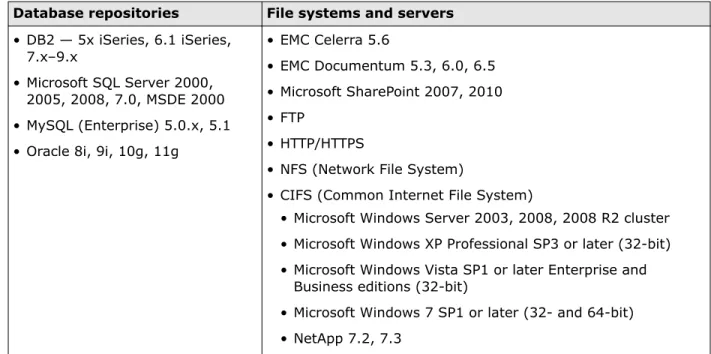
Supported repositories with McAfee DLP Discover
McAfee DLP Discover supports several common database repositories, file systems, and servers.
Table 4-2 Supported repositories
Database repositories File systems and servers • DB2 — 5x iSeries, 6.1 iSeries,
7.x–9.x
• Microsoft SQL Server 2000, 2005, 2008, 7.0, MSDE 2000 • MySQL (Enterprise) 5.0.x, 5.1 • Oracle 8i, 9i, 10g, 11g
• EMC Celerra 5.6
• EMC Documentum 5.3, 6.0, 6.5 • Microsoft SharePoint 2007, 2010 • FTP
• HTTP/HTTPS
• NFS (Network File System)
• CIFS (Common Internet File System)
• Microsoft Windows Server 2003, 2008, 2008 R2 cluster • Microsoft Windows XP Professional SP3 or later (32-bit) • Microsoft Windows Vista SP1 or later Enterprise and
Business editions (32-bit)
• Microsoft Windows 7 SP1 or later (32- and 64-bit) • NetApp 7.2, 7.3
Plan your deployment
Network placement
Consider these points before adding McAfee DLP appliances to your network.
• McAfee DLP Manager must be on the same LAN as managed devices. For deployments involving separate networks, such as different physical locations, install additional McAfee DLP Manager appliances for managing local devices.
• McAfee DLP devices must be able to communicate with other appropriate devices for successful deployment and functionality. Any intermediate routers, firewalls, or policy-enforcing devices must be configured to accommodate traffic between devices.
• The placement of McAfee DLP Monitor determines what data is captured. Although McAfee DLP Monitor can connect to any switch in your network by means of a SPAN port or network tap, McAfee DLP Monitor typically connects to the LAN switch before the WAN router. This placement ensures that all connections entering or leaving the network are captured by McAfee DLP Monitor. • Large amounts of SMTP or ICAP connections can be split between multiple McAfee DLP Prevent
appliances by using load-balancing devices. Verify the configuration on the load-balancing devices to ensure there is no overlap between the connections received by the McAfee DLP Prevent appliances.
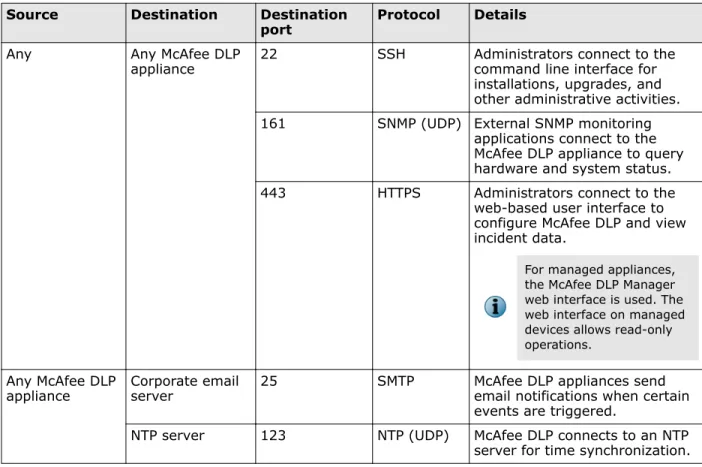
Default ports used in McAfee DLP communications
McAfee DLP appliances use many ports for various network connections. Configure any intermediary firewalls or policy-enforcing devices to allow these ports where necessary.
All listed protocols use TCP only, unless noted otherwise.
Table 4-3 Default ports used in management and general network communications
Source Destination Destination
port Protocol Details Any Any McAfee DLP
appliance 22 SSH Administrators connect to thecommand line interface for installations, upgrades, and other administrative activities. 161 SNMP (UDP) External SNMP monitoring
applications connect to the McAfee DLP appliance to query hardware and system status. 443 HTTPS Administrators connect to the
web-based user interface to configure McAfee DLP and view incident data.
For managed appliances, the McAfee DLP Manager web interface is used. The web interface on managed devices allows read-only operations.
Any McAfee DLP
appliance Corporate emailserver 25 SMTP McAfee DLP appliances sendemail notifications when certain events are triggered.
NTP server 123 NTP (UDP) McAfee DLP connects to an NTP server for time synchronization.
4
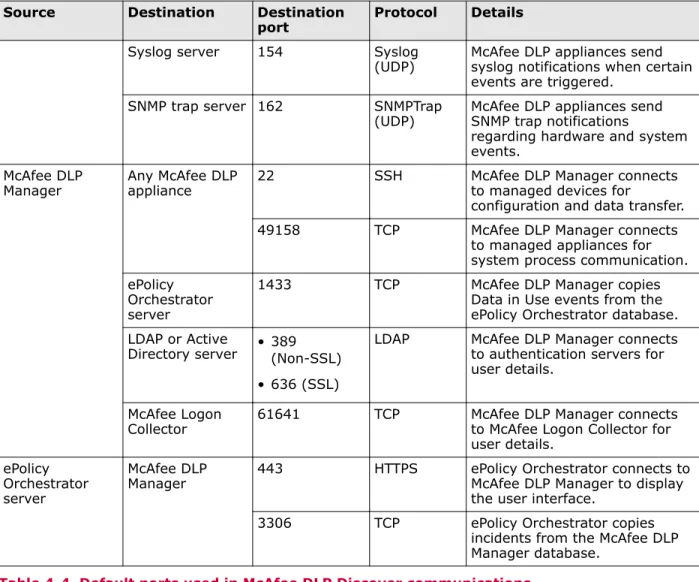
Plan your deploymentTable 4-3 Default ports used in management and general network communications
(continued)
Source Destination Destination
port Protocol Details Syslog server 154 Syslog
(UDP) McAfee DLP appliances sendsyslog notifications when certain events are triggered.
SNMP trap server 162 SNMPTrap
(UDP) McAfee DLP appliances sendSNMP trap notifications regarding hardware and system events.
McAfee DLP
Manager Any McAfee DLPappliance 22 SSH McAfee DLP Manager connectsto managed devices for configuration and data transfer. 49158 TCP McAfee DLP Manager connects
to managed appliances for system process communication. ePolicy
Orchestrator server
1433 TCP McAfee DLP Manager copies Data in Use events from the ePolicy Orchestrator database. LDAP or Active
Directory server • 389(Non-SSL) • 636 (SSL)
LDAP McAfee DLP Manager connects to authentication servers for user details.
McAfee Logon
Collector 61641 TCP McAfee DLP Manager connectsto McAfee Logon Collector for user details.
ePolicy Orchestrator server
McAfee DLP
Manager 443 HTTPS ePolicy Orchestrator connects toMcAfee DLP Manager to display the user interface.
3306 TCP ePolicy Orchestrator copies incidents from the McAfee DLP Manager database.
Table 4-4 Default ports used in McAfee DLP Discover communications
Source Destination Destination
port Protocol Details McAfee DLP
Discover CIFS repository 139 NetBIOS McAfee DLP Discover connects tothe server or repository for a file or database scan.
445 SMB
DB2 server 50000 TCP
EMC Documentum
server 1489 TCP
FTP server • 20 • 21
FTP
HTTP server 80 HTTP
HTTPS server 443 HTTPS
MS SQL server 1433 TCP
MySQL server 3306 TCP
Plan your deployment
Table 4-4 Default ports used in McAfee DLP Discover communications (continued)
Source Destination Destination
port Protocol Details NFS repository • 111
• 2049
NFS
Oracle server 1521 TCP SharePoint server 80 HTTP
443 HTTPS
Table 4-5 Default ports used in McAfee DLP Prevent communications
Source Destination Destination port Protocol Details McAfee DLP
Prevent MTA server 25 SMTP McAfee DLP Prevent connects tothe MTA server for delivering processed emails.
Web proxy server 1344 ICAP McAfee DLP Prevent connects to the web proxy server for
delivering processed web traffic. MTA server McAfee DLP Prevent 25 SMTP The MTA server connects to
McAfee DLP Prevent for delivering email messages for analysis.
Web proxy
server McAfee DLP Prevent 1344 ICAP The web proxy server connectsto McAfee DLP Prevent for delivering web traffic for analysis.
Order of deployment
When integrating multiple McAfee DLP products, consider these points.
• If you are using McAfee DLP Manager, install McAfee DLP Manager first, then install the appliances that are to be managed. After installation, add the managed appliances to McAfee DLP Manager. If you perform any configurations on standalone devices, those configurations are lost after adding the device to McAfee DLP Manager.
• If you are using both McAfee DLP Monitor and McAfee DLP Prevent on the same network, consider installing McAfee DLP Monitor first.
Example: If this is your first time using McAfee DLP on your network, gain a general understanding
of what types of data are sent across your network before implementing a McAfee DLP Prevent policy that blocks live network connections.
• If you are using ePolicy Orchestrator for McAfee DLP management, McAfee recommends installing the products in this order:
1 Install and configure ePolicy Orchestrator.
2 Install McAfee DLP Manager and perform initial configuration.
3 Add McAfee DLP Manager to ePolicy Orchestrator.
4
Plan your deployment4 Install any McAfee DLP Monitor, McAfee DLP Prevent, and McAfee DLP Discover appliances.
5 Add managed McAfee DLP devices to McAfee DLP Manager using the ePolicy Orchestrator interface.
Deployment Checklist
Before installing McAfee DLP products, verify that you have the necessary information for a successful deployment.
• Determine if your installations will be virtual, on hardware appliances, or a combination of both. Virtual appliances can run on your own VMware ESX or ESXi server, or you can install an ESX or ESXi server on McAfee DLP hardware.
• If you are installing multiple McAfee DLP products, determine your management method. If you are integrating McAfee DLP Endpoint with other McAfee DLP products, ePolicy Orchestrator is required. • If you are using McAfee DLP Monitor, determine if you will be using a switch SPAN port or a
network tap for integration.
• If you are using McAfee DLP Prevent for both web and email protection, you will need at least two McAfee DLP Prevent installations. A single McAfee DLP Prevent appliance does not support web protection and email protection at the same time.
• Verify that any ports needed for McAfee DLP communications are opened on any firewalls or policy-enforcing devices.
• Gather basic network information for your McAfee DLP appliances.
• Host name • Secondary DNS server
• IP address • Active Directory Server
• Subnet mask • NTP server
• Default gateway • Syslog server
• DNS domain • Email relay server
• Primary DNS server • SNMP trap server
Plan your deployment
4
Plan your deploymentInstallation
Chapter 5
Set up the hardware
Chapter 6
Install or upgrade the system
5
Set up the hardware
Prepare the hardware for installation and integration in the network.
Contents
Check the shipment Rack mount the appliance Identify network ports
Configure SPAN or tap mode for McAfee DLP Monitor Connect the management port
Check the shipment
Each product ships with all the items needed to install the appliance on a network. Check the content list included with the shipment to verify that you received all the necessary items.
If an item is missing or damaged, contact your supplier.
Rack mount the appliance
Install the appliance in a server rack.
For additional information on rack mounting appliances, visit:
http://download.intel.com/support/motherboards/server/sr870bh2/sb/ sr870bh2railkitinstallinstructions0503.pdf
Identify network ports
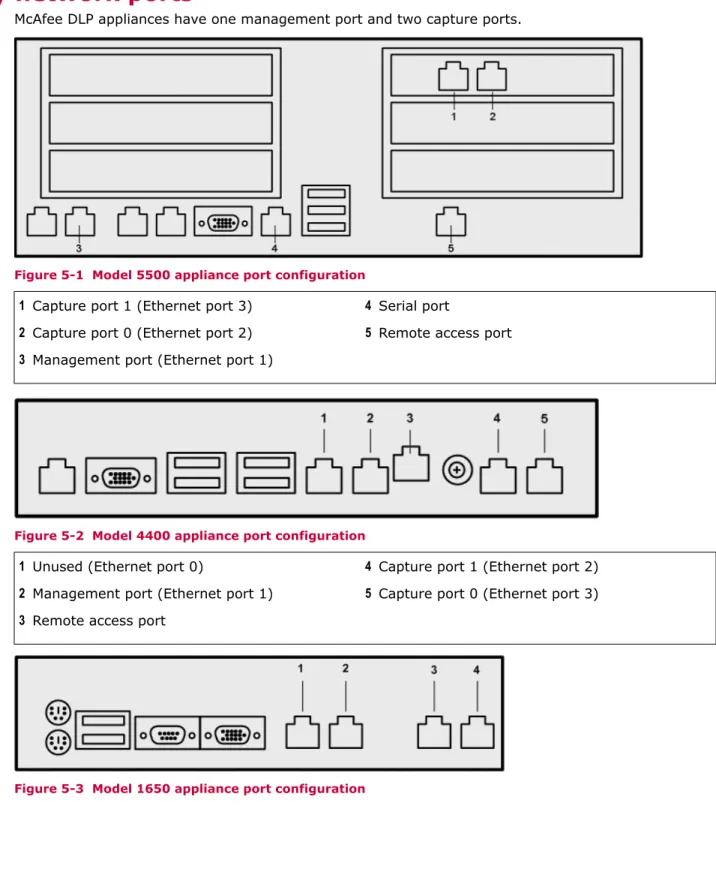
McAfee DLP appliances have one management port and two capture ports.
Figure 5-1 Model 5500 appliance port configuration
1 Capture port 1 (Ethernet port 3) 4 Serial port
2 Capture port 0 (Ethernet port 2) 5 Remote access port
3 Management port (Ethernet port 1)
Figure 5-2 Model 4400 appliance port configuration
1 Unused (Ethernet port 0) 4 Capture port 1 (Ethernet port 2)
2 Management port (Ethernet port 1) 5 Capture port 0 (Ethernet port 3)
3 Remote access port
Figure 5-3 Model 1650 appliance port configuration
5
Set up the hardware1 Unused
2 Management port (Ethernet port 1)
3 Capture port 0 (Ethernet port 2)
4 Capture port 1 (Ethernet port 3)
Figure 5-4 Model 3650 appliance port configuration
1 Unused
2 Management port (Ethernet port 1)
3 Capture port 0 (Ethernet port 2)
4 Capture port 1 (Ethernet port 3)
Configure SPAN or tap mode for McAfee DLP Monitor
Integrate McAfee DLP Monitor into your network using the method best suited to your network. See also
Network integration requirements for McAfee DLP Monitor on page 31
Integrate the appliance using a SPAN port
Connect the appliance to the network using a SPAN configuration.Task
1 Connect the McAfee DLP Monitor capture port to the switch SPAN port.
2 Log on to the switch and apply the appropriate SPAN port configuration. For information on configuring the switch, see the vendor documentation for your switch.
3 On the switch, use interface commands, such as show, to verify that the switch port connected to McAfee DLP Monitor is receiving traffic.
4 Save the configuration on the switch.
Integrate the appliance using a network tap
Connect the appliance to the network using a network tap configuration.Task
1 Disconnect the cable between your WAN router and your LAN switch.
2 Connect the network tap to the WAN router, the LAN switch, and the McAfee DLP Monitor capture Set up the hardware
Connect the management port
Connecting a computer, such as a laptop, to the McAfee DLP appliance allows you to configure the appliance IP address and other parameters for integration in the network.
By default, each appliance is configured with the IP address 192.168.1.2.
Task
1 Connect a computer to the management port of the appliance using the supplied Ethernet cable.
2 Configure the computer to use an IP address in the 192.168.1.0/24 range, such as 192.168.1.10. See also
Identify network ports on page 42
5
Set up the hardware6
Install or upgrade the system
All appliances are shipped with McAfee DLP Manager pre-installed.Any McAfee DLP appliance can be converted to a different McAfee DLP product by performing a full installation.
Only one product can be installed on the appliance at a time. On model 4400 and 5500 appliances, the primary and secondary images must both be installed with the same product.
For information on performing a virtual installation of McAfee DLP, see the McAfee Data Loss
Prevention Virtual Appliance Installation Guide.
Contents
Installing or upgrading the software on 4400 and 5500 appliances Installing or upgrading the software on 1650 and 3650 appliances Applying hotfixes
Re-imaging an appliance
Installing or upgrading the software on 4400 and 5500
appliances
4400 and 5500 appliances contain two images, each containing an operating system and McAfee DLP software.
Primary and secondary images are initially duplicate installations. When the system is upgraded, the two images can contain different versions of the same product. The system automatically boots from the latest installed version by default.
Download the 4400 or 5500 archive
Download the software from the McAfee downloads site.Before you begin
Locate the grant number you received after purchasing the product.
Table 6-1 Product archive names
Product Archive name
McAfee DLP Manager imanager
McAfee DLP Monitor iguard
McAfee DLP Prevent iprevent
Task
1 In a web browser, go to www.mcafee.com/us/downloads/downloads.aspx.
2 Enter your grant number, then select the appropriate product and version.
3 In the Software Downloads tab, select and save the appropriate *.tgz file.
Install a new image on 4400 or 5500 appliances
Install a new image on the primary and secondary disks.Before you begin
Download the product archive and copy it to the appliance.
Task
1 Using a command line session, log on to the appliance as root. The default root password is mcafee.
2 Make an installation directory. # mkdir /data/install
3 Copy the archive to the appliance.
• If you downloaded the archive to a Windows-based computer, use WinSCP.
• If you downloaded the archive to a Linux server, log on to the server and use the SCP command.
scp -rp <filename> root@<name or ip address>:/data/install
4 Go to the /data/install directory. # cd /data/install
5 Extract the contents of the archive. # tar xvzf ndlp_<product>.tgz
6 Run the installation script.
Before you type in the command, run pwd to establish that you are in the correct product directory. You must be sure that you are running the updated scripts in the upgrade archive that you just downloaded and extracted.
# ./install_new_full <product> .
where <product> is imanager, iguard, idiscover or iprevent. The product image installs on the primary and secondary disks.
7 Restart the system. # reboot
Restarting the system might take 10–15 minutes.