HP ProBook 430 G1 Notebook PC
© Copyright 2013 Hewlett-Packard Development Company, L.P. Bluetooth is a trademark owned by its proprietor and used by Hewlett-Packard Company under license. Intel and Core are trademarks or registered trademarks of Intel Corporation in the United States and other countries. Microsoft and Windows are either trademarks or registered trademarks of Microsoft Corporation in the United States and/or other countries. SD Logo is a trademark of its proprietor.
The information contained herein is subject to change without notice. The only warranties for HP products and services are set forth in the express warranty statements accompanying such products and services. Nothing herein should be construed as constituting an additional warranty. HP shall not be liable for technical or editorial errors or omissions contained herein.
First Edition: July 2013
Document Part Number: 726502-001 Product notice
This guide describes features that are common to most models. Some features may not be available on your computer. Not all features are available in all editions of Windows 8. Your computer may require upgraded and/or separately purchased hardware, drivers, and/or software to take full advantage of Windows 8 functionality. See http://www.microsoft.com for details.
Important Notice about Customer Self-Repair Parts
CAUTION: Your computer includes Customer Self-Repair parts and parts that should only be
accessed by an authorized service provider. See Chapter 5, "Removal and replacement procedures for Customer Self-Repair parts," for details. Accessing parts described in Chapter 6, "Removal and
replacement procedures for Authorized Service Provider only parts," can damage the computer or void your warranty.
Safety warning notice
WARNING! To reduce the possibility of heat-related injuries or of overheating the computer, do not place the computer directly on your lap or obstruct the computer air vents. Use the computer only on a hard, flat surface. Do not allow another hard surface, such as an adjoining optional printer, or a soft surface, such as pillows or rugs or clothing, to block airflow. Also, do not allow the AC adapter to contact the skin or a soft surface, such as pillows or rugs or clothing, during operation. The computer and the AC adapter comply with the user-accessible surface temperature limits defined by the International Standard for Safety of Information Technology Equipment (IEC 60950).
Table of contents
1 Product description ... 1
2 External component identification ... 6
Display - Windows models ... 6
Display - SLED models ... 8
Top ... 9
TouchPad ... 9
Lights (select models only) ... 10
Buttons and fingerprint reader (select models only) ... 11
Keys ... 12
Front ... 13
Left ... 14
Right ... 15
Bottom ... 16
Service tag and PCID label ... 17
Service tag ... 17
PCID label ... 18
3 Illustrated parts catalog ... 19
Computer major components ... 19
Display components ... 22
Cable Kit ... 23
Mass storage devices ... 24
Miscellaneous parts ... 25
Sequential part number listing ... 26
4 Removal and replacement procedures preliminary requirements ... 30
Tools required ... 30
Service considerations ... 30
Plastic parts ... 30
Cables and connectors ... 31
Drive handling ... 31
Grounding guidelines ... 32
Electrostatic discharge damage ... 32
Packaging and transporting guidelines ... 33
Workstation guidelines ... 33
Equipment guidelines ... 34
5 Removal and replacement procedures for Customer Self-Repair parts ... 35
Component replacement procedures ... 35
Battery ... 35 Keyboard ... 37 Hard drive ... 40 Service door ... 43 SIM ... 44 Memory modules ... 45 WWAN module ... 46
WLAN/Bluetooth combo card ... 48
6 Removal and replacement procedures for Authorized Service Provider parts ... 50
Component replacement procedures ... 50
Top cover ... 50
RTC battery ... 55
Fingerprint reader board ... 56
Audio board ... 58
Function board ... 59
Power button board ... 60
Speaker assembly ... 62
Display assembly ... 64
Power connector cable ... 70
System board ... 71
Heat sink ... 74
7 Computer Setup (BIOS) and Advanced System Diagnostics ... 76
Windows 7 – Computer Setup (BIOS) and Advanced System Diagnostics ... 76
Using Computer Setup ... 76
Starting Computer Setup ... 76
Navigating and selecting in Computer Setup ... 77
Restoring factory settings in Computer Setup ... 77
Updating the BIOS ... 78
BIOS management using system diagnostics ... 78
Using f10 setup to update the BIOS ... 79
Determining the BIOS version ... 79
Downloading a BIOS update ... 80
BIOS Setup Menu ... 80
Main menu ... 81
Security menu ... 81
Diagnostics menu ... 81
Using Advanced System Diagnostics ... 81
Windows 8 – Computer Setup (BIOS) and Advanced System Diagnostics ... 83
Using Computer Setup ... 83
Starting Computer Setup ... 83
Navigating and selecting in Computer Setup ... 83
Restoring factory settings in Computer Setup ... 84
Updating the BIOS ... 84
Determining the BIOS version ... 85
Downloading a BIOS update ... 85
Using MultiBoot ... 86
About the boot device order ... 86
Choosing MultiBoot preferences ... 86
Setting a new boot order in Computer Setup ... 87
Dynamically choosing a boot device using the f9 prompt ... 87
Setting a MultiBoot Express prompt ... 87
Entering MultiBoot Express preferences ... 88
Using System Diagnostics ... 88
SLED – Computer Setup (BIOS) and Advanced System Diagnostics ... 90
Starting Computer Setup ... 90
Using Computer Setup ... 90
Navigating and selecting in Computer Setup ... 90
Restoring factory settings in Computer Setup ... 91
Updating the BIOS ... 91
Determining the BIOS version ... 92
Downloading a BIOS update ... 92
Using Advanced System Diagnostics ... 93
8 Specifications ... 94
Computer specifications ... 94
33.8-cm (13.3-in), HD display specifications ... 95
Hard drive specifications ... 96
Specification information in Device Manager ... 97
9 Backup and recovery in Windows 7 ... 98
Creating recovery media with HP Recovery Disc Creator ... 99
Creating recovery media ... 99
Backing up your information ... 99
Performing a system recovery ... 100
Using the Windows recovery tools ... 100
Using f11 recovery tools ... 101
Using a Windows 7 operating system DVD (purchased separately) ... 102
10 Backup and recovery in Windows 8 ... 103
Backing up your information ... 103
Performing a system recovery ... 104
Using the Windows recovery tools ... 104
Using f11 recovery tools ... 105
Using Windows 8 operating system media (purchased separately) ... 106
Using Windows Refresh for quick and easy recovery ... 106
Remove everything and reinstall Windows ... 107
Using HP Software Setup ... 108
11 Backup and Recovery in SLED ... 109
Creating backups ... 109
Backing up your information ... 109
Performing a system recovery ... 110
USB Recovery option (select models only) ... 111
Remove everything and reinstall SLED ... 112
12 Statement of Volatility ... 113
Non-volatile memory usage ... 115
Questions and answers ... 117
13 Power cord set requirements ... 118
Requirements for all countries and regions ... 118
Requirements for specific countries and regions ... 119
14 Recycling ... 121
Battery ... 121
Display ... 121
1 Product description
Category Description
Product Name HP ProBook 430 G1 Notebook PC Processors All processors soldered onto system board.
Intel® Core™ i7-4500U, 1.80-GHz/3.0-GHz core turbo, 4-MB L3 cache/Intel HD Graphics 4400
Intel Core i5-4250U, 1.30-GHz/2.6-GHz core turbo, 3-MB L3 cache/Intel HD Graphics 5000
Intel Core i5-4200U, 1.60-GHz/2.6-GHz core turbo, 3-MB L3 cache/Intel HD Graphics 4400
Intel Core i3-4010U, 1.70-GHz, 3-MB L3 cache/Intel HD Graphics 4400
Chipset Intel Shark Bay ULT
Graphics Intel HD Graphics (UMA) Branding is processor-specific.
Panel 33.8-cm (13.3-inch) HD, anti-glare, LED, 1366x768, flat (3.6 mm), SVA, 200 nits, includes camera, with or without WWAN
Memory Two customer-accessible/upgradeable memory module slots supporting up to 16 GB of RAM
Supports dual-channel memory PC3-12800, 1600-MHz, DDR3L Supports the following configurations:
● 16384 (8192 × 2; dual channel) ● 12288 (8192 + 4096; dual channel) ● 8192 (8192 × 1) ● 8192 (4096 × 2; dual channel) ● 6144 (4096 + 2048; dual channel) ● 4096 (2048 × 2; dual channel) ● 4096 (4096 × 1) ● 2048 (2048 × 1) 1
Category Description
Hard drives Supports 7-mm, 6.35-cm (2.50-in) SATA hard drives with HP 3D DriveGuard Customer-accessible
Supports the following hard drives:
● 500-GB, 7200-rpm
● 500-GB, 5400-rpm
● 320-GB, 5400-rpm
Supports the following solid-state drives (SSDs):
● 128-GB, SATA III Optical drives Supports external USB drive Audio/Visual Integrated dual-array microphone
HD audio with DTS Sound+
Stereo speakers (2)
Integrated webcam (720p HD)
IDT 92HD91
Skype ready
Headphone and microphone jacks Ethernet Realtek RTL8151FH-CG 10/100/1000
S3/S4/S5 wake on LAN (both AC and battery mode)
Wireless Integrated WLAN options by way of wireless module: Two WLAN antennas built into display assembly
Supports “no WLAN/No BT” option Supports the following WLAN formats:
● Realtek RTL8188EE 802.11bgn Wi-Fi Adapter
● Mediatek MT7630E 802.11bgn Wi-Fi Adapter and Mediatek Bluetooth 4.0 Adapter
● Intel Dual Band Wireless-N 7260AN 802.11 a/b/g/n 2x2 WiFi + BT4.0
● Broadcom BCM943228HMB 802.11abgn 2x2 Wi-Fi + BT 4.0 Combo Adapter
● Atheros AR9485 802.11b/g/n 1x1 WiFi Adapter
● Atheros AR9565 802.11bgn 1x1 WiFi + BT4.0 combo Adapter Integrated WWAN options by way of wireless module:
Two WWAN antennas built into display assembly (world-wide 5 band, configured with panels)
Category Description
Supports “no WWAN” option
Supports the following WWAN modules:
● HP lt4112 LTE/HSPA+ Gobi 4G Module
● HP hs3110 HSPA+ Mobile Broadband Module
Integrated personal area network (PAN) options by way of WLAN/ Bluetooth® combo card:
Bluetooth 4.0 only supported by combo card External media card Digital Media Reader Slot
Ports Audio-in (stereo microphone)
Audio-out (stereo headphone)
RJ-45 (Ethernet, includes link and activity lights)
USB 3.0 (2)
USB 2.0 powered (1)
VGA (Dsub 15-pin) supporting 1600 × 1200 external resolution at 75-GHz (hot plug/unplug with auto-detect)
HDMI
Multi-pin AC port Keyboard/pointing devices Full-sized chiclet keyboard
Touchpad includes: supports way scroll with legend, taps enabled by default, 2-finger scrolling and zoom enabled by default
Power requirements Smart AC adapter with localized cable plug support (3-wire plug with ground pin): 65-W (for India and the People’s Republic of China)
45-W
4-cell, 44-Wh, 3.0 Ah Li-ion battery (In-line cavity) Security Integrated fingerprint reader
Intel AT support
Support security lock
Support no fingerprint reader option Operating system Preinstalled:
Windows 7 Professional 64 Windows 7 Professional 64 – MSNA Windows 7 Home Premium 64 Windows 7 Home Basic 64
Category Description
Windows 8 Professional 64-bit Digital Product Key (DPK) with Windows 7 Professional 64
Windows 8 Professional 64-bit Windows 8 Multi-language (ML) 64-bit Windows 8 Emerging Markets (EM) 64-bit Windows 8 Chinese Markets (CH) 64-bit
Novell™: SuSE Linux™ – SLED 11, 64-bit, SP2 (not available with WWAN) FreeDOS
Windows 8 Professional 64-bit with Office 2010 Professional Restore Media:
DRDVD/SRDVD:
● DRDVD Windows 7
● DRDVD Windows 8
● SRDVD SuSE Linux Enterprise (SLED) Service Pack 2, 64-bit OSDVD:
● Windows 7 Home Basic 64
● Windows 7 Home Premium 64
● Windows 7 Professional 32
● Windows 7 Professional 64
● Windows 8 Professional 64 Web-only support:
Windows 7 Home Basic 32 Windows 7 Home Premium 32 Windows 7 Professional 32 Certified:
Microsoft WHQL
SuSE Linux Enterprise (SLED) Service Pack 2, 64-bit Serviceability End-user replaceable parts:
AC adapter
Battery (system)
Hard drive
Category Description
WLAN module
WWAN module, SIM Keyboard
2 External component identification
Display - Windows models
Component Description
(1) WLAN antennas (2)* (select models only) Send and receive wireless signals to communicate with wireless local area networks (WLAN).
(2) WWAN antennas (2)* (select models only) Send and receive wireless signals to communicate with wireless wide area networks (WWAN).
(3) Internal microphones (2) Record sound.
Component Description
(5) Webcam Records video and captures still photographs.
For information on using the webcam, access HP Support Assistant. To access HP Support Assistant on the Start screen, select the HP Support Assistant app.
(6) Internal display switch Turns off the display or initiates Sleep if the display is closed while the power is on.
NOTE: The display switch is not visible on the outside of the computer.
*The antennas are not visible on the outside of the computer. For optimal transmission, keep the areas immediately around the antennas free from obstructions. To see wireless regulatory notices, see the section of the Regulatory, Safety, and Environmental Notices that applies to your country or region. To access the user guides, select the HP Support Assistant app on the Start screen, select My computer, and then select User guides.
Display - SLED models
Component Description
(1) WLAN antennas (2)* (select models only) Send and receive wireless signals to communicate with wireless local area networks (WLAN).
(2) Internal microphones (2) Record sound.
(3) Webcam light On: The webcam is in use.
(4) Webcam Records video and captures still photographs.
(5) Internal display switch Turns off the display or initiates Suspend if the display is closed while the power is on.
NOTE: The display switch is not visible from the outside of the computer.
*The antennas are not visible from the outside of the computer. For optimal transmission, keep the areas immediately around the antennas free from obstructions. To see wireless regulatory notices, see the section of the Regulatory, Safety, and Environmental Notices that applies to your country or region.
Top
TouchPad
Component Description
(1) TouchPad on/off button Turns the TouchPad on and off.
(2) TouchPad zone Moves the pointer and selects or activates items on the screen.
(3) Left TouchPad button Functions like the left button on an external mouse. (4) Right TouchPad button Functions like the right button on an external mouse.
Lights (select models only)
Component Description
(1) Power light ● On: The computer is on.
● Blinking: The computer is in the Sleep state (Windows 8) or Suspend state (SLED).
NOTE: The elapsed time between blinks is longer than on previous models.
● Off: The computer is off (Windows 8) or in Hibernation (SLED).
(2) Caps lock light On: Caps lock is on. (3) Microphone mute light Amber: Microphone is off.
(4) Num lock light On: Num lock is on.
(5) Wireless light (select models only) ● White: An integrated wireless device, such as a wireless local area network (WLAN) device and/or a
Bluetooth® device, is on.
● Amber: All wireless devices are off. (6) Mute light ● Amber: Computer sound is off.
Buttons and fingerprint reader (select models only)
Component Description
(1) Power button ● When the computer is off, press the button to turn on the computer.
● (Windows 8) When the computer is in the Sleep state, press the button briefly to exit Sleep.
● (SLED) When the computer is in the Suspend state, press the button briefly to exit Suspend.
● (SLED) When the computer is on, press the button briefly to initiate Suspend.
● When the computer is in Hibernation, press the button briefly to exit Hibernation.
CAUTION: Pressing and holding down the power button will result in the loss of unsaved information in Windows 8. If the computer has stopped responding and shutdown procedures are ineffective, press and hold the power button for at least 5 seconds to turn off the computer.
To learn more about your power settings, see your power options. In Windows 8, from the Start screen, type power,
select Settings, and then select Power Options. In SLED, select Computer > Control Center, in the left pane click System, and then click Power Management in the right pane.
(2) Speakers (2) Produce sound.
Component Description
(3) Wireless button (select models only) Turns the wireless feature on or off but does not establish a wireless connection.
NOTE: (SLED) A wireless connection may be established if one has been previously configured.
(4) Volume mute button Mutes and restores speaker sound.
(5) Fingerprint reader (select models only) Allows a fingerprint logon instead of a password logon.
Keys
Component Description
(1) esc key Displays system information when pressed in combination with the fn key.
(2) fn key Executes frequently used system functions when pressed in combination with a function key, the num lk key, the esc key, or the b key.
(3)
(Windo ws only)
Windows button Returns you to the Start screen from an open app or the Windows desktop.
NOTE: Pressing the Windows button again will return you to the previous screen.
(4) Function keys Execute frequently used system functions when pressed in combination with the fn key.
Component Description
(5) Embedded numeric keypad When the keypad is turned on, it can be used like an external numeric keypad.
Each key on the keypad performs the function indicated by the icon in the upper-right corner of the key.
(6) Windows applications key (Windows 8) Displays options for a selected object. (SLED) Displays a shortcut menu for items beneath the cursor. (7) num lk key Turns the embedded numeric keypad on and off when
pressed in combination with the fn key.
Alternates between the navigational and numeric functions on the integrated numeric keypad.
Front
Component Description
(1) Hard drive light ● Blinking white: The hard drive is being accessed.
● Amber: HP 3D DriveGuard has temporarily parked the hard drive.
(2) Media Card Reader Reads data from and writes data to memory sticks and digital memory cards such as Secure Digital (SD).
Left
Component Description
(1) Security cable slot Attaches an optional security cable to the computer.
NOTE: The security cable is designed to act as a deterrent, but it may not prevent the computer from being mishandled or stolen.
(2) Vent Enables airflow to cool internal components.
NOTE: The computer fan starts up automatically to cool internal components and prevent overheating. It is normal for the internal fan to cycle on and off during routine operation. (3) External monitor port Connects an external VGA monitor or projector.
(4) HDMI port Connects an optional video or audio device, such as a high-definition television, or any compatible digital or audio component.
(5) USB 3.0 ports (2) Connect optional USB 3.0 devices and provide enhanced USB power performance.
Right
Component Description
(1) Audio-out (headphone) jack Produces sound when connected to optional powered stereo speakers, headphones, earbuds, a headset, or television audio.
WARNING! To reduce the risk of personal injury, adjust the volume before putting on headphones, earbuds, or a headset. For additional safety information, see the Regulatory, Safety, and Environmental Notices. To access the user guides in Windows 8, select the HP Support Assistant app on the Start screen, select My computer, and then select User guides.
NOTE: When a device is connected to the jack, the computer speakers are disabled.
(2) Audio-in (microphone) jack Connects an optional computer headset microphone, stereo array microphone, or monaural microphone.
(3) USB 2.0 + powered port Connect optional USB 2.0 devices and provide enhanced USB power performance.
(4) RJ-45 (network) jack RJ-45 (network) lights (2)
Connects a network cable.
● Green (right): The network is connected.
● Amber (left): The network is showing activity. (5) AC adapter/Battery light ● White: The computer is connected to external power
and the battery is charged from 90 to 99 percent.
● Amber: The computer is connected to external power and the battery is charged from 0 to 89 percent.
● Blinking amber: A battery that is the only available power source has reached a low battery level. When the battery reaches a critical battery level, the battery light begins blinking rapidly.
● Off: The battery is fully charged. (6) Power connector Connects an AC adapter.
Bottom
Component Description
(1) Battery release latches (2) Releases the battery.
(2) Battery bay Holds the battery.
(3) Vent Enable airflow to cool internal components.
NOTE: The computer fan starts up automatically to cool internal components and prevent overheating. It is normal for the internal fan to cycle on and off during routine operation.
(4) Service door Provides access to the wireless LAN (WLAN) module slot, the WWAN module slot, the SIM slot, and the memory module slots.
CAUTION: To prevent an unresponsive system, replace the wireless module only with a wireless module authorized for use in the computer by the governmental agency that regulates wireless devices in your country or region. If you replace the module and then receive a warning message, remove the module to restore computer functionality, and then contact support through HP Support Assistant. To access HP Support Assistant from the Start screen, select the HP Support Assistant app.
(5) SIM slot (Windows 8 models only) Supports a wireless subscriber identity module (SIM). The SIM slot is located inside the service door.
Service tag and PCID label
Service tag
When ordering parts or requesting information, provide the computer serial number and model description provided on the service tag.
● Warranty period (1). This number describes the duration (in years) of the warranty period for the computer.
● Model name (2). This is the product name affixed to the front of the computer.
● Serial number (s/n) (3). This is an alphanumeric identifier that is unique to each product.
● Part number/Product number (p/n) (4). This number provides specific information about the product's hardware components. The part number helps a service technician to determine what components and parts are needed.
PCID label
The PCID label provides the information required to properly reset the notebook firmware (BIOS) back to factory shipped specifications when replacing the system board. The label may have a different number of characters depending on the operating system on the computer.
3 Illustrated parts catalog
Computer major components
Item Description Spare part number (1) Display panel, 33.8-cm (13.3-inch) HD, anti-glare
For use in models without WWAN 727758-001
For use in models with WWAN 731997-001
(2) Keyboard (includes cable)
NOTE: For a detailed list of available keyboards, see Sequential part number listing on page 26. 727765-xxx (3) Hard drive 500-GB, 5400-rpm 683802-001 500-GB, 7200-rpm 703267-001 128-GB solid-state drive 737584-001 120-GB solid-state drive (M.2) 731998-001
(4) Top cover (includes touchpad)
For use in models with a fingerprint reader 727753-001 For use in models without a fingerprint reader 727754-001
(5) Power button board (includes cable) 727760-001
(6) RTC battery 684248-001
(7) Fingerprint reader assembly (includes bracket, grommet, and screw) 727764-001
(8) Function board 727768-001
(9) Audio board 727759-001
(10) System board (includes replacement thermal material) For use in models with Intel Core i7-4500U processors:
● Non-Windows 8 models 727772-001
● Windows 8 Standard models 727772-501
● Windows 8 Professional models 727772-601
For use in models with Intel Core i5-4250U processors:
● Non-Windows 8 models 727771-001
● Windows 8 Standard models 727771-501
● Windows 8 Professional models 727771-601
For use in models with Intel Core i5-4200U processors:
● Non-Windows 8 models 727770-001
● Windows 8 Standard models 727770-501
Item Description Spare part number For use in models with Intel Core i3-4010U processors:
● Non-Windows 8 models 727769-001
● Windows 8 Standard models 727769-501
● Windows 8 Professional models 727769-601
(11) Heat sink (includes replacement thermal material) 727766-001
(12) Speaker assembly 727761-001
(13) Base enclosure (includes power connector bracket and latch) 727755-001 (14) Memory modules (PC3L-12800, 1600-MHz, DDR3)
8-GB 693374-001
4-GB 691740-001
2-GB 691739-001
(15) WWAN modules
HP lt4112 LTE/HSPA+ Gobi 4G Module 704031-001
HP hs3110 HSPA+ Mobile Broadband Module 723895-001 (16) WLAN module
Realtek RTL8188EE 802.11bgn Wi-Fi Adapter 709848-001 Mediatek MT7630E 802.11bgn Wi-Fi Adapter and Mediatek Bluetooth 4.0 Adapter 710418-001 Intel Dual Band Wireless-N 7260AN 802.11 a/b/g/n 2x2 WiFi + BT4.0 717381-001 Broadcom BCM943228HMB 802.11abgn 2x2 Wi-Fi + BT 4.0 Combo Adapter 731550-001 Atheros AR9485 802.11b/g/n 1x1 WiFi Adapter 675794-001 Atheros AR9565 802.11bgn 1x1 WiFi + BT4.0 combo Adapter 690019-001 (17) Battery, Li-ion, 4-cell, 44WHr, 3.0 Ah 708459-001
(18) Service door 727756-001
Display components
Item Description Spare part number
(1) Display bezel 731994-001
(2) Webcam module 721543-001
(3) Display Hinge Kit (includes left and right hinges) 731996-001 (4) Display rear cover (includes WLAN and WWAN antennas and transceivers) 731995-001
Cable Kit
Item Description Spare part number
Cable Kit 727757-001
(1) Display (LVDS) cable (2) Audio board cable (3) RJ-45 network cable
(4) Power connector cable (DC-in)
Mass storage devices
Description Spare part number
(1) Hard drives
500-GB, 5400-rpm 683802-001
500-GB, 7200-rpm 703267-001
128-GB solid-state drive 737584-001
120-GB solid-state drive (M.2) 731998-001
Miscellaneous parts
Description Spare part number
Plastics/Rubber Kit (includes card reader insert, display bezel screw covers, and bottom screw
covers) 727762-001
Cases
HP Essential Top Load Case 679921-001
Professional slim, top load case 703888-001
HP Business Top Load Case 718550-001
Mice
Mouse, USB laser 674318-001
Mouse, USB, optical, travel 434594-001
Mouse, HP Comfort Grip wireless 691922-001
AC adapters
65-W AC adapter for use in India and the People’s Republic of China 693710-001
45-W AC adapter 696694-001
Power cords:
For use in Argentina 490371-D01
For use in Australia 490371-011
For use in the People's Republic of China 490371-AA1
For use in Denmark 490371-081
For use in Europe, the Middle East, and Africa 490371-021
For use in India 490371-D61
For use in Israel 490371-BB1
For use in Italy 490371-061
For use in Japan 490371-291
For use in South Africa 490371-AR1
For use in South Korea 490371-AD1
For use in Switzerland 490371-111
For use in Taiwan 490371-AB1
For use in Thailand 490371-201
For use in the United Kingdom 490371-031
For use in the United States 490371-001
Screw Kit 727767-001
Sequential part number listing
CSR flag designations: A = Mandatory B = Optional
C = Service technician recommended N = Non-user replaceable Spare part number CSR flag Description
434594-001 A Mouse, USB, optical, travel 490371-001 A Power cord for use in North America 490371-011 A Power for cord use in Australia
490371-021 A Power for cord use in Europe, the Middle East, and Africa 490371-031 A Power cord for use in the United Kingdom
490371-061 A Power cord for use in Italy 490371-081 A Power cord for use in Denmark 490371-111 A Power for cord use in Switzerland 490371-201 A Power cord for use in Thailand 490371-291 A Power for cord use in Japan
490371-AA1 A Power for cord use in the People's Republic of China 490371-AB1 A Power for cord use in Taiwan
490371-AD1 A Power for cord use in South Korea 490371-AR1 A Power for cord use in South Africa 490371-BB1 A Power cord for use in Israel 490371-D01 A Power cord for use in Argentina 490371-D61 A Power cord for use in India 674318-001 A Mouse, HP USB laser
675794-001 A Atheros AR9485 802.11b/g/n 1x1 WiFi Adapter 679921-001 A HP Essential Top Load Case
683802-001 A 500-GB, 5400-rpm hard drive, 7 mm 684248-001 N RTC battery
690019-001 A Atheros AR9565 802.11bgn 1x1 WiFi + BT4.0 combo Adapter 691739-001 A 2-GB memory module (PC3L-12800, 1600-MHz, DDR3)
Spare part number CSR flag Description 691740-001 A 4-GB memory module (PC3L-12800, 1600-MHz, DDR3) 691922-001 A Mouse, HP Comfort Grip wireless
693374-001 A 8-GB memory module (PC3L-12800, 1600-MHz, DDR3)
693710-001 A 65-W AC adapter for use in India and the People’s Republic of China) 696694-001 A 45-W AC adapter
703267-001 A 320-GB, 7200-rpm hard drive, 7 mm 703888-001 A Professional slim, top load case 704031-001 A HP lt4112 LTE/HSPA+ Gobi 4G Module 708459-001 A 4-cell, 44WHr, 3.0 Ah Li-ion battery
709848-001 A Realtek RTL8188EE 802.11bgn Wi-Fi Adapter
710418-001 A Mediatek MT7630E 802.11bgn Wi-Fi Adapter and Mediatek Bluetooth 4.0 Adapter WLAN card 717381-001 A Intel Dual Band Wireless-N 7260AN 802.11 a/b/g/n 2x2 WiFi + BT4.0
718550-001 A HP Business Top Load Case 721543-001 B Webcam module
723895-001 A HP hs3110 HSPA+ Mobile Broadband Module
727753-001 C Top cover for use in models with a fingerprint reader (includes touchpad) 727754-001 C Top cover for use in models without a fingerprint reader (includes touchpad) 727755-001 N Base enclosure (includes power connector bracket and latch)
727756-001 A Service door 727757-001 N Cable Kit
727758-001 N Display panel, 33.8-cm (13.3-inch), anti-glare for use in models without WWAN 727759-001 C Audio board
727760-001 C Power button board (includes cable) 727761-001 C Speaker assembly
727762-001 A Plastics/Rubber Kit (includes card reader insert, display bezel screw covers, and bottom screw covers) 727763-001 A Hard Drive Hardware Kit (includes hard drive bracket and screws)
727764-001 C Fingerprint reader assembly (includes bracket, grommet, and screw) 727765-001 B Keyboard for use in the United States
727765-031 B Keyboard for use in the United Kingdom 727765-041 B Keyboard for use in Germany
727765-051 B Keyboard for use in France 727765-061 B Keyboard for use in Italy
Spare part number
CSR flag
Description
727765-071 B Keyboard for use in Spain 727765-081 B Keyboard for use in Denmark 727765-091 B Keyboard for use in Norway 727765-131 B Keyboard for use in Portugal 727765-141 B Keyboard for use in Turkey 727765-151 B Keyboard for use in Greece 727765-161 B Keyboard for use in Latin America 727765-171 B Keyboard for use in Saudi Arabia 727765-211 B Keyboard for use in Hungary 727765-251 B Keyboard for use in Russia 727765-261 B Keyboard for use in Bulgaria 727765-271 B Keyboard for use in Romania 727765-281 B Keyboard for use in Thailand 727765-291 B Keyboard for use in Japan 727765-A41 B Keyboard for use in Belgium 727765-AB1 B Keyboard for use in Taiwan 727765-AD1 B Keyboard for use in South Korea
727765-B31 B Keyboard for use in the Netherlands and Europe 727765-B71 B Keyboard for use in Sweden and Finland 727765-BA1 B Keyboard for use in Slovakia
727765-BB1 B Keyboard for use in Israel 727765-BG1 B Keyboard for use in Switzerland 727765-DB1 B Keyboard for use in Canada (English) 727765-D61 B Keyboard for use in India
727765-DD1 B Keyboard for use in Iceland 727765-DH1 B Keyboard for use in the Netherlands
727765-FL1 B Keyboard for use in the Czech Republic and Slovakia 727765-FP1 B Keyboard for use in Africa
727766-001 N Heat sink (includes replacement thermal material) 727767-001 C Screw Kit
Spare part number
CSR flag
Description
727769-001 N System board for use in models without Windows 8 and an Intel Core i3-4010U processor (includes replacement thermal material)
727769-501 N System board for use in models with Windows 8 Standard and an Intel Core i3-4010U processor (includes replacement thermal material)
727769-601 N System board for use in models with Windows 8 Professional and an Intel Core i3-4010U processor (includes replacement thermal material)
727770-001 N System board for use in models without Windows 8 and an Intel Core i5-4200U processor (includes replacement thermal material)
727770-501 N System board for use in models with Windows 8 Standard and an Intel Core i5-4200U processor (includes replacement thermal material)
727770-601 N System board for use in models with Windows 8 Professional and an Intel Core i5-4200U processor (includes replacement thermal material)
727771-001 N System board for use in models without Windows 8 and an Intel Core i5-4250U processor (includes replacement thermal material)
727771-501 N System board for use in models with Windows 8 Standard and an Intel Core i5-4250U processor (includes replacement thermal material)
727771-601 N System board for use in models with Windows 8 Professional and an Intel Core i5-4250U processor (includes replacement thermal material)
727772-001 N System board for use in models without Windows 8 and an Intel Core i7-4500U processor (includes replacement thermal material)
727772-501 N System board for use in models with Windows 8 Standard and an Intel Core i7-4500U processor (includes replacement thermal material)
727772-601 N System board for use in models with Windows 8 Professional and an Intel Core i7-4500U processor (includes replacement thermal material)
731550-001 A Broadcom BCM943228HMB 802.11abgn 2x2 Wi-Fi + BT 4.0 Combo Adapter 731994-001 C Display bezel (includes screw covers)
731995-001 C Display rear cover (includes WLAN and WWAN antennas and transceivers) 731996-001 C Display Hinge Kit (includes left and right display hinges)
731997-001 N Display panel, 33.8-cm (13.3-inch), anti-glare for use in models with WWAN 731998-001 B 120-GB solid-state drive (M.2)
737584-001 B 128-GB solid-state drive
4 Removal and replacement
procedures preliminary
requirements
Tools required
You will need the following tools to complete the removal and replacement procedures:
● Flat-bladed screwdriver
● Phillips P0 and P1 screwdrivers
● Torx T8 screwdriver
Service considerations
The following sections include some of the considerations that you must keep in mind during disassembly and assembly procedures.
NOTE: As you remove each subassembly from the computer, place the subassembly (and all accompanying screws) away from the work area to prevent damage.
Plastic parts
CAUTION: Using excessive force during disassembly and reassembly can damage plastic parts. Use care when handling the plastic parts. Apply pressure only at the points designated in the maintenance instructions.
Cables and connectors
CAUTION: When servicing the computer, be sure that cables are placed in their proper locations during the reassembly process. Improper cable placement can damage the computer.
Cables must be handled with extreme care to avoid damage. Apply only the tension required to unseat or seat the cables during removal and insertion. Handle cables by the connector whenever possible. In all cases, avoid bending, twisting, or tearing cables. Be sure that cables are routed in such a way that they cannot be caught or snagged by parts being removed or replaced. Handle flex cables with extreme care; these cables tear easily.
Drive handling
CAUTION: Drives are fragile components that must be handled with care. To prevent damage to the computer, damage to a drive, or loss of information, observe these precautions:
Before removing or inserting a hard drive, shut down the computer. If you are unsure whether the computer is off or in Hibernation, turn the computer on, and then shut it down through the operating system.
Before handling a drive, be sure that you are discharged of static electricity. While handling a drive, avoid touching the connector.
Before removing a diskette drive or optical drive, be sure that a diskette or disc is not in the drive and be sure that the optical drive tray is closed.
Handle drives on surfaces covered with at least one inch of shock-proof foam. Avoid dropping drives from any height onto any surface.
After removing a hard drive, an optical drive, or a diskette drive, place it in a static-proof bag. Avoid exposing a hard drive to products that have magnetic fields, such as monitors or speakers. Avoid exposing a drive to temperature extremes or liquids.
If a drive must be mailed, place the drive in a bubble pack mailer or other suitable form of protective packaging and label the package “FRAGILE.”
Grounding guidelines
Electrostatic discharge damage
Electronic components are sensitive to electrostatic discharge (ESD). Circuitry design and structure determine the degree of sensitivity. Networks built into many integrated circuits provide some protection, but in many cases, ESD contains enough power to alter device parameters or melt silicon junctions.
A discharge of static electricity from a finger or other conductor can destroy static-sensitive devices or microcircuitry. Even if the spark is neither felt nor heard, damage may have occurred.
An electronic device exposed to ESD may not be affected at all and can work perfectly throughout a normal cycle. Or the device may function normally for a while, and then degrade in the internal layers, reducing its life expectancy.
CAUTION: To prevent damage to the computer when you are removing or installing internal components, observe these precautions:
Keep components in their electrostatic-safe containers until you are ready to install them. Use nonmagnetic tools.
Before touching an electronic component, discharge static electricity by using the guidelines described in this section.
Avoid touching pins, leads, and circuitry. Handle electronic components as little as possible. If you remove a component, place it in an electrostatic-safe container.
The following table shows how humidity affects the electrostatic voltage levels generated by different activities.
CAUTION: A product can be degraded by as little as 700 V.
Typical electrostatic voltage levels
Relative humidity
Event 10% 40% 55%
Walking across carpet 35,000 V 15,000 V 7,500 V
Walking across vinyl floor 12,000 V 5,000 V 3,000 V
Motions of bench worker 6,000 V 800 V 400 V
Removing DIPS from plastic tube 2,000 V 700 V 400 V Removing DIPS from vinyl tray 11,500 V 4,000 V 2,000 V Removing DIPS from Styrofoam 14,500 V 5,000 V 3,500 V Removing bubble pack from PCB 26,500 V 20,000 V 7,000 V Packing PCBs in foam-lined box 21,000 V 11,000 V 5,000 V
Packaging and transporting guidelines
Follow these grounding guidelines when packaging and transporting equipment:
● To avoid hand contact, transport products in static-safe tubes, bags, or boxes.
● Protect ESD-sensitive parts and assemblies with conductive or approved containers or packaging.
● Keep ESD-sensitive parts in their containers until the parts arrive at static-free workstations.
● Place items on a grounded surface before removing items from their containers.
● Always be properly grounded when touching a component or assembly.
● Store reusable ESD-sensitive parts from assemblies in protective packaging or nonconductive foam.
● Use transporters and conveyors made of antistatic belts and roller bushings. Be sure that mechanized equipment used for moving materials is wired to ground and that proper materials are selected to avoid static charging. When grounding is not possible, use an ionizer to dissipate electric charges.
Workstation guidelines
Follow these grounding workstation guidelines:
● Cover the workstation with approved static-shielding material.
● Use a wrist strap connected to a properly grounded work surface and use properly grounded tools and equipment.
● Use conductive field service tools, such as cutters, screwdrivers, and vacuums.
● When fixtures must directly contact dissipative surfaces, use fixtures made only of static-safe materials.
● Keep the work area free of nonconductive materials, such as ordinary plastic assembly aids and Styrofoam.
● Handle ESD-sensitive components, parts, and assemblies by the case or PCM laminate. Handle these items only at static-free workstations.
● Avoid contact with pins, leads, or circuitry.
● Turn off power and input signals before inserting or removing connectors or test equipment.
Equipment guidelines
Grounding equipment must include either a wrist strap or a foot strap at a grounded workstation.
● When seated, wear a wrist strap connected to a grounded system. Wrist straps are flexible straps with a minimum of one megohm ±10% resistance in the ground cords. To provide proper ground, wear a strap snugly against the skin at all times. On grounded mats with banana-plug connectors, use alligator clips to connect a wrist strap.
● When standing, use foot straps and a grounded floor mat. Foot straps (heel, toe, or boot straps) can be used at standing workstations and are compatible with most types of shoes or boots. On conductive floors or dissipative floor mats, use foot straps on both feet with a minimum of one megohm resistance between the operator and ground. To be effective, the conductive strips must be worn in contact with the skin.
The following grounding equipment is recommended to prevent electrostatic damage:
● Antistatic tapes
● Antistatic smocks, aprons, and sleeve protectors
● Conductive bins and other assembly or soldering aids
● Nonconductive foam
● Conductive tabletop workstations with ground cords of one megohm resistance
● Static-dissipative tables or floor mats with hard ties to the ground
● Field service kits
● Static awareness labels
● Material-handling packages
● Nonconductive plastic bags, tubes, or boxes
● Metal tote boxes
● Electrostatic voltage levels and protective materials
The following table lists the shielding protection provided by antistatic bags and floor mats.
Material Use Voltage protection level
Antistatic plastic Bags 1,500 V
Carbon-loaded plastic Floor mats 7,500 V
5 Removal and replacement
procedures for Customer
Self-Repair parts
CAUTION: The Customer Self-Repair program is not available in all locations. Installing a part not supported by the Customer Self-Repair program may void your warranty. Check your warranty to determine if Customer Self-Repair is supported in your location.
Component replacement procedures
NOTE: Please read and follow the procedures described here to access and replace Customer Self-Repair parts successfully.
NOTE: Details about your computer, including model, serial number, product key, and length of warranty, are on the service tag at the bottom of your computer. See Service tag and PCID label on page 17 for details.
This chapter provides removal and replacement procedures for Customer Self-Repair parts.
There are as many as 16 screws that must be removed, replaced, or loosened when servicing Customer Self-Repair parts. Make special note of each screw size and location during removal and replacement.
Battery
Description Spare part number
4-cell, 44 WHr, 3.0 Ah Li-ion battery 708459-001
Before disassembling the computer, follow these steps:
1. Shut down the computer. If you are unsure whether the computer is off or in Hibernation, turn the computer on, and then shut it down through the operating system.
2. Disconnect all external devices connected to the computer.
3. Disconnect the power from the computer by first unplugging the power cord from the AC outlet, and then unplugging the AC adapter from the computer.
Remove the battery:
1. Position the computer upside-down on a flat surface.
2. Slide the battery release latches (1) at the same time to release the battery.
3. Remove the battery (2) from the computer.
Keyboard
NOTE: For a detailed list of available keyboards, see Sequential part number listing on page 26.
Description Spare part number
Keyboard 727765-xx1
Before removing the keyboard, follow these steps:
1. Shut down the computer. If you are unsure whether the computer is off or in Hibernation, turn the computer on, and then shut it down through the operating system.
2. Disconnect all external devices connected to the computer.
3. Disconnect the power from the computer by first unplugging the power cord from the AC outlet, and then unplugging the AC adapter from the computer.
4. Remove the battery (see Battery on page 35). Remove the keyboard:
1. Position the computer upside-down with the front toward you.
2. Remove the 2 Phillips PM2.5×6.0 screws that secure the keyboard to the computer.
3. Position the computer right-side up with the front toward you.
4. Open the computer as far as possible.
5. With the keyboard toward you, press down on the keyboard while sliding the keyboard toward the palm rest releasing it from the retention clips.
6. Lift the top of the keyboard at an angle, and then pull the keyboard up to remove it from the palm rest.
NOTE: Only pull the keyboard up enough to release it from the computer and flip it over onto the palm rest. The keyboard is connected to the system board via a ribbon cable and a zero insertion force (ZIF) connector.
8. Disconnect the keyboard cable by pulling the ribbon cable (2) out of the ZIF connector and then lift the keyboard (3) up and out of the computer.
9. Remove the keyboard.
Reverse this procedure to install the keyboard.
Hard drive
NOTE: All hard drive spare part kits include a hard drive bracket and screws.
Description Spare part number
500-GB, 5400-rpm hard drive 683802-001
500-GB, 7200-rpm hard drive 703267-001
128-GB solid-state drive 737584-001
120-GB solid-state drive (M.2) 731998-001
Hard Drive Hardware Kit (includes hard drive bracket and screws) 727763-001
Before disassembling the computer, follow these steps:
1. Shut down the computer. If you are unsure whether the computer is off or in Hibernation, turn the computer on, and then shut it down through the operating system.
2. Disconnect all external devices connected to the computer.
3. Disconnect the power from the computer by first unplugging the power cord from the AC outlet, and then unplugging the AC adapter from the computer.
4. Remove the battery (see Battery on page 35).
5. Remove the keyboard (see Keyboard on page 37). Remove the hard drive:
2. Loosen and remove the 4 Phillips PM2.5×6.0 hard drive retaining plate screws.
3. Lift the top edge of the hard drive retaining plate (1) up, and then pull the retaining plate (2) up at an angle to remove it from the computer.
4. Pull the hard drive tab (1) toward the edge of the computer to disconnect the hard drive.
5. Lift the hard drive (2) up at an angle, and then pull the hard drive (3) out of the hard drive bay.
6. If you need to remove the hard drive cover from the hard drive, remove the 4 Phillips PM2.5×4.0 screws (1) that secure the cover to the hard drive, and the lift the hard drive from the cover (2).
Service door
Description Spare part number
Service door 727756-001
Before disassembling the computer, follow these steps:
1. Shut down the computer. If you are unsure whether the computer is off or in Hibernation, turn the computer on, and then shut it down through the operating system.
2. Disconnect all external devices connected to the computer.
3. Disconnect the power from the computer by first unplugging the power cord from the AC outlet, and then unplugging the AC adapter from the computer.
4. Remove the battery (see Battery on page 35). Remove the service door:
1. Position the computer upside-down on a flat surface.
2. Loosen the two service door screws (1).
3. Slide the service door towards the front of the computer (2) and lift (3) to remove the service
Reverse the removal procedures to install the service door.
SIM
NOTE: This section applies only to computer models with WWAN capability.
NOTE: The SIM is provided by the end-user as a security measure for the WWAN module. The SIM should be removed, placed into a static-dissipative container, and then replaced when the computer is reassembled.
Before removing the SIM, follow these steps:
1. Shut down the computer. If you are unsure whether the computer is off or in Hibernation, turn the computer on, and then shut it down through the operating system.
2. Disconnect all external devices connected to the computer.
3. Disconnect the power from the computer by first unplugging the power cord from the AC outlet, and then unplugging the AC adapter from the computer.
4. Remove the battery (see Battery on page 35).
5. Remove the service door (see Service door on page 43). Remove the SIM:
Memory modules
Description Spare part number
2-GB memory module (PC3L-12800, 1600-MHz, DDR3) 691739-001 4-GB memory module (PC3L-12800, 1600-MHz, DDR3) 691740-001 8-GB memory module (PC3L-12800, 1600-MHz, DDR3) 693374-001
Before removing the memory module, follow these steps:
1. Shut down the computer. If you are unsure whether the computer is off or in Hibernation, turn the computer on, and then shut it down through the operating system.
2. Disconnect all external devices connected to the computer.
3. Disconnect the power from the computer by first unplugging the power cord from the AC outlet, and then unplugging the AC adapter from the computer.
4. Remove the battery (see Battery on page 35).
5. Remove the service door (see Service door on page 43). Remove the memory module:
1. Position the computer upside-down with the battery bay toward you.
2. Spread the retaining tabs (1) on each side of the memory module slot to release the memory module. (The edge of the module opposite the slot rises away from the computer.)
3. Remove the memory module (2) by pulling the module away from the slot at an angle.
NOTE: Memory modules are designed with a notch to prevent incorrect insertion into the memory module slot.
NOTE: The computer uses two memory sockets. The removal procedure is the same for both memory sockets.
Reverse this procedure to install a memory module.
WWAN module
CAUTION: The WWAN module and the WLAN module are not interchangeable.
NOTE: M.2 SSD and WWAN devices share the same connector; therefore, you cannot install both devices at the same time.
Description Spare part number
HP lt4112 LTE/HSPA+ Gobi 4G Module 704031-001
HP hs3110 HSPA+ Mobile Broadband Module 723895-001
Before removing the WWAN module, follow these steps:
1. Shut down the computer. If you are unsure whether the computer is off or in Hibernation, turn the computer on, and then shut it down through the operating system.
2. Disconnect all external devices connected to the computer.
3. Disconnect the power from the computer by first unplugging the power cord from the AC outlet, and then unplugging the AC adapter from the computer.
4. Remove the battery (see Battery on page 35).
5. Remove the service door (see Service door on page 43). Remove the WWAN module:
1. Position the computer upside-down.
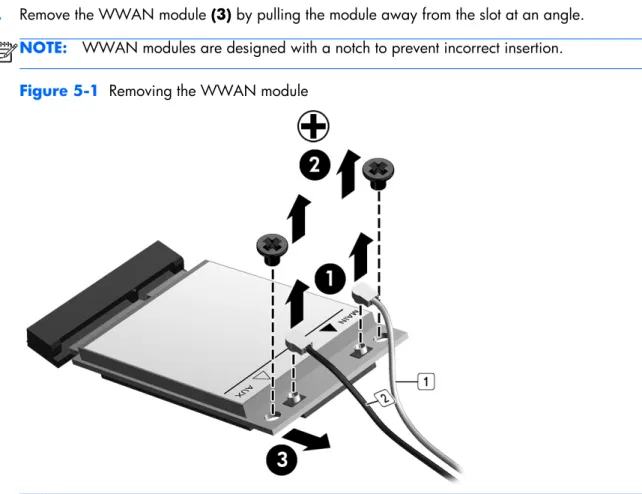
2. Disconnect the WWAN antenna cables (1) from the terminals on the WWAN module.
NOTE: The red WWAN antenna cable is connected to the WWAN module “Main” terminal. The blue WWAN antenna cable is connected to the WWAN module “Aux” terminal.
3. Remove the two Phillips PM2.5×3.0 screws (2) that secure the WWAN module to the computer. (The edge of the module opposite the slot rises away from the computer.)
4. Remove the WWAN module (3) by pulling the module away from the slot at an angle.
NOTE: WWAN modules are designed with a notch to prevent incorrect insertion.
Figure 5-1 Removing the WWAN module
NOTE: If the WWAN antennas are not connected to the terminals on the WWAN module, the protective sleeves must be installed on the antenna connectors, as shown in the following
illustration.
Reverse this procedure to install the WWAN module.
WLAN/Bluetooth combo card
The computer uses a card that provides both WLAN and Bluetooth functionality.
CAUTION: The WLAN module and the WWAN module are not interchangeable.
Description Spare part number
Realtek RTL8188EE 802.11bgn Wi-Fi Adapter 709848-001 Mediatek MT7630E 802.11bgn Wi-Fi Adapter and Mediatek Bluetooth 4.0 Adapter 710418-001 Intel Dual Band Wireless-N 7260AN 802.11 a/b/g/n 2x2 WiFi + BT4.0 717381-001 Broadcom BCM943228HMB 802.11abgn 2x2 Wi-Fi + BT 4.0 Combo Adapter 731550-001 Atheros AR9485 802.11b/g/n 1x1 WiFi Adapter 675794-001 Atheros AR9565 802.11bgn 1x1 WiFi + BT4.0 combo Adapter 690019-001
Before removing the WLAN module, follow these steps:
1. Shut down the computer. If you are unsure whether the computer is off or in Hibernation, turn the computer on, and then shut it down through the operating system.
2. Disconnect all external devices connected to the computer.
3. Disconnect the power from the computer by first unplugging the power cord from the AC outlet, and then unplugging the AC adapter from the computer.
4. Remove the battery (see Battery on page 35).
5. Remove the service door (see Service door on page 43). Remove the WLAN module:
1. Position the computer upside-down.
2. Disconnect the WLAN antenna cables (1) from the terminals on the WLAN module.
NOTE: The WLAN antenna cable labeled “1” connects to the WLAN module “Main” terminal labeled “1”. The WLAN antenna cable labeled “2” connects to the WLAN module “Aux” terminal labeled “2”. If the computer is equipped with an 802.11a/b/g/n WLAN module, the yellow WLAN antenna cable connects to the middle terminal on the WLAN module.
3. Remove the two Phillips PM2.5×3.0 screws (2) that secure the WLAN module to the computer. (The edge of the module opposite the slot rises away from the computer.)
4. Remove the WLAN module (3) by pulling the module away from the slot at an angle.
NOTE: WLAN modules are designed with a notch to prevent incorrect insertion.
NOTE: If the WLAN antennas are not connected to the terminals on the WLAN module, the protective sleeves must be installed on the antenna connectors, as shown in the following illustration.
Reverse this procedure to install the WLAN module.
6 Removal and replacement
procedures for Authorized Service
Provider parts
CAUTION: Components described in this chapter should only be accessed by an authorized service provider. Accessing these parts can damage the computer or void the warranty.
Component replacement procedures
NOTE: Details about your computer, including model, serial number, product key, and length of warranty, are on the service tag at the bottom of your computer. See Service tag and PCID label on page 17 for details.
This chapter provides removal and replacement procedures for Authorized Service Provider only parts. There are as many as 47 screws that must be removed, replaced, or loosened when servicing
Authorized Service Provider only parts. Make special note of each screw size and location during removal and replacement.
Top cover
NOTE: All top cover spare part kits include a touchpad.
Description Spare part number
Top cover for use in models with a fingerprint reader (includes touchpad) 727753-001 Top cover for use in models without a fingerprint reader (includes touchpad) 727754-001
Before removing the top cover, follow these steps:
1. Shut down the computer. If you are unsure whether the computer is off or in Hibernation, turn the computer on, and then shut it down through the operating system.
3. Disconnect the power from the computer by first unplugging the power cord from the AC outlet, and then unplugging the AC adapter from the computer.
4. Remove the battery (see Battery on page 35).
5. Remove the following components:
a. Service door (see Service door on page 43).
b. Keyboard (see Keyboard on page 37)
c. Hard drive (see Hard drive on page 40) Remove the top cover:
1. Position the computer upside-down with the front toward you.
2. Remove the following screw covers from atop the screws on the bottom of the computer:
(1) 2 rear rubber screw covers
(2) 2 middle rubber screw covers
(3) 2 front rubber screw covers
NOTE: Rubber screw covers are available in the Rubber/Plastics Kit, spare part number 727762-001.
3. Remove the 10 Torx T8M2.5×5.0 screws that secure the top cover to the computer.
4. Disconnect the audio board cable from the system board.
6. Remove the 7 Torx T8M2.5×5.0 screws that secure the top cover to the computer.
7. Disconnect the following cables from the system board:
(1) Power button cable
(2) Touchpad board cable
(3) Function board cable
8. Pry up on the top of the top cover (start near the hard drive) to disengage it from the computer, and then remove the top cover from the computer.
Reverse this procedure to install the top cover.
Use the following illustration to determine proper routing of top cover cables.
(1): Function board cable
(2): Fingerprint reader board cable
(3): Touchpad board cable
RTC battery
Description Spare part number
RTC battery 684248-001
Before removing the RTC battery, follow these steps:
1. Shut down the computer. If you are unsure whether the computer is off or in Hibernation, turn the computer on, and then shut it down through the operating system.
2. Disconnect all external devices connected to the computer.
3. Disconnect the power from the computer by first unplugging the power cord from the AC outlet, and then unplugging the AC adapter from the computer.
4. Remove the battery (see Battery on page 35).
5. Remove the following components:
a. Service door (see Service door on page 43).
b. Keyboard (see Keyboard on page 37)
c. Top cover (see Top cover on page 50) Remove the RTC battery:
1. Position the computer upright with the front toward you.
2. Use a screwdriver to loosen the battery from the socket (1).
3. Lift the battery from the system board (2).
Reverse this procedure to install the RTC battery.
Fingerprint reader board
NOTE: All fingerprint reader assembly spare part kits include cable, bracket, grommet, and screw)
Description Spare part number
Fingerprint reader board (includes cable, bracket, grommet, and screw) 727764-001
Before removing the fingerprint reader board, follow these steps:
1. Shut down the computer. If you are unsure whether the computer is off or in Hibernation, turn the computer on, and then shut it down through the operating system.
2. Disconnect all external devices connected to the computer.
3. Disconnect the power from the computer by first unplugging the power cord from the AC outlet, and then unplugging the AC adapter from the computer.
4. Remove the battery (see Battery on page 35).
5. Remove the following components:
a. Service door (see Service door on page 43).
b. Keyboard (see Keyboard on page 37)
c. Top cover (see Top cover on page 50) Remove the fingerprint reader board:
1. Position the top cover upside-down.
2. Disconnect the fingerprint reader board cable from the audio board (1).
3. Remove the Phillips PM2.0×3.0 screw (2) that secures the fingerprint reader board bracket to the top cover.
4. Pull the bracket toward bottom edge of the top cover to pull it out from slot (3), and remove it from the top cover (4).
5. Remove the reader board and cable assembly from the top cover (5).
Reverse this procedure to install the fingerprint reader board.
Audio board
Description Spare part number
Audio board 727759-001
Before removing the audio board, follow these steps:
1. Shut down the computer. If you are unsure whether the computer is off or in Hibernation, turn the computer on, and then shut it down through the operating system.
2. Disconnect all external devices connected to the computer.
3. Disconnect the power from the computer by first unplugging the power cord from the AC outlet, and then unplugging the AC adapter from the computer.
4. Remove the battery (see Battery on page 35).
5. Remove the following components:
a. Service door (see Service door on page 43).
b. Keyboard (see Keyboard on page 37)
c. Top cover (see Top cover on page 50) Remove the audio board:
1. Position the top cover upside-down.
2. Disconnect the fingerprint reader board cable (1) from the audio board.
3. Remove the two Phillips PM2.0×3.0 screws (2) that secure the audio board to the top cover.
4. Rotate the board upward (3), and then pull the board into the top cover to remove it (4).
Function board
Description Spare part number
Function board 727768-001
Before removing the function board, follow these steps:
1. Shut down the computer. If you are unsure whether the computer is off or in Hibernation, turn the computer on, and then shut it down through the operating system.
2. Disconnect all external devices connected to the computer.
3. Disconnect the power from the computer by first unplugging the power cord from the AC outlet, and then unplugging the AC adapter from the computer.
4. Remove the battery (see Battery on page 35).
5. Remove the following components:
a. Service door (see Service door on page 43).
b. Keyboard (see Keyboard on page 37)
c. Top cover (see Top cover on page 50) Remove the function board assembly:
1. Position the top cover upside-down.
2. Remove the 2 Phillips PM2.0×3.0 screws (1) that secure the board to the top cover.
3. Lift the function board straight up and off the top cover (2).
Reverse this procedure to install the function board.
Power button board
Description Spare part number
Power button board (includes cable) 727760-001
Before removing the power button board, follow these steps:
1. Shut down the computer. If you are unsure whether the computer is off or in Hibernation, turn the computer on, and then shut it down through the operating system.
2. Disconnect all external devices connected to the computer.
3. Disconnect the power from the computer by first unplugging the power cord from the AC outlet, and then unplugging the AC adapter from the computer.
4. Remove the battery (see Battery on page 35).
5. Remove the following components:
a. Service door (see Service door on page 43).
b. Keyboard (see Keyboard on page 37)
c. Top cover (see Top cover on page 50) Remove the power button board assembly:
1. Position the top cover upside-down.
2. Disconnect the cable from the board (1).
4. Lift the side of board up at an angle (3), slide the board out from under the tab, and remove the board from the top cover (4).
Reverse this procedure to install the power button board.