TI-84 Plus and
TI-84 Plus Silver Edition
Guidebook
Important Information
Texas Instruments makes no warranty, either express or implied, including but not limited to any implied warranties of merchantability and fitness for a particular purpose, regarding any programs or book materials and makes such materials available solely on an "as-is" basis. In no event shall Texas Instruments be liable to anyone for special, collateral, incidental, or consequential damages in connection with or arising out of the purchase or use of these materials, and the sole and exclusive liability of Texas Instruments, regardless of the form of action, shall not exceed the purchase price of this product. Moreover, Texas Instruments shall not be liable for any claim of any kind whatsoever against the use of these materials by any other party.
© 2010 Texas Instruments Incorporated
Contents
Important Information ... ii
Chapter 1: Operating the TI-84 Plus Silver Edition ... 1
Documentation Conventions ... 1
TI-84 Plus Keyboard ... 1
Turning On and Turning Off the TI-84 Plus ... 3
Setting the Display Contrast ... 4
The Display ... 5
Interchangeable Faceplates ... 8
Using the Clock ... 9
Entering Expressions and Instructions ... 11
Setting Modes ... 14
Using TI-84 Plus Variable Names ... 19
Storing Variable Values ... 20
Recalling Variable Values ... 21
Scrolling Through Previous Entries on the Home Screen ... 21
ENTRY (Last Entry) Storage Area ... 22
TI-84 Plus Menus ... 24
VARS and VARS Y-VARS Menus ... 27
Equation Operating System (EOS™) ... 28
Special Features of the TI-84 Plus ... 29
Other TI-84 Plus Features ... 30
Error Conditions ... 32
Chapter 2: Math, Angle, and Test Operations ... 34
Getting Started: Coin Flip ... 34
Keyboard Math Operations ... 35
MATH Operations ... 37
Using the Equation Solver ... 41
MATH NUM (Number) Operations ... 44
Entering and Using Complex Numbers ... 49
MATH CPX (Complex) Operations ... 53
MATH PRB (Probability) Operations ... 55
ANGLE Operations ... 58
TEST (Relational) Operations ... 61
TEST LOGIC (Boolean) Operations ... 62
Chapter 3: Function Graphing ... 64
Getting Started: Graphing a Circle ... 64
Defining Graphs ... 65
Setting the Graph Modes ... 66
Defining Functions ... 67
Selecting and Deselecting Functions ... 68
Setting Graph Styles for Functions ... 70
Setting the Viewing Window Variables ... 72
Setting the Graph Format ... 73
Displaying Graphs ... 75
Exploring Graphs with the Free-Moving Cursor ... 77
Exploring Graphs with TRACE ... 77
Exploring Graphs with the ZOOM Instructions ... 79
Using ZOOM MEMORY ... 84
Chapter 4:
Parametric Graphing ... 90
Getting Started: Path of a Ball ... 90
Defining and Displaying Parametric Graphs ... 92
Exploring Parametric Graphs ... 94
Chapter 5: Polar Graphing ... 96
Getting Started: Polar Rose ... 96
Defining and Displaying Polar Graphs ... 97
Exploring Polar Graphs ... 99
Chapter 6: Sequence Graphing ... 101
Getting Started: Forest and Trees ... 101
Defining and Displaying Sequence Graphs ... 102
Selecting Axes Combinations ... 106
Exploring Sequence Graphs ... 107
Graphing Web Plots ... 108
Using Web Plots to Illustrate Convergence ... 109
Graphing Phase Plots ... 110
Comparing TI-84 Plus and TI-82 Sequence Variables ... 112
Keystroke Differences Between TI-84 Plus and TI-82 ... 113
Chapter 7: Tables ... 114
Getting Started: Roots of a Function ... 114
Setting Up the Table ... 115
Defining the Dependent Variables ... 116
Displaying the Table ... 117
Chapter 8: Draw Instructions ... 120
Getting Started: Drawing a Tangent Line ... 120
Using the DRAW Menu ... 121
Clearing Drawings ... 122
Drawing Line Segments ... 123
Drawing Horizontal and Vertical Lines ... 124
Drawing Tangent Lines ... 125
Drawing Functions and Inverses ... 126
Shading Areas on a Graph ... 127
Drawing Circles ... 127
Placing Text on a Graph ... 128
Using Pen to Draw on a Graph ... 129
Drawing Points on a Graph ... 130
Drawing Pixels ... 131
Storing Graph Pictures (Pic) ... 133
Recalling Graph Pictures (Pic) ... 134
Storing Graph Databases (GDB) ... 134
Recalling Graph Databases (GDB) ... 135
Chapter 9: Split Screen ... 136
Horiz (Horizontal) Split Screen ... 138
G-T (Graph-Table) Split Screen ... 139
TI-84 Plus Pixels in Horiz and G-T Modes ... 140
Chapter 10: Matrices ... 142
Getting Started: Using the MTRX Shortcut Menu ... 142
Getting Started: Systems of Linear Equations ... 143
Defining a Matrix ... 144
Viewing and Editing Matrix Elements ... 145
Using Matrices with Expressions ... 147
Displaying and Copying Matrices ... 148
Using Math Functions with Matrices ... 150
Using the MATRX MATH Operations ... 153
Chapter 11: Lists ... 160
Getting Started: Generating a Sequence ... 160
Naming Lists ... 161
Storing and Displaying Lists ... 162
Entering List Names ... 163
Attaching Formulas to List Names ... 164
Using Lists in Expressions ... 166
LIST OPS Menu ... 167
LIST MATH Menu ... 174
Chapter 12: Statistics ... 177
Getting Started: Pendulum Lengths and Periods ... 177
Setting Up Statistical Analyses ... 183
Using the Stat List Editor ... 184
Attaching Formulas to List Names ... 187
Detaching Formulas from List Names ... 189
Switching Stat List Editor Contexts ... 189
Stat List Editor Contexts ... 191
STAT EDIT Menu ... 192
Regression Model Features ... 194
STAT CALC Menu ... 197
Statistical Variables ... 202
Statistical Analysis in a Program ... 204
Statistical Plotting ... 204
Statistical Plotting in a Program ... 209
Chapter 13: Inferential Statistics and Distributions ... 211
Getting Started: Mean Height of a Population ... 211
Inferential Stat Editors ... 214
STAT TESTS Menu ... 216
Inferential Statistics Input Descriptions ... 232
Test and Interval Output Variables ... 234
Distribution Functions ... 235
Distribution Shading ... 241
Chapter 14: Applications ... 244
Getting Started: Financing a Car ... 245
Getting Started: Computing Compound Interest ... 246
Using the TVM Solver ... 246
Using the Financial Functions ... 247
Calculating Time Value of Money (TVM) ... 248
Calculating Cash Flows ... 250
Calculating Amortization ... 251
Calculating Interest Conversion ... 254
Finding Days between Dates/Defining Payment Method ... 254
Using the TVM Variables ... 255
The EasyData™ Application ... 256
Chapter 15: CATALOG, Strings, Hyperbolic Functions ... 259
Browsing the TI-84 Plus CATALOG ... 259
Entering and Using Strings ... 260
Storing Strings to String Variables ... 261
String Functions and Instructions in the CATALOG ... 262
Hyperbolic Functions in the CATALOG ... 266
Chapter 16: Programming ... 268
Getting Started: Volume of a Cylinder ... 268
Creating and Deleting Programs ... 269
Entering Command Lines and Executing Programs ... 271
Editing Programs ... 272
Copying and Renaming Programs ... 273
PRGM CTL (Control) Instructions ... 274
PRGM I/O (Input/Output) Instructions ... 281
Calling Other Programs as Subroutines ... 286
Running an Assembly Language Program ... 287
Chapter 17: Activities ... 289
The Quadratic Formula ... 289
Box with Lid ... 293
Comparing Test Results Using Box Plots ... 300
Graphing Piecewise Functions ... 302
Graphing Inequalities ... 304
Solving a System of Nonlinear Equations ... 306
Using a Program to Create the Sierpinski Triangle ... 307
Graphing Cobweb Attractors ... 309
Using a Program to Guess the Coefficients ... 310
Graphing the Unit Circle and Trigonometric Curves ... 312
Finding the Area between Curves ... 314
Using Parametric Equations: Ferris Wheel Problem ... 315
Demonstrating the Fundamental Theorem of Calculus ... 317
Computing Areas of Regular N-Sided Polygons ... 320
Computing and Graphing Mortgage Payments ... 323
Chapter 18: Memory and Variable Management ... 325
Checking Available Memory ... 325
Deleting Items from Memory ... 328
Resetting the TI-84 Plus ... 334
Grouping and Ungrouping Variables ... 337
Garbage Collection ... 341
ERR:ARCHIVE FULL Message ... 344
Chapter 19: Communication Link ... 345
Getting Started: Sending Variables ... 345
TI-84 Plus LINK ... 347
Selecting Items to Send ... 349
Receiving Items ... 353
Backing Up RAM Memory ... 355
Error Conditions ... 356
Appendix A: Functions and Instructions ... 357
Appendix B: Reference Information ... 386
Variables ... 386
Statistics Formulas ... 388
Financial Formulas ... 392
Important Things You Need to Know About Your TI-84 Plus ... 396
Error Conditions ... 399
Accuracy Information ... 405
Appendix C: Service and Warranty Information ... 407
Texas Instruments Support and Service ... 407
Battery Information ... 407
Chapter 1:
Operating the TI-84 Plus Silver Edition
Documentation Conventions
In the body of this guidebook, TI-84 Plus refers to the TI-84 Plus Silver Edition. Sometimes, as in Chapter 19, the full name TI-84 Plus Silver Edition is used to distinguish it from the TI-84 Plus.
All the instructions and examples in this guidebook also work for the TI-84 Plus. All the functions of the TI-84 Plus Silver Edition and the TI-84 Plus are the same. The two graphing calculators differ only in available RAM memory, interchangeable faceplates, and Flash application ROM memory.
Screen shots were taken using OS version 2.53MP in either MathPrint™ or Classic mode. All features are available in both modes; however, screens make look slightly different depending on the mode setting. Many examples highlight features that are not available in previous OS versions. If your calculator does not have the latest OS, features may not be available and your screens may look different. You can download the latest OS from education.ti.com.
TI-84 Plus Keyboard
Generally, the keyboard is divided into these zones: graphing keys, editing keys, advanced function keys, and scientific calculator keys.
Keyboard Zones
Graphing — Graphing keys access the interactive graphing features. The third function of these keys (
t ^
-a
) displays the shortcut menus, which include templates for fractions, n/d, quick matrix entry, and some of the functions found on the MATH and VARS menus.Editing — Editing keys allow you to edit expressions and values.
Advanced — Advanced function keys display menus that access the advanced functions.
TI-84 Plus Silver Edition
Using the Color.Coded Keyboard
The keys on the TI-84 Plus are color-coded to help you easily locate the key you need.
The light colored keys are the number keys. The keys along the right side of the keyboard are the common math functions. The keys across the top set up and display graphs. The Πkey provides access to applications such as the Inequality Graphing, Transformation Graphing, Conic Graphing, Polynomial Root Finder and Simultaneous Equation Solver, and Catalog Help.
The primary function of each key is printed on the keys. For example, when you press , the MATH menu is displayed.
Using the y and ƒ Keys
The secondary function of each key is printed above the key. When you press the y key, the character, abbreviation, or word printed above the other keys becomes active for the next keystroke. For example, when you press y and then , the TEST menu is displayed. This guidebook describes this keystroke combination as y :.
Many keys also have a third function. These functions are printed above the keys in the same color as the ƒ key. The third functions enter alphabetic characters and special symbols as well as access SOLVE and shortcut menus. For example, when you press ƒ and then , the letter A is entered. This guidebook describes this keystroke combination as ƒ[A]. Graphing Keys
Editing Keys Advanced Function Keys
If you want to enter several alphabetic characters in a row, you can press y 7 to lock the alpha key in the On position and avoid having to press ƒ multiple times. Press ƒ a second time to unlock it.
Note: The flashing cursor changes to
Ø
when you press ƒ, even if you are accessing afunction or a menu.
Turning On and Turning Off the TI-84 Plus
Turning On the Graphing Calculator
To turn on the TI-84 Plus, press É. An information screen displays reminding you that you can press t^ - a to display the shortcut menus. This message also displays when you reset RAM.
To continue but not see this information screen again, press 1.
To continue and see this information screen again the next time you turn on the TI-84 Plus, press 2.
• If you previously had turned off the graphing calculator by pressing y M, the TI-84 Plus displays the home screen as it was when you last used it and clears any error. (The
information screen displays first, unless you chose not to see it again.) If the home screen is blank, press } to scroll through the history of previous calculations.
• If Automatic Power Down™ (APD™) had previously turned off the graphing calculator, the TI-84 Plus will return exactly as you left it, including the display, cursor, and any error. y
Accesses the second function printed above each key.
ƒ
Accesses the third function printed above each key.
ƒ
^
-a
• If the TI-84 Plus is turned off and connected to another graphing calculator or personal computer, any communication activity will “wake up” the TI-84 Plus.
To prolong the life of the batteries, APD™ turns off the TI-84 Plus automatically after about five minutes without any activity.
Turning Off the Graphing Calculator
To turn off the TI-84 Plus manually, press y M.
• All settings and memory contents are retained by the Constant Memory™ function. • Any error condition is cleared.
Batteries
The TI-84 Plus uses five batteries: four AAA alkaline batteries and one button cell backup battery. The backup battery provides auxiliary power to retain memory while you replace the AAA
batteries. To replace batteries without losing any information stored in memory, follow the steps in Appendix C.
Setting the Display Contrast
Adjusting the Display Contrast
You can adjust the display contrast to suit your viewing angle and lighting conditions. As you change the contrast setting, a number from 0 (lightest) to 9 (darkest) in the top-right corner indicates the current level. You may not be able to see the number if contrast is too light or too dark.
Note: The TI-84 Plus has 40 contrast settings, so each number 0 through 9 represents four settings.
The TI-84 Plus retains the contrast setting in memory when it is turned off.
To adjust the contrast, follow these steps.
Press y } to darken the screen one level at a time. Press y † to lighten the screen one level at a time.
Note: If you adjust the contrast setting to 0, the display may become completely blank. To restore the screen, press y } until the display reappears.
When to Replace Batteries
When the batteries are low, a low-battery message is displayed when you turn on the graphing calculator.
Generally, the graphing calculator will continue to operate for one or two weeks after the low-battery message is first displayed. After this period, the TI-84 Plus will turn off automatically and the unit will not operate. Batteries must be replaced. All memory should be retained.
Note:
• The operating period following the first low-battery message could be longer than two weeks if you use the graphing calculator infrequently.
• Always replace batteries before attempting to install a new operating system.
The Display
Types of Displays
The TI-84 Plus displays both text and graphs. Chapter 3 describes graphs. Chapter 9 describes how the TI-84 Plus can display a horizontally or vertically split screen to show graphs and text simultaneously.
Home Screen
The home screen is the primary screen of the TI-84 Plus. On this screen, enter instructions to execute and expressions to evaluate. The answers are displayed on the same screen. Most calculations are stored in the history on the home screen. You can press } and † to scroll through the history of entries on the home screen and you can paste the entries or answers to the current entry line.
Displaying Entries and Answers
• When text is displayed, the TI-84 Plus screen can display a maximum of 8 lines with a maximum of 16 characters per line in Classic mode. In MathPrint™ mode, fewer lines and fewer characters per line may be displayed.
• If all lines of the display are full, text scrolls off the top of the display. - To view previous entries and answers, press }.
- To copy a previous entry or answer and paste it to the current entry line, move the cursor to the entry or answer you want to copy and press Í.
Note: List and matrix outputs cannot be copied. If you try to copy and paste a list or matrix output, the cursor returns to the input line.
• If an expression on the home screen, the Y= editor (Chapter 3), or the program editor
When an entry is executed on the home screen, the answer is displayed on the right side of the next line.
The mode settings control the way the TI-84 Plus interprets expressions and displays answers.
If an answer, such as a list or matrix, is too long to display entirely on one line, an arrow
(MathPrint™) or an ellipsis (Classic) is displayed to the right or left. Press ~ and | to display the answer.
Using Shortcut Menus
Shortcut menus allow quick access to the following:
• Templates to enter fractions and selected functions from the MATH MATH and MATH NUM menus as you would see them in a textbook. Functions include absolute value, summation, numeric differentiation, numeric integration, and log base n.
Entry Answer
Answer Entry MathPrint™
Answer Entry
Classic
Answer Entry
Answer Entry
t ^ Opens FRAC menu.
t _ Opens FUNC menu.
t ` Opens MTRX menu.
• Matrix entry.
• Names of function variables from the VARS Y-VARS menu.
Initially, the menus are hidden. To open a menu, press t plus the F-key that corresponds to the menu, that is, ^ for FRAC, _ for FUNC, ` for MTRX, or a for YVAR. To select a menu item, either press the number corresponding to the item, or use the arrow keys to move the cursor to the appropriate line and then press Í.
All shortcut menu items except matrix templates can also be selected using standard menus. For example, you can choose the summation template from three places:
The shortcut menus are available to use where input is allowed. If the calculator is in Classic mode, or if a screen is displayed that does not support MathPrint™ display, entries will be displayed in Classic display. The MTRX menu is only available in MathPrint™ mode on the home screen and in the Y= editor.
Note: Shortcut menus may not be available if t plus F-key combinations are used by an
application that is running, such as Inequality Graphing or Transformation Graphing.
Returning to the Home Screen
To return to the home screen from any other screen, press y 5.
Busy Indicator
When the TI-84 Plus is calculating or graphing, a vertical moving line is displayed as a busy indicator in the top-right corner of the screen. When you pause a graph or a program, the busy indicator becomes a vertical moving dotted line.
FUNC shortcut menu
MATH MATH menu
Display Cursors
In most cases, the appearance of the cursor indicates what will happen when you press the next key or select the next menu item to be pasted as a character.
If you press ƒ during an insertion, the cursor becomes an underlined A (A). If you press y during an insertion, the underlined cursoSr becomes an underlined # (#).
Note: If you highlight a small character such as a colon or a comma and then press ƒ or y, the cursor does not change because the cursor width is too narrow.
Graphs and editors sometimes display additional cursors, which are described in other chapters.
Interchangeable Faceplates
The TI-84 Plus Silver Edition has interchangeable faceplates that let you customize the appearance of your unit. To purchase additional faceplates, refer to the TI Online Store at education.ti.com.
Removing a Faceplate
Cursor Appearance Effect of Next Keystroke
Entry Solid rectangle
$ A character is entered at the cursor; any existing character is overwritten
Insert Underline __
A character is inserted in front of the cursor location
Second Reverse arrow
Þ A 2nd character is entered or a 2nd operation is executed
Alpha Reverse A
Ø An alpha character is entered, executed, or shortcut menus are displayed.SOLVE is
Full Checkerboard rectangle
# No entry; the maximum characters are entered at a prompt or memory is full
MathPrint™ Right arrow The cursor moves to either the next part of the template or out of the template.
1. Lift the tab at the bottom edge of the faceplate away from the TI-84 Plus Silver Edition case.
Installing New Faceplates
Using the Clock
Use the clock to set the time and date, select the clock display format, and turn the clock on and off. The clock is turned on by default and is accessed from the mode screen.
Displaying the Clock Settings
Changing the Clock Settings
1. Align the top of the faceplate in the corresponding grooves of the TI-84 Plus Silver Edition case.
2. Gently click the faceplate into place. Do not force.
3. Make sure you gently press each of the grooves to ensure the faceplate is installed properly. See the diagram for proper groove placement.
1. Press z.
2. Press the † to move the cursor to SET CLOCK. 3. Press Í.
1. Press the ~ or | to highlight the date format you want. Press Í.
2. Press † to highlight YEAR. Press ‘ and type the year.
3. Press † to highlight MONTH. Press ‘ and type the number of the month (1-12).
4. Press † to highlight DAY. Press ‘ and type the date.
Error Messages
Turning the Clock On
There are two options to turn the clock on. One option is through the MODE screen, the other is through the Catalog.
6. Press † to highlight HOUR. Press ‘ and type the hour (a number from 1-12 or 0-23).
7. Press † to highlight MINUTE. Press ‘ and type the minutes (a number from 0-59).
8. Press † to highlight AM/PM. Press ~ or | to highlight the format. Press Í.
9. To save changes, press † to highlight SAVE. Press Í.
If you type the wrong date for the month, for example, June 31 (June does not have 31 days), you will receive an error message with two choices:
• To quit the clock application and return to the home screen, select 1: Quit.
— or —
Using the Mode Screen to turn the clock on
Using the Catalog to turn the clock on
Turning the Clock Off
Entering Expressions and Instructions
What Is an Expression?
An expression is a group of numbers, variables, functions and their arguments, or a combination of these elements. An expression evaluates to a single answer. On the TI-84 Plus, you enter an expression in the same order as you would write it on paper. For example, pR2 is an expression.
You can use an expression on the home screen to calculate an answer. In most places where a value is required, you can use an expression to enter a value.
1. If the clock is turned off, Press † to highlight TURN CLOCK ON.
2. Press Í Í.
1. If the clock is turned off, Press y N 2. Press † or } to scroll the CATALOG until the
selection cursor points to ClockOn.
3. Press ÍÍ.
1. Press y N.
2. Press † or } to scroll the CATALOG until the selection cursor points to ClockOff.
Entering an Expression
To create an expression, you enter numbers, variables, and functions using the keyboard and menus. An expression is completed when you press Í, regardless of the cursor location. The entire expression is evaluated according to Equation Operating System (EOS™) rules, and the answer is displayed according to the mode setting for Answer.
Most TI-84 Plus functions and operations are symbols comprising several characters. You must enter the symbol from the keyboard or a menu; do not spell it out. For example, to calculate the log of 45, you must press « 45. Do not enter the letters L, O, and G. If you enter LOG, the TI-84 Plus interprets the entry as implied multiplication of the variables L, O, and G.
Calculate 3.76 P (L7.9 + ‡5) + 2 log 45.
Multiple Entries on a Line
To enter two or more expressions or instructions on a line, separate them with colons (ƒ[:]). All instructions are stored together in last entry (ENTRY).
Entering a Number in Scientific Notation
1. Enter the part of the number that precedes the exponent. This value can be an expression. 2. Press y D. â is pasted to the cursor location.
3. Enter the exponent, which can be one or two digits.
Note: If the exponent is negative, press Ì, and then enter the exponent.
When you enter a number in scientific notation, the TI-84 Plus does not automatically display answers in scientific or engineering notation. The mode settings and the size of the number determine the display format.
Functions
A function returns a value. For example, ÷, L, +, ‡, and log( are the functions in the example on the previous page. In general, the first letter of each function is lowercase on the TI-84 Plus. Most functions take at least one argument, as indicated by an open parenthesis following the name. For example, sin( requires one argument, sin(value).
3 Ë 76 ¥ £ Ì 7 Ë 9 Ã
y C 5 ¤ ¤ Ã 2 « 45 ¤
Í
Note: The Catalog Help App contains syntax information for most of the functions in the catalog.
Instructions
An instruction initiates an action. For example, ClrDraw is an instruction that clears any drawn elements from a graph. Instructions cannot be used in expressions. In general, the first letter of each instruction name is uppercase. Some instructions take more than one argument, as indicated by an open parenthesis at the end of the name. For example, Circle( requires three arguments, Circle(X,Y,radius).
Interrupting a Calculation
To interrupt a calculation or graph in progress, which is indicated by the busy indicator, press É.
When you interrupt a calculation, a menu is displayed.
• To return to the home screen, select 1:Quit.
• To go to the location of the interruption, select 2:Goto.
When you interrupt a graph, a partial graph is displayed.
• To return to the home screen, press ‘ or any nongraphing key. • To restart graphing, press a graphing key or select a graphing instruction.
TI-84 Plus Edit Keys
Keystrokes Result
~ or | Moves the cursor within an expression; these keys repeat.
} or † Moves the cursor from line to line within an expression that occupies
more than one line; these keys repeat.
Moves the cursor from term to term within an expression in MathPrint™ mode; these keys repeat.
On the home screen, scrolls through the history of entries and answers. y | Moves the cursor to the beginning of an expression.
y ~ Moves the cursor to the end of an expression.
y } On the home screen, moves the cursor out of a MathPrint™ expression. In the Y=editor, moves the cursor from a MathPrint™ expression to the previous Y-var.
y † In the Y=editor, moves the cursor from a MathPrint ™ expression to the next Y-var.
Í Evaluates an expression or executes an instruction.
‘ On a line with text on the home screen, clears the current line. On a blank line on the home screen, clears everything on the home screen.
Setting Modes
Checking Mode Settings
Mode settings control how the TI-84 Plus displays and interprets numbers and graphs. Mode settings are retained by the Constant ‘Memory™ feature when the TI-84 Plus is turned off. All numbers, including elements of matrices and lists, are displayed according to the current mode settings.
To display the mode settings, press z. The current settings are highlighted. Defaults are highlighted below. The following pages describe the mode settings in detail.
{ Deletes a character at the cursor; this key repeats.
y 6 Changes the cursor to an underline (__); inserts characters in front of the underline cursor; to end insertion, press y 6 or press |, }, ~, or †.
y Changes the cursor to Þ; the next keystroke performs a 2nd function (displayed above a key and to the left); to cancel 2nd, press y again. ƒ Changes the cursor to Ø; the next keystroke performs a third function of
that key (displayed above a key and to the right), executes SOLVE (Chapters 10 and 11), or accesses a shortcut menu; to cancel ƒ, press ƒ or press |, }, ~, or †.
y 7 Changes the cursor to Ø; sets alpha-lock; subsequent keystrokes access the third functions of the keys pressed; to cancel alpha-lock, press ƒ. If you are prompted to enter a name such as for a group or a program, alpha-lock is set automatically.
„ Pastes an X in Func mode, a T in Par mode, a q in Pol mode, or an n in Seq mode with one keystroke.
Normal Sci Eng Numeric notation
Float 0123456789 Number of decimal places in answers
Radian Degree Unit of angle measure
Func Par Pol Seq Type of graphing
Connected Dot Whether to connect graph points
Sequential Simul Whether to plot simultaneously
Real a+bi re^qi Real, rectangular complex, or polar complex
Full Horiz G-T Full screen, two split-screen modes
MathPrint Classic Controls whether inputs and outputs on the home screen and in the Y= editor are displayed as they are in textbooks
n/d Un/d Displays results as simple fractions or mixed fractions
Answers: Auto Dec Frac Controls the format of the answers
Changing Mode Settings
To change mode settings, follow these steps.
1. Press † or } to move the cursor to the line of the setting that you want to change. 2. Press ~ or | to move the cursor to the setting you want.
3. Press Í.
Setting a Mode from a Program
You can set a mode from a program by entering the name of the mode as an instruction; for example, Func or Float. From a blank program command line, select the mode setting from the mode screen; the instruction is pasted to the cursor location.
Normal, Sci, Eng
Notation modes only affect the way an answer is displayed on the home screen. Numeric answers can be displayed with up to 10 digits and a two-digit exponent and as fractions. You can enter a number in any format.
Normal notation mode is the usual way we express numbers, with digits to the left and right of the decimal, as in 12345.67.
Sci (scientific) notation mode expresses numbers in two parts. The significant digits display with one digit to the left of the decimal. The appropriate power of 10 displays to the right of å, as in 1.234567â4.
Eng (engineering) notation mode is similar to scientific notation. However, the number can have one, two, or three digits before the decimal; and the power-of-10 exponent is a multiple of three, as in 12.34567â3.
Note: If you select Normal notation, but the answer cannot display in 10 digits (or the absolute value is less than .001), the TI-84 Plus expresses the answer in scientific notation.
Float, 0123456789
Float (floating) decimal mode displays up to 10 digits, plus the sign and decimal.
GoTo Format Graph: No Yes Shortcut to the Format Graph screen (y .)
StatDiagnostics: Off On Determines which information is displayed in a statistical regression calculation
0123456789 (fixed) decimal mode specifies the number of digits (0 through 9) to display to the right of the decimal for decimal answers.
The decimal setting applies to Normal, Sci, and Eng notation modes.
The decimal setting applies to these numbers, with respect to the Answer mode setting:
• An answer displayed on the home screen • Coordinates on a graph (Chapters 3, 4, 5, and 6)
• The Tangent( DRAW instruction equation of the line, x, and dy/dx values (Chapter 8) • Results of CALCULATE operations (Chapters 3, 4, 5, and 6)
• The regression equation stored after the execution of a regression model (Chapter 12)
Radian, Degree
Angle modes control how the TI-84 Plus interprets angle values in trigonometric functions and polar/rectangular conversions.
Radian mode interprets angle values as radians. Answers display in radians.
Degree mode interprets angle values as degrees. Answers display in degrees.
Func, Par, Pol, Seq
Graphing modes define the graphing parameters. Chapters 3, 4, 5, and 6 describe these modes in detail.
Func (function) graphing mode plots functions, where Y is a function of X (Chapter 3).
Par (parametric) graphing mode plots relations, where X and Y are functions of T (Chapter 4).
Pol (polar) graphing mode plots functions, where r is a function of q (Chapter 5).
Seq (sequence) graphing mode plots sequences (Chapter 6).
Connected, Dot
Connected plotting mode draws a line connecting each point calculated for the selected functions.
Dot plotting mode plots only the calculated points of the selected functions.
Sequential, Simul
Sequential graphing-order mode evaluates and plots one function completely before the next function is evaluated and plotted.
Note: Regardless of which graphing mode is selected, the TI-84 Plus will sequentially graph all stat plots before it graphs any functions.
Real, a+bi, re^qi
Real mode does not display complex results unless complex numbers are entered as input.
Two complex modes display complex results.
• a+bi (rectangular complex mode) displays complex numbers in the form a+bi. • re^qi (polar complex mode) displays complex numbers in the form re^qi.
Note: When you use the n/d template, both n and d must be real numbers. For example, you can
enter (the answer is displayed as a decimal value) but if you enter , a data type error displays. To perform division with a complex number in the numerator or denominator, use regular division instead of the n/d template.
Full, Horiz, G-T
Full screen mode uses the entire screen to display a graph or edit screen.
Each split-screen mode displays two screens simultaneously.
• Horiz (horizontal) mode displays the current graph on the top half of the screen; it displays the home screen or an editor on the bottom half (Chapter 9).
• G-T (graph-table) mode displays the current graph on the left half of the screen; it displays the table screen on the right half (Chapter 9).
MathPrint™, Classic
MathPrint™ mode displays most inputs and outputs the way they are shown in textbooks, such as
and .
Classic mode displays expressions and answers as if written on one line, such as 1/2 + 3/4.
Note: If you switch between these modes, most entries will be preserved; however matrix calculations will not be preserved.
1 2 --- 3
4
---+ x2dx
1 2
n/d, Un/d
n/d displays results as a simple fraction. Fractions may contain a maximum of six digits in the numerator; the value of the denominator may not exceed 9999.
Un/d displays results as a mixed number, if applicable. U, n, and d must be all be integers. If U is a non-integer, the result may be converted U
…
n/d. If n or d is a non-integer, a syntax error is displayed. The whole number, numerator, and denominator may each contain a maximum of three digits.Answers: Auto, Dec, Frac
Auto displays answers in a similar format as the input. For example, if a fraction is entered in an expression, the answer will be in fraction form, if possible. If a decimal appears in the expression, the output will be a decimal number.
Dec displays answers as integers or decimal numbers.
Frac displays answers as fractions, if possible.
Note: The Answers mode setting also affects how values in sequences, lists, and tables are displayed. Choose Dec or Frac to ensure that values are displayed in either decimal or fraction form. You can also convert values from decimal to fraction or fraction to decimal using the FRAC shortcut menu or the MATH menu.
GoTo Format Graph: No, Yes
No does not display the FORMAT graph screen, but can always be accessed by pressing
y .
.Yes leaves the mode screen and displays the FORMAT graph screen when you press
Í
sothat you can change the graph format settings. To return to the mode screen, press
z
.Stat Diagnostics: Off, On
Off displays a statistical regression calculation without the correlation coefficient (r) or the coefficient of determination (r2).
On displays a statistical regression calculation with the correlation coefficient (r), and the coefficient of determination (r2), as appropriate.
Set Clock
Using TI-84 Plus Variable Names
Variables and Defined Items
On the TI-84 Plus you can enter and use several types of data, including real and complex numbers, matrices, lists, functions, stat plots, graph databases, graph pictures, and strings.
The TI-84 Plus uses assigned names for variables and other items saved in memory. For lists, you also can create your own five-character names.
Notes about Variables
• You can create as many list names as memory will allow (Chapter 11).
• Programs have user-defined names and share memory with variables (Chapter 16). • From the home screen or from a program, you can store to matrices (Chapter 10), lists
(Chapter 11), strings (Chapter 15), system variables such as Xmax (Chapter 1), TblStart (Chapter 7), and all Y= functions (Chapters 3, 4, 5, and 6).
• From an editor, you can store to matrices, lists, and Y=functions (Chapter 3).
• From the home screen, a program, or an editor, you can store a value to a matrix element or a list element.
• You can use DRAW STO menu items to store and recall graph databases and pictures (Chapter 8).
Variable Type Names
Real numbers (including fractions)
A, B, ... , Z, q
Complex numbers A, B, ... , Z, q
Matrices ãAä, ãBä, ãCä, ... , ãJä
Lists L1, L2, L3, L4, L5, L6, and user-defined names
Functions Y1, Y2, ... , Y9, Y0
Parametric equations X1T and Y1T, ... , X6T and Y6T
Polar functions r1, r2, r3, r4, r5, r6 Sequence functions u, v, w
Stat plots Plot1, Plot2, Plot3
Graph databases GDB1, GDB2, ... , GDB9, GDB0
Graph pictures Pic1, Pic2, ... , Pic9, Pic0 Strings Str1, Str2, ... , Str9, Str0
Apps Applications
AppVars Application variables
Groups Grouped variables
• Although most variables can be archived, system variables including r, T, X, Y, and q cannot be archived (Chapter 18)
• Apps are independent applications.which are stored in Flash ROM. AppVars is a variable
holder used to store variables created by independent applications. You cannot edit or change variables in AppVars unless you do so through the application which created them.
Storing Variable Values
Storing Values in a Variable
Values are stored to and recalled from memory using variable names. When an expression containing the name of a variable is evaluated, the value of the variable at that time is used.
To store a value to a variable from the home screen or a program using the ¿ key, begin on a blank line and follow these steps.
1. Enter the value you want to store. The value can be an expression. 2. Press ¿. ! is copied to the cursor location.
3. Press ƒ and then the letter of the variable to which you want to store the value.
4. Press Í. If you entered an expression, it is evaluated. The value is stored to the variable.
Displaying a Variable Value
To display the value of a variable, enter the name on a blank line on the home screen, and then press Í.
Archiving Variables (Archive, Unarchive)
Recalling Variable Values
Using Recall (RCL)
To recall and copy variable contents to the current cursor location, follow these steps. To leave
RCL, press ‘.
1. Press yK. RCL and the edit cursor are displayed on the bottom line of the screen. 2. Enter the name of the variable in one of five ways.
• Press ƒ and then the letter of the variable.
• Press y9, and then select the name of the list, or press y[Ln]. • Press y>, and then select the name of the matrix.
• Press to display the VARS menu or ~ to display theVARS Y-VARS menu; then select the type and then the name of the variable or function.
• Press t a to display the YVAR shortcut menu, then select the name of the function. • Press |, and then select the name of the program (in the program editor only). The variable name you selected is displayed on the bottom line and the cursor disappears.
3. Press Í. The variable contents are inserted where the cursor was located before you began these steps.
Note: You can edit the characters pasted to the expression without affecting the value in memory.
Scrolling Through Previous Entries on the Home Screen
You can scroll up through previous entries and answers on the home screen, even if you have cleared the screen. When you find an entry or answer that you want to use, you can select it and paste it on the current entry line.
Press
}
or†
to move the cursor to the entry or answer you want to copy and then pressÍ
.T
The entry or answer that you copied is automatically pasted on the current input line at the cursor location.Note: If the cursor is in a MathPrint™ expression, press y } to move the cursor out of the expression and then move the cursor to the entry or answer you want to copy.
Press
u
or{
to delete an entry/answer pair. After an entry/answer pair has been deleted, it cannot be displayed or recalled again.ENTRY (Last Entry) Storage Area
Using ENTRY (Last Entry)
When you press Í on the home screen to evaluate an expression or execute an instruction, the expression or instruction is placed in a storage area called ENTRY (last entry). When you turn off the TI-84 Plus, ENTRY is retained in memory.
To recall ENTRY, press y [. The last entry is pasted to the current cursor location, where you can edit and execute it. On the home screen or in an editor, the current line is cleared and the last entry is pasted to the line.
Because the TI-84 Plus updates ENTRY only when you press Í, you can recall the previous entry even if you have begun to enter the next expression.
Accessing a Previous Entry
The TI-84 Plus retains as many previous entries as possible in ENTRY, up to a capacity of 128 bytes. To scroll those entries, press y [ repeatedly. If a single entry is more than 128 bytes, it is retained for ENTRY, but it cannot be placed in the ENTRY storage area.
If you press y [ after displaying the oldest stored entry, the newest stored entry is displayed again, then the next-newest entry, and so on.
5 Ã 7 Í y [
1 ¿ ƒ A
Í
2 ¿ ƒ B
Í y [
Executing the Previous Entry Again
After you have pasted the last entry to the home screen and edited it (if you chose to edit it), you can execute the entry. To execute the last entry, press Í.
To execute the displayed entry again, press Í again. Each subsequent execution displays the entry and the new answer.
Multiple Entry Values on a Line
To store to ENTRY two or more expressions or instructions, separate each expression or instruction with a colon, then press Í. All expressions and instructions separated by colons are stored in ENTRY.
When you press y [, all the expressions and instructions separated by colons are pasted to the current cursor location. You can edit any of the entries, and then execute all of them when you press Í.
Example: For the equation A=pr2, use trial and error to find the radius of a circle that covers 200 square centimeters. Use 8 as your first guess.
Continue until the answer is as accurate as you want.
Clearing ENTRY
Clear Entries (Chapter 18) clears all data that the TI-84 Plus is holding in the ENTRY storage area.
Using Ans in an Expression
When an expression is evaluated successfully from the home screen or from a program, the TI-84 Plus stores the answer to a storage area called Ans (last answer). Ans may be a real or complex number, a list, a matrix, or a string. When you turn off the TI-84 Plus, the value in Ans is retained in memory.
0 ¿ ƒ N
Í
ƒ N Ã 1 ¿ ƒ N
ƒã:䊃ÄN ¡ Í
Í Í
8 ¿ƒ R ƒã:ä
y Bƒ R ¡ Í
y [
y | 7 y 6 Ë 95
You can use the variable Ans to represent the last answer in most places. Press y Z to copy the variable name Ans to the cursor location. When the expression is evaluated, the TI-84 Plus uses the value of Ans in the calculation.
Calculate the area of a garden plot 1.7 meters by 4.2 meters. Then calculate the yield per square meter if the plot produces a total of 147 tomatoes.
Continuing an Expression
You can use Ans as the first entry in the next expression without entering the value again or pressing y Z. On a blank line on the home screen, enter the function. The TI-84 Plus pastes the variable name Ans to the screen, then the function.
Storing Answers
To store an answer, store Ans to a variable before you evaluate another expression.
Calculate the area of a circle of radius 5 meters. Next, calculate the volume of a cylinder of radius 5 meters and height 3.3 meters, and then store the result in the variable V.
TI-84 Plus Menus
Using a TI-84 Plus Menu
You can access most TI-84 Plus operations using menus. When you press a key or key combination to display a menu, one or more menu names appear on the top line of the screen.
• The menu name on the left side of the top line is highlighted. Up to seven items in that menu are displayed, beginning with item 1, which also is highlighted.
1 Ë 7 ¯ 4 Ë 2 Í
147 ¥ y Z
Í
5 ¥ 2 Í ¯ 9 Ë 9 Í
y B5 ¡
Í ¯ 3 Ë 3 Í
¿ ƒ V
• A number or letter identifies each menu item’s place in the menu. The order is 1 through 9, then 0, then A, B, C, and so on. The LIST NAMES, PRGM EXEC, and PRGM EDIT menus only label items 1 through 9 and 0.
• When the menu continues beyond the displayed items, a down arrow ($) replaces the colon next to the last displayed item.
• When a menu item ends in an ellipsis (...), the item displays a secondary menu or editor when you select it.
• When an asterisk (ä) appears to the left of a menu item, that item is stored in user data archive (Chapter 18).
Displaying a Menu
Moving from One Menu to Another
Scrolling a Menu
To scroll down the menu items, press †. To scroll up the menu items, press }. While using your TI-84 Plus, you often will need to
access items from its menus.
When you press a key that displays a menu, that menu temporarily replaces the screen where you are working. For example, when you press , the MATH menu is displayed as a full screen.
After you select an item from a menu, the screen where you are working usually is displayed again.
Some keys access more than one menu. When you press such a key, the names of all accessible menus are displayed on the top line. When you highlight a menu name, the items in that menu are displayed. Press ~ and | to highlight each menu name.
To page down six menu items at a time, press ƒ †. To page up six menu items at a time, press ƒ }.
To go to the last menu item directly from the first menu item, press }. To go to the first menu item directly from the last menu item, press †.
Selecting an Item from a Menu
You can select an item from a menu in either of two ways.
Note: On the LIST NAMES, PRGM EXEC, and PRGM EDIT menus, only items 1 through 9 and 0 are labeled in such a way that you can select them by pressing the appropriate number key. To move the cursor to the first item beginning with any alpha character or q, press the key combination for that alpha character or q. If no items begin with that character, the cursor moves beyond it to the next item.
Example: Calculate 3‡27.
Leaving a Menu without Making a Selection
You can leave a menu without making a selection in any of four ways.
• Press y 5 to return to the home screen. • Press ‘ to return to the previous screen.
• Press a key or key combination for a different menu, such as or y 9. • Press a key or key combination for a different screen, such as o or y 0. • Press the number or letter of the item you want to
select. The cursor can be anywhere on the menu, and the item you select need not be displayed on the screen.
• Press † or } to move the cursor to the item you want, and then press Í.
After you select an item from a menu, the TI-84 Plus typically displays the previous screen.
† † † Í
VARS and VARS Y-VARS Menus
VARS Menu
You can enter the names of functions and system variables in an expression or store to them directly.
To display the VARS menu, press . All VARS menu items display secondary menus, which show the names of the system variables. 1:Window, 2:Zoom, and 5:Statistics each access more than one secondary menu.
Selecting a Variable from the VARS Menu or VARS Y-VARS Menu
To display the VARS Y-VARS menu, press ~. 1:Function, 2:Parametric, and 3:Polar display secondary menus of the Y= function variables.
Note:
• The sequence variables (u, v, w) are located on the keyboard as the second functions of ¬, −, and ®.
• These Y= function variables are also on the YVAR shortcut menu.
To select a variable from the VARS or VARS Y-VARS menu, follow these steps.
1. Display the VARS or VARS Y-VARS menu. • Press to display the VARS menu.
• Press ~ to display the VARS Y-VARS menu.
VARS Y-VARS
1: Window... X/Y, T/q, and U/V/W variables
2: Zoom... ZX/ZY, ZT/Zq, and ZU variables
3: GDB... Graph database variables
4: Picture... Picture variables
5: Statistics... XY, G, EQ, TEST, and PTS variables
6: Table... TABLE variables
7: String... String variables
VARS Y-VARS
1: Function... Yn functions
2: Parametric... XnT, YnT functions, also found on the YVARS shortcut menu
3: Polar... rn functions, also found on the YVARS shortcut menu
2. Select the type of variable, such as 2:Zoom from the VARS menu or 3:Polar from the VARS Y-VARS menu. A secondary menu is displayed.
3. If you selected 1:Window, 2:Zoom, or 5:Statistics from the VARS menu, you can press ~ or | to display other secondary menus.
4. Select a variable name from the menu. It is pasted to the cursor location.
Equation Operating System (EOS™)
Order of Evaluation
The Equation Operating System (EOS™) defines the order in which functions in expressions are entered and evaluated on the TI-84 Plus. EOS™ lets you enter numbers and functions in a simple, straightforward sequence.
EOS evaluates the functions in an expression in this order.
Note: Within a priority level, EOS™ evaluates functions from left to right. Calculations within parentheses are evaluated first.
Implied Multiplication
The TI-84 Plus recognizes implied multiplication, so you need not press ¯ to express
multiplication in all cases. For example, the TI-84 Plus interprets 2p, 4sin(46), 5(1+2), and (2…5)7 as implied multiplication.
Note: TI-84 Plus implied multiplication rules, although like the TI-83, differ from those of the TI-82. For example, the TI-84 Plus evaluates 1à2X as (1à2)…X, while the TI-82 evaluates 1à2X as 1à(2…X) (Chapter 2).
Order Number Function
1 Functions that precede the argument, such as ‡, sin(, or log(
2 Functions that are entered after the argument, such as 2, M1, !, ¡, r, and conversions
3
Powers and roots, such as 25 or
4 Permutations (nPr) and combinations (nCr)
5 Multiplication, implied multiplication, and division 6 Addition and subtraction
7 Relational functions, such as > or
8 Logic operator and 9 Logic operators or and xor
Parentheses
All calculations inside a pair of parentheses are completed first. For example, in the expression 4(1+2), EOS first evaluates the portion inside the parentheses, 1+2, and then multiplies the answer, 3, by 4.
Negation
To enter a negative number, use the negation key. Press Ì and then enter the number. On the TI-84 Plus, negation is in the third level in the EOS™ hierarchy. Functions in the first level, such as squaring, are evaluated before negation.
Example: MX2, evaluates to a negative number (or 0). Use parentheses to square a negative number.
Note: Use the ¹ key for subtraction and the Ì key for negation. If you press ¹ to enter a negative number, as in 9¯ ¹7, or if you press Ì to indicate subtraction, as in 9Ì7, an error occurs. If you press ƒA Ì ƒB, it is interpreted as implied multiplication (A…MB).
Special Features of the TI-84 Plus
Flash – Electronic Upgradability
The TI-84 Plus uses Flash technology, which lets you upgrade to future software versions without buying a new graphing calculator.
As new functionality becomes available, you can electronically upgrade your TI-84 Plus from the Internet. Future software versions include maintenance upgrades that will be released free of charge, as well as new applications and major software upgrades that will be available for purchase from the TI Web site: education.ti.com. For details, refer to Chapter 19.
1.5 Megabytes of Available Memory
About 1.5 M of user data archive allow you to store data, programs, applications, or any other variables to a safe location where they cannot be edited or deleted inadvertently. You can also free up RAM by archiving variables to user data. For details, refer to Chapter 18.
Applications
Many applications are preloaded on your TI-84 Plus and others can be installed to customize the TI-84 Plus to your needs. The 1.5 MB archive space lets you store up to 94 applications at one time on the TI-84 Plus Silver Edition. Applications can also be stored on a computer for later use or linked unit-to-unit. There are 30 App slots for the TI-84 Plus. For details, refer to Chapter 18.
Archiving
You can store variables in the TI-84 Plus user data archive, a protected area of memory separate from RAM. The user data archive lets you:
• Store data, programs, applications or any other variables to a safe location where they cannot be edited or deleted inadvertently.
• Create additional free RAM by archiving variables.
By archiving variables that do not need to be edited frequently, you can free up RAM for applications that may require additional memory. For details, refer to:Chapter 18.
Other TI-84 Plus Features
The TI-84 Plus guidebook that is included with your graphing calculator has introduced you to basic TI-84 Plus operations. This guidebook covers the other features and capabilities of the TI-84 Plus in greater detail.
Graphing
You can store, graph, and analyze up to 10 functions, up to six parametric functions, up to six polar functions, and up to three sequences. You can use DRAW instructions to annotate graphs.
The graphing chapters appear in this order: Function, Parametric, Polar, Sequence, and DRAW. For graphing details, refer to Chapters 3, 4, 5, 6, 8.
Sequences
You can generate sequences and graph them over time. Or, you can graph them as web plots or as phase plots. For details, refer to Chapter 6.
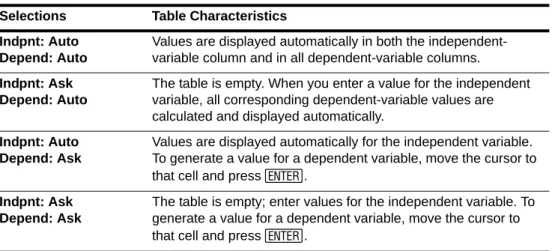
Tables
Split Screen
You can split the screen horizontally to display both a graph and a related editor (such as the Y= editor), the table, the stat list editor, or the home screen. Also, you can split the screen vertically to display a graph and its table simultaneously. For details, refer to Chapter 9.
Matrices
You can enter and save up to 10 matrices and perform standard matrix operations on them. For details, refer to Chapter 10.
Lists
You can enter and save as many lists as memory allows for use in statistical analyses. You can attach formulas to lists for automatic computation. You can use lists to evaluate expressions at multiple values simultaneously and to graph a family of curves. For details, refer to:Chapter 11.
Statistics
You can perform one- and two-variable, list-based statistical analyses, including logistic and sine regression analysis. You can plot the data as a histogram, xyLine, scatter plot, modified or regular box-and-whisker plot, or normal probability plot. You can define and store up to three stat plot definitions. For details, refer to Chapter 12.
Inferential Statistics
You can perform 16 hypothesis tests and confidence intervals and 15 distribution functions. You can display hypothesis test results graphically or numerically. For details, refer to Chapter 13.
Applications
Press Πto see the complete list of applications that came with your graphing calculator.
Documentation for TI Flash applications are on the product CD. Visit education.ti.com/guides for additional Flash application guidebooks. For details, refer to Chapter 14.
CATALOG
The CATALOG is a convenient, alphabetical list of all functions and instructions on the TI-84 Plus. You can paste any function or instruction from the CATALOG to the current cursor location. For details, refer to Chapter 15.
Programming
Archiving
Archiving allows you to store data, programs, or other variables to user data archive where they cannot be edited or deleted inadvertently. Archiving also allows you to free up RAM for variables that may require additional memory.
For details, refer to Chapter 16.
Communication Link
The TI-84 Plus has a USB port using a USB unit-to-unit cable to connect and communicate with another TI-84 Plus or TI-84 Plus Silver Edition. The TI-84 Plus also has an I/O port using an I/O unit-to-unit cable to communicate with a TI-84 Plus Silver Edition, a TI-84 Plus, a TI-83 Plus Silver Edition, a TI-83 Plus, a TI-83, a TI-82, a TI-73, CBL 2™, or a CBR™ System.
With TI Connect™ software and a USB computer cable, you can also link the TI-84 Plus to a personal computer.
As future software upgrades become available on the TI Web site, you can download the software to your PC and then use the TI Connect™ software and a USB computer cable to upgrade your TI-84 Plus.
For details, refer to: Chapter 19
Error Conditions
Diagnosing an Error
The TI-84 Plus detects errors while performing these tasks.
• Evaluating an expression • Executing an instruction • Plotting a graph
• Storing a value
When the TI-84 Plus detects an error, it returns an error message as a menu title, such as ERR:SYNTAX or ERR:DOMAIN. Appendix B describes each error type and possible reasons for the error.
• If you select 1:Quit (or press y 5 or ‘), then the home screen is displayed.
• If you select 2:Goto, then the previous screen is displayed with the cursor at or near the error location.
Note: If a syntax error occurs in the contents of a Y= function during program execution, then the Goto option returns to the Y= editor, not to the program.
Correcting an Error
To correct an error, follow these steps.
1. Note the error type (ERR:error type).
2. Select 2:Goto, if it is available. The previous screen is displayed with the cursor at or near the error location.
Chapter 2:
Math, Angle, and Test Operations
Getting Started: Coin Flip
Getting Started is a fast-paced introduction. Read the chapter for details. For more probability simulations, try the Probability Simulations App for the TI-84 Plus. You can download this App from education.ti.com.
Suppose you want to model flipping a fair coin 10 times. You want to track how many of those 10 coin flips result in heads. You want to perform this simulation 40 times. With a fair coin, the probability of a coin flip resulting in heads is 0.5 and the probability of a coin flip resulting in tails is 0.5.
1. Begin on the home screen. Press | to display the MATH PRB menu. Press 7 to select 7:randBin( (random Binomial). randBin( is pasted to the home screen. Press 10 to enter the number of coin flips. Press ¢. Press Ë5 to enter the probability of heads. Press ¢. Press 40 to enter the number of simulations. Press ¤.
2. Press Í to evaluate the expression.
A list of 40 elements is generated with the first 7 displayed. The list contains the count of heads resulting from each set of 10 coin flips. The list has 40 elements because this simulation was
performed 40 times. In this example, the coin came up heads five times in the first set of 10 coin flips, five times in the second set of 10 coin flips, and so on.
3. Press ~ or | to view the additional counts in the list. An arrow (MathPrint™ mode) or an ellipses (Classic mode) indicate that the list continues beyond the screen.
4. Press ¿ydÍ to store the data to the list name L1. You then can use the data for another activity, such as plotting a histogram (Chapter 12).
Note: Since randBin( generates random numbers, your list elements may differ from those in the example.
MathPrint™
Keyboard Math Operations
Using Lists with Math Operations
Math operations that are valid for lists return a list calculated element by element. If you use two lists in the same expression, they must be the same length.
Addition, Subtraction, Multiplication, Division
You can use + (addition, Ã), N (subtraction, ¹), … (multiplication, ¯), and à (division, ¥) with real and complex numbers, expressions, lists, and matrices. You cannot use à with matrices. If you need to input A/2, enter this as A †1/2 or A †.5.
Trigonometric Functions
You can use the trigonometric (trig) functions (sine, ˜; cosine, ™; and tangent, š) with real numbers, expressions, and lists. The current angle mode setting affects interpretation. For example, sin(30) in radian mode returns L.9880316241; in degree mode it returns .5.
You can use the inverse trig functions (arcsine, y ?; arccosine, y @; and arctangent, y A) with real numbers, expressions, and lists. The current angle mode setting affects interpretation.
Note: The trig functions do not operate on complex numbers.
Power, Square, Square Root
You can use ^ (power, ›), 2 (square, ¡), and ‡( (square root, y C) with real and complex numbers, expressions, lists, and matrices. You cannot use ‡( with matrices.
valueA+valueB valueA…valueB
valueANvalueB valueA àvalueB
sin(value) cos(value) tan(value)
sinL1(value) cosL1(value) tanL1(value)
MathPrint™: valuepower
Classic: value^powerÈ
Inverse
You can use L1 (inverse, œ) with real and complex numbers, expressions, lists, and matrices. The multiplicative inverse is equivalent to the reciprocal, 1àx.
value-1
log(, 10^(, ln(
You can use log( (logarithm, «), 10^( (power of 10, y G), and ln( (natural log, μ) with real or complex numbers, expressions, and lists.
Exponential
e^( (exponential, y J) returns the constant e raised to a power. You can use e^( with real or complex numbers, expressions, and lists.
Constant
e (constant, y[e]) is stored as a constant on the TI-84 Plus. Press y[e] to copy e to the cursor location. In calculations, the TI-84 Plus uses 2.718281828459 for e.
Negation
M (negation, Ì) returns the negative of value. You can use M with real or complex numbers, expressions, lists, and matrices.
log(value) MathPrint™: 10power Classic: 10^(power)
ln(value)
MathPrint™: epower
Mvalue
EOS™ rules (Chapter 1) determine when negation is evaluated. For example, L42 returns a negative number, because squaring is evaluated before negation. Use parentheses to square a negated number, as in (L4)2.
Note: On the TI-84 Plus, the negation symbol (M) is shorter and higher than the subtraction sign (N), which is displayed when you press ¹.
Pi
p (Pi, y B) is stored as a constant in the TI-84 Plus. In calculations, the TI-84 Plus uses 3.1415926535898 for p.
MATH Operations
MATH Menu
To display the MATH menu, press .
MATH NUM CPX PRB
1: 4Frac Displays the answer as a fraction.
2: 4Dec Displays the answer as a decimal.
3: 3 Calculates the cube.
4: 3‡
( Calculates the cube root.
5: x‡
Calculates the xth root.
6: fMin( Finds the minimum of a function.
7: fMax( Finds the maximum of a function.
4Frac, 4Dec
4Frac (display as a fraction) displays an answer as its rational equivalent. You can use 4Frac with real or complex numbers, expressions, lists, and matrices. If the answer cannot be simplified or the resulting denominator is more than three digits, the decimal equivalent is returned. You can only use 4Frac following value.
value4Frac
4Dec (display as a decimal) displays an answer in decimal form. You can use 4Dec with real or complex numbers, expressions, lists, and matrices. You can only use 4Dec following value.
value 4Dec
Note: You can quickly convert from one number type to the other by using the FRAC shortcut menu. Press
t ^
4:4F3 4D to convert a value.Cube, Cube Root
3 (cube) returns the cube of value. You can use 3 with real or complex numbers, expressions, lists, and square matrices.
value3
3‡( (cube root) returns the cube root of value. You can use 3‡( with real or complex numbers, expressions, and lists.
3‡(value)
9: fnInt( Computes the function integral.
0: summation
)
( Returns the sum of elements of list from start to end, wherestart<=end.
A: logBASE( Returns the logarithm of a specifed value determined from a specified base: logBASE(value, base).
B: Solver... Displays the equation solver.