Alabama
Supercomputer
Authority
HPC User Manual
Alabama Supercomputer Authority
HPC USER MANUAL
Edition 10.1
Alabama Supercomputer Authority 686 Discovery Drive
The Alabama Supercomputer
Authority
HPC User Manual
Edition 10.1
Alabama Supercomputer Authority 686 Discovery Drive
Huntsville, AL 35806
Publication Date Description 1st Edition February 1988 Original printing
Revision A September 1988 Minor typographical and editorial corrections 2nd Edition June 1990 Updates and modifications of 1st Edition 3rd Edition June 1993 Complete rewrite
Revision A October 1993 New procedures and locations
4th Edition January 1994 Update for Cray C90 and editorial corrections 5th Edition March 1997 Updates, modifications, and new format 6th Edition July 1999 Updates and modifications of 5th Edition 7th Edition January 2005 Updates for Cray XD1 and SGI Altix 350 8th Edition October 2008 SGI Altix 450, DMC, and new format 9th Edition December 2010 Updated to reflect hardware upgrades 10th Edition June 2013 Added Ultraviolet, removed Altix Edition 10.1 March 2014 Update for Ivy Bridge & Kepler chips
AMD Opteron, and the AMD 64 Opteron logo are registered trademarks of Advanced Micro Devices, Inc.
HyperTransport is a registered trademark of the HyperTransport Technology Consortium.
Linux is a registered trademark of Linus Torvalds.
EXPRESS is a registered trademark of ParaSoft Corporation.
SGI, NUMAlink, SGI Linux, and SGI ProPack are registered trademarks of Silicon Graphics, Inc.
InfiniBand is a trademark of the InfiniBand Trade Association.
X Window System is a product of the Massachusetts Institute of Technology.
The section on the vi editor is reproduced with permission of the publisher, Howard W. Sams and Co., Indianapolis Indiana, UNIX System V Primer, Waite, Augtin and Prata, © 1984.
All other trademarks are property of their respective owners.
Preface
This manual is provided for the users of the Alabama Supercomputer Center (ASC) as the primary reference for use of the High Performance Computing (HPC) systems at the Alabama Supercomputer Center. The manual covers the supercomputer configuration, available software and hardware, access methods, and user support. Suggestions for additions or corrections to this manual should be directed to [email protected] or to:
HPC User Manual
Alabama Supercomputer Center 686 Discovery Drive
Huntsville, AL 35806
This manual is supplemented by a set of policies, which cover various aspects of services provided by the Alabama Supercomputer Authority. Alabama Supercomputer Authority policies are available at
http://www.asc.edu/usermanual/policies/policymenu.shtml
Table of Contents
Preface... iii
...
1. Introduction!
1
...
The Alabama Supercomputer Authority
!
1
...
About this Manual
!
2
...
Online Help
!
3
...
Technical Support for Users
!
5
...
2. Computing Basics!
7
...
Parts of a Computer
!
7
...
Computing Clusters
!
9
...
Numeric Precision
!
13
...
Data Management
!
15
...
Processor Capability and Compatibility
!
17
...
Benchmarking
!
18
...
GPUs
!
19
...
3. Account Administration!
21
...
Requesting an ASC Account
!
21
...
Disk Quotas
!
23
...
Computer Security
!
24
...
4. Supercomputer Hardware
!
30
...
SGI Ultraviolet Shared Memory Supercomputer
!
32
...
Dense Memory Cluster
!
33
...
NVIDIA Tesla GPU Accelerators
!
35
...
File Systems and Infrastructure Servers
!
37
...
5. Available Software
!
38
...
6. Accessing the Supercomputers!
39
...
ssh connections from OS-X, Linux, or Cygwin
!
39
...
ssh connections from PuTTY
!
40
...
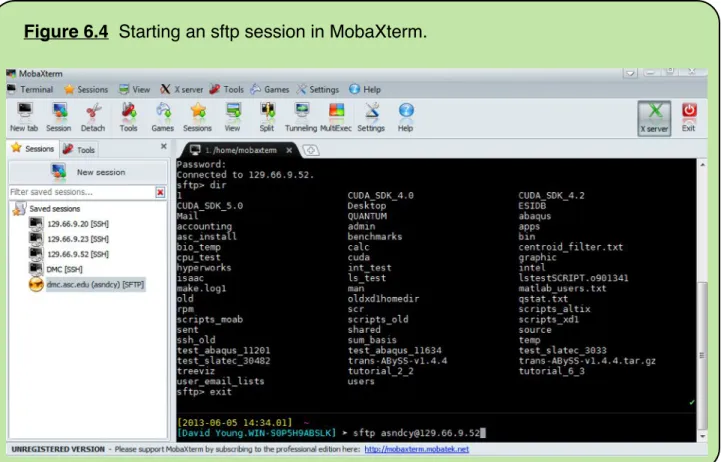
Transferring Files with sftp
!
42
...
Transferring Files with scp
!
46
...
X-Windows
!
47
...
Installing and running MobaXterm
!
47
...
Installing and running Xming
!
50
...
Cygwin Installation
!
51
...
Using Cygwin X-Windows with SSH
!
55
...
Using the screen terminal multiplexer
!
56
...
7. Working with Linux!
58
...
Files and Directories
!
59
...
ASC Linux File Organization
!
60
...
Manipulating Files and Directories
!
63
...
Frequently Used Linux Commands
!
68
...
Using Pipes and Regular Expressions
!
76
...
Redirection of Input and Output
!
77
...
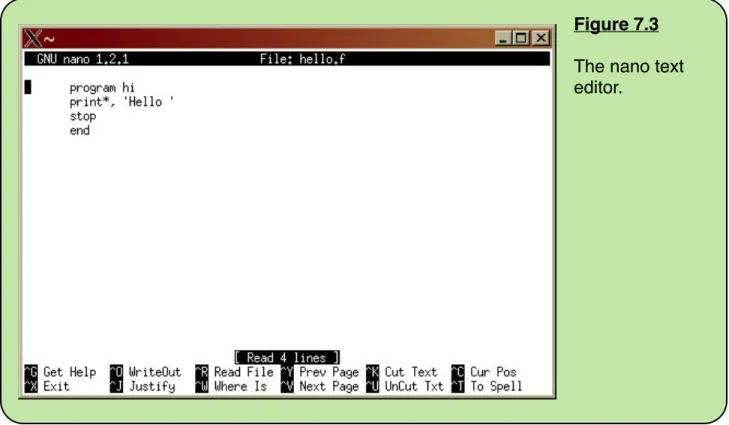
Introduction to the nano Text Editor
!
78
...
Introduction to the Screen-Oriented Editor vi
!
80
...
Shell Scripts
!
85
...
8. Working with the Queue System
!
88
...
Selecting a Queue
!
89
...
Monitoring Jobs
!
91
...
Deleting Queued Jobs
!
93
...
Running Existing Applications Software
!
93
...
Running User Written Software
!
95
...
Efficient Parallel Processing
!
98
...
Running Parallel Applications
!
100
...
Writing Parallel Software
!
101
...
Estimating CPU Time and Memory Needs
!
102
...
9. Using Modules!
105
...
10. Account Configuration!
108
...
Environment variables
!
108
...
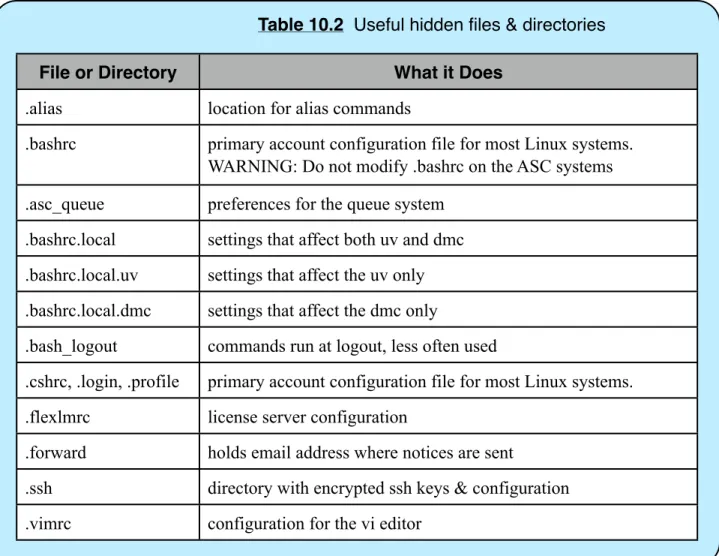
Hidden files
!
110
...
The source and module commands
!
112
...
The Command Prompt
!
113
...
Creating an alias
!
113
...
Tips for Effectively Using the Supercomputers
!
114
...
11. Compiling Software!
115
...
A C Program Example
!
117
...
Compilation and Runtime Errors
!
118
...
Static Versus Dynamic Linking
!
120
...
Optimization
!
121
...
Programming Best Practices
!
126
...
Bibliography
!
131
1. Introduction
This manual is intended for people who will use the supercomputers provided by the Alabama Supercomputer Authority (ASA). This manual gives an introduction to the computing hardware, applications, operating system, how to connect to the computers, and how to run jobs. More detailed information on each of those topics is available in other locations, and referenced as each is discussed. Other books are referenced in the bibliography.
High performance computing (HPC) is the currently trendy monicker for supercomputing. Thus the terms “high performance computing”, “HPC”, and “supercomputing” are used interchangeably in this manual. Likewise the term “supercomputer” and “computing cluster” or just “cluster” are all synonymous. A few companies use the word “cloud” as a synonym for “cluster”, but most use the word “cloud” as a synonym for “virtualized server”.
The Alabama Supercomputer Authority
The Alabama Supercomputer Authority (ASA) provides high performance computing resources to state academic users, state government agencies, national industrial users, and federal government agencies. ASA is a public state nonprofit corporation that develops, maintains, and operates the Alabama Supercomputer Center (ASC) and the Alabama Research and Education Network (AREN). Technical services are provided through professional services and facilities management contractor CSC (formerly Computer Sciences Corporation). See the web site www.asc.edu for more information about ASA.
The Alabama Supercomputer Authority provides a host of services in addition to high performance computing. The Alabama Research and Education Network (AREN) is a statewide high-speed network installed and maintained by ASA. Network services provided include access to ASA high performance computing resources, Internet access, World Wide Web services, and training. ASA provides email and web hosting services for a number of customers. These include some large repositories, such as the Alabama Virtual Library (AVL). A number of customers also host disaster recovery equipment at the Alabama Supercomputer Center.
ASA’s high performance computing resources include a SGI Ultraviolet 2000 supercomputer and a Dense Memory Cluster (DMC). Usage of these systems is free
for academic usage by faculty and students at public educational institutions in Alabama. The majority of this manual is devoted to the description and use of these systems.
About this Manual
Some items of information in this manual deserve particular attention by the reader. These are denoted by the presence of one of the following icons in the left margin.
Tips are suggestions for ways to use the system more effectively. The user can usually get work done without reading the tips, but will find that the tips describe ways to make frequent tasks more convenient.
WARNING: Warnings indicate pitfalls that could cause significant problems for the user. All users should read the warnings and follow their advice.
As the name implies, examples show a specific usage of a tool. Text that is not denoted as an example is a description of how to use the tool. The example icon is used to indicate a significant size example, not just a single line of text.
Reminders indicate information that is presented in other locations, but is also particularly important to understand to fully appreciate the current discussion. Figures are set aside from the text through the use of a box with rounded corners, a black border, and a pale green background. Tables are presented in a similarly shaped box with a pale blue background.
There are also sections of this manual that show text as it is displayed on the computer screen. This is denoted by the use of a Courier New font. Text in Courier New bold face indicates the command that the user actually types. The non-bold text indicates the text provided by the system, such as the command prompt, or results displayed by a command. Here is a short sample of output to the screen.
asndcy@dmc:~> ls -l ls_test
-rw-r--r-- 1 asndcy analyst 742 2008-06-03 13:06 ls_test asndcy@dmc:~> chmod +x ls_test
asndcy@dmc:~> ls -l ls_test
-rwxr-xr-x 1 asndcy analyst 742 2008-06-03 13:06 ls_test
In this example, the text “asndcy@dmc:~>” is the command prompt consisting of the user name, machine name, and directory (the tilde “~” means home directory).
HPC User Manual - Edition 10.1 Introduction
Tip!
!
EXAMPLE
Information that the user must fill in with the appropriate name is denoted by < > signs, like this
ls -l <file_name>
Optional command line arguments are denoted by [ ] signs, like this
ls [-l] ls_test
The notation “CTRL-D” means to hold down the “control” key on the computer keyboard while pressing the D key.
This manual has been written with information for a variety of users. As such, some sections of the manual may not be of interest to you. The following suggests sections of the manual that may be of interest to you.
• If you are new to Linux and the Alabama Supercomputer Center, read Chapters 1-3 and 5-8.
• If you are new to high performance computing, but experienced with Linux and computer science read Chapters 1, 3-5, and 8.
• If you will be using the HPC systems to write software, read Chapters 2, 4, 9, and 11.
• If you are an experienced user of the ASC HPC systems, you might find interesting new information in chapters 2, 4, 9, 10 and the paragraphs denoted with the green Tip! icon in the left margin.
Online Help
Nearly all HPC software packages come with electronic versions of the documentation, which is available once you login via ssh. These are kept on the system in the directory /opt/asn/doc and its subdirectories. These directories also contain README.txt files with a description of how to configure your account to run the software, and how to submit jobs to the queue system.
The directory /opt/asn/doc/index has links browse available software by discipline. The ascdocs command gives a menu driven interface to browse through these directories. ascdocs can display text files. For other files, ascdocs will output the full path, which is needed to copy or download the files.
The best way to get started using a piece of software is to read the README.txt file in the directory /opt/asn/doc/PROGRAM_NAME This can be done with the
ascdocs command. The general_information category contains information that might be useful to users in many fields.
Various online help facilities are available. Linux information can be obtained with the man command. For example;
man <command_name>
or
man -k <keyword>
The man command locates and prints the entry named command_name. The title is entered in lowercase. If local documentation is available, “man” will give you the option of seeing that as well. However, man pages for specific applications may be available only after loading the module for the program. The following example reproduces the description of man on the standard output:
man man
For example, to get information on the gcc command, type:
man gcc
Documentation from SGI is available online at http://techpubs.sgi.com/library/tpl/cgi-bin/init.cgi
The terms of the software license agreement for many of the software packages are online. To see the list of software packages that have license agreements online, or see the license agreement for a specific program, type.
show_license list
show_license <program>
The literature citations for many of the software packages are online. To see the list of software packages that have citations online, or see the citation for a specific program, type.
show_citation list
show_citation <program>
HPC User Manual - Edition 10.1 Introduction
Technical Support for Users
Support for ASC HPC users combines central site (ASC) support with an applications analyst and optional training and collaboration services. This support allows the user to utilize the HPC systems productively as rapidly as possible. Ongoing support to overcome problem areas and in mapping high performance computing technology into the researcher's specific area of study may be available on a case by case basis.
An applications analyst based in Huntsville is available to provide support services to the HPC user community. A manned help desk is available 24 hours a day to answer user questions about the status of the ASA systems and AREN. In most cases, the helpdesk will take down the relevant information and pass HPC help requests on to the HPC technical staff.
The following means can be utilized to contact the technical support staff at the Alabama Supercomputer Center.
Applications Analyst Email: [email protected] Help Desk Phone (in Huntsville): (256) 971-7448 Help Desk Phone (outside Huntsville): (800) 338-8320 Help Desk Email: [email protected]
The HPC support staff can often give the fastest, best response if you send an email to [email protected] and include as much as you can of the following;
• The command you typed • The error message
• Which cluster you were logged in on at the time • The error log file
• The job number from the queue
If the output is rather large or multiple files, you can alternatively tell the support staff the directory name and file name to look at.
The focal point for technical support is the applications analyst. The analyst provides the following services to both educational and industrial users across the state:
General Support: The analyst provides assistance in establishing user accounts, finding documentation and example inputs, program compilation and execution, and other user support as needed.
HPC User Manual - Edition 10.1 Introduction
User Training: The analyst provides introductory lectures, classroom training, and one-on-one instruction on selected topics. This usually needs to be arranged in advance, since there is travel budget for one trip per year to campuses outside of Huntsville, usually spring semester.
Application Program Support: The analyst provides support for installation of programs, limited optimization of code, use of application packages, and resource management.
Outreach Support: The analyst assists in promotion of ASA resources to potential academic and industrial users, through formal technical presentations, demonstrations, and technical consultation.
Collaboration: A number of types of collaboration opportunities can be negotiated on a case-by-case basis. These include hosting services at ASA, joint ventures for acquisition and operation of systems, and specialized training.
2. Computing Basics
This chapter contains general information on a number of topics. It contains an introduction to computer science, and some topics of particular relevance to running large mathematical calculations on supercomputers, also called high performance computers. If you are new to using computing clusters with job queue systems, or aren’t certain of the difference between data in memory and files on a disk, you should read through these sections. Advanced users may find some information of interest in the sections on data management, and processor compatibility.
Parts of a Computer
What do you see when you look at a computer... a keyboard, screen, and places to plug in various types of cables. However, whether a computer is slow or fast, can store large amounts of data, or do large calculations is a function of unseen components like the processor, memory, video card, and hard drive. Here are some components of a computer that you should be familiar with.
The processor is a chip, sometimes several chips, on the computer motherboard. If you look inside a desktop computer, the processor probably has a fan on top of it. The processor is sometimes called the central processing unit, or CPU. The processor takes a list of commands, called a program, and executes each command in the appropriate order. Most computers today have multi-core processors. These are simply multiple CPUs on a single computer chip. Each core is separate processor. Processors have an internal clock with a speed expressed in gigahertz which is how many billion instructions per second the processor can execute. The clock speed is a reasonable way to compare two processors from the same manufacturer and generation. However, clock speed can be misleading when comparing processors from different manufacturers or generations. These points will be discussed in more detail in the section on processor capability and compatibility later in this chapter. To a computer everything is data, regardless of whether it is a program, music file, or results from a quantum mechanics calculation. These various types of data may be used in different ways, but they are all stored in the same way. The data in a computer resides on a disk drive, or in memory, and at times in both locations.
The disk drive is a device that stores data files long term. There are various types of disk drives such as the hard drive inside most computers, faster but smaller solid state
disks, and drives that access removable disks like CDs and DVDs. The disk drive is non-volatile, which means that the files are still there when you turn off the computer. Most of the files on the hard drive are not in use at any one time. Hard drives usually have a very large storage capacity ranging from hundreds of gigabytes (billions of characters) to terabytes (trillions of characters). A byte is a computer term for enough memory or disk space to store a single character on a type written page.
When you start a program or open a file, a copy of the information is read from the disk into memory. The memory is a computer chip which also stores data. The computer processor can access the information in memory much, much faster than it can access the information on a disk drive. However, memory is more expensive than disk storage, smaller, and volatile, meaning that it goes away when the computer is turned off. Most computers have a few gigabytes of memory, although the supercomputers have several terabytes of memory.
To use computers effectively you should understand the difference between memory and disk storage. Confusing the two in conversation can be an embarrassing mistake.
The following are things that refer to disk storage.
• The capacity of a hard drive, disk array, CD, DVD, or USB flash drive.
• The information shown by the Linux commands ls, df, du, scp, sftp, quota, or usage.
• Anything about your home directory disk quota, or tmp disk usage, or scratch disk usage.
• File sizes shown by the Macintosh Finder, or Windows Explorer (not to be confused with Internet Explorer), or other types of file browsers.
The following are things that refer to memory utilization.
• The information shown by the Linux commands top, ps, qstat, or qsub.
• The amount of memory you request when submitting jobs to the queue system.
• The mem= values and memory utilization in the queue error log file. • The Macintosh Activity Monitor, or Windows Task Manager
• Segmentation errors are a problem with the way the software is accessing memory.
A USB flash drive has non-volatile flash memory, so it works like a disk drive even though it is made from computer chips. Many smart phones have flash memory only, although internally there is a difference between what is stored in that memory for the apps that are running and those that aren’t.
HPC User Manual - Edition 10.1 Introduction to High Performance Computing
There is often no correlation between memory utilization and input file sizes. A program that searches through a massive genome file may use very little memory if it only reads a few hundred base pairs into memory at a time. A quantum chemistry calculation on a small input file may require a large amount of memory if you specified a large basis set. Likewise, the size of the program file says little about the memory needs which include loading the program, data, and dynamic linked functions into memory.
Computing systems are also described by their data transfer rates. Data transfer is measured in bits per second, often megabits per second (millions of bits), or gigabits per second (billions of bits). One byte (character) is made up of eight bits. You will most often see these ratings when discussing computer network capabilities, but there are also data transfer rates for the processor to access data in memory and to access disk drives.
Computing Clusters
A desktop or laptop computer is meant for tasks that are instantaneous, or as close to it as possible. In order to make these computers responsive, they are often sized with enough memory to have many programs open at once. Also the processor is running at a few percent of capacity and only spikes near it’s full capability when you perform very mathematically intensive tasks, such as rotating your point of view in a 3D video game. A personal computer tends to seem slow when waiting to access data on the hard drive, or over a network, and seems very responsive when performing tasks with data entirely in memory.
Now consider the task of running a quantum chemistry calculation on a significant size molecule. To compute the molecule’s vibrational motion might take from one to three days, depending upon the capabilities of the computer. Obviously, nearly instantaneous calculation is not an option on any computer in existence. Rather than having your computer freeze up for a couple days while this work is in progress, you would like to send that work off to some other computer to be done and bring the results back to you when it is completed. This type of batch processing model is how computing clusters are designed to operate. There are standard ways of interacting with these computer systems, although it is different from running desktop programs. However, once you learn to use the HPC systems at the Alabama Supercomputer Center, you will find that other computing clusters like those at the national labs, NASA, the Department of Defense, and big corporations are used in a similar manner.
High performance computing (HPC) is the currently trendy name for supercomputers. These are also called computing clusters, beowulf clusters, or just clusters. The next three paragraphs describe other types of large computer systems.
A cluster is computer system that is made of many individual computers, but utilized as one large computer. The HPC systems at the Alabama Supercomputer Center (ASC) are clusters.
Grid computing is the name for a configuration in which multiple HPC systems are interconnected. The current generation of grid computing systems are much more complicated to work with than the more mature technology of computing clusters like the ones at ASC. Grid systems will not be discussed further in this manual.
An on demand computing center is a cluster that can be segmented into smaller clusters, typically to sell computing time to large businesses. These centers often charge relatively high prices to customers who want access to a system with heavy security, such as banks.
The most common definition of cloud computing is being able put in a credit card and immediately buy access to nodes, which might be setup as an HPC system, an email server, or may require you to install and configure the operating system yourself. Most cloud systems use virtualized servers. However, some companies use the term cloud to refer to anything that is done on a server connected to the internet instead of on your local computer, and a few use “cloud” in place of “cluster”.
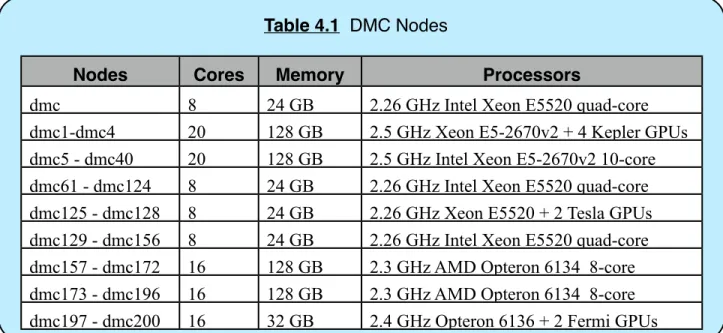
The HPC systems at the Alabama Supercomputer Center are clusters. These are not grid computing systems, on demand systems, or cloud systems. From here on, this manual will only discuss clusters like those at the Alabama Supercomputer Center. Today’s HPC clusters are not one big computer. They are a collection of computers, usually with many computers mounted in a single rack, which are configured to be used as one large computing system. Computers that mount in racks are often called servers. Each server is a reasonably powerful computer with memory, processors, and hard drives, but not individual screens and keyboards (they are accessed remotely via a network). Each one of the computers is called a node in the cluster. In a commodity cluster like the DMC, one of the systems at ASC, each node many have eight or sixteen processor cores and over a hundred gigabytes of memory. In a high end system, like the SGI Ultraviolet at ASC, a node may have hundreds of processor cores and terabytes of memory.
In order get the most computing power for the dollar, HPC systems use hardware that is at the high end of the commodity hardware, meaning components that can be purchased from more than one company. This typically includes high end processors, such as those in the more expensive desktops sold for video gaming enthusiasts, large amounts of memory, and larger or faster disk systems than a desktop computer. As such, a piece of software that runs on a single processor core will often take about the same amount of time on a cluster as on a high end desktop computer. However, on a cluster, software can be written to run faster by using more than one core as part of a single calculation. It is also possible to do more work on a cluster by using a single core for a calculation, but running hundreds of such calculations at the same time. In order to use an HPC system, you need a way to tell it what software to run, and what data file contains the input data. You also need a way to get the results when it is completed. This should be something you can do from your desktop computer at work, or your laptop computer at home. This is done through a login node. The login node is just one of the servers in a cluster. The login node is where you can type commands, read documentation, submit work to run, see the results, and access files for the work you have in progress.
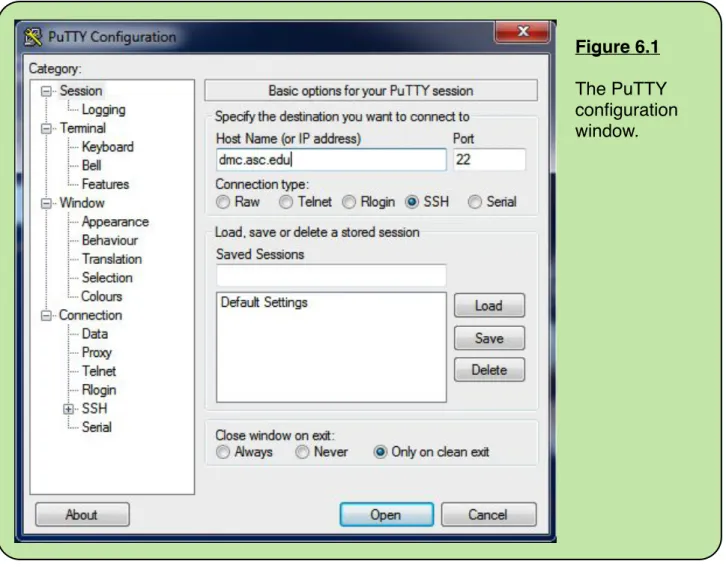
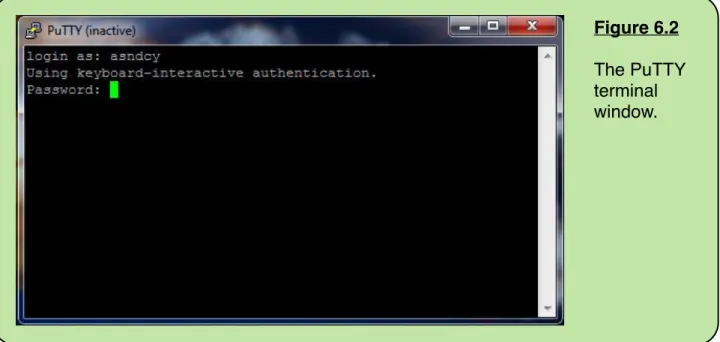
The login node can be accessed remotely over a network. This is done through a network protocol called ssh. If you have a Macintosh or Linux computer, ssh is already installed. Free ssh clients can be downloaded for use on Windows computers. ssh gives you a text interface to type commands. Thus you type text commands, and see the results as text. Most work on an HPC system is done in this text mode. Only a few programs have graphical interfaces available. Most that do have graphic interface options use the graphical program to prepare inputs and display results, but still require you to exit the program and use the text interface to run the calculation. Installing and using ssh is discussed later in this manual.
There are often many people working on the login node at the same time. Each person has their own files in their own directory, called a home directory. Linux has a whole system of permissions that allow you to work with your own files, but not see other people’s files.
The commands that you type when you are logged in via ssh are Linux commands. Linux is the dominant operating system in the HPC and server markets, where as Windows and OS-X (the Macintosh operating system) are more popular for personal computers. Thus is it necessary to learn a handful of frequently used Linux commands in order to use a HPC system. A short list of important Linux commands is presented later in this manual.
Most of the work done on a supercomputer is not run on the login node. You can do small tasks on the login node, such as reading documentation. However, anything that takes more than 10 minutes of CPU time (not 10 minutes reading things on the screen) and a small amount of memory will be automatically killed on the login node. To run calculations taking more than 10 minutes and more than 2 processor cores, you submit the calculation to a job queue. You tell the queue system a few critical pieces of information like what program to run, the name of the input file, how many processor cores to use, and how much memory it needs. The queue system then assigns the work to run on a compute node. Often all of the compute nodes are busy and the job will wait a little while before it can run. However, you can submit many jobs, log out, and come back later to check on them. You may refer to your work as a calculation, or simulation, or something else, but the queue system refers to it as a job. The queue system will guarantee that your job gets the requested resources. The queue system provides commands for submitting jobs, seeing what jobs you have running or waiting, and to kill a job if you so desire. After the job completes, the queue system creates an extra file that contains a log of any errors and information about how much memory your job used, whether it efficiently used multiple processors and more.
The jobs actually run on compute nodes in the cluster, not the login node. HPC systems often have one login node and hundreds of compute nodes. You can only work interactively through the login node. You utilize the compute nodes only by submitting work to the queue system. If you purchase your own HPC system, you will also have to work with additional servers that manage the queue system, passwords, software licenses, home directories, and backup copies of the files in your directories.
Another aspect of a cluster is the file system. Your home directory is visible every node on every cluster at the Alabama Supercomputer Center. This means that there are over two thousand processor cores constantly accessing the same, large home directory file system where everyone has their home directory. Clearly, a SATA drive like you put in a desktop computer could not handle that type of use. The home directories, software, and scratch directories are stored on a high performance Panasas file system. This is a storage cluster which has processors, memory and hard drives. The file you are using right now is usually pulled into the memory cache, even though it still appears to be a file on disk. Because of this, the first time you access a file that hasn’t been used in days there is a lag as Panasas pulls the file from slower, cheaper hard drives to faster, more expensive media. Then you can work with the file repeatedly for a few hours and the response is fairly quick.
Using a HPC system is fairly easy once you have learned a handful of commands. Building or managing an HPC system is much more complicated as you must become
an expert at using many Linux operating system commands and understanding many technical details of how the system works.
Once you have learned a few of the basics of Linux, the queue system, and transferring files to/from the HPC systems, you can focus on running calculations on the system. If the software is already installed, there will be a README file explaining how to configure your account for that software, submit it to the queue, etc. You can find the README file using the ascdocs command. Another good source of help is the HPC technical support staff, who can be contacted via email at [email protected]
Numeric Precision
Consider the task of computing the area of a circle on a computer. You are aware of the formula
A = π r2
However, what is π? π is 3.14159... it goes on infinitely. Our computer doesn’t have an infinite amount of memory to store an infinite number of digits of π, so how many digits does it use?
Computer programs most commonly work with two different representations for numbers, called single precision and double precision. Single precision means that the number is stored in 32 bits of memory, which translates to about eight significant digits in a base ten number. Double precision means that the number is stored in 64 bits of memory, which translates to about sixteen significant digits in a base ten number. Each bit is a 1 or 0, a digit in a base 2 number system, called binary.
It is often necessary to use a higher precision in the computer program than the desired answer. Consider a computer program doing the following.
1.2476543 - 1.2475021 = 0.0001522
In this example, we started out with eight significant digits, but ended up with four significant digits. This is called a loss of precision error. However, if you print out the resulting number, it may print as 0.00015227834 Where did the extra digits come from? Those extra digits are just garbage data that was hanging around in memory from some previous calculation. This gives the illusion that you have an answer accurate to eight significant digits, when you really have an answer accurate to four significant digits. The field of numerical analysis is devoted to understanding these types of issues and writing software that avoids these problems.
We highly recommend that scientists or engineers who will be writing software for mathematical simulations take a numerical analysis class.
In any floating point mathematical calculation the computer must deal with the last digit that can be stored in memory. It can’t just round up if the next number is greater than five, because it doesn’t have memory to store the next number and thus doesn’t know what that number is. Statistically, that last number should round up half the time and round down half the time, so randomly doing each half of the time is better than always rounding up or down. This process is known as “unit round”, and likewise introduces unit round errors when it guesses wrong. After multiple iterations of a complex simulation, these unit round errors will accumulate so that the second to last digit can no longer be trusted to be correct either. The exact algorithm used to perform this unit round operation is different from one chip model to another, thus resulting in getting slightly different answers when the program is run on different models of CPU chip. This will occur even if the software is written correctly and the hardware is functioning correctly.
Some programming languages use the term “float” for single precision and “double” for double precision. A few languages use double precision all the time, even when declaring variables as “float”. Some programming languages also support smaller precisions with variables declared as “short” or “word” or some other name. There are libraries of functions for doing math with more than 64 bits of precision, but software runs very slowly when doing that.
When 64 bits of precision are not enough it is possible to run higher precision calculations. The processor doesn’t have hardware to work with larger numbers, so the software must operate on part of the number, then if necessary cary a bit to work on the next larger part of the number. In this way, any precision can be obtained but the calculation will take much longer to perform. A popular way of doing this is to write a program to use the GNU Multiple Precision Arithmetic Library (GMP). A few special purpose software packages, such as mathematica, have built in support for high precision computations, but calculations done using these packages run even slower yet because of it being an interpretive language (not compiled directly to machine language).
To make things a bit more complicated, x86 series processors do double precision mathematics in 80 bit extended double precision inside the processor, then round down to 64 bits to store the result in memory. This cuts down on certain types of loss of precision errors.
HPC User Manual - Edition 10.1 Introduction to High Performance Computing
Data Management
In recent years, computer technology has advanced significantly. The downside of this has been long term data storage. Removable storage has evolved from disk packs (removable hard drive platters that go in a hard drive the size of a washing machine), to various magnetic tape options, to eight inch floppies, to 5.25 inch floppies, to 3.5 inch floppies, to USB flash drives and writable CDs and DVDs. At the same time, the capacity of hard drives and solid state disks (SSDs) has increased immensely. However, the lifetime of all of these media for long term storage of data is still rather poor.
Newer flash memory may be warrantied for 5 years. Hard drives last 1-6 years. The CD-Rs that you typically find in stores start to degrade after a few years. There are more expensive archival quality CD-Rs rated for decades or even a century. Since these haven’t been around 100 years, those ratings are based on theoretical projections. Likewise, manufacturers claim that DVDs may have a life span up to 30 or 100 years, but there is no industry standard for verifying the lifetime.
An alternative to storing data on removable media is to keep it in a running computer. To keep the data safe, there should be multiple redundancies and a budget to upgrade storage systems and replace failed drives as often as necessary. The home directories on the supercomputers are stored on a system with built in redundancy so that you will not lose files if a single hard drive fails. There are also nightly backups of the home directories, which are kept for only two weeks. However, the free academic accounts on the supercomputers provide only a modest amount of home directory disk space. It has always been the policy that it is the user’s responsibility to transfer the data back to campus for permanent storage.
The /scratch disk area on each cluster is visible to all of the nodes in that cluster, but not to the other HPC system. This is unlike your home directory, which is visible to both systems. The /scratch area is for work in progress. Any data left on /scratch is automatically erased one week after the calculation completes. There is no backup of /scratch. Thus any data files left on /scratch must be transferred elsewhere within a few days if they need to be kept. As such, your work flow in /scratch should look like this;
1. Create a directory in /scratch. Many people use their account name as the directory name, perhaps with something added on to identify which job is running in that directory.
2. Copy data needed by a job to your directory in /scratch. 3. Run one job that uses the files in that directory.
4. Within a week of when that job completes, copy any needed results back to your home directory or to campus.
5. Delete your directory in /scratch.
6. Repeat this process, creating a new directory in /scratch for every job you run. Clearly it is easier to work from your home directory than from /scratch. Your home directory disk quota can be increased up to a point (currently 200 GB) by requesting such from [email protected] and after that you need to pay for additional home directory space. The /scratch area gives you access to ten times as much disk space as your home directory at no monetary cost, but at the expense of the additional steps in your work flow.
WARNING: Do not try to use /scratch as long term storage. Data files left in scratch may be automatically erased if they are more than a week old. Trying to cheat that system with the “touch” command does not work. If you need to save large amounts of data and do not have storage space on campus, contact the HPC staff for information on purchasing additional home directory space.
Each compute node of the DMC also has a /scratch-local disk area that is not visible to any other node. This is for running jobs to use a disk system that is faster than home or scratch. The /scratch-local area also uses a file system that can handle extremely large numbers of small files. However, you cannot see the compute node scratch-local area from the login node (which has it’s own, different /scratch-local area). To use the /scratch-local area, your job script should include the following steps;
1. Create a directory in /scratch-local. Use a unique directory name since two of your jobs may end up running on the same compute node.
2. Copy input data to the directory. 3. Do the calculation in that directory.
4. Copy output data back to your home directory. If your job creates a very large number of files, the “tar” command can be used to archive many small files into a single large file in your home directory.
5. Erase the directory from /scratch-local.
Shared file systems like /home and /scratch do not handle very large numbers of files in a single directory well. Thus use of /home and /scratch is limited to 10,000 files per directory. Even at 10,000 files per directory, your work will run very slowly due to bogging down the file system metadata server (part of the file system server). Work requiring tens of thousands of files should be done on /scratch-local which handles that type of usage much better.
HPC User Manual - Edition 10.1 Introduction to High Performance Computing
The /home file system also has a limit of 200,000 files per user account. Files stored in shared directories count against all disk quotas of the user who originally wrote a given file to that directory.
There is a separate file storage area under the directory /opt/asn/bio. This is an area where publicly available genomes can be staged. This saves on home directory disk space since everyone in the research group doesn’t need to use their home directory space for public genome files. All users of the HPC systems can read the files in this area, but not write any data to this directory. To have a genome file staged here, contact the HPC technical staff at [email protected] This is a static storage area, so none of the files here are updated unless you contact the staff to request a new version.
Processor Capability and Compatibility
In the 1980s and 1990s, computer processors became significantly faster as the internal clock speeds increased from a few kilohertz to megahertz to gigahertz. If this trend had continued, today’s processors would be running at hundreds of gigahertz. However, fundamental laws of physics have put a cap on clock speeds with high end processors being around three gigahertz for a number of years now.
Computer processors have continued to get higher performance, by other means. One of these is implementing dedicated circuits for complex instructions. For example, very early processors had circuitry to add numbers then performed multiplication as repeated additions, thus taking many clock ticks to multiply. Later processors have had dedicated circuitry to perform a multiply in a single clock tick. Other tricks include having secondary math coprocessor chips, and building processors with multiple floating point math units.
The x86 series processors that are in most laptops and clusters today have improved performance by supporting vector math instructions. These are instructions that perform a given mathematical operation on multiple numbers at once. There have been multiple generations of vector instructions with names like MMX, SSE, and AVX built into various models of computer processor.
These vector instructions can be utilized fairly easily by recompiling software, sometimes with an additional compile flag. However, if you compile software to use the AVX instructions in the most recent computer chips in the UV, it will not run on some of the slightly older processors in the DMC. It is possible to compile software to be compatible with the 386 chips from the early 1990s, which allows it to run on every x86 processor in use today, but it will run slowly everywhere. When you purchase commercial software with an automated installation program, it installs the correct files for your computer, thus hiding these issues from you. However, when
you start compiling your own software on a supercomputer, processor compatibility and performance becomes part of your job. The following are some notes on compatibility issues.
There is a text file on all Linux computer systems named /proc/cpuinfo. That file contains information about the model of processor and what types of instructions it supports. Knowing this, you can compile several copies of your program with compile flags that give optimal performance on multiple processor models. You could then have the script that you submit to the queue look for specific entries in that file, then select which executable to use appropriately.
MPI (message passing interface) is a message-passing standard for distributed memory parallelization of software. The UV and DMC use different MPI library implementations. Thus MPI software must be compiled to run on one or the other, but cannot be compiled to run on both. The DMC is usually the better system for running MPI parallelized software.
OpenMP, a shared memory parallelization model, is available on both systems, and compatible between them.
The UV has Sandy Bridge series processors, which support AVX instructions (256 bit vectors) as well as older vector instructions like MMX and SSE (128 bit vectors). Some nodes in the DMC have slightly older processors that support MMX and SSE instructions, but not AVX instructions. As such, software compiled for AVX on the UV will not run on older DMC nodes that lack support for these instructions. However software compiled for SSE on the DMC will often run on the UV.
Software that can make significant use of AVX instructions may run twice as fast as software that uses SSE instructions. Later in this manual, we will give examples of how to write a script to select which program to run if you have compiled software to utilize both.
The command “file_info <file_name>” is an extension of the Linux “file” command. file_info will tell you if an executable file contains SSE or AVX instructions, in addition to giving information about what type of file it is.
Benchmarking
Benchmarking is the process of testing software to see how long it takes to run. This is typically done when writing software to be used on a computing cluster. To do so, the software developer will use a tool called a profiler to determine which parts of the program are taking the longest to execute. Then the software developer will use a
number of optimization techniques to make the program get the exact same answer more quickly. Then a profiling or benchmarking calculation is rerun to see how much faster the software runs.
The supercomputers are configured to be useful for many types of work, but benchmarking is not one of them. As such, the supercomputers at the Alabama Supercomputer Center are a poor choice for benchmarking work. If you run the exact same calculation multiple times on the supercomputer the time it takes will vary, sometimes significantly, from one run to the next. This is for a number of reasons.
• The HPC systems are upgraded annually, often with different processor models. As such, your calculations may be running on different processor models on successive runs.
• Your program may be accessing files in your home directory. There are 2000 other jobs also accessing home directories at the same time, so what all of those other jobs are doing changes the home directory access speed from one second to the next.
• There are other programs running on the same compute node. This load on the node creates contention for memory access and local disk access, thus changing the execution speed of your program based on what the other jobs are doing.
All of these are due to the supercomputers being configured to maximize the amount of work that can be done on them. However, this means that the best way to benchmark your program is to run it on a desktop computer with nothing else running on it, or a cluster architected for benchmarking.
GPUs
The HPC community has used a number of types of math coprocessor chips over the years. The DMC cluster has nVidia GPUs (Graphic Processing Units). Support for these chips has been building momentum in the market for the past few years. As this version of the user manual was being written, eight software packages on the system were supporting GPUs, and software tools for writing software to use GPUs are available.
GPUs are an adaptation of the technology in a high end video card, like those that are ideal for video gaming. GPU chips now have hundreds or thousands of processor cores on them, initially so that game physics could be offloaded to the video card. However, many processor cores on a chip can also be useful for running mathematical simulations more quickly. A few years ago, nVidia started making GPU chips that were designed for HPC by giving them a significant amount of double
precision mathematics capability (video cards only need single precision). nVidia also developed the CUDA programming language, which allows programming software for GPU chips in a language that is similar to C. Today there are a few different programming languages available for GPU chips.
The reason that GPU chips are popular is because these chips give more processing power for the dollar spent than conventional processors. At the time this was written, the small testbed of sixteen GPU chips in the DMC provided more single precision processing capacity than the other 1800 conventional processor cores in the DMC. The trade off that allows GPU chips to be so powerful is that they are SIMD (single instruction multiple data) processors. This means that every core on the GPU chips has to be running the same function, but each can be running that function on a different piece of input data. As such, a GPU is not a general purpose processor, and cannot be the main processor for a computer, only a secondary coprocessor. The disadvantage of GPUs is that software has to be rewritten to use these chips.
There are other types of math coprocessors, although not available on the ASC machines. ASC had a Cray XD1 from 2004 to 2009 which had FPGA chips. The Xeon Phi chips currently under development are a many core version of the x86 series processors. At the time this was written, the Xeon Phi chips appeared promising, but were at an earlier stage of development than nVidia GPUs.
3. Account Administration
In order to use the supercomputers, users must get an account which consists of a user name, password, and disk space to store files. From that account, small jobs can be run on the login node, and larger jobs can be run on the compute nodes via the queue system. There is a wide selection of software available.
Requesting an ASC Account
There are three types of accounts on the supercomputers; academic accounts, class accounts, and commercial accounts. Each user must have a separate account on the supercomputer.
Academic Accounts
Academic accounts are free for academic usage by faculty and students at the public educational institutions in Alabama. Academic usage can be course work, thesis research, or work to be published in the peer reviewed literature. Work that will become the unpublished property of the funding agency is not eligible to be done in an academic account, but can be done in a commercial account.
To request an academic account, the user should submit an ASA HPC Annual Grant Request Form. This form is on the web at.
http://www.asc.edu/cgi-bin/account_request.cgi
NOTE: You must use your campus email address when applying for an academic account. The account request will be denied if you use a commercial email address such as gmail, hotmail, or yahoo.
Many people ask about the CPU Hours item on the account request form. This CPU hours request is not a hard limit. You can still keep running jobs when that many hours are used up. The supercomputer center staff uses the CPU hours for planning based on users anticipated needs. The applicant needs only fill in their best estimate. If other people in the same research group are doing this type of work, they may know how much they are using (ask them to login and type "usage" which shows year to date usage). Student taking a parallel programming class typically use 10 - 100 hours. Graduate students occasionally doing calculations typically use 1000 - 5000 hours. Graduate students doing all of their thesis work on supercomputers typically use 200,000 - 500,000 hours per year.
HPC User Manual - Edition 10.1 Account Administration
After completing the form, click “Submit Grant Application”. This will create a second page summarizing the information that was entered. This second page must be printed, signed and faxed to 256-971-7491. Once the account is created, the user is notified by email and given additional information on using the account. Users are typically notified within three business days of when the faxed form is received. Each year after receiving an academic account, the user will receive an email reminder to again fill out the account request form on the web. It is not necessary to fax anything in when filling out an annual renewal. If the renewal form is not filled out, the account is locked, and the student’s research adviser is contacted to see if they need the files, then the account is erased.
Class Accounts
Class accounts are for the use of students enrolled in a course using the HPC systems for homework assignments. Like academic accounts, access to class accounts is free. Unlike academic accounts, class accounts are deleted at the end of the semester. In order to obtain class accounts, the instructor should contact the HPC staff at [email protected] In order to create the accounts, the staff will need to know the name of the course, the number of accounts required, and any software packages that will be used. The account passwords are provided to the instructor. Course instructors are advised to keep track of which account has been assigned to each student.
Commercial Accounts
Commercial accounts are available for the use of individuals in industry, government, private academic institutions, and academic institutions outside of Alabama. Commercial account time is purchased in advance and charged by the CPU hour. The minimum initial purchase is $2000 with additional time purchased in increments of $1000. Hours purchased must be used within 12 months of the date that the purchaser gets their account on the machine.
To obtain a formal written quote for CPU time, contact Donna Daniel, ASA Director of Client Services, at [email protected] or 334-242-0175.
Some of the software packages at the center can be used at no additional cost, while others require an additional license fee for commercial usage. For information on commercial software pricing, include the list of desired software packages in the request for quote that you send to Donna Daniel.
Feel free to contact technical staff at [email protected] if you have any technical questions. Contact Donna Daniel for financial questions.
Acknowledgement
We ask that any publications from work done with academic or class accounts contain an acknowledgement. Here is a sample, which can be reformatted as necessary for a given publisher.
This work was made possible in part by a grant of high performance computing resources and technical support from the Alabama
Supercomputer Authority.
Disk Quotas
Each account has a quota that limits how much data can be stored. There is a soft quota and a hard limit. When the soft quota is exceeded, an error will be displayed when the user logs in on the system, and queue scripts provided by the staff will refuse to submit new jobs to the queue system. When the hard limit is reached, no additional data can be written to the account, which can result in having the running jobs halt execution.
When an account is created, a small quota is put in place (10 GB). Users can request up to a 200 GB quota at no additional charge. Users can purchase additional disk space. Requests for a larger quota can be emailed to [email protected] . Requests for quote to purchase disk spaces larger than 200 GB can be sent to Donna Daniel, ASA Director of Client Services, at [email protected] or 334-242-0175.
It has always been the policy that the Alabama Supercomputer Center systems are not intended to be used for permanent archival or storage of data. The home directory on the supercomputers is intended to be used for work in progress. Completed work should be transferred back to campus for permanent storage on the appropriate system there. The formal policies of the Alabama Supercomputer Authority are on the web at http://www.asc.edu
The “quota” command presents disk utilization information to the user. By default, “quota -q” is run during the login sequence for all user accounts. The following are the most frequently used options.
quota [-q]
-q show information only if the user is over their quota
HPC User Manual - Edition 10.1 Account Administration
The “filecount” command lists how many files are in each subdirectory tree under the current directory. This is useful for determining where you have many files stored if you are over the account limit of 200,000 files, or the per directory limit of 10,000 files. The stored data that allows filecount to run quickly is updated nightly.
The usage command gives a larger listing of information about the users computer use. It is invoked by simply typing
usage
This shows information for a user including disk quota, CPU hours used, login status, queued jobs, unix group membership, and system access.
The amount of disk space taken up by individual files can be displayed with the command
ls -l
The amount of disk space entire directories take up can be displayed with the command.
du -sk <directory_name>
Computer Security
The high performance computing (HPC) systems are set up to allow you to focus on your area of expertise. The intent is that you will need to put a minimal amount of effort (but still some) into learning the nuts and bolts of the queue system and Linux operating system. However, there are some rules and security practices to be followed. This is to protect you and the other people that use the HPC systems. The following is a discussion of good security practices, both for using the HPC systems and for using any computer. If you have any questions or concerns, contact the technical staff at the Alabama Supercomputer Center at [email protected]
Accounts
Every user should have their own account. If there is a reason you need to access data or software in another person's account, there are mechanisms for making that possible while still using your own account.
If you want to allow others to access your account files from their account, set read access only. Setting global write access also allows anyone to delete all of your files, and can happen by accident.
Each year, you will get an email reminder to renew your account by filling out a web form. You need the account name (but not the password) to be filled in on that form. If you don't fill it out, you will get reminders again the next two months. If the web form is not filled out, the account will be deactivated.
When an account renewal is not done, we contact the research adviser listed on the account request form to see if they want the student's research files before deleting the account.
Passwords
Do not share your password with anyone else.
It is not necessary to give a password to the Alabama Supercomputer Center technical staff when you contact them, or they contact you. Note that simply hitting "reply" to the email that sent you your password sends the old message with the password back to the person that sent it, which should not be done.
Yes, you might have to keep your password written down so you don't forget it, but don't leave it on a post-it note on the monitor where anyone walking into the room can read it. A list of passwords on paper can be well hidden, or there are good free encrypted password database programs such as KeePass.
WARNING: Having your username written on the same piece of paper with the password means that someone who finds it has everything.
It is easy to find yourself with dozens or hundreds of passwords. Yes, most people use some passwords in more than one place. However, it is best if any password attached to money like a bank web site, credit card site, or retirement account is a completely unique password that you don't use anywhere else. It is also best if the password you use for work related accounts is not also used for non-work accounts. We recommend against allowing a web browser to store passwords as this is frequently the target of hacker attacks.
HPC User Manual - Edition 10.1 Account Administration
Data Security
What if you accidentally delete a file that you need?
• If the file is on /scratch or /scratch-local, it is gone and cannot be recovered. You will have to recreate the file.
• If the file has been in your home directory for 24 hours or longer, it can be restored if you contact the HPC staff SOON. There are nightly backups of the home file system, but those backups are only kept a couple weeks.
• If you created the file the same day you deleted it, again the file is gone and will have to be recreated.
There are times when you want to backup a file every few minutes or hours, such as when writing software. The nightly backups are not very useful for this, but here are some other options to consider.
• Some text editors can be configured to keep one previous version of the file with a slightly different file name.
• You can frequently copy the file to another directory.
• If you have a Subversion repository on campus, you can use the subversion commands to put new versions into the repository.
• You can use the Mercurial version control software to make a repository of old file versions in your home directory.
Note that the HPC systems are not a permanent archival or storage system. Once you are no longer using files, they should be deleted or transferred back to campus for permanent storage in the appropriate manner on campus.
In Linux systems, every directory and file has permissions associated with it. There are permissions for what you can do to the file, what your group members can do, and what everyone else can do. By default, no one can see the data in your home directory, but it is possible for you to change that. The Alabama Supercomputer Center uses the group permission for everyone in your department. Do not set global permissions (777 or rwxrwxrwx) unless you are sure you want everyone on earth to be able to read, run, or delete that file.