1
Introduction
to
Definitions
▪
W W W – World Wide Web.
▪
HTML –
HyperText Markup Language
–
The Language of Web Pages on the World
Wide Web.
HTML is a text formatting language.
▪
URL – Uniform Resource Locator.
▪
Browser – A software program which is
3
▪
“Normal text” surrounded by
bracketed
tags
that tell browsers
how to display web pages
▪
Pages end with “.htm” or “.html”
▪
HTML Editor – A word processor
that has been specialized to make
the writing of HTML documents
Tags
▪
Codes enclosed in brackets
▪
Usually paired
<TITLE>
My Web Page
</TITLE>
▪
Not
case sensitive
5
Choosing Text Editor
▪
There are many different programs that
you can use to create web documents.
▪
HTML Editors enable users to create
documents quickly and easily by pushing a
few buttons. Instead of entering all of the
HTML codes by hand.
▪
These programs will generate the HTML
Choosing Text Editor
▪
HTML Editors are excellent tools for
experienced web developers; however; it
is important that you learn and understand
the HTML language so that you can edit
code and fix “bugs” in your pages.
7
Starting NotePad
NotePad is the standard text editor that
comes with the microsoft windows
operating system. To start NotePad in
windows 9x or XP follow the steps bellow:
▪
Click on the “
Start
” button located on your
Windows task bar.
▪
Click on “
Programs
” and then click on the
directory menu labeled “
Accessories
”.
▪
Locate the shortcut “
NotePad
” and click
HTML P
age
C
reation &
E
diting
In this chapter you will learn to create HTML
pages with a standard text editor.
Objectives
Upon completing this section, you should be
able to
1. Choose a Text Editor.
2. Create a Basic Starting Document.
9
Creating a Basic Starting
Document
<HTML>
<HEAD>
<TITLE>Al al-Bayt University</TITLE>
</HEAD>
<BODY>
This is what is displayed.
</BODY>
Creating a Basic Starting
Document
▪
The HEAD of your document point to above
window part. The TITLE of your document
appears in the very top line of the user’s
browser. If the user chooses to “Bookmark”
your page or save as a “Favorite”; it is the
TITLE that is added to the list.
▪
The text in your TITLE should be as
11
Setting Document Properties
▪
Document properties are controlled
by attributes of the
BODY
element.
For example, there are color settings
for the background color of the page,
the document’s text and different
Color Codes
• Colors are set using
“RGB”
color codes,
which are, represented as hexadecimal
values. Each 2-digit section of the code
represents the amount, in sequence, of
red
,
green
or
blue
that forms the color. For
example, a
RGB
value with 00 as the first
13
15
Color Codes
1. WHITE 2. BLACK 3. RED 4. GREEN 5. BLUE 6. MAGENTA 7. CYAN 8. YELLOW 9. AQUAMARINE10. BAKER’S CHOCOLATE 11. VIOLET
12. BRASS 13. COPPER 14. PINK
1. #FFFFFF 2. #000000
3. #FF0000
4. #00FF00
5. #0000FF
6. #FF00FF
17
Color Codes
▪
If you require more information about color
values, there is an excellent site entitled
“VGDesign’s Interactive Color Cube” that
displays the background color code when
you put your cursor over a small color
sample. The Web address is :
The Body Element
• The
BODY
element of a web page is an
important element in regards to the
page’s
appearance.
Here are the attributes of the
BODY
tag to control all the levels:
TEXT="#
RR
GG
BB
"
to change the color of
all
the text
on the page (
full page text color.
)
▪
This element contains information about the
19
Background Color
▪
It is very common to see web pages with
their background color set to white or some
other colors.
▪
To set your document’s background color,
you need to edit the <BODY> element by
adding the BGCOLOR attribute. The
following example will display a document
with a
white
background color:
TEXT Color
▪
The TEXT attribute is used to control
the color of all the normal text in the
document. The default color for text is
black. The TEXT attribute would be
added as follows:
<BODY BGCOLOR=“#FFFFFF”
TEXT=“#FF0000”></BODY>
21
LINK, VLINK, and ALINK
These attributes control the colors of the different link
states:
1. LINK – initial appearance – default = Blue.
2. VLINK – visited link – default = Purple.
3. ALINK –active link being clicked–default= Yellow.
The Format for setting these attributes is:
<BODY BGCOLOR=“#FFFFFF” TEXT=“#FF0000”
LINK=“#0000FF”
VLINK=“#
FF00FF
”
Using Image Background
▪
The BODY element also gives you ability
of setting an image as the document’s
background.
▪
An example of a background image’s
HTML code is as follows:
<BODY BACKGROUND=“hi.gif”
23
Previewing Your Work
▪
Once you have created your basic starting
document and set your document properties it is
a good idea to save your file.
▪
To save a file, in NotePad, follow these steps:
1.
Locate and click on the menu called “File”.
2.
Select the option under File Menu labeled “Save
As”.
3.
In the “File Name” text box, type in the entire
Edit, Save and View Cycle
▪ To preview Your Work, open a web browser and do the following:
1. Click on the menu labeled “File”.
25
Edit, Save and View Cycle
3.
In the “Open” dialog box, click on the
“Browse” button and locate your web
document.
4.
Click “OK” once you have selected your file.
▪
The web browser will load the same
H
eadings,
P
aragraphs,
B
reaks &
H
orizontal
R
ules
In this chapter you will add headings to your page, insert paragraphs, add some breaks, and add horizontal rules.
Objectives
Upon completing this section, you should be able to
1. List and describe the different Heading elements.
2. Use Paragraphs to add text to a document.
3. Insert breaks where necessary.
27
Headings, <Hx> </Hx>
▪
Inside the
BODY
element, heading elements
H1
through
H6
are generally used for major
divisions of the document. Headings are
permitted to appear in any order, but you will
obtain the best results when your documents are
displayed in a browser if you follow these
guidelines:
1. H1: should be used as the highest level of heading, H2
as the next highest, and so forth.
Headings, <Hx> </Hx>
<HTML> <HEAD>
<TITLE> Example Page</TITLE> </HEAD>
<BODY>
29
Paragraphs, <P> </P>
▪
Paragraphs allow you to add text to a
document in such a way that it will
automatically adjust the end of line to suite
the window size of the browser in which it
is being displayed. Each line of text will
Paragraphs, <P> </P>
<HTML><HEAD>
<TITLE> Example Page</TITLE> </HEAD>
<BODY></H1> Heading 1 </H1> <P> Paragraph 1, ….</P>
31
Break, <BR>
▪
Line breaks allow you to decide where the text
will break on a line or continue to the end of the
window.
▪
A <BR> is an empty Element, meaning that it
may contain attributes but it does not contain
content.
Break, <BR>
<HTML> <HEAD>
<TITLE> Example Page</TITLE> </HEAD>
<BODY>
<H1> Heading 1 </H1> <P>Paragraph 1, <BR>
33
Horizontal Rule, <HR>
▪
The <HR> element causes the
browser to display a horizontal
line (rule) in your document.
▪
<HR> does not use a closing tag,
Horizontal Rule, <HR>
Not set Sets a color for the
rule (IE 3.0 or later) COLOR
Center Aligns the line (Left,
Center, Right) ALIGN
Not set (3D look) Draw the rule with a
flat look instead of a 3D look
NOSHADE
100% Width of the rule in
pixels or percentage of screen width
WIDTH
2 pixels Height of the rule in
pixels SIZE
Default Value
Description
35
Horizontal Rule, <HR>
<HTML> <HEAD>
<TITLE> Example Page</TITLE> </HEAD>
<BODY>
<H1> Heading 1 </H1> <P>Paragraph 1, <BR> Line 2 <BR>
C
haracter
F
ormatting
In this chapter you will learn how to enhance your page with Bold, Italics, and other character formatting options.
Objectives
Upon completing this section, you should be able to
1. Change the color and size of your text.
2. Use Common Character Formatting Elements.
3. Align your text.
4. Add special characters.
37
Bold, Italic and other Character Formatting
Elements
▪ <FONT SIZE=“+2”> Two sizes bigger</FONT>
▪ The size attribute can be set as an absolute value from 1 to 7 or as a relative value using the “+” or “-” sign. Normal text size is 3 (from -2 to +4).
▪ <B> Bold </B> ▪ <I> Italic </I>
▪ <U> Underline </U>
▪ Color = “#RRGGBB” The COLOR attribute of the FONT
element. E.g., <FONT COLOR=“#RRGGBB”>this text has color</FONT>
▪ <PRE> Preformatted </PRE> Text enclosed by PRE tags is
Bold, Italic and other Character Formatting
Elements
▪
<EM> Emphasis </EM>
Browsers usually
display this as italics.
▪
<STRONG> STRONG </STRONG
>
Browsers
display this as bold.
▪
<TT> TELETYPE </TT> Text is displayed in a
mono-spaced font. A typewriter text, e.g.
fixed-width font.
▪
<CITE> Citation </CITE> represents a
document citation (
italics
).
For titles of books,
films, etc. Typically displayed in italics. (A
Beginner's Guide to HTML)
39
Bold, Italic and other Character Formatting
Elements
<P> <FONT SIZE=“+1”> One
Size Larger </FONT> - Normal –
<FONT SIZE=“-1”> One Size Smaller </FONT> <BR>
<B> Bold</B> - <I> italics</I> - <U> Underlined </U>
-<FONT COLOR=“#FF0000”> Colored </FONT> <BR> <EM> Emphasized</EM> -
<STRONG> Strong
</STRONG> - <TT> Tele Type </TT> <BR>
One Size Larger - Normal – One Size Smaller
Bold - italics - Underlined -
Colored
Alignment
▪
Some elements have attributes for
alignment (ALIGN) e.g.
Headings,
Paragraphs and Horizontal Rules
.
▪
The Three alignment values are : LEFT,
RIGHT, CENTER.
▪
<CENTER></CENTER>
Will center
41
Alignment
▪
<DIV ALIGN=“value”></DIV>
Represents
a division in the document and can contain
most other element type. The alignment
attribute of the DIV element is well
supported.
Special Characters & Symbols
▪
These Characters are recognized in HTML as
they begin with an ampersand and end with with
a semi-colon e.g. &value;
The value will either
be an entity name or a standard ASCII character
number. They are called escape sequences.
▪
The next table represents some of the more
commonly used special characters. For a
comprehensive listing, visit the W3C’s section on
special characters at:
43
Special Characters & Symbols
™
™
Trademark sign ½½
Fraction one half®
®
Registration mark ¼¼
Fraction one qtr"
"
Quotation mark©
©
Copyright Non-breaking
space ¢
¢
Cent sign
<
<
Less-than sign∗
∗∗
Asterisk
>
>
Greater-thansign &
&
• Additional escape sequences support accented
characters, such as:
• ö
– a lowercase o with an umlaut: ö
• ñ
– a lowercase n with a tilde: ñ
• È
– an uppercase E with a grave accent: È
NOTE: Unlike the rest of HTML, the escape
sequences are case sensitive. You cannot, for
instance, use < instead of <.
45
Additional Character Formatting Elements
▪
<STRIKE>
strike-through text
</STRIKE>
DEL
is used for STRIKE at the latest
browsers
▪
<BIG>
places text in a big font
</BIG>
▪
<SMALL>
places text in a small
font
</SMALL>
▪
<SUB>
places text in subscript position
</SUB>
Example
<P><STRIKE> strike-through text </STRIKE></BR>
<BIG>places text in a big font </BIG><BR>
<SMALL> places text in a small font</SMALL><BR>
<SUB> places text in subscript position </SUB> Normal
47
L
ists
In this chapter you will learn how to create a variety of lists.
Objectives
Upon completing this section, you should be able to
1. Create an unordered list.
2. Create an ordered list.
3. Create a defined list.
List Elements
▪ HTML supplies several list elements. Most list elements are composed of one or more <LI> (List Item) elements.
▪ UL : Unordered List. Items in this list start with a list mark such as a bullet. Browsers will usually change the list
mark in nested lists.
<UL>
<LI> List item …</LI> <LI> List item …</LI> </UL>
• List item …
49
List Elements
▪ You have the choice of three bullet types: disc(default), circle, square.
▪ These are controlled in Netscape Navigator by the “TYPE” attribute for the <UL> element.
<UL TYPE=“square”> <LI> List item …</LI> <LI> List item …</LI> <LI> List item …</LI> </UL>
▪ List item …
▪ List item …
List Elements
▪ OL: Ordered List. Items in this list are numbered automatically by the browser.
<OL>
<LI> List item …</LI> <LI> List item …</LI> <LI> List item …</LI> </OL>
1. List item …
2. List item …
3. List item
51
List Elements
I, II, III, ……
Upper roman
I
i, ii, iii, ……
Lower roman
i
A, B, C, ……
Upper alpha
A
List Elements
▪
You can specify a starting number for an ordered
list.
<OL TYPE =“i”>
<LI> List item …</LI>
<LI> List item …</LI>
</OL>
<P> text ….</P>
<OL TYPE=“i” START=“3”>
<LI> List item …</LI>
53
List Elements
i.
List item …
ii.
List item …
Text ….
List Elements
▪ DL: Definition List. This kind of list is different from the
others. Each item in a DL consists of one or more
Definition Terms (DT elements), followed by one or
more Definition Description (DD elements).
<DL>
<DT> HTML </DT>
<DD> Hyper Text Markup Language </DD> <DT> DOG </DT>
<DD> A human’s best friend!</DD> </DL>
HTML
Hyper Text Markup Language DOG
55
Nesting Lists
▪ You can nest lists by inserting a UL, OL, etc., inside a list item (LI).
EXample
<UL TYPE = “square”> <LI> List item …</LI> <LI> List item …
<OL TYPE=“i” START=“3”> <LI> List item …</LI>
<LI> List item …</LI> <LI> List item …</LI> <LI> List item …</LI> <LI> List item …</LI> </OL>
</LI>
<H1 ALIGN="CENTER">SAFETY TIPS FOR CANOEISTS</H1> <OL TYPE=“a” START=“2”>
<LI>Be able to swim </LI>
<LI>Wear a life jacket at all times </LI>
<LI>Don't stand up or move around. If canoe tips, <UL>
<LI>Hang on to the canoe </LI>
<LI>Use the canoe for support and </LI> <LI>Swim to shore
</UL> </LI>
<LI>Don't overexert yourself </LI> <LI>Use a bow light at night </LI>
<H1 ALIGN="CENTER">SAFETY TIPS FOR CANOEISTS</H1>
<OL TYPE="a" START="2"> <LI>Be able to swim </LI>
<LI>Wear a life jacket at all times </LI>
<LI>Don't stand up or move around. If canoe tips, <UL>
<LI>Hang on to the canoe </LI> <LI>Use the canoe for support <OL type="I" start="4">
<LI> Be careful </LI>
<LI> Do not look around</LI> </LI> </OL>
<LI>Swim to shore </UL> </LI>
<LI>Don't overexert yourself </LI> <LI>Use a bow light at night </LI>
What
will
I
mages
In this chapter you will learn about images
and how to place images in your pages.
Objectives
Upon completing this section, you should be
able to
61
I
mages
▪
<IMG>This element defines a graphic image on
the page.
▪
Image File
(SRC:
source
):
This value will be a
URL (location of the image) E.g.
http://www.domain.com/dir/file.ext
or /dir/file.txt.
▪
Alternate Text (ALT)
:
This is a text field that
describes an image or acts as a label. It is
displayed when they position the cursor over a
graphic image.
I
mages
▪
Width (WIDTH):
is the width of the image in pixels.
▪
Height (HEIGHT):
is the height of the image in
pixels.
▪
Border (BORDER
):
is for a border around the
image, specified in pixels.
▪
HSPACE
:
is for Horizontal Space on both sides of
the image specified in pixels. A setting of 5 will put 5
pixels of invisible space on both sides of the image.
▪
VSPACE
:
is for Vertical Space on top and bottom of
the image specified in pixels. A setting of 5 will put 5
pixels of invisible space above and bellow the
63
Some Examples on images
1) <IMG SRC=“jordan.gif“ border=4>
2) <IMG SRC=" jordan.gif" width="60"
height="60">
3) <IMG SRC=“jordan.gif" ALT="This is a
text that goes with the image">
4) <IMG SRC=" jordan.gif “ Hspace="30"
Vspace="10"
border=20>
A
nchors,
URL
s and
I
mage
M
aps
In this chapter you will learn about Uniform Resource
Locator, and how to add them as Anchor or Links
inside your web pages.
Objectives
Upon completing this section, you should be able to
1.
Insert links into documents.
2.
Define Link Types.
3.
Define URL.
4.
List some commonly used URLs.
65
HOW TO MAKE A LINK
1) The tags used to produce links are the <A>
and </A>. The <A> tells where the link should start and
the </A> indicates where the link ends. Everything between these two will work as a link.
2) The example below shows how to make the word
Here work as a link to yahoo.
<body LINK="#C0C0C0" VLINK="#808080" ALINK="#FF0000">
• LINK - standard link - to a page the visitor hasn't been to yet. (standard color is blue - #0000FF).
VLINK - visited link - to a page the visitor has been to before. (standard color is purple - #800080).
ALINK - active link - the color of the link when the mouse is on it. (standard color is red - #FF0000). If the programmer what to change the color
• Click <a href="http://www.yahoo.com"><font
67
Internal Links
▪ Internal Links : Links can also be created inside large
documents to simplify navigation. Today’s world wants to be able to get the information quickly. Internal links can help you meet these goals.
1. Select some text at a place in the document that you would like to create a link to, then add an anchor to link to like this:
<A NAME=“bookmark_name”></A>
The Name attribute of an anchor element specifies a location in the document that we link to shortly. All NAME attributes in a document must be unique.
2. Next select the text that you would like to create as a link to the location created above.
E-Mail (Electronic Mail)
E.g.
mailto:kmf
@yahoo.com
▪
The type of service is identified as the mail client
program. This type of link will launch the users
mail client.
▪
The recipient of the message is
[email protected]
69
Image Maps
▪ Image maps are images, usually in gif format that have been divided into regions; clicking in a region of the
image cause the web surfer to be connected to a new URL. Image maps are graphical form of creating links between pages.
▪ There are two type of image maps:
Client side and server side
Both types of image maps involve a listing of co-ordinates that define the mapping regions and which URLs those
71
Client-Side Image Maps
▪ Client-side image maps (USEMAP) use a map file that is part of the HTML document (in an element called MAP), and is linked to the image by the Web browser.
<IMG SRC="note.GIF" Width=200 Height=200 border="5" USEMAP="#map1">
<MAP NAME="map1">
<AREA SHAPE="RECT" COORDS="0,0,90,90" HREF="hi.html" ALT="see me…">
<AREA SHAPE="RECT" COORDS="100,100,160,160" HREF="divPara.html" ALT="see him…" >
<AREA SHAPE="CIRCLE" COORDS="150,50,20" HREF="house.html" ALT="see it…" >
</MAP>
Shapes, Coords
• Types of Shapes
• Rect used for squares and ordered shapes. • Circle used for circles.
• Poly used for unordered shapes.
• Number of coordenations for each shape:
• Rect 4 numbers for two corners
• Circle 3 numbers for the center & R
73
T
ables
In this chapter you will learn that tables have many uses in HTML.
Objectives:
Upon completing this section, you should be able to: 1. Insert a table.
2. Explain a table’s attributes. 3. Edit a table.
Tables
▪
The <TABLE></TABLE> element has four
sub-elements:
1.
Table Row<TR></TR>.
2.
Table Header <TH></TH>.
3.
Table Data <TD></TD>.
4.
Caption <CAPTION></CAPTION>.
75
Tables
<table border=“1”>
<tr>
<th> Column 1 header </th> <th> Column 2 header </th>
</tr> <tr>
<td> Row1, Col1 </td> <td> Row1, Col2 </td>
</tr> <tr>
<td> Row2, Col1 </td> <td> Row2, Col2 </td>
</tr>
Tables
Row2, Col2 Row2, Col1
Row1, Col2 Row1, Col1
77
Tables Attributes
▪
BGColor
:
Some browsers support background
colors in a table.
▪
Width
:
you can specify the table width as an
absolute number of pixels or a percentage of the
document width. You can set the width for the
table cells as well.
▪
Border
:
You can choose a numerical value for
the border width, which specifies the border in
pixels.
Table Attributes
▪
CellPadding
:
Cell Padding is the space
between the cell border and the cell
contents and is specified in pixels.
▪
Align
:
tables can have left, right, or
center alignment.
▪
Background
:
Background Image, will be
titled in IE3.0 and above.
79
Table Caption
▪
A table caption allows you to specify a line of
text that will appear centered above or bellow
the table.
<TABLE BORDER=1 CELLPADDING=2>
<CAPTION ALIGN=“BOTTOM”> Label For My Table </CAPTION>
▪
The Caption element has one attribute ALIGN
Table Header
▪
Table Data cells are represented by the
TD element. Cells can also be TH (Table
Header) elements which results in the
contents of the table header cells
81
Table Data and Table Header
Attributes
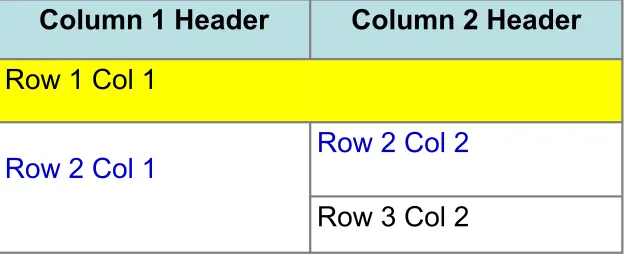
▪ Colspan: Specifies how many cell columns of the table
this cell should span.
▪ Rowspan: Specifies how many cell rows of the table this
cell should span.
▪ Align: cell data can have left, right, or center alignment.
▪ Valign: cell data can have top, middle, or bottom
alignment.
▪ Width: you can specify the width as an absolute number
of pixels or a percentage of the document width.
▪ Height: You can specify the height as an absolute
<TABLE BORDER=1 width=50%>
<CAPTION> <h1>Spare Parts <h1> </Caption>
<TR><TH>Stock Number</TH><TH>Description</TH><TH>List Price</TH></TR>
<TR><TD bgcolor=red>3476-AB</TD><TD>76mm Socket</TD><TD>45.00</TD></TR>
<TR><TD >3478-AB</TD><TD><font color=blue>78mm Socket</font> </TD><TD>47.50</TD></TR>
<TR><TD>3480-AB</TD><TD>80mm Socket</TD><TD>50.00</TD></TR> </TABLE>
83
Table Data and Table Header Attributes
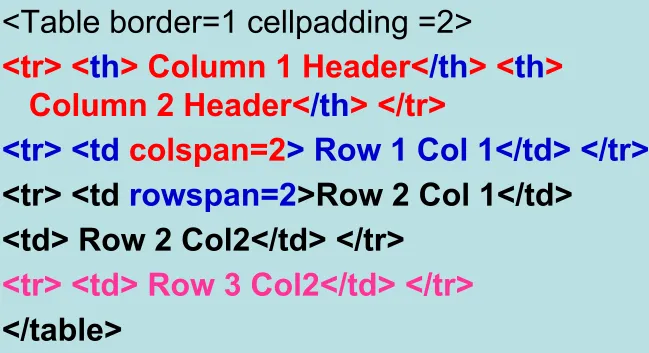
<Table border=1 cellpadding =2>
<tr> <th> Column 1 Header</th> <th>
Column 2 Header</th> </tr>
<tr> <td colspan=2> Row 1 Col 1</td> </tr>
<tr> <td
rowspan=2
>Row 2 Col 1</td>
<td> Row 2 Col2</td> </tr>
<tr> <td> Row 3 Col2</td> </tr>
Table Data and Table Header
Attributes
Row 3 Col 2
Row 2 Col 2
Row 2 Col 1
Row 1 Col 1
85
Special Things to Note
• TH, TD and TR should always have end tags.
Although the end tags are formally optional, many browsers will mess up the formatting of the table if you omit the end tags. In particular, you should always use end tags if you have a TABLE within a TABLE -- in this situation, the table parser gets
hopelessly confused if you don't close your TH, TD and TR elements.
• A default TABLE has no borders
By default, tables are drawn without border lines. You need the BORDER attribute to draw the lines.
• By default, a table is flush with the left margin
TABLEs are plopped over on the left margin. If you want centered tables, You can either: place the table inside a DIV element with attribute ALIGN="center".
Most current browsers also supports table alignment, using the ALIGN attribute. Allowed values are "left", "right", or "center", for example: <TABLE ALIGN="left">. The values "left" and "right" float the table to the left or right of the page, with text flow
<TABLE BORDER width=“750”>
<TR> <TD colspan=“4” align=“center”>Page Banner</TD></TR>
<TR> <TD rowspan=“2” width=“25%”>Nav Links</TD><TD colspan=“2”>Feature
Article</TD> <TD rowspan=“2”
width=“25%”>Linked Ads</TD></TR>
<TR><TD width=“25%”>News Column 1 </TD> <TD width=“25%”><News Column 2 </TD></TR>
87
F
rames
▪
Frames are a relatively new addition to the HTML
standard.
First introduced in Netscape
Navigator 2.0.
Objectives:
Upon completing this section, you should be able to:
▪
Create a Frame based page.
▪
Work with the Frameset, Frame, and Noframes
elements.
▪
Use the attributes of the Frames elements to
89
Frames
▪
A framed page is actually made up of multiple
HTML pages. There is one HTML document
that describes how to break up the single
browser window into multiple windowpanes.
Each windowpane is filled with an HTML
document.
▪
For Example to make a framed page with a
windowpane on the left and one on the right
requires three HTML pages. Doc1.html and
Doc2.html are the pages that contain
content. Frames.html is the page that
Frames
Doc2.html Doc1.html
91
Frame Page Architecture
▪
A <FRAMESET> element is placed in the html
document before the <BODY> element. The
<FRAMESET> describes the amount of screen real
estate given to each windowpane by dividing the
screen into ROWS or COLS.
▪
The <FRAMESET> will then contain <FRAME>
elements,
one per division
of the browser window.
▪
Note: Because there is no BODY container,
FRAMESET pages can't have
background images
Frame Page Architecture
<HTML>
<HEAD>
<TITLE> Framed Page </TITLE>
<FRAMeSET COLS=“23%,77%”>
<FRAME SRC=“Doc1.html”>
<FRAME SRC=“Doc2.html”>
</FRAMeSET >
</HEAD>
93
The Diagram below is a graphical view
of the document described above
FRAMESET COLS=”23%, 77%”
FRAME
NAME=right_pane SRC= Doc2.html
FRAME
<FRAMESET>
Container
<FRAMESET> : The FRAMESET element creates
divisions in the browser window in a single direction. This allows you to define divisions as either rows or columns.
▪ ROWS : Determines the size and number of
rectangular rows within a <FRAMESET>. They are set from top of the display area to the bottom.
Possible values are:
▪ Absolute pixel units, I.e. “360,120”.
▪ A percentage of screen height, e.g. “75%,25%”.
▪ Proportional values using the asterisk (*). This is often combined with a value in pixels , e.g. “360,*”.
95
Creating a Frames Page
▪
COLS
: Determines the size and number of
rectangular columns within a <FRAMESET>.
They are set from left to right of the display
area.
Possible values are:
▪
Absolute pixel units, I.e. “480,160”.
▪
A percentage of screen width, e.g. “75%,25%”.
▪
Proportional values using the asterisk (*). This is
often combined with a value in pixels , e.g.
Creating a Frames Page
▪ FRAMEBORDER : Possible values 0, 1, YES, NO. A setting of zero will create a borderless frame.
▪ FRAMESPACING: This attribute is specified in
pixels. If you go to borderless frames you will need to
set this value to zero as well, or you will have a gap between your frames where the border used to be.
▪ BORDER(thickness of the Frame): This attribute specified in pixels. A setting of zero will create a borderless frame. Default value is 5.
<FRAME>
<FRAME>: This element defines a single frame within a frameset. There will be a FRAME element for each division created by the FRAMESET element. This tag has the following attributes:
▪ SRC: Required, as it provides the URL for the page that will be displayed in the frame.
▪ NAME: Required for frames that will allow targeting by
other HTML documents. Works in conjunction with the target attribute of the <A>, <AREA>, <BASE>, and
99
<FRAME>
▪ MARGINWIDTH: Optional attribute stated in pixels. Determines horizontal space between the <FRAME> contents and the frame’s borders.
▪ MARGINHEIGHT: Optional attribute stated in pixels. Determines vertical space between the <FRAME> contents and the frame’s borders.
▪ SCROLLING: Displays a scroll bar(s) in the frame.
Possible values are:
1. Yes – always display scroll bar(s).
2. No – never display scroll bar(s).
<FRAME>
▪
NORESIZE
:
Optional – prevents viewers
from resizing the frame. By default the
101
<NOFRAMES>
▪ <NOFRAMES>: Frame – capable browsers ignore all HTML within this tag including the contents of the BODY element. This element does not have any attributes.
<HTML> <HEAD>
<NOFRAMES>
<
FRAMESET
COLS="23%,77%">
<FRAME SRC="" NAME="left_pane“>
<FRAME SRC="" NAME="right_pane">
<NOFRAMES>
<P> This is a Framed Page. Upgrade your
browser to support frames.</P>
103
Compound FRAMESET Divisions
▪
In this case a second FRAMESET element will
be inserted in the place of the FRAME element
that would describe the second row.
▪
The second FRAMESET element will divide the
remaining screen real estate into 2 columns.
▪
This nested FRAMESET will then be followed by
Compound FRAMESET Divisions
<html> <head>
<title> Compound Frames Page</title>
</head>
<frameset rows=“120,*”> <frame src=“banner_file.html” name”banner”> <frameset cols=“120,*”> <frame src=“links_file.html” name=“links”> <frame src=“content_file.html” name=“content”><
no
frames>
<p>
Default
message
</p>
</
no
frames>
</frameset>
</frameset>
105
Compound FRAMESET Divisions
You may want to create a frames design with a
combination of rows and columns.
Banner File
Contents File
Links
<HEAD>
<FRAMESET ROWS="25%,50%,25%”
<FRAME SRC="">
<FRAMESET COLS="25%,*">
<FRAME SRC="">
<FRAME SRC="">
</FRAMESET>
<FRAME SRC="">
</FRAMESET>
</HEAD>
107
111
Frame Formatting
• Example:
<frameset rows=“20%, *, 20%”>
<frame src=“header.html” noresize
scrolling=no>
<frame src=“body.html”>
<frame src=“navigationbar.html”
noresize
scrolling=no
>
1) <FRAMESET COLS="2*, 3*, 5*">
2) <FRAMESET COLS="150, 20%, *, 3*">
So what are the space-allocation priorities?
Absolute pixel
values are always assigned
space first
, in order from
left
to
right
.
These are followed by
percentage
values
of the total space. Finally,
proportional
values are divided based upon what space
is
left
.
115
• The <FRAME> tag has six associated
attributes:
SRC
,
NAME
,
MARGINWIDTH
,
MARGINHEIGHT
,
SCROLLING
, and
NORESIZE
. Here's a complete generic
FRAME:
• <
FRAME
SRC="url" NAME="window_name"
SCROLLING=
YES|NO|AUTO
MARGINWIDTH="value"
MARGINHEIGHT="value"
NORESIZE>
<FRAMESET
ROWS="*, 2*, *"
COLS="2*, *">
<FRAME SRC=“”>
<FRAME SRC=“”>
<FRAME SRC=“”>
<FRAME SRC=“”>
<FRAME SRC=“”>
<FRAME SRC=“”>
</FRAMESET>
117
Targets
▪ When you use links for use in a frames environment you will need to specify an additional attribute called TARGET.
▪ The TARGET attribute uses the NAME attribute of the
FRAME element.
▪ If we were to place a link in doc1.html that linked to
doc3.html and we wanted doc3.html to be displayed in the right windowpane; the HTML code would appear in
doc1.html as follows:
<
A
HREF=“doc3.html”
Special Targets
• There are 4 special target names that cannot be assigned by the NAME attribute of the FRAME tag.
1. TARGET=“_top” : This loads the linked document into the full browser window with the URL specified by the HREF attribute. All frames disappear, leaving the new linked page to occupy the entire window. The back is turned on.
2. TARGET=“_blank” : Opens an unnamed new browser window and loads the document specified in the URL attribute into the new window (and your old window stays open). The back is turned off. Other windows remains on.
3. TARGET=“_self” : Loads the document in the same window where the anchor was {Clicked}. This is the default setting for linking elements.
4. TARGET=“_parent” : the _parent frame is a prior frameset that the current frameset was “spawned” from. If there isn’t one it is the browser window. The document is loaded into the area
119
If a frame contains the following link, then clicking the link
launches a new, unnamed browser display window that contains the content defined in stuff.HTM. This can be a simple HTML
document, or an entirely new FRAMESET definition.
1. <A HREF="stuff.html" TARGET="_blank">
If a frame contains the following link, then clicking the link will simply cause the frame which contains the link to clear, and its content will be replaced with whatever is in stuff.htm.
2. <A HREF="stuff.html" TARGET="_self">
If a frame contains the following link, the frameset that contains the frame that contains this link will be replaced by stuff.HTM.
3. <A HREF="stuff.html" TARGET="_parent">
Finally, if a frame contains the following link, clicking the link replaces the entire browser window with the contents of
stuff.HTM.
Targeting links to frames
The TARGET attribute allows you to specify the frame into which a page is to be loaded into in a frames setting.
<A HREF=“chap1.html” TARGET=“_self”> [Chapter 1]</A> <A HREF=“chap1.html” TARGET=“_parent”> [Chapter 2]</A>
Parent window Learning HTML
[Chapter 1][Chapter 2][Chapter 3]
chap1.html
121
Targeting links to frames
The TARGET attribute allows you to specify the frame into which a page is to be loaded into in a frames setting.
<A HREF=“chap1.html” TARGET=“bottom”> [Chapter 1]</A> <A HREF=“chap2.html” TARGET=“bottom”> [Chapter 2]</A> <A HREF=“chap3.html” TARGET=“bottom”> [Chapter 3]</A>
Learning HTML
[Chapter 1][Chapter 2][Chapter 3]
chap1.html
chap2.html
Forms
▪ Forms add the ability to web pages to not only provide the
person viewing the document with dynamic information but also to obtain information from the person viewing it, and process the information.
Objectives:
Upon completing this section, you should be able to
1. Create a FORM.
2. Add elements to a FORM.
3. Define CGI
(Common Gateway Interface).
4. Describe the purpose of a CGI Application.
5. Specify an action for the FORM.
▪ Forms work in all browsers.
123
Forms
▪ To insert a form we use the <FORM></FORM> tags. The rest of the form elements must be inserted in between the form tags.
<HTML> <HEAD>
<TITLE> Sample Form</TITLE> </HEAD>
<BODY BGCOLOR=“FFFFFF”>
<FORM ACTION = http://www.xnu.com/formtest.asp> <P> First Name: <INPUT TYPE=“TEXT” NAME=“fname”
MAXLENGTH=“50”> </P>
<P> <INPUT TYPE=“SUBMIT” NAME=“fsubmit1” VALUE=“Send Info”>
</P> </FORM>
<FORM> element attributes
▪
ACTION
:
is the
URL
of the
CGI
(Common
Gateway Interface) program that is going to
accept the data from the form, process it, and
send a response back to the browser.
▪
METHOD
:
GET
(default) or
POST
specifies
which
HTTP
method will be used to send the
form’s contents to the web server. The CGI
application should be written to accept the
data from either method.
▪
NAME
:
is a form name used by
VBScript
or
JavaScripts.
125
Form Elements
▪
Form elements have properties:
Text
boxes,
Password
boxes,
Checkboxes
,
Option(
Radio
) buttons,
Submit
,
Reset
,
File
,
Hidden
and
Image
.
▪
The properties are specified in the
TYPE Attribute of the HTML element
Sami Ali
127
Form Elements
MAXLENGHT= Maximum number of characters
accepted.
SIZE= Number of visible characters in text field
CHECKED= Button/box checked
VALUE= The data associated with the variable
name to be passed to the CGI application
NAME = Variable name passed to CGI application
TYPE= Type of INPUT entry field.
Text Box
▪
Text boxes
: Used to provide input fields for text, phone numbers, dates, etc.<INPUT TYPE= " TEXT " >
Browser will display
Textboxes use the following attributes:
▪ TYPE: text.
▪ SIZE: determines the size of the textbox in
characters. Default=20 characters.
▪
MAXLENGHT
: determines the maximum number of characters that the field will accept.▪ NAME: is the name of the variable to be sent to the
129
<TITLE>Form_Text_Type</TITLE> </HEAD> <BODY>
<h1> <font color=blue>Please enter the following bioData</font></h1>
<FORM name="fome1" Method= " get " Action= " URL " > First Name: <INPUT TYPE="TEXT" NAME="FName"
SIZE="15" MAXLENGTH="25"><BR>
Last Name: <INPUT TYPE="TEXT" NAME="LName" SIZE="15" MAXLENGTH="25"><BR>
Nationality: <INPUT TYPE="TEXT" NAME="Country" SIZE="25" MAXLENGTH="25"><BR>
The Phone Number: <INPUT TYPE="TEXT" NAME="Phone" SIZE="15" MAXLENGTH="12"><BR>
</FORM> </BODY> </HTML>
131
▪
Password
:
Used to allow entry of passwords.<INPUT TYPE= " PASSWORD " >
Browser will display
Text typed in a password box is starred out in the browser display.
Password boxes use the following attributes:
▪ TYPE: password.
▪ SIZE: determines the size of the textbox in characters.
▪ MAXLENGHT: determines the maximum size of the
password in characters.
▪ NAME: is the name of the variable to be sent to the CGI
application.
▪ VALUE: is usually blank.
<HTML><HEAD>
<TITLE>Form_Password_Type</TITLE></HEAD>
<BODY>
<h1> <font color=red>To Access, Please
enter:</font></h1>
<FORM name="fome2" Action="url" method="get">
User Name: <INPUT TYPE="TEXT" Name="FName"
SIZE="15" MAXLENGTH="25"><BR>
Password: <INPUT TYPE="PASSWORD"
NAME="PWord" value="" SIZE="15”
MAXLENGTH="25"><BR>
133
▪
Hidden
:
Used to send data to the CGI
application that you don’t want the web surfer to
see, change or have to enter but is necessary for
the application to process the form correctly.
<INPUT TYPE=“HIDDEN”>
Nothing is displayed in the browser.
Hidden inputs have the following attributes:
▪
TYPE:
hidden.
▪
NAME:
is the name of the variable to be sent to
the CGI application.
▪
VALUE:
is usually set a value expected by the
CGI application.
135
Check Box
▪
Check Box
: Check boxes allow the users to select more than one option.<INPUT TYPE=“CHECKBOX”>
Browser will display
Checkboxes have the following attributes:
▪ TYPE: checkbox.
▪ CHECKED: is blank or CHECKED as the initial
status.
▪ NAME: is the name of the variable to be sent to the CGI application.
<HTML> <HEAD><TITLE>CheckBoxType</TITLE> </HEAD> <BODY>
<h1> <font color=green>Please check one of the following</font></h1>
<FORM name="fome3" Action="url" method="get">
<font color=red> Select Country: </font><BR>
jordan:<INPUT TYPE="CheckBox" Name="country" CHECKED><BR>
Yemen<INPUT TYPE="CheckBox" Name="country"><BR> Qatar:<INPUT TYPE="CheckBox" Name="country"><BR> <BR>
<font color=blue>Select Language:</font><BR>
Arabic:<INPUT TYPE="CheckBox" Name="language" CHECKED><BR> English:<INPUT TYPE="CheckBox" Name="language"><BR>
137
▪
Radio Button
:
Radio buttons allow the users to select only one option.<INPUT TYPE=“RADIO”>
Browser will display
Radio buttons have the following attributes:
▪ TYPE: radio.
▪ CHECKED: is blank or CHECKED as the initial
status. Only one radio button can be checked
▪ NAME: is the name of the variable to be sent to the
CGI application.
▪ VALUE: usually has a set value.
139
<HTML> <HEAD><TITLE>CheckBoxType</TITLE> </HEAD> <BODY>
<h1> <font color=green>Please check one of the following</font></h1>
<FORM name="fome3" Action="url" method="get">
<font color=red> Select Country: </font><BR>
jordan:<INPUT TYPE= "RADIO" Name="country" CHECKED><BR>
Yemen<INPUT TYPE="RADIO " Name="country"><BR> Qatar:<INPUT TYPE="RADIO" Name="country"><BR> <BR>
<font color=blue>Select Language:</font><BR>
Arabic:<INPUT TYPE="RADIO" Name="language"
CHECKED><BR> English:<INPUT TYPE=" RADIO "
Name="language"><BR>
French:<INPUT TYPE=" RADIO " Name="language">
141 <HTML><HEAD> <TITLE>RADIOBox</TITLE> </HEAD> <BODY> Form #1: <FORM>
<INPUT TYPE="radio" NAME="choice" VALUE="one"> Yes. <INPUT TYPE="radio" NAME="choice" VALUE="two"> No. </FORM>
<HR color=red size="10" >
Form #2:
<FORM>
<INPUT TYPE="radio" NAME="choice" VALUE="three" CHECKED> Yes.
<INPUT TYPE="radio" NAME="choice" VALUE="four"> No. </FORM>
143
▪
Push Button:
This element would be used with JavaScript to cause an action to take place.<INPUT TYPE=“BUTTON”>
Browser will display
Push Button has the following attributes:
▪ TYPE: button.
▪ NAME: is the name of the button to be used
in scripting.
▪ VALUE: determines the text label on the button.
<DIV align=center><BR><BR>
<FORM>
<FONT Color=red>
<h1>Press Here to see a baby crying:<BR>
<INPUT TYPE="button"
VALUE="PressMe"><BR><BR>
<FONT Color=blue>
Click Here to see a baby shouting:<BR>
<INPUT TYPE="button" VALUE="ClickMe" >
<BR><BR>
<FONT Color=green>
Hit Here to see a baby eating:<BR>
▪
Submit:
Every set of Form tags requires a Submit button. This is the element causes the browser to send the names and values of the other elements to the CGI Application specified by the ACTION attribute of the FORM element.<INPUT TYPE=“SUBMIT”>
The browser will display
Submit has the following attributes:
▪ TYPE: submit.
▪ NAME: value used by the CGI script for processing.
▪ VALUE: determines the text label on the button,
usually Submit Query.
147